Begin
14 pages · ~28 min
PDF to Excel Conversion
Learn a practical workflow for converting PDF data into editable Excel spreadsheets, enabling accurate data extraction and efficient reuse across business tasks.
A digital instructor presents all 14 pages. Hold “Ask” at any point and ask out loud — the answer comes from this course. No sign-up needed.
What you’ll learn
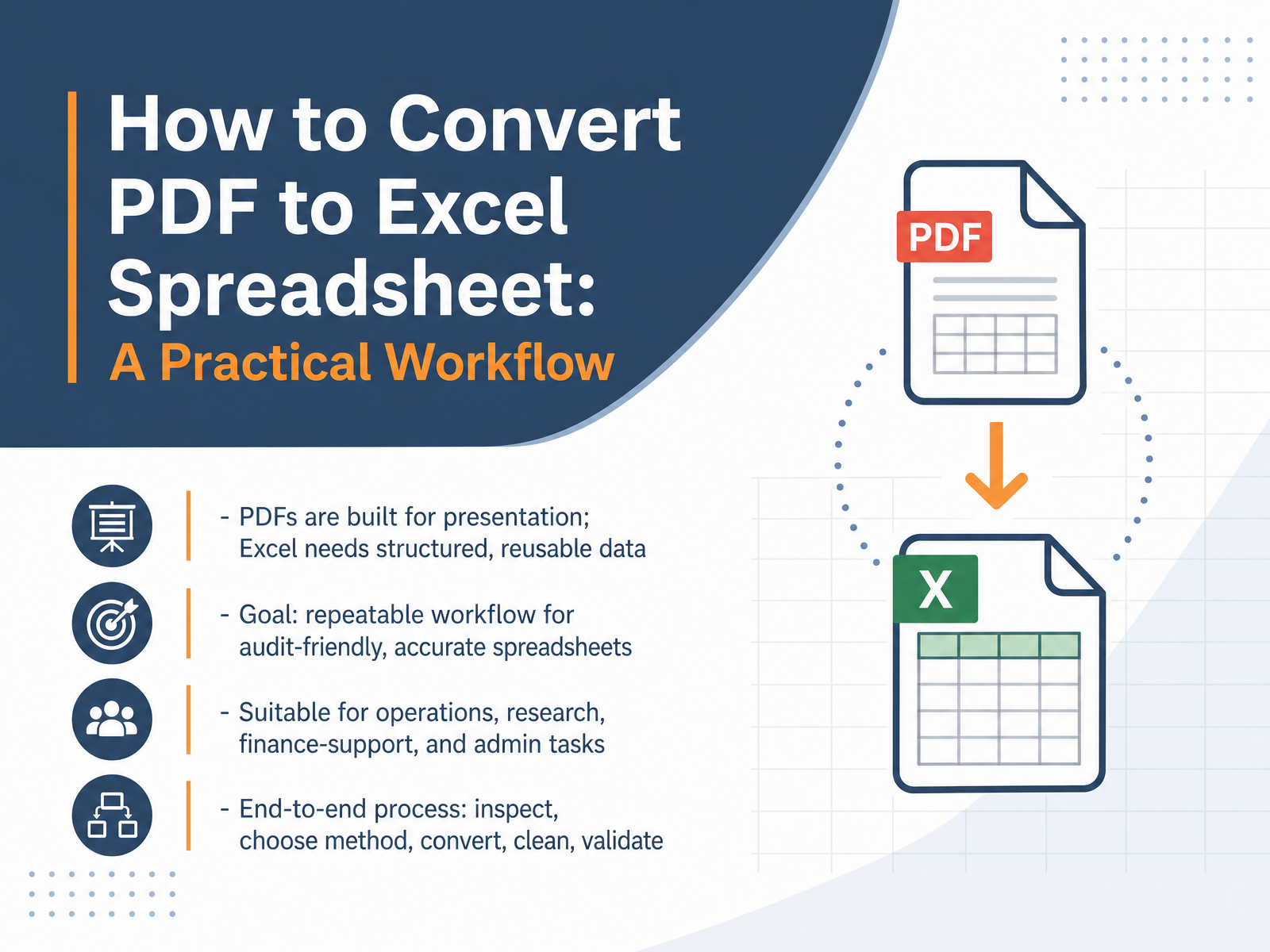
- 01How to Convert PDF to Excel Spreadsheet: A Practical WorkflowWelcome. If you have ever needed numbers from a PDF in a spreadsheet, you know it can feel like a puzzle. PDFs are built to look good on a page or screen. Excel needs data arranged in clean rows and columns. The good news is that this is a routine task, and there is a practical way through it. In this session, we will build a repeatable workflow that gives you accurate, audit-friendly spreadsheets without the rework. We will cover the full journey: inspecting your source file, choosing the right conversion method, cleaning up the result, and validating that your data is trustworthy. This applies directly to your day-to-day work in operations, research, finance support, or administration. By the end, you will have a process you can rely on. Let us start by understanding why this conversion can be tricky in the first place.convertfiles.compdf4.devinvoicedataextraction.com+21 min
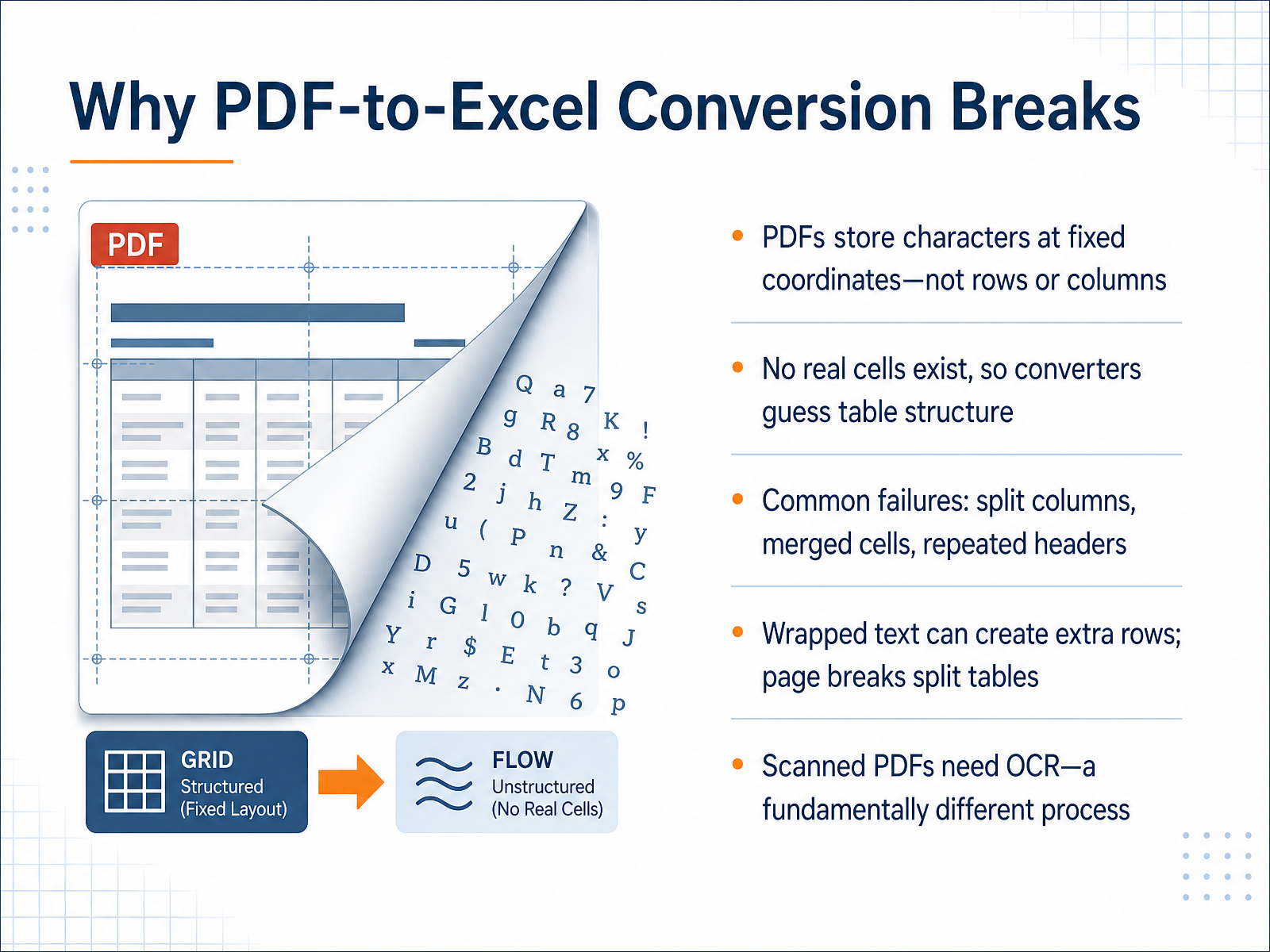
- 02Why PDF-to-Excel Conversion BreaksLet’s look at why the conversion breaks in the first place. A PDF does not store information in rows and columns. It stores text characters at fixed positions on the page. There are no real cells underneath the table you see. So, the converter has to guess where the table structure is. Sometimes it guesses wrong. That is why you get split columns, merged cells, or repeated headers. Wrapped text can create extra rows. A page break can split a table across two sheets. And if your PDF is a scanned image, that introduces a completely different challenge. You cannot convert a picture of text directly. You need a special process called optical character recognition. The root cause is simple: you are asking a tool to rebuild a structure that does not exist in the source file. Understanding this helps you know what to fix later. So, next, we will match the right method to the type of PDF you are working with.
 pdfxlsx.comleopdf.compdfxlsx.com+22 min
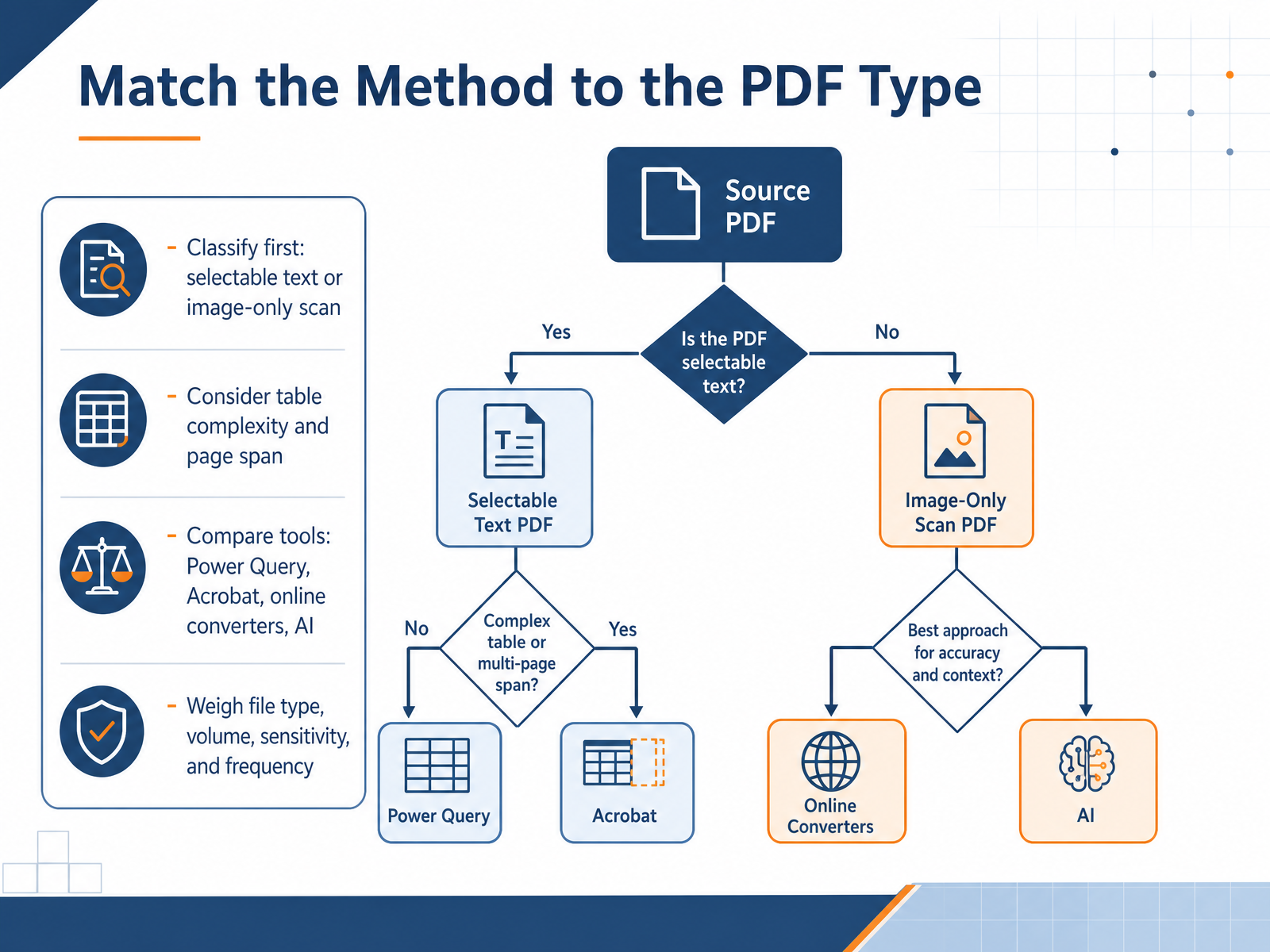
 - 03Match the Method to the PDF TypeNow let's talk about choosing the right method for converting your PDF. The first thing to do is figure out what kind of PDF you have. Open it and try selecting text with your cursor. If the text highlights, it's a digital PDF with selectable text. If nothing highlights, or if the page looks like a photo, it's an image-only scan, and you'll need OCR, or optical character recognition, software to read the text. Next, consider the complexity of the data. Are you dealing with a simple one-page table, or a multi-page report with merged cells and headers? Also, think about page span—does the table continue across multiple pages? For simple one-off conversions, Excel's built-in Power Query tool is a great start. For image scans, you might need Adobe Acrobat or an online converter with OCR. If you have sensitive data, avoid free online tools, and instead use software installed on your own computer. Finally, weigh your file volume and frequency. If you convert PDFs weekly, it's worth setting up a repeatable process. But if this is a one-time task, a quick online tool may suffice. Keep in mind: there's no universal best method, but matching the tool to the PDF type and your needs saves you frustration and rework. We'll explore Excel's native option next.
 2 min
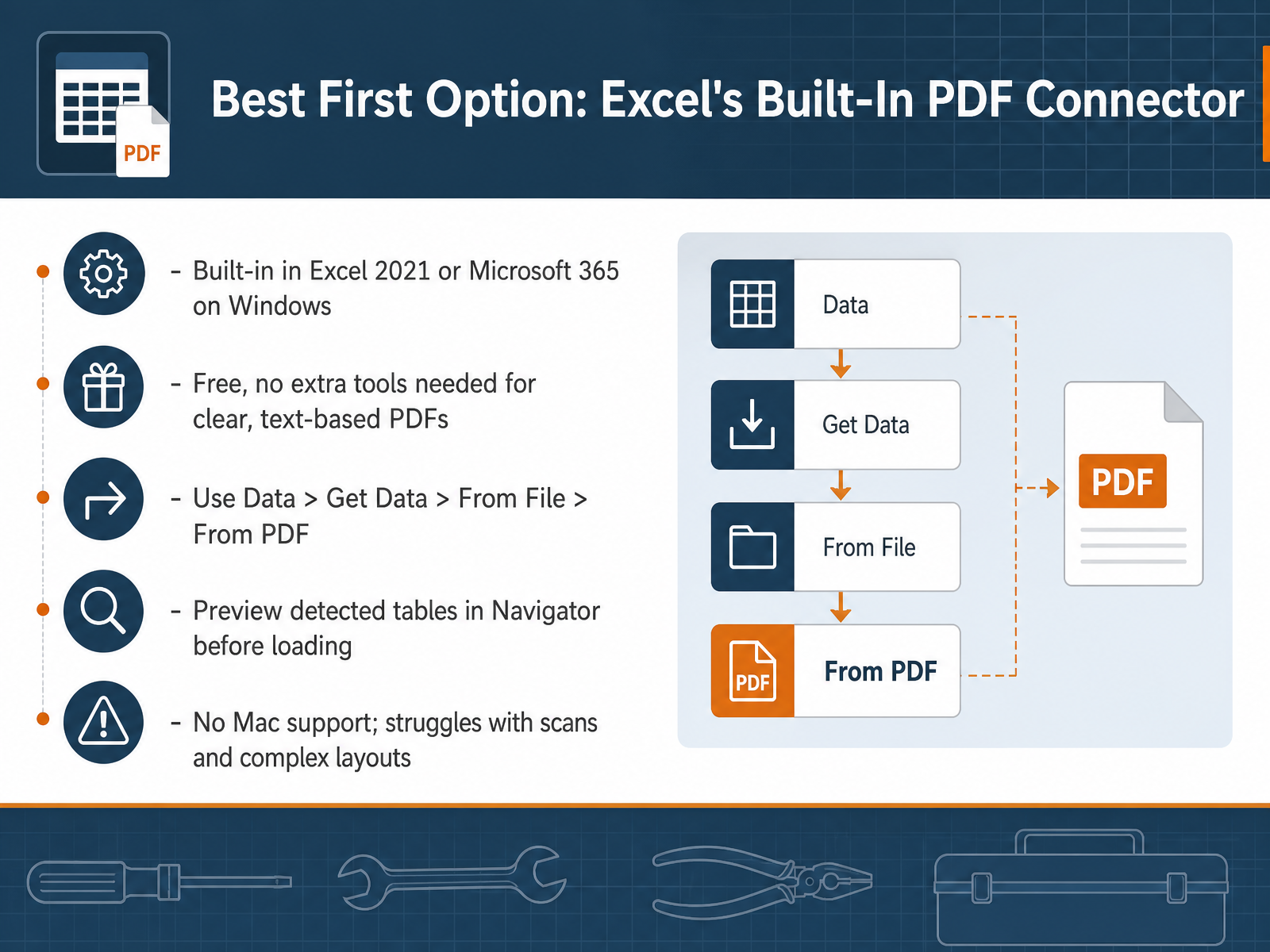
2 min - 04Best First Option: Excel's Built-In PDF ConnectorLet's start with the option you likely already have. If you're on Excel 2021 or Microsoft 365 on Windows, there's a built-in PDF connector. That means no extra software, and no cost. For clear, text-based PDFs, it's often the fastest path to accurate data. Here's how it works. Open a blank workbook, go to the Data tab, click Get Data, then From File, and choose From PDF. Pick your file, and Excel will scan it. A Navigator window will appear, showing every table it detected. Click each one to preview it on the right side. This is your chance to confirm the rows and columns look right before you commit. When you're satisfied, click Load, and the data lands in your sheet as an editable table. One thing to keep in mind, this feature doesn't work on Mac. And if your PDF is a scan, or has a very complex layout, the built-in tool will struggle. For those cases, we'll cover other options shortly. So, remember this first option for your everyday, clean PDFs. If it doesn't handle the job, the next best route is a dedicated converter.
 excel.cloud.microsoftthetechgorilla.comlearn.microsoft.com+22 min
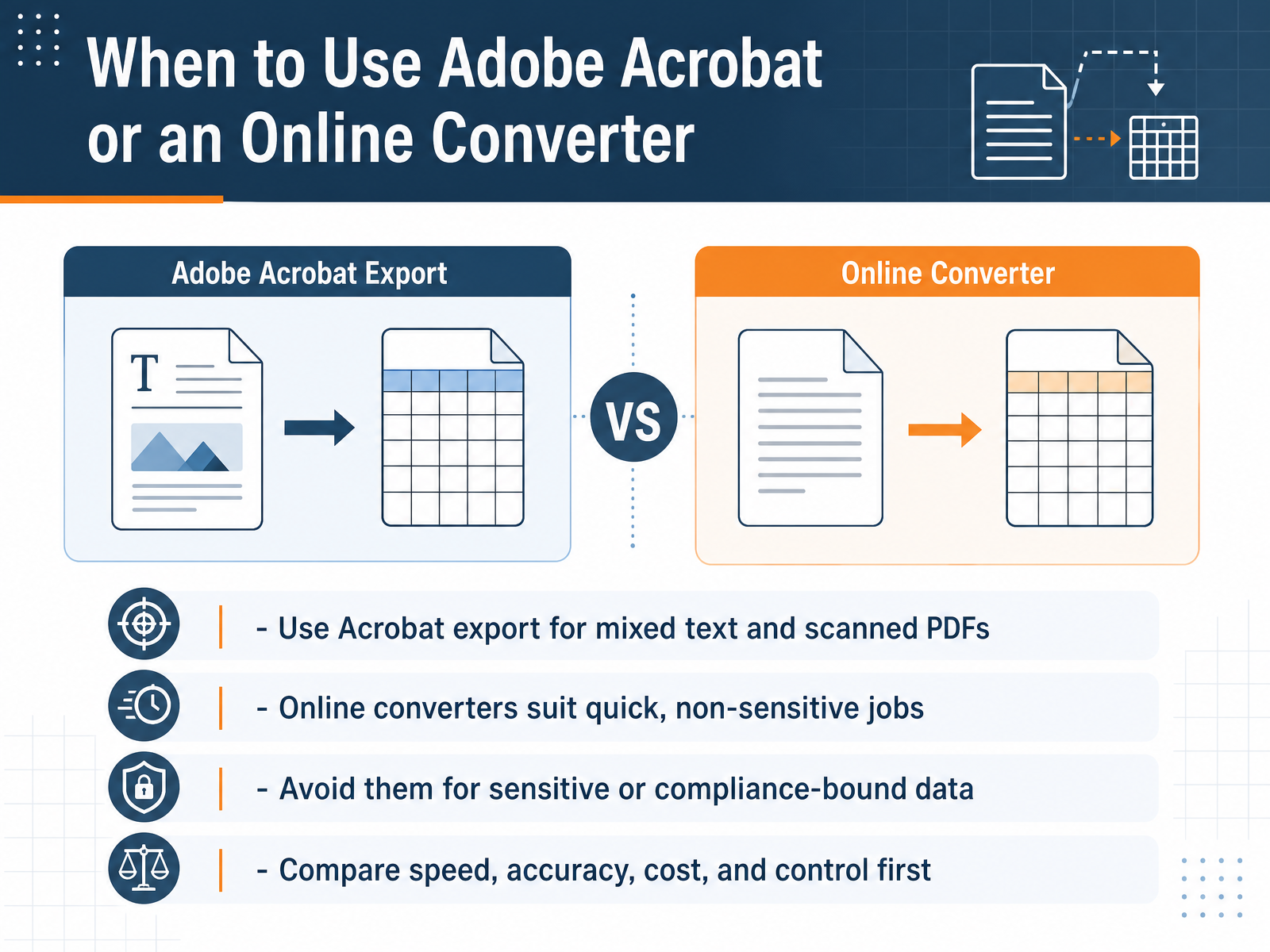
 - 05When to Use Adobe Acrobat or an Online ConverterNow let’s talk about which tool fits the job. Adobe Acrobat’s export feature is your best bet when you have a mix of typed text and scanned pages in one PDF. It handles that combination well and keeps formatting stable. Online converters are handy when you need a quick result and the file contains nothing sensitive. But here’s the key caution: avoid online tools for confidential, regulated, or compliance-bound data. Even reputable sites store files temporarily, and that can be a risk you don’t want to take. So before you choose, compare four things: speed, accuracy, cost, and control. Acrobat is slower and costs money but gives you more control. Online tools are fast and free, but accuracy drops on complex layouts, and you hand over your data. For routine internal reports, either can work. For financials, client records, or anything under a data agreement, stick with a desktop tool. A quick rule of thumb: if you would hesitate to email the file to a stranger, do not upload it to a converter. Next, we’ll look at handling scanned PDFs and OCR, which is where many so-called impossible files become perfectly usable.
 2 min
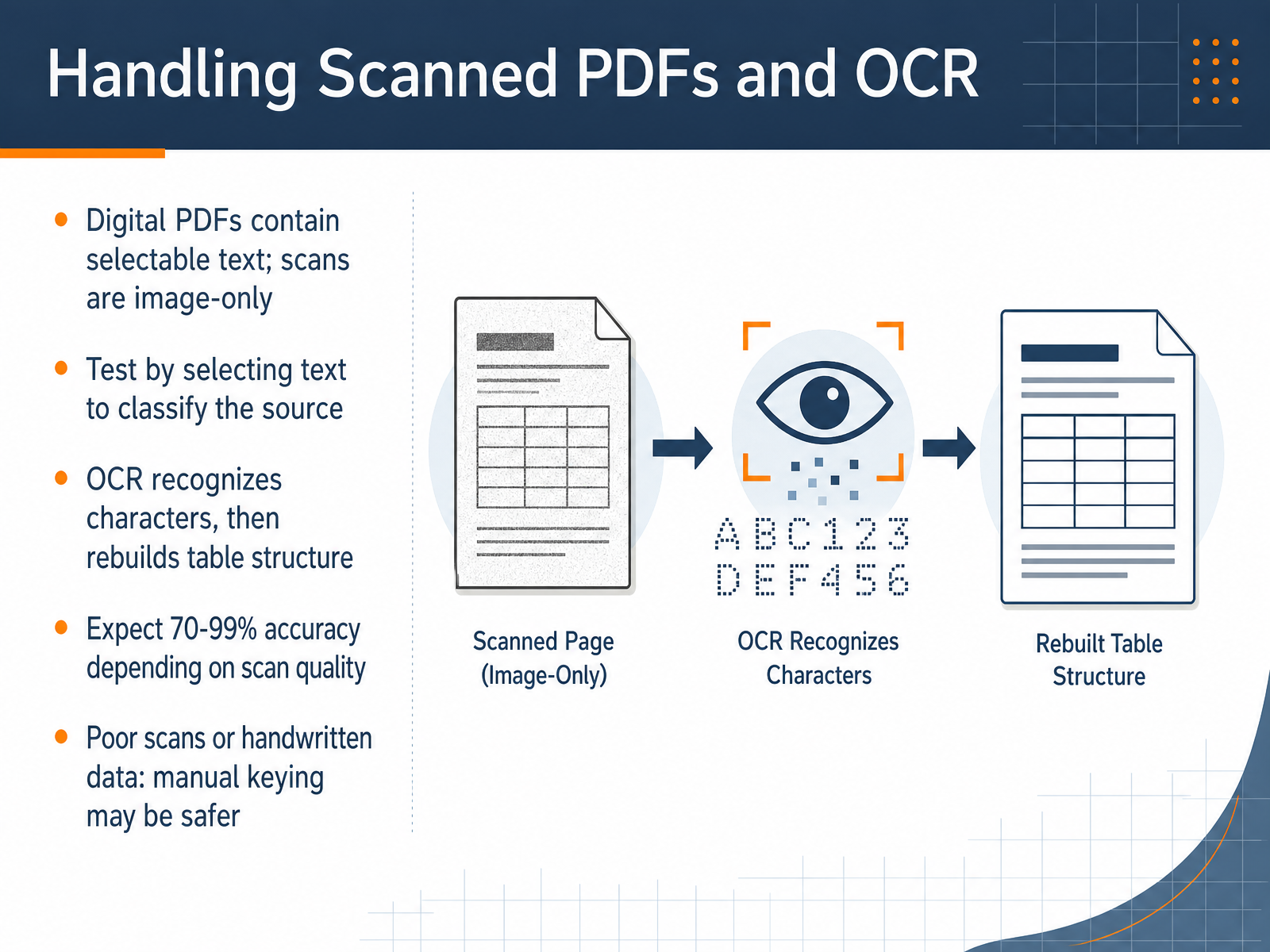
2 min - 06Handling Scanned PDFs and OCRNow let’s talk about scanned PDFs, because they behave differently from digital ones. A digital PDF has selectable text. A scanned PDF is just a picture of a page. To check which type you have, try selecting a line of text with your cursor. If nothing highlights, it’s a scan. For scans, we need OCR, or optical character recognition. OCR reads the characters in the image and then rebuilds the table structure. Accuracy normally lands between 70 and 99 percent, depending on scan quality. Clean, high-resolution scans do well. Low-quality scans, faded ink, or handwriting can cause errors. So, if the source is poor or handwritten, manual data entry might actually be safer and faster than correcting OCR mistakes. In short, classify the file first, then choose your path. Next, let’s walk through the step-by-step workflow for accurate conversion.
 lido.appupdf.comsmallpdf.com+22 min
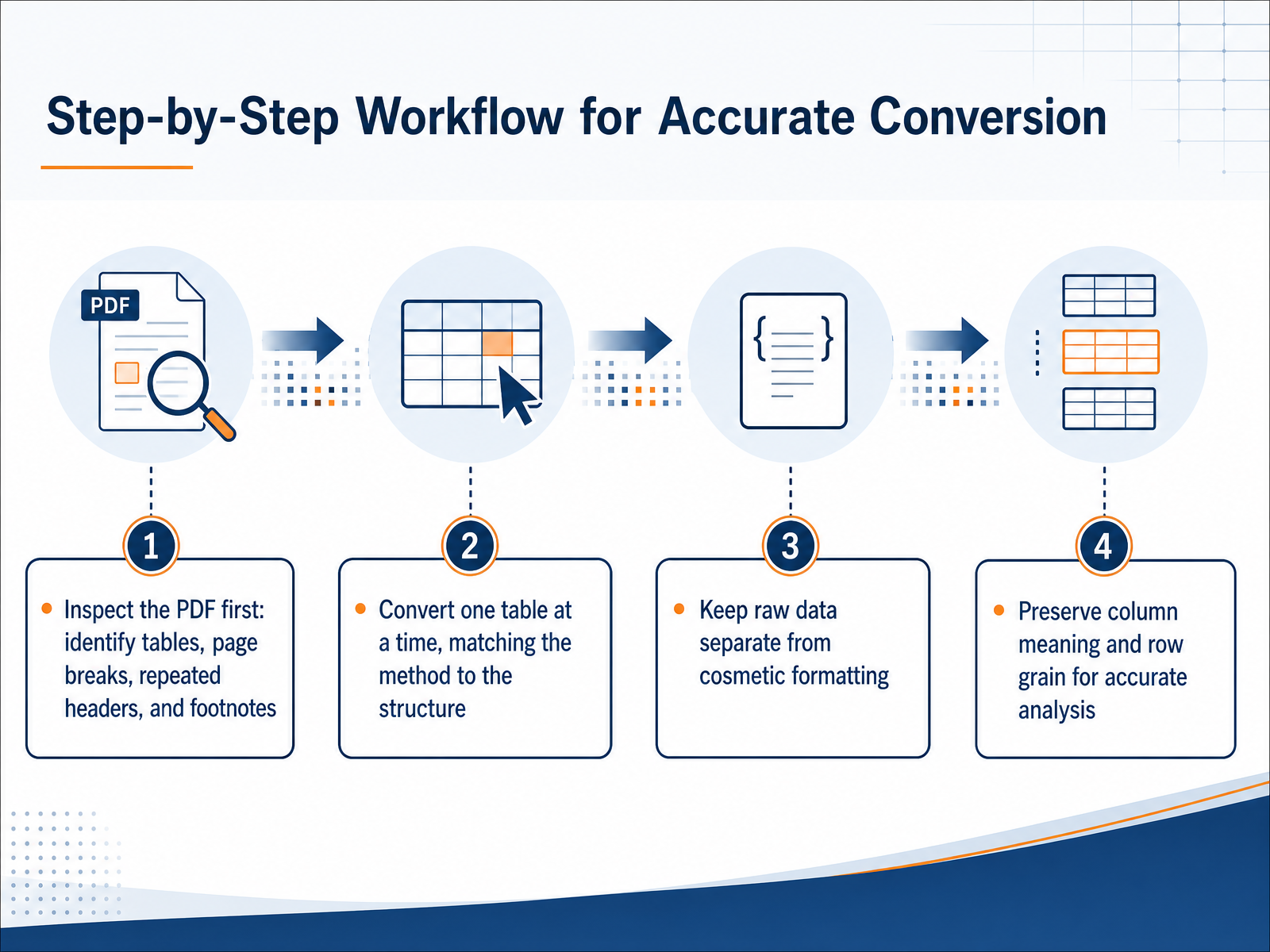
 - 07Step-by-Step Workflow for Accurate ConversionOnce you've chosen your conversion method, follow a simple, four-step workflow. First, inspect the PDF before converting. Look for tables that span multiple pages, repeated headers, and footnotes. These often create duplicate rows or split data. Second, convert one table at a time, matching the method to the structure. A simple table might paste fine, while a complex one needs the Power Query approach. Third, keep raw data separate from cosmetic formatting. Don't merge cells or add color while you're still checking accuracy. Finally, preserve column meaning and row grain. Make sure each column contains the same type of data as the source, and that each row represents one record. For example, a transaction row should not be split into two. Follow this order, and you'll get clean, usable data with far less rework. Next, we'll cover cleaning and restructuring the converted data.
 convertfiles.compdf4.devinvoicedataextraction.com+21 min
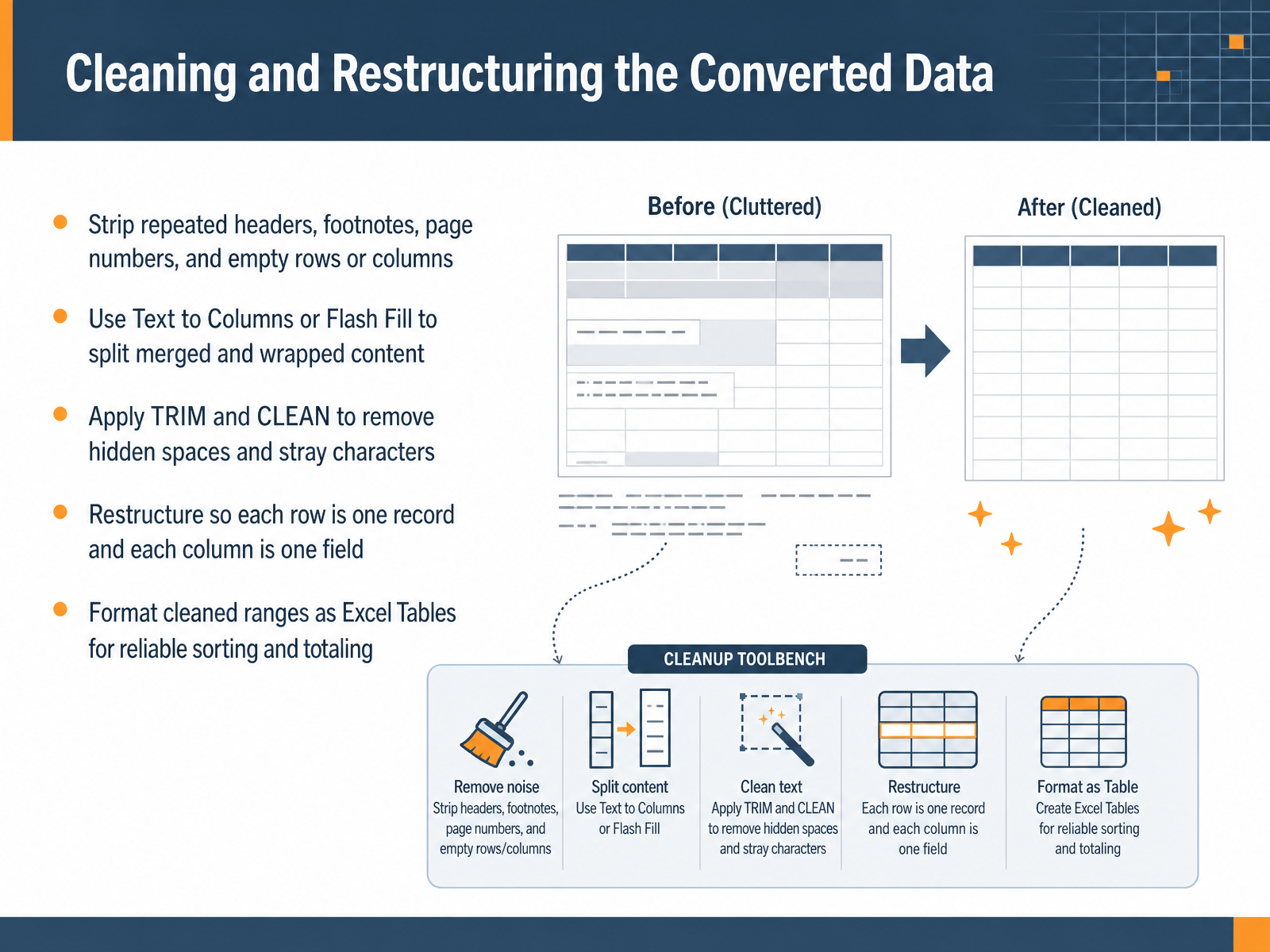
 - 08Cleaning and Restructuring the Converted DataOnce your data is in Excel, it’s normal to find a few things that need tidying up. You’ll often see repeated headers or footers, page numbers, or empty rows and columns. Start by deleting those so your data is clean and continuous. Next, if any cells contain merged or wrapped content, use the Text to Columns or Flash Fill tools to split them into separate, usable pieces. Also, give your cells a quick pass with the TRIM and CLEAN functions. They remove hidden spaces and invisible characters that can cause sorting and totaling issues later. Then, restructure the data so each row is one record and each column is one field. That layout is what makes filters, pivot tables, and formulas work properly. Finally, format your cleaned range as an Excel Table. That gives you automatic filters, easy sorting, and reliable totals. It’s a small step that makes ongoing work much smoother. With your data now clean and organized, we’ll move on to fixing the most common conversion errors.
 pdfxlsx.comleopdf.compdfxlsx.com+21 min
 - 09Fixing the Most Common Conversion ErrorsLet's fix the most common conversion errors. First, numbers and dates that come through as text. If you see a small green triangle in a cell, that's Excel telling you the value is stored as text. Click the warning icon and choose Convert to Number. That usually fixes it. If currency symbols or parentheses are causing the problem, clean those out first. For merged cells or split rows, you'll need to repair the structure by hand—unmerge, then fill down or combine the text back together. For misaligned columns, cut and paste data into the correct place after comparing with the PDF. Next, remove stray characters with Find and Replace. Dollar signs, commas, parentheses, and extra spaces often sneak in. Replace e.g. a dollar sign with nothing, then convert. Finally, watch for hidden characters. Use the TRIM function to remove extra spaces, and CLEAN to remove non-printing artifacts. A quick formula like TRIM and CLEAN combined can tidy messy cells. It's easier to do these fixes step by step, in the order we just covered. Then we'll talk about validating your data for accuracy. Let's move on.
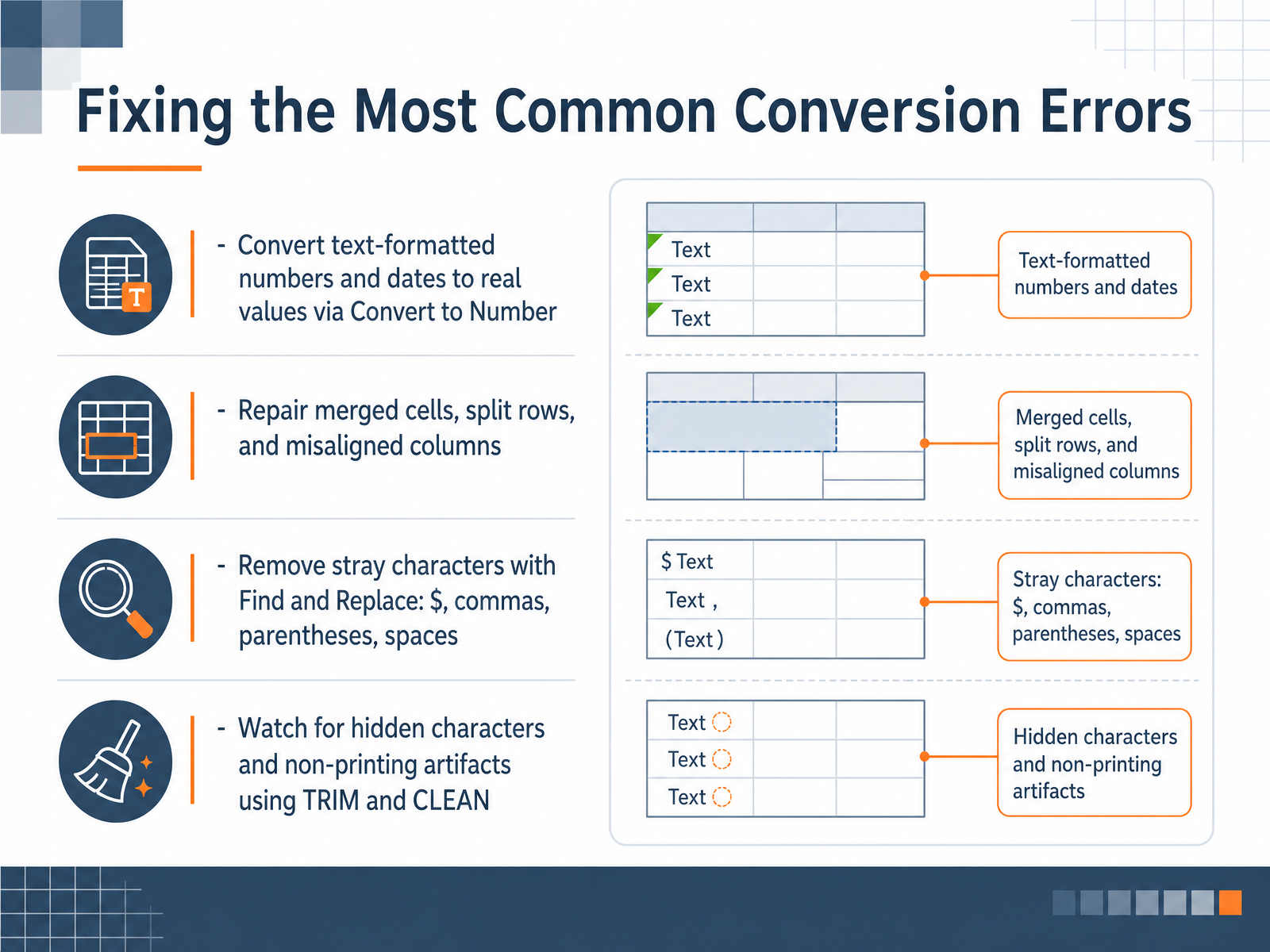 pdfxlsx.comleopdf.compdfxlsx.com+21 min
 - 10Validating Converted Data for AccuracyNow that your data is in Excel, let’s make sure it’s actually correct. A clean-looking conversion can still hide missing rows or numbers that won’t add up. So run three quick checks. First, compare the row count in your spreadsheet to the number of records in the PDF. Second, check the column alignment to make sure no data has shifted into the wrong place. And third, sum a key numeric column and compare it to the total printed on the original document. If those match, you’re in good shape. Next, spot-check a few specific rows: the first row, the last row, and the rows at the top of each page. Page breaks are where data most often goes missing or gets duplicated. Also verify the important details, like dates, identifiers, negatives, and currency values. Remember, sometimes numbers come across as text, so they look right but won’t calculate. A quick way to catch outliers is to use filtering, sorting, and conditional formatting. For example, you can sort a column to spot an unusually high or low value from an OCR misread. Only consider the file acceptable when your figures tie to the source PDF. These checks take a few minutes and save you from discovering errors later. Next, we will look at handling more complex financial and research tables.
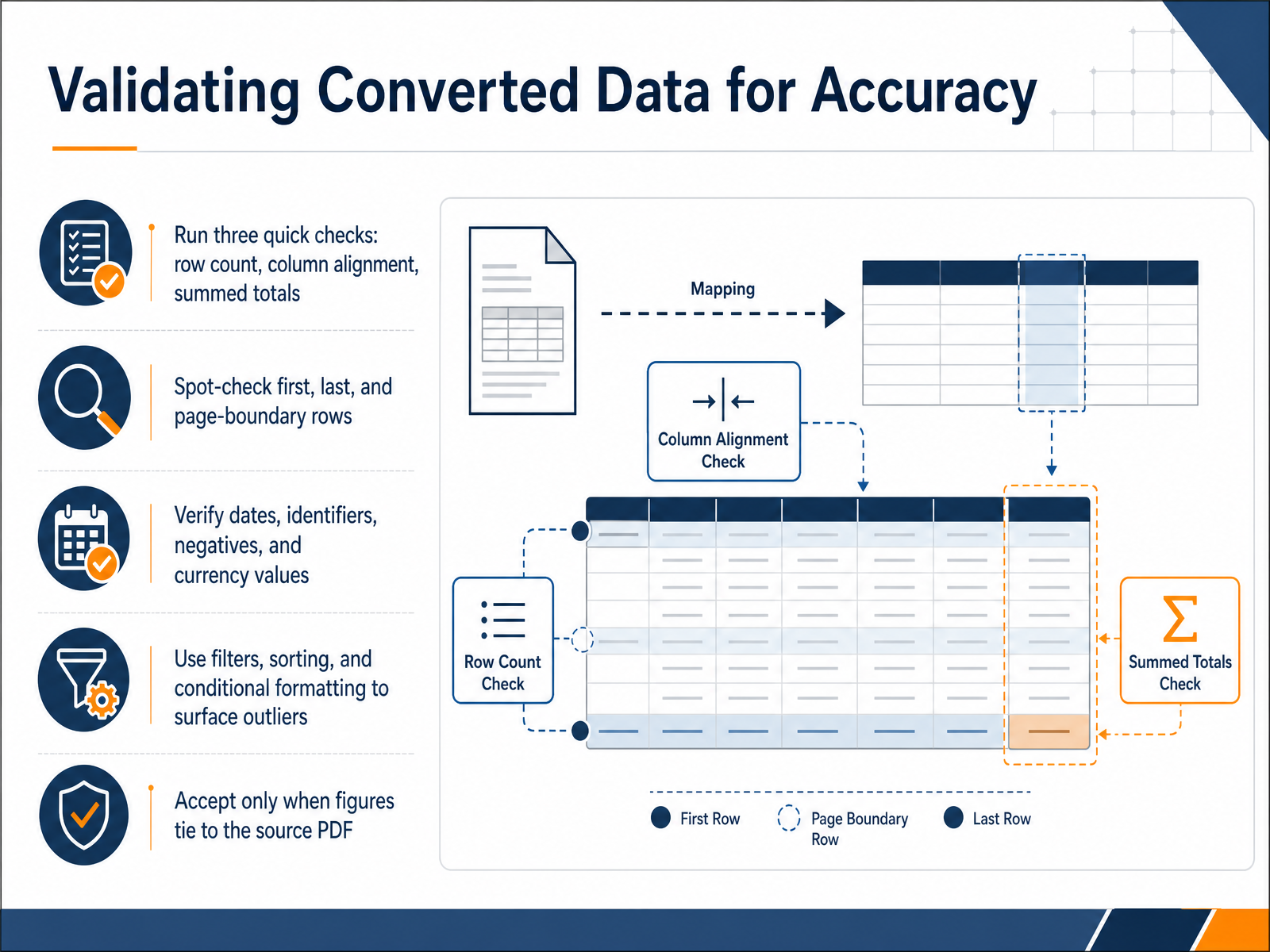 pdfxlsx.comleopdf.compdfxlsx.com+22 min
 - 11Working with Complex Financial and Research TablesNow let’s talk about the tables that usually cause the most rework: complex financial and research tables. The first thing to check is repeated page headers. Those are the column titles that appear at the top of every printed page. When they show up in the middle of your spreadsheet, delete them. Next, look at where the data breaks across pages. Sometimes a row gets split, or a number that belongs in one column lands in the next. Fix those transitions so every row lines up correctly. Then separate summary totals from raw data. You don’t want totals mixed in with the individual transactions, because that will mess up your sums later. So either move them to a separate section or mark them clearly. Also pay attention to parentheses, currency symbols, and leading zeros. Parentheses usually mean a negative number, so make sure Excel reads them that way. Currency should stay in its proper format. And if you have codes like zero-zero-seven, keep the leading zeros, or the code becomes just seven. Finally, confirm that dates are consistent. If some are month-day-year and others are day-month-year, sort everything into one format. Do this now, and you’ll avoid hours of cleanup later. Next, let’s look at how to automate these steps so you can handle repeat conversions faster.
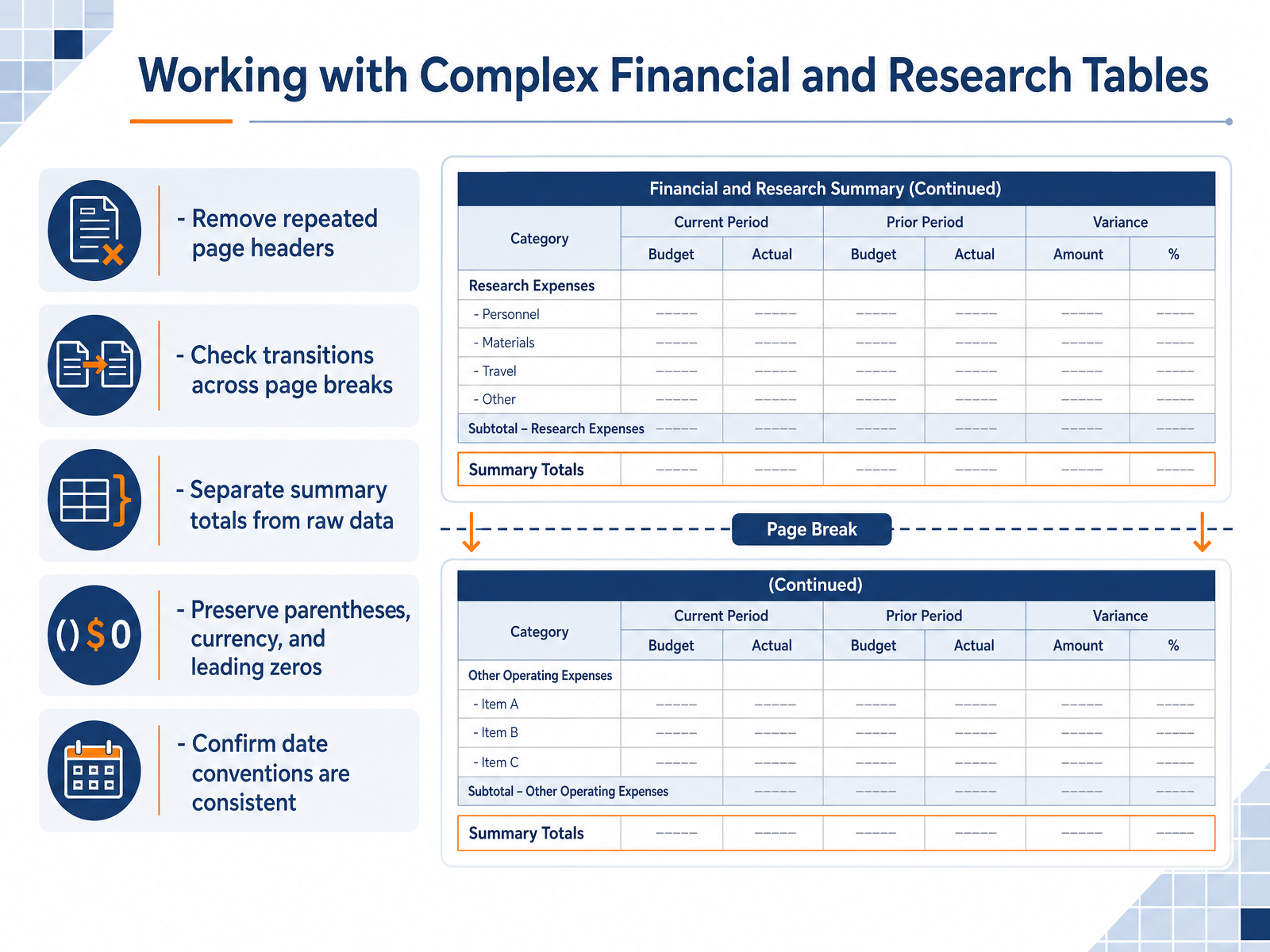 2 min
2 min - 12Automation and Repeatable ProcessesNow let's talk about turning this into a repeatable process. If you receive the same type of PDF report each month, Power Query can handle the heavy lifting. First, identify which recurring PDFs are good candidates. Look for reports generated directly from systems, not scanned pages. The PDF connector needs selectable text and a consistent layout to work reliably. Next, save your cleanup steps as reusable transformations inside Power Query. Once you set up the query, new PDFs can refresh automatically. When a new file arrives, you simply refresh the workbook and the data updates itself. But there is an important balance to strike. Automation works well for routine data, yet for financial figures, always keep a manual review step. A quick scan of totals and key rows can catch problems early. Also, be alert to layout changes. If the report structure shifts, your query may return blank cells or errors. Even a small formatting change can break an automated import. So build the automation, but verify the output each cycle until you are confident it works consistently. That brings us to a practical checklist and common pitfalls to watch for in your daily work.
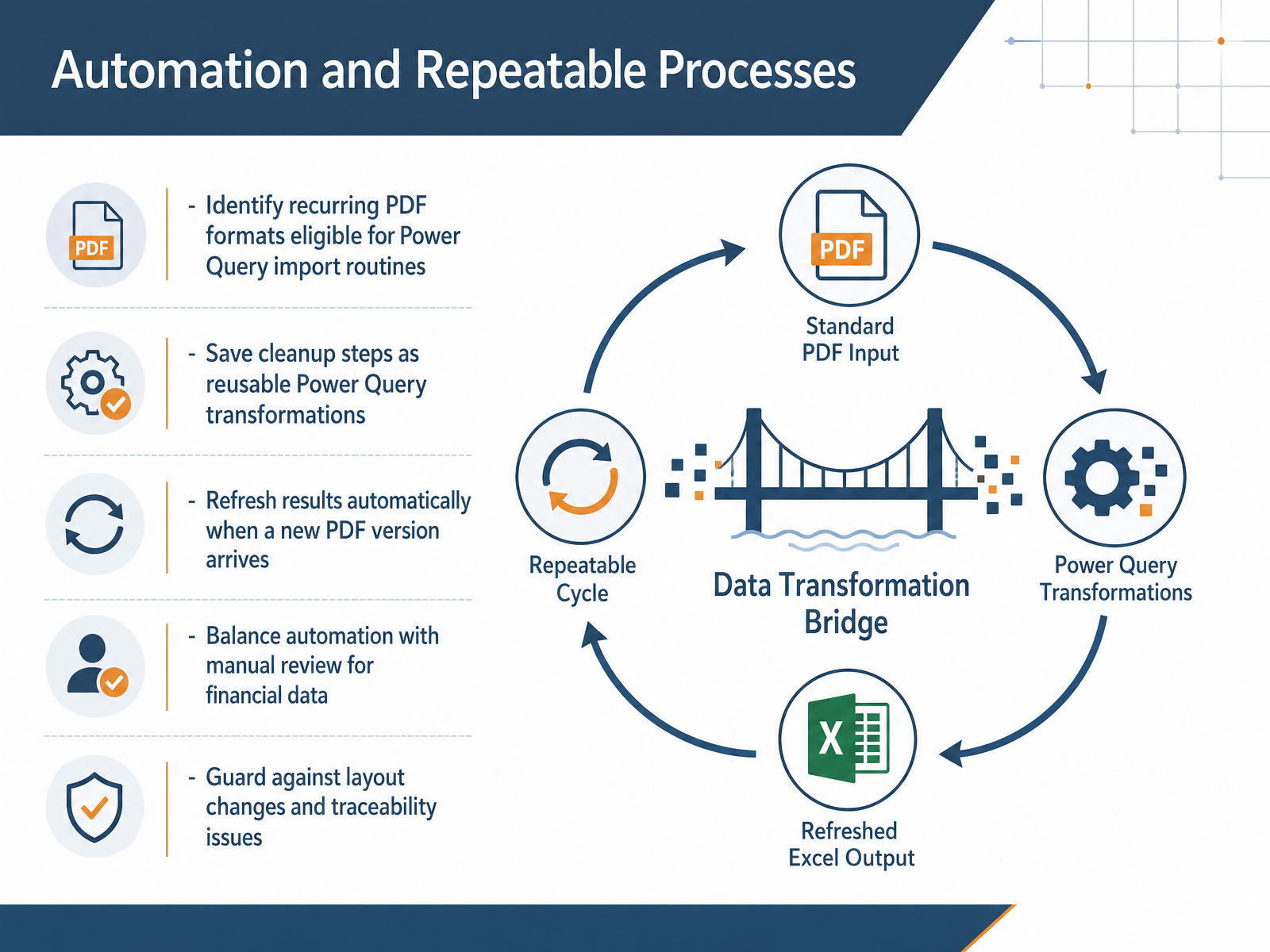 learn.microsoft.com1 min
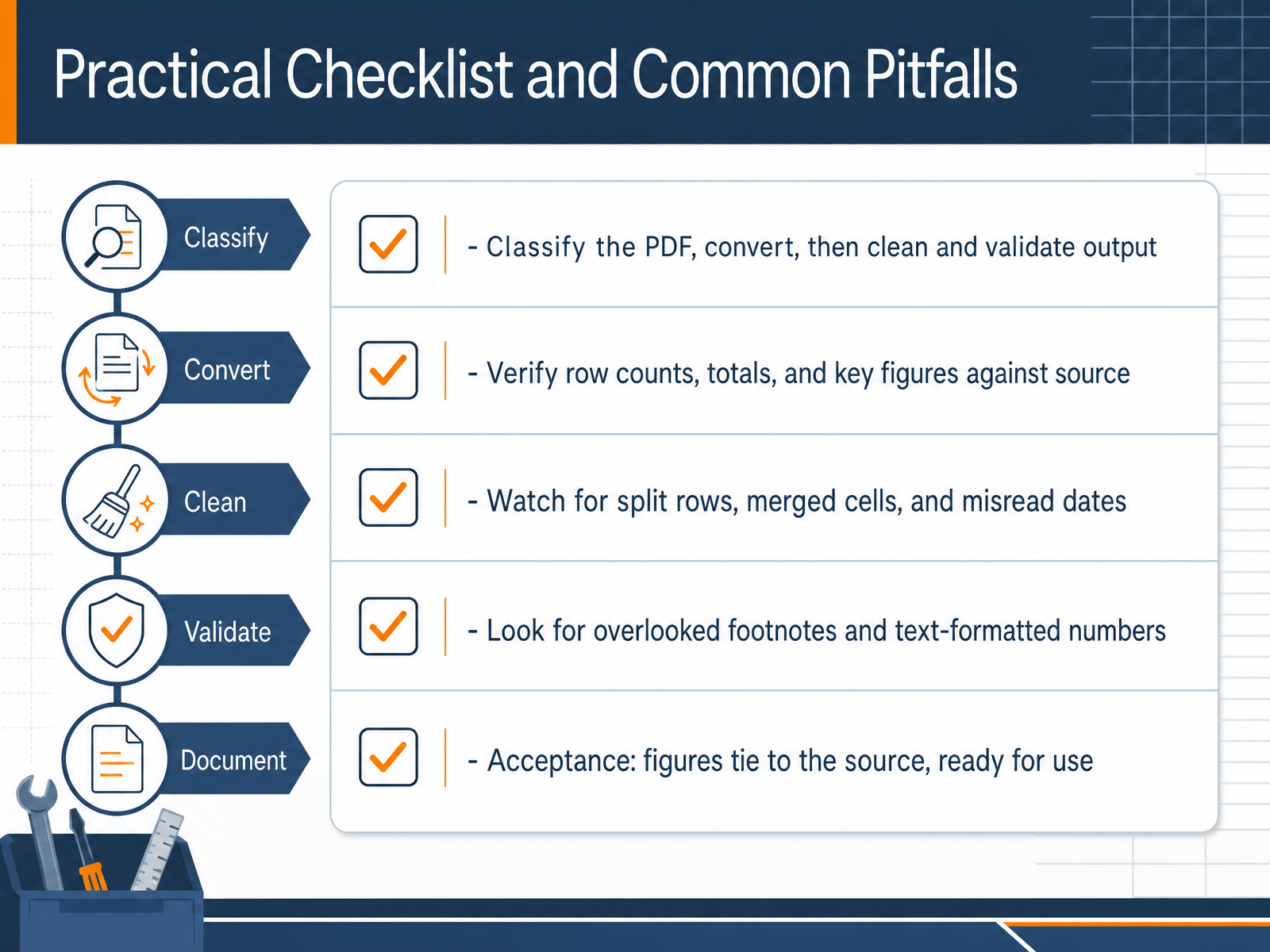
 - 13Practical Checklist and Common PitfallsLet’s pull the whole workflow together with a practical checklist, and the common pitfalls that trip people up. First, classify the PDF, convert it, then clean and validate the output. That order matters. Don’t skip straight to cleanup before checking the basics. Once you have your spreadsheet, verify the row counts, totals, and key figures against the source PDF. The fastest test is to sum a numeric column and compare it to the printed total. If they tie, you are in good shape. If not, something was dropped or stored as text. Watch for split rows, merged cells, and misread dates. These are the most common issues, especially with multi-column layouts. Also, look for overlooked footnotes that became extra rows, and text-formatted numbers that look right but won't calculate. Your acceptance standard is simple: the figures tie to the source, and the data is ready for use. Run these checks now, and you save yourself from major rework later. Next, we’ll cover next steps for better data quality.
 pdfxlsx.comleopdf.compdfxlsx.com+22 min
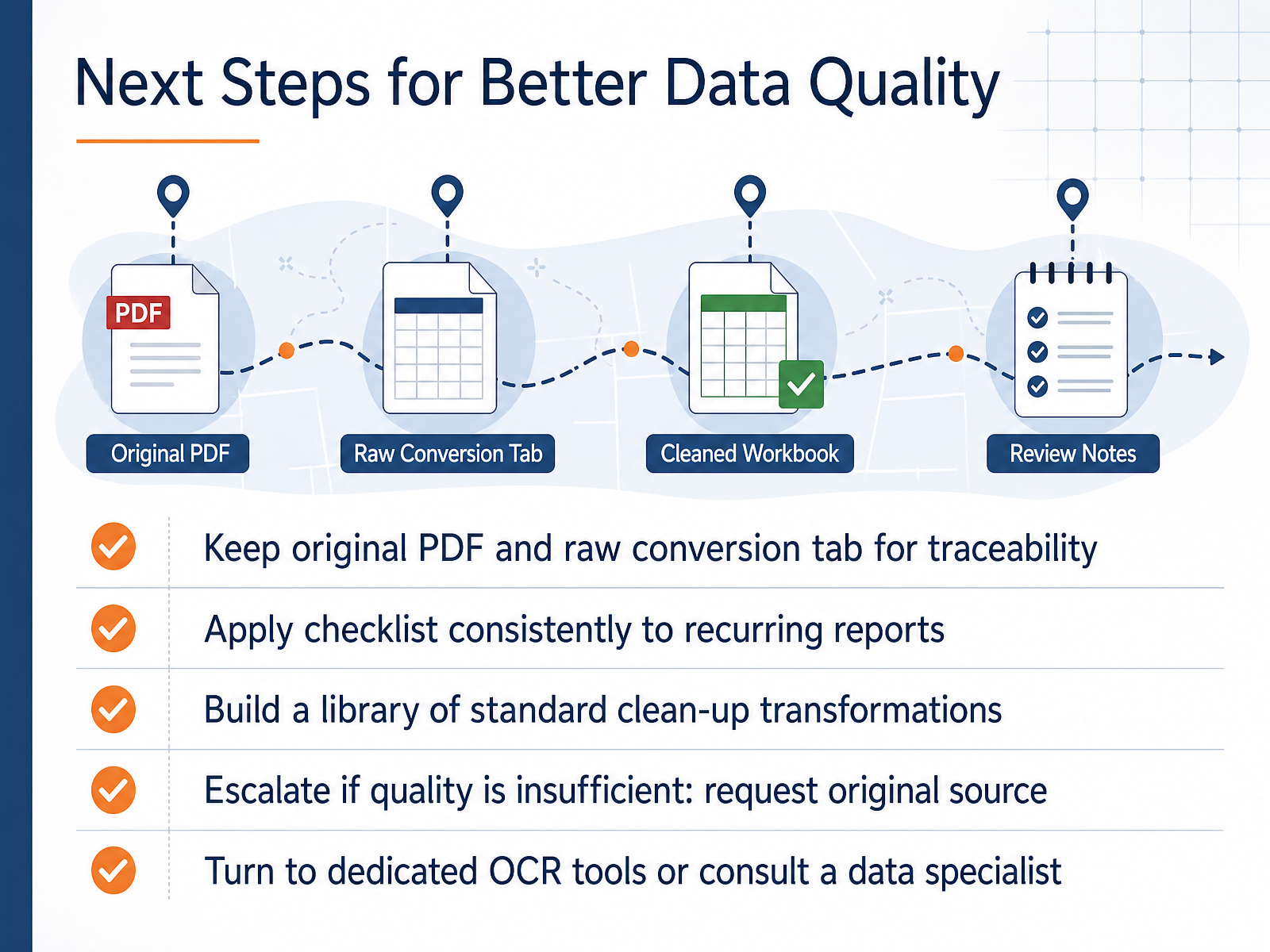
 - 14Next Steps for Better Data QualitySo let's wrap up with some practical habits that will keep your data quality strong over time. First, always keep the original PDF and the raw conversion tab in your workbook. This preserves traceability, so you can check back and verify the source if something looks off. Next, apply the same checklist to recurring reports. When you run the same conversion each month, consistency makes it much easier to spot anomalies early. Third, build a library of standard clean-up steps you use often. For example, if you always remove leading zeros or fix date formats, save those steps so you can repeat them in seconds. If the conversion quality is just not good enough, escalate it. Request the original source file, like an Excel export or a database query, instead of trying to fix bad OCR every time. And for truly challenging scans, consider dedicated OCR tools or ask a data specialist for help. To sum up: keep your originals, reuse your checklists, and know when to ask for a better source. Thanks for joining, and good luck with your next conversion. It will get easier each time.
 2 min
2 min
Take the deck with you
Download this course as a file — free, no sign-up needed.
- PDF handoutEvery slide page, ready to print or share.15 pages · 3.3 MBDownload
- Narrated PowerPointThe deck that presents itself — every slide carries the digital human's narration video.15 pages · 14.1 MBDownload
- PowerPoint slidesThe full deck as a .pptx — open it in PowerPoint, Keynote, or Google Slides.15 pages · 3.1 MBDownload
Free to use in your own training — please keep the PersonWise credit page at the end.
Have your own deck? Turn it into a course
Sources consulted
Web sources consulted while building this course.
- How to Convert PDF Tables to Excel Spreadsheets Accurately | ConvertFiles — convertfiles.com
- How to convert PDF to Excel (free, programmatic, accurate) — pdf4.dev
- Convert a PDF Table to Excel Without Scrambled Data — invoicedataextraction.com
- How To Convert PDF To Excel (Step-By-Step Guide!) - The Tech Gorilla — thetechgorilla.com
- How to Extract Tables from a PDF: 6 Practical Methods Compared | Extractify — getextractify.com
- How to Convert PDF to Excel Accurately - PDFXLSX — pdfxlsx.com
- PDF to Excel Not Working? Fix Guide — leopdf.com
- PDF to Excel Formatting Problems and How to Fix - PDFXLSX — pdfxlsx.com
- How to Check a PDF to Excel Conversion for Errors - PDFXLSX — pdfxlsx.com
- How to Convert PDF to Excel Spreadsheet Accurately (2025 Guide) - Smallpdf Blog — blog.smallpdf.tools
- How to convert a PDF to an Excel spreadsheet using AI | Microsoft Excel Blog — excel.cloud.microsoft
- Within Excel, option From PDF isn't available under Get ... — learn.microsoft.com
- Import PDF Into Excel: Complete 2026 July Conversion Guide ✅ — practicetestgeeks.com
- Get Data from PDF option is suddenly missing in Excel - Microsoft Q&A — learn.microsoft.com
- Best Scan to Excel Software in 2026 - Lido — lido.app
- PDF & Scanned PDF to Excel – AI Powered PDF to Excel Converter — updf.com
- Free PDF to Excel Converter — smallpdf.com
- Convert Scanned PDF to Excel: AI OCR for Scanned Documents | ScannedPDFtoExcel.com — scannedpdftoexcel.com
- Convert scanned PDFs to Excel workbooks online — products.aspose.app
- Power Query PDF connector — learn.microsoft.com