Begin
14 pages · ~28 min
Migrating SQL Server Database Files to a New Drive
Learn how to safely relocate a SQL database to another drive using a practical, step-by-step workflow. Ideal for database administrators and IT professionals managing SQL Server storage.
A digital instructor presents all 14 pages. Hold “Ask” at any point and ask out loud — the answer comes from this course. No sign-up needed.
What you’ll learn
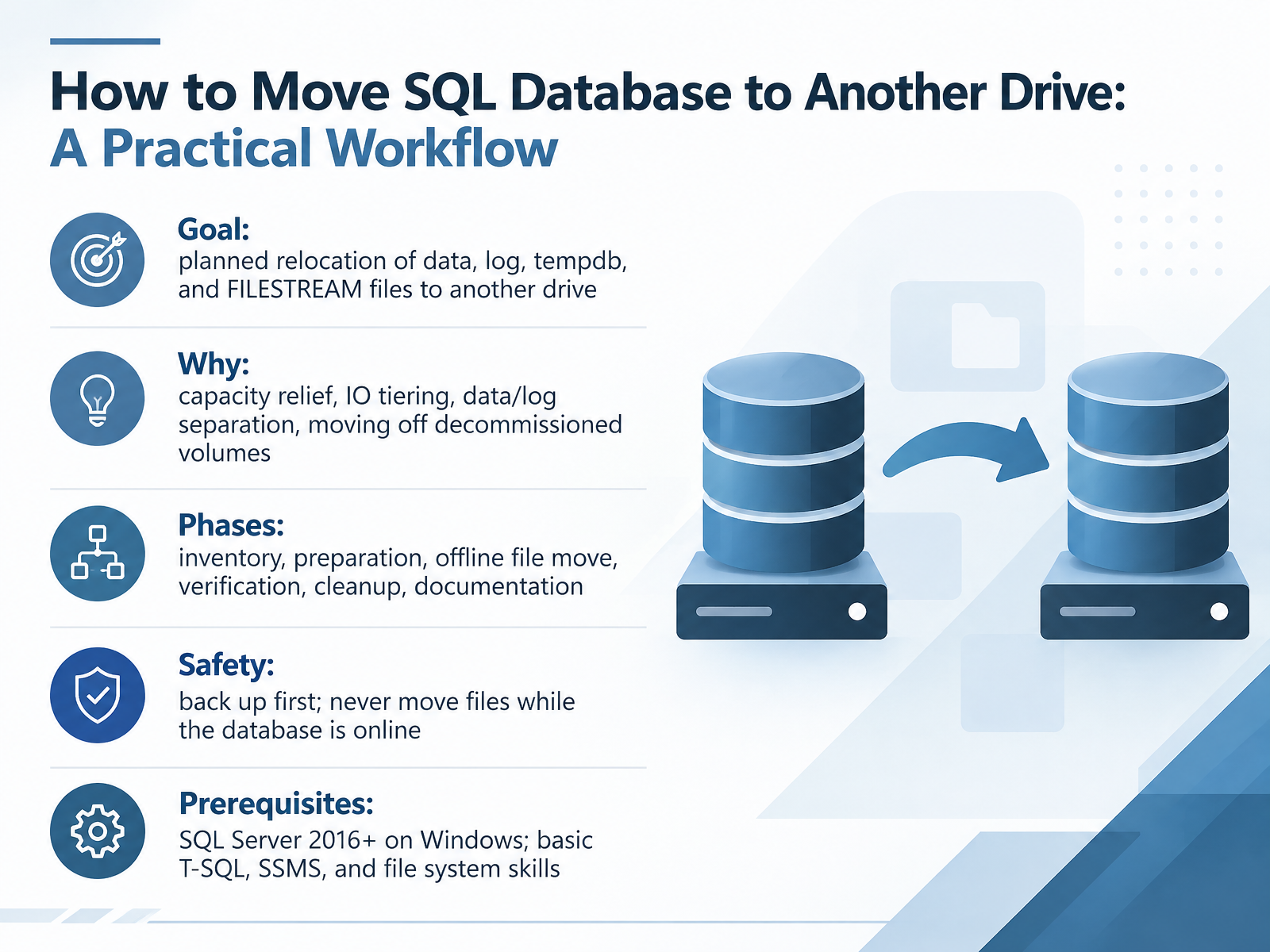
- 01How to Move SQL Database to Another Drive: A Practical WorkflowWelcome. In this practical workflow, we will plan and carry out a controlled relocation of SQL Server database files to another drive. The goal is to move data, log, tempdb, and FILESTREAM files safely, and the reasons are practical: relieving capacity pressure, tiering IO, separating data from logs, or leaving a volume that is being decommissioned. We will follow six phases: inventory, preparation, offline file move, verification, cleanup, and documentation. Before anything else, take a backup, and remember one hard rule: never move files while the database is online. For prerequisites, you should have SQL Server 2016 or later on Windows, plus basic T-SQL, SQL Server Management Studio, and file system skills. We will pause after each step so you can confirm success before moving on. Next, we will look at database file types and why placement matters.learn.microsoft.comlearn.microsoft.comlearn.microsoft.com+21 min
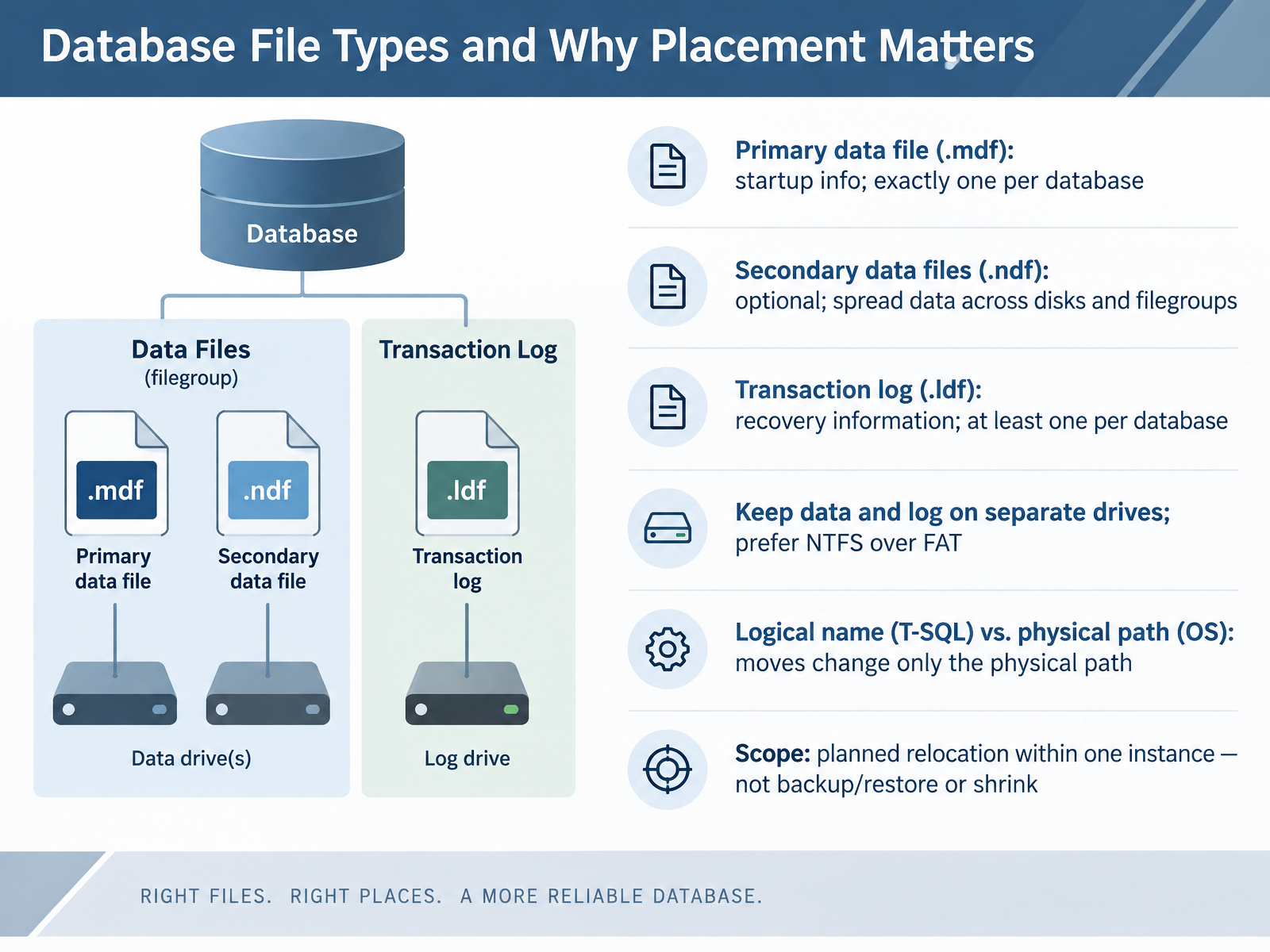
- 02Database File Types and Why Placement MattersBefore we touch any paths, let's get clear on what we are actually moving. A SQL Server database has three kinds of files. The primary data file, usually dot m d f, holds startup information and points to the other files. Every database has exactly one. Secondary data files, dot n d f, are optional. You use them to spread data across disks and filegroups. And the transaction log, dot l d f, holds the information needed for recovery. Every database has at least one. Here is the placement rule worth repeating. Keep data and log files on separate drives, because that lets read and write activity happen at the same time instead of competing for one device. And on Windows, prefer NTFS over FAT, mainly for its security controls. Now, one distinction that drives this whole workflow. Every file has a logical name that SQL Server knows, and a physical path that the operating system knows. When we relocate a file, we change only the physical path. The logical name stays exactly as it is. Finally, the scope. This is a planned relocation within a single instance. It is not a backup and restore, and it is not a shrink operation. Next, we will do a pre-flight inventory and baseline capture.
 learn.microsoft.comlearn.microsoft.comlearn.microsoft.com+22 min
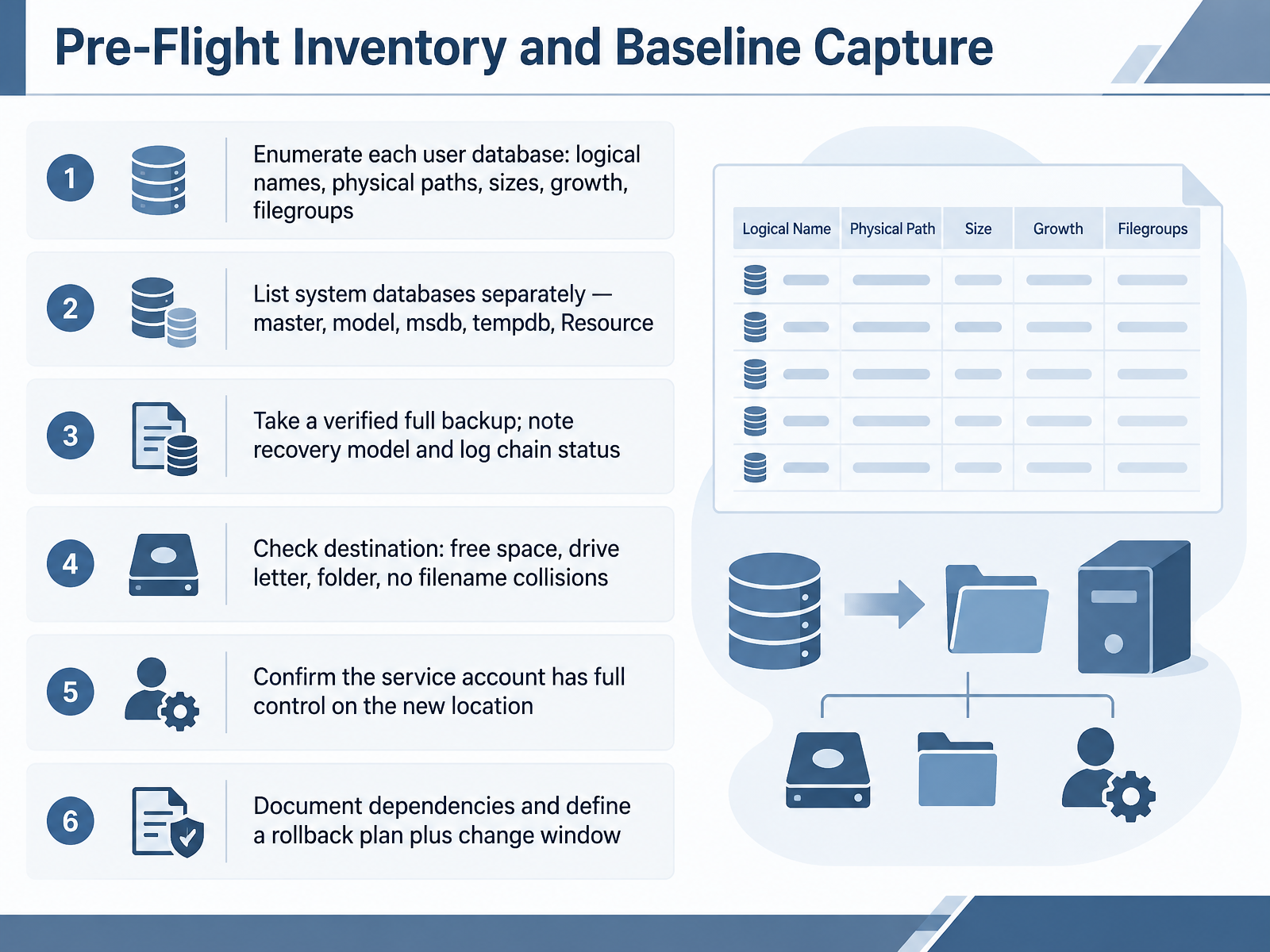
 - 03Pre-Flight Inventory and Baseline CaptureBefore we touch a single file, we build an inventory and a baseline. First, enumerate every user database: capture the logical file names, the physical paths, current sizes, growth settings, and filegroup membership. Next, list the system databases separately, because master, model, msdb, tempdb, and Resource each behave differently during a move. Now take a verified full backup, and note the recovery model and whether the log chain is intact. That backup is your undo button. Then check the destination: confirm free space, the drive letter, the target folder, and that no existing file will collide with the names you plan to use. Also confirm the SQL Server service account has full control on the new location. If it does not, startup or attach can fail with a permission error. Finally, document dependencies, and define a rollback plan plus a change window. Once this checklist is complete, you are ready to choose how to move the files. That brings us to choosing the move method: detach and attach versus ALTER DATABASE MODIFY FILE.
 learn.microsoft.comlearn.microsoft.comlearn.microsoft.com+22 min
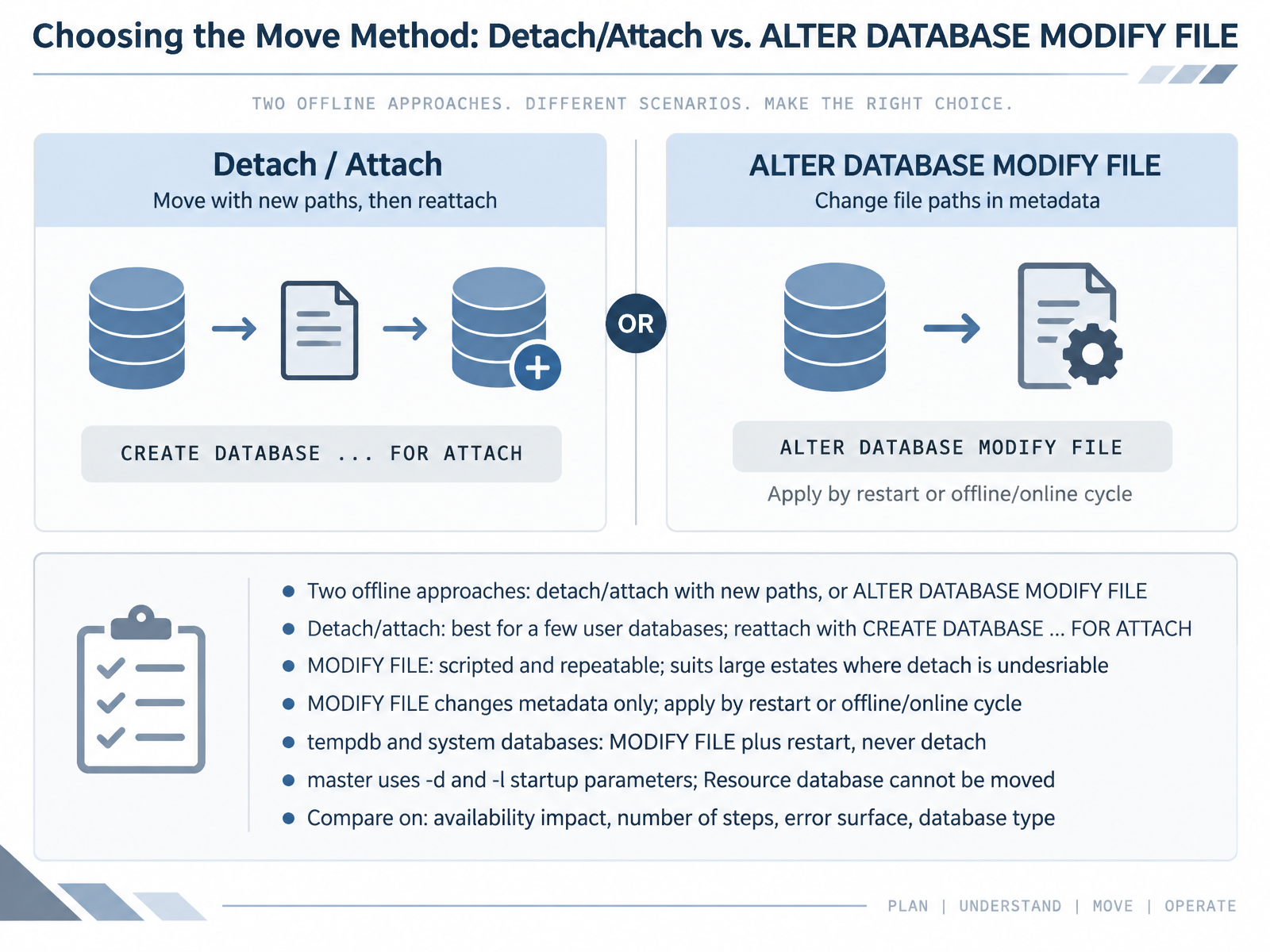
 - 04Choosing the Move Method: Detach/Attach vs. ALTER DATABASE MODIFY FILENow let's choose the move method. For planned file relocation while the server is offline, you have two practical approaches. First, detach and attach. You detach the user database, move the files, then reattach with CREATE DATABASE FOR ATTACH, pointing to the new paths. This works well when you are moving only a few user databases. Second, ALTER DATABASE MODIFY FILE. You run one MODIFY FILE statement per logical file, giving the logical name and the new path. This is scripted and repeatable, so it suits large estates where detaching many databases is undesirable. One key point. MODIFY FILE changes metadata only. The files do not move until you physically copy them and then apply the change, either by restarting the instance or taking the database offline and back online. Now for system databases. For tempdb, model, and msdb, use MODIFY FILE plus a restart, never detach. The master database is special. You update the dash d and dash l startup parameters in Configuration Manager. And the Resource database cannot be moved at all. When comparing methods, weigh availability impact, number of steps, error surface, and database type. Next, we will walk through method A in practice: detach, move files, and reattach a user database.
 learn.microsoft.comlearn.microsoft.comlearn.microsoft.com+22 min
 - 05Method A in Practice: Detach, Move Files, Reattach a User DatabaseLet's walk through Method A in practice: detach, move the files, and reattach a user database. First, quiesce application sessions. Detach requires no active connections, so confirm nothing is using the database before you start. Next, list every file with a query against sys dot database files. You need the full inventory, because any missed file will break the reattach. When you are ready, detach using sp detach db, or in SSMS, right click the database, choose Tasks, then Detach. The files are not deleted. They stay on disk exactly where they are. Now move the physical files to the new path. Robocopy is a good choice here because it preserves permissions, and the SQL Server service account must be able to read the files in their new location. Finally, reattach by running CREATE DATABASE with the FOR ATTACH clause, listing each file with its new full path. One caution: avoid the deprecated sp attach db and sp attach single file db procedures. Use CREATE DATABASE FOR ATTACH instead. That keeps you aligned with current guidance. Next, we will look at Method B in Practice: ALTER DATABASE MODIFY FILE for User Databases.
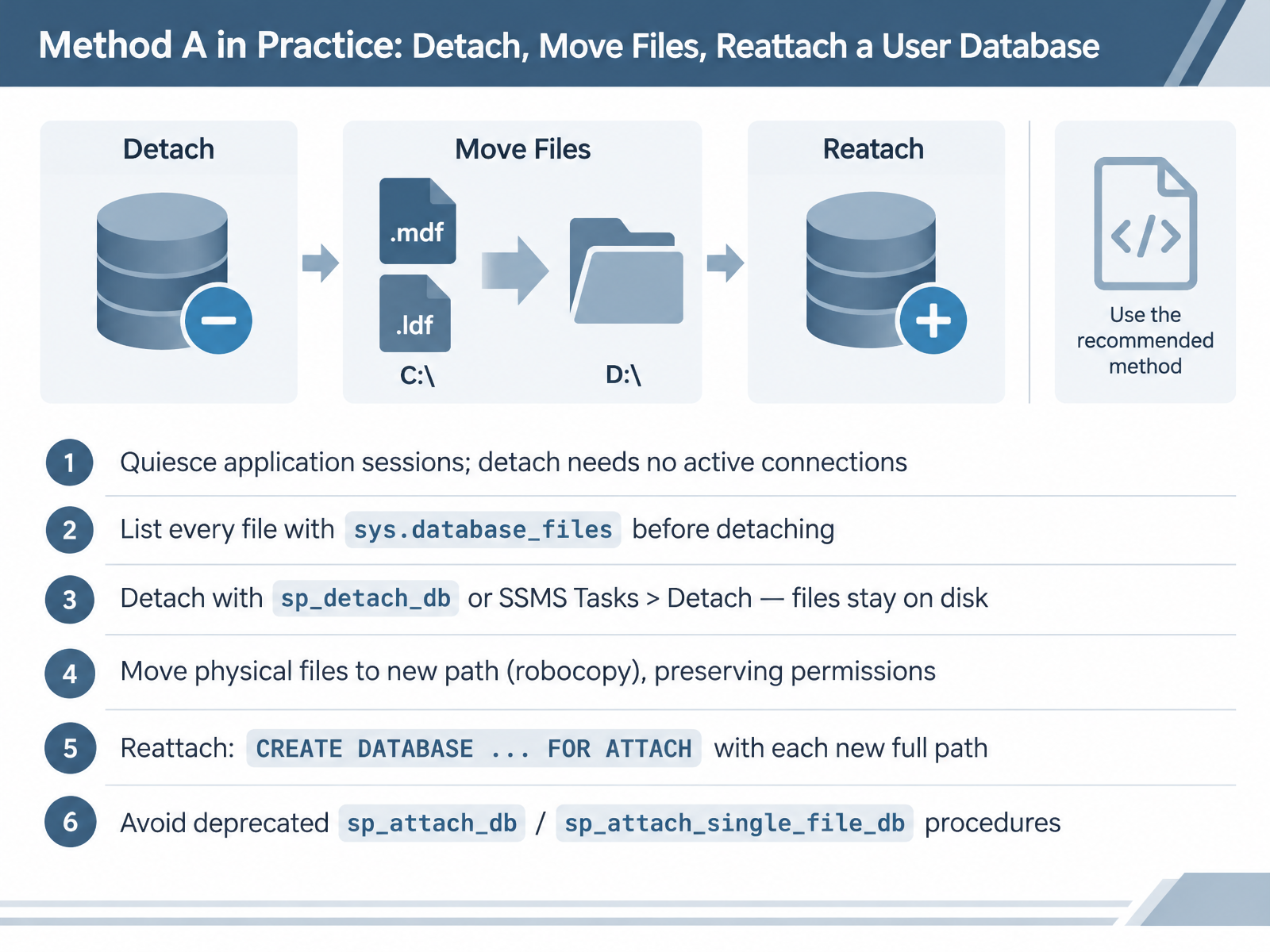 learn.microsoft.comlearn.microsoft.comlearn.microsoft.com+22 min
 - 06Method B in Practice: ALTER DATABASE MODIFY FILE for User DatabasesNow let's put Method B into practice, using ALTER DATABASE MODIFY FILE on a user database. The syntax is one statement per file: ALTER DATABASE, the database name, then MODIFY FILE, with NAME set to the logical file name, and FILENAME set to the new path and operating system file name. Only one property changes per statement, and NAME is always required, because that is how SQL Server identifies which file you mean. Before you run anything, confirm the target folder already exists, and keep in mind that system databases cannot live on UNC shares. Here is the key behavior to expect: the database keeps using the old files until you restart the instance or take the database offline and then online. So the order matters. Move the files physically first, then take the database offline and online, or restart. And write one statement per file, including every secondary file in other filegroups. Finally, place log files on a separate drive to keep input and output activity separated. Coming up next, Verification After Each User Database Move.
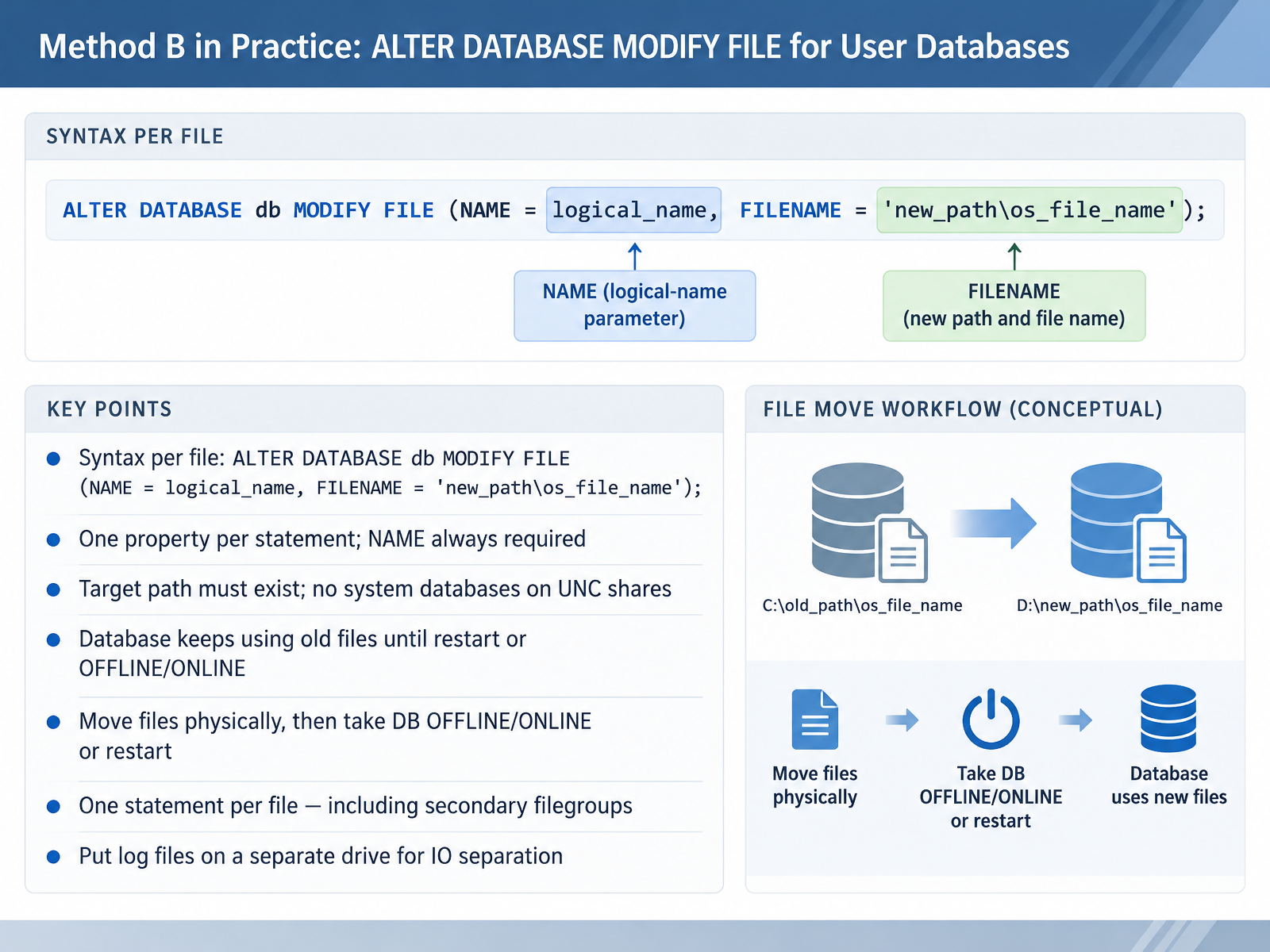 learn.microsoft.comlearn.microsoft.comlearn.microsoft.com+22 min
 - 07Verification After Each User Database MoveNow let's make sure each database actually landed where you intended. After every user database move, confirm the database is online and that the files report the new paths. Run sys.database_files in the database, and sys.master_files from master, then compare the physical paths against your plan. Next, check the SQL Server error log for input output errors, access problems, or file-in-use messages. A clean startup with no file errors is your confirmation that the move took effect. Then take a fresh full backup, and confirm the backup schedule still runs. That matters because a move can break a job that points at an old path. When errors do appear, map them quickly. File in use usually means the file was not released before you moved it. Access denied means the service account lacks permission on the new folder. File not found usually means a path typo, or a file that never arrived. And one firm rule: do not delete the source files until validation of that database passes. Keep the originals until the database is online, readable, and freshly backed up. Moving tempdb: metadata change plus a restart.
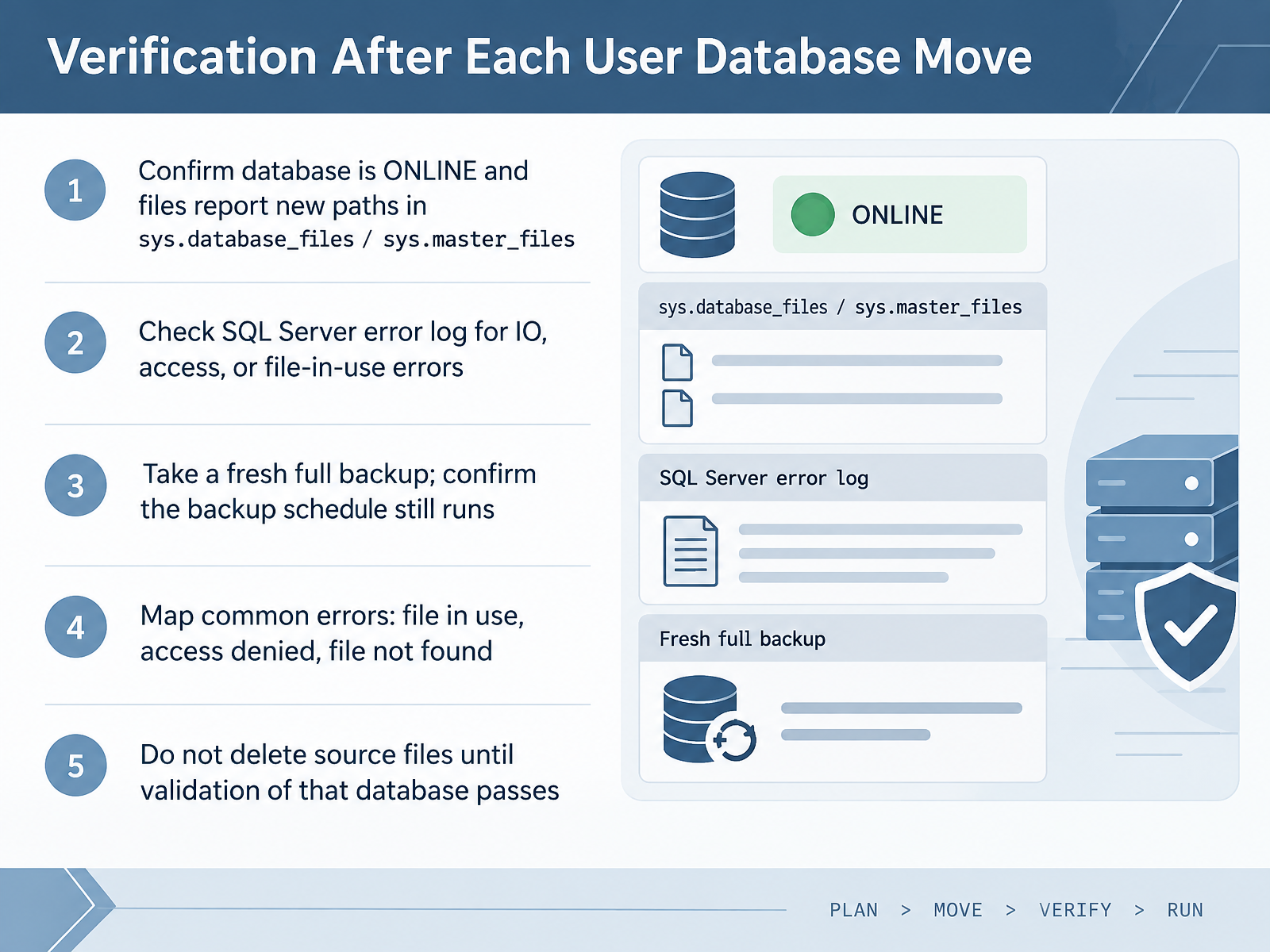 learn.microsoft.comlearn.microsoft.comlearn.microsoft.com+22 min
 - 08Moving tempdb: Metadata Change Plus a RestartNow let's talk about tempdb. With tempdb, the process is simpler than for other system databases, but there is one important catch. First, find the logical names and current paths. Query sys.master_files where database_id equals DB_ID of tempdb. You will typically see tempdev and templog. Next, run one ALTER DATABASE tempdb MODIFY FILE statement per file. Use NAME equals tempdev, then FILENAME with the new path. Then do the same for templog. Here is the key difference. You do not copy any files. tempdb files are recreated at the new path when the service restarts. Until that restart happens, tempdb keeps using the files in the existing location. So the ALTER statement changes metadata only. Plan a maintenance window for that restart. After the restart, verify the new location from sys.master_files, and then confirm from inside tempdb using sys.database_files. That second check shows where tempdb is actually running. Finally, delete the old tempdb files by hand, because SQL Server does not clean them up. A Modern tempdb Gotcha: There Is Usually More Than One Data File.
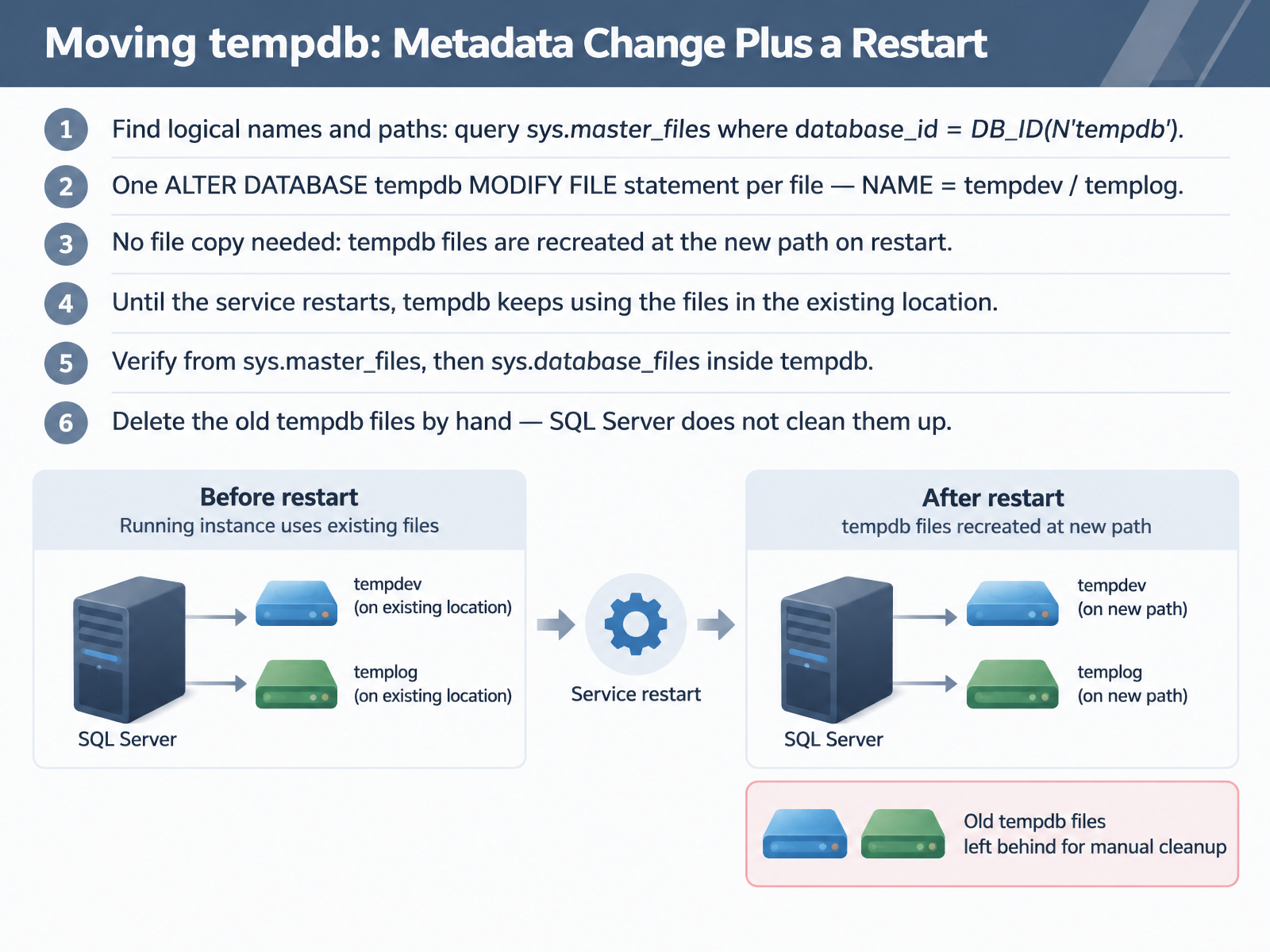 learn.microsoft.comlearn.microsoft.comlearn.microsoft.com+22 min
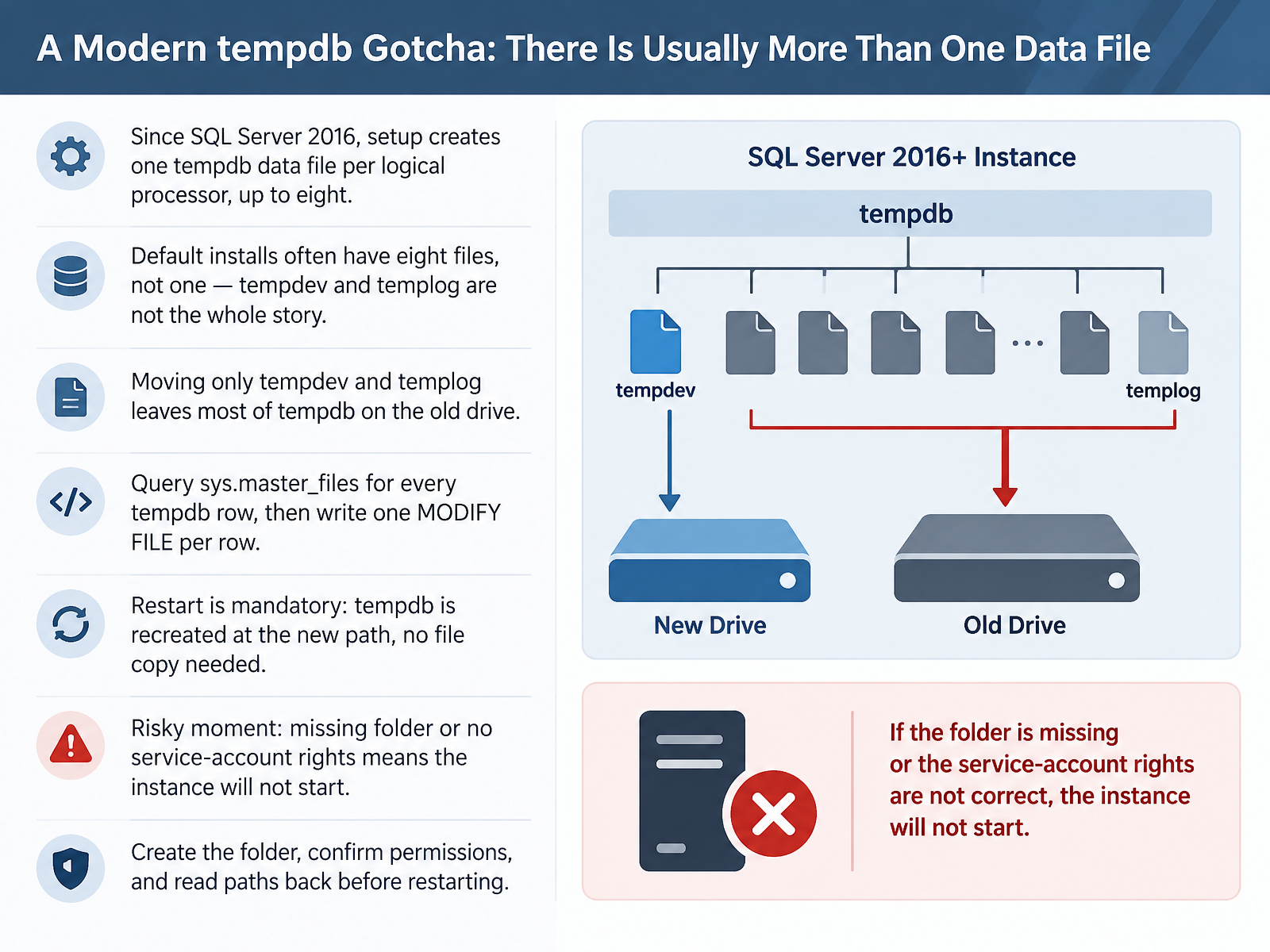
 - 09A Modern tempdb Gotcha: There Is Usually More Than One Data FileHere is a modern tempdb gotcha. Since SQL Server 2016, setup creates one tempdb data file per logical processor, up to eight. So a default install often has eight files, not one. tempdev and templog are not the whole story. This matters because if you move only tempdev and templog, most of tempdb stays on the old drive. The move looks successful, but the disk you wanted to clear is still full. So start by querying sys.master_files for every tempdb row. Then write one MODIFY FILE statement per row returned. After that, a restart is mandatory. tempdb is recreated at the new path, so you do not copy any files. The risky moment is the restart. If the new folder does not exist, or the service account lacks rights, the instance will not start at all. tempdb is required at startup. So create the folder first, confirm the service account has full control, and read the paths back from sys.master_files before you restart. Next, we will cover moving master, model, msdb, and the Resource Database.
 learn.microsoft.comlearn.microsoft.comlearn.microsoft.com+21 min
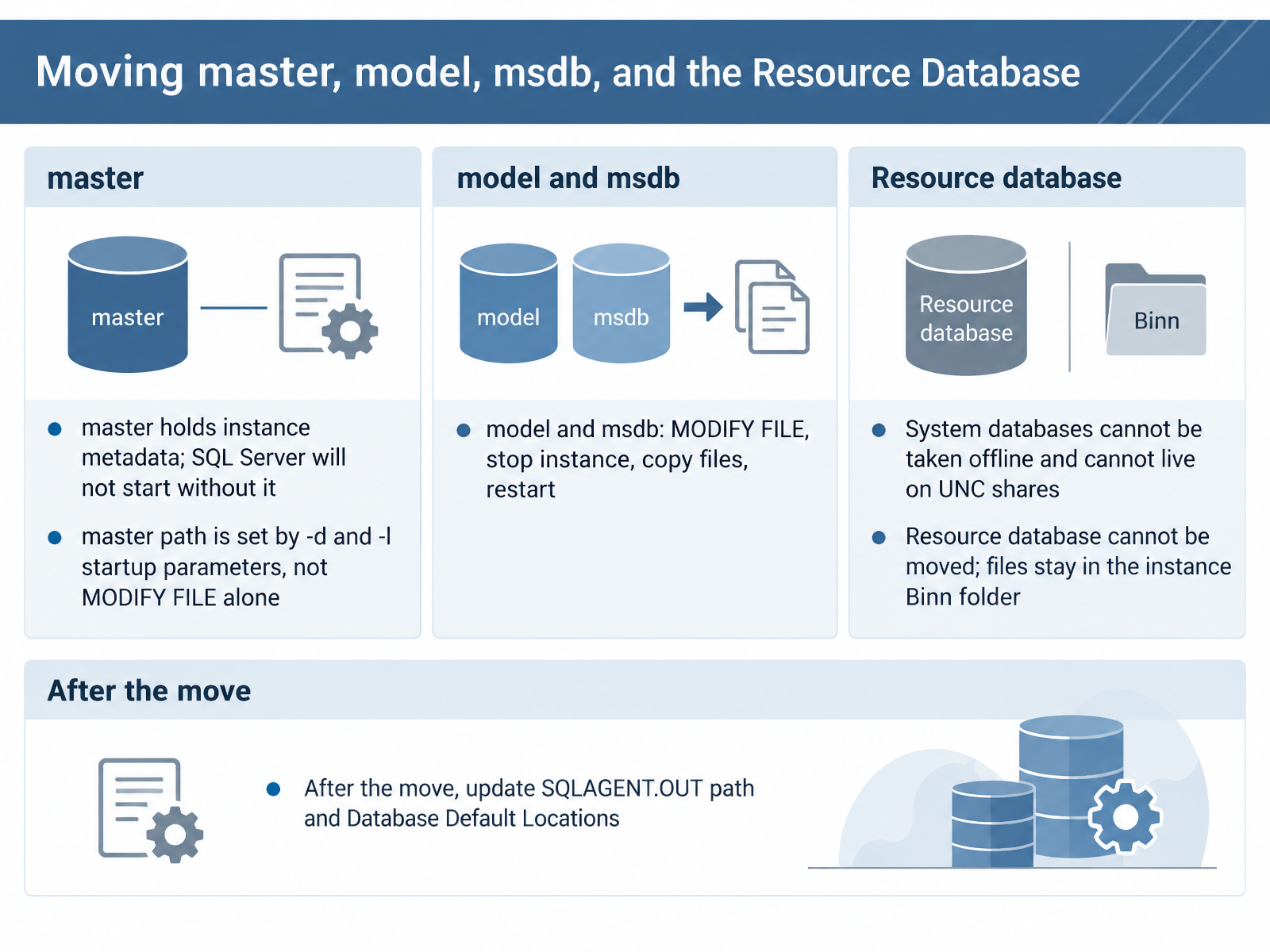
 - 10Moving master, model, msdb, and the Resource DatabaseNow for the system databases, and this is where the order of operations really matters. Start with master. It holds instance metadata, logon accounts, endpoints, linked servers, and the location of every other database. SQL Server will not start without it. And its path is not controlled by MODIFY FILE. It is set by the d and l startup parameters, so you change master by editing those parameters in SQL Server Configuration Manager, and remember to click Update after each change. For model and msdb, the process is simpler. Run ALTER DATABASE with MODIFY FILE, stop the instance, copy the files, then restart. One caution before that restart. Confirm the service account has full permissions on the new folder, because if it does not, the instance simply will not start. Two hard limits to keep in mind. System databases cannot be taken offline, and they cannot live on UNC shares. The Resource database cannot be moved at all. Its files stay in the instance Binn folder. Finally, after the move, update the SQLAGENT.OUT path and your Database Default Locations. That completes the system database move. Next, we will look at Post-Move Validation, Rollback, and Cleanup.
 learn.microsoft.comsqlservercentral.comlearn.microsoft.com+22 min
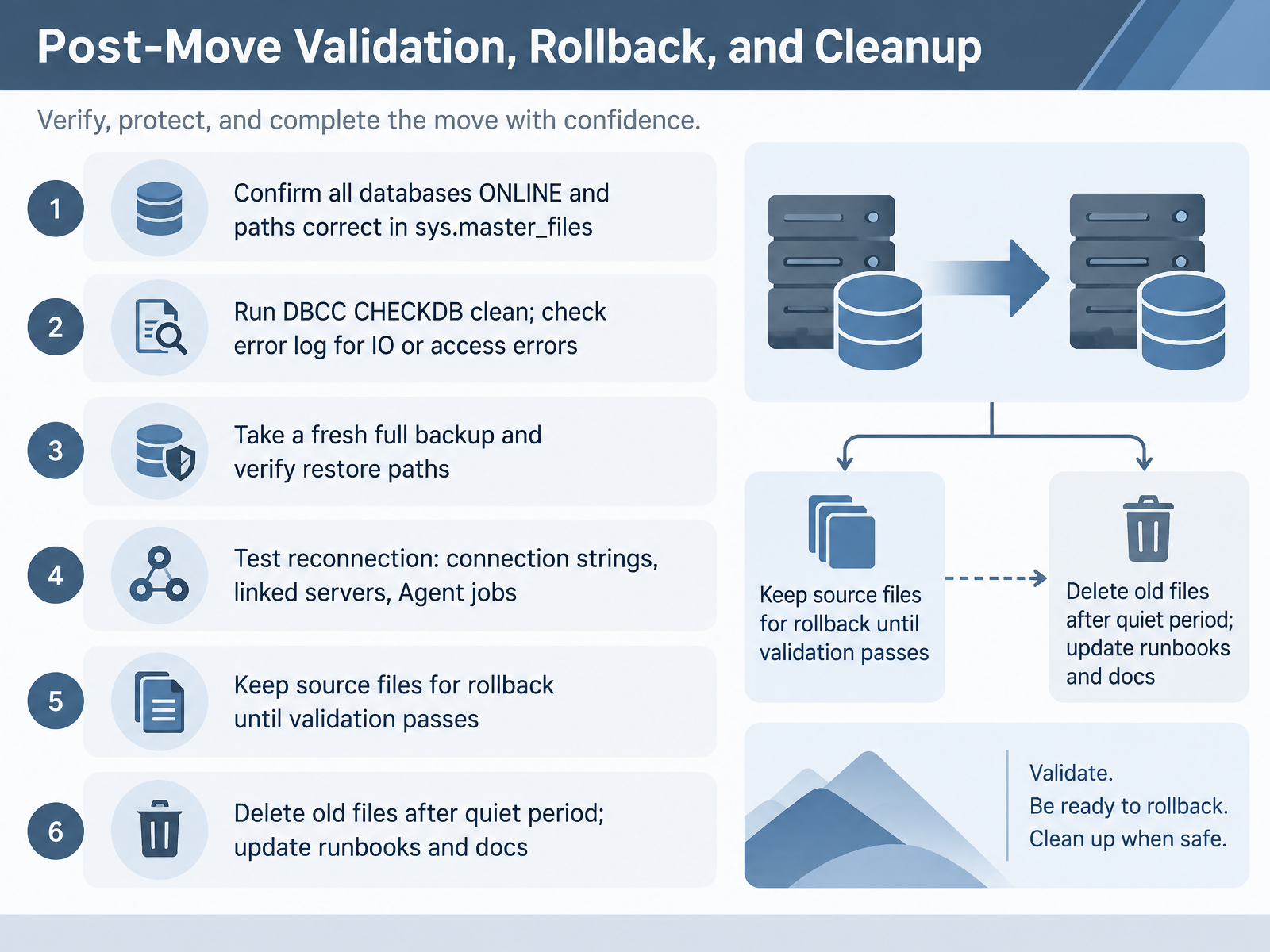
 - 11Post-Move Validation, Rollback, and CleanupNow let's move on to post-move validation, rollback, and cleanup. This is the step that proves your relocation actually worked. First, confirm every database is online, and check that the physical paths in sys.master_files point to the new location. Next, run DBCC CHECKDB on each database, and make sure it returns clean. Then check the SQL Server error log for any input output or access errors. After that, take a fresh full backup, and verify that your restore paths are correct. A backup you have not tested is not really a backup. Now test reconnection. Check your application connection strings, linked servers, and SQL Agent jobs. Before you declare success, keep the original source files in place. They are your rollback path until validation fully passes. Once things have stayed quiet for a few days, you can delete the old files. Finally, update your runbooks and documentation so the next person knows where the files live. Good validation is what makes a move safe and repeatable. Next, let's put this into practice with the lab exercise moving a sample database from drive C to drive D.
 learn.microsoft.comlearn.microsoft.comlearn.microsoft.com+22 min
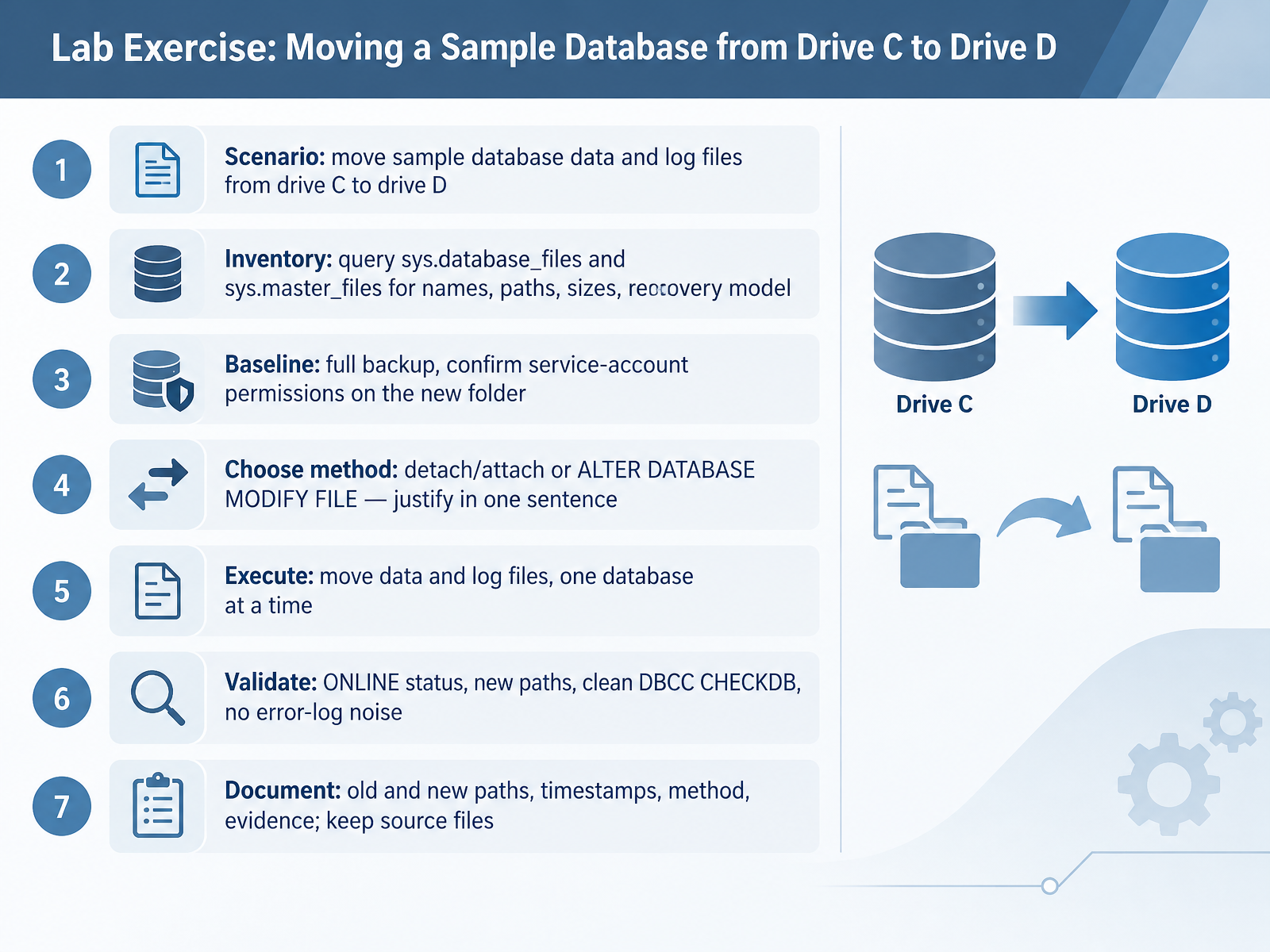
 - 12Lab Exercise: Moving a Sample Database from Drive C to Drive DNow it is time to practise. In this lab, you will move a sample database's data and log files from drive C to drive D. Work one database at a time. Start with an inventory. Query sys.database_files and sys.master_files to list each logical name, its physical path, its size, and the recovery model. Next, build your baseline. Take a full backup, and confirm the SQL Server service account has full permissions on the new folder. This matters because if the service account cannot control the files in their new location, the instance will not start. Then choose your method. Detach and attach is simple, while ALTER DATABASE MODIFY FILE keeps the database in place and works well for planned relocation. Justify your choice in one sentence. Execute the move, then validate. Check that the database is ONLINE at the new paths, run DBCC CHECKDB, and confirm the error log is clean. Finally, document the old and new paths, timestamps, method, and evidence, and keep the source files. Extending the Lab: tempdb, System Databases, and Assessment Checkpoints.
 learn.microsoft.comlearn.microsoft.comlearn.microsoft.com+22 min
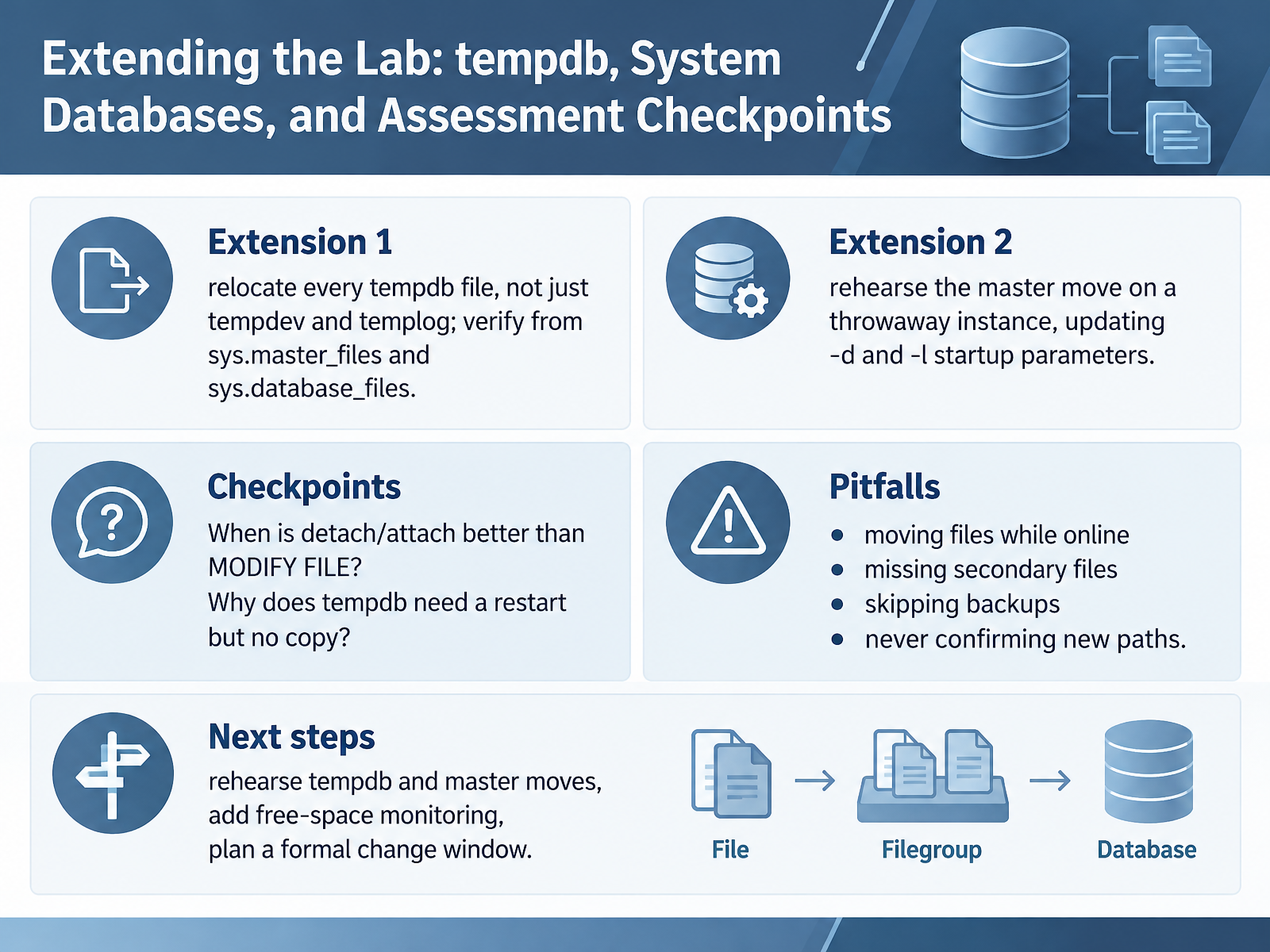
 - 13Extending the Lab: tempdb, System Databases, and Assessment CheckpointsNow let's extend the lab with tempdb, system databases, and a few assessment checkpoints. First, relocate every tempdb file, not just tempdev and templog. Modern installs often create one file per logical processor, so query sys.master_files to list all of them, write one MODIFY FILE statement per row, then restart. To confirm the result, check sys.master_files and sys.database_files. Next, rehearse the master move on a throwaway instance. Update the minus d and minus l startup parameters in Configuration Manager, and verify the service account has full control of the new folder before you restart. For the checkpoints, ask yourself two questions. When is detach and attach better than MODIFY FILE? Detach and attach fits cross instance moves, while MODIFY FILE fits same instance relocation. And why does tempdb need a restart but no copy? Because tempdb is recreated from scratch at startup, so the files are created fresh at the new path. Watch for these pitfalls. Moving files while online, missing secondary files, skipping backups, and never confirming the new paths. Your next steps are to rehearse the tempdb and master moves, add free space monitoring, and plan a formal change window. Let's move on to Key Takeaways and Wrap-Up.
 learn.microsoft.comlearn.microsoft.comlearn.microsoft.com+22 min
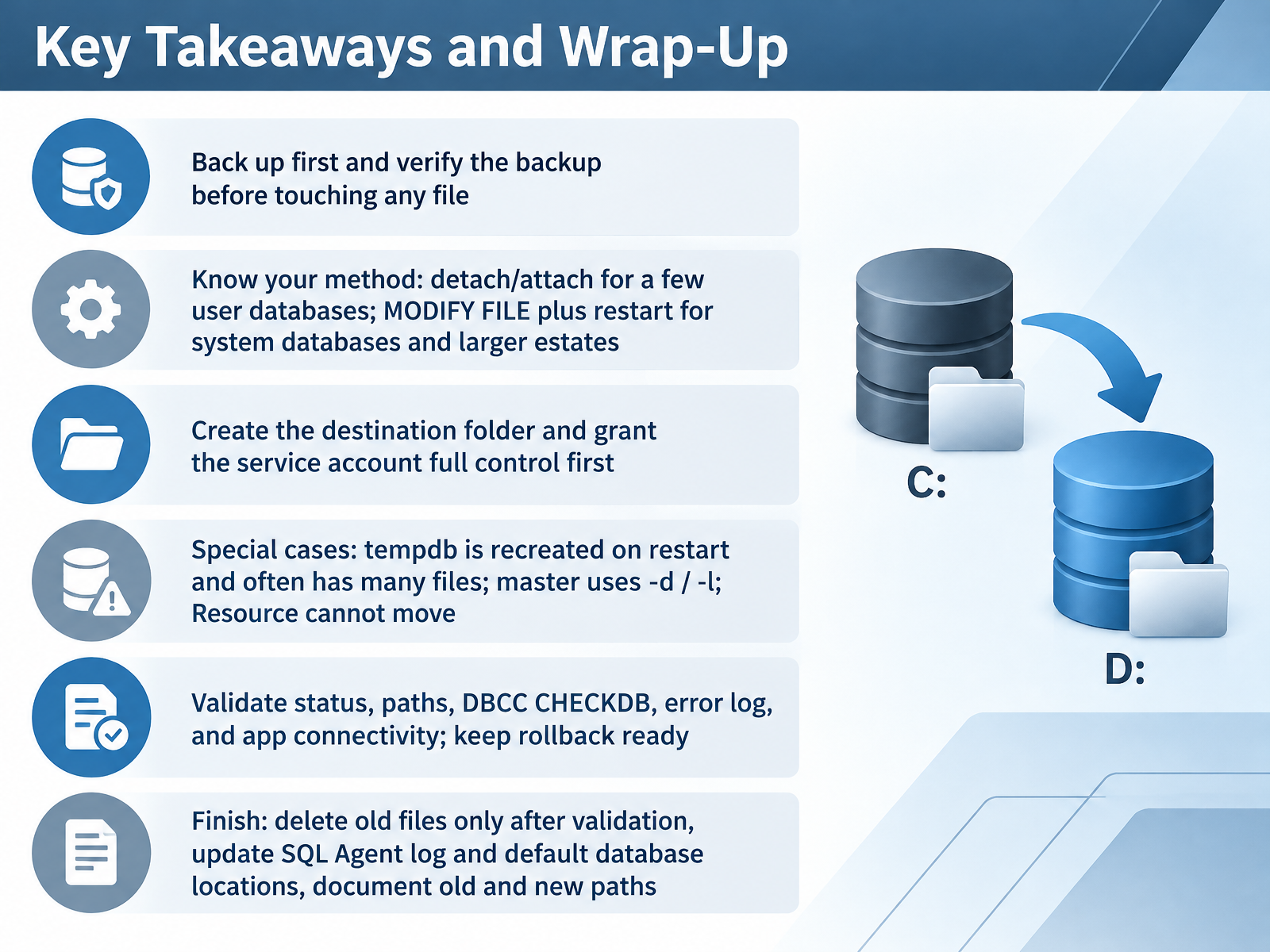
 - 14Key Takeaways and Wrap-UpLet's pull this together. First, back up before you touch any file, and verify that backup restores. Next, know your method. Use detach and attach for a few user databases. Use MODIFY FILE plus a restart for system databases and larger estates. Before you start, create the destination folder and grant the SQL Server service account full control. If that permission is missing, the instance may not start. Remember the special cases. tempdb is recreated on restart and often has many files, so write one MODIFY FILE statement per file. master uses the -d and -l startup parameters. And the Resource database cannot be moved. After the move, validate before you celebrate: check status and paths, run DBCC CHECKDB, read the error log, and confirm application connectivity. Keep your rollback ready. Only delete old files after validation. Then update SQL Agent log and default database locations, and document every old and new path. Thank you for working through this with me. You now have a safe, repeatable workflow. Trust the checks, take it one step at a time, and you will be ready for your next planned relocation. Well done.
 learn.microsoft.comlearn.microsoft.comlearn.microsoft.com+22 min
Take the deck with you
Download this course as a file — free, no sign-up needed.
- PDF handoutEvery slide page, ready to print or share.15 pages · 3.3 MBDownload
- Narrated PowerPointThe deck that presents itself — every slide carries the digital human's narration video.15 pages · 15.5 MBDownload
- PowerPoint slidesThe full deck as a .pptx — open it in PowerPoint, Keynote, or Google Slides.15 pages · 3.2 MBDownload
Free to use in your own training — please keep the PersonWise credit page at the end.
Have your own deck? Turn it into a course
Sources consulted
Web sources consulted while building this course.
- Move user databases - SQL Server | Microsoft Learn — learn.microsoft.com
- https://learn.microsoft.com/en-us/sql/relational-databases/databases/move-system-databases?view=sql-server-ver16 — learn.microsoft.com
- ALTER DATABASE (Transact-SQL) File and Filegroup Options — learn.microsoft.com
- Restore a Database to a New Location (SQL Server) - SQL Server | Microsoft Learn — learn.microsoft.com
- Database Files and Filegroups - SQL Server | Microsoft Learn — learn.microsoft.com
- Move system databases — learn.microsoft.com
- ALTER DATABASE (Transact-SQL) File and Filegroup Options — learn.microsoft.com
- https://learn.microsoft.com/en-us/sql/relational-databases/databases/tempdb-database?view=sql-server-ver17 — learn.microsoft.com
- ALTER DATABASE File and Filegroups - SQL Server — learn.microsoft.com
- Move system databases — learn.microsoft.com
- System Databases - SQL Server | Microsoft Learn — learn.microsoft.com
- How to Move System Databases to a New Physical Directory – SQLServerCentral — sqlservercentral.com
- master Database — learn.microsoft.com
- Move SQL Server System Database Files — mssqltips.com
- model Database — learn.microsoft.com