Begin
14 pages · ~28 min
Accessibility Testing Tool Selection Guide
Learn to evaluate and select digital accessibility testing tools, and design effective workflows for integrating them into your development process.
A digital instructor presents all 14 pages. Hold “Ask” at any point and ask out loud — the answer comes from this course. No sign-up needed.
What you’ll learn
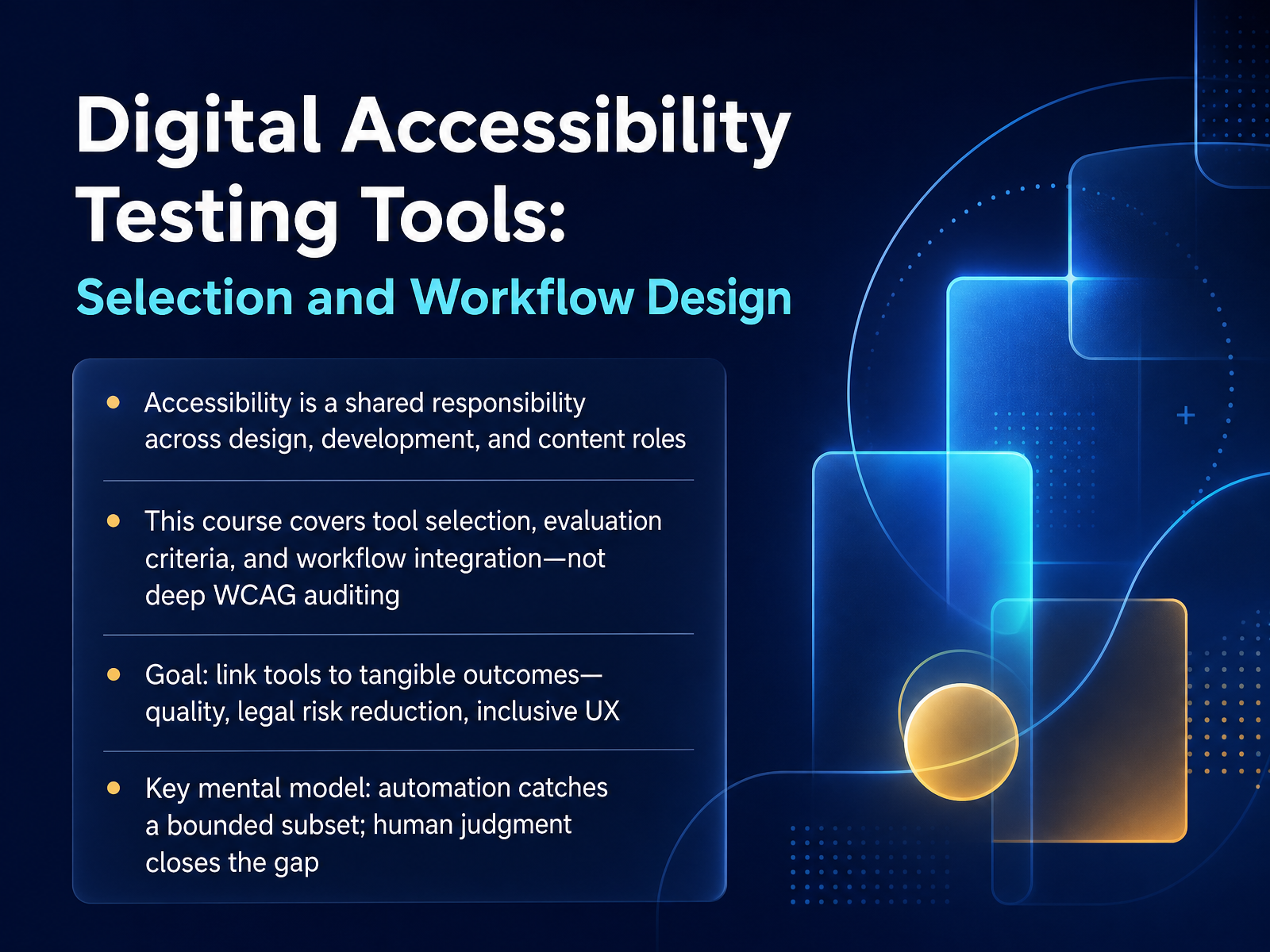
- 01Digital Accessibility Testing Tools: Selection and Workflow DesignWelcome. This course is about choosing the right accessibility testing tools and building a workflow that actually works. Whether you're a designer, a developer, or responsible for digital content, accessibility is your job too. We're not going deep into WCAG auditing here. Instead, we're focused on practical tool selection and how to integrate testing into your sprint cycles. The goal is simple: link your tools to tangible outcomes like quality, reduced legal risk, and a genuinely inclusive user experience. Keep one mental model in mind from the start. Automation catches a bounded subset of issues, typically thirty to forty percent of WCAG violations. Human judgment closes the rest of the gap. That's not a limitation to work around. It's the foundation for a smart tooling strategy. Let's start with why accessibility testing needs a deliberate tooling strategy.a11yflow.devaccessible.orga11ypath.com+22 min
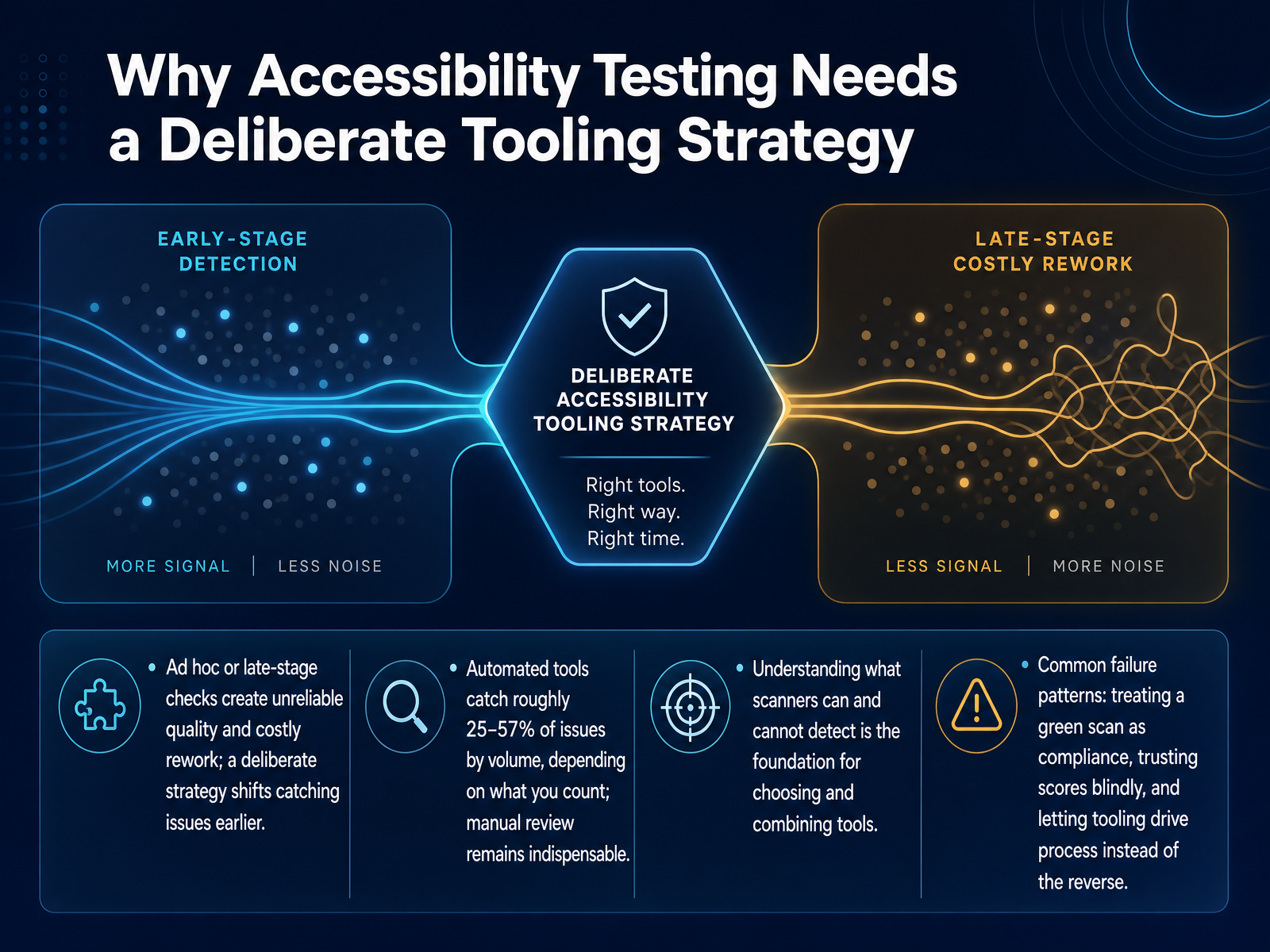
- 02Why Accessibility Testing Needs a Deliberate Tooling StrategyNow let's talk about why testing strategy matters. Ad hoc checks at the end of a sprint create unreliable quality and expensive fixes. A deliberate strategy moves issue detection earlier. Here's the key number: automated tools catch roughly 25 to 57 percent of issues, depending on whether you count bugs or success criteria. That's still a lot, but it's not everything. Manual review stays essential. So when you see a green scan, don't treat it as compliance. A scan only proves the code-level rules passed. It doesn't judge whether alt text is meaningful, whether keyboard flow works, or whether screen reader announcements make sense. Trusting scores blindly is a common failure pattern. So is letting the tool dictate your process. You choose the workflow. The tool supports it. Keep that distinction clear from the start.
 accessible.orgaccessible.orga11yflow.dev+21 min
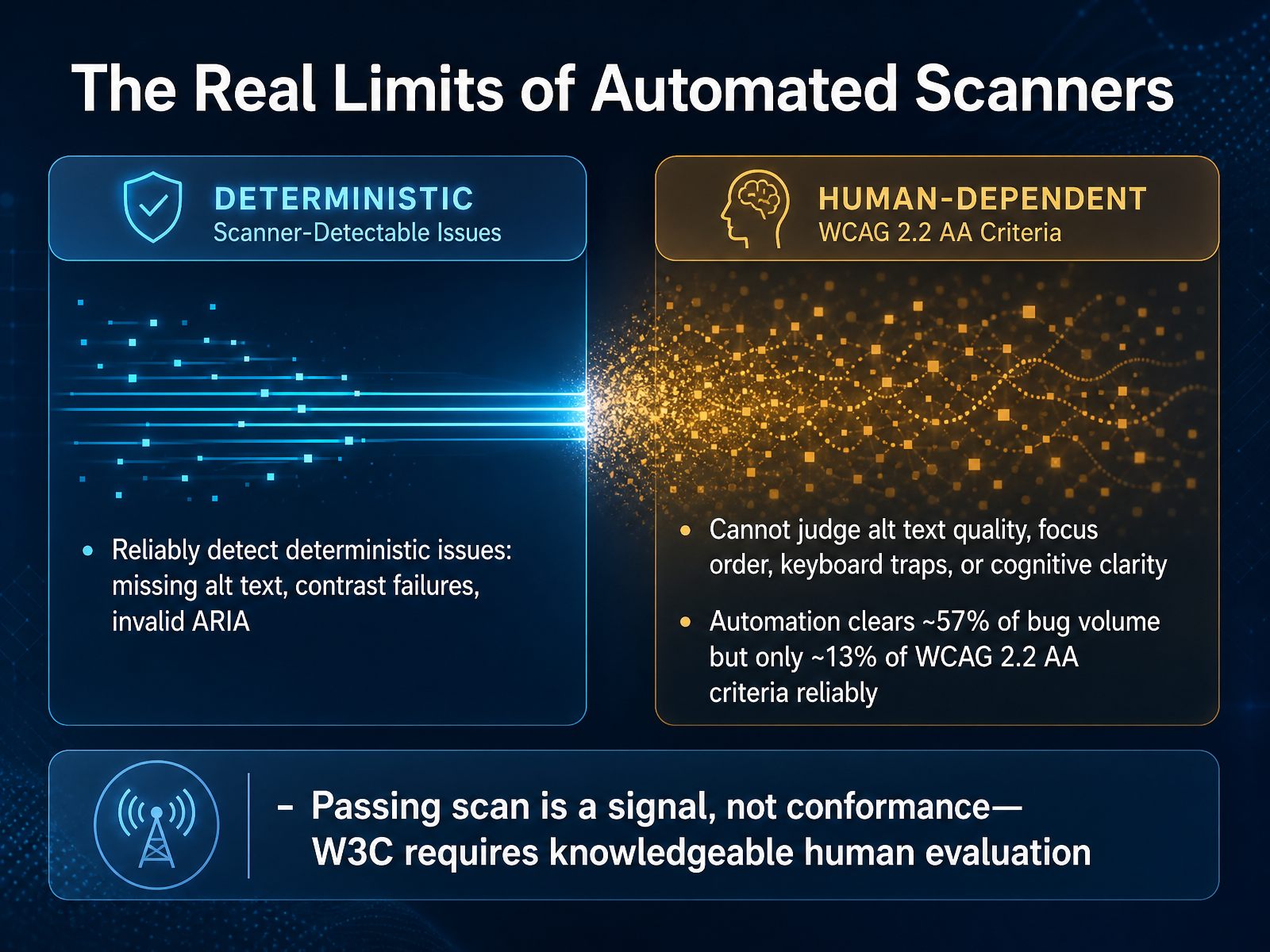
 - 03The Real Limits of Automated ScannersLet’s talk about what automated scanners actually do well, and where they stop. They are excellent at finding deterministic issues. Missing alt attributes, low color contrast, invalid ARIA. These are code patterns a machine can parse reliably. But that is the ceiling. A scanner cannot judge whether your alt text is meaningful. It sees alt equals image123 dot jpg and gives it a pass. A person would flag it immediately. The scanner verifies presence, not quality. Here is the data you need to remember. Automation clears about fifty-seven percent of issue volume. But it only reliably covers about thirteen percent of WCAG 2.2 AA criteria. The high-volume bugs are the easy ones. The remaining eighty-seven percent of the rulebook needs human judgment. That includes keyboard traps, focus order, cognitive clarity, and reading order. So a clean scan is a signal, not a conformance claim. The W3C is explicit about this. Knowledgeable human evaluation is required. Treat automation as your first pass in CI, not your finish line. Next, we’ll look at tool categories and what each one actually checks.
 accessible.orgaccessible.orga11yflow.dev+22 min
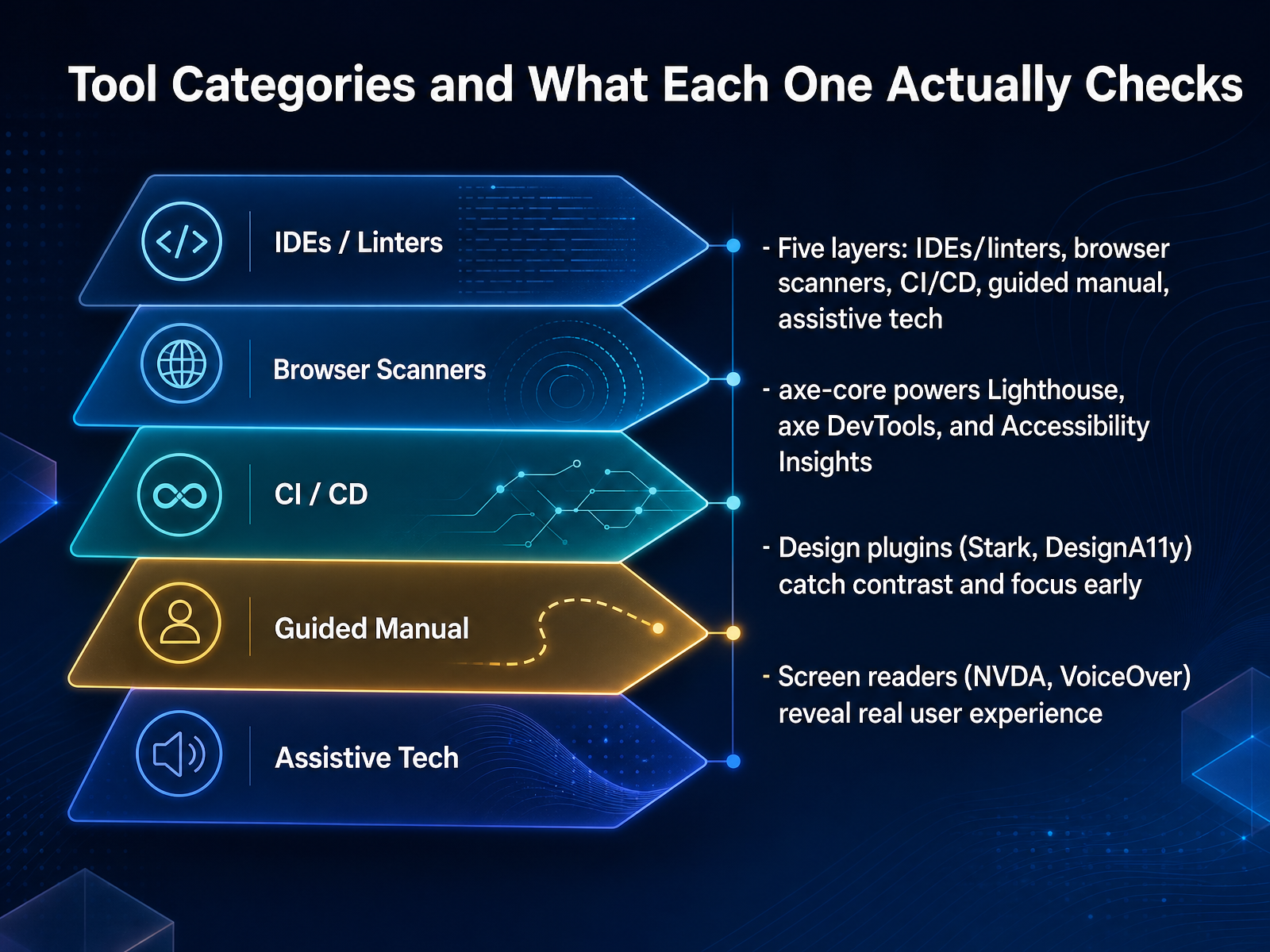
 - 04Tool Categories and What Each One Actually ChecksLet's break the tools into five layers. First, IDEs and linters catch issues as you type. Second, browser scanners give you an instant snapshot. Third, CI/CD tools run checks on every pull request. Fourth, guided manual workflows force you to verify what automation cannot. Fifth, assistive technology reveals the real user experience.
A key point: most scanners share one engine. axe-core powers Lighthouse, axe DevTools, and Accessibility Insights. That means they check the same rules. Don't compare rule counts. Compare workflow fit.
For designers, plugins like Stark and DesignA11y check contrast and focus states while the file is still editable. That's ten times cheaper than fixing it in production.
And don't skip screen readers. NVDA on Windows and VoiceOver on Mac show you what automation misses: confusing announcements, broken reading order, and flawed focus management. No scanner replicates that.
Keep this in mind: each layer serves a different moment in your workflow. Now let's talk about how to evaluate these tools against your specific needs.
 a11yflow.devaccessible.orga11ypath.com+22 min
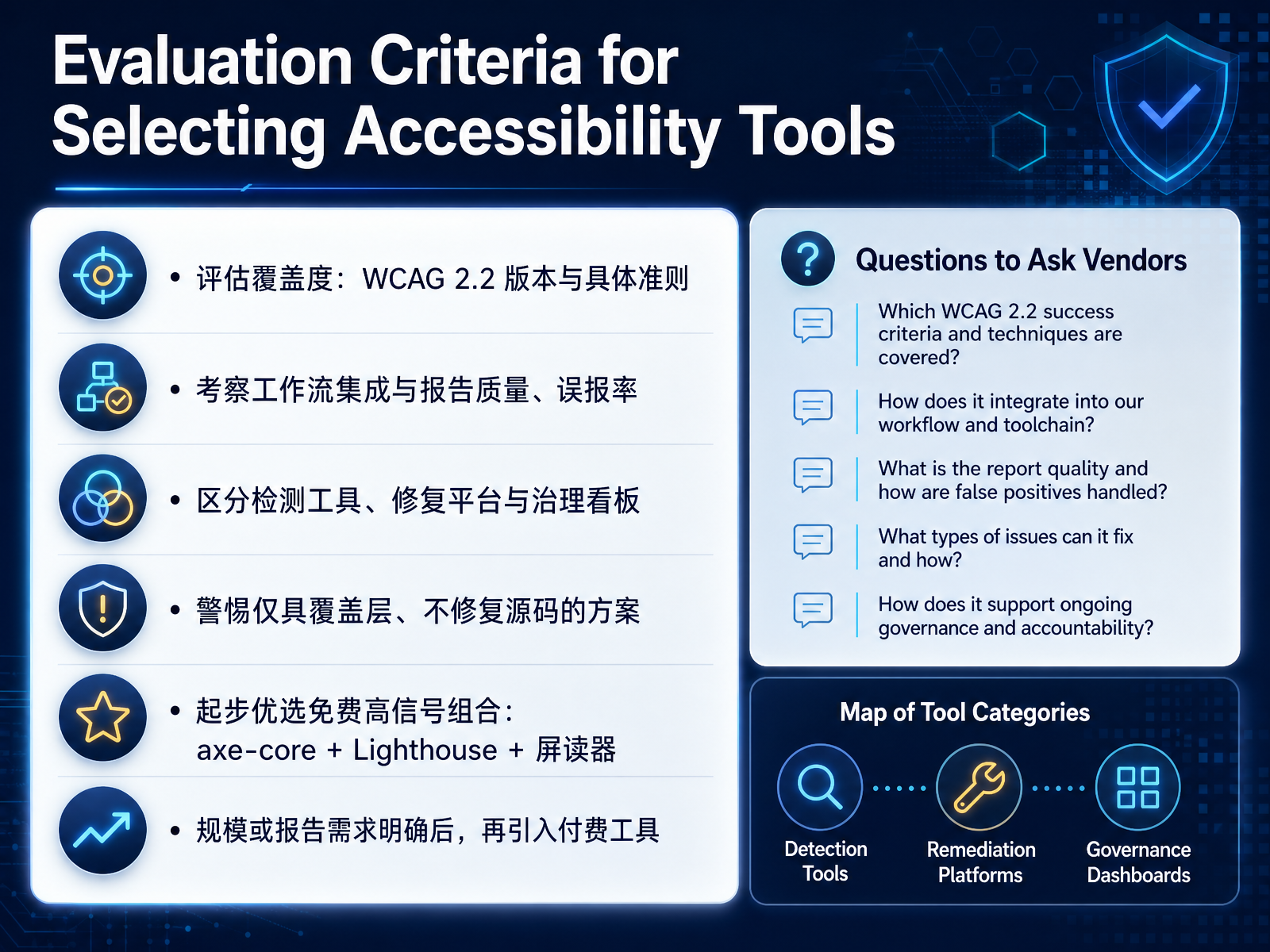
 - 05Evaluation Criteria for Selecting Accessibility ToolsNow let's talk about how to actually evaluate accessibility tools before you commit. Start with coverage: does the tool check against WCAG 2.2 specifically, and which success criteria does it cover? Some tools only handle 2.1 and rebrand as 2.2-ready. Ask for the exact rule list. Next, examine workflow integration and report quality. A tool that floods you with false positives wastes time, so run a pilot on your own pages and measure the signal-to-noise ratio. Also, distinguish between detection tools, remediation platforms, and governance dashboards. Detection tools find issues, remediation tools fix them, and governance dashboards track them across teams. Beware of overlays that only patch the page without fixing the source code—they create risk, not compliance. For most teams, the smart starting point is free and high-signal: axe-core, Lighthouse, and a screen reader. That combo catches the common issues at no cost. Bring in paid tools only when you need scale, brandable reports, or governance, and by then you'll know exactly which gaps you're paying to close. Next, we'll look at building a lifecycle-wide testing workflow.
 w3.orgcedarreport.comkritano.com+21 min
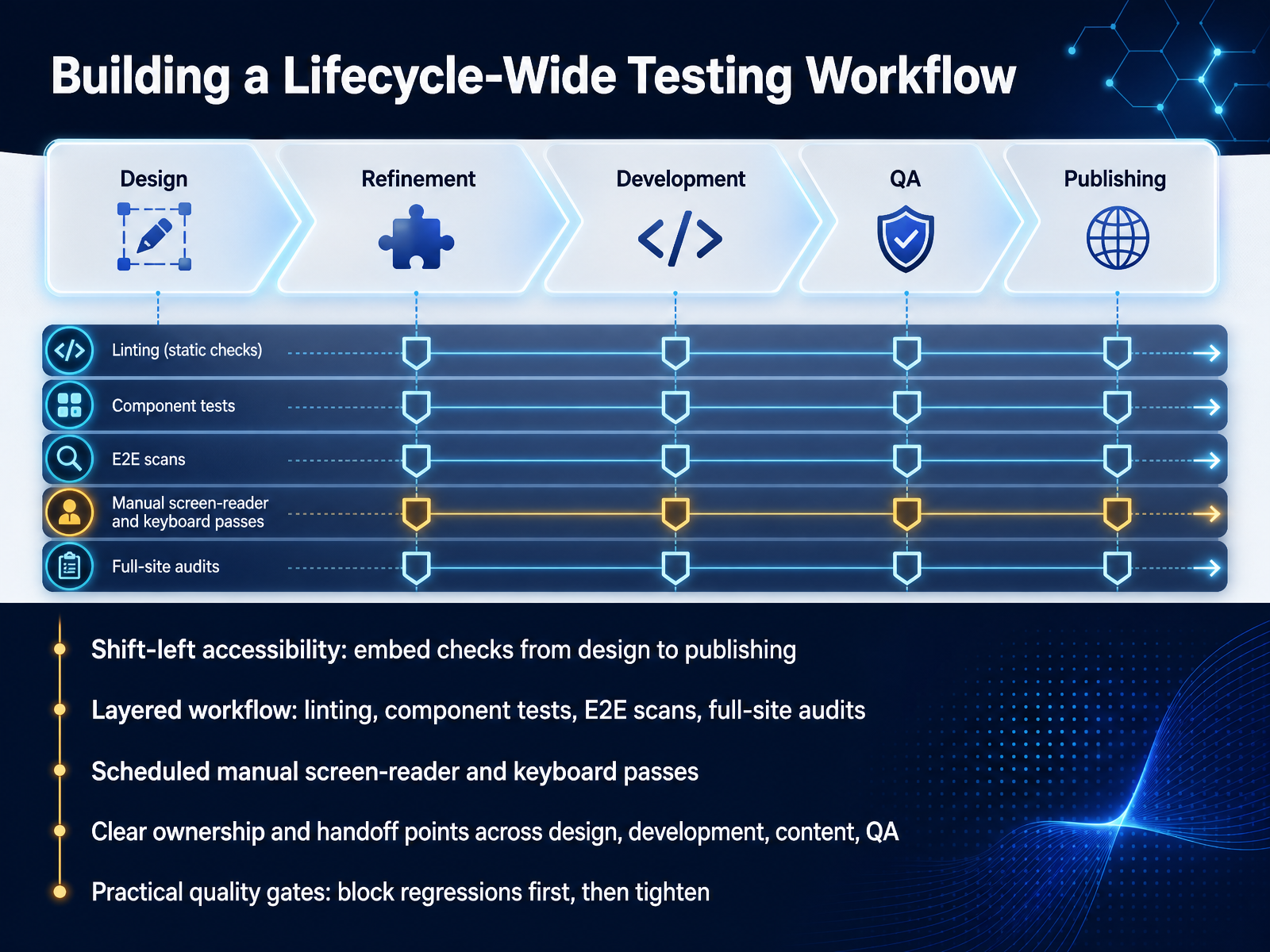
 - 06Building a Lifecycle-Wide Testing WorkflowNow let's talk about turning all of this into a lifecycle-wide workflow. The key is to shift left. Embed accessibility checks from the very first design review, not just at the end. Catch a barrier in a design file and it costs minutes to fix. Catch it in production and it costs orders of magnitude more. Build a layered workflow. Start with linting for code-level issues, add component tests, then end-to-end scans, and finish with full-site audits. Each layer catches what the previous one missed. And you still need scheduled manual passes with a screen reader and keyboard. Automation alone covers only about a third of WCAG criteria. Manual testing covers the rest. Assign clear ownership at every handoff. Design passes annotated files to development. Development hands off to QA. Content teams own the words. No ambiguous ownership. That is how things slip through. Finally, set practical quality gates. First, block new regressions. Then, tighten the rules as your team matures. Start strict and your team will bypass the process. Start with blocking new issues, and you build trust. Automate what you can, test what you cannot, and make the accessible path the path of least resistance. Next, let's look at the specific checks you need at the design stage.
 qualibooth.comqapractices.comaccessible.org+21 min
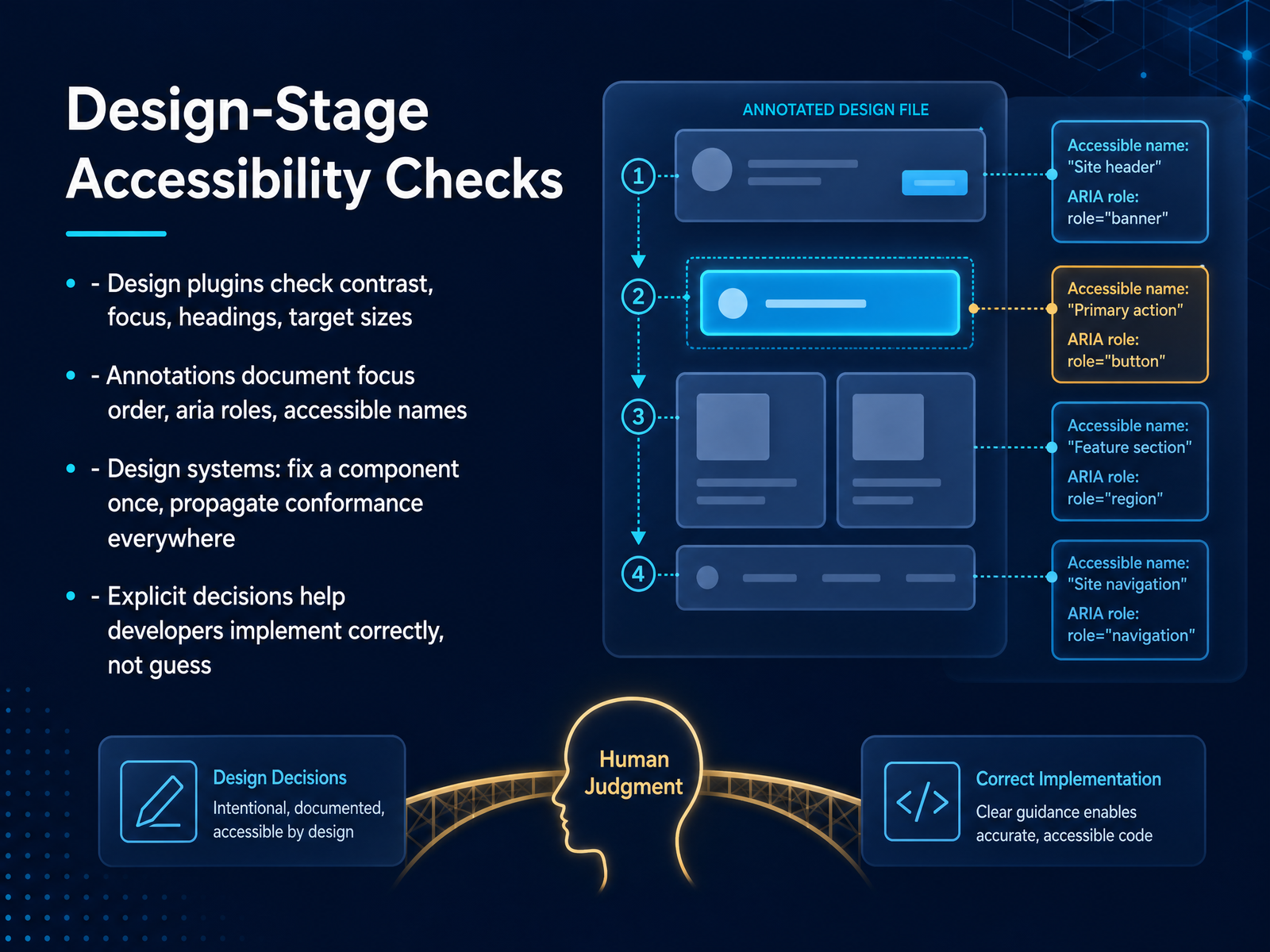
 - 07Design-Stage Accessibility ChecksNow let’s look at the design stage, where accessibility decisions cost the least and prevent the most rework. Modern design plugins can check contrast, heading structure, and target sizes right inside your mockups. These checks are fast and give you a clear signal before anything reaches development. But automated checks only cover part of the picture. Annotation tools let you document focus order, keyboard interactions, and accessible names directly on the design. This turns abstract requirements into visual guidance that developers can follow without guessing. The bigger win is in your design system. Fix a component once, and every product that uses it inherits that conformance. If your button handles focus and contrast internally, teams can’t accidentally break it. For custom components, document the ARIA pattern and the intended behavior in the design file itself. That explicit decision removes ambiguity. Developers should never have to guess whether a heading is visual or semantic, or what a custom control is supposed to announce. Make those decisions visible. The payoff: fewer tickets, faster handoff, and a product that matches your intent. Next, we’ll move into development and how CI/CD gates keep those standards from slipping.
 figma.comqualibooth.comqapractices.com+21 min
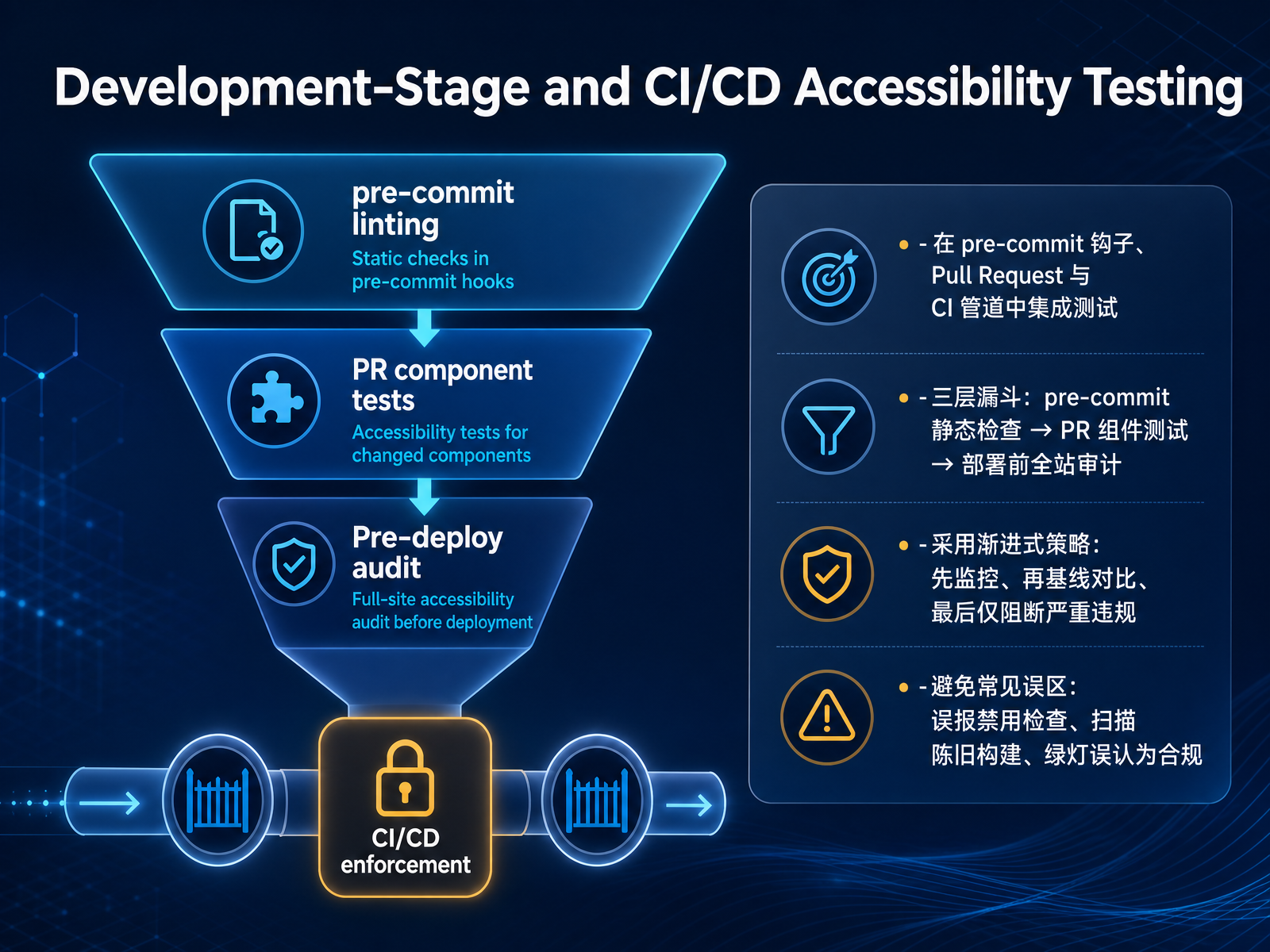
 - 08Development-Stage and CI/CD Accessibility TestingNow let’s talk about catching accessibility issues before they ever reach production. The goal is to build a three-layer funnel. First, pre-commit static checks. These run in seconds and catch the obvious problems, like missing alt text or invalid ARIA, right in the editor. Second, pull request component tests. Tools like jest-axe and cypress-axe run against your rendered UI and catch issues in the actual page states your tests already exercise. Third, a full-site audit before deploy. Use pa11y or Lighthouse CI to scan every route as a final safety net. Here’s the important part: roll this out gradually. Start in monitoring mode, just posting results as PR comments. Then add a score threshold that blocks regressions. Finally, only block on critical and serious violations. Going straight to blocking fails. Your team will bypass the check and the whole program dies. Also be careful with the common pitfalls. Never disable a rule to fix a false positive—add it to an ignore list with a documented reason and review it quarterly. Make sure your CI scans the latest build, not a stale branch. And remember, a green pipeline is not a compliance certificate. It only catches about thirty to forty percent of WCAG issues. Automated checks handle the structural floor, but you still need manual keyboard and screen reader testing. That’s what we’ll cover next.
 2 min
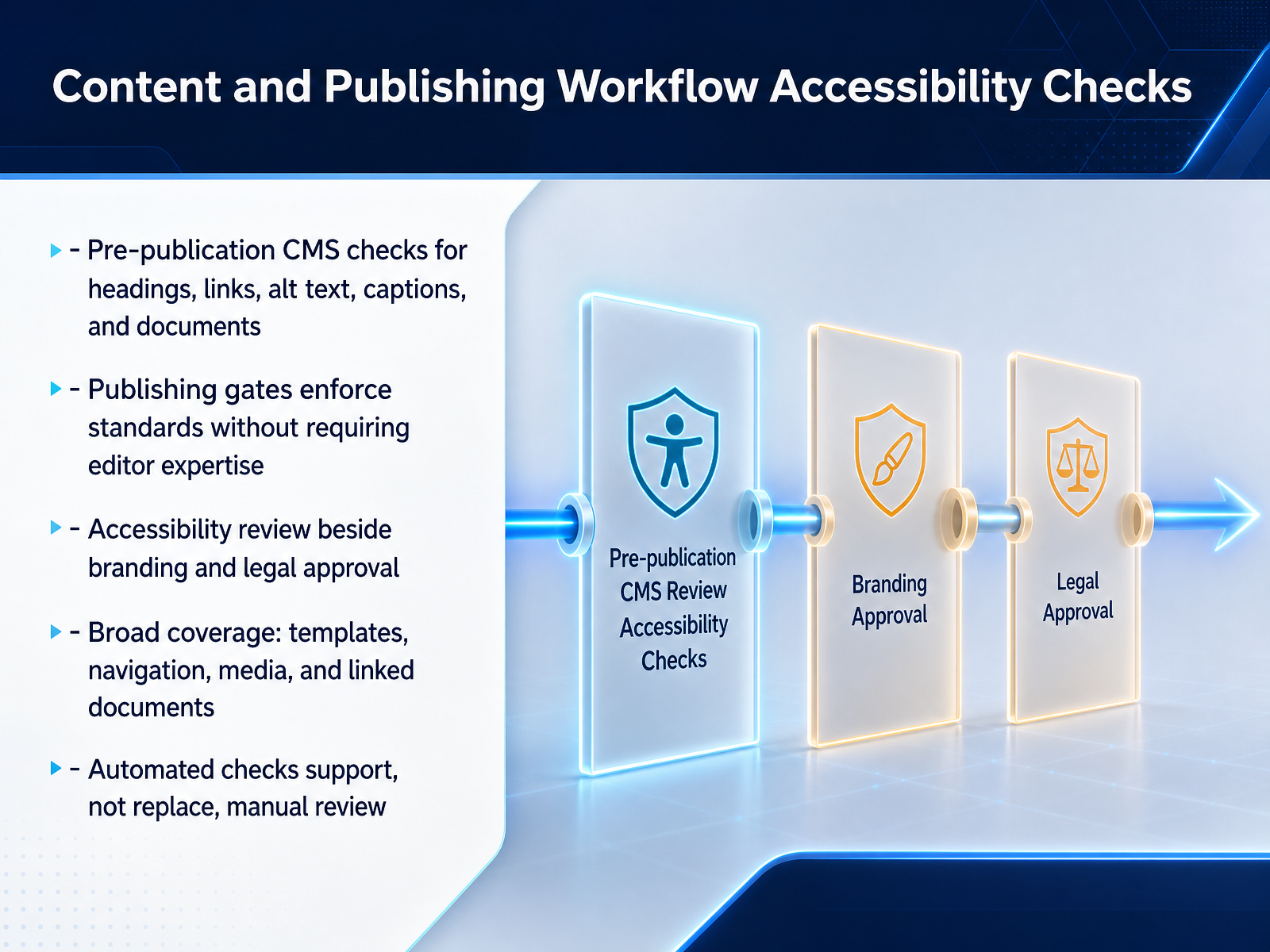
2 min - 09Content and Publishing Workflow Accessibility ChecksNow let's talk about the publishing side of things. This is where accessibility often breaks down, because content changes constantly. The fix is to build checks directly into your CMS workflow, before anything goes live. Start with pre-publication checks on the core elements: heading structure, link text, alt text, captions, and any uploaded documents. These are the most common problem areas. The key is to set up publishing gates that enforce these standards automatically. That way, an editor doesn't need deep accessibility expertise to do the right thing. If a heading is skipped or an image has no alt text, the system flags it before publish. Better yet, run the accessibility review right alongside your branding and legal approvals. It becomes part of the standard sign-off, not an extra step. And don't limit your scans to just the page body. Your templates, navigation, and linked PDFs need coverage too. That's where hidden barriers often live. One important caveat: automated checks catch maybe thirty to fifty percent of issues. They are a support tool, not a replacement for human review. Use them to catch the obvious problems at scale, and keep manual testing for the judgment calls. This is how you make accessibility a routine part of publishing, rather than a remediation project after a complaint. Next, let's look at how to turn all those tool reports into prioritized action.
 qualibooth.comqapractices.comaccessible.org+22 min
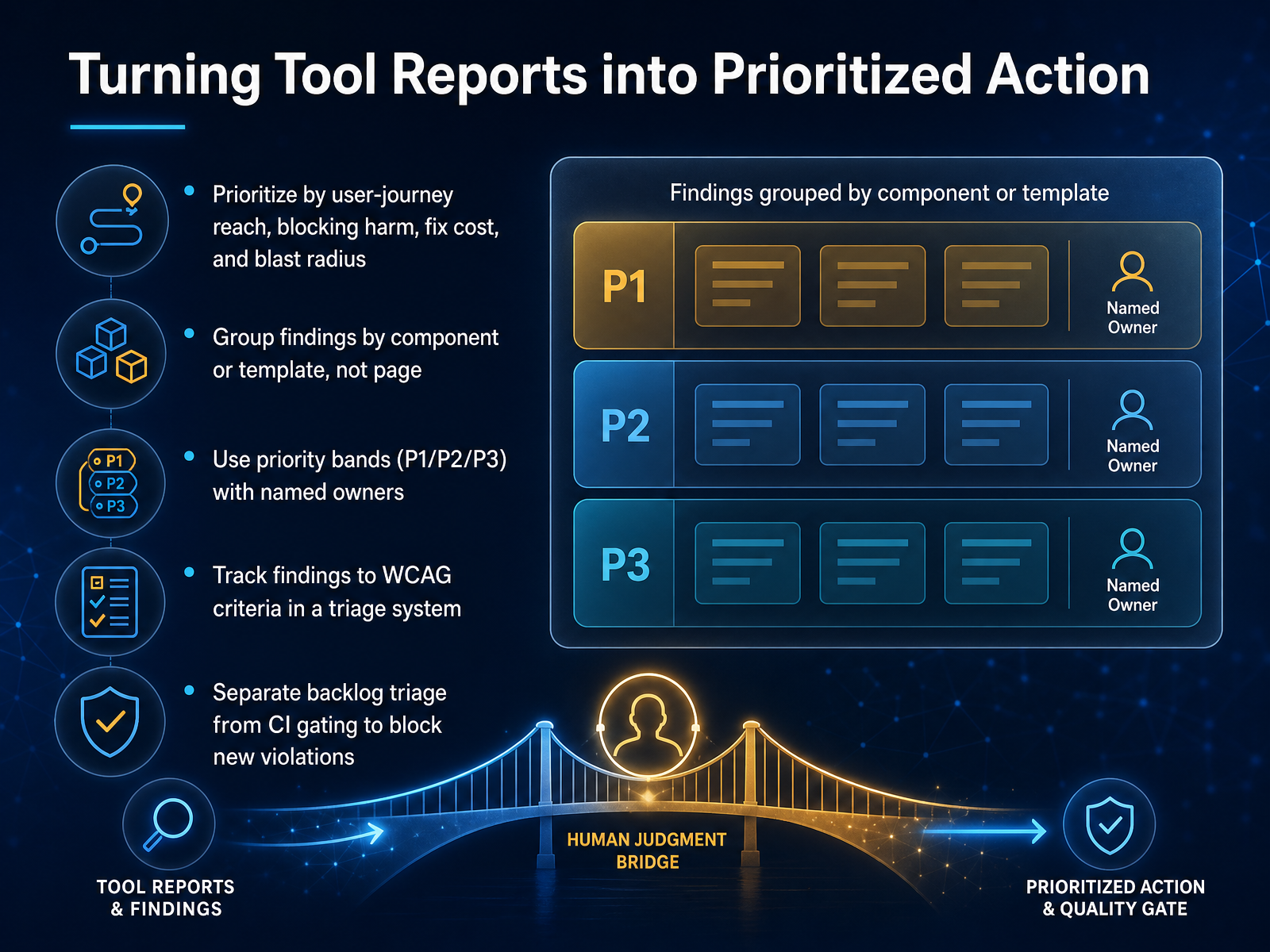
 - 10Turning Tool Reports into Prioritized ActionLet's turn that report into a plan you can actually execute. Start by prioritizing findings using four factors: user-journey reach, blocking versus degrading harm, fix cost, and blast radius. A defect on your payment flow that stops a checkout blocks. A slight contrast miss on a blog post degrades. Blast radius is key—fixing one design-system component can clear hundreds of findings at once, so that should outrank fixing the same defect on a single page. Group findings by component or template, not by page. Collapse your thousands of rows into roughly 180 groups, then assign priority bands. Use P1, P2, P3, and name an owner for every group. Track each finding to its WCAG criterion in a triage system so legal, QA, and engineering can trace the path. And critically, keep backlog triage separate from CI gating. The gate runs on pull requests, blocks only new violations, and exits non-zero on new blocking defects. The triage job scans everything on a schedule, and the backlog existing is not a build failure. One tool, one rule set, two very different jobs. Now, let's move to measuring progress and avoiding common pitfalls.
 2 min
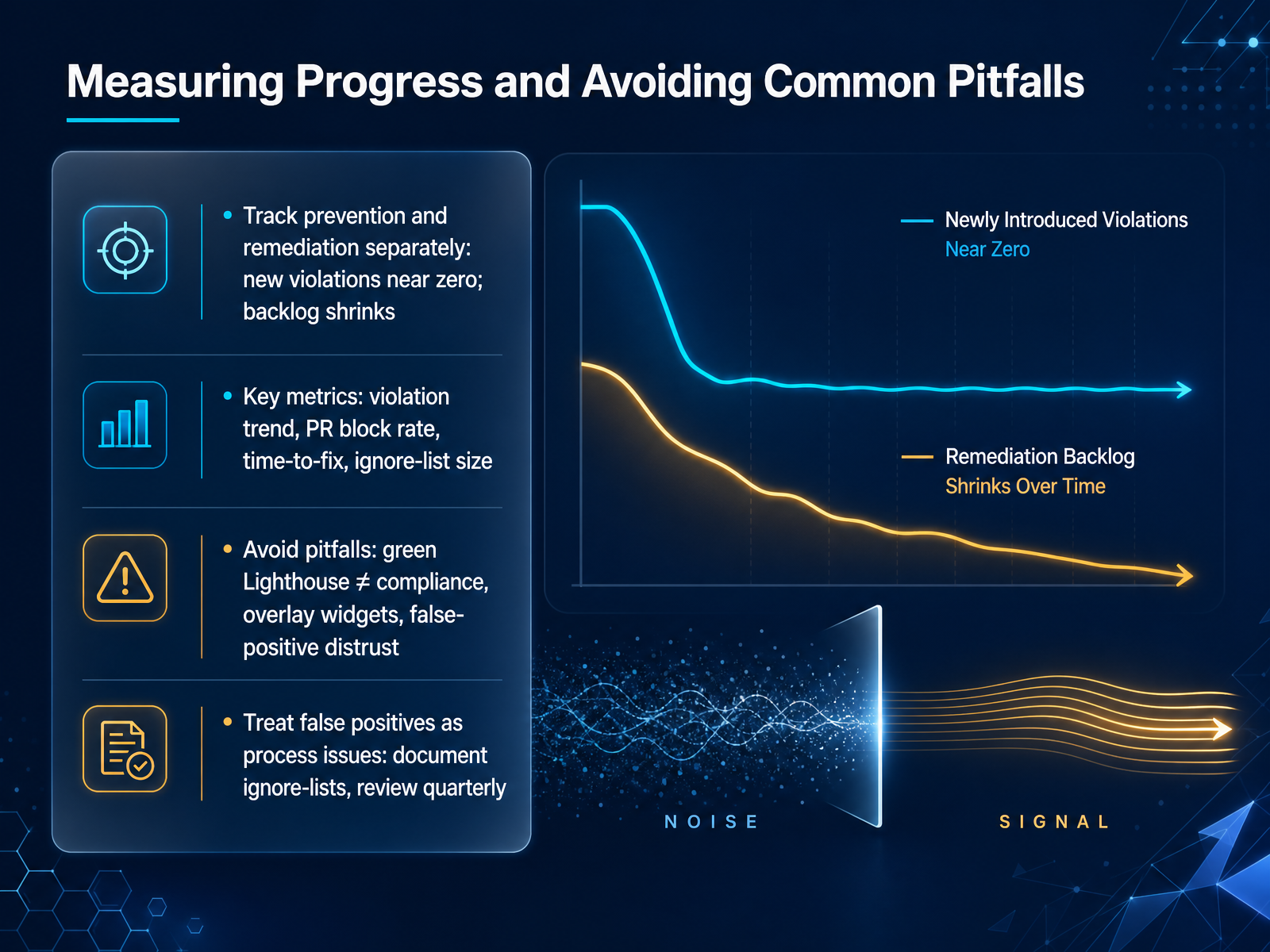
2 min - 11Measuring Progress and Avoiding Common PitfallsNow let's talk about measuring progress and avoiding the common pitfalls that derail accessibility programs. The key is to track prevention and remediation separately. New violations introduced after your gate goes live should stay near zero. The existing backlog should shrink steadily. If you combine them into one number, a week where you fix seventy-four issues but introduce sixty-two looks like a small improvement. In reality, it's a regression problem. Track them on two separate curves.
Watch these metrics: violation trend, pull request block rate, time to fix, and ignore-list size. A healthy block rate is under ten percent. Time to fix for critical issues should stay under twenty-four hours.
Now, the pitfalls. A green Lighthouse score does not mean compliance. It's a helpful signal, not a certification. Overlay widgets that claim to fix accessibility automatically often create more problems than they solve—avoid them. And when developers see too many false positives, they start distrusting the whole system. That's when they disable the checks entirely.
Treat false positives as process issues, not tool failures. Document every ignored rule with a reason, review that ignore list quarterly, and remove entries that are no longer valid. This keeps the checks credible and the program alive.
From Selection to Adoption: Practical Next Steps will help you turn these measurements into a rollout plan that sticks.
 1 min
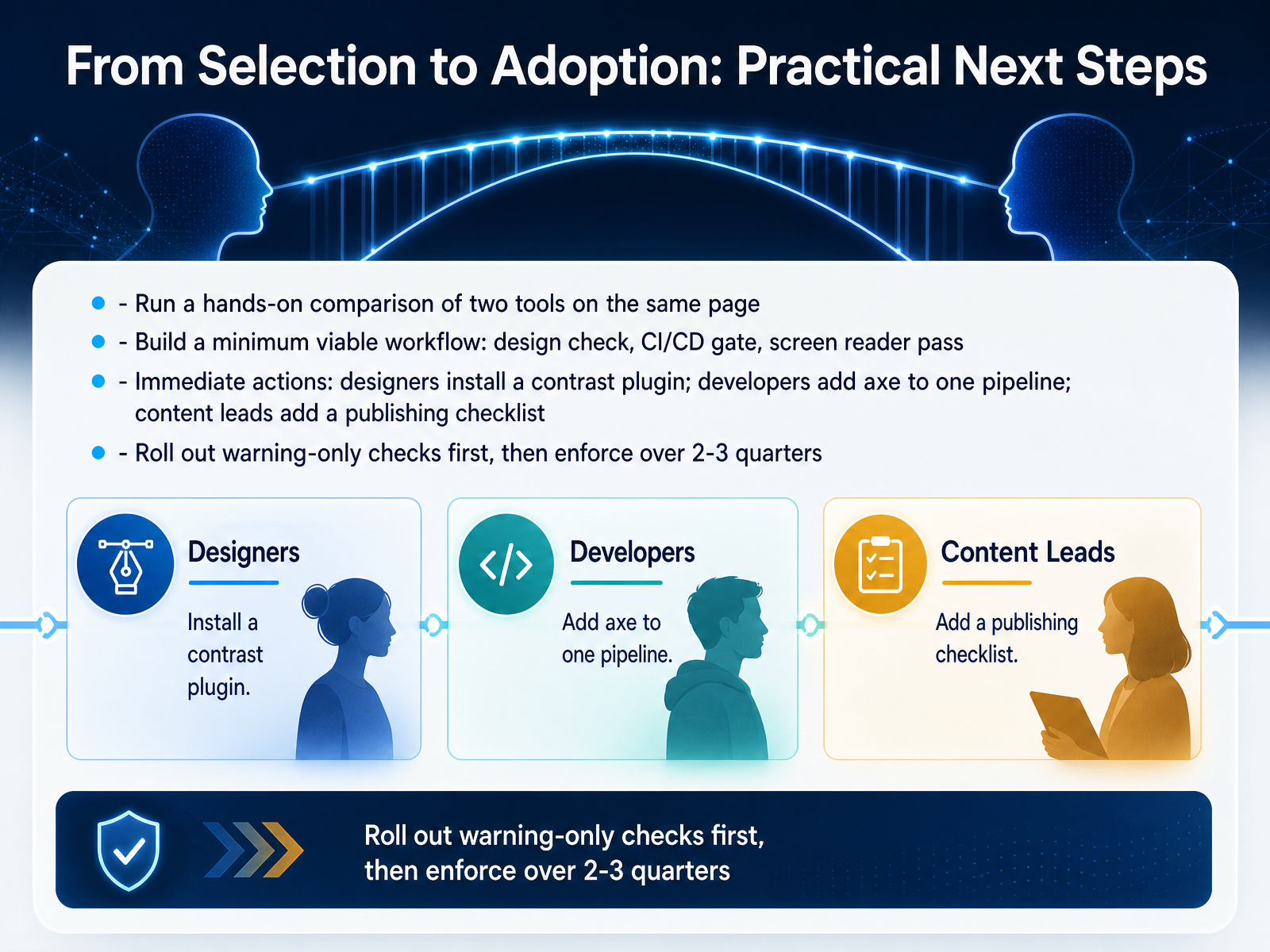
1 min - 12From Selection to Adoption: Practical Next StepsSo, you've done your comparison. Now, turn that analysis into action. First, pick two tools and run them on the same test page. Compare the findings side by side. This gives you hard evidence, not guesswork, about which tool fits your workflow. Next, build a minimum viable workflow. That means a contrast check during design, an automated scan in your CI pipeline, and a manual screen reader pass before release. Then, assign immediate first steps. Have designers install a contrast plugin today. Ask one developer to add a scanning tool to one pipeline this week. And give content leads a publishing checklist to review before anything goes live. Finally, do not enforce everything on day one. Run your checks in warning-only mode first. Let the team get used to the output without blocking their work. Then, over the next two or three quarters, tighten the rules and start blocking critical violations once they are confident. The goal is steady adoption, not a disruptive launch. This rollout builds trust in the system, so the checks become a normal part of how you work. Up next, we will cover how to build governance and training that keeps this momentum going for the long term.
 w3.orgcedarreport.comkritano.com+22 min
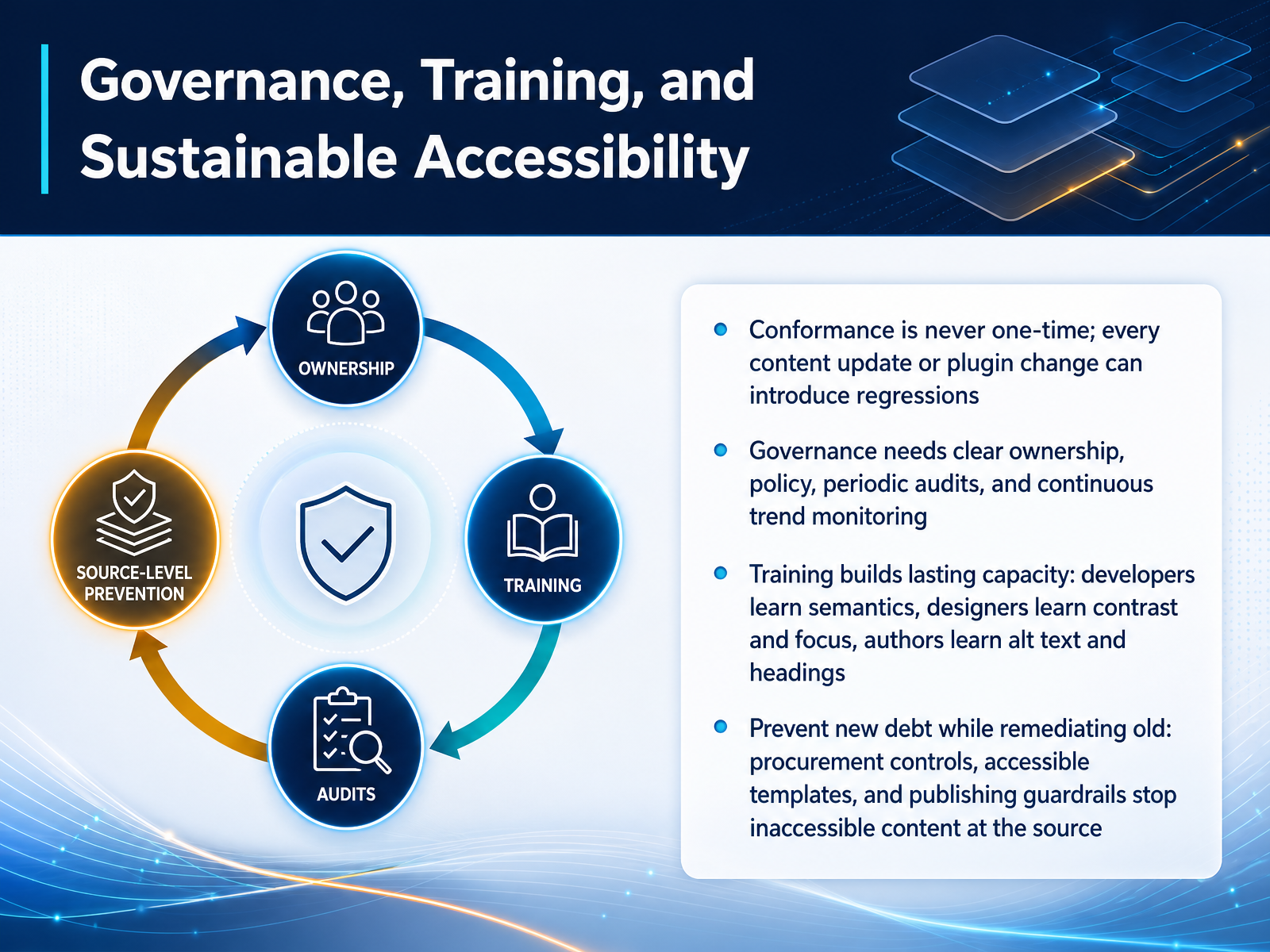
 - 13Governance, Training, and Sustainable AccessibilityNow let's talk about how you make this stick. Conformance is never a one-time achievement. Every content update, plugin change, or new feature can introduce regressions and undo your progress. That is why governance matters. You need a clear owner for accessibility, a written policy, and regular audits. Track trends over time, so you can spot drift before it becomes a legal risk. But governance alone is not enough. You also need training. Developers need to understand semantic HTML. Designers need to master contrast and focus states. Content authors need to know how to write proper alt text and heading structure. This builds lasting capacity inside your team. Finally, prevent new debt while you remediate old debt. Add procurement controls so you do not buy inaccessible tools. Use accessible templates in your CMS, and enforce publishing guardrails that catch issues before content goes live. The goal is to stop inaccessible content at the source, not just fix it after the fact. Now, let's wrap up with the key takeaways and the resources you need to put this into action.
 qualibooth.comqapractices.comaccessible.org+22 min
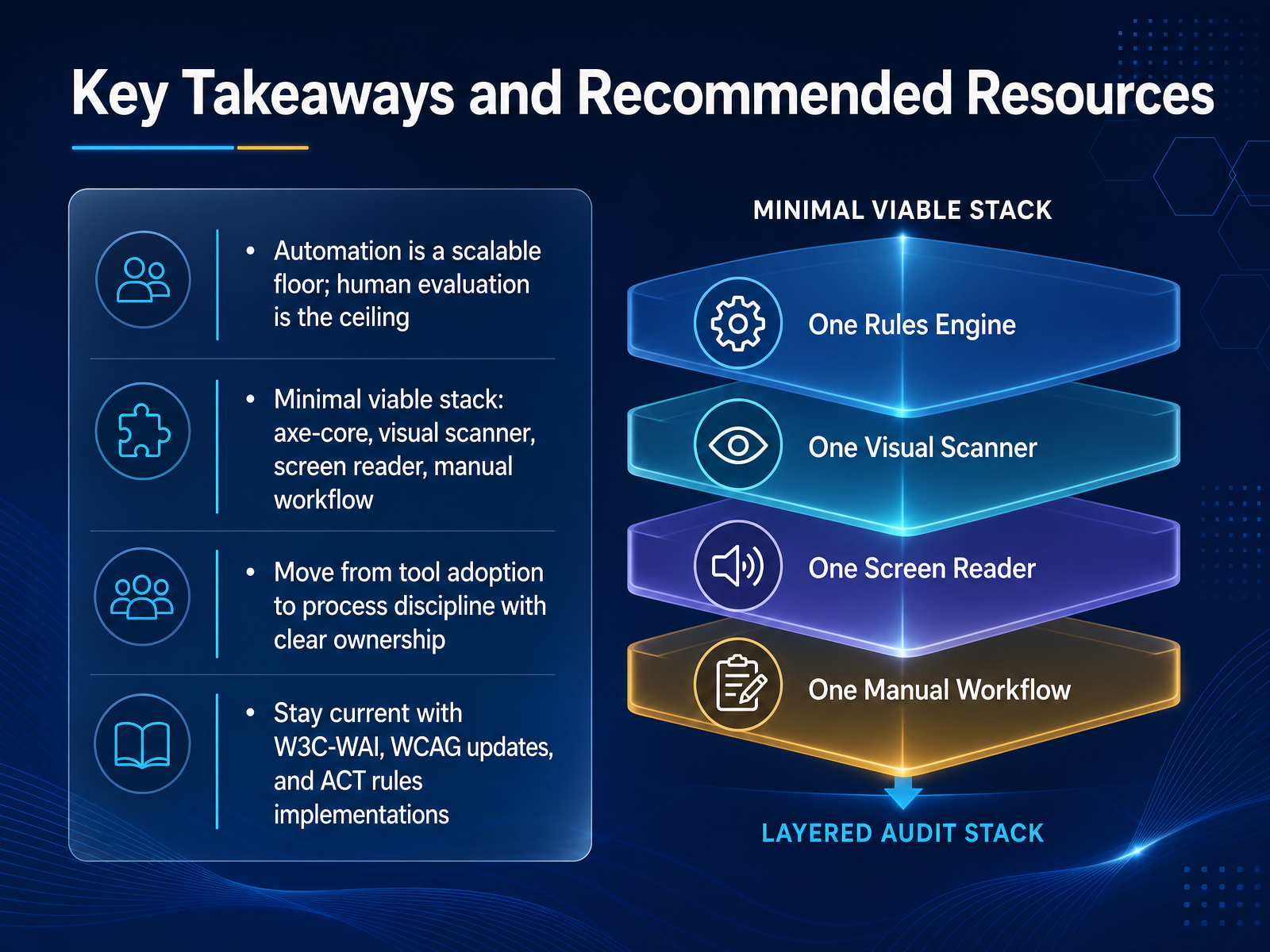
 - 14Key Takeaways and Recommended ResourcesLet’s lock in what matters. Automation gives you scalable coverage, but the final quality bar is always human evaluation. Start with the minimal viable stack: axe-core for automated scans, a visual scanner like WAVE for design reviews, a screen reader for real-user validation, and a structured manual workflow for the rest. The bigger shift is moving from tool adoption to process discipline. Assign clear ownership for each testing layer so issues actually get fixed. Stay current. Follow the W3C WAI resources, track WCAG updates, and align with the ACT rules implementations. That’s how you keep your process defensible as standards evolve. Thanks for your time today. You now have a practical framework for selecting tools and building a workflow that fits your team. Go run your first scan, and start closing those gaps.
 a11yflow.devaccessible.orga11ypath.com+21 min
Take the deck with you
Download this course as a file — free, no sign-up needed.
- PDF handoutEvery slide page, ready to print or share.15 pages · 3.7 MBDownload
- Narrated PowerPointThe deck that presents itself — every slide carries the digital human's narration video.15 pages · 15.1 MBDownload
- PowerPoint slidesThe full deck as a .pptx — open it in PowerPoint, Keynote, or Google Slides.15 pages · 3.6 MBDownload
Free to use in your own training — please keep the PersonWise credit page at the end.
Have your own deck? Turn it into a course
Sources consulted
Web sources consulted while building this course.
- Accessibility Testing Tools Compared (2026) | A11yFlow — a11yflow.dev
- What are the Best Tools to Create an ADA Compliant Website? | Accessible.org — accessible.org
- Automated Accessibility Testing: Tools & CI/CD — A11yPath — a11ypath.com
- Screen Reader Testing vs Automated Testing 2026 | Accessibility Testing Methods Compared — blog.a11yfix.dev
- Best WCAG Testing Tools 2026: An Honest Comparison | Kritano — kritano.com
- Limitations of Accessibility Scanning Tools | Accessible.org — accessible.org
- WCAG Issues That Automated Scans Don't Catch | Accessible.org — accessible.org
- Automated vs Manual Accessibility Testing: The Data | A11yFlow — a11yflow.dev
- How accessibility programs benefit from both manual and ... — deque.com
- Why You Can't Trust Automated WCAG Testing Tools for Accessibility Compliance - Accessibility.Works — accessibility.works
- Selecting Web Accessibility Evaluation Tools | Web Accessibility Initiative (WAI) | W3C — w3.org
- How to evaluate AI accessibility testing tools in 2026 — cedarreport.com
- Accessibility Monitoring Buyer's Guide 2026 — disabilityworld.org
- How to Choose an Accessibility Monitoring Platform (2026 Buyer's Guide) — ratedwithai.com
- How to Build Accessibility into Your SDLC: A Practical Guide | QualiBooth — qualibooth.com
- WCAG Accessibility Testing Guide - QAPractices — qapractices.com
- Building an Accessibility Roadmap Your Team Can Execute | Accessible.org — accessible.org
- Shifting Left: Integrating Accessibility Testing in Software Testing Cycles for Early Detection — companionlink.com
- Developer's Guide to Web Accessibility Testing (2026) | A11yFlow — a11yflow.dev
- DesignA11y - Annotations & Color Contrast Checker | Figma — figma.com