Begin
14 pages · ~28 min
Flock Team Communication Features
This training introduces Flock team communication software features, helping team members use its messaging and collaboration tools effectively.
A digital instructor presents all 14 pages. Hold “Ask” at any point and ask out loud — the answer comes from this course. No sign-up needed.
What you’ll learn
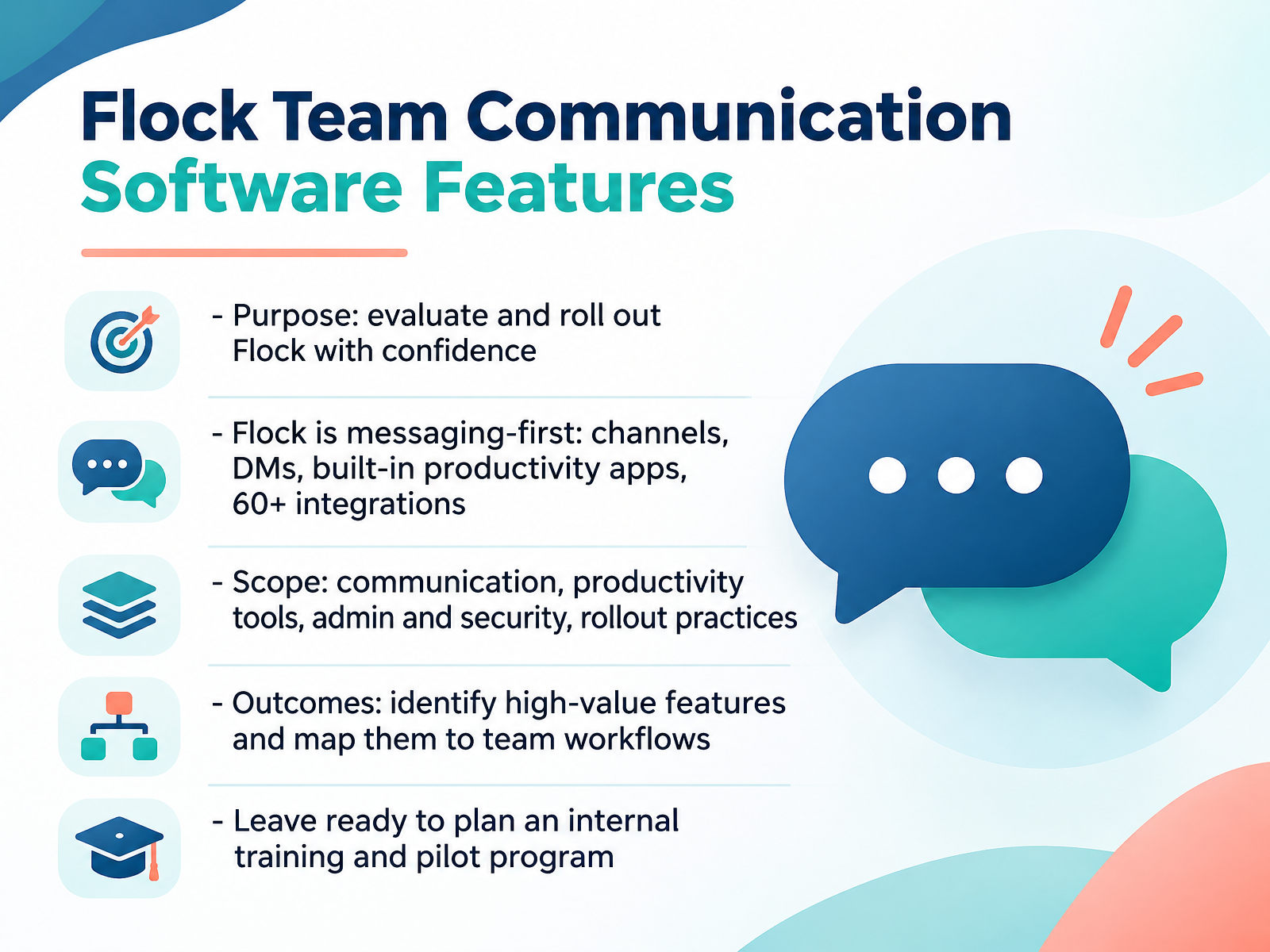
- 01Flock Team Communication Software FeaturesWelcome. In this course, we will walk through Flock's team communication features, so you can evaluate it and roll it out with confidence. The goal is simple. By the end, you should know which features are worth your attention, and how they map to your team's everyday workflows.
Here is the order of play. Flock is messaging first, built around channels and direct messages, with productivity tools built in and over sixty integrations. We will cover four areas, communication, productivity tools, admin and security, and rollout practices.
You will leave ready to plan an internal training and a pilot program, and to identify the high value features for your own teams. Let's start by looking at where Flock fits in the collaboration market.flock.comflock.comflock.com+21 min
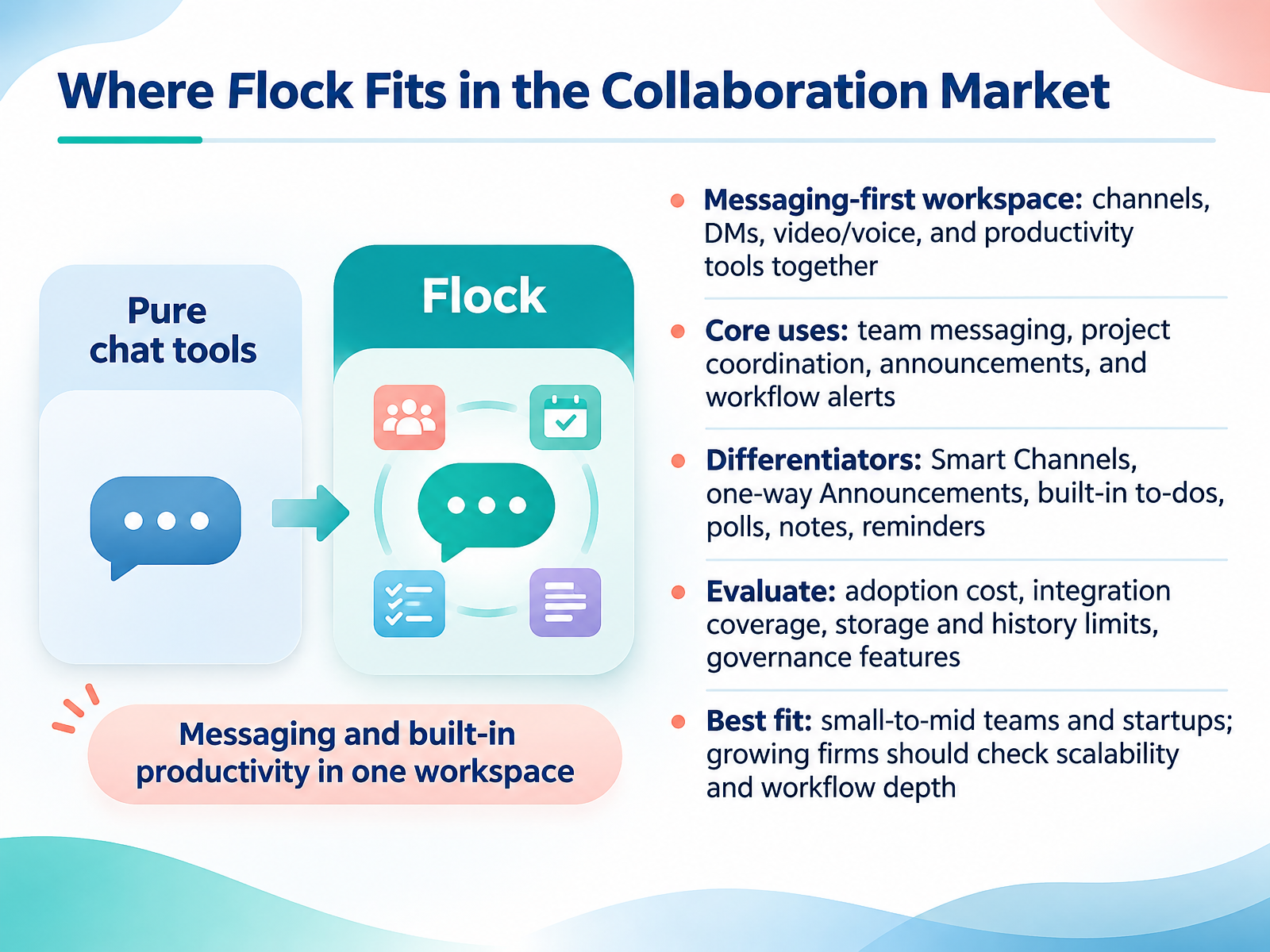
- 02Where Flock Fits in the Collaboration MarketLet's look at where Flock fits in the collaboration market. Flock is a messaging-first workspace. Channels, direct messages, video and voice, and productivity tools all live in one place. Teams use it mainly for everyday messaging, project coordination, announcements, and workflow alerts. A few things stand out. Smart Channels add people automatically based on rules. Announcement channels are one-way, so only admins broadcast. And to-dos, polls, notes, and reminders are built in, not bolted on. When you evaluate it, check four things: adoption cost, integration coverage, storage and history limits, and governance features. One practical example. On the free Starter plan, searchable history is capped at ten thousand messages. That matters if your team revisits old decisions. Flock is usually a strong fit for small to mid-sized teams and startups. If your firm is growing, test scalability and workflow depth before you commit. In short, match the tool to how your team actually coordinates. Next, we'll walk through navigating the Flock workspace.
 flock.comflock.comflock.com+22 min
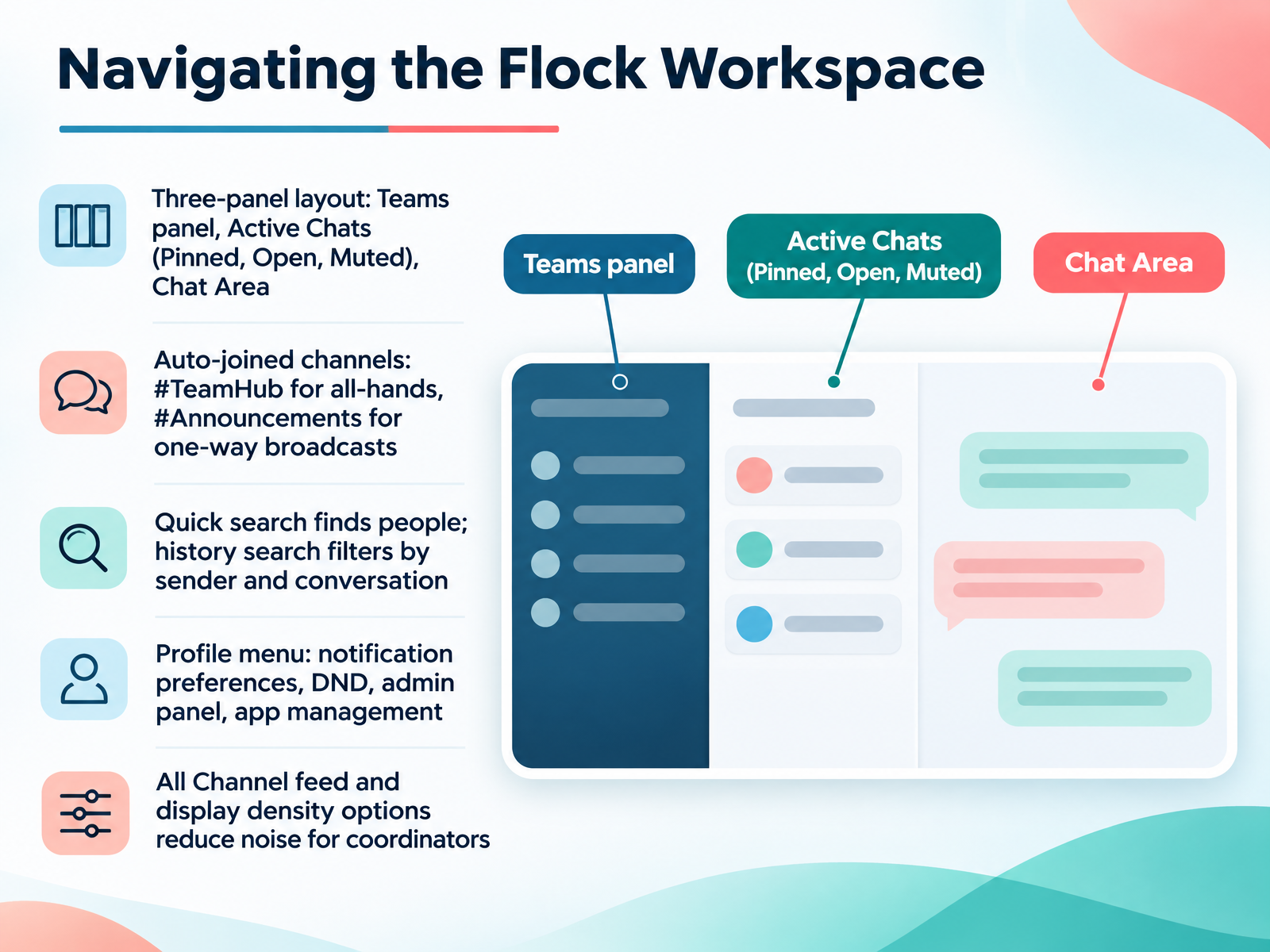
- 03Navigating the Flock WorkspaceNow let's get oriented in the Flock workspace. Flock uses a three-panel layout. The Teams panel on the left lets you switch between teams. The middle panel, Active Chats, organizes conversations into Pinned, Open, and Muted. And the Chat Area on the right shows your current conversation and its actions. When you join a team, you're automatically added to two channels. TeamHub is your all-hands space. Announcements is for one-way broadcasts, and only admins post there. To find a colleague, use quick search. To find an old message, use history search, which filters by sender and conversation. Click your name card to open the profile menu. That's where you set notification preferences, turn on Do Not Disturb, reach the admin panel, and manage apps. Two settings help coordinators cut noise. The All Channel feed shows every new message in one place, and display density lets you switch between comfortable, cozy, and compact views. Try setting your density today. Next, we'll look at Core Communication: Channels, DMs, and Guests.
 flock.comsupport.flock.comsupport.flock.com+22 min
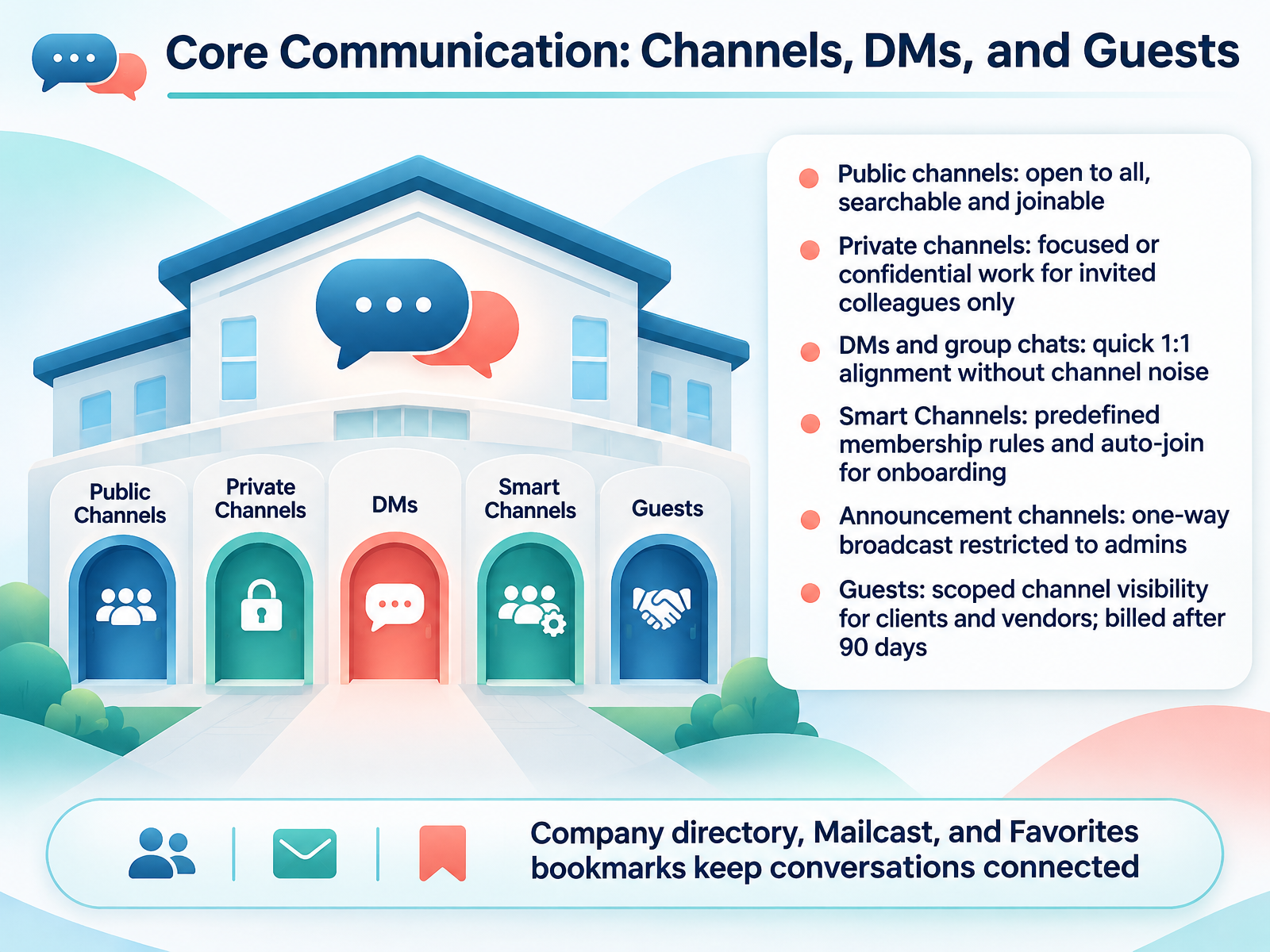
- 04Core Communication: Channels, DMs, and GuestsLet's look at the building blocks of everyday communication in Flock: channels, direct messages, and guests. Public channels are open to everyone, searchable, and easy to join. Use them for general discussion and shared updates. Private channels are for invited colleagues only, so they suit focused projects or confidential information. For quick one-to-one alignment, use direct messages, or a small group chat, without adding noise to a channel. Smart Channels go further. You set membership rules once, and new people who match them, such as designers in a specific office, are added automatically. Announcement channels are one-way broadcasts that only admins can post to, which works well for company-wide news. Guests are external clients or vendors. You control which channels they can see, and they are free for ninety days from the invitation, then billed at the same rate as team members. Finally, the company directory, Mailcast, and Favorites bookmarks keep conversations connected and easy to find. The takeaway is to match the space to the purpose: open channels for discovery, private spaces for focus, and guests for scoped collaboration. Next, we will look at keeping conversations useful with replies, mentions, and notifications.
 flock.comsupport.flock.comsupport.flock.com+22 min
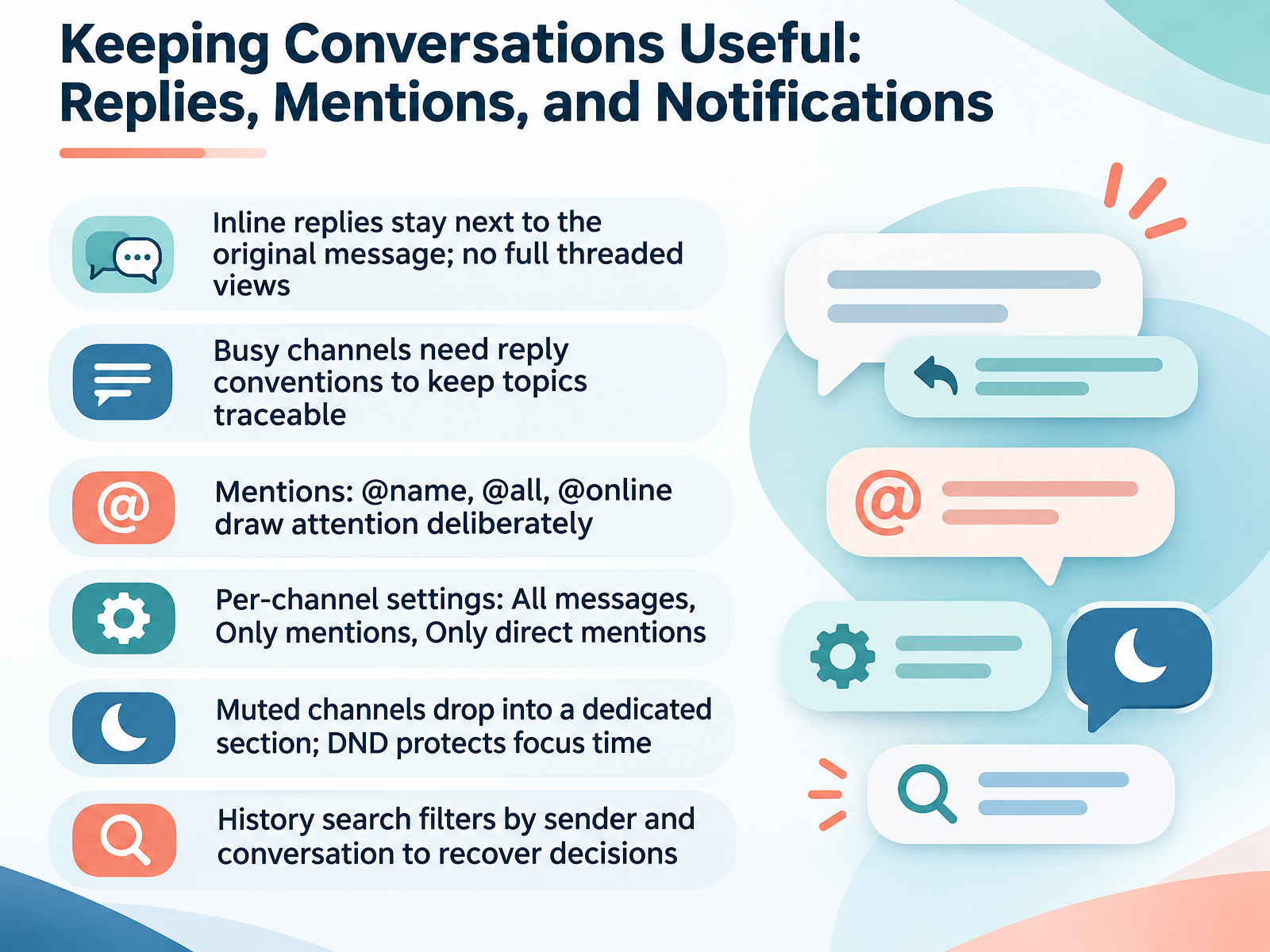
- 05Keeping Conversations Useful: Replies, Mentions, and NotificationsNow, let's look at keeping conversations useful through replies, mentions, and notifications. Flock uses inline replies, so a reply stays right next to the original message. There is no full threaded view, which is a real tradeoff. In busy channels, agree on a reply convention so topics stay traceable. For mentions, use @name, @all, or @online deliberately. They pull attention, so save @all and @online for messages that truly affect everyone. Per-channel notification settings give you control. Choose All messages, Only mentions, or Only direct mentions. Muted channels move into a dedicated section, and Do Not Disturb protects your focus time. Remember that mentions can still alert you even in a muted channel, so set expectations with your team. Finally, history search filters by sender and conversation, which helps you recover decisions quickly. Apply these settings this week to your noisiest channel, and you will notice the difference. Next, we will cover calls, files, and everyday chat actions.
 flock.comsupport.flock.comsupport.flock.com+22 min
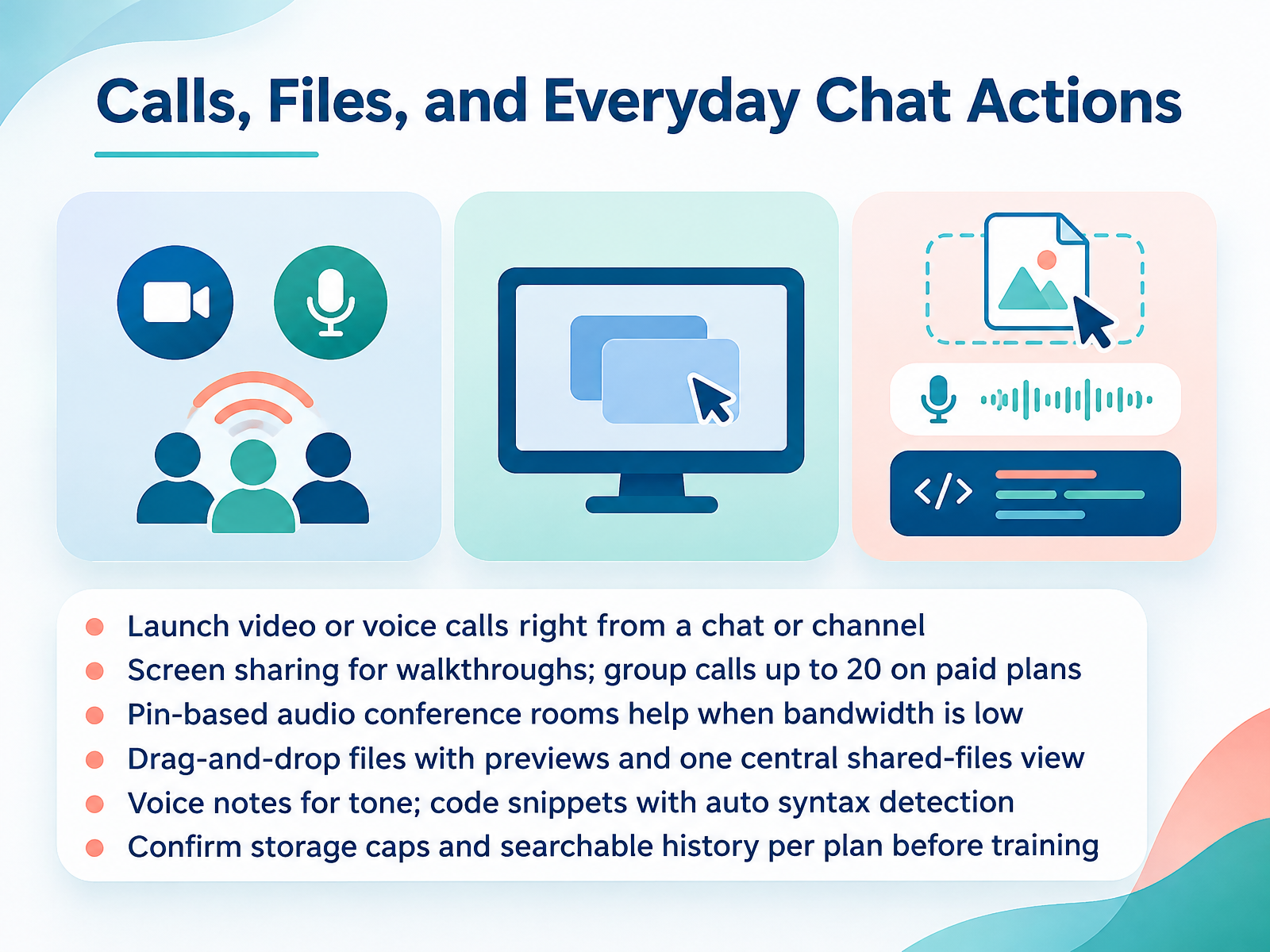
- 06Calls, Files, and Everyday Chat ActionsLet's talk about the everyday actions your team will use most, starting with calls. From any chat or channel, you can launch a video or voice call with a single click. During walkthroughs, share your screen so everyone sees the same details. Keep in mind that group calls, up to twenty participants, are available on the paid plans. When bandwidth is low, or people are on the go, use pin-based audio conference rooms instead. Now for files. Drag and drop any file type, and teammates see a preview right in the conversation. All shared files are collected in one central view, so nothing gets lost. Voice notes help you convey tone when text feels flat, and code snippets are detected automatically for cleaner reviews. Before you train your team, confirm two things per plan: the storage cap, and how far back searchable history goes. Those two limits shape what you can promise users. Next, we'll look at the built-in productivity tools.
 flock.comflock.comflock.com+22 min
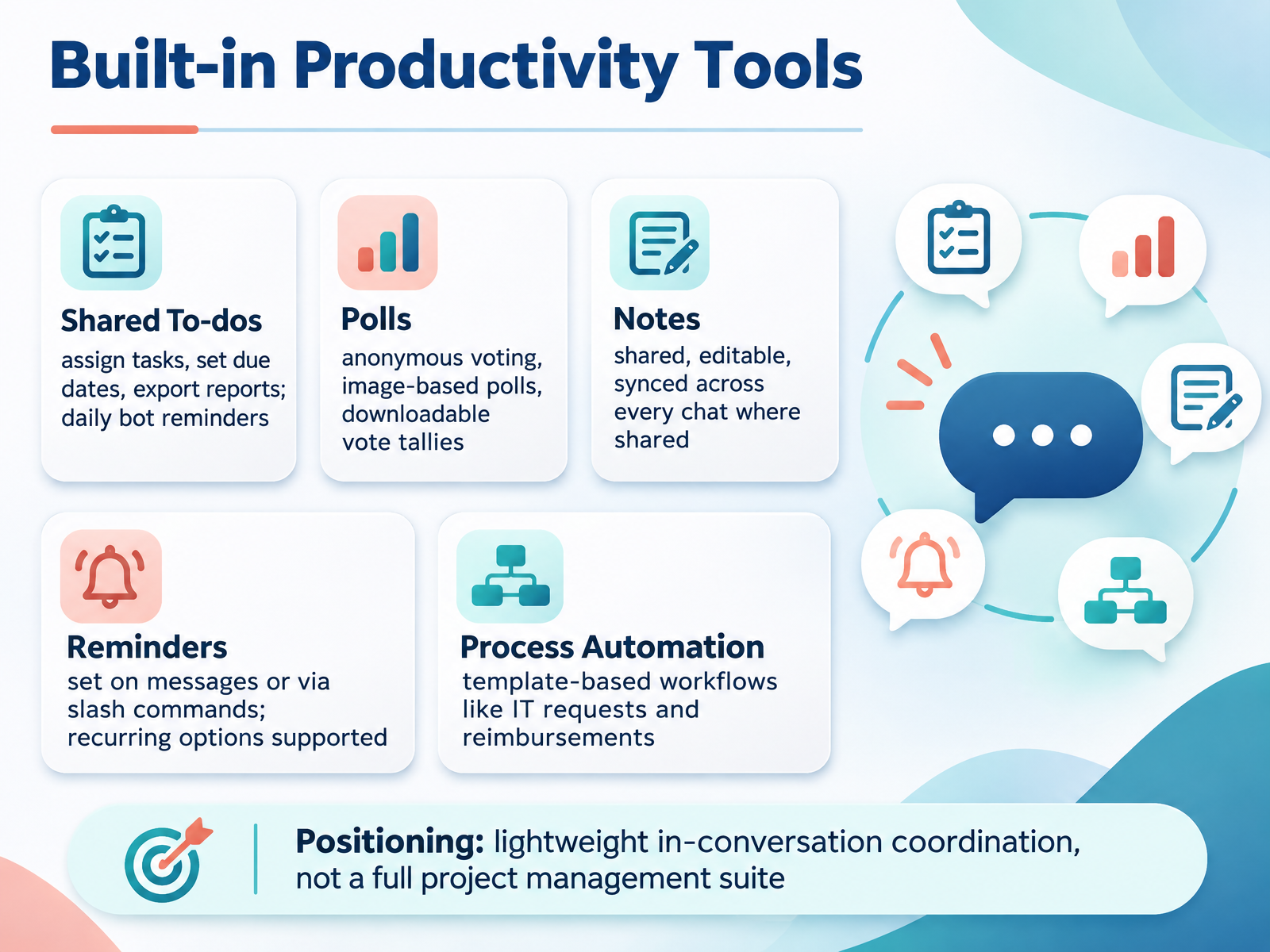
- 07Built-in Productivity ToolsNow let's look at the built-in productivity tools that sit inside your conversations. First, Shared To-dos. You can assign tasks, set due dates, and export reports. And a bot reminds the team each morning about tasks due that day. Next, Polls. Use anonymous voting for sensitive questions, image-based polls for lighter ones, and download the vote tally when you need a record. Notes are shared and editable, and they sync across every chat where the note is shared. So one update reaches everyone. Reminders can be set on any message or through slash commands, and recurring options are supported. Process Automation uses templates for workflows like IT requests and reimbursements, with updates posted right in Flock. One positioning point. These tools are for lightweight, in-conversation coordination. They are not a full project management suite. So apply them to quick decisions and day-to-day follow-through, not complex project plans. Coming up next, Integrations, Bots, and Automation.
 flock.comflock.comflock.com+22 min
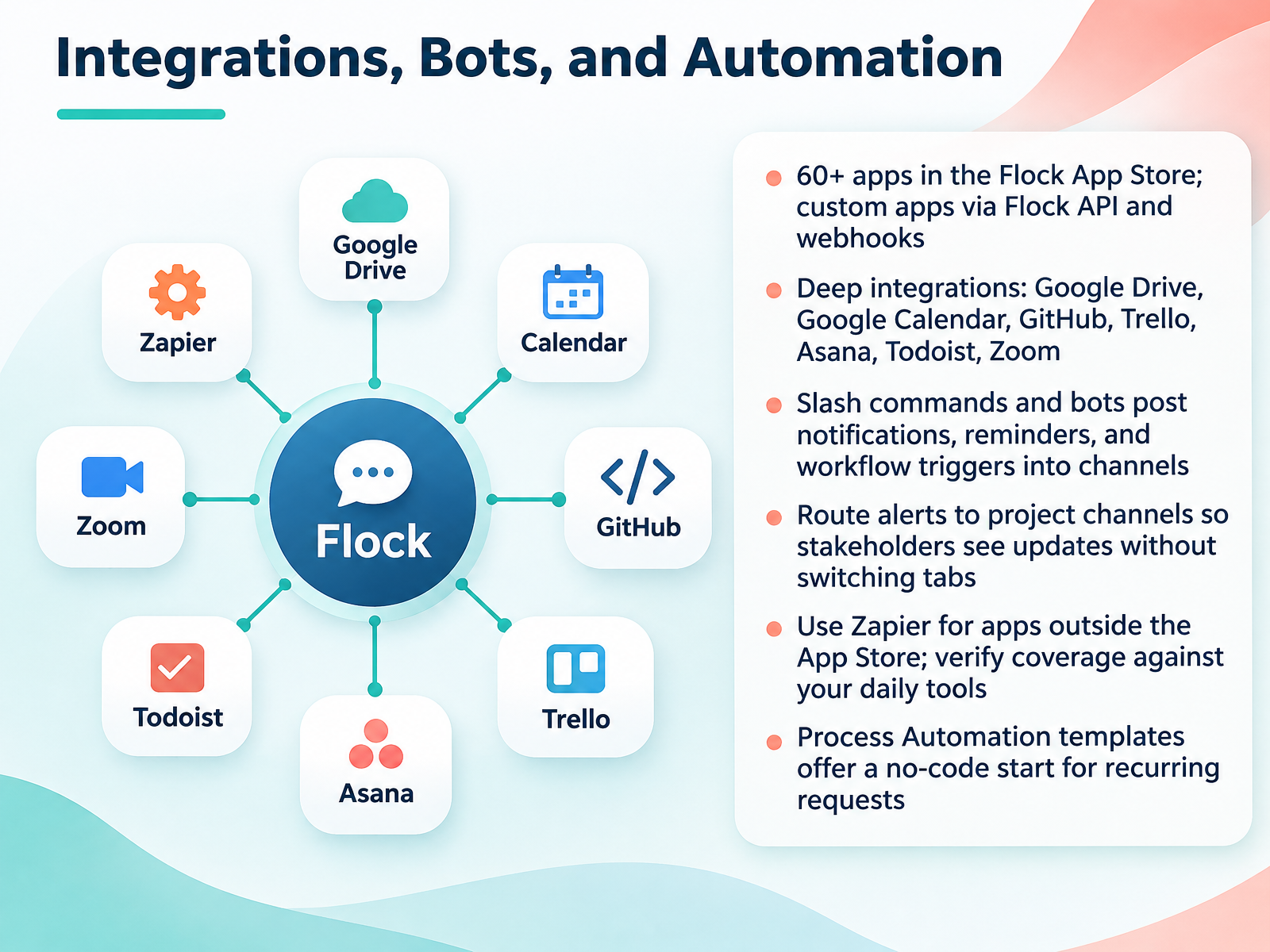
- 08Integrations, Bots, and AutomationNow let's talk about connecting Flock to the tools your team already uses. The App Store has over sixty apps, and you can build your own through the Flock API or webhooks. Deep integrations cover the usual suspects: Google Drive, Google Calendar, GitHub, Trello, Asana, Todoist, and Zoom. Slash commands and bots push notifications, reminders, and workflow triggers straight into channels. So for a Trello card that moves, or a new Asana task, route that alert to the project channel. Stakeholders see updates without switching tabs. For anything outside the App Store, use Zapier. But verify coverage against your daily tools before you commit. And if you handle recurring requests, like IT support or travel approvals, Process Automation templates give you a no-code starting point. The practical takeaway: pick two or three integrations tied to real coordination pain, test them in one project channel, then expand. Next, we'll look at Admin, Security, and Compliance Controls.
 flock.comdocs.flock.comflock.com+22 min
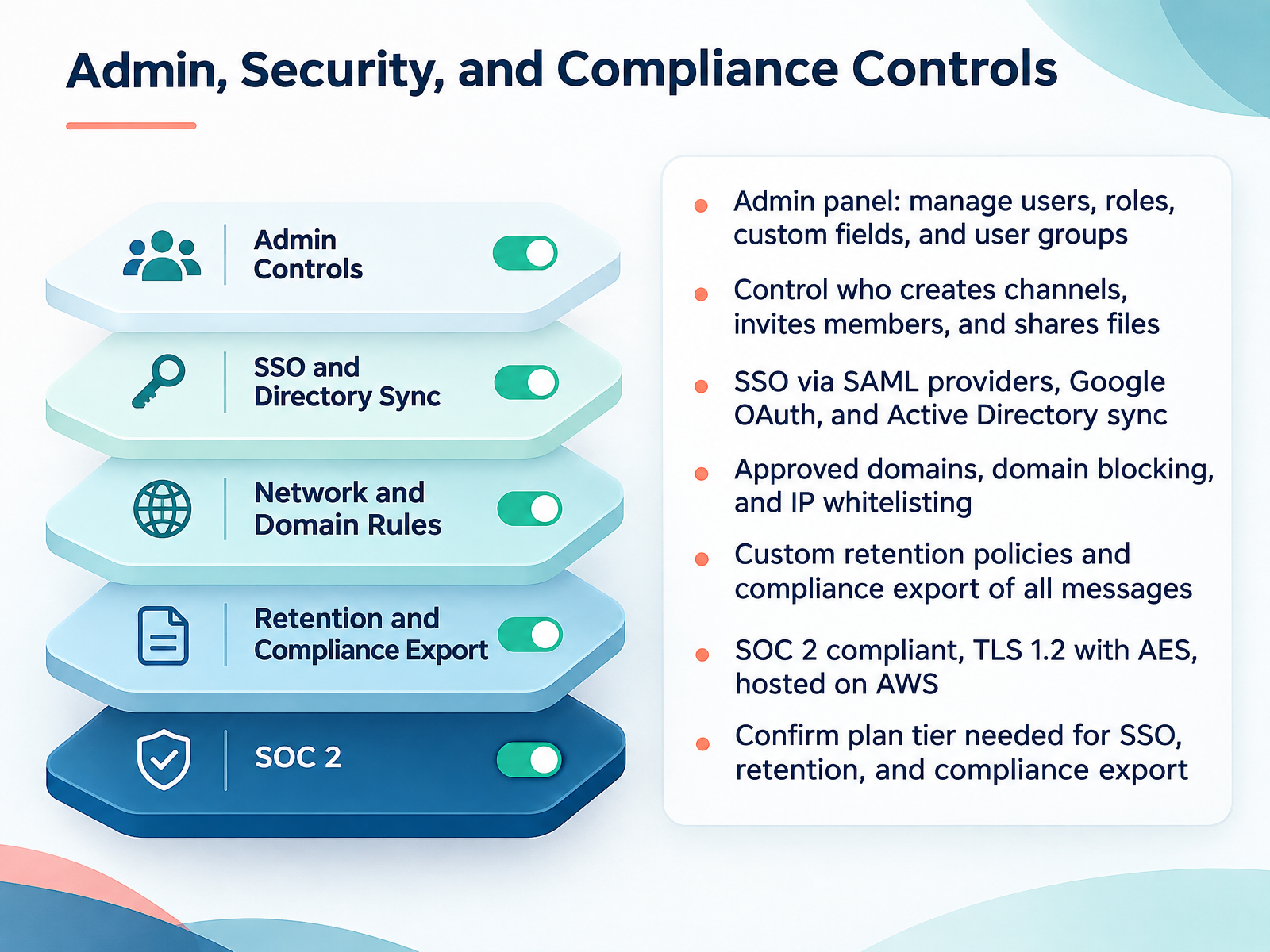
- 09Admin, Security, and Compliance ControlsLet's look at the controls that keep your workspace governable. In the admin panel, you manage users, roles, custom fields, and user groups. Use that to decide who can create channels, invite members, or share files. For sign-in, Flock supports SAML single sign-on, Google OAuth, and Active Directory sync, so removing someone from your directory revokes their access. You can also set approved domains, block domains, and whitelist IP addresses to keep guests and outside devices out. Retention is where compliance teams engage. Set custom message and file retention policies, and use compliance export to preserve all conversations. On the security side, Flock is SOC 2 compliant, encrypts traffic with TLS 1.2 using AES, and runs on AWS. One practical note. SSO, retention, and compliance export depend on your plan tier, so confirm that early. Next, Plans and Feature Availability.
 flock.comflock.comsupport.flock.com+22 min
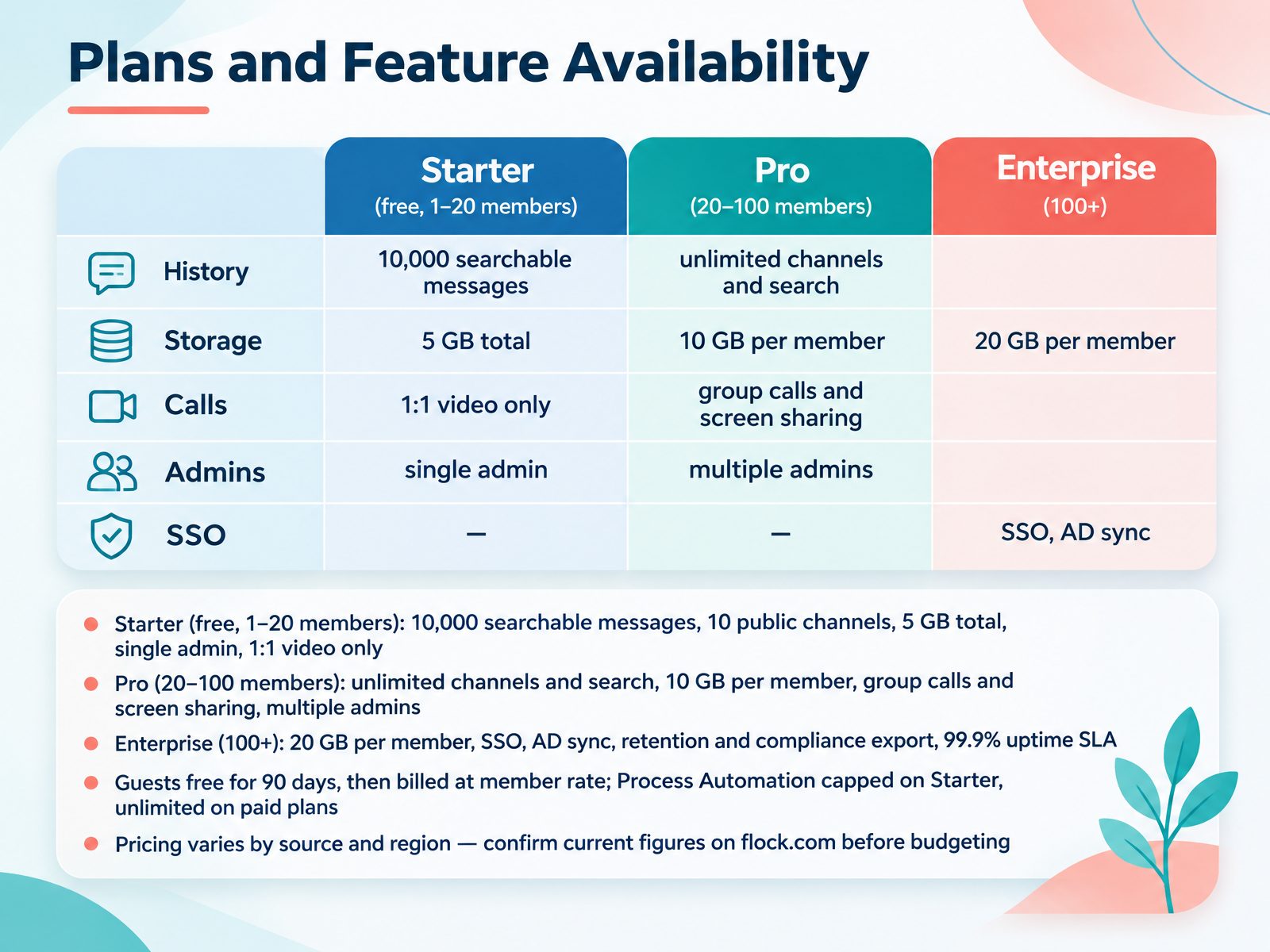
- 10Plans and Feature AvailabilityNow let's talk about plans and feature availability, so you can match a tier to your team size and needs. Starter is free for one to twenty members. It includes ten thousand searchable messages, ten public channels, five gigabytes of total storage, a single admin, and one to one video only. Pro is built for twenty to one hundred members and adds unlimited channels and search, ten gigabytes per member, group calls, screen sharing, and multiple admins. Enterprise, for one hundred plus, brings twenty gigabytes per member, single sign on, active directory sync, retention and compliance export, and a nine nine point nine percent uptime service level agreement. Two practical notes. Guests are free for ninety days, then billed at the member rate. Process Automation is capped on Starter and unlimited on paid plans. Finally, pricing varies by source and region, so confirm current figures on flock dot com before you budget. Next, we'll look at Workflow Examples for Leads and Coordinators.
 flock.comflock.comflock.com+21 min
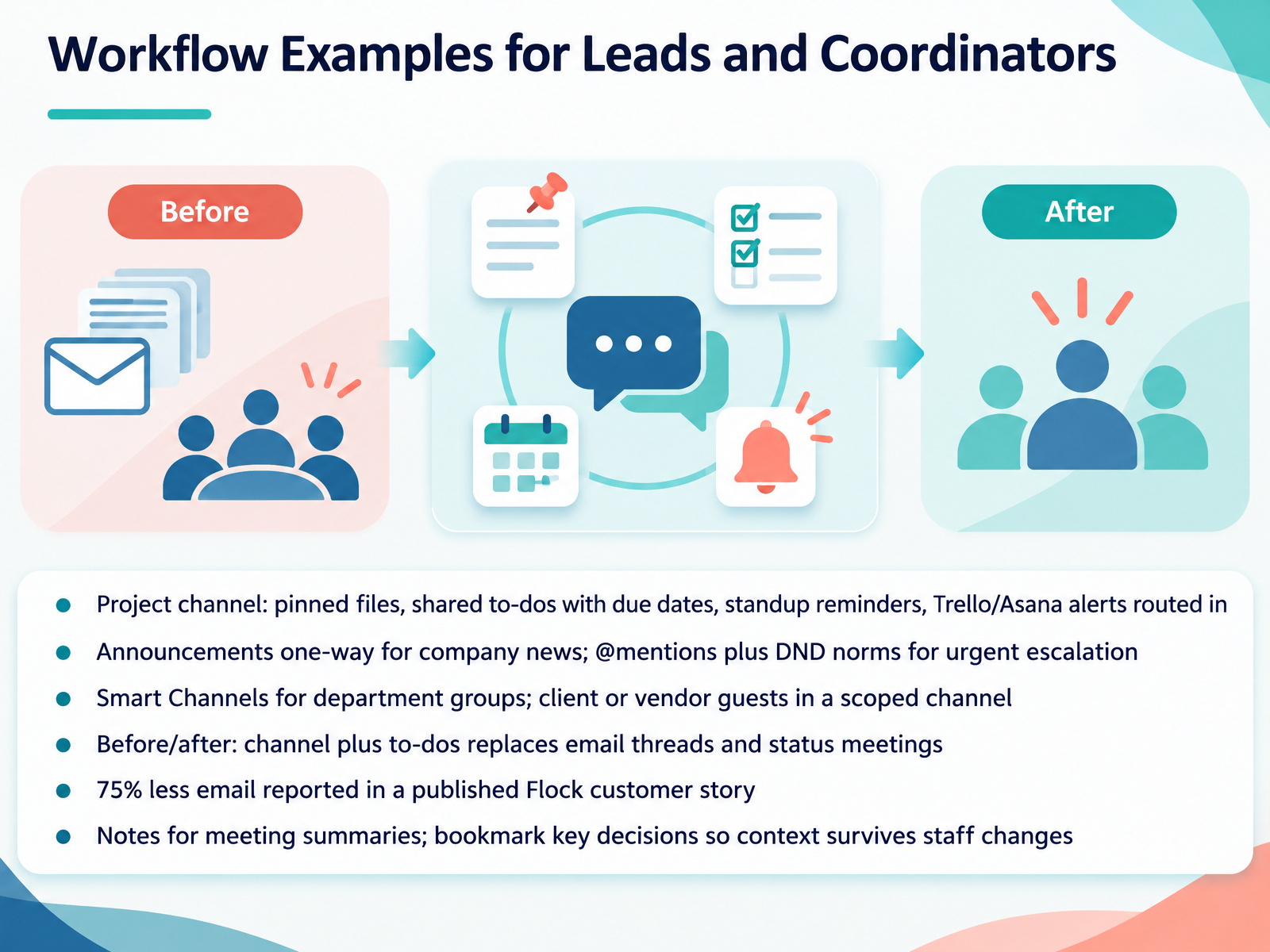
- 11Workflow Examples for Leads and CoordinatorsLet's move from features to practice, with workflow examples for leads and coordinators. Start with a project channel. Pin the key files so nobody hunts for the latest version. Use shared to-dos with due dates, set recurring reminders for standups, and route Trello or Asana alerts into the same channel. Next, keep company news in a one-way Announcements channel. Reserve @mentions for genuine escalation, and agree on do not disturb norms so people can protect focus time. For department groups, try Smart Channels that add members automatically. Bring clients or vendors in as guests, scoped to a single channel. The before and after is simple. A channel plus to-dos replaces email threads and status meetings. In one published Flock customer story, a team reported seventy five percent less email. Finally, use Notes for meeting summaries, and bookmark key decisions so context survives staff changes. With that groundwork set, let's look at the Evaluation Checklist and Decision Framework.
 flock.comflock.comsupport.flock.com+22 min
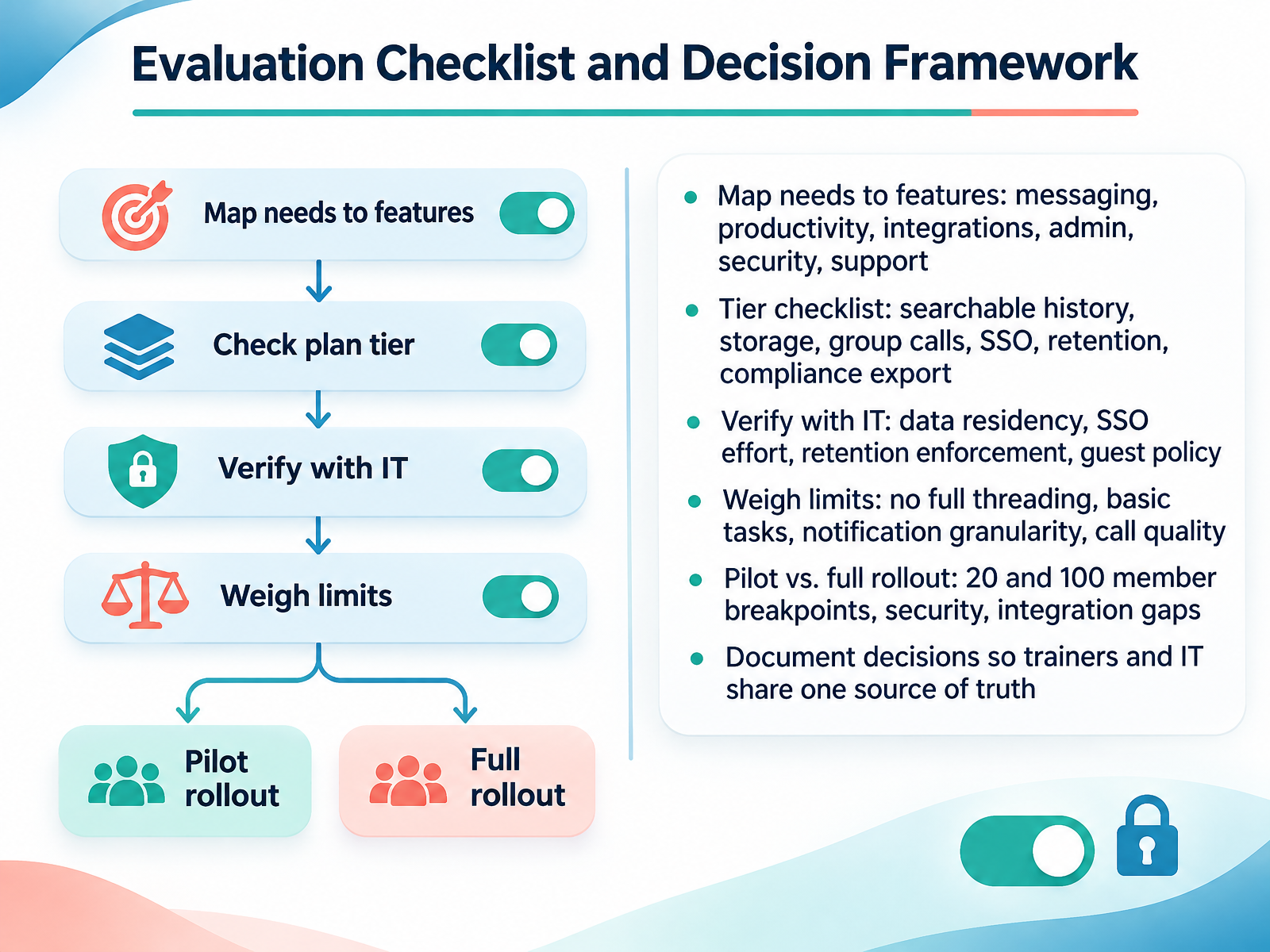
- 12Evaluation Checklist and Decision FrameworkSo let's bring this together into a practical checklist and decision framework. Start by mapping your needs to six areas: messaging, productivity, integrations, admin, security, and support. Then tier the must-haves. For example, is searchable history unlimited, or capped at ten thousand messages on Starter? What storage do you need? Group calls up to twenty participants on Pro and Enterprise? Single Sign-On, retention, and compliance export for Enterprise? Before you commit, verify four things with IT: data residency, the effort to set up SSO, how retention is enforced, and your guest policy. Guests stay free for ninety days, then you pay the same rate as team members. Then weigh the tradeoffs honestly. Flock does not have full threading, tasks are fairly basic, notification granularity is limited, and call quality has drawn complaints. Decide on a pilot or full rollout based on your size. Twenty members is roughly the Starter to Pro breakpoint, and one hundred is the Pro to Enterprise line. Security needs and integration gaps can push you up a tier or rule Flock out. Finally, document every decision in one place, so trainers and IT work from a single source of truth. Next, we look at your adoption plan and internal training practices.
 flock.comflock.comflock.com+22 min
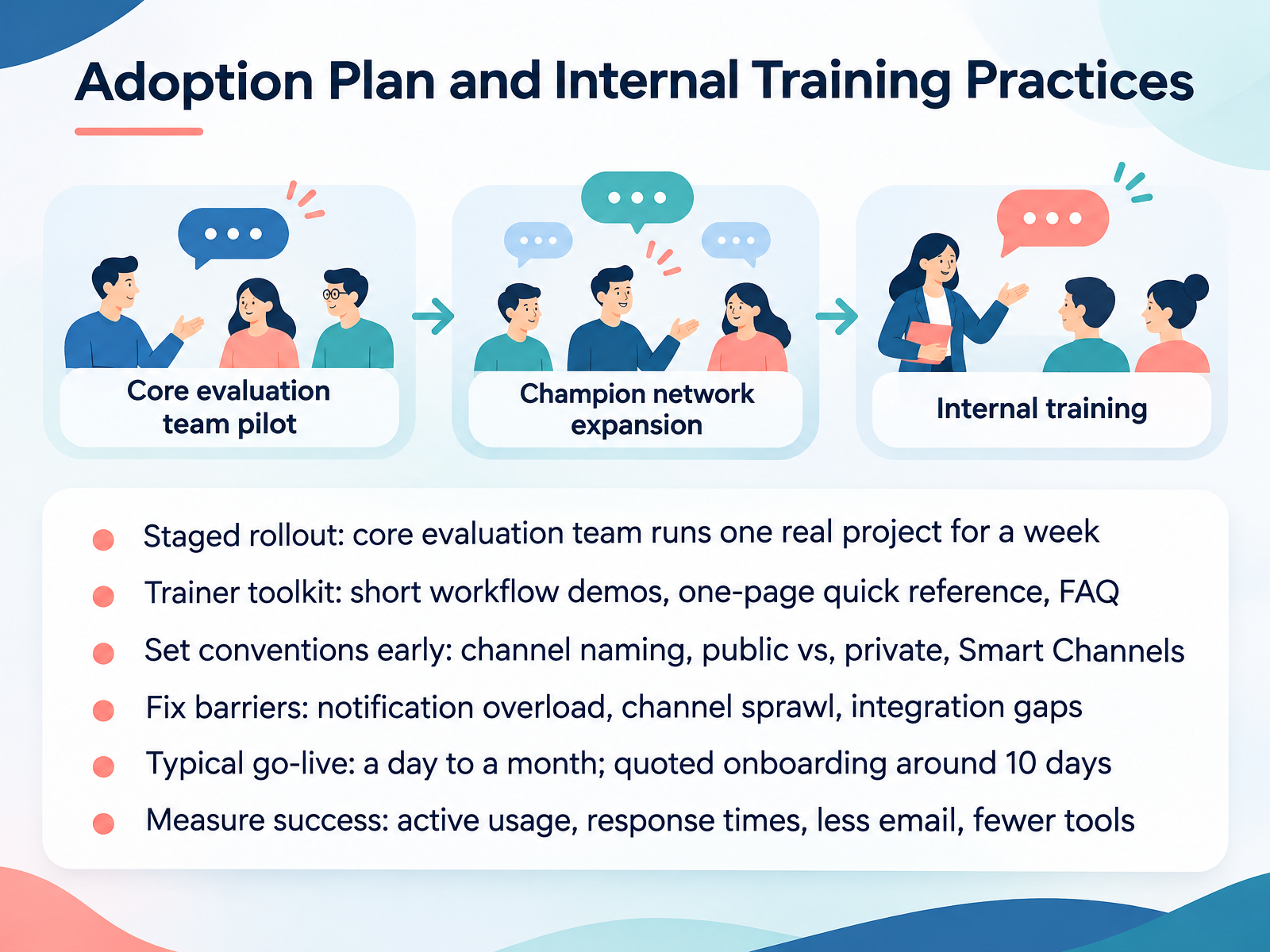
- 13Adoption Plan and Internal Training PracticesNow let's talk about turning interest into adoption. Start with a staged rollout. Give a core evaluation team one real project and one week to run it, then share what worked. Equip trainers with short workflow demos, a one-page quick reference, and a short FAQ. Set conventions early: how channels are named, when to use public versus private, and how Smart Channels fill automatically. Then fix predictable barriers, like notification overload, channel sprawl, and integration gaps. Timelines vary, from one day to about a month, with onboarding quoted around ten days. Measure active usage, response times, less email, and fewer tools. That gives you a clear read on real adoption. Next, Key Takeaways and Next Steps.
 flock.comflock.com1 min
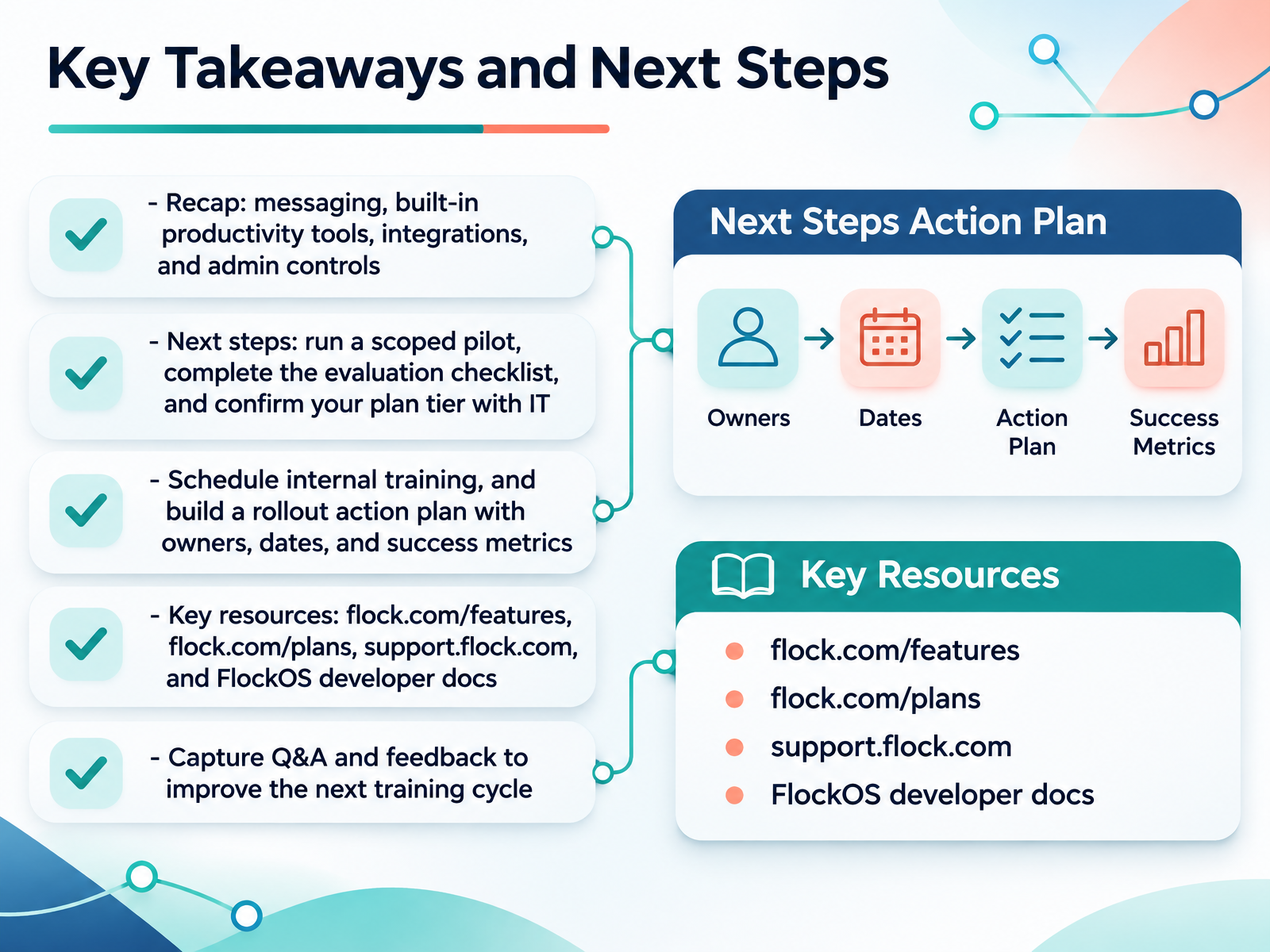
- 14Key Takeaways and Next StepsLet's bring it all together. We've covered the core of Flock: messaging in channels and direct chats, the built-in productivity tools like to-dos, notes, polls, and reminders, integrations with the apps your team already uses, and the admin controls that keep access and file sharing in check. Now, your next steps. First, run a scoped pilot with one project or team. Then complete the evaluation checklist, and confirm your plan tier with IT, since Starter, Pro, and Enterprise differ on things like search history, storage, and admin controls. After that, schedule internal training and build a rollout action plan with clear owners, dates, and success metrics. For reference, use flock dot com slash features, flock dot com slash plans, the Flock support site, and the FlockOS developer docs. Finally, capture questions and feedback today so the next training cycle is even stronger. Thank you for your time and attention. You now have everything you need to pilot Flock with confidence. Go ahead and take that first step this week.
 flock.comflock.comflock.com+22 min
Take the deck with you
Download this course as a file — free, no sign-up needed.
- PDF handoutEvery slide page, ready to print or share.15 pages · 3.5 MBDownload
- Narrated PowerPointThe deck that presents itself — every slide carries the digital human's narration video.15 pages · 24.9 MBDownload
- PowerPoint slidesThe full deck as a .pptx — open it in PowerPoint, Keynote, or Google Slides.15 pages · 3.4 MBDownload
Free to use in your own training — please keep the PersonWise credit page at the end.
Have your own deck? Turn it into a course
Sources consulted
Web sources consulted while building this course.
- Flock - Features — flock.com
- Flock: Team Messenger & Online Collaboration Platform — flock.com
- The #1 Team Messenger — flock.com
- Flock plans for everyone — flock.com
- Video & Voice Calling — flock.com
- Business Communication Software — flock.com
- Keep the conversation going after your Zoom call ends — flock.com
- Workplace collaboration software — flock.com
- Channel Messaging | Flock — flock.com
- Manage channel notifications – Flock — support.flock.com
- Tour of Flock – Flock — support.flock.com
- Flock Review 2026: An Honest Analysis by a Competitor — pumble.com
- Integrations | Flock — flock.com
- Flock docs — docs.flock.com
- Flock Apps: Bring all your tools in one place — flock.com
- Flock Integrations | Connect Your Apps with Zapier — zapier.com
- Flock for Enterprise — flock.com
- Data Retention and Access | Flock — flock.com
- Single Sign-On (SSO) – Flock — support.flock.com
- Admin Controls — flock.com