Begin
14 pages · ~28 min
Excel Spreadsheet Pattern Analysis
This training reviews common Excel spreadsheet patterns, helping analysts and business users recognize their strengths and pitfalls to build more reliable workbooks.
A digital instructor presents all 14 pages. Hold “Ask” at any point and ask out loud — the answer comes from this course. No sign-up needed.
What you’ll learn
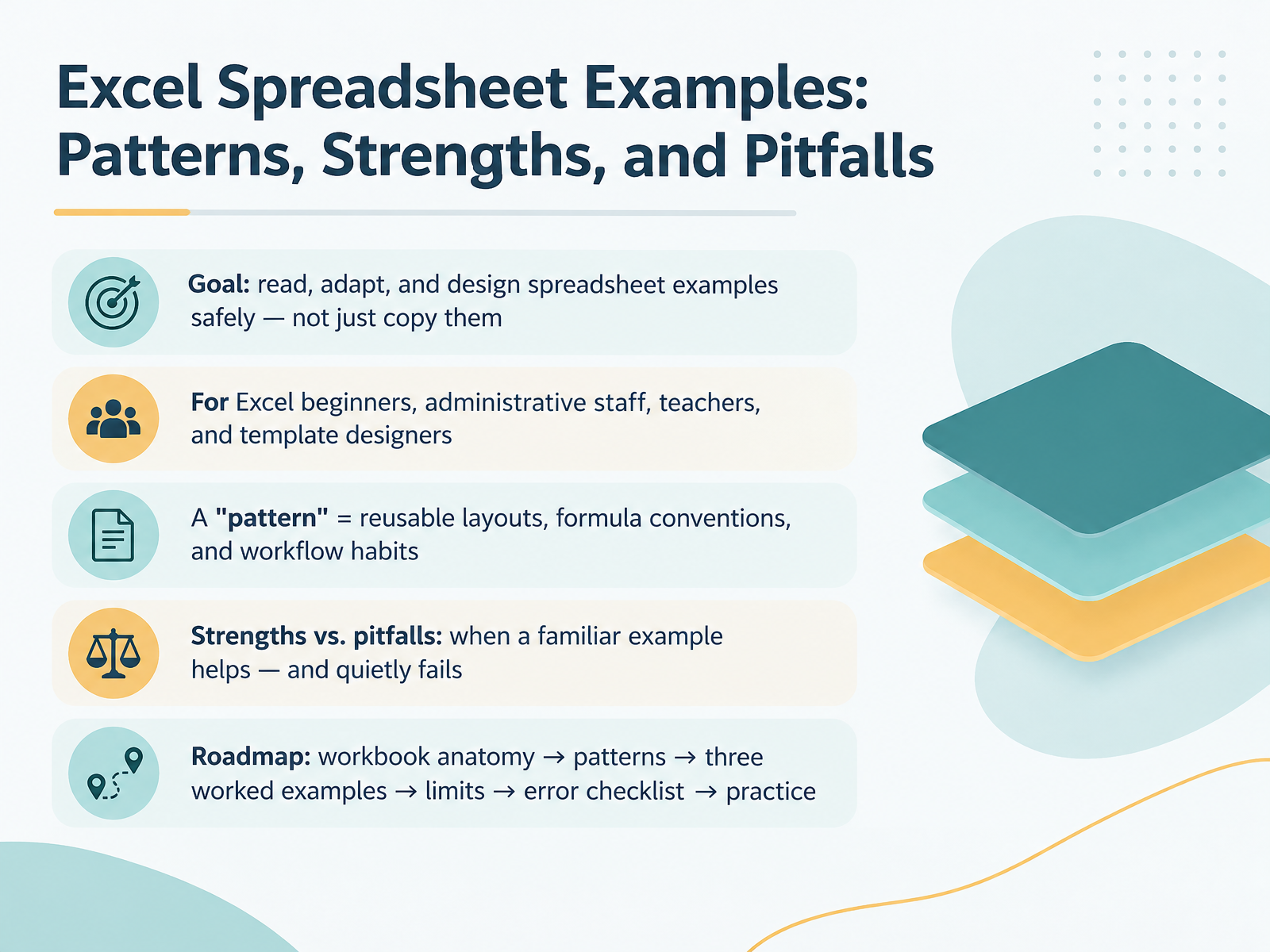
- 01Excel Spreadsheet Examples: Patterns, Strengths, and PitfallsWelcome. I'm glad you're here. This course is about reading Excel spreadsheet examples carefully, adapting them, and designing your own safely. Not just copying them. It's written for Excel beginners, administrative staff, teachers, and anyone who builds spreadsheet templates. One term first. A pattern means reusable layouts, formula conventions, and workflow habits you can repeat across files. We'll look at where familiar examples help you, and where they quietly fail. Often the frustration is that a template looks fine, yet the totals come out wrong. So for each pitfall, you'll get a concrete fix. Our roadmap runs from workbook anatomy, to patterns, to three worked examples, then limits, an error checklist, and practice. By the end, you'll know why every example works, not just what it looks like. Next, why examples are both the best and the riskiest way to learn Excel.howtogeek.comeducourse.co.zapresago.com+22 min
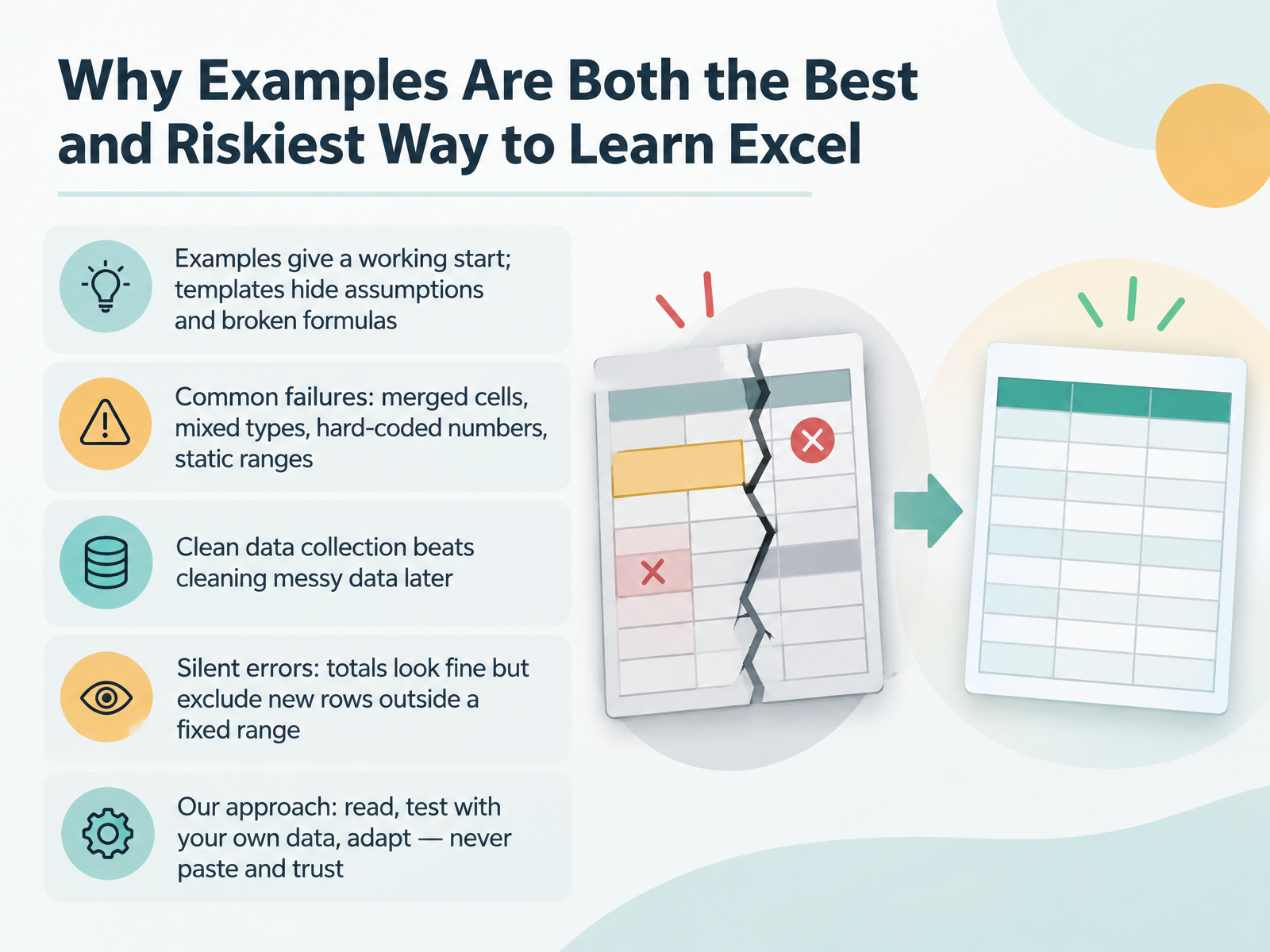
- 02Why Examples Are Both the Best and Riskiest Way to Learn ExcelHere's the key tension. Examples give you a working start, but templates hide their assumptions. A merged cell is one cell combined across columns, and it quietly breaks sorting and filtering. Numbers stored as text get skipped by totals. A hard-coded number is a value typed straight into a formula, and it never updates. And a static range is a fixed cell area that ignores new rows. That last one is the silent error, where totals look fine but leave out new data. The fix is clean collection. Set strict data types, build an Excel table with Control plus T so ranges expand automatically, and use Center Across Selection instead of merging. Our approach: read the example, test it with your own data, then adapt it. Never paste and trust. Next, we look at the anatomy of a reliable spreadsheet: data, logic, presentation.
 howtogeek.comeducourse.co.zapresago.com+22 min
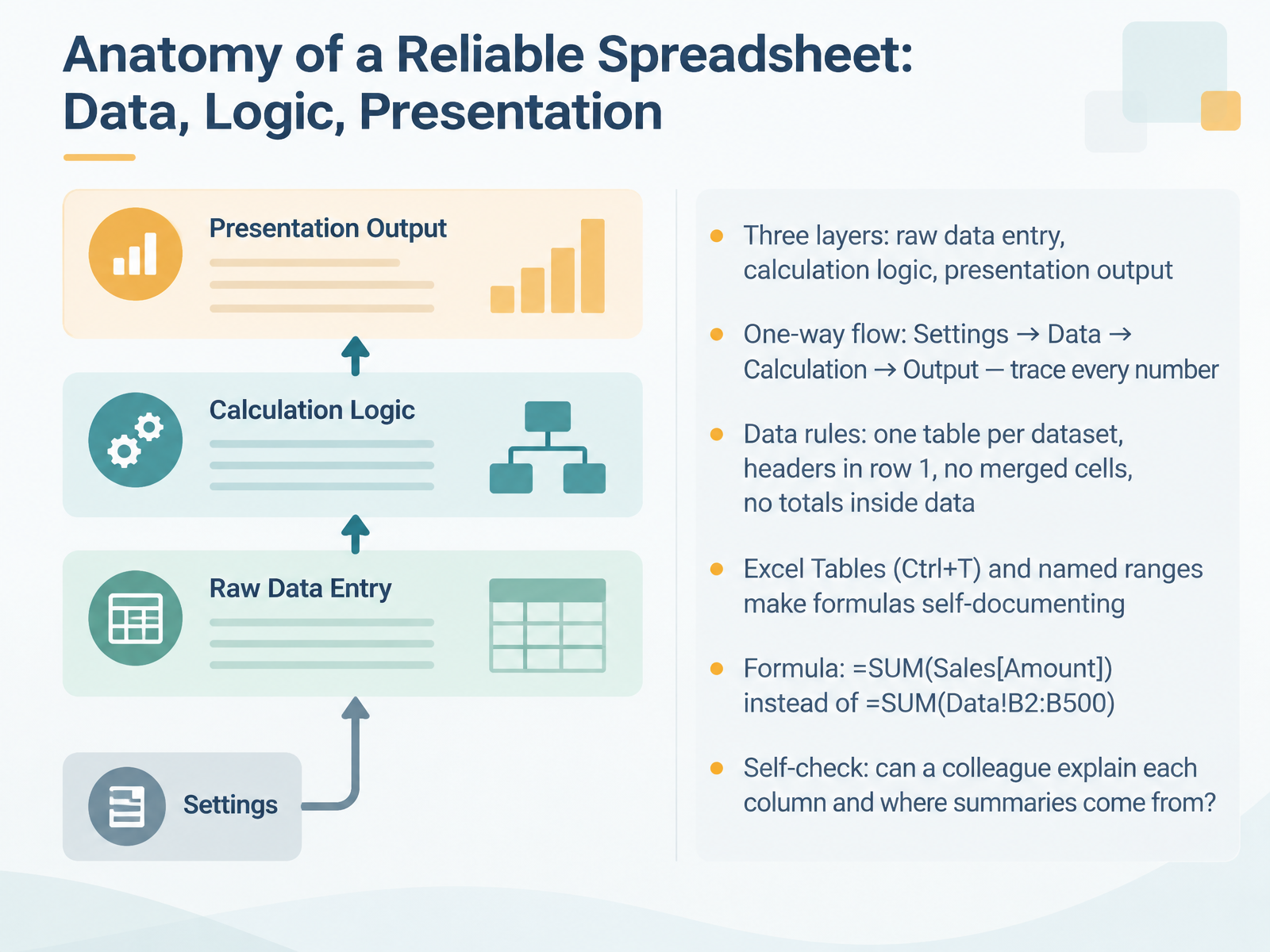
- 03Anatomy of a Reliable Spreadsheet: Data, Logic, PresentationNow let's look inside a reliable spreadsheet. Think of it as three layers: raw data entry, calculation logic, and presentation output. Information flows one way, from settings to data to calculation to output. That one-way flow lets you trace every number back to its source. For data, keep one table per dataset, headers in row one, no merged cells, and no totals inside the data. To do this, select your range and press Control plus T to create an Excel Table, which is a named block of rows that expands automatically. A named range is simply a label you give a cell or table so formulas read clearly. So write equal SUM, Sales, Amount, instead of summing a vague cell range. It's normal to feel unsure about where a number comes from, and the fix is a quick self-check. Ask: can a colleague explain each column and where each summary comes from? If yes, your structure is sound. Next, let's look at five reusable patterns worth knowing.
 ravindrabagale.comhelpme.safeoffice.dehowtogeek.com+21 min
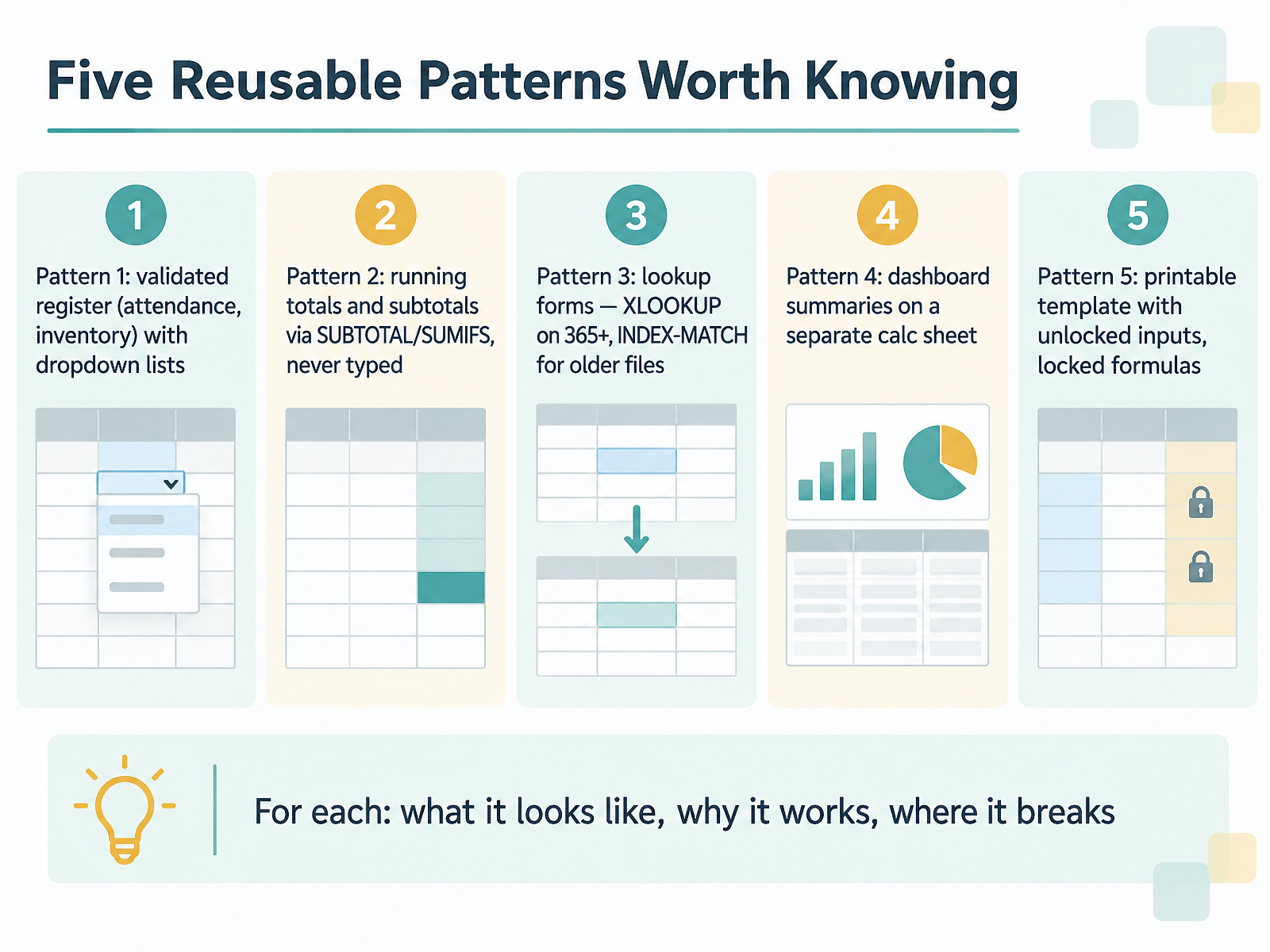
- 04Five Reusable Patterns Worth KnowingNow let's look at five reusable patterns worth knowing. For each one, ask three questions: what does it look like, why does it work, and where does it break?
Pattern one is a validated register, such as attendance or inventory. It uses dropdown lists made with data validation, so people pick from a list instead of typing. It works because the entries stay consistent. It breaks when the dropdown source range is moved, so use a table or named range. Check the dropdown arrow on every input cell.
Pattern two is running totals and subtotals with SUMIFS and SUBTOTAL, never typed. Totals recalculate when data changes. They break when someone pastes values over the formulas, so lock those cells.
Pattern three is lookup forms: XLOOKUP on Microsoft 365 or Excel 2021 and later, and INDEX and MATCH in older files. Both handle exact matches safely and survive column changes. XLOOKUP breaks in Excel 2019 and earlier, showing a name error, so match the function to the audience.
Pattern four puts dashboard summaries on a separate calculation sheet. It works because raw data, formulas, and presentation stay apart. It breaks when the dashboard pulls directly from raw data, skipping the logic. Keep data flowing in one direction.
Pattern five is a printable template with unlocked input cells and locked formulas. Protect the sheet with Review, then Protect Sheet, and leave only input cells unlocked. It breaks when you protect first and never unlock inputs, so users cannot type.
Quick recap: consistent lists, formula-driven totals, safe lookups, separated summaries, and locked formulas with open inputs.
Next, we'll match the lookup and the validation to your audience.
 learnexcel.iomindysheets.comexceldemy.com+22 min
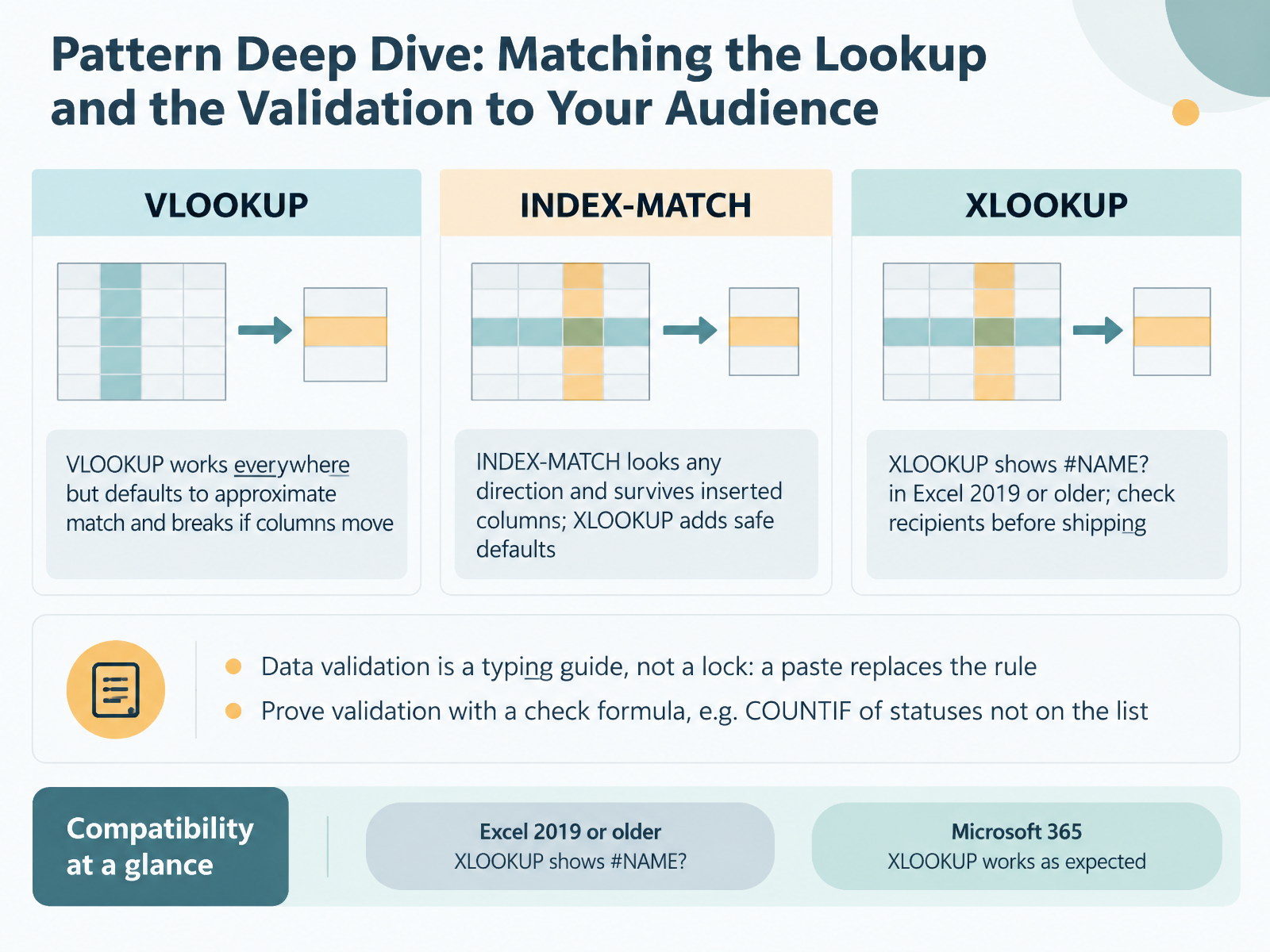
- 05Pattern Deep Dive: Matching the Lookup and the Validation to Your AudienceNow let's match the lookup and the validation to your audience. VLOOKUP works in every Excel version, but it defaults to approximate match, and it breaks if columns move. The fix: always type FALSE as the last argument. INDEX-MATCH looks any direction and survives inserted columns, and XLOOKUP adds safe defaults, like exact match. One caution: XLOOKUP shows a name error in Excel 2019 or older, so check your recipients' versions before shipping. The fix is INDEX-MATCH for files that travel. Next, data validation is a typing guide, not a lock. A paste replaces the rule, which frustrates people, so prove it with a check formula, like COUNTIF of statuses not on the list. In short: know your audience, then choose your tools. Next, we'll walk through Worked Example 1: an Administrative Register.
 learnexcel.iomindysheets.comexceldemy.com+21 min
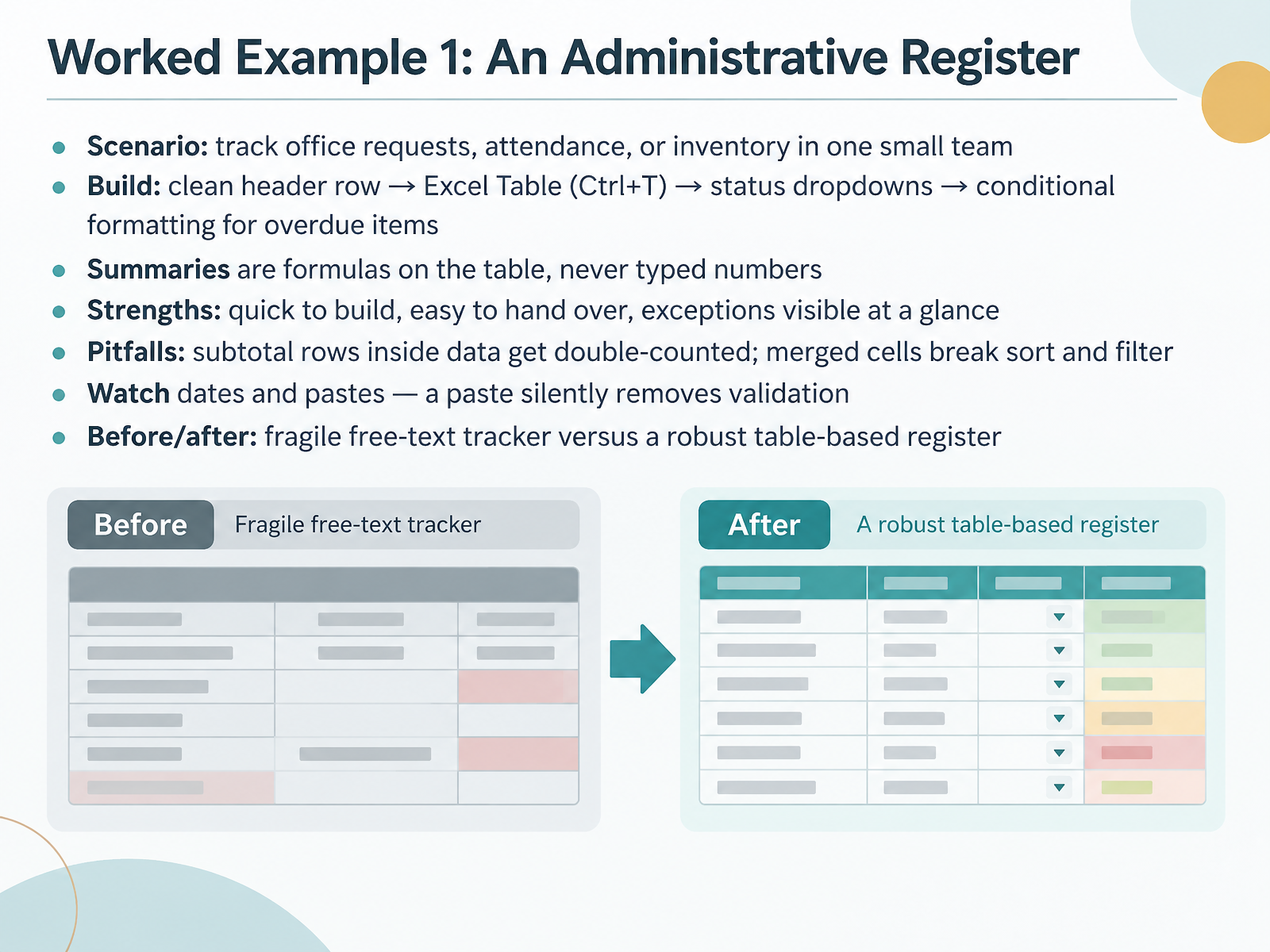
- 06Worked Example 1: An Administrative RegisterNow let's look at a worked example: an administrative register. Picture a small team tracking office requests, attendance, or inventory in one file. Here is how you build it. Start with a clean header row, one fact per column. Click inside the data and press Control plus T to make it an Excel Table, which is a named range that grows automatically as you add rows. Add dropdown lists for status. Then add conditional formatting, which changes a cell's color based on its value, to flag overdue items. Build every summary as a formula on the table, never as a typed number. A typed total will not update when the data changes, and nobody will notice. The strengths are real. It is quick to build, easy to hand over, and exceptions stand out at a glance. Two pitfalls are common. Subtotal rows inside the data get double counted, so keep totals on a separate summary area. Merged cells break sort and filter, so use Center Across Selection instead. Also watch dates and pastes. A paste removes data validation, the rule that limits what a cell accepts. After any paste, reapply validation and run a check formula that counts statuses not on your list. That is the difference between a fragile free text tracker and a robust, table based register. Next, we will see the same ideas in a teacher's gradebook.
 imhora.compk-anexcelexpert.comsagnikbhattacharya.com+22 min
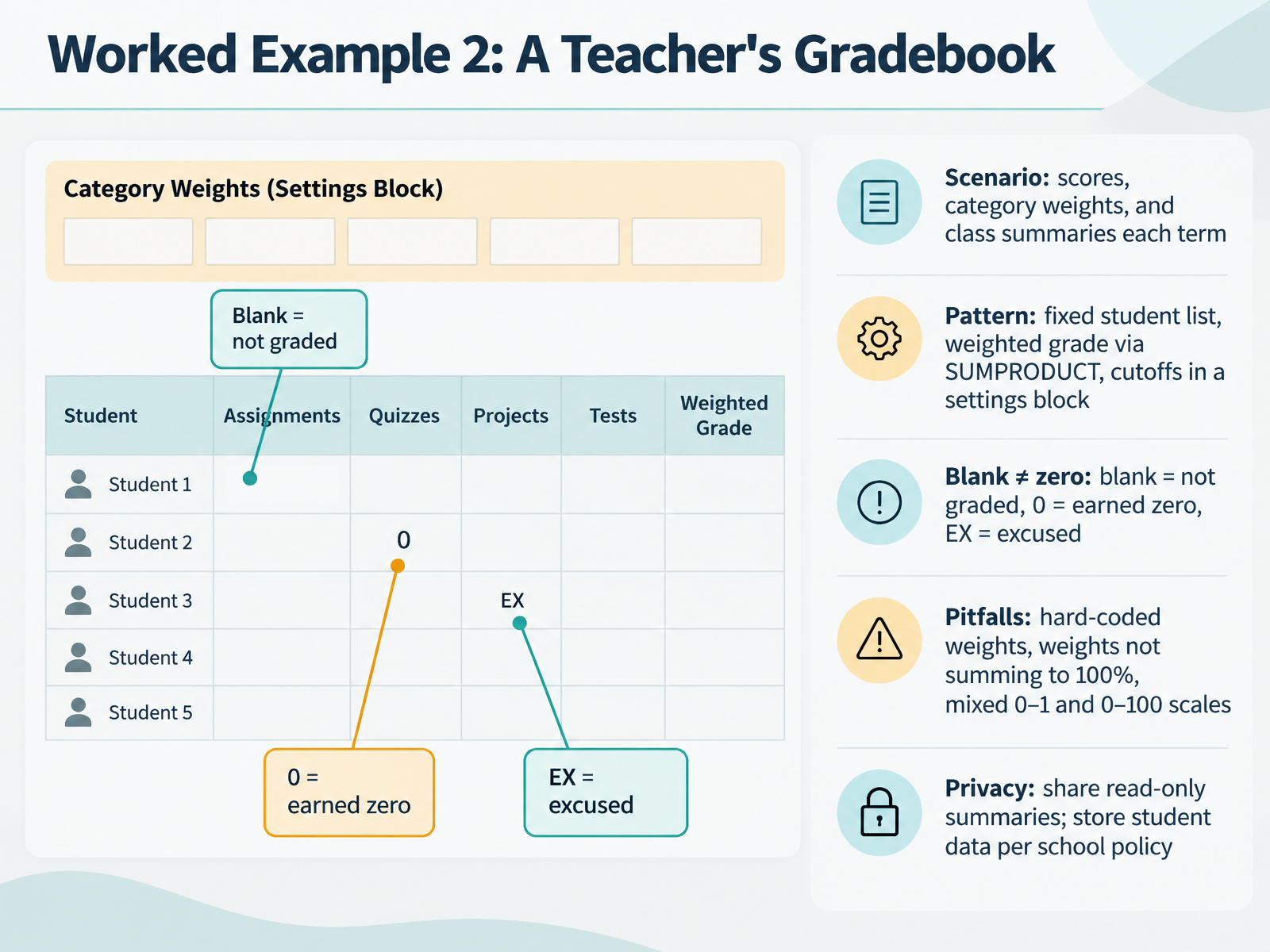
- 07Worked Example 2: A Teacher's GradebookNow let's look at a worked example: a teacher's gradebook. Picture a class where you record scores across the term, apply category weights, and create a class summary at the end. The pattern is simple. Keep the student list fixed in one column, and put your weights and letter-grade cutoffs in a small settings block you can reference. That keeps things stable.
Now here is the rule learners often get wrong. A blank cell is not zero. Blank means not graded yet. Zero means the student earned zero. And enter E X for excused work. If you type zero where you meant blank, the grade drops unfairly.
Watch for three common pitfalls. First, hard-coded weights inside formulas instead of referenced cells. Second, weights that do not sum to one hundred percent. Third, mixing zero-to-one and zero-to-one-hundred scales. For each, the fix is the same: keep weights in the settings block, check the total, and standardize your percentage format.
On privacy, share read-only summaries, and store student data according to your school policy. A quick recap: fixed list, settings block, blank is not zero.
Next, we'll move to Worked Example 3: A Template Designer's Reusable Form.
 2 min
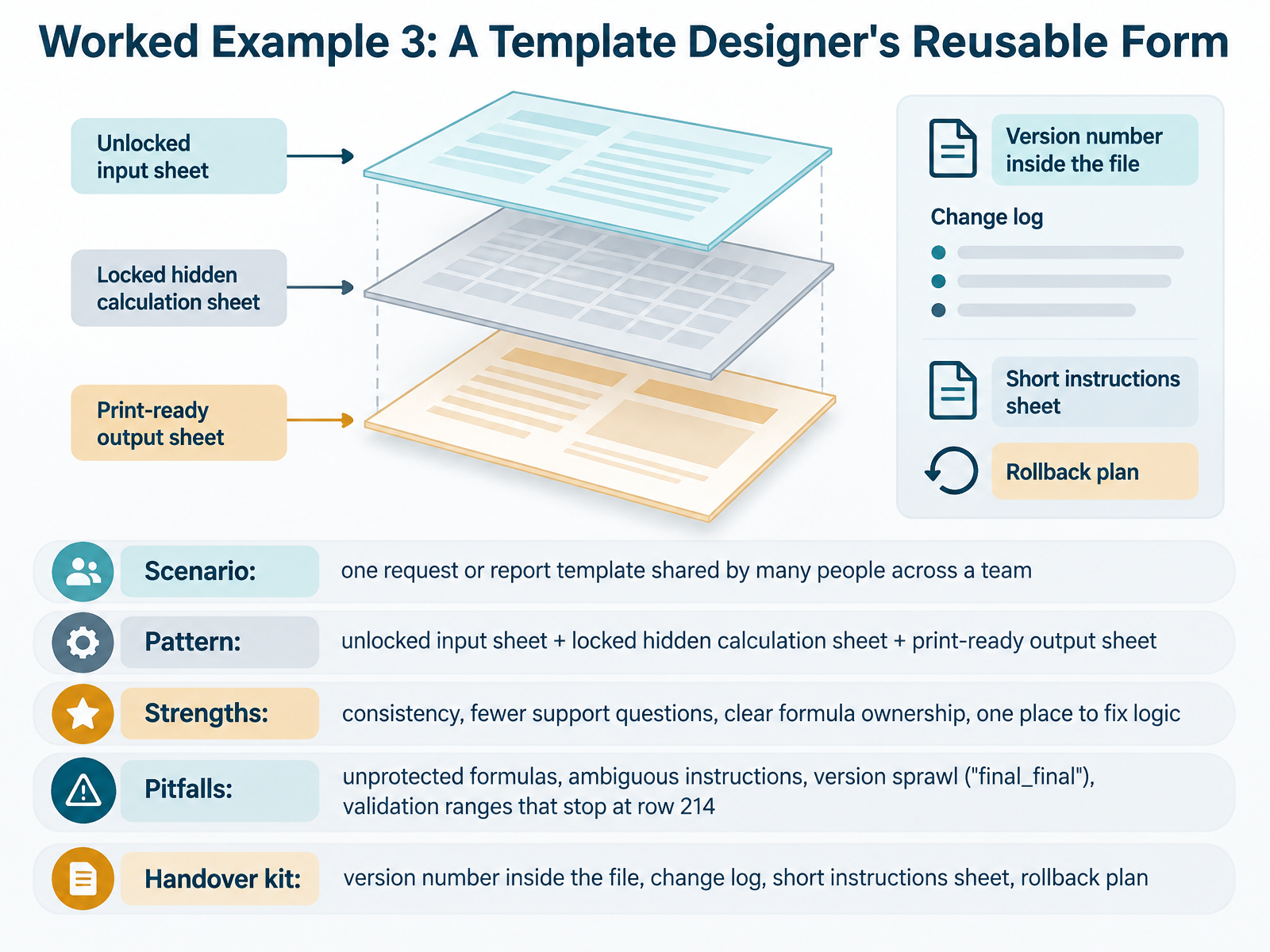
- 08Worked Example 3: A Template Designer's Reusable FormNow let's look at a reusable form a template designer would build. Picture one request template shared by a whole team. The pattern is three layers. An unlocked input sheet where people type. A locked and hidden calculation sheet where the formulas live. And a print-ready output sheet. The strengths are clear. Everyone fills the same form, support questions drop, and there is one place to fix logic. But watch the pitfalls. Formulas left unprotected get overwritten, so lock them and protect the sheet. Instructions stay ambiguous, so add a short instructions sheet. Files multiply into final underlined final, so put a version number inside the file and keep a change log. And validation ranges stop at row two hundred fourteen, so extend them generously. Lock the file to input cells only. A rollback plan completes the handover kit. When Spreadsheets Shine, and When They Stop Being the Right Tool. That's next.
 2 min
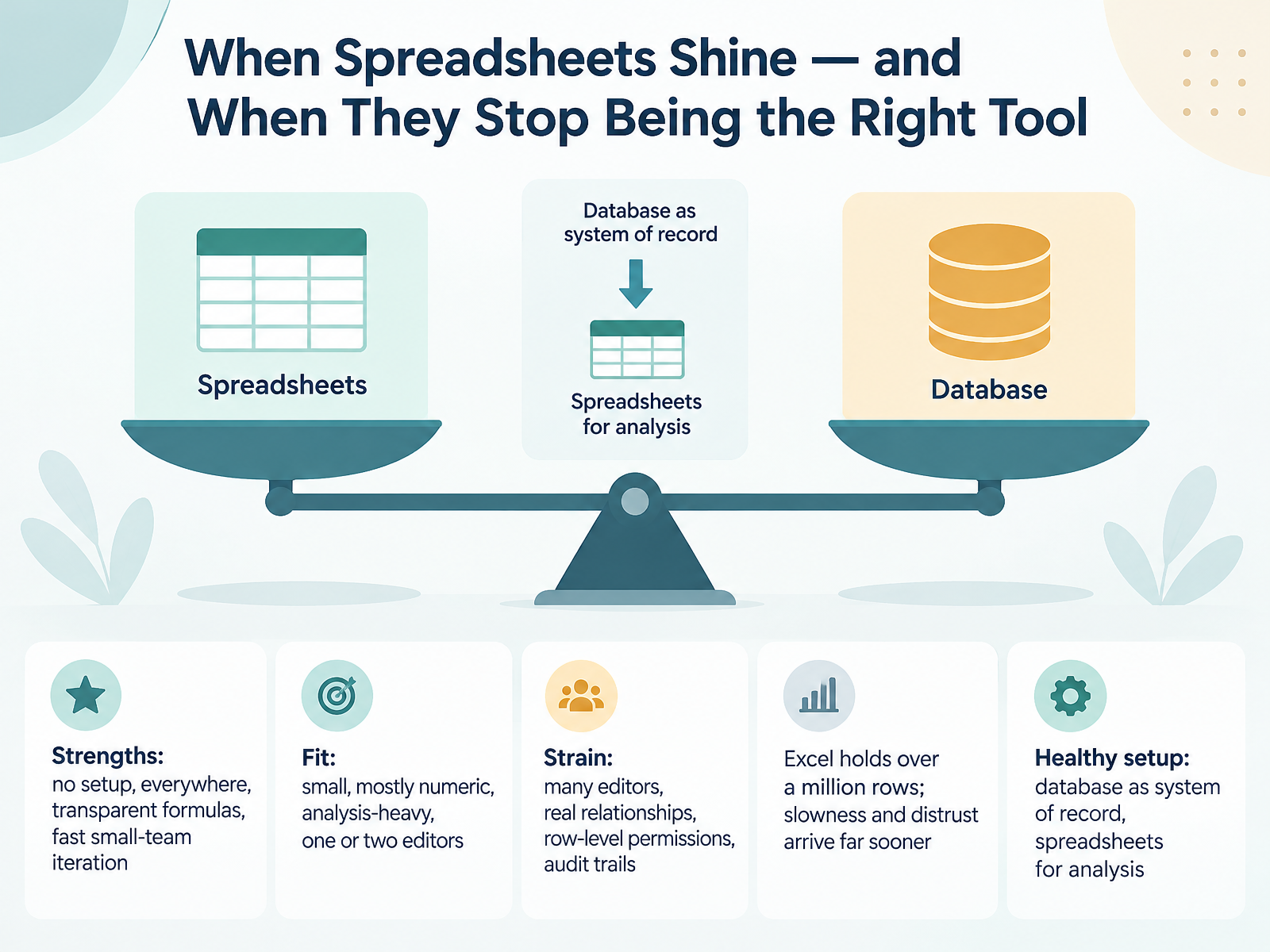
- 09When Spreadsheets Shine — and When They Stop Being the Right ToolLet's be honest about fit. Spreadsheets are genuinely strong tools. They need no setup. They are everywhere. Formulas sit in the open, so anyone can trace the math. And a small team can iterate fast on a simple list or model. They fit best when the data is small, mostly numeric, analysis heavy, and edited by one or two people. Here is the caution. Strain starts when many editors share one file, when rows truly relate to each other, when different people should see different rows, or when you need a clear audit trail. Also, Excel holds over a million rows, but slowness and distrust arrive far sooner, often within tens of thousands of rows. The fix is a healthy division: keep a database as the system of record, and use spreadsheets for analysis. Next, we look at pitfalls: where examples quietly fail.
 1 min
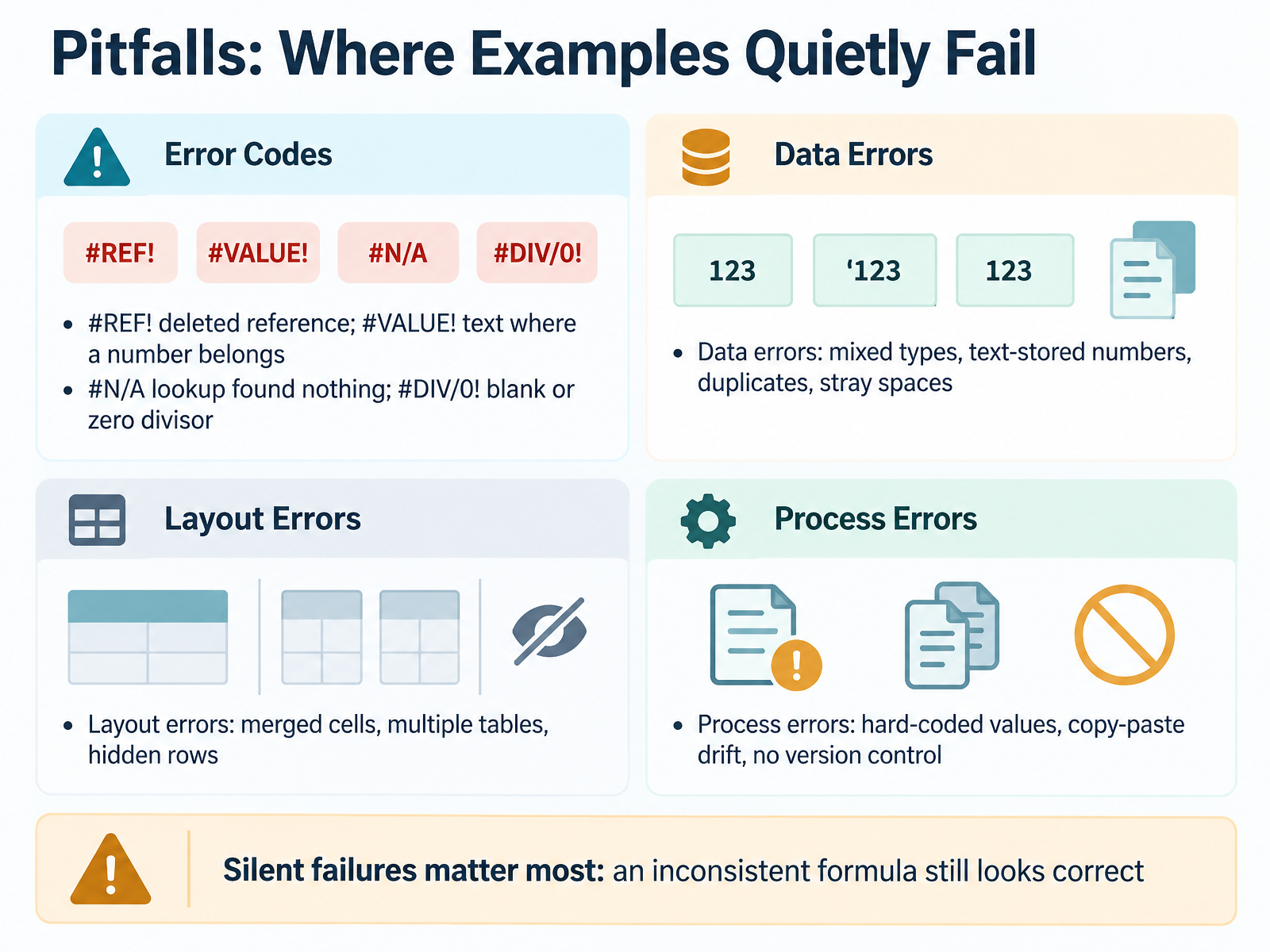
- 10Pitfalls: Where Examples Quietly FailNow let's look at where examples quietly fail. Excel errors are clues, not failures, so read them calmly. A hash R E F error means a formula points to a cell or row you deleted. Press Control Z immediately, or rebuild the reference as a range so it adapts. A hash VALUE error means text sits where a number belongs, like twelve units with letters. Remove the letters and use number formatting instead. A hash N A error means your lookup found nothing, often from a stray space or a number stored as text. Trim the spaces, or wrap the lookup in I F N A to show a friendly message. A hash D I V slash zero error means the divisor is blank or zero. Guard it with I F, like if the divisor equals zero, show blank, otherwise divide. Beyond errors, watch your data, your layout, and your process. Mixed types, duplicates, merged cells, and hidden rows all cause trouble. Hard coded values and copy paste drift are just as risky. Silent failures matter most, because an inconsistent formula still looks correct. Use the green triangle and Trace Precedents to catch them. Next, A Quick Triage Routine Before Problems Spread.
 howtogeek.comeducourse.co.zapresago.com+22 min
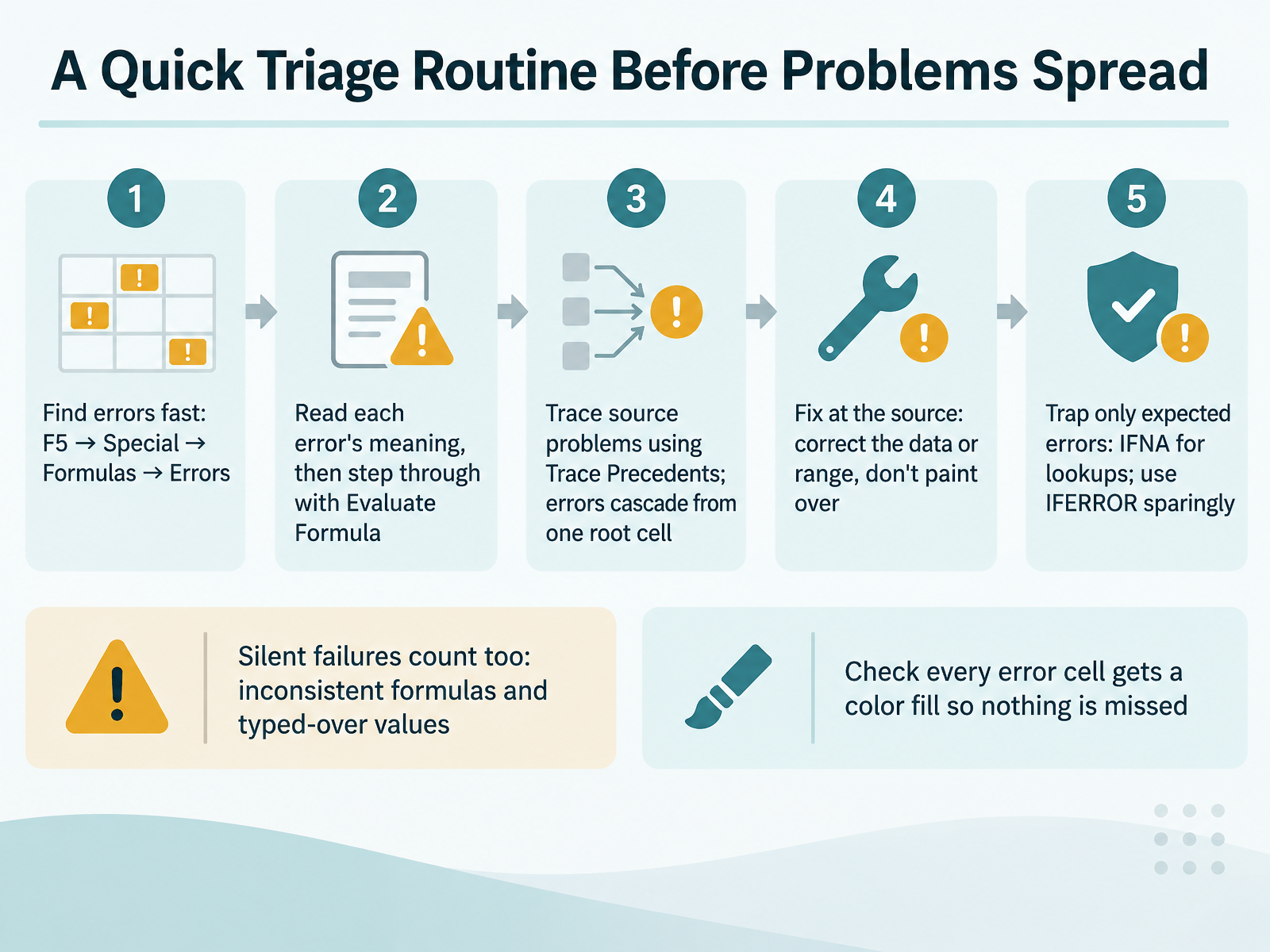
- 11A Quick Triage Routine Before Problems SpreadNow let's set up a quick triage routine, so small errors don't spread. First, find every error at once. Press the F5 key, choose Special, tick Formulas, then Errors, and click OK. Every error cell is selected. Give them a fill color, so nothing gets missed. Next, read what each error means. #N/A means a lookup found no match. #REF! means a reference was deleted. #VALUE! means text where a number belongs. Then select the cell and open Formulas, then Evaluate Formula, to step through the calculation. To find the root cause, use Trace Precedents, which draws arrows to the cells a formula depends on. Errors cascade, so fix the source cell, not the symptom. Trap only expected errors. Use IFNA for lookups, and IFERROR sparingly, because it hides everything. Also watch silent failures, like inconsistent formulas and typed-over values. Next, we'll put this into practice with a Design and Review Checklist.
 2 min
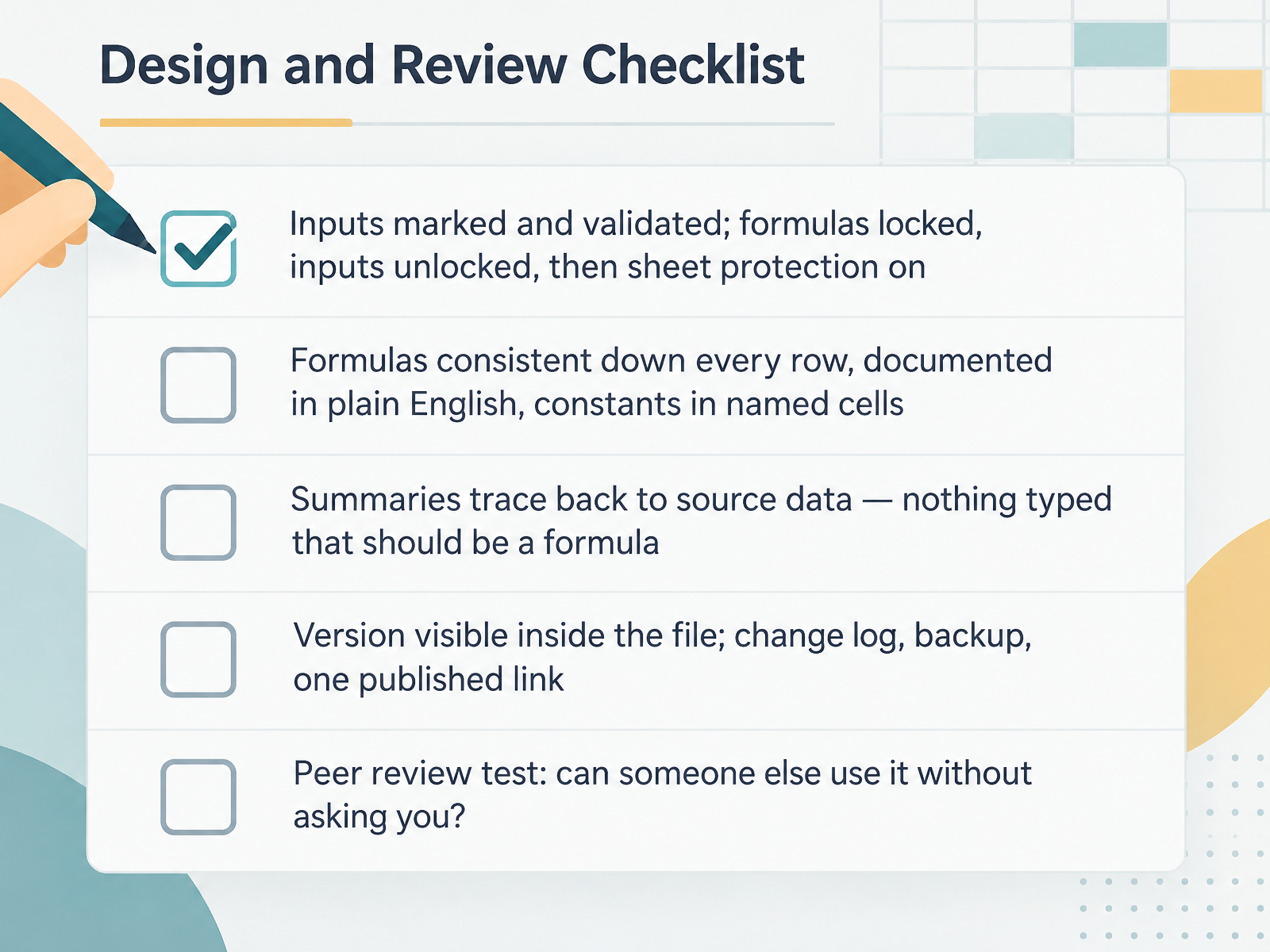
- 12Design and Review ChecklistNow let us bring everything together with the design and review checklist. First, inputs. Mark your input cells clearly, then validate them with data validation. Lock the formulas, unlock the inputs, and only then turn on sheet protection. The order matters, and the reason is simple: every cell in Excel is locked by default, but nothing happens until you protect the sheet. Next, formulas. Use the same formula consistently down every row, and document it in plain English, either in a note or on an About sheet. Put constants, like a tax rate, in named cells so one edit updates everywhere. Third, summaries. Every total should trace back to the source data. If a number can be calculated, it should never be typed. Fourth, version. Show the version number inside the file, keep a change log, save a backup, and publish one link instead of emailing copies. Then the peer review test. Can a colleague use your workbook without asking you how? If not, something still needs clearer guidance or protection. Coming up next, sourcing templates safely.
 ravindrabagale.comhelpme.safeoffice.dehowtogeek.com+22 min
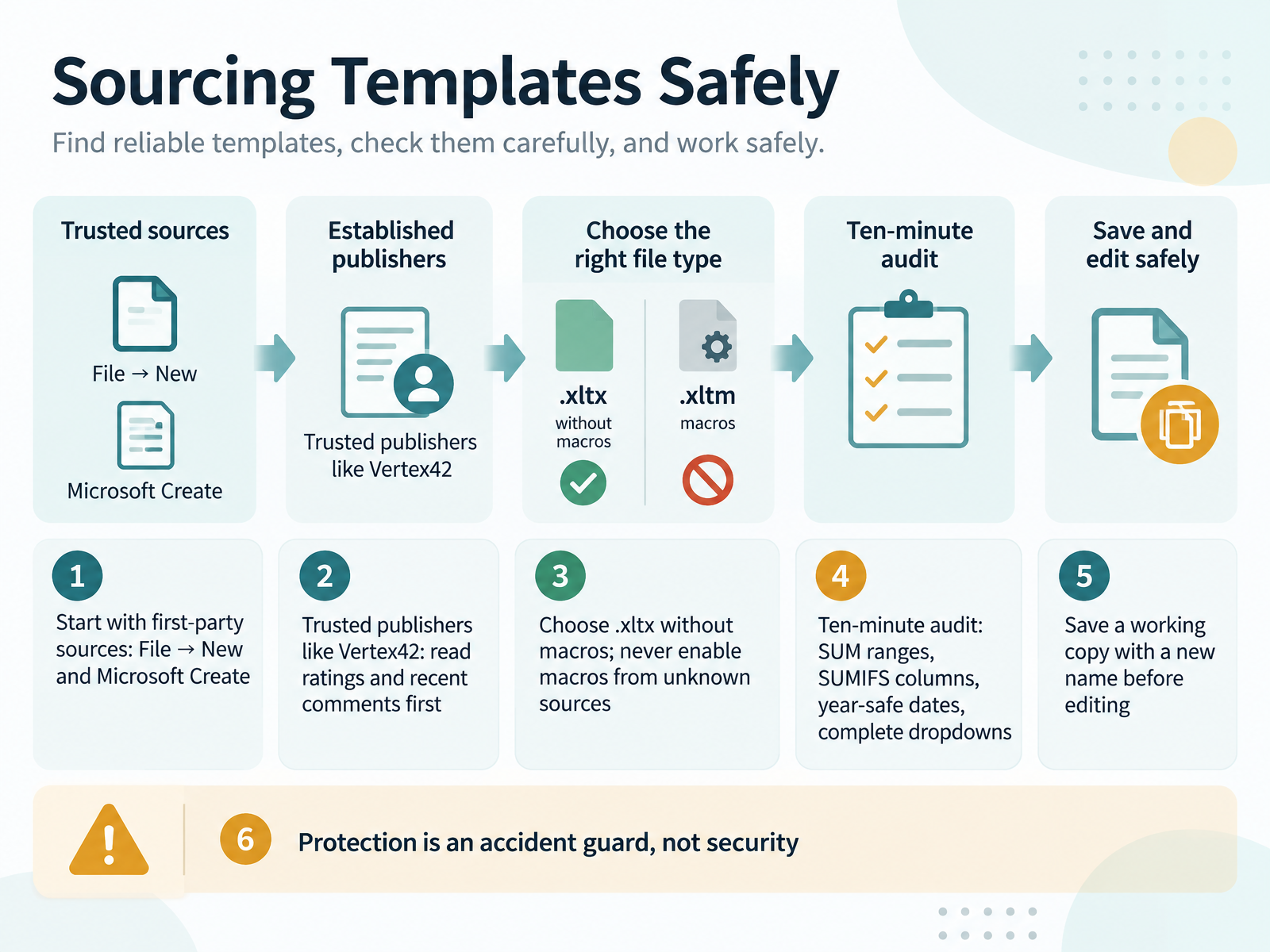
- 13Sourcing Templates SafelyNow let's talk about sourcing templates safely. Start with first-party sources: File, then New, and Microsoft Create. These are reviewed by Microsoft and open cleanly. If you use a trusted publisher like Vertex42, read the ratings and recent comments first. A template with recent complaints about broken formulas will reach you with those same problems. Choose .xltx files without macros, and never enable macros from an unknown source. Often you only need the layout, so open with macros disabled. Then run a ten-minute audit: check that SUM ranges cover the full data area, SUMIFS columns point to the right columns, date formulas survive a year change, and dropdowns are complete. Before editing, save a working copy with a new name. One frustrating truth: sheet protection is an accident guard, not security. It stops a stray keystroke, not a determined person. Use it to protect formulas, and keep sensitive data elsewhere. Next, Practice and Next Steps.
 2 min
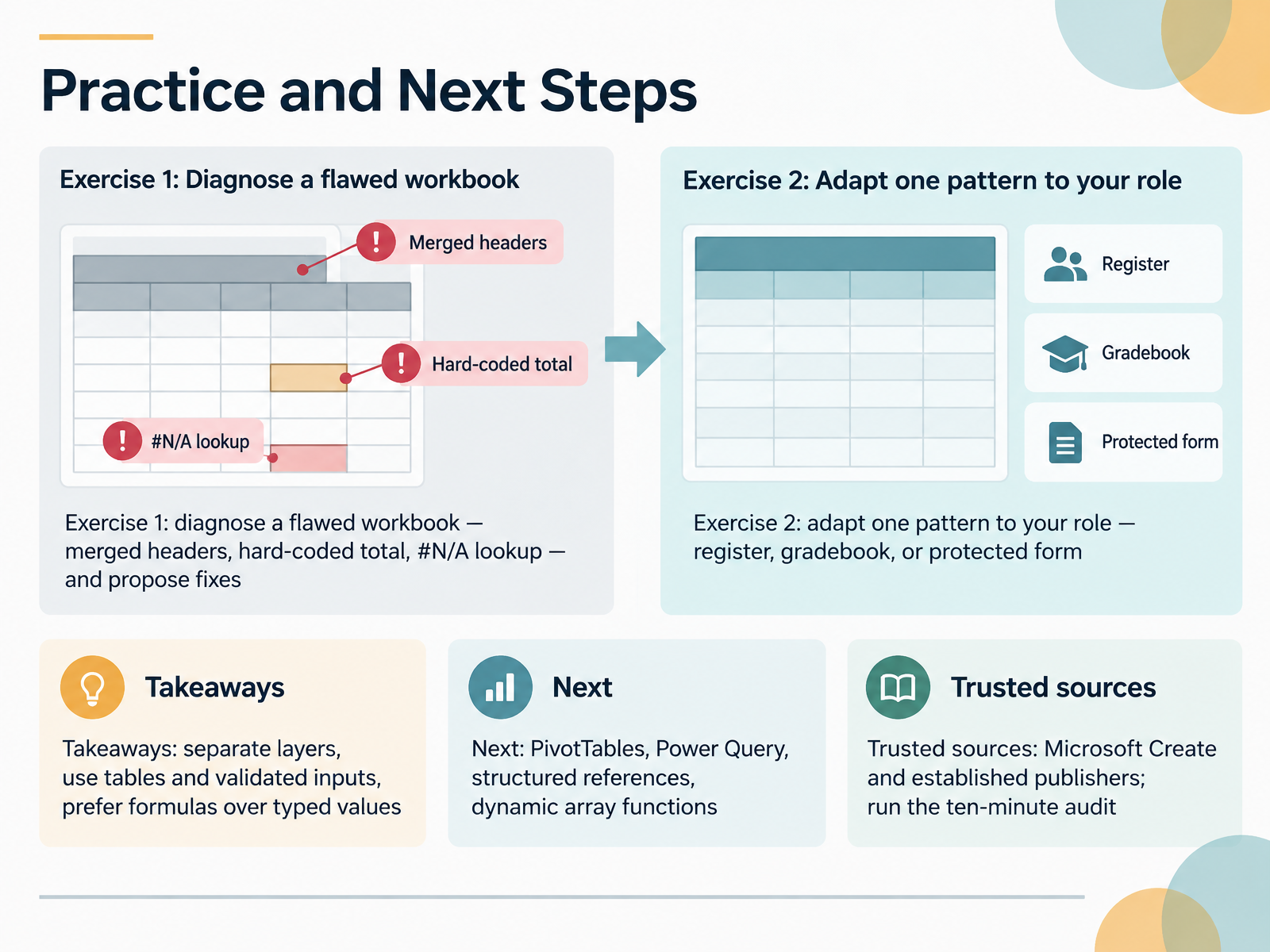
- 14Practice and Next StepsLet's close with two short exercises you can do this week. Exercise one: take a workbook you suspect is flawed. Look for merged headers, a total that was typed rather than calculated, and a lookup returning N A. Then write one fix for each. Exercise two: adapt a single pattern to your own role, whether that's a register, a gradebook, or a protected form. Here are your takeaways. Separate the layers: data on one sheet, totals on another. Use tables and validated inputs so new rows inherit dropdowns. And prefer formulas over typed values, so numbers update themselves. When you're ready for more, explore PivotTables, Power Query, structured references, and dynamic array functions. For templates, start with Microsoft Create and established publishers, then always run the ten-minute audit: check that SUM ranges cover all rows, lookups match exactly, and dropdown lists are complete. Thank you for joining me. You now have a practical system. Trust the patterns, question every template, and keep building things you can defend.
 imhora.compk-anexcelexpert.comsagnikbhattacharya.com+22 min
Take the deck with you
Download this course as a file — free, no sign-up needed.
- PDF handoutEvery slide page, ready to print or share.15 pages · 3.0 MBDownload
- Narrated PowerPointThe deck that presents itself — every slide carries the digital human's narration video.15 pages · 14.3 MBDownload
- PowerPoint slidesThe full deck as a .pptx — open it in PowerPoint, Keynote, or Google Slides.15 pages · 2.9 MBDownload
Free to use in your own training — please keep the PersonWise credit page at the end.
Have your own deck? Turn it into a course
Sources consulted
Web sources consulted while building this course.
- 5 Excel mistakes beginners make that ruin their spreadsheets (and what to do instead) — howtogeek.com
- Excel Mistakes Beginners Make And How To Fix Them | EduCourse — educourse.co.za
- 6 Common Spreadsheet Mistakes (And How to Fix Them) — presago.com
- Excel: 8 mistakes to avoid when working with data — orsys.fr
- Excel for Teachers: Save Hours on Admin — excelmacros.net
- Structuring the Workbook: Data, Calc, Dashboard in Excel — ravindrabagale.com
- How to structure an Excel workbook. The four-layer architecture for maintainable spreadsheets. | SafeOffice Support — helpme.safeoffice.de
- The 3-tab rule: How to structure your Excel file like a software developer — howtogeek.com
- Excel Tip of the Week #408 - Data structure good practices | ICAEW — icaew.com
- Excel File Setup for Analysis - Boxplot — boxplot.com
- XLOOKUP vs VLOOKUP vs INDEX MATCH: Which Should You Use - Learn Excel — learnexcel.io
- XLOOKUP vs VLOOKUP vs INDEX MATCH: Which Should You Use? — mindysheets.com
- Choosing the Right Lookup Strategy: An Excel Function Framework - ExcelDemy — exceldemy.com
- XLOOKUP vs INDEX and MATCH — exceljet.net
- VLOOKUP vs XLOOKUP vs INDEX/MATCH: Which to Use — dynamicwebtraining.com.au
- S2.1 Building Commercial Registers in Excel - imHORA — imhora.com
- Gate Pass Register Data Entry System in Excel - PK: An Excel Expert — pk-anexcelexpert.com
- How to Create an Attendance Tracker in Excel for Teams, Schools, or Training — sagnikbhattacharya.com
- How-to create an elegant, fun & useful Excel Tracker – Step by Step Tutorial — exceljobs.com
- Build a Project Tracker in Excel That Doesn’t Collapse at 50 Rows - Learn Excel — learnexcel.io