Begin
15 pages · ~30 min
Sharing Excel Spreadsheets: A Practical Workflow
Learn practical steps to share Excel spreadsheets securely and efficiently, including permissions and collaboration tips for teams and individuals.
A digital instructor presents all 15 pages. Hold “Ask” at any point and ask out loud — the answer comes from this course. No sign-up needed.
What you’ll learn
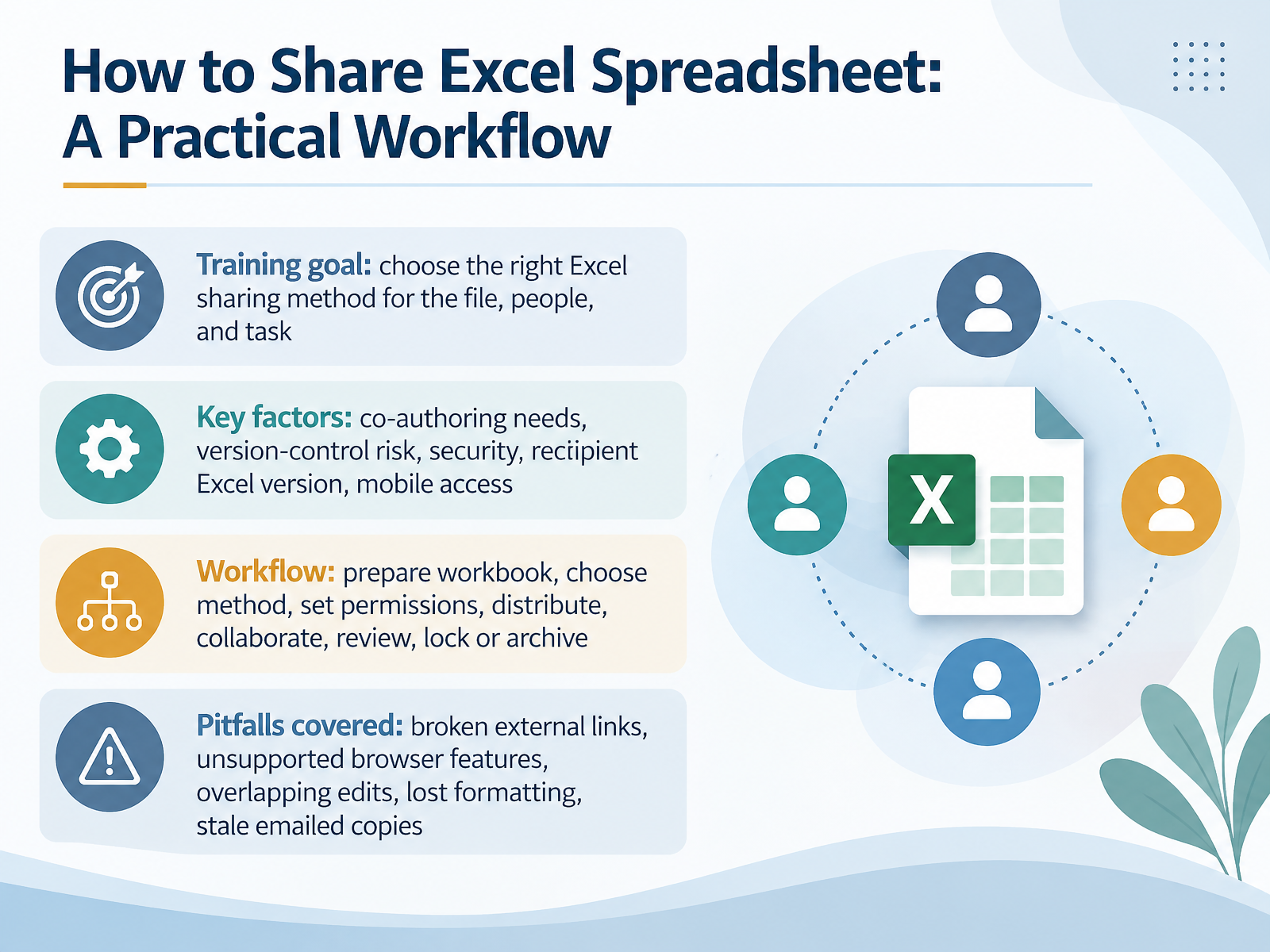
- 01How to Share Excel Spreadsheet: A Practical WorkflowWelcome. If you have ever emailed a spreadsheet, then watched three different versions come back, this course is for you. The goal is simple: choose the right Excel sharing method for the file, the people, and the task. Before you click Share, weigh five factors. Do people need to co-author, or just view? What is the version-control risk? How sensitive is the data? What Excel version will recipients use? And do they need mobile access? Our workflow moves in seven steps. Prepare the workbook. Choose the method. Set permissions. Distribute. Collaborate. Review. Then lock or archive. Along the way, we will head off the common pitfalls: broken external links, features that fail in a browser, overlapping edits, lost formatting, and stale emailed copies. Here is the key takeaway. Sharing is a decision, not just a button. Pick the method that matches the work, and confirm who has access and whether edits will sync before you send it. Next, we will start with the foundation: Know Your File and Audience Before You Share.support.microsoft.comlearn.microsoft.comsupport.microsoft.com+22 min
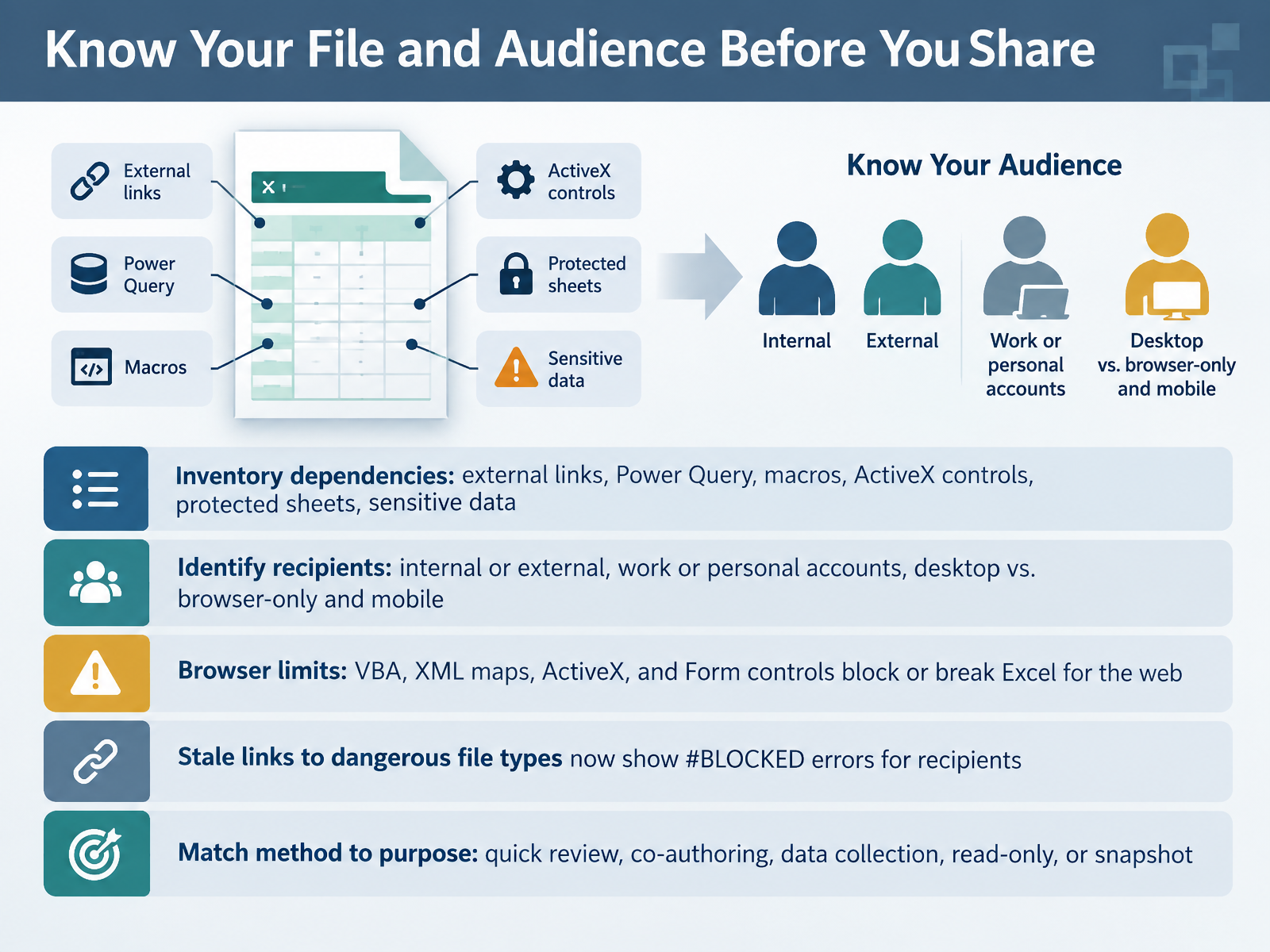
- 02Know Your File and Audience Before You ShareBefore you share anything, take two minutes to know your file and your audience. First, inventory dependencies. Check for external links, Power Query queries, macros, ActiveX or Form controls, protected sheets, and sensitive data. Second, identify recipients. Are they internal or external? Do they use work or personal accounts? Will they open the file on desktop, in a browser, or on mobile? This matters, because Excel for the web can't run VBA or macros, and Form controls and ActiveX controls aren't supported there. Macros simply won't run in a browser window. Power Query has improved in the browser, but creating and editing queries requires a Business or Enterprise subscription, and locally saved files aren't reachable. Also, links to blocked file types now return a hash BLOCKED error, because Microsoft blocks refresh and creation of external links to dangerous formats like old .xls files and databases. So match the method to the purpose. A quick review might only need a view-only link. Co-authoring needs a shared file with edit permissions. Data collection may call for a form or a structured sheet. And a snapshot should be a separate copy. Check point: before you share, confirm what the file depends on, who needs it, and how they'll open it. That prevents broken links and conflicting copies. Next, let's look at current sharing options in Microsoft 365.
 support.microsoft.comsupport.microsoft.comsupport.microsoft.com+22 min
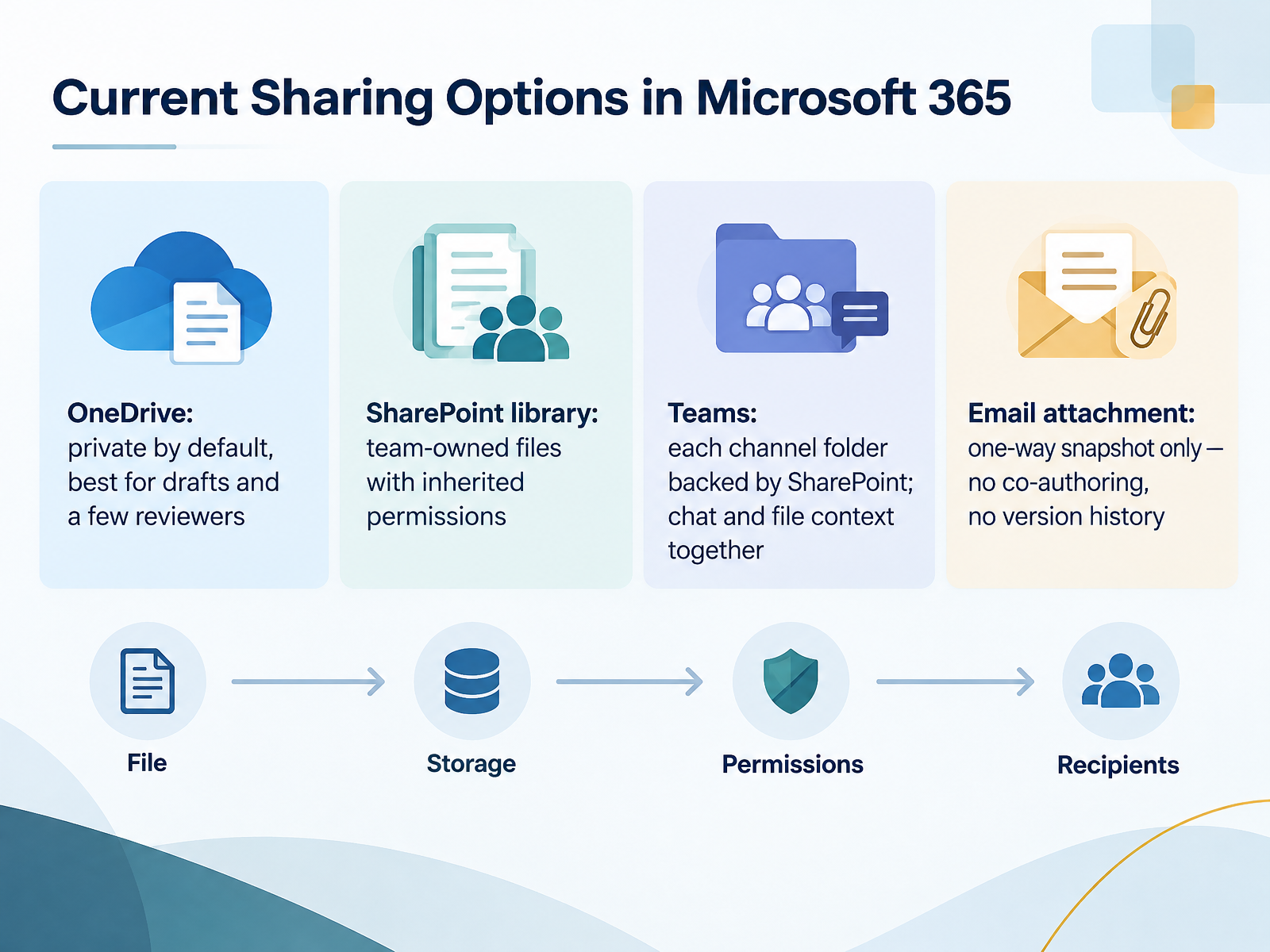
 - 03Current Sharing Options in Microsoft 365So let's look at where you can actually share an Excel workbook in Microsoft 365, because the location you choose controls who has access and whether edits sync. OneDrive is private by default. Nothing is visible until you share it, which makes OneDrive best for drafts and a few reviewers. SharePoint is a team library, so files are team-owned and permissions are inherited from the site. If someone has access to the library, they have access to the file. Teams works on top of SharePoint. Every channel folder is backed by a SharePoint site, so you get file storage and chat context in one place. And email attachments? Remember, that is a one-way snapshot only. No co-authoring, no version history, no syncing. Next, let's cover setting permissions and link types.
 support.microsoft.comsupport.microsoft.comsupport.microsoft.com+21 min
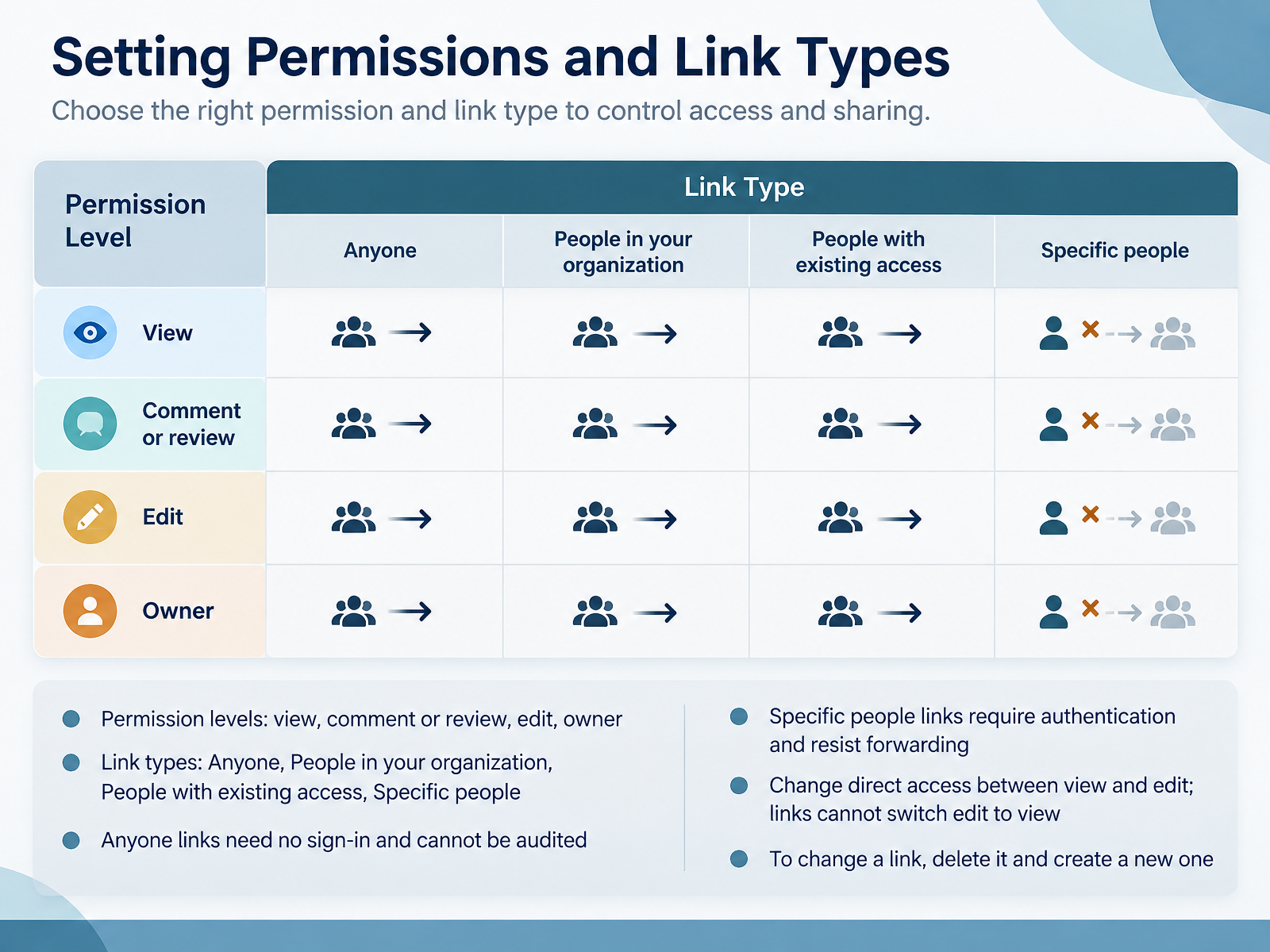
 - 04Setting Permissions and Link TypesNow let's talk about who actually gets in. Every share starts with two choices: a permission level and a link type. Permission levels are view, comment or review, edit, and owner. View is read-only. Comment lets someone leave feedback in a Word file without changing content. Edit means they can change the spreadsheet, and owner means full control, including resharing. On link types, you have four options. Anyone means no sign-in and no audit trail, so avoid it for sensitive data. People in your organization works only for signed-in members of your company. People with existing access sends a link without changing permissions, useful when someone already has access. Specific people requires authentication and resists forwarding. One rule to remember: for direct access, you can switch between view and edit. But a link itself cannot switch from edit to view. To change a link, delete it and create a new one. Next, let's look at external sharing and guest access.
 support.microsoft.comlearn.microsoft.comlearn.microsoft.com+22 min
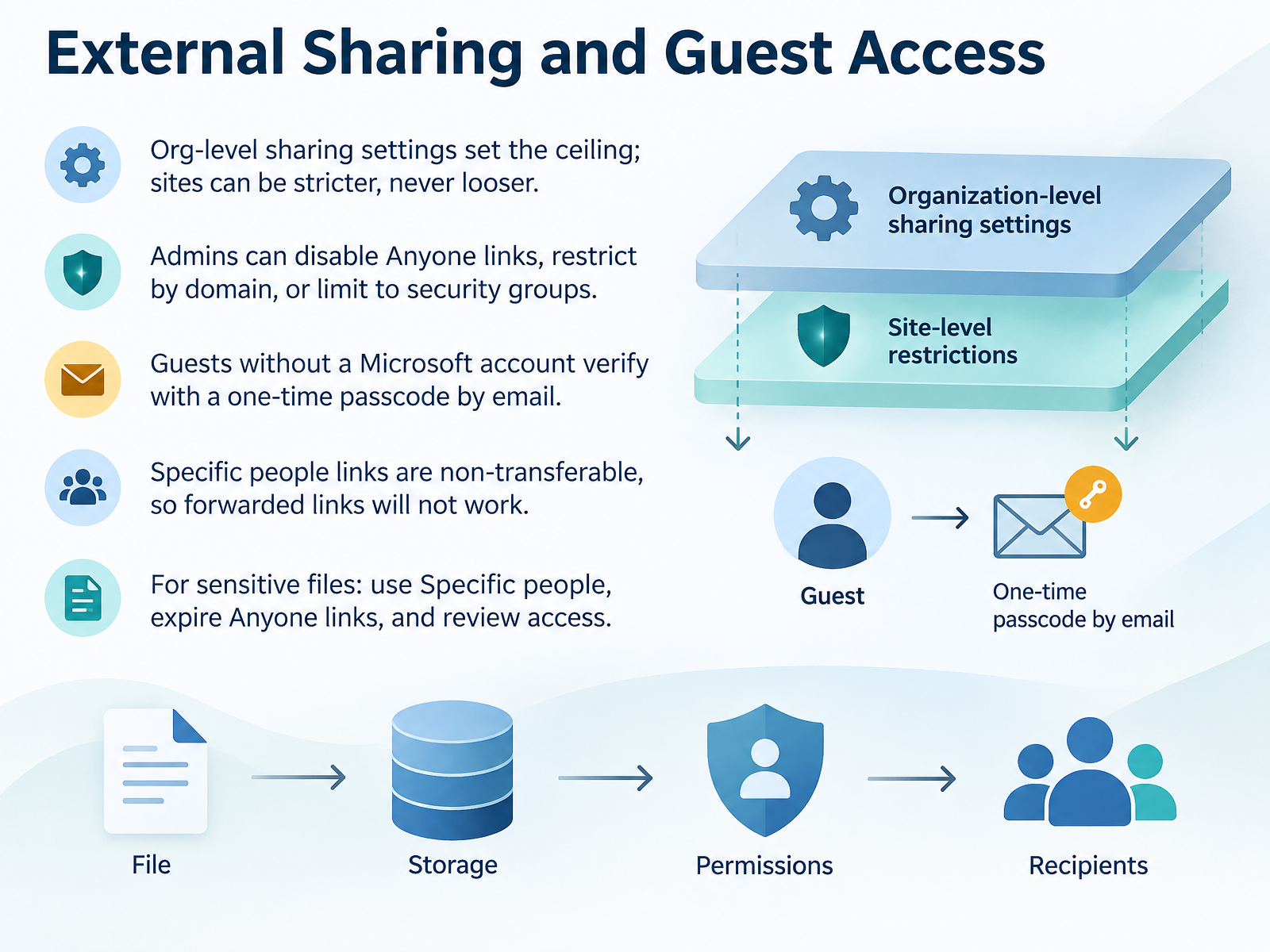
 - 05External Sharing and Guest AccessNow let's look at external sharing and guest access. Your organization's sharing settings set the ceiling. A site can be stricter, but never looser. So if Anyone links are disabled org wide, no site can turn them back on. Admins can disable Anyone links entirely, restrict sharing to specific approved domains, or limit external sharing to certain security groups.
What do guests actually see? They don't need a Microsoft account. When they open your link, Microsoft sends a one-time passcode to their email. They enter that code and get in. If you use a Specific people link, that link is non-transferable. Forward it to someone else, and it simply won't work.
For sensitive files, three habits. Use Specific people, set Anyone links to expire, and review access when the project ends. Open Manage access to check who's still on the list, and remove anyone who shouldn't be. Next, we'll get your workbook ready for co-authoring.
 support.microsoft.comlearn.microsoft.comlearn.microsoft.com+22 min
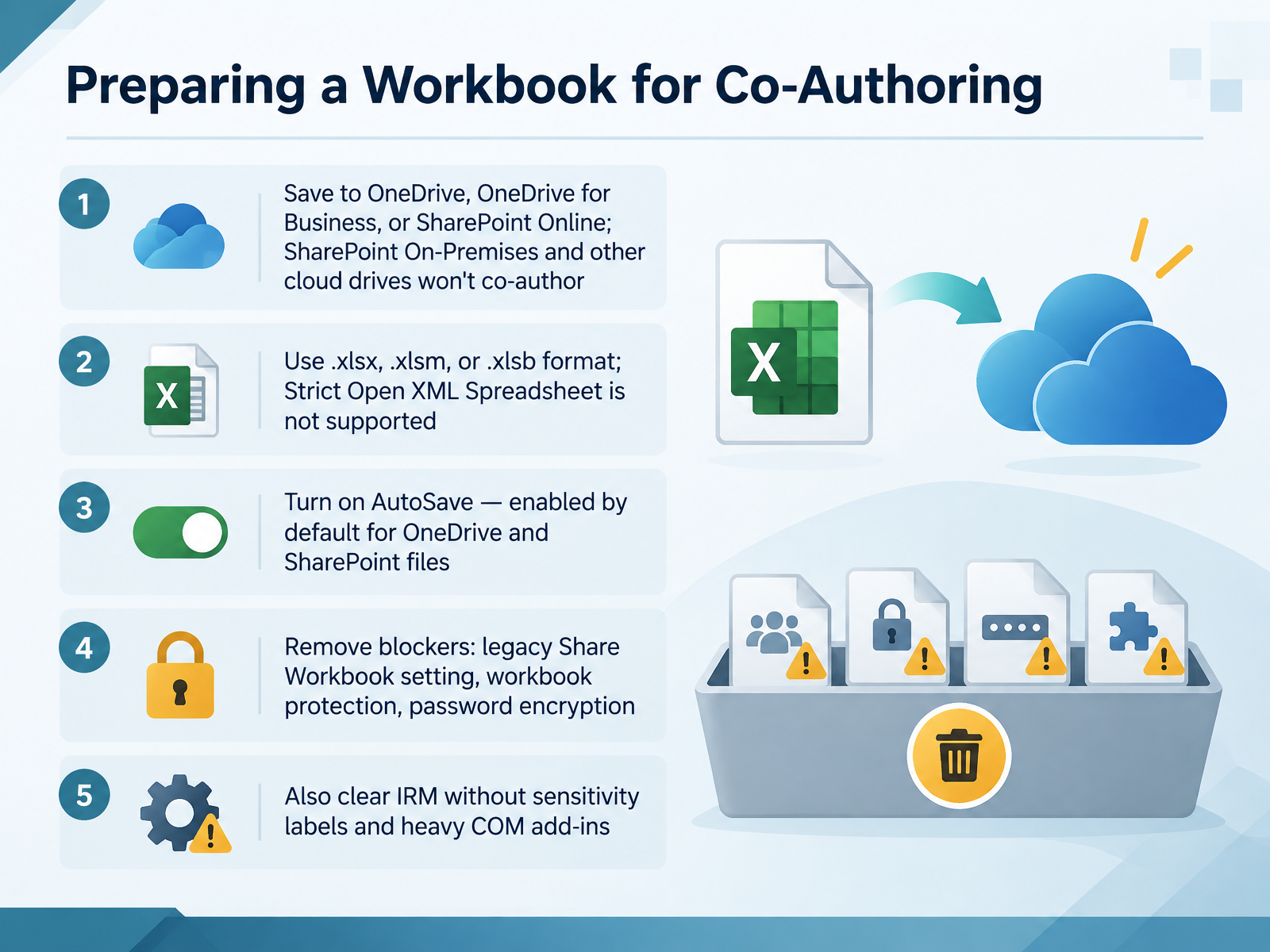
 - 06Preparing a Workbook for Co-AuthoringNow let's prepare your workbook for co-authoring, because a few hidden settings can quietly block real-time editing. First, save the file to OneDrive, OneDrive for Business, or SharePoint Online. SharePoint On-Premises and third-party cloud drives won't co-author. Second, use the .xlsx, .xlsm, or .xlsb format. Strict Open XML Spreadsheet is not supported. If you're in the wrong format, just go to File, Save a Copy, and choose Excel Workbook. Third, turn on AutoSave. For OneDrive and SharePoint files, it's on by default, and it's what lets everyone see changes in seconds. Then remove the blockers. Turn off the legacy Share Workbook setting under Review. Unprotect the workbook and clear any password encryption. If the file uses Information Rights Management without sensitivity labels, co-authoring won't work, so check File, Info. Also disable heavy COM add-ins that interfere with sync. One quick checkpoint: open File, Info and resolve any warnings before you share. That's your readiness check. Next, we'll see how co-authoring looks in each Excel client, in Co-Authoring in Desktop, Web, and Mobile Excel.
 support.microsoft.comlearn.microsoft.comsupport.microsoft.com+22 min
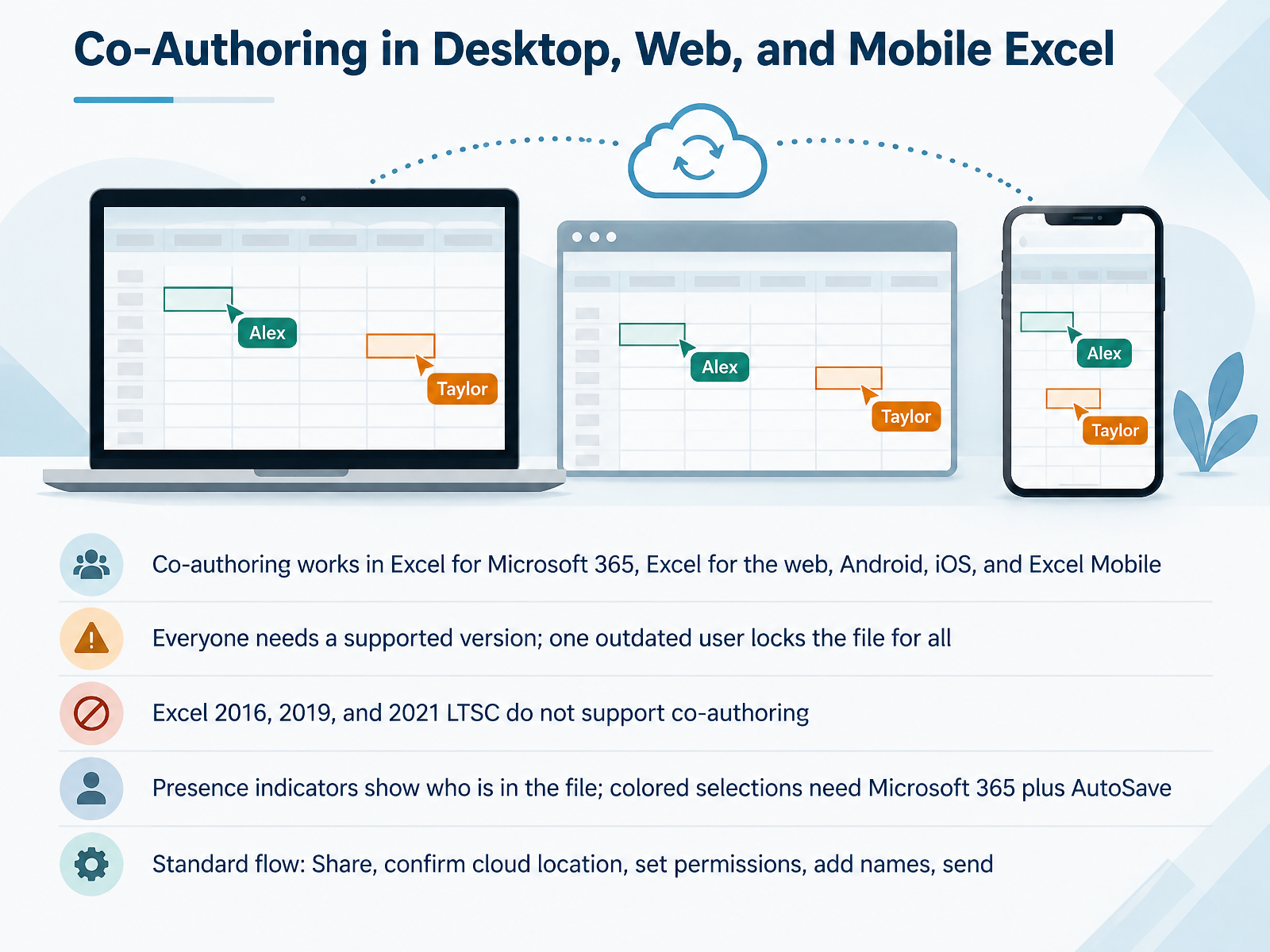
 - 07Co-Authoring in Desktop, Web, and Mobile ExcelNow let's talk about co-authoring across desktop, web, and mobile Excel. The good news is that co-authoring works in Excel for Microsoft 365, Excel for the web, and the Android, iOS, and Mobile apps. The catch is that everyone needs a supported version. If even one person opens the file in an unsupported build, it locks the file for everybody else. So here's the practical takeaway: Excel 2016, 2019, and 2021 LTSC do not support co-authoring. When someone on your team is on those versions, ask them to edit in Excel for the web instead. Inside a healthy session, presence indicators show who is in the file right now, and if you are on Microsoft 365 with AutoSave turned on, you will also see each person's colored selections. The standard workflow is quick. Select Share, confirm the file lives on OneDrive or SharePoint Online, set permissions, add names, and send. That is it. Keep everyone on a supported version, keep AutoSave on, and edits sync in seconds. Next, we will look at handling merge conflicts and sync issues.
 support.microsoft.comsupport.microsoft.comsupport.microsoft.com+22 min
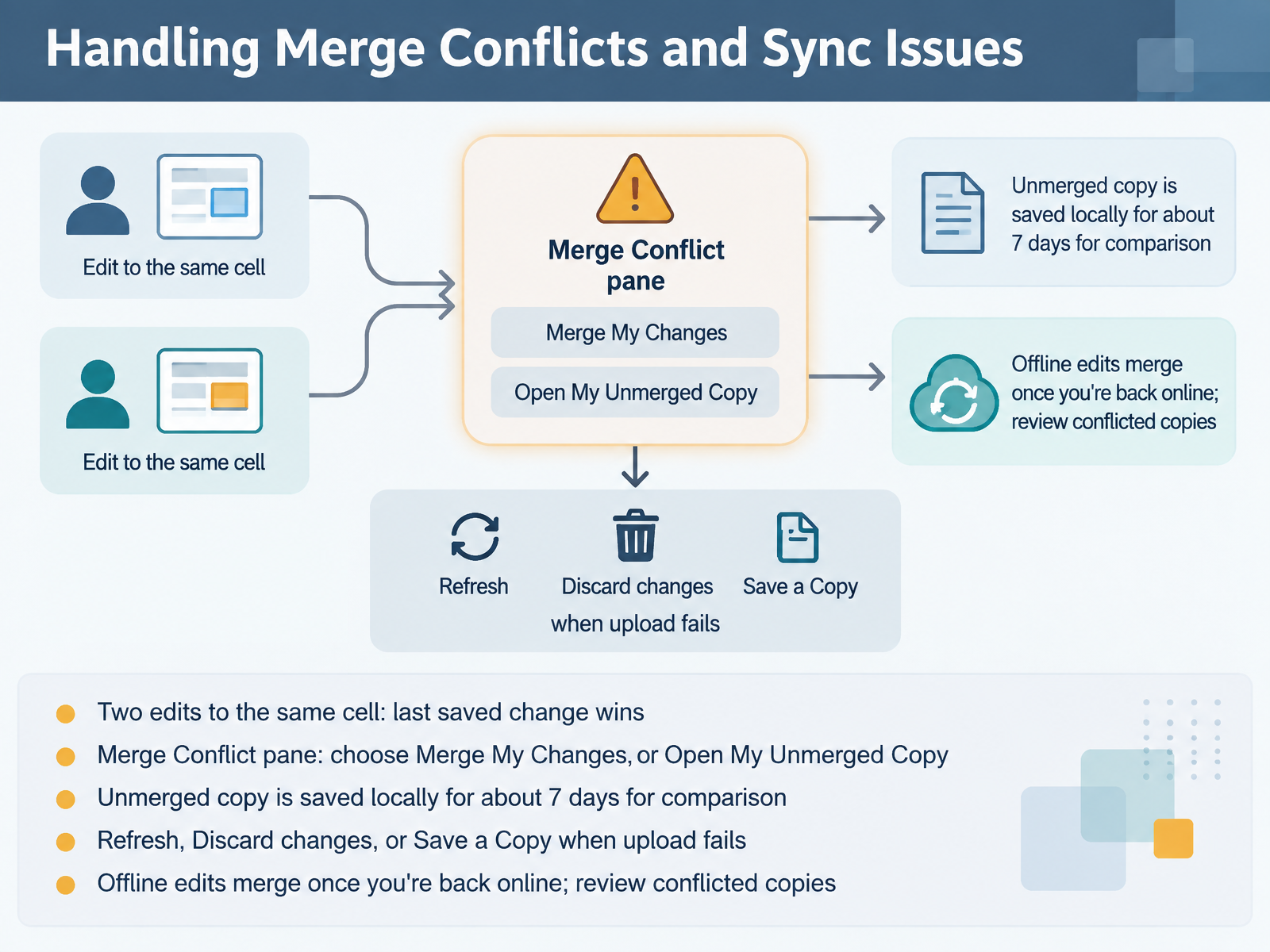
 - 08Handling Merge Conflicts and Sync IssuesNow let's talk about what happens when two people edit at the same time, and how to handle merge conflicts and sync issues. The rule to remember first: when two edits hit the same cell, the last saved change wins. So if you and a teammate overwrite each other, the most recent save is the one everyone sees. If Excel can't merge your changes automatically, you'll get a Merge Conflict pane. There, choose Merge My Changes to apply your edits to the shared file, or Open My Unmerged Copy to manually compare. Excel saves that unmerged copy locally for about seven days, named with the date and time, so you have a window to review it. If you see an upload failed or refresh message, pick the right option: Refresh when you have nothing to keep, Discard changes if your local edits aren't needed, or Save a Copy to preserve work before pasting it back into the cloud file. And here's a key one: offline edits only merge once you're back online, so review any conflicted copies. Next, let's look at Version History and Change Review.
 support.microsoft.comsupport.microsoft.com1 min
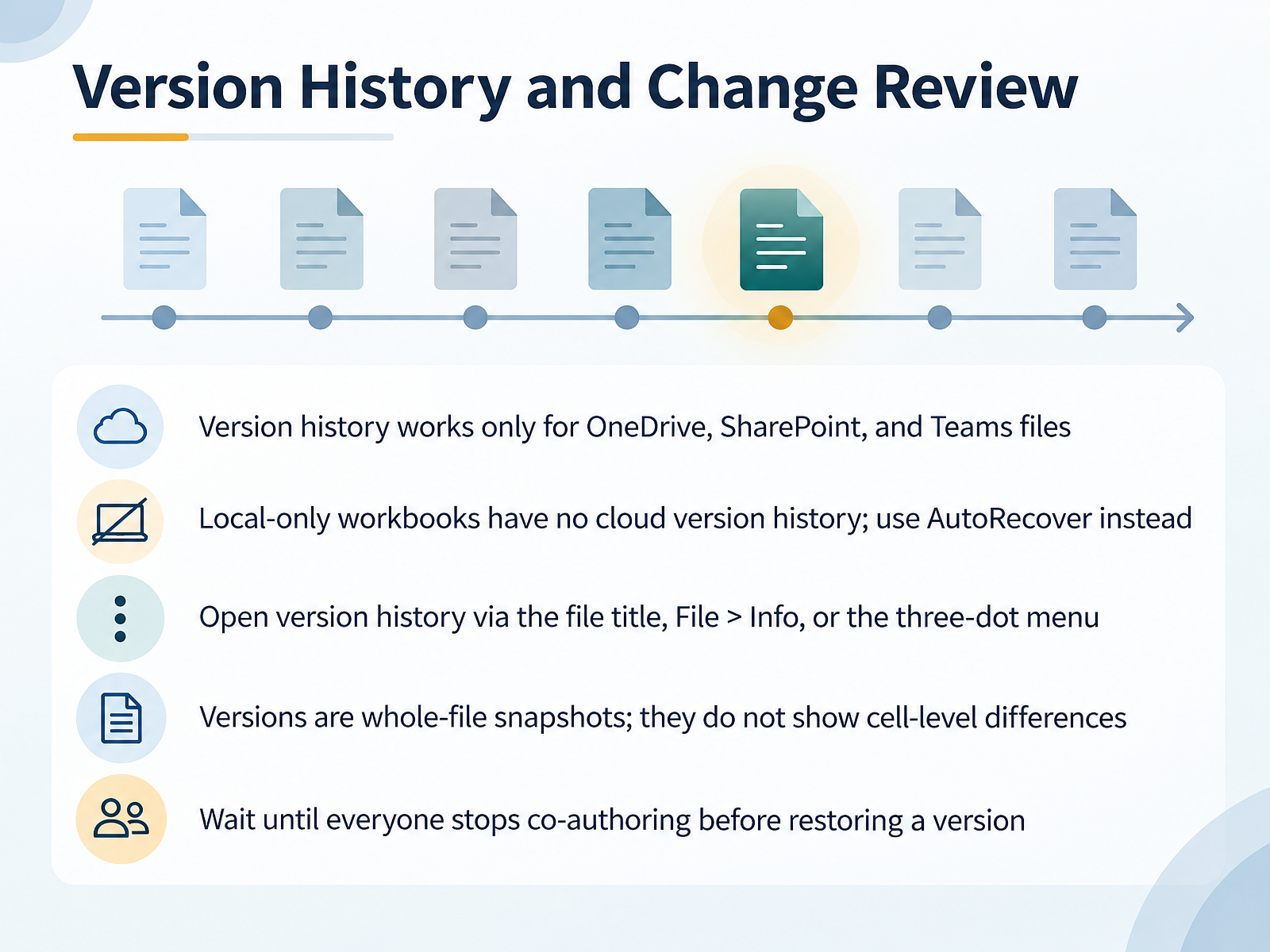
 - 09Version History and Change ReviewNow let's talk about version history and change review. This is your safety net, but it only works in the right places. First, the rule that trips people up: version history works only for files stored in OneDrive, SharePoint, or Teams. If your workbook lives only on your desktop or a USB drive, there is no cloud history. Your fallback there is AutoRecover, which is short-term and far less flexible. To open version history, click the file title and choose Version history, or go to File, then Info, then Version History. You can also use the three-dot menu next to the file in OneDrive or SharePoint. In the pane, select a version to open it in a separate window, then choose Restore if you want it back. One important limit: each version is a whole-file snapshot. It will not show you which cells or formulas changed. If you need that level of detail, open two versions side by side and compare manually. And before you restore, wait until everyone stops co-authoring. Restoring while others are editing overwrites their work. Quick checkpoint: cloud file, version history open, everyone paused, then restore. That keeps your recovery clean. Next, we move on to sharing securely: data, encryption, and compliance.
 2 min
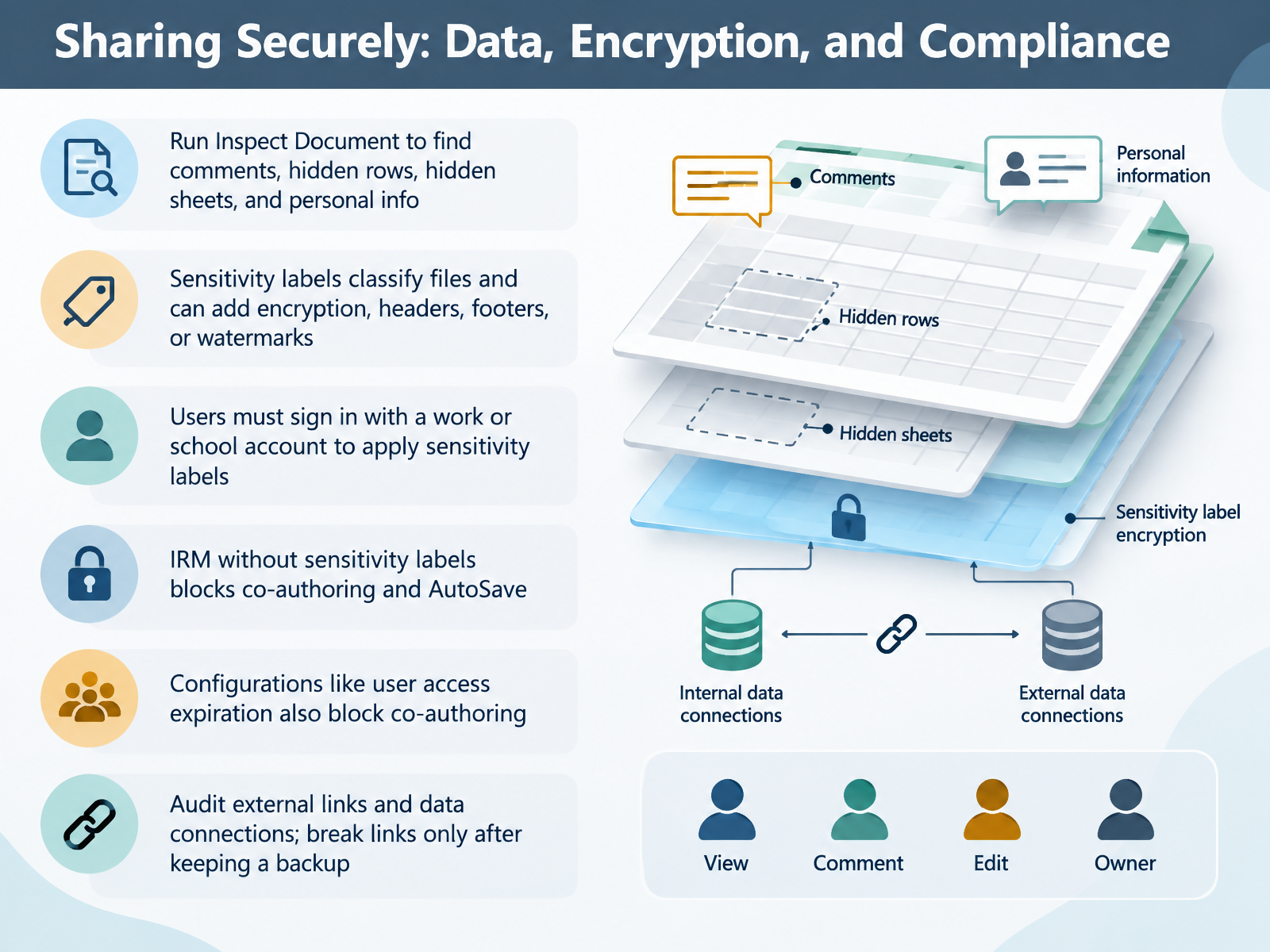
2 min - 10Sharing Securely: Data, Encryption, and ComplianceNow let's talk about sharing securely, because who can see your data matters just as much as how you send it. Start with Inspect Document. It finds comments, hidden rows, hidden sheets, and personal info before anyone else does. Next, sensitivity labels. They classify a file and can encrypt it, or add headers, footers, and watermarks. To apply a label, users must sign in with a work or school account. Here's the catch. Old-style IRM without sensitivity labels blocks co-authoring and AutoSave, and so does a configuration like user access expiration. If real-time editing matters, check that setting before you share. Finally, audit external links and data connections. Confirm what each one pulls in, and break links only after you keep a backup, since breaking them can be irreversible. Quick takeaway: inspect, label, verify co-authoring, then clean up links. Next, let's look at sharing for data collection and forms.
 2 min
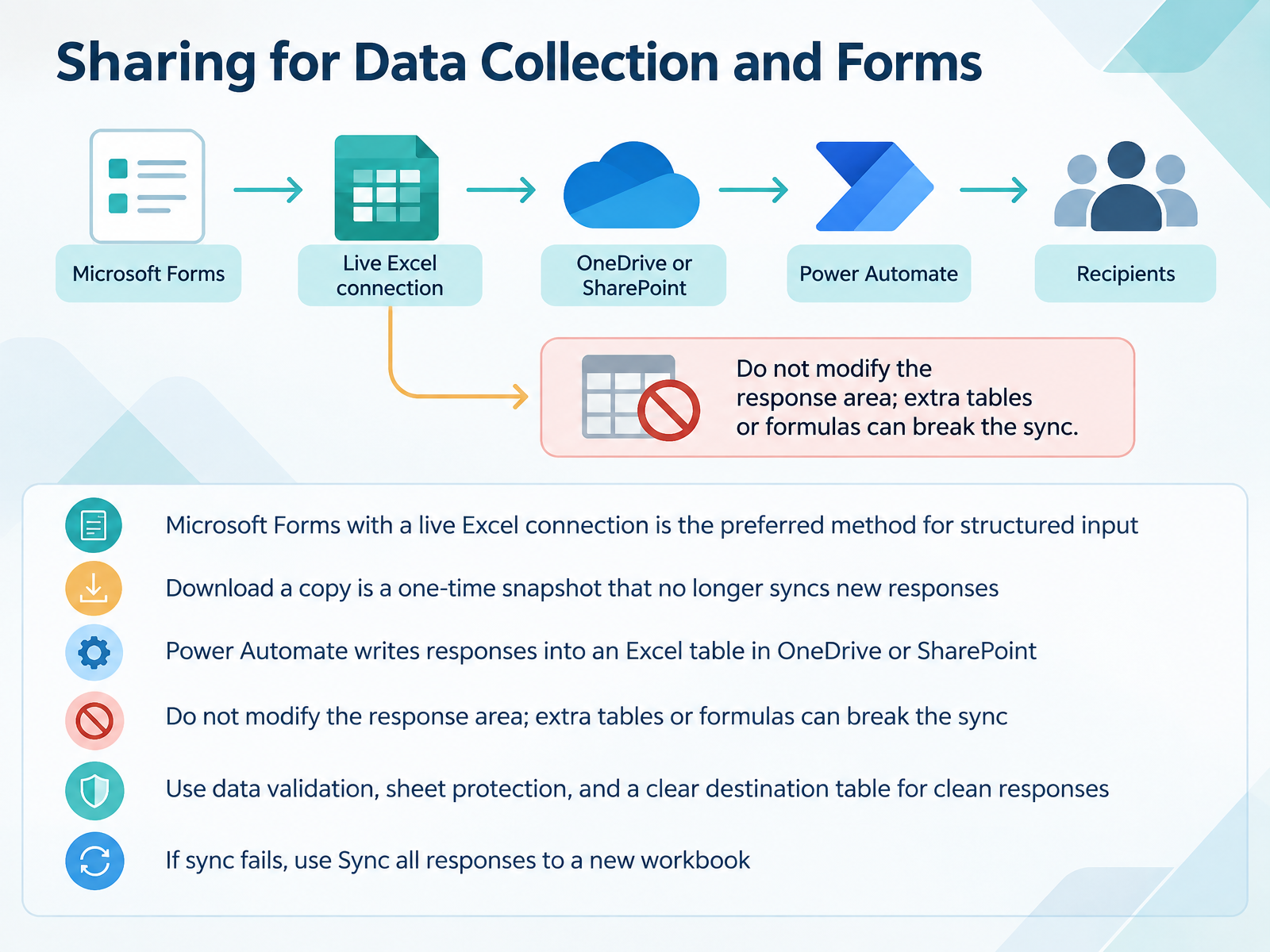
2 min - 11Sharing for Data Collection and FormsNow let's look at sharing for data collection and forms. When you need structured input, the preferred method is a Microsoft Form with a live Excel connection. On the Responses page, choose Open results in Excel. That creates a workbook in OneDrive or SharePoint that keeps syncing new responses. Be careful with Download a copy. It gives you a one-time snapshot, and it never syncs again. If responses need to land in a specific workbook, use Power Automate. It writes each submission into an Excel table in OneDrive or SharePoint. Two rules keep the sync healthy. First, do not modify the response area. Extra tables or formulas can break the connection. Second, keep the destination table clean, and use data validation plus sheet protection for tidy responses. If the sync fails, go to the Responses tab, open More options, and select Sync all responses to a new workbook. Up next, Distributing Read-Only Reports and Dashboards.
 2 min
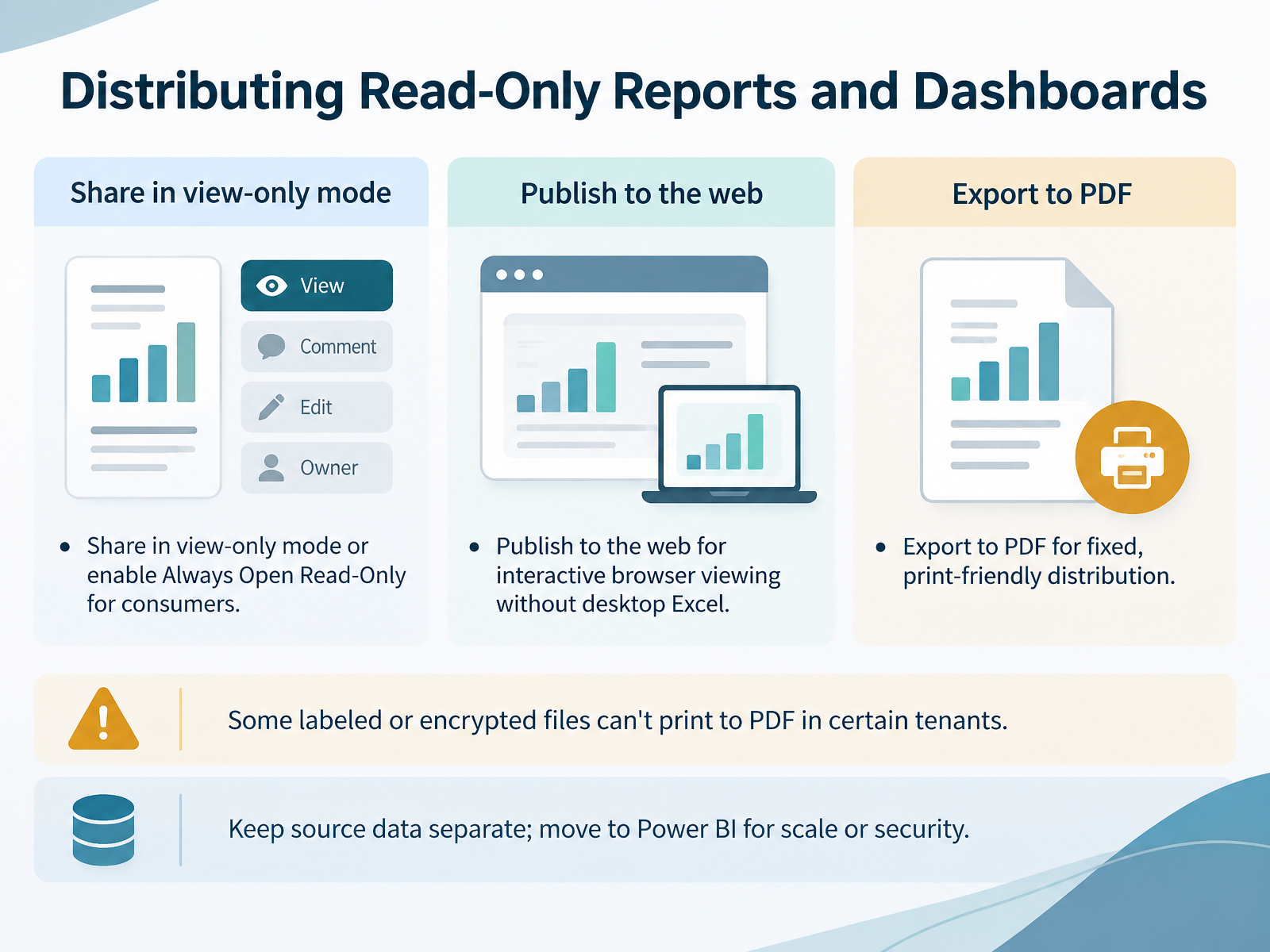
2 min - 12Distributing Read-Only Reports and DashboardsNow let's look at distributing read-only reports and dashboards. When your audience only needs to consume the numbers, protect the file first. Share in view-only mode, or enable Always Open Read-Only for consumers. That way, they can read and filter, but they can't accidentally overwrite your formulas. For interactive viewing without desktop Excel, publish to the web. Excel for the web generates a clean, view-only link that opens right in the browser. For fixed, print-friendly distribution, export to PDF. One heads-up: some labeled or encrypted files can't print to PDF in certain tenants, so test that export before you promise it to a client. Also, keep your source data separate from the report layer. Hiding a sheet is not security. When you need scale or tighter security, move the model to Power BI and share from there. Next, we'll look at using Copilot and modern tools to review shared workbooks.
 2 min
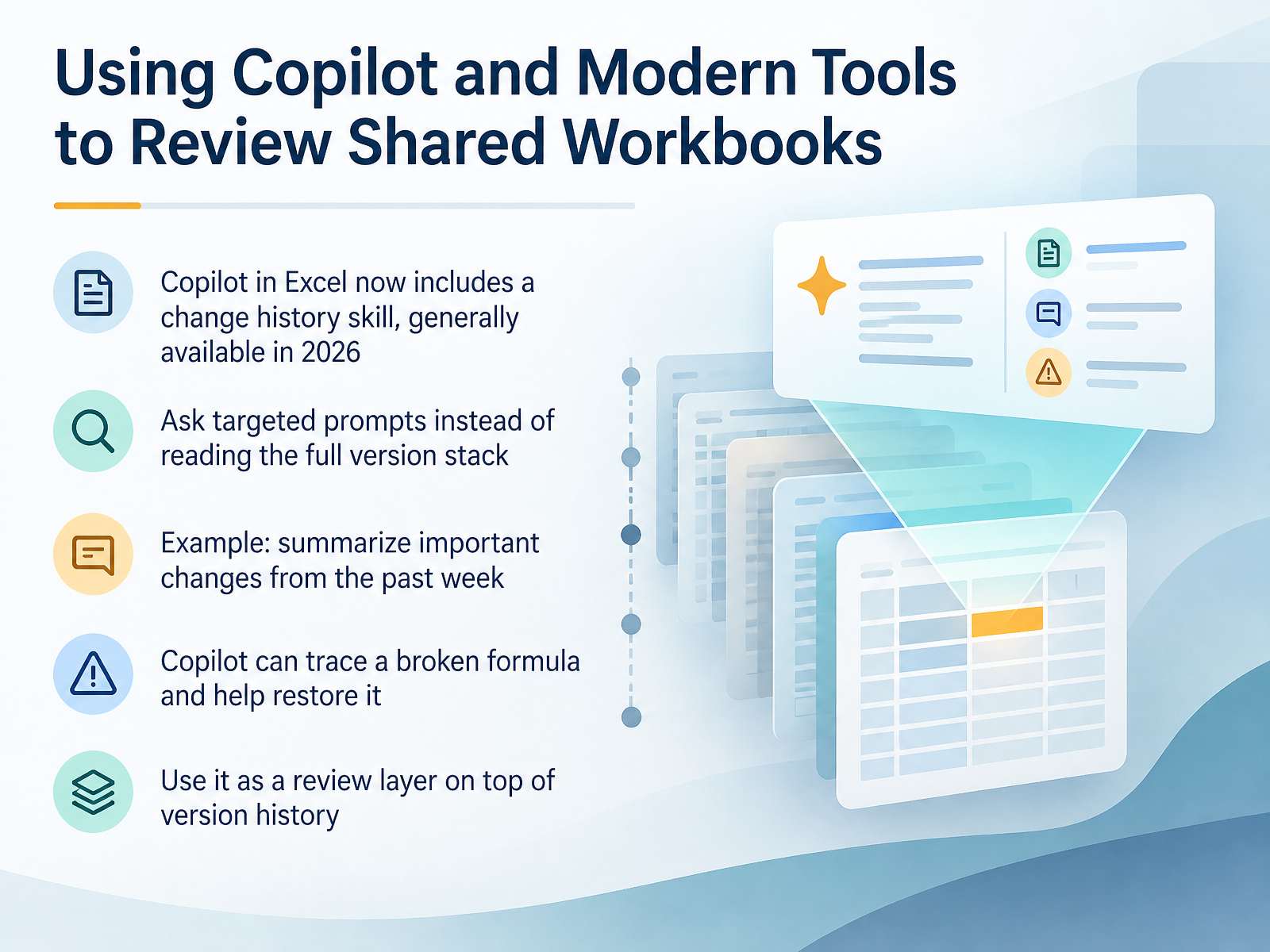
2 min - 13Using Copilot and Modern Tools to Review Shared WorkbooksNow let's add a review layer on top of version history using Copilot and modern tools. Copilot in Excel now includes a change history skill, generally available in 2026. Instead of reading through the full version stack, just ask a targeted question. For example: summarize the important changes from the past week, focusing on formula edits and structural changes. Copilot surfaces what changed, who made it, and where it happened. It can also trace a broken formula back to the cell change that caused it, explain what went wrong, and help restore the formula to its last working version. So use Copilot as your first pass when reviewing a shared workbook, then drop into version history only when you need to compare or roll back. Next, we'll cover troubleshooting common sharing problems.
 support.microsoft.comsupport.microsoft.com1 min
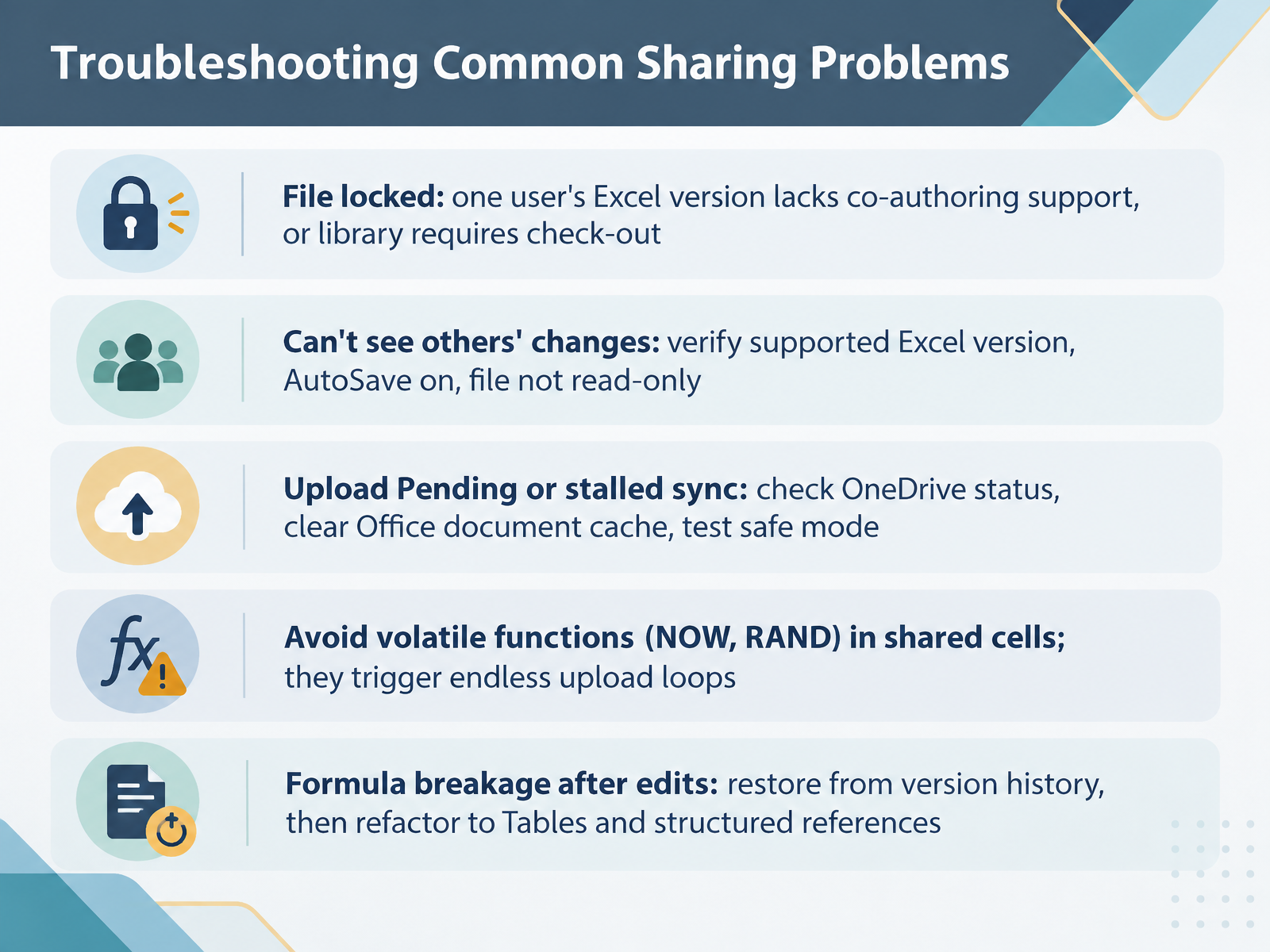
 - 14Troubleshooting Common Sharing ProblemsLet's troubleshoot the most common sharing problems. First, if the file is locked, someone is probably in an Excel version that doesn't support co-authoring. Excel 2016, 2019, and 2021 LTSC are the usual culprits. Just one unsupported copy can block everyone, so move the file to OneDrive or SharePoint and have that person edit in the browser instead. If you can't see other people's changes, check three things. Everyone needs a supported version, AutoSave must be on, and the file must not be read-only. Now, Upload Pending or stalled sync. Check the OneDrive icon in your system tray, clear the Office document cache, and test by opening Excel in safe mode to rule out an interfering add-in. One sneaky cause is volatile functions like NOW and RAND. They recalculate on every save and can trigger an endless upload loop, so replace them with static values. Finally, if formulas break after edits, restore a clean version from version history, then refactor to Excel Tables and structured references so column changes stop producing broken references. Up next, Workflow Checklist and Practice Exercise.
 2 min
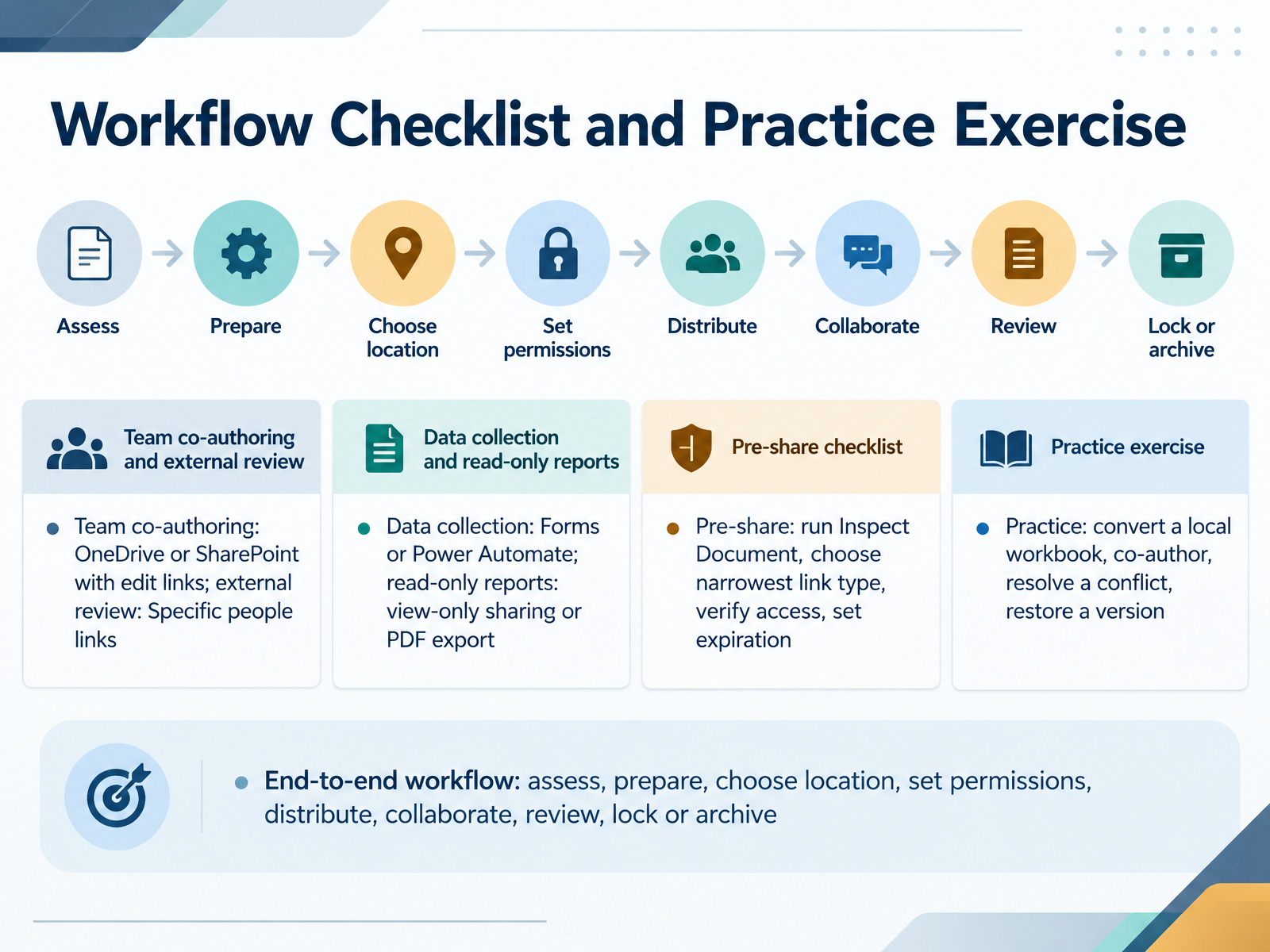
2 min - 15Workflow Checklist and Practice ExerciseLet's pull everything together into a checklist you can actually run. Assess the workbook first. Then prepare it, choose your location, set permissions, distribute, collaborate, review, and finally lock or archive. For team co-authoring, save to OneDrive or SharePoint and send edit links. For outside reviewers, use Specific people links so access stays controlled. Collecting data? Use Forms or Power Automate. Sharing read-only reports? Send a view-only link or export to PDF. Before you share, run Inspect Document, choose the narrowest link type that works, verify who has access, and set an expiration where it makes sense. Now practice. Take one local workbook, move it to OneDrive, co-author with a teammate, resolve a conflict, then restore a previous version from Version History. That one exercise cements the whole workflow. Thanks for joining, and go make your spreadsheets safer to share.
 support.microsoft.comlearn.microsoft.comsupport.microsoft.com+22 min
Take the deck with you
Download this course as a file — free, no sign-up needed.
- PDF handoutEvery slide page, ready to print or share.16 pages · 3.3 MBDownload
- Narrated PowerPointThe deck that presents itself — every slide carries the digital human's narration video.16 pages · 27.1 MBDownload
- PowerPoint slidesThe full deck as a .pptx — open it in PowerPoint, Keynote, or Google Slides.16 pages · 3.2 MBDownload
Free to use in your own training — please keep the PersonWise credit page at the end.
Have your own deck? Turn it into a course
Sources consulted
Web sources consulted while building this course.
- Best Practices for Coauthoring in Excel - Microsoft Support — support.microsoft.com
- About coauthoring in Excel — learn.microsoft.com
- Collaborate on Excel workbooks at the same time with co ... — support.microsoft.com
- Excel specifications and limits - Microsoft Support — support.microsoft.com
- Troubleshoot co-authoring in Office — support.microsoft.com
- Differences between using a workbook in the browser and in Excel | Microsoft Support — support.microsoft.com
- Edit a workbook that contains features unsupported by Excel for ... — support.microsoft.com
- About Power Query in Excel | Microsoft Support — support.microsoft.com
- Edit a workbook that contains features unsupported by Excel ... — support.microsoft.com
- Does power query and power pivot work on Excel web version? — learn.microsoft.com
- Co-author a workbook | Microsoft Support — support.microsoft.com
- Document collaboration and co-authoring - Microsoft Support — support.microsoft.com
- Collaborate on files in Microsoft Teams — support.microsoft.com
- Share your Excel workbook with others - Microsoft Support — support.microsoft.com
- Manage sharing and permissions in OneDrive and SharePoint — support.microsoft.com
- How shareable links work in OneDrive and SharePoint in ... — learn.microsoft.com
- Plan sharing and collaboration options in SharePoint and OneDrive - SharePoint in Microsoft 365 | Microsoft Learn — learn.microsoft.com
- Share OneDrive files and folders — support.microsoft.com
- External or guest sharing in OneDrive, SharePoint, and Lists — support.microsoft.com
- How to manage merge conflicts in Excel Cloud files — support.microsoft.com