Begin
14 pages · ~28 min
SQL Database Backup Workflow
Learn a practical workflow for backing up SQL databases, covering essential techniques and best practices for data protection and recovery.
A digital instructor presents all 14 pages. Hold “Ask” at any point and ask out loud — the answer comes from this course. No sign-up needed.
What you’ll learn
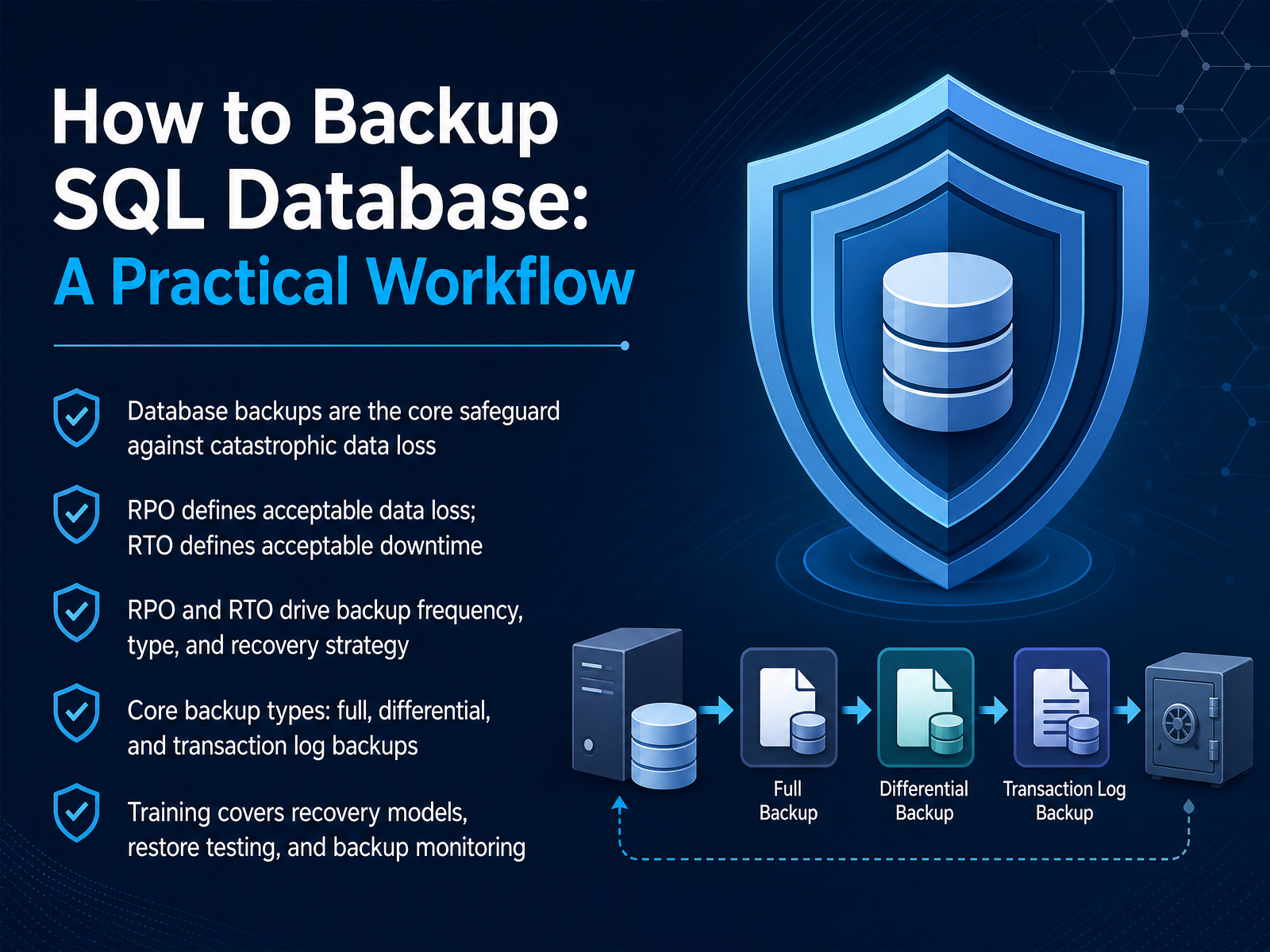
- 01How to Backup SQL Database: A Practical WorkflowWelcome. If you're responsible for SQL Server databases, you already know the stakes. A solid backup workflow isn't just about running backups; it's about being able to recover when things go wrong. That's what we're here to build. Today, we'll map out a practical workflow, starting with the fundamentals. First, understand your goals. RPO, or Recovery Point Objective, defines how much data loss is acceptable. RTO, Recovery Time Objective, defines your maximum acceptable downtime. These numbers drive everything else. They determine your backup frequency, the types of backups you take, and your overall recovery strategy. From there, we'll align the core backup types: full, differential, and transaction log backups. And we'll cover the critical pieces that often get overlooked: recovery models, restore testing, and monitoring. The goal is to give you a clear, actionable workflow you can apply immediately. Let's get into the first key decision: understanding the recovery model decision.learn.microsoft.comred-gate.commssqltips.com+21 min
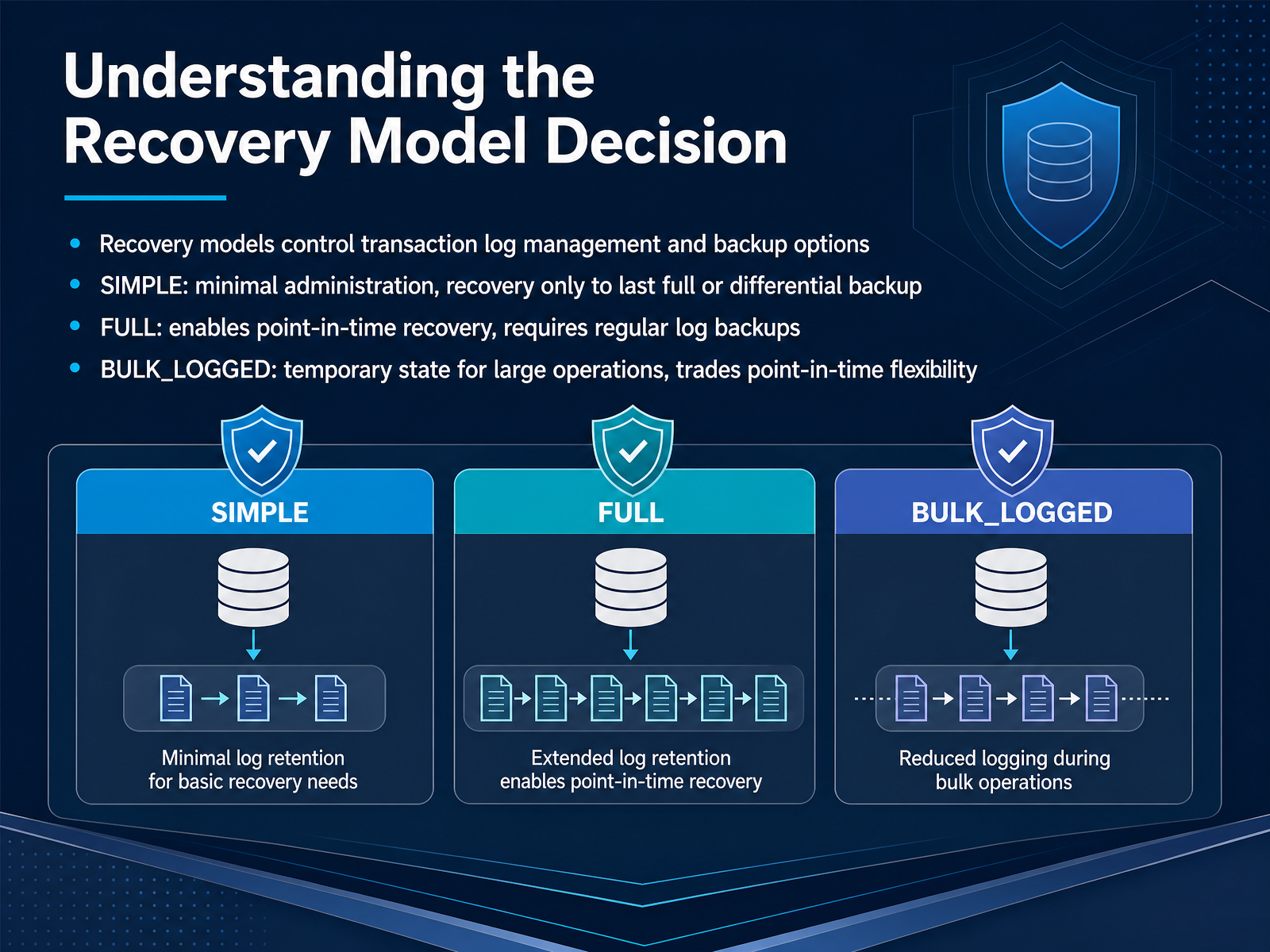
- 02Understanding the Recovery Model DecisionNow let's talk about the first decision you'll make: the recovery model. This setting controls how the transaction log is managed, and it determines which backup options are even available to you. If you choose SIMPLE recovery, you get minimal administration. The log truncates at checkpoints, but you surrender transaction log backups entirely. Your recovery point is the last full or differential backup, meaning you could lose everything since then. That model is fine for dev or test environments, but rarely acceptable for production. FULL recovery is the opposite. It logs every transaction and keeps that log until you back it up. That gives you the ability to restore to any point in time, but it requires regular log backups. Skip them, and the log will grow until the disk fills and production comes to a halt. So before you set a database to FULL, make sure you have a backup schedule in place to match. Then there's BULK_LOGGED. Think of it as a temporary augmentation to FULL, used before large data loads to minimize log growth. The tradeoff is that point-in-time recovery is lost across the minimally logged operations in that window. So use it, but switch back and take a full backup immediately after. Choose SIMPLE when data loss is acceptable, FULL when it isn't, and treat BULK_LOGGED as a temporary state. Next, we'll look at how to choose the right recovery model for your workload.
 learn.microsoft.comred-gate.commssqltips.com+21 min
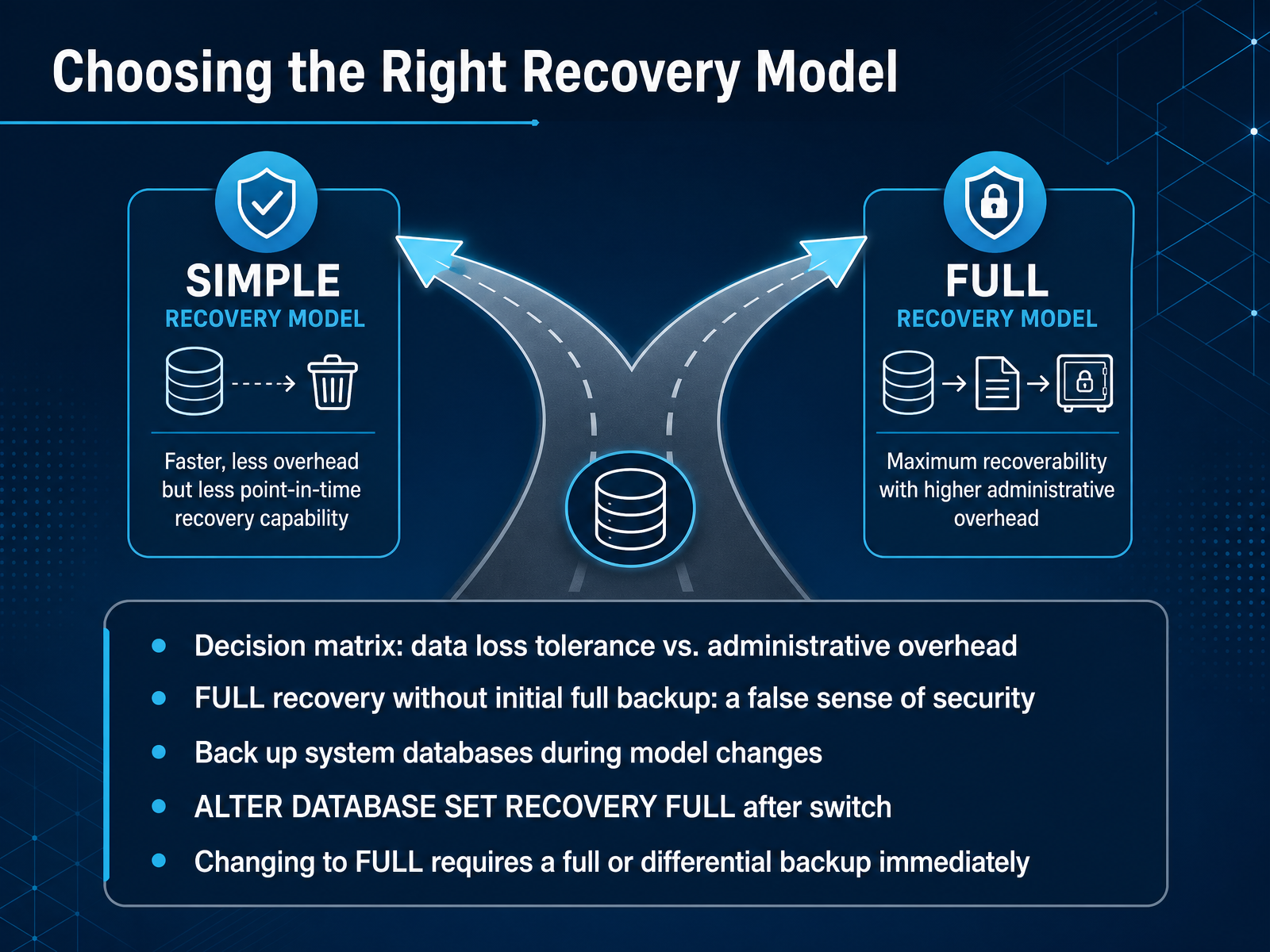
 - 03Choosing the Right Recovery ModelNow let's talk about choosing the right recovery model. This decision drives everything else in your backup strategy, so it's worth getting it right the first time. The core tradeoff is simple: how much data loss can the business tolerate versus how much administrative overhead are you willing to carry. If losing everything since the last full or differential backup is acceptable, the simple recovery model is honest and low-maintenance. But if you need point-in-time recovery and minimal work loss exposure, you need the full recovery model, plus regular transaction log backups on a schedule tighter than your data-loss tolerance. Here's the trap most people fall into. Switching a database to full recovery without immediately taking a full backup gives you nothing but a false sense of security. The database behaves exactly like simple recovery until that first backup establishes a base for the log chain. So after you run ALTER DATABASE SET RECOVERY FULL, take a full or differential backup right away. Also, when you change the model database's recovery setting, back up your system databases, especially master and msdb. And remember, full recovery means the transaction log keeps growing until you back it up. If you don't schedule log backups, you'll eventually fill the disk. Next, we'll look at the actual backup types and how they fit into this workflow.
 learn.microsoft.comlearn.microsoft.comlearn.microsoft.com+22 min
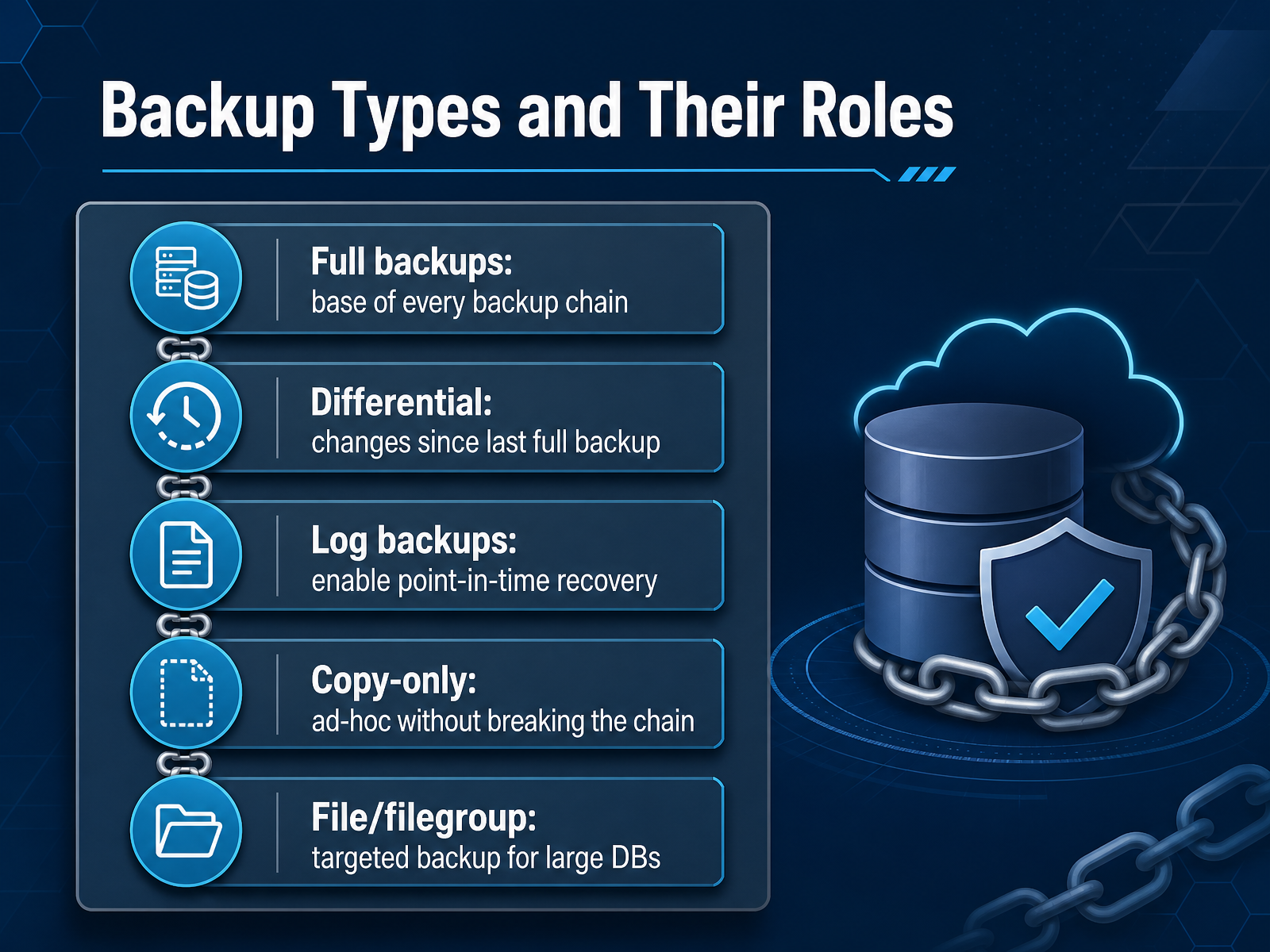
 - 04Backup Types and Their RolesSo, your recovery model determines which backup types are even available. Think of these as tools in a toolkit. The full backup is your foundation. It captures the entire database, and it's the base of every backup chain. Everything else builds on it. A differential backup sits on top of a full backup, capturing only the changes since that full backup was made. This shrinks the backup window and speeds up recovery because you only restore the last full backup, then the latest differential, instead of a long log chain. Transaction log backups, only possible under the full or bulk-logged recovery models, record every transaction since the last log backup. This is what enables point-in-time recovery, letting you rewind to the exact moment just before, say, user error wiped a table. Copy-only backups are your surgical tool. They take a full backup without resetting the differential base, which is vital for an ad-hoc backup before a major deployment when you don't want to disrupt your carefully scheduled chain. Finally, for very large databases, file or filegroup backups let you back up just the specific files containing the bulk of your data, leaving rarely-accessed filegroups alone. Once you understand these roles, the real task is sequencing them into a schedule that meets your recovery objectives. That's exactly where we're headed next with designing a practical backup schedule.
 learn.microsoft.comlearn.microsoft.comlearn.microsoft.com+22 min
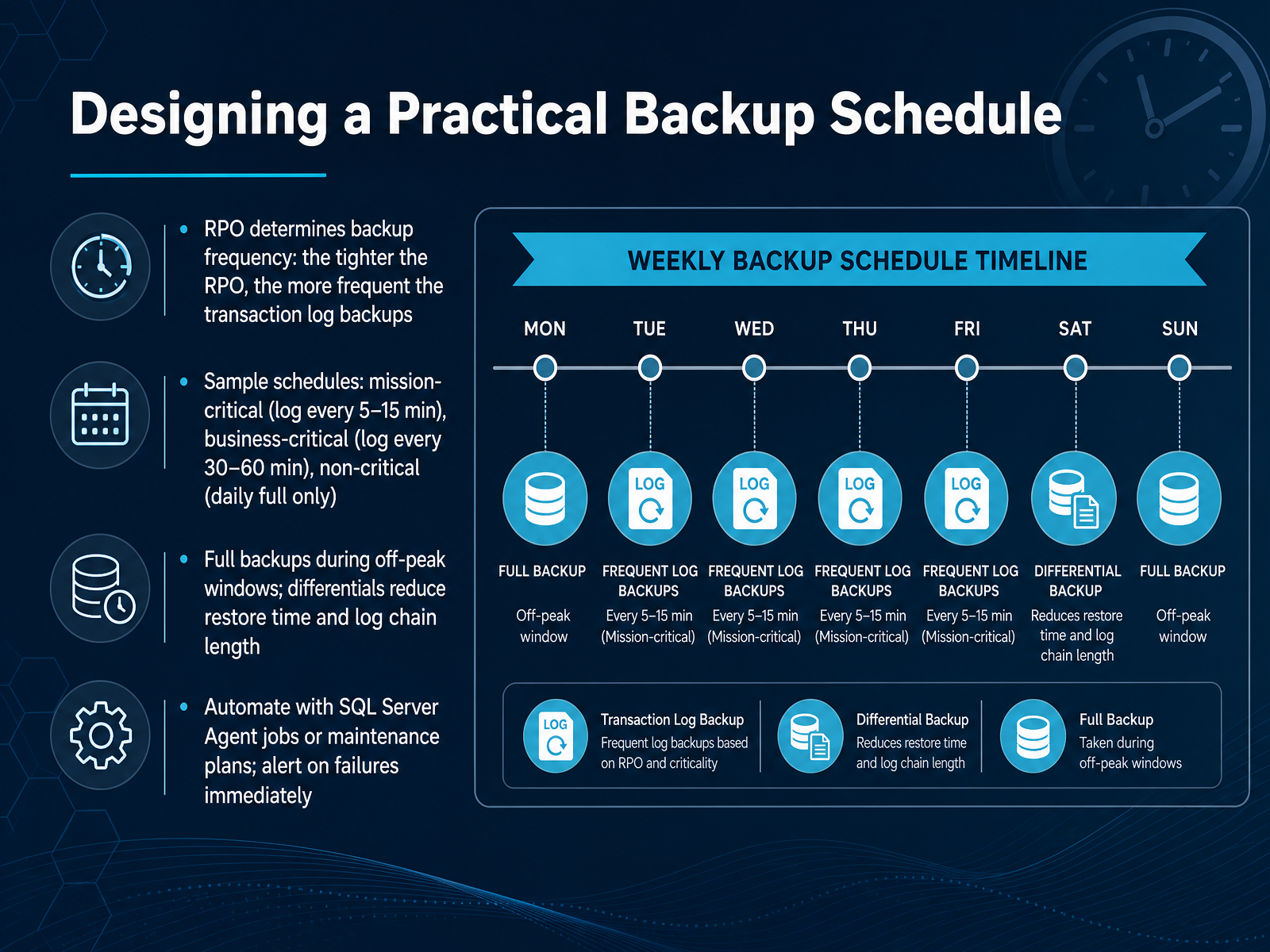
 - 05Designing a Practical Backup ScheduleNow let’s translate those recovery objectives into a schedule that actually runs. Your RPO is the ceiling for how much data you can afford to lose, and it dictates your log backup frequency. The tighter the RPO, the more often you back up that transaction log. For a mission-critical system where losing even a few minutes is unacceptable, that means log backups every five to fifteen minutes. For business-critical databases, every thirty to sixty minutes usually keeps you inside the data-loss window. Non-critical systems, like dev or reporting archives, can often get by with just a daily full backup. As for the heavy lifting, schedule your full backups during off-peak windows. Then layer in differential backups between those fulls. They shrink the number of log files you must replay during a restore, which directly protects your RTO. Finally, do not hand-roll this. Automate the whole schedule using SQL Server Agent jobs or maintenance plans. Then configure alerts on job failure. A silent backup failure is the fastest way to discover your strategy only existed on paper.
 learn.microsoft.comred-gate.commssqltips.com+21 min
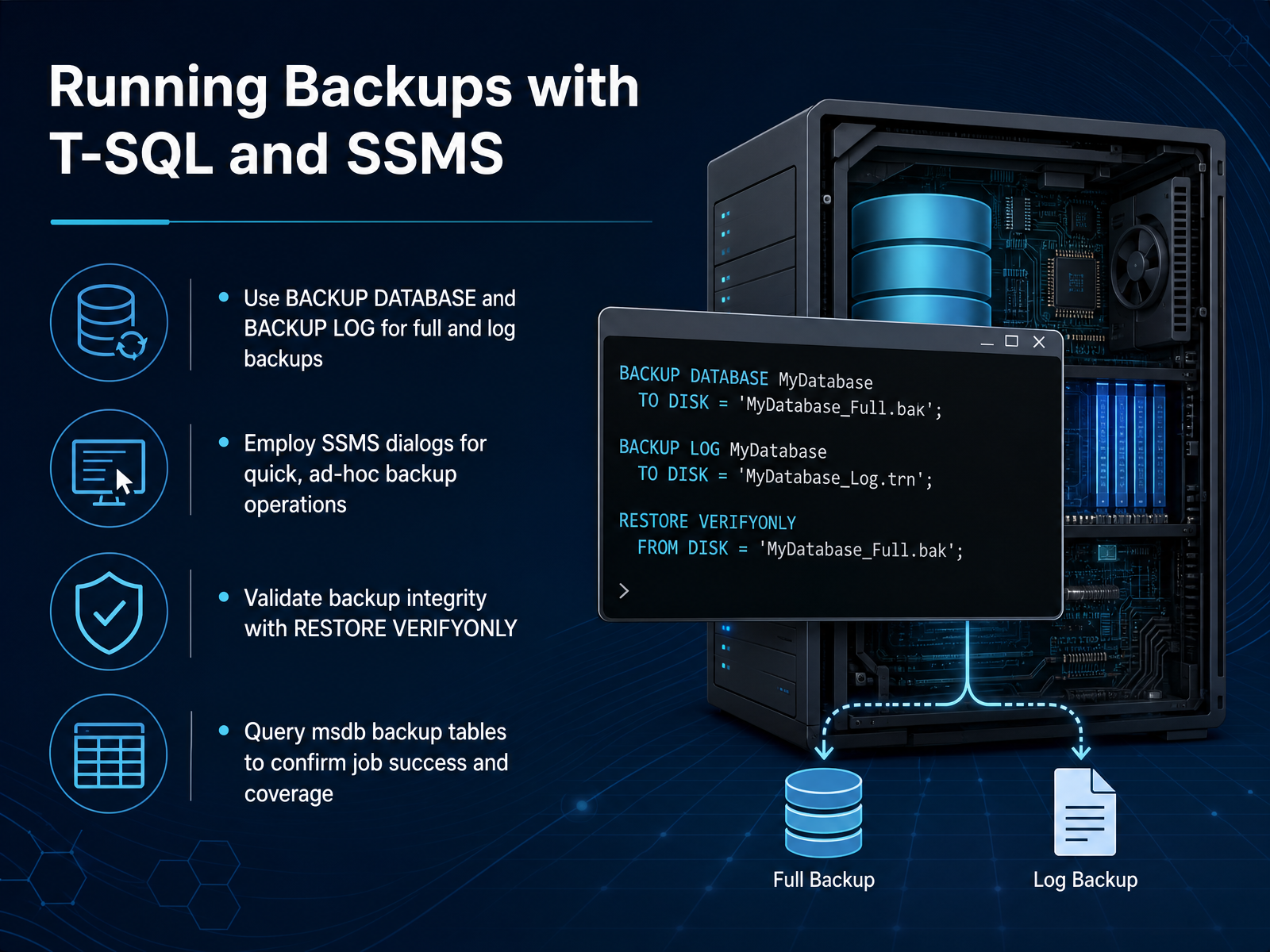
 - 06Running Backups with T-SQL and SSMSNow let's get into the actual execution. You have two main paths here. For repeatable, scheduled work, T-SQL is your tool. For a quick, ad-hoc backup before a risky deployment, the SSMS dialogs are perfectly fine. But regardless of which one you use, you should never skip validation. Run RESTORE VERIFYONLY against your backup file. It checks that the backup set is readable and the checksums are intact. It's a first-pass health check, not a guarantee of a successful restore, but it will catch a bad disk or a truncated file before you need it. And after the jobs run, confirm they actually succeeded by querying msdb. The backupset table holds the history. Look at the backup_finish_date for each database and compare it against your expected schedule. A job that fails silently is worse than no job at all, because you only discover the gap when you need the backup. That's the moment you don't want surprises. This discipline—executing, validating, and confirming—is what turns a backup routine into a real recovery strategy. Next, we'll look at where to store those backup files, options for compression, and how encryption factors into the decision.
 learn.microsoft.comlearn.microsoft.comlearn.microsoft.com+22 min
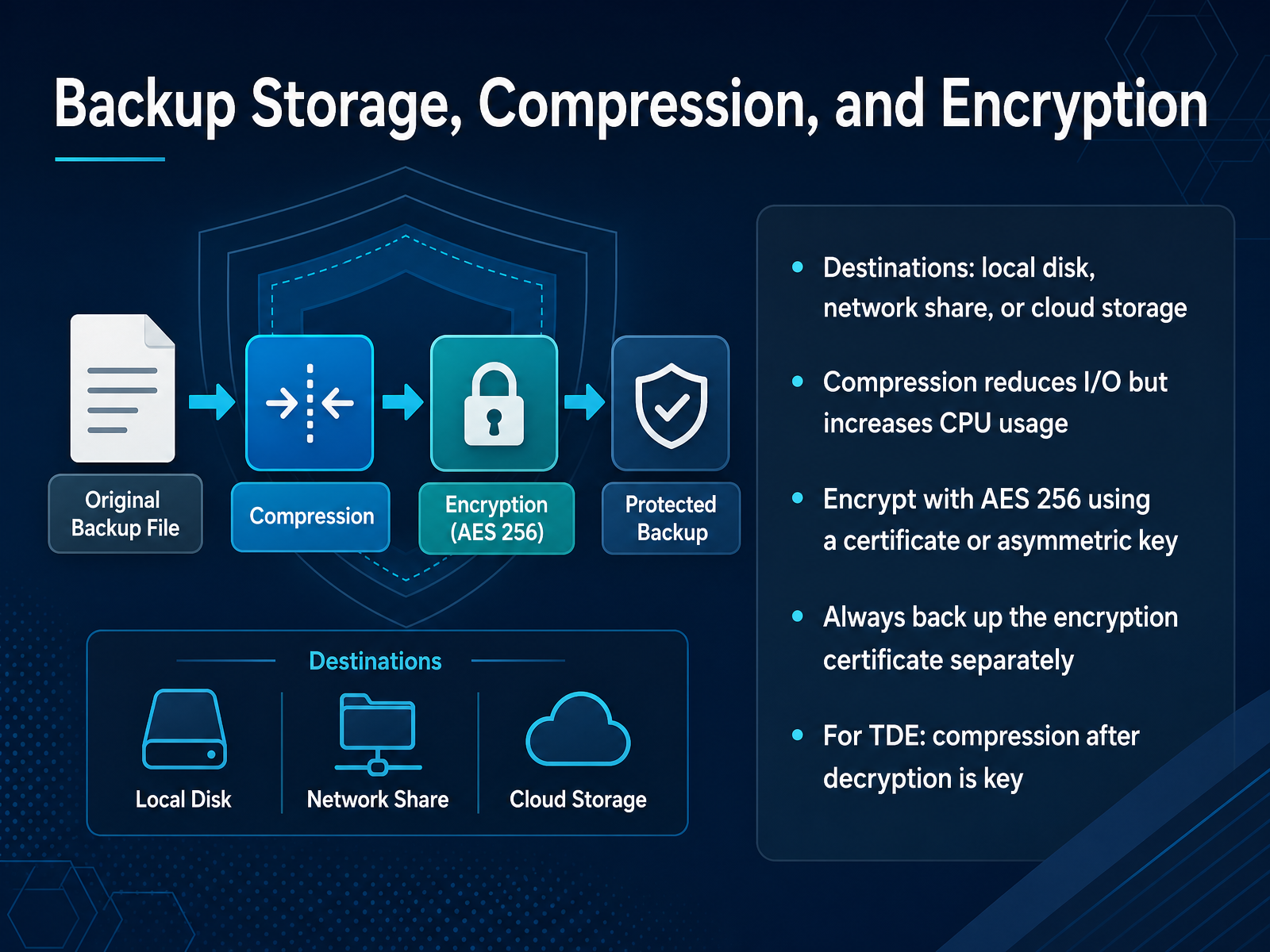
 - 07Backup Storage, Compression, and EncryptionNow let's talk about storage, compression, and encryption. Your backup destination can be local, a network share, or cloud storage. Each starts with SQL Server, so the performance trade-offs are yours to manage. Compression is your first lever. It cuts I/O significantly because you write fewer bytes, but it costs CPU. On a busy OLTP box, that extra CPU can hurt your concurrent workloads. So, test compression during off-peak hours before you bake it into your maintenance plan all day, every day. Encryption is non-negotiable for any backup leaving your data center. Use AES-256, backed by a certificate or an asymmetric key. When you encrypt, create a backup of that certificate and store it separately from your database backups. Without it, your encrypted backup is unrecoverable garbage. If you work with TDE databases, the classic gotcha is that encrypted data doesn't compress. Older versions of SQL Server would just compress the encrypted pages with zero gains. Since 2019 CU5, the engine automatically decrypts, compresses, then re-encrypts each extent. Give it a transfer size above 64K and let it work. Now, once you set options, the next decision is naming and retention. That is up next.
 learn.microsoft.comlearn.microsoft.comcuratedsql.com+21 min
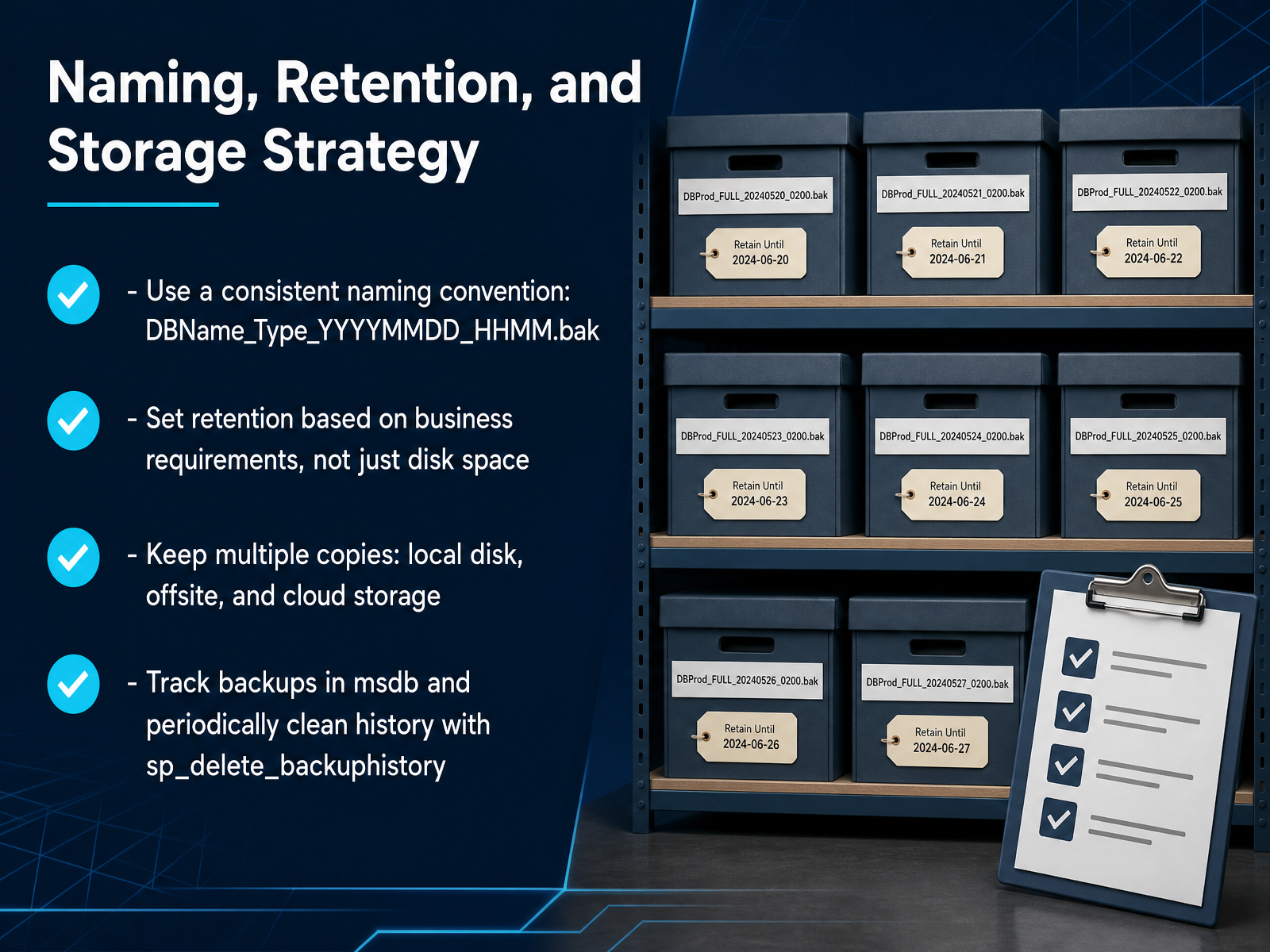
 - 08Naming, Retention, and Storage StrategyNow let's nail down naming, retention, and storage. This is where good plans often fall apart. Use a consistent naming convention. Something like DatabaseName, underscore, backup type, underscore, year, month, day, underscore, hour, minute, dot bak. That timestamp matters. It guarantees uniqueness, and it tells you exactly which backup you're holding when you're searching under pressure. Next, retention. Set it based on business requirements, not just available disk space. If you only keep three days of backups and a silent corruption issue surfaces on day four, you have nothing to restore. Your retention window must cover your longest possible recovery need. For production, that usually means weeks, not days. Then, copies. A backup on the same disk as your database is not a backup strategy. One failure could destroy both. Keep a local copy for fast restores, an offsite copy for site-level disasters, and a cloud copy for additional durability. Finally, track everything in msdb. SQL Server records backup history there, but that history grows without bound. Periodically run sp_delete_backuphistory to purge old records so your monitoring queries stay fast and accurate. Nail down these fundamentals, and your restore workflow will be far smoother when it actually counts.
 learn.microsoft.comcoeo.comtechoral.com+22 min
 - 09The Restore Workflow You Will Actually UseLet's talk about the restore sequence you’ll actually run when it matters. Start by restoring your full backup, but use the WITH NORECOVERY option. That leaves the database in a restoring state, which is exactly what you want if more backup files need to be applied. If you skip NORECOVERY, SQL Server will bring the database online and block any further restores. Then apply your latest differential backup, again with NORECOVERY. After that, apply each transaction log backup in chronological order. This is where the sequence discipline pays off—the log chain is unbroken, and you must restore every log backup in order, without skipping one, or the restore will fail. Need to rewind to a specific moment? Use the STOPAT clause with a date and time. That lets you recover to a point in time covered by your log chain, which is essential when you’re rolling back an accidental delete or an application error. But before you run any of this, inspect the backup files first. Run RESTORE HEADERONLY to see the backup metadata and restore date, and FILELISTONLY to list the logical file names inside the backup. This gives you the What and the When before you commit to the restore. A quick inspection upfront prevents the classic mistake of restoring the wrong file or the wrong backup set. Remember: full first, differential next, logs in order, and STOPAT when you need a point in time. Next up, we’ll cover verifying backups with restore tests.
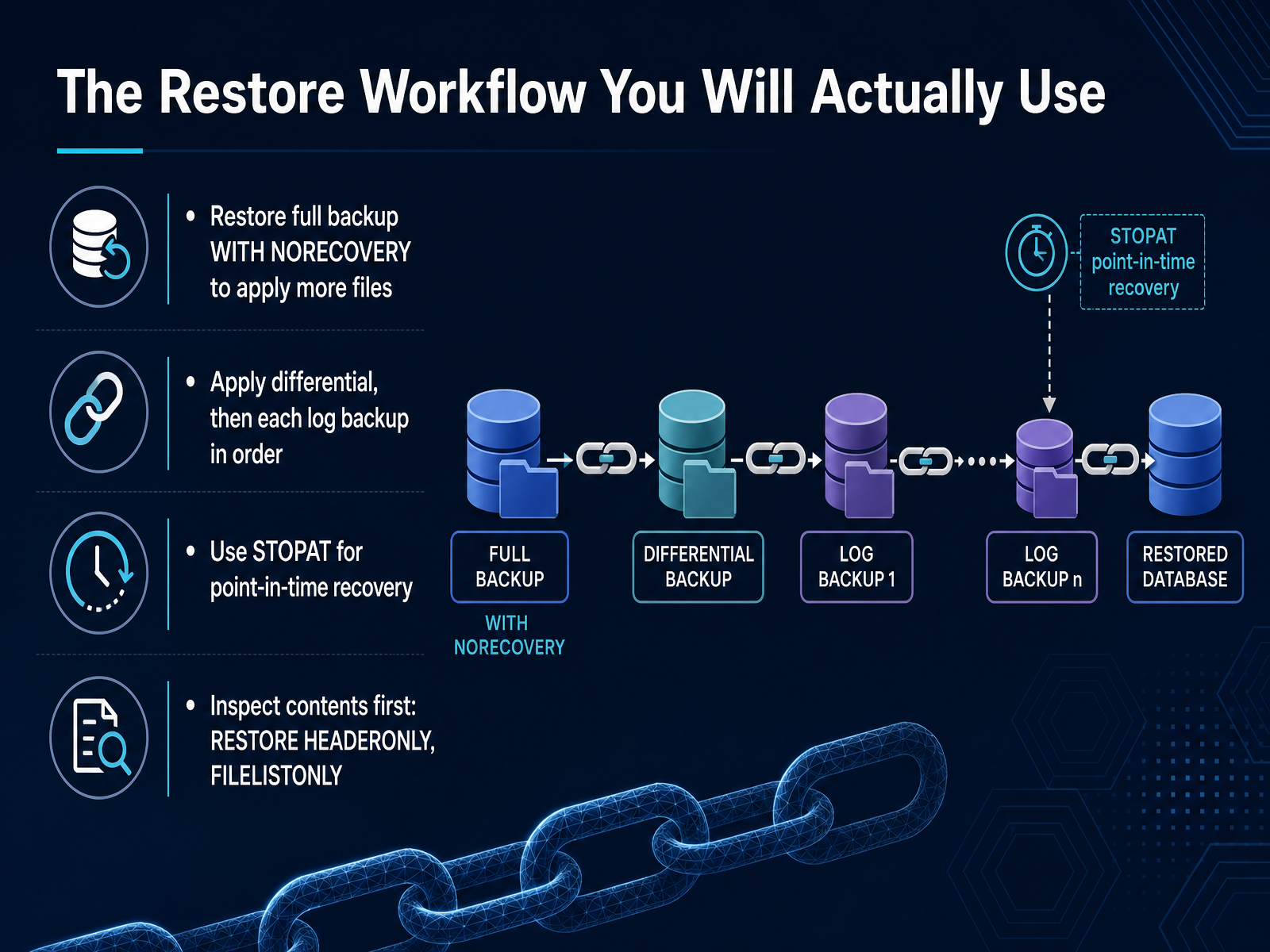 learn.microsoft.comlearn.microsoft.comlearn.microsoft.com+22 min
 - 10Verifying Backups with Restore TestsNow let's talk about proving your backups actually work. A backup file is just data on disk until you restore it and validate the contents. That's the only way to know it's viable. Run automated restore tests on a dedicated non-production instance. Never on production itself — the restore and integrity check load will compete with live workloads. After each restore, run DBCC CHECKDB against the restored copy to catch any structural corruption. The dbatools module gives you a shortcut here: Test-DbaLastBackup combines the restore and the integrity check in one command, then drops the test database when it finishes. Make sure your scheduled test restores log every outcome, both successes and failures, and alert on any failures immediately. If a restore test fails, that's a finding on your test instance, not a disaster in production. You have time to investigate, check older backups, and assess your exposure. That's the whole point: verify the chain works before the incident happens, not during it. With restore verification in place, let's move on to monitoring backup health and alerting on issues proactively.
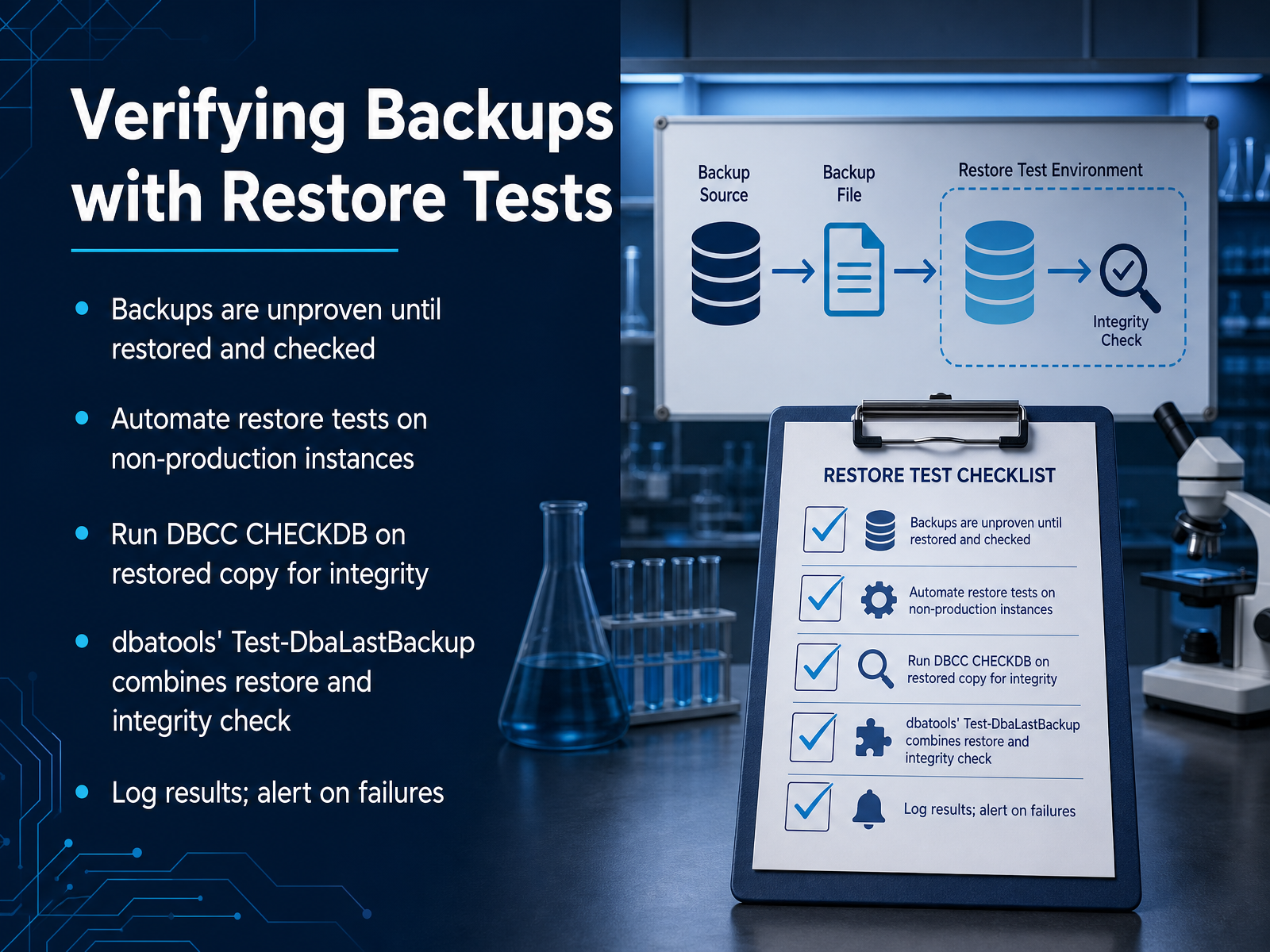 vladdba.commssqltips.comkerteszmihaly.com+12 min
 - 11Monitoring Backup Health and AlertingNow let’s shift to keeping your backups honest. A backup that never gets verified might as well not exist. Start by querying the msdb database. The backupset and backupmediafamily views hold your full history. You want to check for three things: success, age, and failures. A simple query against backupset with a type filter for full backups gives you the last finish date per database. Compare that against your recovery point objective. If any database has no full backup in the last 24 hours, flag it immediately. Don’t rely on memory, automate the alert. SQL Server Agent can fire on job failures, but for overdue backups you need a proactive check. Schedule a job that runs every morning, queries for databases missing a recent backup, and sends an email through Database Mail if anything is overdue. Track the key metrics while you’re at it: last backup time, backup size in megabytes, and duration in seconds. Trends in duration and size help you spot performance degradation before it breaks your window. Finally, don’t ignore the built-in reports in SSMS. They are a quick visual check, and third-party tools add even more depth. But for daily health, your own queries and agent alerts will give you the fastest path to a quiet morning. Next, we’ll look at common backup mistakes and how they impact your recovery ability.
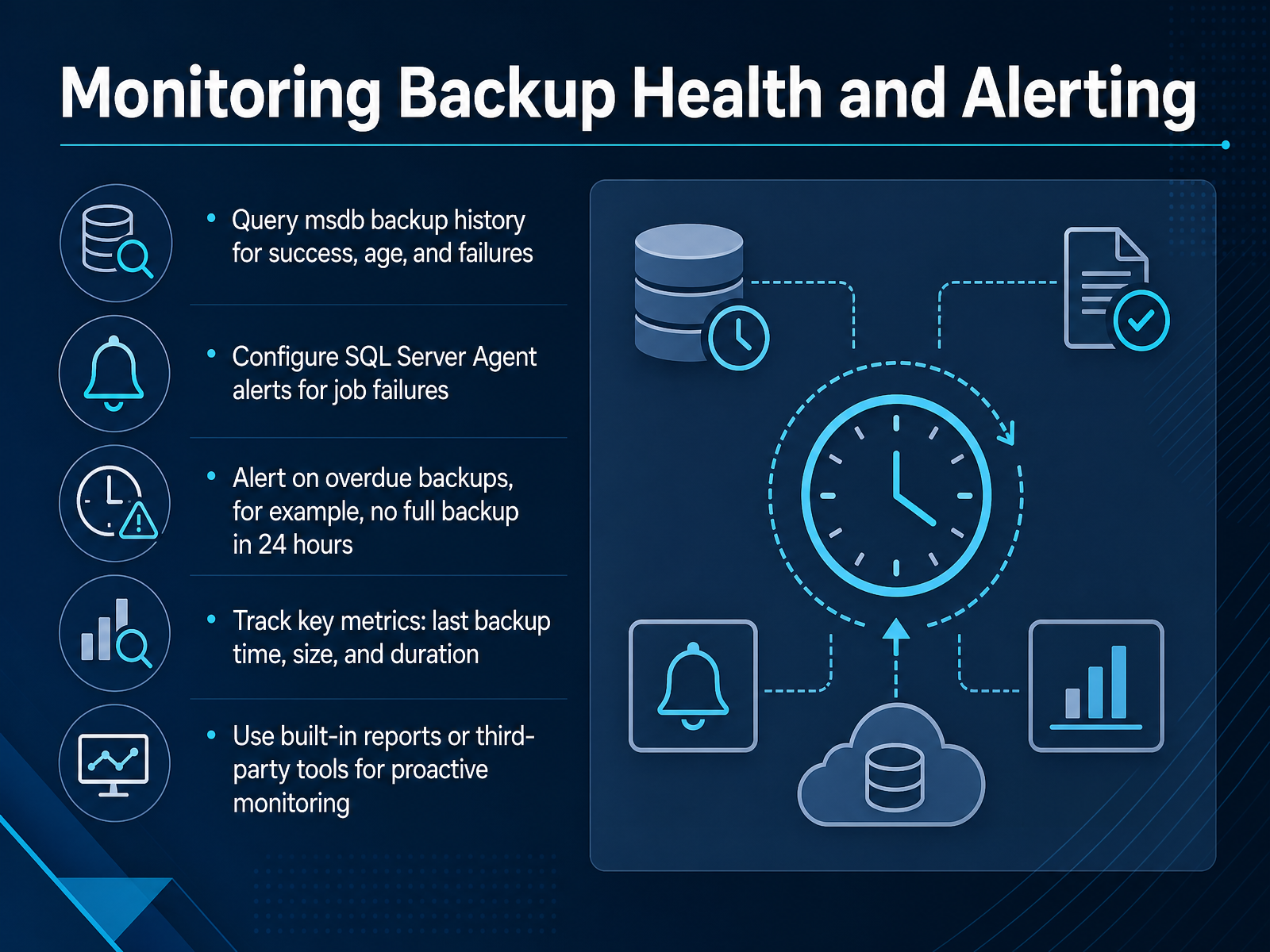 2 min
2 min - 12Common Backup Mistakes and Their ImpactLet’s shift focus to the mistakes that undermine even well-intentioned backup strategies. First, storing backups on the same disk as the database. If that disk fails, you lose both the data and your recovery copy. The fix is straightforward: always write backups to a separate physical drive or an off-site location. Next, ignoring transaction log growth in FULL recovery. The log keeps growing until you back it up. If you don’t, it will eventually fill the disk, and that causes an outage. Your backup job doesn’t just protect data; it also keeps the log in check. Then there’s the silent killer: untested backups. A backup that has never been restored is just a file. Corruption, missing log chains, or permission issues can all surface only when you try to recover. Schedule regular restore drills. Finally, don’t forget the system databases. master holds your logins and server configuration. msdb stores agent jobs and backup history. model is the template for every new database. Lose those, and rebuilding an instance becomes a massive project. These four areas are where most recovery plans actually fail. Up next, we look at real-world examples of backup failures and what they teach us.
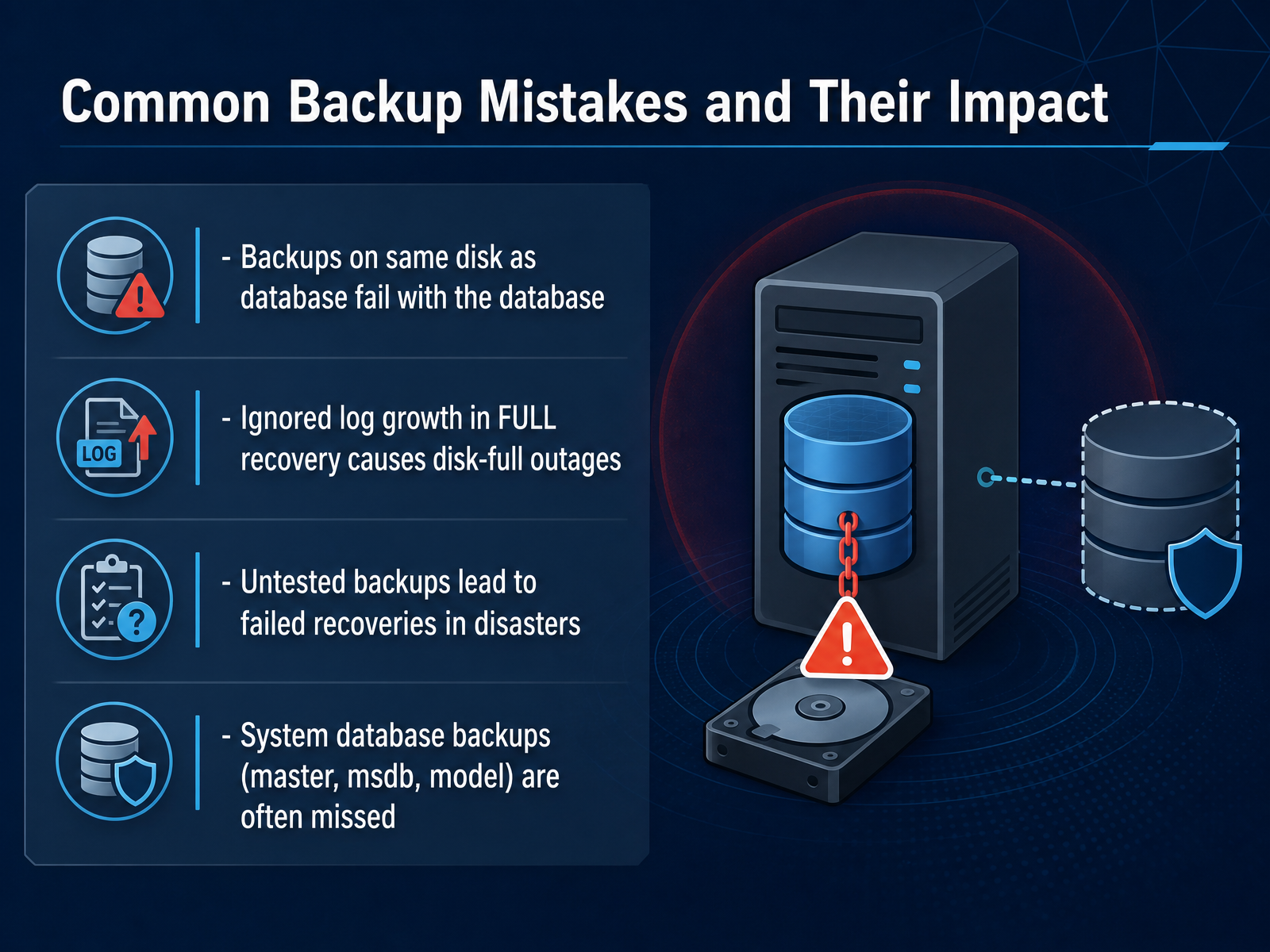 learn.microsoft.comlearn.microsoft.comlearn.microsoft.com+22 min
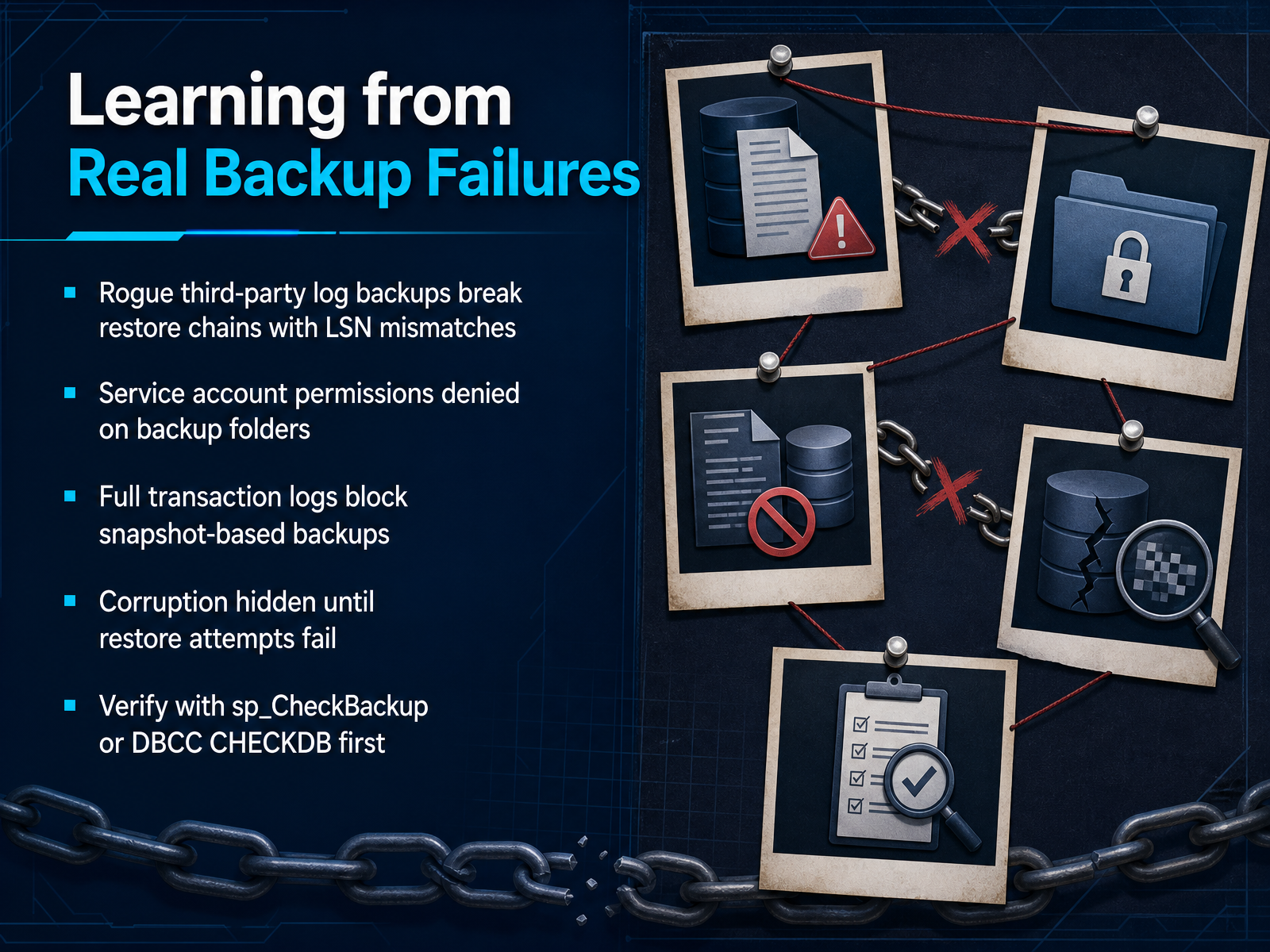
 - 13Learning from Real Backup FailuresReal backup failures teach harder than any checklist. Rogue third-party log backups are a classic chain-breaker. One tool advances the log sequence number outside your restore plan, then your next restore fails with an LSN mismatch. Always confirm third-party tools are fully stopped before building a native backup chain. Service account permission problems are equally frequent. SQL Server writes as its service account, not as you. Grant that exact account modify rights on the folder, and remember network shares need both share and NTFS permissions. A full transaction log is another silent killer. It blocks VSS snapshot backups and can stop uploads mid-job. If you see log_reuse_wait_desc showing a backup wait, you have a log chain gap. Fix it and rerun. And the worst failure is hidden corruption that only surfaces during restore. Run DBCC CHECKDB before you back up, then use RESTORE VERIFYONLY against the backup file. Trusting a backup without verification is just a hope with a timestamp. From these failures, the pattern is clear: validate, verify, and control who and what touches your chain. We'll bring all of this together in the next segment with your complete backup playbook.
 2 min
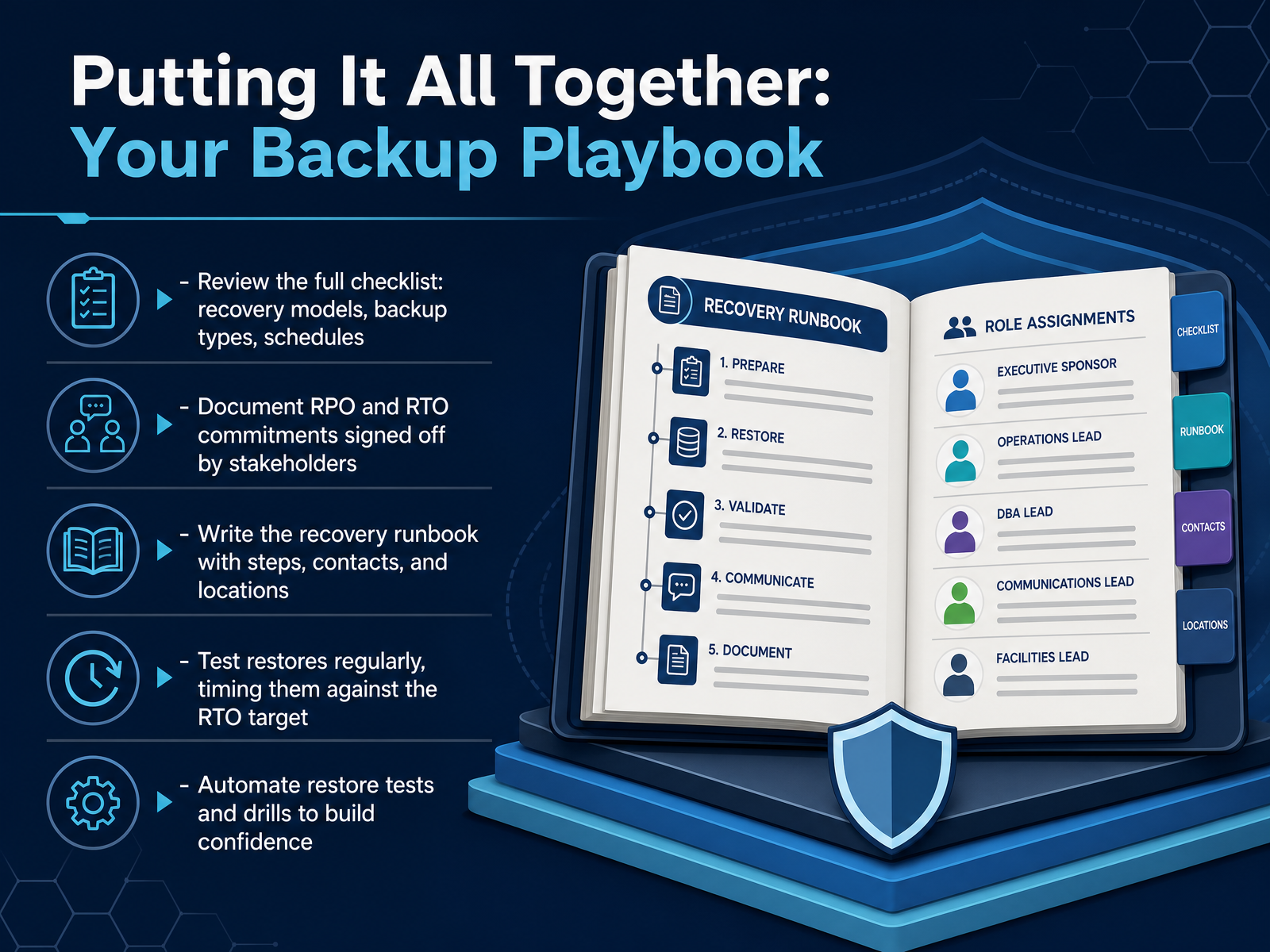
2 min - 14Putting It All Together: Your Backup PlaybookLet's pull everything together into your backup playbook. Start by reviewing the full checklist: recovery models, backup types, and schedules. Make sure each database has the right model, and that full, differential, and log backups align with your business requirements. Next, document your Recovery Point and Recovery Time Objectives, and get them signed off by stakeholders. These numbers are your contract with the business; they drive every decision you make. Then, write the recovery runbook. Include step-by-step restore sequences, contact information, and backup locations. This is what you will follow at three in the morning during an actual outage, so make it precise. Now, the critical part: test your restores regularly. Time them against your Recovery Time Objective. A restore that takes four hours when your target is two is a failure you need to catch now, not during a disaster. Finally, automate those restore tests and drills. Use tools like dbatools or Ola Hallengren's scripts to make validation part of your routine. Remember, a backup you have never restored is just a file taking up space. Confidence comes from proof. Build the playbook, test it, and refine it. Thank you for your time, and go protect your data.
 learn.microsoft.comred-gate.commssqltips.com+22 min
Take the deck with you
Download this course as a file — free, no sign-up needed.
- PDF handoutEvery slide page, ready to print or share.15 pages · 3.7 MBDownload
- Narrated PowerPointThe deck that presents itself — every slide carries the digital human's narration video.15 pages · 30.3 MBDownload
- PowerPoint slidesThe full deck as a .pptx — open it in PowerPoint, Keynote, or Google Slides.15 pages · 3.6 MBDownload
Free to use in your own training — please keep the PersonWise credit page at the end.
Have your own deck? Turn it into a course
Sources consulted
Web sources consulted while building this course.
- https://learn.microsoft.com/en-us/sql/relational-databases/backup-restore/back-up-and-restore-of-sql-server-databases?view=sql-server-ver17 — learn.microsoft.com
- SQL Server Backup Strategy: RPO, RTO, Recovery Models, and Restore Types | Simple Talk — red-gate.com
- Disaster Recovery Planning for Microsoft SQL Server - Getting Backups and Restores Right — mssqltips.com
- Developing a SQL Server Backup Strategy | Database Journal — databasejournal.com
- SQL Server Backups: RPO, RTO, and the Reality Check - Coeo — coeo.com
- https://learn.microsoft.com/en-us/sql/relational-databases/backup-restore/recovery-models-sql-server?view=sql-server-ver16 — learn.microsoft.com
- Restore and Recovery Overview (SQL Server) - SQL Server | Microsoft Learn — learn.microsoft.com
- https://learn.microsoft.com/en-us/sql/relational-databases/backup-restore/back-up-and-restore-of-sql-server-databases?view=sql-server-ver15 — learn.microsoft.com
- Recovery Models - Backup & Recovery Part 1 — sqlserverscience.com
- Database recovery model best practice policy - SQL Server — learn.microsoft.com
- Backup encryption - SQL Server | Microsoft Learn — learn.microsoft.com
- Backup Compression (SQL Server) — learn.microsoft.com
- Combining Backup Encryption and Compression – Curated SQL — curatedsql.com
- Back Up Database (Backup Options Page) - SQL Server | Microsoft Learn — learn.microsoft.com
- Backup compression (SQL Server) — learn.microsoft.com
- SQL Server Backup and Recovery Strategy — RPO, RTO, Schedules & Disaster Recovery | Techoral — techoral.com
- SQL Server Backup: Methods, Best Practices and Restore — blog.1byte.com
- Test SQL Server backups to avoid Schrödinger's backups - VladDBA — vladdba.com
- How to Automate SQL Server Restores for a Test Server — mssqltips.com
- SQL Server Recovery Guide | Restore Sequence & Drills — kerteszmihaly.com