Begin
14 pages · ~28 min
Copying Spreadsheets in Excel
Learn a practical workflow for copying spreadsheets in Excel, ideal for professionals who need to duplicate and manage worksheets accurately and efficiently.
A digital instructor presents all 14 pages. Hold “Ask” at any point and ask out loud — the answer comes from this course. No sign-up needed.
What you’ll learn
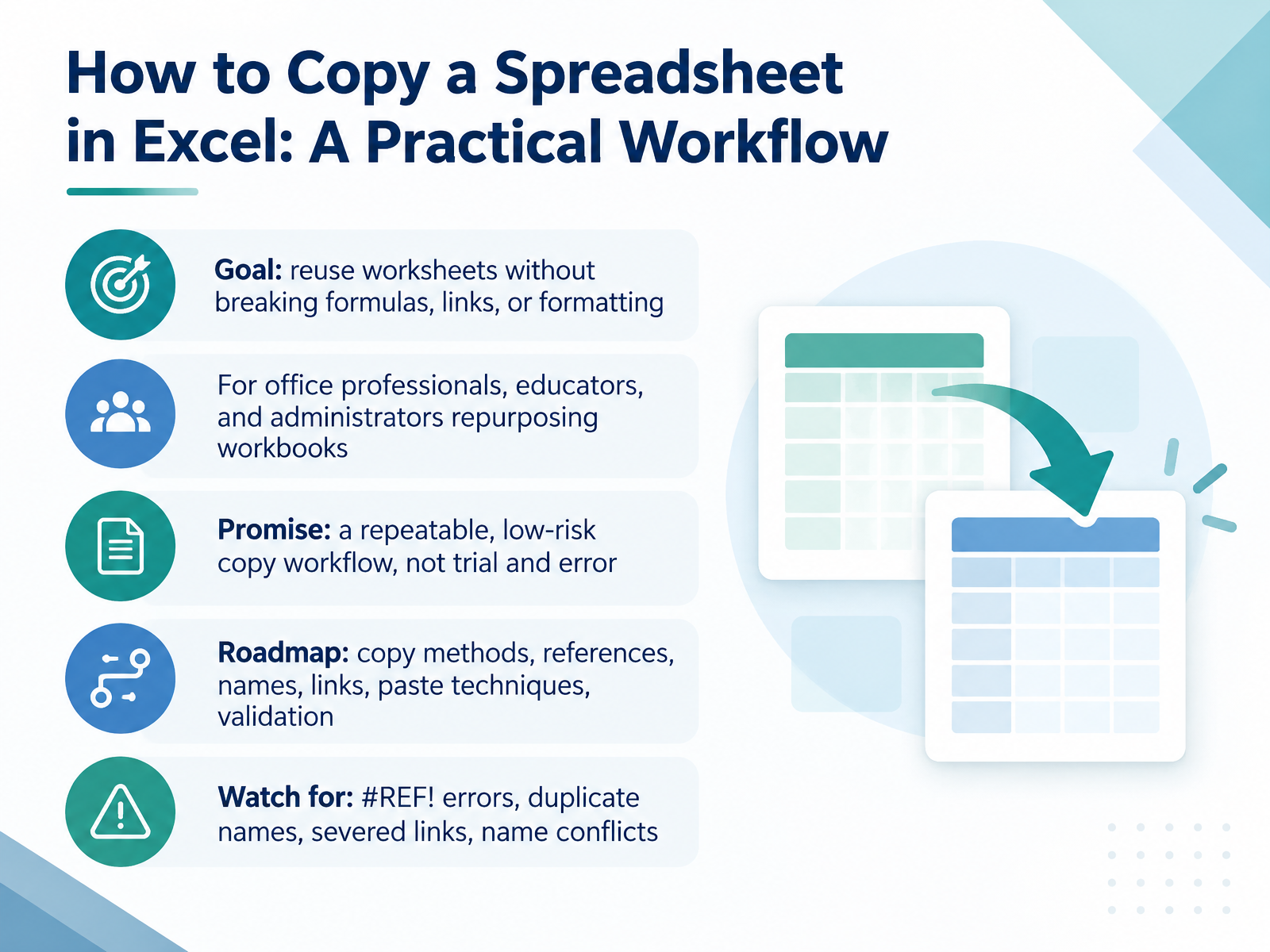
- 01How to Copy a Spreadsheet in Excel: A Practical WorkflowWelcome. If you have ever copied a worksheet and then spent the next hour hunting down broken references, this course is for you. The goal is simple: reuse worksheets without breaking formulas, links, or formatting. This is built for office professionals, educators, and administrators who repurpose workbooks every day. Here is the promise. You will leave with a repeatable, low-risk copy workflow, not trial and error. We will cover copy methods, how references behave, defined names, external links, paste techniques, and validation. Along the way, watch for the usual suspects: reference errors, duplicate names, severed links, and name conflicts. Keep your workbook open and follow along. Let's start with what copying a spreadsheet actually means.support.microsoft.comsupport.microsoft.comsupport.microsoft.com+21 min
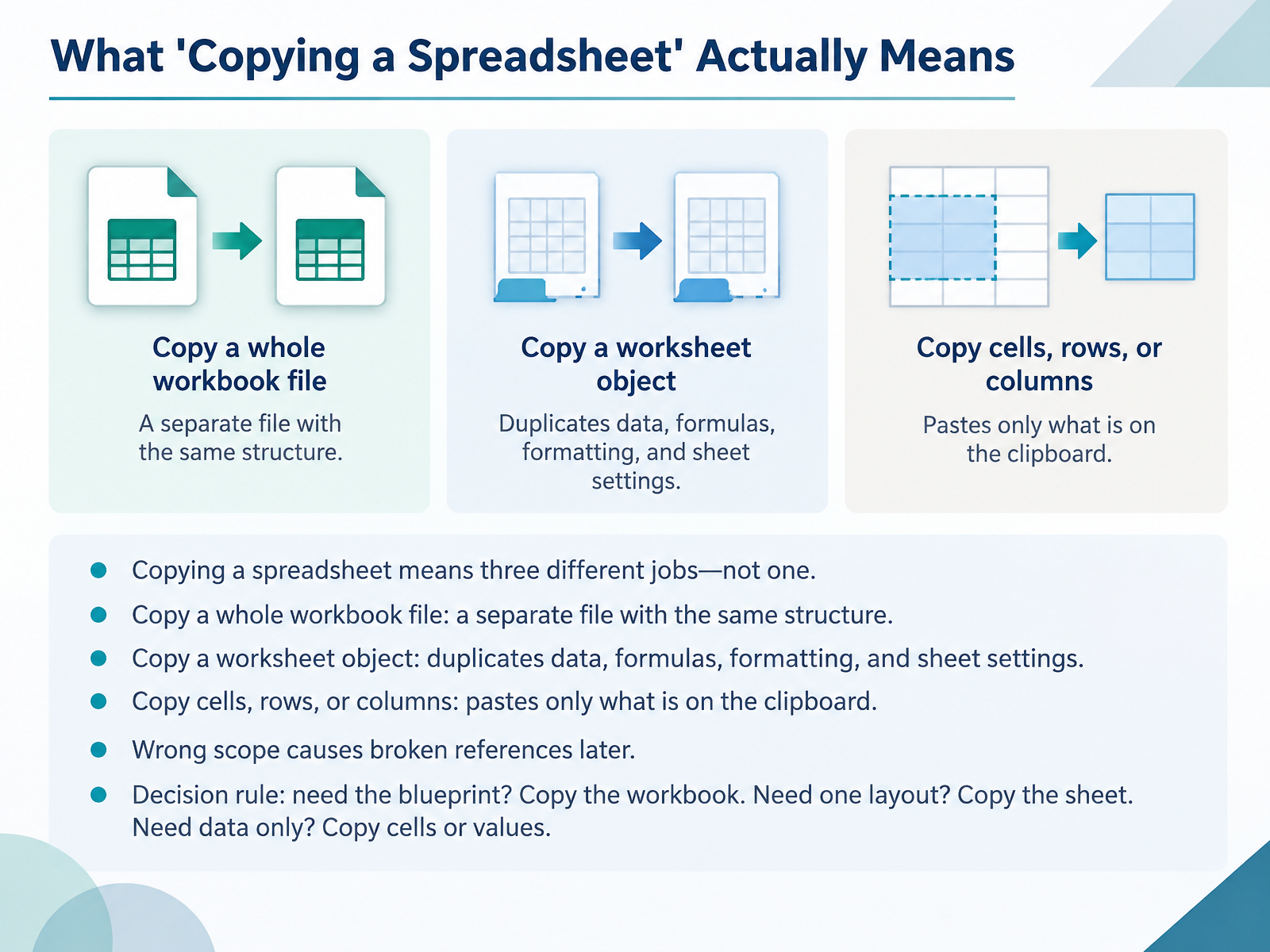
- 02What 'Copying a Spreadsheet' Actually MeansLet's clear up what copying a spreadsheet really means, because it is three different jobs, not one. First, you can copy a whole workbook file. That gives you a separate file with the same structure, and all its links stay intact. Second, you can copy a worksheet object. Right-click the sheet tab, choose Move or Copy, and tick Create a copy. You get duplicates of data, formulas, formatting, and sheet settings. Third, you can copy cells, rows, or columns, which pastes only what is on the clipboard. If you pick the wrong scope, references break later. So use this decision rule. Need the blueprint? Copy the workbook. Need one layout? Copy the sheet. Need data only? Copy cells or values. In a moment, we will compare these methods side by side.
 support.microsoft.comsupport.microsoft.comsupport.microsoft.com+21 min
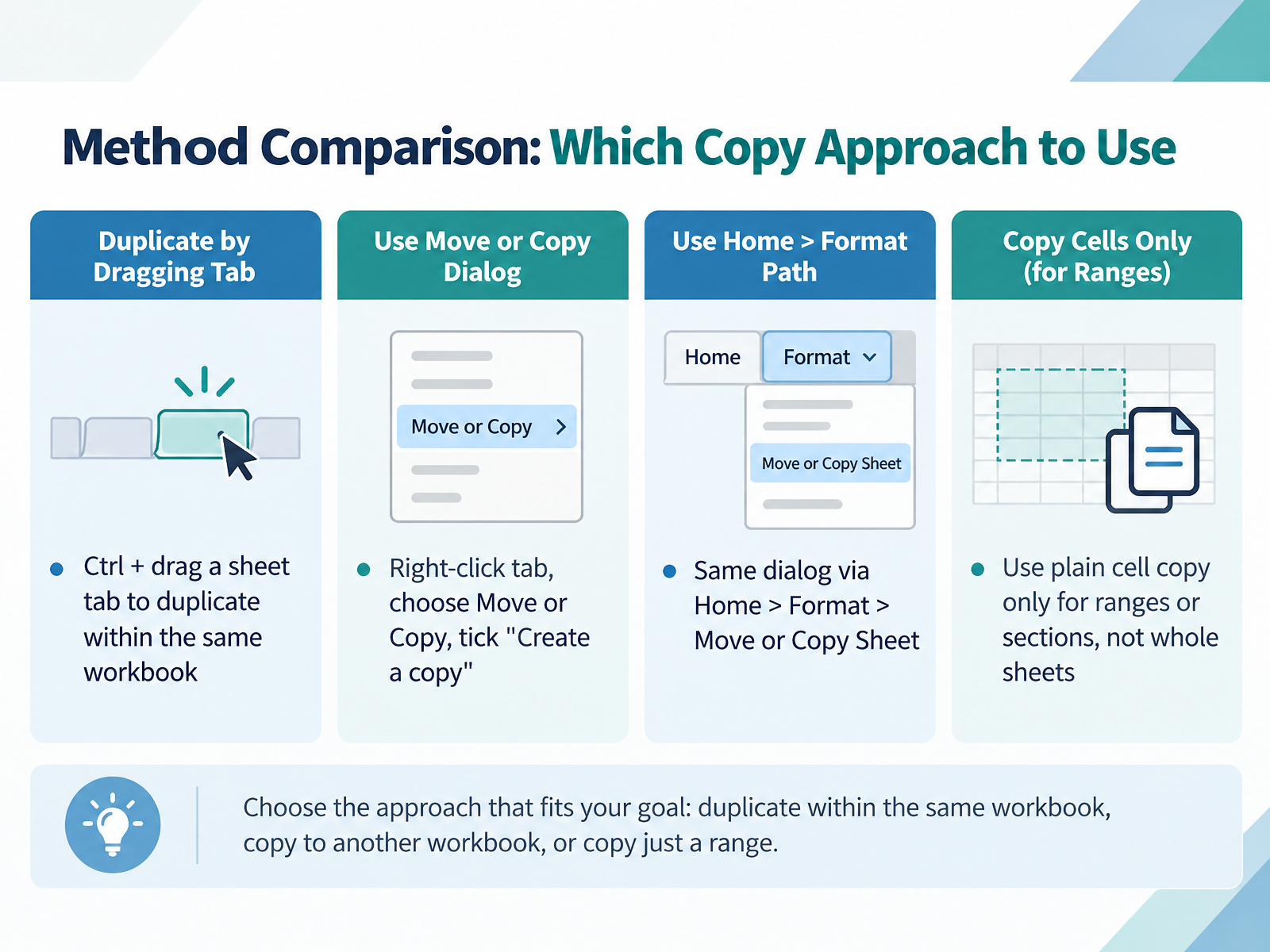
 - 03Method Comparison: Which Copy Approach to UseNow let's compare your options and pick the right one. For a quick duplicate inside the same workbook, hold Ctrl and drag the sheet tab where you want it. Release the mouse, then release Ctrl. That single gesture copies the whole sheet, formulas and formatting included. If you prefer a dialog, right-click the tab and choose Move or Copy, then tick Create a copy. The same dialog is under Home, then Format, then Move or Copy Sheet. When you need the sheet in a different file, set the To book dropdown to another open workbook, or to new book. Here's the risk. That dropdown moves and copies, and if you skip Create a copy, the original sheet leaves your workbook. So confirm the tick box before you click OK. And remember, use plain cell copy only for ranges or sections, never for whole sheets. Ctrl and drag for same-book work, the dialog when you change books, cell copy for pieces. Next, we'll walk through copying within the same workbook safely.
 support.microsoft.comsupport.microsoft.comsupport.microsoft.com+21 min
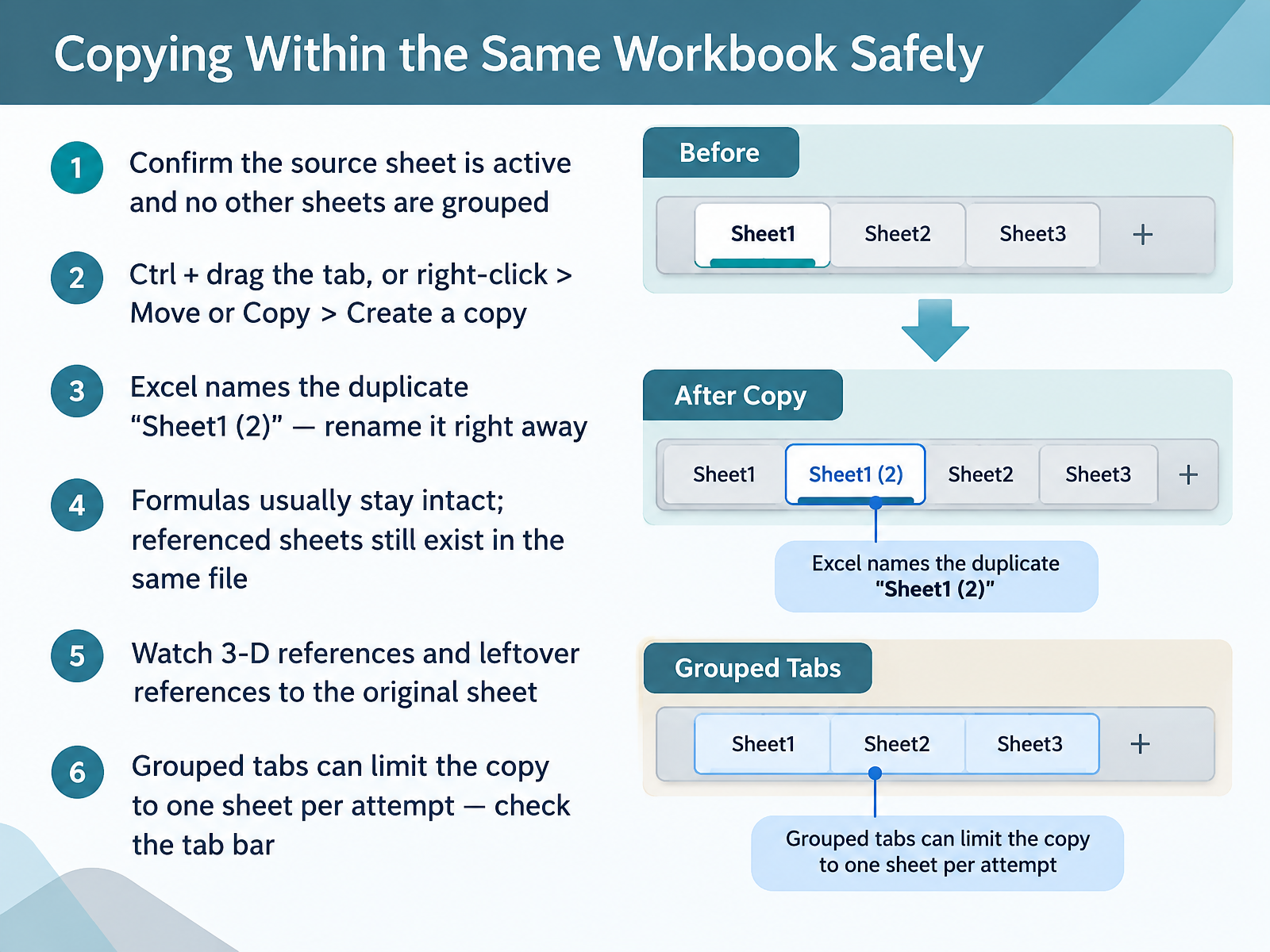
 - 04Copying Within the Same Workbook SafelyLet's start with the safe way to duplicate a sheet inside one workbook. First, click the tab you want to copy and confirm it is the active sheet. Then check the tab bar for grouped tabs, because if multiple sheets are grouped, Excel may only copy one sheet per attempt. To copy, hold Control and drag the tab to a new position, or right-click the tab, choose Move or Copy, and tick Create a copy. Excel names the duplicate something like Sheet1 (2). Rename it right away so you can tell the two apart. Formulas usually stay intact because the referenced sheets still exist in the same file. But watch for 3-D references that span multiple sheets, and for leftover links back to the original sheet. Open a few key formulas and check the Name Box to see what they point to. Do that, and your copy stays clean.
 support.microsoft.comsupport.microsoft.comsupport.microsoft.com+21 min
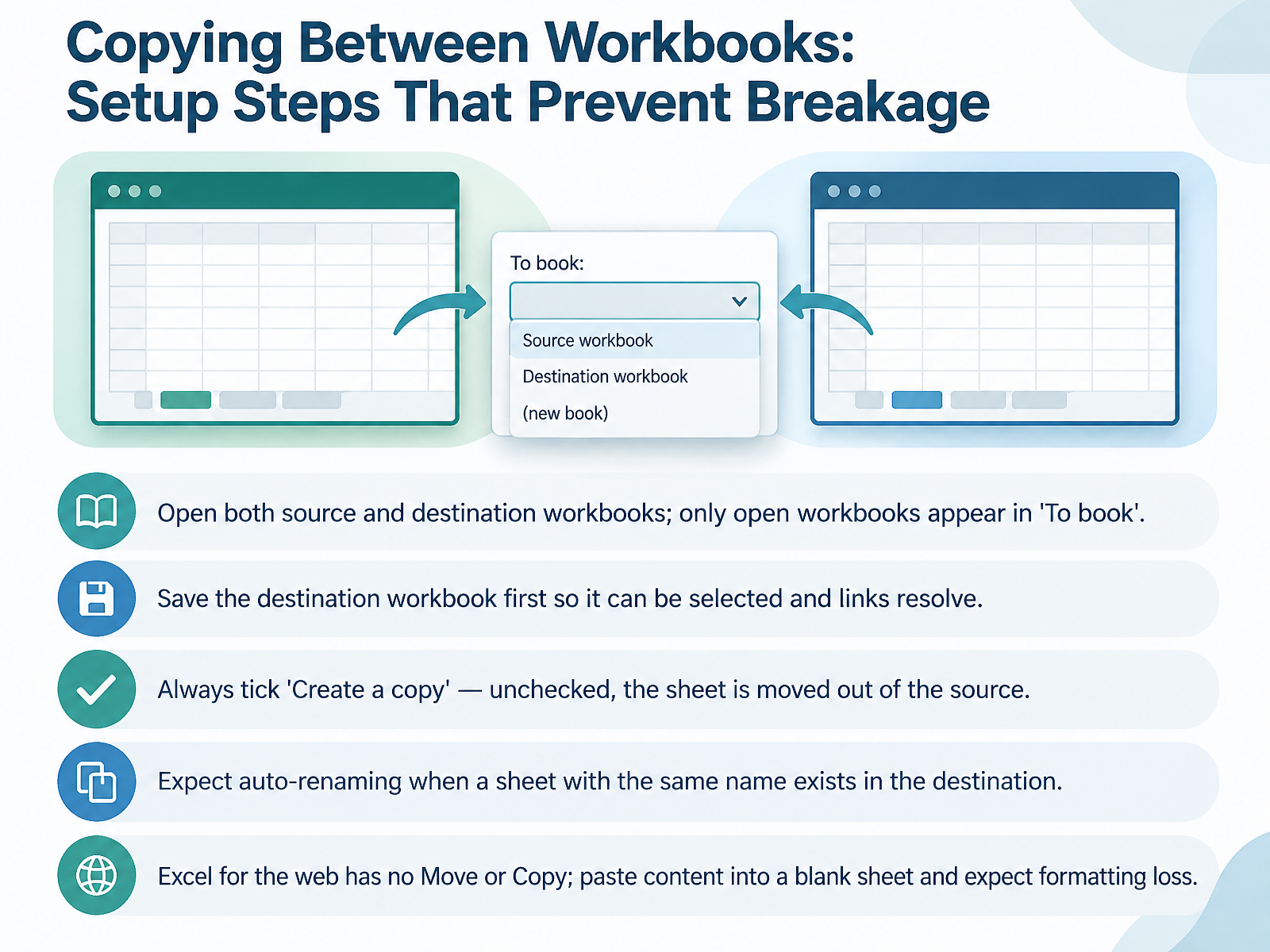
 - 05Copying Between Workbooks: Setup Steps That Prevent BreakageNow let's set up the copy so nothing breaks. Cross-workbook copies fail for predictable reasons, and each one has a quick fix. First, open both workbooks. The To book drop-down only lists workbooks that are open, so if your destination isn't there, it isn't open. Second, save the destination workbook before you copy. An unsaved workbook may not appear in that list, and saved links resolve more reliably. Third, tick Create a copy. If you leave it unchecked, the sheet is moved out of the source, not copied. If the destination already has a sheet with the same name, expect Excel to rename the copy, something like Sales two. And on Excel for the web, there's no Move or Copy command. Paste the content into a blank sheet instead, and expect to lose conditional formatting. Next, formatting, tables, and objects, and what travels with the sheet.
 support.microsoft.comsupport.microsoft.comsupport.microsoft.com+22 min
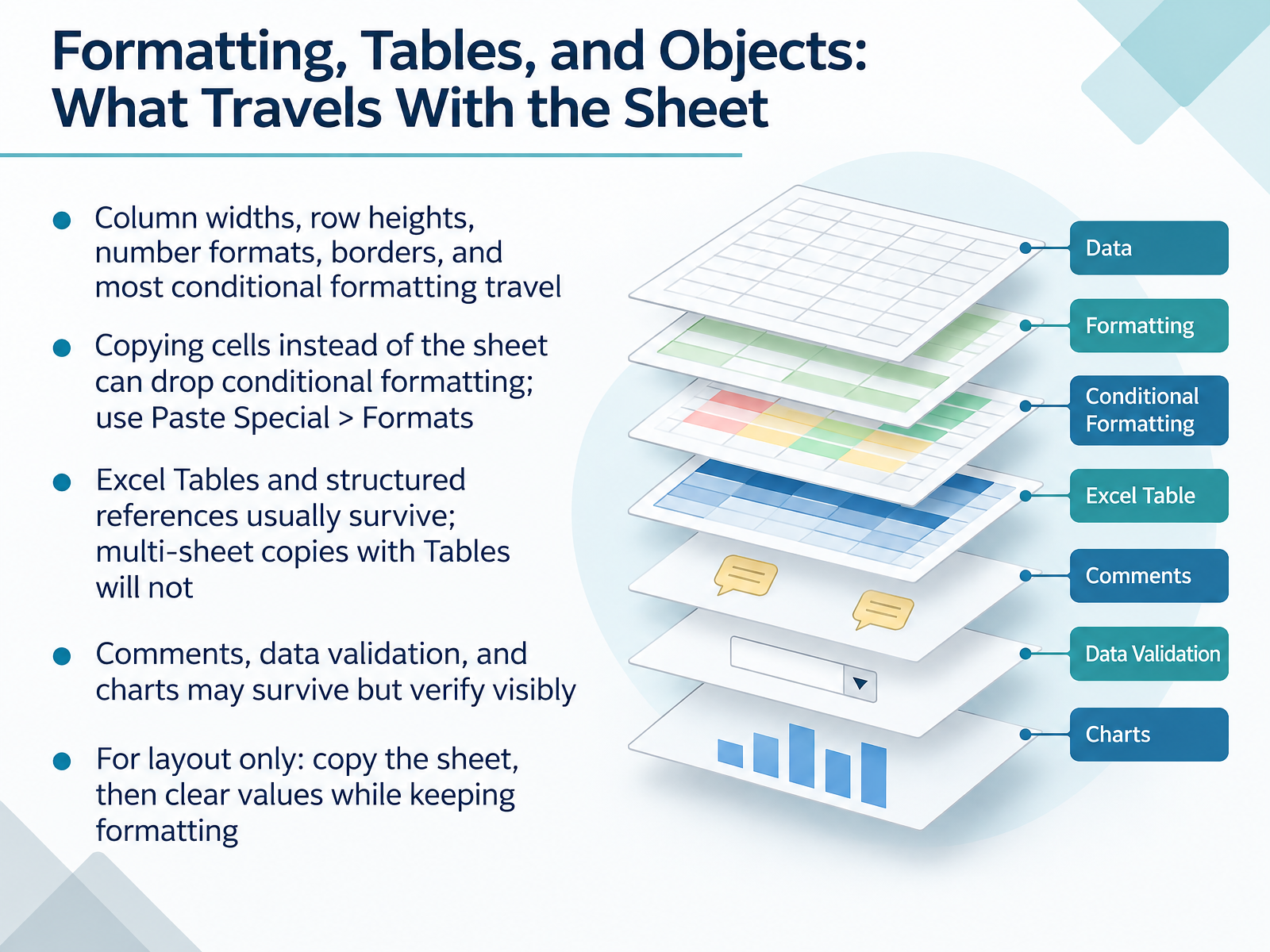
 - 06Formatting, Tables, and Objects: What Travels With the SheetNow let's look at what actually travels with the sheet. Column widths, row heights, number formats, borders, and most conditional formatting come along. But here's the catch. If you copy cells instead of the sheet, conditional formatting can drop. So select the range, then use Paste Special, Formats, to bring the rules over. Excel Tables and structured references usually survive. However, multi-sheet copies that contain Tables will not. Comments, data validation, and charts may survive, but verify them visibly. Click through the pasted sheet and confirm each one. If you only need the layout, copy the whole sheet, then clear the values while keeping the formatting. That gives you a clean template without retyping anything. Next, we'll look at formula reference behavior after copying.
 support.microsoft.comsupport.microsoft.comlearn.microsoft.com+21 min
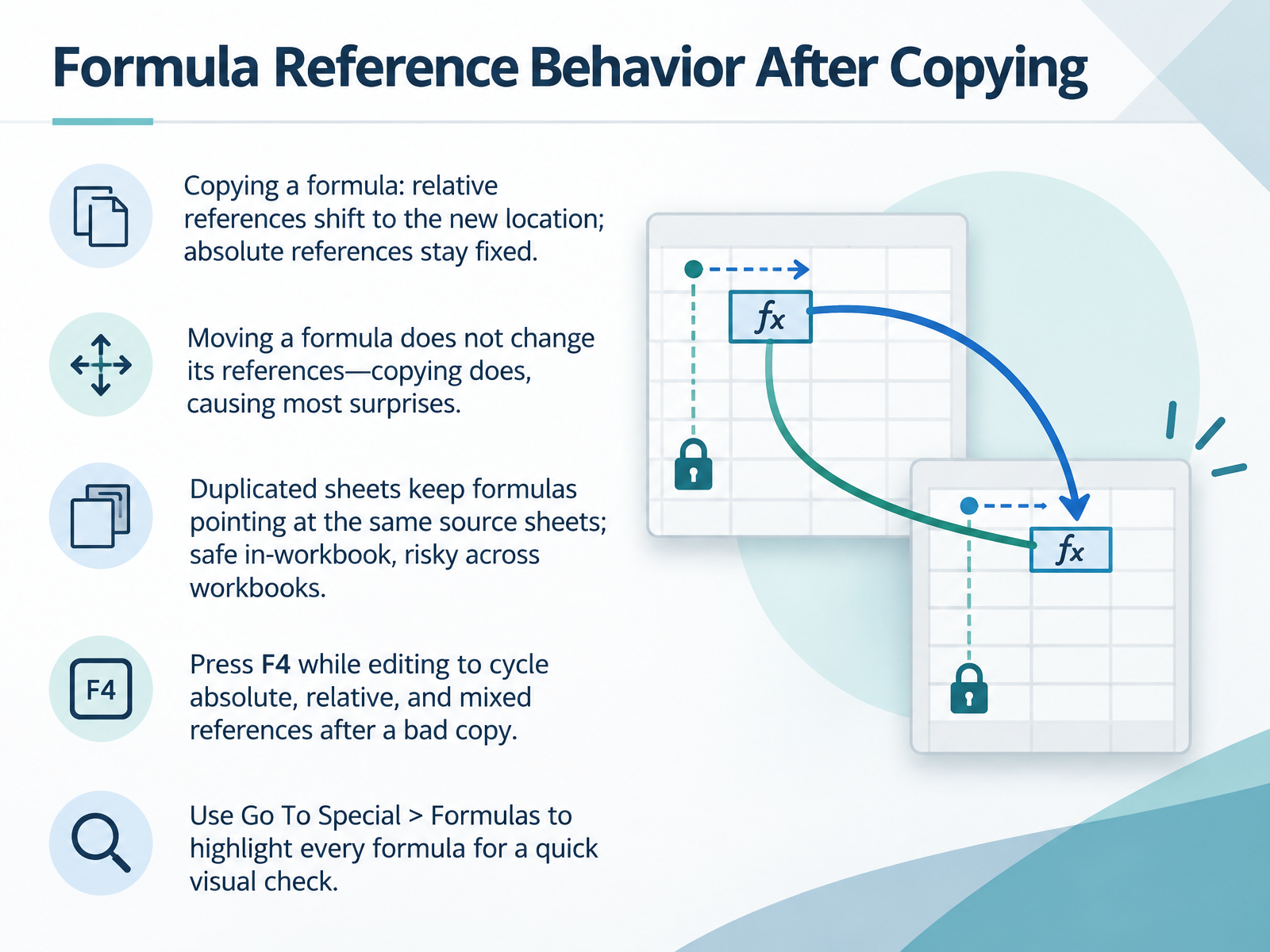
 - 07Formula Reference Behavior After CopyingNow let's look at what happens to your formulas after you copy. When you copy a formula, relative references shift to the new location, while absolute references stay fixed. Moving a formula is different. It does not change its references. Copying does, and that causes most surprises. If you duplicate a sheet, its formulas keep pointing at the same source sheets, which is safe inside the same workbook but risky across workbooks. So after a bad copy, select the cell, go to the formula bar, click the reference, and press F4 to cycle through absolute, relative, and mixed. Then use Go To Special, Formulas, to highlight every formula for a quick visual check. Next, we'll cover Defined Names and Scope, the hidden cause of copy errors.
 stackoverflow.comlearn.microsoft.comsupport.microsoft.com+21 min
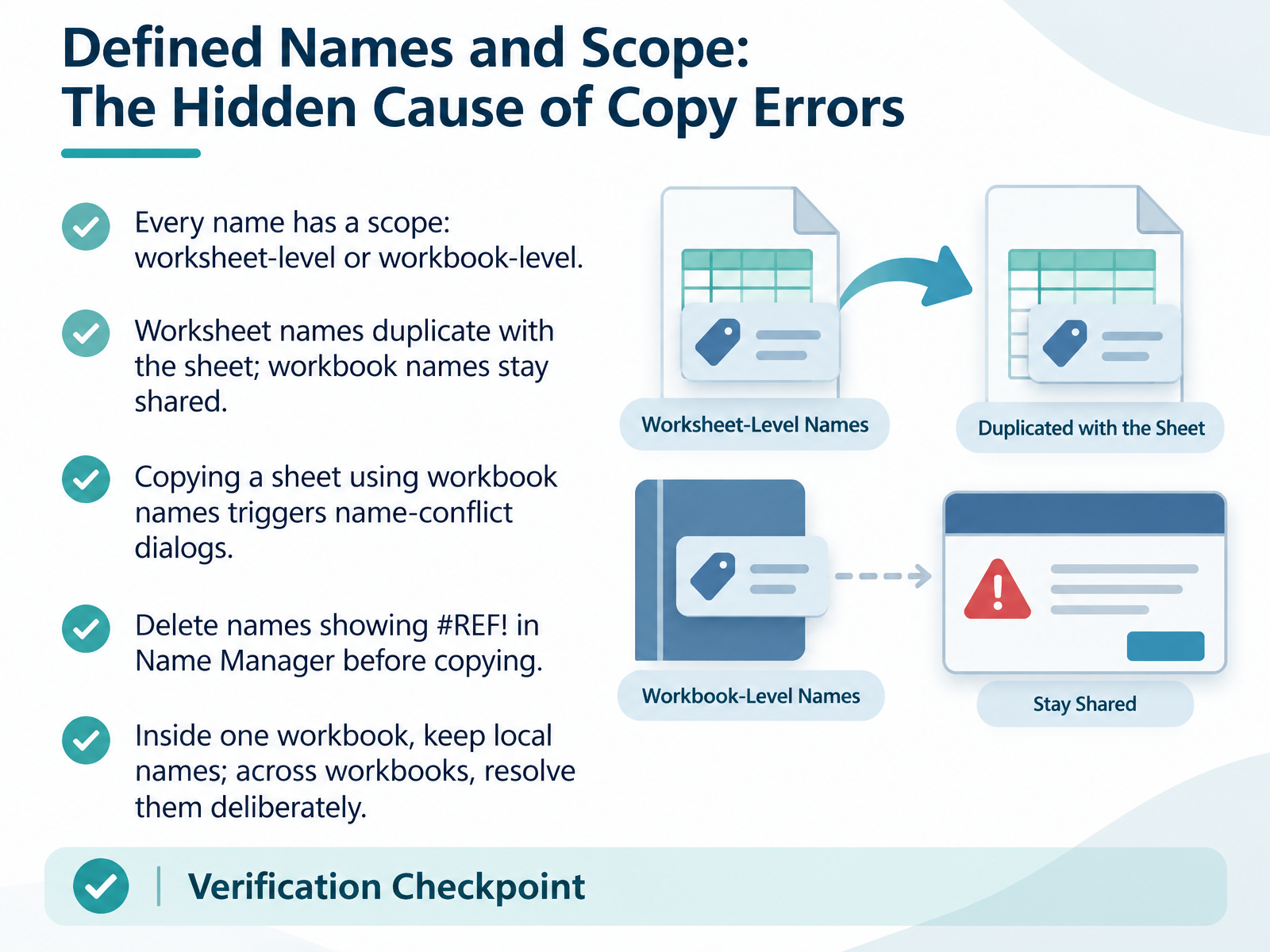
 - 08Defined Names and Scope: The Hidden Cause of Copy ErrorsNow let's talk about defined names and scope, because this is the hidden cause of most copy errors. Open the Name Manager and check the Scope column. Every name is either worksheet level or workbook level. Worksheet names move with their sheet, and they duplicate. Workbook names stay shared across the whole file. So when you copy a sheet that uses workbook names, Excel fires up name-conflict dialogs. Before you copy, look for names showing a reference error in the Value column and delete them. They serve no purpose, and they are often what triggers the conflict warnings. Then decide deliberately. Copying inside one workbook? Keep your local names as they are. Moving across workbooks? Resolve the names on purpose, either recreating them at the destination or converting workbook names to local ones first. That choice is yours to make, not Excel's. Next, we will look at external links, Power Query, and PivotTable sources.
 stackoverflow.comlearn.microsoft.comsupport.microsoft.com+22 min
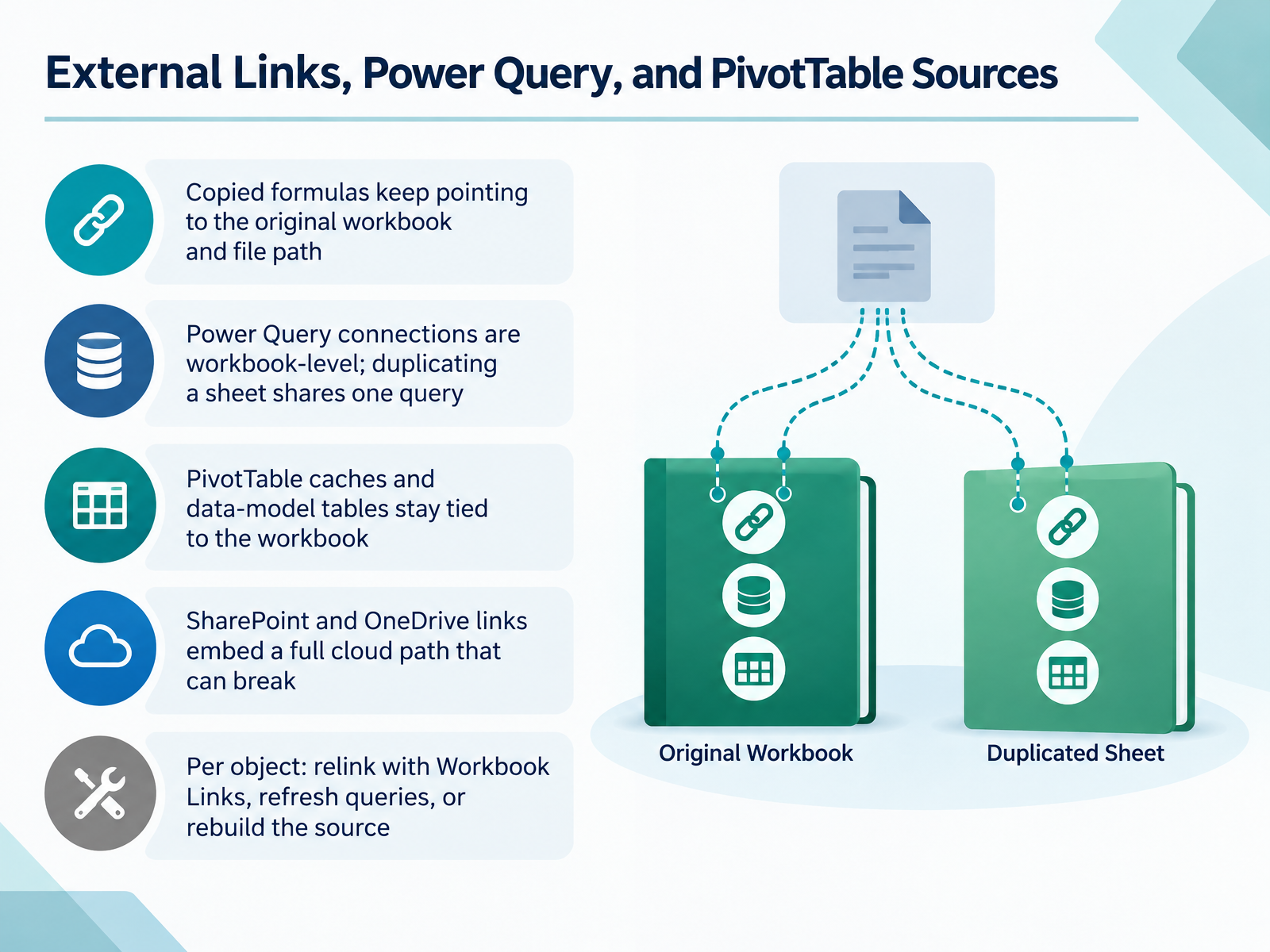
 - 09External Links, Power Query, and PivotTable SourcesNow let's look at the connections that travel with a copied sheet. Copied formulas keep pointing to the original workbook and file path. Check the formula bar for a bracketed workbook name, and if it is there, open Workbook Links on the Data tab, select More, then Change Source, and point it to the correct file. Power Query connections are workbook level. Duplicating a sheet shares one query, so a refresh updates both. Verify each query in the Queries and Connections pane and duplicate it if you need independent data. PivotTable caches and data model tables stay tied to the workbook, and SharePoint or OneDrive links embed a full cloud path that breaks when the URL changes. If you see that full path, re-point it, or rebuild the connection. The rule is simple: go object by object. Relink formula links with Workbook Links. Refresh queries in Queries and Connections. Rebuild the PivotTable source or data model table if its cache no longer matches. That keeps every object honest after the copy. Next, we will look at Safe Paste Techniques: Values, Formats, and Links.
 stackoverflow.comsupport.microsoft.comsupport.microsoft.com+22 min
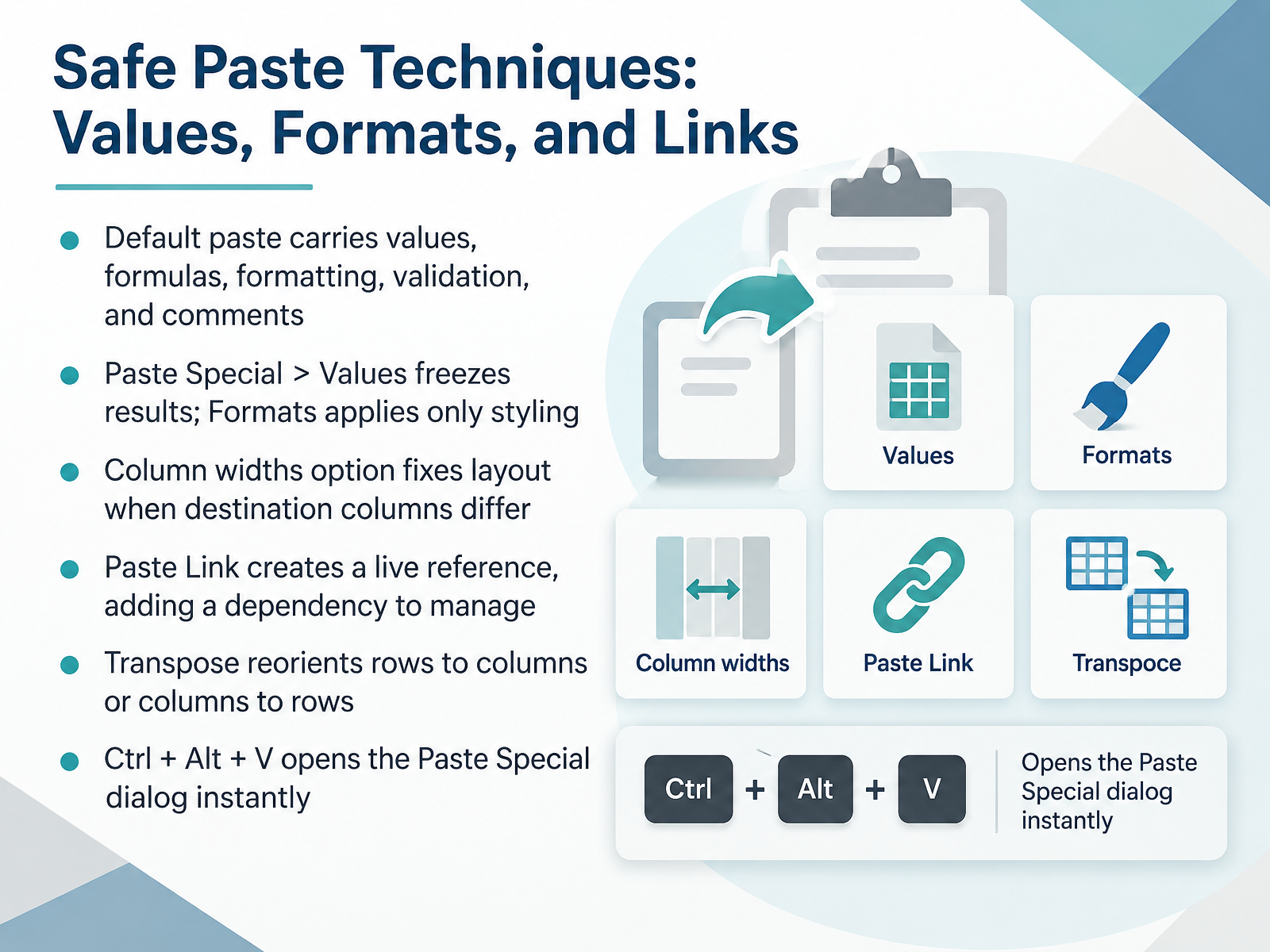
 - 10Safe Paste Techniques: Values, Formats, and LinksNow let's make your paste deliberate instead of accidental. A normal paste carries everything: values, formulas, formatting, validation, and comments. That's often more than you want.
If you only need the results, use Paste Special, then Values. That freezes the numbers and drops the formulas. Need just the look? Choose Formats.
When destination columns are sized differently, choose Column widths to fix the layout. And Paste Link creates a live reference back to the source, so treat it as a dependency you'll need to manage.
If your data is lying the wrong way, Transpose flips rows to columns or columns to rows. Press Control plus Alt plus V to open the Paste Special dialog instantly.
Pick the option that matches your goal, then check the Name Box before you move on.
Next, we'll apply this to Scenario: Reusing a Gradebook or Rubric for a New Term.
 support.microsoft.comsupport.microsoft.comofficetuts.net+21 min
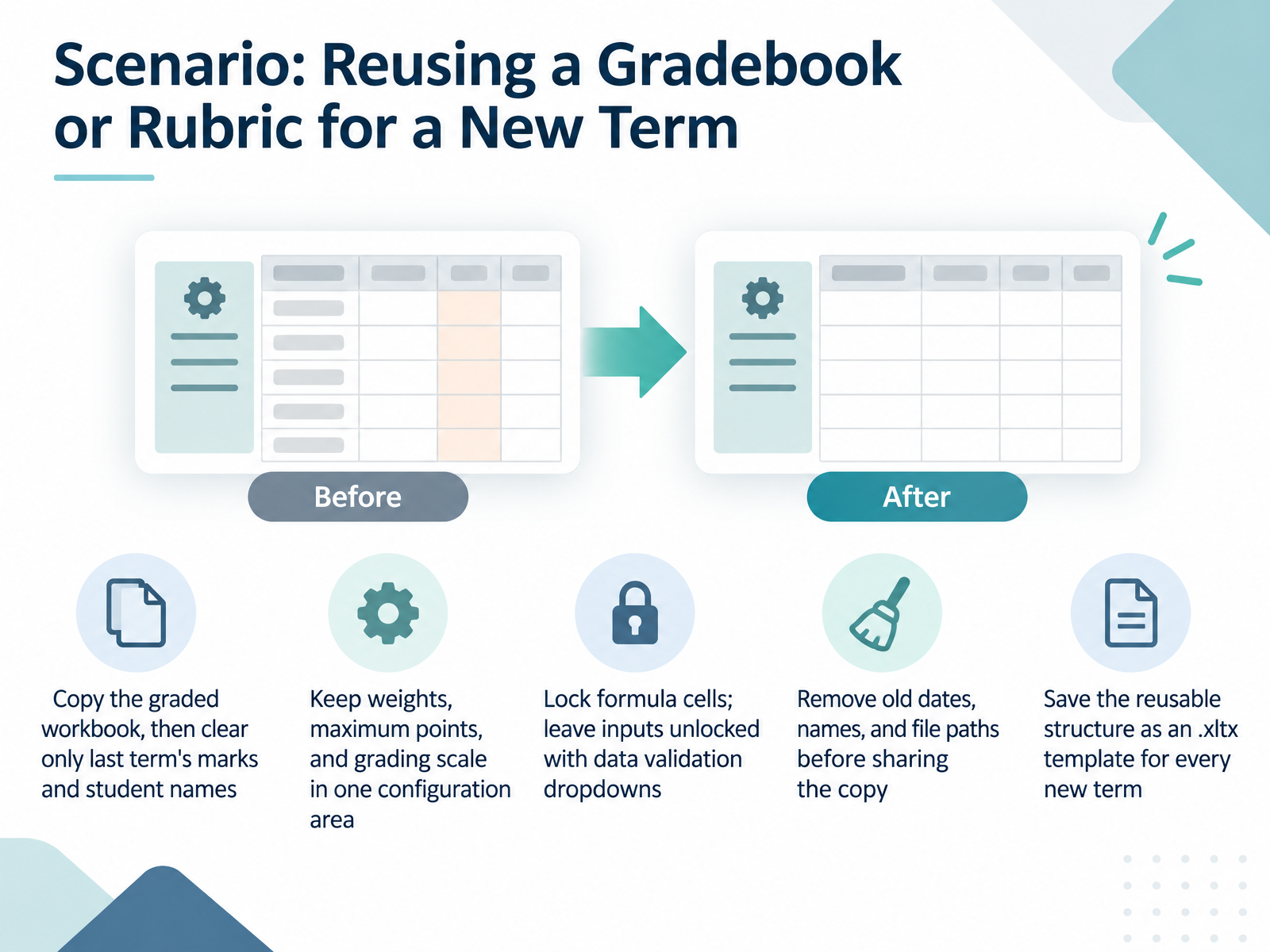
 - 11Scenario: Reusing a Gradebook or Rubric for a New TermNow let's walk through a concrete scenario: reusing a gradebook or rubric for a new term. Start by copying the graded workbook, then clear only last term's marks and student names. Everything else stays put. Keep your weights, maximum points, and grading scale in one configuration area, so a policy change means editing one block, not rewriting formulas. Lock the formula cells, and leave inputs unlocked with data validation dropdowns, so graders can only type where they should. Before you share the copy, remove old dates, names, and file paths. Leave the sample blanks in place as a visual guide. Test it as a first-time user would, because a forgotten locked cell is the most common complaint. Finally, save the reusable structure as an Excel template file, with the dot x l t x extension, for every new term. That template is your starting point, not the graded file itself. Next, we'll look at monthly reports and team templates.
 2 min
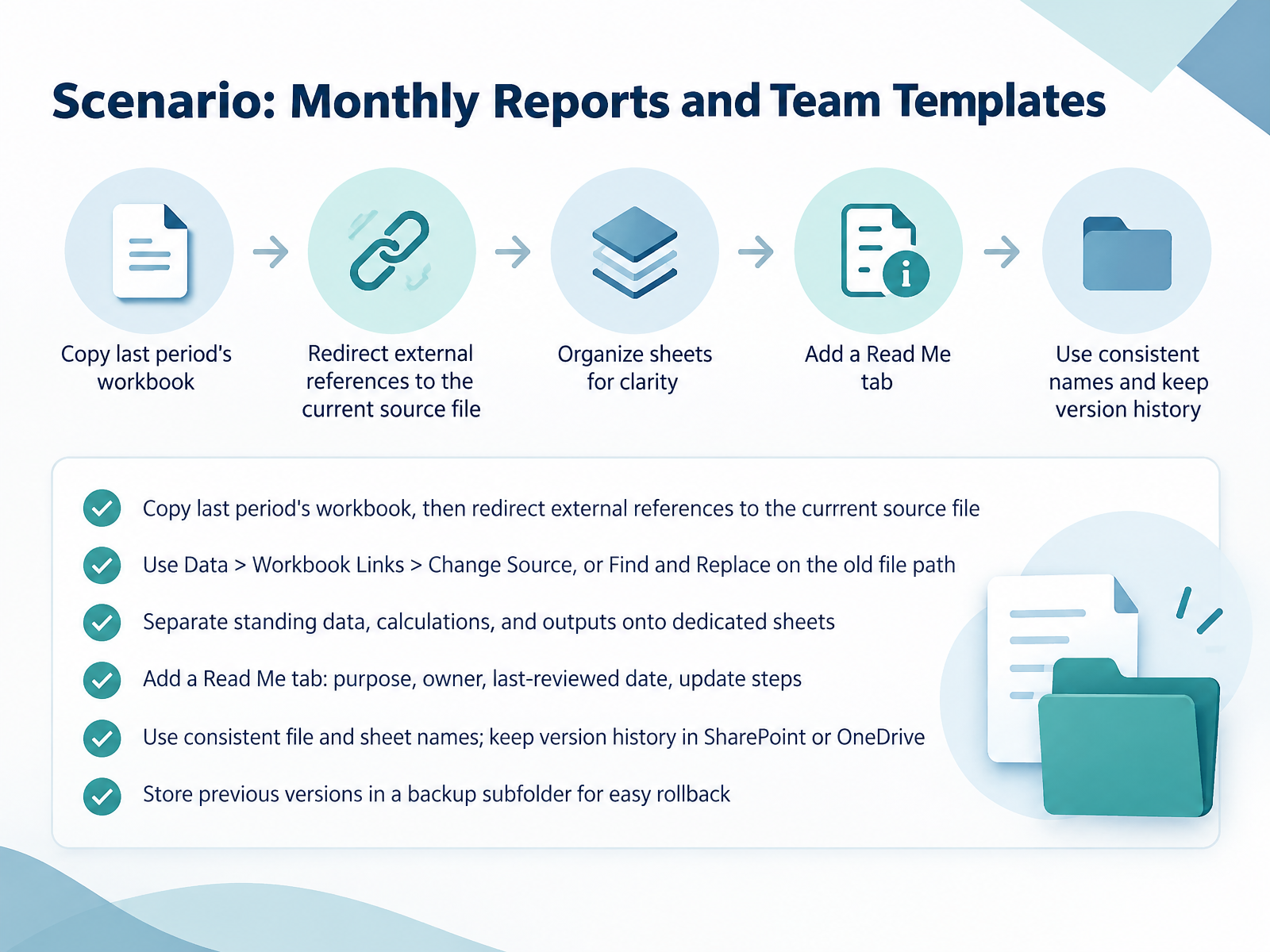
2 min - 12Scenario: Monthly Reports and Team TemplatesHere is a scenario you will recognize. You are building this month's report by copying last period's workbook. Copy it, save it under the new period name, then redirect any external references to the current source file. Open the Data tab, go to Workbook Links, select the old link, and choose Change Source. If only a few cells are affected, press Control H and replace the old file path with nothing instead. Then separate standing data, calculations, and outputs onto dedicated sheets, so a change in one place does not ripple through the rest. Add a Read Me tab that lists purpose, owner, last-reviewed date, and the update steps. Keep file and sheet names consistent, and keep version history in SharePoint or OneDrive. Finally, move previous versions into a backup subfolder, so there is no doubt which file is current and you can roll back easily. Next, we will walk through the Step-by-Step Workflow for a Clean Copy.
 support.microsoft.comsupport.microsoft.com2 min
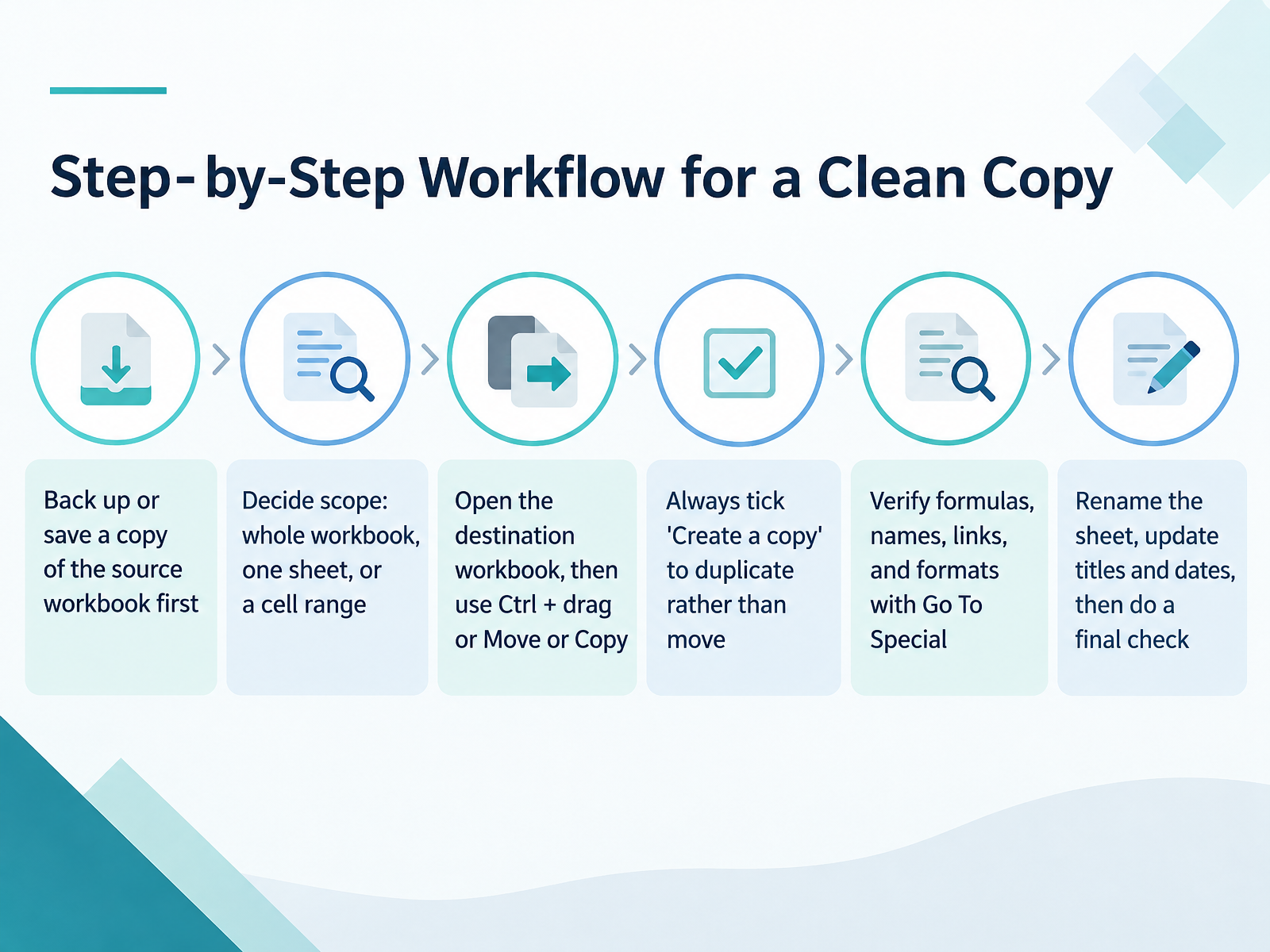
 - 13Step-by-Step Workflow for a Clean CopyNow let's walk through the full workflow, step by step. First, back up the source workbook, or save a copy before you touch anything. Then decide your scope. Are you copying the whole workbook, a single sheet, or just a cell range? Next, open the destination workbook, then use Ctrl and drag, or right-click the tab and choose Move or Copy. Always tick Create a copy. If you skip that box, you move the sheet instead of duplicating it, and the original is gone. After the copy, verify it. Use Go To Special to check formulas, names, external links, and formats. Then rename the sheet, update the titles and dates, and run one final check. Work through these steps in order, and your copy stays clean.
 support.microsoft.comsupport.microsoft.comsupport.microsoft.com+21 min
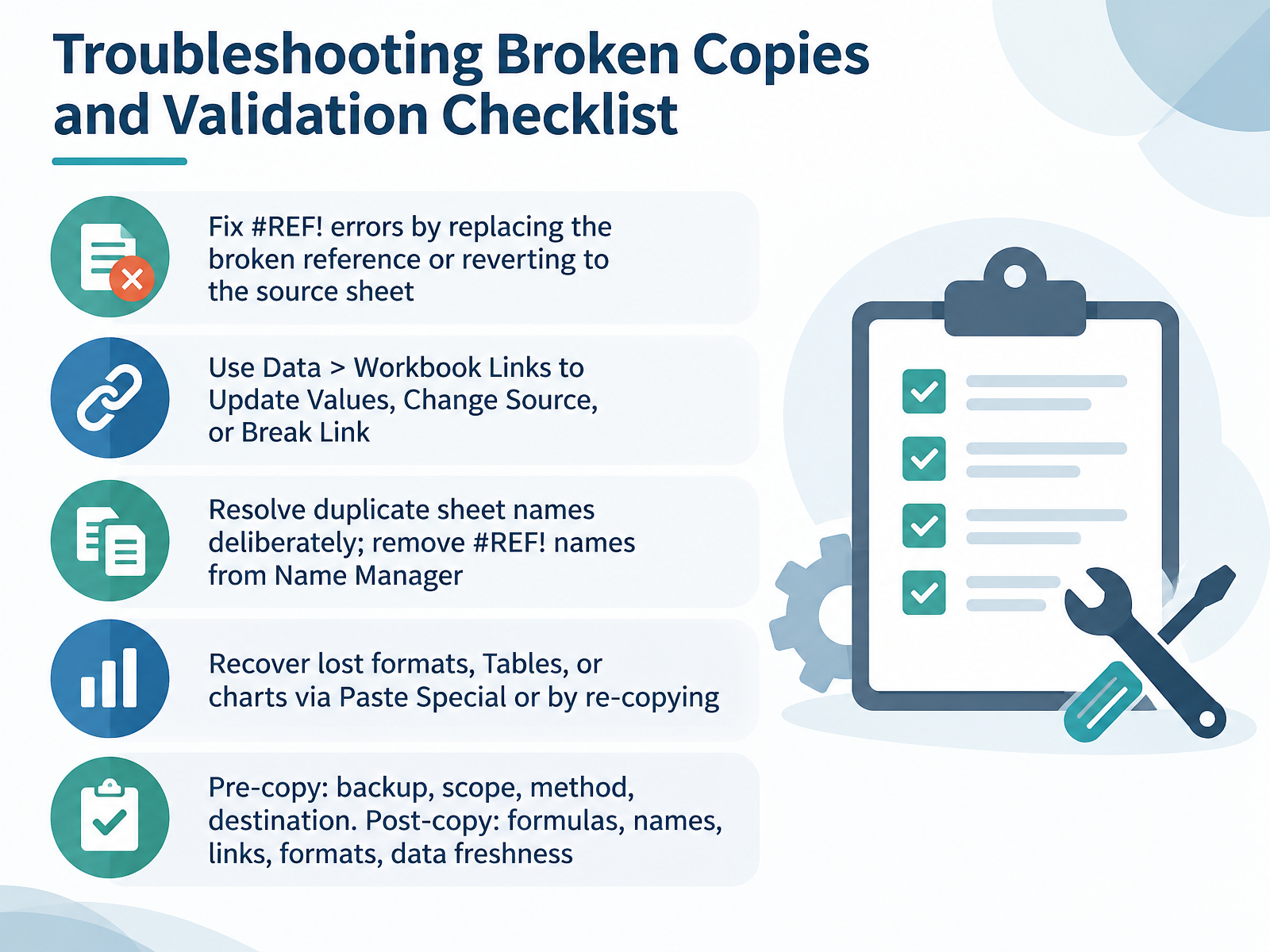
 - 14Troubleshooting Broken Copies and Validation ChecklistLet's finish with a troubleshooting checklist you can rely on. If you see a #REF! error, first check whether the reference is simply broken. Replace it with the correct cell or sheet, or revert to the source sheet and copy again. Next, go to Data, then Workbook Links. Use Update Values to pull the latest numbers, Change Source to point to the correct file, or Break Link to freeze values when the source is gone. If duplicate sheet names appear, resolve them deliberately, and open Name Manager to remove any names showing #REF!. To recover lost formats, Tables, or charts, use Paste Special or simply re-copy from the source. Before you copy, remember four things: backup, scope, method, and destination. After you copy, verify formulas, defined names, links, formats, and data freshness. That's your safety net. Thanks for working through this course. Use the checklist every time, and your copies will stay clean, linked, and reliable.
 support.microsoft.comsupport.microsoft.comstackoverflow.com+22 min
Take the deck with you
Download this course as a file — free, no sign-up needed.
- PDF handoutEvery slide page, ready to print or share.15 pages · 3.2 MBDownload
- Narrated PowerPointThe deck that presents itself — every slide carries the digital human's narration video.15 pages · 12.4 MBDownload
- PowerPoint slidesThe full deck as a .pptx — open it in PowerPoint, Keynote, or Google Slides.15 pages · 3.1 MBDownload
Free to use in your own training — please keep the PersonWise credit page at the end.
Have your own deck? Turn it into a course
Sources consulted
Web sources consulted while building this course.
- Move or copy worksheets or worksheet data | Microsoft Support — support.microsoft.com
- Save a worksheet | Microsoft Support — support.microsoft.com
- Select worksheets | Microsoft Support — support.microsoft.com
- Move or copy cells, rows, and columns | Microsoft Support — support.microsoft.com
- Insert or delete a worksheet | Microsoft Support — support.microsoft.com
- Paste options | Microsoft Support — support.microsoft.com
- Worksheet.Copy method (Excel) | Microsoft Learn — learn.microsoft.com
- Copying Format of one excel sheet to another excel worksheet using VBA — stackoverflow.com
- Excel copying a sheet to another workbook - need named ranges to sync to 2nd workbook — stackoverflow.com
- https://learn.microsoft.com/en-us/office/client-developer/excel/excel-worksheet-and-expression-evaluation — learn.microsoft.com
- Move or copy a formula in Excel | Microsoft Support — support.microsoft.com
- Suppress the message during copy or rename action for a Worksheet that has a Define Names inside — stackoverflow.com
- Why does Excel now give me already existing name range warning on Copy Sheet? — superuser.com
- How to copy an excel worksheet containing a powerquery so that the query on the new worksheet is independent from the query on the original worksheet — stackoverflow.com
- Add worksheet data to a Data Model using a linked table | Microsoft Support — support.microsoft.com
- Manage workbook links | Microsoft Support — support.microsoft.com
- Create a Data Model in Excel | Microsoft Support — support.microsoft.com
- Create workbook links | Microsoft Support — support.microsoft.com
- Paste Special when copying from programs other than Excel | Microsoft Support — support.microsoft.com
- Paste Special in Excel — officetuts.net