Begin
13 pages · ~26 min
Mastering Command-Line Interfaces
An introduction to command-line interfaces, teaching beginners how to navigate and execute commands for efficient system control.
A digital instructor presents all 13 pages. Hold “Ask” at any point and ask out loud — the answer comes from this course. No sign-up needed.
What you’ll learn
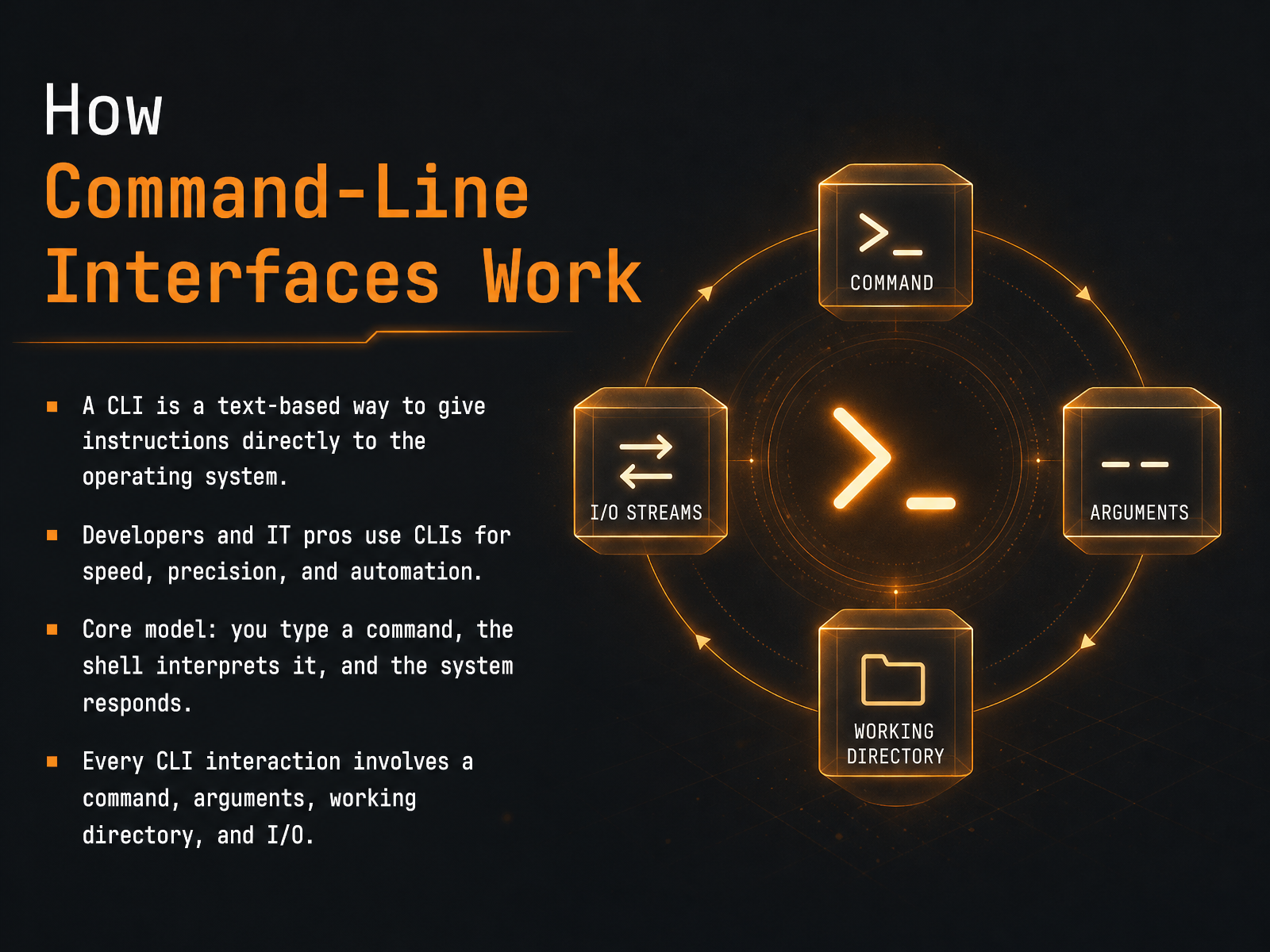
- 01How Command-Line Interfaces WorkWelcome. In this course, we're going to build a clear, practical understanding of how command-line interfaces work. A command-line interface, or CLI, is a text-based way to give instructions directly to your operating system. Instead of clicking icons or menus, you type words and press enter. Developers and IT professionals rely on CLIs every day because they offer speed, precision, and the ability to automate repetitive tasks. At its core, the model is simple. You type a command. The shell reads and interprets what you've typed. Then the system responds. Every single interaction you'll ever have at a command line is made of just a few key pieces. There's the command itself, any arguments that modify what the command does, the working directory where the command runs, and input and output, which we often just call I O. Throughout this course, we'll unpack each of these pieces one at a time. Next, let's look at where you actually type these instructions. We'll begin with the terminal, the shell, and the prompt.2 min
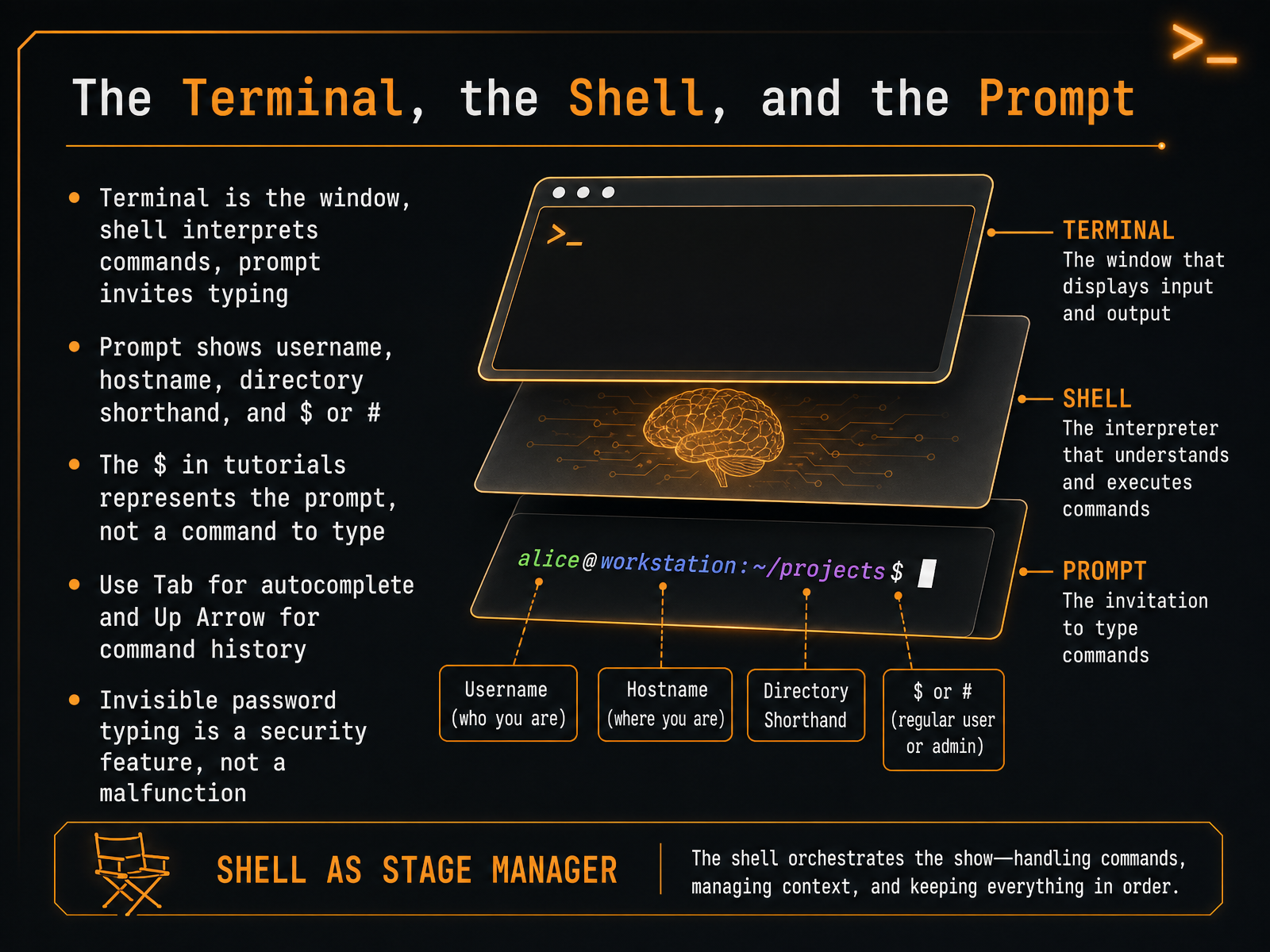
- 02The Terminal, the Shell, and the PromptLet's paint a picture of where you'll be working. The terminal is the window you open on your screen. Inside that window lives the shell, which is the program that reads and interprets every instruction you give. You'll know the shell is ready when you see the prompt. The prompt usually shows your username, your computer's hostname, and a shorthand for your current location. It ends with a dollar sign for a normal user, or a hash sign if you have superuser privileges. In tutorials, when you see a line starting with a dollar sign, remember that the dollar sign just represents the prompt. You don't type it. Two quick timesavers: press Tab and the shell will try to autocomplete what you're typing. Press the Up Arrow to bring back your last command. One last detail. When you type a password in the terminal, nothing appears on screen. No dots, no stars. This is normal. It's a security feature, not a malfunction. Keep typing and press Enter. Next, we'll type our first real instruction: the command itself.
 2 min
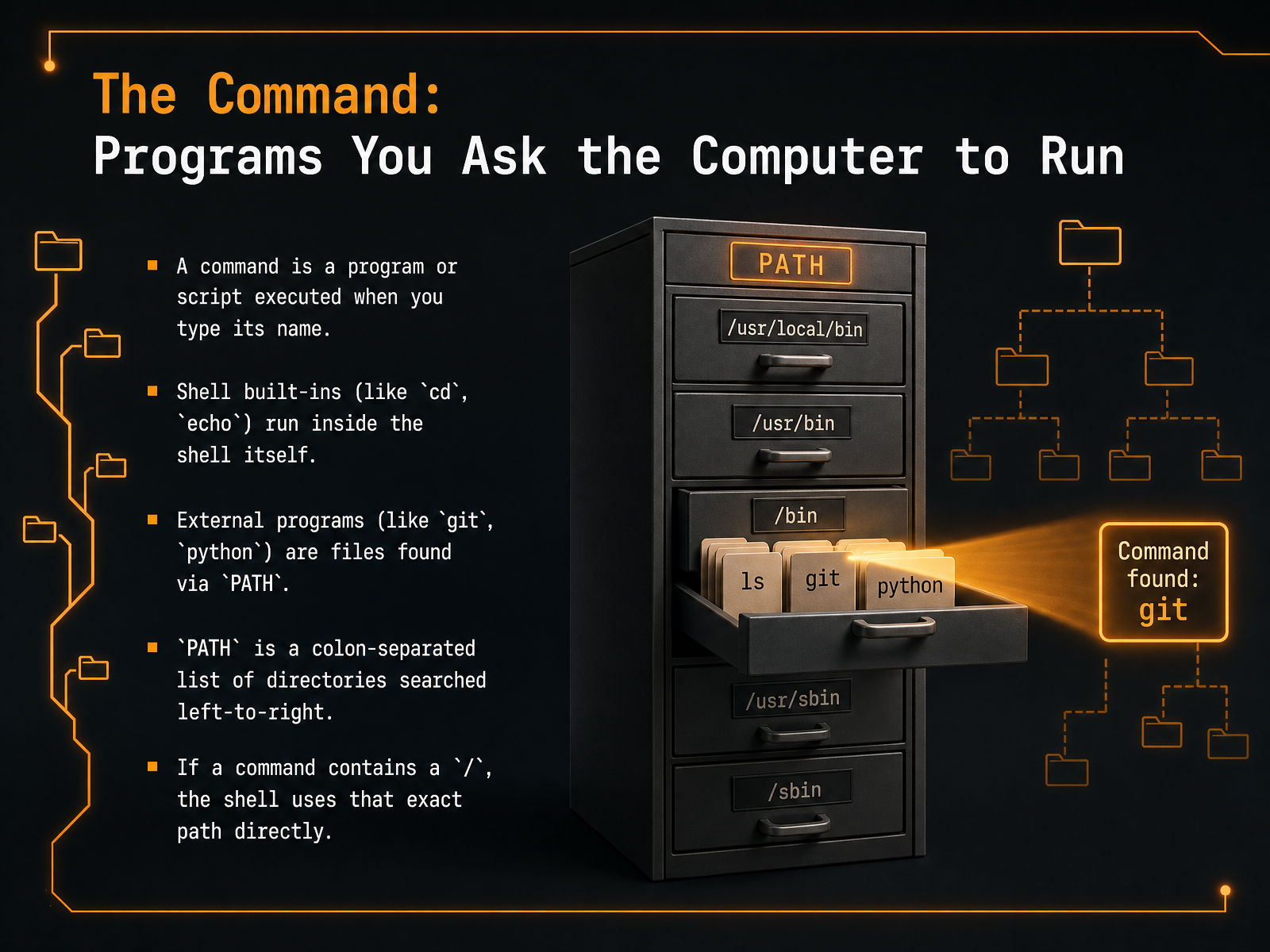
2 min - 03The Command: Programs You Ask the Computer to RunNow, let's look at the most visible part: the command itself. When you type a word and press Enter, you are asking the computer to run a program. That word is the command. It might be a shell built-in, like cd to change directories, or echo to display text. These run right inside the shell. Other commands, like git or python, are external programs. The shell finds them by searching a list of directories stored in a variable called PATH. PATH is a list separated by colons, checked from left to right. If the command contains a slash, the shell skips the search and uses that exact path directly. So, a command always points to something executable. Next, we will see how to shape what that program does with command arguments.
 1 min
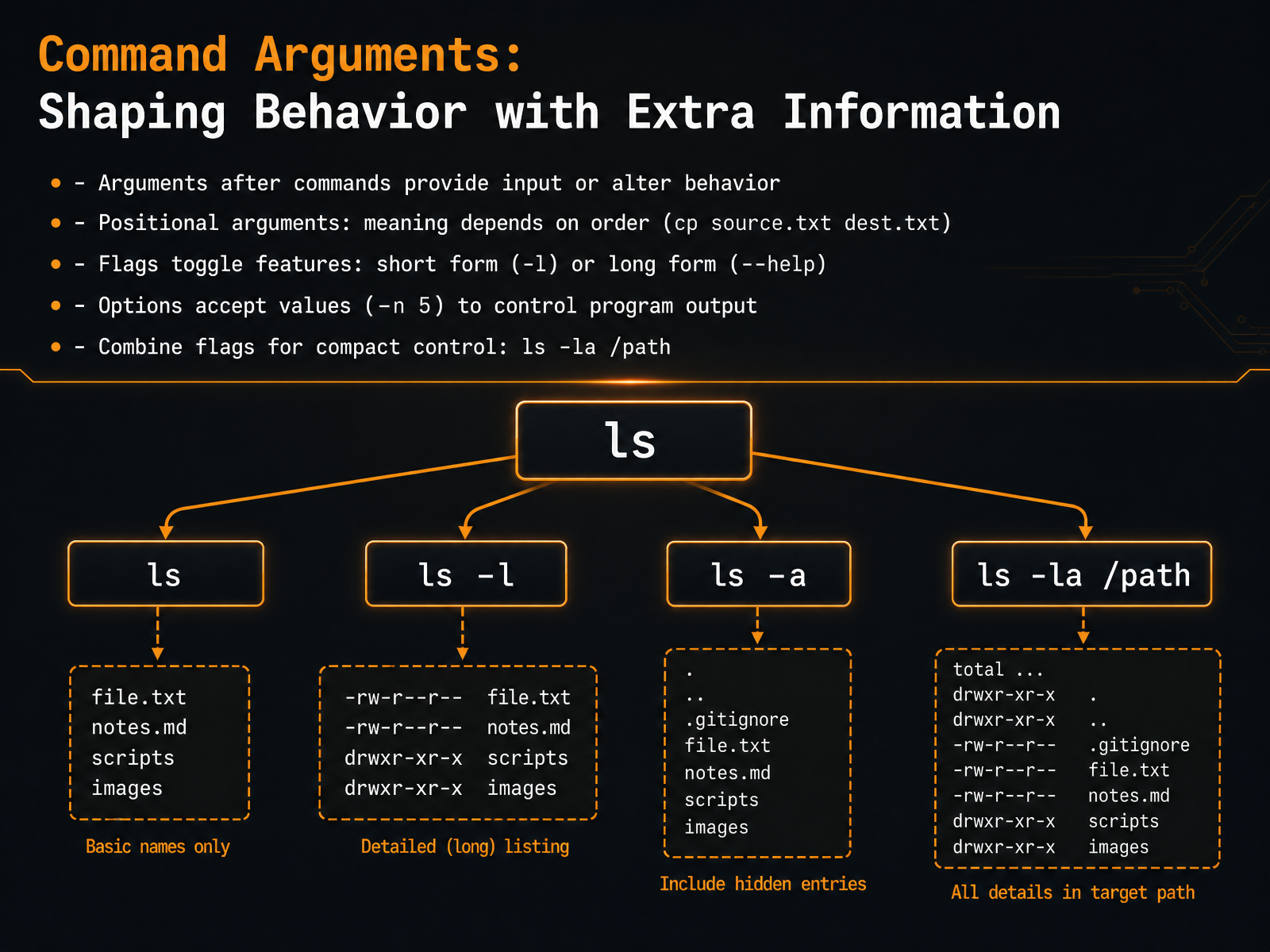
1 min - 04Command Arguments: Shaping Behavior with Extra InformationNow let's look at a key part of using the command line: arguments. Arguments are the extra pieces of information you type after a command. They give the computer specific input or change how the command behaves. There are a few types to know. First, positional arguments. Their meaning depends entirely on where they appear. For example, in the copy command, typing 'cp' with 'source.txt' first and 'dest.txt' second tells the computer to copy the source file to the destination file. If you swapped them, you would copy the wrong file. Second are flags. Flags are like switches that turn features on or off. You usually see them with a short form, like a single dash and the letter 'l', or a long form, like two dashes and the word 'help'. Third, some flags accept values themselves. We call these options. Writing a dash 'n' followed by the number five might tell a command to repeat an action exactly five times. Finally, you can often combine flags for compact control. A classic example is 'ls -la' followed by a file path. This mixes multiple flags to show a detailed directory listing. So remember, arguments shape a command's behavior through their position, simple switches, or values you provide. Next, we will look at the current working directory and your location in the filesystem.
 2 min
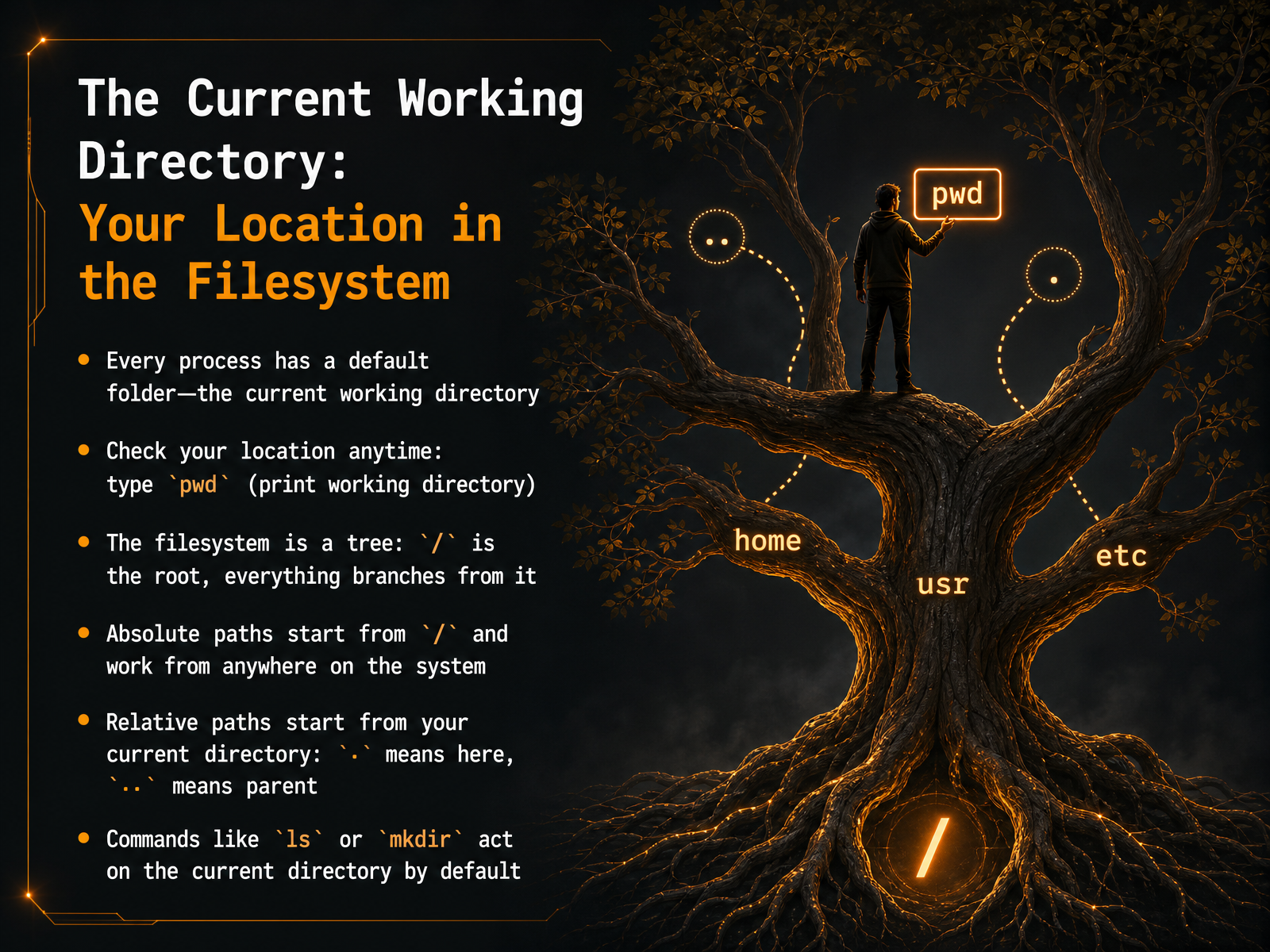
2 min - 05The Current Working Directory: Your Location in the FilesystemNow let’s talk about your location inside the filesystem—the current working directory. Think of it as the default folder where your commands run. Every process has one. You can check yours at any time by typing the command pwd, which stands for print working directory. The filesystem itself is organized like a tree. At the very top is the root directory, written as a single forward slash. Everything else branches out from there. When you need to be precise, you use an absolute path, which always starts from root. For example, forward slash home forward slash user. Works from anywhere on the system. Most of the time though, you’ll use relative paths that start from where you already are. A single dot means right here, in the current directory. Two dots means the parent directory, one level up. Commands like ls to list files, or mkdir to make a directory, act on your current location by default. So knowing where you are is essential. Up next, we’ll see how commands send messages through standard input, standard output, and standard error.
 2 min
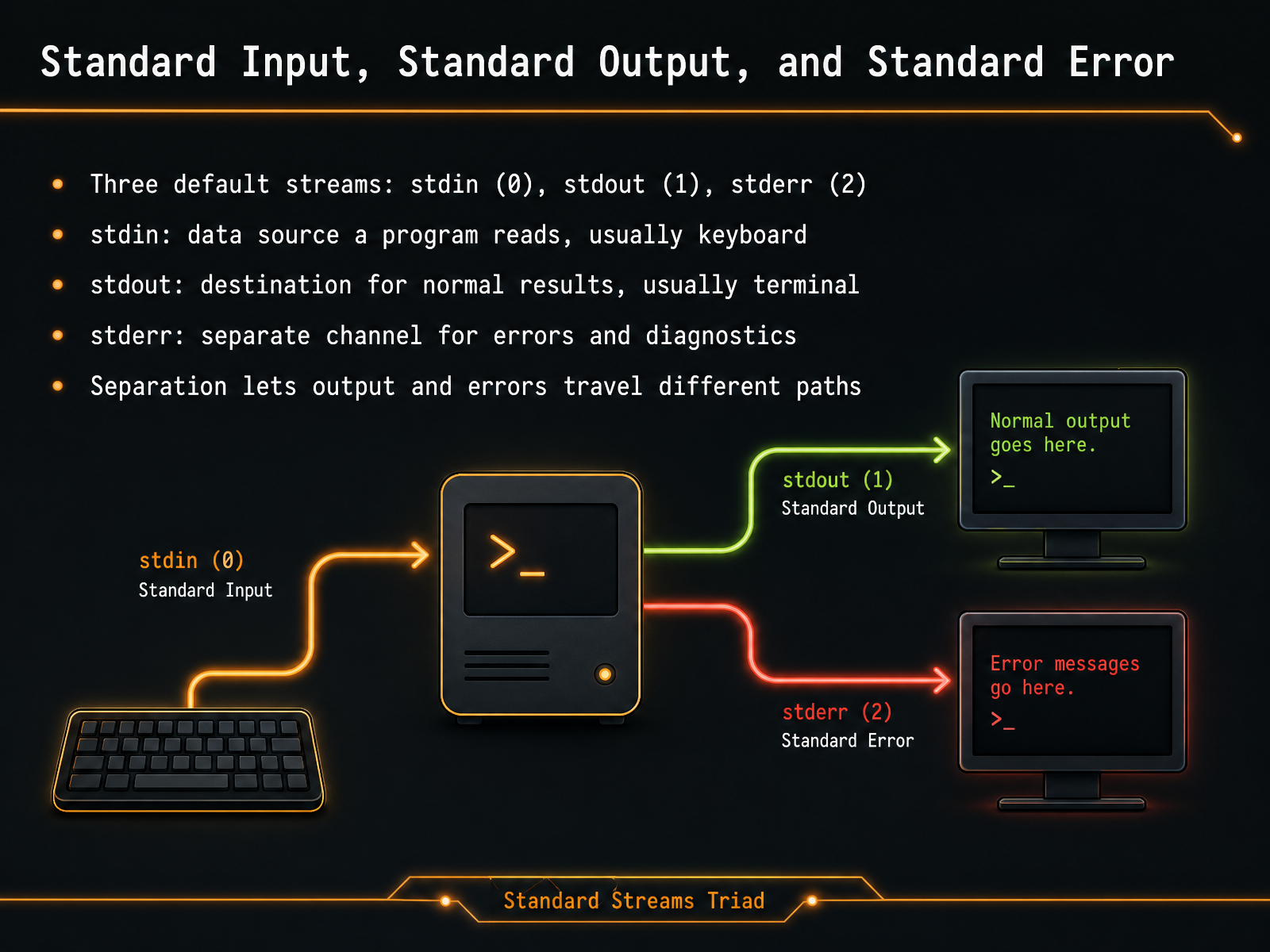
2 min - 06Standard Input, Standard Output, and Standard ErrorNow let's look at how information actually moves in and out of a program. Every command-line process starts with three default communication channels. We call them standard input, standard output, and standard error. They are often labeled with numbers: zero for standard input, one for standard output, and two for standard error. Think of standard input as where a program gets data from. By default, that is your keyboard. Standard output is the normal destination for results. Usually, that is your terminal screen. Standard error is a separate channel just for error messages and diagnostics. This matters because it lets normal results and error messages travel different paths. You can save clean output to a file while still seeing errors on your screen. Up next, we will see what actually happens inside the shell when you run a command.
 1 min
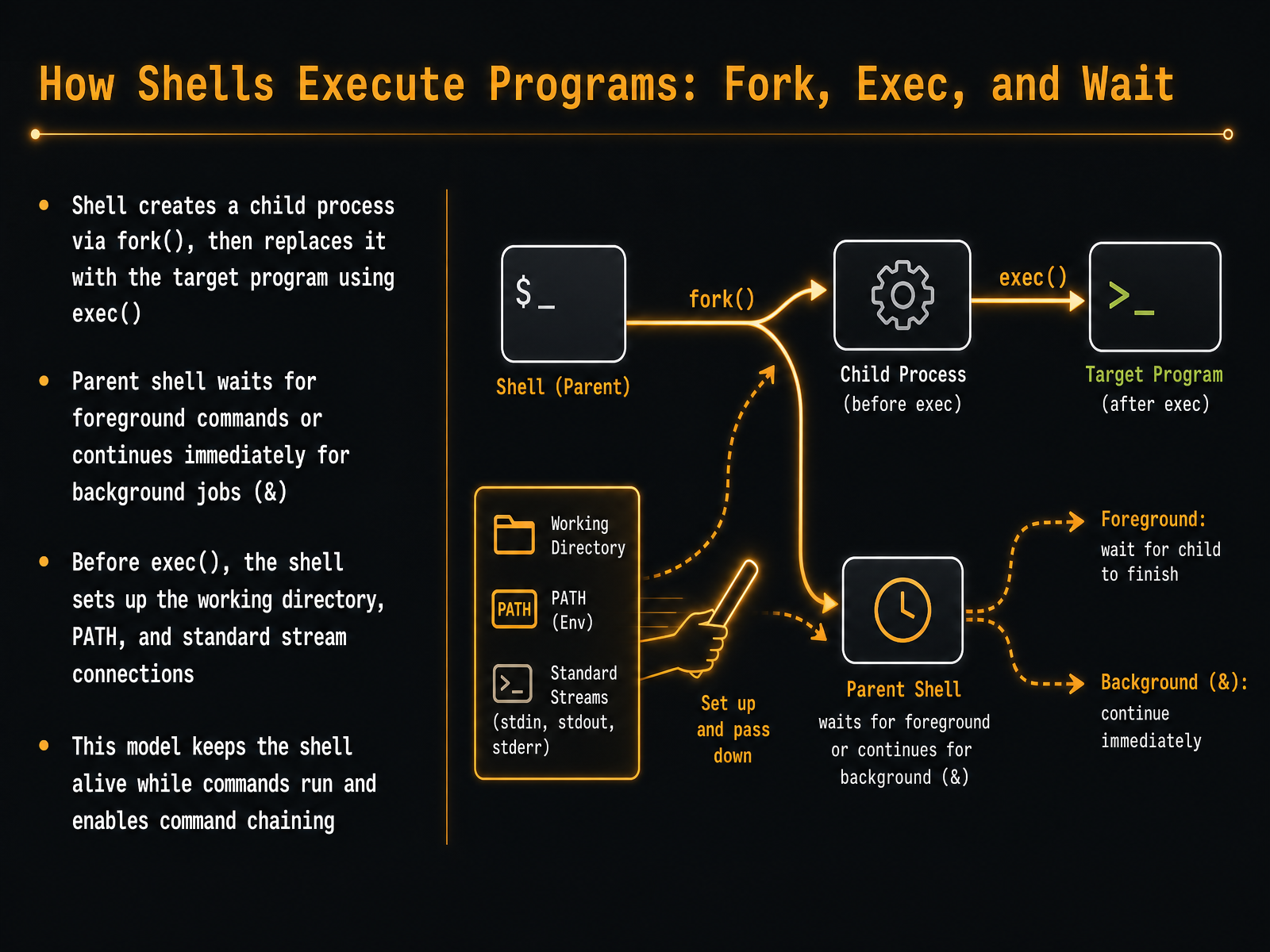
1 min - 07How Shells Execute Programs: Fork, Exec, and WaitNow, let's look at what actually happens inside the shell when you press Enter. The shell uses a pattern called fork, exec, and wait. First, fork creates a child process—an exact copy of the shell itself. Then, exec replaces that copy with your target program, like ls or grep. While a foreground command runs, the parent shell waits for the child to finish. If you add an ampersand for a background job, the shell continues immediately without waiting. Before exec runs, the shell sets up the working directory you specified, searches the PATH variable to locate the program, and connects the three standard streams: standard input, standard output, and standard error. This model is what keeps the shell alive and responsive while your commands execute, and it enables powerful features like command chaining with pipes and semicolons. Next, we will put all these pieces together and examine the anatomy of a complete command.
 2 min
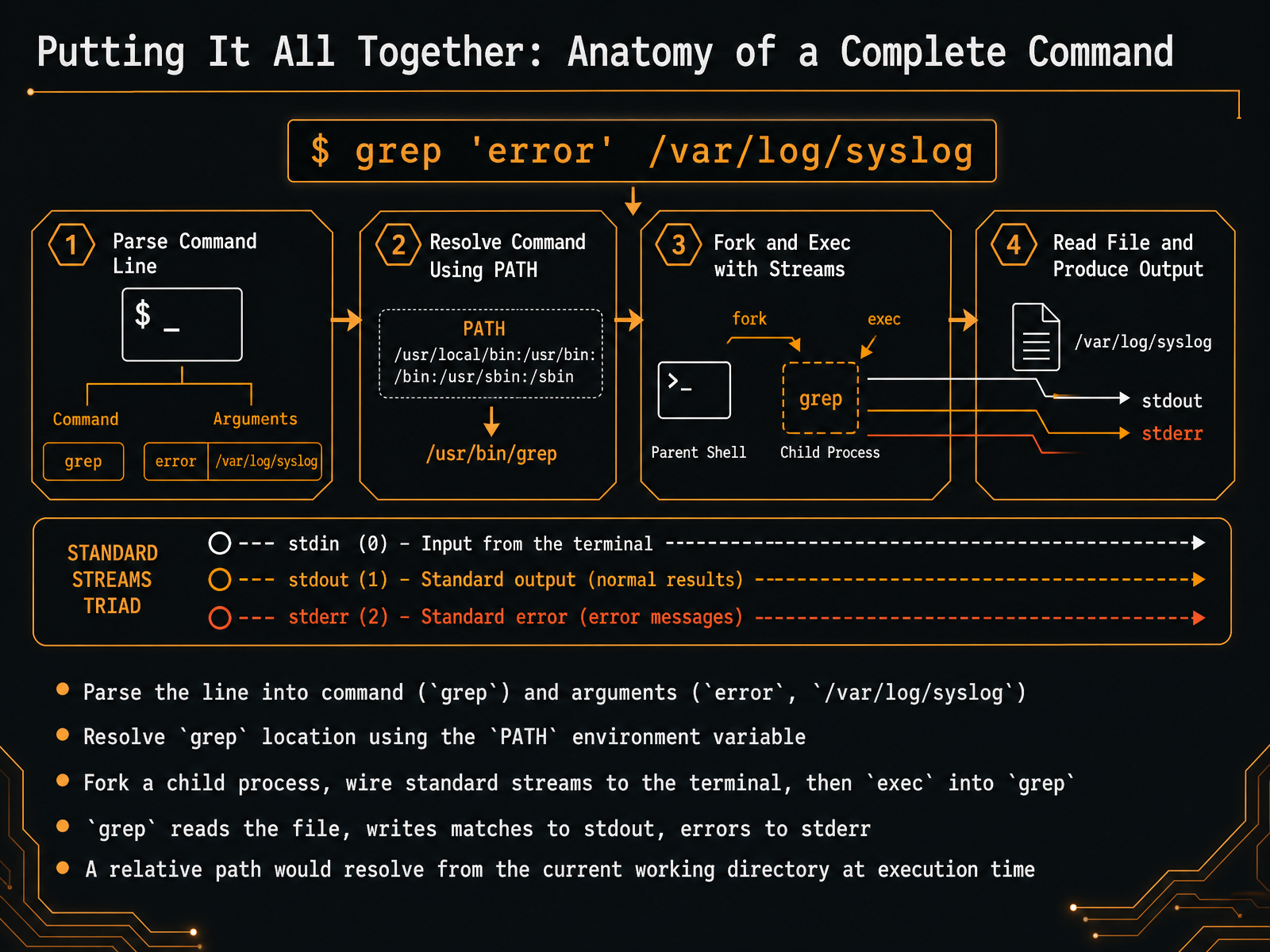
2 min - 08Putting It All Together: Anatomy of a Complete CommandNow let's see how all the pieces work together in one real command: grep error space slash var slash log slash syslog. First, the shell parses this line. It identifies grep as the command, and error and the file path as two arguments. Next, the shell needs to find the grep program. It searches the directories listed in the PATH environment variable until it locates the executable. Once found, the shell forks a new child process, connects its standard input, output, and error to your terminal, and then uses exec to replace that child with grep. Inside the child process, grep opens the target file and starts scanning. Every line containing "error" is written to standard output, so you see it on screen. If grep encounters a problem, it writes a message to standard error, which also appears on your terminal but through a separate stream. If we had used a relative path instead, it would have been resolved from the current working directory exactly when the command runs. So a single line sets off a careful sequence of parsing, searching, forking, and executing. Next, we will tackle common misunderstandings and mental model corrections.
 2 min
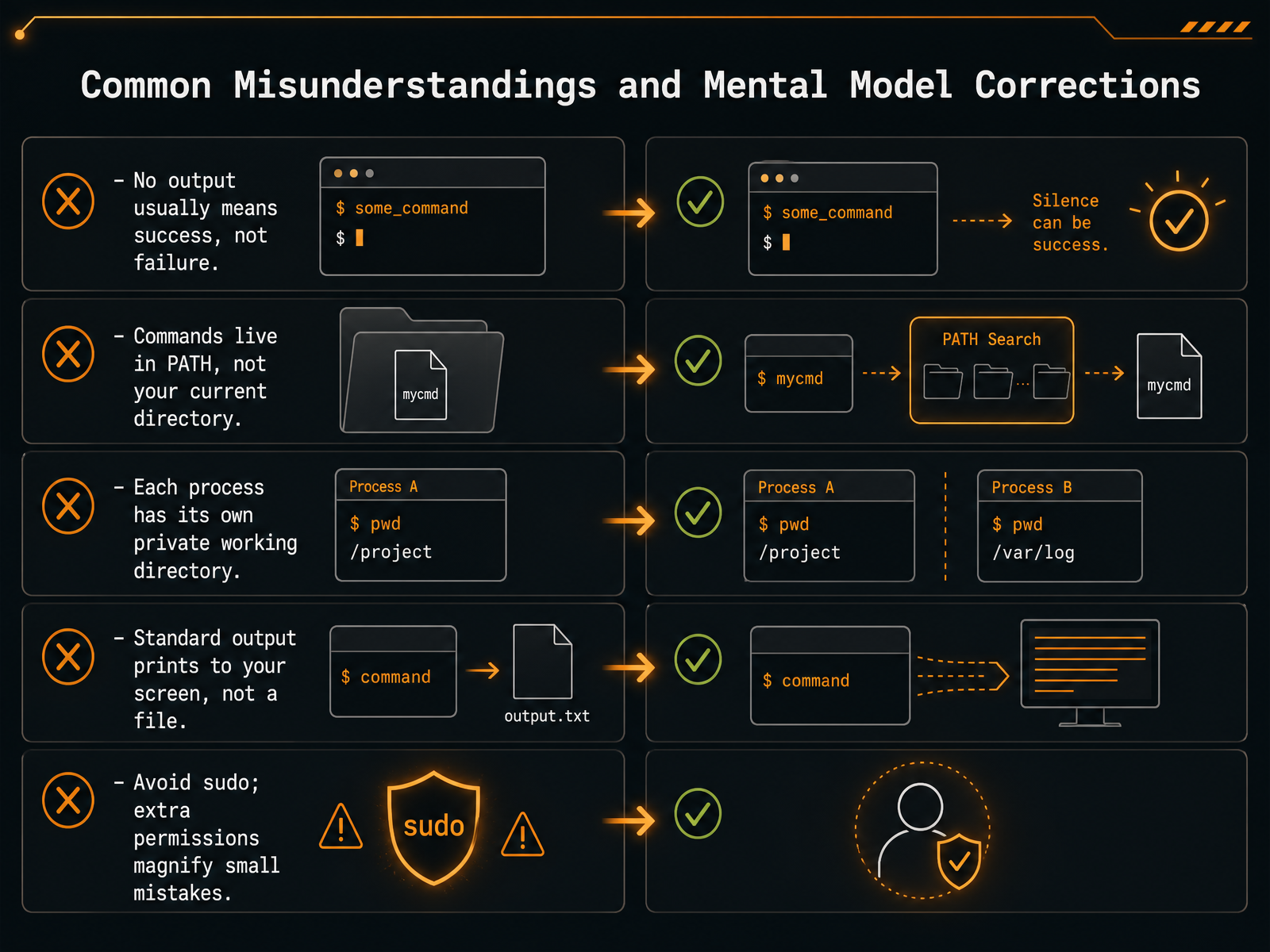
2 min - 09Common Misunderstandings and Mental Model CorrectionsLet’s clear up some of the most common misunderstandings when you first start using the command line. First, getting no output usually means success, not failure. Commands are designed to stay quiet when things work. Second, commands live in folders listed in your PATH variable, not in your current directory. Typing a command name runs the program stored somewhere the system can find it. Third, every process has its own private working directory. Changing your own current directory doesn’t affect a command you already started in another window. Fourth, standard output prints to your screen by default, not to a file. If you want to save results, you need to redirect the output yourself. And finally, avoid using sudo unless absolutely necessary. Extra permissions can magnify small mistakes into serious system changes. Next, we’ll look at essential habits for safety and speed.
 1 min
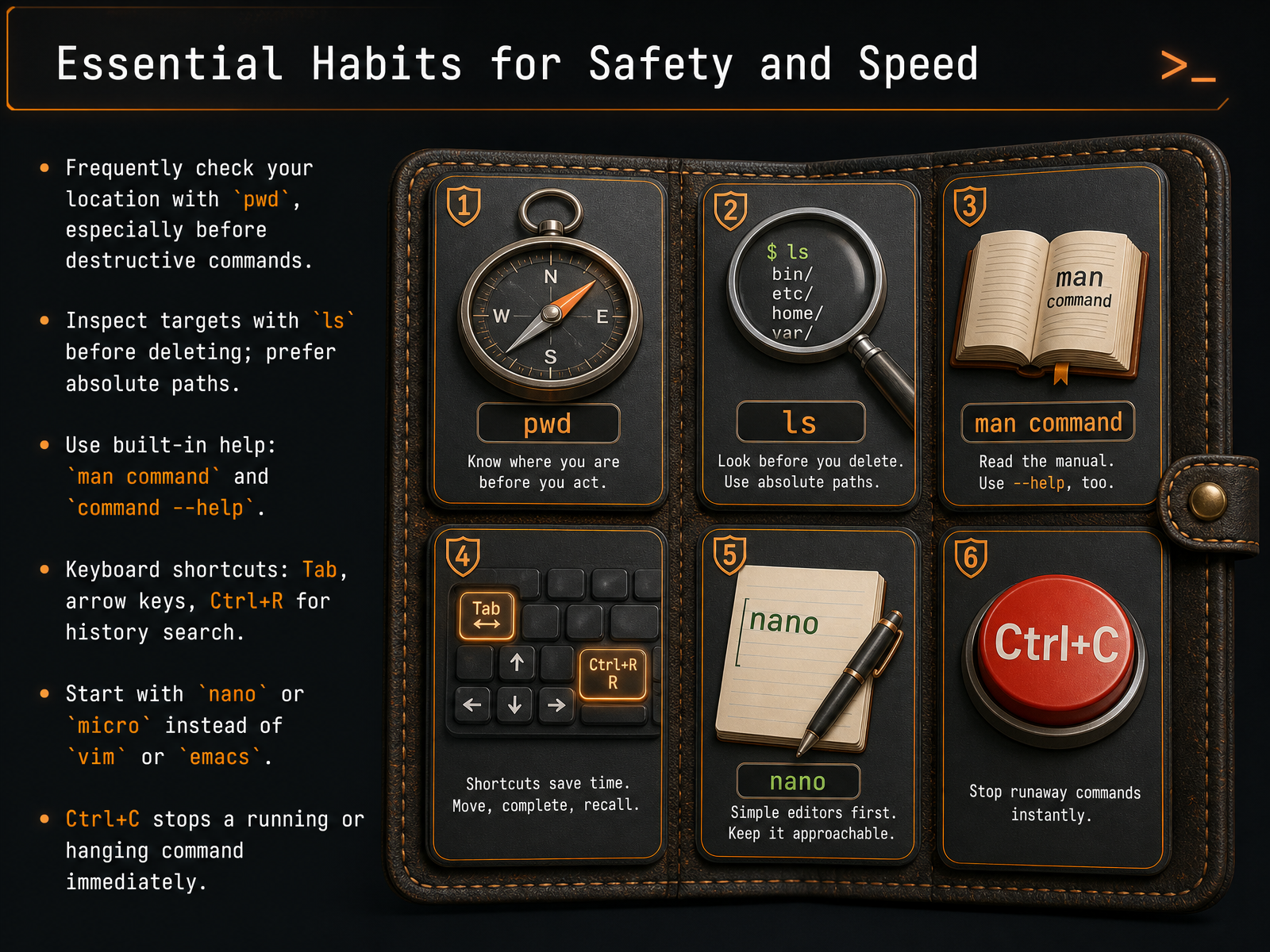
1 min - 10Essential Habits for Safety and SpeedNow let's cover a few habits that will keep you safe and make you much faster. First, before you run any command that deletes or moves files, check where you are with the pwd command. Then, use ls to inspect what is actually in that location. Prefer typing absolute paths when the target matters. To learn any command, use the built-in help. Type man followed by the command name for the manual, or add dash dash help for a quick summary. Work faster with keyboard shortcuts. Press Tab to auto-complete names, use the arrow keys to recall previous commands, and press Ctrl plus R to search your history. When you start editing files, begin with a friendly editor like nano or micro. Save the advanced editors for later. Finally, if a command hangs or you need to stop it, press Ctrl plus C immediately. Next, let's put all of this together in a guided practice session.
 1 min
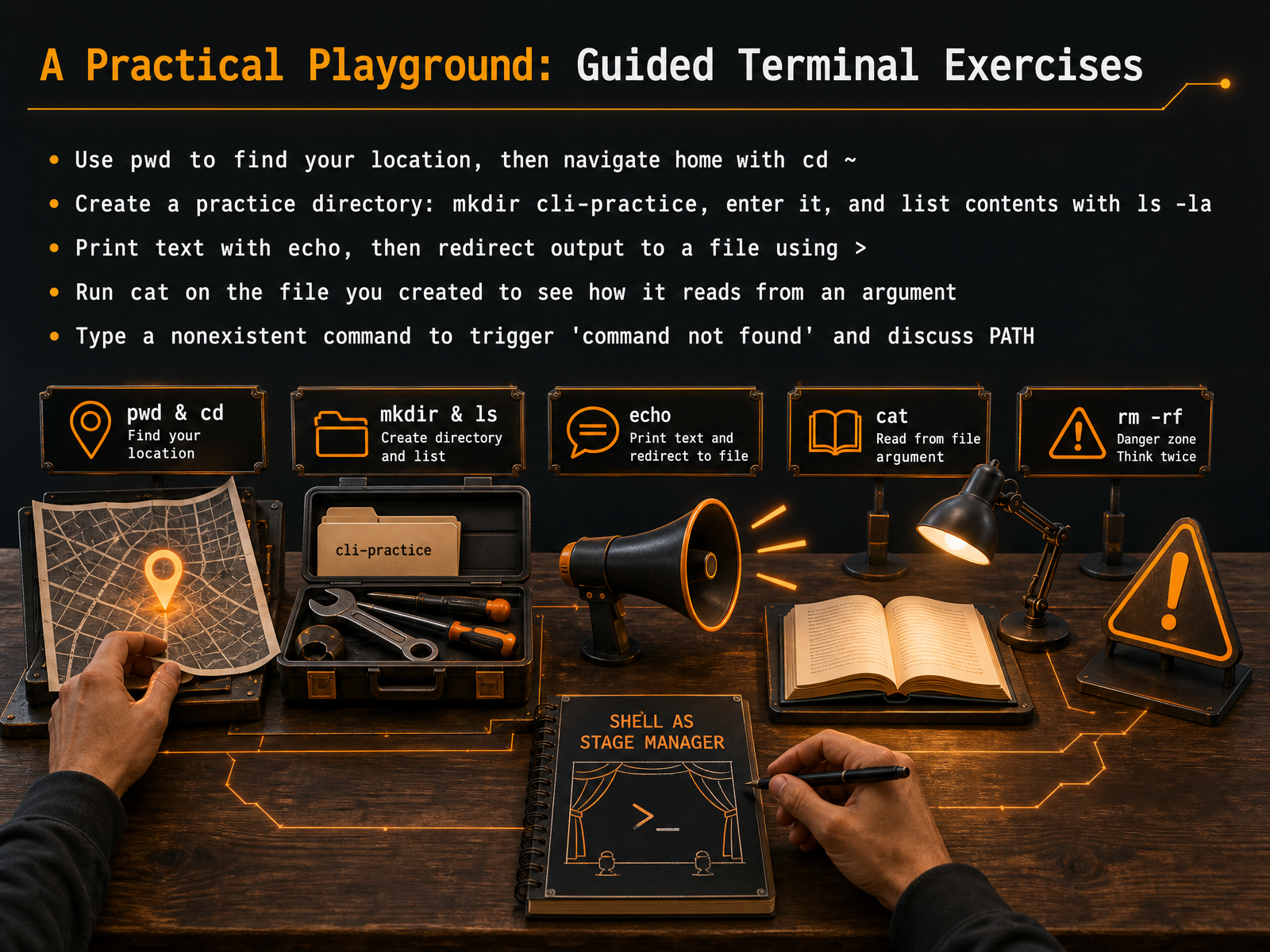
1 min - 11A Practical Playground: Guided Terminal ExercisesNow let's put these pieces together with real commands. First, find your location with the print working directory command: `pwd`. That's p w d, and it shows you exactly where you are in the file system. Then move to your home directory by typing `cd ~`. The tilde symbol means home, and `cd` is change directory. Next, create a practice space. Type `mkdir cli-practice`. `mkdir` stands for make directory. Now enter your new directory with `cd cli-practice`. Once inside, list everything, including hidden files, by typing `ls -la`. The dash `l` gives you a long format, and dash `a` shows all entries. Now let's create some content. Use `echo Hello` to print text to the terminal. To capture that text in a file, add a redirect: `echo Hello > hello.txt`. The greater-than symbol directs the output into the file you named. Read the file back by running `cat hello.txt`. Notice how `cat` takes your filename as an argument and prints its contents. Finally, type a nonsense command like `fizboo`. The system responds with 'command not found'. This happens because the shell searches your P A T H, a list of directories, looking for an executable with that name. When it can't find one, it tells you. Go ahead and try these steps yourself. Feel free to pause and experiment.
 2 min
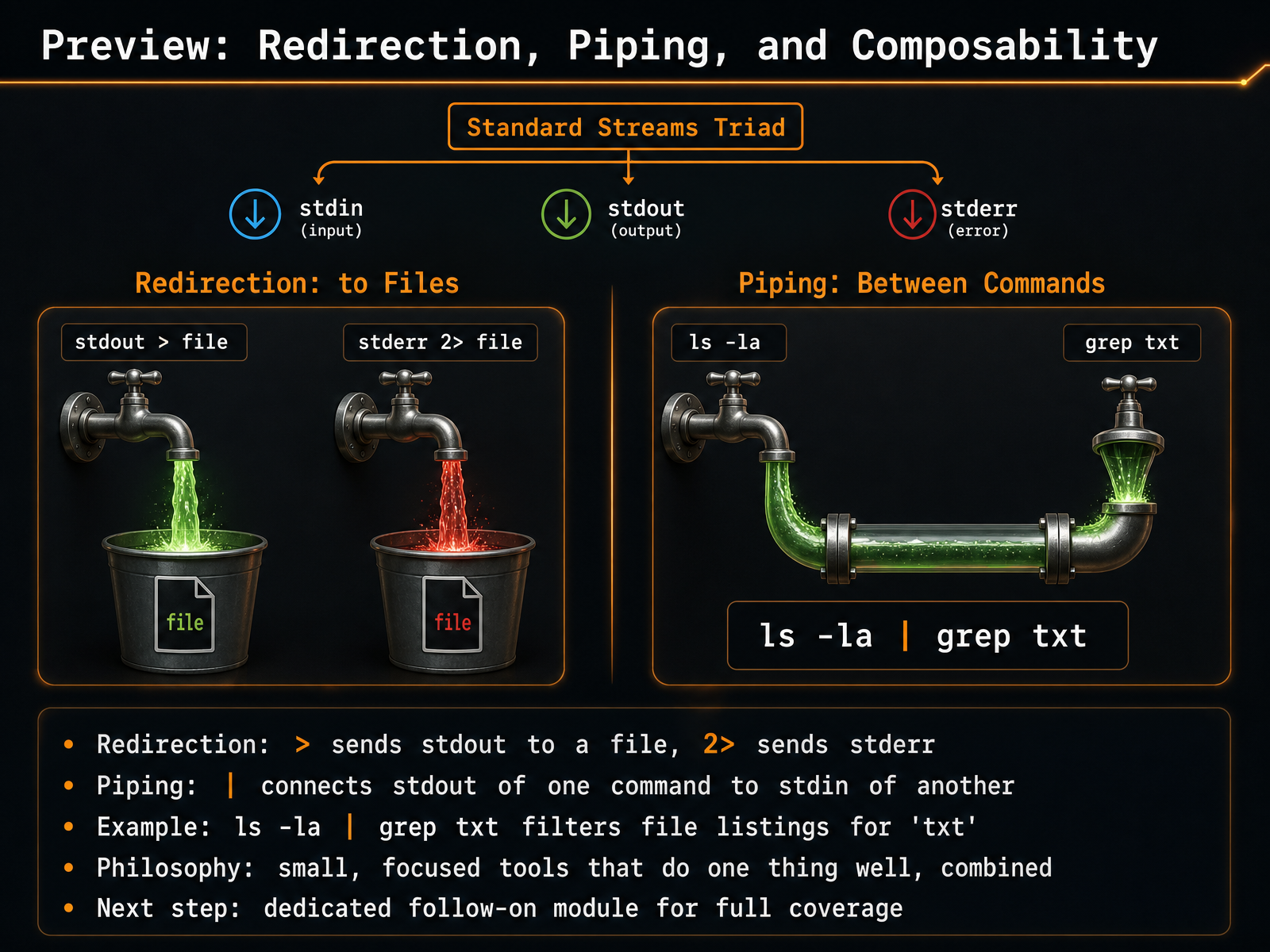
2 min - 12Preview: Redirection, Piping, and ComposabilityNow, let’s look ahead to what you can do once you’re comfortable with the basics. The real power of the command line comes from connecting small programs together. This quick preview introduces three ideas: redirection, piping, and composability. Redirection lets you send output to a file. A single greater-than sign sends standard output, and the number two followed by a greater-than sign sends standard error. Piping uses the vertical bar character to take the standard output of one command and push it directly into the standard input of another command. For example, the pipeline ls space dash la pipe grep space txt lists all files, then filters the list to show only the ones containing the letters t-x-t. This works because each tool does one job well. The list command lists files, and the filter command filters text. When you combine small, focused tools like this, you solve complex problems quickly. We’ll explore redirection, piping, and this philosophy of composability in detail in a dedicated follow-on module. For now, keep these patterns in mind. They’re the foundation of efficient command-line work. Let’s wrap up with a recap of what you’ve learned and your next steps.
 2 min
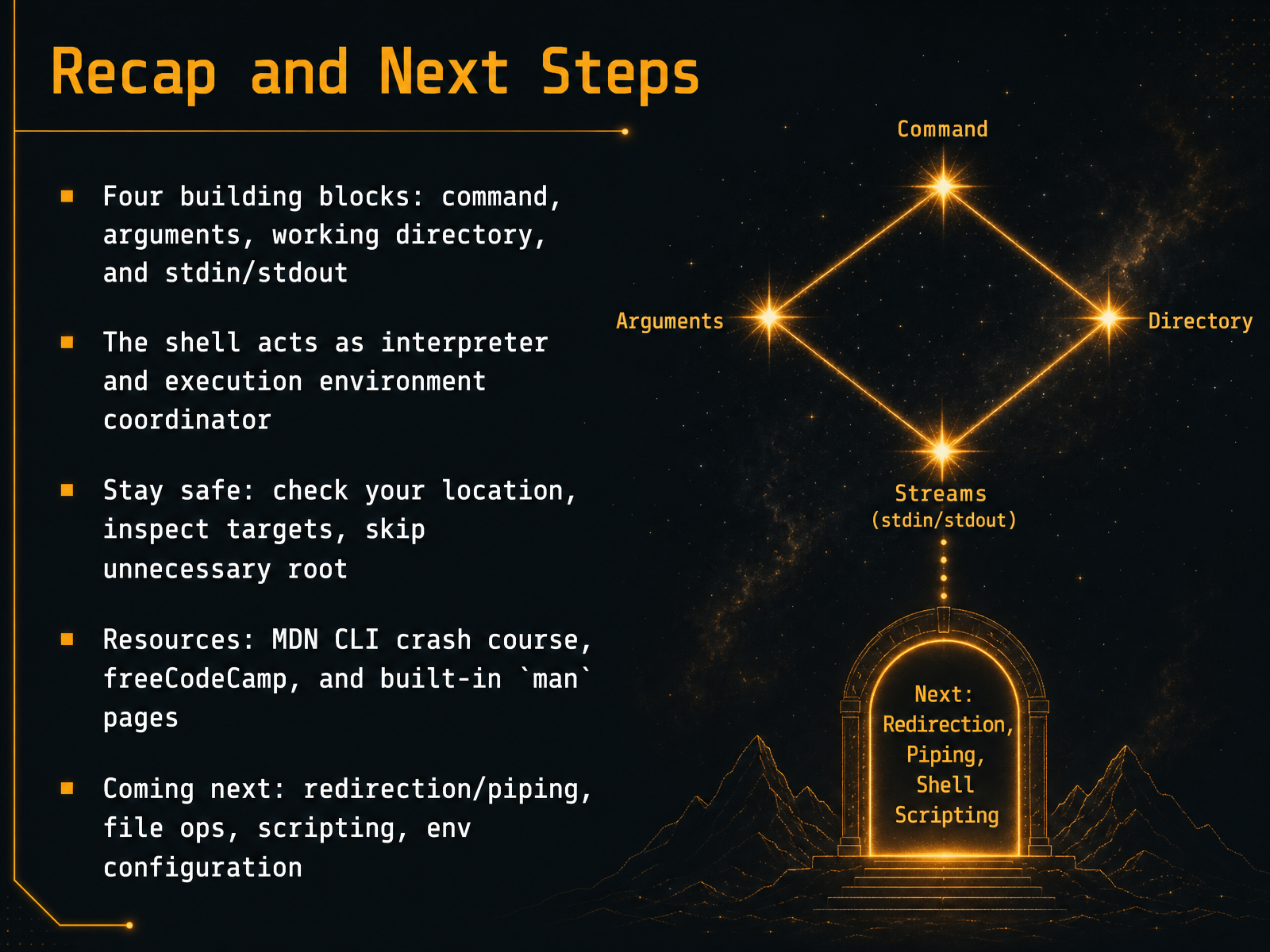
2 min - 13Recap and Next StepsLet's quickly recap what we've built today. Every command-line action rests on four building blocks: the command, any arguments you pass, the working directory you're in, and the standard input and output streams. The shell ties all of this together, acting as both interpreter and coordinator. A few safety habits go a long way: always check your location, inspect your targets before acting, and skip unnecessary root privileges. To keep learning, try the MDN CLI crash course, freeCodeCamp, or the built-in man pages right in your terminal. Coming up next, we'll add redirection and piping, file operations, scripting, and environment configuration to your toolkit. Thank you for sticking with this foundation. You now have a clear mental model of how a command line really works. Keep practicing, stay curious, and you'll feel at home in the terminal faster than you think.
 1 min
1 min
Take the deck with you
Download this course as a file — free, no sign-up needed.
- PDF handoutEvery slide page, ready to print or share.14 pages · 3.5 MBDownload
- Narrated PowerPointThe deck that presents itself — every slide carries the digital human's narration video.14 pages · 13.0 MBDownload
- PowerPoint slidesThe full deck as a .pptx — open it in PowerPoint, Keynote, or Google Slides.14 pages · 3.4 MBDownload
Free to use in your own training — please keep the PersonWise credit page at the end.
Have your own deck? Turn it into a course