
Begin
15 pages · ~30 min
Website Loading Process
Explains how browsers retrieve and render web pages, covering critical rendering paths for developers.
A digital instructor presents all 15 pages. Hold “Ask” at any point and ask out loud — the answer comes from this course. No sign-up needed.
What you’ll learn
- 01How Browsers Load Websites: The Hidden Journey from Click to PageWelcome. You open a browser, type a website address, and press Enter. In less than a second, a full page appears. But what actually happens in that tiny moment? That is exactly what we are going to explore together. We will walk through the hidden journey from a simple click to a fully interactive page. By the end, you will understand the main steps that happen behind the scenes every time you visit a site. And that understanding will make you a much more confident web user. Let's begin by meeting the key players that make this all possible.1 min
- 02The Cast of Characters: Meet the Key PlayersNow, before we watch a page load, let's meet the four key players that make it happen. Think of this as a quick roll call. First, you have your browser. That's the app you're using right now, like Chrome, Safari, or Firefox. It's your personal window to the web. Second, there's the vast Internet itself. This is the global network of connected computers that carries your requests across the world. Third, we have the web server. Imagine a powerful, always-on computer sitting in a data center, quietly storing website files and ready to send them out on demand. And finally, there's the URL, the human-friendly address you type, like www.example.com. It tells the browser exactly where to go. Here's a simple way to picture it: the browser is a customer, the URL is a shop's address, and the web server is the shop itself. Now that we know the cast, let's follow the first step in the journey and see how a shop's address is actually found. Coming up next: Step 1, Translating the Address, DNS in Plain English.
 developer.mozilla.orghowhttpworks.comhowhttpworks.com+21 min
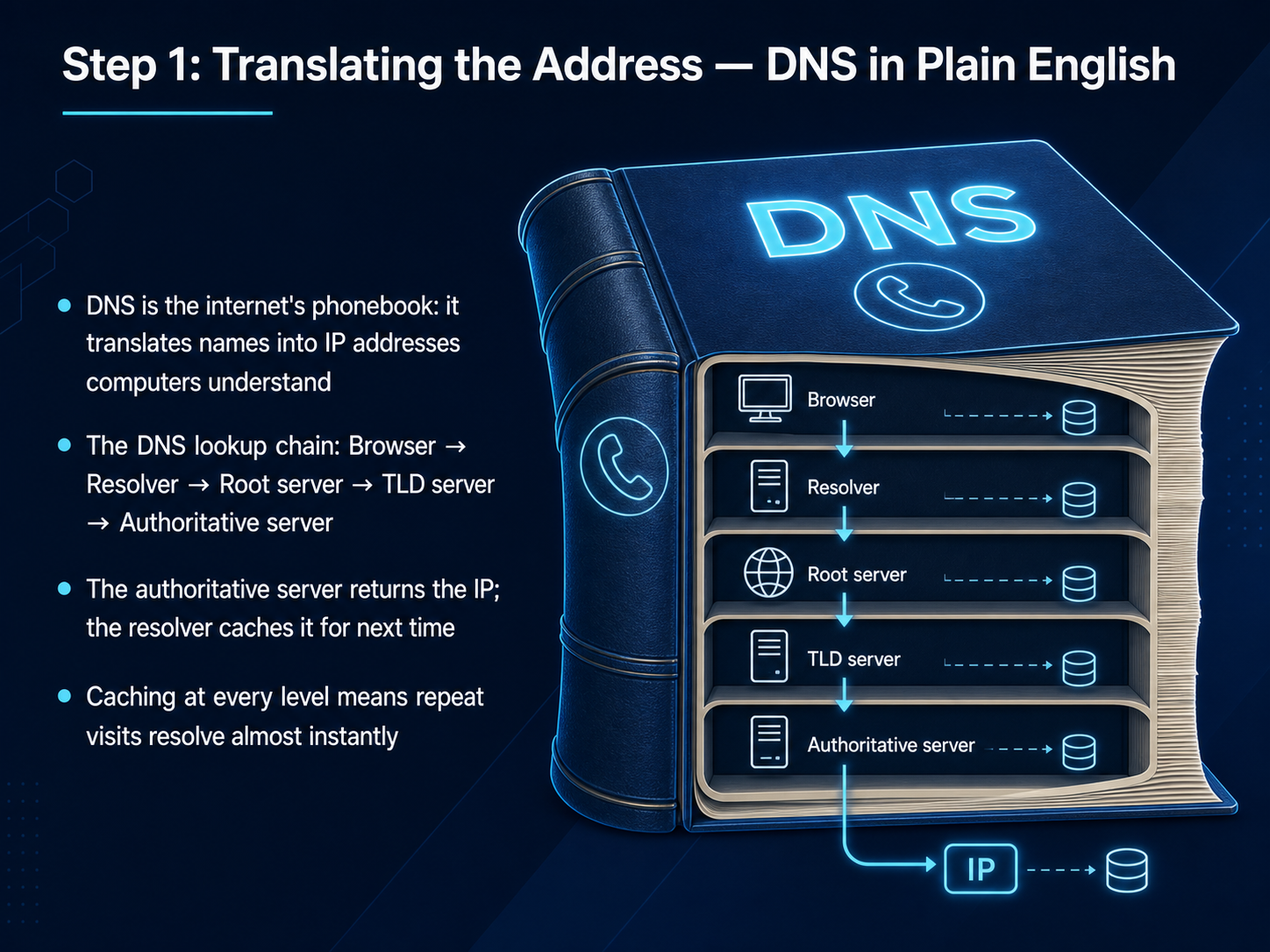
 - 03Step 1: Translating the Address — DNS in Plain EnglishNow, let's look at the very first step your browser takes: it translates the address you typed. Think of D N S as the internet's phonebook. You remember a name like example dot com, but computers only understand numerical I P addresses, like a long phone number. Your browser needs that number to find the right server, and D N S is the service that looks it up for you. Here's how the lookup chain works. Your browser asks a helper, called a resolver, to find the I P. If the resolver doesn't already know it, it starts at the top of a hierarchy. It asks a root server, which points to the right neighborhood, like the dot com server. Then, a T L D server points to the specific house, the authoritative name server for that exact domain. Finally, that authoritative server gives the resolver the real I P address. The best part? All these answers get cached, or saved, at every step. So the next time you visit the same site, the whole process is skipped and the page loads almost instantly. Next up, once your browser has that I P, it's time to knock on the door. Let's see how it makes the request in Step 2: Knocking on the Door, the H T T P Request.
 cloudflare.comnetworkcheckr.comblog.burstbytes.com.au+22 min
 - 04Step 2: Knocking on the Door — The HTTP RequestNow that we have the address, it's time to actually knock on the door. This step is called the HTTP request. Think of it as a structured conversation between your browser and the server. First, your browser opens a connection to the server using something called TCP. Once that connection is live, the browser sends a clear message, usually a GET request. A GET request simply says, 'Please give me this page.' The server then replies with a status code to tell you how things went. You’ve probably seen a few of these without realizing it. A 200 OK means everything worked perfectly and the page is on its way. A 404 Not Found means the server couldn’t find what you asked for. And a 301 Moved Permanently means the page has actually moved to a new address. Sometimes this conversation needs to be private, like when you’re checking your bank account. That’s where HTTPS comes in. It adds a layer of encryption to keep your data safe. When you see the little lock icon next to the address bar, that means your conversation is secure. Next, we’ll see exactly what pieces the server sends back in Step 3: Receiving the Pieces — HTML, CSS, and Friends.
 developer.mozilla.orghowhttpworks.comhowhttpworks.com+22 min
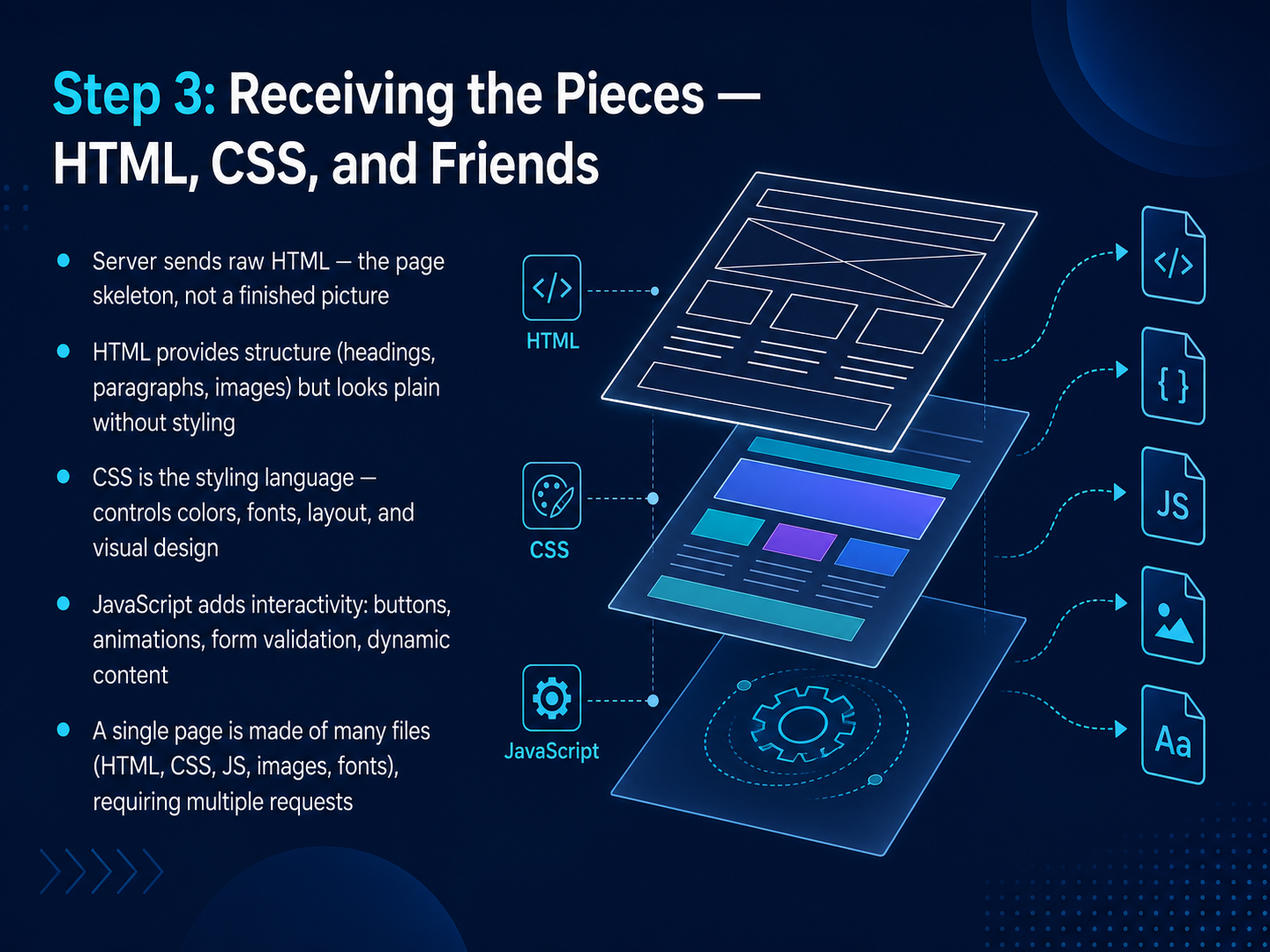
 - 05Step 3: Receiving the Pieces — HTML, CSS, and FriendsSo we've connected to the server and asked for a page. Now, the server starts sending back the pieces. But it doesn't send a finished picture. It sends raw ingredients. The first piece is usually HTML, the skeleton of the page. It defines the structure: your headings, paragraphs, and images. If you saw only HTML, it would look very plain, just a basic document with no color or special layout. To make it look good, the server also sends CSS files. CSS is the styling language. It controls the colors, the fonts, the spacing, and the entire visual design. Think of HTML as the walls and roof of a house, and CSS as the paint and furniture. Then, for anything interactive, like buttons that click or animations that move, the server sends JavaScript files. JavaScript is the programming language that makes the page come alive. A single web page is rarely just one file. It's a collection of many files: HTML, CSS, JavaScript, images, and fonts. The browser has to fetch them all, often with many separate requests, to assemble the full experience. Now that the pieces are arriving, the browser needs to start reading the instruction manual. Let's move on to Step 4, where the browser parses the HTML and builds the DOM tree.
 developer.mozilla.orgutilitykit.toolsdev.to+22 min
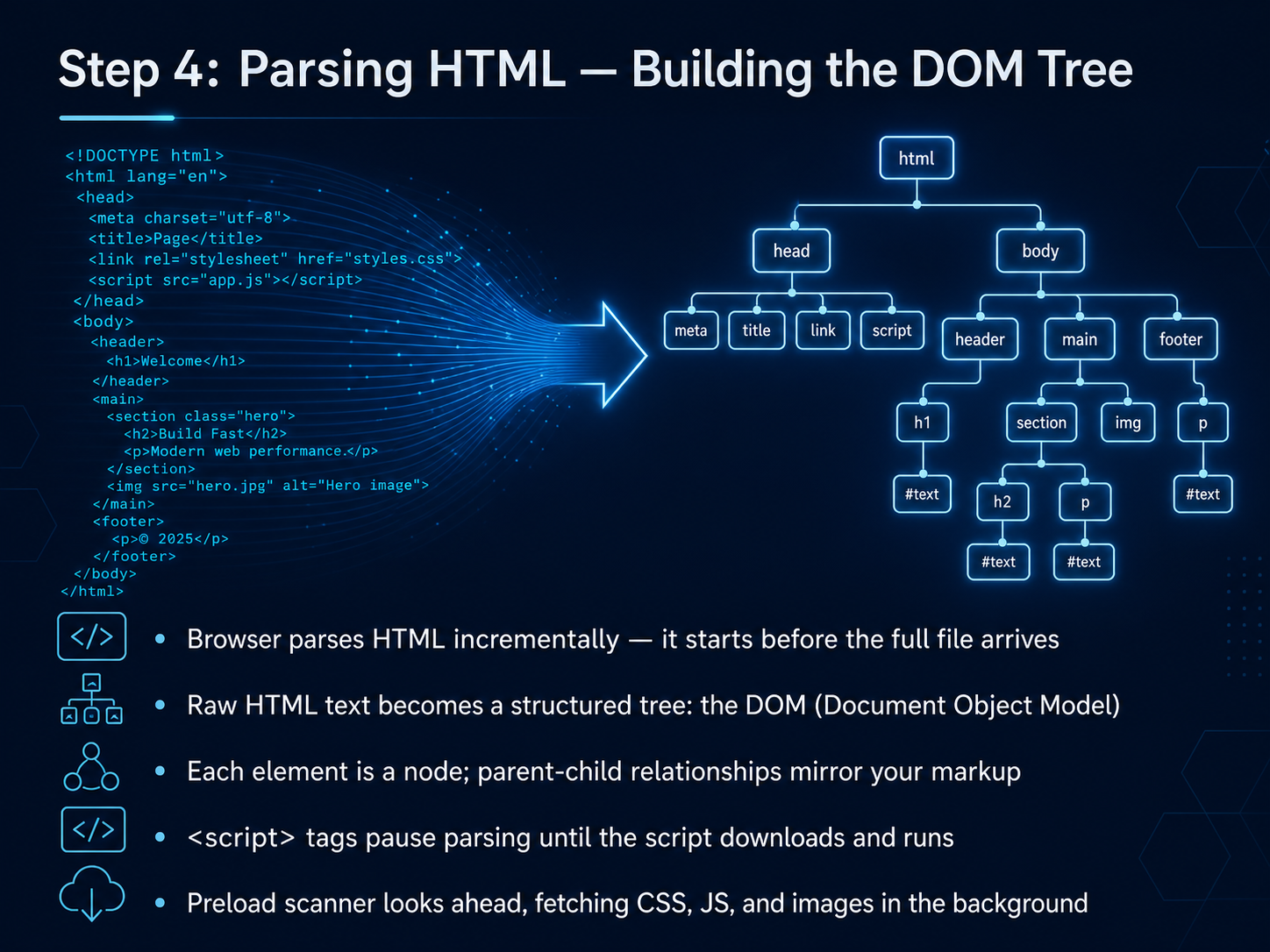
 - 06Step 4: Parsing HTML — Building the DOM TreeNow that the browser has the first bytes, it starts reading the HTML right away. It does not wait for the whole file to arrive. This is called parsing, and it builds something called the DOM tree. Think of the DOM as a family tree for your page. Every heading, paragraph, and image becomes a node, and the nesting of your markup creates the parent-child relationships. But there is a catch. When the parser hits a script tag, it stops building the tree. It must download and run that script before it can continue. Meanwhile, a clever helper called the preload scanner is looking ahead. It finds CSS files, images, and other scripts in the background and starts fetching them early. This keeps things moving without blocking the main construction work. So, while the DOM is being built from the HTML, the browser also needs to understand the styles. Let's see how that happens next in Step 5: Parsing CSS and Building the CSSOM Tree.
 developer.mozilla.orgutilitykit.toolsdev.to+21 min
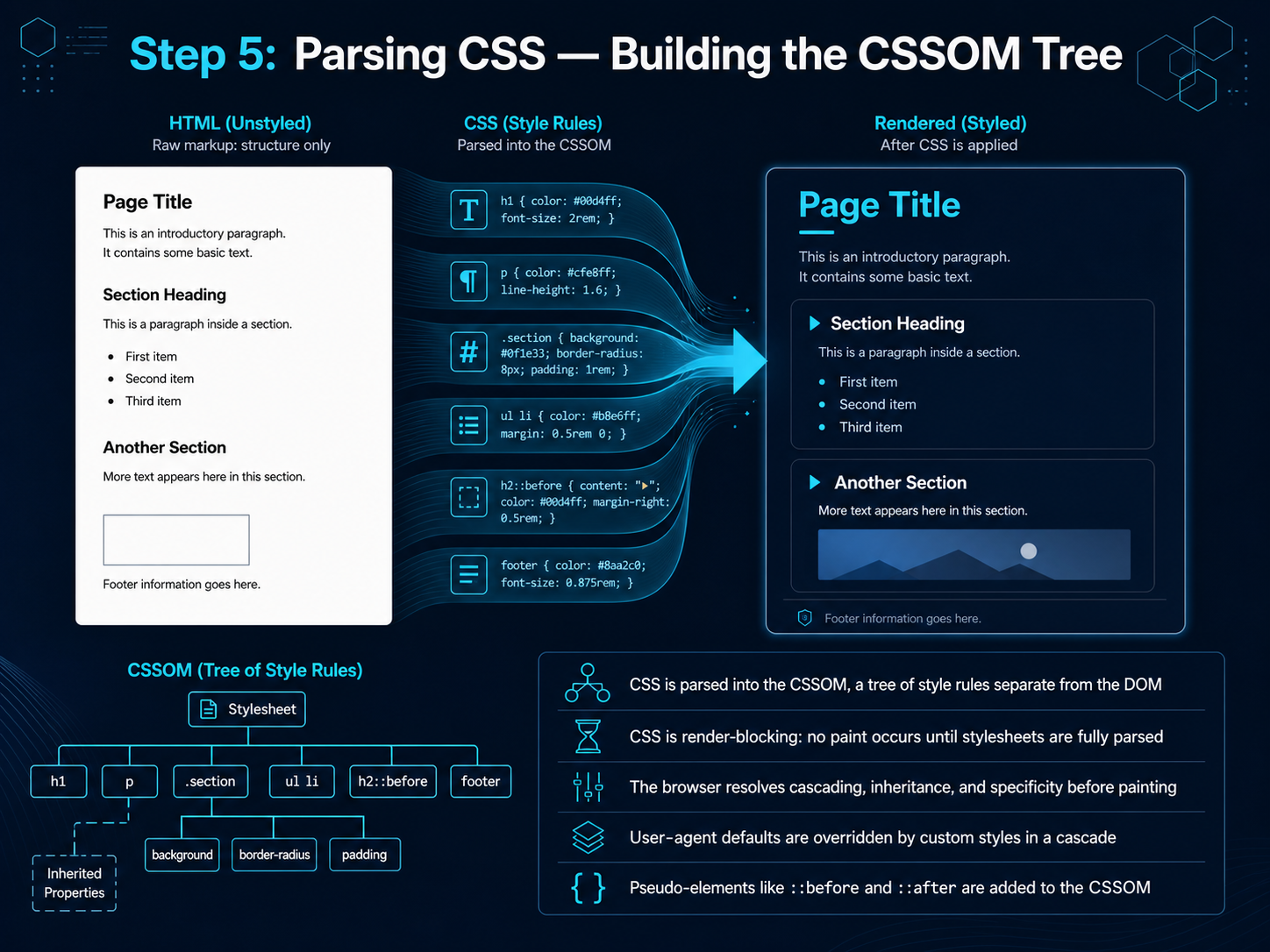
 - 07Step 5: Parsing CSS — Building the CSSOM TreeNow, while the DOM tree is being built, the browser is also hard at work on something else: your CSS. It takes all your style rules and parses them into a separate tree called the CSSOM, or CSS Object Model. Think of the DOM as the page's skeleton, and the CSSOM as the detailed instructions for how that skeleton should look—its colors, spacing, and fonts. The browser treats CSS as render-blocking, which means it won't paint a single pixel to the screen until every stylesheet is fully downloaded and understood. This is a good thing, because it prevents a flash of unstyled content. During this step, the browser resolves the cascade, inheritance, and specificity, overriding default browser styles with your custom rules. It even builds in special pseudo-elements like "before" and "after" that don't exist in the HTML. Once this style tree is complete, the browser has everything it needs to start combining structure with style. Next, we'll see how that happens in Step 6, Merging into the Render Tree.
 developer.mozilla.orgutilitykit.toolsdev.to+21 min
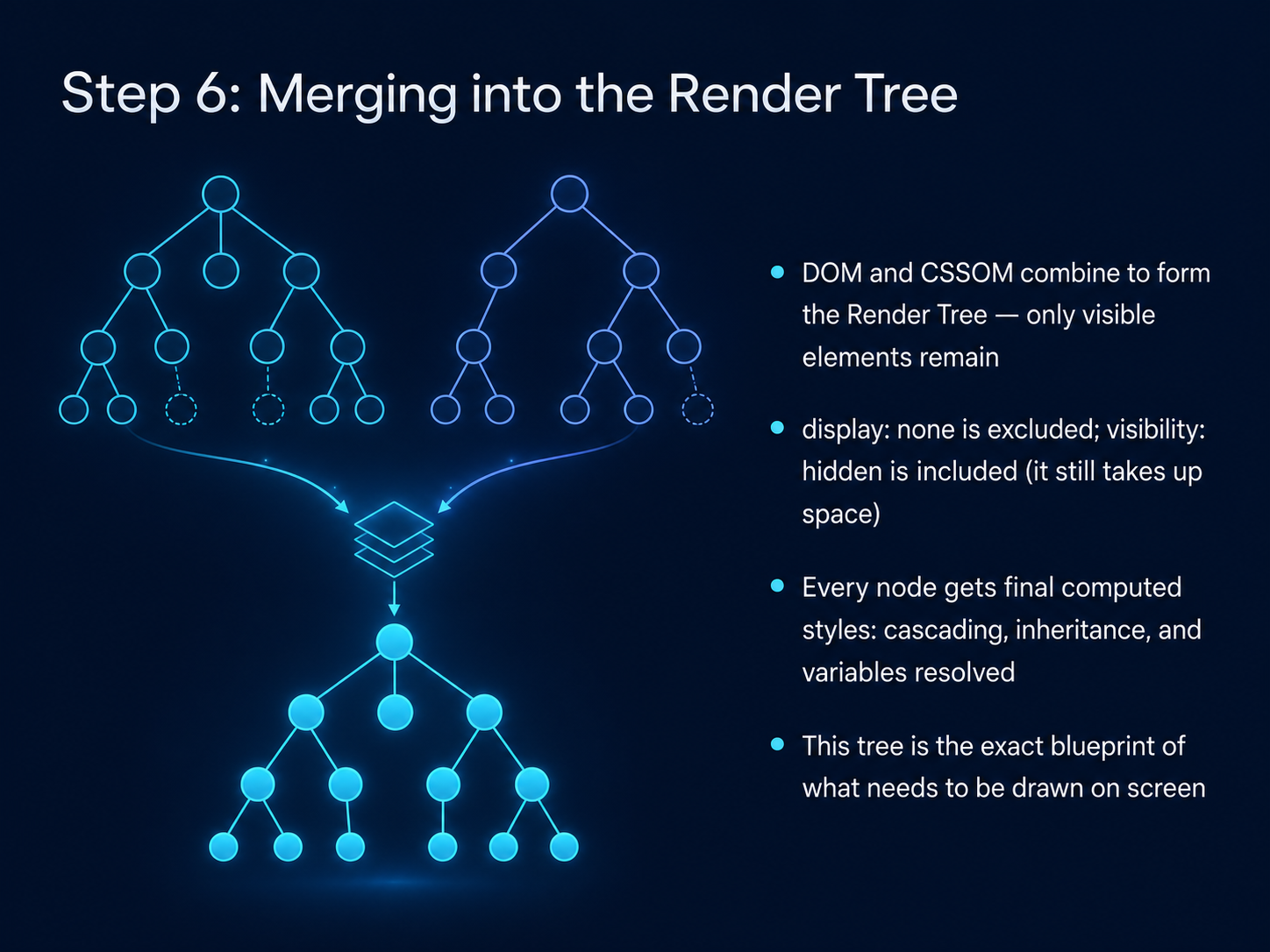
 - 08Step 6: Merging into the Render TreeNow comes the moment where structure meets style. The browser takes the DOM, our content tree, and the CSSOM, our style rules, and merges them into a single new tree—the render tree. This is essentially the blueprint for what actually needs to be drawn on screen. The key here is that the render tree only contains visible elements. If an element has a rule like display: none, it is completely excluded from this tree. It won't take up any space, and it won't be drawn. But an element with visibility: hidden is different. It is included in the render tree because even though it's see-through, it still occupies its physical space on the page. Finally, every single node in the render tree gets its final, computed styles. The browser resolves all the cascading rules, inheritance, and custom variables, figuring out the exact color, font size, and margin for every visible box. This tree is the complete set of instructions for the next big job: layout. In the next step, we'll see how the browser figures out the exact position and size of each of these boxes.
 developer.mozilla.orgutilitykit.toolsdev.to+21 min
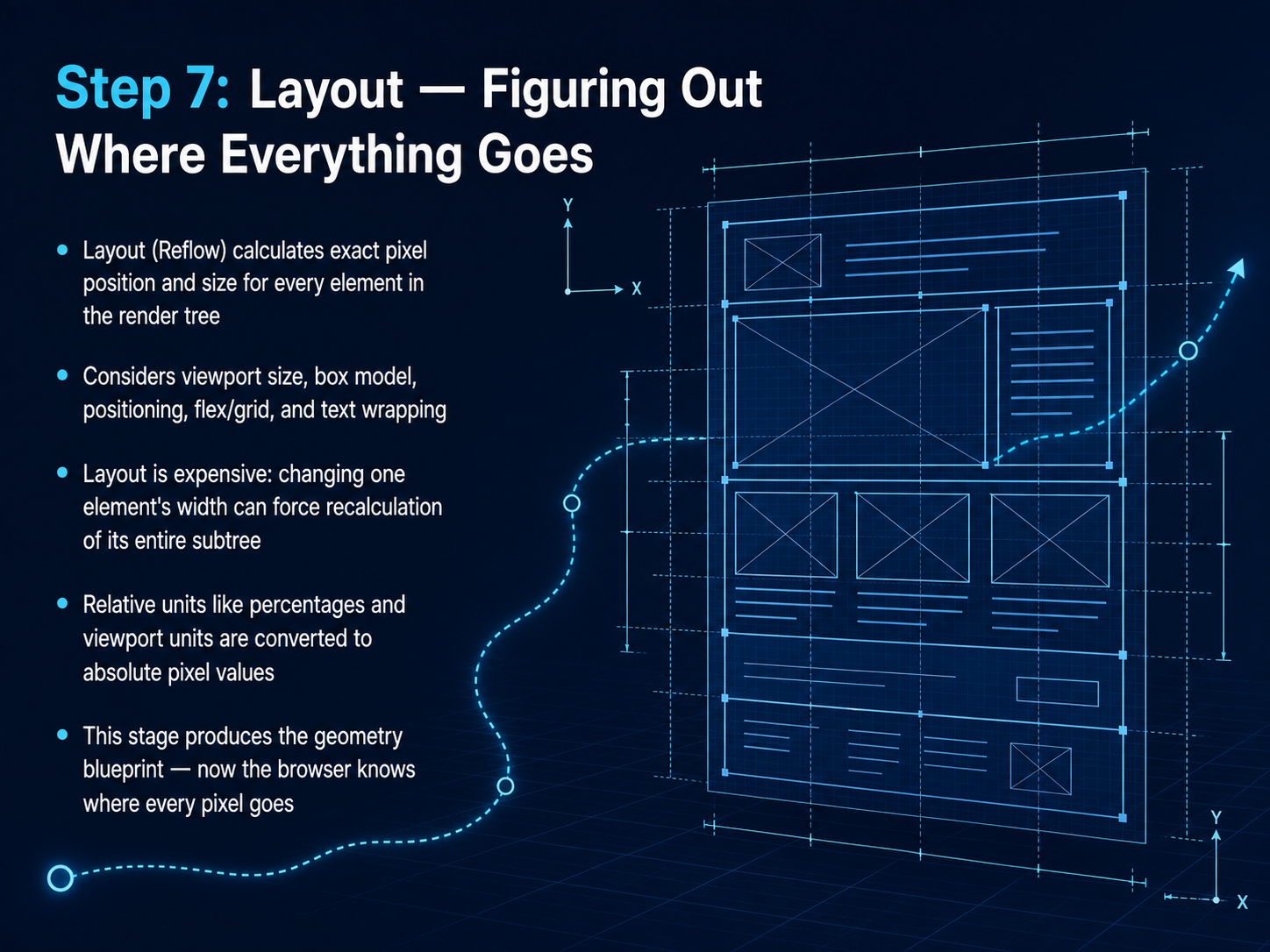
 - 09Step 7: Layout — Figuring Out Where Everything GoesNow that the browser has a render tree, it knows what to show. But it still doesn't know where to put everything on the screen. That's what layout does. It figures out the exact pixel position and size for every single element. Think of it as creating a precise blueprint of the page. The browser looks at the viewport size, the box model with all its padding and margins, and how elements are positioned, say with flexbox or grid. It also handles how text wraps inside a box. This is a heavy job. Changing the width of just one element can force the browser to recalculate the layout for its entire subtree. During this stage, all those relative units you use in CSS, like percentages or viewport width, are converted into absolute pixel values. Once layout is complete, the browser has a detailed geometry map. It finally knows exactly where every pixel goes. Next, let's fill in those pixels. We'll look at Step 8: Paint — Filling In the Pixels.
 developer.mozilla.orgutilitykit.toolsdev.to+21 min
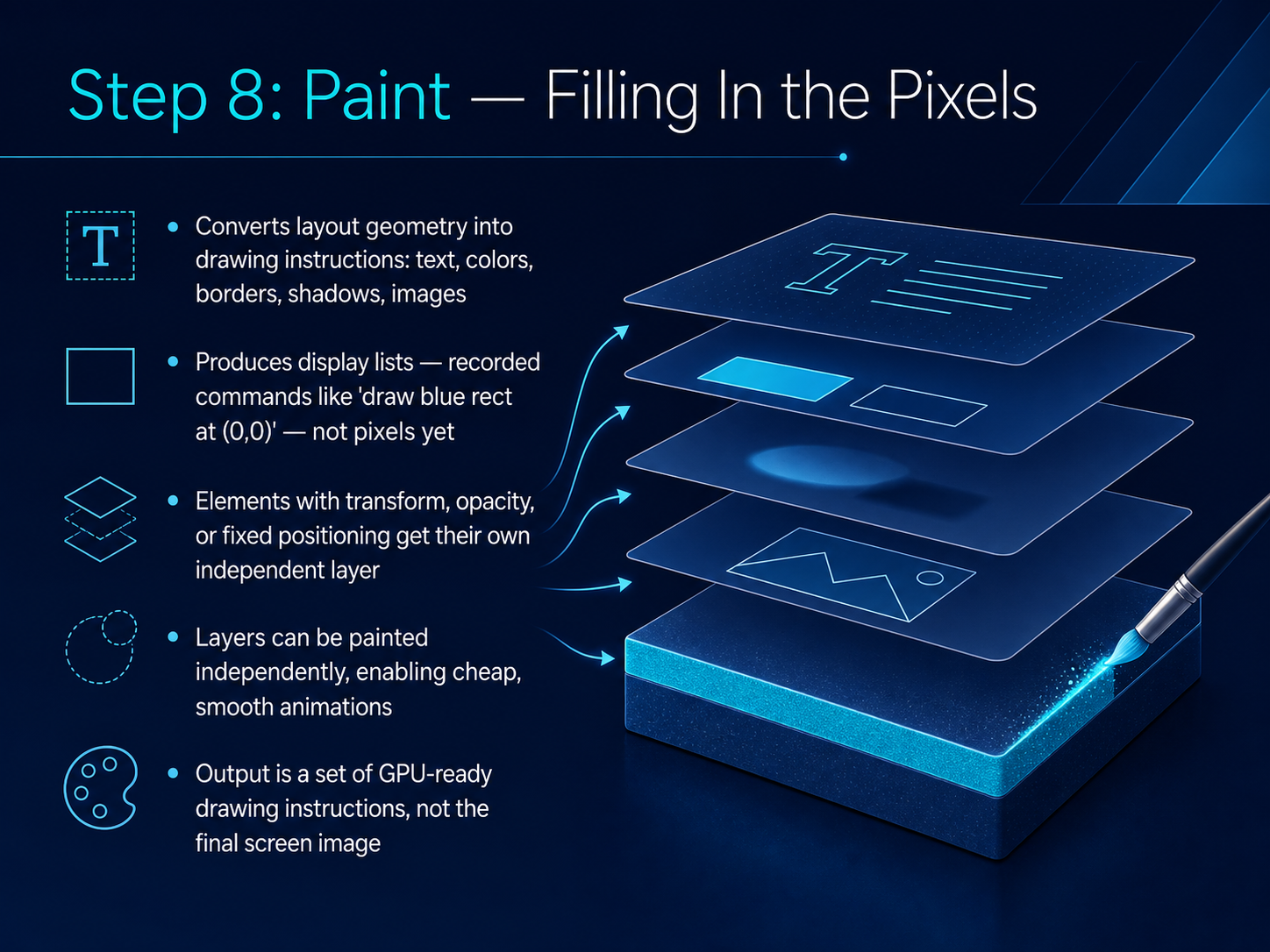
 - 10Step 8: Paint — Filling In the PixelsNow we move into the paint step. Layout told us the exact size and position of every box, but those boxes are still empty. Paint is where the browser fills in the pixels. It goes through the layout and converts each visible element into drawing instructions. Think of them as a cookbook for the screen: draw a blue rectangle here, place this text, paint that border, add a shadow, and render the image. But here is the key detail: we are not yet creating the final pixels you see. Instead, the browser builds a display list, a recorded set of commands that are ready for the graphics card. Some elements, like those with a transform, opacity, or fixed positioning, get their own independent layer. By painting these layers separately, the browser can run smooth animations later without repainting the whole page. So the output of this stage is a neat stack of GPU-ready drawing instructions, not the final image. That final assembly comes next.
 developer.mozilla.orgutilitykit.toolsdev.to+21 min
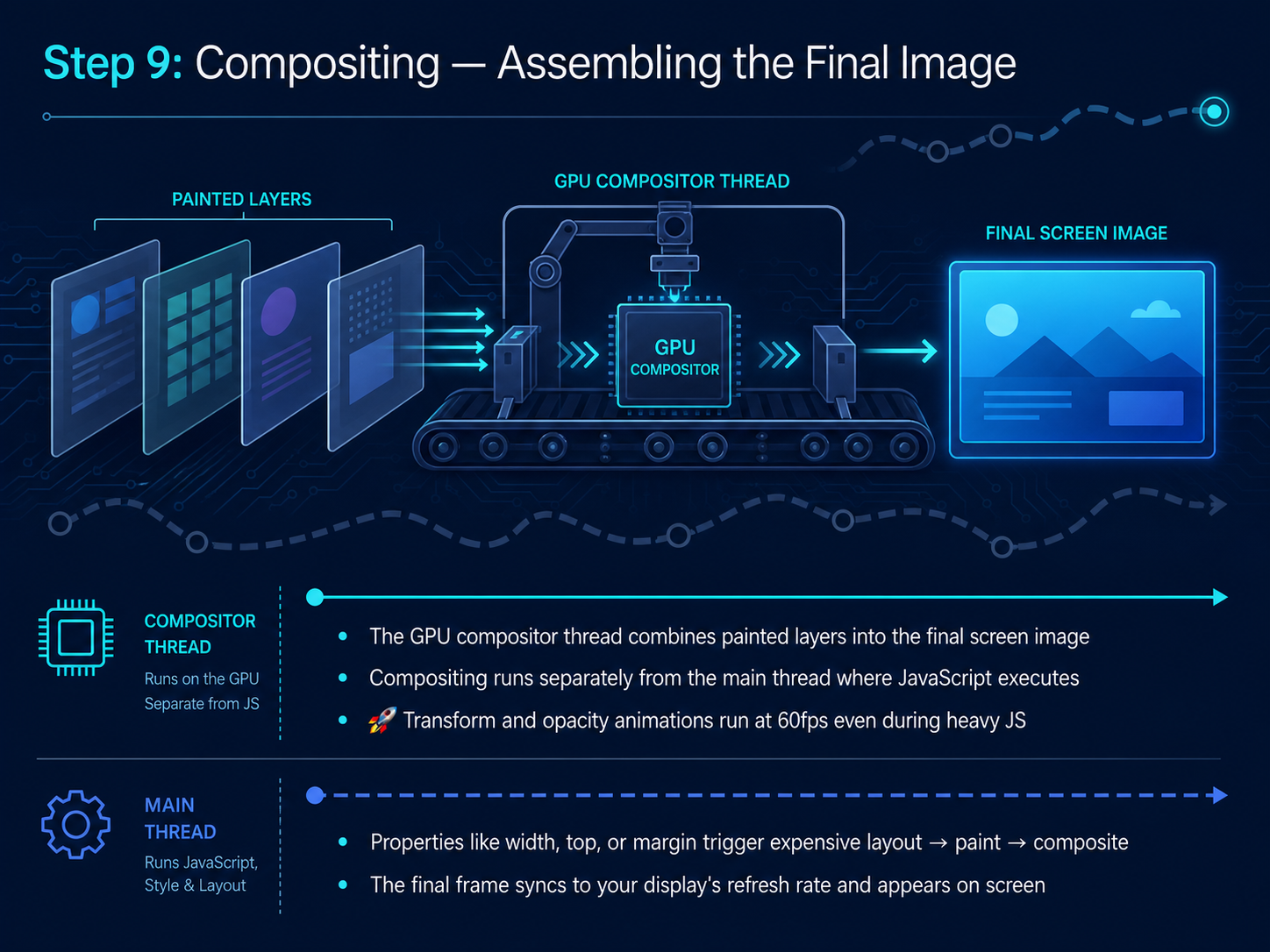
 - 11Step 9: Compositing — Assembling the Final ImageNow we reach the final step where everything comes together: compositing. Think of this as the moment your browser takes all those painted layers we talked about and assembles them into the single, final image you see on screen. This assembly work is done by a special part of the browser called the GPU compositor thread, which operates completely separately from the main thread where JavaScript runs. This separation is a huge performance win. It means that certain animations, specifically those using transform and opacity, can run at a silky-smooth 60 frames per second, even when the main thread is bogged down with heavy JavaScript. But this only works if you animate the right properties. Properties like width, top, or margin trigger an expensive chain reaction: the browser has to recalculate the layout, repaint the pixels, and then re-composite the layers. On the other hand, transform and opacity skip straight to the compositing step. It’s like moving a sticker on a window versus having to rebuild the entire window frame. Once the compositor assembles the final image, it syncs up with your display’s refresh rate, and just like that, the page appears. Next, let's step back and see the full journey in a single visual recap.
 developer.mozilla.orgutilitykit.toolsdev.to+21 min
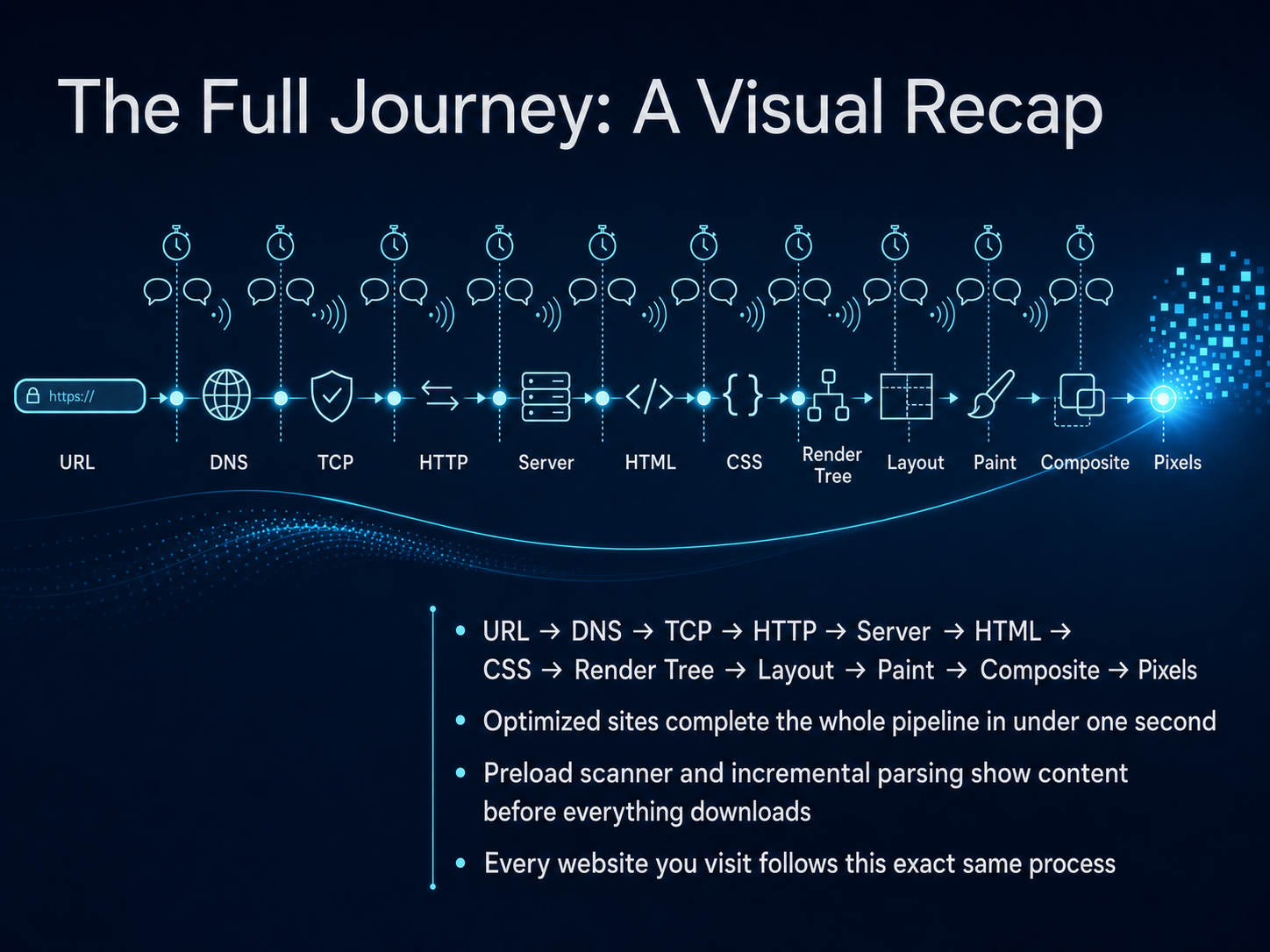
 - 12The Full Journey: A Visual RecapNow let's step back and see the whole journey from start to finish. It begins with a URL, which the browser uses to look up the server's address through DNS. Then it opens a TCP connection, sends an HTTP request, and the server responds with HTML. The browser parses that HTML into the DOM, and CSS into the CSSOM. Both are combined into a render tree. Layout calculates the exact position and size of every visible element. Paint fills in the pixels, layer by layer. Finally, compositing assembles those layers into the final image you see on screen. Optimized websites can complete this entire pipeline in under one second. Even better, the preload scanner and incremental parsing can show content before everything finishes downloading. Every website you visit follows this exact same process. Next, we'll look at what can go wrong—common problems and what they really mean.
 developer.mozilla.orgutilitykit.toolsdev.to+21 min
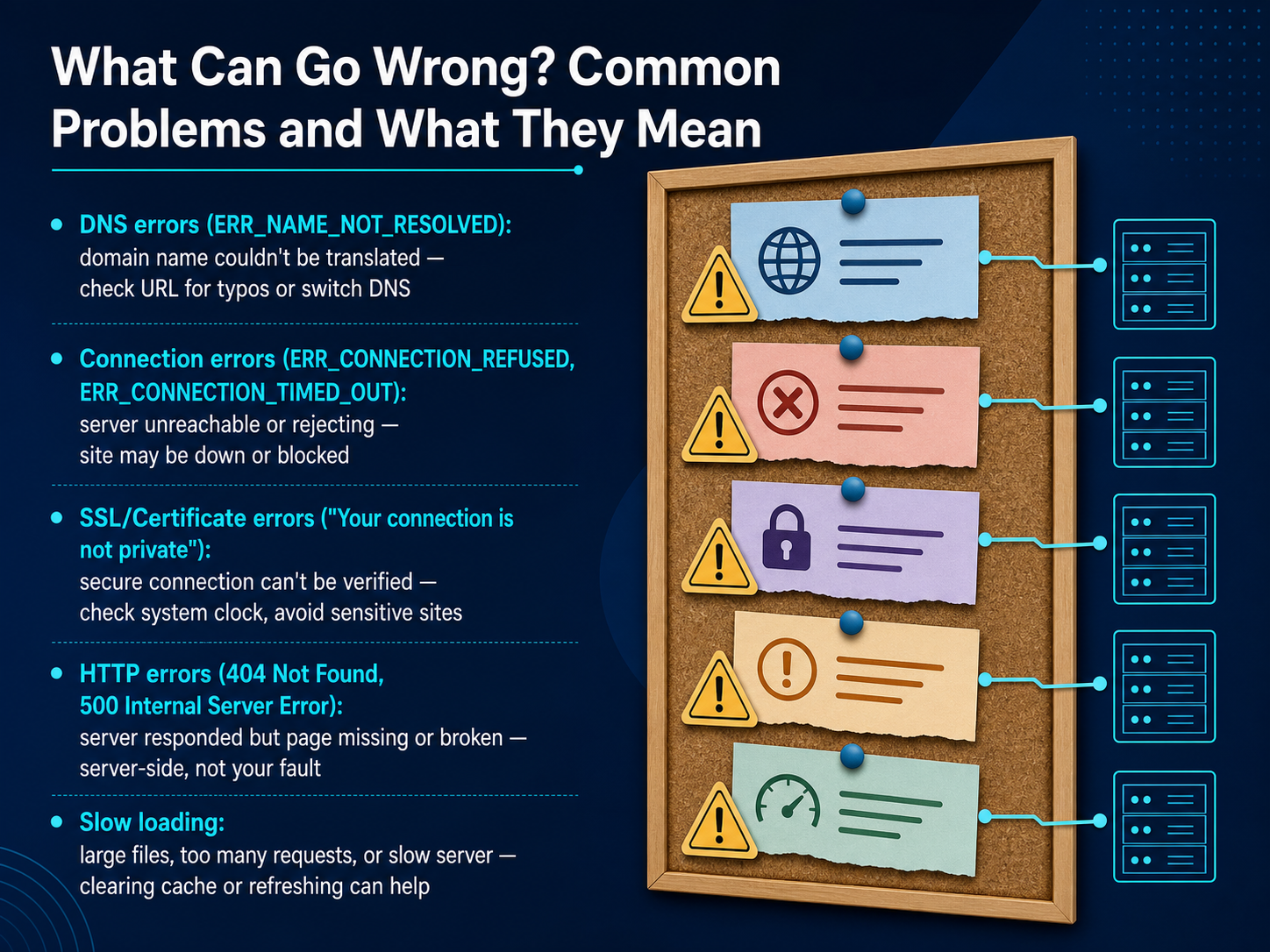
 - 13What Can Go Wrong? Common Problems and What They MeanNow let's talk about what happens when things don't go as planned. You've seen the steps, but sometimes the process breaks. The good news is that error messages are like clues, telling you exactly where the problem is. For example, if you see a DNS error like ERR_NAME_NOT_RESOLVED, it means your browser couldn't look up the web address. It's like dialing a wrong number. This is often fixed by checking for typos or switching your DNS server. Connection refused or timed out messages mean your browser knocked on the server's door, but nobody answered. This usually means the site itself is down or blocked. A certificate error, like the 'Your connection is not private' warning, means the site's secure ID couldn't be verified. On your end, this is sometimes caused by your computer's clock being wrong. HTTP errors like 404 not found or 500 internal server error come directly from the server. A 404 means the page is missing, and a 500 means the server is having a bad day. These are rarely your fault. Finally, slow loading is a performance puzzle, often caused by large files or too many requests. A quick cache clear and refresh can often get things moving again. Next, let's move from problems to practical tips on what you can do as a user.
 support.google.comlookmyip.comdevtoollab.com+22 min
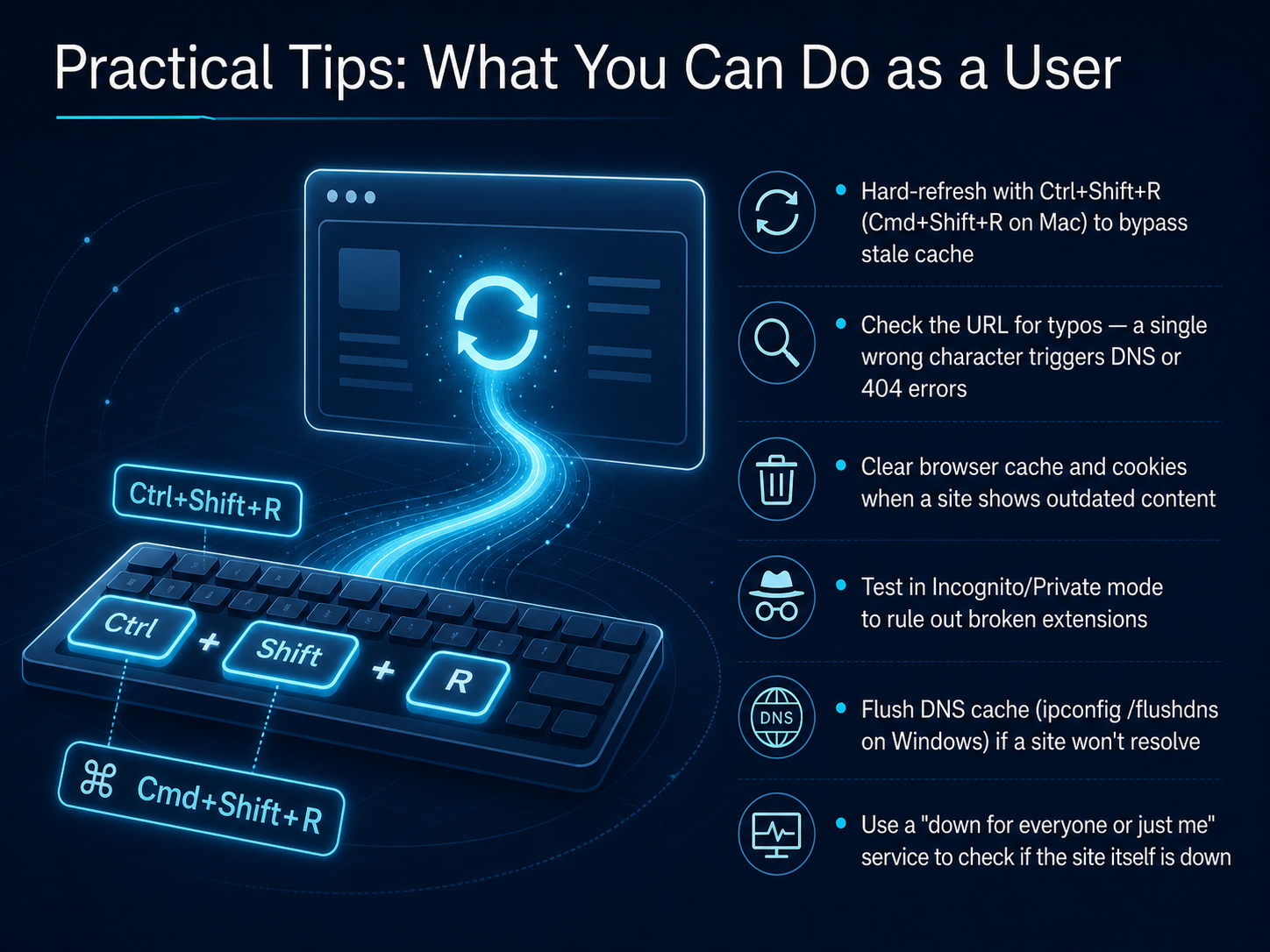
 - 14Practical Tips: What You Can Do as a UserNow let's get practical. What can you actually do when a page won't load? First, try a hard refresh. Press Control Shift R on Windows, or Command Shift R on a Mac. This forces your browser to skip the saved copy and fetch a fresh page. If the address bar looks wrong, check for typos. A single missing letter can send you to a dead end. When a site shows old content, clear your browser cache and cookies. That gives you a clean slate. If you suspect a broken extension, test the page in Incognito or Private mode. If it works there, an extension is likely the cause. Sometimes your computer's address book for the internet gets stale. On Windows, you can flush it by running ipconfig space slash flushdns. And if you're not sure whether the problem is on your end or the site's, use a 'down for everyone or just me' checker. It tells you in seconds if the site itself is truly offline. These are quick, safe steps you can use anytime. Next, let's wrap up with what you can take away so you feel more confident on the web.
 support.google.comlookmyip.comdevtoollab.com+22 min
 - 15What You Can Take Away: Feel More Confident on the WebSo let's bring all of that together. You now understand the hidden journey from a simple web address to the fully formed page on your screen. You know that the DNS system acts like the internet's phonebook, translating names into numbers in a fraction of a second. You've seen how fewer requests and smaller files make pages feel fast, and how efficient rendering brings everything to life. You can also spot clues when something goes wrong. A DNS failure looks different from a connection problem, and a server issue shows its own distinct symptoms. Plus, you know that HTTPS and encrypted DNS are quietly protecting your privacy from eavesdroppers. At its heart, the web is just a conversation between your browser and servers all around the world. And now, you speak the language. Thank you for joining me, and I hope you feel more confident every time you open a new tab.
 cloudflare.comnetworkcheckr.comblog.burstbytes.com.au+21 min
Take the deck with you
Download this course as a file — free, no sign-up needed.
- PDF handoutEvery slide page, ready to print or share.16 pages · 3.7 MBDownload
- Narrated PowerPointThe deck that presents itself — every slide carries the digital human's narration video.16 pages · 15.8 MBDownload
- PowerPoint slidesThe full deck as a .pptx — open it in PowerPoint, Keynote, or Google Slides.16 pages · 3.7 MBDownload
Free to use in your own training — please keep the PersonWise credit page at the end.
Have your own deck? Turn it into a course
Sources consulted
Web sources consulted while building this course.
- A typical HTTP session - HTTP | MDN — developer.mozilla.org
- HTTP Request Lifecycle | How HTTP Works — howhttpworks.com
- How HTTP Works: The Complete Guide | How HTTP Works — howhttpworks.com
- Overview of HTTP - HTTP | MDN — developer.mozilla.org
- How HTTP Works and Why it's Important – Explained in Plain English — freecodecamp.org
- What is DNS? | Learning Center — cloudflare.com
- How DNS Works in 2026: Resolution Chain to DoH, DoT, DoQ — networkcheckr.com
- How DNS Works: A Plain-English Guide (2026) — blog.burstbytes.com.au
- How Dns Works Explained Simply | eli5.cc — eli5.cc
- What Is DNS? How It Works and Why It Matters (2026) - ClickOn24 — clickon24.com
- Populating the page: how browsers work - Performance - MDN Web Docs — developer.mozilla.org
- How Browsers Render a Web Page — From HTML to Pixels — utilitykit.tools
- How the Browser Rendering Pipeline Actually Works - DEV Community — dev.to
- Browser Rendering Pipeline: How JS and CSS Become Pixels | renderlog — renderlog.in
- How a Browser Works: From Text to Pixels (1/4) | Hudater's Blog — blog.hudater.dev
- Get help with common error messages in Chrome - Google Chrome Help — support.google.com
- 10 Common Network Errors and How to Fix Them | LookMyIP — lookmyip.com
- Browser Error Codes | ERR_SSL, 502, ERR_NAME_NOT_RESOLVED - DevToolLab — devtoollab.com
- Google Chrome Errors: Complete Fix Guide — solvetechtoday.com
- This Site Can't Be Reached? 7 Fixes That Work (2026) — hostaccent.com