Begin
12 pages · ~24 min
Introduction to Operating Systems
This training introduces the fundamental concepts of operating systems, including their functions and components, for beginners in computer science.
A digital instructor presents all 12 pages. Hold “Ask” at any point and ask out loud — the answer comes from this course. No sign-up needed.
What you’ll learn
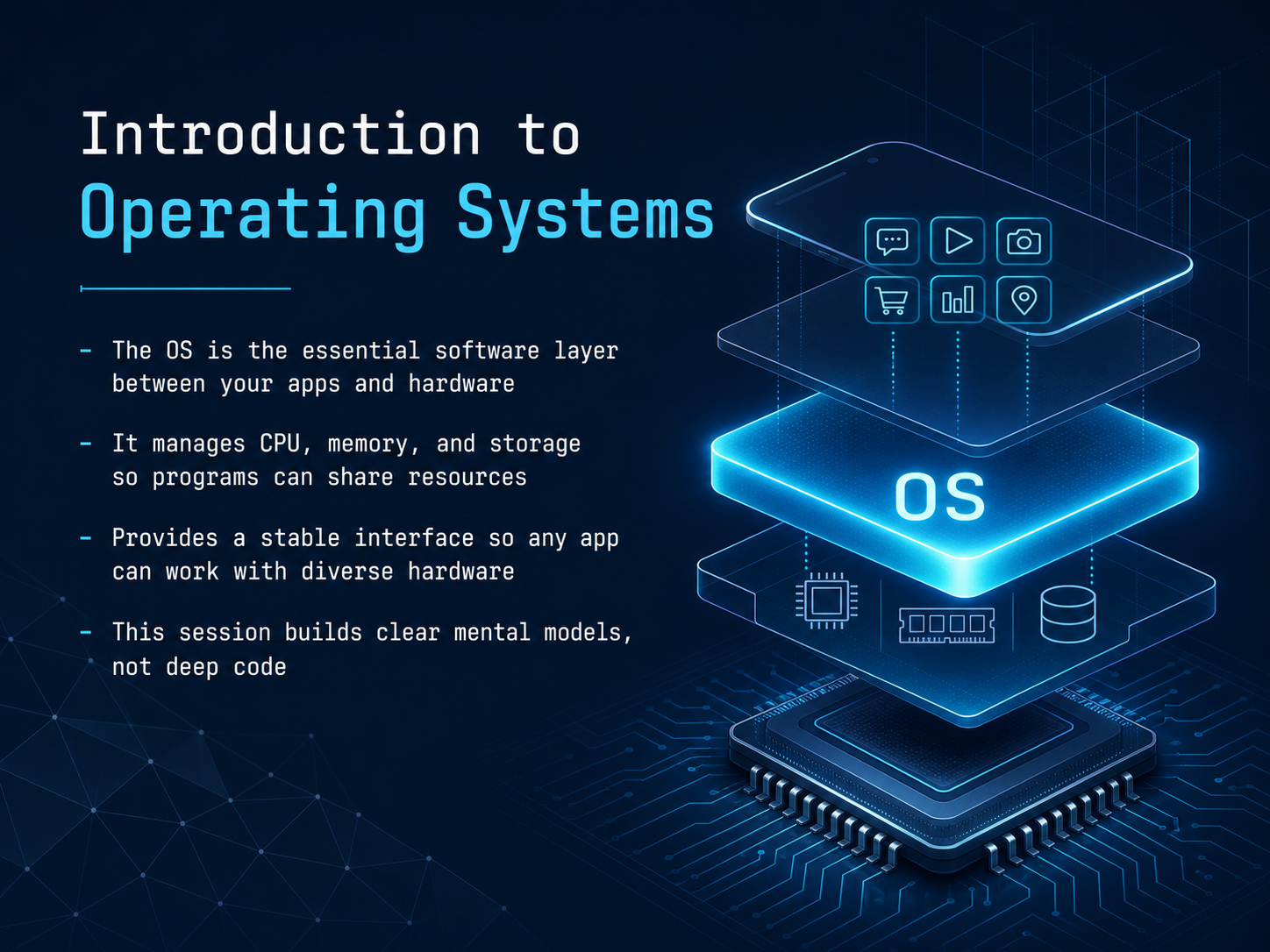
- 01Introduction to Operating SystemsWelcome to this introduction to operating systems. I'm glad you're here. If you've ever wondered what sits between the applications you use every day and the physical hardware inside your computer, you're in the right place. Think of the operating system as the stage manager of a theater. The actors, your apps, get all the attention, but the stage manager is the one making sure the lights, the curtains, and the sound all work together smoothly. That's what the OS does. It manages the central processor, the memory, and the storage, so every program gets a fair share of the resources without them stepping on each other. It also provides a stable, consistent interface, which means a developer can write an app once, and it runs on many different kinds of hardware. Throughout this session, we're not going to dive into deep code. Instead, we'll build clear mental models of how the OS truly works. Next, let's explore a fundamental question: why do we need an operating system in the first place?onlinecourses.nptel.ac.inpages.cs.wisc.eduonlinecourses.nptel.ac.in+21 min
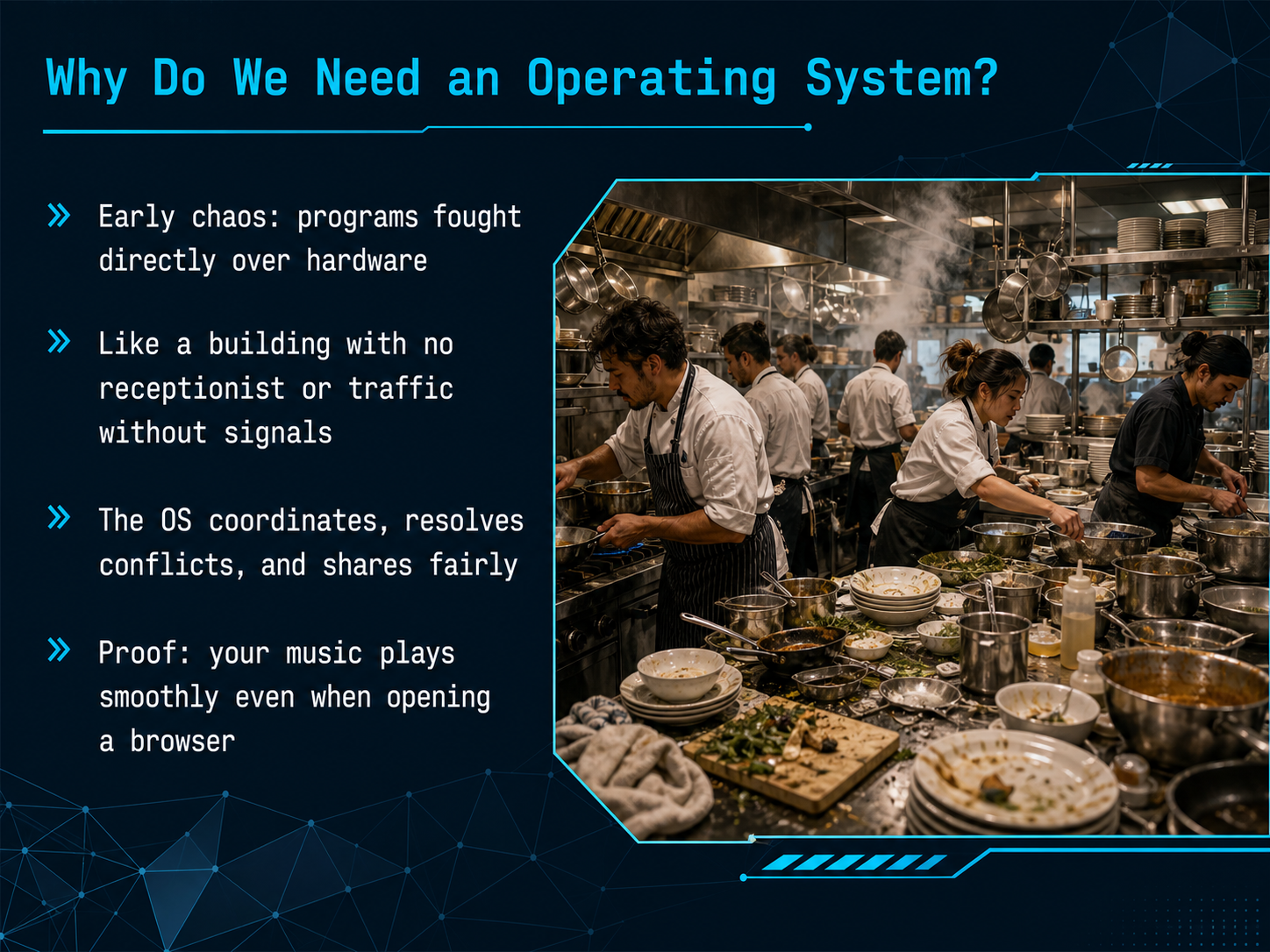
- 02Why Do We Need an Operating System?Now, let's address the core question: why do we even need an operating system? Imagine a computer's early days, where every program had to fight directly for the hardware's attention. It was pure chaos, like a busy office building with no receptionist to guide visitors, or a city intersection with no traffic lights. Complete gridlock. The operating system steps in to fix this. It acts as a coordinator, a referee, and a fair-share manager all in one. It resolves conflicts so that every piece of software gets its turn with the processor, memory, and storage. You can see the proof of this every day. You're listening to music, and then you open a web browser to check something. The music doesn't stutter or stop. That seamless experience is the operating system's careful orchestration at work. Next, we'll explore this idea further by looking at the OS as a resource manager.
 1 min
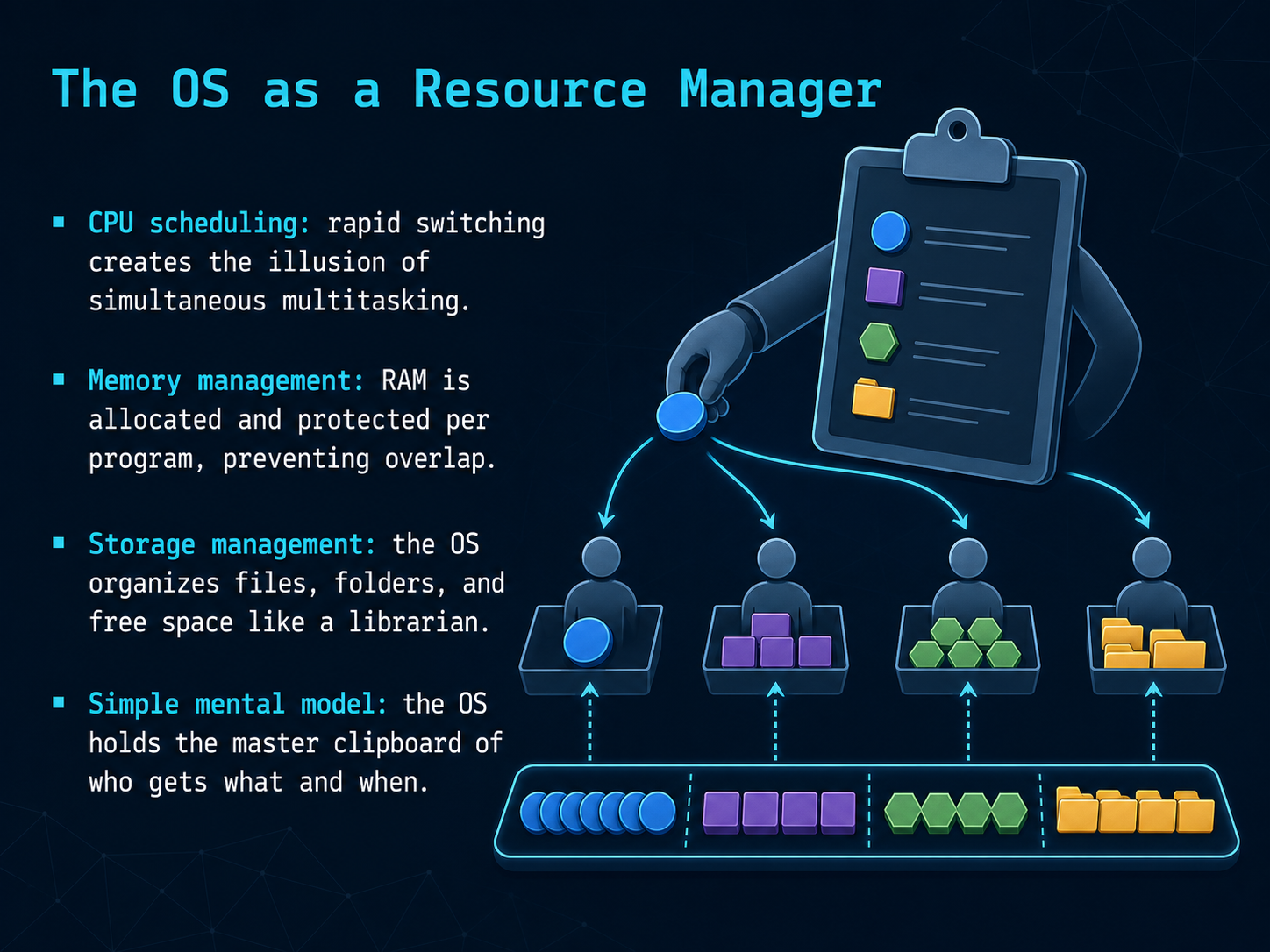
1 min - 03The OS as a Resource ManagerLet's look at the operating system as a resource manager. Think of it like a stage manager backstage during a play. The CPU is your lead actor, but there are many scenes and demands for attention. The OS uses CPU scheduling, rapidly switching focus so fast that it creates the illusion of everything happening at once. Next, there's memory management. The OS carefully allocates a dedicated section of RAM to each program, like giving each actor a private dressing room, so they never accidentally stumble into each other's space. For storage, imagine a master librarian. The OS organizes all your files, folders, and the free space on your drive, knowing exactly where everything lives. The simplest mental model is this: the OS holds the master clipboard of who gets what, and precisely when. Now that we see how the OS manages resources, let's explore how it translates complex hardware commands into something every program can understand. That's up next: Hardware Abstraction and the Universal Translator.
 1 min
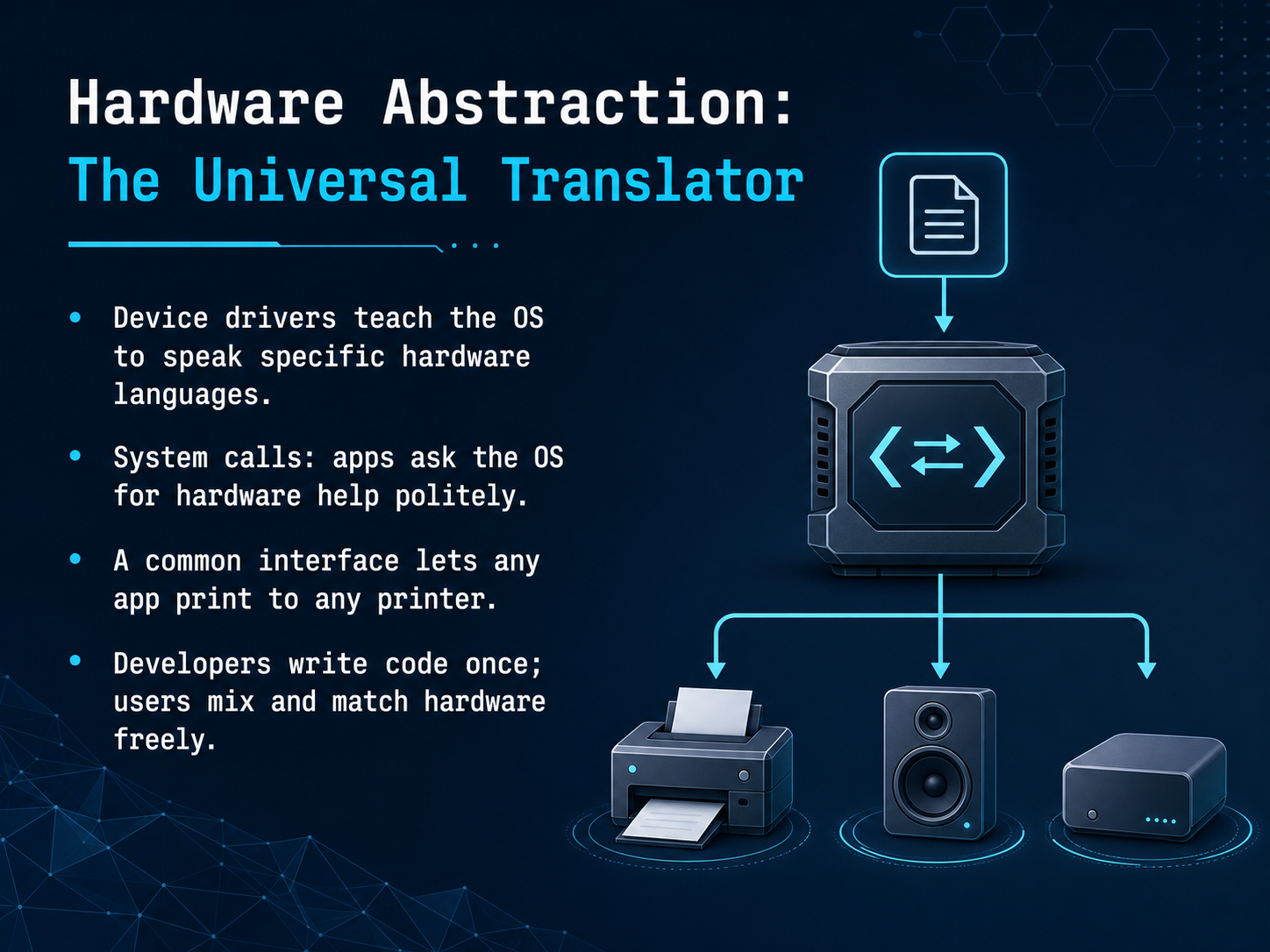
1 min - 04Hardware Abstraction: The Universal TranslatorNow, let's see how the operating system makes all this hardware variety manageable. Think of it as a universal translator. Your computer doesn't natively know how to talk to every single brand of mouse or graphics card. That’s the job of a device driver. A driver is a small piece of software that teaches the OS a specific hardware's language, so they can finally communicate. When an application, like a word processor, needs to save a file, it doesn't shout directly at the storage drive. It makes a polite request, called a system call, to the operating system. The OS then handles the tricky hardware part. This translation layer creates a beautiful, common interface. Because of it, you can send a document to print without knowing if the printer is from one brand or another. The app just says 'print' and the OS figures out the rest. This is a win for everyone. Developers can write their code once, and users like us get to mix and match hardware freely. This seamless translation is what truly frees software from the hardware it runs on. Now, let's build on this idea of seamless coordination and dive into 'Processes and the Art of Multitasking'.
 2 min
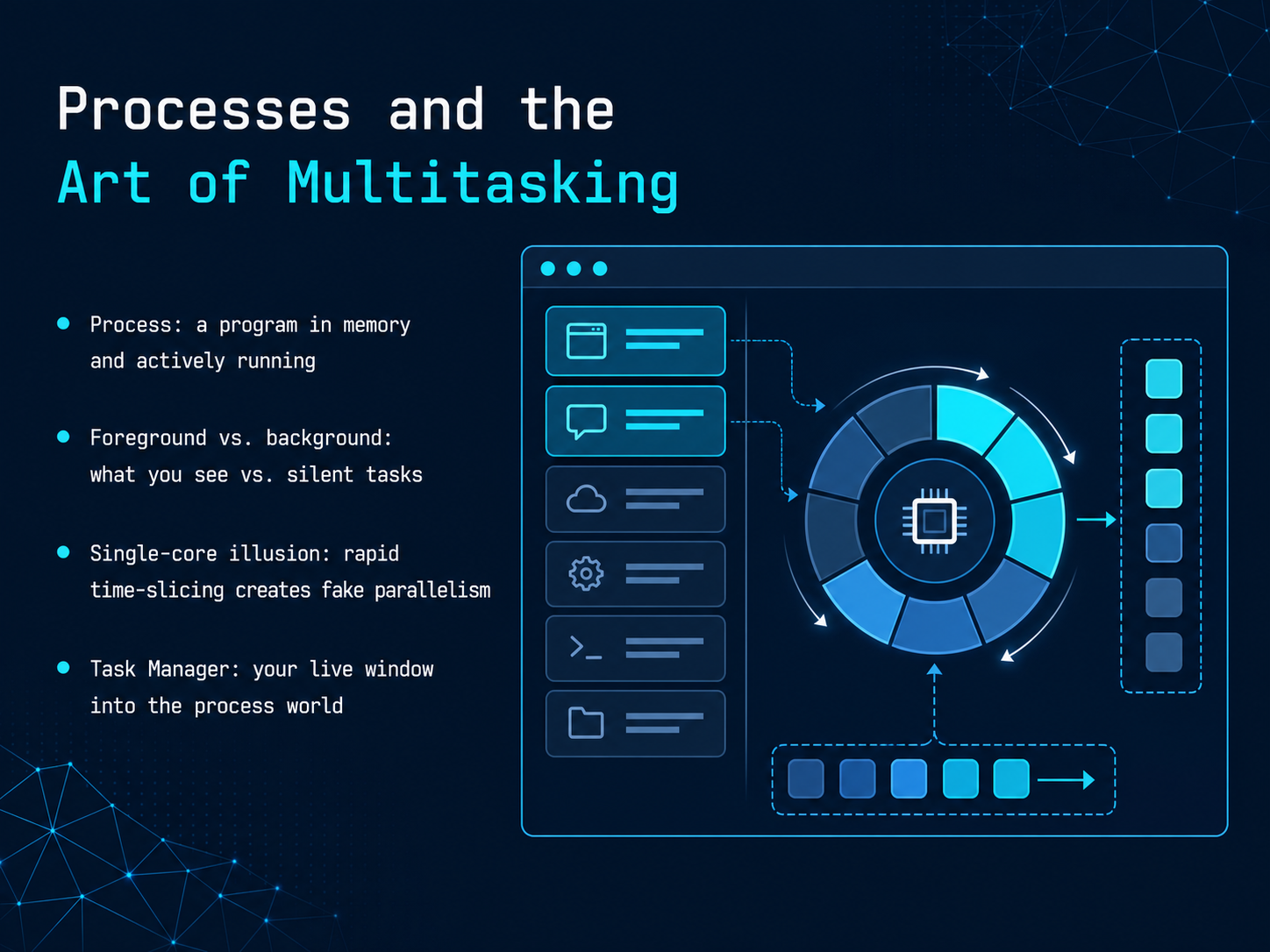
2 min - 05Processes and the Art of MultitaskingSo, what actually happens when you launch an app? That program, which was just sitting idle on your storage drive, gets loaded into memory and becomes a living, breathing thing we call a process. Think of a process as a program that’s now alive and actively running. Every open app, and even many hidden system tasks, are all individual processes. Now, you’re only actively looking at one window at a time—that’s a foreground process. But your email client, cloud backup, and music player are still running silently in the background. The real magic is how a single processor core handles all of this. It’s not doing everything at once, but rather creating a brilliant illusion. It rapidly switches between tasks, giving each one a tiny slice of time, maybe a few milliseconds, before moving to the next. This happens so fast that we perceive smooth, simultaneous multitasking. You can actually see this entire process world in action. On your computer, the Task Manager, or Activity Monitor on a Mac, is your live dashboard. It shows you every process, how much of the central processor’s attention it’s getting, and its memory usage. It’s a perfect tool for discovering why your computer might suddenly feel slow. Now, all these processes need a place to keep their working data, which brings us to the computer’s short-term workspace: memory.
 2 min
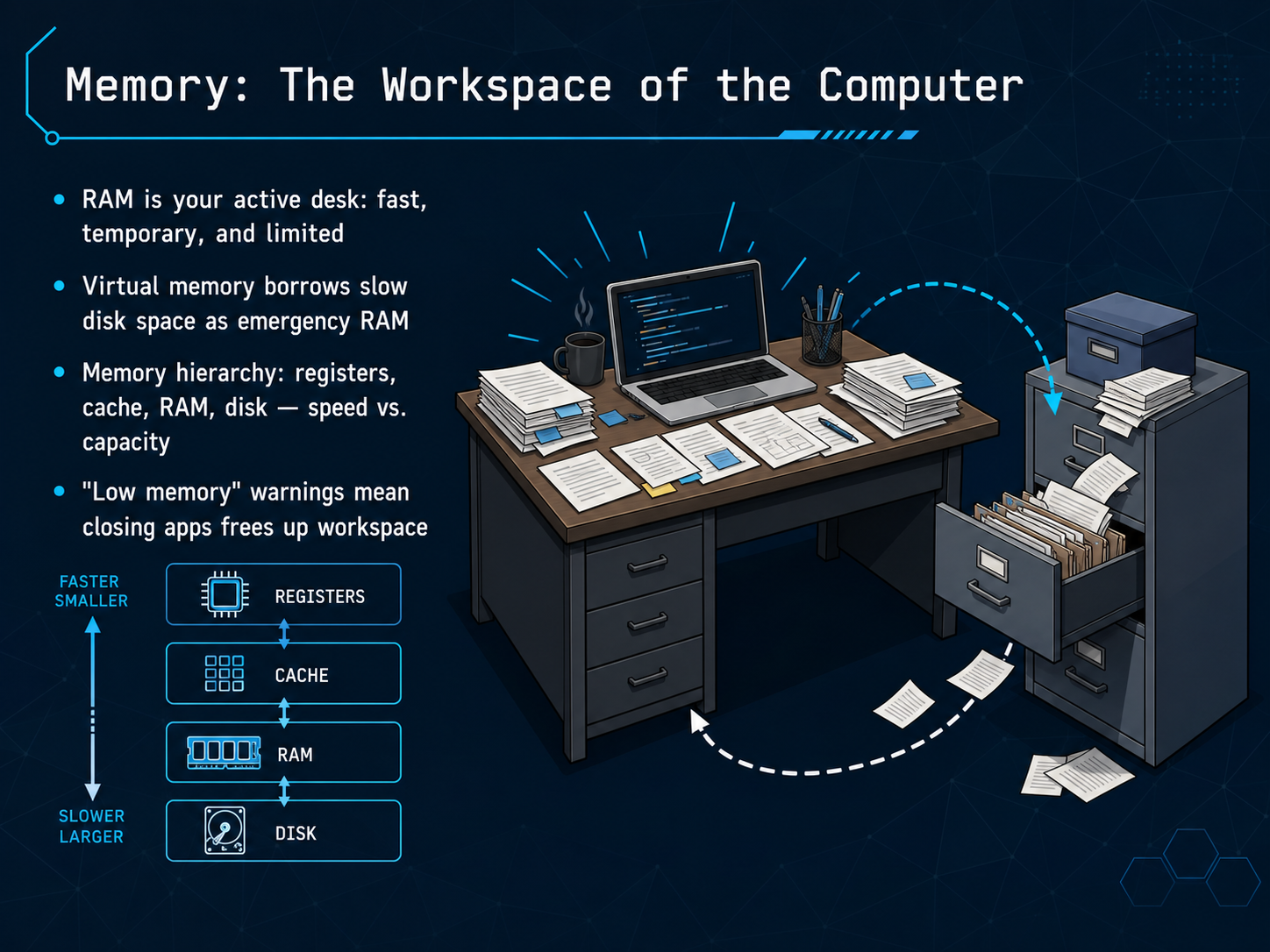
2 min - 06Memory: The Workspace of the ComputerNow, let's talk about where the thinking actually happens: computer memory. Think of RAM as your physical desk. It's where you spread out all the documents and tools you're actively using right now. It's super fast to grab something, but the desk itself is limited in size. When you shut down the computer, it's like clearing the desk completely—everything in RAM disappears. But what happens when your desk is full? The operating system has a clever trick called virtual memory. It borrows a little bit of space from your hard drive, which is like a filing cabinet in the corner. It's much slower to walk over and grab a file, but it works as emergency overflow space. This is why things slow down. You're noticing the difference between real desk space and a filing cabinet. This is part of a bigger memory hierarchy, a trade-off between speed and capacity. At the very top, inside the CPU, are registers and cache—like the one sticky note you're reading right now, incredibly fast but tiny. Then you have RAM, your main desk, and finally, the disk, your massive filing cabinet. So, when you see that dreaded 'low memory' warning, it's your operating system telling you the desk is dangerously cluttered. Closing a few apps is the quickest way to clear some workspace and get things running smoothly again. Next, we'll explore the main ways we actually give commands to this stage manager, in 'How We Talk to the OS: Interfaces.'
 2 min
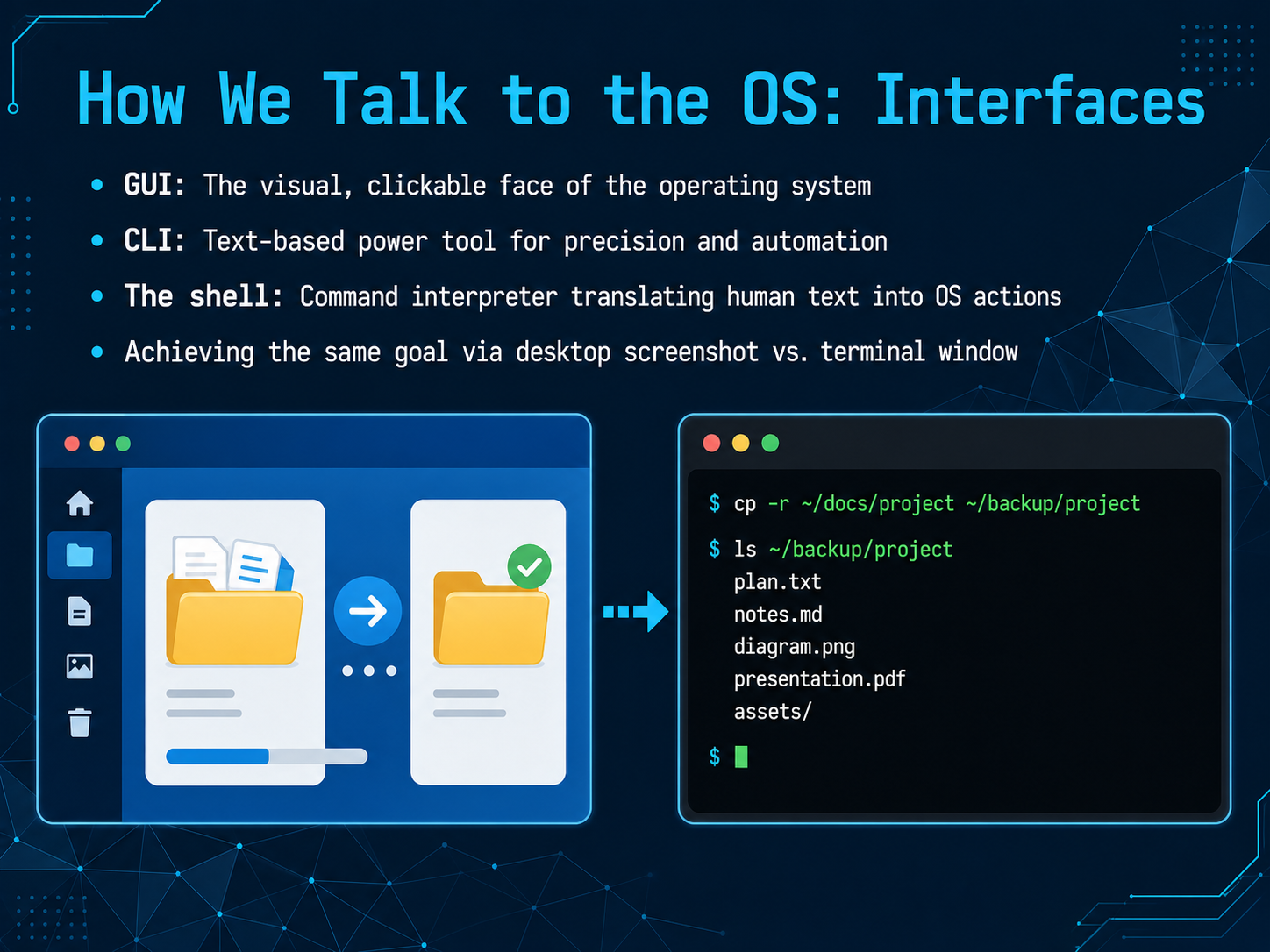
2 min - 07How We Talk to the OS: InterfacesNow that we know what the operating system does, you might wonder, how do we actually interact with it? That's where interfaces come in. Picture the operating system as a highly capable orchestra, and the interface as the conductor's score. The most familiar one is the graphical user interface, or GUI. This is the visual, clickable world of windows, icons, and menus. It's designed to be intuitive, so you can drag a file into a folder or click a button to launch an app. But there's another, incredibly powerful path: the command-line interface, or CLI. It's a text-based environment where you type instructions directly to the OS. Think of it as sending a precise, written memo instead of pointing and gesturing. The true magic behind the CLI is a program called the shell. The shell acts as a command interpreter, instantly translating your typed words into actions the operating system understands. For example, you can create a new folder. In a GUI, you right-click, select 'New Folder,' and name it. The same task in a terminal window might be a single command: 'mkdir project'. The result is identical, but the text method is faster and can be easily automated for hundreds of folders. Up next, we'll take a tour of modern operating systems and see how these principles are applied in the real world.
 2 min
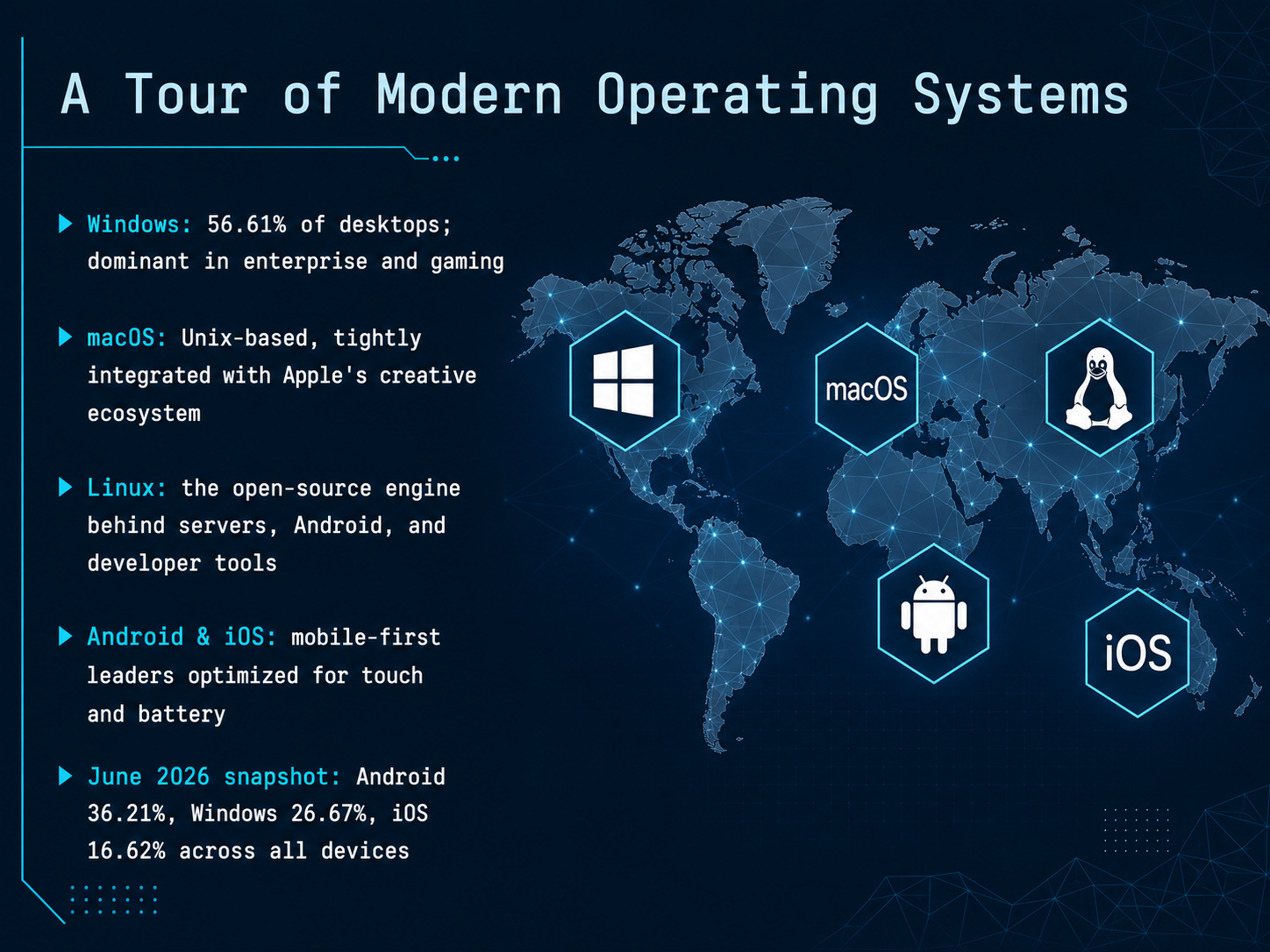
2 min - 08A Tour of Modern Operating SystemsNow that we understand how operating systems work, let's take a quick tour of the modern OS landscape. Think of this as visiting different neighborhoods in a sprawling city, each with its own culture and purpose. First, we have Windows. It powers over fifty-six percent of desktop computers. You will find it dominating offices, corporate networks, and PC gaming rigs. Next is macOS, Apple's Unix-based system, seamlessly tied to their creative ecosystem. If you are into video editing or design, this is likely your home. Then there is Linux, the quiet powerhouse. It is the open-source engine running most web servers, all Android phones, and countless developer tools. And speaking of phones, Android and iOS are the mobile-first leaders, optimized from the ground up for touchscreens and battery life. Looking at the big picture across all devices in June 2026, Android leads with about thirty-six percent, followed by Windows at nearly twenty-seven percent, and iOS at roughly seventeen percent. This shows how computing has spread far beyond the traditional desktop. Let's zoom in now on how these systems keep everything safe, in our next slide: Security Boundaries: Keeping Programs Honest.
 gs.statcounter.comgs.statcounter.comgs.statcounter.com+22 min
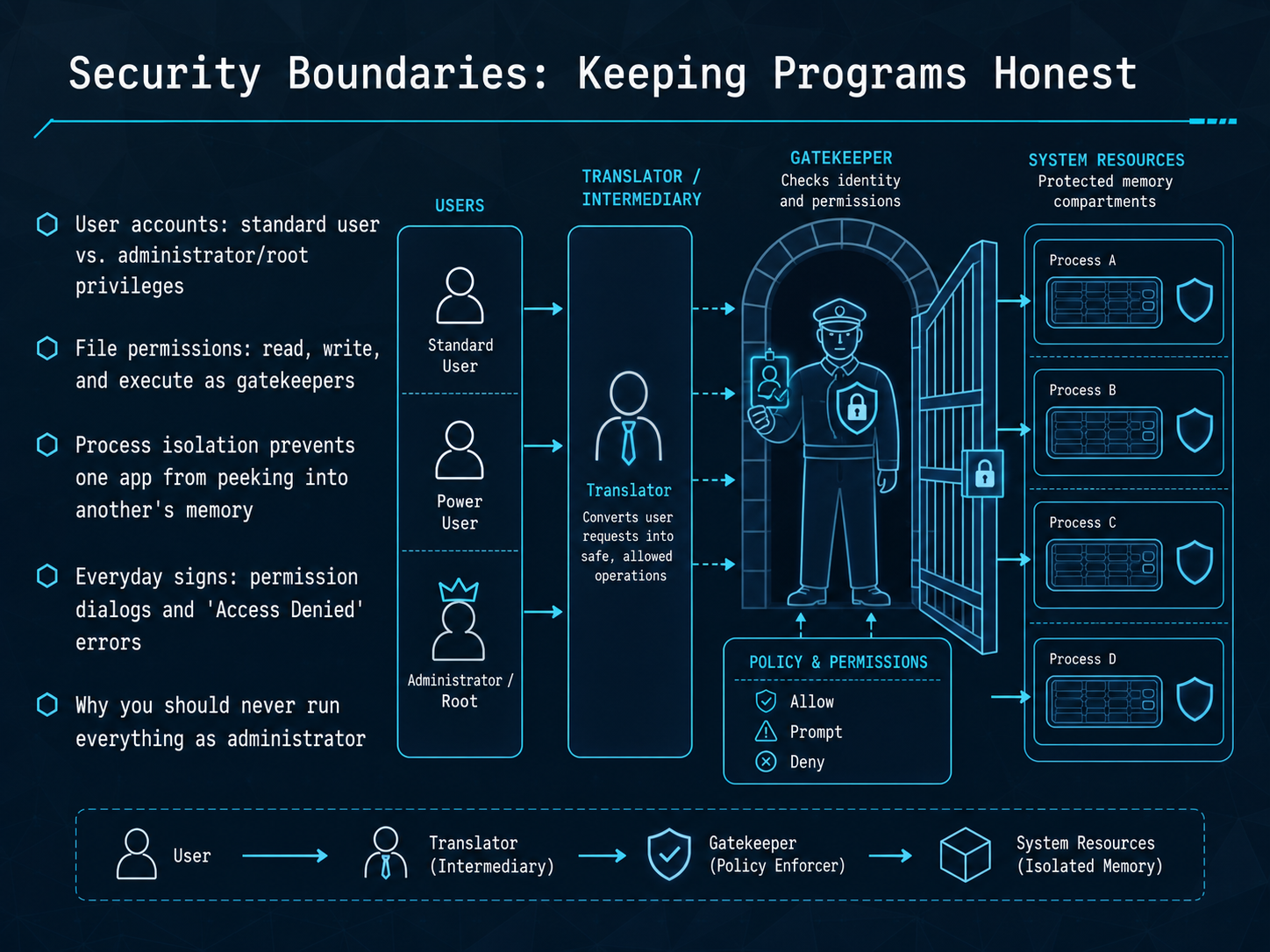
 - 09Security Boundaries: Keeping Programs HonestNow, an operating system isn't just a helpful assistant; it's also a security guard. Think of it as the building's security system, making sure every program stays in its own apartment and doesn't snoop on its neighbors. Let's look at the rules it enforces to keep programs honest. It starts with user accounts. A standard user is like a guest with a key to their own room, while an administrator, or root, has the master key to every door. Running as an admin all the time is like leaving the building's front door wide open—if a program misbehaves, it can get everywhere. File permissions act as individual gatekeepers. 'Read' lets a program see a file's contents, 'write' lets it change the file, and 'execute' gives it permission to run a program. You've seen these in action with those permission dialogs asking for a password, or an 'Access Denied' error when you try to peek into a folder you shouldn't. The most important rule is process isolation. This is a non-negotiable wall that prevents one app from ever peeking into another's memory. So, your calculator can't read your email, and a crashed game can't take down your photo editor. A simple rule of thumb: never run everything as an administrator. It's the single biggest step you can take to keep your digital world safe. Next, let's explore how all these concepts show up in your daily digital life, with 'The OS in Your Daily Digital Life'.
 2 min
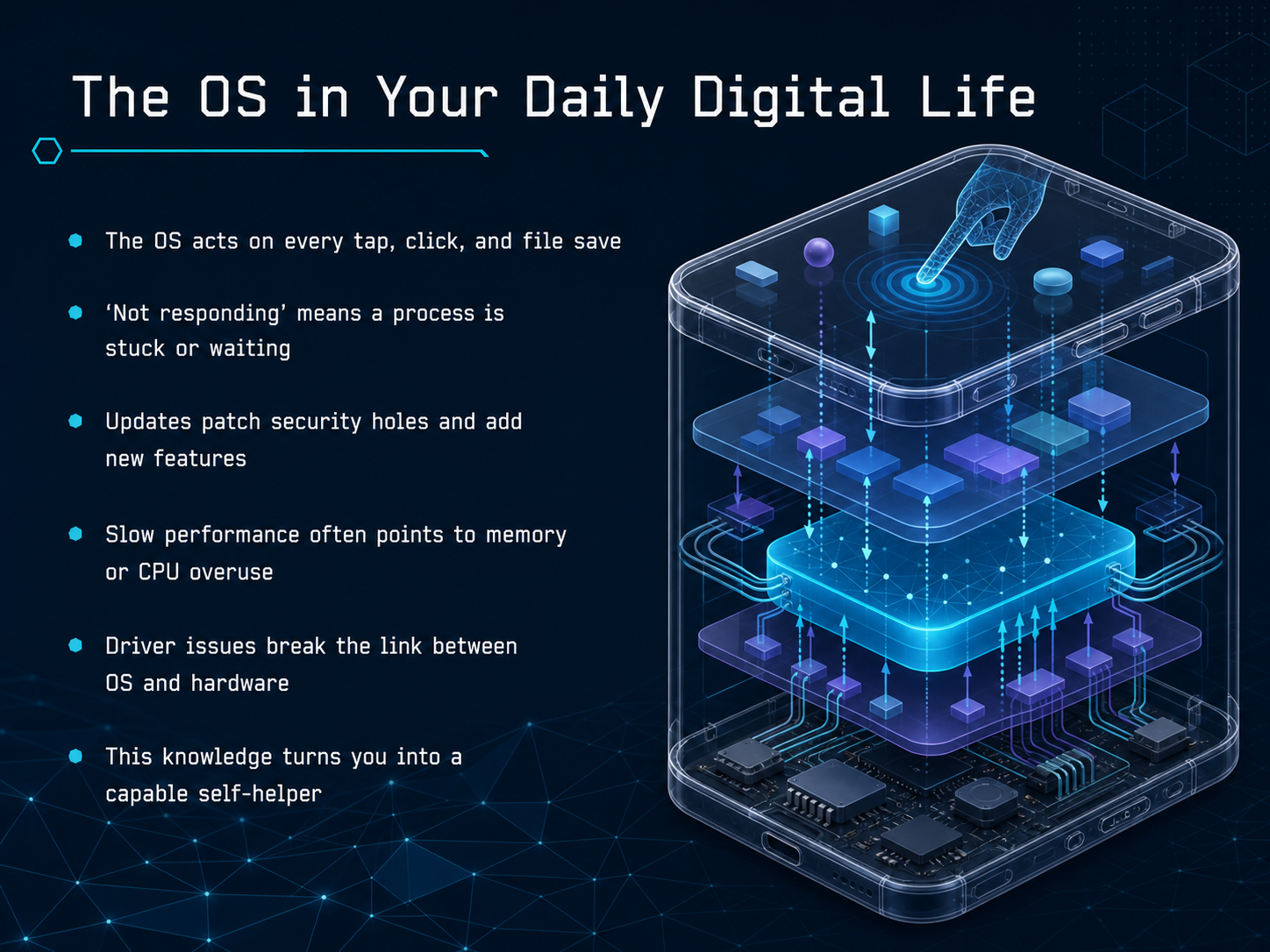
2 min - 10The OS in Your Daily Digital LifeNow let's bring all this together and look at the operating system in your daily digital life. Every single tap on your screen, every click of your mouse, and every time you hit save, the OS is working behind the scenes. It translates your actions into instructions the hardware can understand. When you see an application freeze and say 'not responding,' it usually means a process is stuck in a loop or waiting for a resource that never arrives. The program hasn't crashed yet, but the OS is keeping it isolated so it doesn't lock up your whole machine. You have probably seen those update notifications. They are not just about new features. Updates are critical because they patch security holes that attackers could use to get into your system. When your computer feels sluggish, that slow performance is often a clue. It can point to the memory being completely full, forcing the OS to scramble, or the CPU being overworked by too many demanding tasks running at once. And that frustrating moment when your printer or headphones stop working, that is often a driver issue. The driver is the translator between the OS and a specific piece of hardware, and if that link breaks, communication fails. Seeing these everyday problems through the lens of the operating system turns you from a frustrated user into a capable self-helper. You can start diagnosing the real cause instead of just restarting and hoping. In our next slide, we will talk about moving from beginner to builder, and what your next steps could be.
 2 min
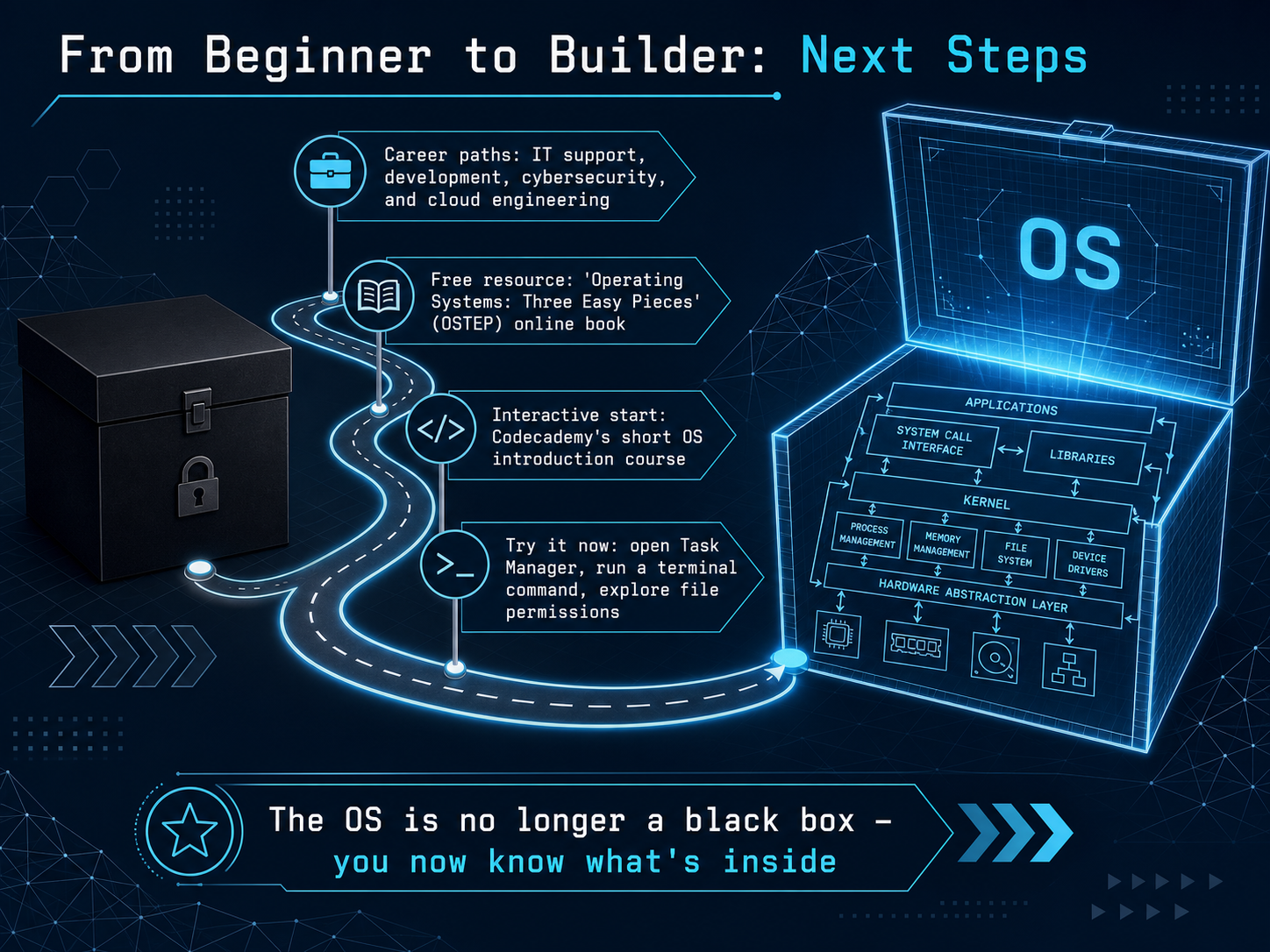
2 min - 11From Beginner to Builder: Next StepsNow that we've peeked inside the black box, you might be wondering where to go from here. The good news is that operating systems knowledge opens doors to careers in IT support, software development, cybersecurity, and cloud engineering. If you want to keep building, start with the free online book called Operating Systems Three Easy Pieces, or OSTEP. It is the gold standard for self-learners. For a quick, hands-on taste, try Codecademy's short Operating Systems Introduction course. It takes less than an hour and lets you see the concepts in action. But you can also start experimenting right now. Open your Task Manager or Activity Monitor and watch processes live. Open a terminal and try a simple command. Right-click a file and explore its permissions. The operating system is no longer a mystery to you. You now know what's inside and how the pieces fit together. Next, let's wrap up with our key takeaways and a chance for questions.
 onlinecourses.nptel.ac.inpages.cs.wisc.eduonlinecourses.nptel.ac.in+22 min
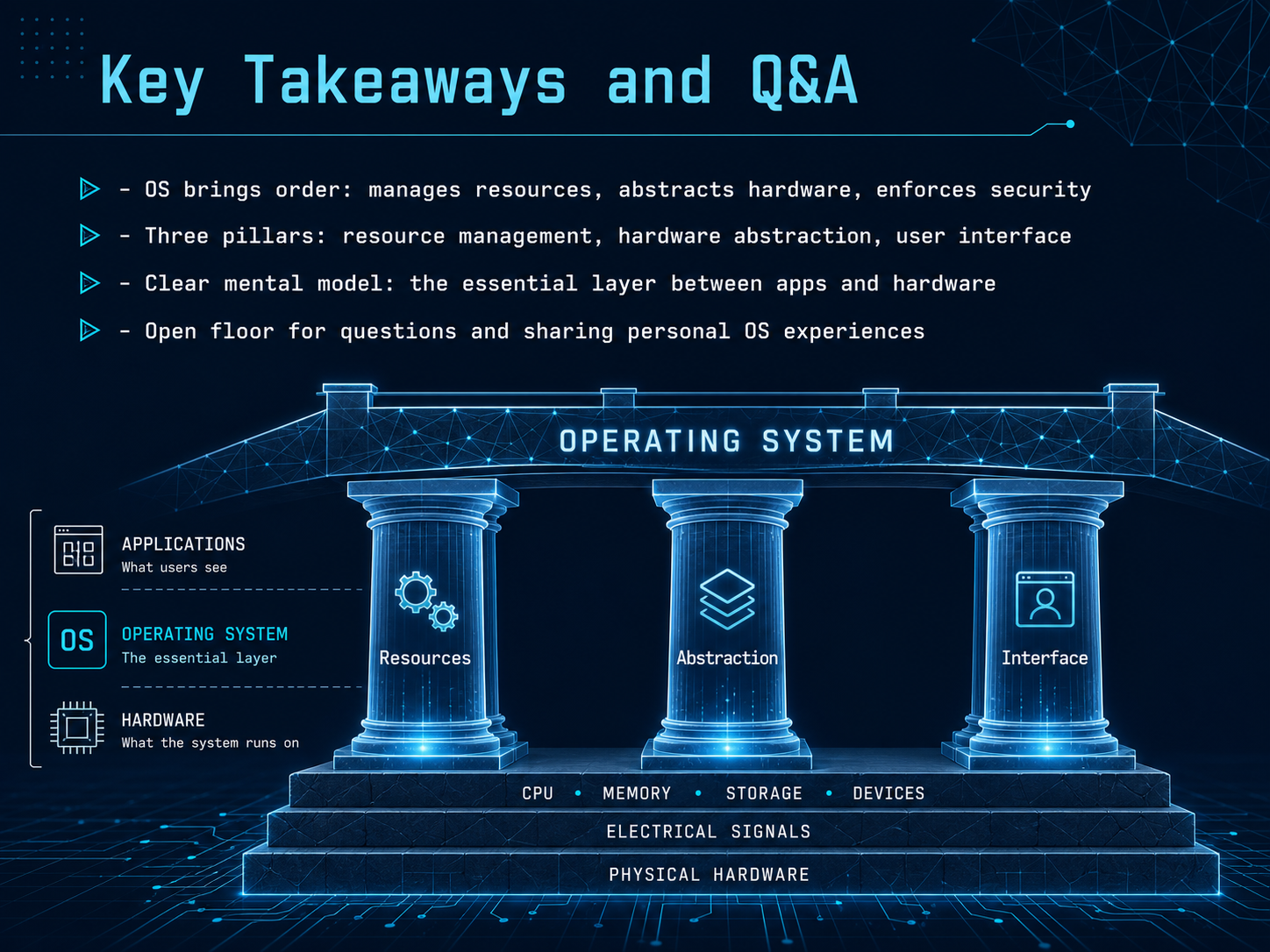
 - 12Key Takeaways and Q&AWe've covered a lot of ground together, so let's tie it all together. The operating system is the great organizer inside your computer. It manages resources like memory and the processor, it hides hardware complexity through abstraction, and it enforces rules to keep things secure. You can think of those as its three main pillars: resource management, hardware abstraction, and the user interface. This gives you a clear mental model: the OS is the essential layer that sits between the apps you love and the physical hardware they run on. Thank you for joining me on this journey to the middle of the machine. Now, I'd love to open the floor for your questions, and I'm curious to hear about your own experiences with different operating systems. Keep exploring, and I'll see you next time.
 1 min
1 min
Take the deck with you
Download this course as a file — free, no sign-up needed.
- PDF handoutEvery slide page, ready to print or share.13 pages · 3.0 MBDownload
- Narrated PowerPointThe deck that presents itself — every slide carries the digital human's narration video.13 pages · 11.7 MBDownload
- PowerPoint slidesThe full deck as a .pptx — open it in PowerPoint, Keynote, or Google Slides.13 pages · 3.0 MBDownload
Free to use in your own training — please keep the PersonWise credit page at the end.
Have your own deck? Turn it into a course
Sources consulted
Web sources consulted while building this course.
- Introduction to Operating Systems — onlinecourses.nptel.ac.in
- Operating Systems: Three Easy Pieces — pages.cs.wisc.edu
- Operating System Fundamentals — onlinecourses.nptel.ac.in
- Operating Systems Basics Course — netacad.com
- Lectures on Operating Systems — cse.iitb.ac.in
- Desktop, Mobile & Tablet Operating System Market Share Worldwide | Statcounter Global Stats — gs.statcounter.com
- Desktop Operating System Market Share Worldwide | Statcounter Global Stats — gs.statcounter.com
- Operating System Market Share Worldwide — gs.statcounter.com
- Usage share of operating systems — en.wikipedia.org
- Operating System Market Share 2026 — Live Report | BYOViral Intelligence — byoviral.com