Begin
14 pages · ~28 min
Slack Team Communication Essentials
This training introduces Slack for team communication, helping participants use channels, messaging, and collaboration features effectively in the workplace.
A digital instructor presents all 14 pages. Hold “Ask” at any point and ask out loud — the answer comes from this course. No sign-up needed.
What you’ll learn
- 01Introduction to Team Communication Software SlackWelcome.Today we're getting comfortable with Slack, and our goal is simple. By the end, you'll know where messages go, how to keep the noise down, and when to use a channel versus a direct message.
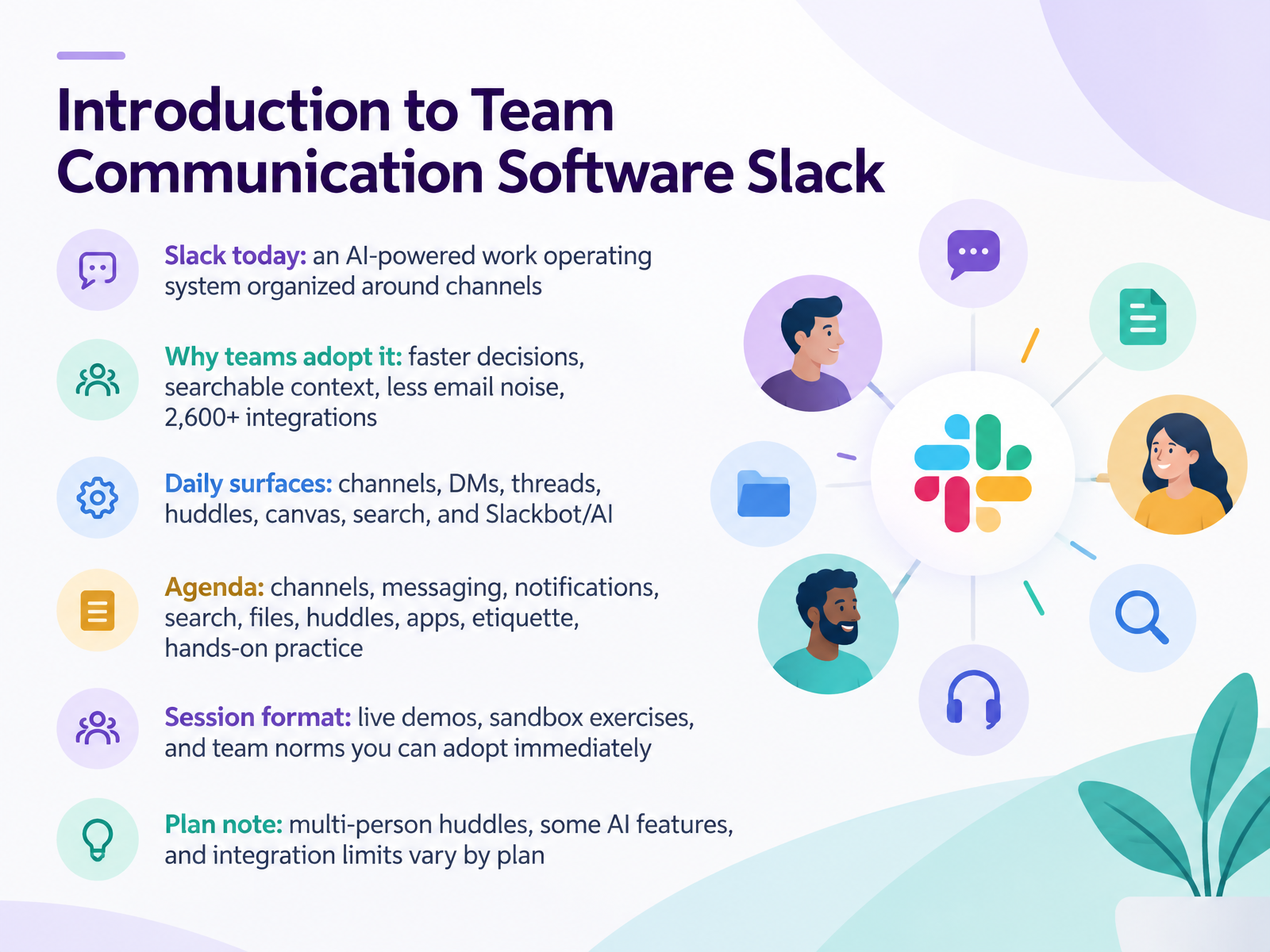
Slack today is an AI-powered work operating system, organized around channels. Teams adopt it for faster decisions, searchable context, less email noise, and more than two thousand six hundred integrations. In daily use, you'll work across channels, direct messages, threads, huddles, canvas, search, and Slackbot or AI features.
Our agenda covers channels, messaging, notifications, search, files, huddles, apps, etiquette, and hands-on practice. This session is live demos, sandbox exercises, and team norms you can adopt immediately.
One plan note. Multi-person huddles, some AI features, and integration limits vary by plan.
Let's start with Workspaces, Channels, and Direct Messages.2 min
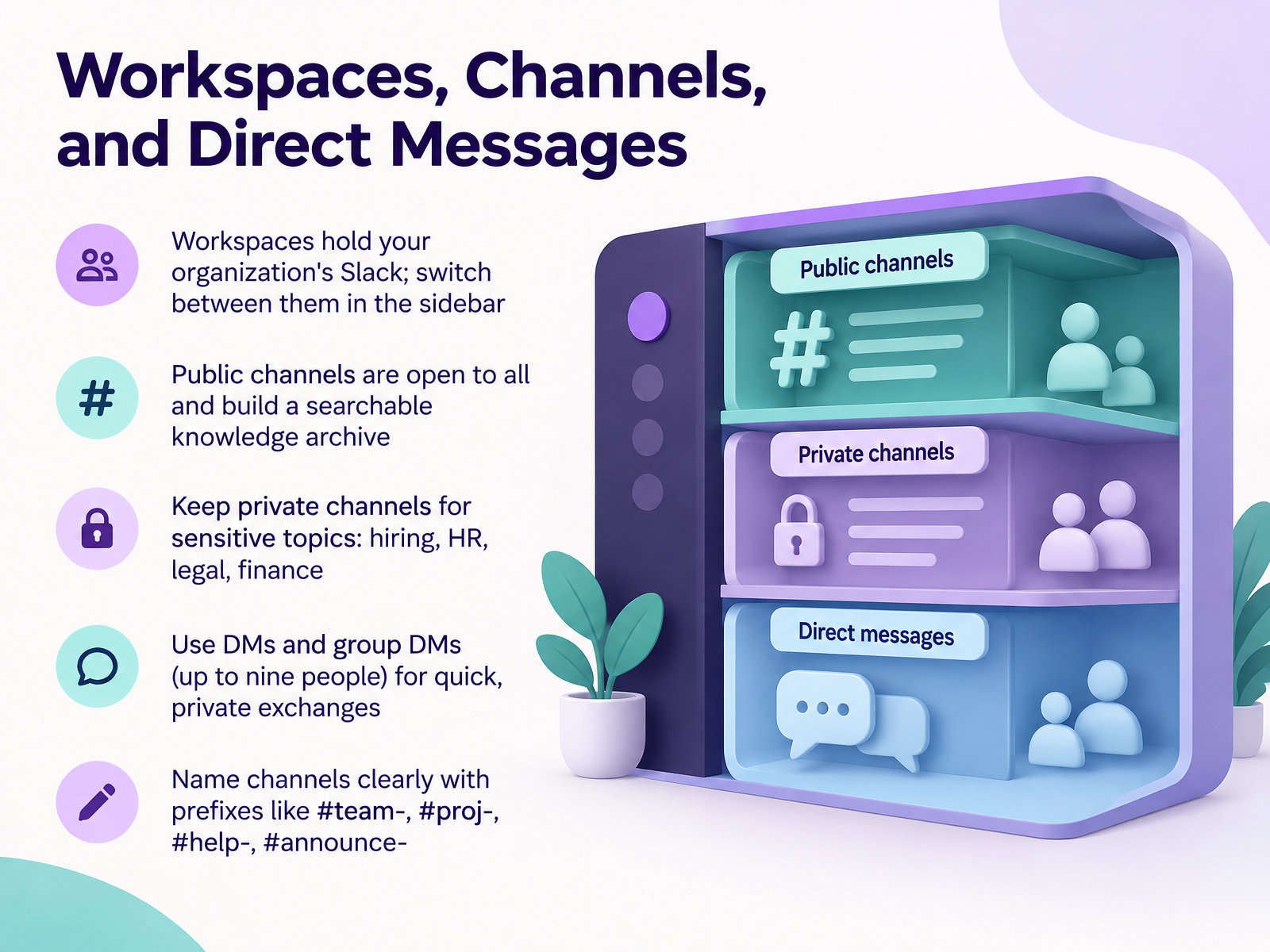
- 02Workspaces, Channels, and Direct MessagesLet's start with how Slack is organized. Your organization lives inside a workspace. If you belong to more than one, you'll switch between them in the sidebar. Next, channels. Public channels are open to everyone and build a searchable knowledge archive, so a good answer stays findable later. Keep private channels for sensitive topics like hiring, HR, legal, and finance. For quick, private exchanges, use direct messages, or group DMs with up to nine people. And name channels clearly with prefixes like team, proj, help, and announce, so people know where to go. Take a moment now to find your team channel and say hello. Next, we'll look at sending messages, mentions, and threads.
 2 min
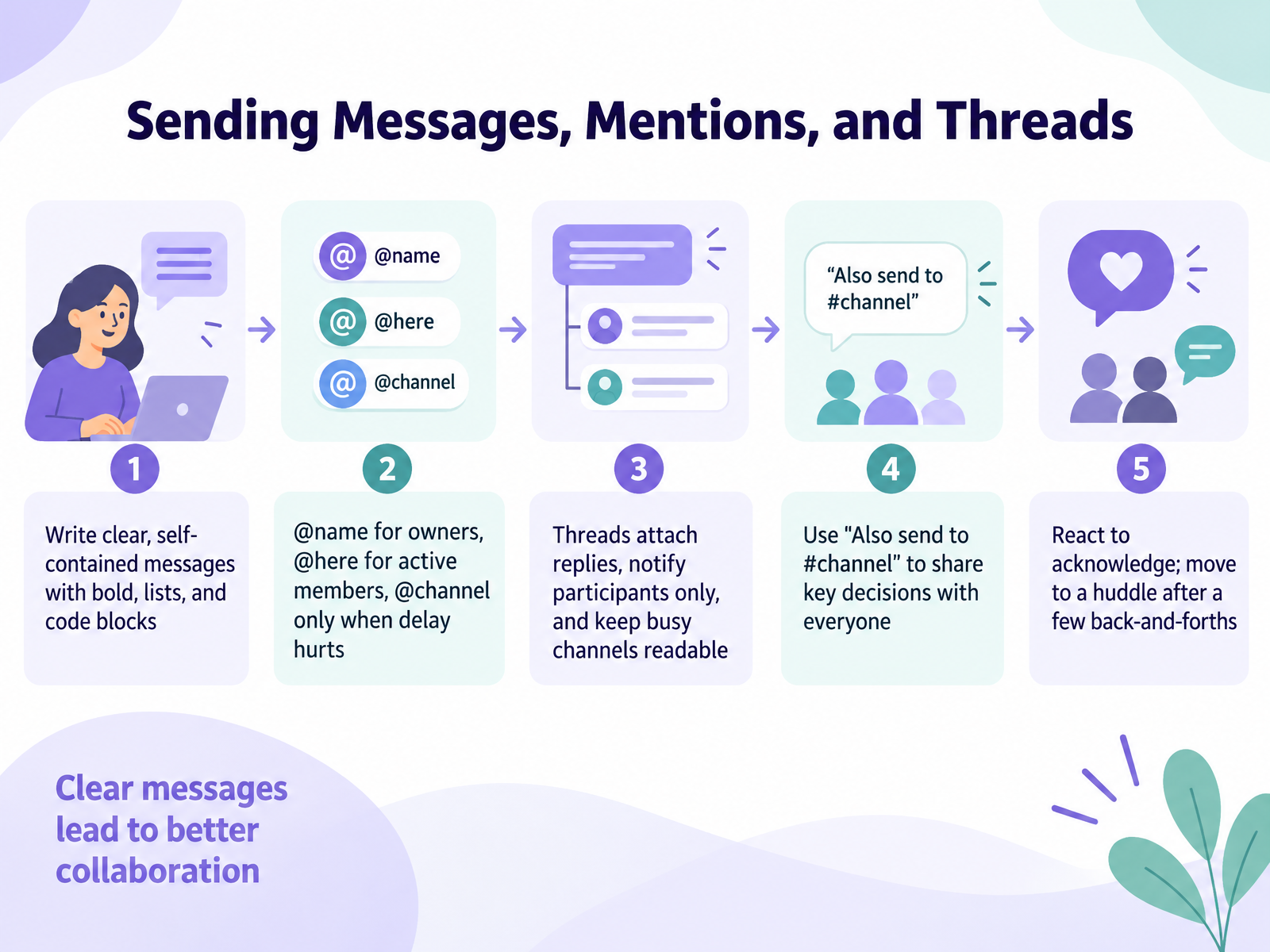
- 03Sending Messages, Mentions, and ThreadsNow let's look at how to send a message that people can actually act on. Write messages that stand on their own, so no one has to scroll back for context. Use bold for the key point, a short list for steps, and a code block for anything technical. Next, choose your mention with care. Use @name to reach the owner of a task. Use @here for active members. Save @channel for when a delay would really hurt. When a reply belongs to one message, use a thread. Threads keep the reply attached, notify only the people involved, and keep a busy channel readable. If a decision matters to everyone, choose also send to channel so it's shared. A quick reaction is enough to acknowledge. And if a back-and-forth goes past a few replies, move it to a huddle. Next, we'll cover notifications, search, and staying organized.
 1 min
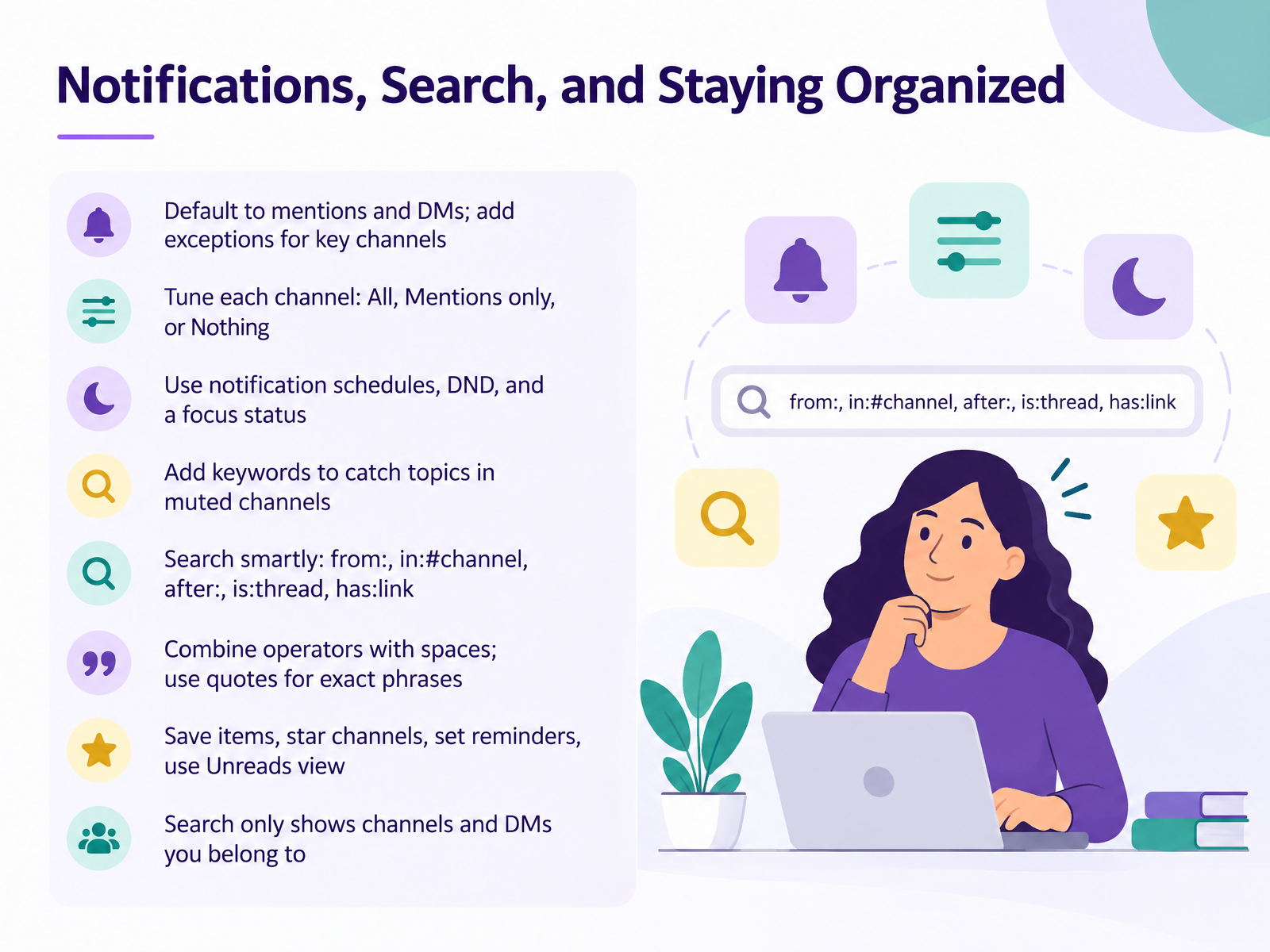
- 04Notifications, Search, and Staying OrganizedNow let's look at keeping Slack calm and organized. By default, you'll get notified for mentions and direct messages. That's a good baseline. For a few key channels, like your team channel or a project you own, you can add exceptions so you don't miss what matters. For every other channel, tune it. You can choose All, Mentions only, or Nothing. If a channel gets noisy, set it to Mentions only. If it's just for reference, set it to Nothing. You can also set a notification schedule, turn on Do Not Disturb, or set a focus status so people know you're heads down. To catch topics in muted channels, add keywords to your notifications. Search is just as practical. Use operators like from: to find a person's messages, in: with a channel name, after: with a date, is:thread, and has:link. Combine them with spaces, and use quotes for exact phrases. Save important items, star the channels you use most, set reminders, and check the Unreads view to catch up quickly. Remember, search only shows channels and direct messages you belong to. Next, we'll look at files, huddles, and collaborative content.
 2 min
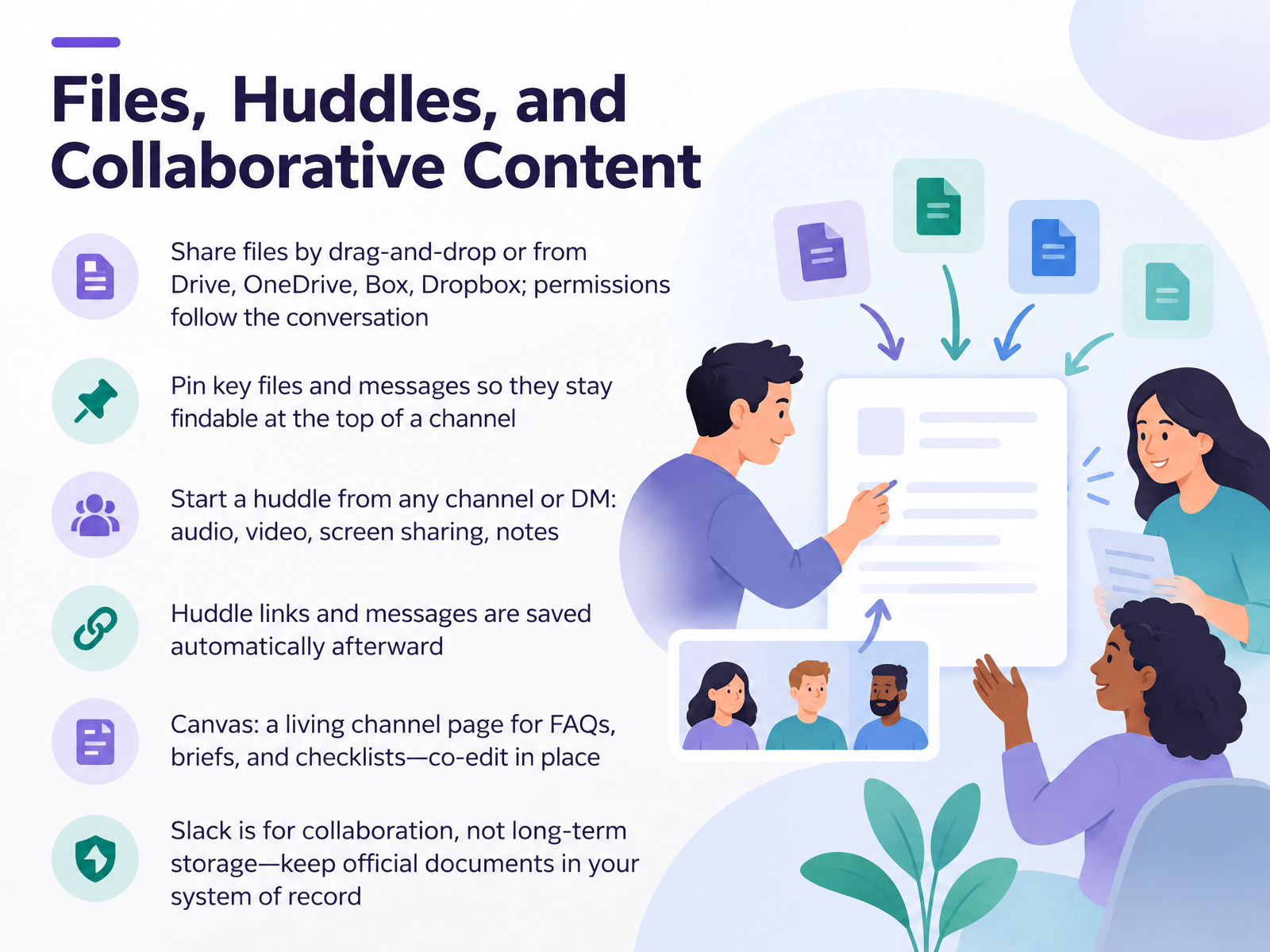
- 05Files, Huddles, and Collaborative ContentNow let's look at files, huddles, and collaborative content. You can share a file by dragging it into a conversation, or by connecting Drive, OneDrive, Box, or Dropbox. Permissions follow the conversation, so people in that channel or direct message can access it. To keep important items easy to find, pin key files and messages. They stay at the top of the channel. When typing isn't enough, start a huddle from any channel or direct message. You get audio, video, screen sharing, and notes. After the huddle ends, the links and messages are saved automatically. Canvas gives each channel a living page for FAQs, briefs, and checklists, and teammates can co-edit in place. One important habit: Slack is for collaboration, not long-term storage. Keep official documents in your system of record. Next, we'll look at apps, integrations, and Workflow Builder.
 2 min
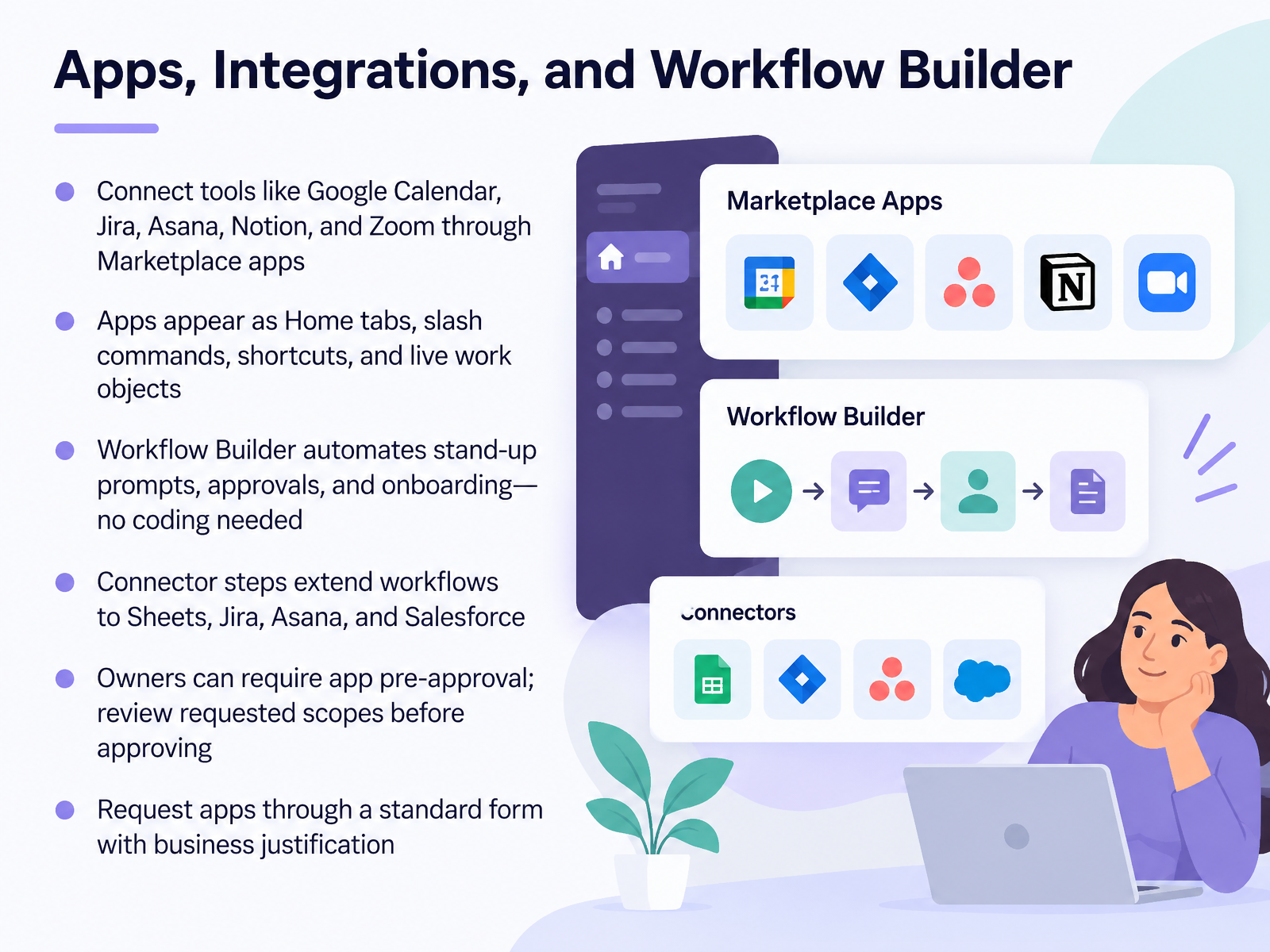
- 06Apps, Integrations, and Workflow BuilderNow let's talk about connecting your other tools to Slack. You can add apps like Google Calendar, Jira, Asana, Notion, and Zoom through the Slack Marketplace. Once installed, these apps show up in a few familiar ways. They may appear as a Home tab, as a slash command you type in a message, as a shortcut, or as a live work object you can click. For example, you might type a slash command to check your calendar without leaving Slack.
Workflow Builder lets you automate routine steps without writing any code. You can build a workflow that prompts your team for a daily stand-up update, routes an approval request, or walks a new hire through onboarding. Connector steps extend those workflows to tools like Google Sheets, Jira, Asana, and Salesforce.
Before you install anything, know that workspace owners can require app pre-approval. When you request an app, review the permissions it asks for, and approve only what you understand. To request an app, use your team's standard form and include a short business justification.
So, connect tools deliberately, automate the repetitive steps, and review permissions before you approve. Next, we'll look at communication etiquette and team norms.
 2 min
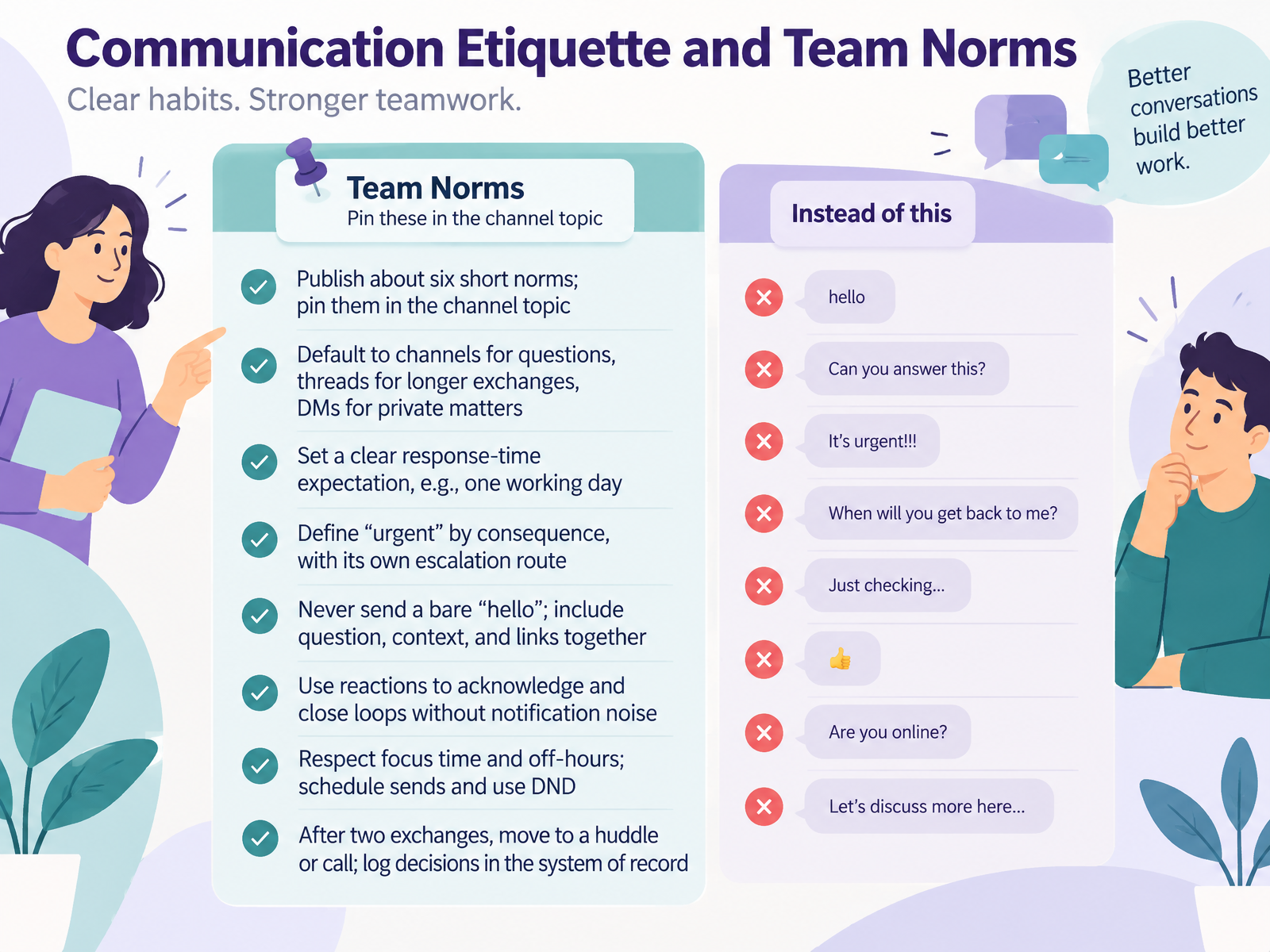
- 07Communication Etiquette and Team NormsNow let's talk about etiquette and team norms. Agree on about six short norms and pin them in the channel topic so everyone can find them. Default to channels for questions, use threads for longer exchanges, and save direct messages for private matters. Set a clear response-time expectation, like one working day. Define urgent by consequence, and give it its own escalation route. Never send a bare hello. Include your question, context, and links together. Use reactions to acknowledge and close loops without extra notifications. Respect focus time and off-hours by scheduling sends and using do not disturb. After two exchanges, move to a huddle or call, and log decisions in the system of record. Pick one norm to apply today, then we'll practice these habits in the next section, Practical Scenarios and Hands-On Exercises.
 2 min
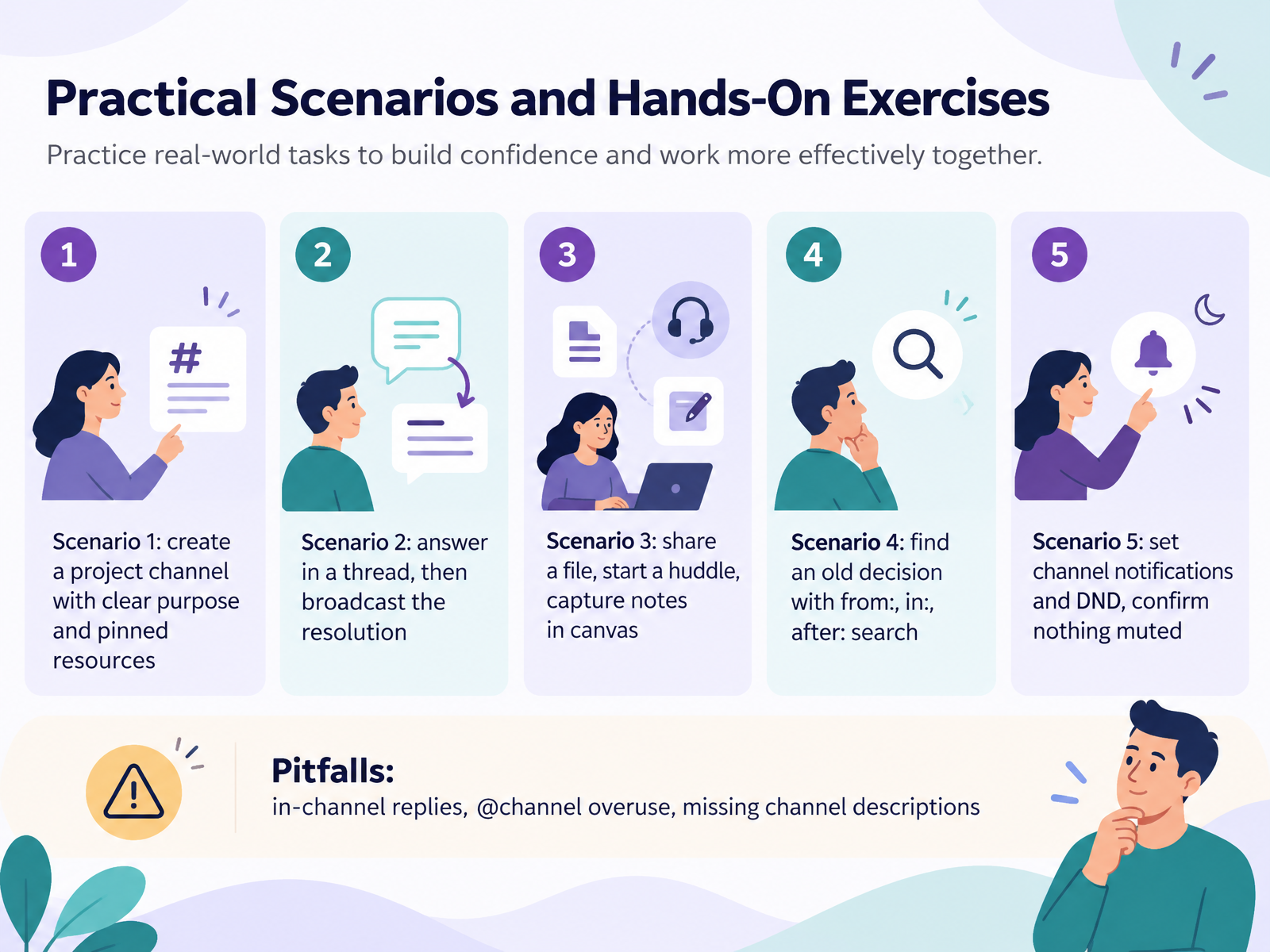
- 08Practical Scenarios and Hands-On ExercisesLet's put this into practice with five short scenarios you can try today. In the first, create a project channel. Write a clear purpose in the description, and pin the key resources so no one has to search. Second, answer a question in a thread, then post a brief summary in the channel so everyone sees the resolution. Third, share a file, start a huddle, and capture the notes in canvas afterward. Fourth, find an old decision using search modifiers: from: a person, in: a channel, and after: a date. Fifth, set channel notifications and do not disturb, then confirm nothing important is muted. Watch for three pitfalls: replying in the channel when a thread is better, overusing at channel mentions, and leaving channel descriptions blank. Try one scenario this afternoon, and notice how much quieter your workspace feels. Next, we'll cover admin basics for team leads and coordinators.
 2 min
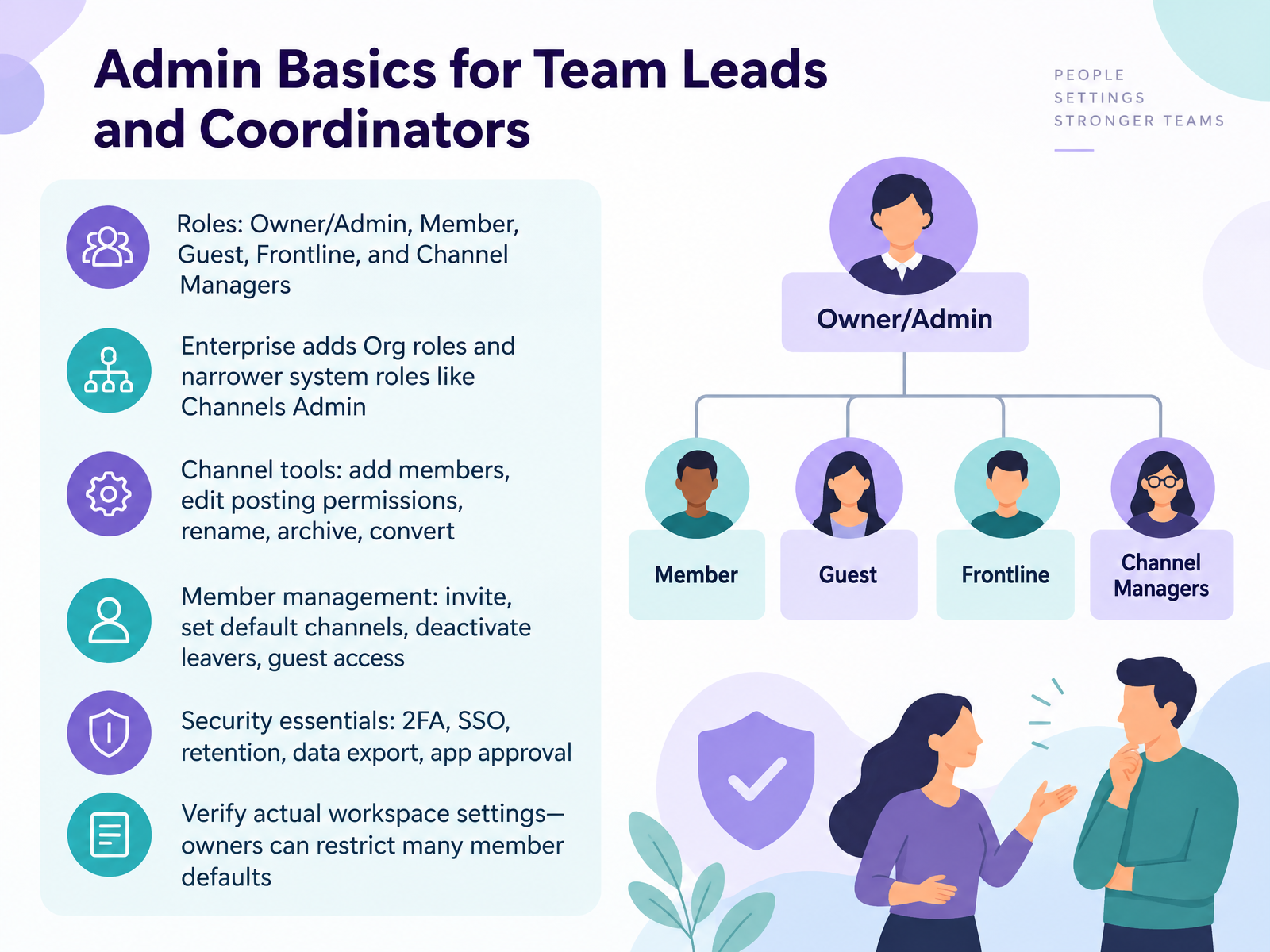
- 09Admin Basics for Team Leads and CoordinatorsNow let's look at admin basics for team leads and coordinators. Think of roles as levels of access. Owners and Admins manage the workspace. Members work in channels. Guests see only what they're invited to. Frontline and Channel Managers have narrower duties. On Enterprise plans, you'll also see Org roles and specific system roles like Channels Admin. Channel tools let you add members, edit posting permissions, rename, archive, or convert a channel. For member management, you can invite people, set default channels, deactivate leavers, and control guest access. For security, turn on two-factor authentication and single sign-on where available, set retention rules, export data when needed, and review app approvals. One habit for today: open your workspace settings and confirm what's actually allowed. Owners can restrict many member defaults, so check rather than assume. Next, we'll move into the Adoption Roadmap and Next Steps.
 2 min
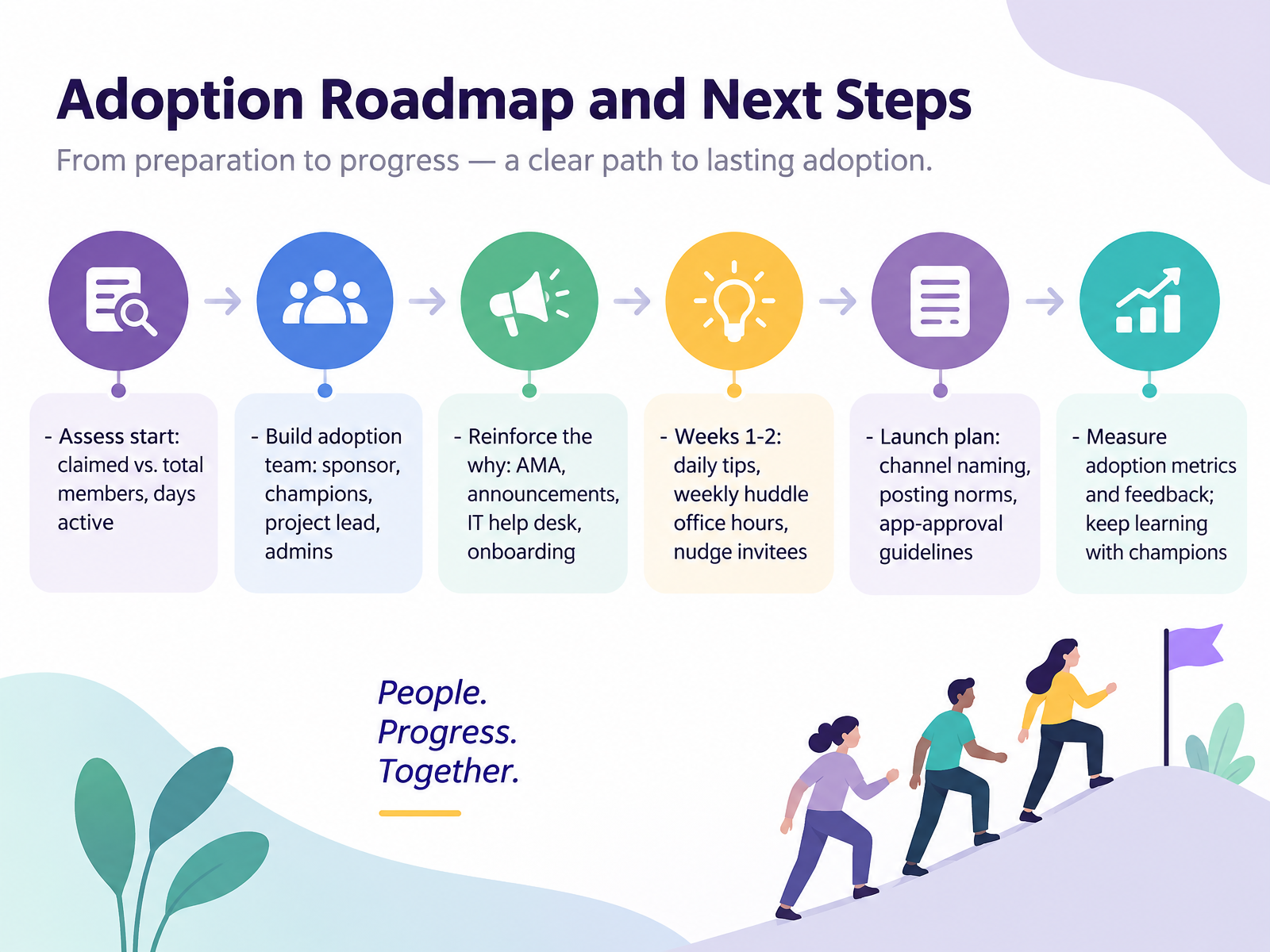
- 10Adoption Roadmap and Next StepsNow let's turn to your adoption roadmap and next steps. Start by assessing where you stand. Compare how many members have claimed accounts with your total invited members, and note how many days a week people are actually active. Next, build a small adoption team. Name a sponsor, a few champions, a project lead, and your Slack admins. Reinforce the why. Run an ask me anything session, share short announcements, point people to the IT help desk, and offer onboarding for new members. In weeks one and two, post one daily tip, hold a weekly huddle in office hours, and gently nudge anyone who hasn't accepted their invite. Your launch plan should cover channel naming, posting norms, and app-approval guidelines. Finally, measure adoption metrics and gather feedback. Keep learning with your champions, and adjust as you go. Next, we'll look at building your team channel map.
 2 min
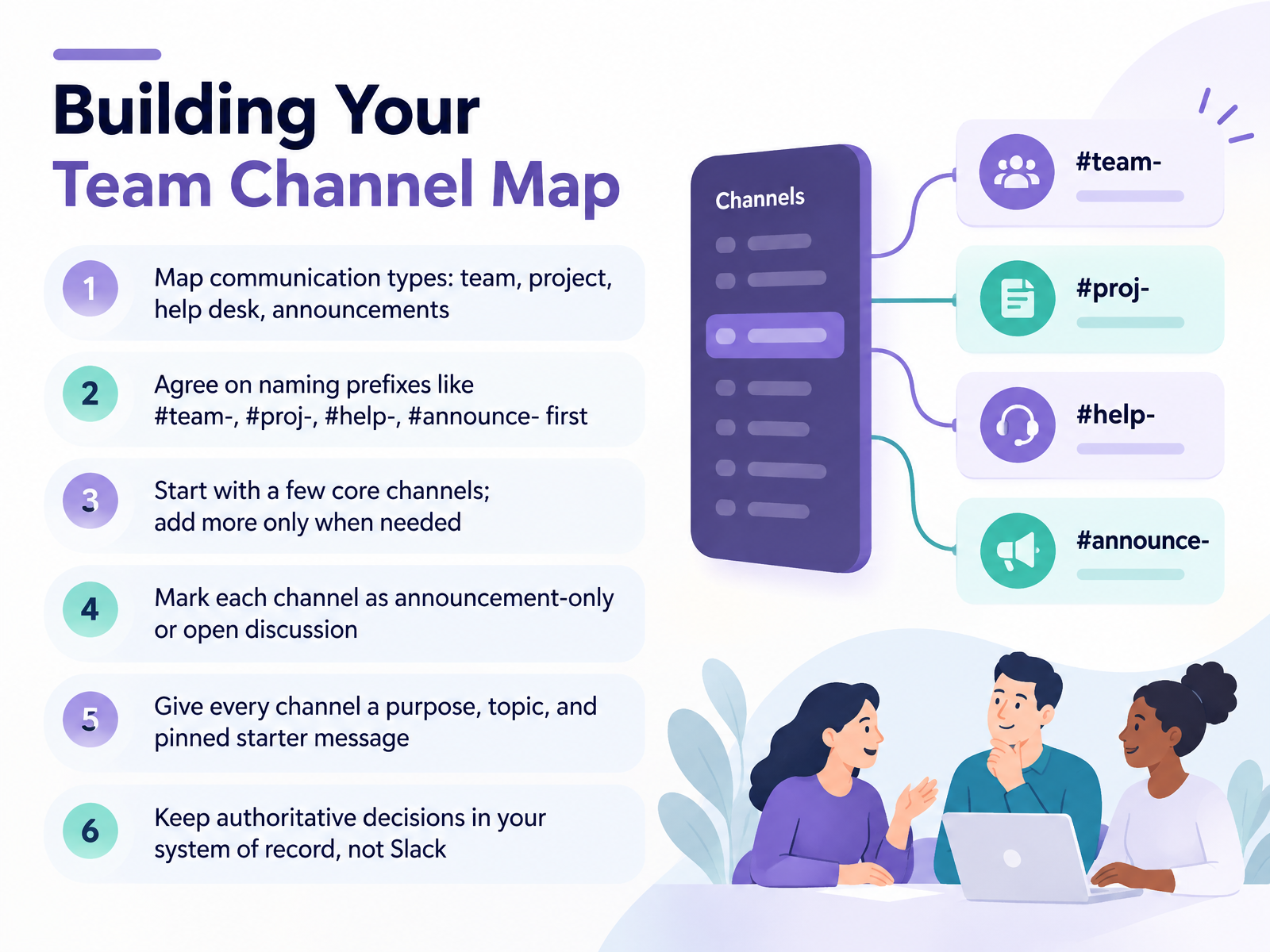
- 11Building Your Team Channel MapNow let's build your team channel map. First, list the kinds of communication you actually have. For example, team updates, project work, help desk questions, and announcements. Then agree on naming prefixes before anyone creates a channel. Use prefixes like team, proj, help, and announce, so channels sort themselves and are easy to find. Start with a few core channels. Add more only when a real need appears, because every new channel is another place to check. Next, mark each channel as announcement-only or open discussion, so people know where to reply. Give every channel a clear purpose, a topic, and a pinned starter message that explains what belongs there. And keep authoritative decisions in your system of record, not in Slack. That way, chat stays a conversation, and your record stays the source of truth. Next, we'll look at AI assistance in Slack, including Slackbot and summaries.
 2 min
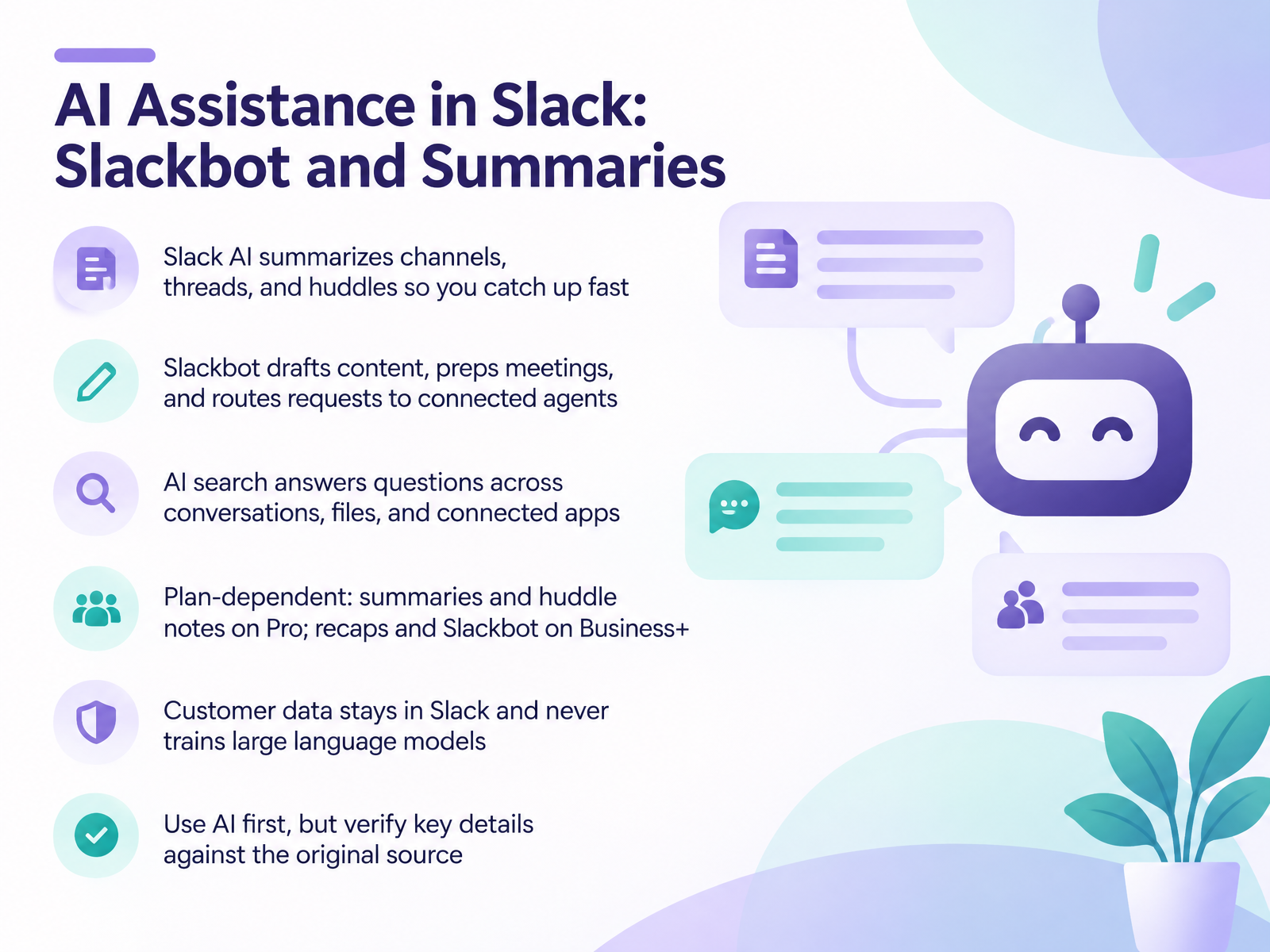
- 12AI Assistance in Slack: Slackbot and SummariesNow let's look at AI assistance in Slack. Slack's AI features can summarize channels, threads, and huddles, so you can catch up quickly after time away. Imagine returning from a meeting and getting a short recap instead of scrolling through dozens of messages. Slackbot can also draft content, help you prep for meetings, and route requests to connected agents. AI search answers questions across conversations, files, and connected apps, which saves time when you need a specific decision or document. Keep in mind that availability depends on your plan. Summaries and huddle notes are on Pro, while recaps and Slackbot are on Business and above. Your customer data stays in Slack and never trains large language models. My advice is to use AI first, but verify key details against the original source. Next, we'll cover working with external partners in Slack Connect.
 2 min
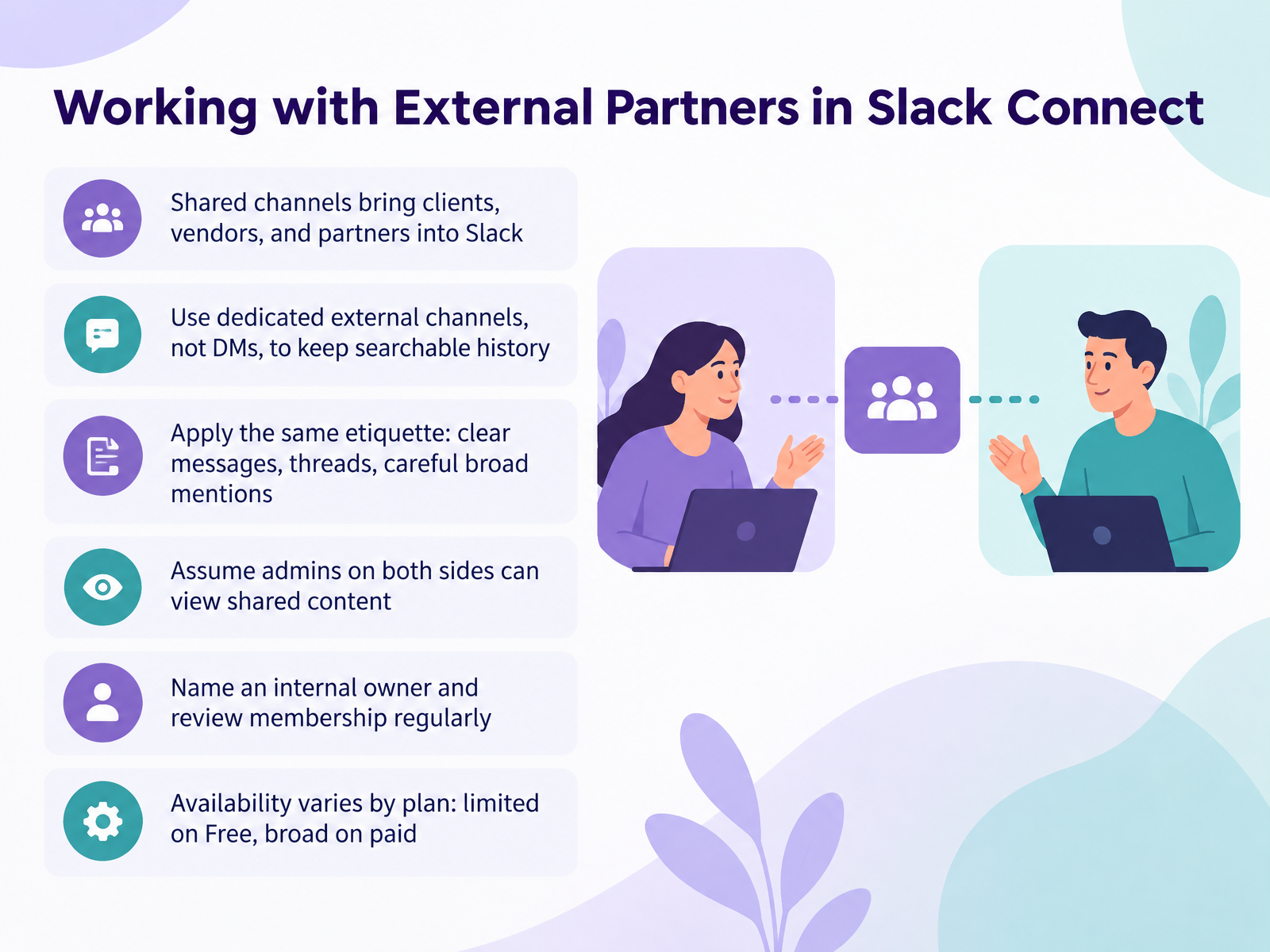
- 13Working with External Partners in Slack ConnectNow let's look at working with external partners in Slack Connect. Shared channels bring clients, vendors, and partners into Slack, so you can collaborate without switching tools. Use a dedicated external channel, not a direct message. Channels keep a searchable history that everyone on the project can reference later. Apply the same etiquette you use internally. Write clear messages, keep side topics in threads, and be careful with broad mentions like at channel or at here. Also assume admins on both sides can view shared content, so treat it as visible to both organizations. Name an internal owner for each external channel, and review membership regularly to keep access current. Availability varies by plan. Slack Connect is limited on the Free plan and broad on paid plans. Before you invite a partner, check your plan and confirm your owner. Next, we'll cover troubleshooting and getting help.
 1 min
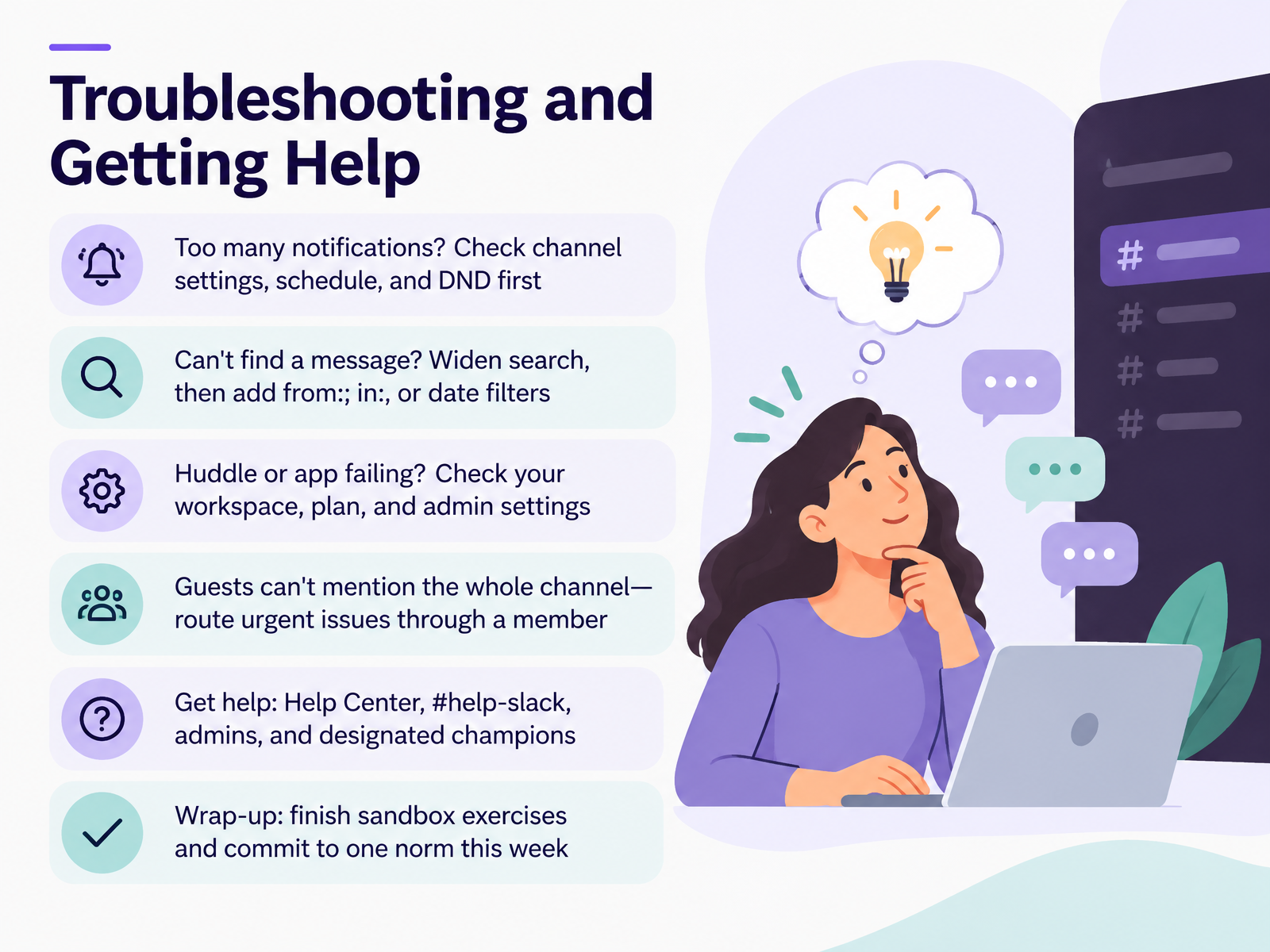
- 14Troubleshooting and Getting HelpLet's close with troubleshooting and where to get help. If you're getting too many notifications, check your channel settings first. Then review your schedule and Do Not Disturb. If you can't find a message, widen your search, then add from, in, or date filters. If a huddle or app isn't working, check your workspace, your plan, and your admin settings. Remember that guests can't mention the whole channel, so route urgent issues through a member. For help, use the Help Center, the help-slack channel, your admins, and your designated champions. Before you go, finish the sandbox exercises and commit to one new norm this week. Thank you for your attention. You're ready to use Slack with confidence. Take that next step today.
 1 min
Take the deck with you
Download this course as a file — free, no sign-up needed.
- PDF handoutEvery slide page, ready to print or share.15 pages · 3.1 MBDownload
- Narrated PowerPointThe deck that presents itself — every slide carries the digital human's narration video.15 pages · 22.6 MBDownload
- PowerPoint slidesThe full deck as a .pptx — open it in PowerPoint, Keynote, or Google Slides.15 pages · 3.0 MBDownload
Free to use in your own training — please keep the PersonWise credit page at the end.
Have your own deck? Turn it into a course