Begin
16 pages · ~32 min
Computing Information Representation
This training introduces the fundamental concepts of how computers represent information, including binary data and data encoding.
A digital instructor presents all 16 pages. Hold “Ask” at any point and ask out loud — the answer comes from this course. No sign-up needed.
32 minFree to watch
What you’ll learn
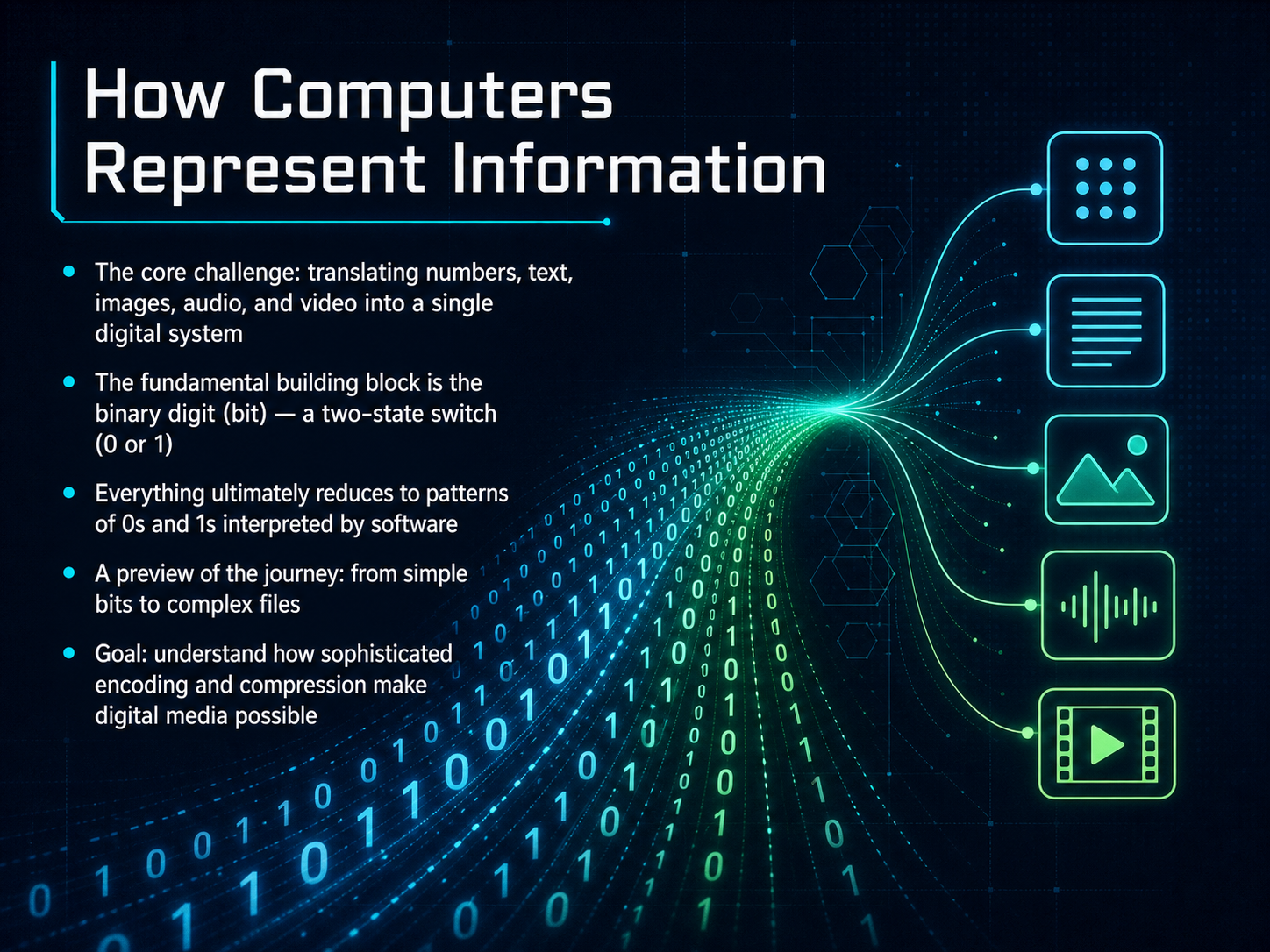
- 01How Computers Represent InformationWelcome. Have you ever wondered how a single computer can store numbers, written text, photographs, music, and video, all within the same digital system? That is exactly what we are going to explore together. At its core, the entire digital world is built from one tiny, simple idea: a switch that can be either off or on. We call this a binary digit, or a bit for short. A bit stores just a zero or a one. It is the smallest unit of information, a single two-state signal. On its own, that might not seem very powerful. But when we group bits together in patterns, we can represent increasingly complex things. Everything you see and hear on a computer, every number, every letter, every color in a photo, and every sound in a song, ultimately reduces to carefully organized sequences of zeros and ones. Software then interprets these patterns to recreate the rich media we experience. In this journey, we will start with these simple bits and build our way up to understanding how sophisticated encoding and compression make modern digital media possible. Let us begin by looking at how we group bits to unlock more possibilities in the next slide, Bits, Bytes, and the Power of Grouping.web.stanford.educomputer.howstuffworks.comredhat.com+22 min
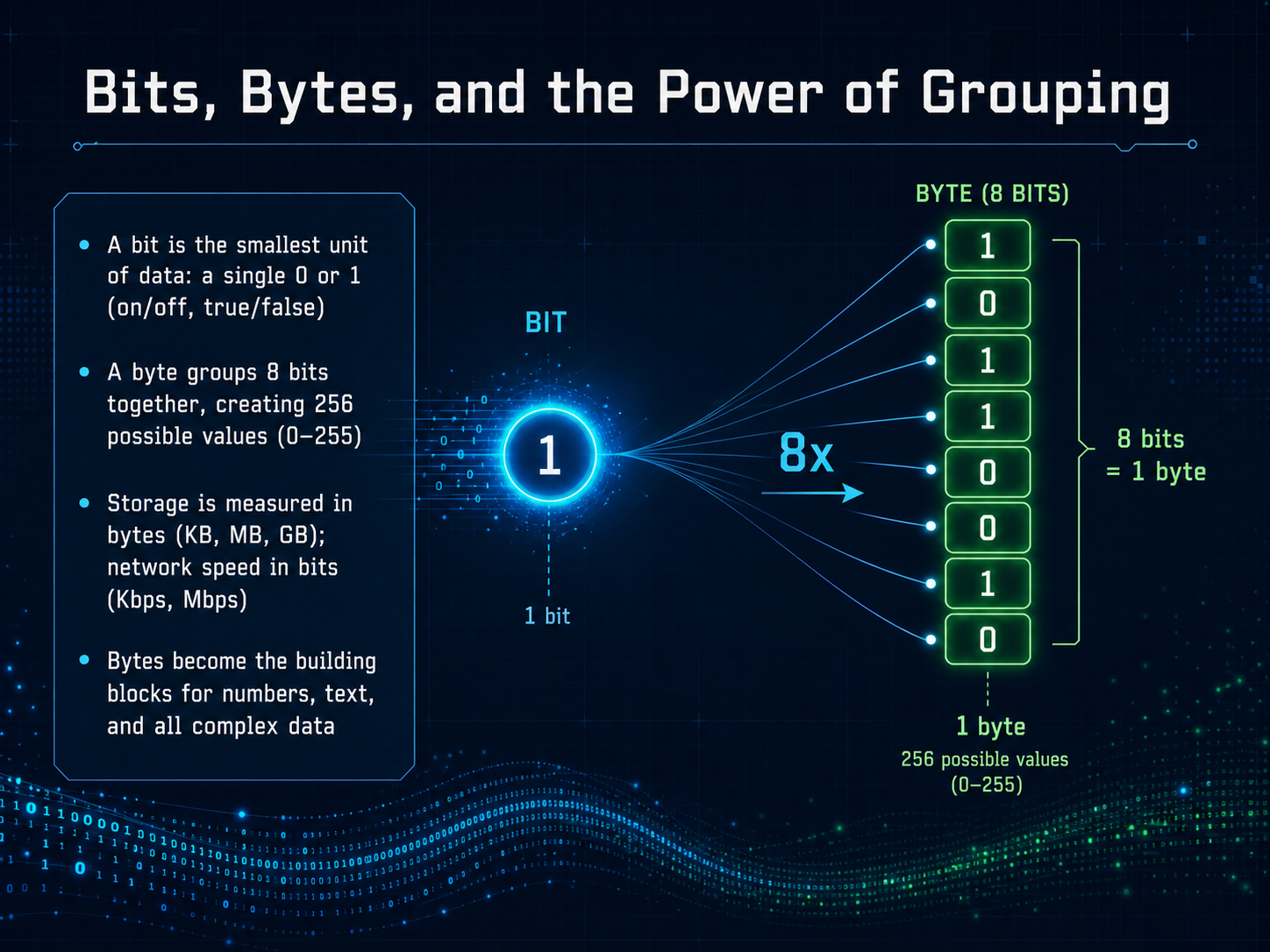
- 02Bits, Bytes, and the Power of GroupingNow, let's talk about bits, bytes, and the power of grouping. A bit is the smallest unit of data. Think of it as a tiny switch that can only be on or off, represented by a one or a zero. But a single bit is too small to be useful on its own, so we group them. A byte is a group of eight bits. With eight bits, we can make two hundred fifty-six different patterns, enough to store a number from zero to two hundred fifty-five, or a single character like the letter 'A'. This is why bytes are the building blocks for everything from numbers to text. Storage space, like your hard drive or phone memory, is measured in bytes and their larger units, like kilobytes and gigabytes. However, network speed, like your internet connection, is measured in bits per second, such as megabits per second. This is a common point of confusion, so just remember: a lowercase 'b' is for bits, and an uppercase 'B' is for bytes. Next, we'll explore how these units scale up in 'Measuring Data: Binary vs. Decimal Prefixes'.
 web.stanford.educomputer.howstuffworks.comredhat.com+21 min
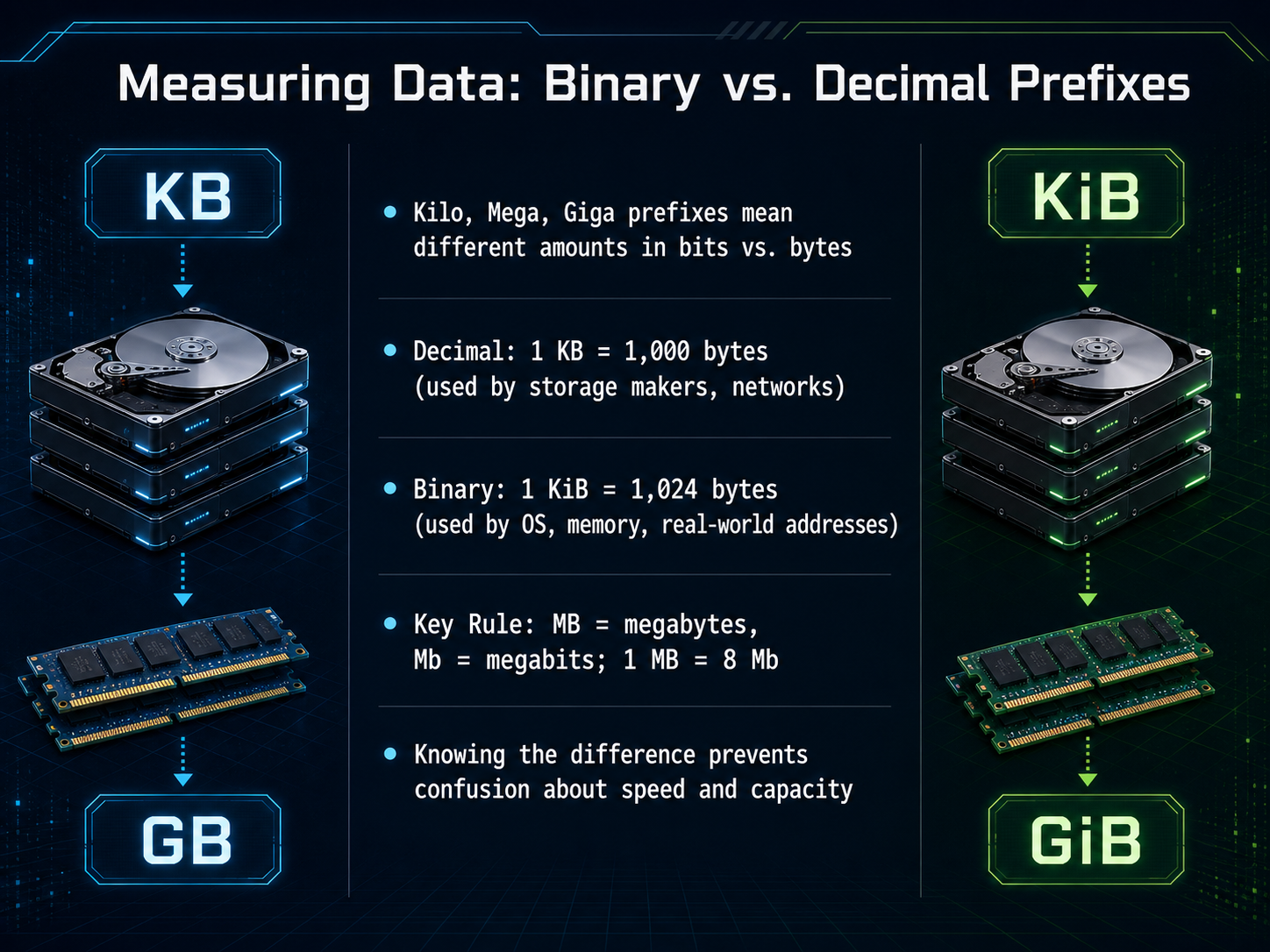
 - 03Measuring Data: Binary vs. Decimal PrefixesNow, let's clear up a common source of confusion: the way we measure data. You have probably heard terms like kilobyte, megabyte, and gigabyte. But did you know these prefixes can mean different things depending on whether we are talking about bits or bytes, and whether we are using a decimal or a binary system? For storage devices like hard drives, manufacturers typically use the decimal system, where one kilobyte equals exactly one thousand bytes. However, your computer's operating system and memory often use the binary system, where one kibibyte equals one thousand twenty-four bytes. This is why a new hard drive often shows a little less space than you might expect. It is also crucial to watch the capitalization. A capital 'B' stands for bytes, while a lowercase 'b' stands for bits. Since one byte equals eight bits, a megabyte is eight times larger than a megabit. This distinction is key for understanding internet speeds, which are typically measured in megabits per second. Next, we will build on this foundation to explore how we layer meaning on top of these bits through abstraction.
 web.stanford.educomputer.howstuffworks.comredhat.com+22 min
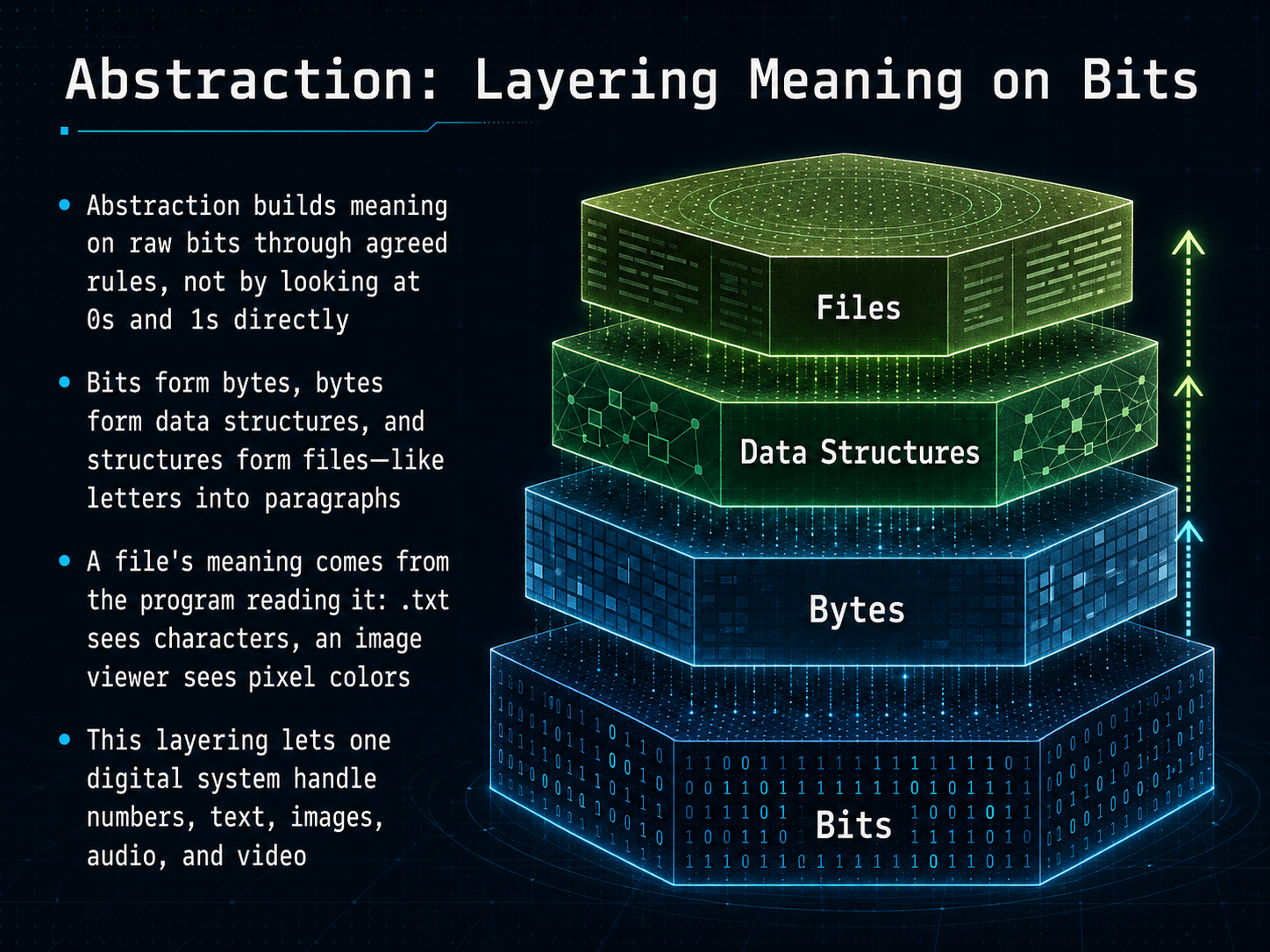
 - 04Abstraction: Layering Meaning on BitsLet's move up a level and talk about how meaning gets layered onto raw bits. This process is called abstraction. It's the idea that we build meaning not by staring at individual ones and zeros, but by agreeing on rules for how to group and interpret them. Bits group together to form bytes. Then bytes can be arranged into data structures, and those structures create files. Think of it like written language: individual letters have limited meaning, but combine them into words, then sentences, then paragraphs, and suddenly you have a story. The real magic is that a file's meaning depends entirely on the program that opens it. The exact same set of bytes could be interpreted as a text character by a notepad application, or as a tiny dot of color by an image viewer. This layering is the key to the versatility of a digital system. It's why a single device can seamlessly handle numbers, text, images, audio, and video, all built on the same foundation of bits. Next, we'll start our journey up this stack of abstractions by looking at the simplest case: representing numbers, moving from the decimal system we know to binary.
 web.stanford.educomputer.howstuffworks.comredhat.com+21 min
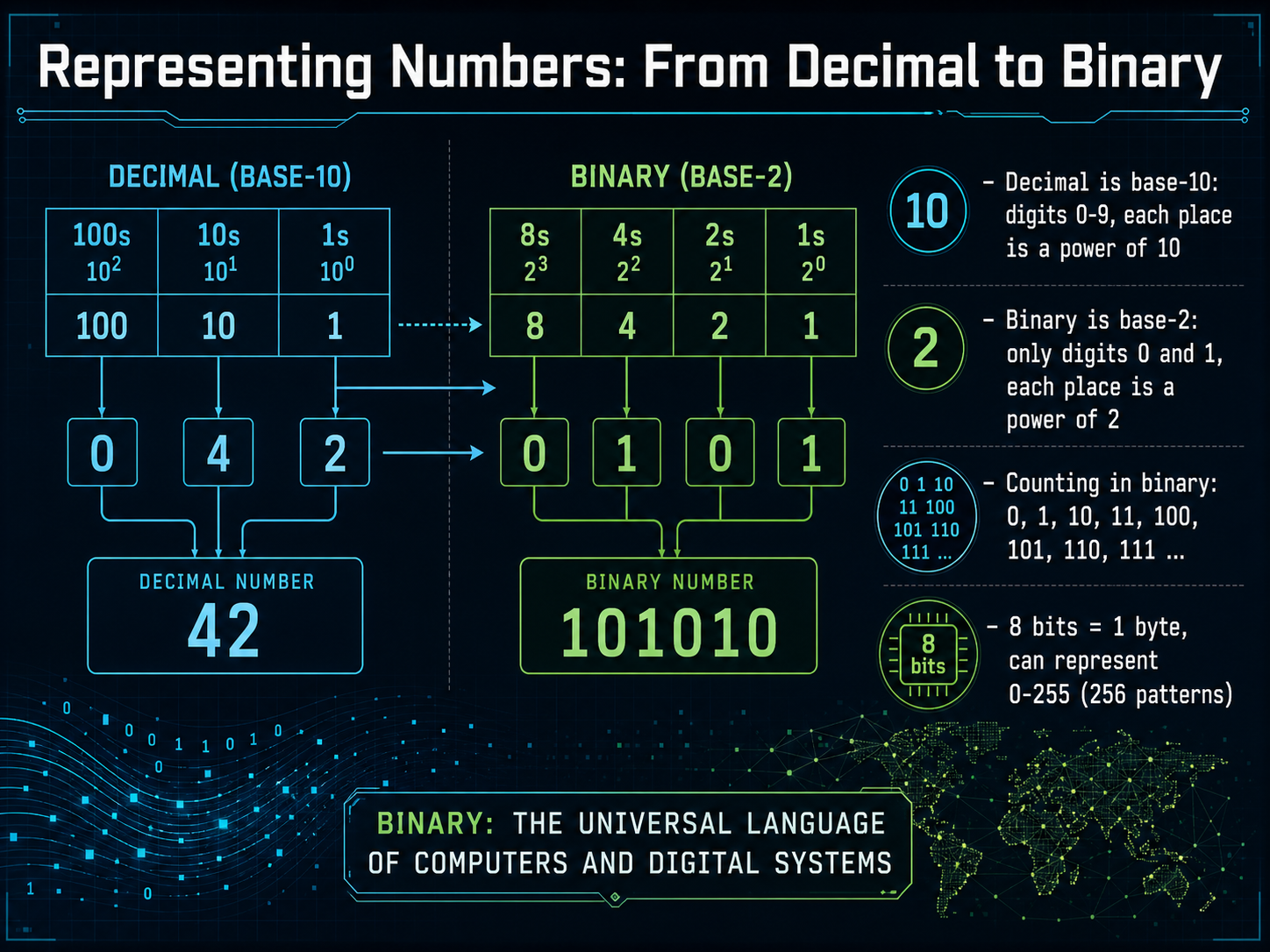
 - 05Representing Numbers: From Decimal to BinaryNow let's focus on numbers. You and I use decimal every day—that's base ten, with digits zero through nine. Each place in a decimal number is a power of ten: ones, tens, hundreds, and so on. Computers, however, work with binary, which is base two, using only ones and zeros. Instead of powers of ten, each place in binary is a power of two. So the rightmost bit is the ones place, then twos, fours, eights, sixteens, and we keep doubling. Counting in binary looks like this: zero, one, then one-zero for two, one-one for three, one-zero-zero for four, and so on. As you can see, it just takes more positions to express the same value. Now, a single bit on its own is not very useful, so we group eight bits together into one byte. With eight bits, we can create two hundred fifty-six different patterns. By assigning those patterns to numbers, one byte can represent integers from zero up to two hundred fifty-five. That's the direct link between the binary hardware and the numbers we work with every day. Next, we'll explore what happens when we need larger numbers or negative values, and we'll look at the limits of those fixed-bit groups.
 web.stanford.educomputer.howstuffworks.comredhat.com+22 min
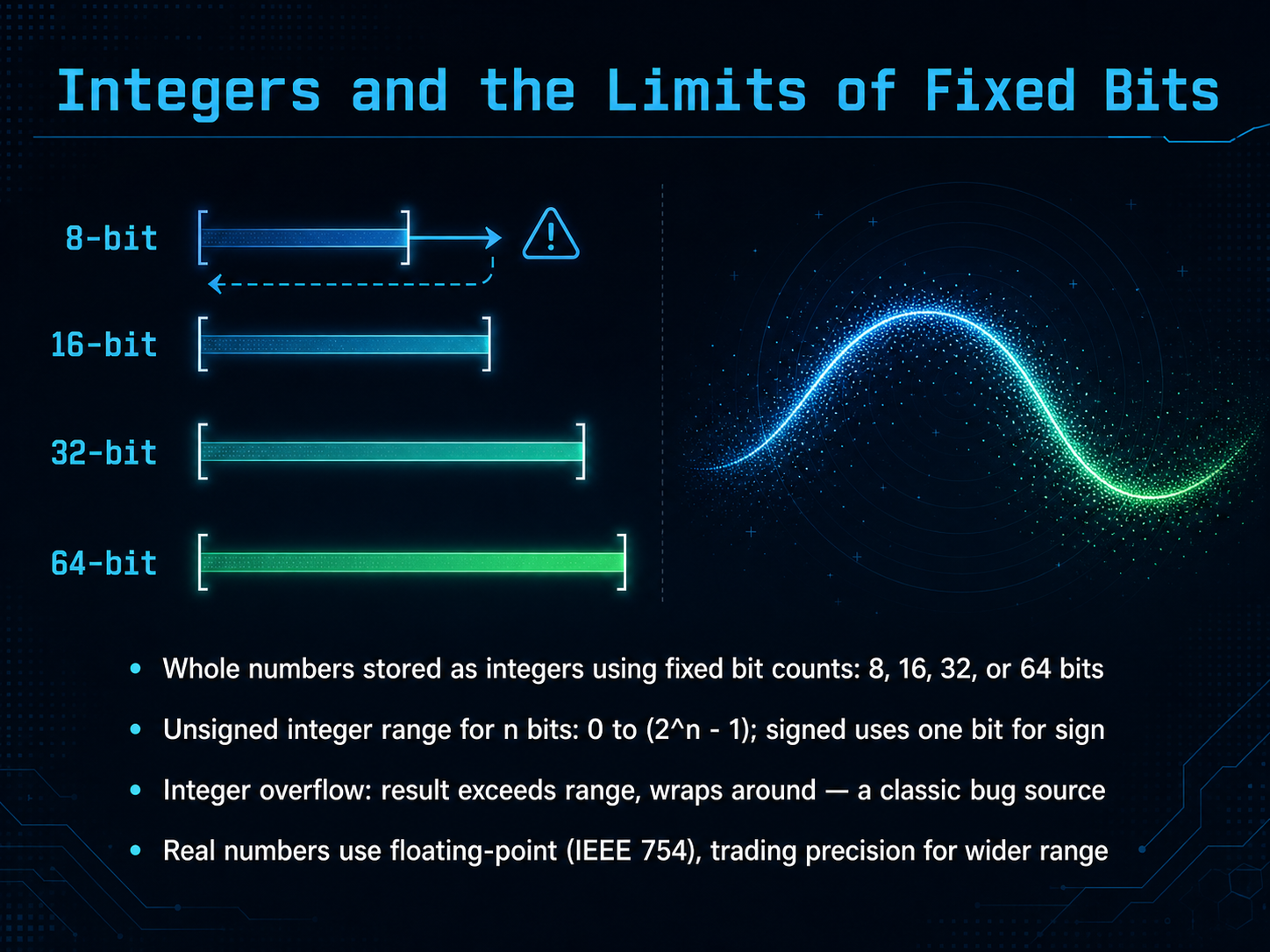
 - 06Integers and the Limits of Fixed BitsNow let's look at how integers fit into fixed bit spaces and what happens when they don't. Computers store whole numbers, or integers, using fixed-width groups of bits, most commonly eight, sixteen, thirty-two, or sixty-four bits. Think of it like a digital display that only has a certain number of digits. If you assign all possible patterns to positive numbers, an unsigned integer with n bits can represent values from zero up to two to the power of n minus one. For example, one byte, which is eight bits, gives you two hundred fifty-six patterns, so it can hold a number from zero to two hundred fifty-five. When you need negative numbers, the system typically uses one bit to indicate the sign, which cuts the maximum positive range roughly in half. This fixed space creates a well-known bug called integer overflow. If you try to add one to a byte that already holds two hundred fifty-five, the result doesn't become two hundred fifty-six; it wraps around to zero, like a car odometer rolling over. Now, for real numbers with fractions, computers don't use plain integers. They use a floating-point format, most commonly the IEEE 754 standard, which trades perfect precision for a much wider range, much like scientific notation. Coming up next, we'll explore how computers use this numeric foundation to encode letters and symbols when we look at encoding text: dictionaries for characters.
 web.stanford.educomputer.howstuffworks.comredhat.com+22 min
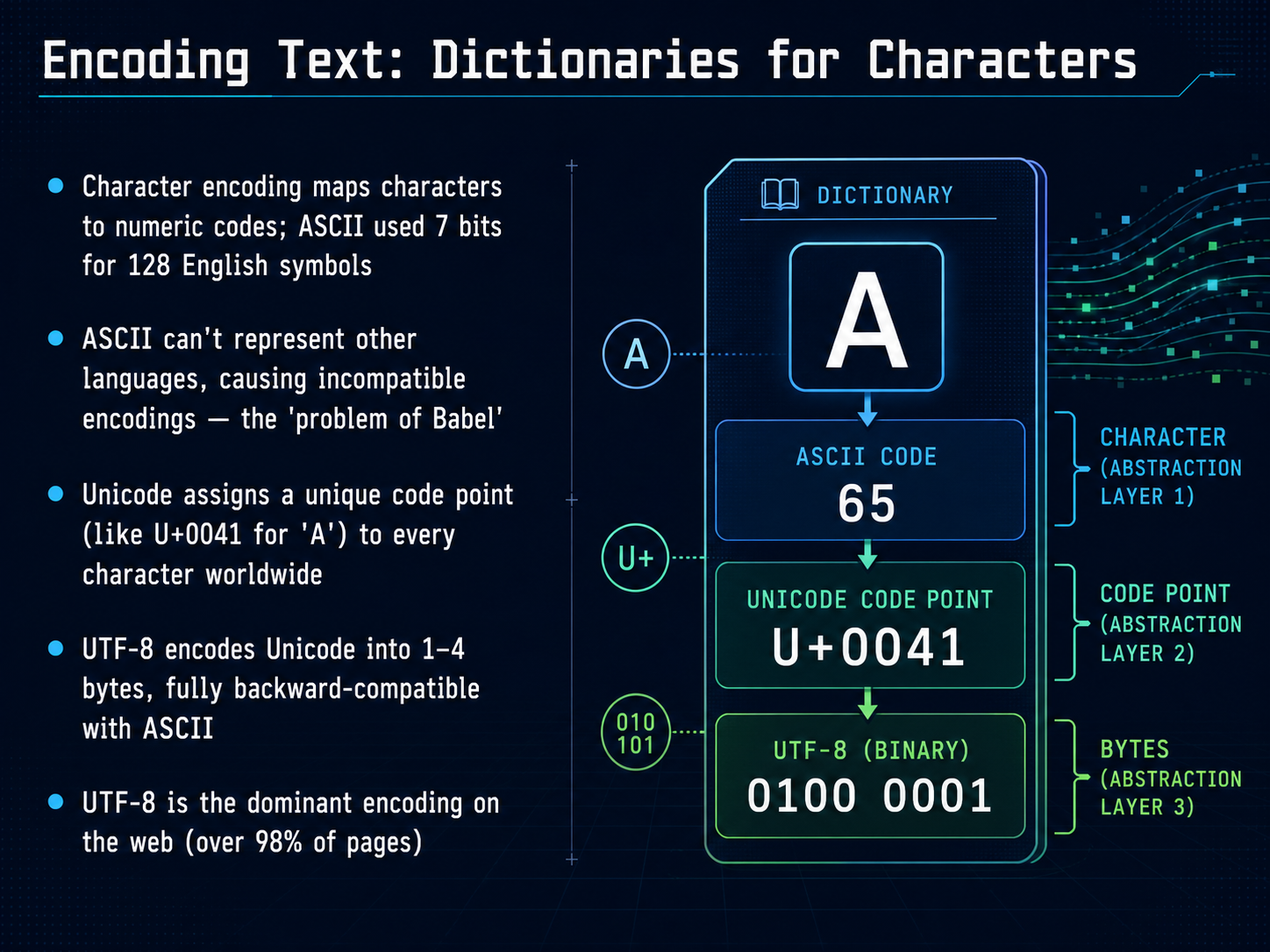
 - 07Encoding Text: Dictionaries for CharactersNow, let's move from numbers to text. If computers only understand ones and zeros, how do they store letters? They use a kind of dictionary called a character encoding. The original dictionary was ASCII, the American Standard Code for Information Interchange. It used seven bits, giving us one hundred twenty-eight slots for English letters, digits, and punctuation. But that's a problem, isn't it? One hundred twenty-eight slots is far too small for the world's languages. Different countries created their own encodings, leading to a mess where the same number meant different characters—a true 'problem of Babel.' To fix this, Unicode was created to give every character in every language a unique code point. For example, capital 'A' is U plus 0041. But how do we store these code points efficiently? That's where UTF-8 comes in. It's a brilliant system that encodes Unicode into one to four bytes. It's fully backward-compatible with ASCII, so an old ASCII file is already a valid UTF-8 file. This compatibility and efficiency made it the king of the web; over ninety-eight percent of all web pages now use it. Let's open the hood and see exactly how this variable-width efficiency works.
 freecodecamp.orgunicodefyi.comjohndcook.com+22 min
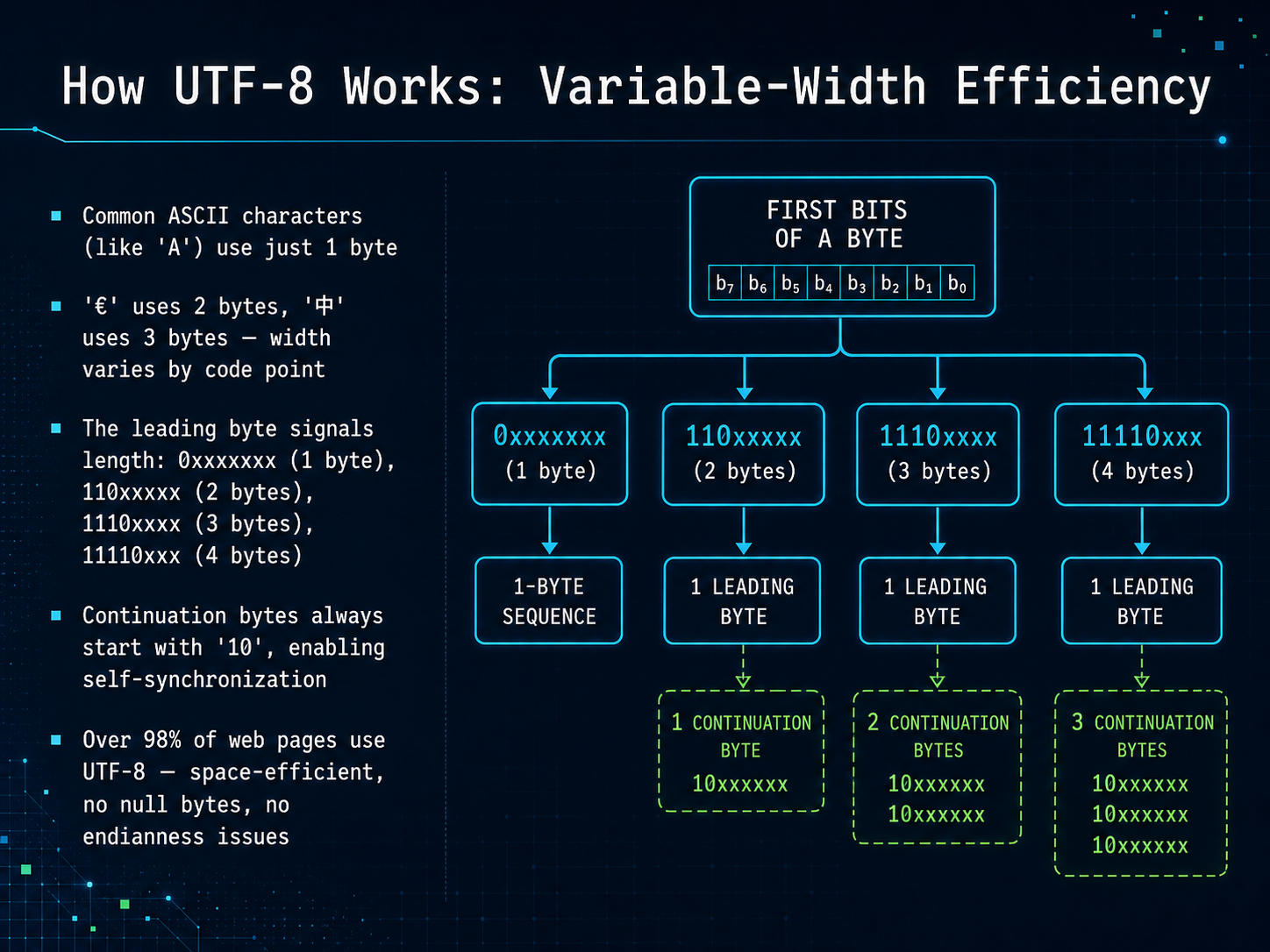
 - 08How UTF-8 Works: Variable-Width EfficiencyNow, let's see how UTF-8 actually delivers on that efficiency. It's a variable-width encoding, which means it uses one to four bytes per character. The key insight is that the first byte, the leader byte, signals exactly how many bytes the whole character will need. For example, if the leader byte starts with the bits one-one-zero, that's a two-byte character. One-one-one-zero means three bytes, and one-one-one-one-zero means four bytes. Any extra bytes that follow are called continuation bytes, and they always start with the bits one-zero. This consistent pattern makes UTF-8 self-synchronizing. If a program gets lost, it can just scan for a byte that doesn't start with one-zero to find the start of the next character. This design is also brilliantly backward-compatible with ASCII. A standard English letter like 'A' still uses exactly one byte. A common symbol like the Euro sign needs two bytes, and a more complex character like the Chinese character for 'middle' takes three. This is why over 98 percent of the web uses UTF-8. It's incredibly space-efficient for English text, and it avoids the byte-order confusion that plagues some other encodings. Next, we'll shift our focus from text to pictures, starting with Raster Images: A Grid of Pixels.
 freecodecamp.orgunicodefyi.comjohndcook.com+22 min
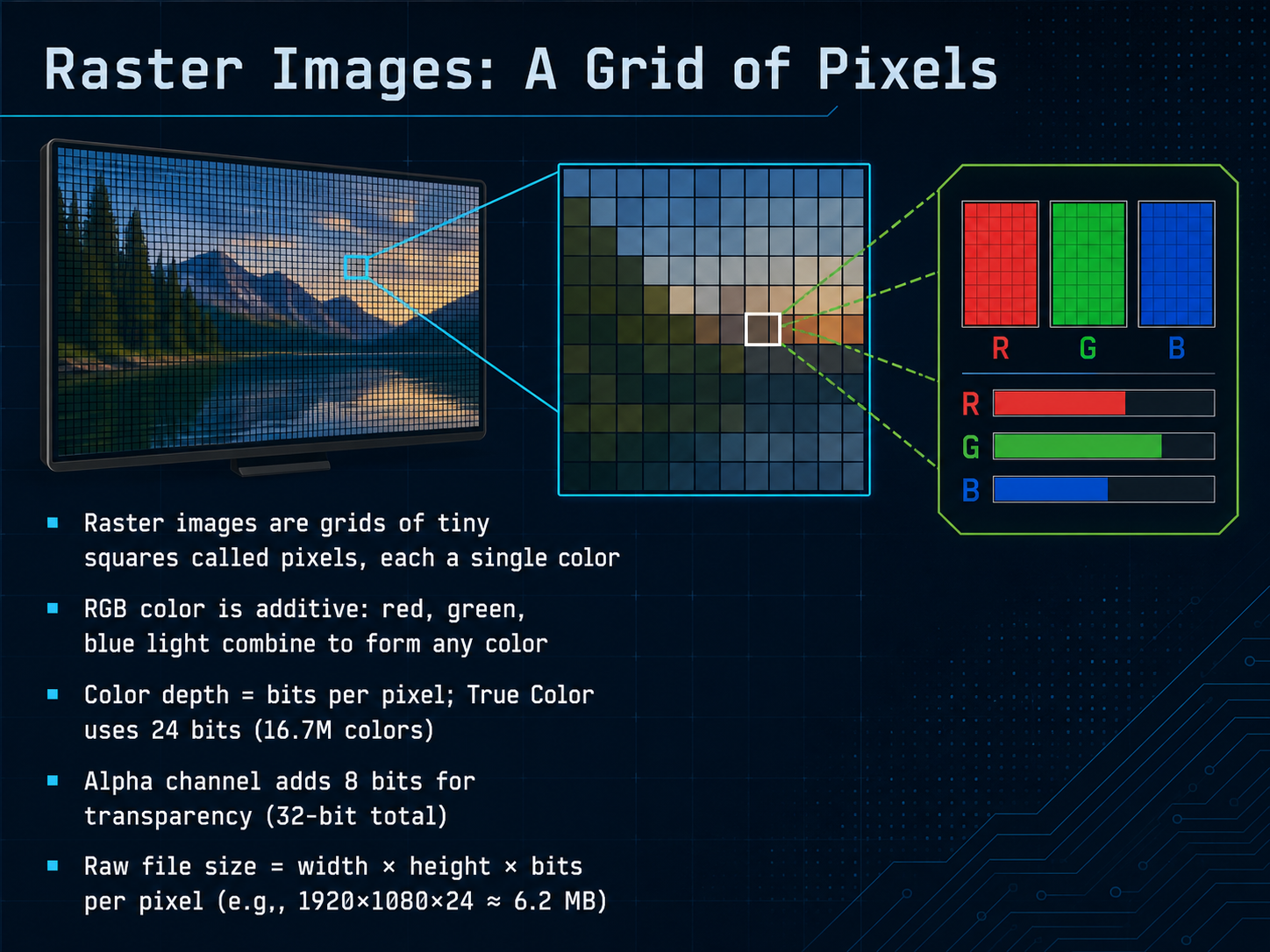
 - 09Raster Images: A Grid of PixelsNow let's look at how images are stored. Raster images are built from a grid of tiny squares called pixels, each one filled with a single color. Think of pixels as the colored tiles in a mosaic. The RGB color model uses red, green, and blue light combined to create any color you see on a screen. Color depth tells us how many bits describe each pixel. True Color uses twenty-four bits, eight for each channel, giving us over sixteen million possible colors. An alpha channel can add eight more bits for transparency, making a thirty-two-bit pixel. To calculate the raw file size, you multiply width by height by bits per pixel. A full HD image at twenty-four bits per pixel works out to about six point two megabytes, before any compression. That brings us to why compression matters. Next, we'll explore indexed color and the need for compression.
 scanly.cophoto.stackexchange.combeej.us+21 min
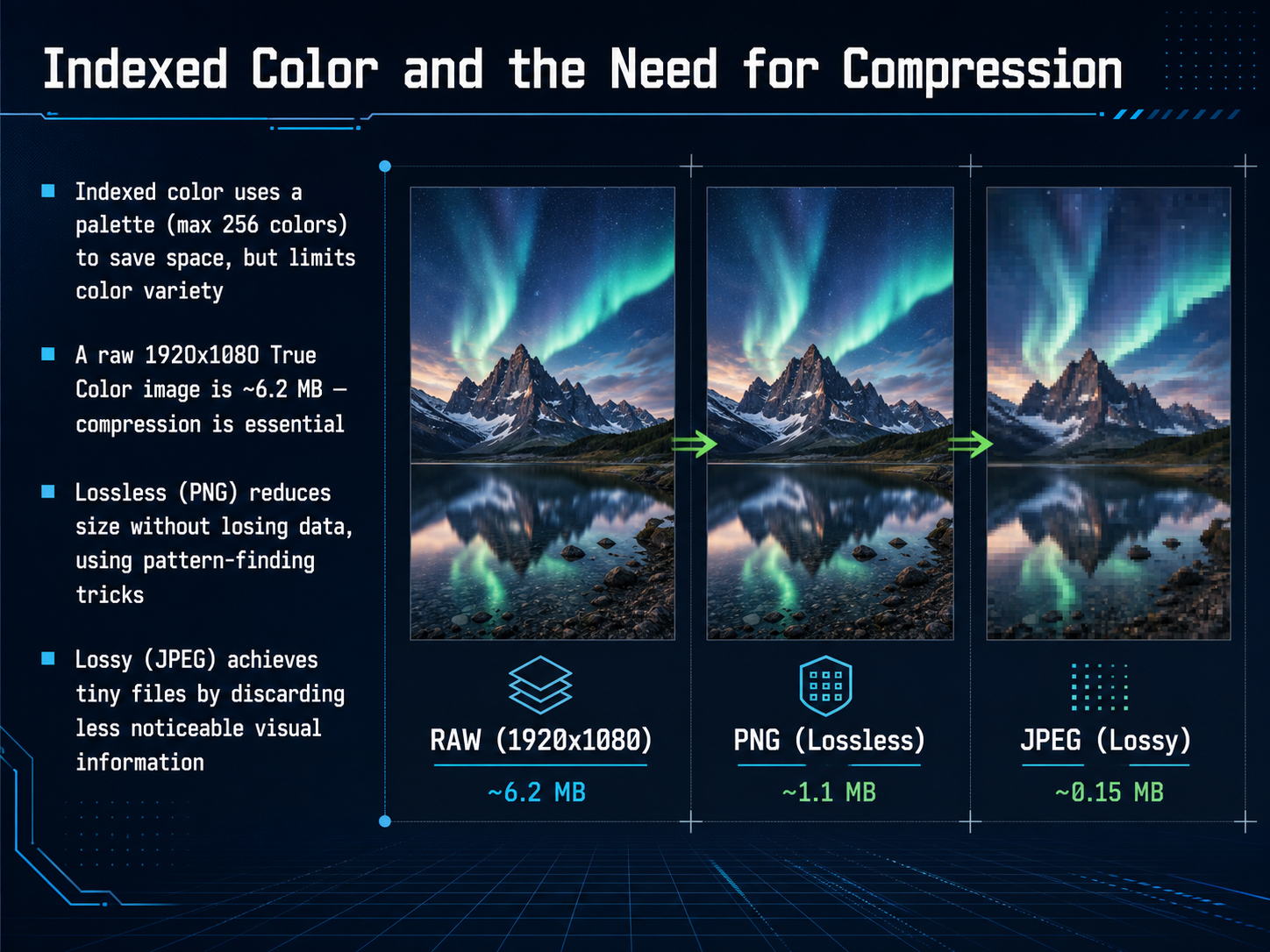
 - 10Indexed Color and the Need for CompressionNow let's look at two practical ways computers save space with color, and why compression matters so much. First, there's indexed color. Think of it like a paint-by-numbers kit, where you only get a small palette of at most 256 colors. It saves a lot of space, but it limits the picture's color variety. Now, without any compression, a single 1920 by 1080 true color photo takes up about 6.2 megabytes. That's just too big to store or share easily, so compression is essential. We have two main strategies. Lossless compression, like PNG, uses pattern-finding tricks to shrink the file without throwing away any data. It's like folding a map neatly: you save space, but you can unfold it perfectly later. Lossy compression, like JPEG, works differently. It achieves tiny file sizes by discarding visual information our eyes are less likely to notice. The upside is a much smaller file; the downside is those discarded details are gone forever. In the next slide, we'll see exactly how JPEG makes those trade-offs, and what those compression artifacts look like.
 scanly.cophoto.stackexchange.combeej.us+22 min
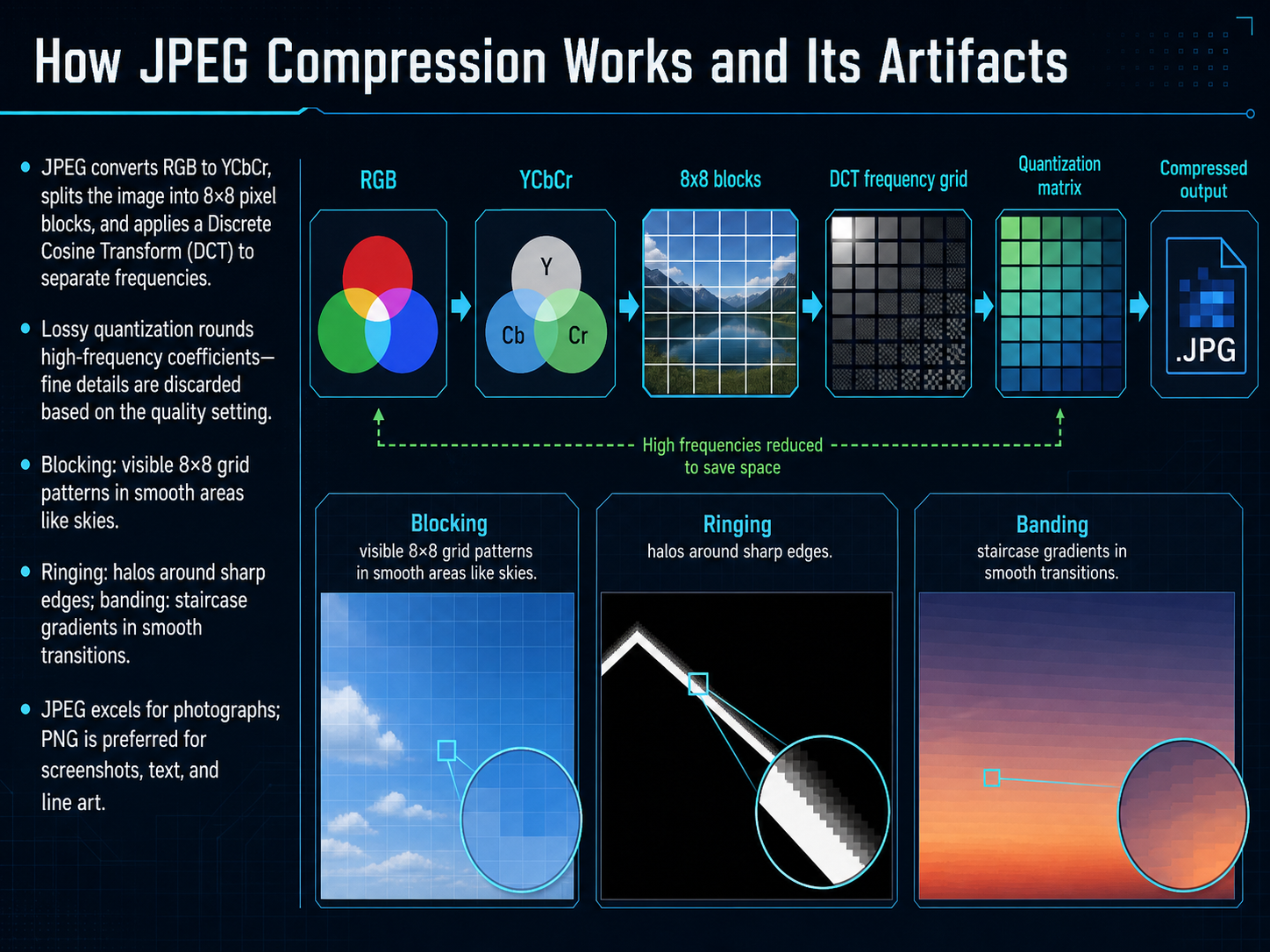
 - 11How JPEG Compression Works and Its ArtifactsNow let's look at what happens inside a JPEG file, and why you sometimes see those blocky squares or halos. JPEG actually starts by converting your image from RGB into a different color space called YCbCr. That separates brightness from color information, because your eyes are much more sensitive to brightness than to color. Then it splits the whole image into tiny blocks of eight by eight pixels. Each block gets run through a mathematical process called the Discrete Cosine Transform, or DCT, which sorts the block's content into smooth gradients and sharp details. Here's the key: the lossy part happens during quantization. Based on the quality setting you choose, the algorithm rounds off or discards the high-frequency detail—the fine textures and crisp edges. This is permanent. When the quality is too low, you start seeing artifacts. Blocking is that visible eight-by-eight grid pattern you notice in smooth areas like a blue sky. Ringing creates halos around sharp edges, like text on a background. And banding turns what should be a smooth sunset gradient into stair-step color stripes. That's why JPEG works fantastically for photographs, but for screenshots, text, or line art, you really want PNG. Coming up next, we'll shift from images to audio and explore how sound gets captured through sampling and quantization.
 scanly.cophoto.stackexchange.combeej.us+22 min
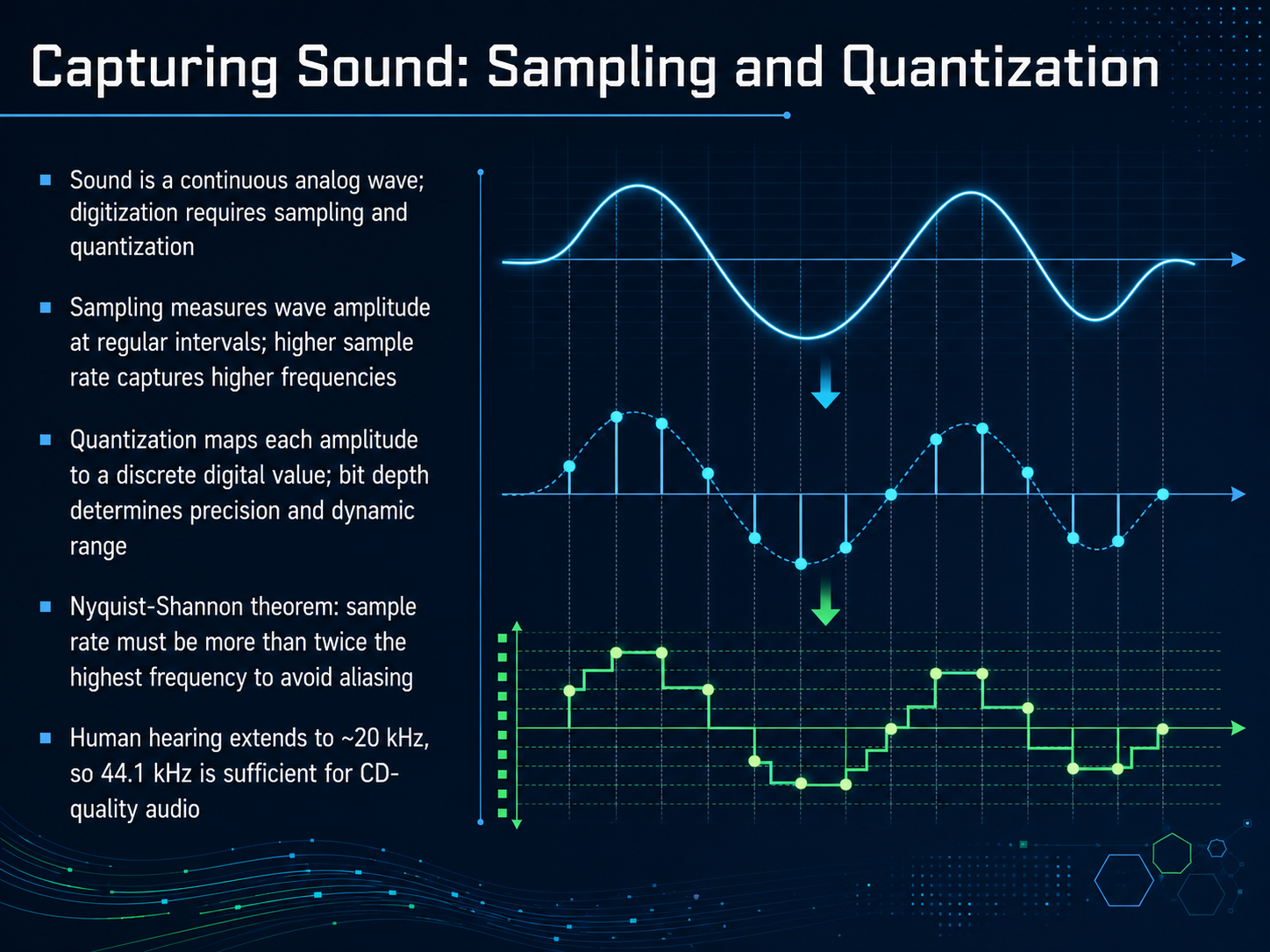
 - 12Capturing Sound: Sampling and QuantizationNow let's apply the ideas of digital representation to something that feels continuous—sound. Sound travels as a smooth, analog wave. To bring it into a computer, we need two steps: sampling and quantization. Sampling means measuring the wave’s amplitude at regular moments in time. Think of it like taking a snapshot of the wave thousands of times per second. The sample rate, measured in hertz, tells us how many snapshots we take. A higher sample rate captures higher frequencies. Quantization is the second step. It maps each measured amplitude to a discrete digital value. The bit depth determines how precise that value is—the more bits, the finer the volume detail and the wider the dynamic range we can capture. There's a famous rule that ties this together: the Nyquist-Shannon theorem. It states that to perfectly capture a sound, the sample rate must be more than twice the highest frequency we want to record. If we sample too slowly, high frequencies can disguise themselves as lower, incorrect sounds—a distortion called aliasing. Human hearing tops out around twenty kilohertz. So, a sample rate of forty-four point one kilohertz, used for CD-quality audio, comfortably exceeds twice that limit and ensures we capture everything we can hear. Next, we’ll see how that raw audio data gets packaged into file formats like WAV, FLAC, and MP3.
 luisllamas.esdsprelated.comen.wikipedia.org+22 min
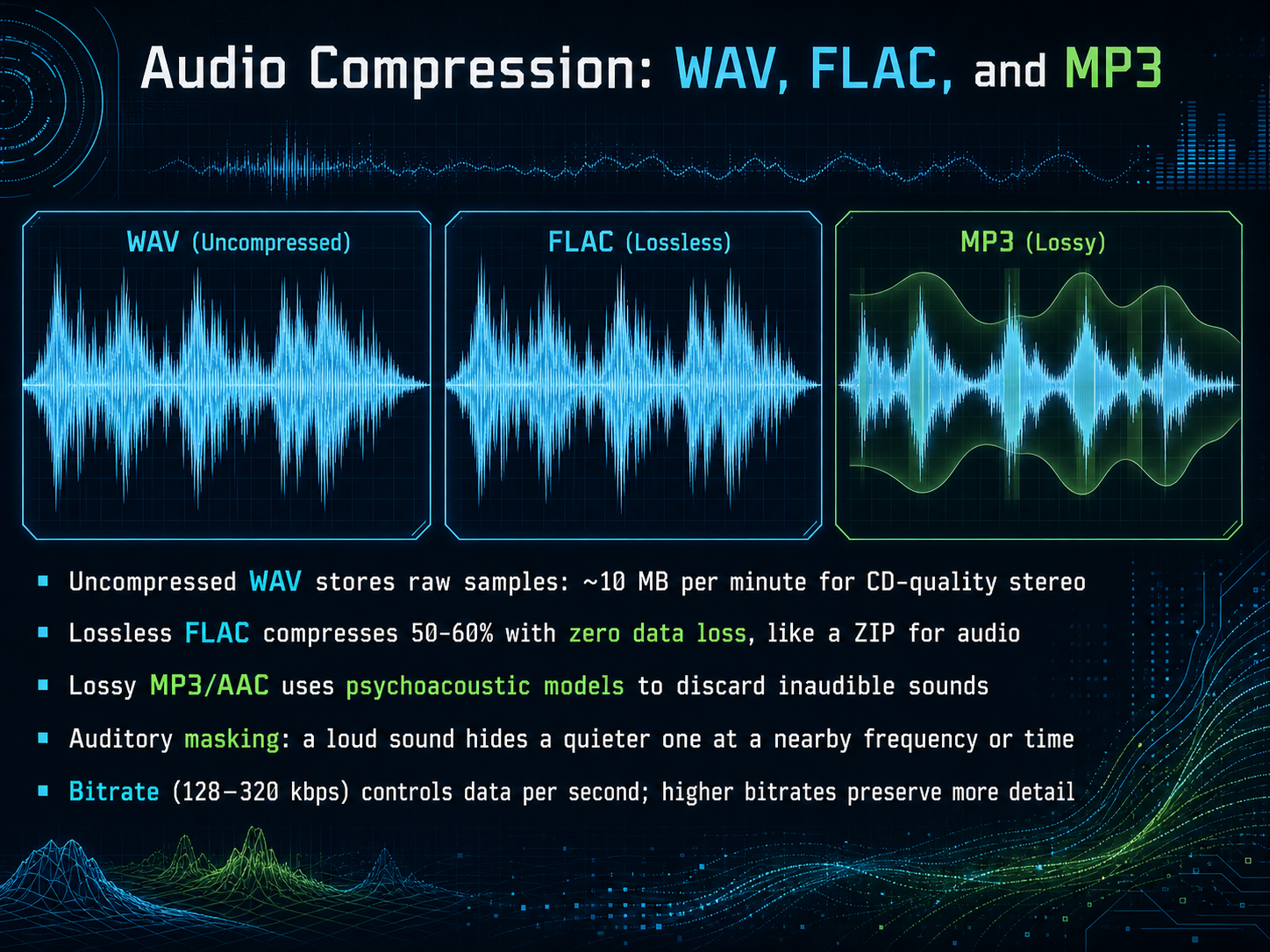
 - 13Audio Compression: WAV, FLAC, and MP3Now that we understand sampling, let's explore how audio files manage their size. Uncompressed audio, like a WAV file, stores every single sample. A CD-quality stereo recording takes about ten megabytes per minute. That's a lot of space. Lossless compression, like FLAC, works like a ZIP file for audio. It finds patterns and redundancies to shrink the file by fifty to sixty percent, but when you play it back, not a single bit of the original sound is lost. MP3 and AAC take a different approach, using lossy compression. They rely on psychoacoustic models, which are rules about how our ears and brain work. A key principle is auditory masking. For example, a loud sound at one frequency can hide a quieter sound at a nearby frequency, or a sound that happens right after it. The compression algorithm identifies and discards these inaudible sounds to save space. The amount of data used per second is the bitrate. A higher bitrate, like 320 kilobits per second, preserves more detail and sounds closer to the original. A lower bitrate, like 128 kilobits per second, creates a much smaller file but discards more audio information. Next, we'll apply these concepts to visuals as we explore video fundamentals, including frames, frame rate, and containers.
 luisllamas.esdsprelated.comen.wikipedia.org+22 min
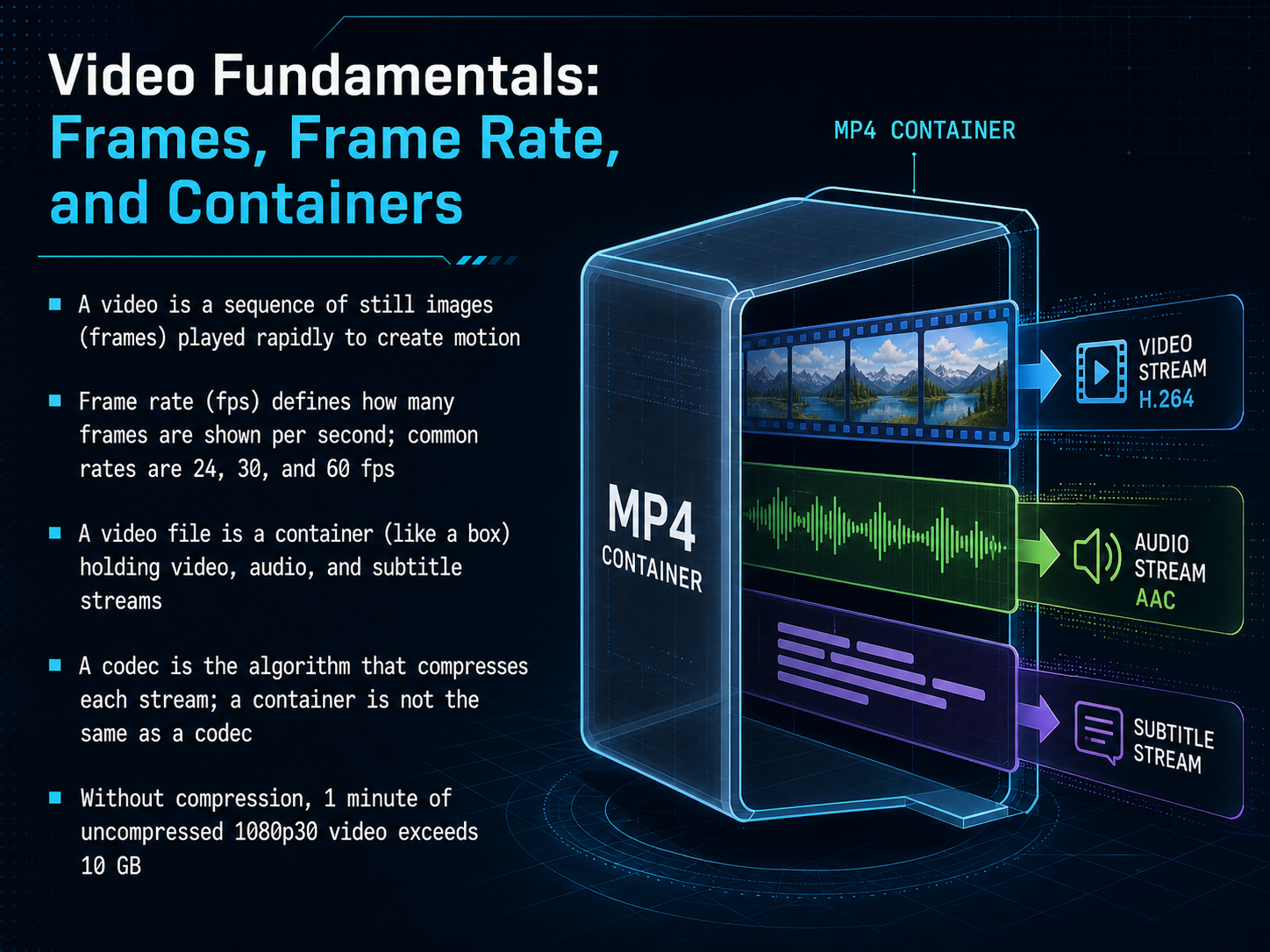
 - 14Video Fundamentals: Frames, Frame Rate, and ContainersNow that we have explored images, let's bring them to life with video. At its heart, a video is simply a rapid sequence of still images, called frames, played one after the other to create the illusion of motion. The speed of this playback is the frame rate, measured in frames per second, or fps. Common rates like 24, 30, and 60 fps determine how smooth the motion appears. When you save a video, you're not just saving the pictures. A video file is a container, like a digital box, that holds separate video, audio, and subtitle streams. It's important to know that a container is not the same as a codec. The codec is the algorithm inside that compresses each stream to make the file manageable. Without compression, a single minute of standard 1080p video at 30 frames per second would take up more than 10 gigabytes of space. That staggering size is why compression is so essential. Next, we will explore the two core strategies that make video compression possible: intra-frame and inter-frame compression.
 2 min
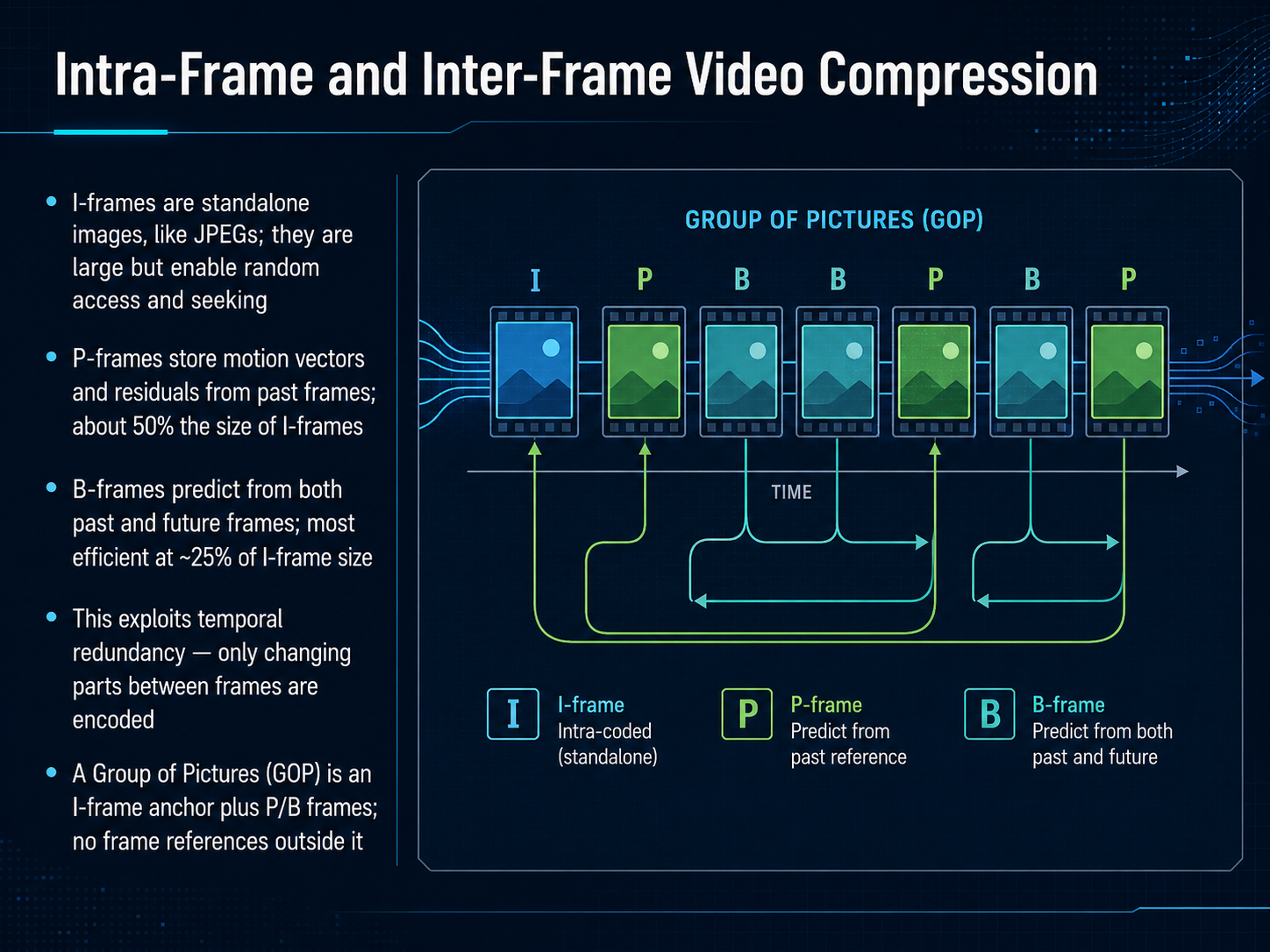
2 min - 15Intra-Frame and Inter-Frame Video CompressionNow let's bring this together with how video codecs use three specific frame types to compress motion. Think of an I-frame as a complete JPEG snapshot. It's a full image that stands on its own, so it's large, but it's the anchor that lets you jump to any point in a video. A P-frame, or predicted frame, only stores what changed from the previous frame. It uses motion vectors to describe where blocks of pixels moved, plus a small residual to correct the difference. This makes a P-frame roughly half the size of an I-frame. A B-frame takes this even further by looking both backward and forward, predicting from past and future frames. It's the most efficient, often around a quarter the size of an I-frame. This entire strategy is called exploiting temporal redundancy. We only encode the parts of the picture that actually change over time. These frames are grouped into a structure called a Group of Pictures, or GOP. A GOP starts with an I-frame anchor, followed by P and B frames, and no frame ever references anything outside its own GOP. This keeps the video stream organized and resilient. In the next slide, we'll step back to see the big picture of this universal digital system.
 1 min
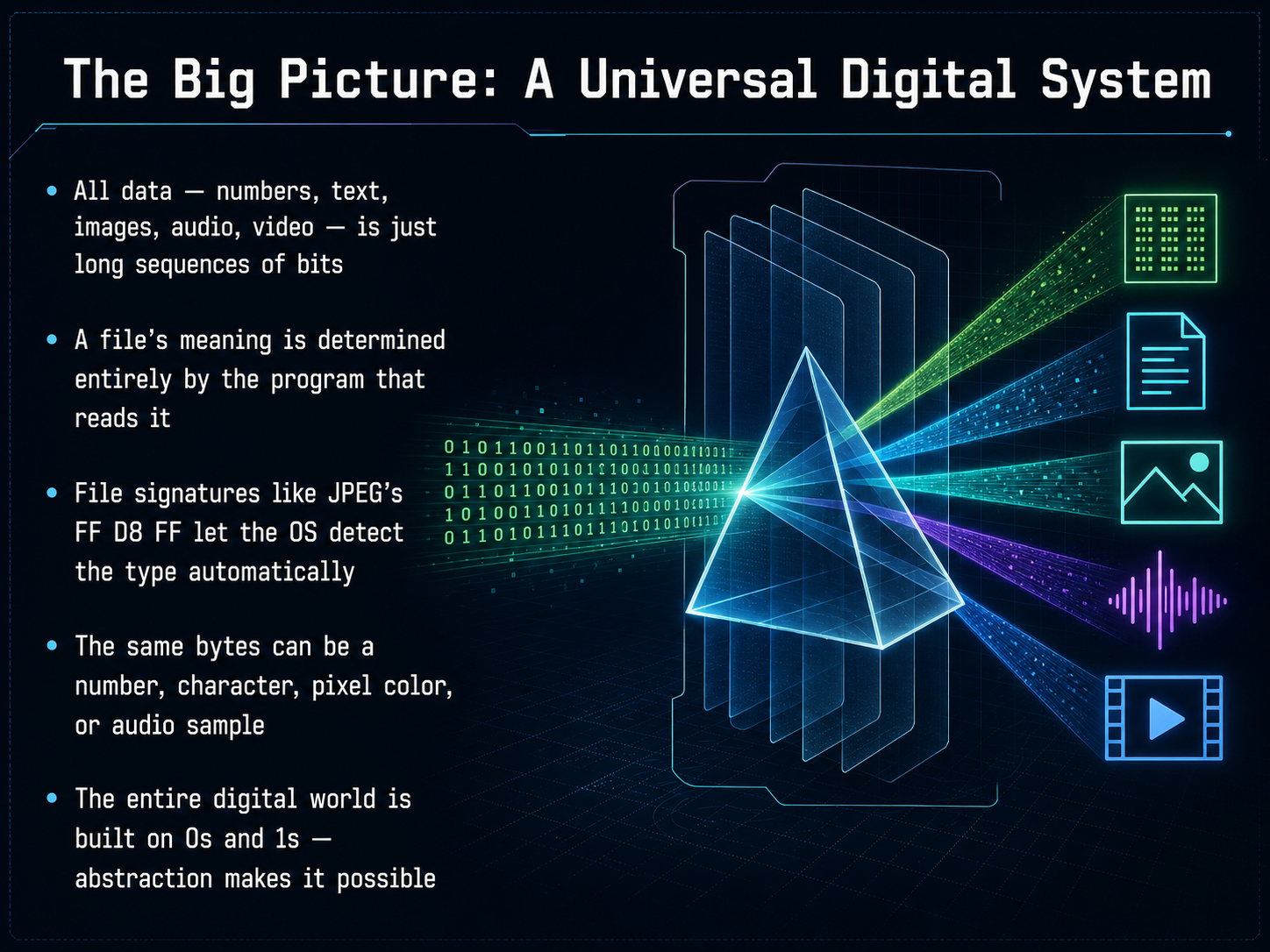
1 min - 16The Big Picture: A Universal Digital SystemSo let's step back and see the big picture. Everything on your screen—numbers, text, images, audio, and video—is ultimately just a long, long sequence of bits. That's it. Just zeros and ones. A file's meaning isn't built into the bits themselves; it's determined entirely by the program that opens it. The same exact bytes could represent a number, a character, a pixel color, or an audio sample. It all depends on the context. Your operating system can often guess the type of file by looking at its signature—like how JPEG images always start with the bytes FF D8 FF. But at the core, the entire digital world rests on this simple, universal system of zeros and ones. It's layer upon layer of abstraction that turns those two states into everything we experience. Thank you for joining me on this journey from bits to the big picture. I hope you now see your digital world a little differently, and I encourage you to keep exploring the amazing systems built on these simple foundations.
 web.stanford.educomputer.howstuffworks.comredhat.com+22 min
Sources consulted
Web sources consulted while building this course.
- Bits and Bytes — web.stanford.edu
- How Bits and Bytes Work | HowStuffWorks — computer.howstuffworks.com
- When bandwidth and storage size matters: Bits vs. bytes — redhat.com
- How to think about bits vs. bytes | Popular Science — popsci.com
- Difference between bits and bytes? — cs.stackexchange.com
- What is UTF-8? UTF-8 Character Encoding Tutorial — freecodecamp.org
- UTF-8 Encoding Explained — Unicode Guides — unicodefyi.com
- How UTF-8 Unicode encoding works — johndcook.com
- RFC 3629 - UTF-8, a transformation format of ISO 10646 — datatracker.ietf.org
- UTF-8 — en.wikipedia.org
- JPEG Compression Artifacts Explained: What They Are & How to ... — scanly.co
- What are jpeg artifacts and what can be done about them? — photo.stackexchange.com
- Beej's Photo Guide - JPEG Jaggies — beej.us
- JPEG and JPEG2k Artifacts — stat.columbia.edu
- Compression artifact — en.wikipedia.org
- Explanation of Nyquist Sampling Theorem without Equations — luisllamas.es
- Sampling and Aliasing: The Nyquist Theorem Explained Visually — dsprelated.com
- Nyquist–Shannon sampling theorem — en.wikipedia.org
- AN-236 An Introduction to the Sampling Theorem (Rev. C) — ti.com
- What Is the Nyquist Theorem - MATLAB & Simulink — mathworks.com