Begin
14 pages · ~28 min
Digital Accessibility Audit Checklist
A step-by-step guide for conducting digital accessibility audits, equipping trainees with a practical checklist to evaluate and improve compliance.
A digital instructor presents all 14 pages. Hold “Ask” at any point and ask out loud — the answer comes from this course. No sign-up needed.
What you’ll learn
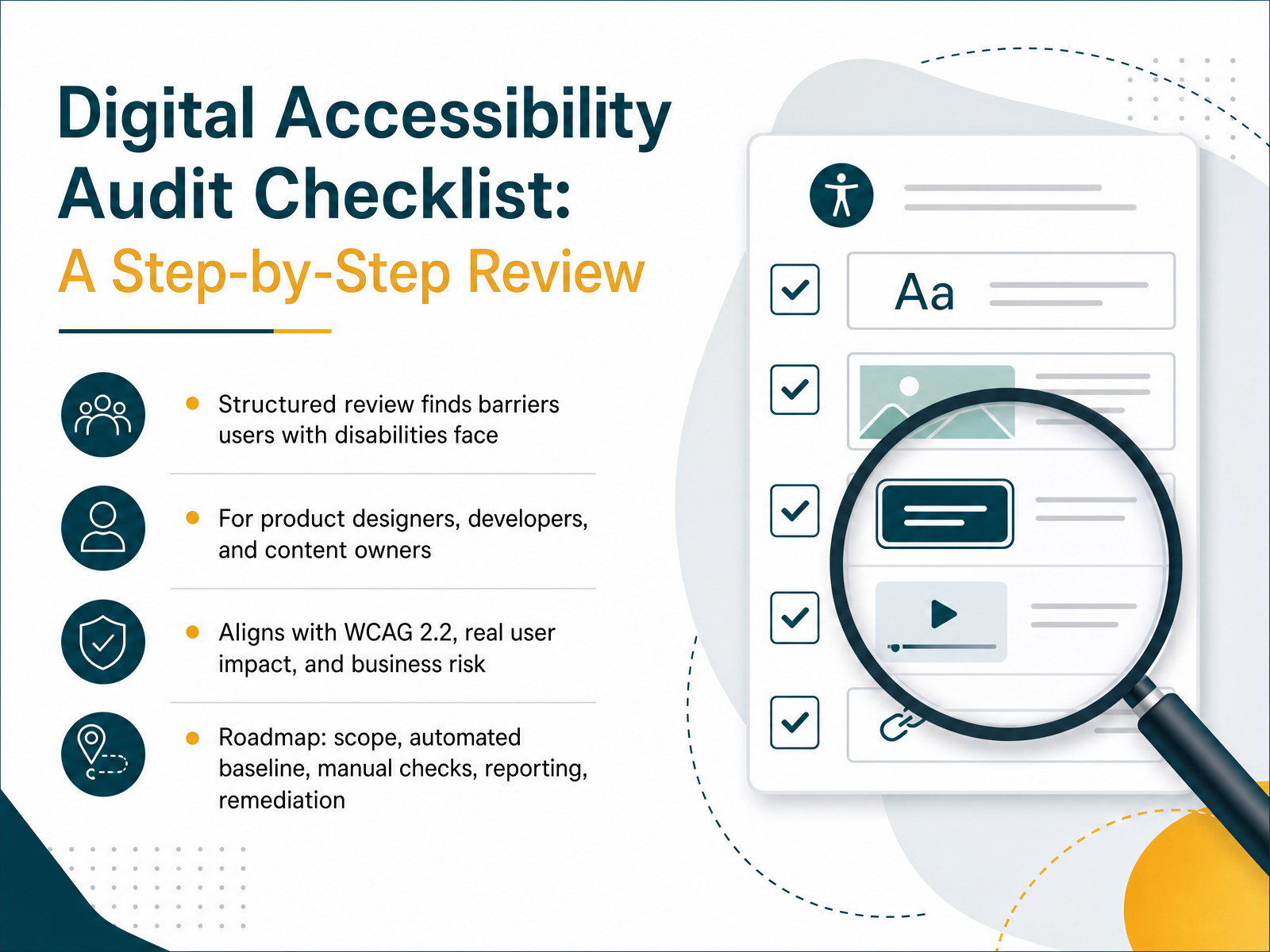
- 01Digital Accessibility Audit Checklist: A Step-by-Step ReviewWelcome. This session is about running a digital accessibility audit that actually works. We’ll walk through a step-by-step review built on WCAG 2.2, focused on real user impact and business risk. You’ll learn how to scope the audit, run automated scans, perform manual checks, document findings, and prioritize fixes. Whether you’re a designer, developer, or content owner, you’ll leave with a clear roadmap. Accessibility is a shared engineering standard, and we’ll treat it that way. Let’s get started. Coming up next: why a structured audit matters.webability.iowebability.ioaccessibility.build+21 min
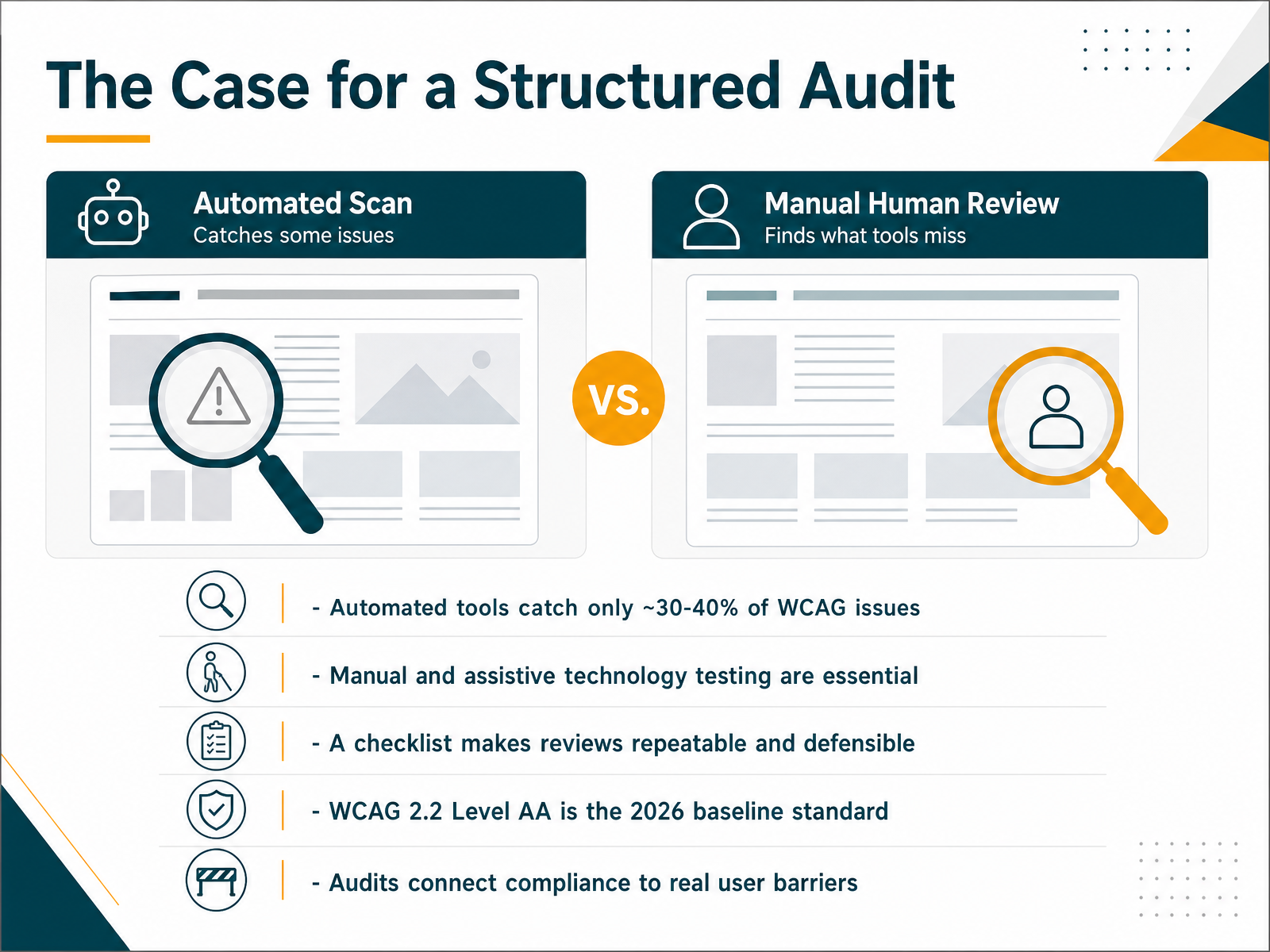
- 02The Case for a Structured AuditLet’s talk about why a structured audit matters. Automated tools are useful for triage, but they only catch about thirty to forty percent of real WCAG issues. That means the majority of barriers — things like confusing focus order or unclear screen reader announcements — require manual review and assistive technology testing. A checklist makes this process repeatable and defensible. It ensures every review follows the same steps, so findings are consistent and trackable. And with WCAG 2.2 Level AA becoming the baseline in 2026, your audit needs to cover the new criteria, like target size and accessible authentication. Most importantly, a structured audit connects compliance to real user barriers. Each finding maps to a specific obstacle someone faces, and that link turns a checkbox exercise into a practical fix list. Next, we’ll look at how this aligns with WCAG 2.2 and the broader compliance context.
 webability.iowebability.ioaccessibility.build+21 min
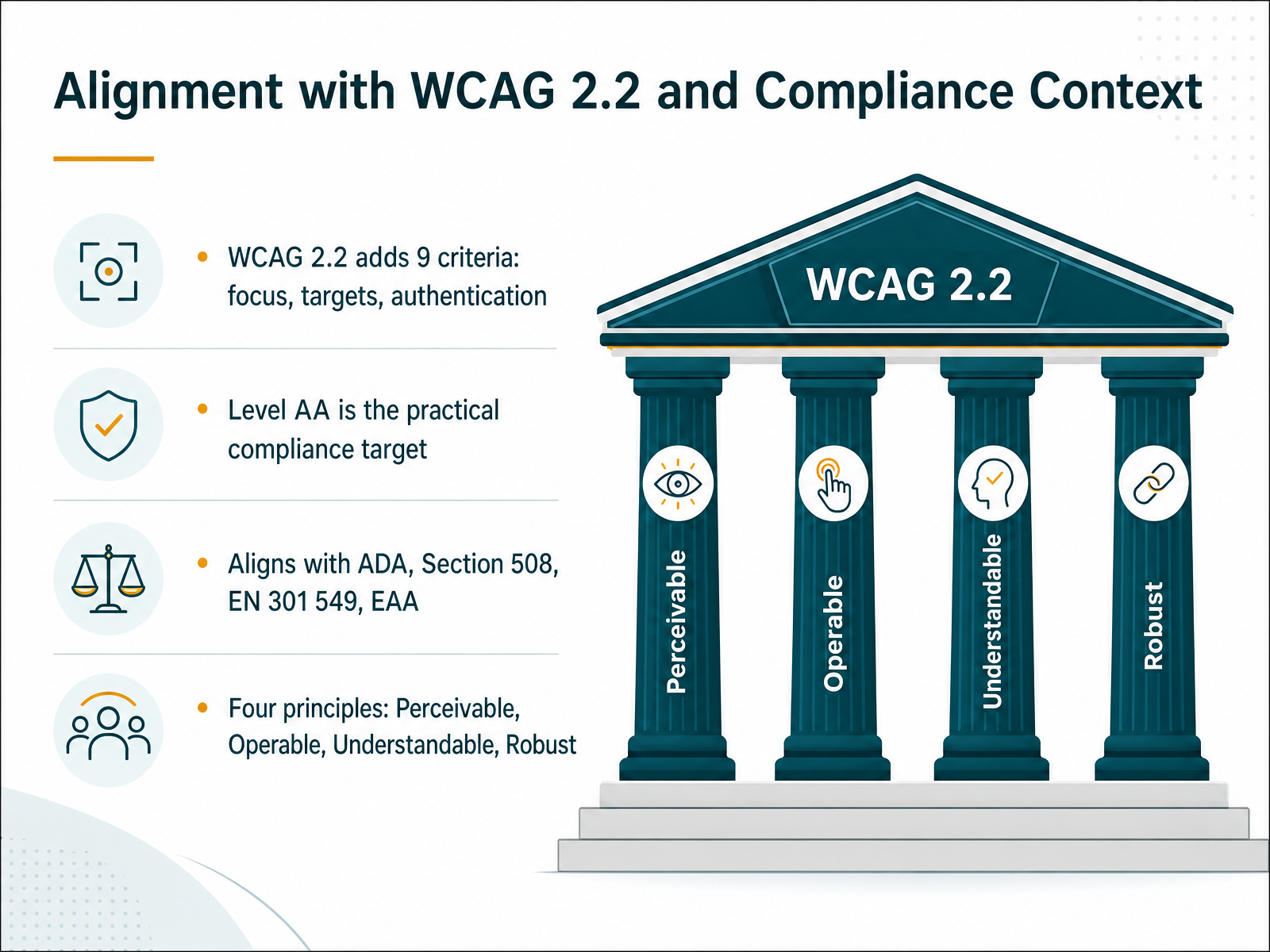
 - 03Alignment with WCAG 2.2 and Compliance ContextLet's anchor our review in the right standard. We're aligning with WCAG 2.2, and this version adds nine new success criteria. Focus on these key ones: ensuring focus is not obscured by sticky headers, meeting the minimum touch target size of 24 by 24 pixels, and making authentication accessible without cognitive puzzles. In practice, that means a login that doesn't force a memory test. Level AA is our practical compliance target, and our audit will map every issue against it. This approach lines up directly with legal frameworks like the ADA, Section 508, and the European Accessibility Act. Remember the four principles as our structure: Perceivable, Operable, Understandable, and Robust. For example, check contrast ratios for perceivable, test keyboard navigation for operable, write clear error messages for understandable, and validate your HTML and ARIA for robust. We will use these principles to organize findings from your team's review. Next, we'll define the audit scope and success criteria.
 webability.iowebability.ioaccessibility.build+21 min
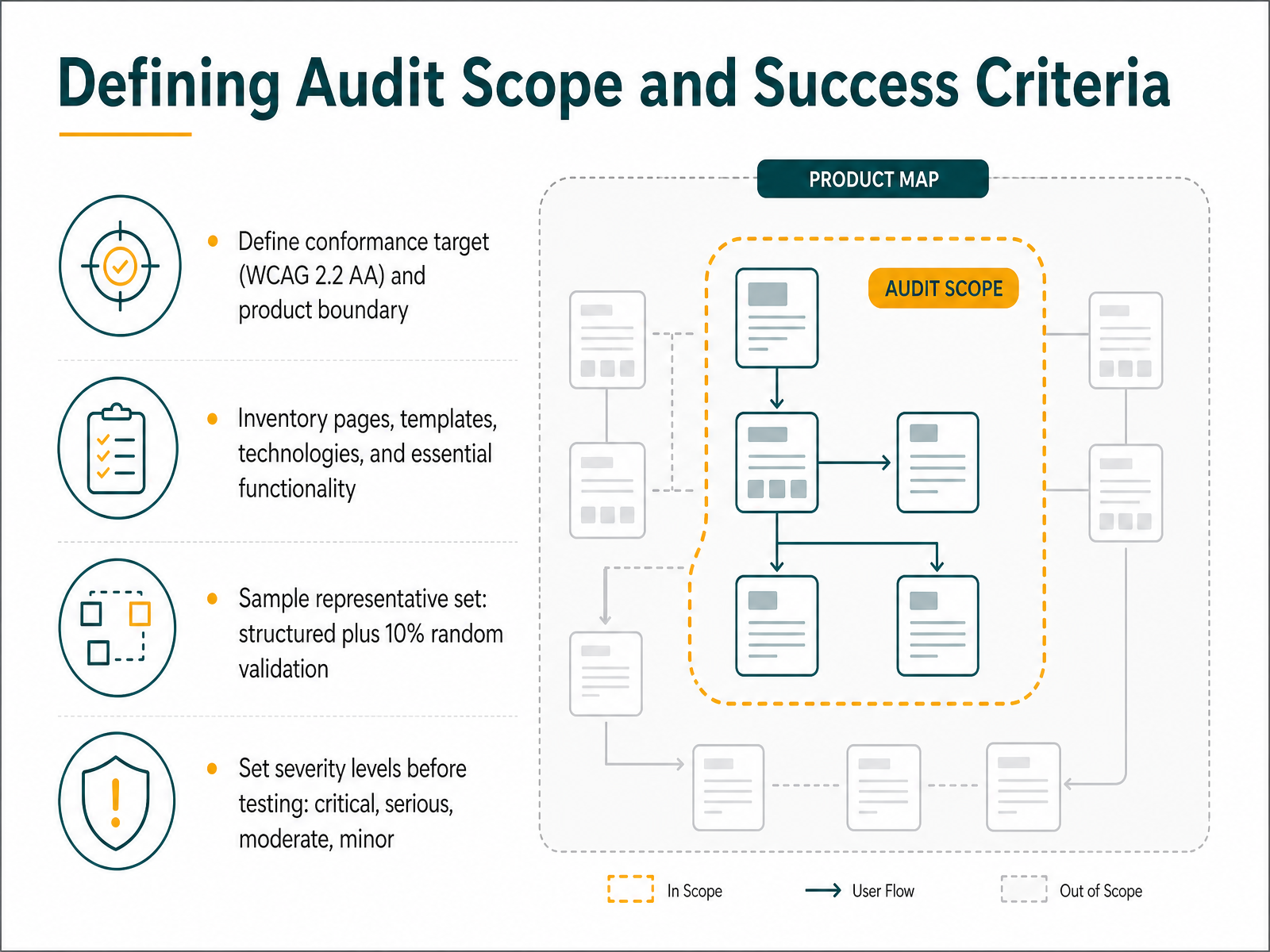
 - 04Defining Audit Scope and Success CriteriaWith the inventory done, we lock the scope and success criteria before testing begins. First, set the conformance target. Default to WCAG 2.2 Level AA and write down the product boundary, exactly which pages, templates, and technologies are inside the review. Next, inventory the product. List the common views, essential functionality, and every technology relied upon. An older product with many contributors and inconsistent templates needs a larger sample than a young app on a governed component library. Now select a representative set. Build a structured sample that covers each template, key user flow, and interactive widget, then add a random ten percent as a validation check. If those random views surface new issue types, your structured set is incomplete, so go back and widen it. Finally, set severity levels before testing. Critical blocks a core task with no workaround. Serious is a major barrier but the task is possible. Moderate causes friction. Minor is polish. Define these in advance so findings land as fixes to implement, not subjective opinions. That scope discipline keeps the audit defensible and the results repeatable. Next, we’ll see how to select that representative sample in practice.
 w3.orgw3.orgaccessibility.build+22 min
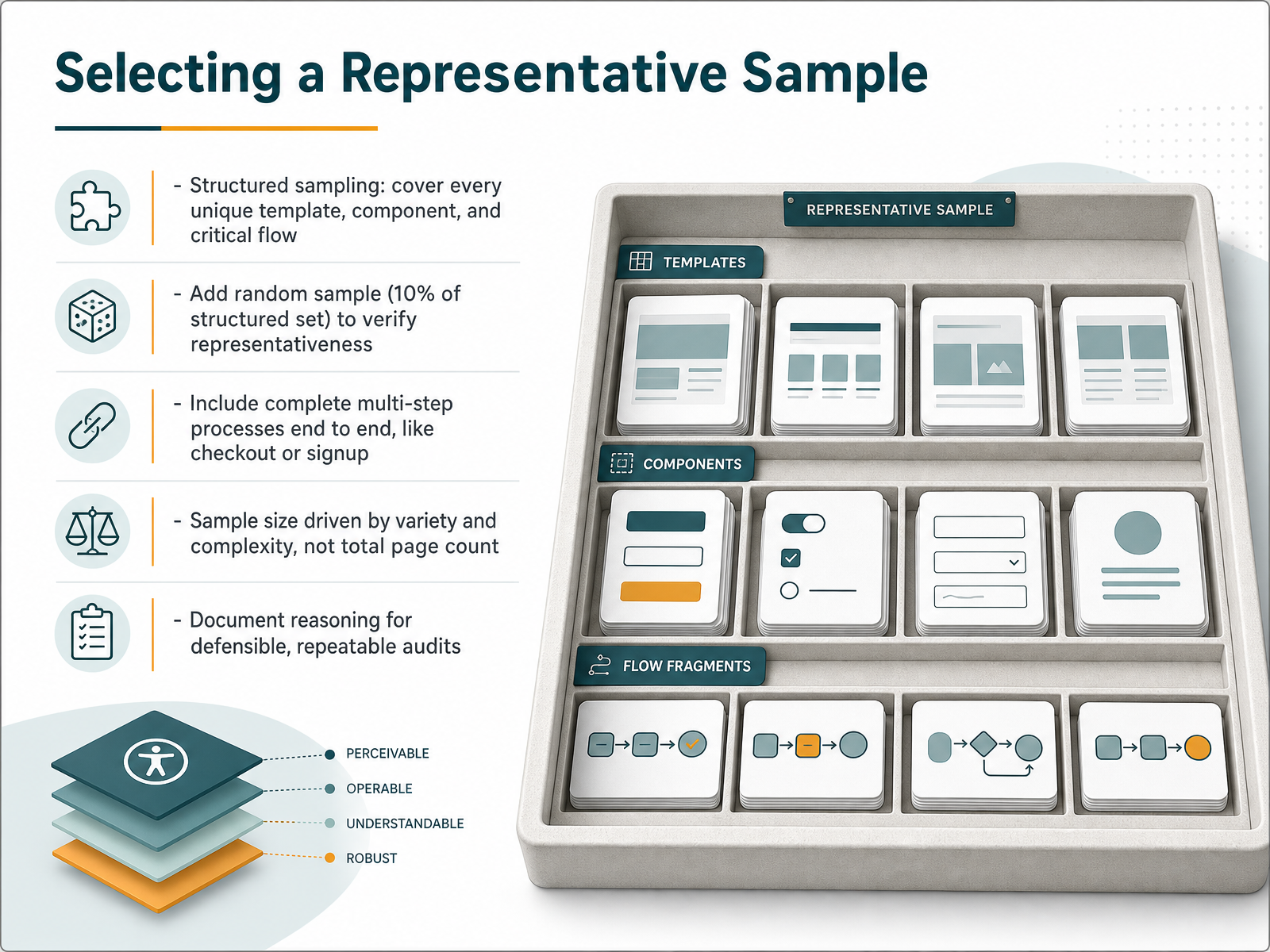
 - 05Selecting a Representative SampleNow let's talk about selecting a representative sample. The goal here is not to test every page, but to select the right pages. Start with a structured set that covers every unique template, every distinct component, and each critical flow. If you have one template repeated across four hundred pages, a handful of views tells you almost everything. But if your product has three generations of component libraries, your sample needs to reflect that variety. Add a random sample equal to ten percent of your structured set. These randomly chosen views act as a check on your own judgment. If they reveal issue types you missed, your structured sample was not representative, and you go back and widen it. Include multi-step processes end to end. A checkout audited to step three tells you nothing about whether anyone can buy. Sample size is driven by variety and complexity, not total page count. Finally, document your reasoning for each selection. A written record makes the audit repeatable, and defensible. Next, we'll look at running an automated baseline.
 w3.orgw3.orgaccessibility.build+22 min
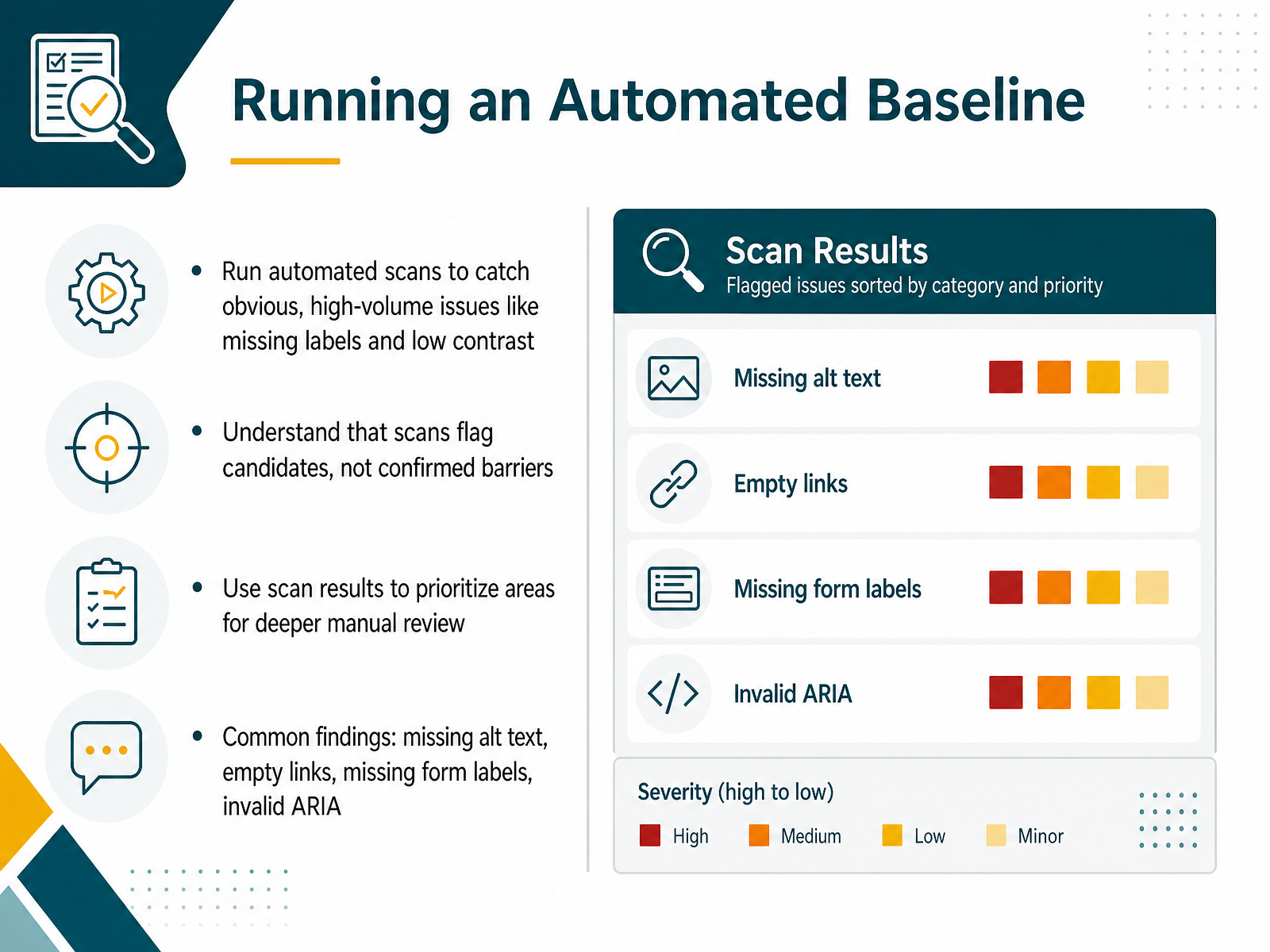
 - 06Running an Automated BaselineNow we move from planning to execution, starting with the automated baseline. Run automated scans using tools like axe DevTools or WAVE across your representative templates. This catches high-volume issues fast: missing alt text, empty links, form fields without labels, and invalid ARIA. But treat the results as candidates, not confirmed barriers. Automated tools only detect a fraction of real WCAG issues, so a scan is triage, not a verdict. Use the output to prioritize where you dig deeper manually. If the scan flags low contrast on a button, that is a solid lead. But if it flags a complex widget, that needs a human eye. The goal is to clear the obvious, high-volume defects so your manual review can focus on the nuanced failures: focus order, keyboard traps, and screen reader behavior. Start with the automated pass to clear the obvious, high-volume defects. That frees up your manual review for the nuanced work, which we cover next with the keyboard and focus review.
 webability.iowebability.ioaccessibility.build+21 min
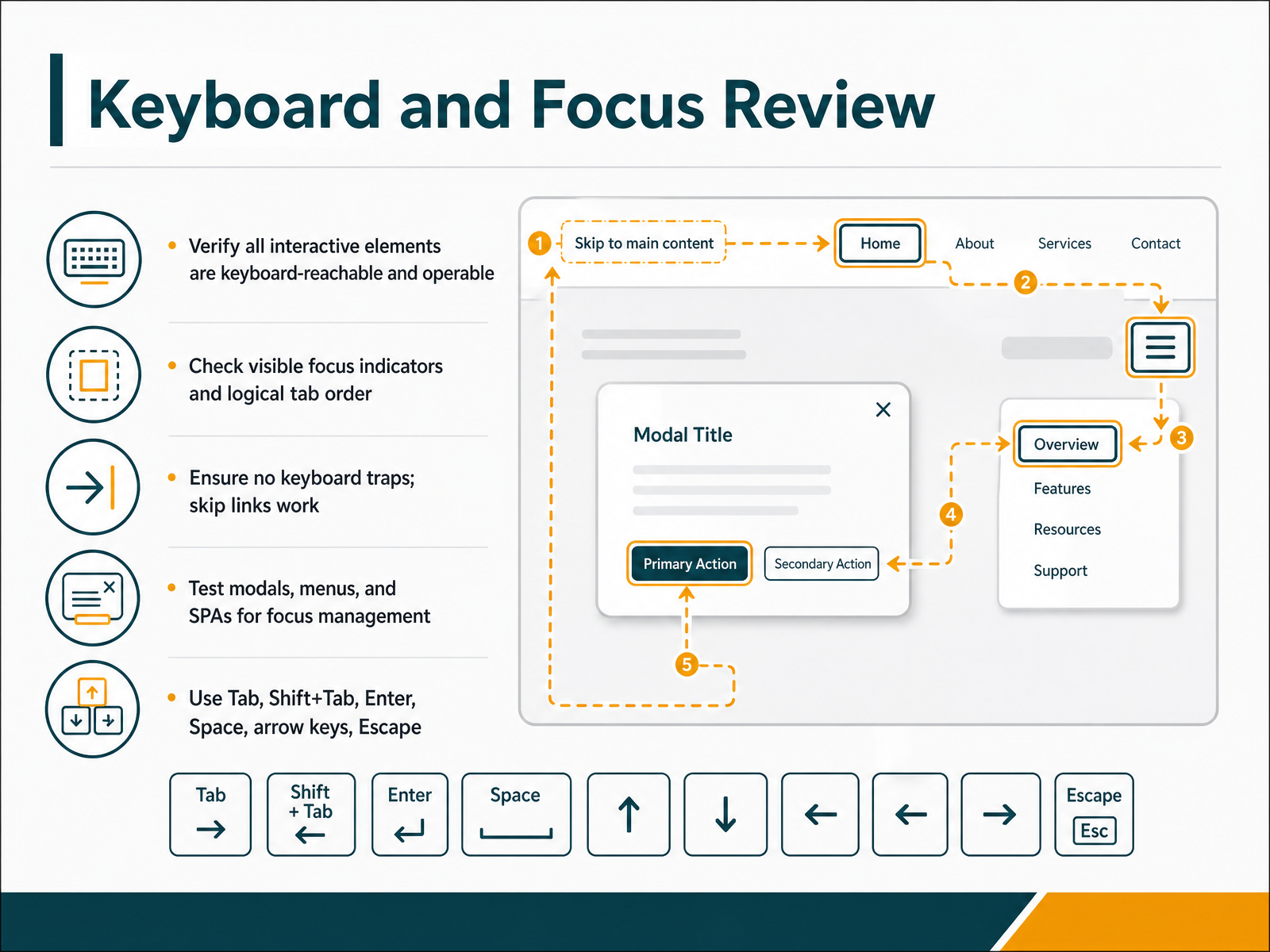
 - 07Keyboard and Focus ReviewLet’s move to the keyboard and focus review. Unplug the mouse and test everything with Tab, Shift+Tab, Enter, Space, arrow keys, and Escape. First, verify every interactive element—links, buttons, form fields, menus—is reachable and operable with the keyboard alone. If any control requires a mouse, that is a Level A failure. Second, watch the focus indicator as you tab. It must be visible on every element, and it cannot be hidden behind sticky headers or overlays. That is WCAG 2.4.11. Third, check the tab order. It should follow the visual reading order, left to right, top to bottom. If focus jumps around, the DOM order likely does not match the layout. Fourth, scan for keyboard traps. If you cannot Tab out of a modal, menu, or date picker, that is a critical failure. Modals must trap focus internally but release it on Escape or close. Finally, test skip links. They should appear on first Tab and jump to main content. And for single-page apps, manage focus on route changes and dialog opens. Treat this step as a functional pass, not a visual one.
 webability.iowebability.ioaccessibility.build+21 min
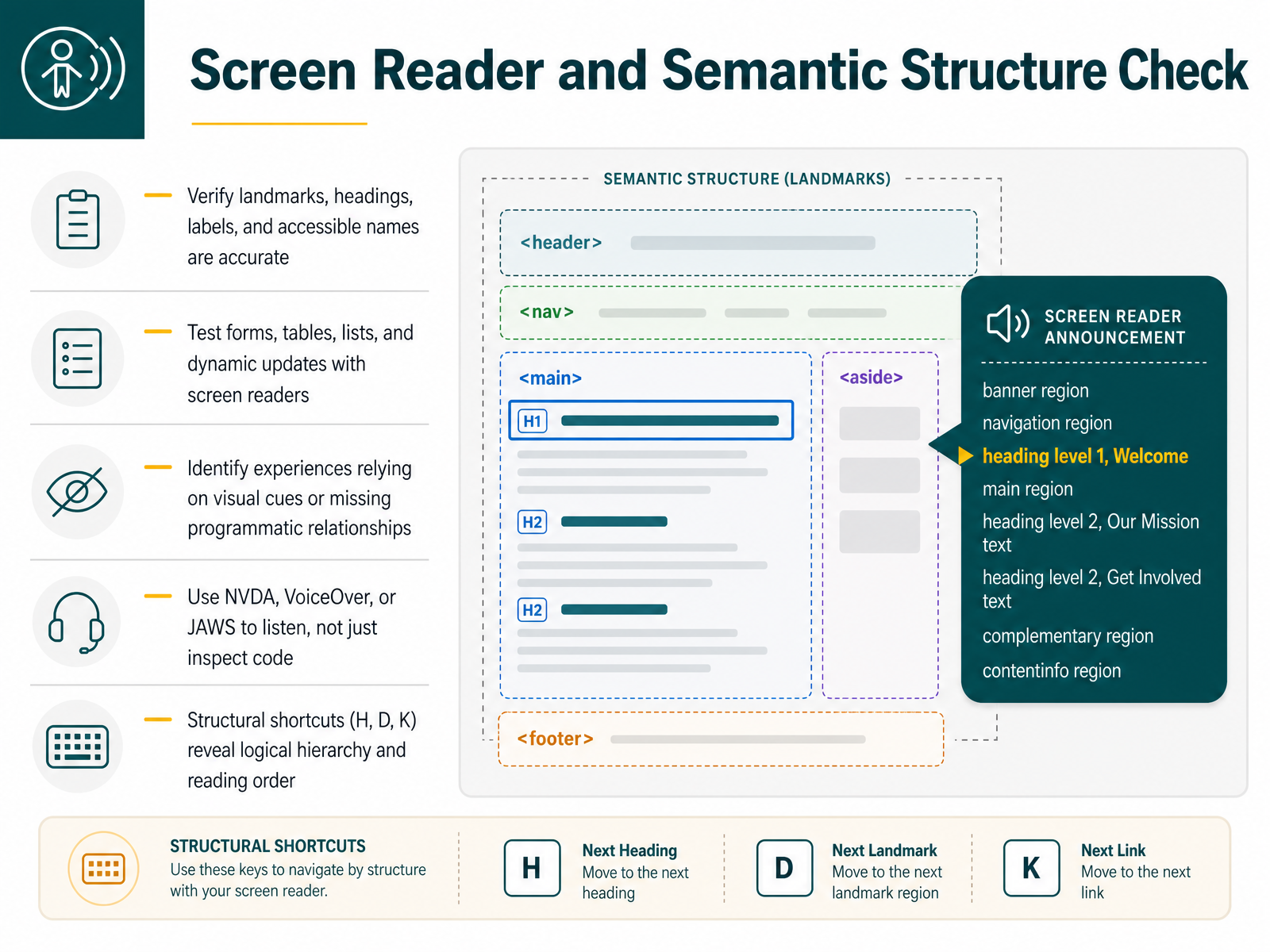
 - 08Screen Reader and Semantic Structure CheckNow we move to the screen reader and semantic structure check. This step is about listening to your interface, not just inspecting the code. Start by verifying that landmarks, headings, labels, and accessible names are accurate. For example, a button should announce its purpose, not just say "button." Next, run real interaction tests with forms, tables, lists, and dynamic updates. Use NVDA on Windows, VoiceOver on Mac, or JAWS for enterprise environments. Remember, automated tools only catch about thirty to forty percent of issues. Listening reveals what a scanner cannot: clear reading order, proper focus movement, and sensible announcements. Use structural shortcuts like H for headings, D for landmarks, and K for links. They expose the logical hierarchy and reading order instantly. If the screen reader reads content in a confusing order, the DOM order likely does not match the visual layout. Document the exact announcement you hear and what you expected. That becomes a fixable bug. As we move on, we'll look at color, contrast, and visual presentation.
 lollypop.designa11yscope.comachecker.ca+21 min
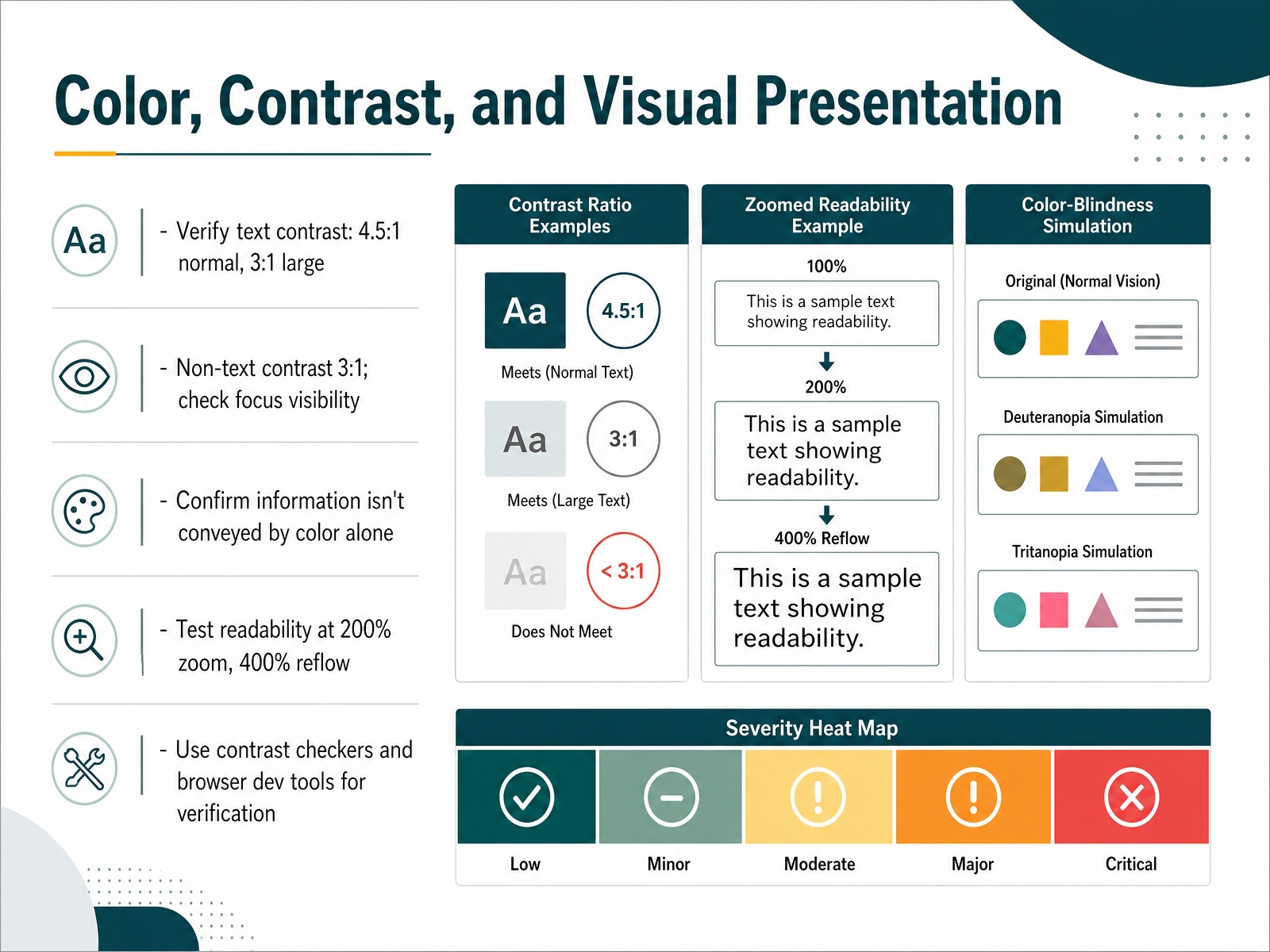
 - 09Color, Contrast, and Visual PresentationNow let's move to the visual side of the audit: color, contrast, and presentation. Start with text contrast. Normal text needs at least four point five to one against its background. Large text, meaning eighteen point or fourteen point bold, can drop to three to one. Check your button labels, links, and placeholder text with a contrast checker. Next, non-text contrast. Icons, borders, and form outlines need at least three to one against adjacent colors. And focus indicators must meet that same three to one ratio against the background, so keyboard users can track where they are. Also confirm you are not conveying information by color alone. If an error field turns red, add an icon or text label as well. Then test responsiveness. Zoom the browser to two hundred percent and confirm content reflows without horizontal scrolling. At four hundred percent, the layout should collapse to a single column without overlap. Use browser dev tools to inspect computed colors and contrast values directly. Pixel-perfect checking here prevents most downstream visual accessibility bugs. In short: verify contrast numerically, add redundant cues, and test zoom behavior at two levels. That covers the perceivable layer. Next, we'll look at forms, multimedia, and content review.
 webability.iowebability.ioaccessibility.build+21 min
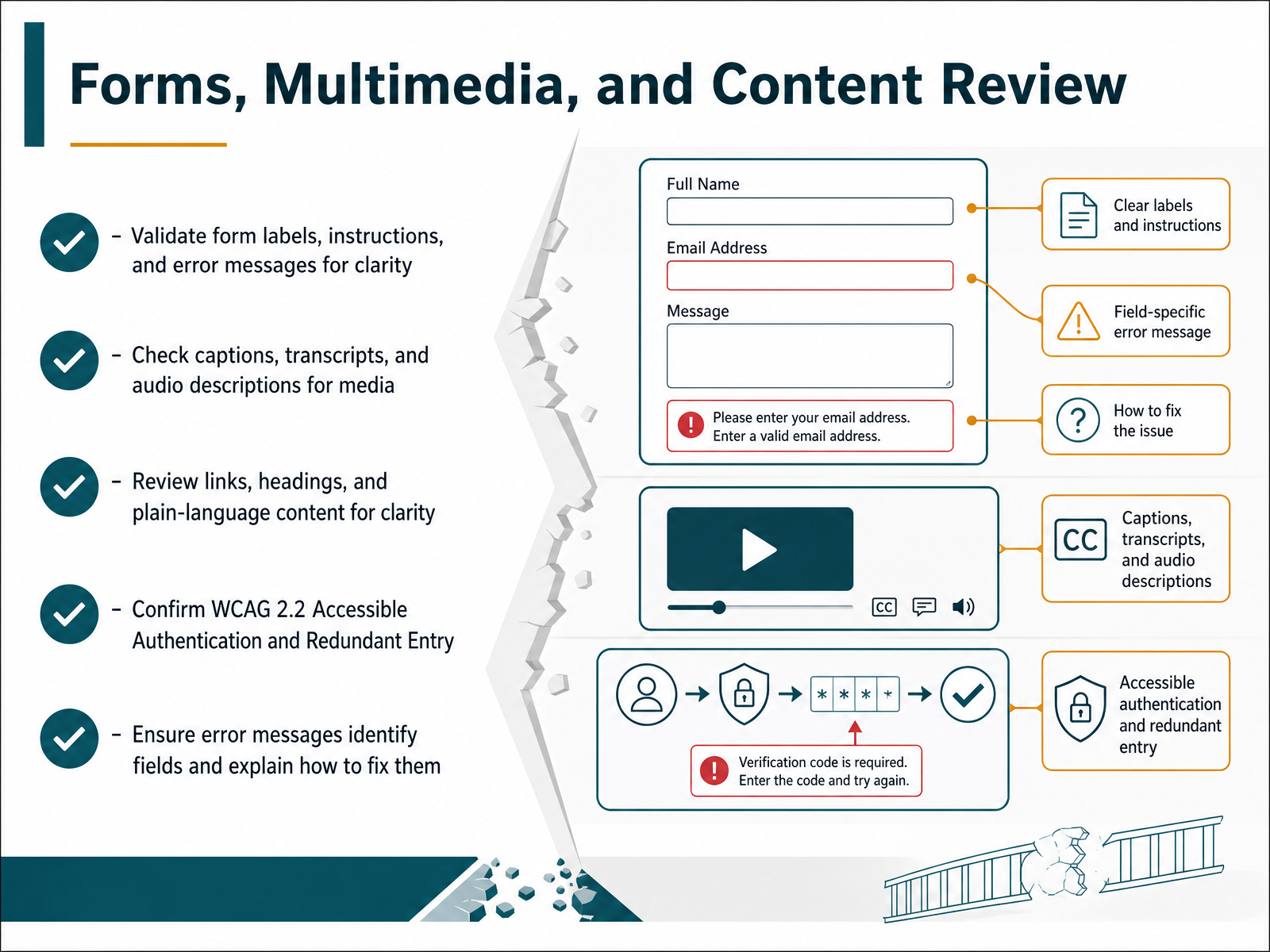
 - 10Forms, Multimedia, and Content ReviewNow let's move through the forms, multimedia, and content layer of your audit. Start with forms. Every field needs a programmatically associated label, and error messages must do two things: identify the specific field and explain how to fix it. For example, instead of a generic 'invalid input' message, write 'Please enter a valid email address in the format [email protected].' For media, verify that all video content has synchronized captions, and that audio files or podcasts include a full transcript. Audio descriptions should be checked for any visual information that the dialogue doesn't cover. Then move to content structure. Review every link for descriptive text—so no 'click here'—and confirm your heading hierarchy doesn't skip levels. Keep the language as plain as possible. Finally, check the two relevant WCAG 2.2 criteria. First, Accessible Authentication: do not require users to solve a puzzle or transcribe a code to log in. Second, Redundant Entry: any information collected earlier in a multi-step process should be auto-populated. These are concrete fixes to plan for, not abstract ideals. Next, we'll cover how to track each finding by severity and priority.
 webability.iowebability.ioaccessibility.build+21 min
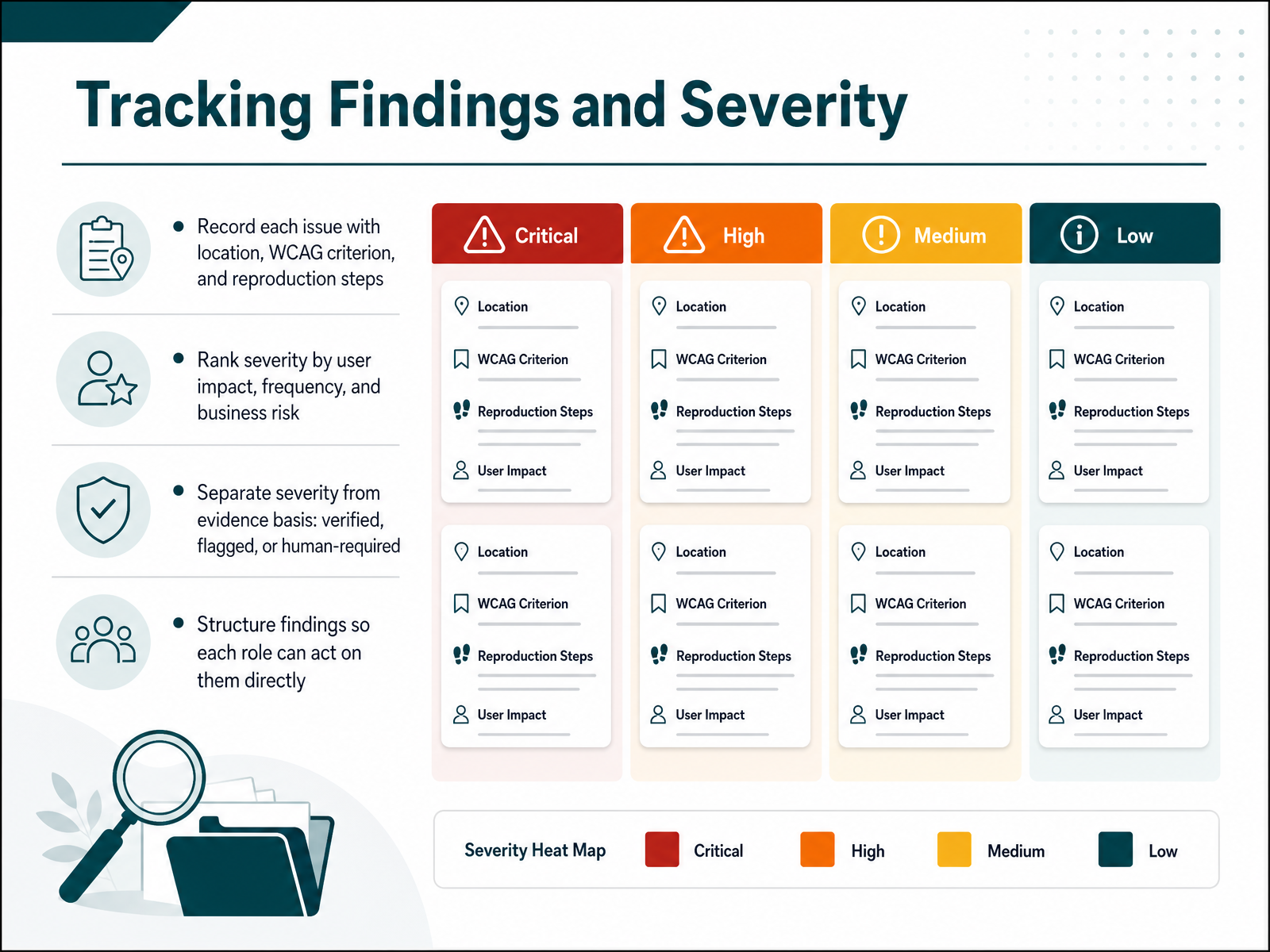
 - 11Tracking Findings and SeverityNow let's talk about how you record what you've found. Every issue needs a clear entry. List the exact location, the WCAG criterion it violates, and the steps to reproduce it. A screenshot or short video helps your team resolve it faster. Next, rank each finding by severity. Consider user impact, how often it occurs, and the business risk it creates. A keyboard trap in checkout is critical. A slightly low contrast on a decorative icon is minor. Keep severity separate from how confident you are in the finding. Mark it as verified, meaning you have deterministic proof. Mark it as flagged if you have evidence but a human needs to make the final call. Mark it as human-required if it needs assistive technology or lived experience to judge. Finally, structure your report by role. A developer needs the selector and the fix. A designer needs the component and the expected state. A product owner needs the severity and the impact. When each role can act directly, the audit moves from a document into action. Next, let's turn this checklist into a repeatable process.
 w3.orgw3.orgaccessibility.build+22 min
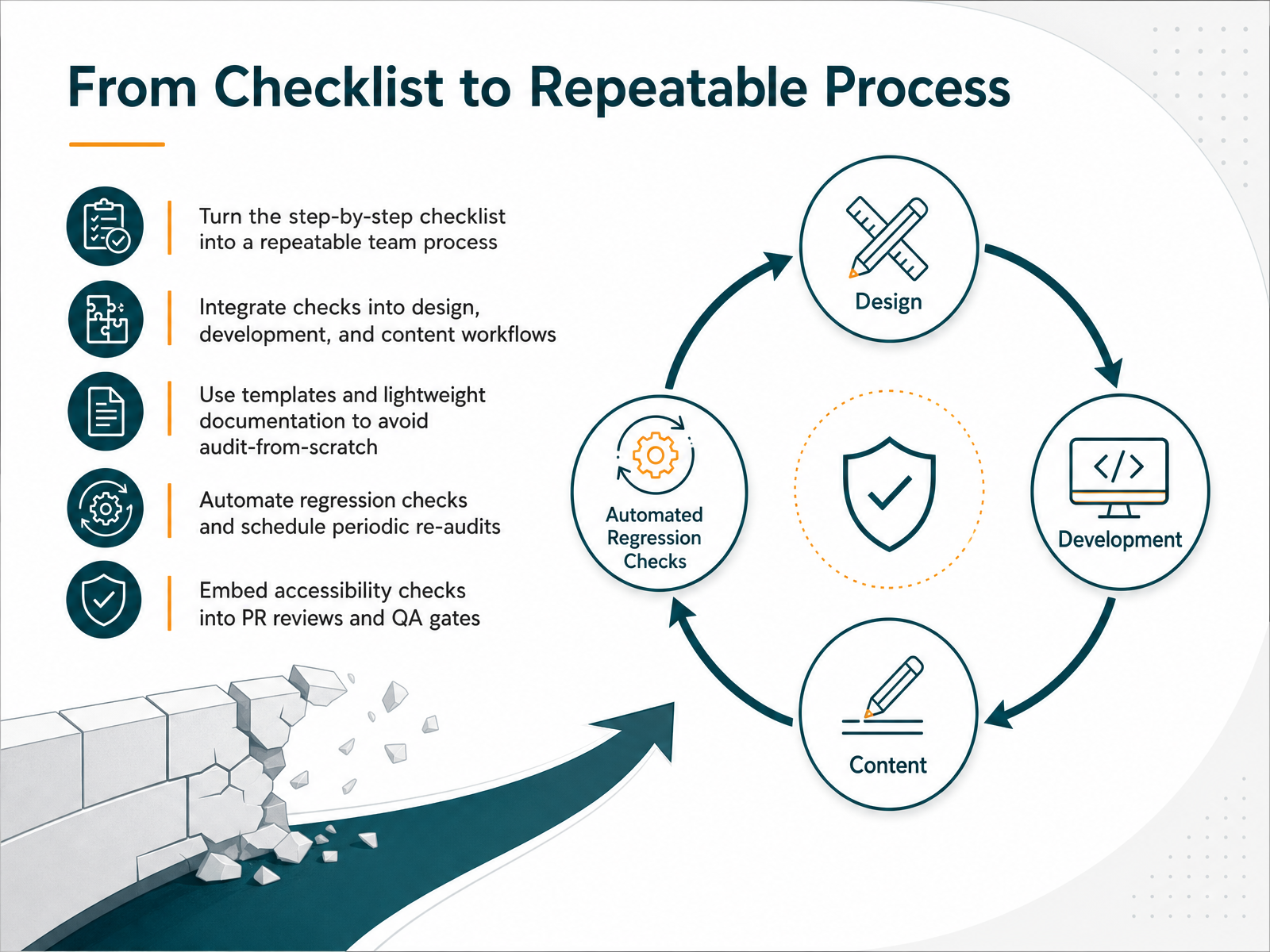
 - 12From Checklist to Repeatable ProcessNow let’s turn that checklist into a repeatable process. The goal is to stop auditing from scratch every time. Start by embedding accessibility checks into your existing design, development, and content workflows. Use templates and lightweight documentation so the audit structure carries over. Automate what you can, like regression checks in your CI pipeline, and schedule periodic re-audits to catch drift. One practical move: add accessibility checks directly into your pull request reviews and QA gates. That way issues are caught before they reach production, not after. Keep the sample selection documented, and reuse it. Unless the product changes significantly, the same structured sample set works. The process becomes faster and more reliable each cycle.
 w3.orgw3.orgaccessibility.build+21 min
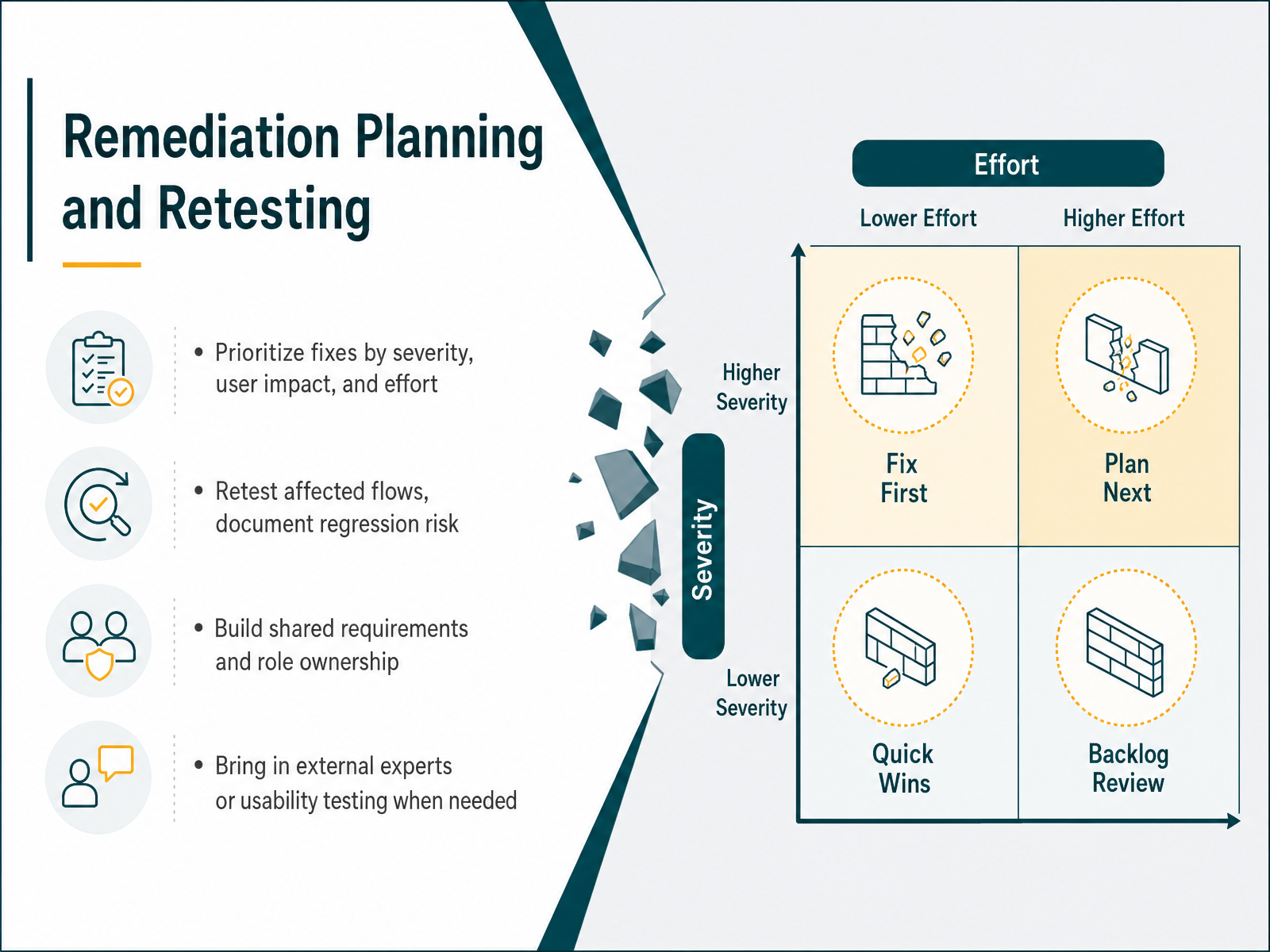
 - 13Remediation Planning and RetestingNow let’s turn the audit findings into a concrete remediation plan. Start by prioritizing fixes. Rank each issue by severity, user impact, and effort. A blocked checkout for keyboard users is critical; a minor contrast miss on a secondary page can wait. Retest the affected flows after each fix and document any regression risk. If a change touches the shared navigation, check that focus order and skip links still behave. Assign clear ownership. Put each fix in your ticketing system with the WCAG criterion attached, and name a responsible role. For complex issues, bring in an external expert or run a quick usability test with assistive technology users. That mix of technical review and real-user validation catches what static testing cannot. Prioritize, retest, document, and assign. That sequence turns the audit into lasting change. Next, we’ll look at sustaining accessibility beyond the audit.
 webability.iowebability.ioaccessibility.build+21 min
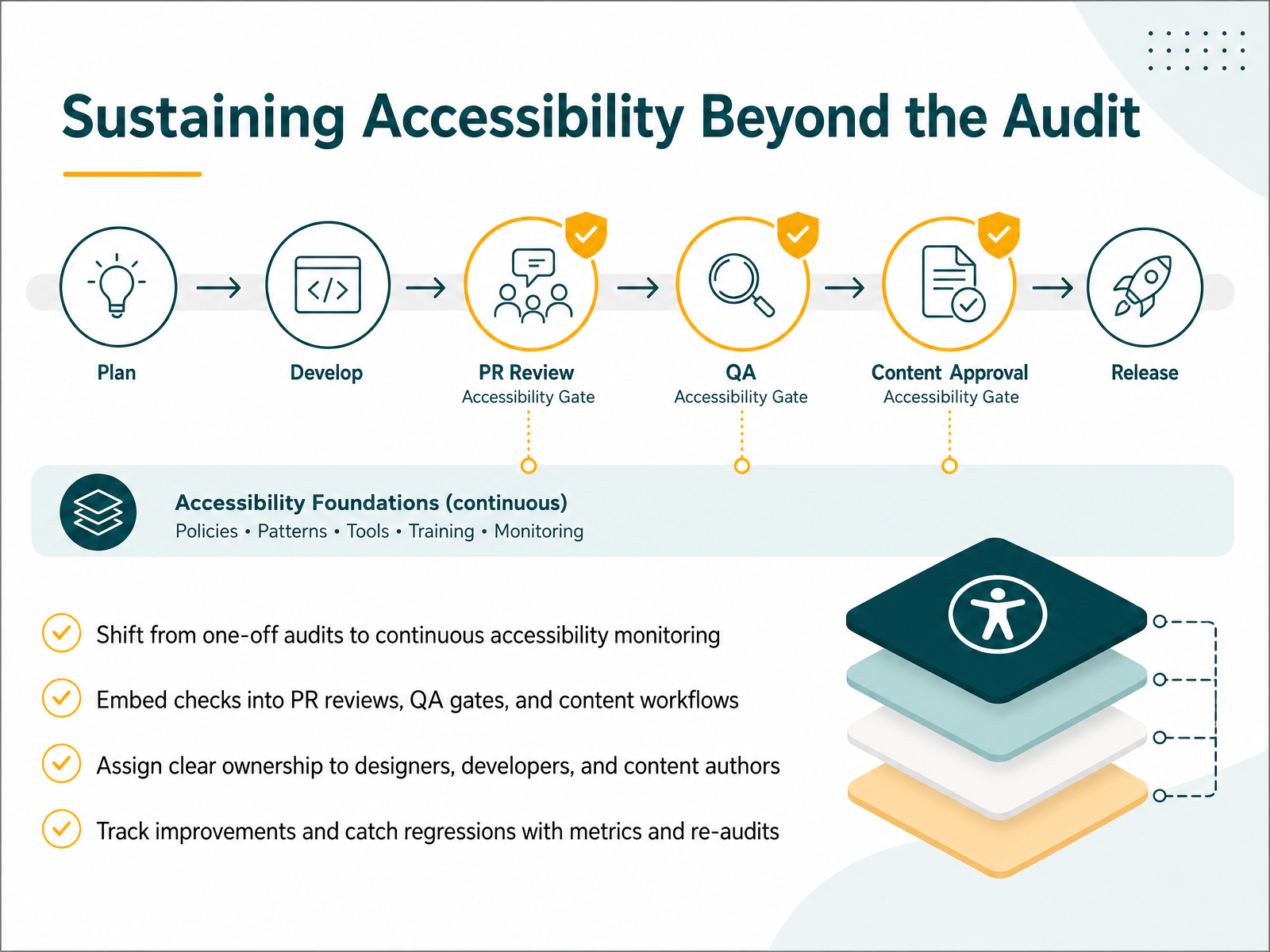
 - 14Sustaining Accessibility Beyond the AuditThe audit gives you a baseline, but accessibility is not a finish line. It is a continuous process. The goal is to catch regressions before they reach production, not months later. Start by embedding checks into your pull request reviews. Add an automated scan to your CI pipeline. Make it a review blocker for contrast and label issues. Next, bring the human checks into QA. Walk through focus order and test with a screen reader on every major release. Content creators should verify alt text and heading structure in every publishing workflow. Assign clear ownership. Designers check contrast and target sizes. Developers own semantic HTML and ARIA. Content authors maintain descriptive links and language attributes. Track progress over time. Use your audit report as a baseline, then set up a quarterly re-audit to measure improvements. This is how accessibility becomes part of the definition of done. You have built the foundation for a durable, inclusive product. Thank you for your commitment. Now, put those checks into practice.
 webability.iowebability.ioaccessibility.build+22 min
Take the deck with you
Download this course as a file — free, no sign-up needed.
- PDF handoutEvery slide page, ready to print or share.15 pages · 3.4 MBDownload
- Narrated PowerPointThe deck that presents itself — every slide carries the digital human's narration video.15 pages · 14.7 MBDownload
- PowerPoint slidesThe full deck as a .pptx — open it in PowerPoint, Keynote, or Google Slides.15 pages · 3.2 MBDownload
Free to use in your own training — please keep the PersonWise credit page at the end.
Have your own deck? Turn it into a course
Sources consulted
Web sources consulted while building this course.
- Website Accessibility Audit: Complete 2026 Guide — webability.io
- WCAG 2.2 AA Checklist: Audit & Remediate for 2026 Compliance — webability.io
- How to Audit a Website for Accessibility (2026): Step-by-Step WCAG Guide | Accessibility.build — accessibility.build
- How to Conduct an Accessibility Audit | Accessible.org — accessible.org
- How to Conduct a Web Accessibility Audit (2026) | Web Accessibility Checker | Web Accessibility Checker — web-accessibility-checker.com
- Website Accessibility Conformance Evaluation Methodology (WCAG-EM) 1.0 — w3.org
- WCAG-EM Overview: Website Accessibility Conformance Evaluation Methodology | Web Accessibility Initiative (WAI) | W3C — w3.org
- How Big Should an Accessibility Audit Sample Be? | Accessibility.build — accessibility.build
- Page sample size in web accessibility testing: how many pages is enough? — gloucestershire.gov.uk
- How Many Pages Should Be in Your Accessibility Audit Scope | Accessible.org — accessible.org
- Screen Reader Testing: A Practical Guide for Designers & Developers - Lollypop — lollypop.design
- Screen Reader Testing for Developers: A Practical Getting Started Guide | A11yScope Blog — a11yscope.com
- Screen Reader Testing: A Complete Guide to Accessibility Testing with Screen Readers | Accessibility Checker Blog — achecker.ca
- Screen Reader Testing Guide: NVDA, VoiceOver, and JAWS | Accessalyze — accessalyze.com
- Screen Reader Testing for Developers: Getting Started — A11yPath — a11ypath.com