Begin
14 pages · ~28 min
Introduction to File Systems
Learn to navigate file systems by understanding files, folders, and paths, ideal for beginners.
A digital instructor presents all 14 pages. Hold “Ask” at any point and ask out loud — the answer comes from this course. No sign-up needed.
What you’ll learn
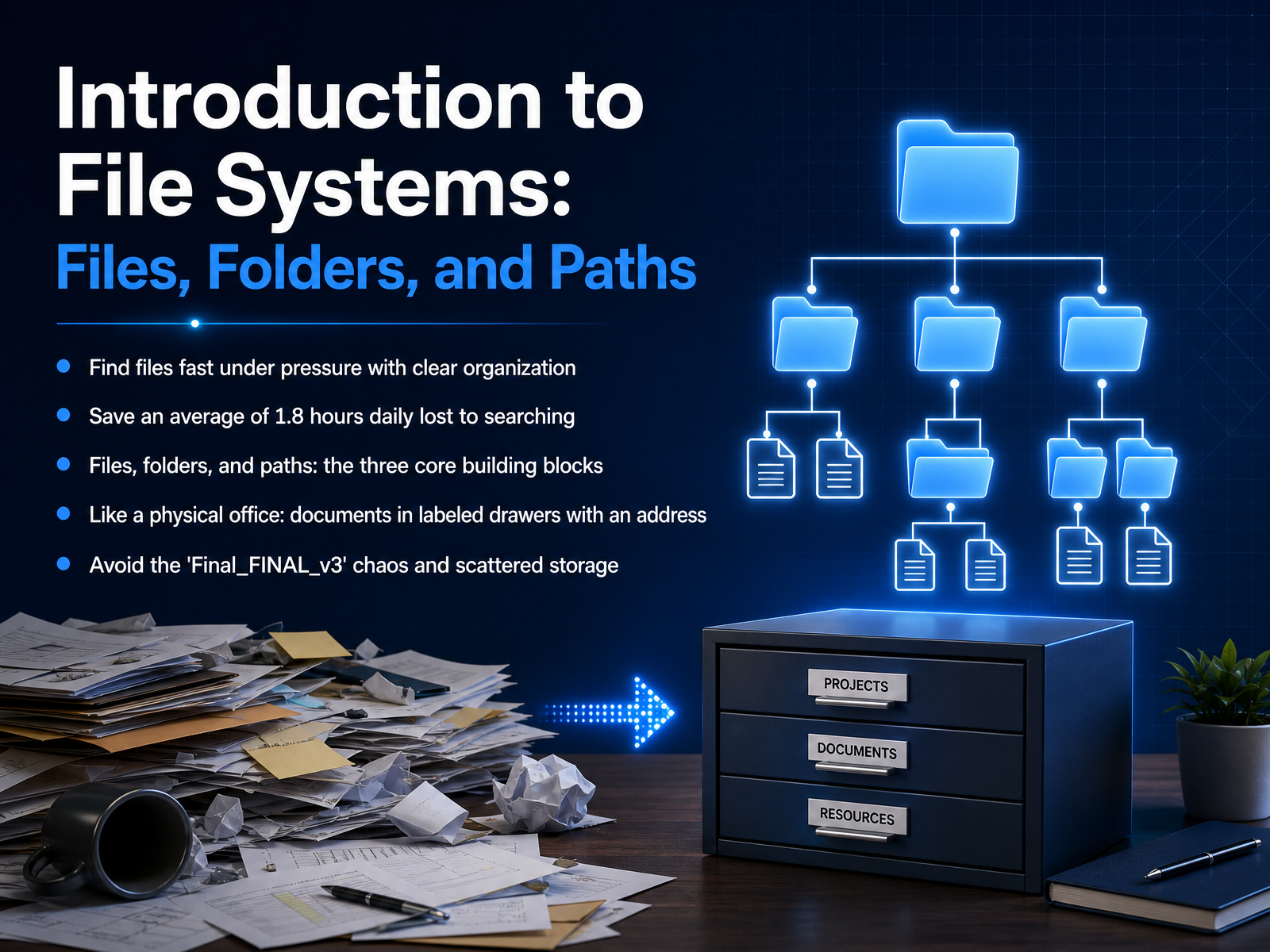
- 01Introduction to File Systems: Files, Folders, and PathsWelcome. Today we're building a clear mental model for digital information—using files, folders, and paths. Think of a folder as a container, and a path as the address that tells you exactly where something lives. Studies show people lose nearly two hours a day searching for files. That pressure you feel when you can't find a document quickly? It's often caused by scattered storage and names like Final underscore Final underscore v3. We're going to fix that. You'll learn to stop relying on luck and start building a simple, reliable structure. A well-organized system works like a physical office: labeled drawers, clear addresses, and no hidden mess. By the end, you'll save time, reduce frustration, and always know where your information belongs. Let's start with the first building block: the file itself.wiredguide.comsolveithow.comcopernic.com+21 min
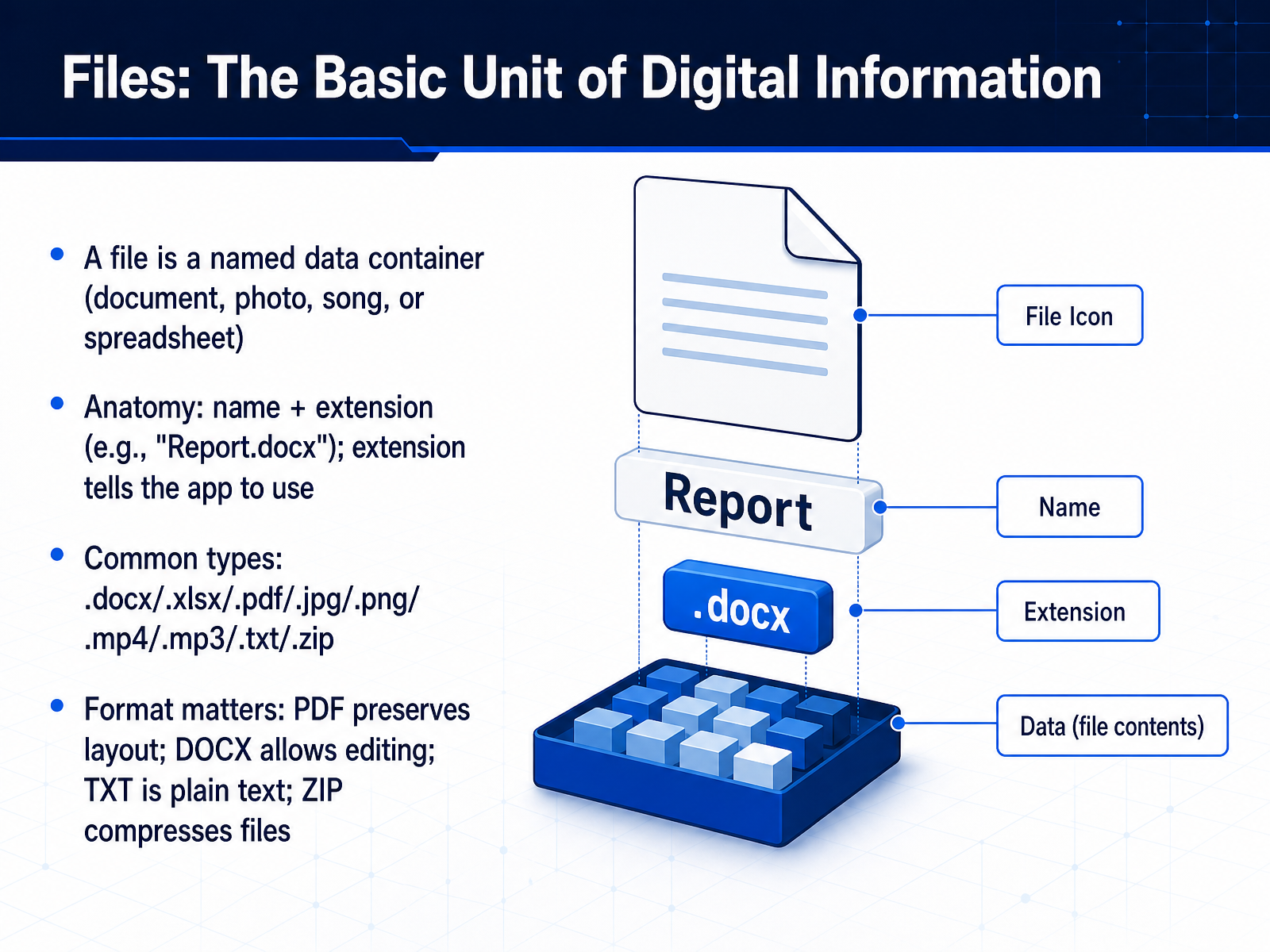
- 02Files: The Basic Unit of Digital InformationNow let's look at the fundamental building blocks: files. Think of a file simply as a named container for your digital information. It could hold a document, a photo, a song, or a spreadsheet. Every file has an anatomy made of two parts: a name you choose, like 'Report', and an extension, like '.docx', separated by a period. The extension tells your computer which application to use when opening it. For example, '.docx' opens in Microsoft Word, and '.xlsx' opens in Excel. You'll encounter these common types frequently in office work. A PDF preserves your layout perfectly for sharing, while a DOCX stays fully editable for collaboration. For images, a JPG is great for photos, a PNG handles graphics with transparency, and a GIF can even be a short animation. When dealing with audio, think MP3 for music. For video, MP4 is the universal standard that works on nearly every device. And a ZIP file works like a compressed folder, bundling multiple items into one smaller package for easy sending. Choosing the right format means matching the file type to your task. Next, let's explore file names that find themselves.
 support.microsoft.comfileinfo.comfileconvertlab.com+22 min
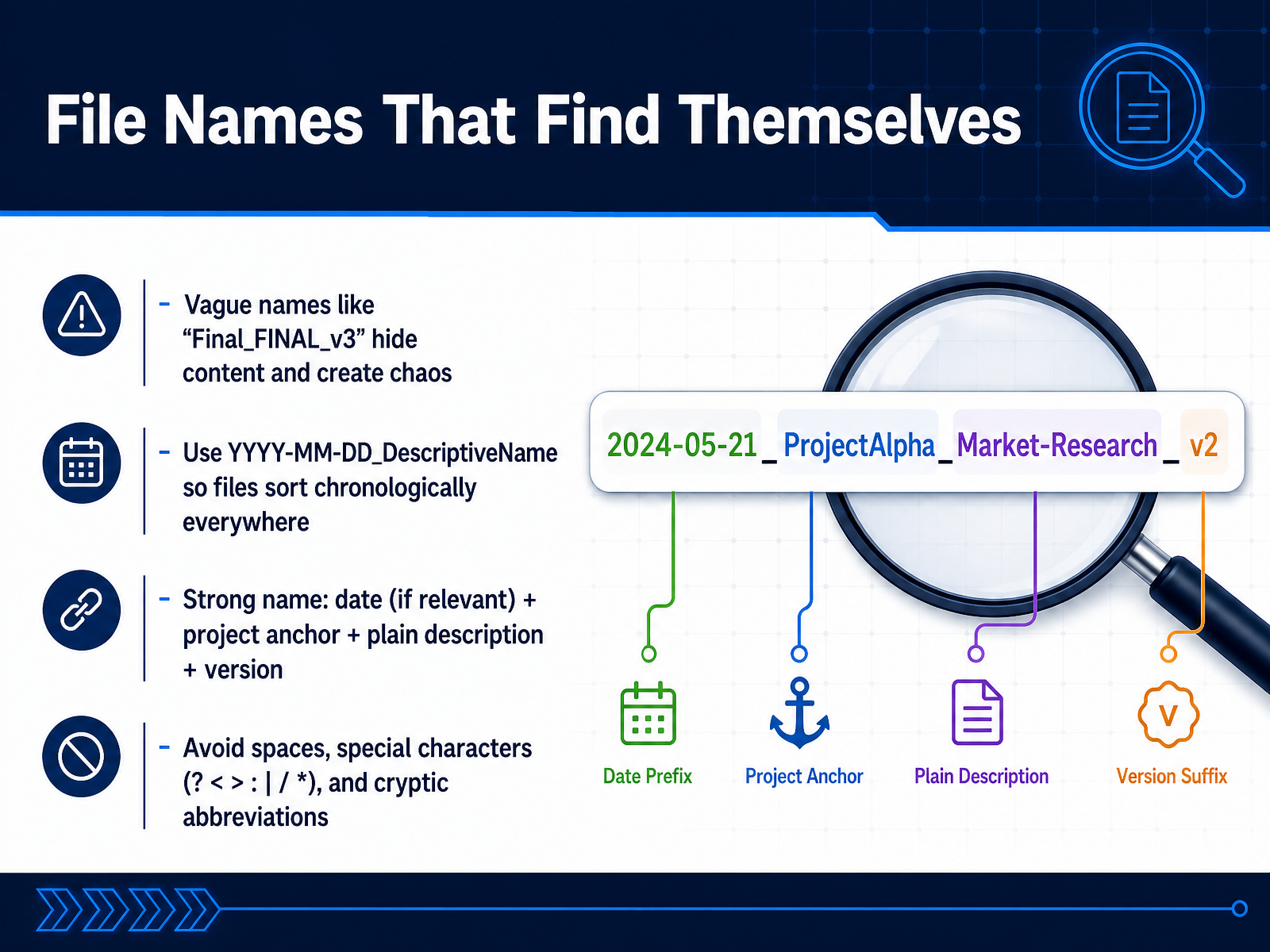
 - 03File Names That Find ThemselvesNow let's talk directly about file names, and why they matter far more than most people realize. Think of a file name as the label on a container. Vague names like "Final underscore Final underscore v3" or "Document1" don't just look messy—they hide the content and create chaos. You end up opening multiple files just to find the right version. The solution is a consistent naming formula. I recommend starting with the date in a YYYY-MM-DD format, because this makes every file sort chronologically, on any operating system. After the date, add a project anchor word, then a plain description, and finally a version number if it's a draft. For example, "2026 dash 03 dash 15 underscore ClientMeeting underscore Notes" tells you everything at a glance. A few final rules to keep your retrieval fast and safe: use underscores or hyphens between words instead of spaces, and always avoid special characters like question marks, colons, or asterisks. Also, skip cryptic abbreviations that you might not remember a year from now. A strong name is your file's own best search tool. Next, we will see exactly where to put these well-named files, in "Folders: Your Digital Filing Cabinet."
 wiredguide.comsolveithow.comcopernic.com+21 min
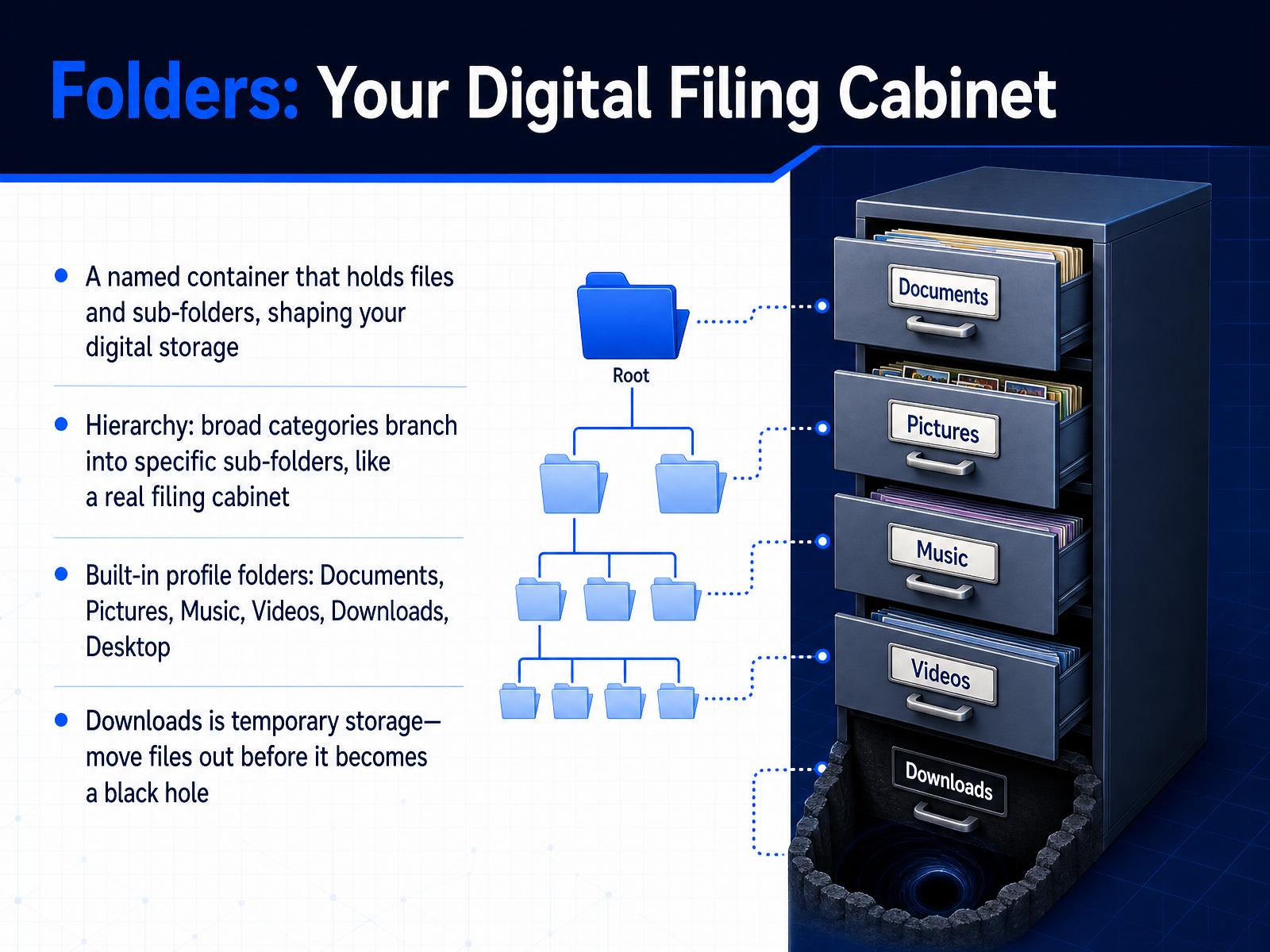
 - 04Folders: Your Digital Filing CabinetLet's talk about folders, which are the heart of your filing system. Think of a folder as a named container. It holds your files and even other folders, shaping how you store everything. This creates a hierarchy, much like a real filing cabinet. You start with broad categories and then branch into more specific sub-folders inside. Your computer already has built-in profile folders to help you get started: Documents, Pictures, Music, Videos, Downloads, and Desktop. A quick word about the Downloads folder: treat it as temporary storage. It's easy for it to become a black hole of forgotten files. Make it a habit to move things out of Downloads and into the right project folder before it gets cluttered. Next, we'll build on this idea by designing a folder structure that actually lasts.
 wiredguide.comsolveithow.comcopernic.com+21 min
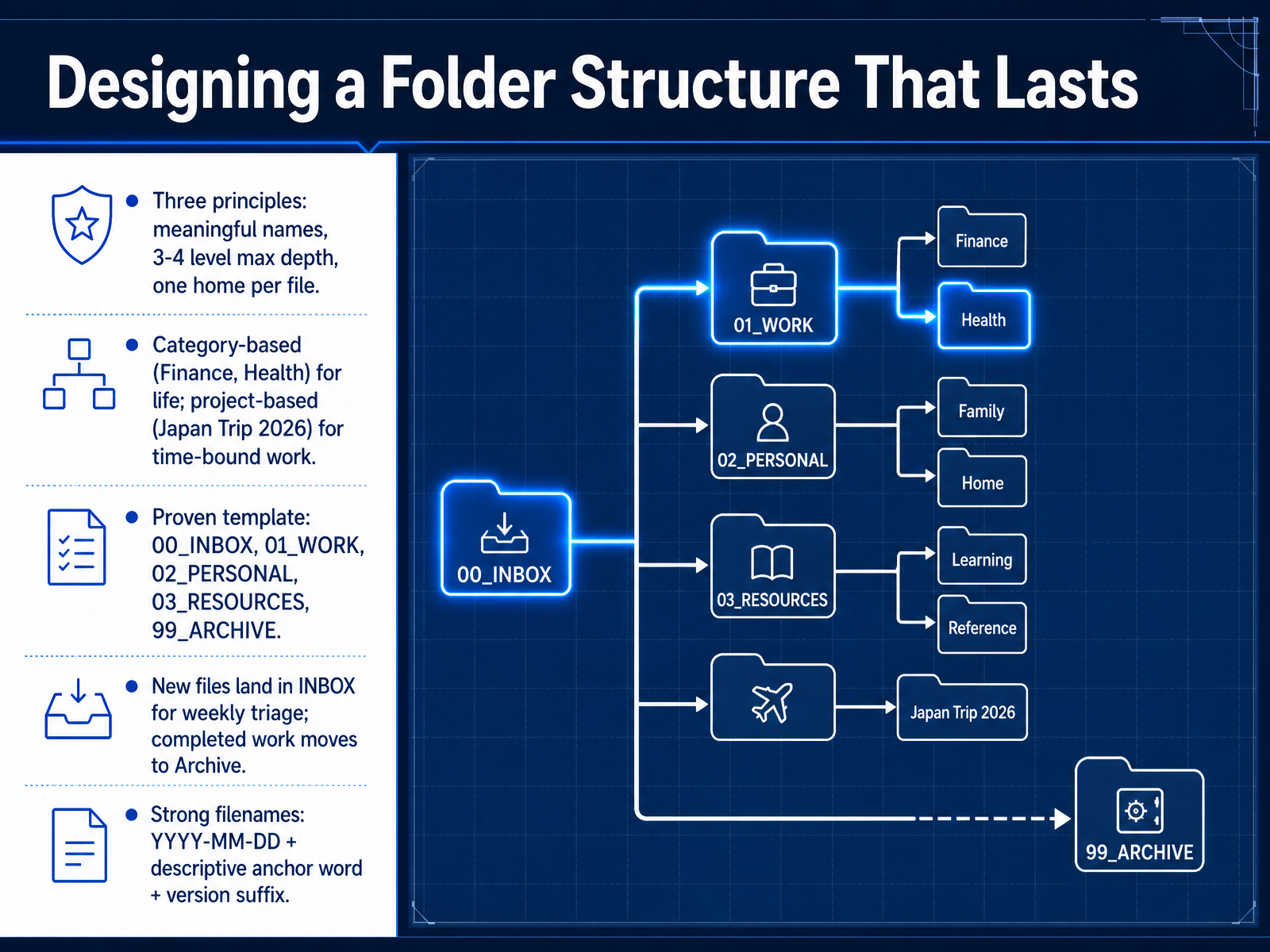
 - 05Designing a Folder Structure That LastsLet’s shift from theory to practice and design a folder structure that will actually last. Start with three guiding principles. First, choose meaningful names that anyone in your household would understand at a glance. Second, limit your depth to three or four levels maximum—any deeper and you’ll stop using it. Third, give every file exactly one home. No duplicates, no guessing. Now, which top-level approach fits you? For ongoing life areas like Finance or Health, use stable category-based folders. For time-bound work with a clear end, like planning a Japan Trip for 2026, use project-based folders. Many people blend both. A proven template to build on is the five-folder model: zero-zero Inbox, zero-one Work, zero-two Personal, zero-three Resources, and ninety-nine Archive. Drop all new files into Inbox first. Then, once a week, spend a few minutes triaging them into the right permanent home. When work is complete, move it to Archive so your active workspace stays clean. Finally, pair this with strong file names. Use the date format year-month-day first, followed by a descriptive anchor word, and a version suffix when needed. For example, 2026-05-24 underscore Client-Proposal underscore v02. This makes every file sort itself chronologically and tell you exactly what’s inside before you even open it. Now, let’s apply these ideas directly. In the next slide, Practice: Plan Your Personal Folder Tree, you’ll get to sketch a structure that matches your own life.
 onebrightguide.comoverdrive.toolsnamequick.app+22 min
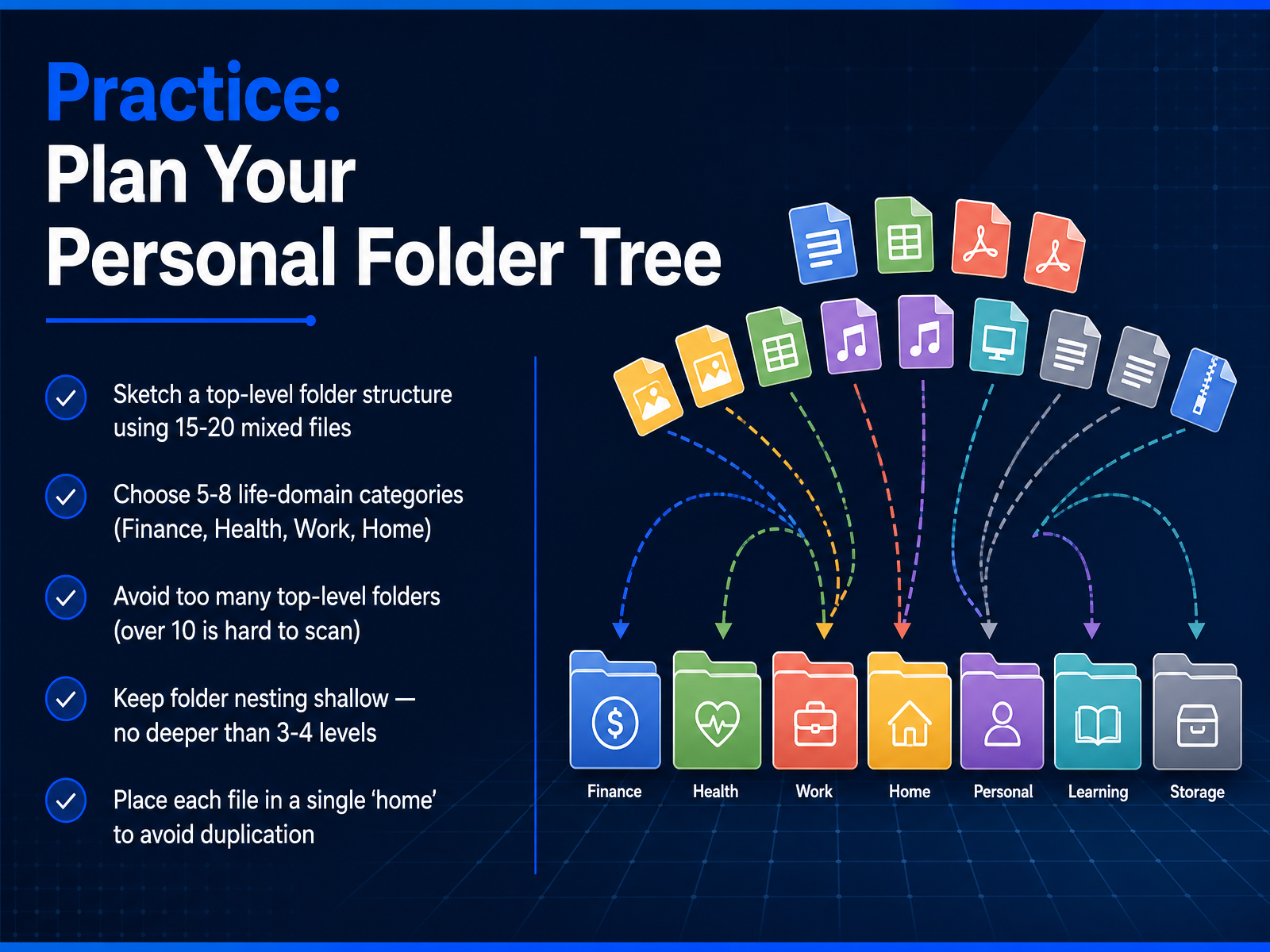
 - 06Practice: Plan Your Personal Folder TreeNow, let's put the theory into practice and plan your own personal folder tree. Imagine you have a mixed collection of 15 to 20 files scattered across your desktop. Your first step is to choose five to eight broad life-domain categories as your top-level folders, such as Finance, Health, Work, and Home. Think of these as the main containers for your digital life. A critical rule is to avoid creating more than ten top-level folders, because scanning a long list is slow and confusing. Also, keep your folder nesting shallow. Try not to go deeper than three or four levels. If you are burying a file under five layers of folders, your structure is likely too complex. Finally, give each file a single, permanent 'home' to avoid creating duplicate copies in different places. Remember, if a file could logically go into two folders, pick its primary purpose and stick with it. Let's apply these rules next as we explore how paths act as the address of everything on your computer.
 onebrightguide.comoverdrive.toolsnamequick.app+22 min
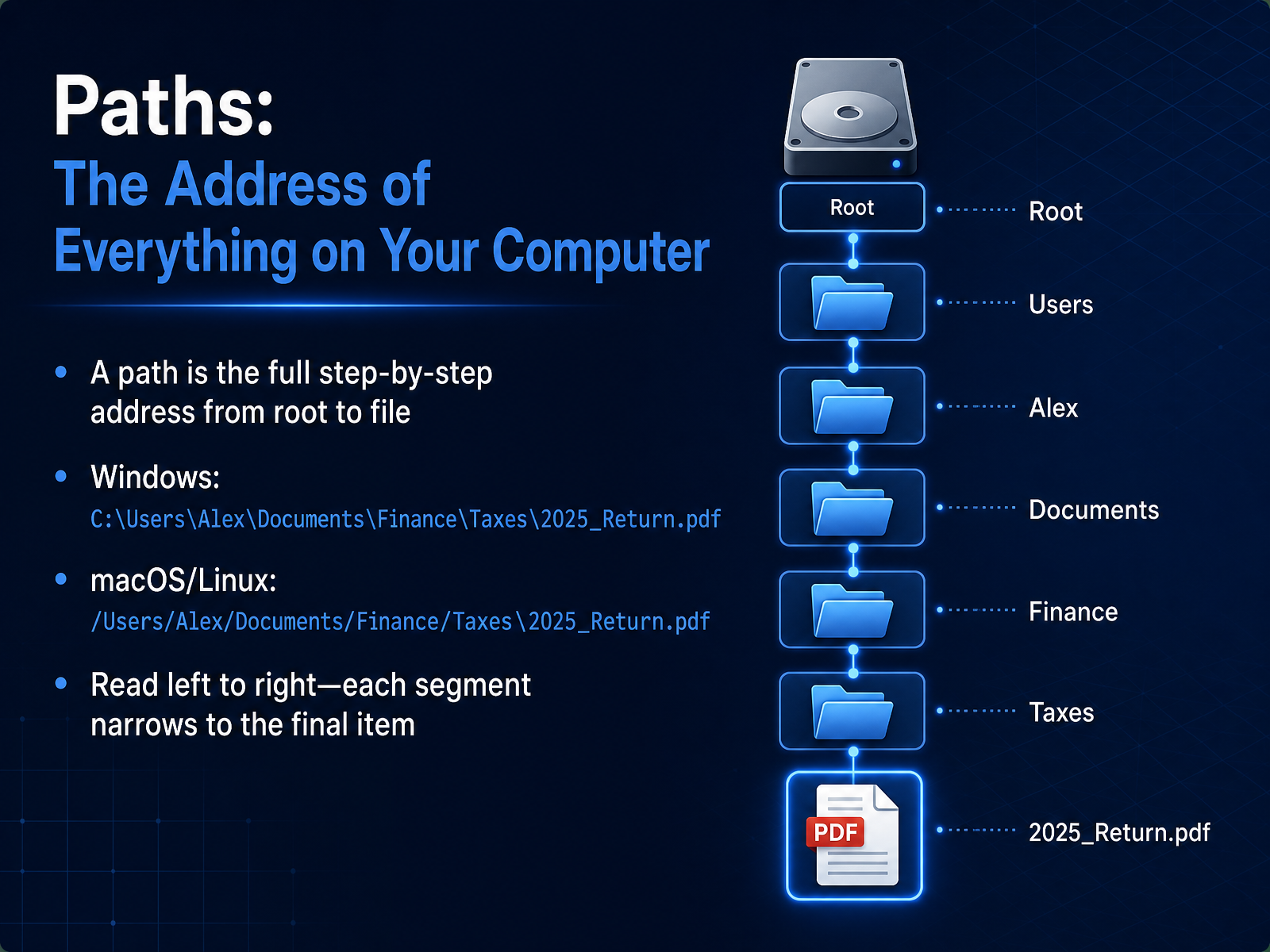
 - 07Paths: The Address of Everything on Your ComputerNow let's give every file and folder a complete address, called a path. A path is the full step by step set of directions from the very top, the root, all the way down to your specific file. On a Windows system, a path starts with a drive letter, like C colon backslash, and then moves through each folder. For example, C colon backslash Users backslash Alex backslash Documents backslash Finance backslash Taxes backslash 2025 underscore Return dot pdf. On macOS or Linux, it looks very similar, but it starts with a single forward slash. Like forward slash Users forward slash Alex forward slash Documents forward slash Finance forward slash Taxes forward slash 2025 underscore Return dot pdf. In both cases, you read the path from left to right. Each segment you pass through narrows the location, like moving from a country, to a city, to a specific street address, until you arrive at the final item. Next, we'll take this into the real world and practice finding and understanding paths in real life.
 2 min
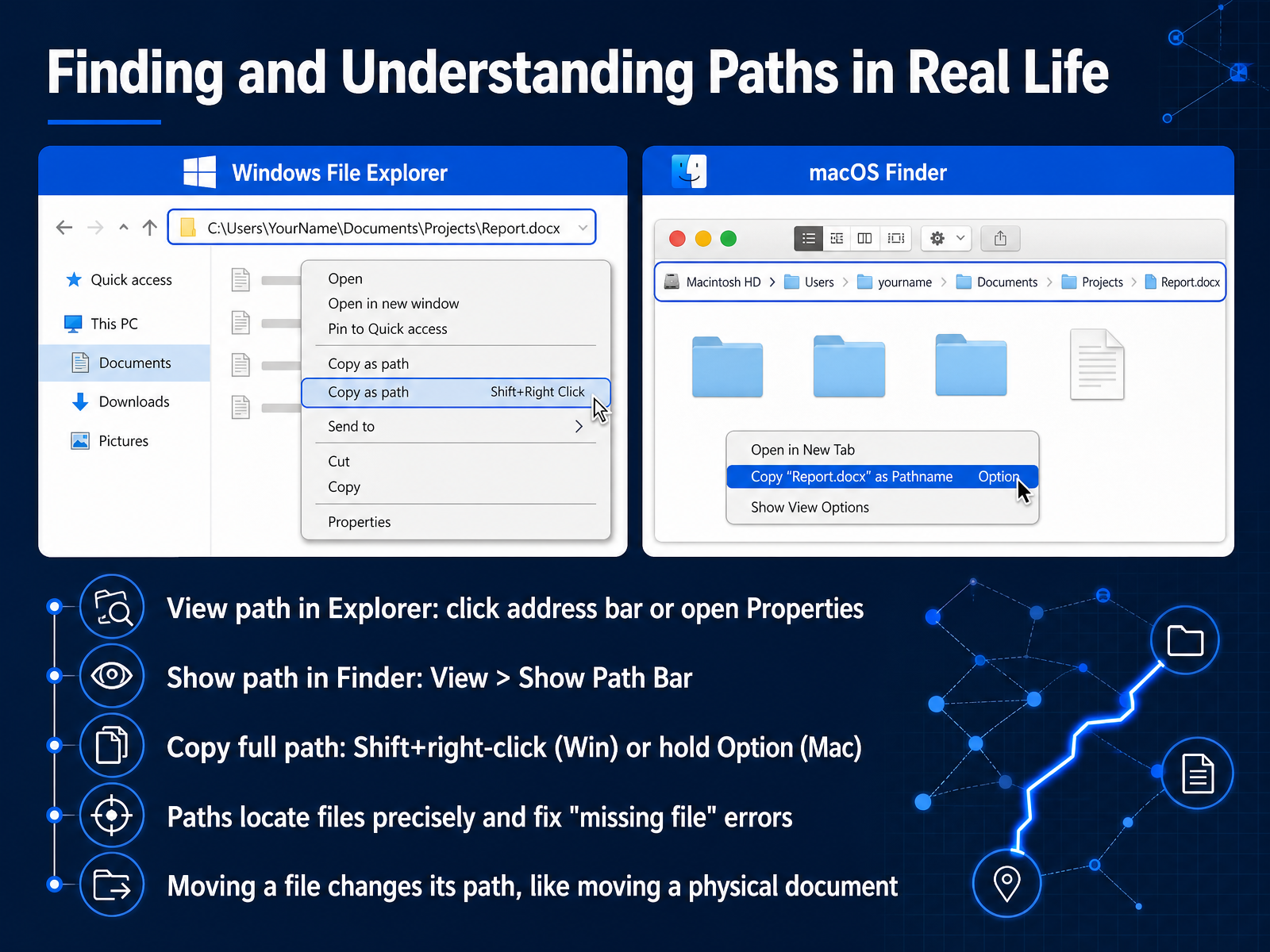
2 min - 08Finding and Understanding Paths in Real LifeNow let's see how to actually find and understand those location labels, or paths, on your computer. In Windows File Explorer, you can click directly into the address bar at the top. It instantly shows you the full path to whatever file or folder you have selected. Another way is to right-click an item and open Properties; you will see the location listed there clearly. On a Mac, open Finder and go to the View menu, then select Show Path Bar. A bar will appear at the bottom of the window, showing the exact trail of folders leading to your item. If you need to copy that full path as text, in Windows you can hold Shift, then right-click a file and choose Copy as path. On a Mac, hold the Option key and right-click to see the Copy as Pathname choice. This is how paths precisely locate files, and knowing them helps you fix those frustrating 'missing file' errors. Remember, moving a file changes its path, just like moving a physical document from a filing cabinet to a desk drawer. It hasn't disappeared; its location label has simply updated. Next, we will explore the difference between an absolute location and a relative location, to better understand how file paths reference each other.
 2 min
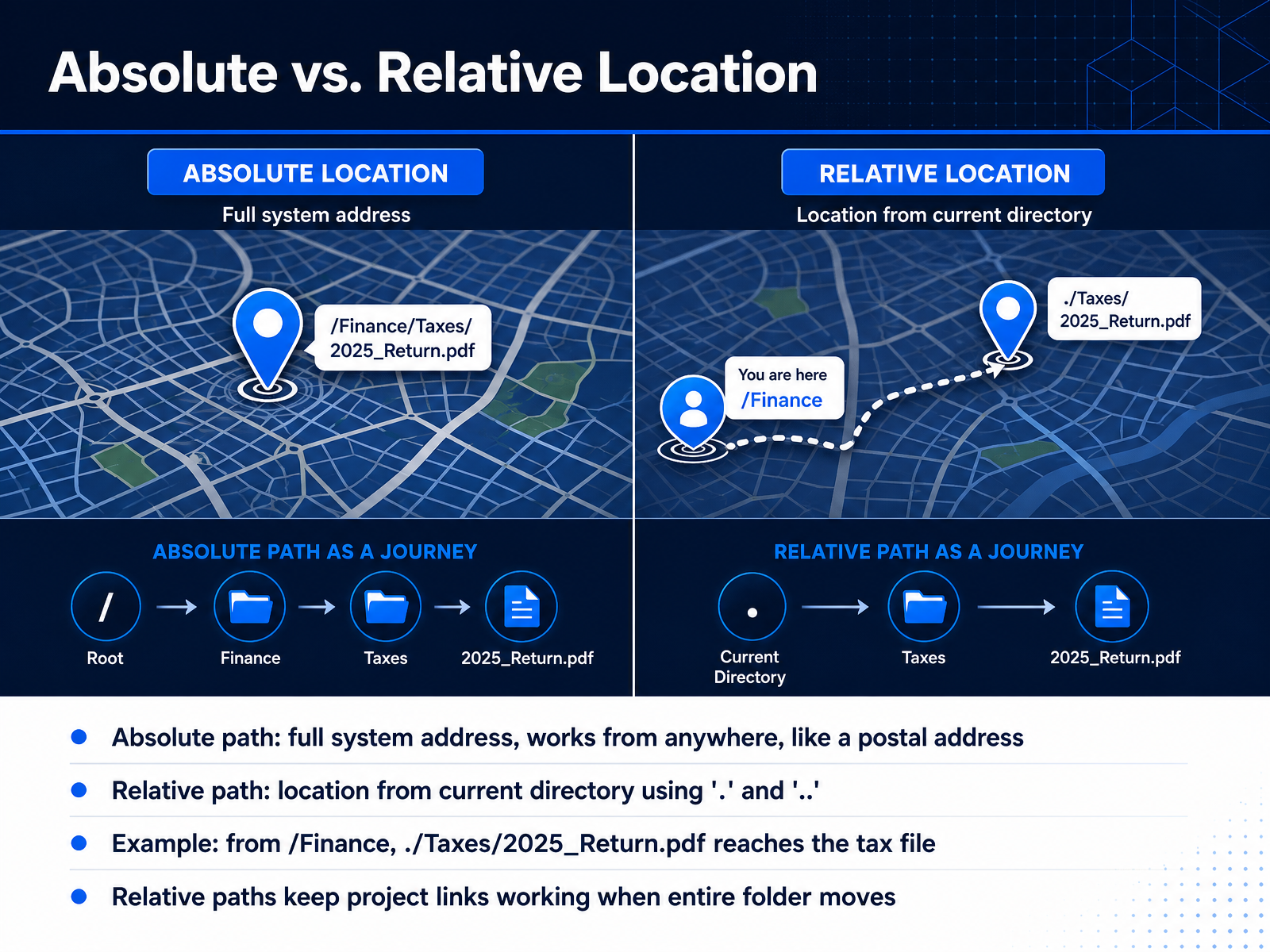
2 min - 09Absolute vs. Relative LocationNow let's clarify two ways to describe a location: absolute and relative. An absolute path is the full system address, starting from the root. It works from anywhere, just like a complete postal address. For example, /Users/Anna/Finance/Taxes. No matter which folder you're currently in, that absolute path points to the exact same place. A relative path, on the other hand, describes the location starting from your current directory. It uses two special shortcuts. A single dot stands for the current folder, and two dots mean the parent folder, the one just above you. So imagine you're inside the /Finance folder. A relative path like ./Taxes/2025_Return.pdf moves into the Taxes subfolder right here and reaches the tax file. Relative paths are powerful because they keep project links working. If you move the entire Finance folder to another drive, the internal relative connections stay intact. Next, let's apply this in our practice: reading and writing paths.
 2 min
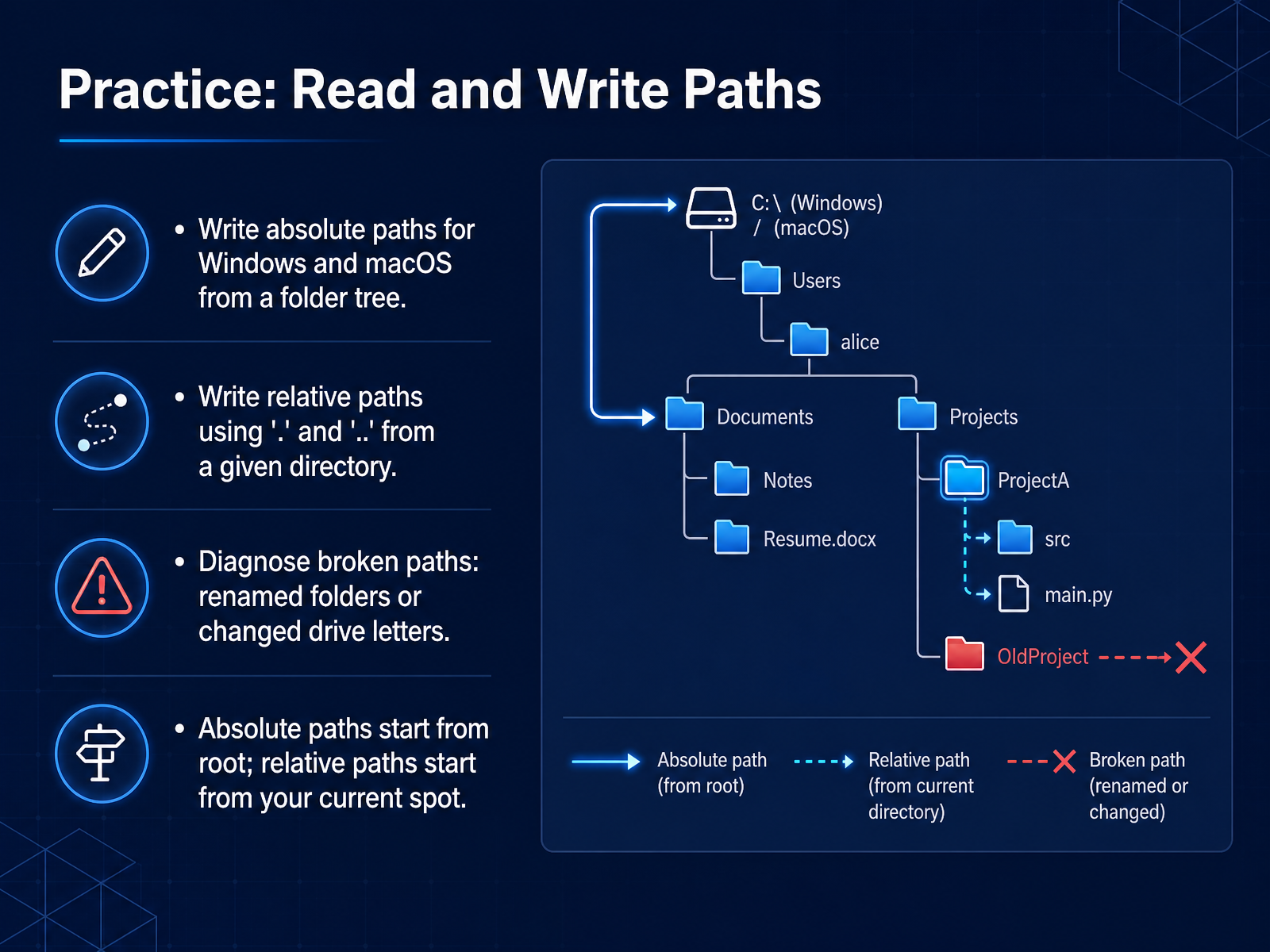
2 min - 10Practice: Read and Write PathsLet's put your knowledge of paths into practice. We'll look at a folder tree and write absolute paths for both Windows and macOS. Remember, an absolute path always starts from the very top, the root of the drive, like C colon backslash on Windows or a single forward slash on macOS. Then, we'll switch gears and write relative paths from a specific directory. This is where we use dot, which means the current folder, and dot dot, which moves up one level. You'll also diagnose broken paths. For example, if a folder named 'Projects' is suddenly renamed to 'Archive', a path pointing to 'Projects' stops working. Or, if a file is on the D drive and your path starts with C, it will fail. This practice builds a mental model of location, showing how every file lives at one fixed address. Up next, we'll explore navigating and managing your file system.
 2 min
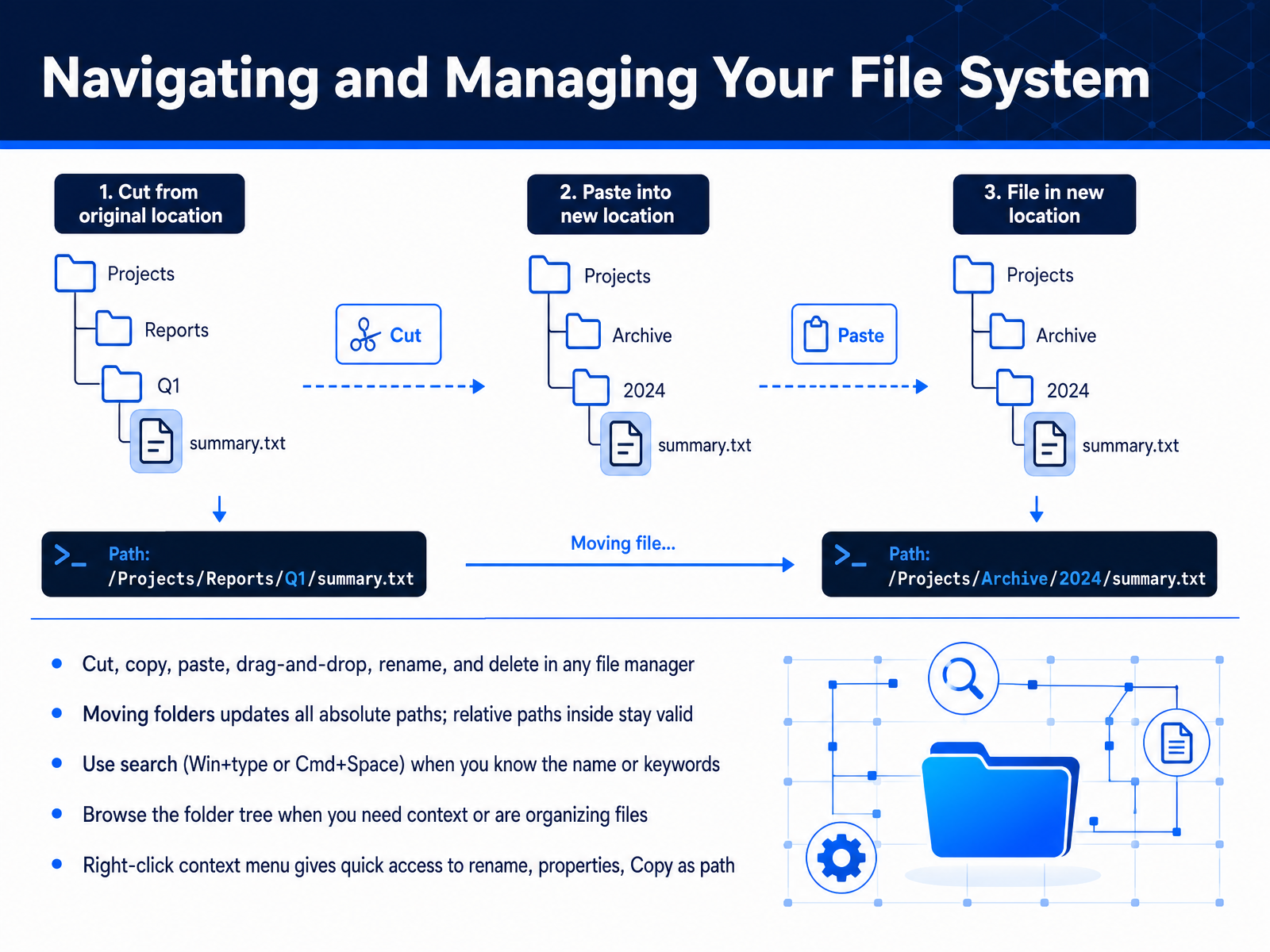
2 min - 11Navigating and Managing Your File SystemNow let's look at the actual tools and actions for navigating your file system. Every file manager gives you the same core operations: cut, copy, paste, drag-and-drop, rename, and delete. These are your hands-on controls for moving information around. When you move a folder, the absolute path to every file inside it updates. But here's something important: any relative paths you've set up stay valid because they're defined from within that folder's own location. That stability is what keeps your links from breaking when you reorganize. For finding files fast, you have two main approaches. If you know the name or some keywords, use search—just press the Windows key and start typing, or use Command plus Space on a Mac. Search is powerful because your brain remembers context, not exact file names. The other approach is browsing the folder tree directly. This is best when you need to see the full context or you're actively organizing whole groups of files. And don't forget the right-click menu. It gives you quick access to rename, check properties, and an especially useful one: Copy as path, which gives you the exact location you can share or paste. In the next slide, we'll start building your own information organization model.
 wiredguide.comsolveithow.comcopernic.com+22 min
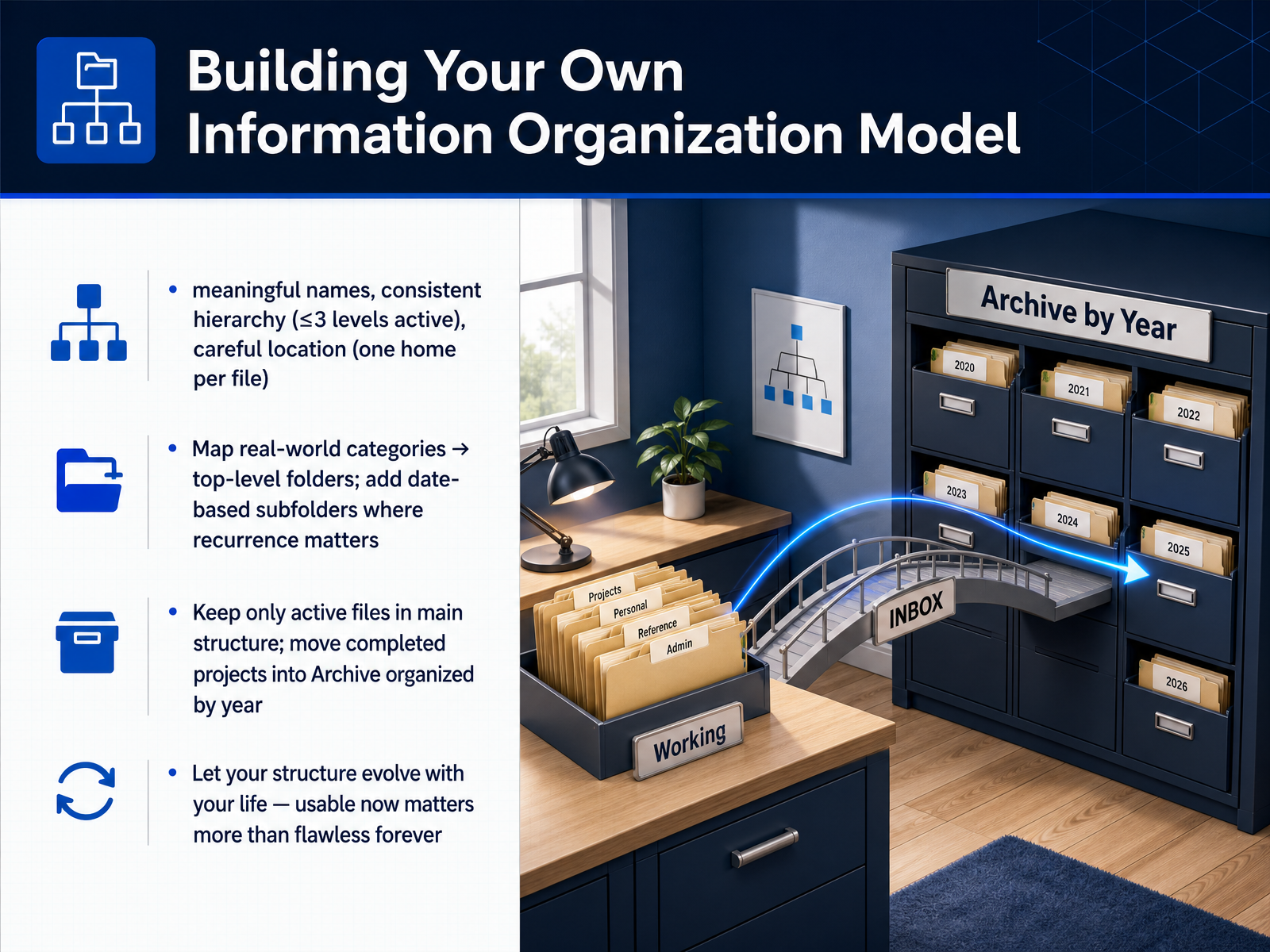
 - 12Building Your Own Information Organization ModelNow let's translate these ideas into your own information model. Start by mapping real-world categories to your top-level folders. Think about the major spheres of your life—areas like Home, Finances, Health, and Work. A good starting point is five to eight broad categories. Name each folder with a clear, meaningful label. Inside those, only add subfolders when you truly need them, and try to keep your active hierarchy to three levels or fewer. This prevents the maze of deep nesting where files get lost. For items that recur over time, such as taxes or medical receipts, create date-based subfolders by year. That way, past records stay organized but don't clutter your current working space. Give every file a single, predictable home. Completed projects and older documents should move into an Archive folder, organized by year, so your main structure holds only active files. An optional Inbox or To Sort folder can catch new downloads, but commit to clearing it out weekly. Finally, let your structure evolve. A usable system that fits your life right now is far better than a perfect plan you never maintain.
 onebrightguide.comoverdrive.toolsnamequick.app+22 min
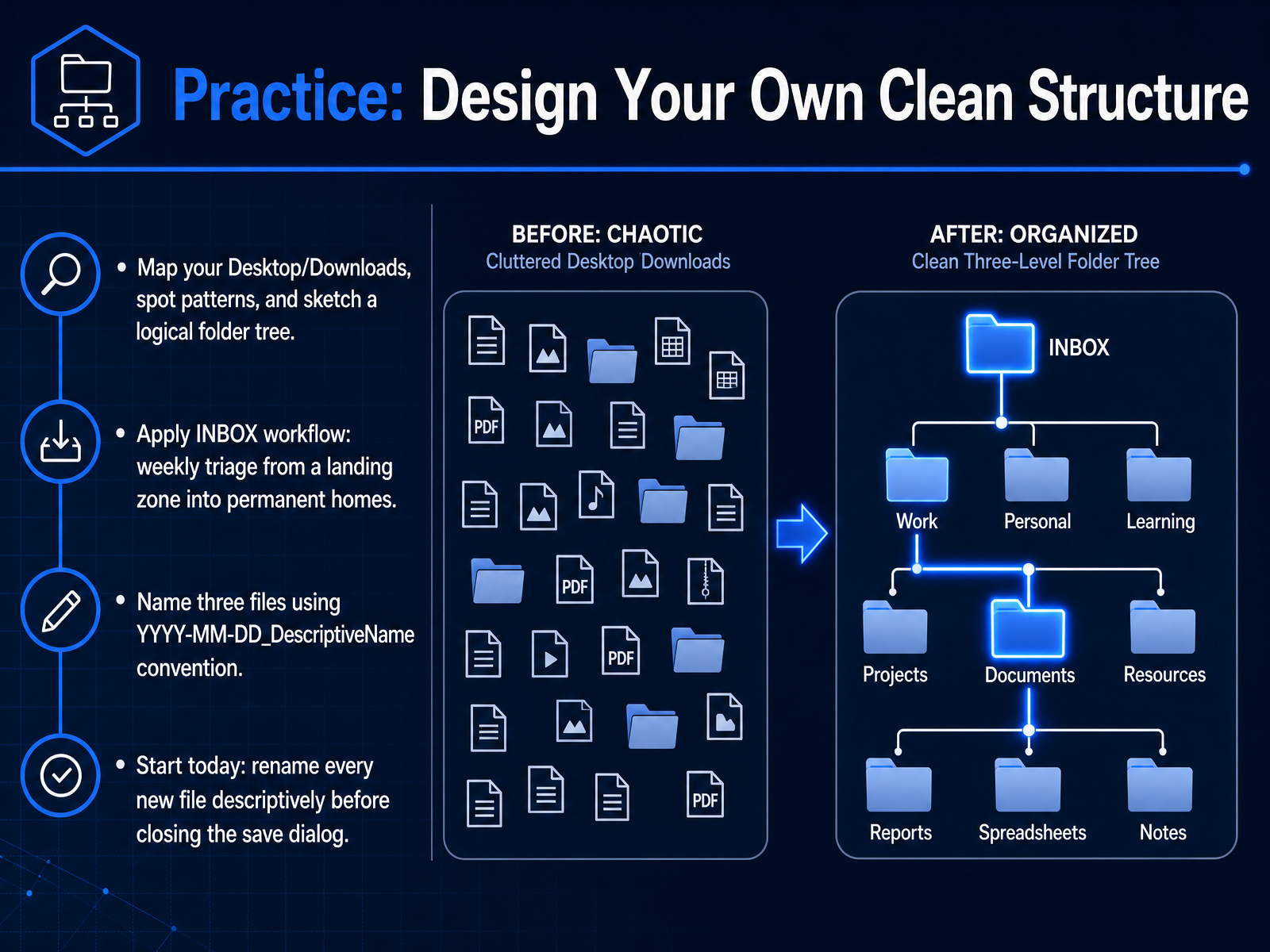
 - 13Practice: Design Your Own Clean StructureNow it is your turn to apply what we have covered. Start by looking at your Desktop and Downloads folder. Notice any patterns, like files scattered with names such as final-final or IMG underscore forty-four twenty-one. Sketch a simple folder tree that makes sense for your life, using broad categories like Home, Work, or Finances. Next, embrace the inbox workflow. Create a landing zone, maybe called To Sort, and clear it every week. Triage items into their permanent homes so nothing gets stuck in limbo. As you move files, practice the naming convention. Take a moment right now to rename three files using the pattern we discussed. Use a year-month-day date prefix, followed by a descriptive name, like two thousand twenty-six dash zero four dash twelve underscore Laptop underscore Receipt. Finally, build a small but powerful habit. Starting today, give every new file a clear, descriptive name before you close the save dialog. This single practice prevents most future clutter.
 getsortio.comonebrightguide.comstefanzweifel.dev+22 min
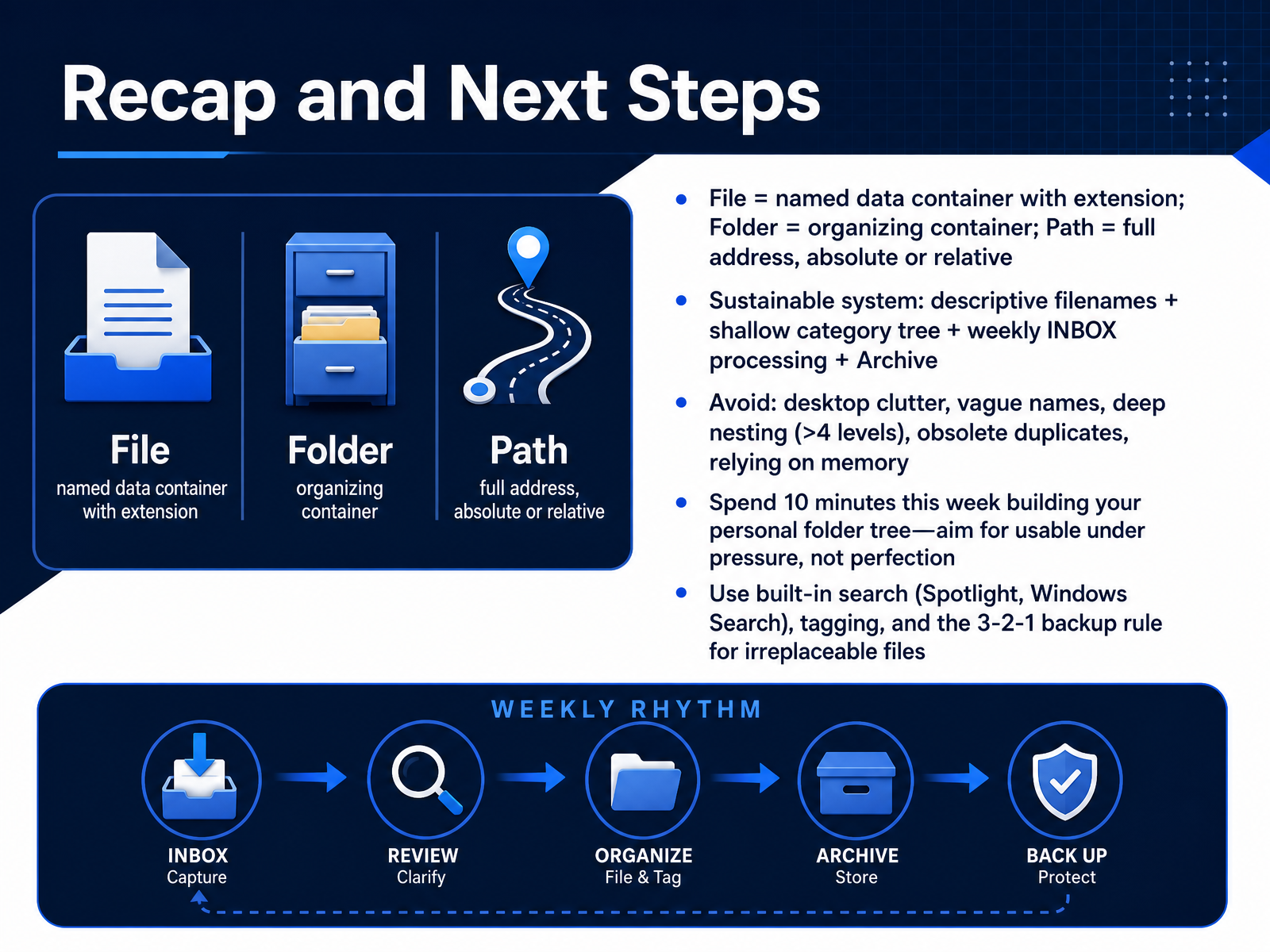
 - 14Recap and Next StepsLet's bring everything together. A file is a named container of data, and its extension tells the system what kind of data it holds. A folder is a container that groups related files. A path is the full address that describes a file's location, whether absolute or relative. To build a sustainable system, use descriptive filenames, keep a shallow category tree, process your inbox weekly, and archive completed work. Avoid desktop clutter, vague names, deep nesting beyond four levels, old duplicates, and relying on memory. This week, spend just ten minutes building your personal folder tree. Aim for something usable under pressure, not perfection. Also, get comfortable with built-in search tools like Spotlight or Windows Search, use tags to connect files across folders, and for irreplaceable files, follow the three-two-one backup rule. Thank you for joining this course. You now have the foundation to build an information organization model that truly works for you. Start small, stay consistent, and trust the system you build.
 wiredguide.comsolveithow.comcopernic.com+22 min
Take the deck with you
Download this course as a file — free, no sign-up needed.
- PDF handoutEvery slide page, ready to print or share.15 pages · 3.7 MBDownload
- Narrated PowerPointThe deck that presents itself — every slide carries the digital human's narration video.15 pages · 12.9 MBDownload
- PowerPoint slidesThe full deck as a .pptx — open it in PowerPoint, Keynote, or Google Slides.15 pages · 3.6 MBDownload
Free to use in your own training — please keep the PersonWise credit page at the end.
Have your own deck? Turn it into a course
Sources consulted
Web sources consulted while building this course.
- Why Digital File Organization Breaks Down So Fast - WiredGuide — wiredguide.com
- How to Organize Digital Files: A System That Actually Sticks | SolveItHow — solveithow.com
- The Psychology of Digital Clutter: Why Finding Files Feels So Hard | Copernic — copernic.com
- Why Your Team Still Can’t Find Files (Even in the Cloud) | Horizon Computer Solutions — horizon.ca
- Digital Decluttering - How to Organize Files So You Never Lose Anything Again - BlinksAndButtons — blinksandbuttons.net
- Common file name extensions in Windows - Microsoft Support — support.microsoft.com
- https://fileinfo.com/filetypes/common — fileinfo.com
- Document Format Guide 2026: Every File Type Explained — fileconvertlab.com
- File Formats with Types and Extensions — geeksforgeeks.org
- Document File Extensions - Open PDF, DOCX, XLSX & More (2026) — file-extension.com
- The Best Folder Structure for Personal Documents - One Bright Guide — onebrightguide.com
- Google Drive Folder Structure: A Simple System That Actually Works (2026) | Overdrive Blog | Overdrive — overdrive.tools
- Personal Folder Structure: The 7-Folder Template for Your Mac | NameQuick — namequick.app
- How to Organize Your Computer Files (10-Minute System) — itcarolina.com
- carteakey/vault-76-template — github.com
- Best Folder Structure for Personal Files - Definition & Guide — getsortio.com
- An Opinionated Personal Folder Structure | stefanzweifel.dev — stefanzweifel.dev
- A Simple Guide to Keeping Your Personal Files Organized Online in 2026 | The AI Journal — aijourn.com
- How to Organise Files on Your Computer | Complete System 2026 — insightfulpost.com