Begin
14 pages · ~28 min
SQL Database Repair Workflow
This training guides database administrators through a practical workflow for repairing SQL databases, covering step-by-step recovery techniques to restore database integrity and availability.
A digital instructor presents all 14 pages. Hold “Ask” at any point and ask out loud — the answer comes from this course. No sign-up needed.
What you’ll learn
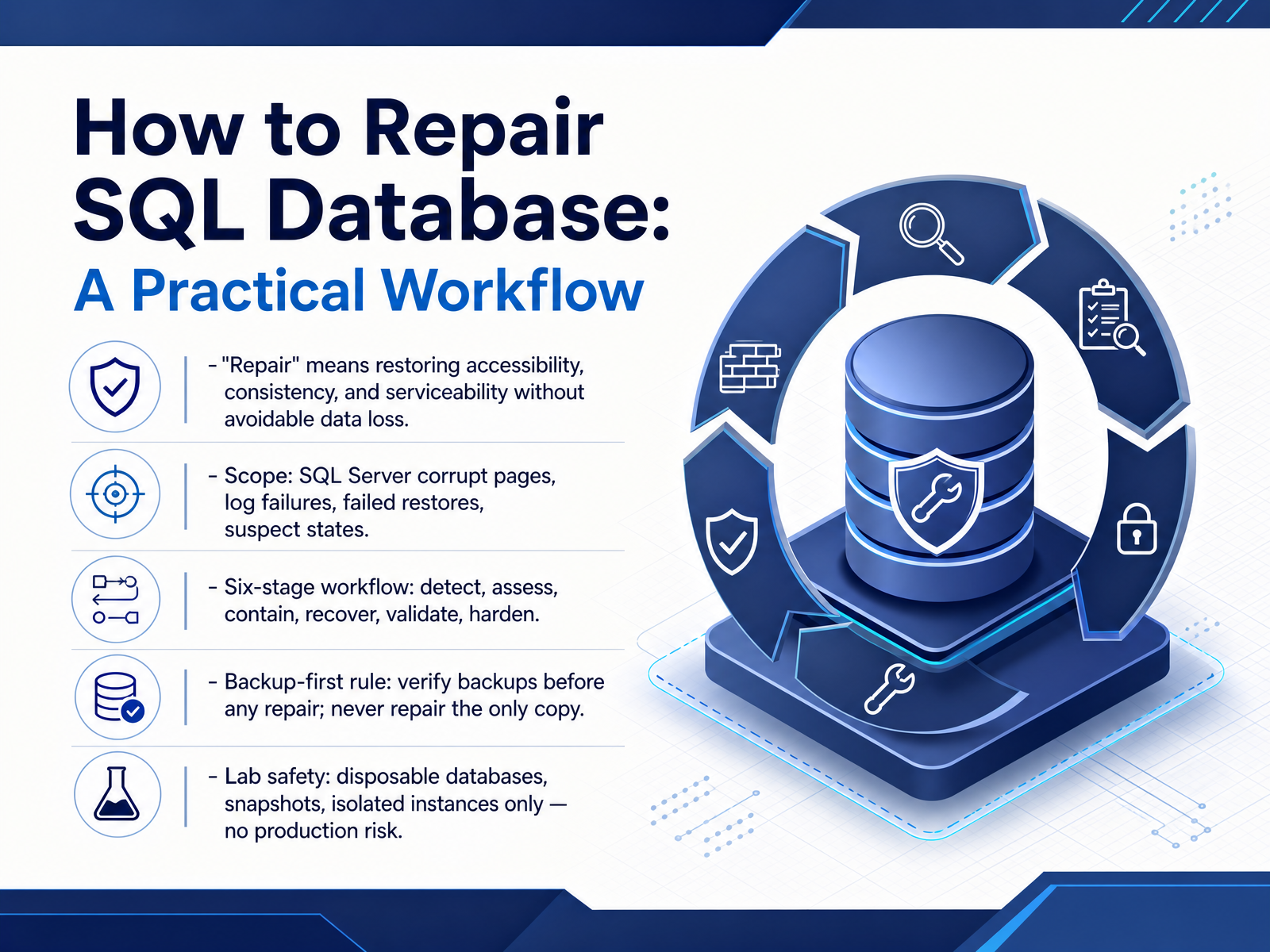
- 01How to Repair SQL Database: A Practical WorkflowWelcome. In this course, we will walk through a practical workflow for repairing a SQL Server database. Our goal is to restore accessibility, consistency, and serviceability without avoidable data loss. First, let us define repair. It means bringing the database back to a usable and trustworthy state, not just making an error message disappear. The scope covers corrupt pages, log failures, failed restores, and suspect database states. We will follow a six-stage workflow: detect, assess, contain, recover, validate, and harden. Before touching anything, remember the backup-first rule. Verify your backups, and never repair the only copy. In a lab environment, work only with disposable databases, snapshots, or isolated instances. That keeps production safe while you practice. Next, we will look at why databases corrupt, and what those failures actually look like.learn.microsoft.comoneuptime.comsqldba.blog+21 min
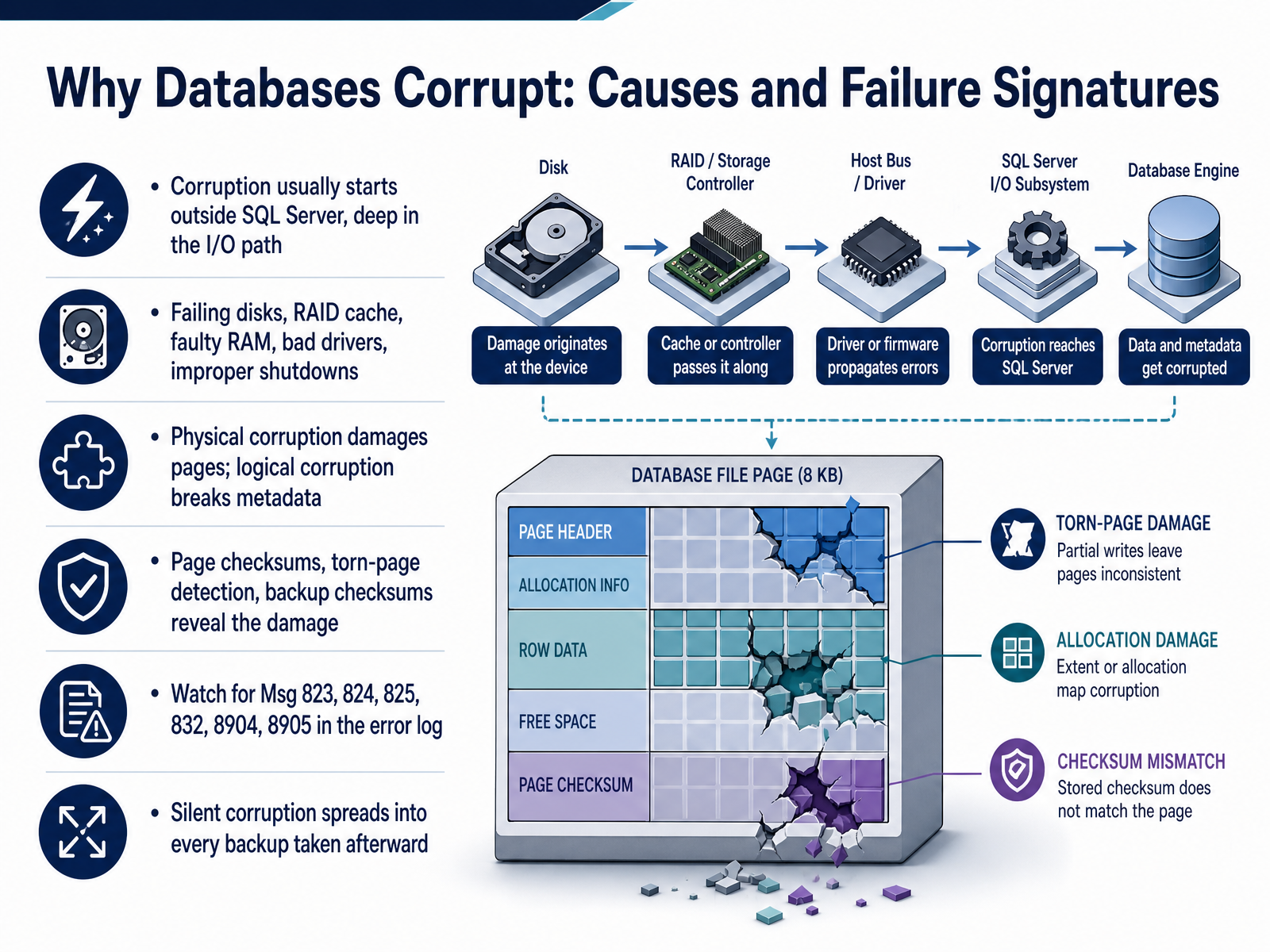
- 02Why Databases Corrupt: Causes and Failure SignaturesLet's look at why databases corrupt. In most cases, corruption does not start inside SQL Server. It starts further down, in the I/O path. Failing disks, RAID controller cache, faulty RAM, bad drivers, and improper shutdowns are the usual suspects. Power loss during a write can leave a page only partially written. We describe damage in two broad categories. Physical corruption damages pages on disk. Logical corruption breaks metadata and internal structures, so the data no longer agrees with itself. How do you find it? Page checksums, torn-page detection, and backup checksums reveal the damage when a page is read or verified. Watch the error log for messages 823, 824, 825, 832, 8904, and 8905. Treat any of them as a real signal, not noise. And remember the quiet risk: silent corruption spreads into every backup taken afterward. So detect it early, while you still hold a known-good restore point. Next, we'll read those error messages one by one.
 learn.microsoft.comlearn.microsoft.comlearn.microsoft.com+22 min
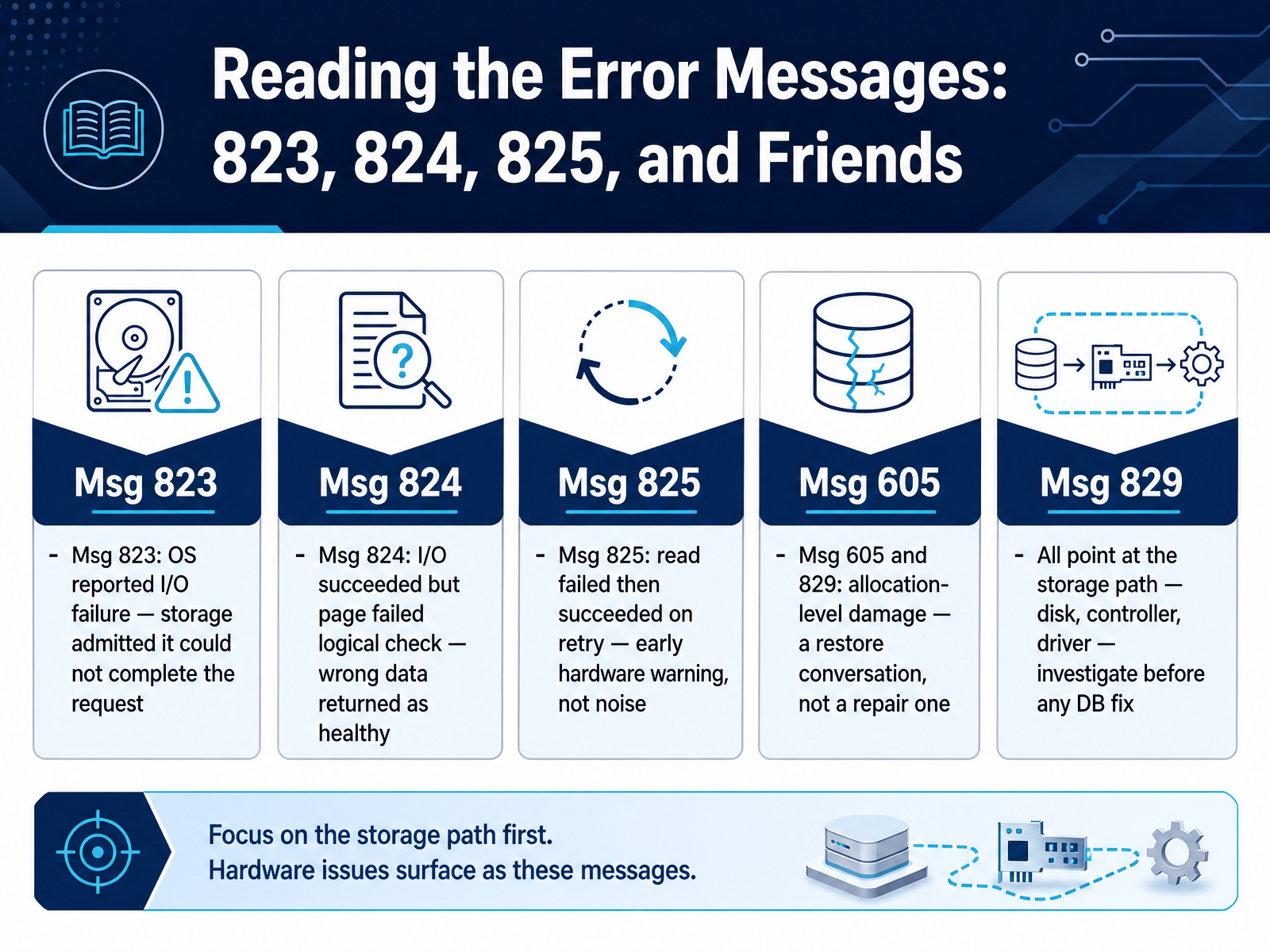
 - 03Reading the Error Messages: 823, 824, 825, and FriendsLet's move on to reading the error messages themselves. Errors 823 and 824 look similar, but they tell different stories. With 823, the operating system reported an I/O failure. In plain terms, the storage admitted it could not complete the request. With 824, the I/O succeeded, but the page failed a logical check. That means the storage returned wrong data and reported itself as healthy. Error 825 is different again. A read failed, then succeeded on retry. Treat that as an early hardware warning, not noise. Then there are errors 605 and 829. These signal allocation level damage. That is a restore conversation, not a repair one. All of these errors point at the storage path: the disk, the controller, or the driver. Investigate that path before you attempt any database fix. Next, we will look at core concepts and the toolbox.
 learn.microsoft.comlearn.microsoft.comlearn.microsoft.com+21 min
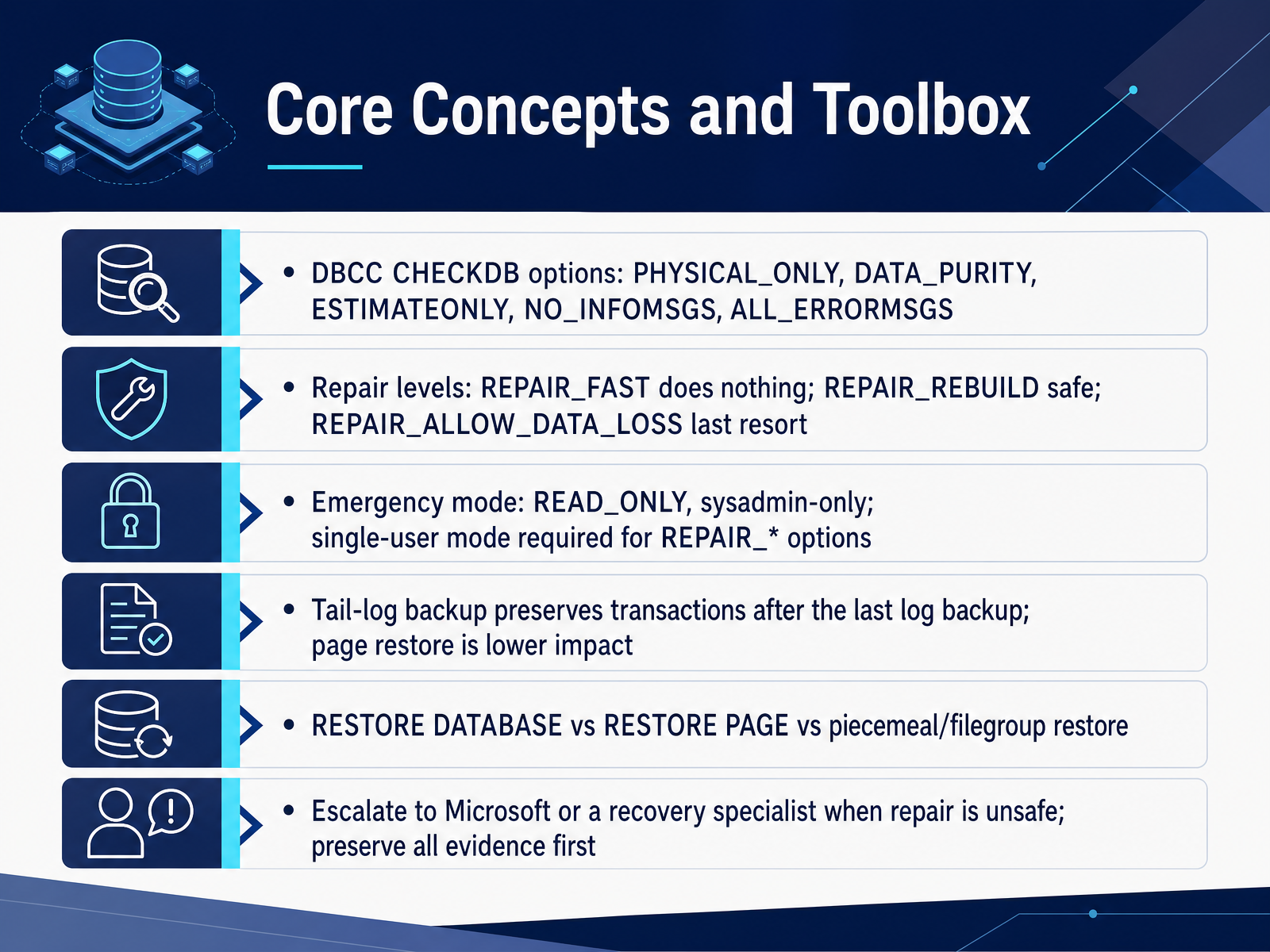
 - 04Core Concepts and ToolboxLet us now look at the core concepts and the toolbox you will work with. Start with the DBCC CHECKDB options. PHYSICAL_ONLY limits the check to page and allocation structure, so it runs much faster but skips logical checks. DATA_PURITY looks for invalid column values. ESTIMATEONLY reports the tempdb space the check needs, without running it. NO_INFOMSGS suppresses the informational messages, and ALL_ERRORMSGS removes the error display cap. So a common diagnostic command is DBCC CHECKDB with NO_INFOMSGS and ALL_ERRORMSGS. Next, the repair levels. REPAIR_FAST is kept for backward compatibility and does nothing. REPAIR_REBUILD performs repairs with no possibility of data loss, such as rebuilding an index. REPAIR_ALLOW_DATA_LOSS is the last resort. It deallocates damaged pages, so the rows on them are gone. Remember, these repair options require single-user mode. Emergency mode makes the database READ_ONLY and restricted to sysadmin, and it is the window for extracting data before any repair. Before recovery, consider a tail-log backup. It preserves transactions after the last log backup when the log file is intact. A page restore is lower impact than a full database restore. And when repair is not safe, escalate to Microsoft or a recovery specialist, and preserve all evidence first. With the toolbox clear, let us move on to detection: running and scheduling integrity checks.
 learn.microsoft.comoneuptime.comsqldba.blog+22 min
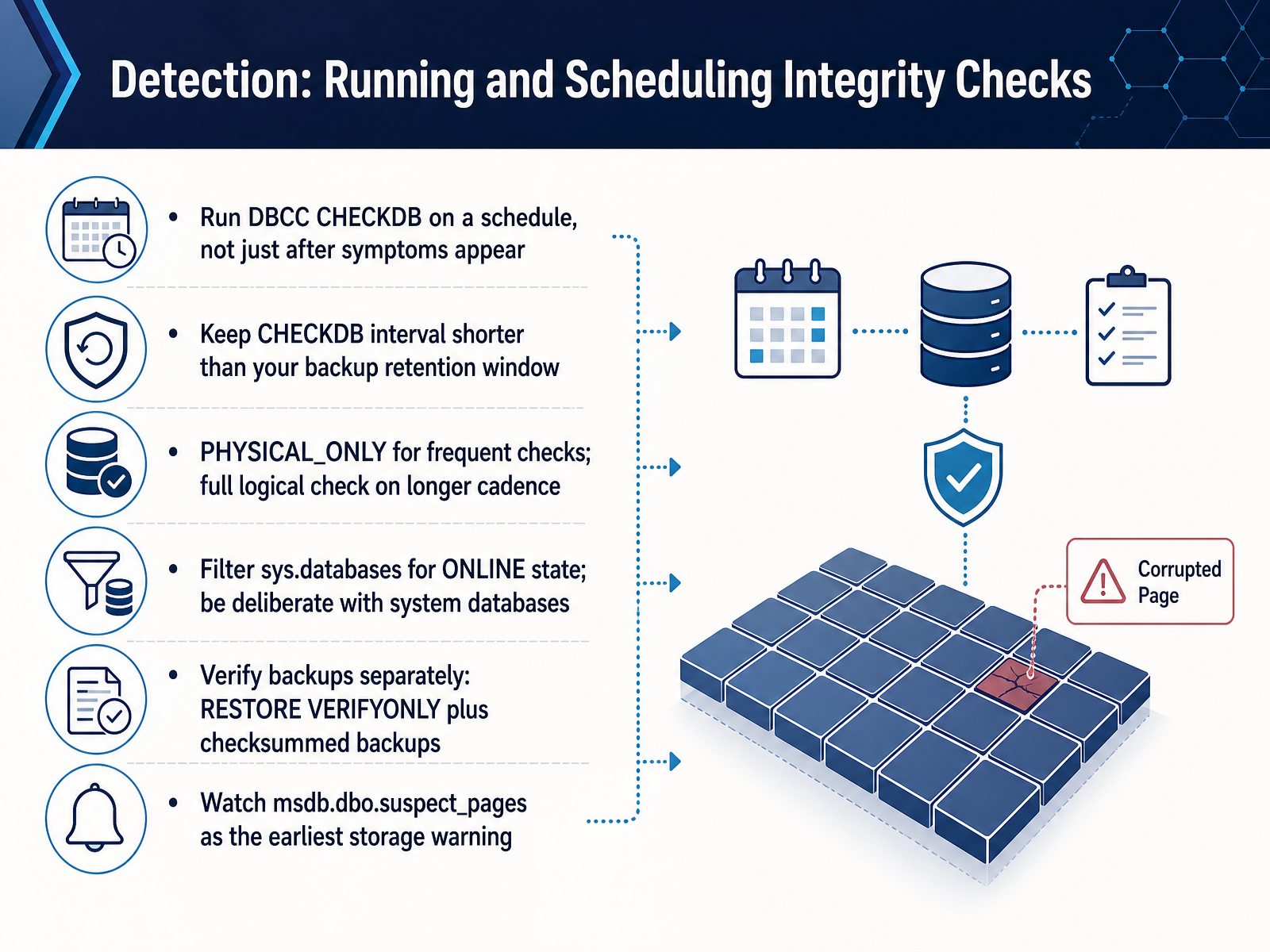
 - 05Detection: Running and Scheduling Integrity ChecksLet's talk about detection. The goal is to find corruption before it finds you, and that means running DBCC CHECKDB on a schedule, not just after symptoms appear. A simple rule keeps you covered: your CHECKDB interval should be shorter than your backup retention window. If you keep two weeks of backups, run checks at least weekly. For large databases, run PHYSICAL_ONLY frequently, and schedule a full logical check on a longer cadence. When you script this across an instance, query sys.databases and filter for the ONLINE state, since CHECKDB cannot run against a database that is offline or recovering. Be deliberate with system databases, and include msdb, because it holds the suspect_pages table. That table is your earliest storage warning. Verify your backups separately, using RESTORE VERIFYONLY against checksummed backups, so you know a clean restore point truly exists. The takeaway: detection is a routine, not a reaction. Next, we will look at reading the output and choosing a recovery path in Assessment: Interpreting Output and Choosing a Recovery Path.
 learn.microsoft.comoneuptime.comsqldba.blog+22 min
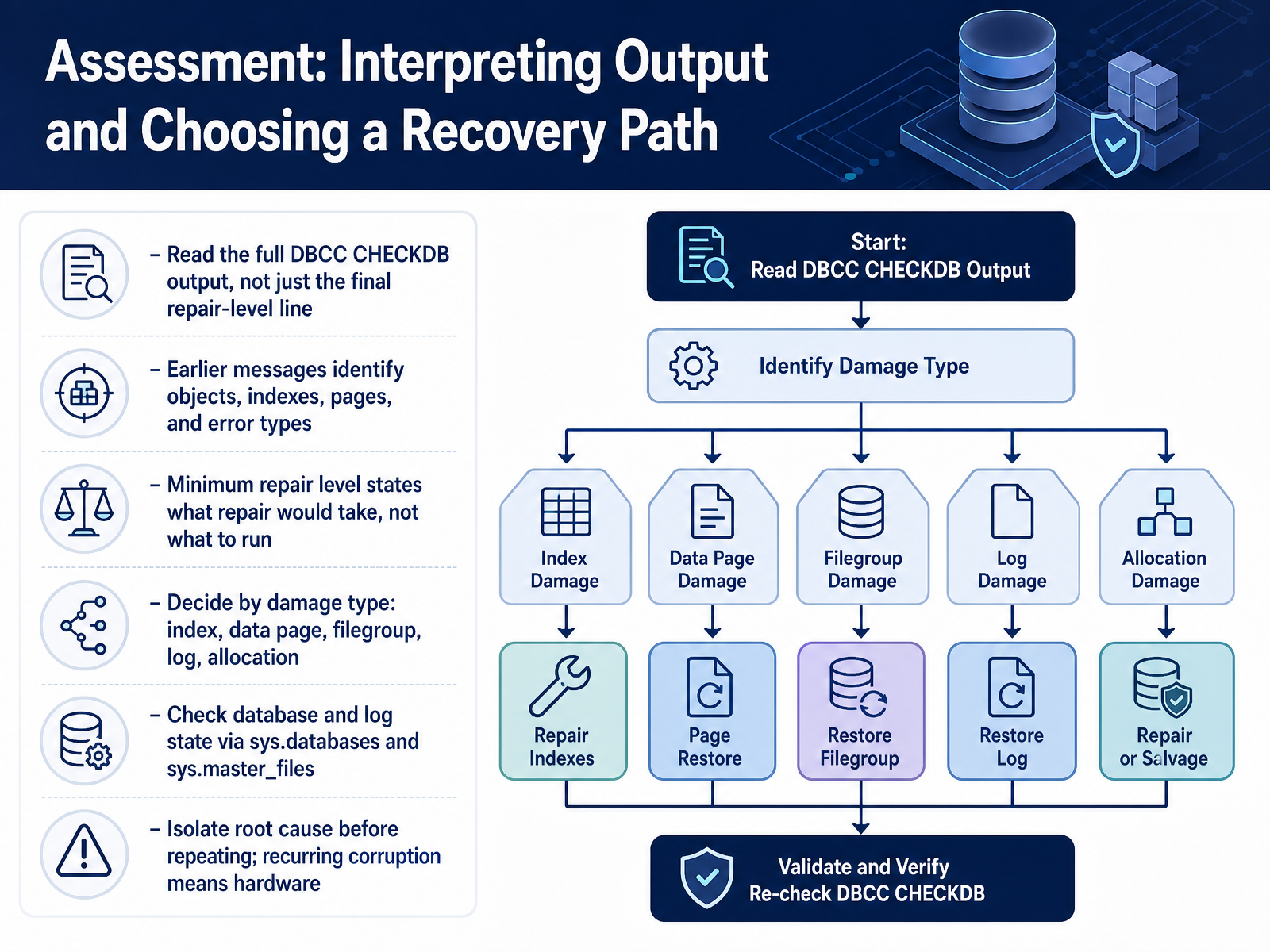
 - 06Assessment: Interpreting Output and Choosing a Recovery PathNow let's work through assessment, interpreting the output and choosing a recovery path. Start by reading the full DBCC CHECKDB output, not just the final repair-level line. The earlier messages identify objects, indexes, pages, and error types, so they tell you what actually broke. Remember, the minimum repair level states what repair would take, not what you should run. It is information, not instruction. Then decide by damage type. Is it a nonclustered index you can rebuild, a damaged data page eligible for page restore, a filegroup, the transaction log, or allocation metadata? Check database and log state using sys.databases and sys.master_files. Finally, isolate the root cause before repeating any fix. A single bad page after a power loss is different from recurring corruption, which points to failing storage hardware. Containment: Stabilize, Preserve, and Communicate.
 learn.microsoft.comsqldba.blogsqlskills.com+21 min
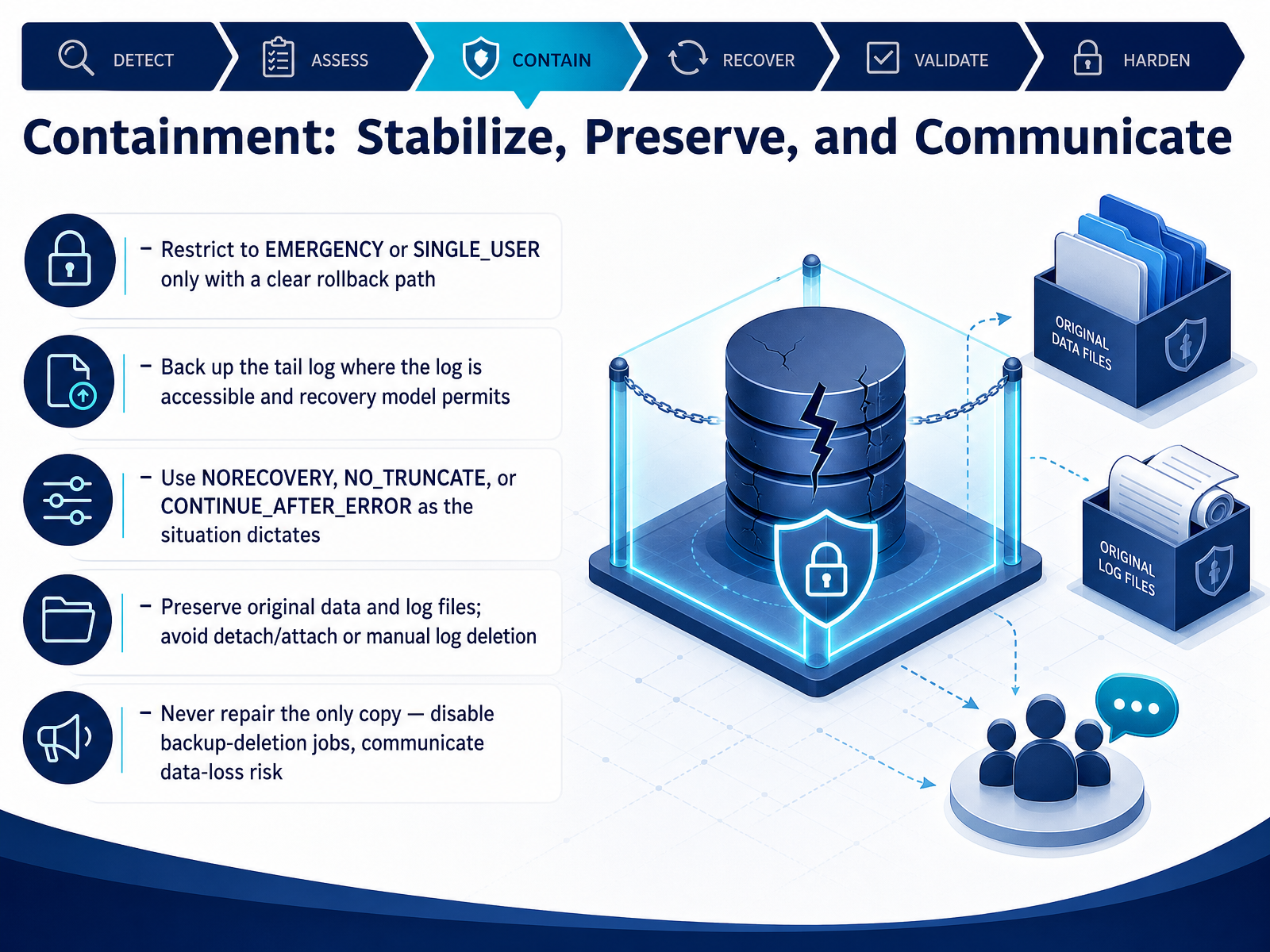
 - 07Containment: Stabilize, Preserve, and CommunicateLet's move on to containment. Your priority here is to stabilize the environment, preserve everything, and communicate clearly. Before you run any repair, think of this as protecting the evidence.
First, restrict access. Set the database to EMERGENCY or SINGLE_USER only when you have a clear rollback path. Emergency mode gives you read access as a sysadmin. Single user mode gives you exclusive access. Both are one-way doors in practice, so write down how you will return the database to multi user or take it offline before you start.
Second, back up the tail of the log wherever it is accessible and the recovery model permits. A tail log backup captures records not yet backed up, and it keeps the log chain intact. If the database is online, use WITH NORECOVERY. If it is offline or damaged, use WITH NO_TRUNCATE. And if the database is damaged but the log is readable, use CONTINUE_AFTER_ERROR. Pick the option that matches the situation, not the one that is convenient.
Third, preserve the original data and log files. Do not detach and attach. Do not delete or rebuild the log. Those actions destroy evidence and can make recovery impossible.
And fourth, never repair the only copy. Disable any backup deletion jobs immediately. Then communicate the data loss risk to your stakeholders, clearly and early.
Now that containment is in place, we can look at the first recovery path. Recovery Path 1: Restore from Backup.
 learn.microsoft.comlearn.microsoft.comlearn.microsoft.com+22 min
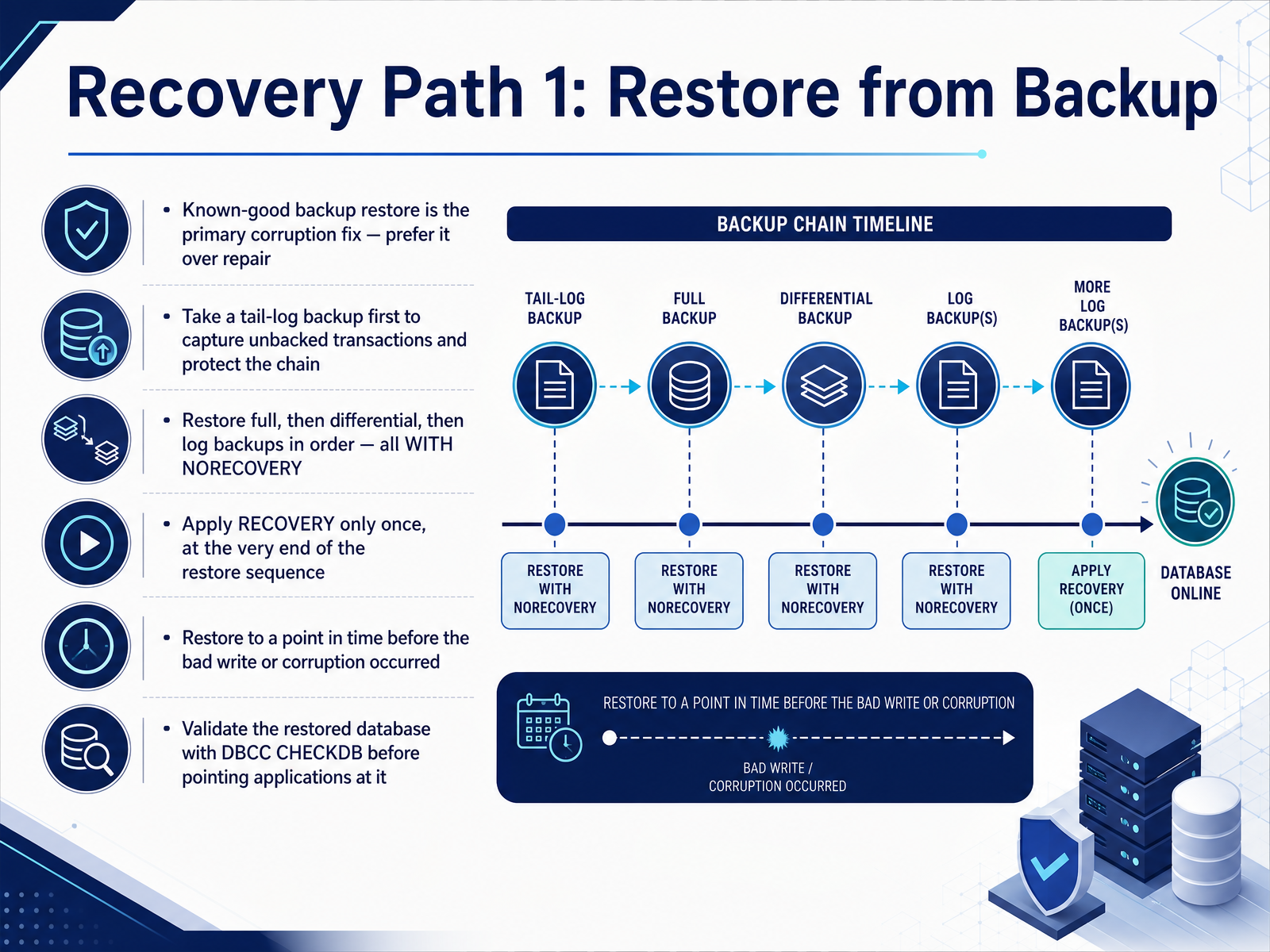
 - 08Recovery Path 1: Restore from BackupLet's move on to the first recovery path, restoring from a known-good backup. This is the primary fix for corruption, and whenever a valid backup exists, prefer it over any repair command.
Start by taking a tail-log backup. This captures transactions committed after your last log backup and keeps the log chain intact. For an online database, use BACKUP LOG with NORECOVERY. If the database is damaged, try WITH CONTINUE_AFTER_ERROR.
Now restore in order. First the full backup, then the differential if you have one, then every log backup, and finally the tail-log backup. Use WITH NORECOVERY on all of these. That leaves the database in the restoring state, so no changes occur between steps.
Apply RECOVERY only once, at the very end, after the final log is in place. Recover too early and you must restart the whole sequence.
Target a point in time just before the bad write or corruption occurred. Then validate. Run DBCC CHECKDB on the restored database before you point applications at it. Recovery is not complete until that check comes back clean.
So the sequence is: tail-log, full, differential, logs, recover once, verify. Let's look at the next path, Recovery Path 2: Page Restore and Index Rebuilds.
 learn.microsoft.comlearn.microsoft.comlearn.microsoft.com+22 min
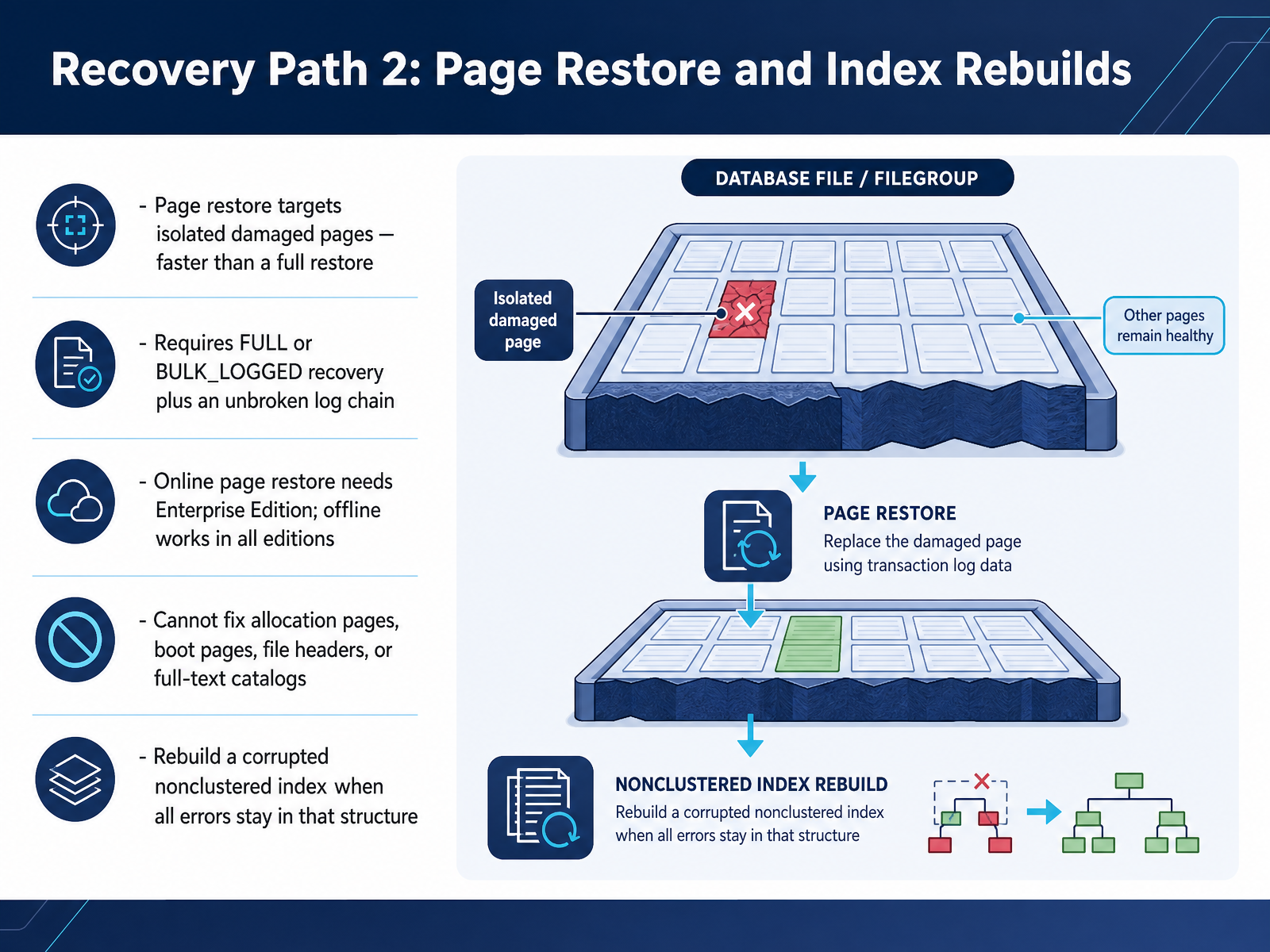
 - 09Recovery Path 2: Page Restore and Index RebuildsLet's look at our second recovery path: page restore and index rebuilds. A page restore targets isolated damaged pages rather than the whole database, so it's usually faster than a full restore. It applies to databases using the full or bulk-logged recovery model, and it requires an unbroken log chain from your backup all the way to the present, so every log backup in that sequence must exist and be applied in order. Online page restore needs Enterprise Edition, where the database stays available and only reads touching the damaged page fail. Offline page restore works in all editions, but the database is unavailable while it runs. There's a limit to what it can fix. You cannot page-restore allocation pages, boot pages, file headers, or full-text catalogs. Those require a full restore. Finally, if all errors stay inside a nonclustered index, you don't need a restore at all. Confirm the base data is healthy, then simply drop and rebuild the index, or run DBCC CHECKDB with repair rebuild, which carries no possibility of data loss. That's a clean, low-risk fix when the damage is confined to that structure. Next, we move on to Recovery Path Three: DBCC Repair as Last Resort.
 learn.microsoft.comlearn.microsoft.comtechcommunity.microsoft.com+22 min
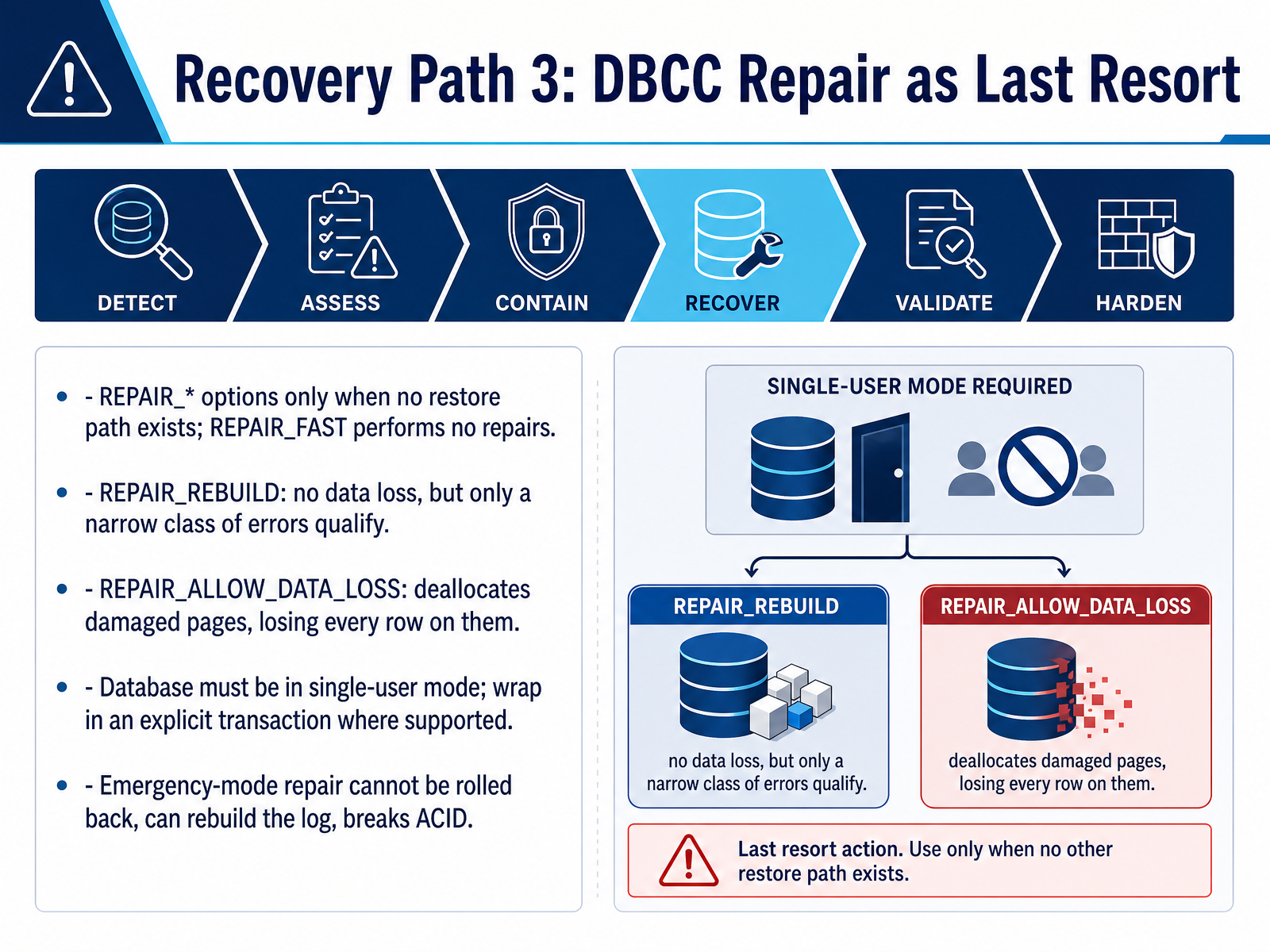
 - 10Recovery Path 3: DBCC Repair as Last ResortNow we move to the third recovery path, DBCC repair, and we treat it as a last resort only. Use a REPAIR option when no restore path exists. REPAIR_FAST is syntax kept for backward compatibility, and it performs no repairs. REPAIR_REBUILD causes no data loss, but only a narrow class of errors qualify, things like rebuilding a damaged index. REPAIR_ALLOW_DATA_LOSS repairs consistency by deallocating damaged pages, and that loses every row on those pages. The database must be in single-user mode, and where supported, wrap the command in an explicit transaction so you can review the output and roll back before committing. Emergency-mode repair is different. It cannot be rolled back, it may rebuild the transaction log, and that breaks the ACID guarantees. So pause here, confirm no backup can be restored, and only then proceed. Next, we look at Salvage: Exporting Data When Repair Is Not Safe.
 learn.microsoft.comsqldba.blogsqlskills.com+22 min
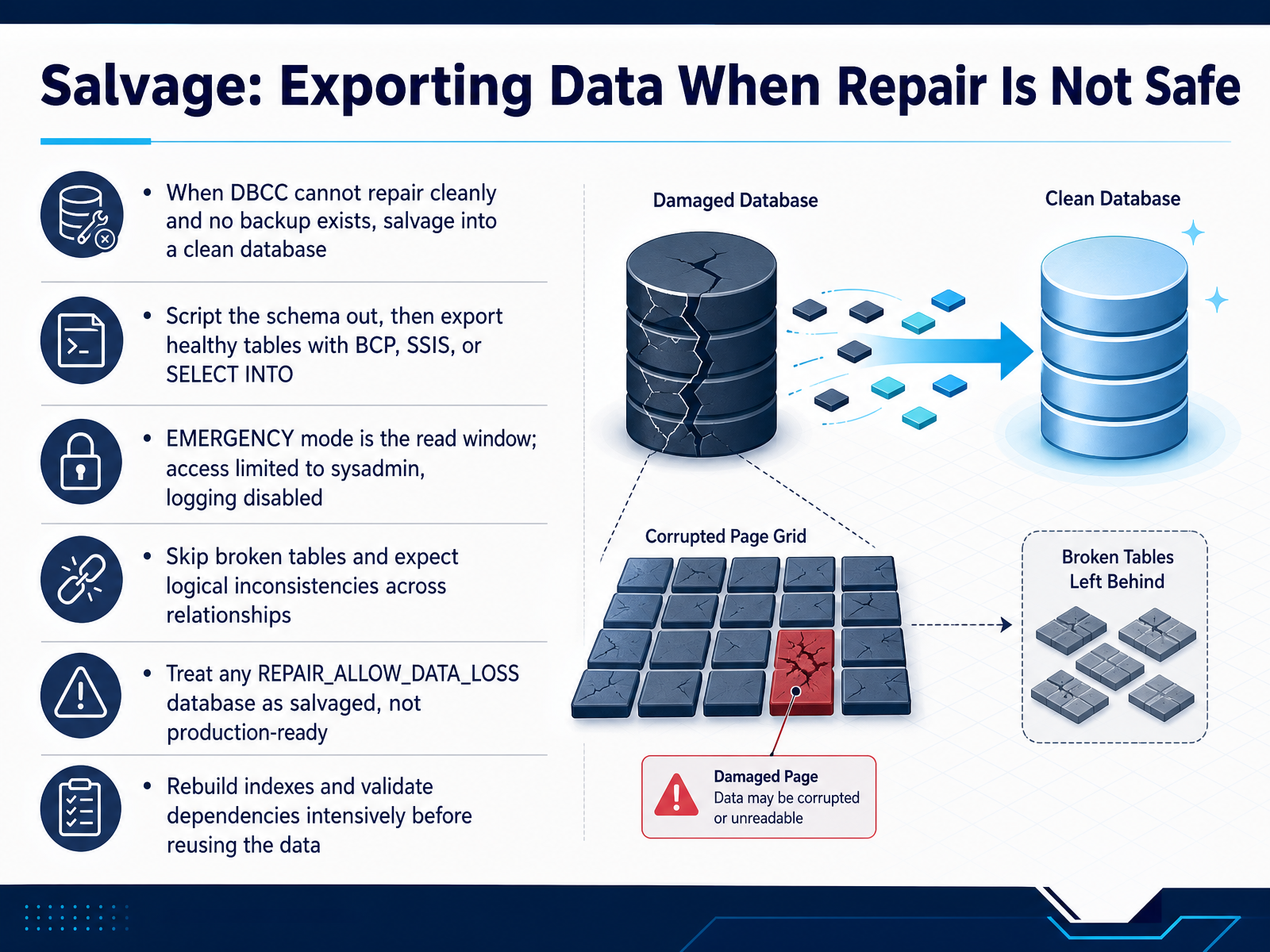
 - 11Salvage: Exporting Data When Repair Is Not SafeSometimes repair is not safe. When D B C C cannot repair cleanly and no backup exists, your goal shifts from fixing the database to salvaging it into a clean one. Script out the schema first, then export the healthy tables using B C P, S S I S, or S E L E C T space I N T O. Think of emergency mode as your read window. It is read only, logging is disabled, and access is limited to sysadmin. Copy out what you can before you touch anything. Expect gaps. Skip broken tables, and expect logical inconsistencies across relationships, because foreign keys are not guaranteed to line up after damage. Here is the key principle. Treat any database repaired with R E P A I R underscore ALLOW underscore DATA underscore LOSS as salvaged, never production ready. Before you reuse that data, rebuild indexes, validate dependencies, and check constraints intensively. Now let us turn to the checks that confirm the data is trustworthy in Validation After Repair or Recovery.
 learn.microsoft.comsqldba.blogsqlskills.com+22 min
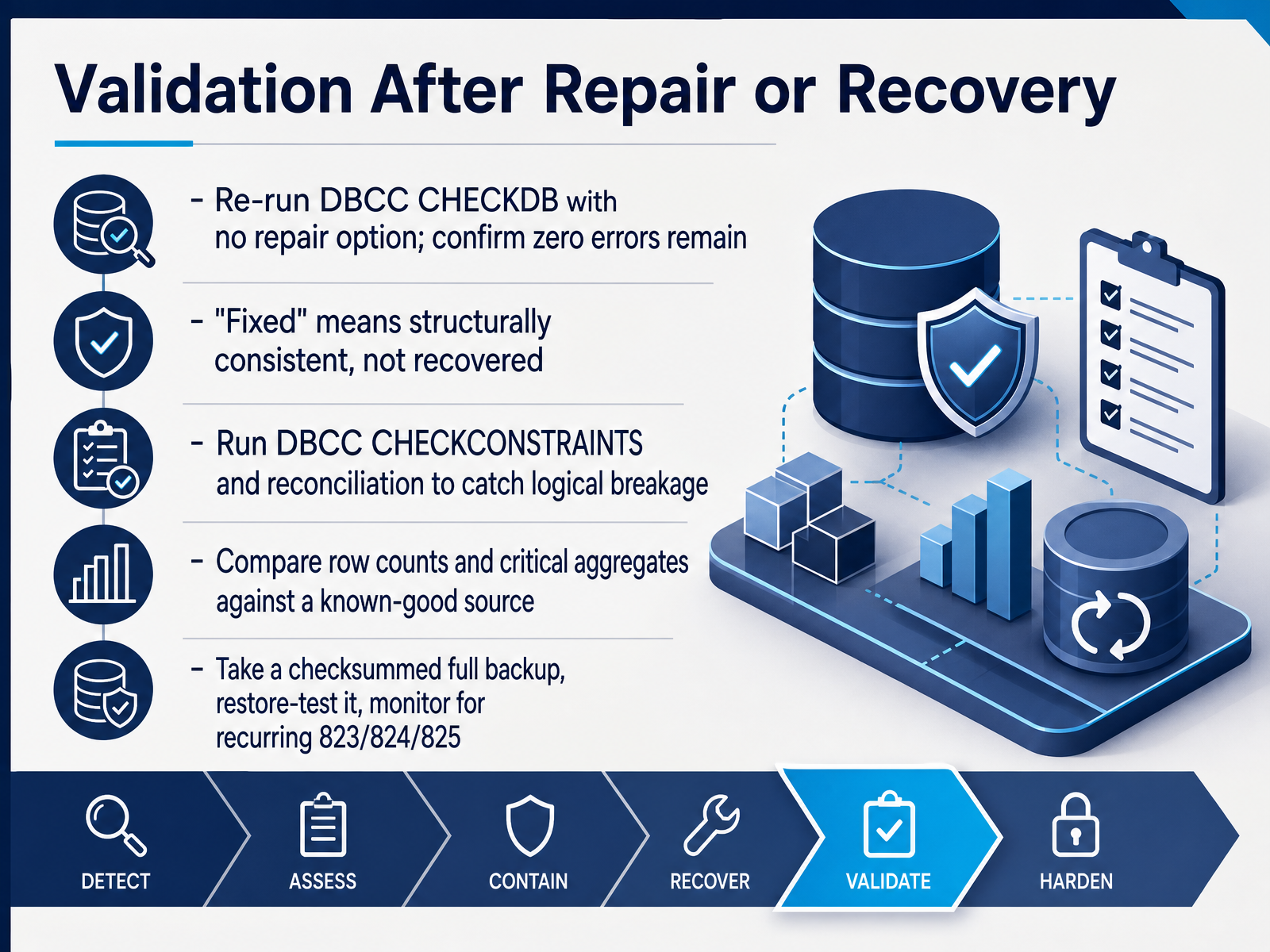
 - 12Validation After Repair or RecoveryOnce the repair completes, validation begins. Start by re-running DBCC CHECKDB with no repair option. You need a clean run that reports zero errors. And be precise about language here. A repaired database is structurally consistent, not recovered. Deallocated pages are gone, so fixed does not mean the data came back. Next, run DBCC CHECKCONSTRAINTS and application reconciliation. Repair does not maintain foreign keys or business rules, so check for orphaned rows and broken relationships. Then compare row counts and critical aggregates against a known-good source, such as a pre-incident backup or reporting system. Review every object and page named in the original output. Finally, take a full backup with checksums, restore-test it, and monitor for recurring 823, 824, and 825 errors. Recurring I/O errors point to storage, not SQL Server. Treat that database as salvaged until all of this passes. Next, we move on to prevention and hardening.
 learn.microsoft.comsqldba.blogoneuptime.com+22 min
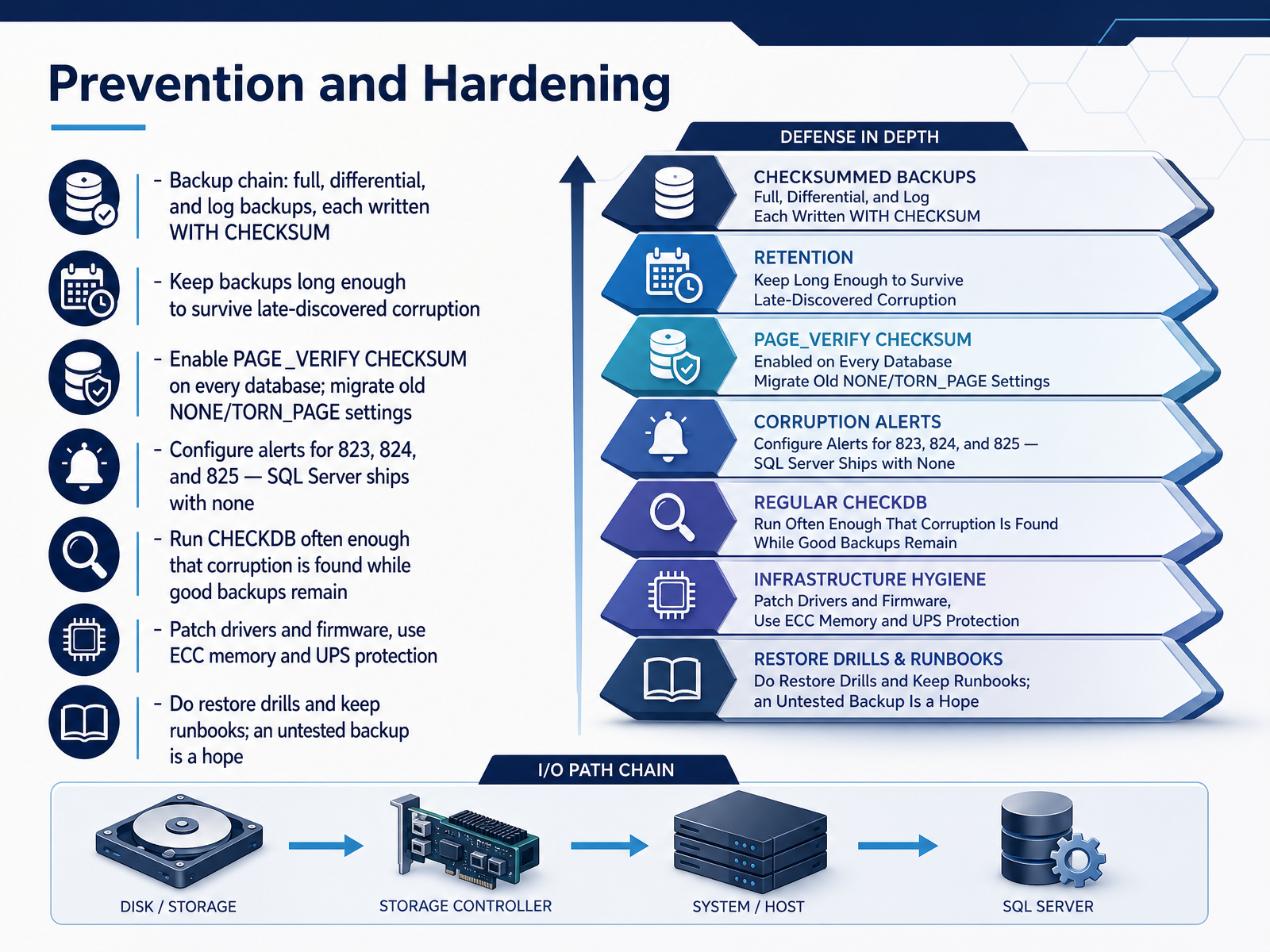
 - 13Prevention and HardeningNow let us shift from recovery to prevention and hardening. The goal here is simple. Detect corruption early, while good backups still exist, so a repair step never becomes a gamble.
Start with the backup chain. A full backup, differential backups, and log backups, each written WITH CHECKSUM. That option makes the backup read every page and validate its checksum as it goes, and it writes a checksum over the whole backup stream. If a page is already damaged, the backup fails loudly at two in the morning. That is far better than discovering a corrupted backup during a restore.
Keep backups long enough to survive late discovered corruption. If you only retain one cycle, the next full backup quietly ages out the last clean copy you had. At minimum, retain two cycles, and treat restore verification as part of the chain, not an optional extra.
Next, confirm page verification. Every database should be set to PAGE_VERIFY CHECKSUM. Query sys.databases where page_verify_option_desc is not CHECKSUM, and migrate any database still on NONE or TORN_PAGE. Without page checksums, backup checksums have very little to validate.
Then configure alerts. SQL Server ships with none. Set alerts for error 823, 824, and 825. Error 825 is the early warning, 823 and 824 mean the storage is returning bad data. Treat all three as urgent.
Run CHECKDB often enough that corruption is found while good backups remain in retention. Patch drivers and firmware. Use ECC memory and UPS protection. Finally, do restore drills, and keep runbooks current. An untested backup is a hope, not a recovery plan.
Now let us put all of this into practice, in the hands on lab, break it, detect it, fix it, document it.
 learn.microsoft.comoneuptime.combrentozar.com+22 min
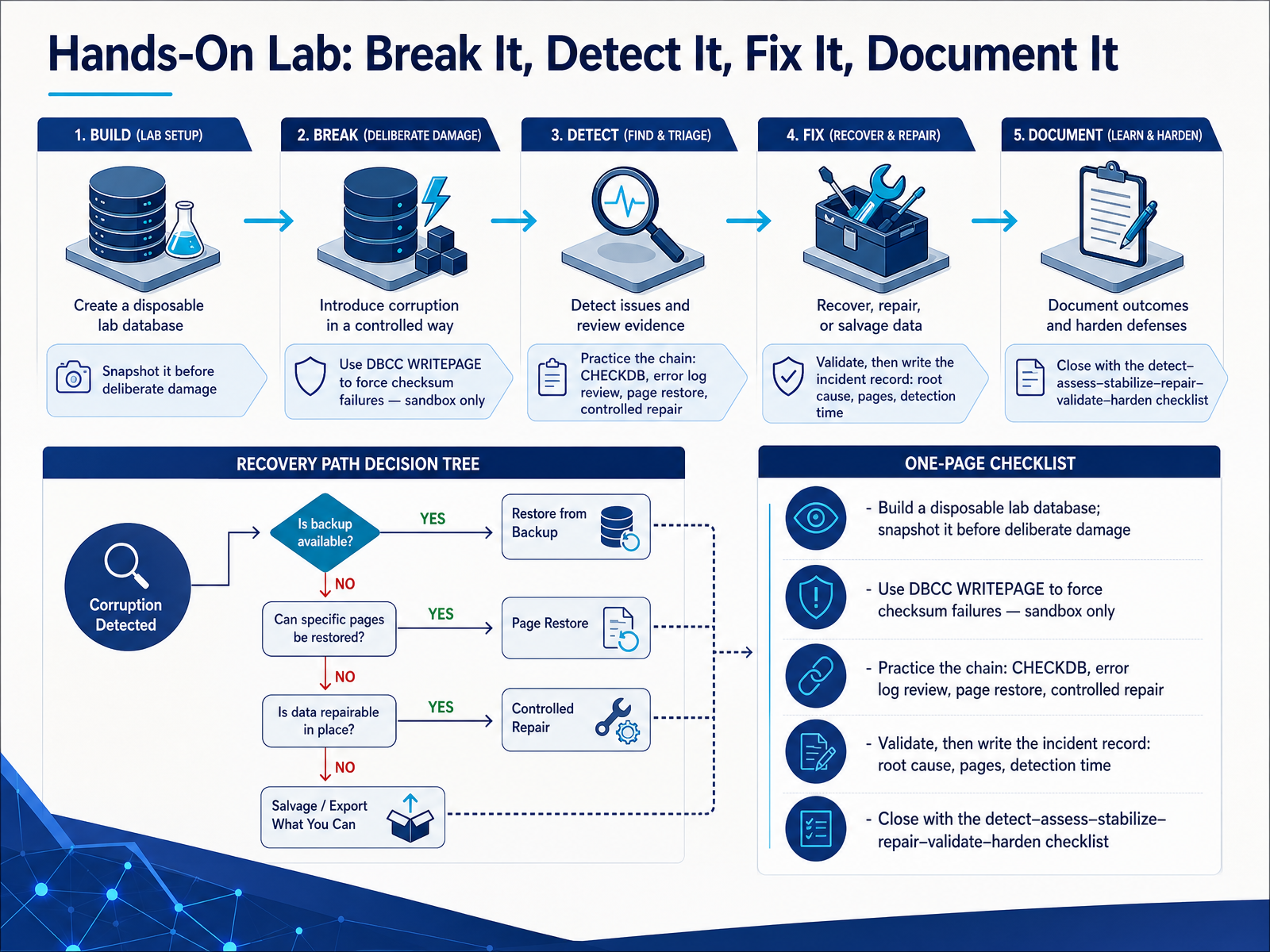
 - 14Hands-On Lab: Break It, Detect It, Fix It, Document ItNow let us put everything together in a hands-on lab. Build a disposable database, and snapshot or back it up before you deliberately damage anything. In this sandbox only, use DBCC WRITEPAGE with the direct write option to force a checksum failure on a chosen page. Then practice the full chain: run DBCC CHECKDB, review the error log and the suspect pages table, perform a page restore if your backup chain allows it, and only then consider a controlled repair. Validate with a clean CHECKDB, and record the incident: root cause, affected pages, detection time, and recovery point. Close the lab using the checklist: detect, assess, stabilize, repair, validate, and harden. That sequence is what you carry into production. Thank you for working through this course. You now have a repeatable workflow, so keep practicing calmly, and trust your evidence.
 learn.microsoft.comlearn.microsoft.comtechcommunity.microsoft.com+21 min
Take the deck with you
Download this course as a file — free, no sign-up needed.
- PDF handoutEvery slide page, ready to print or share.15 pages · 4.3 MBDownload
- Narrated PowerPointThe deck that presents itself — every slide carries the digital human's narration video.15 pages · 16.0 MBDownload
- PowerPoint slidesThe full deck as a .pptx — open it in PowerPoint, Keynote, or Google Slides.15 pages · 4.1 MBDownload
Free to use in your own training — please keep the PersonWise credit page at the end.
Have your own deck? Turn it into a course
Sources consulted
Web sources consulted while building this course.
- DBCC CHECKDB (Transact-SQL) - SQL Server - Microsoft Learn — learn.microsoft.com
- DBCC CHECKDB Found Corruption: A Safe SQL Server Recovery Playbook — oneuptime.com
- DBCC CHECKDB Found Corruption: What to Do Next — sqldba.blog
- SQL Server DBCC CHECKDB: Complete Guide and Repair Options | SQL Server Scripts — sqlserver70.com
- How to Repair SQL Server Database - A Complete Guide — syscurve.com
- MSSQLSERVER error 823 — learn.microsoft.com
- MSSQLSERVER_824 — learn.microsoft.com
- MSSQLSERVER_825 - SQL Server | Microsoft Learn — learn.microsoft.com
- Logical Consistency-Based I/O Error in SQL Server (Errors 823 and 824) - SQL DBA Blog — sqldba.blog
- Manage the suspect_pages Table (SQL Server) — learn.microsoft.com
- CHECKDB From Every Angle: Tips and tricks for interpreting CHECKDB output - Paul S. Randal — sqlskills.com
- What to Do When DBCC CHECKDB Reports Corruption - Brent Ozar Unlimited® — brentozar.com
- Tail-log backups (SQL Server) — learn.microsoft.com
- Back Up the Transaction Log When the Database Is Damaged (SQL Server) — learn.microsoft.com
- Restore database: point of failure - full recovery - SQL Server | Microsoft Learn — learn.microsoft.com
- Disaster recovery 101: backing up the tail of the log — sqlskills.com
- SQL Server – Backing up the Tail of the Log – SQLServerCentral — sqlservercentral.com
- Restore Pages (SQL Server) - SQL Server | Microsoft Learn — learn.microsoft.com
- Fixing damaged pages using page restore or manual inserts | Microsoft Community Hub — techcommunity.microsoft.com
- Restore Pages (SQL Server) — learn.microsoft.com