Begin
14 pages · ~28 min
AI Presentation Design Tools
Learn to create professional presentations using AI-powered design tools without any coding experience. Master visual storytelling and automated slide creation.
A digital instructor presents all 14 pages. Hold “Ask” at any point and ask out loud — the answer comes from this course. No sign-up needed.
What you’ll learn
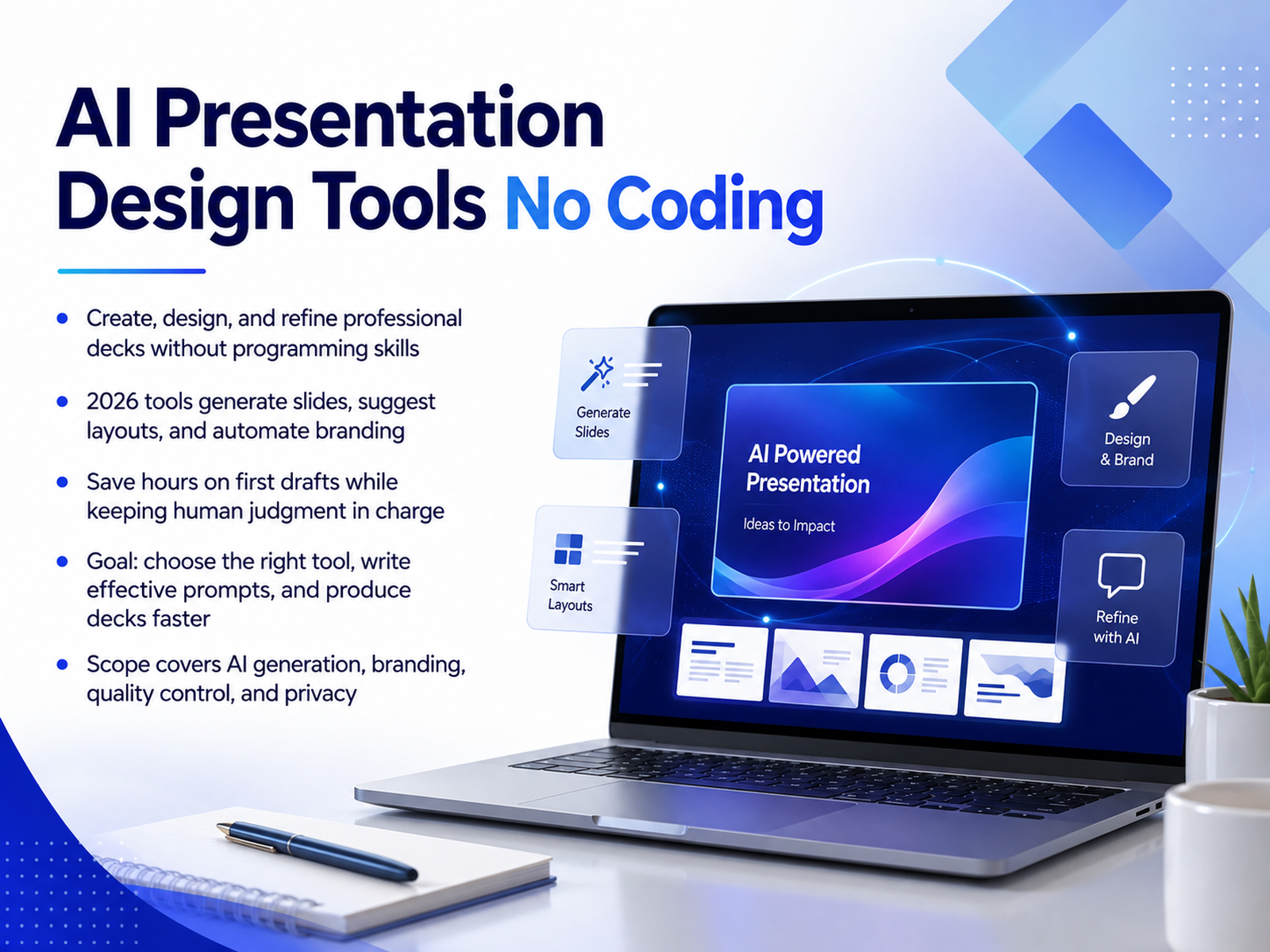
- 01AI Presentation Design Tools No CodingWelcome, everyone. If building slides has ever eaten your whole morning, you're in the right place. Today we're looking at no-code AI presentation tools that let you create, design, and refine professional decks without writing a single line of code. By 2026, these tools can generate slides, suggest clean layouts, and even automate your branding in seconds. The goal here is practical: we'll help you choose the right tool, write prompts that actually work, and produce polished decks in a fraction of the time. You stay in charge of the final judgment—the AI handles the heavy lifting of the first draft. Here's what we'll cover: how AI generation works, keeping your brand consistent, quality control, and what to consider for privacy. By the end, you'll have a clear workflow to save hours on your next presentation. Let's get started by looking at why this matters for your workflow.zapier.comaitoolsworth.comprezent.ai+21 min
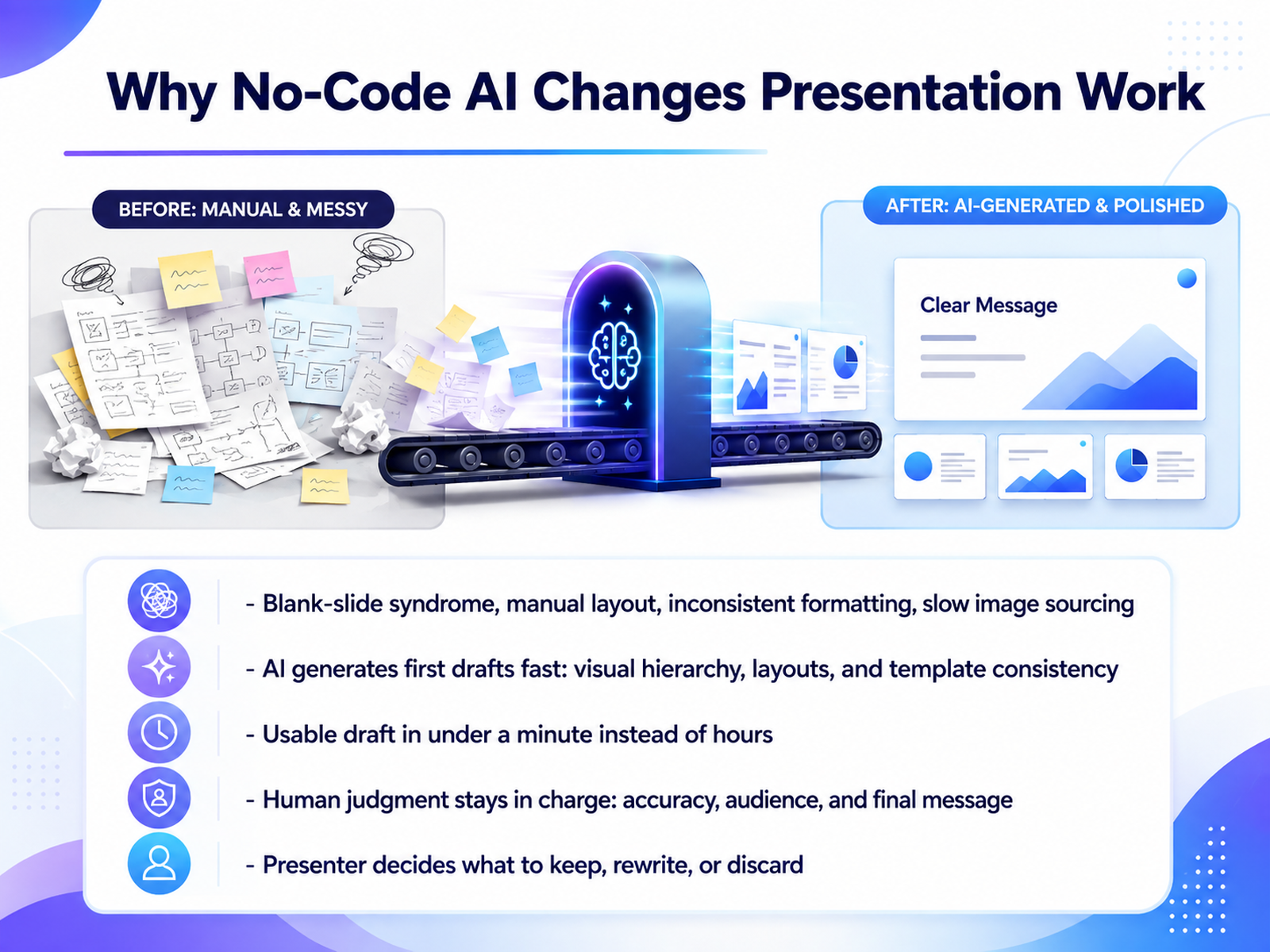
- 02Why No-Code AI Changes Presentation WorkLet's be honest about what a no-code AI tool actually shifts for you. We've all been there: staring at a blank slide, manually aligning text boxes, hunting for the right stock image. It can eat hours of your day. These tools remove that friction. Instead of wrestling with layout, you type a short prompt, and within about thirty seconds you get a complete first draft. It includes visual hierarchy, consistent formatting, and even suggested imagery pre-arranged. That alone gives you a huge head start compared to building from scratch. But here's the key point: you stay in charge. The AI gives you raw material and a strong foundation, but you decide what to keep, what to rewrite, and what to discard. Your judgment drives accuracy, tone, and the final message. It's a shift from crafting every pixel to directing a capable assistant. Next, let's look at the core capabilities you should actually look for when choosing a tool.
 zapier.comaitoolsworth.comprezent.ai+21 min
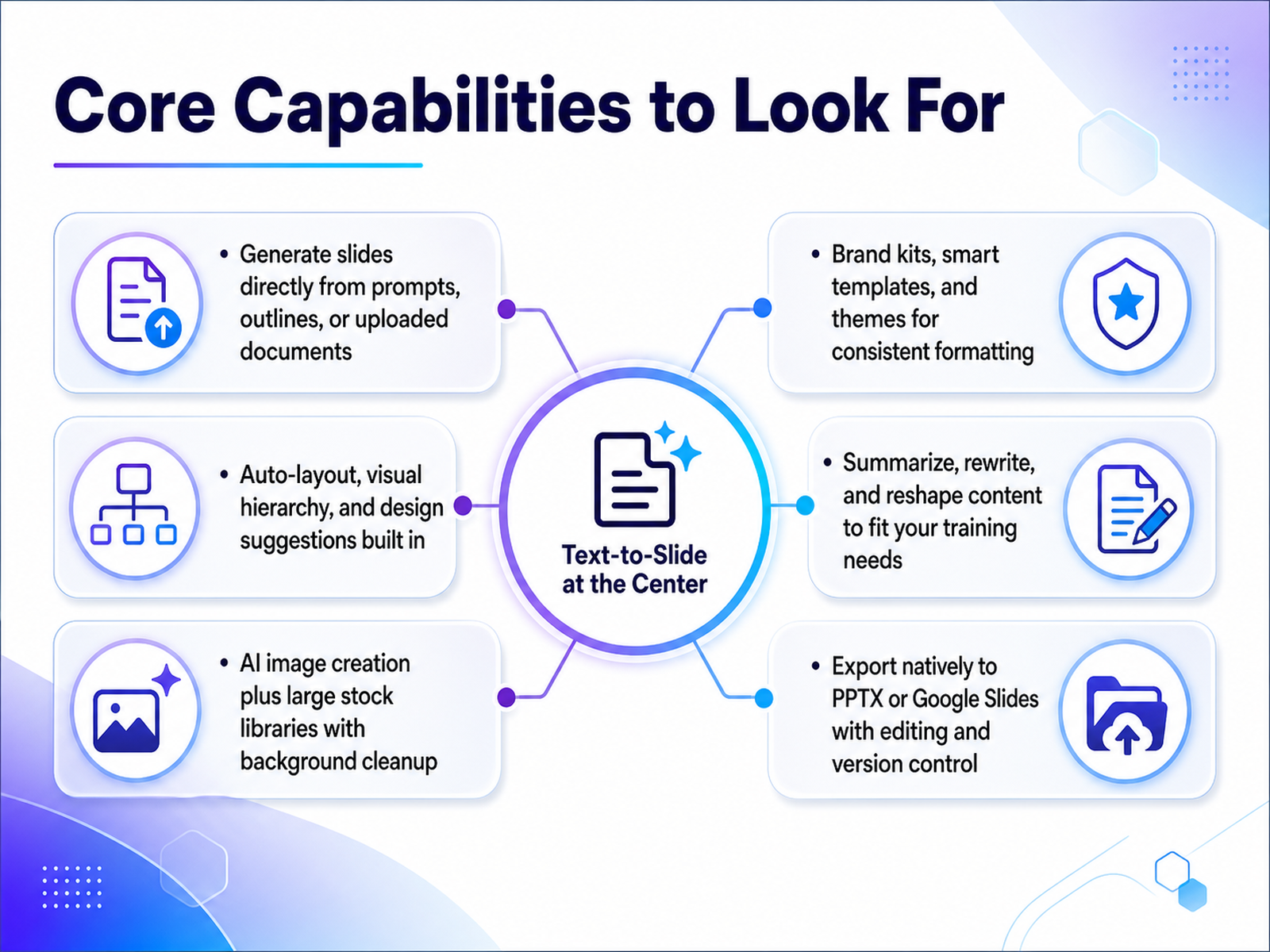
 - 03Core Capabilities to Look ForWhen you are evaluating AI presentation tools, look for several key capabilities that will save you real time. First, the tool should generate slides directly from a prompt, an outline, or even a document you already have. This means you can skip the blank page entirely. Second, look for auto-layout and visual hierarchy features. The tool should arrange your content cleanly and suggest design improvements so you don't have to worry about alignment or spacing. Next, built-in AI image generation and access to large stock libraries are a huge plus, especially when a tool can clean up backgrounds in a click. For consistent formatting, brand kits and smart templates keep your colors, fonts, and style aligned without you having to adjust every slide manually. And when you need to adapt content for different audiences, tools that summarize, rewrite, or reshape your text let you tailor the same material quickly. Finally, make sure you can export natively to PowerPoint or Google Slides so you can keep editing with your team and track versions easily. These features turn a tool from a novelty into a workflow partner. Next, let's look at a practical workflow for trainers and educators.
 zapier.comaitoolsworth.comprezent.ai+22 min
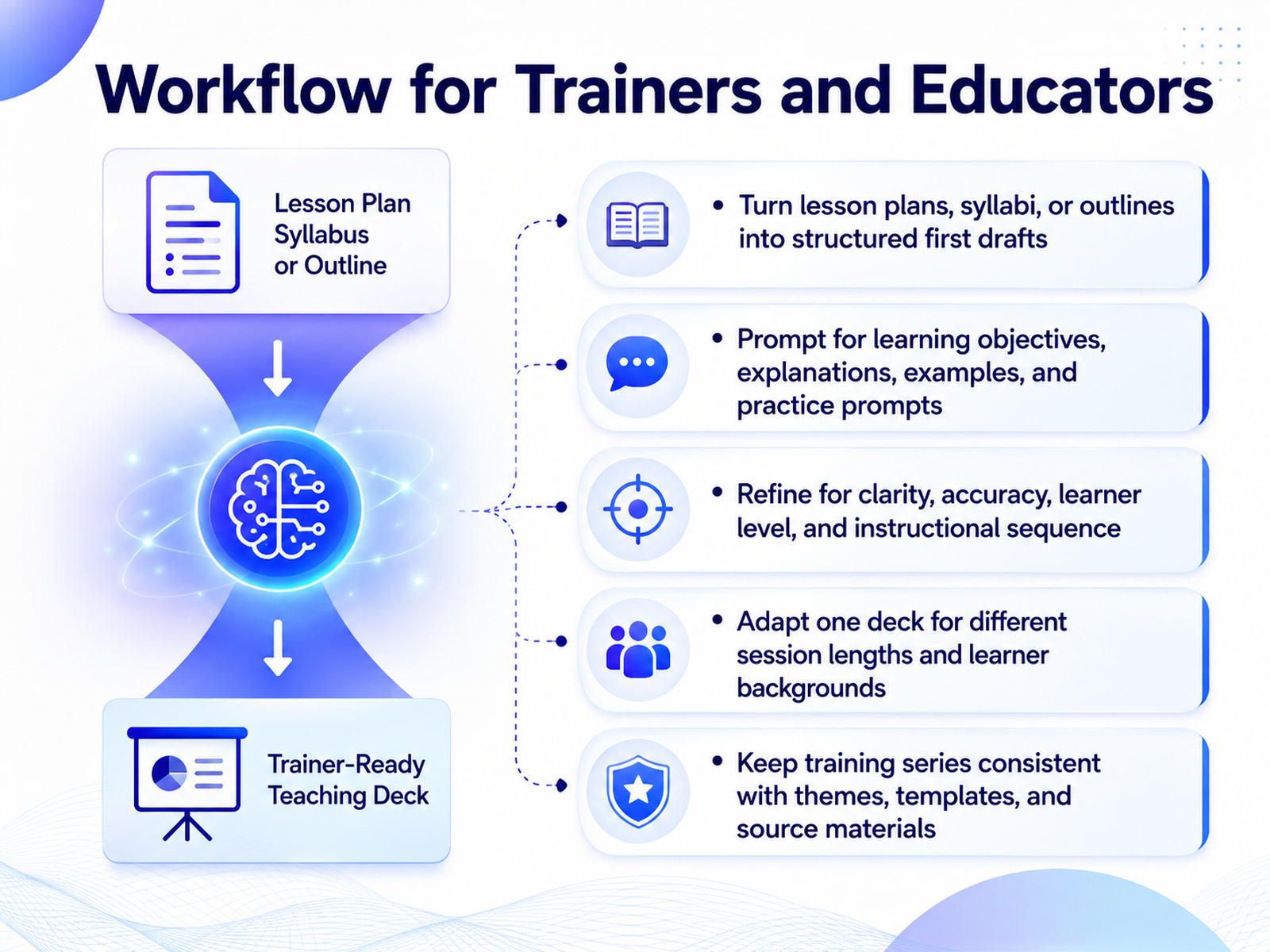
 - 04Workflow for Trainers and EducatorsNow let's see what this means for you as a trainer or educator. Your workflow can start with something you already have, a lesson plan, a syllabus, or even a rough outline. You paste that material into an AI tool like Gamma or Canva, and it structures it into a clean first draft for you. That single step saves you from starting at a blank page. Next, you guide the AI with specific prompts. You can ask it to define learning objectives, explain a concept, create examples, or generate practice questions. This turns your original material into a much richer learning experience. Once you have that draft, your job is to review and refine. You'll adjust the language to match your learners' level and make sure the sequence of topics flows logically for instruction. You can also use AI to your advantage when you need different versions of the same material. A two-hour workshop and a fifteen-minute overview can both start from your core deck, letting the AI help you adjust the depth for different audiences. By keeping your themes and templates the same, your entire training series will feel consistent and professional. So with that workflow, your materials become a starting point, not a chore. Next, let's see how this same adaptable approach applies to business teams preparing for client-facing presentations.
 zapier.comaitoolsworth.comprezent.ai+22 min
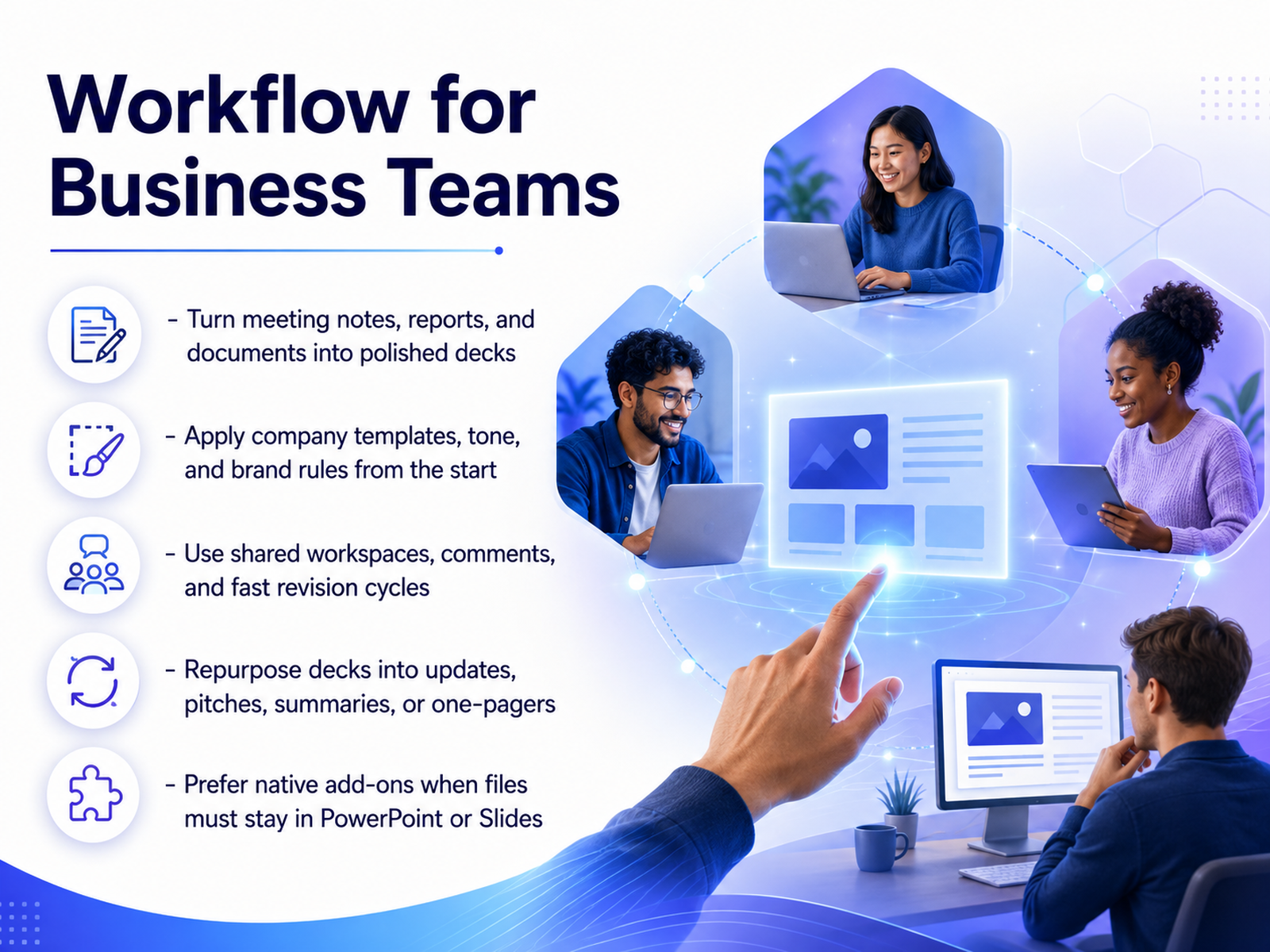
 - 05Workflow for Business TeamsFor business teams, the workflow starts with content you already have. Instead of staring at a blank slide, feed your meeting notes, reports, or documents directly into the tool. In about a minute, you will have a structured first draft. From there, apply your company template and brand colors right at the start, so everything stays on-message without manual formatting. Tools like Beautiful.ai even enforce brand rules automatically, which means no more off-brand decks slipping through. Next, use shared workspaces and comments to speed up revisions. Your team can review and edit in real time, cutting the back-and-forth email cycle down significantly. When your deck is ready, repurpose it. Turn one deck into a client update, a sales pitch, or a one-pager in just a few clicks. One important tip though: if your final files must live in PowerPoint or Google Slides, choose a native add-on like Plus AI or Copilot. That way, you avoid the broken layouts that can happen when you export from web-based tools. Take a moment to map your current workflow, then pick the tool that fits it best. Up next, we will look at the leading tools and how to choose between them.
 zapier.comaitoolsworth.comprezent.ai+22 min
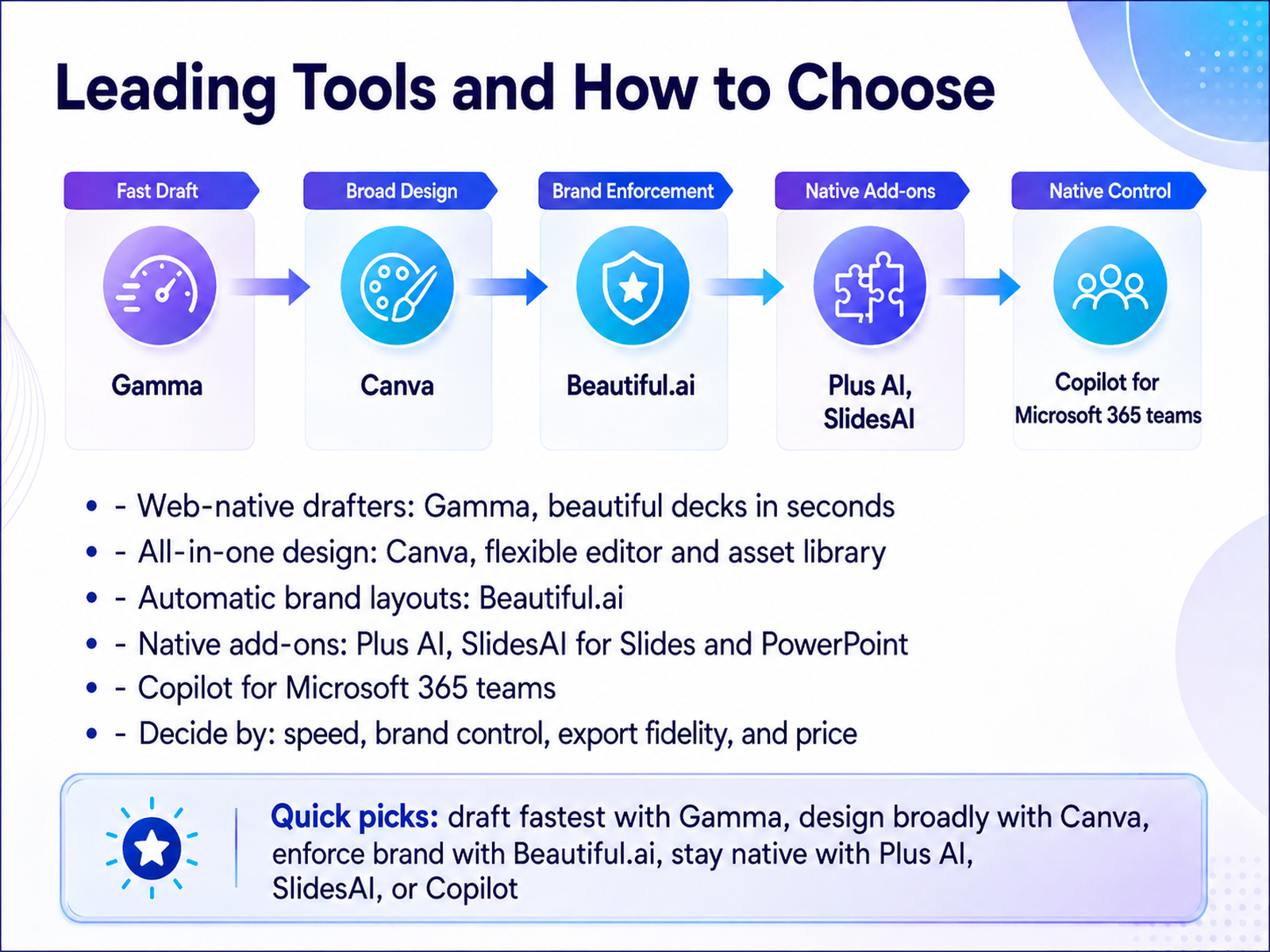
 - 06Leading Tools and How to ChooseSo, which tool should you actually reach for? The good news is there are proven front-runners, and they each fit a different workflow. If your main goal is speed, Gamma takes a simple prompt and returns a polished, editable deck in under a minute. It is a web-native tool, perfect for drafting fast. If you want more than slides, Canva is the all-in-one design platform—it is flexible and rich with assets, so you can stay in that ecosystem for everything visual. When brand consistency is non-negotiable, Beautiful.ai uses smart templates that rebalance automatically, creating professional, on-brand layouts without a designer in the loop. But if you need to stay inside the tools your team already uses, consider native add-ons like Plus AI or SlidesAI for Google Slides or PowerPoint. Microsoft teams often prefer Copilot, since it works directly within the 365 suite and can pull from your own documents. As a quick guide: choose speed with Gamma, all-round design with Canva, brand discipline with Beautiful.ai, and native integration with Plus AI, SlidesAI, or Copilot. For your next hire, consider drafting a clear slide prompt to get the most consistent results.
 zapier.comaitoolsworth.comprezent.ai+21 min
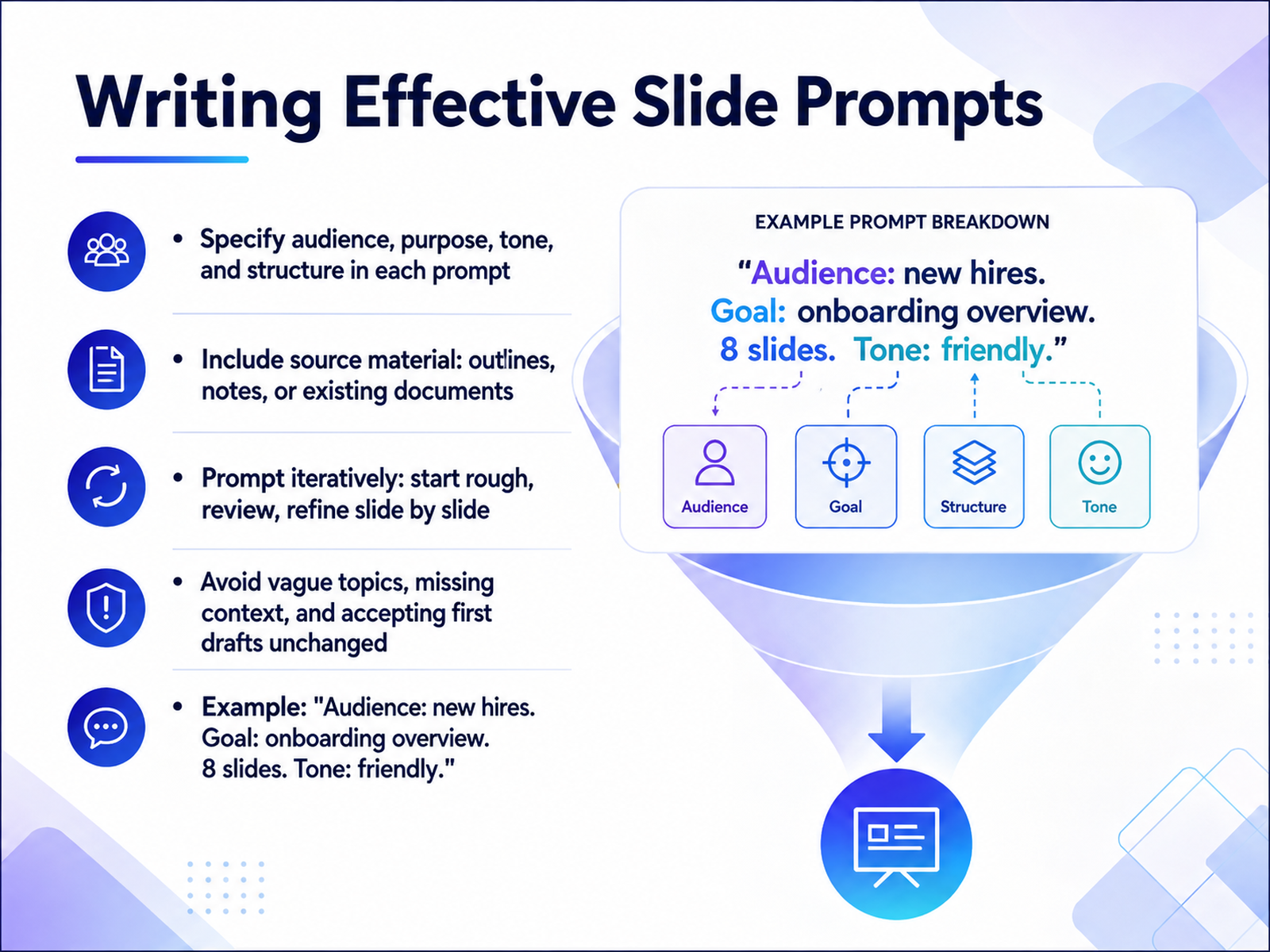
 - 07Writing Effective Slide PromptsNow that you've picked your tool, let's talk about getting great results from it. The secret is in how you write your prompts. Think of the AI as a capable assistant who needs clear direction. Start by naming your audience, your goal, the tone you want, and the structure you need. For example, try something like: Audience is new hires, goal is an onboarding overview, eight slides, friendly tone. That gives the tool real constraints to work with. Next, give it source material. Paste in your rough notes, an outline, or an old document. The more context you provide, the less it has to guess. Finally, treat the first draft as a starting point, not the finish line. Review it slide by slide, and refine your prompt based on what you see. This iterative approach is where the real time savings happen, because you guide the tool toward your vision instead of settling for a generic output. A small prompt revision is much faster than manually rebuilding a whole deck.
 zapier.comaitoolsworth.comprezent.ai+21 min
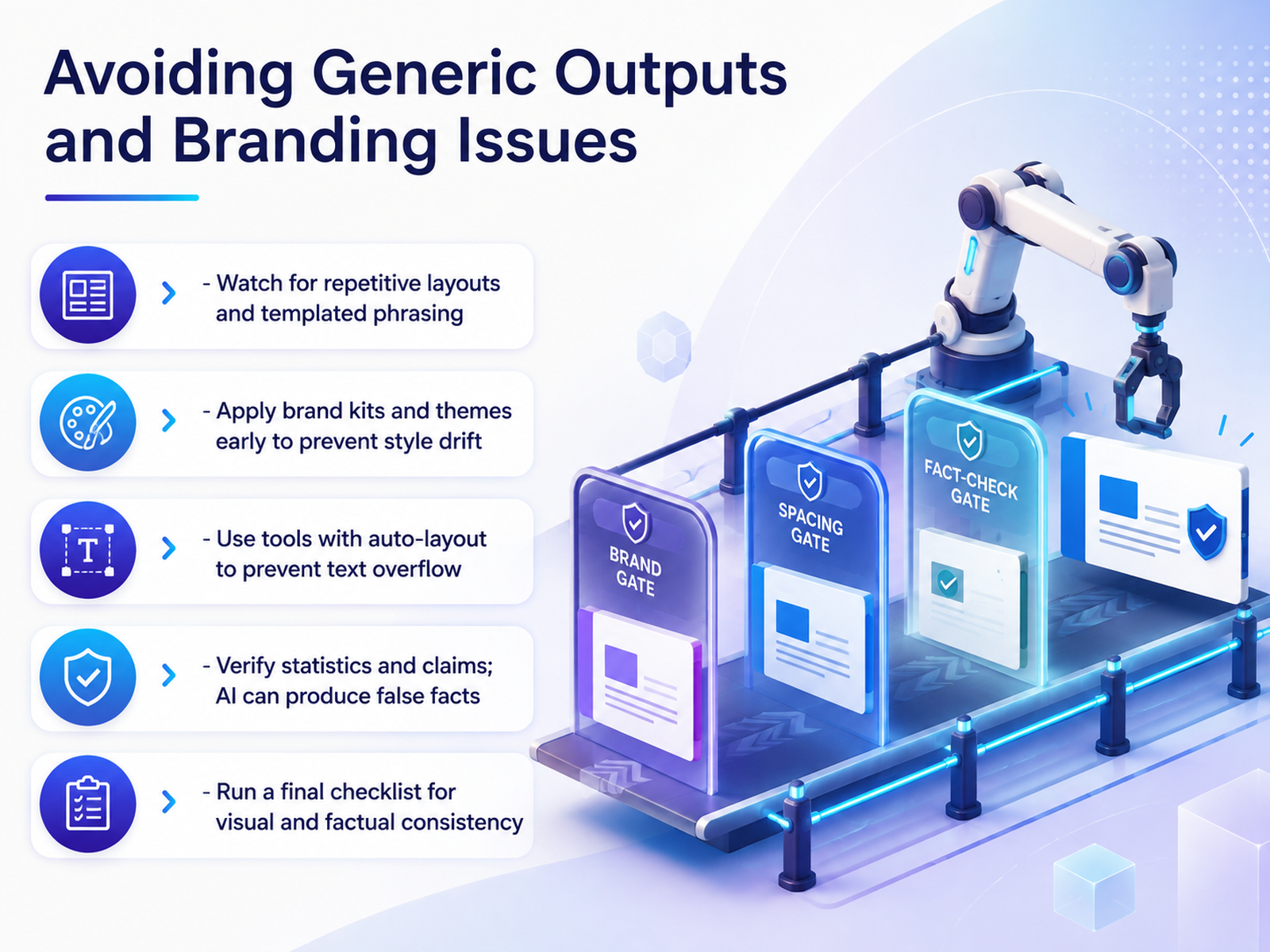
 - 08Avoiding Generic Outputs and Branding IssuesLet's look at the two most common complaints about AI-generated decks: they all start to look the same, and they drift away from your brand. The fix is to take control early. First, apply your brand kit and themes before you generate, not after. Tools like Canva, Beautiful.ai, and Pitch let you lock in colors, fonts, and logos from the start, which prevents style drift across your team. Second, be wary of repetitive layouts and templated phrasing. If every slide follows the same bullet structure, your audience will tune out. Look for tools with auto-layout or smart slides, where adding content automatically rebalances the design, preventing text overflow and keeping things readable. Third, and this is critical, verify your facts. AI tools are prone to generating plausible-sounding but inaccurate statistics. One review found that every tool tested produced at least one questionable number. So check every claim before you present. Finally, run a quick checklist: scan for visual consistency, confirm your branding is intact, and double-check your data. This final pass is what separates a polished deck from a generic one. Next, we'll cover accessibility and readability checkpoints.
 zapier.comaitoolsworth.comprezent.ai+22 min
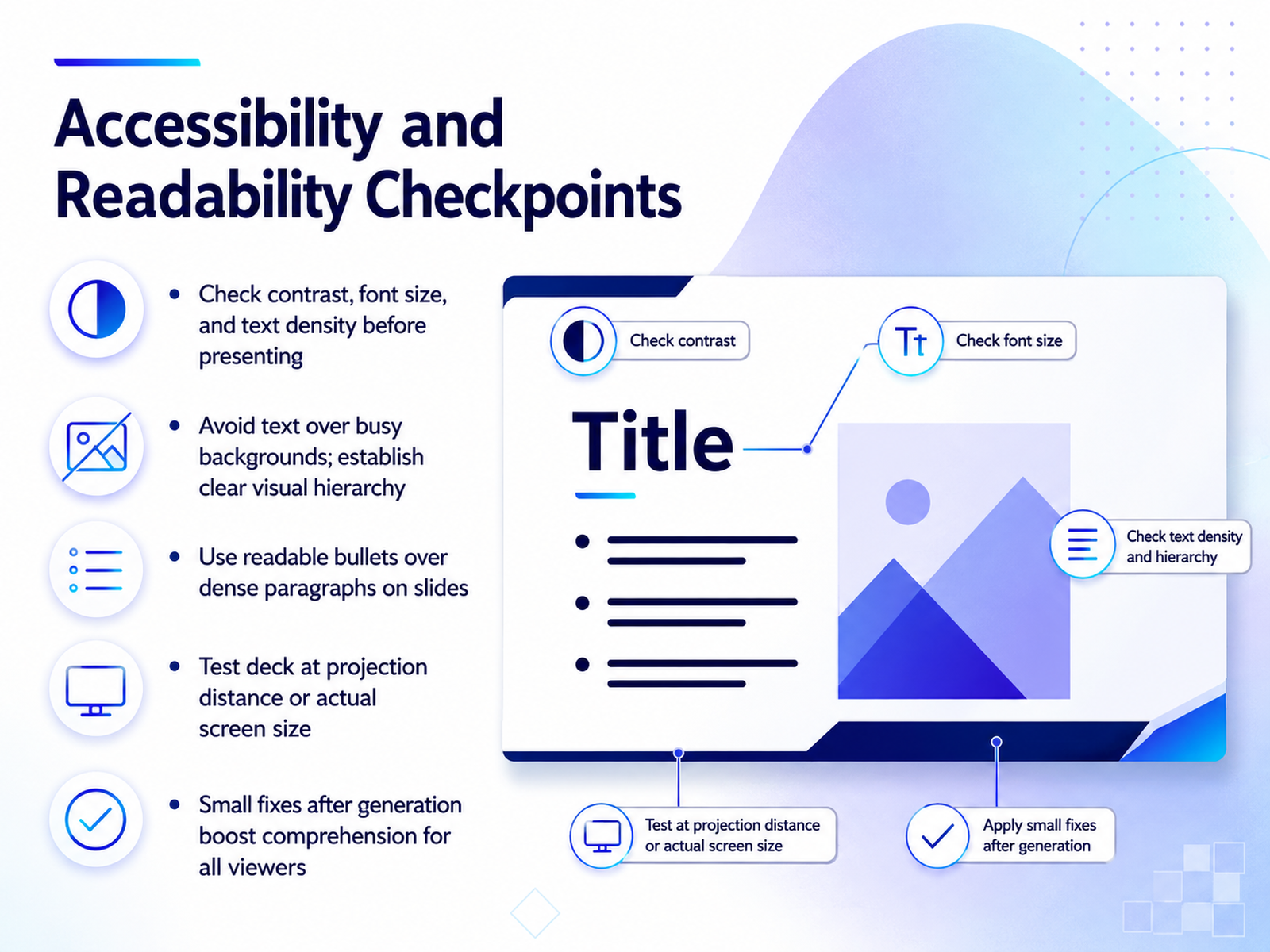
 - 09Accessibility and Readability CheckpointsOnce your AI tool has handled the heavy lifting of layout and design, it’s tempting to hit present right away. But a quick accessibility pass makes the difference between a deck people squint at and one they actually absorb. Start by checking contrast and font size. Most AI tools default to clean, readable choices, but those small fixes after generation—brightening a low-contrast text color or bumping up a tiny font—boost comprehension for everyone in the room. Next, watch your text density. AI can generate a lot of copy, but your slides should carry readable bullets, not dense paragraphs. If you find yourself facing a wall of text, trim it down and move the detail into your speaker notes. Also, keep an eye on busy backgrounds behind text. Establish a clear visual hierarchy so the eye knows where to land first. And before you finalize, test your deck at projection distance or on the actual screen size you’ll use. What looks crisp on your laptop can fall apart at the back of a room. Small fixes like these ensure your message lands clearly with every viewer. Up next, we’ll look at export and file quality considerations, so your polished deck survives the handoff.
 zapier.comaitoolsworth.comprezent.ai+22 min
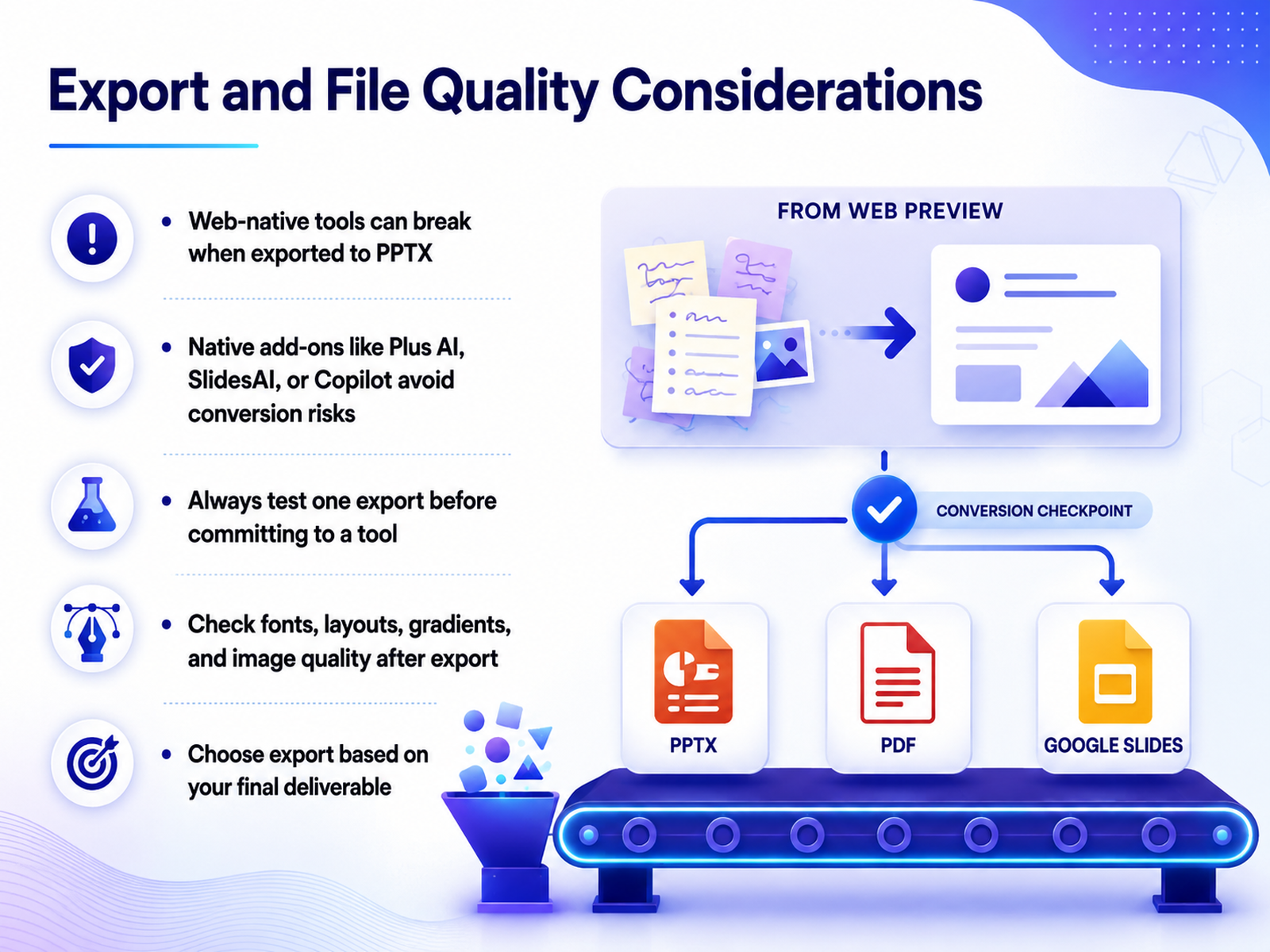
 - 10Export and File Quality ConsiderationsBefore you commit to any tool, let’s talk about export quality. It’s one of those details that can quietly eat your afternoon. Web-native tools like Gamma create beautiful decks in the browser, but when you export them to Power Point, layouts can shift, fonts can substitute, and gradients can flatten. If your final deliverable has to be a .pptx file, native add-ons like Plus AI, SlidesAI, or Copilot are the safer route. They work directly inside PowerPoint or Google Slides, so there’s no conversion step to break anything. And whatever you choose, always test one real export before you commit. Export a single slide deck, open it in the destination software, and check the fonts, the layout, the gradients, and the image quality. Pick your export based on the final deliverable. A PDF is fine for sharing, but if a colleague needs to re-edit, you need a clean, native file. A quick export test now saves you a scramble later. Next, let’s look at the ethics, privacy, and data handling side of using these tools.
 zapier.comaitoolsworth.comprezent.ai+22 min
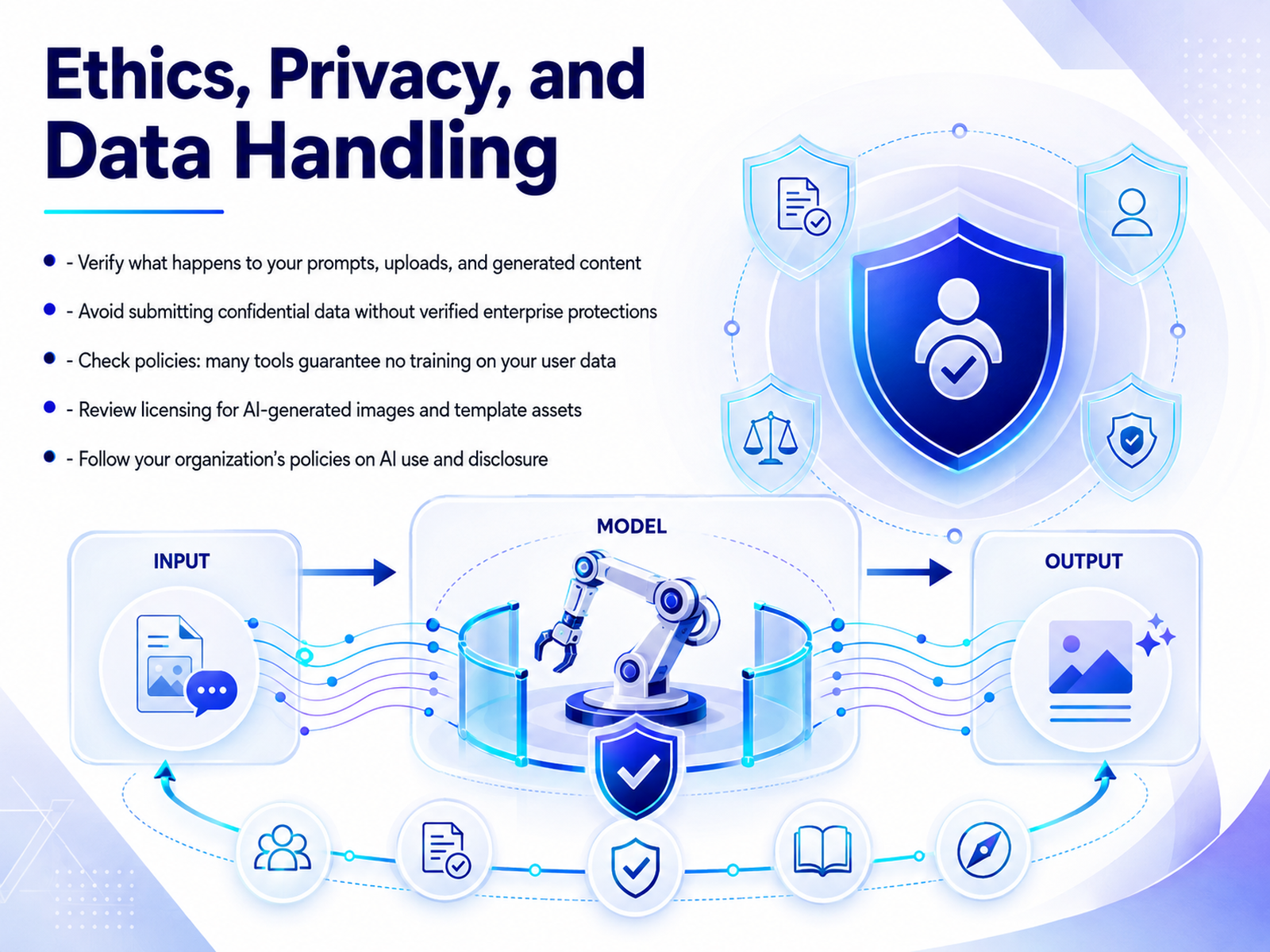
 - 11Ethics, Privacy, and Data HandlingBefore you generate that next deck, let's talk about the data side of these tools. It's easy to get caught up in the speed and polish of AI, but a little due diligence goes a long way. First, check what happens to your prompts, uploads, and the content the tool creates for you. Many platforms are transparent about this, but the details vary. If you work with confidential or proprietary information, you need clarity before you paste that text in. Second, avoid submitting sensitive data unless you've verified the tool has enterprise-grade protections in place. Look for things like SOC 2 compliance and strong encryption. Third, check the training policies. Many reputable tools guarantee they do not use your data to train their AI models. If you can't find that statement clearly, it's fair to ask the vendor directly. It's also smart to review the licensing terms for any AI-generated images and templates, especially if your final deck will be widely distributed or used commercially. And finally, be sure to follow your own organization's policies on AI use and disclosure. Your company may have specific guidelines about what you can upload, who you can share drafts with, and whether you need to disclose AI assistance. This doesn't need to slow you down. Once you've confirmed a tool is a fit, you can move forward with confidence. Let's now move to a practical exercise where you will build a three-slide draft.
 slidecreator.appbrightdeck.aislidee.ai+22 min
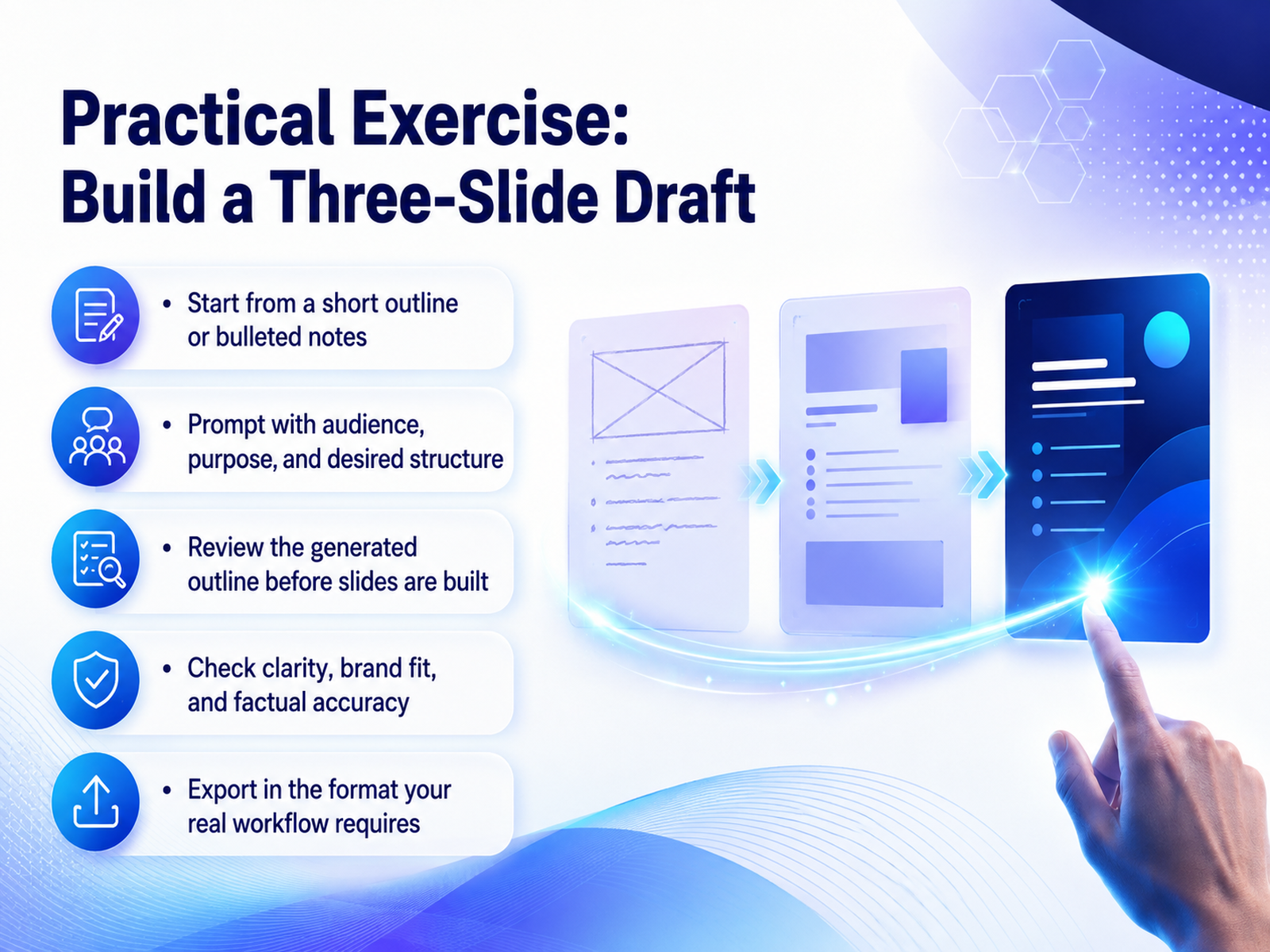
 - 12Practical Exercise: Build a Three-Slide DraftNow it's your turn to apply what we've covered. Let's walk through a focused exercise that takes about ten minutes and builds a three-slide draft. Start with a short outline, or even just a few bulleted notes from a lesson or a client brief. The key is to give the tool a clear starting point rather than a blank prompt. Next, when the tool asks, be precise about your audience, the purpose of the deck, and the structure you want. For example, you might specify a training overview for new hires with sections for goals and key resources. Before the AI builds any slides, stop and review the outline it generates. This is your quality gate. Make any structural edits now, because it is much faster to fix an outline than a finished deck. Once the slides are built, your job is quality control. Check for clarity, make sure it fits your brand guidelines, and verify any facts are accurate. If something feels off, use the AI to rewrite that slide rather than starting over. Finally, export your draft into the format your real workflow requires, whether that is a PowerPoint file or a Google Slides link. This whole exercise mirrors your actual process, so when you do it for real, the tools feel like a natural extension of your work. Coming up next, we'll walk through a review and quality checklist you can use on every deck you produce.
 zapier.comaitoolsworth.comprezent.ai+22 min
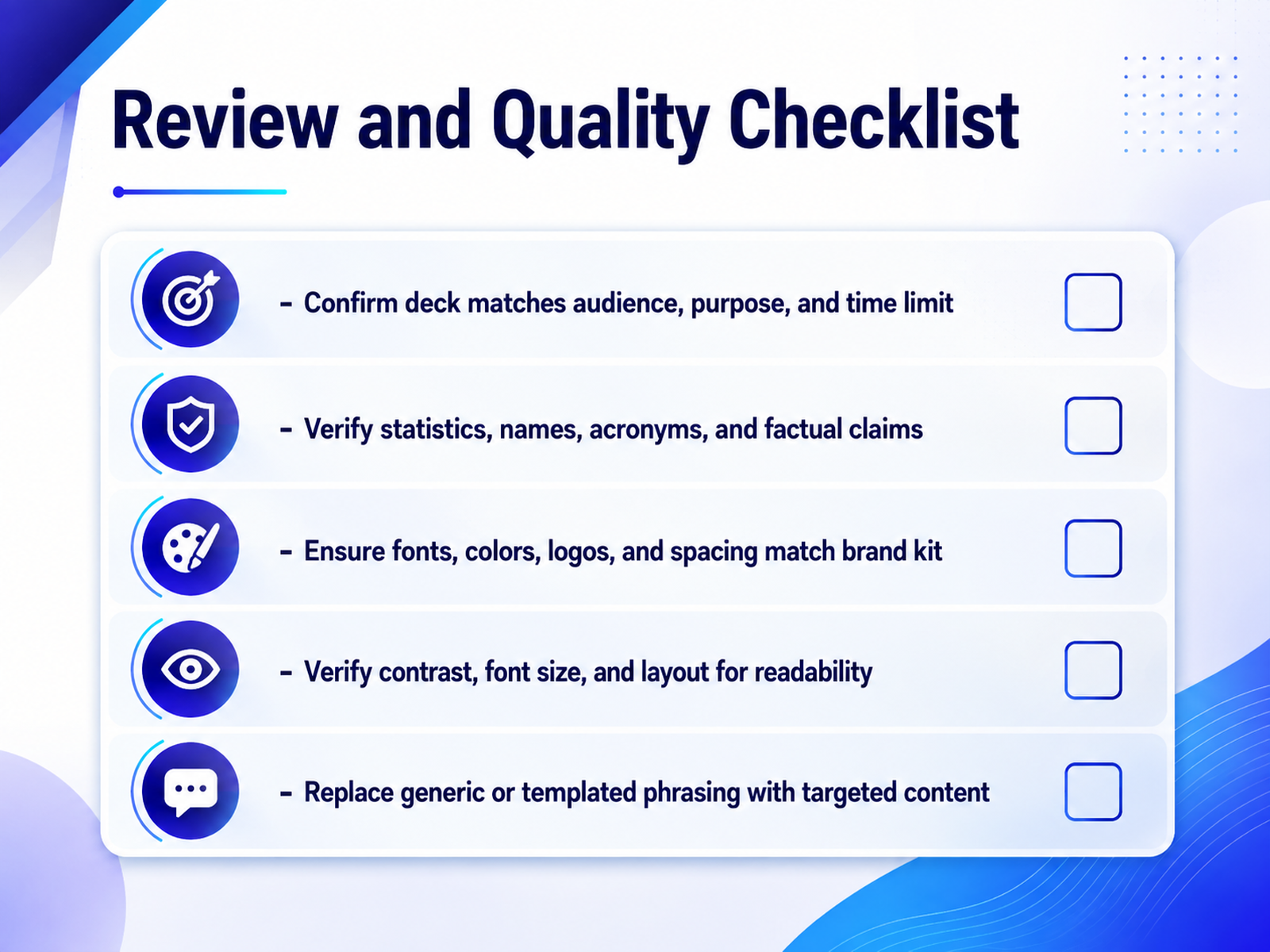
 - 13Review and Quality ChecklistBefore you call this deck finished, let’s walk through a quick quality checklist. First, confirm the deck still matches your audience, your purpose, and your time limit. It’s easy for scope to drift, so take one final pass. Next, verify statistics, names, acronyms, and factual claims. AI tools can generate plausible-sounding data, so double-check every number against a reliable source. Third, ensure fonts, colors, logos, and spacing match your brand kit. A polished deck that ignores your brand will feel off. Also verify contrast, font size, and layout for readability. If a slide looks busy on your screen, it will look worse in a conference room. Finally, replace any generic or templated phrasing with targeted content. Swap vague statements for specifics that matter to your audience. Once these checks are done, you can present with confidence. Next, we’ll look at next steps and continued learning to keep your skills sharp.
 zapier.comaitoolsworth.comprezent.ai+21 min
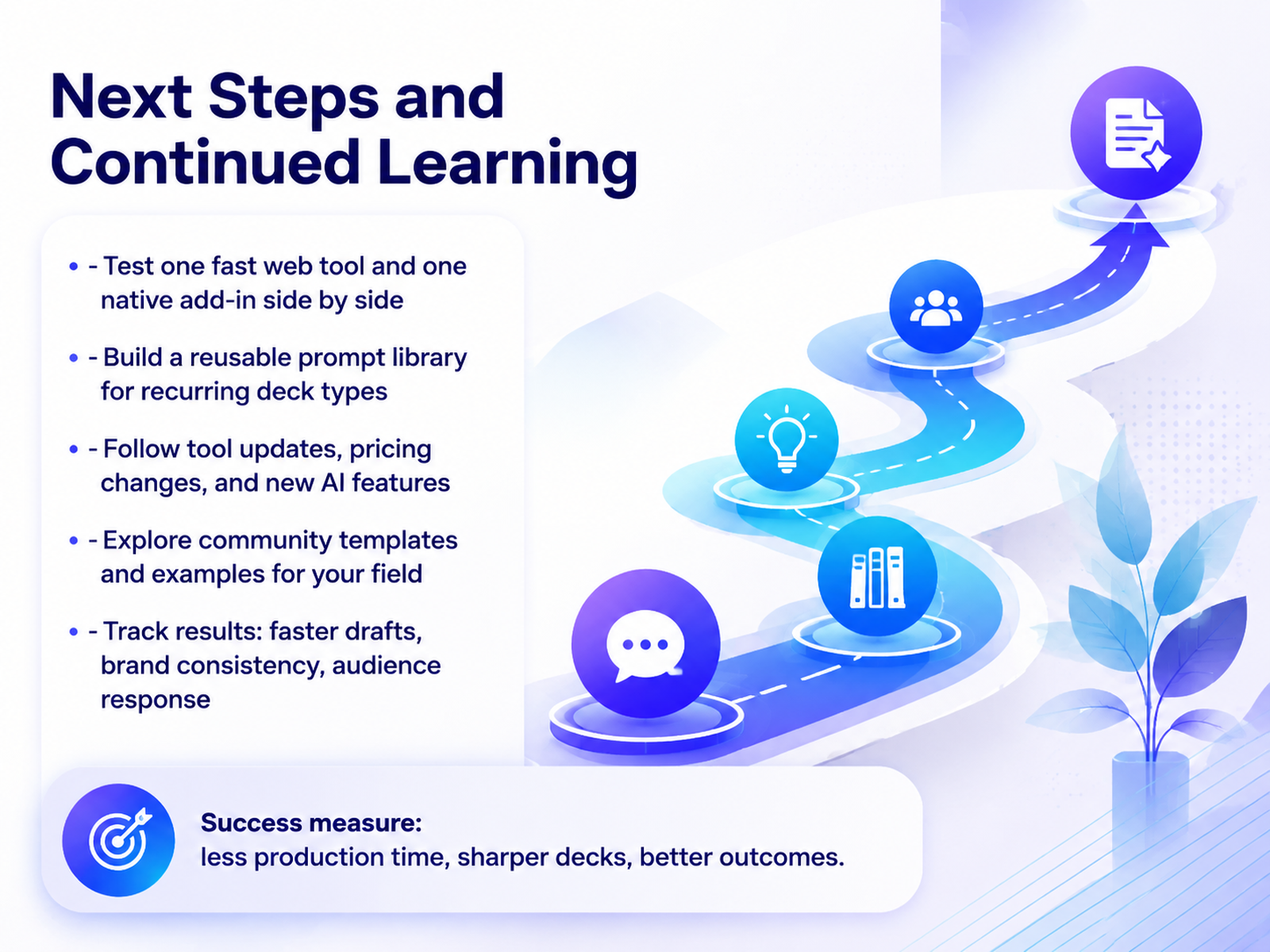
 - 14Next Steps and Continued LearningAs we wrap up, let's focus on how you'll put this into practice starting today. First, test one fast web tool like Gamma or Canva alongside one native add-in such as Plus AI or SlidesAI. Side-by-side, the differences in speed and export quality become obvious quickly. Next, build a reusable prompt library for your recurring deck types. Save prompts for training recaps, client proposals, or quarterly reviews, and adjust the specifics each time. This simple habit turns a thirty-minute draft into a five-minute one. After that, follow tool updates and pricing changes in your field. These platforms evolve monthly, so subscribe to their blogs or changelogs. Explore community templates too, and adapt examples from your industry to your own branding. Finally, track your results. Measure faster draft times, consistent brand application, and audience responses. The goal is simple: less production time, sharper decks, and better outcomes for your learners and stakeholders. Thank you for your time today, and well done. You have the tools and the workflow, so go ahead and build something great.
 zapier.comaitoolsworth.comprezent.ai+22 min
Take the deck with you
Download this course as a file — free, no sign-up needed.
- PDF handoutEvery slide page, ready to print or share.15 pages · 3.4 MBDownload
- Narrated PowerPointThe deck that presents itself — every slide carries the digital human's narration video.15 pages · 14.8 MBDownload
- PowerPoint slidesThe full deck as a .pptx — open it in PowerPoint, Keynote, or Google Slides.15 pages · 3.3 MBDownload
Free to use in your own training — please keep the PersonWise credit page at the end.
Have your own deck? Turn it into a course
Sources consulted
Web sources consulted while building this course.
- The 8 best AI presentation makers in 2026 — zapier.com
- Best AI Presentation Makers 2026 (Tested) — aitoolsworth.com
- 18 best AI presentation makers to choose from (2026) — prezent.ai
- I tested AI presentation tools across Google Slides, PowerPoint, and Claude Design; one clear winner generated professional decks — androidpolice.com
- Best AI Presentation and Slide Makers 2026: Tested and Ranked - LA Tech Post — latechpost.com
- Privacy Policy — Slide Creator | Enterprise AI Presentation Platform — slidecreator.app
- Privacy Policy — Brightdeck — brightdeck.ai
- Privacy Policy - Slidee — slidee.ai
- Privacy Policy – Decksy AI — decksy.com
- Privacy Policy — Presender — presender.app