Begin
14 pages · ~28 min
IP Addressing Fundamentals in Networking
This training provides a clear overview of IP addresses in computer networking, explaining their purpose and role for learners new to networking concepts.
A digital instructor presents all 14 pages. Hold “Ask” at any point and ask out loud — the answer comes from this course. No sign-up needed.
What you’ll learn
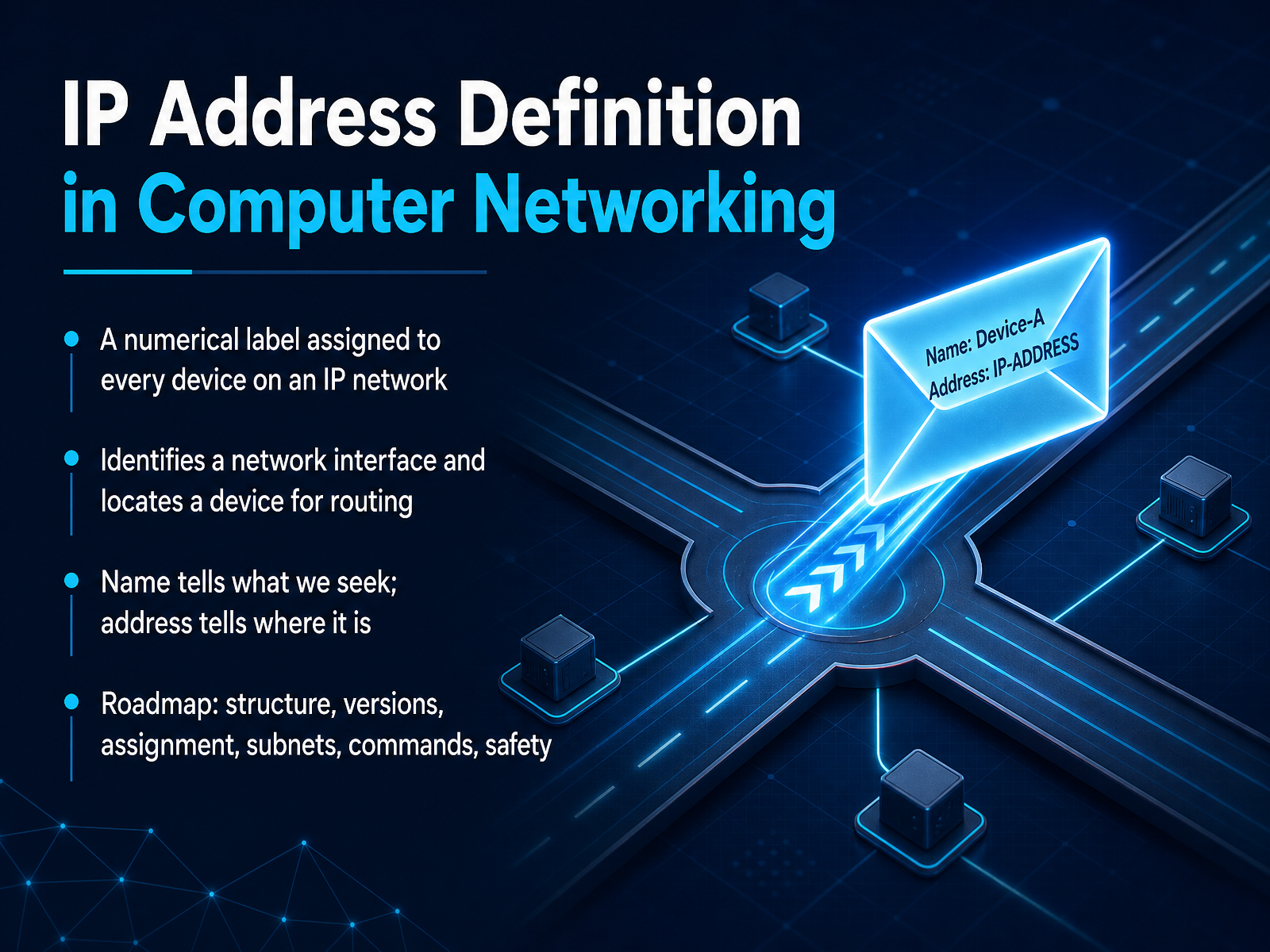
- 01IP Address Definition in Computer NetworkingWelcome to this course on IP addressing. I am glad you are here. In this first lesson, we will answer one core question. What exactly is an IP address? Think of it like the mailing address for your computer or phone on a network. It is a numerical label, such as 192.168.1.1, assigned to every device that connects to an IP network. This address does two main jobs. First, it identifies the device, or more specifically, its network interface. Second, it provides the device's location so data can be routed to it correctly. There is a helpful saying in networking. A name tells us what we are looking for. An address tells us where it is. Throughout this course, we will build a complete picture. We will explore the structure of IP addresses, the differences between IP version 4 and version 6, how addresses are assigned, and how subnets work. We will also cover common commands you can use and important safety considerations. Let's get started by understanding why devices need these addresses in the first place.en.wikipedia.orgtcpipguide.comrfc-editor.org+21 min
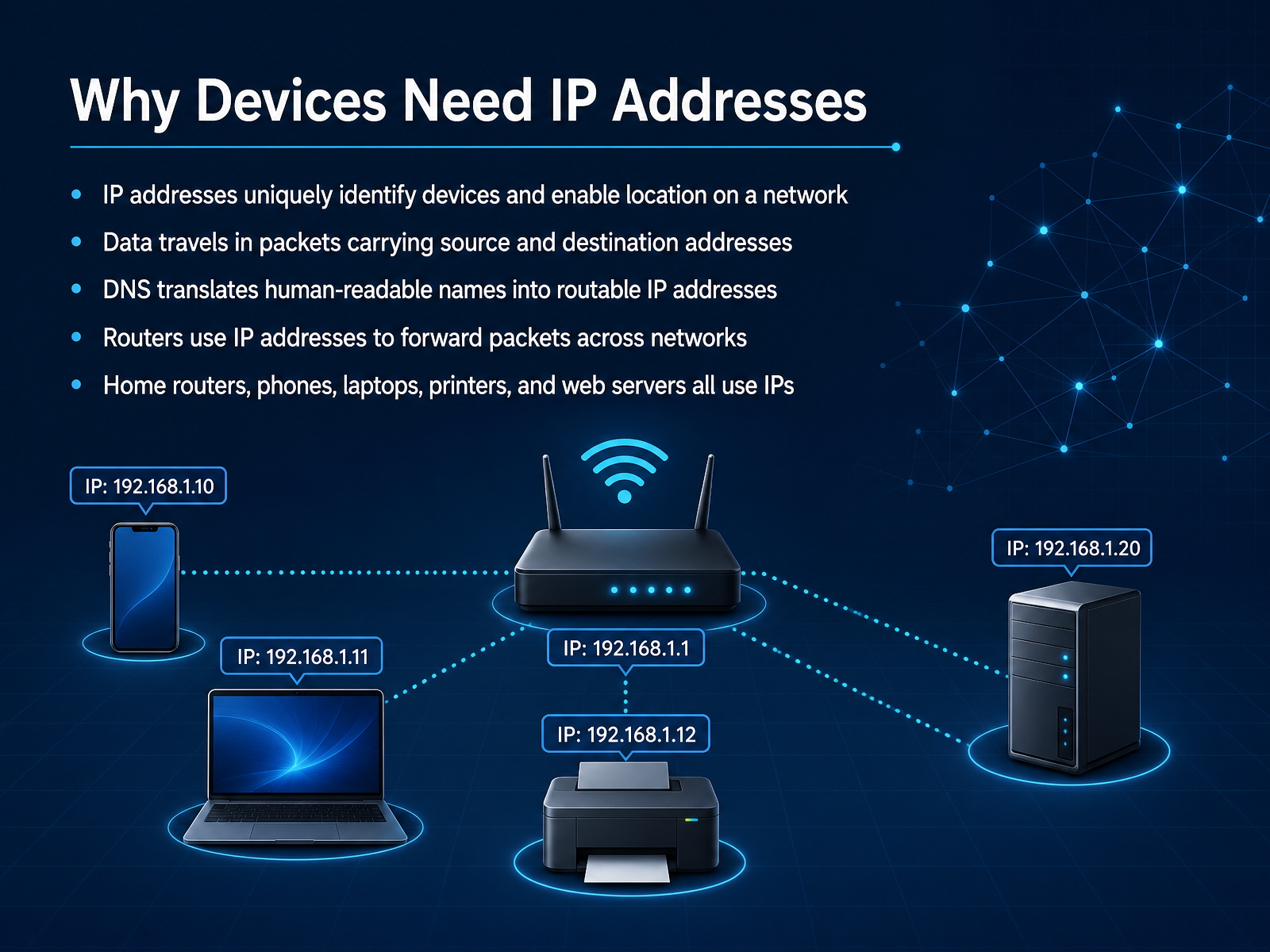
- 02Why Devices Need IP AddressesNow let's look at why devices actually need these IP addresses. Think of an IP address as a mailing address for your device. Just like a letter needs a destination address to reach the right house, data on a network needs an IP address to reach the right device. Without it, your phone or laptop would be invisible and unreachable. Every time data moves across the internet, it is broken into small pieces called packets. Each packet carries two key addresses. The source address tells network equipment where the data came from. The destination address tells it where the data needs to go. This is how routers make forwarding decisions, hop by hop, until the packet arrives at the correct network and device. We also use a system called DNS, which stands for Domain Name System. DNS acts like a phonebook. Instead of remembering a long numeric IP address, you can type a friendly name like example dot com, and DNS translates that name into the correct IP address. This happens constantly for phones, laptops, printers, home routers, and web servers. All of them rely on IP addresses to find each other and exchange information. Next, we will build on this by looking at packets, protocols, and the two-part address.
 cloudflare.comen.wikipedia.orgen.wikipedia.org+22 min
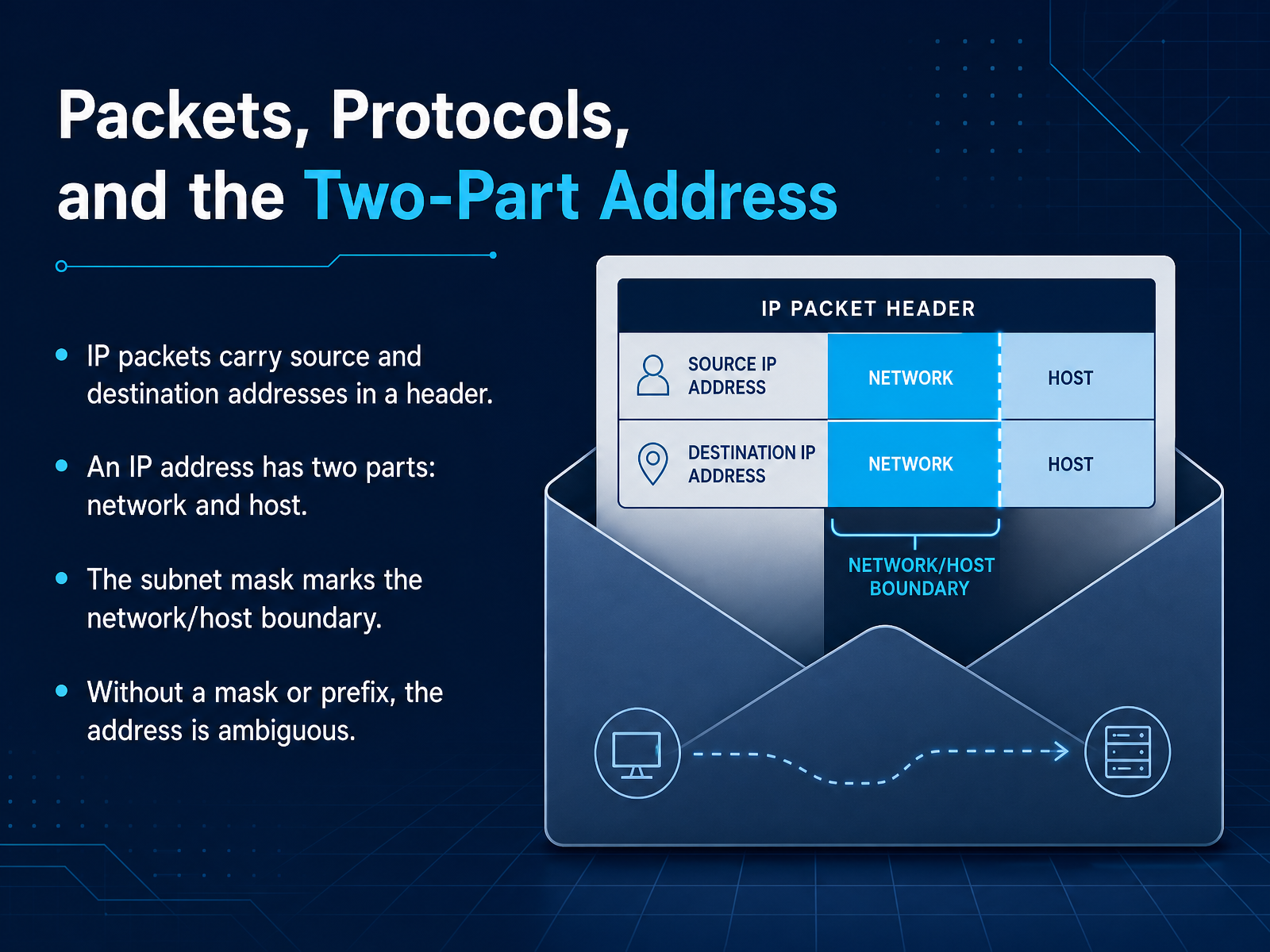
 - 03Packets, Protocols, and the Two-Part AddressNext, let's look at how an IP address actually carries information across a network. When data is sent, it's broken into small pieces called packets. Think of a packet as a single envelope. On the front of this envelope, we write a return address and a destination address. Inside an IP packet, a special area called the header holds the source IP address and the destination IP address. This is how every router along the way knows where the packet came from and where it needs to go. Now, here's the important part about the address itself. An IP address is really two addresses in one. The first part identifies the specific network, like naming the city in a mailing address. The second part identifies the host, which is the specific device on that network, like the street address in that city. The tool that separates these two parts is called a subnet mask. It marks the exact boundary between the network portion and the host portion. Without that mask or a prefix, the address is ambiguous. We simply can't tell where the network ends and the host begins. Up next, we'll break down the structure of an IP version 4 address into its thirty-two bits and four octets.
 cloudflare.comen.wikipedia.orgen.wikipedia.org+21 min
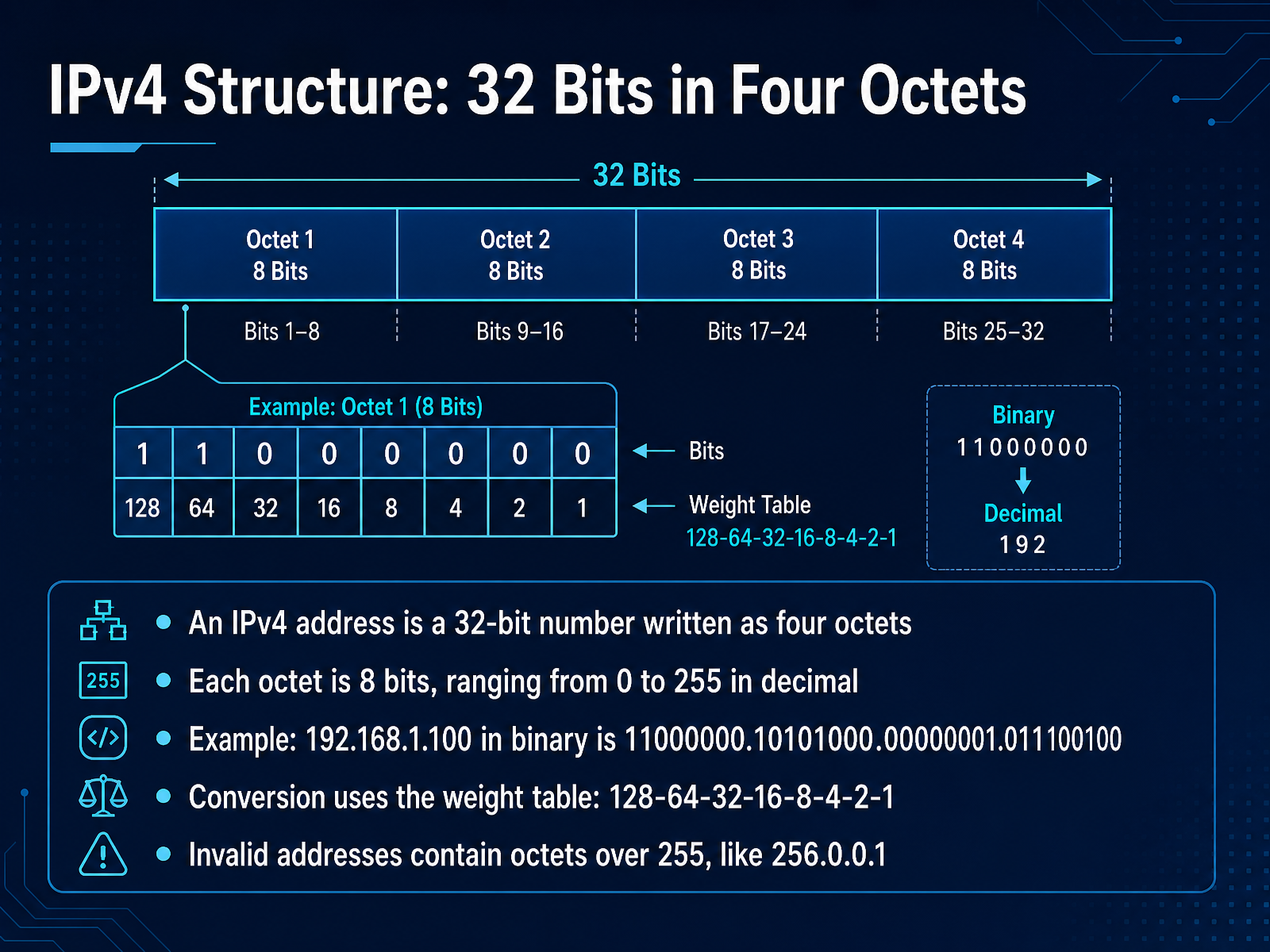
 - 04IPv4 Structure: 32 Bits in Four OctetsNow let's open up an IPv4 address and see what's inside. To a computer, an IPv4 address is just a single 32-bit number, meaning a string of 32 ones and zeros. Since that would be hard for us to read, we split it into four groups of eight bits each. Each of these groups is called an octet, because octo means eight. We then write each octet as a decimal number separated by dots. So what about the range? Each octet can be as small as zero, which is all bits off, and as large as 255, which is all bits on. Take the example 192.168.1.100. In binary, that becomes 11000000 dot 10101000 dot 00000001 dot 01100100. How did we get there? By using a simple weight table. The eight bit positions in an octet are worth 128, 64, 32, 16, 8, 4, 2, and 1. Add up the ones that are turned on, and you get your decimal number. This is why an octet can never exceed 255, and why an address like 256.0.0.1 is invalid. Now that we know the structure, let's see the solution to the size limit. That is IPv6, with a much larger address space.
 speedtesthq.cominfotechninja.compacketmentor.com+22 min
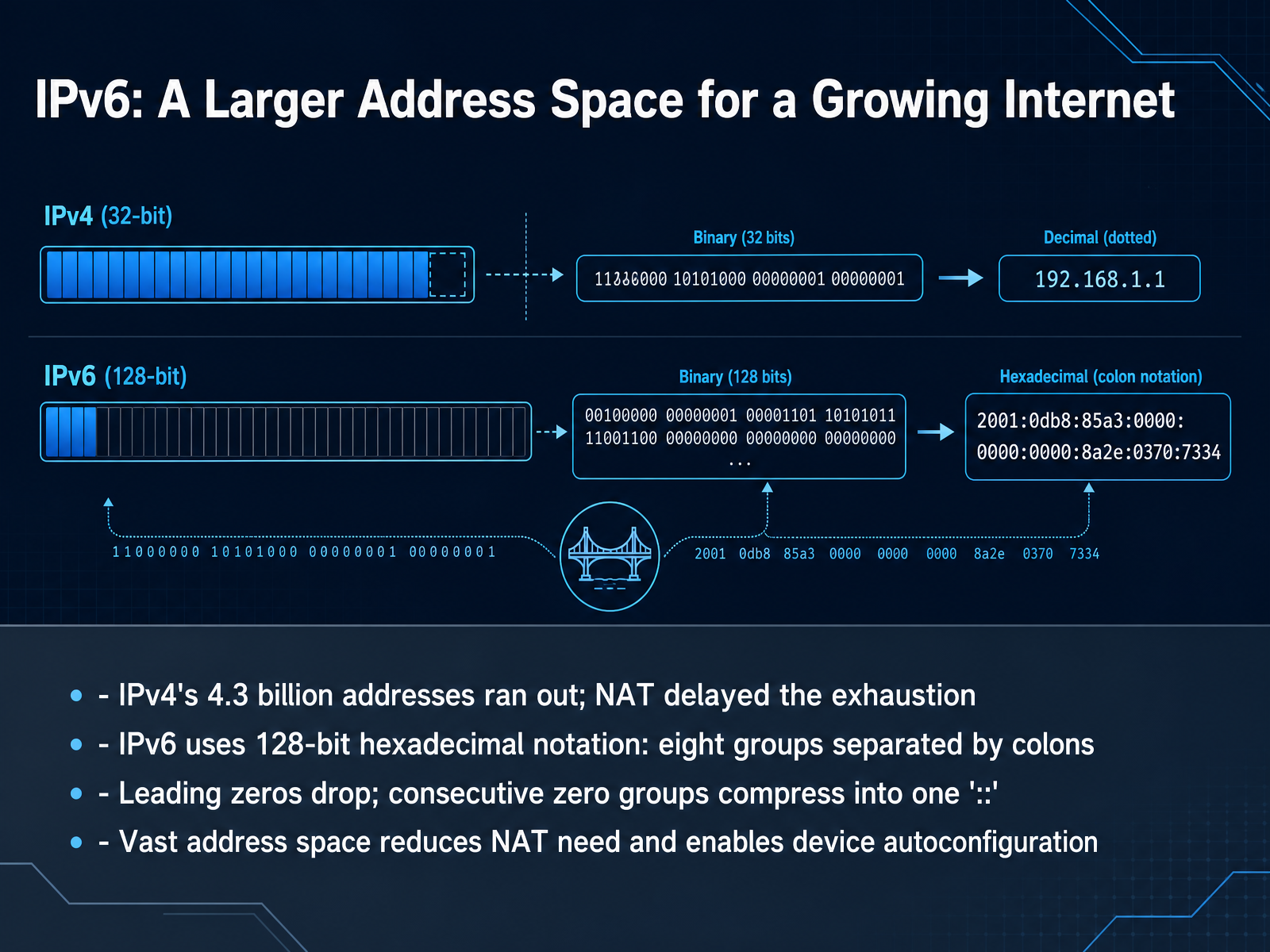
 - 05IPv6: A Larger Address Space for a Growing InternetNow let's look at IPv6, the newer addressing system designed for a much larger internet. IPv4 offered about four point three billion addresses, which sounds like a lot, but those have largely been used up. For years, a technique called NAT helped stretch that supply by letting many devices share one public address. But NAT is more like a temporary fix than a real solution. IPv6 was created to solve the shortage. It uses one hundred twenty eight bit addresses, written in hexadecimal using eight groups separated by colons. That enormous space gives us roughly three hundred forty undecillion possible addresses, enough to give every device its own unique public address. To keep IPv6 readable, we can drop leading zeros within a group, and we can collapse consecutive zero groups into a double colon. Just remember, the double colon can only appear once in an address. With this huge address pool, we no longer need NAT everywhere, and devices can even configure their own addresses automatically. Next, let's practice recognizing IPv4 and IPv6 at a glance.
 nro.netorankit.comripe.net+21 min
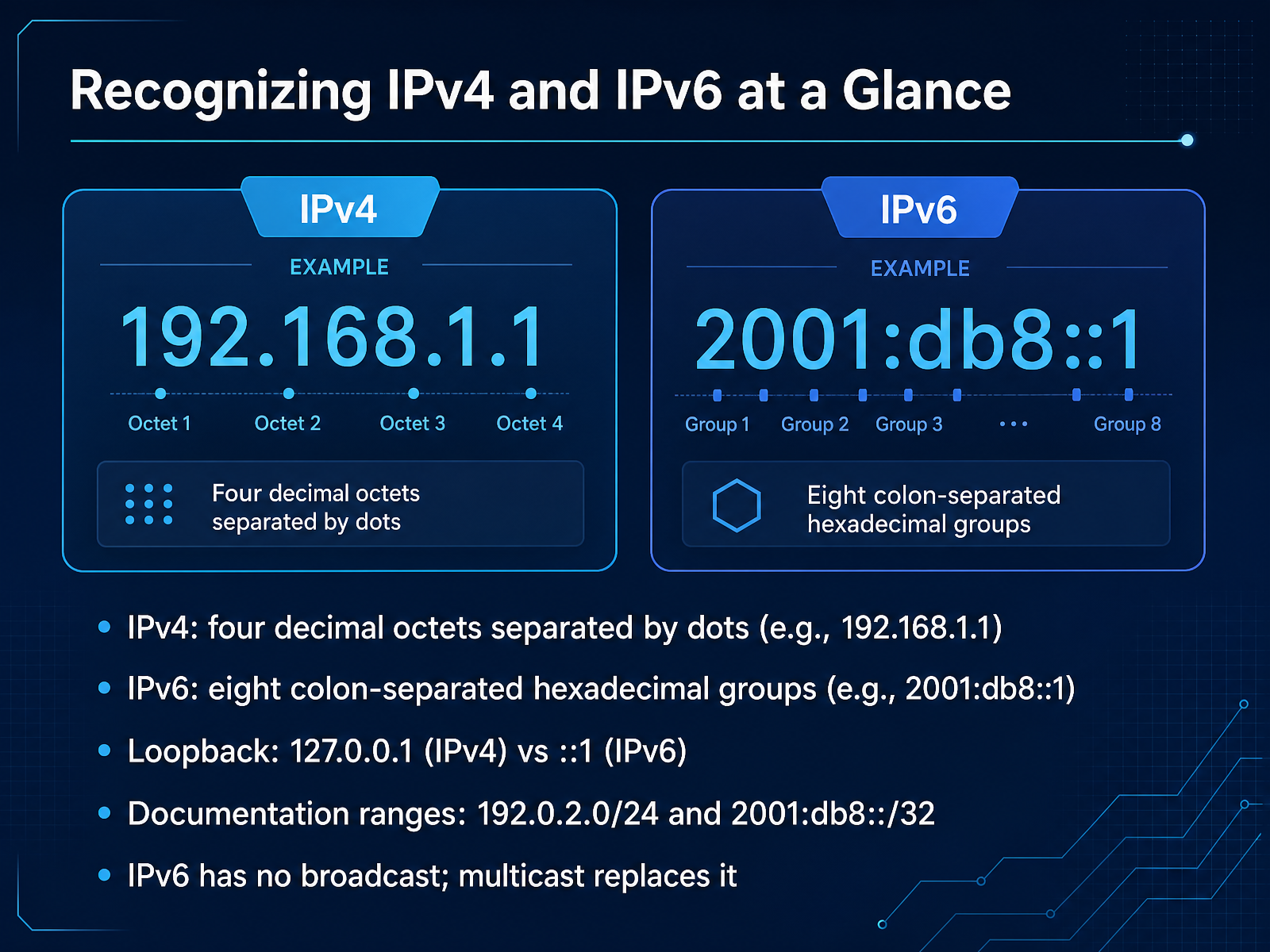
 - 06Recognizing IPv4 and IPv6 at a GlanceNow let's focus on quickly recognizing the two IP versions. An IPv4 address has four decimal numbers separated by dots. Each number is called an octet and ranges from zero to two hundred fifty five. So an address like one ninety two dot one sixty eight dot one dot one is a classic example. IPv6 looks quite different. It uses eight groups of hexadecimal digits separated by colons. Hexadecimal just means base sixteen, so it includes letters A through F. An example is two zero zero one colon d b eight colon colon one. That double colon is shorthand for a long run of zeros. You will also see special addresses. The loopback address, which means this local machine, is one twenty seven dot zero dot zero dot one in IPv4. In IPv6, it is simply double colon one. For practice examples, use one ninety two dot zero dot two dot zero slash twenty four for IPv4, and two zero zero one colon d b eight slash thirty two for IPv6. One more key difference. IPv6 has no broadcast addresses. It uses multicast to reach a group of devices instead. Next, we will explore public and private IP addresses.
 nro.netorankit.comripe.net+22 min
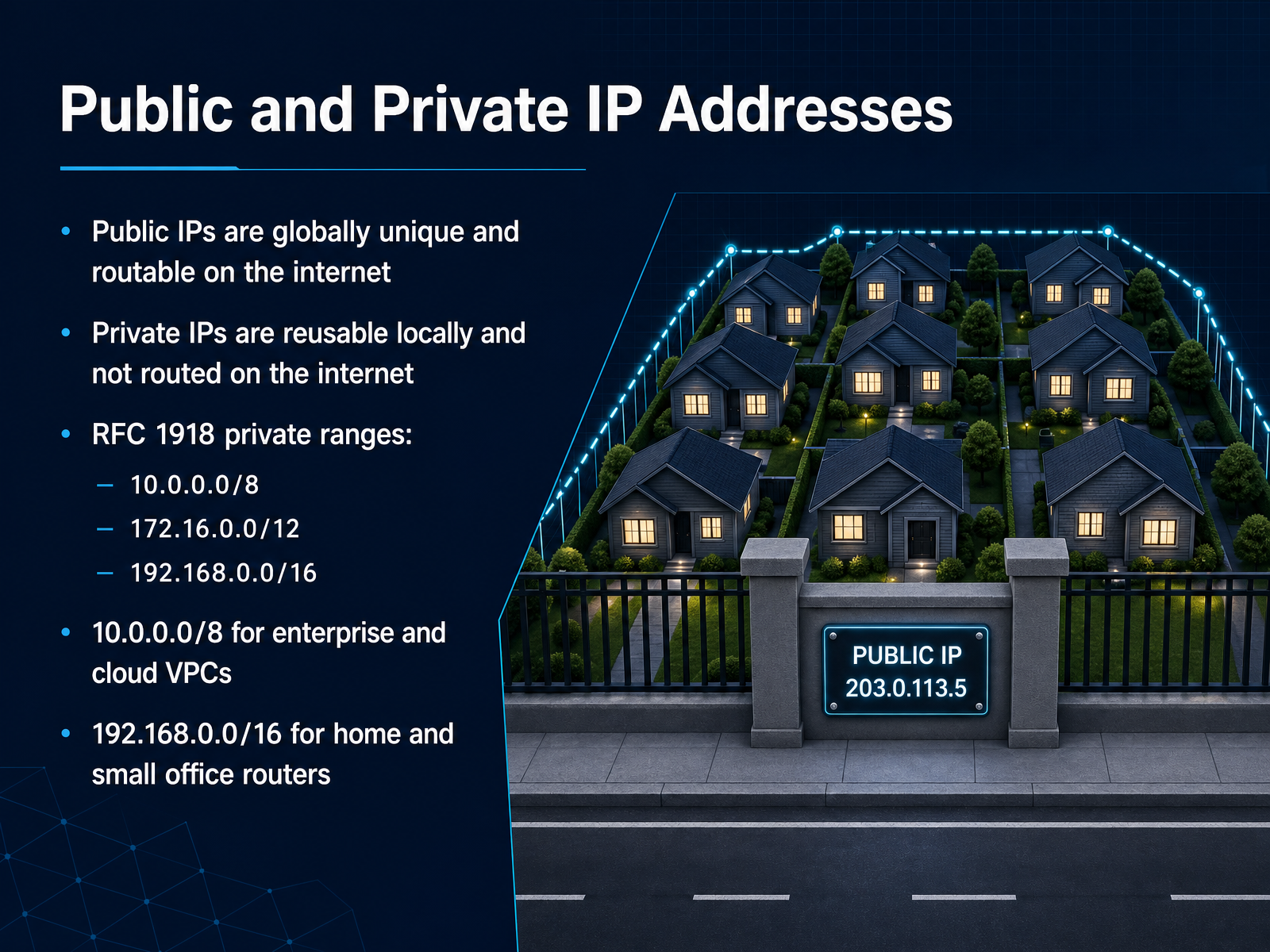
 - 07Public and Private IP AddressesNow let's talk about the two main types of IP addresses: public and private. Think of a public IP address like the street address of an apartment building. It's globally unique, and it's how the rest of the internet finds you. Your internet service provider assigns this to you. A private IP address is more like an apartment number inside that building. You can have an apartment one in one building, and apartment one in another building across town. They can be reused in different local networks, like your home or office. These private addresses aren't routed on the public internet. The ranges for these private addresses are defined in a standard called RFC 1918. The big one is 10.0.0.0 slash 8. This one is used for large enterprise networks and cloud environments because it provides millions of addresses. A smaller range is 172.16.0.0 slash 12, often used for medium-sized networks. And the one you've probably seen the most is 192.168.0.0 slash 16. This is the classic home and small office router range. If you've ever logged into your home router and seen an address like 192.168.1.1, that's a private IP address. So how do all these private devices get out to the internet? Up next, we'll look at exactly that, with NAT.
 ripe.netdocs.netgate.comcloudflare.com+22 min
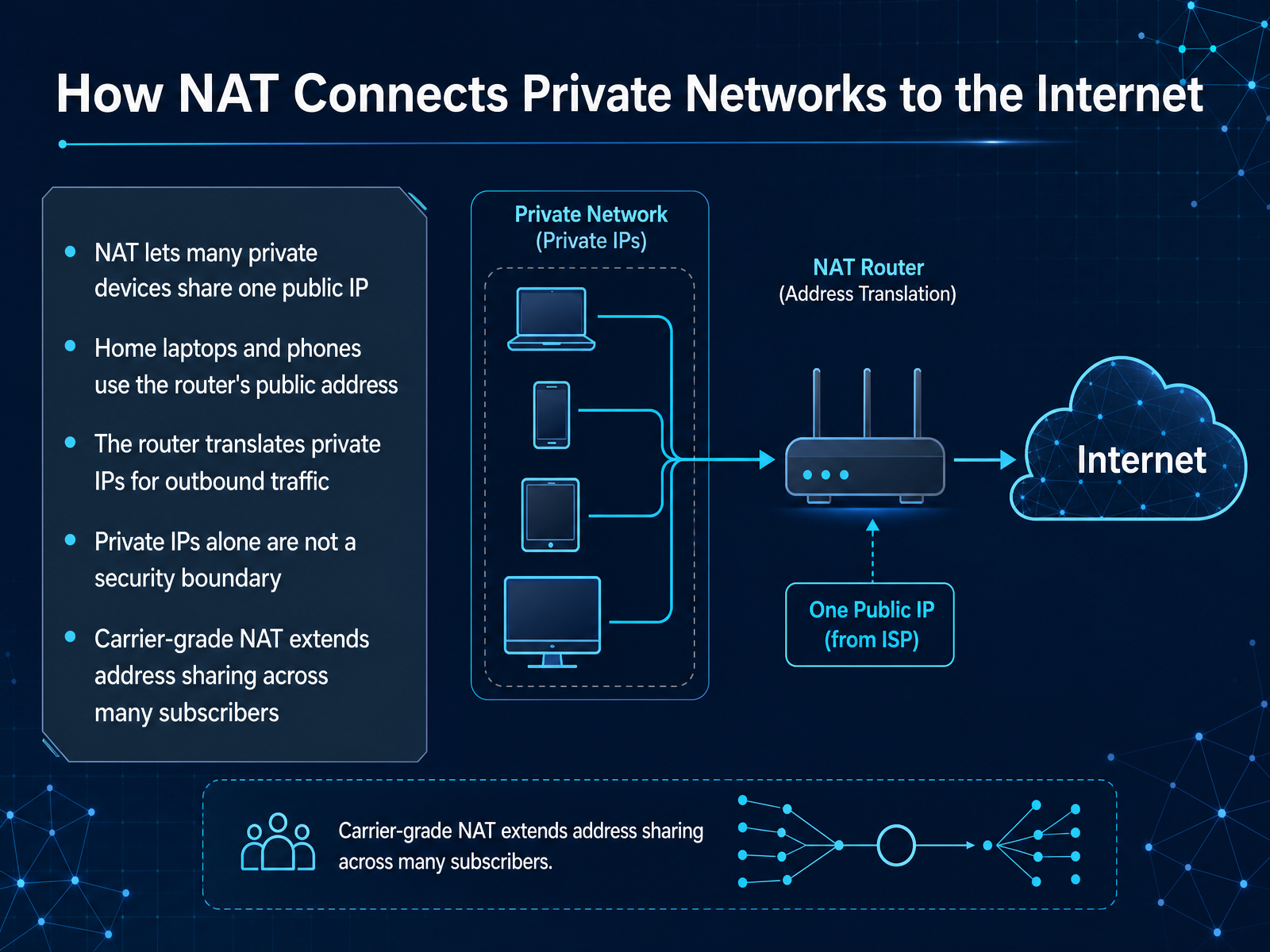
 - 08How NAT Connects Private Networks to the InternetNow, let's look at how all those private addresses actually reach the internet. The answer is a process called Network Address Translation, or NAT. Imagine a large office building with one main mailing address. Every piece of mail going in or out uses that single building address, but inside, the mailroom sorts it to individual employees. NAT works the same way. Your router has one public IP address from your internet provider, and all your home devices share it. When your laptop sends a request, the router translates the private IP to the public one, remembering which device to return the data to. Keep in mind that private IPs alone are not a security boundary. They are hidden by default, but firewalls and proper settings are still required for real protection. At a larger scale, some internet providers use carrier grade NAT to share one public address across many subscribers. Next, we will explore static versus dynamic IP addresses and how DHCP assigns them.
 ripe.netdocs.netgate.comcloudflare.com+21 min
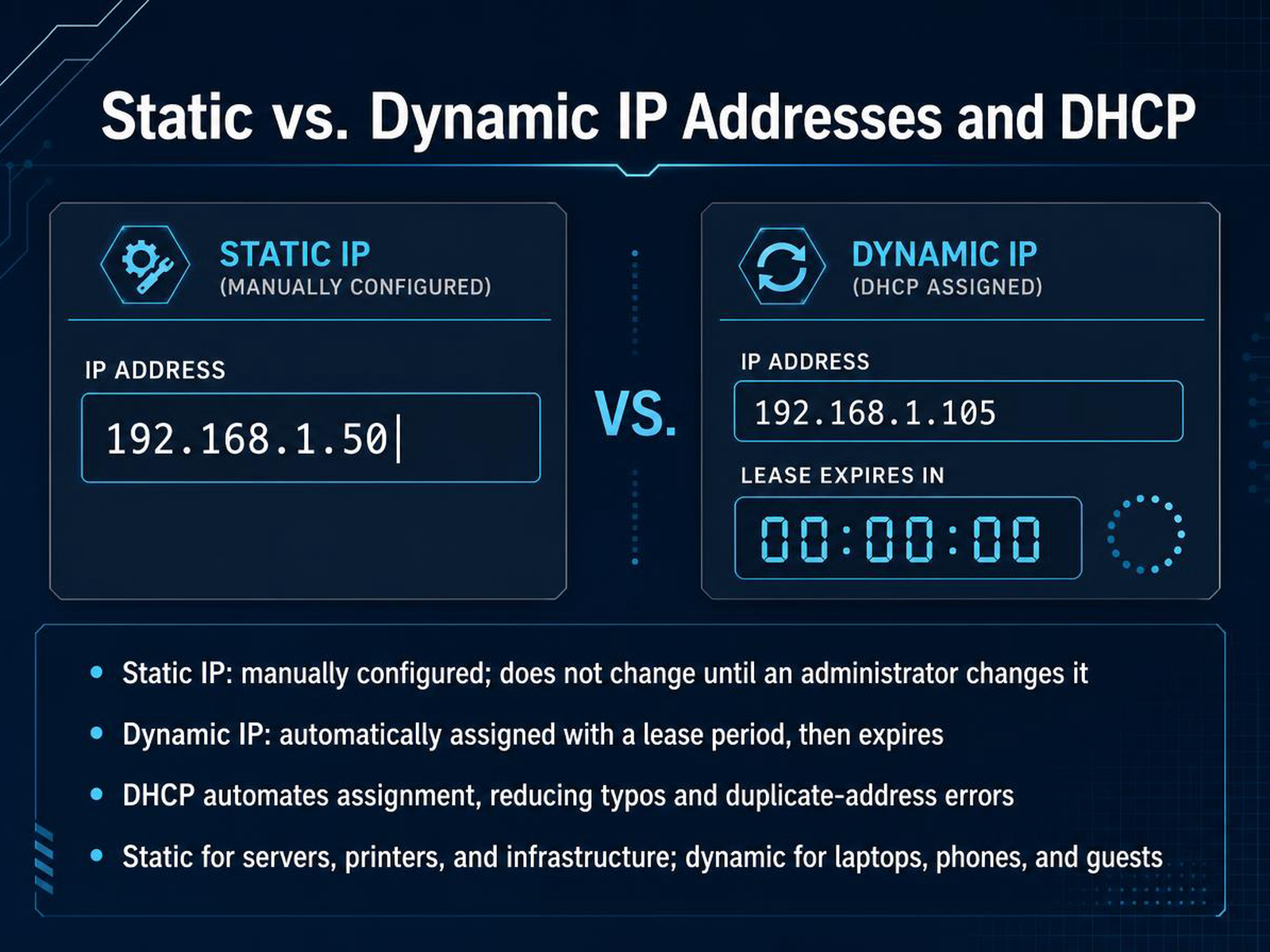
 - 09Static vs. Dynamic IP Addresses and DHCPNow let's look at how a device actually gets its IP address. There are two main ways: static and dynamic. A static IP address is configured by hand. It stays the same until an administrator goes in and changes it. This makes static addresses perfect for devices that other devices always need to find, like servers, printers, and core network equipment. A dynamic IP address, on the other hand, is assigned automatically. A service on the network called DHCP, or Dynamic Host Configuration Protocol, hands out an address for a set period of time, called a lease. When the lease expires, the address goes back into the pool. Using DHCP saves a huge amount of time and prevents errors like typos or accidentally giving two devices the same address. So a simple rule of thumb is this: use static for important infrastructure that must always be reachable at the same address, and use dynamic for most everything else, like laptops, phones, and guest devices. Up next, we will walk through the exact steps of how a device gets its IP address.
 1 min
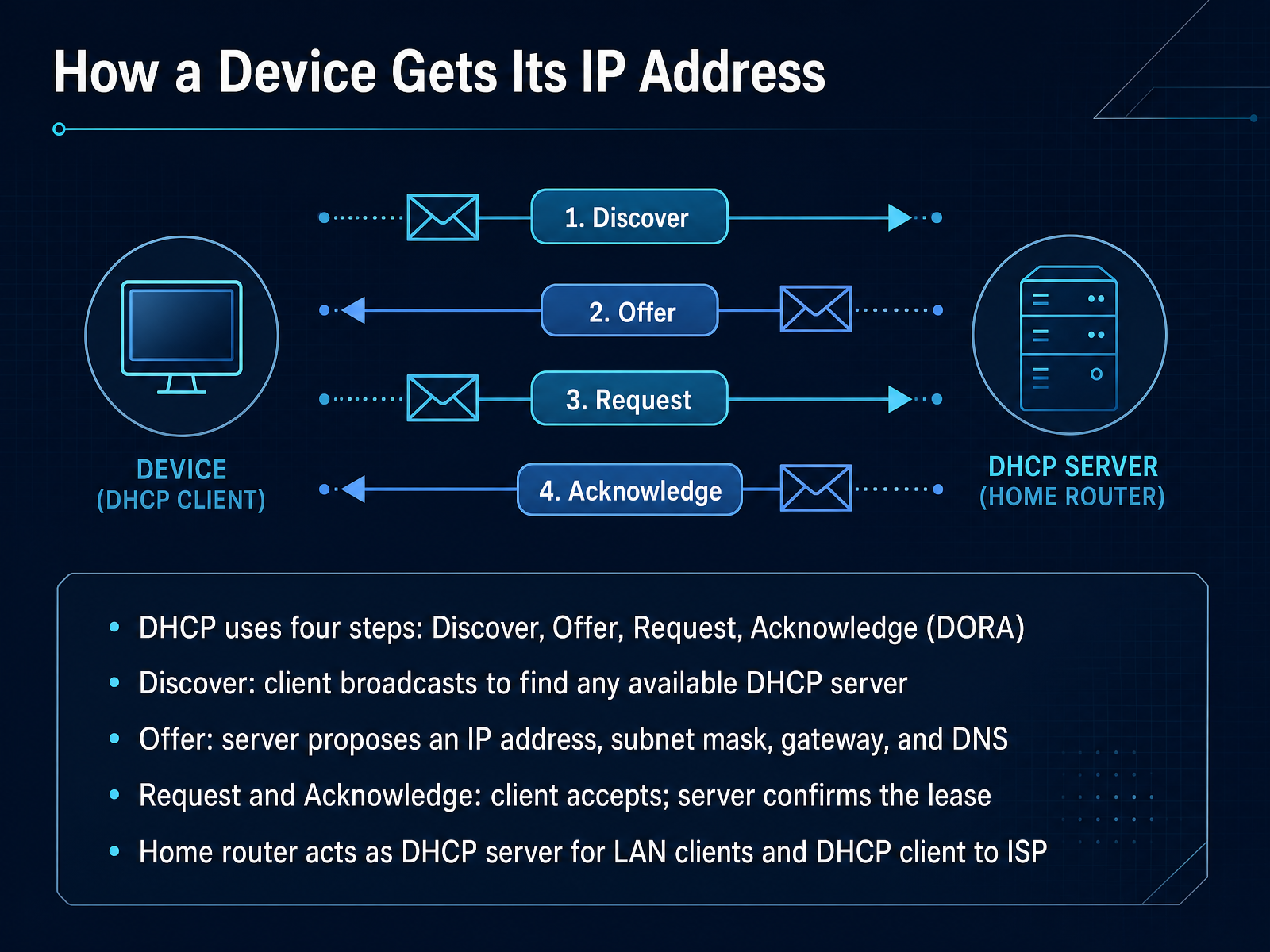
1 min - 10How a Device Gets Its IP AddressNow let's talk about how a device actually gets its IP address. This happens through a protocol called DHCP, which stands for Dynamic Host Configuration Protocol. Think of it as a quick, automatic handshake between your device and the network. The process has four steps, and we remember it with the letters D O R A. First is Discover. The new device broadcasts a message that basically says, is there a DHCP server out there? It doesn't know where to look yet, so it shouts to everyone on the local network. Next, Offer. A DHCP server hears that request and responds with a proposed configuration. It offers an IP address, a subnet mask, a default gateway, and DNS server information. Third, Request. The client receives the offer and says, yes, I would like to use that IP address. It sends a formal request back to the server. Finally, Acknowledge. The server confirms the assignment. The client is now configured and ready to communicate. On most home networks, your router plays a special role. It acts as a DHCP server for your local devices like laptops and phones. But here is the interesting part. Your router is also a DHCP client. It gets its own public IP address from your internet service provider. Up next, we will explore how networks are divided using subnets and CIDR notation.
 2 min
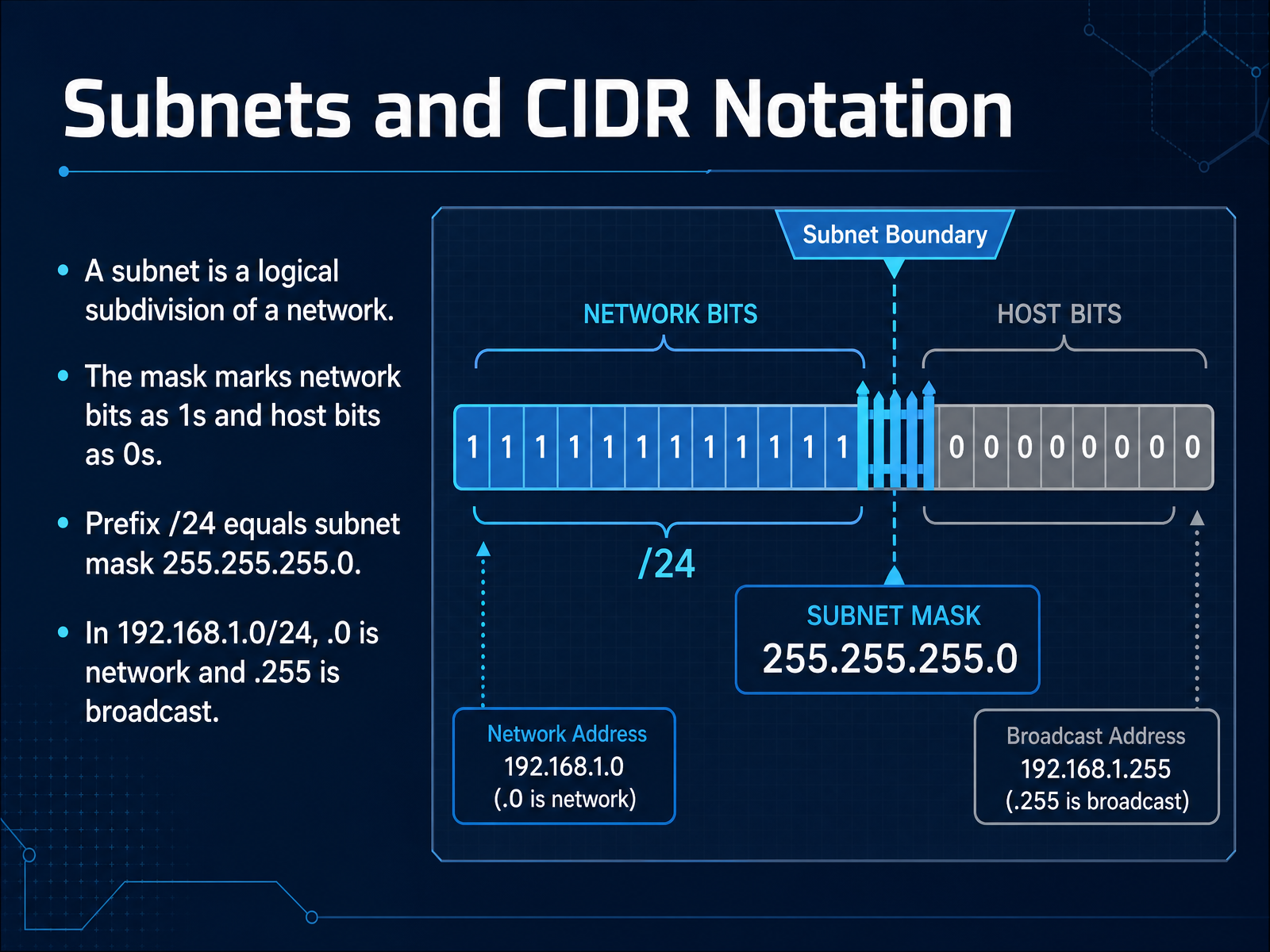
2 min - 11Subnets and CIDR NotationNow let’s look at how we divide a network into smaller sections, called subnets. A subnet is simply a logical subdivision of a network, a bit like creating separate departments inside a large office building. To understand the boundaries of each subnet, we use a subnet mask. This mask marks the network bits as ones and the host bits as zeros. The ones identify the network, and the zeros identify the individual devices within it. A common example is the prefix slash twenty-four, which is the same as the subnet mask 255.255.255.0. That means the first three numbers identify the network, and the last number identifies the host. For the subnet written as 192.168.1.0 slash twenty-four, the address ending in point zero is the network address, and the address ending in point two fifty-five is the broadcast address. The network address names the subnet itself, while the broadcast address is used to send a message to every device on that subnet at once. Next, we’ll see how to view real IP configuration on a device using the ipconfig and ip addr commands.
 speedtesthq.cominfotechninja.compacketmentor.com+22 min
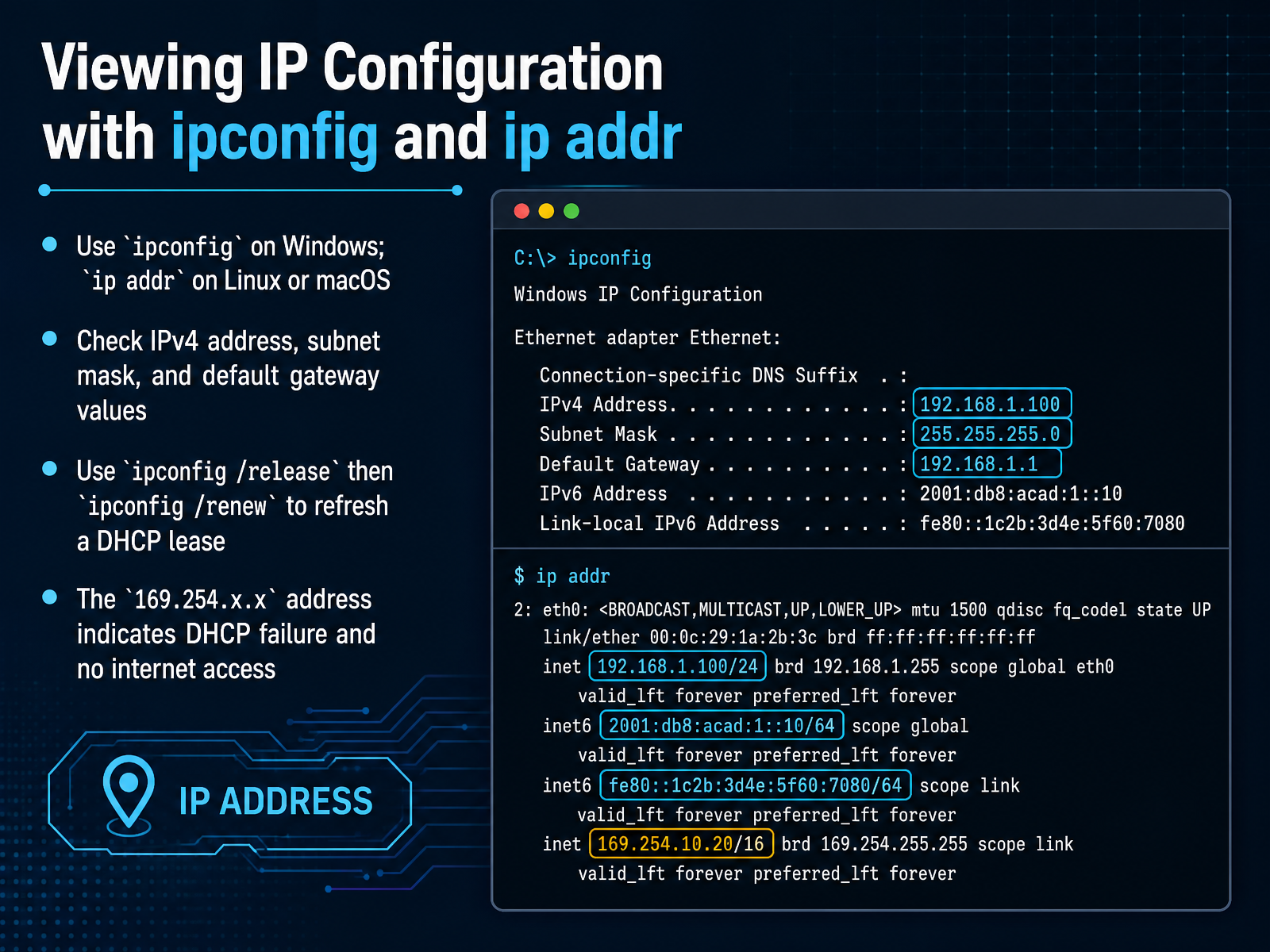
 - 12Viewing IP Configuration with ipconfig and ip addrNow let's see how to actually look at an IP configuration on a real computer. On Windows, you open a command prompt and type ipconfig. On Linux or macOS, use the command ip space addr, which stands for address. The output shows three important values. The IPv4 address is your device's own address on the local network. The subnet mask defines the size of that network. The default gateway is the router your device uses to reach the internet. If a device is not getting a valid address, Windows users can type ipconfig slash release, and then ipconfig slash renew. This asks the device to let go of its old address and request a fresh one from the DHCP server. Keep an eye out for an address that starts with 169 dot 254. That special range means the device could not reach a DHCP server, so it assigned itself a temporary address. You will see local network access, but no internet. That is a strong signal to check the cable, Wi-Fi connection, or router. Next, we will test connectivity with ping.
 2 min
2 min - 13Testing Connectivity with PingNow let's talk about one of the most useful tools you'll use as a network troubleshooter: the ping command. Ping works like a sonar pulse. It sends out a small message called an ICMP Echo Request and then waits for a reply. If the device is reachable, it sends back an Echo Reply. Think of it like shouting hello into a canyon and listening for your echo. A successful reply means the path between you and that device is working. When you ping by IP address, you are only testing basic reachability. You are asking, can I get to this specific numeric address? But if you ping by hostname, like pinging a server name, you are testing something extra. You are also testing DNS, the system that translates human-friendly names into IP addresses. So if a ping by IP works, but a ping by hostname fails, the network path is fine, but name resolution is broken. Here is a great systematic approach. Ping yourself first, like pinging 127.0.0.1, to confirm your own network card is working. Then ping your default gateway to check your local network. Next, try pinging a DNS server. Finally, try pinging a remote host. This sequence helps you isolate exactly where a connection problem might be. In the next slide, we'll explore common issues, privacy, and some practical safety measures.
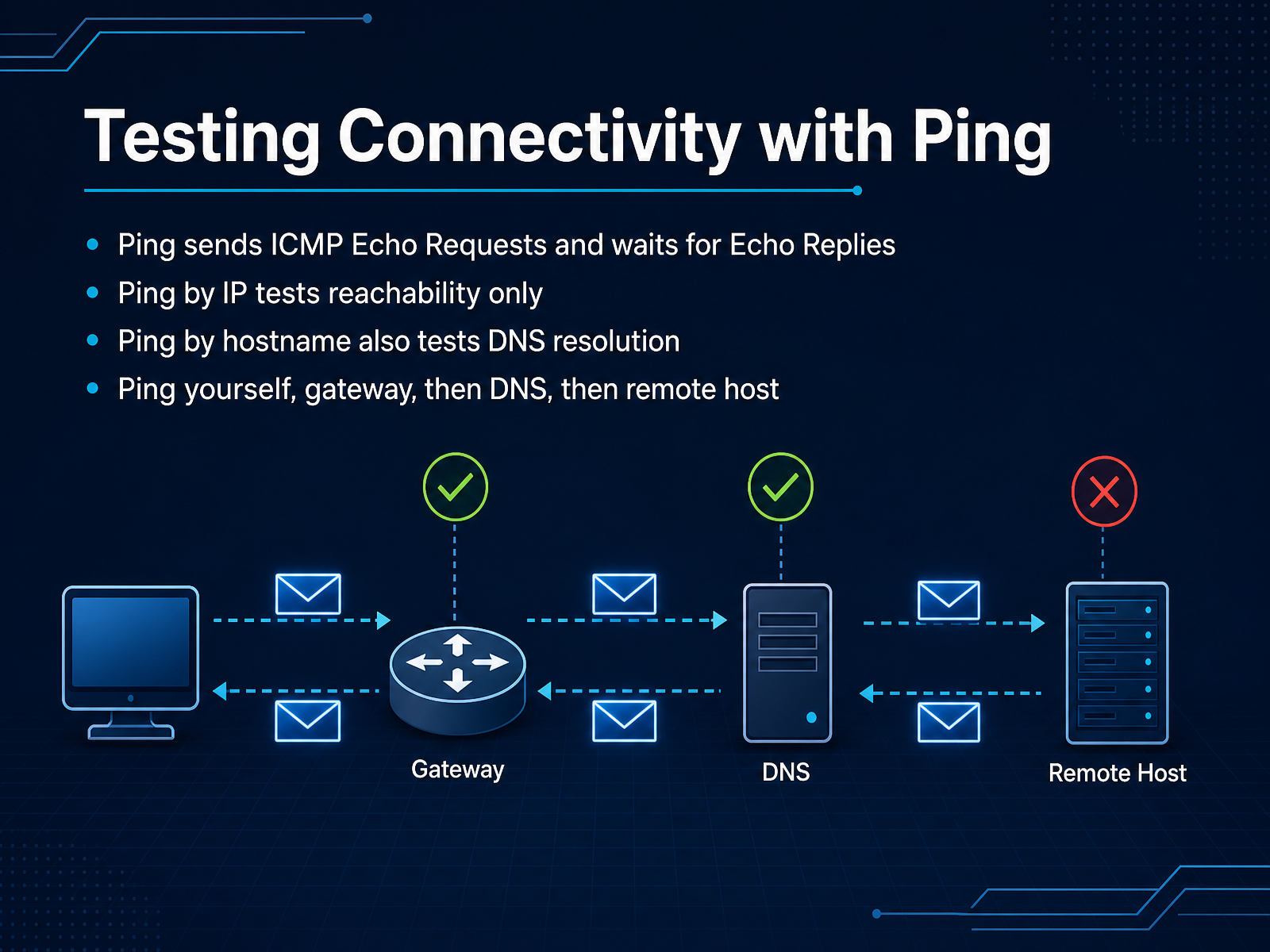 en.wikipedia.orgtcpipguide.comrfc-editor.org+22 min
 - 14Common Issues, Privacy, and Practical SafetyAs we wrap up, let's clear up some common issues and privacy questions around IP addresses. First, practical safety. IP conflicts happen when two devices on the same network try to use the same address. This can cause intermittent connectivity, duplicate address warnings, or devices that can't reach the network. The fix is usually simple: restart the affected device, or check your router settings to see if an address was manually assigned inside the pool your network hands out automatically. Now, what does an IP address actually reveal about you? It can show your approximate location and identify your internet service provider, but it does not reveal your name, your street address, or your exact identity. IP geolocation is often city-level at best, and sometimes points to a nearby ISP facility, not your home. For everyday safety, focus on the basics: use strong passwords, keep your devices and router updated, and be careful with port forwarding or exposing services to the internet. VPNs can add optional privacy by hiding your public IP, but they are not required for basic safety. The key takeaway is simple: an IP address is more like a temporary mailing label than a map to your front door. Treat it with care, use good security habits, and you can navigate the internet with confidence. Thank you for learning with me today, and I encourage you to keep exploring networking one clear step at a time.
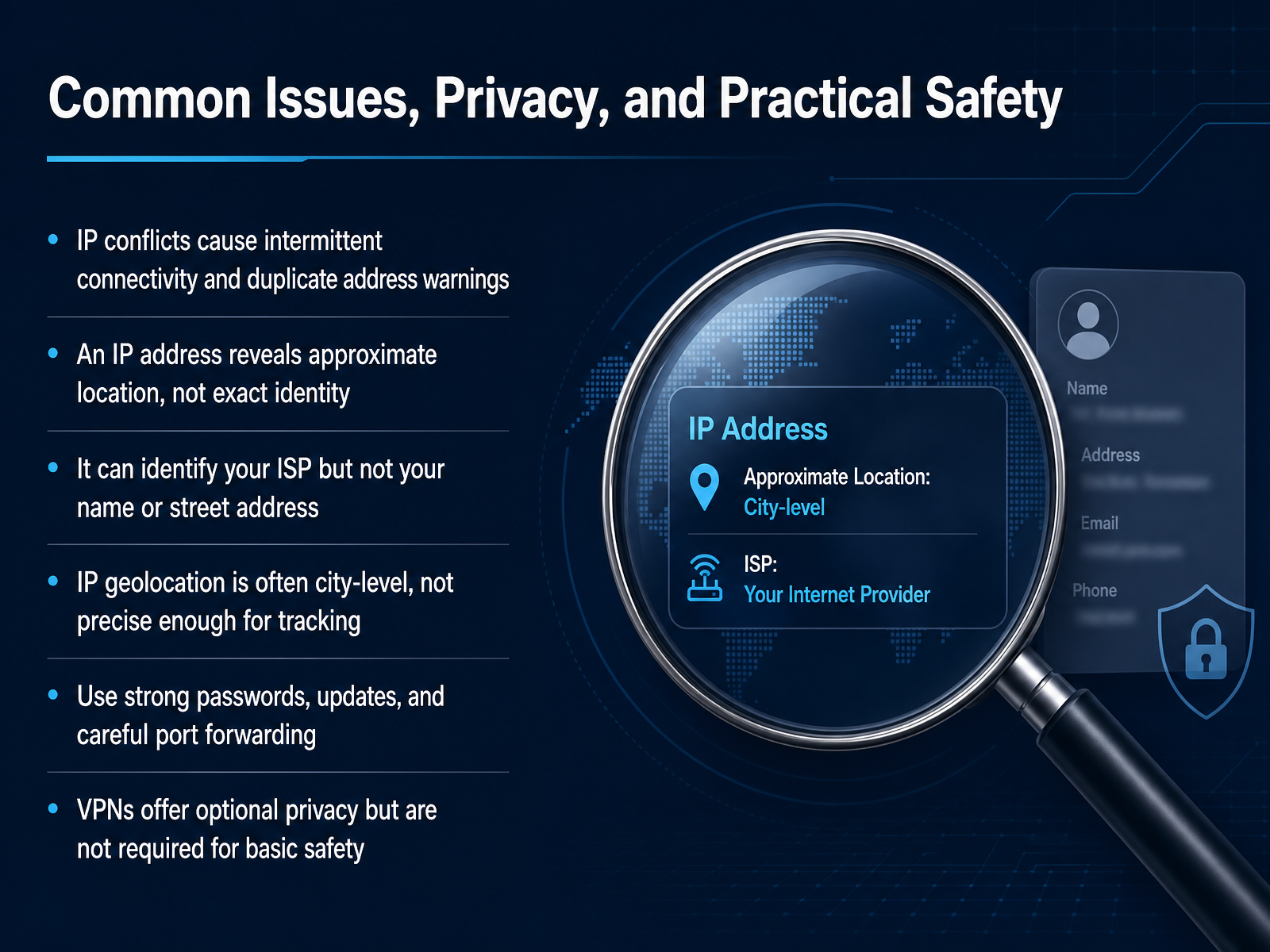 ripe.netdocs.netgate.com2 min
Take the deck with you
Download this course as a file — free, no sign-up needed.
- PDF handoutEvery slide page, ready to print or share.15 pages · 3.5 MBDownload
- Narrated PowerPointThe deck that presents itself — every slide carries the digital human's narration video.15 pages · 16.8 MBDownload
- PowerPoint slidesThe full deck as a .pptx — open it in PowerPoint, Keynote, or Google Slides.15 pages · 3.4 MBDownload
Free to use in your own training — please keep the PersonWise credit page at the end.
Have your own deck? Turn it into a course
Sources consulted
Web sources consulted while building this course.
- IP address — en.wikipedia.org
- The TCP/IP Guide - IP Addressing — tcpipguide.com
- RFC 791: Internet Protocol — rfc-editor.org
- What is the Internet Protocol? — cloudflare.com
- TCP/IP addressing and subnetting - Windows Client | Microsoft Learn — learn.microsoft.com
- Internet Protocol — en.wikipedia.org
- The TCP/IP Guide - IP Addressing — tcpipguide.com
- TCP/IP Overview — cisco.com
- IPv4 Addresses Explained: Structure, Classes, and Why We Ran Out — speedtesthq.com
- IPv4 Addressing Without Panic - InfoTech Ninja — infotechninja.com
- IPv4 Addressing — PacketMentor — packetmentor.com
- IPv4 Addresses — enterprisecampus.net
- A Crash Course in IPv4 Addressing — blog.bytebytego.com
- IPv6 and IPv4 | The Number Resource Organization — nro.net
- IPv4 vs IPv6: notation, special ranges, and the state of migration | Orankit — orankit.com
- Understanding IP Addressing and CIDR Charts — RIPE Network Coordination Centre — ripe.net
- IPv4 vs. IPv6: What's the difference? | TechTarget — techtarget.com
- IPv4 vs IPv6 - Difference Between Internet Protocol Versions — aws.amazon.com
- IPv4 Blocks for Private Internets — RIPE Network Coordination Centre — ripe.net
- Understanding Public and Private IP Addresses | pfSense Documentation — docs.netgate.com