Begin
26 pages · ~52 min
Cybersecurity Awareness for Employees
An engaging training for employees to recognize and respond to common cybersecurity threats.
A digital instructor presents all 26 pages. Hold “Ask” at any point and ask out loud — the answer comes from this course. No sign-up needed.
What you’ll learn
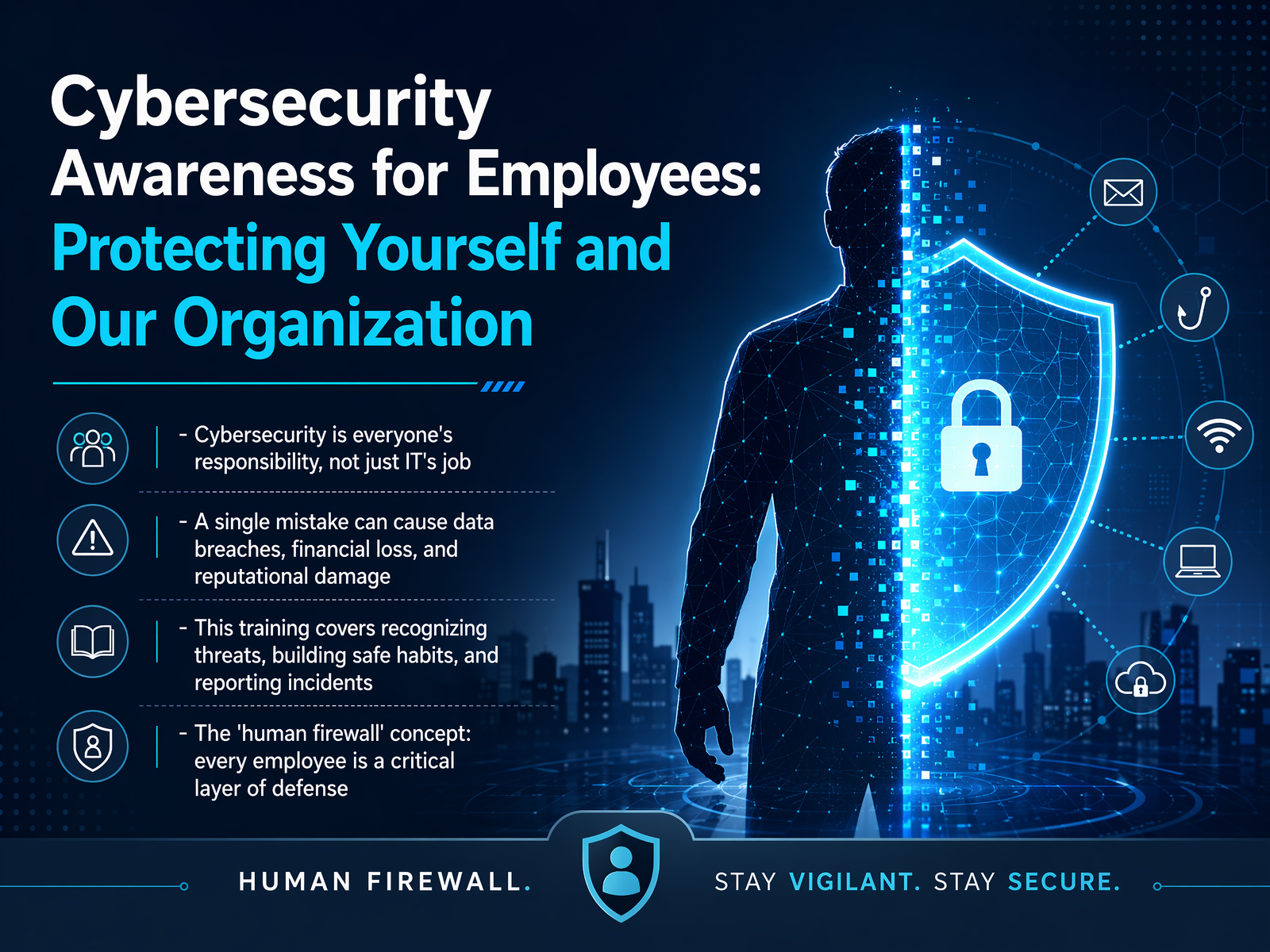
- 01Cybersecurity Awareness for Employees: Protecting Yourself and Our OrganizationWelcome to Cybersecurity Awareness for Employees. This course focuses on practical habits for protecting work accounts, devices, and information. Security is a shared responsibility. Pause before unusual actions, verify requests through known channels, and report concerns through your organization process.verizon.comipwhois.netacilearning.com+21 min
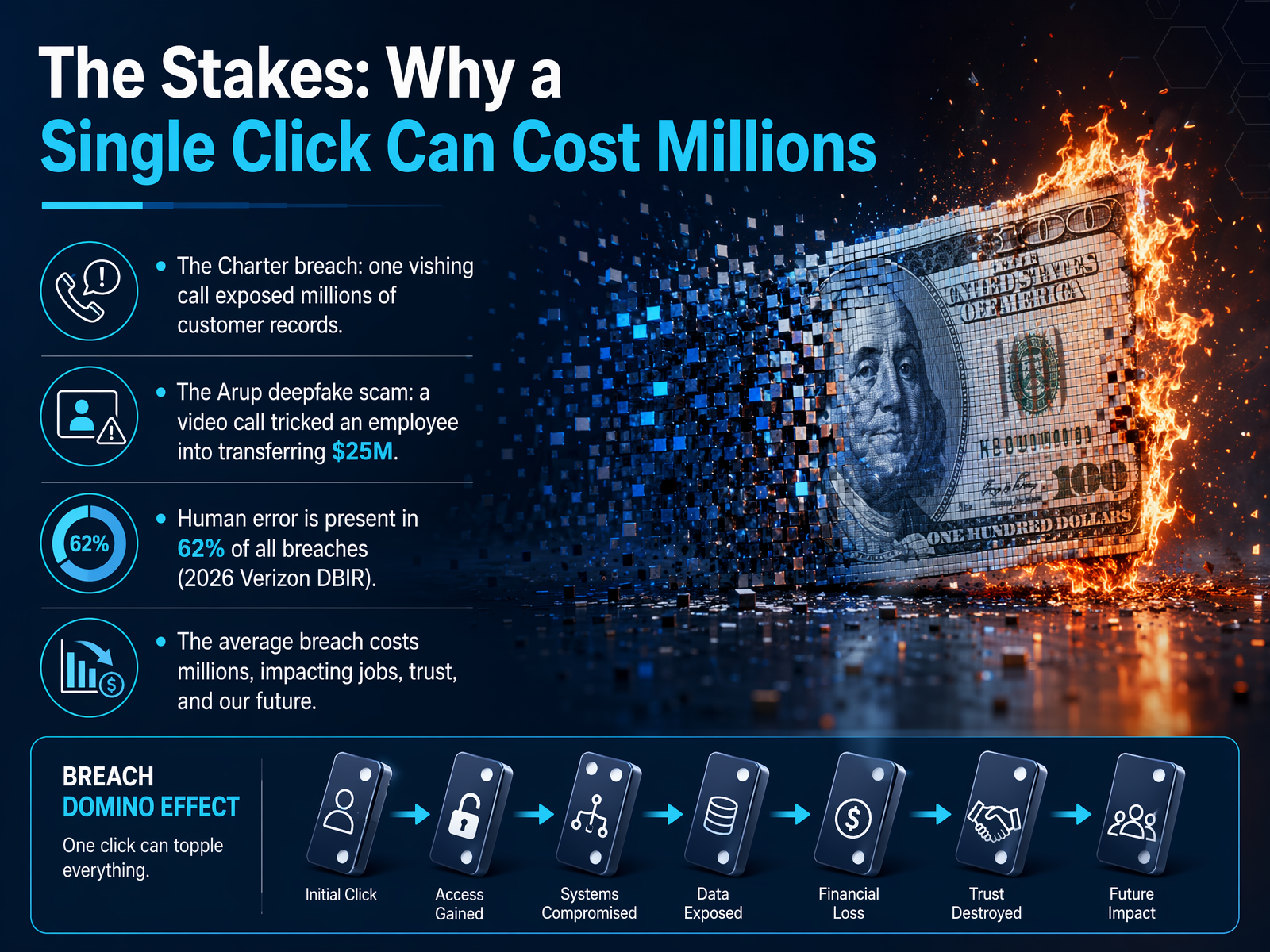
- 02Why Verification Matters at WorkLet's talk about why verification matters at work. A single mistaken interaction can expose our data or disrupt our entire operation. Threats have evolved. Attackers now use convincing email, voice, and even video to impersonate people we trust. They might call you, pretending to be from IT, and ask for your login credentials. Or they could send a video message that looks and sounds exactly like our CEO. Your decisions are a critical layer of our security. A security incident doesn't just affect systems. It can damage our reputation, break our customers' trust, and require weeks of recovery work. The good news is that you can stop most of these attacks with one simple habit: pause and verify. If a request for money or sensitive information feels unusual or urgent, verify it through a separate, known channel. Call the person back on a saved number. Your moment of verification protects all of us. Next, we'll explore the modern threat landscape and what we're up against today.
 verizon.comipwhois.netacilearning.com+21 min
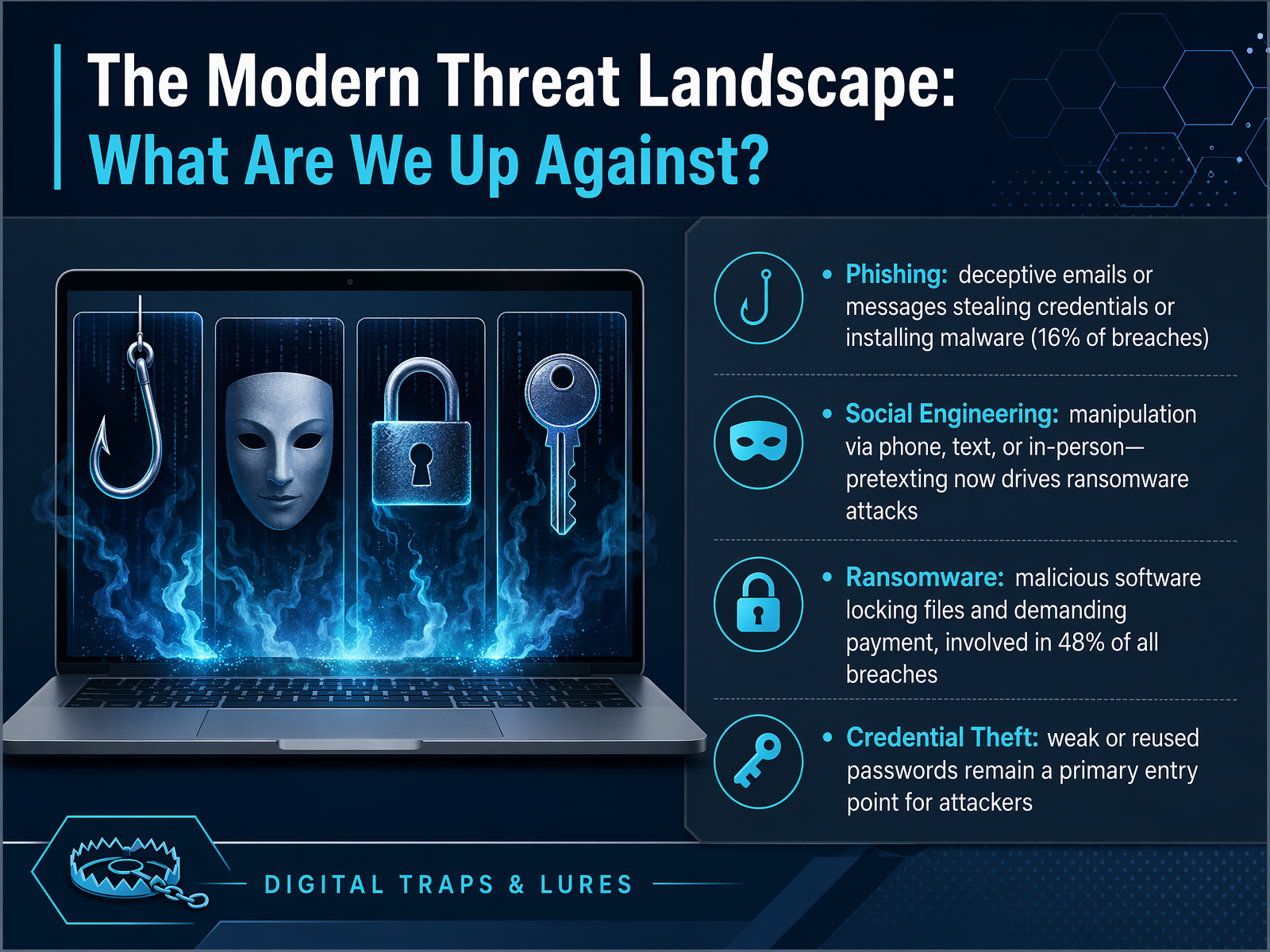
 - 03The Modern Threat Landscape: What Are We Up Against?Modern threats often rely on deceptive messages and pressure rather than technical complexity. Phishing can seek credentials or actions. Social engineering can use urgency or impersonation. Protect credentials, pause when something seems unusual, and report suspicious activity promptly.
 verizon.comipwhois.netacilearning.com+22 min
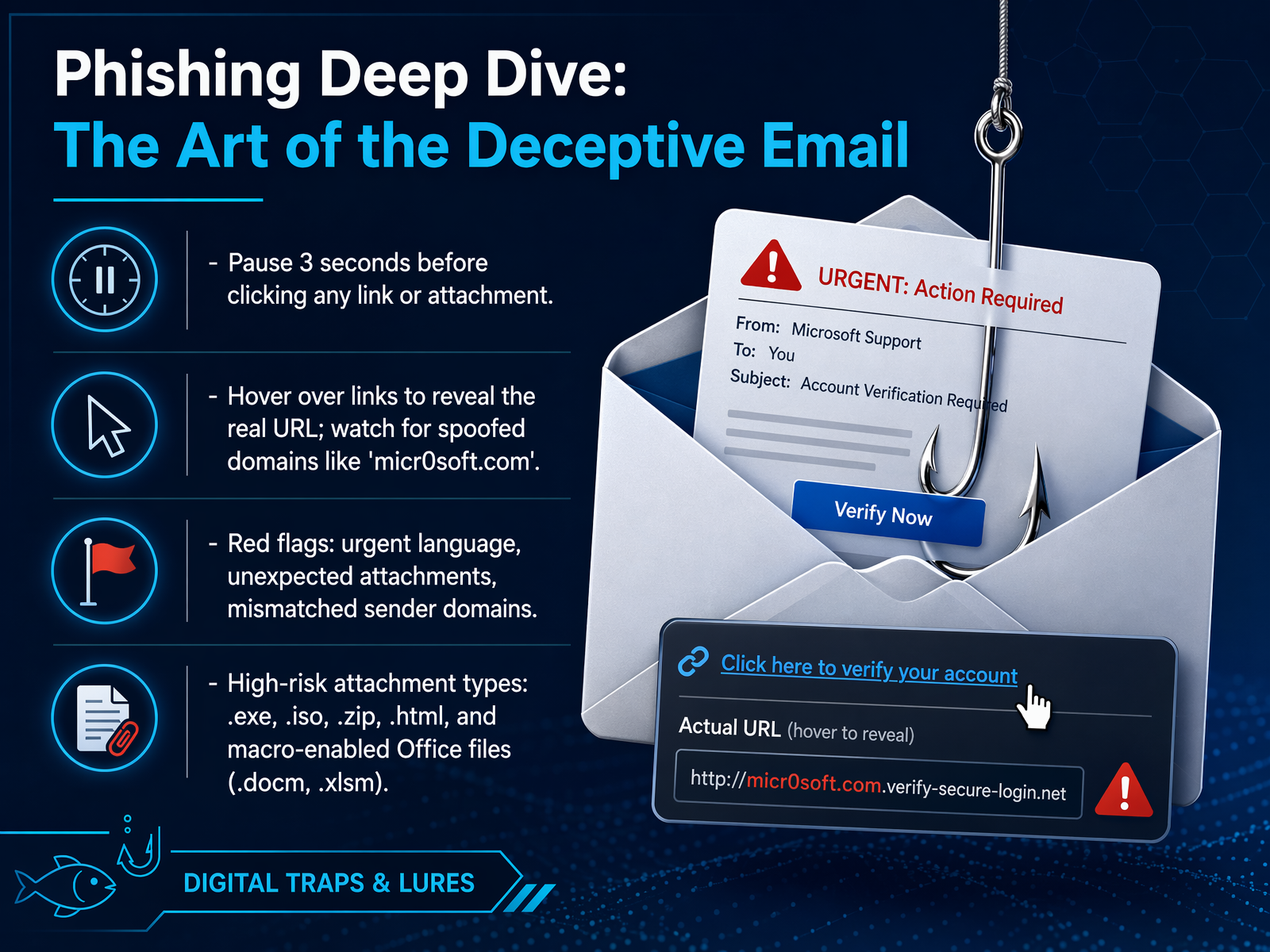
 - 04Phishing Deep Dive: The Art of the Deceptive EmailNow let's dive deeper into the art of the deceptive email. Think of phishing as a con artist's trick, not a technical hack. Your best defense is the three-second rule. Before you click any link or open an attachment, just pause for three seconds. That brief pause gives your brain time to switch from reactive mode to critical thinking. Next, inspect suspicious links. Hover your mouse cursor over the button or text without clicking. A small pop-up will show you the real web address. Watch for clever spoofing, like a domain that replaces the letter 'o' with a zero, such as 'micr0soft.com' or 'amaz0n.com'. Also, learn to spot the red flags. Attackers use urgent language, unexpected attachments, and minor typos to create panic. If an email feels off, trust that instinct. Be especially wary of certain file types. Malicious attachments often hide as executables, disk images, zipped archives, web pages, or macro-enabled Office files. Remember, the goal is simple: pause, inspect, verify. Now, let's see how these tricks get even more convincing with AI-powered phishing.
 helpnetsecurity.comsecurityboulevard.compaloaltonetworks.com+22 min
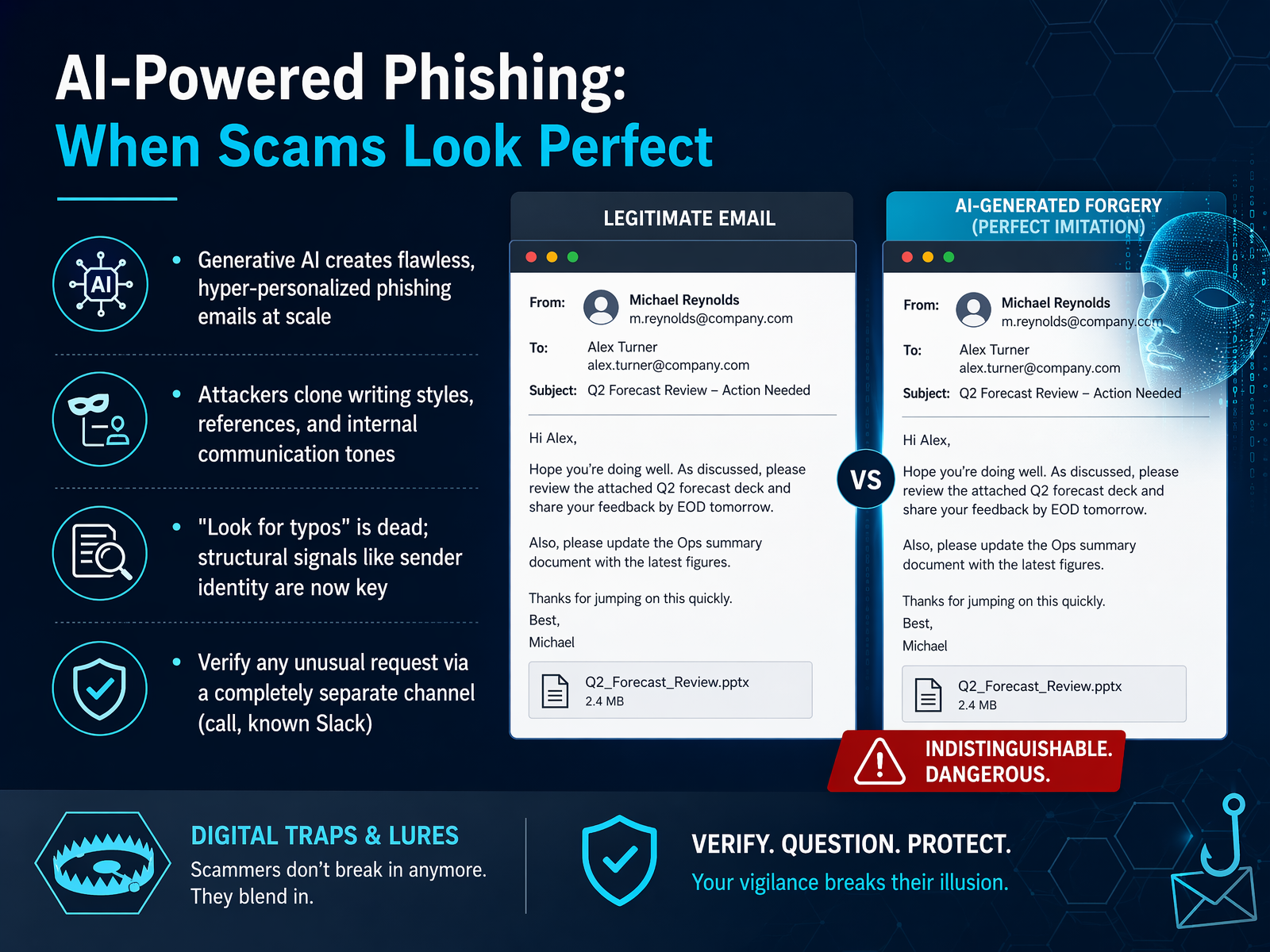
 - 05AI-Powered Phishing: When Scams Look PerfectNow, let's look at how AI is changing phishing attacks. Scammers use tools like large language models to write emails that are grammatically perfect and personalized. A convincing tone or familiar wording no longer proves a request is real. Surface language, like clean spelling and professional phrasing, is no longer a reliable detection signal. Instead, watch for subtle red flags. The email might feel too polished, or lack the casual shortcuts real people use. It may create a vague sense of urgency without context. It might mention a meeting that never happened, or use a signature that doesn't match the sender's usual style. If an email asks you to bypass normal approval steps, stop. Verify unusual requests through an approved, independent channel. Pick up the phone and call a known number, or use your company chat. Do not trust the contact details in the suspicious message itself. The key habit is this: when an email feels perfect but the request is odd, verify out-of-band. Up next, we'll explore voice phishing and callback scams.
 security.gurutopaithreats.comenginerds.com+22 min
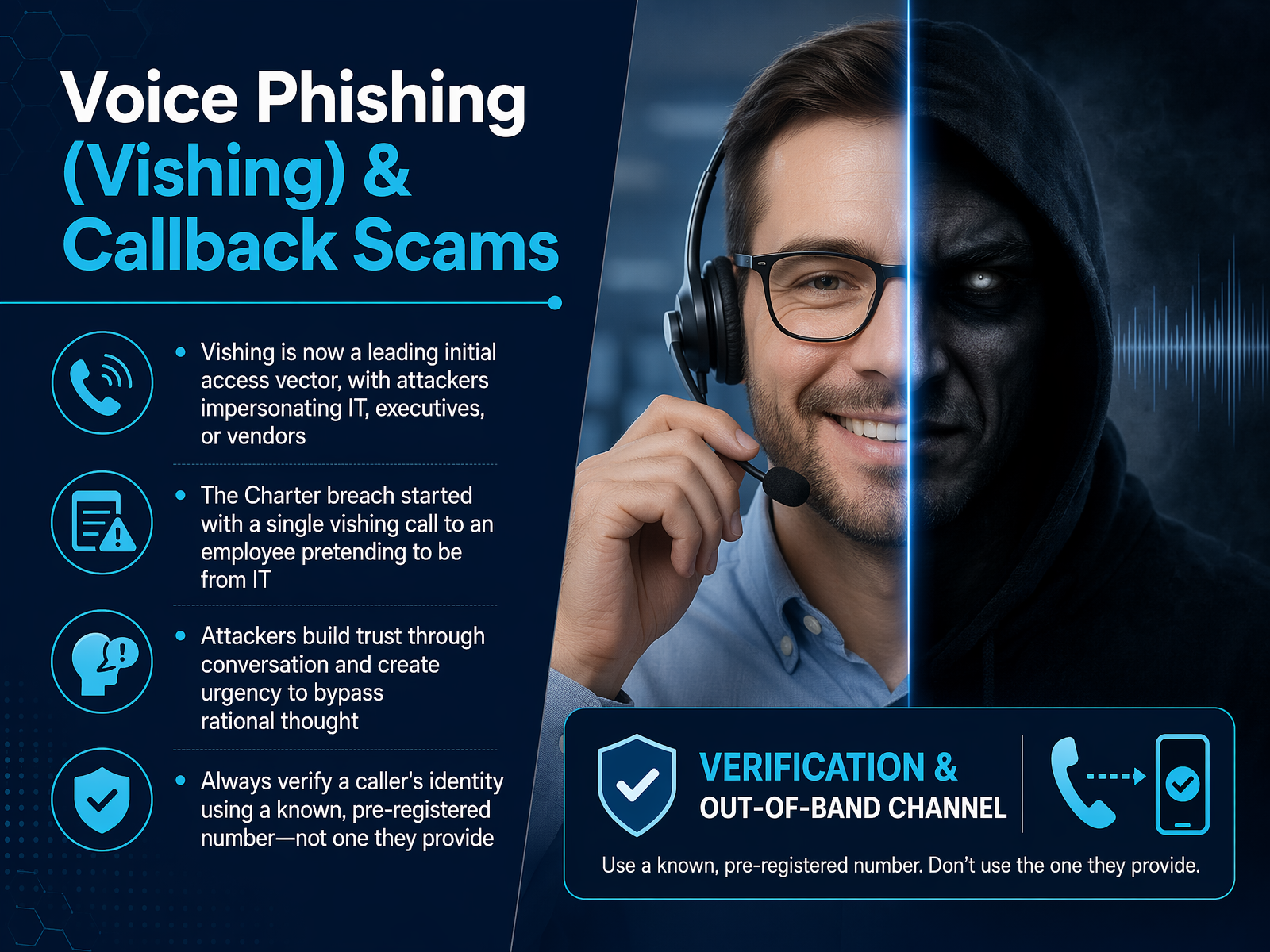
 - 06Voice Phishing (Vishing) & Callback ScamsVoice phishing can involve a caller claiming to be IT, leadership, or a vendor. Pressure, secrecy, or requests to bypass normal process are warning signs. Do not rely on an unsolicited caller to confirm identity. Use your approved directory or support channel to verify.
 verizon.comipwhois.netacilearning.com+21 min
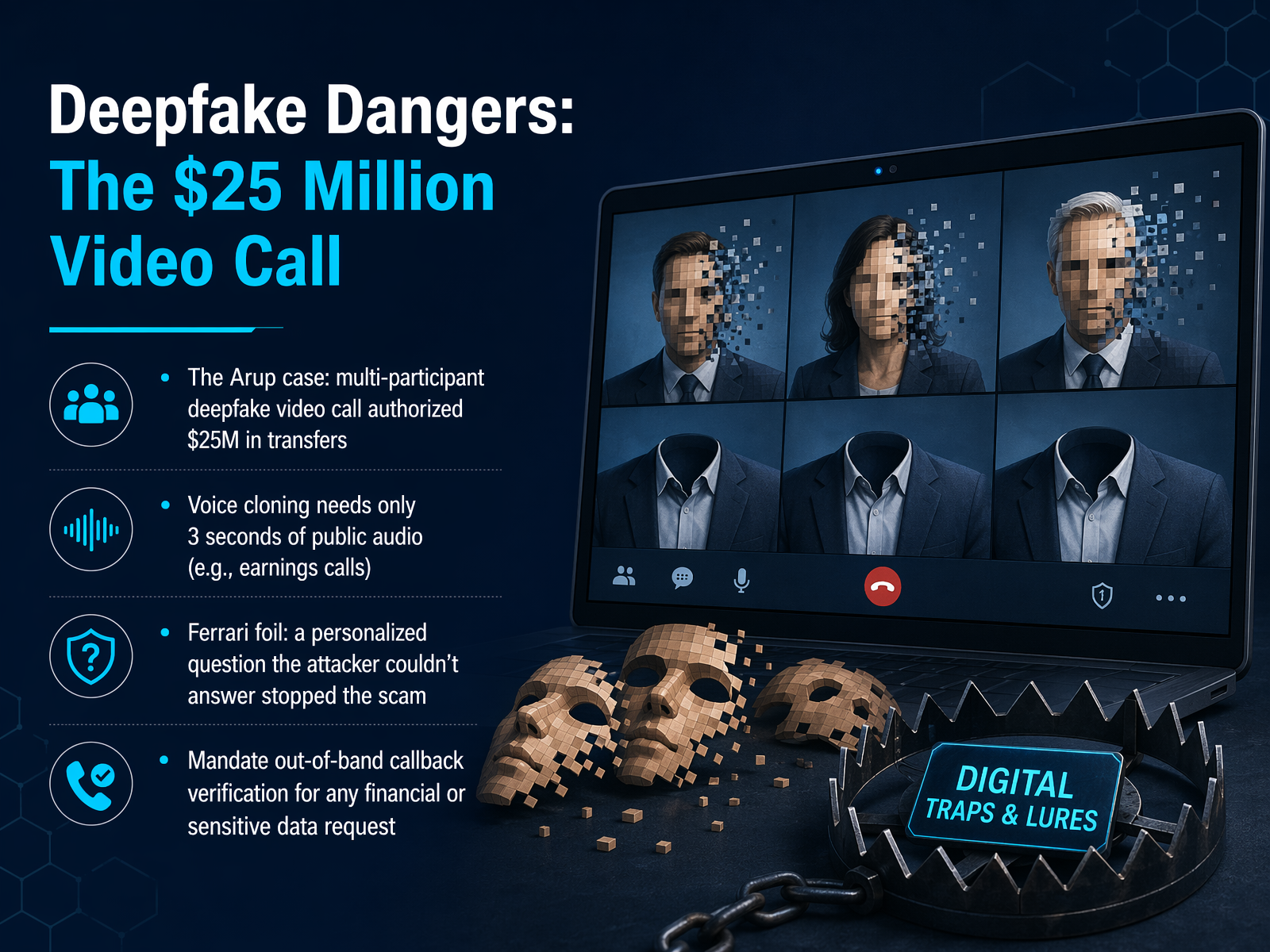
 - 07Verify Sensitive Requests Across ChannelsSensitive requests can arrive by email, phone, chat, or video. Do not rely on appearance or voice alone. For money or sensitive data, follow the documented approval process and verify through an independent, organization-approved channel.
 mcafee.comadaptivesecurity.comlyrie.ai+22 min
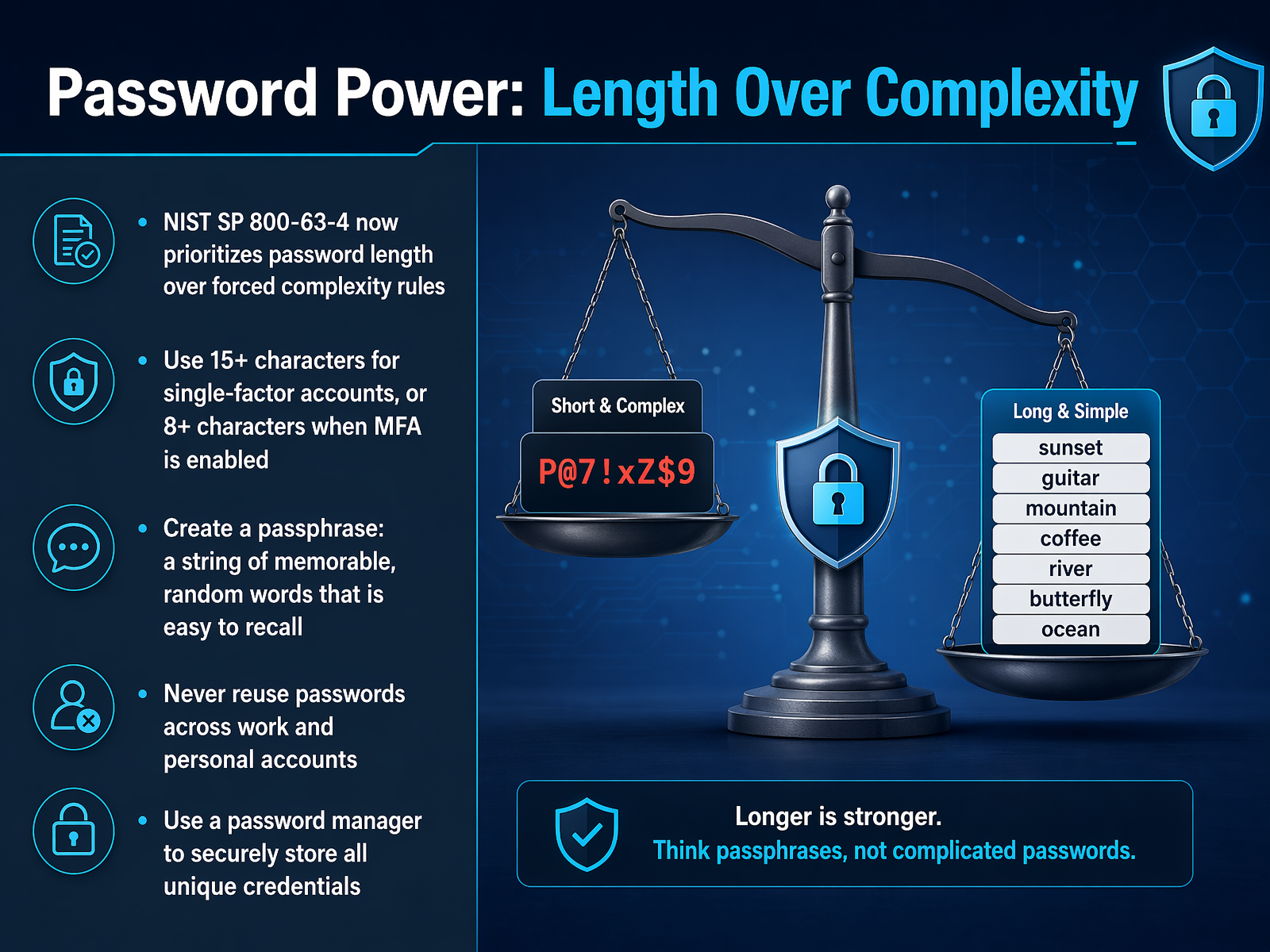
 - 08Password Power: Length Over ComplexityNow let's talk about making passwords that are both strong and easy to remember. The old rules about special characters and capital letters are just that: old rules. The latest guidance from NIST, the National Institute of Standards and Technology, says length is what really matters. A minimum of fifteen characters is the new gold standard for single-factor authentication. So, think in terms of a passphrase, not a single word. A string of random, unrelated words, like 'purple bicycle mountain coffee Tuesday morning,' is incredibly strong and far easier to remember than 'P@ssw0rd1!'. The best tool for this is a password manager. If your organization provides one, use it. It can create and remember these long, unique passphrases for you, so you only need to remember one master password. The simple habit here is to leave the complexity behind. Focus on creating a long, memorable passphrase for every account. Coming up next, we’ll look at your absolute best defense: Multi-Factor Authentication.
 1 min
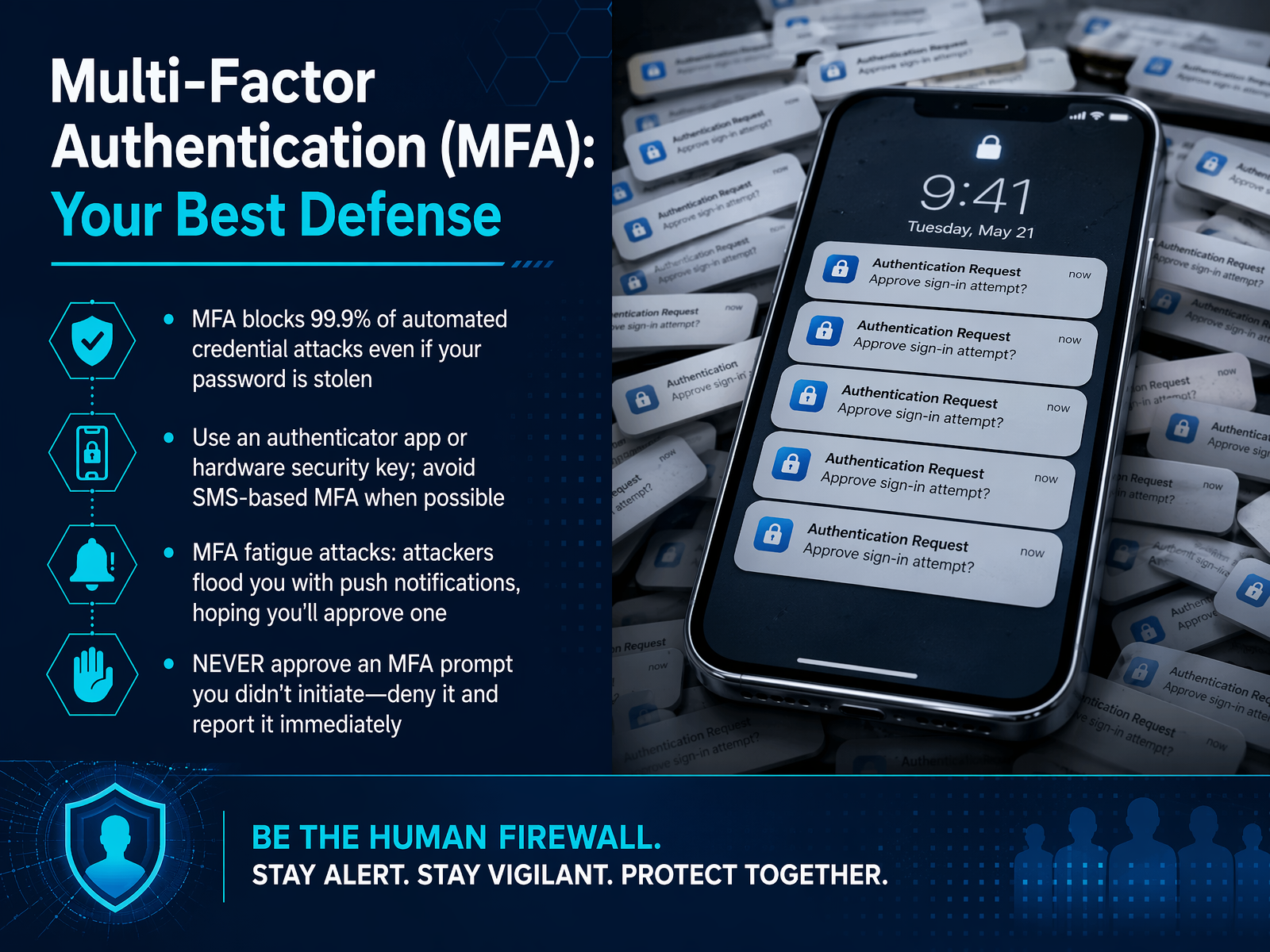
1 min - 09Multi-Factor Authentication (MFA): Your Best DefenseNow let's talk about your strongest shield: multi-factor authentication, or M F A. Think of it as a second lock on your door. Even if a password is stolen, M F A stops the thief from walking in. Your organization has chosen a specific method for you, like an app or a security key. Please use that approved method. But you should know about a trick called an M F A fatigue attack. Imagine your phone buzzing non-stop with login requests you didn't trigger. The attacker hopes you'll eventually tap 'approve' just to make the noise stop. Do not approve it. An unexpected prompt is a red flag, not a glitch. Treat it exactly like a suspicious email. Deny the request, and report it to your I T team right away. Your simple habit here is to never approve a login you didn't start. Now, let's move on to safe web browsing and your remote work setup.
 1 min
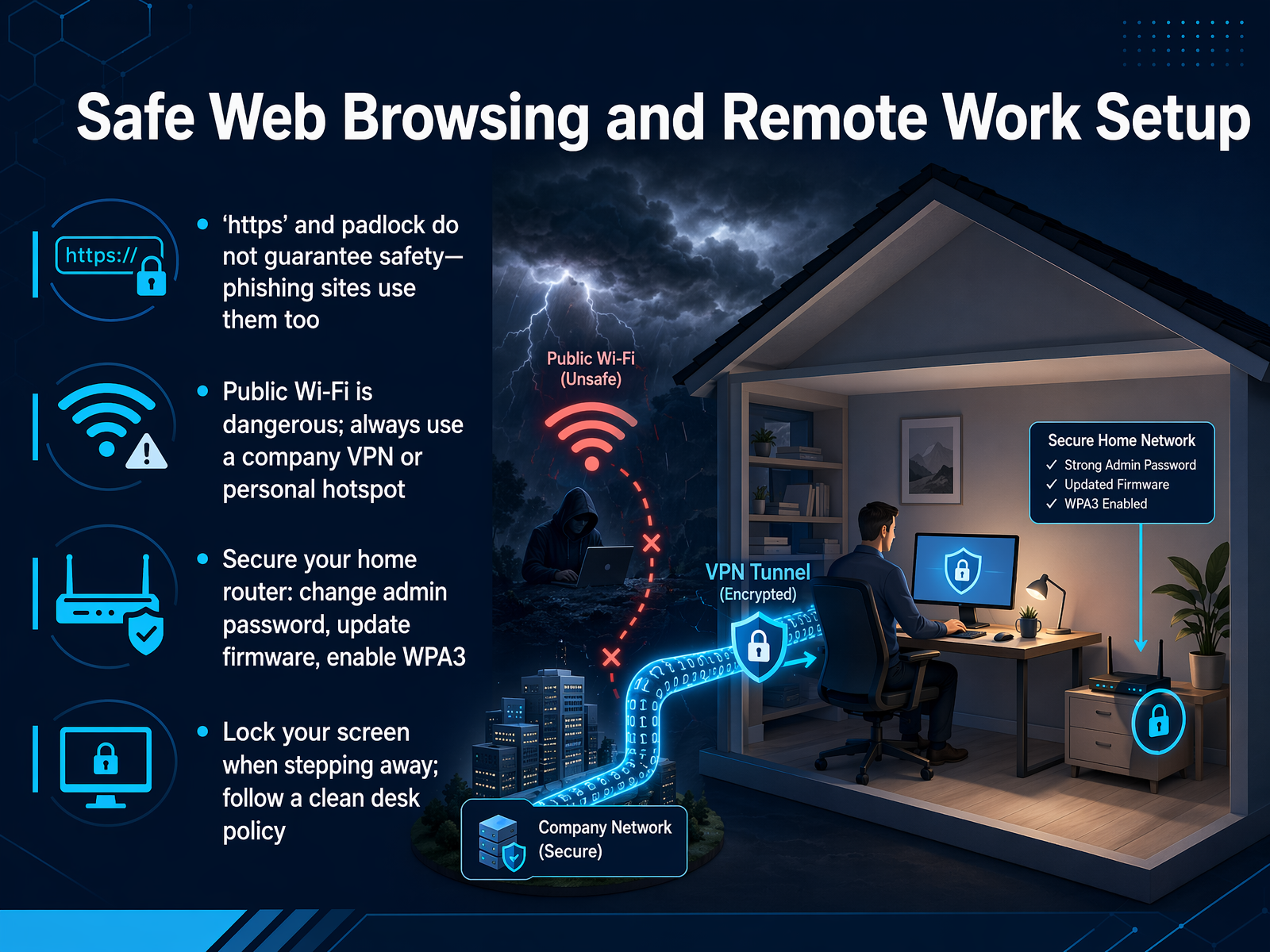
1 min - 10Safe Web Browsing and Remote Work SetupNow let's talk about your daily browsing and remote work setup. Safe web browsing starts with looking for 'https' and the padlock icon. But know this: phishing sites can fake those too. So they are a good first check, not a final guarantee. When you work outside the office, always use the organization-approved VPN or Z T N A tool. This encrypts your connection, especially on home or public Wi-Fi. Think of it as a secure tunnel back to your work resources. Next, keep your home and work devices updated. Enable automatic updates for your operating system and browsers. These patches close known security holes that attackers actively scan for. It is one of the simplest and most effective habits you can build. Finally, physically secure your devices. Lock your screen whenever you step away, even at home. Follow a clean desk policy. Sticky notes with passwords or sensitive papers left in the open are easy targets. A quick screen lock and a tidy desk prevent a lot of trouble. So, your key takeaway is this: browse smart, connect securely, update automatically, and lock your screen. Next, we will take these same principles into your pocket with Mobile Device Security: Protecting Your Pocket Office.
 2 min
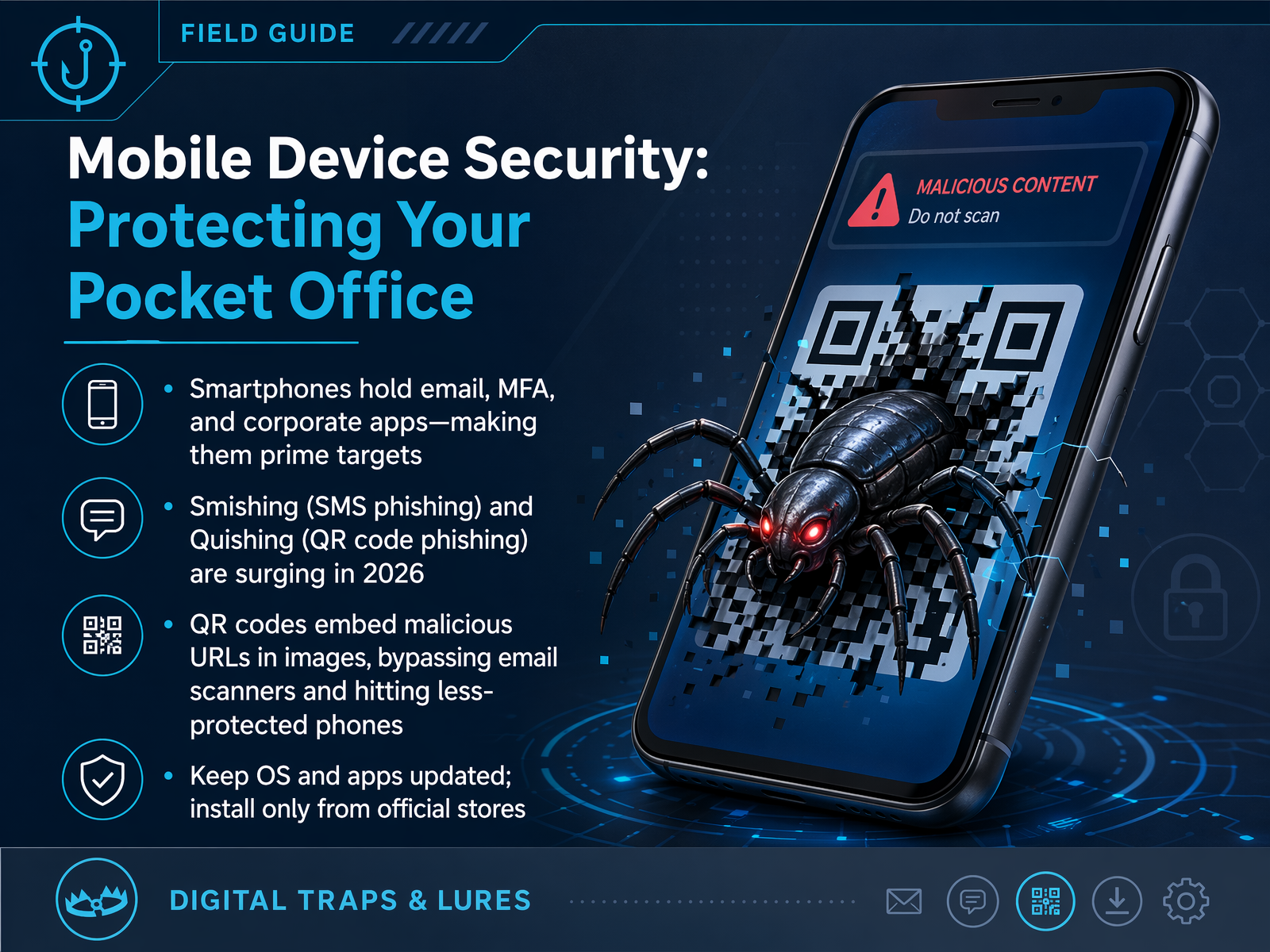
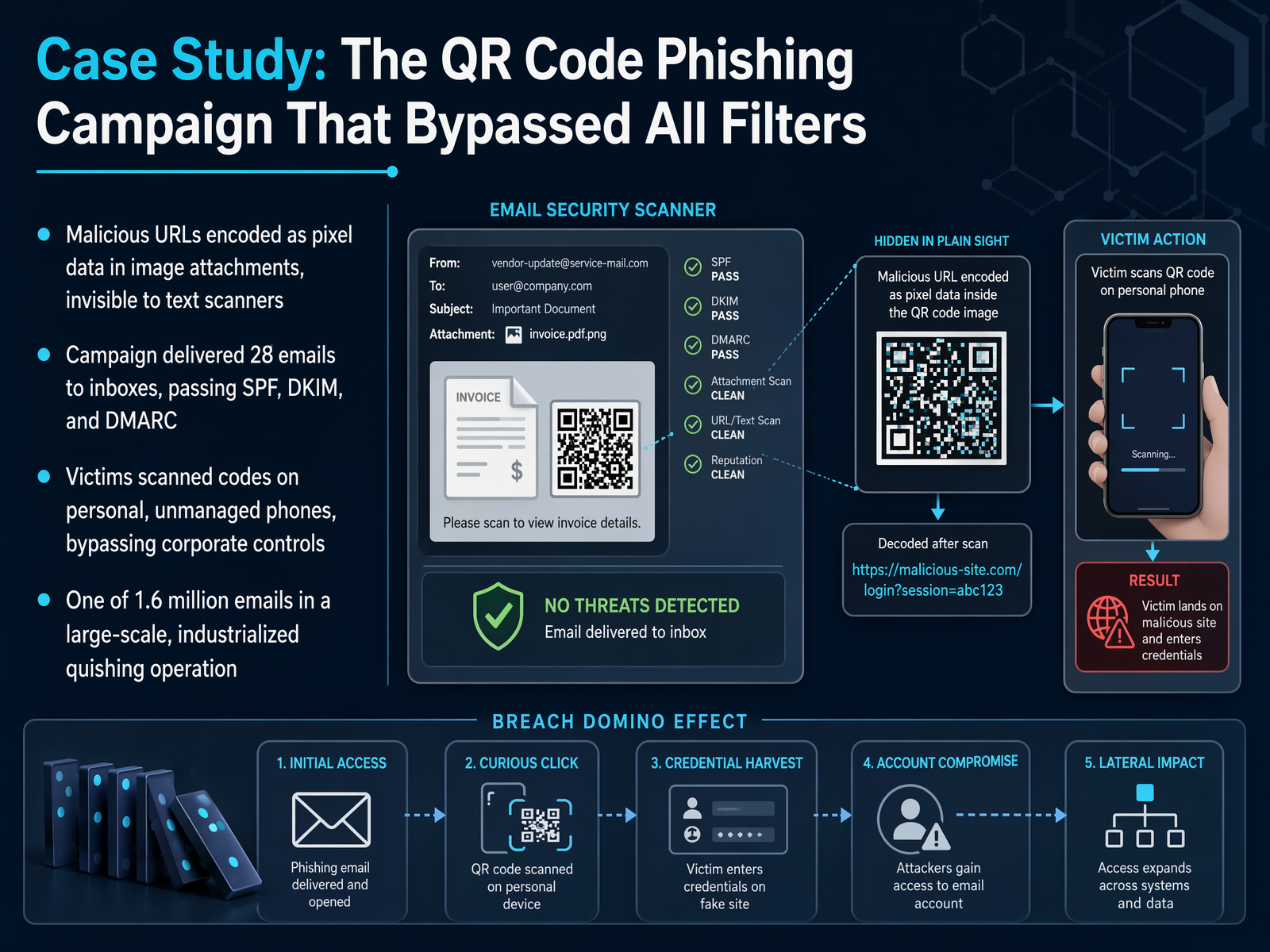
2 min - 11Mobile Device Security: Protecting Your Pocket OfficeNow, let's shift our focus to a device that's always within reach. Think of your smartphone as your pocket office. It holds your email, authenticator apps, and access to company systems. Protecting it is just as important as securing your laptop. A key habit here involves QR codes. You see them everywhere, but pause before scanning one unexpectedly at work. Treat a QR code like a link in an email. The destination is often invisible to our security scanners. Attackers know this. In the first quarter of this year, we saw QR code phishing attacks surge dramatically. These attacks bypassed standard email defenses by hiding malicious links inside images. A simple scan with your personal phone takes the request outside our protected network. So, verify the source and purpose first. If a message tells you to scan a code to view a payroll update or a shared file, stop and check with the sender through a known channel before you act. Also, keep your phone's operating system and apps updated. Only install software from official app stores. These simple steps make your pocket office a much harder target. Next, we'll explore data privacy and handling sensitive information.
 2 min
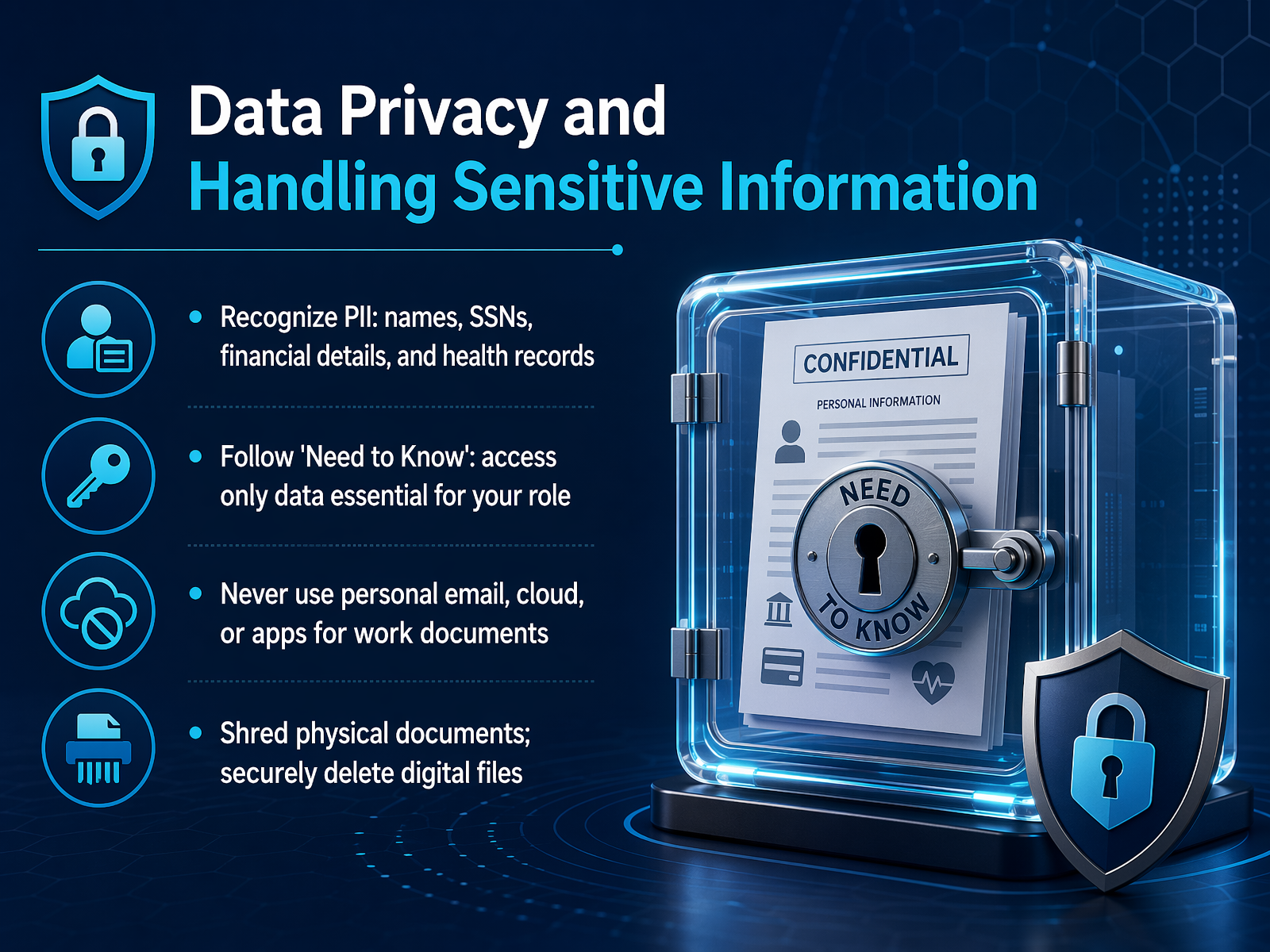
2 min - 12Data Privacy and Handling Sensitive InformationNow let's talk about handling sensitive information at work. Think about the data you see every day. It often includes names, Social Security numbers, financial details, or health records. We call this personally identifiable information, or PII. Protecting it is a core part of everyone's job. The best rule is Need to Know. Only access the data essential for your specific role. If you don't need it to do your work, don't look at it. It's that simple. Also, never use your personal email or unapproved apps for work documents. Keep everything inside our secure approved systems. When you're done with physical papers, shred them. For digital files, delete them securely using our standard tools. This prevents old data from becoming a risk. So remember, treat all work data with care. Access only what you need, and dispose of it properly. Now, let's shift to what happens when something slips through. Our next topic is: You Clicked a Bad Link—Now What?
 2 min
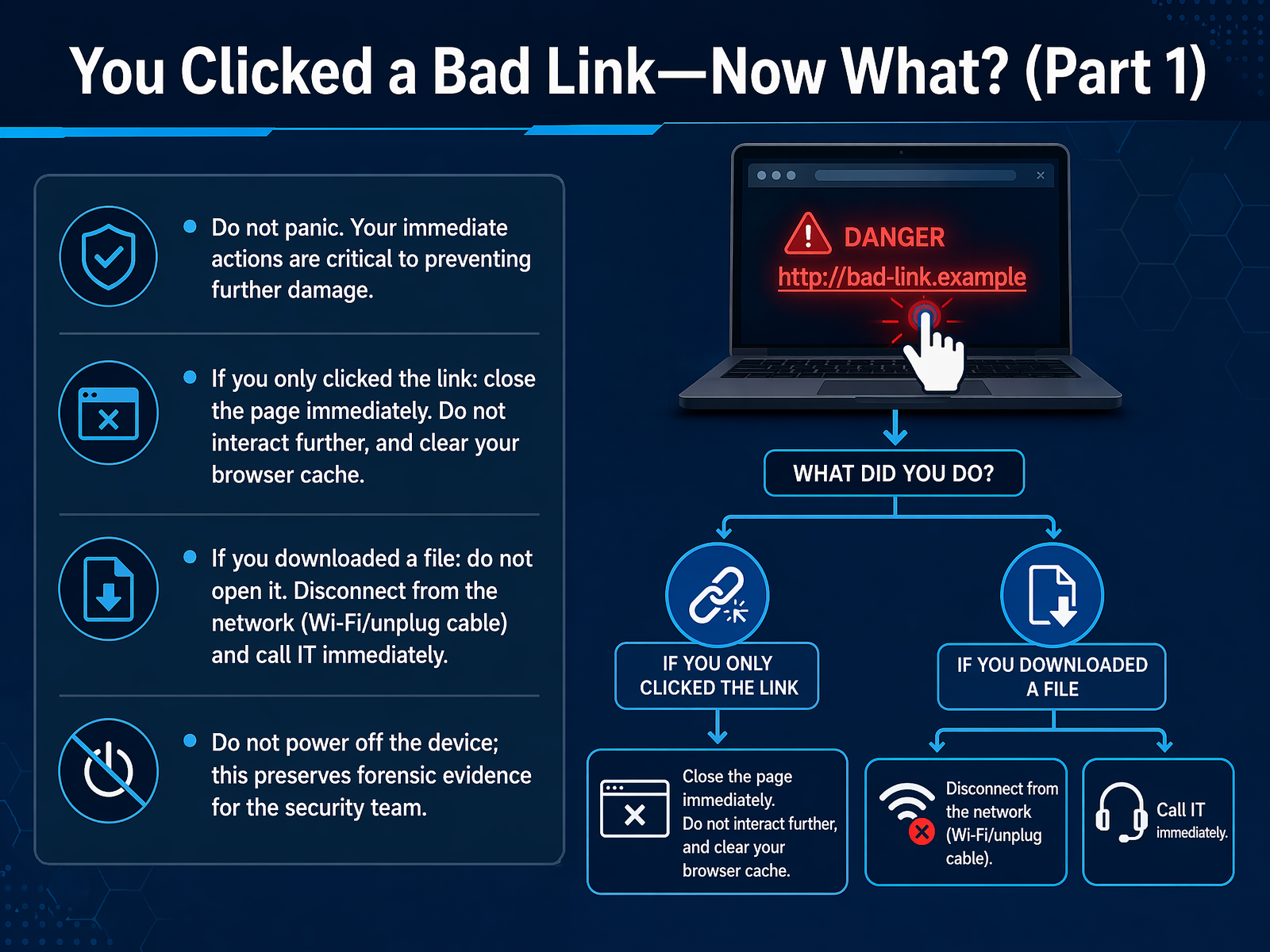
2 min - 13You Clicked a Bad Link—Now What? (Part 1)Now, let's talk about what to do if you've clicked a bad link. First, don't panic. Your immediate actions are critical to preventing further damage. Stop interacting with the page. Close the browser tab. Do not click any buttons, do not dismiss pop-ups, and do not enter any information. The page needs nothing more from you. If you downloaded an unexpected file, do not open it. Report it through your organization's approved channel and wait for guidance. Follow instructions from your IT or security team. They are trained to handle this. Do not try to clean up the device yourself. Your job is to report, not to fix. The key takeaway is simple: disconnect, report, and let the experts respond. Next, we will continue with the steps you should take to secure your accounts and devices.
 2 min
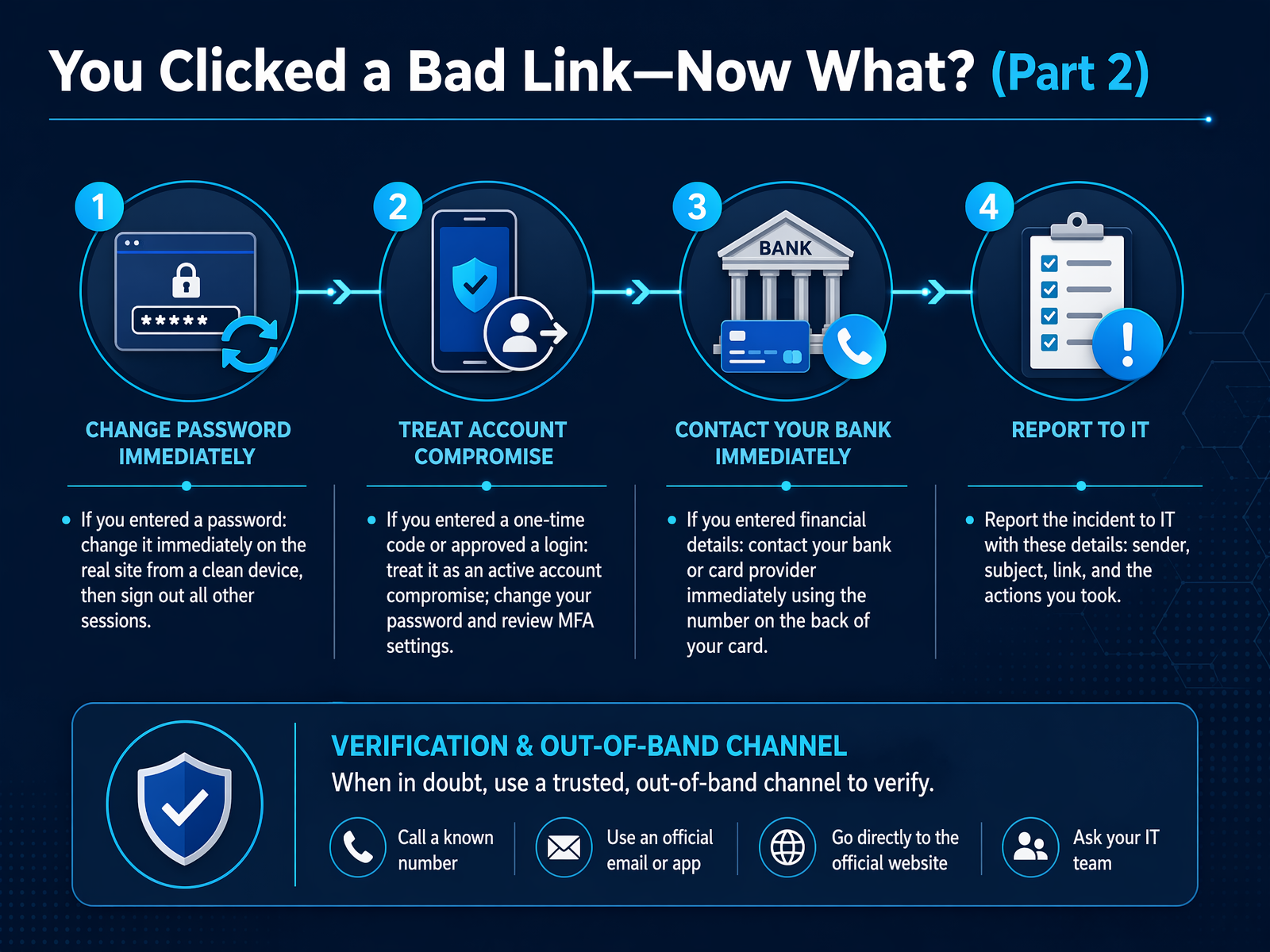
2 min - 14You Clicked a Bad Link—Now What? (Part 2)So you clicked a bad link. Now let's walk through the recovery steps together. First, do not panic. Your actions in the next few minutes are critical. Report the event immediately through your approved internal channel. Your IT team needs to know right away. Next, change any exposed passwords. Go directly to the real website and type the address yourself. Do not use the link from the suspicious message. If you reuse that password anywhere else, change it there too. Then follow your organization's account recovery process. This often includes signing out of other sessions and reviewing your security settings. For sensitive data incidents, contact the official provider directly. Use a known, trusted number. Never call a number from the suspicious page. Your best habit is to treat every minute as valuable. Report quickly. Change credentials fast. Ask for help. Taking these steps protects you and the whole team. Next, let's talk about incident reporting and why your voice is our strongest alarm.
 2 min
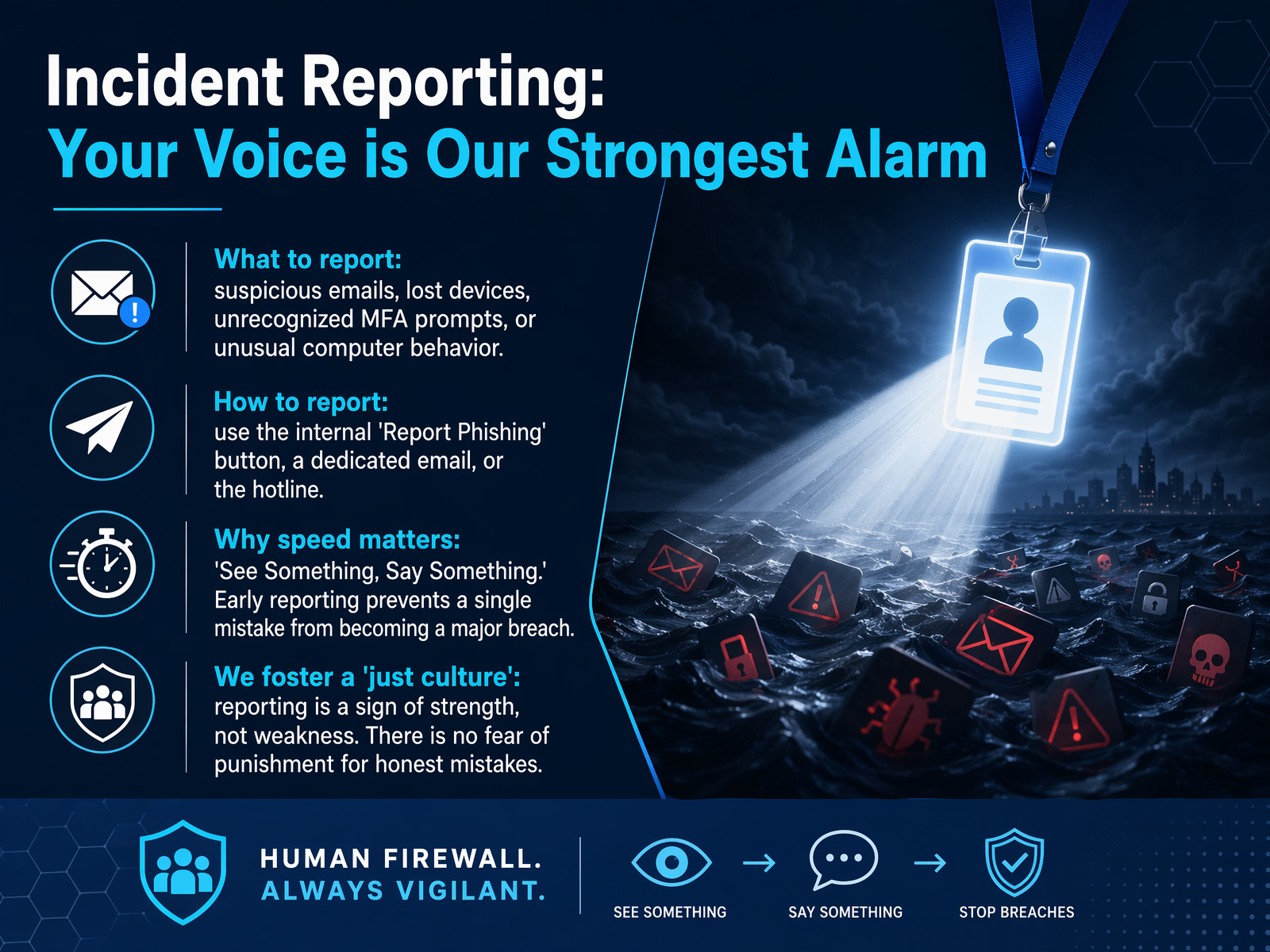
2 min - 15Incident Reporting: Your Voice is Our Strongest AlarmLet's talk about incident reporting. Your voice is truly our strongest alarm. When you notice something off, like a suspicious email, a lost device, or an unexpected multi-factor authentication prompt, report it right away. You are not causing a disruption. You are stopping a potential breach. Use the tools we have provided. That could be the Report Phishing button in your email, the I T hotline, or the dedicated security email address. In an incident, speed matters. A single click can be exploited in minutes. But a quick report from you can contain the damage before it spreads. This only works when we have a supportive culture. If you report a mistake, you will receive help, not blame. That trust encourages everyone to speak up when it counts most. Next, we will explore how to build a cybersecurity culture with daily habits.
 1 min
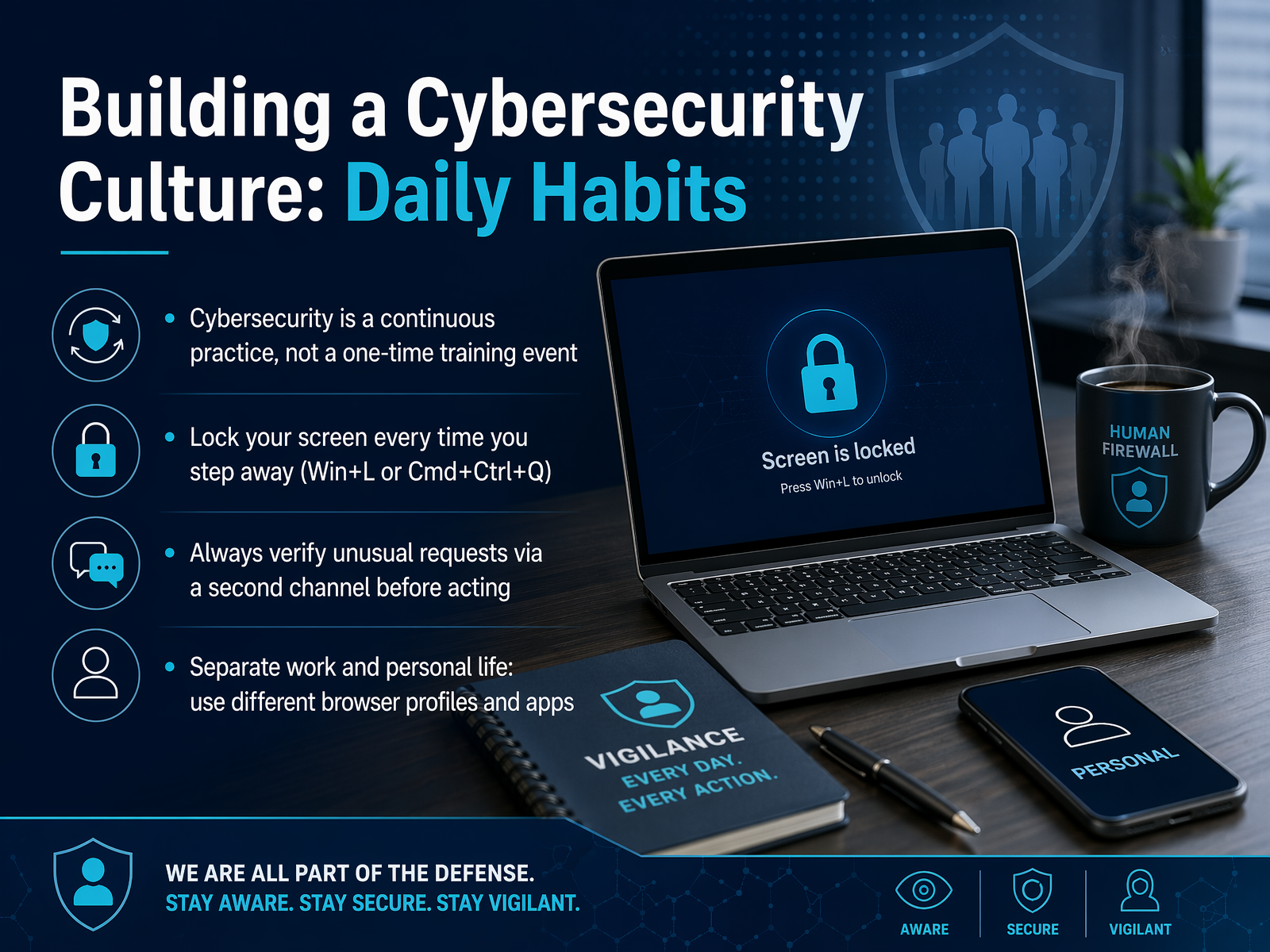
1 min - 16Building a Cybersecurity Culture: Daily HabitsLet's talk about making cybersecurity a daily habit, because it's not a one-time training event. It's a continuous practice, like locking your front door. Start with a simple one-second action. Every time you step away from your desk, lock your screen. On Windows, that's Windows key plus L. On a Mac, it's Control plus Command plus Q. Next, get comfortable with a quick pause. If you get an unusual request for money, data, or access, verify it through a second independent channel. A quick call or a separate chat message can stop a costly impersonation. Also, keep your personal life separate from your work. Use different browser profiles for work and personal tasks. This prevents tracking, risky extensions, and accidental data leaks. Finally, before you share a file, check the permissions. Avoid public links for sensitive information. Make sure you know exactly who can view or edit that document. These small, disciplined actions add up to a strong security culture. Now, let's move into a recap of the key takeaways for your daily work.
 2 min
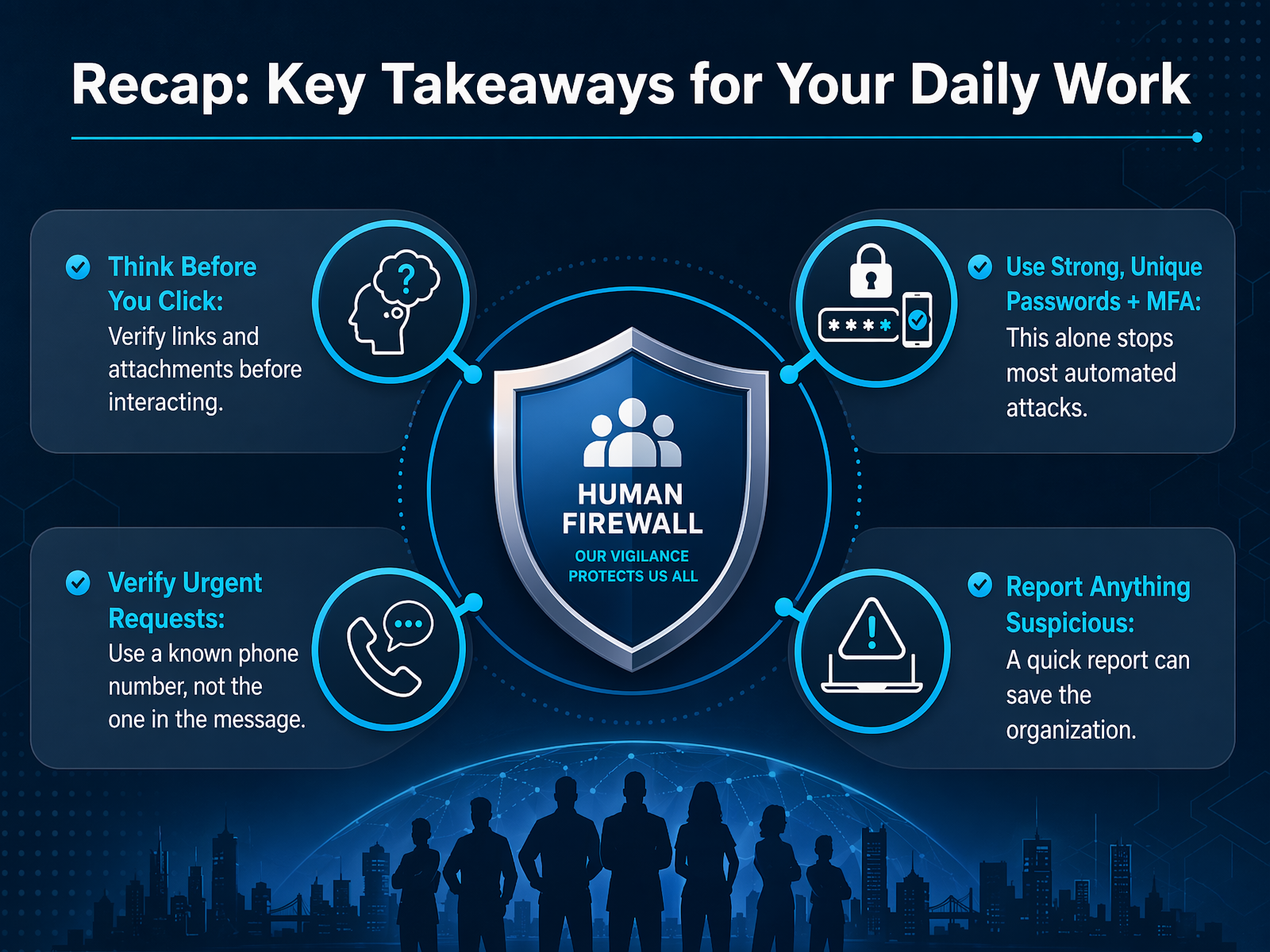
2 min - 17Recap: Key Takeaways for Your Daily WorkLet's pull together the habits that will protect you every day. First, think before you click. Always hover over links and pause before opening attachments. Second, use strong, unique passwords and turn on multi-factor authentication for every account. Third, treat urgent requests with caution. Verify them through a known phone number, not the one in the message. Finally, report anything suspicious immediately. You are the first line of defense. Next, we will put these skills to the test with a knowledge check on phishing and social engineering.
 1 min
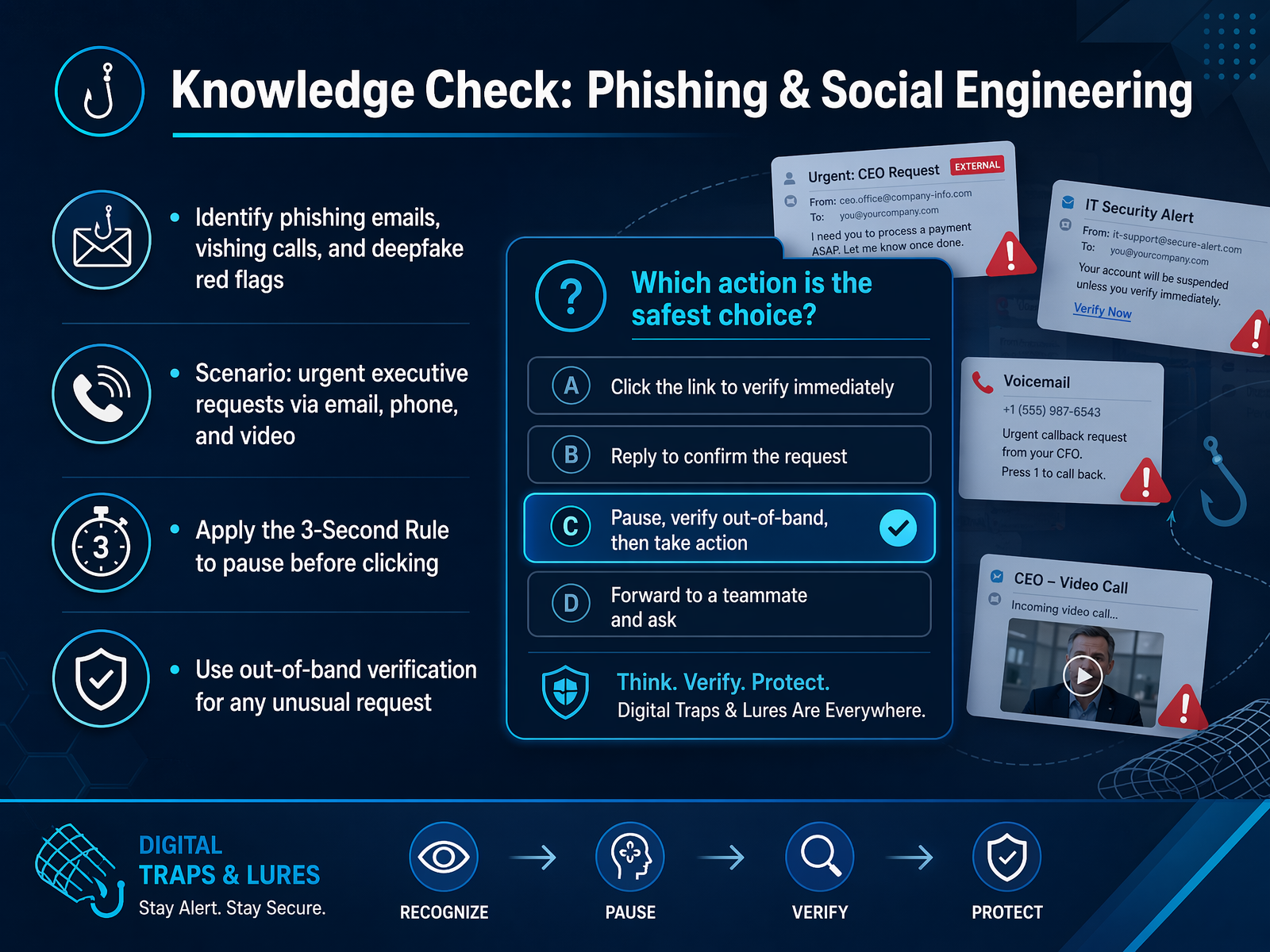
1 min - 18Knowledge Check: Phishing & Social EngineeringNow let's test what you've learned about phishing and social engineering. You might spot a red flag in an email, but what about a voice call or a video meeting? Threat actors use all three channels. Look for the same pressure tactics, like urgent requests or requests to bypass normal procedures. If an executive sends a sudden message asking for gift cards, pause. Do not reply immediately. Use the Three-Second Rule. Take three seconds to check the sender's actual address, hover over links, and ask yourself if this feels normal. The best verification is out-of-band. That means using a different channel. If you get a suspicious email, verify by phone or a secure messaging app. Never use the contact details inside the suspicious message. A simple, separate check shuts down most social engineering attacks. Next, we'll move to a knowledge check on passwords, multi-factor authentication, and device security.
 1 min
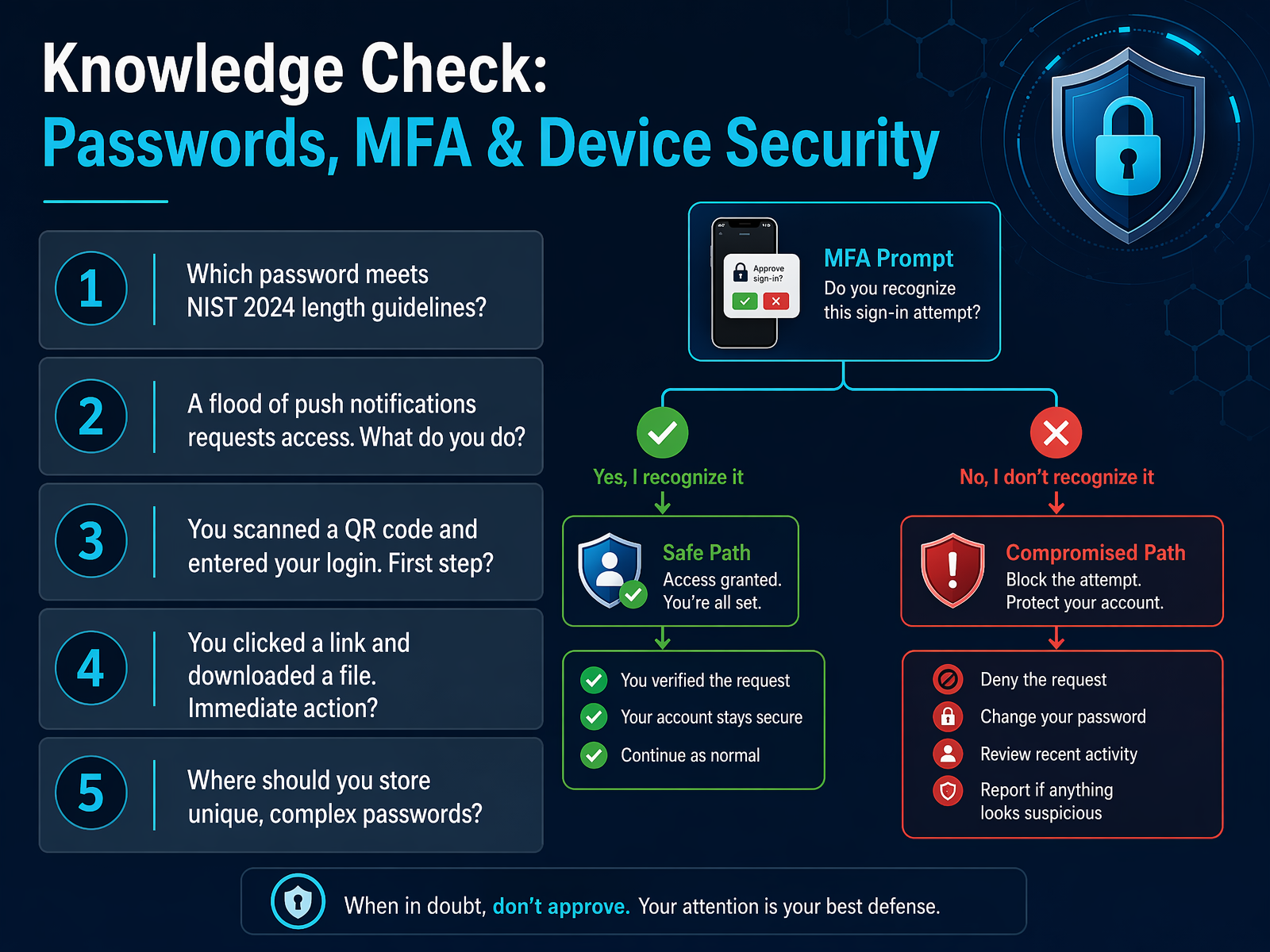
1 min - 19Knowledge Check: Passwords, MFA & Device SecurityNow, let's test a few everyday habits around passwords, multi-factor authentication, and device security. First, password strength. Think passphrase, not just a password. A short, random sequence is hard to remember. But a longer phrase like "MorningCoffeeTastesBright" is both strong and personal to you. Length is your best defense. For MFA, picture this. Your phone buzzes with an approval request you didn't start. That could be an MFA fatigue attack. An attacker is hoping you'll just tap "approve" to stop the noise. The right response is simple: deny it. Never approve a login you didn't initiate. What if you already clicked a suspicious link or approved a strange prompt? Don't panic. Disconnect from the network immediately. Then, report it to your IT support team right away. Fast action contains the damage. Finally, treat QR codes and mobile devices with the same caution you use for email. Only scan codes from trusted sources. Keep your work apps updated. Use your company VPN for remote work. These small steps build a secure bubble around your daily work. The takeaway is this: pause and verify before you tap, click, or scan. Next up, we'll apply this thinking to a real scenario: verify an unexpected support call.
 2 min
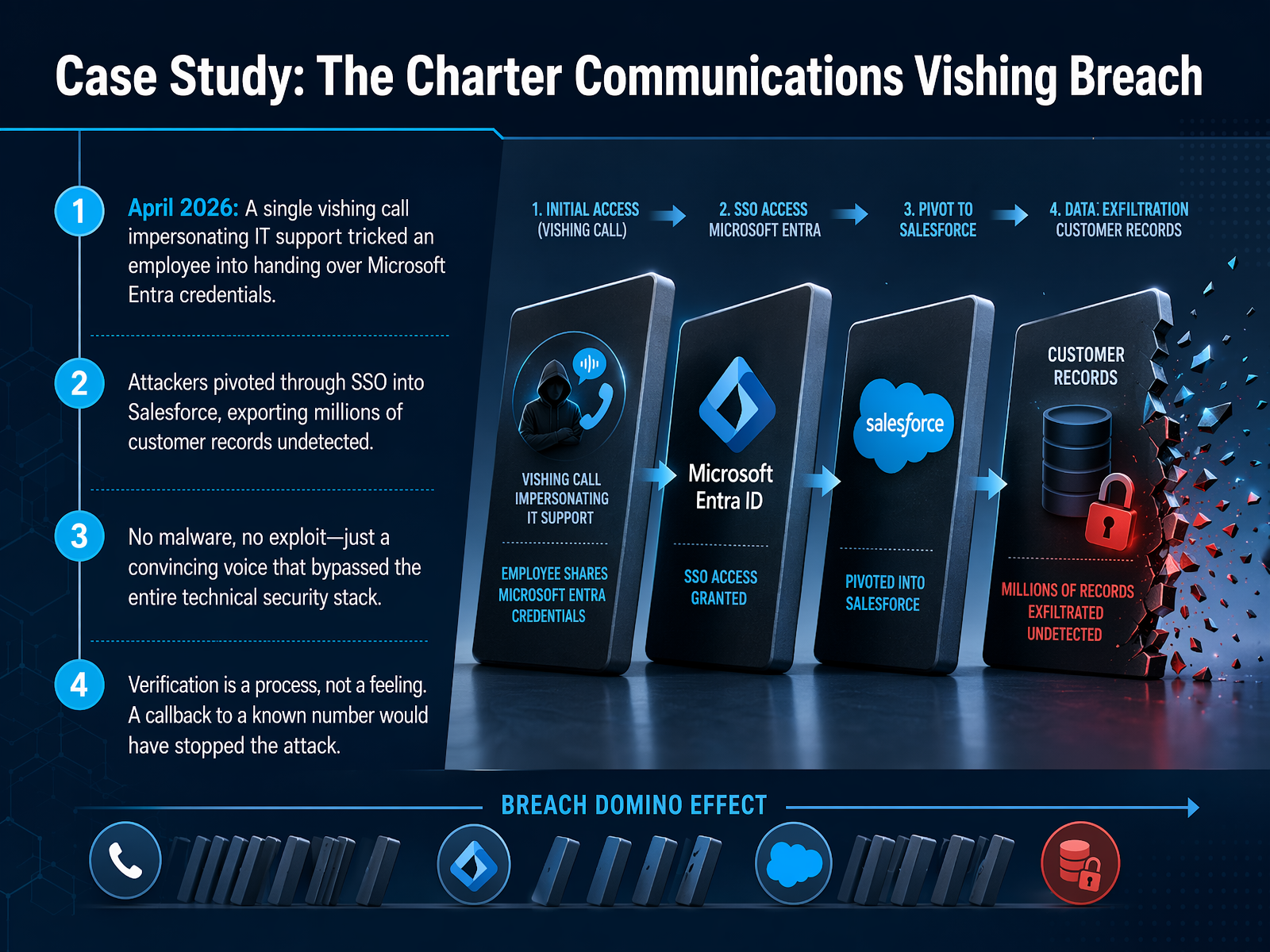
2 min - 20Scenario: Verify an Unexpected Support CallScenario: an unexpected caller claims to be support and asks for credentials or approval. Pause. Do not share information. End the call and contact support through a known, approved channel. Follow your organization verification process for unusual requests.
 verizon.comipwhois.netacilearning.com+22 min
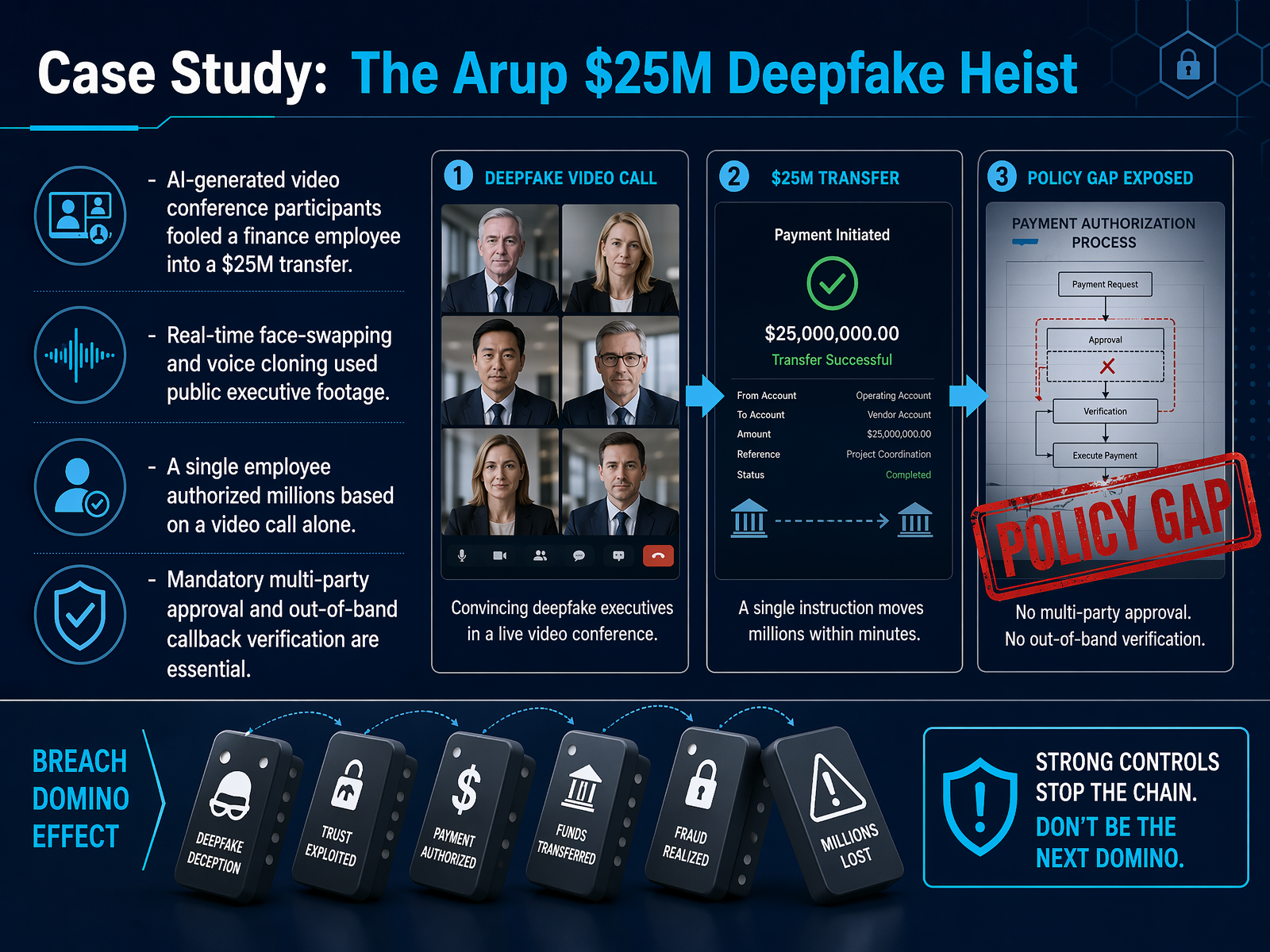
 - 21Scenario: Verify a Sensitive Request on VideoScenario: a video call requests urgent action involving money or sensitive data. Follow the documented approval steps. Do not let urgency override required checks. Verify through an independent, approved channel and escalate concerns through your organization process.
 mcafee.comadaptivesecurity.comlyrie.ai+21 min
 - 22Scenario: Treat QR Codes as LinksTreat an unexpected QR code as a link that requires verification. Confirm the source, destination, and business purpose before using it for work. Do not investigate a suspicious code yourself; report it through the approved channel.
 2 min
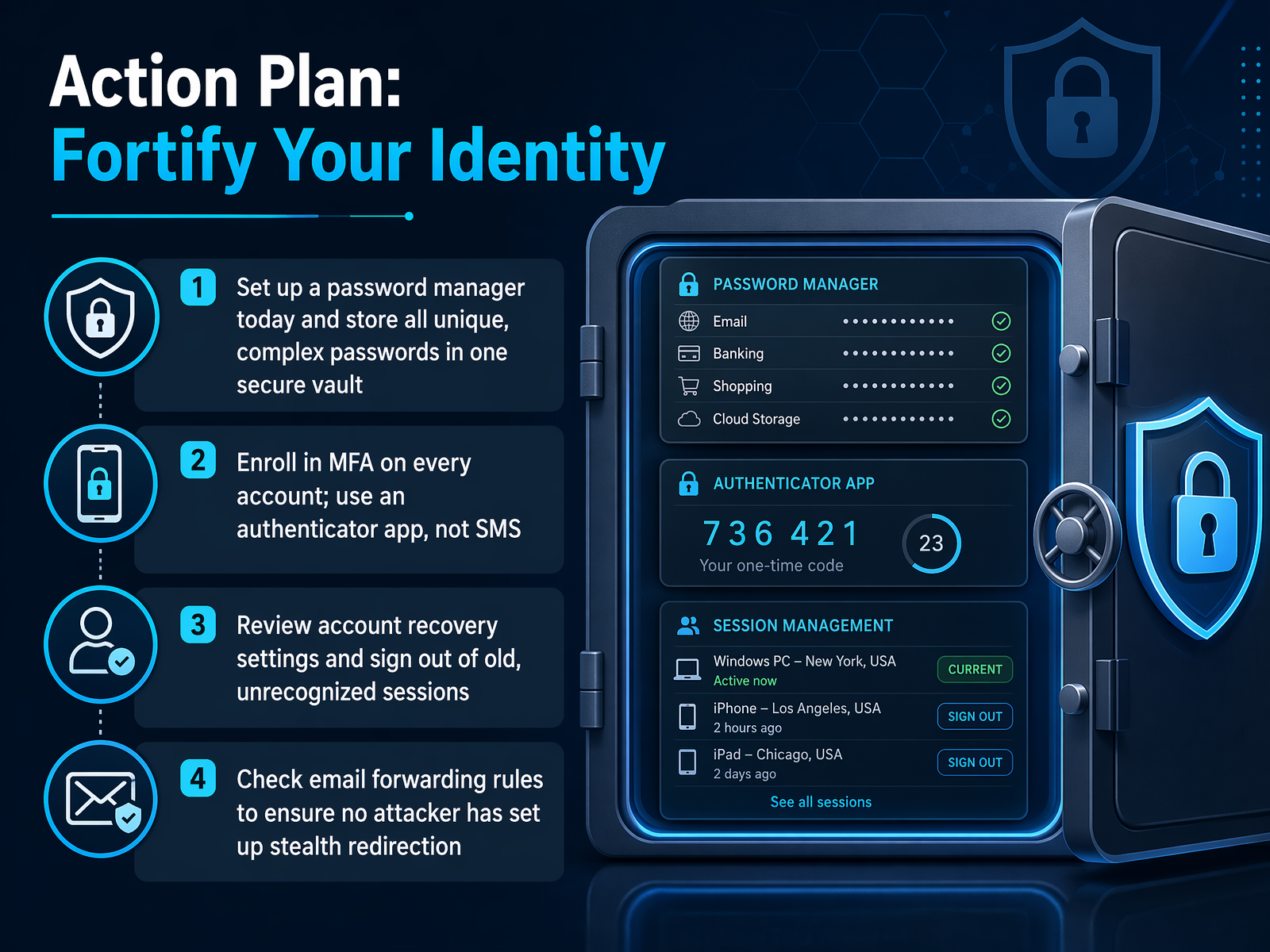
2 min - 23Action Plan: Fortify Your IdentityNow let's talk about how you can fortify your identity every day. Think of your work identity as a key. You wouldn't hand your key to a stranger, and you shouldn't let a cyber attacker use yours either. First, use only organization-approved tools and identity practices for your work accounts. This means sticking to your single sign-on portal and the password manager the company provides. Second, enable and maintain the approved authentication protections on all your systems. If your organization offers number matching or an authenticator app, use it. These methods require you to enter a code, which stops attackers from wearing you down with a flood of push notifications. Third, only review your account settings through trusted applications and official guidance. Don't click a link in a random email to check your security info. And finally, if you see an unexpected account change, message, or multi-factor authentication prompt, report it immediately. That prompt you didn't initiate is a warning sign, not a glitch. Being fast to report protects not just your account, but everyone else's too. Next, we'll focus on how to secure your devices and workspace.
 1 min
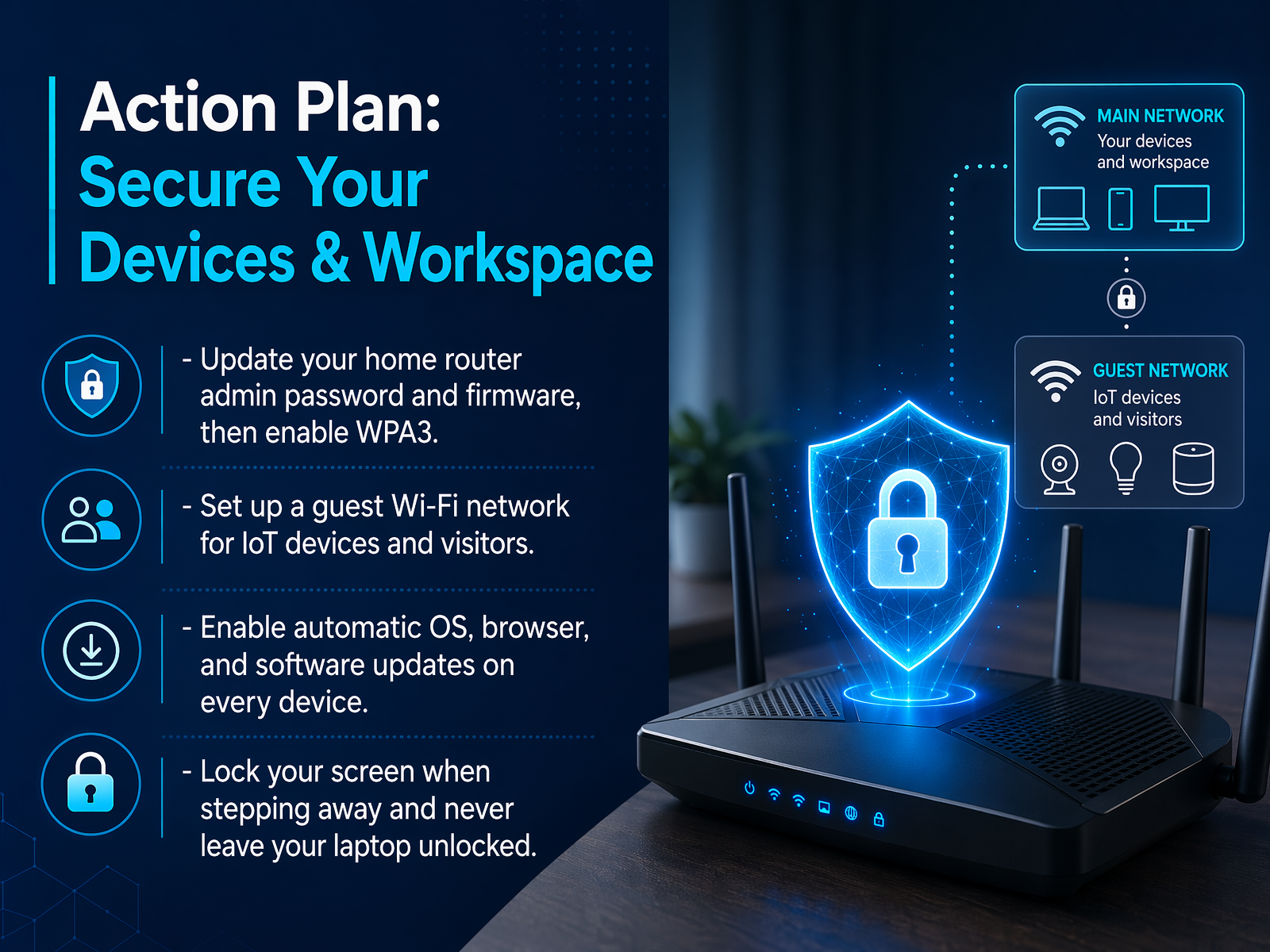
1 min - 24Action Plan: Secure Your Devices & WorkspaceLet's talk about the devices and workspace you use every day. Think of your computer as your digital office. Keeping your operating system, apps, and browsers updated with automatic patches is like fixing a broken lock before someone tries the door. Full-disk encryption and screen locks protect data if a device is lost or stolen. Your company may also run endpoint detection and response, or EDR, which watches for suspicious behavior in real time. When you work from a cafe, hotel, or airport, always use a VPN or an approved method to encrypt your connection. At home, separate work and personal profiles with distinct browsers and user accounts. This keeps risky extensions and casual downloads away from company data. Finally, adopt a clean desk policy. Physically lock your device and store sensitive documents out of sight when you step away. These small habits make your workspace a harder target. Now, let's move to the next step: the Action Plan for mastering the verification protocol.
 1 min
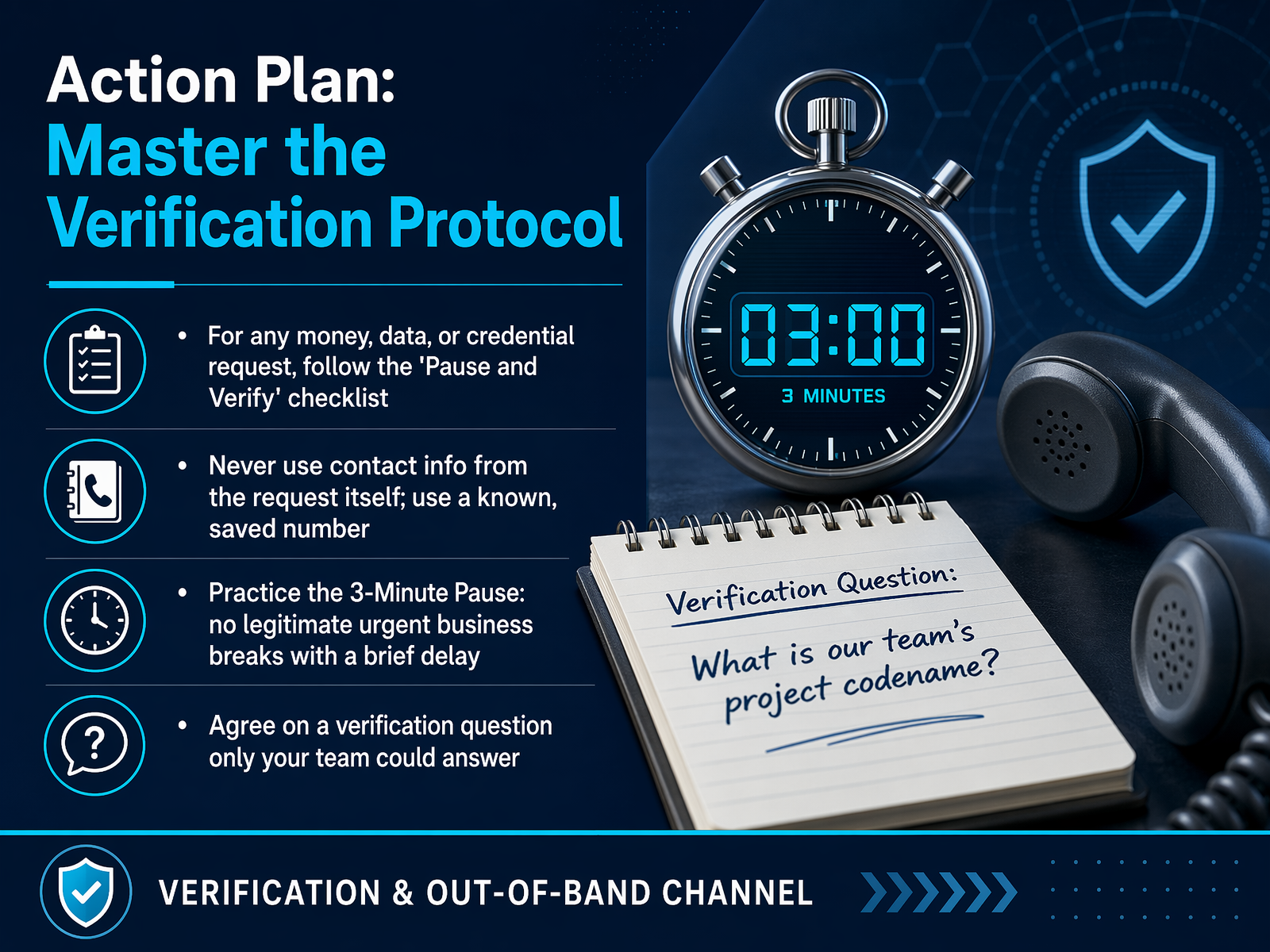
1 min - 25Action Plan: Master the Verification ProtocolWhen a sensitive request arrives, pause and use the documented process. Do not use contact details supplied by the request itself. Verify through a known directory or approved channel. If you feel rushed, slow down and escalate using the organization process.
 mcafee.comadaptivesecurity.comlyrie.ai+22 min
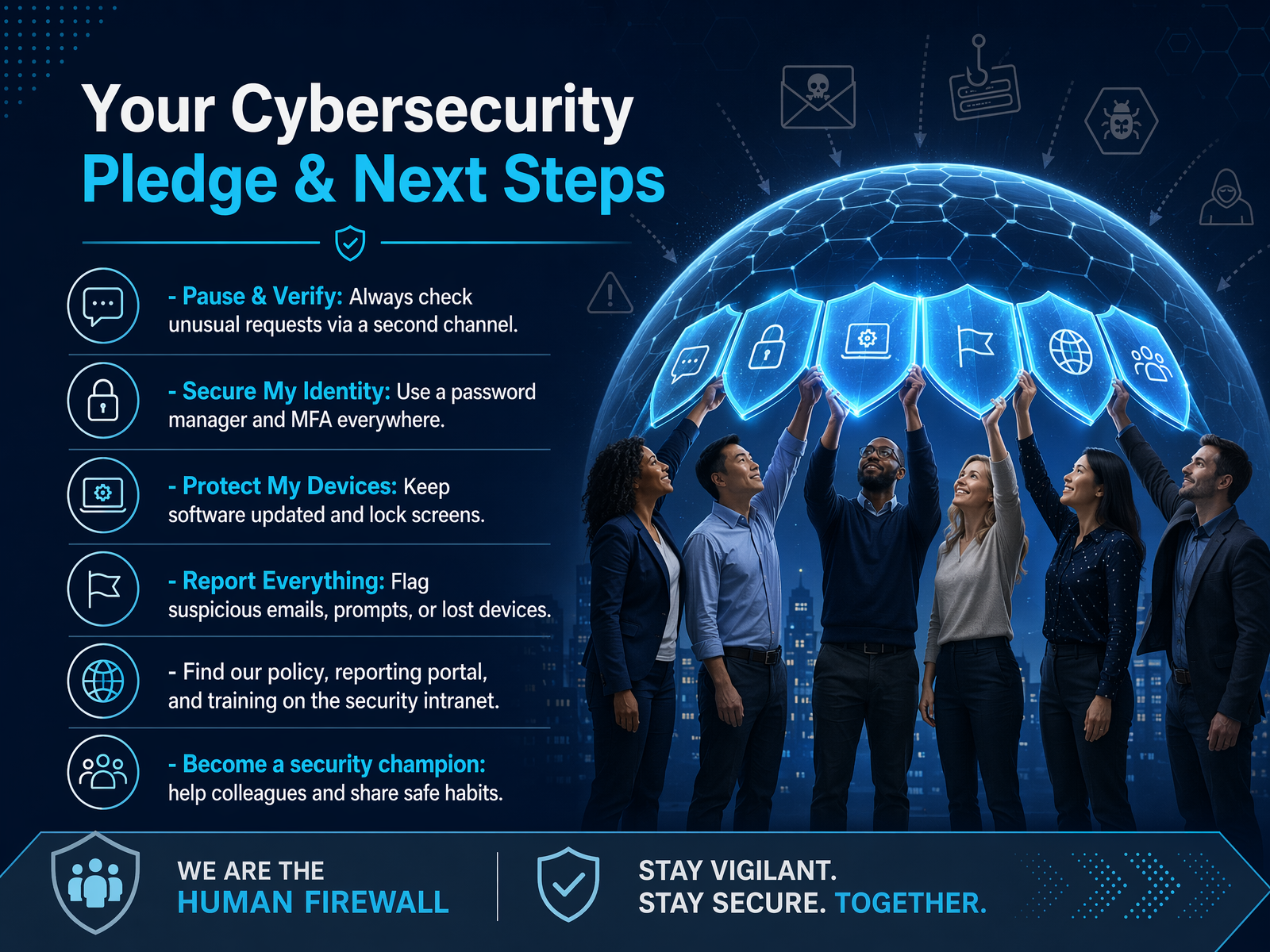
 - 26Your Cybersecurity Pledge & Next StepsYou've reached the final step of this training. Let's turn awareness into a daily habit. Your personal pledge is simple. Pause before you click. Verify any unexpected request. Protect sensitive information. Report anything that feels off immediately. Make these four actions part of your routine. For policies, always use our official internal channels. That's where you'll find the most current guidance. If you learn a helpful security tip, share it with a colleague. A quick conversation strengthens everyone's defense. Remember, security doesn't rest on one department. It's a shared responsibility. Every employee is a vital part of our protection. Thank you for your time and your commitment. Stay sharp, stay safe, and thank you for being our strongest link.
 1 min
1 min
Take the deck with you
Download this course as a file — free, no sign-up needed.
- PDF handoutEvery slide page, ready to print or share.27 pages · 7.9 MBDownload
- Narrated PowerPointThe deck that presents itself — every slide carries the digital human's narration video.27 pages · 23.0 MBDownload
- PowerPoint slidesThe full deck as a .pptx — open it in PowerPoint, Keynote, or Google Slides.27 pages · 7.7 MBDownload
Free to use in your own training — please keep the PersonWise credit page at the end.
Have your own deck? Turn it into a course
Sources consulted
Web sources consulted while building this course.
- 2026 Verizon DBIR: Breakthroughs in vulnerabilities, AI-assisted cyber attacks and social engineering — verizon.com
- How One Phone Call Cost Charter Spectrum 42 Million Customer Records | IPWhois Blog — ipwhois.net
- The biggest cyber breaches of 2026 so far — acilearning.com
- 2026 Data Breaches: Cybersecurity Incidents - PKWARE® — pkware.com
- Anatomy of a Preventable Breach — Coupang, Inc. | by Deep Specter Research | Jun, 2026 | Medium — reporter.deepspecter.com
- Old file types, new tricks: Attackers turn everyday files into weapons - Help Net Security — helpnetsecurity.com
- The 8 Most Dangerous File Types for Malware Infections - Security Boulevard — securityboulevard.com
- 5 of the Riskiest File Types and How to Mitigate Them — paloaltonetworks.com
- Threat — web-assets.esetstatic.com
- The Hidden Danger In Your Inbox: Malicious Email Attachments — cytranet.com
- How to Spot AI‑Generated Phishing Emails in 2025 (With Examples) — security.guru
- How to Detect AI Phishing: A Practitioner Checklist — topaithreats.com
- Detecting AI-Generated Phishing Emails - Enginerds — enginerds.com
- The Complete Guide to Spotting AI-Generated Phishing Attacks in 2025 | Brightside AI Blog — brside.com
- AI in Phishing — How Attackers Use LLMs to Craft Undetectable Scams – TECHMANIACS.com — techmaniacs.com
- How Scammers Used Deepfake to Defraud a Company of Millions | McAfee Blog — mcafee.com
- 11 Deepfake Attack Examples: Real-World AI Fraud Cases — adaptivesecurity.com
- The Synthetic CEO: How AI Voice Cloning and Deepfake Video Have Industrialized Business Email Compromise | Lyrie Research | Lyrie Research — lyrie.ai
- https://www.bitdefender.com/en-us/blog/hotforsecurity/deepfake-boss-scam-ceo-impersonation-bec — bitdefender.com
- Capillary Technologies Discloses €3 Million Deepfake Banking Fraud at Overseas Subsidiary - Entrepreneur News Network — entrepreneurnewsnetwork.com