Begin
14 pages · ~28 min
UI Design and Vector Editing Software
This training introduces UI design and vector editing software, helping participants create and edit vector graphics for user interface design projects.
A digital instructor presents all 14 pages. Hold “Ask” at any point and ask out loud — the answer comes from this course. No sign-up needed.
What you’ll learn
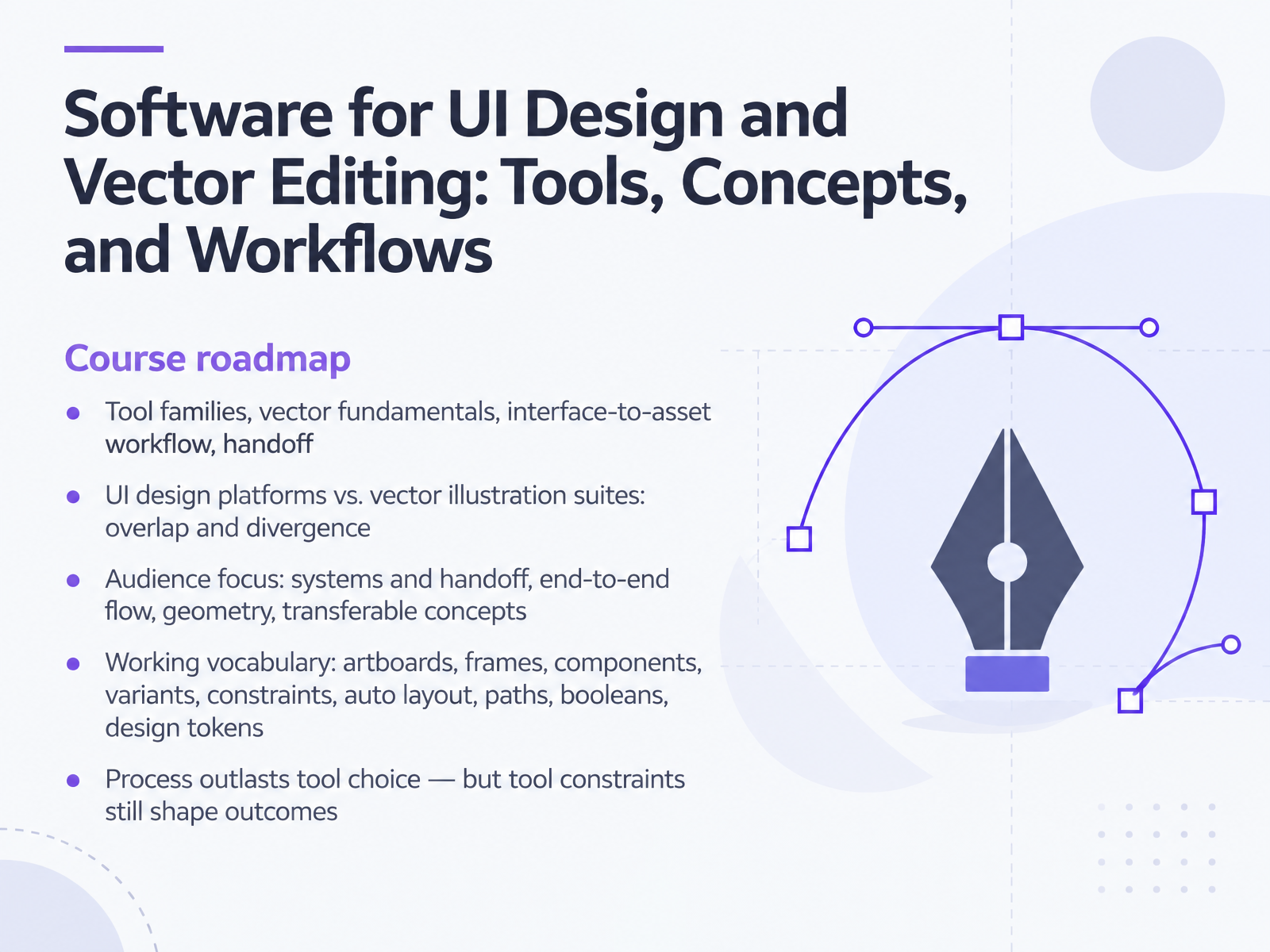
- 01Software for UI Design and Vector Editing: Tools, Concepts, and WorkflowsWelcome. In this course, we'll look at software for UI design and vector editing, focusing on tools, concepts, and workflows you can actually use. Here's our roadmap. First, we cover tool families, vector fundamentals, the interface-to-asset workflow, and handoff. Second, we compare UI design platforms with vector illustration suites, and where they overlap and diverge. Your focus depends on your role: systems and handoff for UI designers, end-to-end flow for product designers, geometry for vector beginners, and transferable concepts for teachers. Third, we build a working vocabulary: artboards, frames, components, variants, constraints, auto layout, paths, booleans, and design tokens. We'll define each term plainly the first time it appears. One important idea: process outlasts tool choice, but tool constraints still shape outcomes. As you watch, keep one practical question in mind: what does this tool let your team do, and what does it quietly prevent? Now, let's start with background: from desktop vector editors to browser-based design.artofstyleframe.comstartupik.combrandeploy.io+22 min
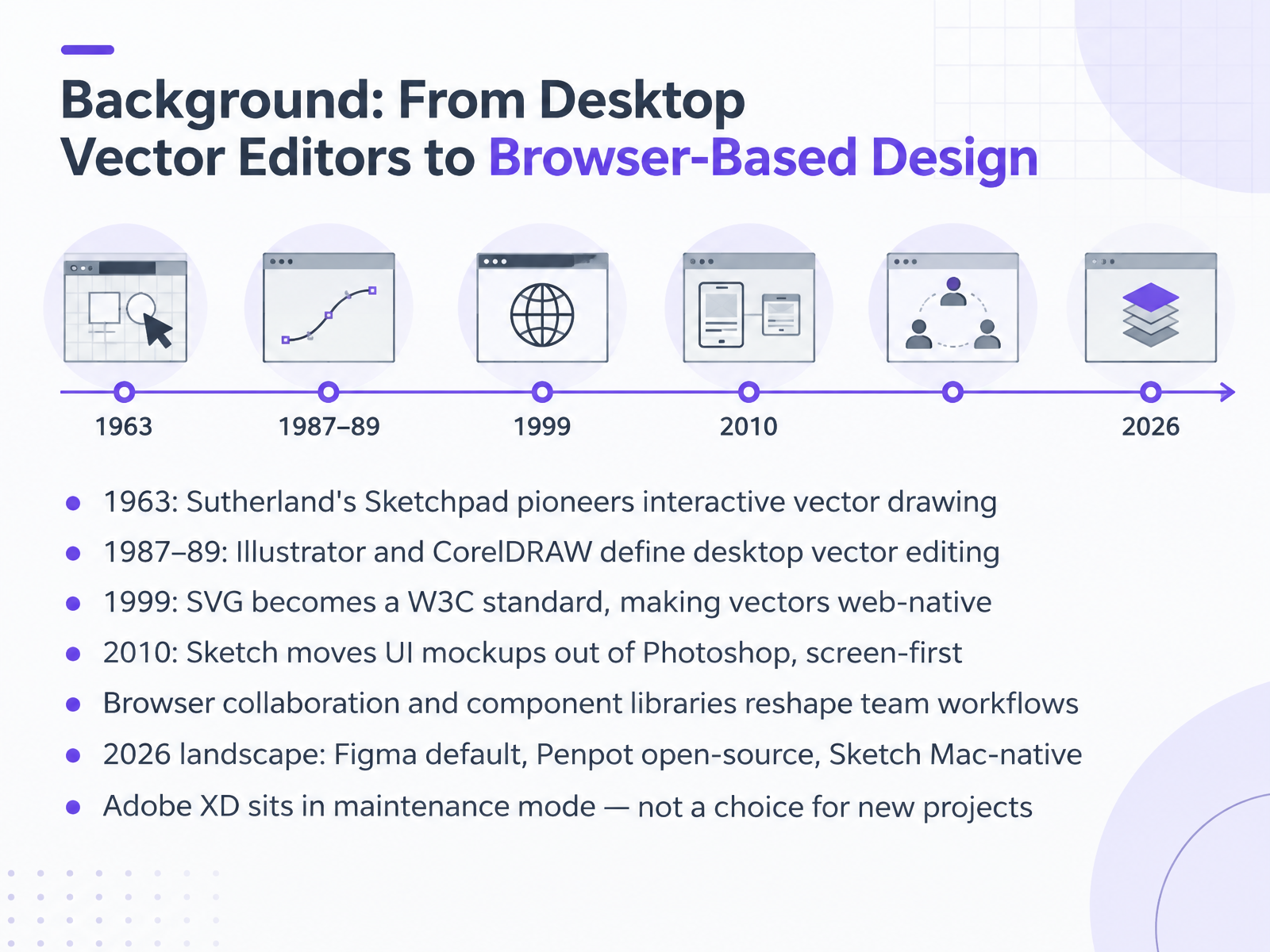
- 02Background: From Desktop Vector Editors to Browser-Based DesignBefore we open any tool, here is the background. In nineteen sixty-three, Ivan Sutherland's Sketchpad introduced interactive vector drawing on a computer. In the late eighties, Illustrator and CorelDRAW defined desktop vector editing. In nineteen ninety-nine, SVG became a W3C standard, making vectors web-native. Then in twenty ten, Sketch moved UI mockups out of Photoshop and made them screen-first. Browser collaboration and component libraries changed team workflows again. Today the landscape is Figma as the default, Penpot as the open-source and self-hostable option, and Sketch as Mac-native. Adobe XD is in maintenance mode, so it is not a choice for new projects. How did bitmap editing work for you before you moved to vectors? Next, we look at the core concepts, vector geometry, and interface models.
 link.springer.comimages.designworldonline.com.s3.amazonaws.comdoi.org+22 min
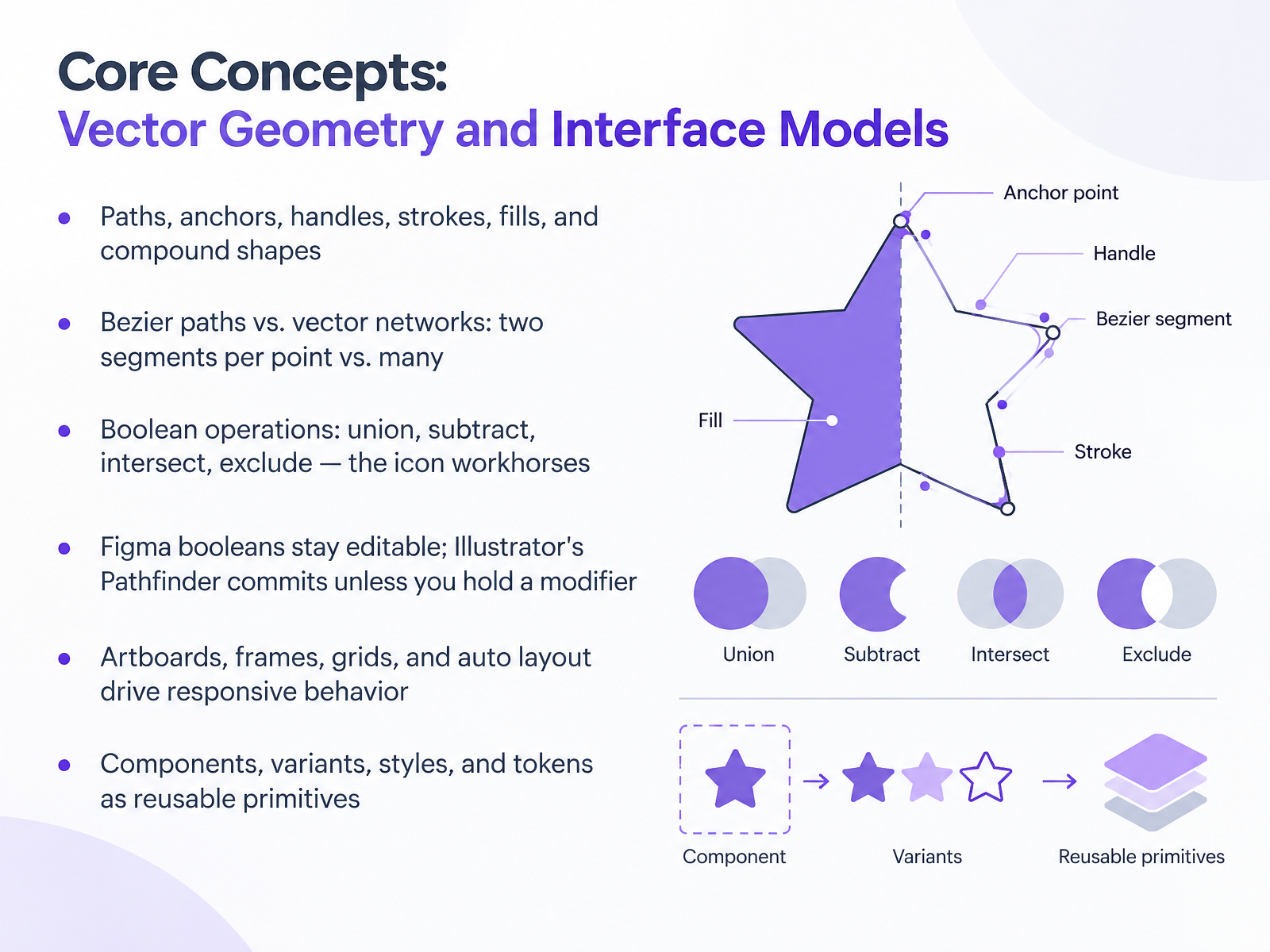
- 03Core Concepts: Vector Geometry and Interface ModelsLet's move on to the geometry behind everything you draw. A vector shape is built from paths, anchors, handles, strokes, and fills, and compound shapes combine several of these into one object. Anchors are the points on a path. Handles are the control arms that shape the curve between them. Now two path models. Classic Bezier paths, as in Illustrator, join at most two segments per point. Figma uses vector networks, where one point can connect to many segments, which suits icon junctions. Next, the boolean workhorses: union, subtract, intersect, and exclude. Unions merge outlines, subtract cuts one shape from another, intersect keeps only the overlap, and exclude removes it. Here is the practical difference. In Figma, booleans stay editable as a group until you flatten them. In Illustrator, Pathfinder commits by default, so hold the modifier key if you want an editable compound shape. Artboards, frames, grids, and auto layout drive responsive behavior. Components, variants, styles, and tokens keep those primitives reusable. One tip: build icons as editable boolean groups, not flattened paths, so you can still adjust spacing later. That foundation prepares us to compare tool families and selection criteria.
 help.figma.comhelp.figma.comaistockmedia.com+22 min
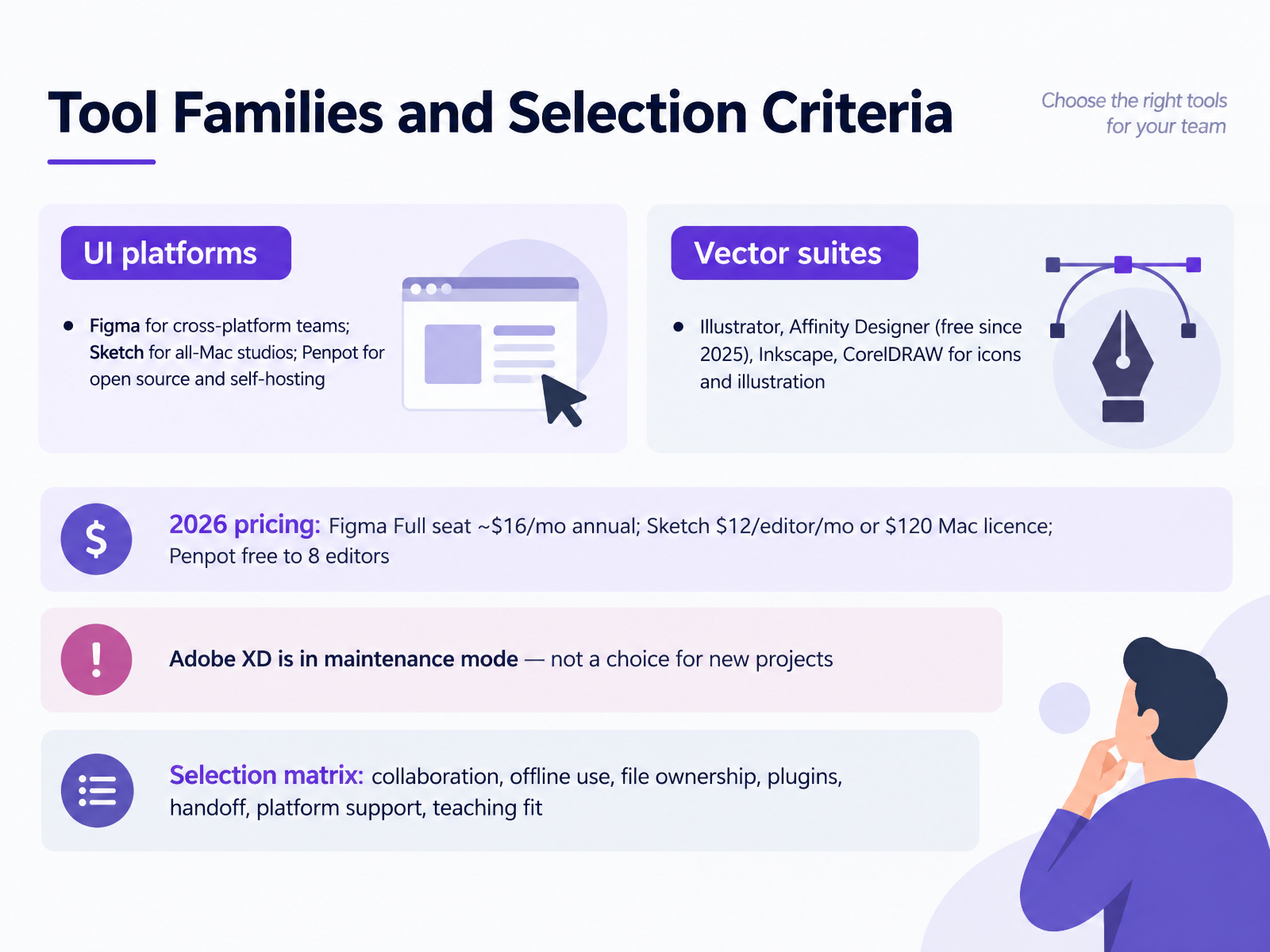
- 04Tool Families and Selection CriteriaNow let's group the tools into families and choose between them deliberately. For UI platforms, Figma is the default for cross-platform teams, with strong real-time collaboration and a large plugin ecosystem. Sketch suits all-Mac studios that value native performance and offline work. Penpot fits open-source and self-hosting needs. In vector suites, Illustrator, Affinity Designer, Inkscape, and CorelDRAW serve icon and illustration work. Note that Affinity has been free since twenty twenty-five. On twenty twenty-six pricing: a Figma Full seat is about sixteen dollars a month on annual billing. Sketch is twelve dollars per editor per month, or a one hundred twenty dollar Mac licence. Penpot is free for up to eight editors. One warning: Adobe XD is in maintenance mode, so it is not a choice for new projects. To decide, run a selection matrix through collaboration, offline use, file ownership, plugins, handoff, platform support, and teaching fit. Score each tool against your real constraints before committing. Next, we move into the design workflow itself: UI Design Workflow, From Wireframe to Developer Handoff.
 artofstyleframe.comstartupik.combrandeploy.io+21 min
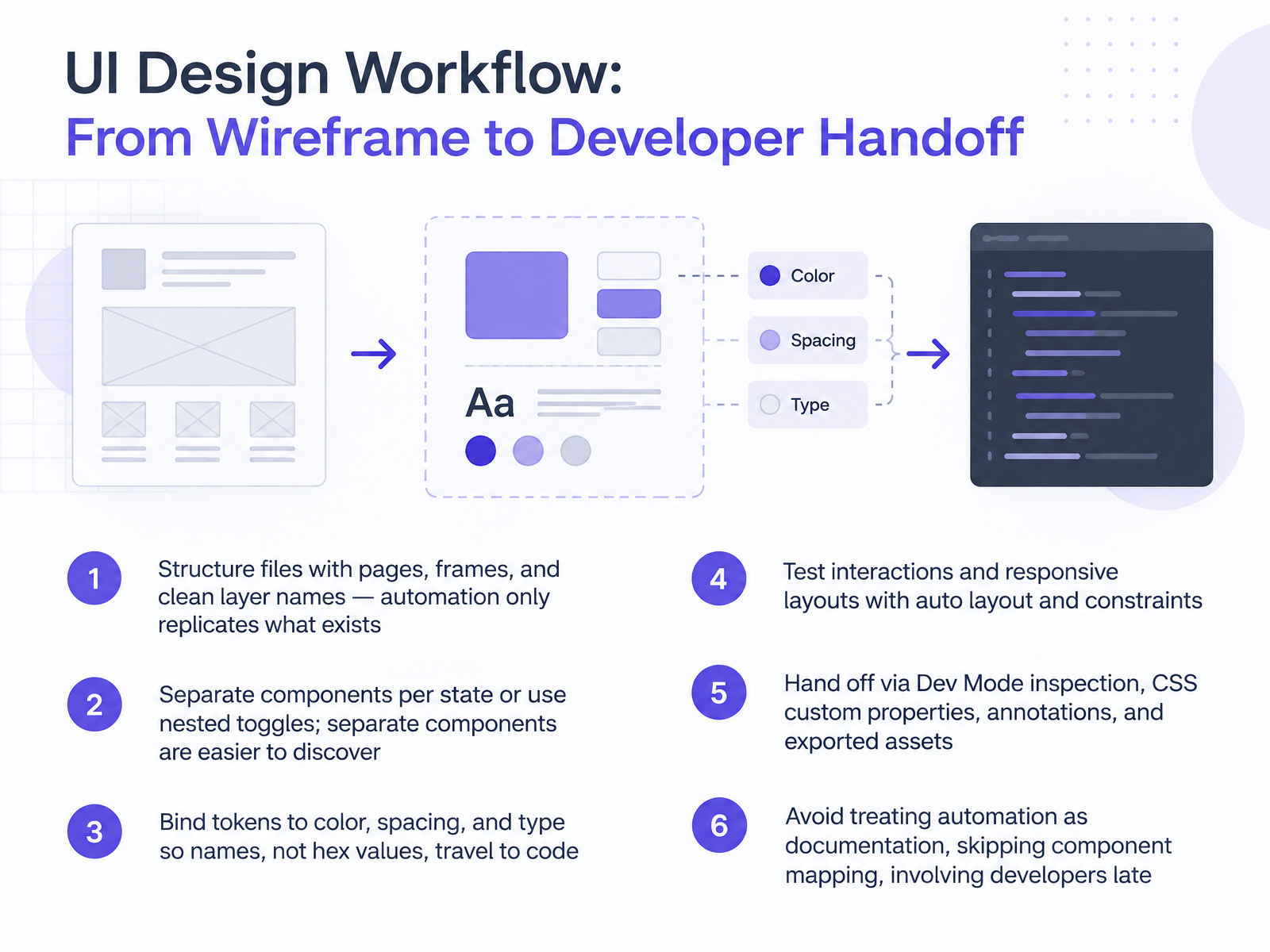
- 05UI Design Workflow: From Wireframe to Developer HandoffNext, let's walk through a UI design workflow from wireframe to developer handoff. Start with structure. Organize pages and frames and rename layers clearly, because automation only replicates what already exists in the file. For components, create separate components for each state, or use nested toggles when you need compactness. Separate components are easier to discover in the assets panel. Bind design tokens to color, spacing, and type. When a developer inspects a layer, they see a token name like --color-action-primary, not a raw hex value. Then test interactions and responsive behavior with auto layout and constraints before handoff. Share through Dev Mode inspection, CSS custom properties, annotations, and exported assets. A practical tip: walk a developer through the file early. Three mistakes to avoid are treating automation as documentation, skipping component mapping, and bringing developers in late. Now let's move on to vector editing for icons, illustrations, and brand assets.
 figma.comfigma.comfigma.com+21 min
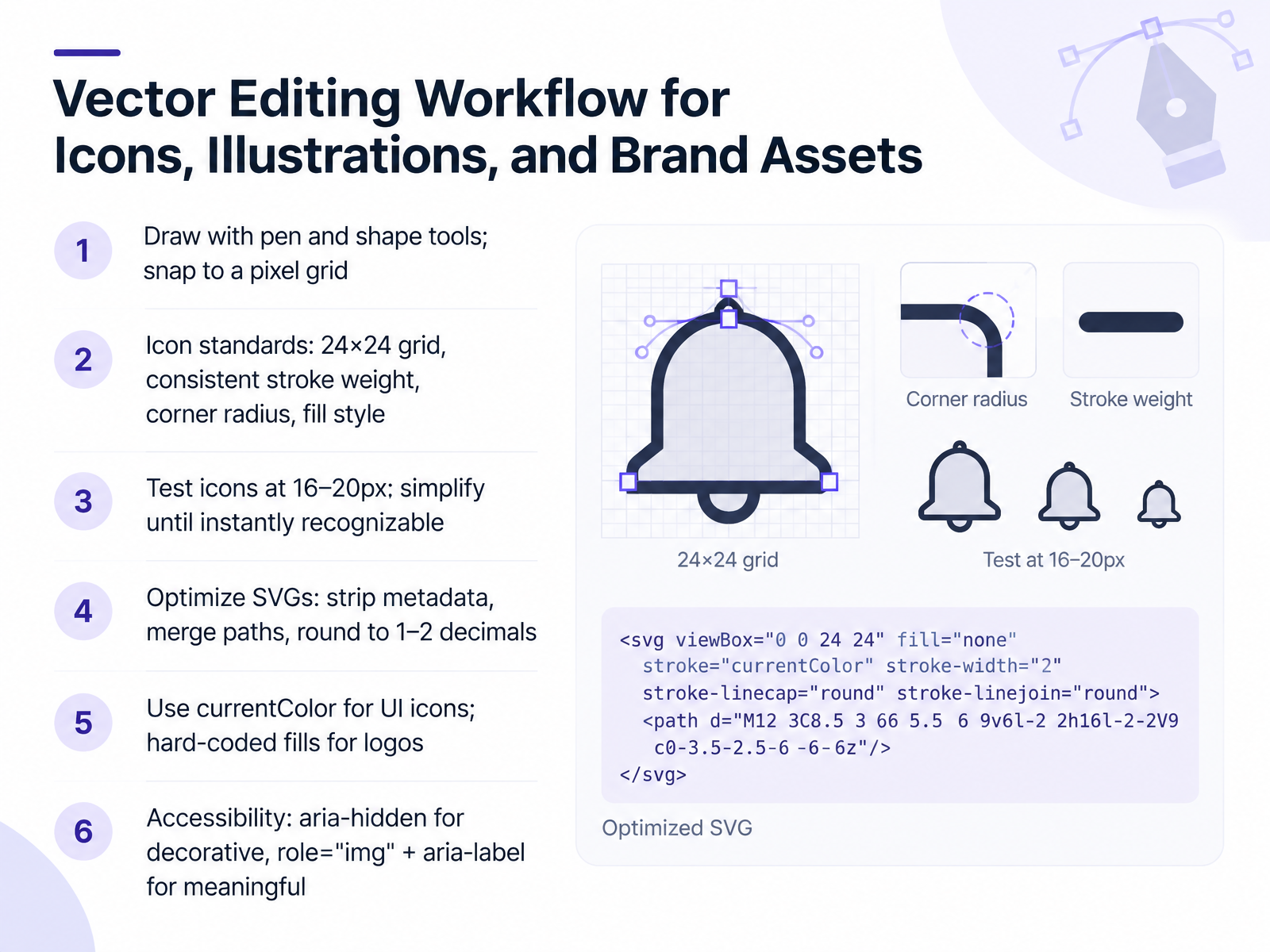
- 06Vector Editing Workflow for Icons, Illustrations, and Brand AssetsNow let's look at a practical vector editing workflow. Start by drawing with the pen and shape tools, and snap points to a pixel grid. Vectors are smooth, but screens are pixel-based. Aligning to whole pixels keeps edges crisp at twenty-four pixels instead of soft from anti-aliasing. For icons, work on a twenty-four by twenty-four grid, and keep stroke weight, corner radius, and fill style consistent across the whole set. Then test each icon at sixteen to twenty pixels. If you have to squint, simplify. Remove fine detail and enlarge the distinctive shape until it reads instantly. After export, optimize the SVG. Strip metadata, merge paths that share the same style, and round coordinates to one or two decimals. That often cuts file size by thirty to sixty percent with no visible change. For interface icons, use currentColor so they inherit text color. For logos, keep hard-coded fills, because the color is part of the brand. Finally, handle accessibility. Add aria-hidden to decorative icons that sit beside a text label. For meaningful icons, use role equals img with a clear aria-label. One tip: always keep your unoptimized master file, and compare the optimized version at small, layout, and large sizes before shipping. Next, we move on to Collaboration, Version Control, and Design System Governance.
 2 min
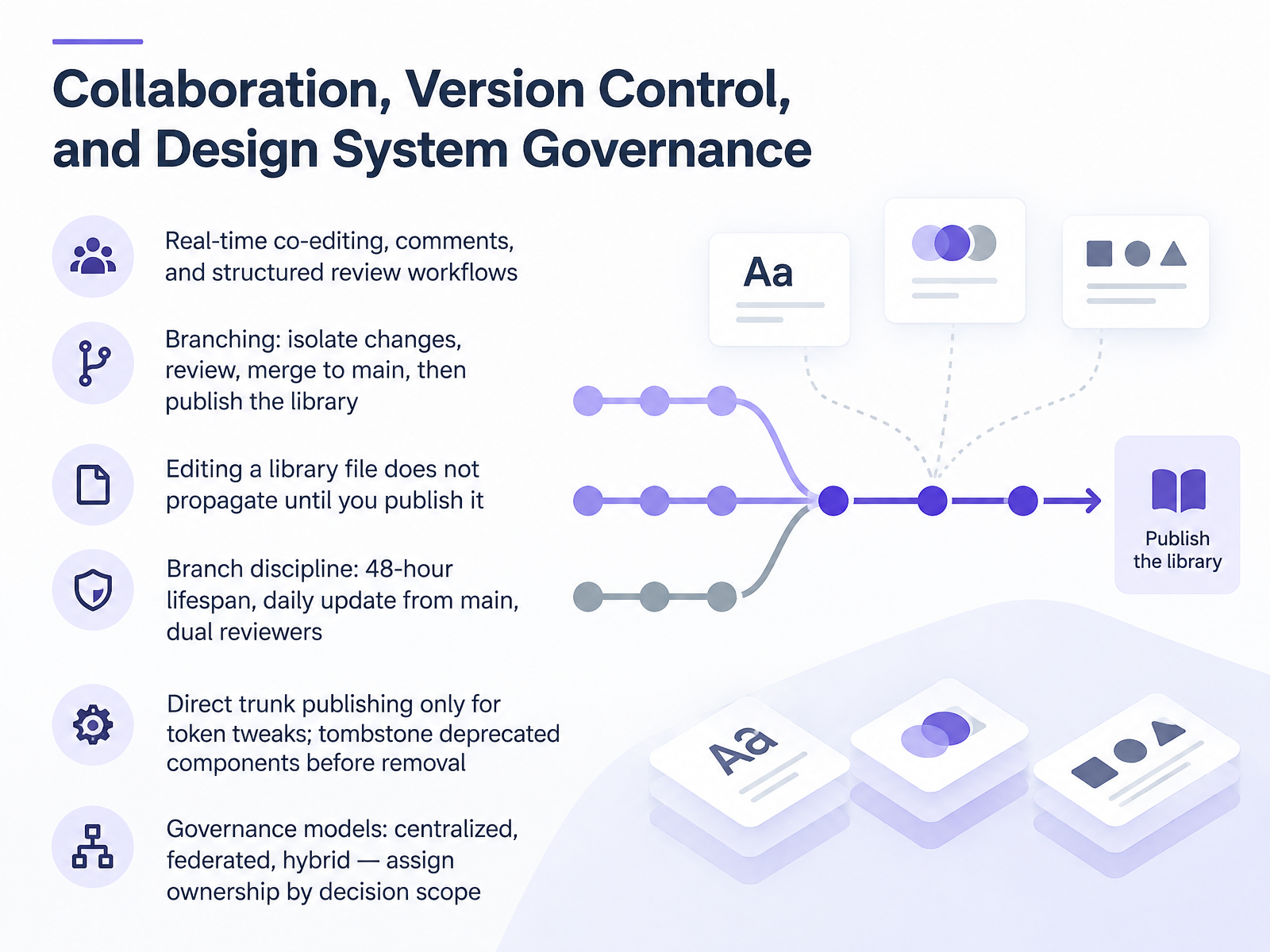
- 07Collaboration, Version Control, and Design System GovernanceLet's talk about collaboration and version control, because a library only stays healthy when change is governed. In Figma, branches give you a controlled copy of the library file, so you can isolate changes and explore without touching the original. The flow is consistent. Branch, submit for review, merge to main, then publish the library. Here is the point beginners often miss. Editing the library file does not propagate anything until you publish it. Merging a branch alone is not enough, so treat publish as your release step. Keep branches short. Aim for a forty-eight hour lifespan, update from main every day, and require two reviewers before merge. Reserve direct trunk publishing for token tweaks. And before removing a deprecated component, tombstone it, meaning flag it as deprecated and point people to the replacement. For governance, choose centralized, federated, or hybrid, and assign ownership by decision scope. Brand-level changes sit with the core team. Team-level variants belong to product teams. Next, we move to cross-tool interoperability, moving assets between UI and vector tools.
 2 min
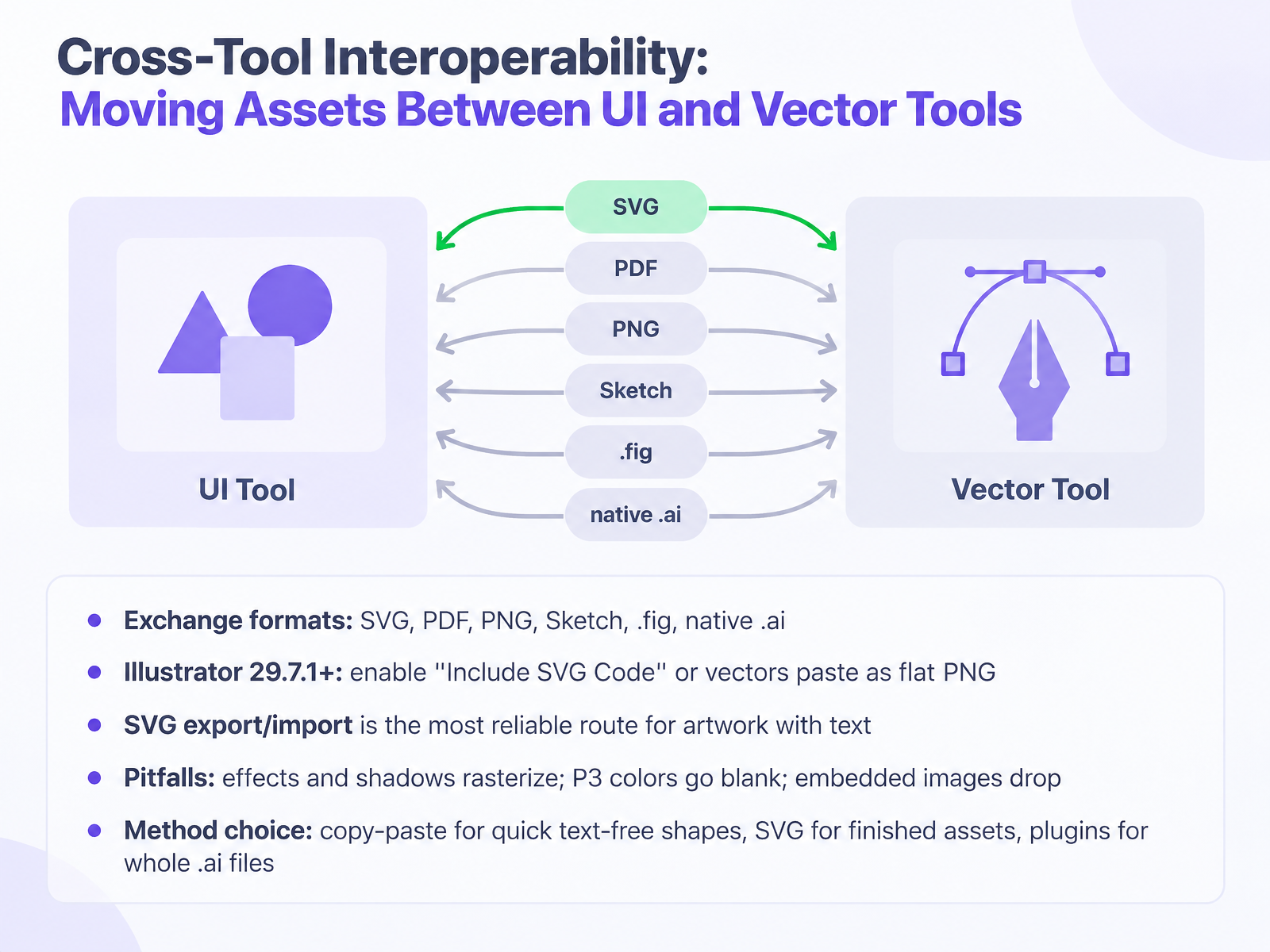
- 08Cross-Tool Interoperability: Moving Assets Between UI and Vector ToolsNow let's look at moving assets between UI and vector tools. The formats you will exchange most often are SVG, PDF, PNG, Sketch, Figma files, and native Illustrator files. Vector work moves best through SVG or PDF. Raster formats like PNG are for previews, not for editing. One thing has changed recently. From Illustrator version twenty nine point seven point one onward, SVG code is no longer copied by default. Enable Include SVG Code in Clipboard Handling preferences. Without it, vectors paste into Figma as a flat PNG image, and you lose every editable path. For artwork that contains text, SVG export and import remains the most reliable route. Export from Illustrator with File, Export As. Then drag the SVG into Figma, or use the place image shortcut. Expect a few pitfalls. Effects and drop shadows rasterize on transfer. Display P three colors can appear blank, so switch to s R G B first. Embedded images may drop out of the file entirely. So choose your method by the job. Copy and paste for quick, text-free shapes. SVG for finished assets and anything with type. And a plugin when you need to bring in a whole Illustrator file. That sets up our hands-on work, where we build a small design system asset end to end in the practical exercise.
 help.figma.comhelp.figma.comaistockmedia.com+22 min
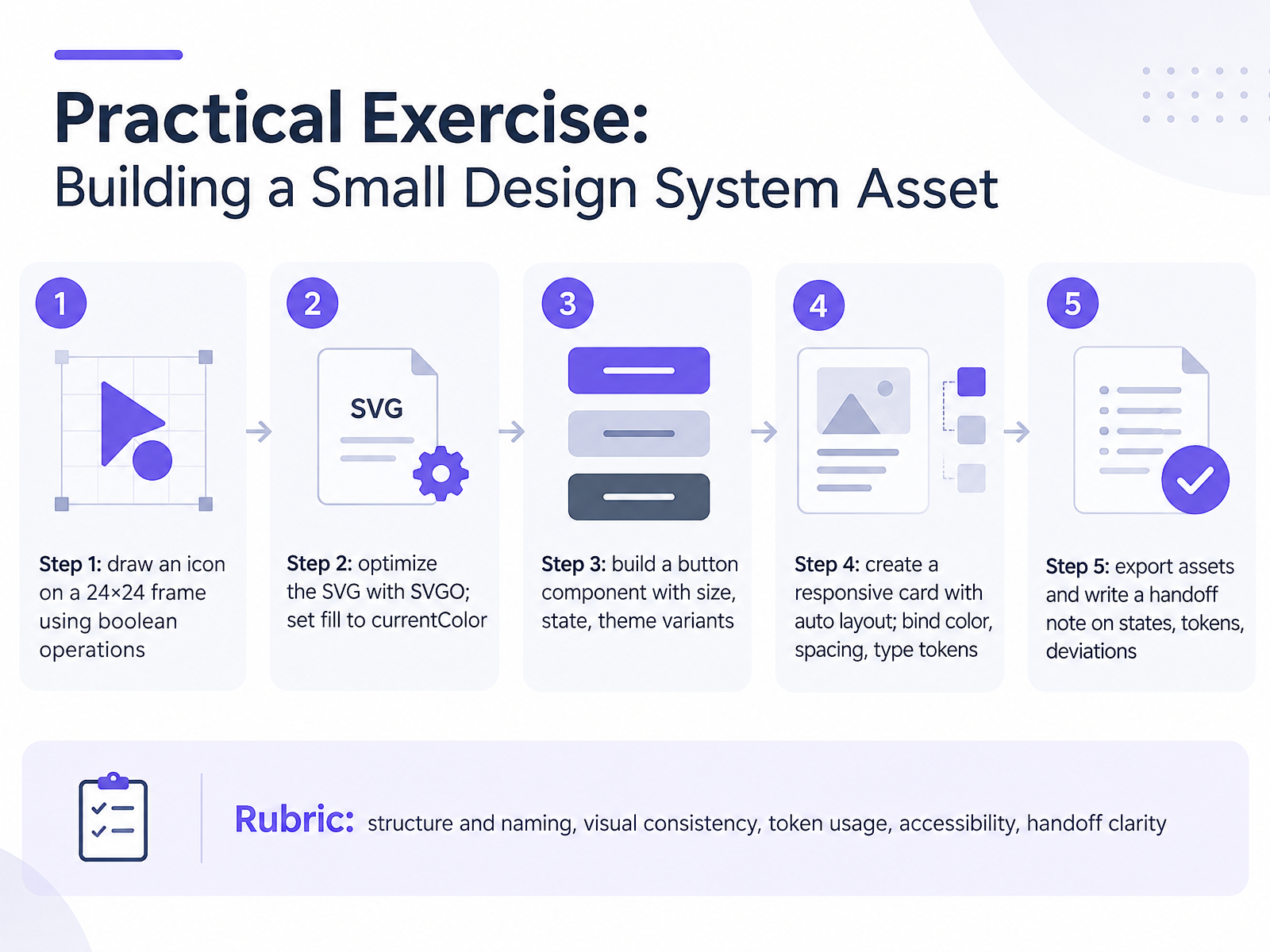
- 09Practical Exercise: Building a Small Design System AssetNow let's put these tools to work in one practical exercise. You will build a small design system asset, in five steps.
Step one. On a twenty four by twenty four frame, draw one icon using boolean operations. Union, subtract, intersect. Keep the geometry simple so it stays clear at sixteen pixels.
Step two. Run the SVG through SVGO to strip editor metadata and round coordinates. Then set the fill to currentColor, so the icon inherits text color in buttons and dark mode.
Step three. Build a button component with size, state, and theme variants. Separate variants are easier to find and keep your text overrides intact.
Step four. Create a responsive card with auto layout, and bind color, spacing, and type tokens instead of raw values. Dev Mode will then surface the token names to developers.
Step five. Export the assets and write a short handoff note covering states, tokens used, and any deviations from the system, with your reasoning.
You will be assessed on structure and naming, visual consistency, token usage, accessibility, and handoff clarity. A useful tip: check the icon at small, layout, and large sizes before you export.
Next, we look at teaching and adoption, and choosing tools for courses and teams.
 figma.comfigma.comfigma.com+22 min
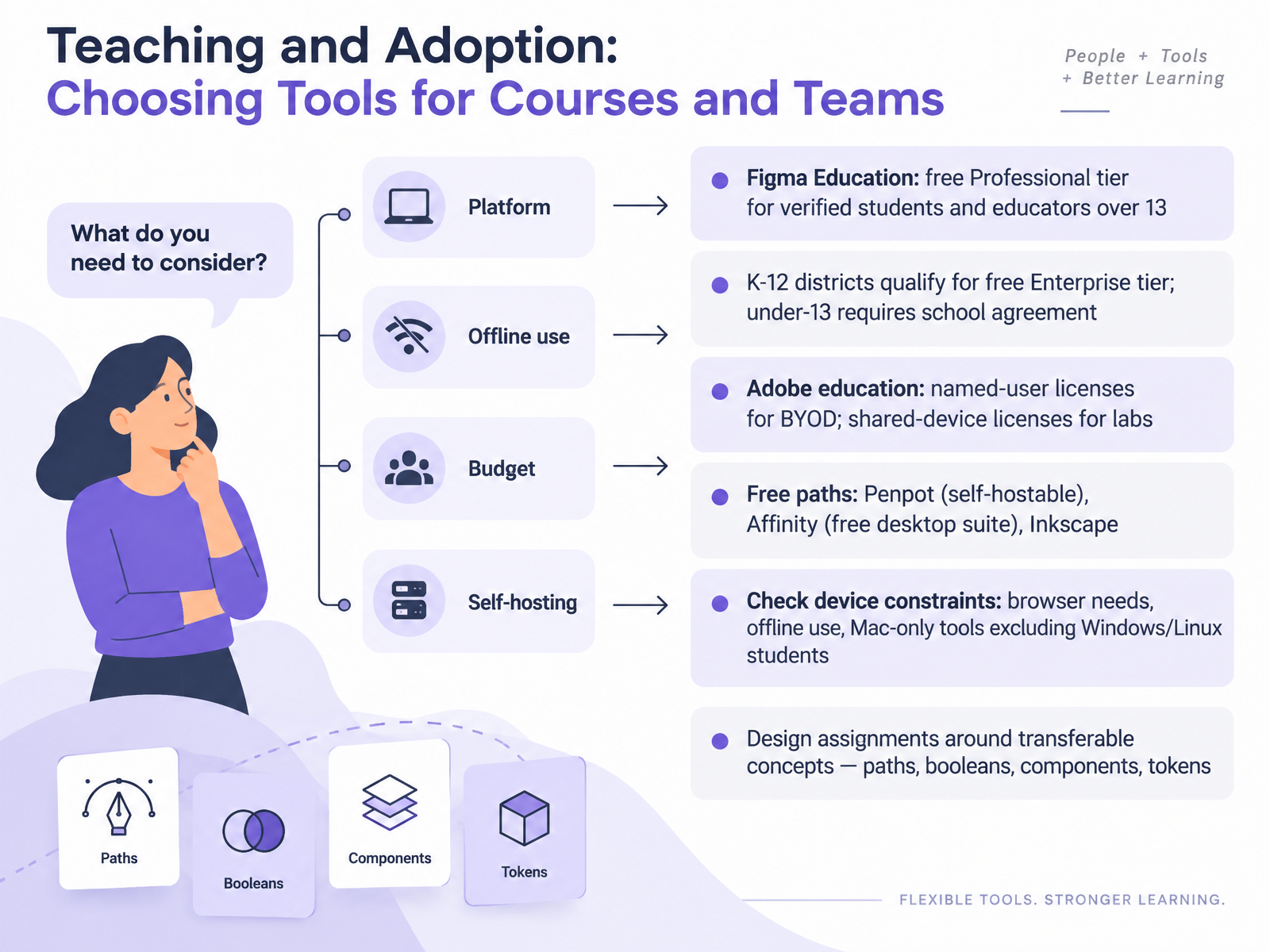
- 10Teaching and Adoption: Choosing Tools for Courses and TeamsNow let's talk about choosing tools for courses and teams. Start with what's free. Figma Education gives verified students and educators over thirteen a free Professional tier. K through twelve districts qualify for the free Enterprise tier, and students under thirteen require a school agreement. On the Adobe side, you have named-user licenses for bring-your-own-device setups, and shared-device licenses for labs and libraries, where the machine holds the license, not the person. If budget is zero, Penpot is open source and self-hostable. Affinity is a free desktop suite, and Inkscape is a free vector editor. Before committing, check device constraints. Browser-based tools need reliable connectivity, some tools work offline, and Mac-only tools exclude Windows and Linux students entirely. Here's a practical tip. Design assignments around transferable concepts, like paths, booleans, components, and tokens. Those skills move with your students between tools. Next, we put this into practice in the hands-on lab, evaluating a tool against your own constraints.
 2 min
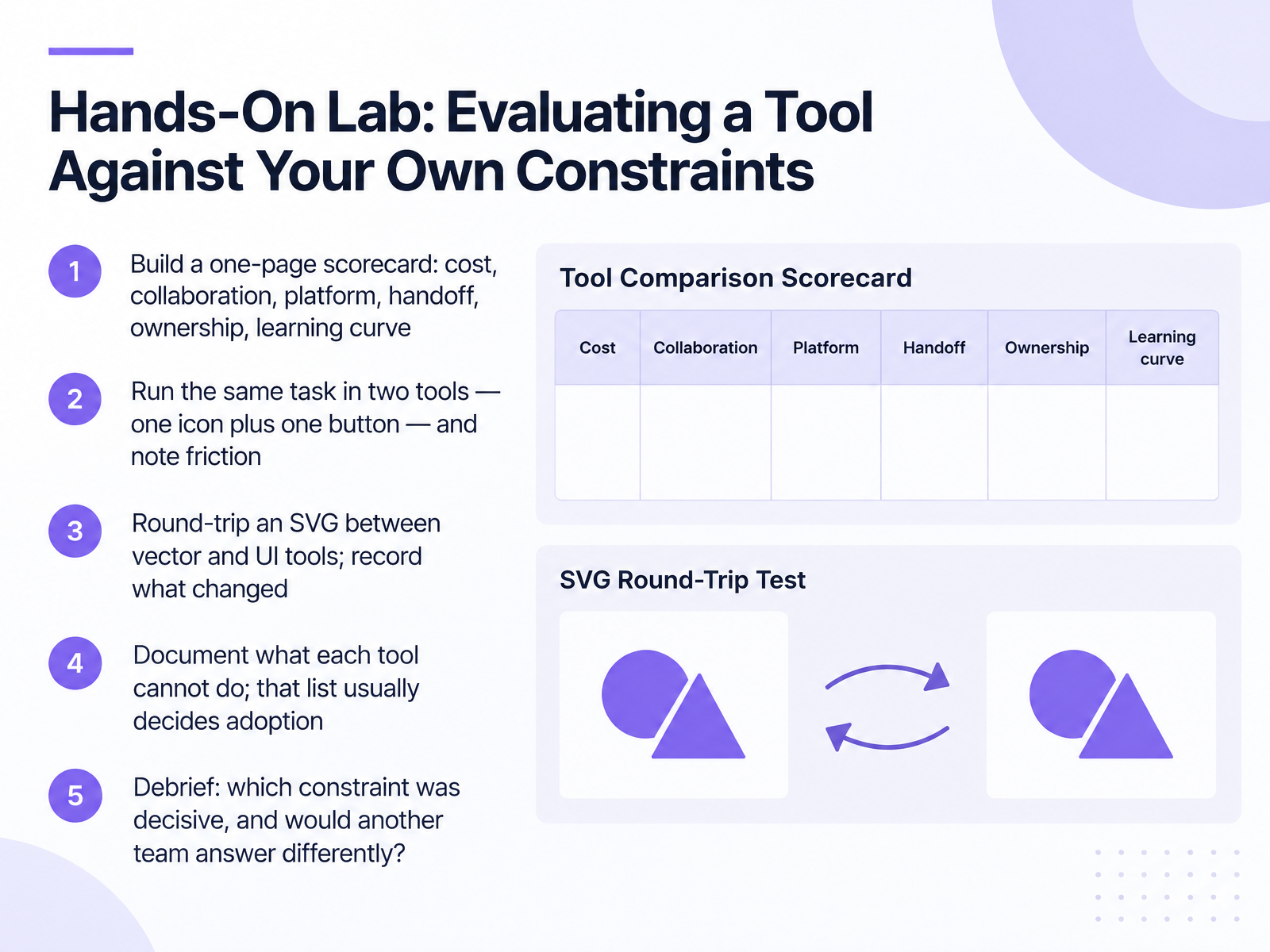
- 11Hands-On Lab: Evaluating a Tool Against Your Own ConstraintsNow let's put the comparisons aside and test a tool against your own constraints. Start with a one-page scorecard: cost, collaboration, platform, handoff, ownership, and learning curve. Then run the same task in two tools, one icon plus one button, and note where friction appears. Next, round-trip an SVG between your vector tool and your UI tool, and record what changed. Expect details to shift. For example, text may flatten to outlines, filters and drop shadows may rasterize, and colors may need reassigning to sRGB. That is normal iteration, not failure. A practical tip: keep the original file as your master, and treat the exported SVG as a delivery copy. After that, document what each tool cannot do. That list usually decides adoption, more than any feature chart. Close with a debrief: which constraint was decisive, and would another team answer differently? Next, we look at practical strategies and habits that transfer across tools.
 artofstyleframe.comstartupik.combrandeploy.io+22 min
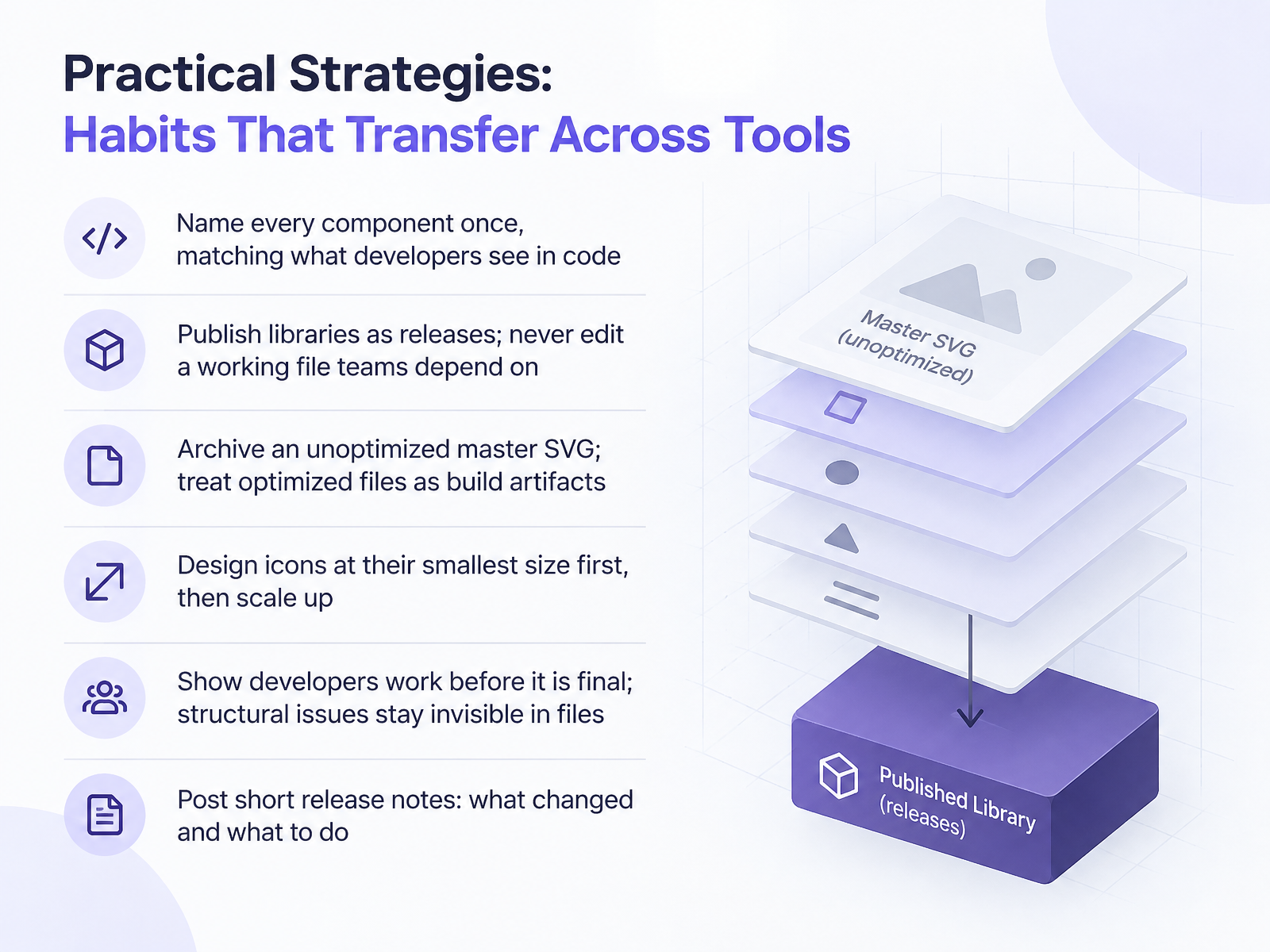
- 12Practical Strategies: Habits That Transfer Across ToolsLet's move from tools to habits. These six practices transfer across Figma, Illustrator, and whatever comes next. First, name every component once, matching what developers see in code. If the code says button primary, your layer should not say btn cta. Second, publish libraries as releases. Never edit a working file that teams depend on. Third, archive an unoptimized master SVG, and treat optimized files as build artifacts. Fourth, design icons at their smallest size first, usually sixteen or twenty-four pixels, then scale up. Details that blur at sixteen pixels get simplified early, and they stay crisp everywhere. Fifth, show developers work before it is final. Structural issues are obvious to them and invisible in the file, and finding one after implementation starts costs a rebuild. Sixth, post short release notes. Say what changed and what someone needs to do about it. One practical tip: put those notes in the library description, so they live where people already look. Now let's look at common pitfalls and troubleshooting.
 figma.comfigma.comfigma.com+22 min
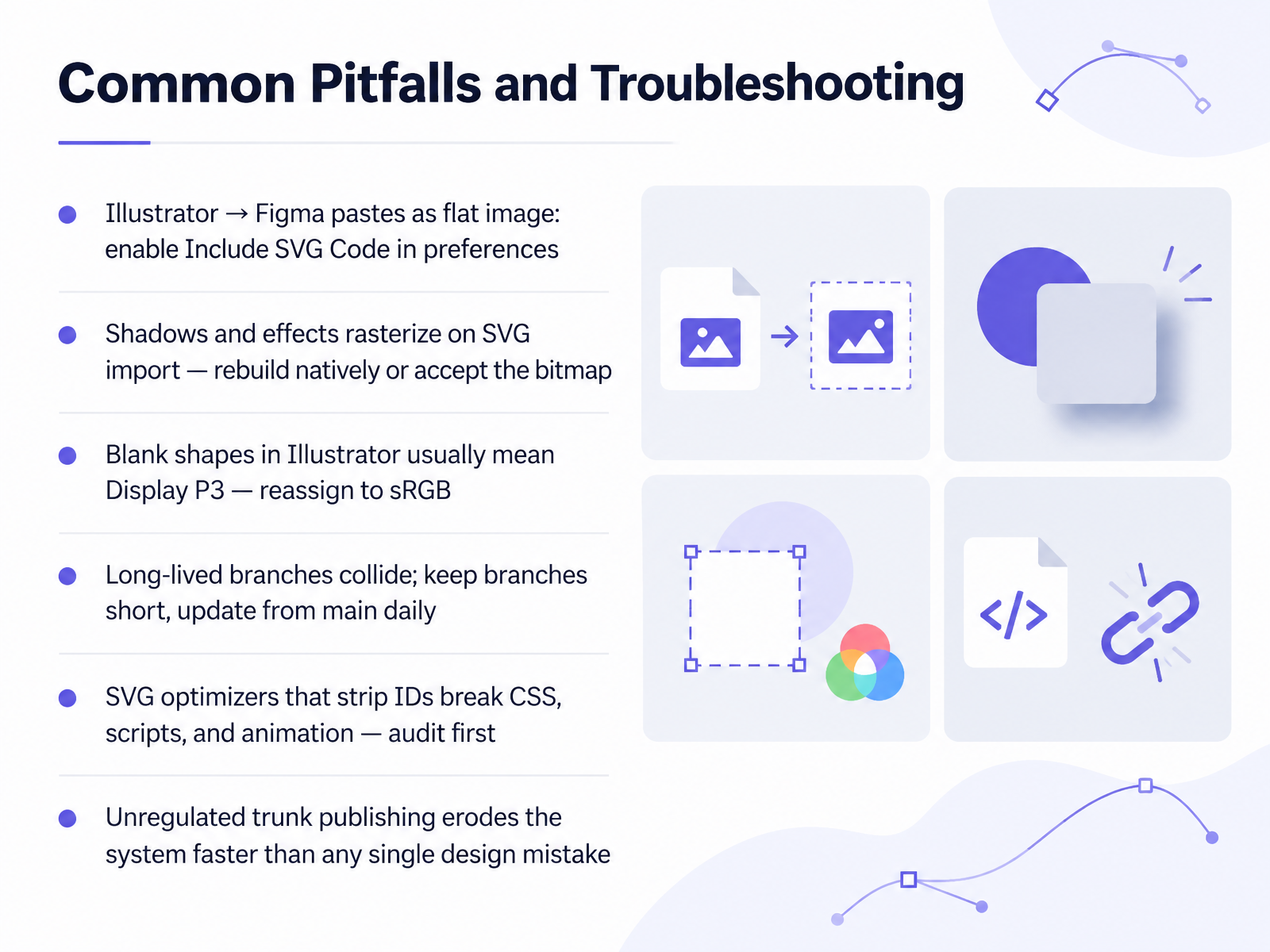
- 13Common Pitfalls and TroubleshootingLet's walk through the pitfalls that show up most often, and how to diagnose them quickly. If pasting from Illustrator into Figma gives you a flat image, open Illustrator's clipboard preferences and enable Include SVG Code. Since version 29.7.1 that option is off by default. Shadows and effects often rasterize on SVG import. Decide deliberately: rebuild them as native Figma effects, or accept the bitmap. If shapes appear blank in Illustrator, suspect the color profile. Display P3 values do not show, so reassign the document to sRGB and reapply your colors. On the systems side, keep branches short. Update from main daily, because long-lived branches collide. And audit before you optimize. Optimizers that strip IDs break CSS, scripts, and animation. Above all, unregulated trunk publishing erodes a design system faster than any single design mistake. Next, Key Takeaways, Resources, and Next Steps.
 2 min
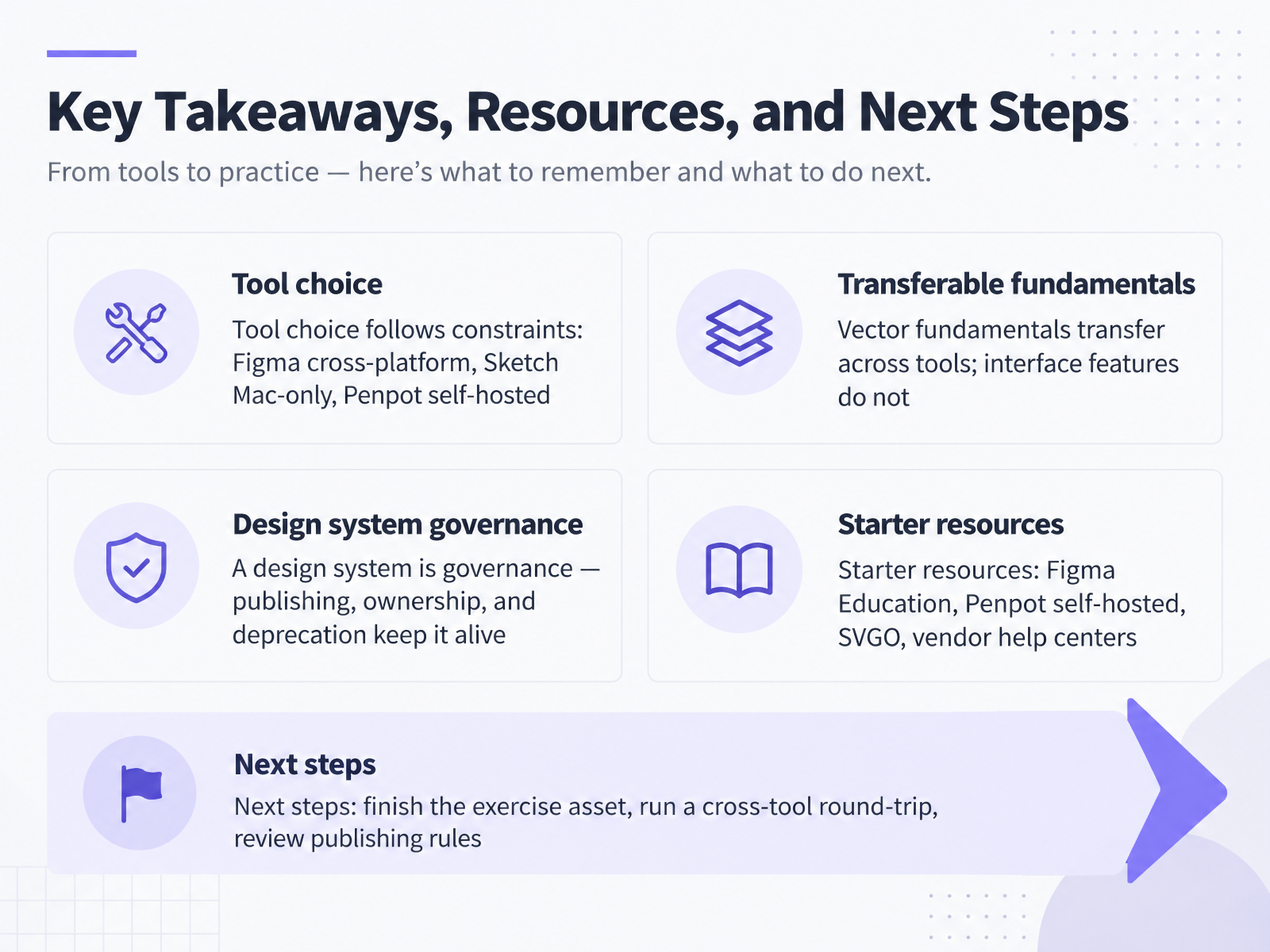
- 14Key Takeaways, Resources, and Next StepsLet's bring the course together with four takeaways, then your next steps. First, tool choice follows constraints, not feature checklists. Figma runs cross-platform with the strongest collaboration and handoff. Sketch is Mac-only, native, and fast on large files. Penpot is open source and can be self-hosted, which matters when data control is a requirement. Second, vector fundamentals transfer across tools, while interface features do not. Your path edits, booleans, and component thinking carry over. Menus and export settings do not. Expect a short relearning curve each time you switch. Third, a design system is governance, not a file. Publishing, clear ownership, and deliberate deprecation keep it alive. A small tip: deprecate before you delete, and point people to the replacement. Fourth, starter resources: Figma Education for free verified accounts, self-hosted Penpot, SVGO for cleaning icon exports, and vendor help centers for release notes. Now your next steps. Finish the exercise asset, run a cross-tool round-trip with your file, and review your team's publishing rules. Thank you for working through this course. You now have a clear process, not just a toolbar. Keep iterating, and your tool choices will follow.
 artofstyleframe.comstartupik.combrandeploy.io+22 min
Take the deck with you
Download this course as a file — free, no sign-up needed.
- PDF handoutEvery slide page, ready to print or share.15 pages · 2.9 MBDownload
- Narrated PowerPointThe deck that presents itself — every slide carries the digital human's narration video.15 pages · 15.3 MBDownload
- PowerPoint slidesThe full deck as a .pptx — open it in PowerPoint, Keynote, or Google Slides.15 pages · 2.9 MBDownload
Free to use in your own training — please keep the PersonWise credit page at the end.
Have your own deck? Turn it into a course
Sources consulted
Web sources consulted while building this course.
- Best UI Design Tools in 2026: Figma, Sketch, and Penpot — artofstyleframe.com
- Figma vs Penpot vs Sketch: Which Design Tool Should You Use | Startupik | Startup magazine — startupik.com
- UI design software in 2026: comparison of the main tools and how to choose — brandeploy.io
- 8 Best UI Design Tools in 2026 — For Product Teams, Freelancers, and Agencies — tinyctl.dev
- Design & Prototyping Ranking — ultrametric.ai
- Design Tools: Imaging, Vector Graphics, and Design Evolution | Springer Nature Link — link.springer.com
- Sketchpad: A man-machine graphical communication system — images.designworldonline.com.s3.amazonaws.com
- A brief history of human-computer interaction technology — doi.org
- Vector graphics — en.wikipedia.org
- The Evolution of Artists' Toolsets: A Call for Artist-Driven Design — doi.org
- Boolean operations – Figma Learn - Help Center — help.figma.com
- FD4B: Combine shapes using boolean operations — help.figma.com
- Figma vs Illustrator for Editing Vector Graphics — AIStockMedia Blog — aistockmedia.com
- Design with vector tools – Figma Learn - Help Center — help.figma.com
- Opening and Editing SVG Files in Figma vs Adobe Illustrator 2026: Which is Better? | NiceSVG — nicesvg.com
- Design Tokens: How to Sync Design and Code in Figma | Figma — figma.com
- Automated UI Handoff: A Guide for Design Teams | Figma — figma.com
- Components, styles, and shared library best practices — figma.com
- How Figma's Internal Design System Team uses Dev Mode | Figma — figma.com
- Guide to Developer Handoff — figma.com