Begin
14 pages · ~28 min
Excel Data to Mind Map Import
Learn to import Excel spreadsheets into a mind mapping tool to visualize and organize data. Ideal for professionals seeking faster, clearer data structuring.
A digital instructor presents all 14 pages. Hold “Ask” at any point and ask out loud — the answer comes from this course. No sign-up needed.
What you’ll learn
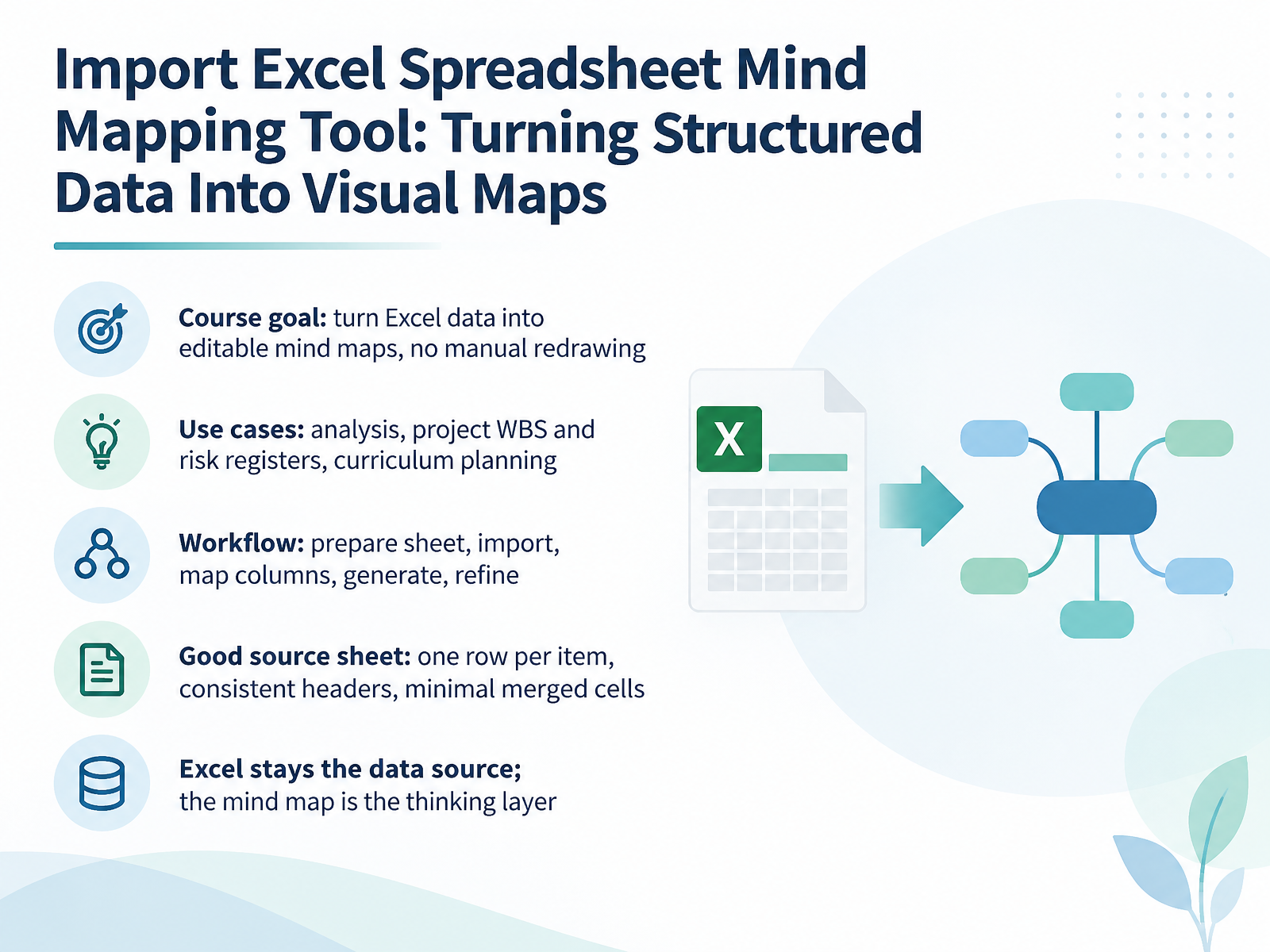
- 01Import Excel Spreadsheet Mind Mapping Tool: Turning Structured Data Into Visual MapsWelcome. If you work with structured data in Excel, this course is for you. We are going to turn spreadsheets into editable mind maps, without redrawing anything by hand. Analysts, project coordinators, and educators all hit the same wall. A clean sheet tells you what is there, but not how it fits together. Think of a project work breakdown structure, a risk register, or a curriculum plan. A mind map shows the shape of that work at a glance. Our workflow has five repeatable steps. Prepare the sheet, import it, map columns to map levels, generate the map, then refine. The preparation is what makes the rest smooth. You want one row per item, consistent headers, and as few merged cells as possible. Here is the mindset to carry through the course. Excel stays your data source, and the mind map is the thinking layer above it. Update one, and you can regenerate rather than rebuild. Next, we look at the building blocks: nodes, hierarchy, and how import mapping decides where each column lands.mindmanager.comhelp.mindomo.comsaascentury.com+22 min
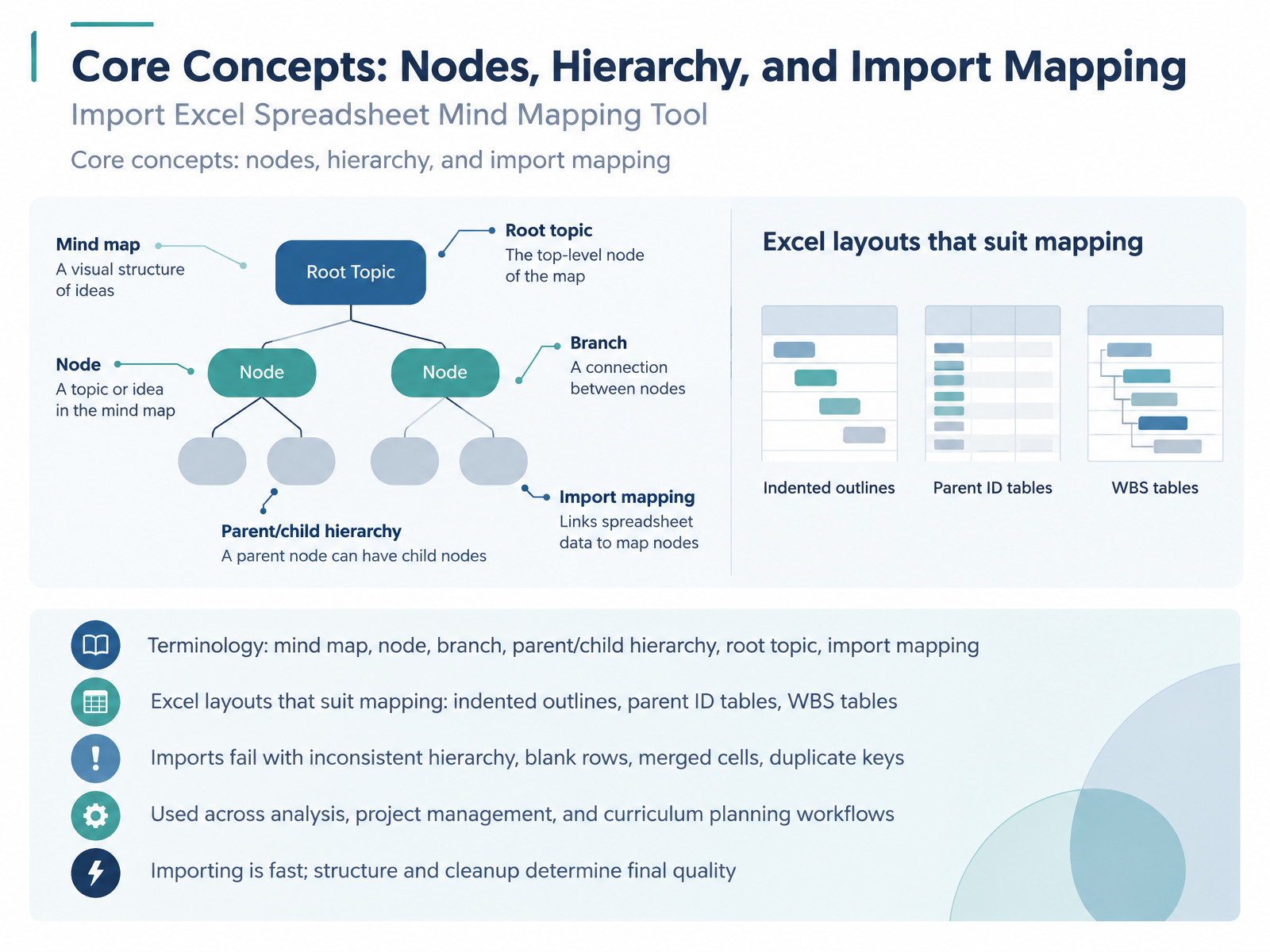
- 02Core Concepts: Nodes, Hierarchy, and Import MappingNow let's anchor the vocabulary we'll use throughout this workflow. A mind map is a radial outline. The root topic sits at the center, branches extend from it, and every branch carries parent and child nodes. When you import a spreadsheet, import mapping is simply the decision about which column feeds each level. Most tools follow the same convention. Column A becomes the root, Column B the main branches, and each later column a deeper level. Three Excel layouts map cleanly: indented outlines, parent ID tables, and work breakdown structure tables. Imports tend to fail for predictable reasons. Inconsistent hierarchy, blank rows, merged cells, and duplicate keys all break the parent child chain, so nodes land on the wrong branch. You will see these patterns in analysis, project management, and curriculum planning alike. One practical takeaway: importing a file takes seconds, but the structure and cleanup you do beforehand determine the final quality.
 mindmanager.comhelp.mindomo.comsaascentury.com+21 min
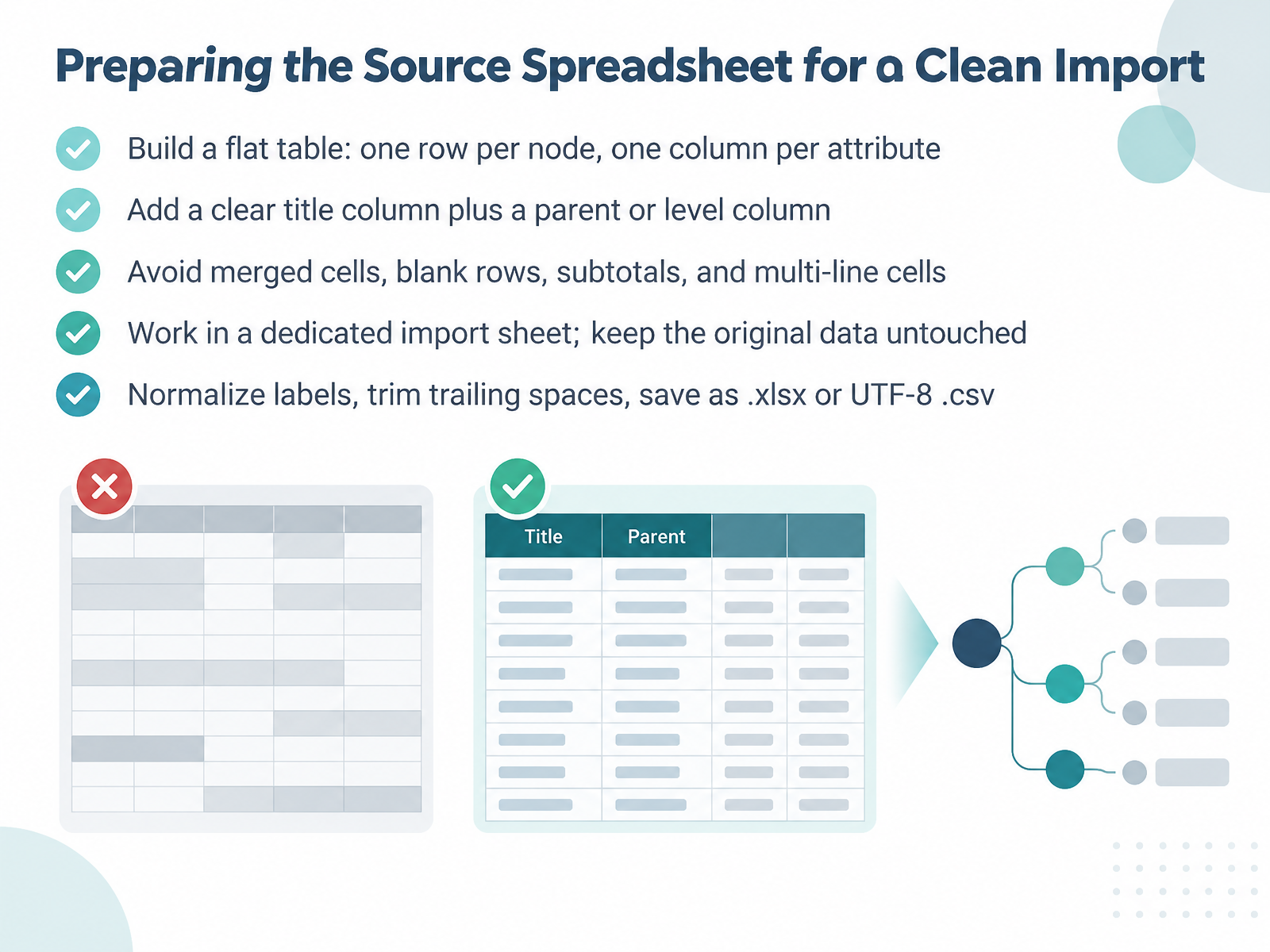
 - 03Preparing the Source Spreadsheet for a Clean ImportNow let's set up the source spreadsheet so the import lands cleanly on the first try. Build a flat table: one row per node, one column per attribute. That single structure is what lets the parser read your hierarchy correctly. Next, add a clear title column plus a parent or level column. If your data has departments and people, for example, the title column holds the item names, and the parent column says which branch each item belongs to. Before you export, scan for trouble spots: avoid merged cells, blank rows, subtotals, and multi-line cells. Any of these can cause child nodes to attach to the wrong branch. Here's a workflow worth adopting: do all this work in a dedicated import sheet, and keep your original data untouched. You can rerun the import whenever the project changes without risking the source file. Finally, normalize your labels, trim trailing spaces, and save as x l s x or UTF-8 c s v. Consistent labels mean duplicate-looking items merge into one branch, and trailing spaces are one of the most common causes of a broken hierarchy. Keep it flat, keep it separate, and the import becomes repeatable. Next, we compare hierarchy models: left-to-right columns versus parent ID tables.
 help.mindomo.comconceptdraw.comsociamind.com+22 min
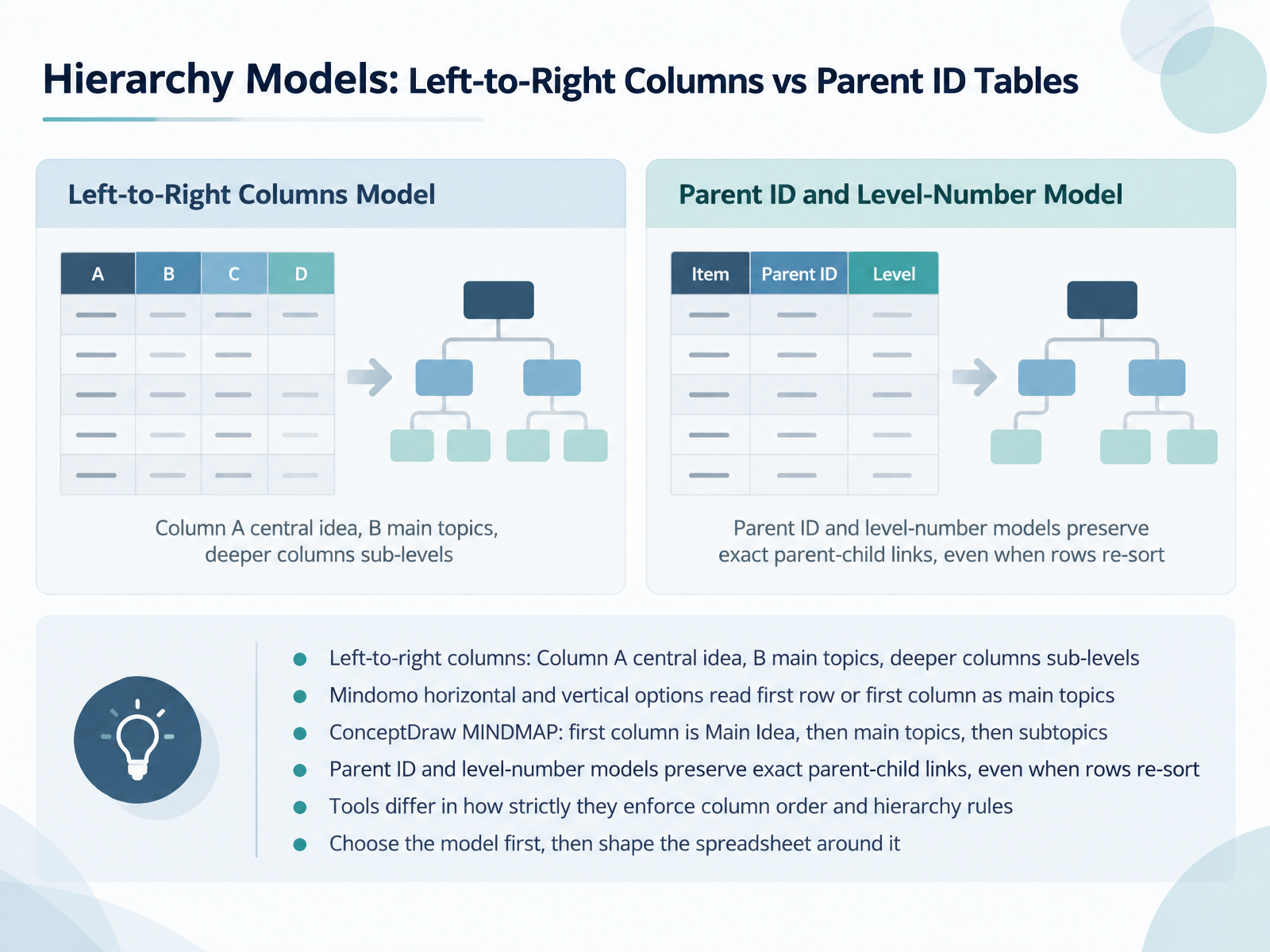
 - 04Hierarchy Models: Left-to-Right Columns vs Parent ID TablesNext, let's compare the hierarchy models your spreadsheet can follow. The simplest is a left-to-right layout, where column A holds the central idea, column B holds the main topics, and each deeper column becomes a sub-level. Mindomo reads this the same way, with horizontal and vertical options that treat either the first row or the first column as your main topics. ConceptDraw MINDMAP takes a strict version of this, where the first column is the Main Idea, the second column becomes main topics, and the third becomes subtopics. If your rows get re-sorted often, consider a parent ID or level-number model instead, since it preserves the exact parent-child links no matter how the rows move. Just keep in mind that tools differ in how strictly they enforce column order and hierarchy rules. So here's the practical takeaway: choose your hierarchy model first, then shape the spreadsheet around it. That one decision saves you from rebuilding the map every time the data shifts. Coming up, we'll look at mapping Excel columns to topics, notes, tags, and links.
 help.mindomo.comconceptdraw.comsociamind.com+21 min
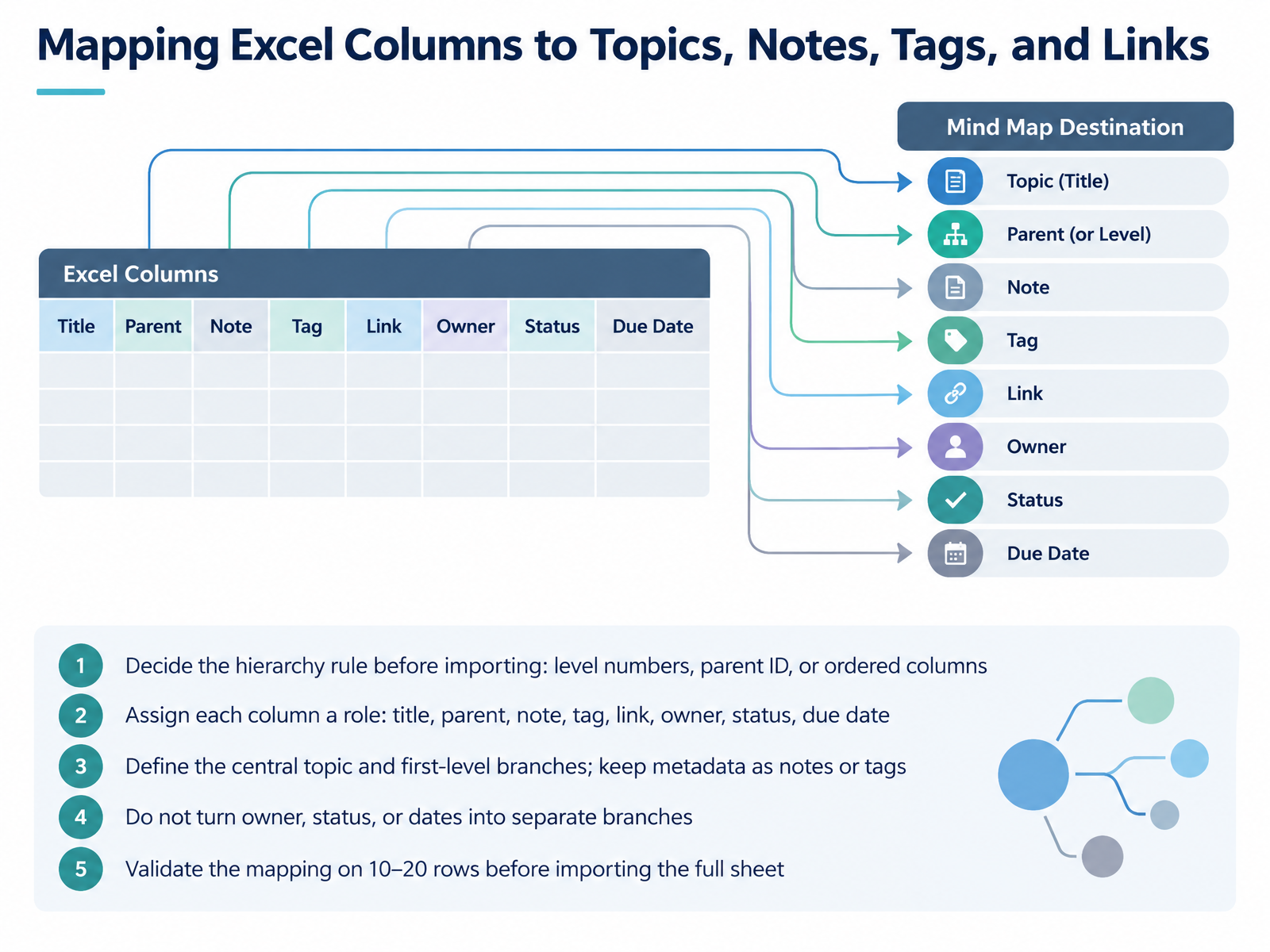
 - 05Mapping Excel Columns to Topics, Notes, Tags, and LinksNow let us look at mapping Excel columns to topics, notes, tags, and links. Start by deciding your hierarchy rule before you import. You can use level numbers, a parent ID, or ordered columns. For example, if column A holds the department and column B holds the project, then department becomes the first-level branch. Next, assign each column a role. One column supplies the title, which becomes the topic text. Another supplies the parent. Then map the rest as notes, tags, links, owner, status, or due date. Define the central topic and first-level branches from your structural columns. Keep metadata as notes or tags instead of branches. Do not turn owner, status, or dates into separate branches. They belong on the topic, not in the tree. Before importing the full sheet, validate the mapping on ten to twenty rows. Check that children land under the right parents, and that notes and tags carry the correct values. That quick test saves you from a tangled map when you scale up. Step-by-Step Import Workflow Across Common Tools.
 help.mindomo.comconceptdraw.comfreemind.sourceforge.io+22 min
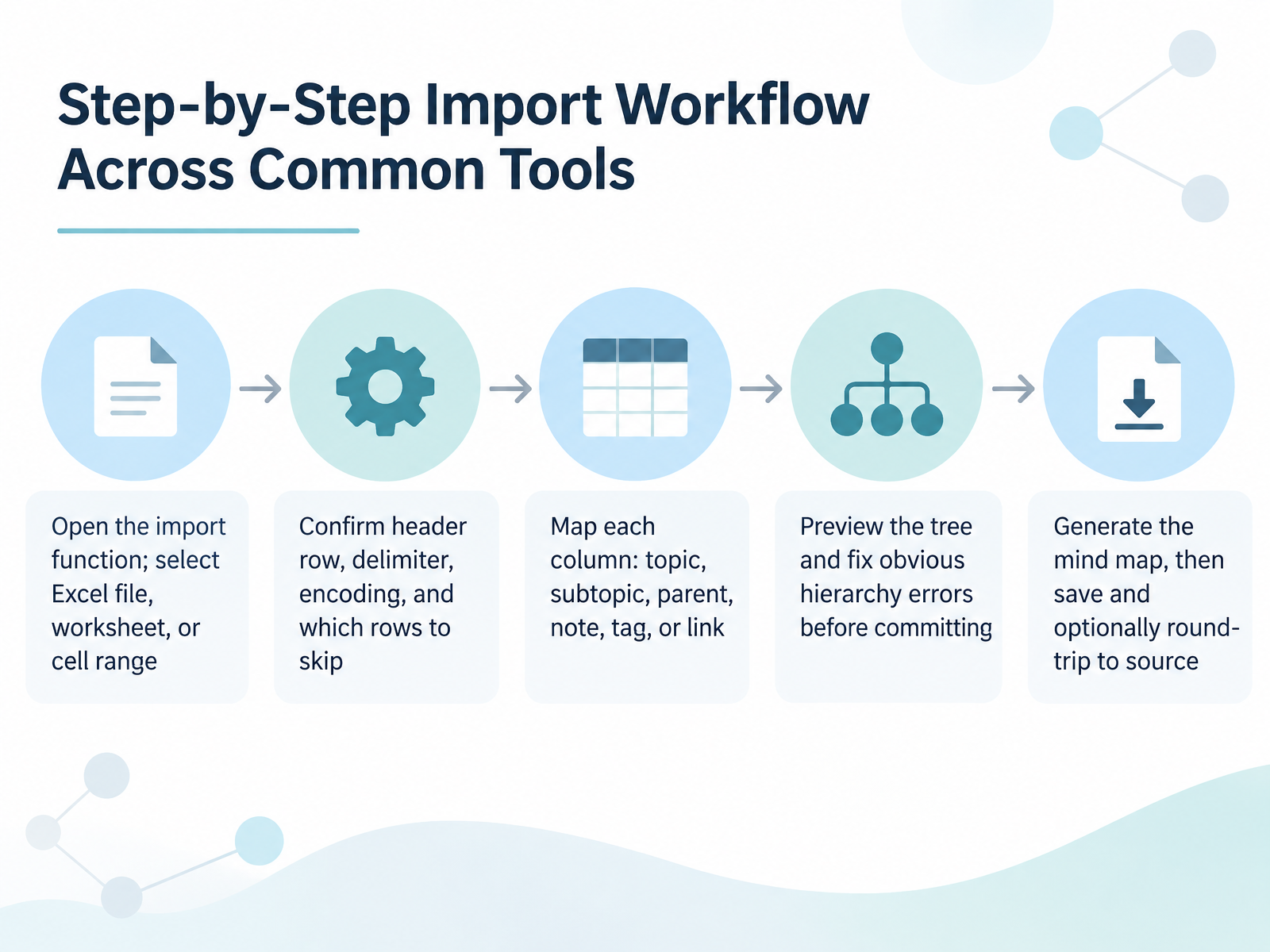
 - 06Step-by-Step Import Workflow Across Common ToolsNow let's walk through the import workflow itself. The path varies slightly by tool, but the logic is consistent, and once you see the pattern you can apply it anywhere. First, open the import function. You'll find it under File, Import in desktop tools like ConceptDraw MINDMAP, or under an Import button on the dashboard in Mindomo, and in Smaply it sits in the Journey maps toolbar. Then select your Excel file, and choose the worksheet or cell range you want to bring in. Only one sheet usually loads at a time, so point to the right tab. Next, confirm the structural settings. Check the header row, the delimiter if you're working from CSV, the encoding, and how many rows to skip. Small errors here create strange node names later, so it's worth the extra minute. Now map each column to a role. Column A typically becomes the central topic or main idea, Column B the main topics, and Column C the subtopics. You can also designate columns for notes, tags, or links. Before you commit, preview the tree. This is where you catch a reversed hierarchy, an empty branch, or merged cells that pulled children into the wrong parent. Fix those now rather than after the map is built. When the preview looks right, generate the mind map, then save it. Some tools let you round-trip changes back to the source spreadsheet, which keeps both formats in sync. That five-minute check saves an hour of cleanup. Let's move on to Tool Selection: Feature Comparison and Format Limits.
 conceptdraw.comhelp.mindomo.comhelpdesk.smaply.app+22 min
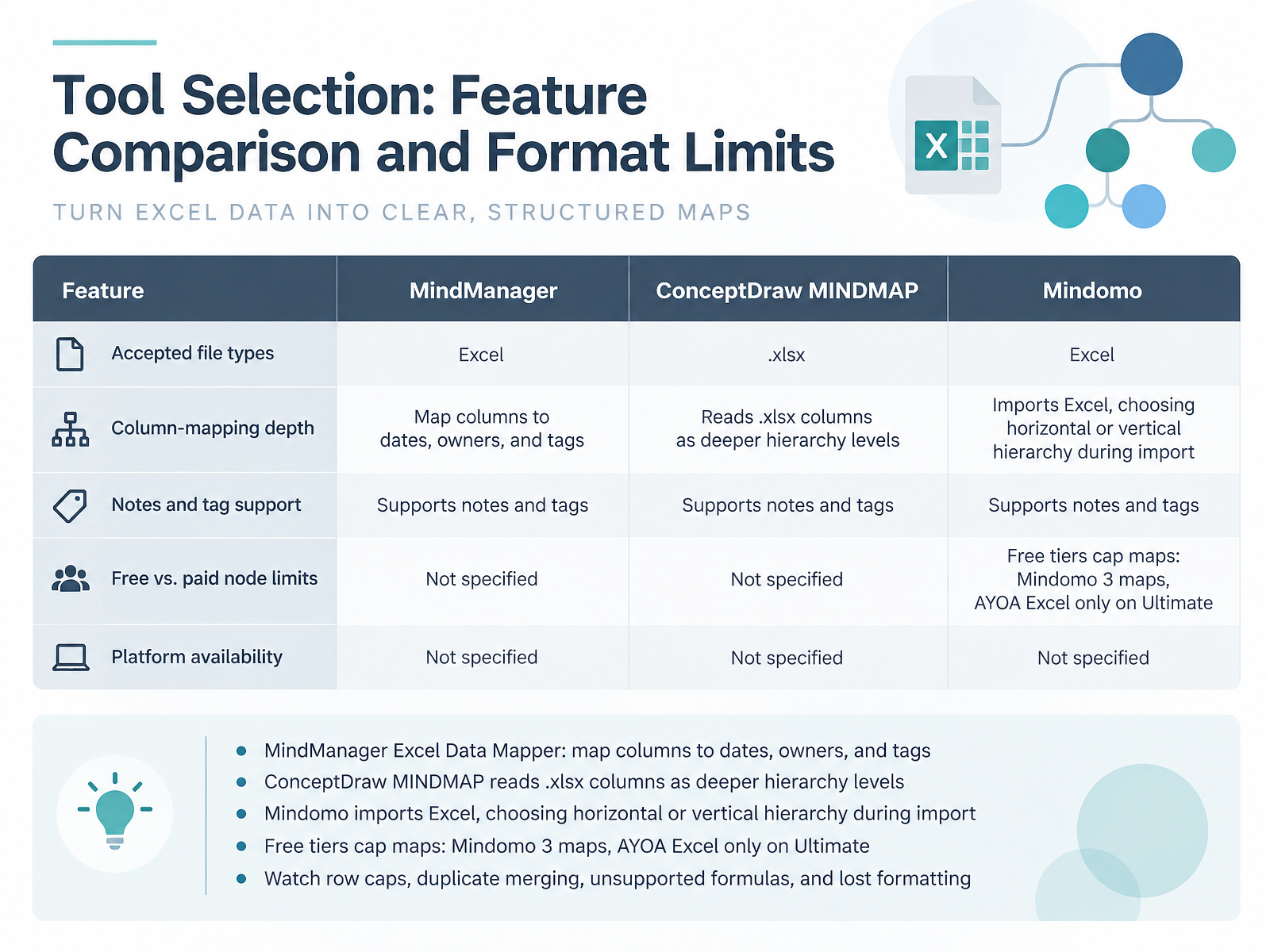
 - 07Tool Selection: Feature Comparison and Format LimitsNow that we have the import mechanics down, let's decide which tool earns a place in your workflow. The key is understanding how each one reads your spreadsheet. MindManager's Excel Data Mapper is the most flexible here. It lets you map columns to dates, owners, and custom tags, so a project schedule keeps its assignments attached to each card. ConceptDraw MINDMAP takes a stricter route, reading xlsx columns directly as deeper hierarchy levels, which suits clean structural outlines. Mindomo gives you a choice at import time: build the hierarchy horizontally from your first row, or vertically from your first column. That decision changes everything, so preview both when your data layout is ambiguous. Pricing shapes the decision too. Mindomo's free tier caps you at three maps, and AYOA only supports Excel imports on its Ultimate plan. Finally, watch the quiet limits. Row caps silently trim large sheets, duplicate entries may merge into one branch, formulas can arrive as static values, and custom formatting often disappears on import. Test with a small sample first.
 mindmanager.comhelp.mindomo.comsaascentury.com+22 min
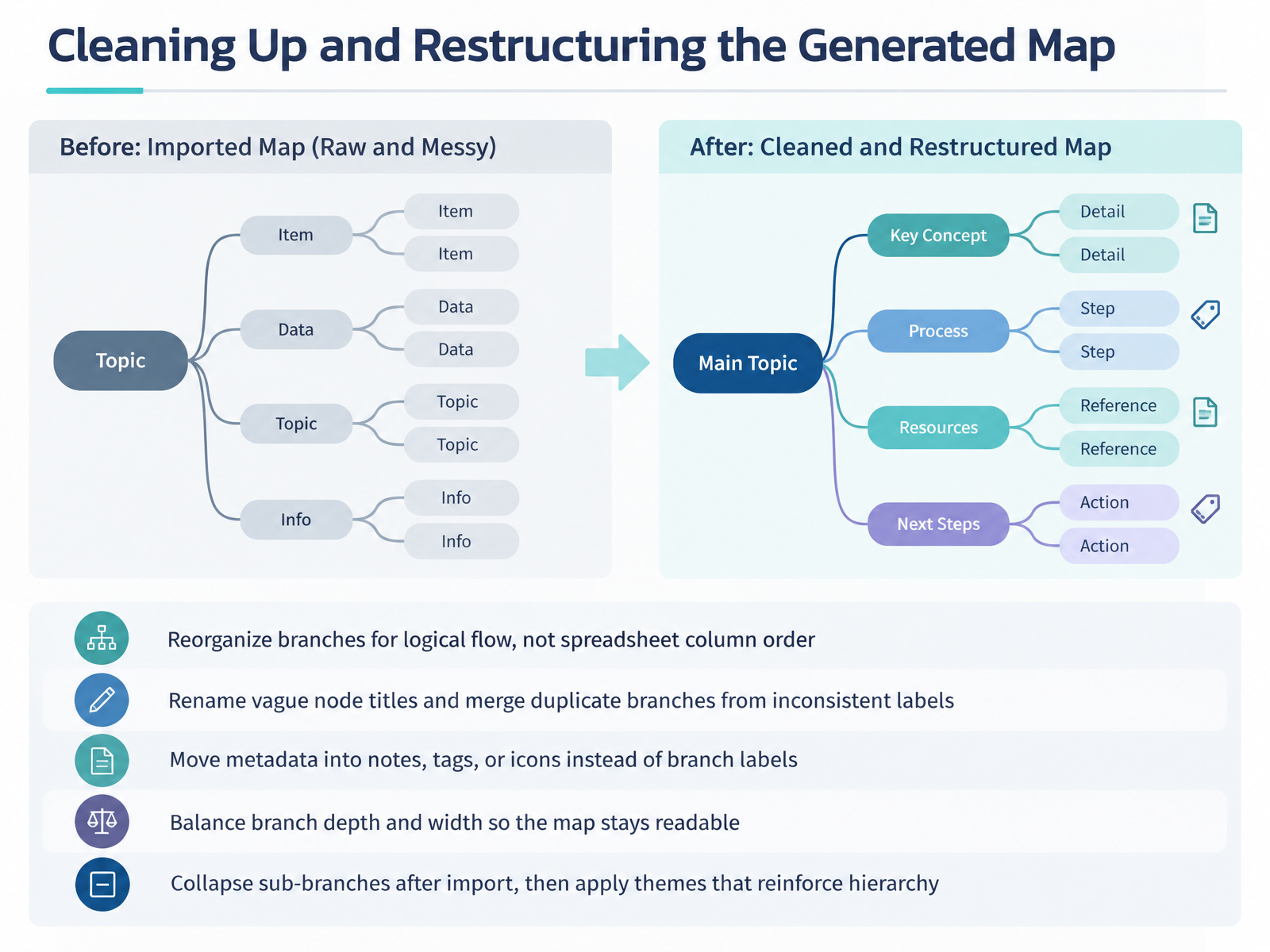
 - 08Cleaning Up and Restructuring the Generated MapNow that the import is complete, let's clean up and restructure the generated map. First, reorganize branches for logical flow, not spreadsheet column order, so the map reads the way your audience thinks about the work. Next, rename vague node titles and merge duplicate branches that came from inconsistent labels, for example when one row says "Dept A" and another says "Department A." Move metadata such as owners, dates, and status into notes, tags, or icons instead of branch labels, which keeps the topic text clean. Then balance branch depth and width so the map stays readable; a lopsided tree is hard to scan. Finally, collapse sub-branches right after import, then apply themes that reinforce hierarchy. As a takeaway, treat this cleanup pass as part of the workflow, not an afterthought, so every map you share is consistent and easy to navigate. Workflow for Analysts: From Issue and Findings Logs to Themed Maps.
 help.mindomo.comconceptdraw.comsociamind.com+21 min
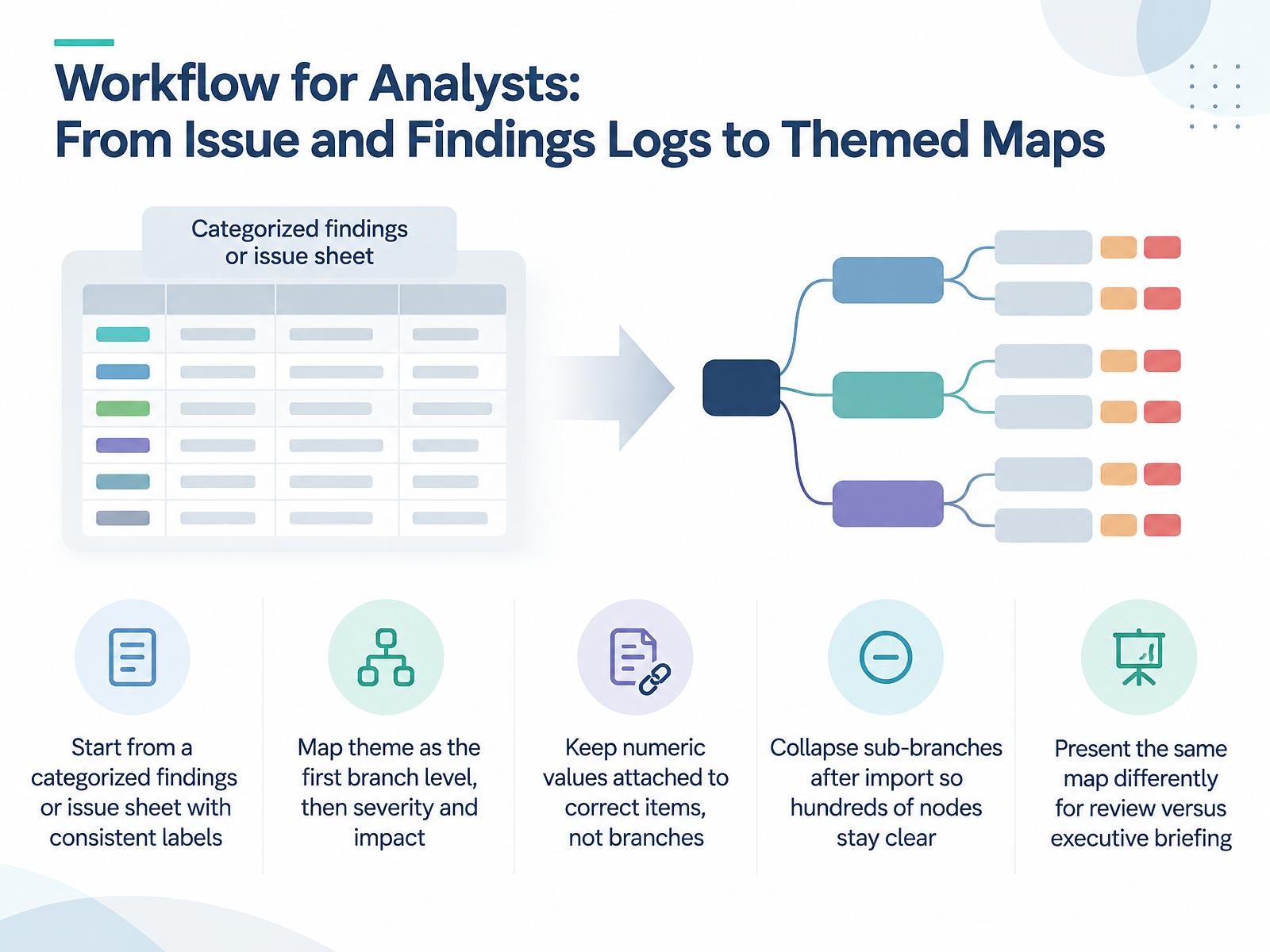
 - 09Workflow for Analysts: From Issue and Findings Logs to Themed MapsNow let's walk through a repeatable workflow for turning issue and findings logs into themed maps. Start from a findings or issue sheet where every category label is consistent, since inconsistent labels split one theme into several branches. Map theme as the first branch level, then severity and impact below it. Keep numeric values attached to the correct items rather than to branch nodes, so counts and scores stay meaningful. After import, collapse the sub-branches so hundreds of nodes remain readable. Finally, present the same map differently for review versus an executive briefing. For example, a risk log with themes, severity, and exposure becomes a clean map you can filter for a working session, then trim to top themes for leadership. The takeaway is consistent labels and a deliberate branch order make imports predictable every time. Next, we look at WBS and risk registers in Workflow for Project Coordinators.
 help.mindomo.comconceptdraw.comfreemind.sourceforge.io+21 min
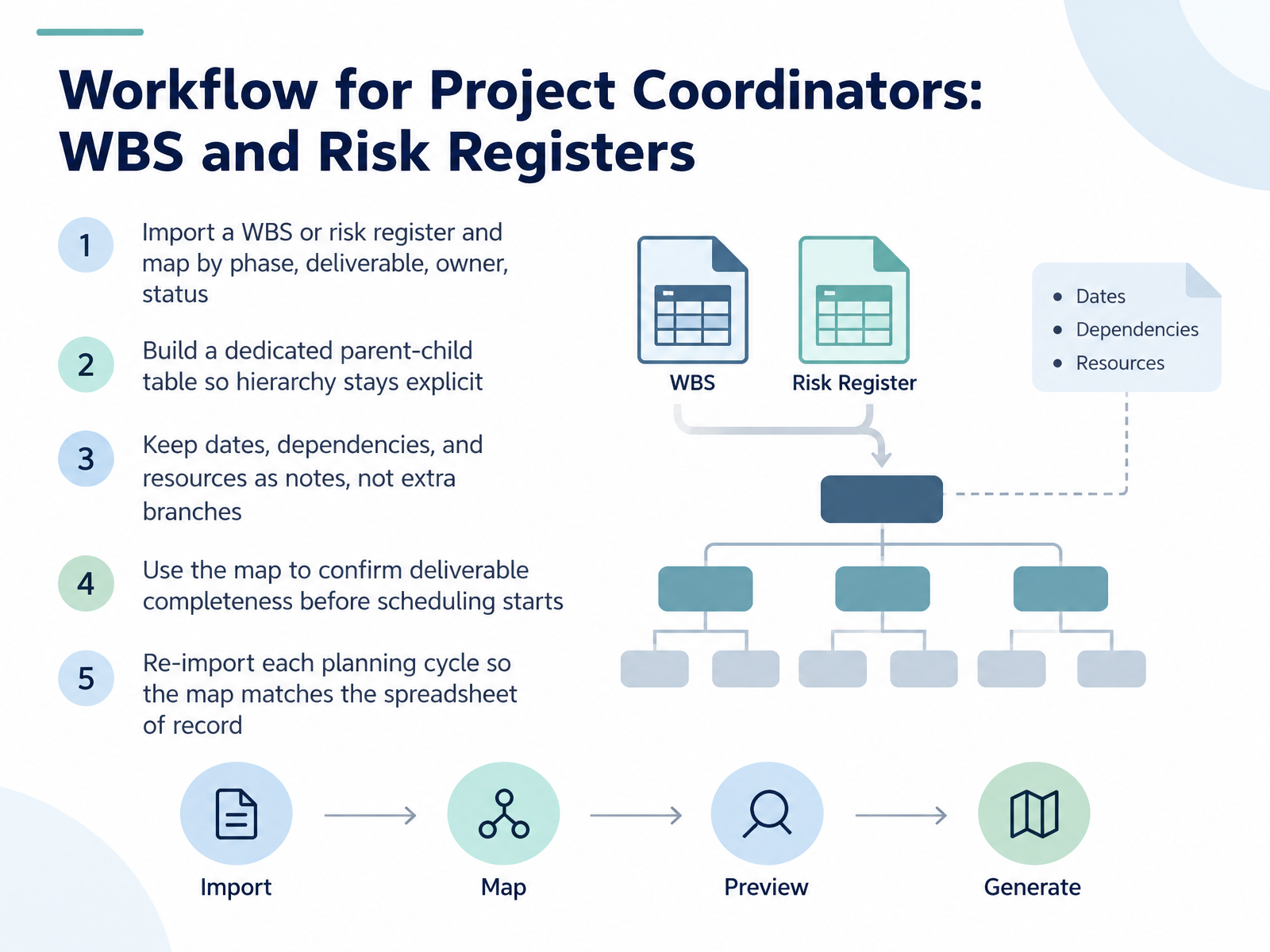
 - 10Workflow for Project Coordinators: WBS and Risk RegistersNow let's look at the workflow for project coordinators, using a work breakdown structure and a risk register. Start by importing your WBS or risk register, and map the columns by phase, deliverable, owner, and status. Building a dedicated parent-child table keeps the hierarchy explicit, so deliverables stay nested where you expect them. Keep dates, dependencies, and resource names as notes attached to each branch, rather than adding extra branches that clutter the map. A quick check: if a deliverable has no owner in the notes, you likely have a gap in your spreadsheet. Once mapped, use the view to confirm your deliverable list is complete before scheduling begins. Finally, re-import each planning cycle so the map matches the spreadsheet of record, and everyone works from the same source of truth. Next, we will extend this same approach to educators, with curriculum maps and lesson plans.
 pm.stackexchange.comcodeproject.comconceptdraw.com+21 min
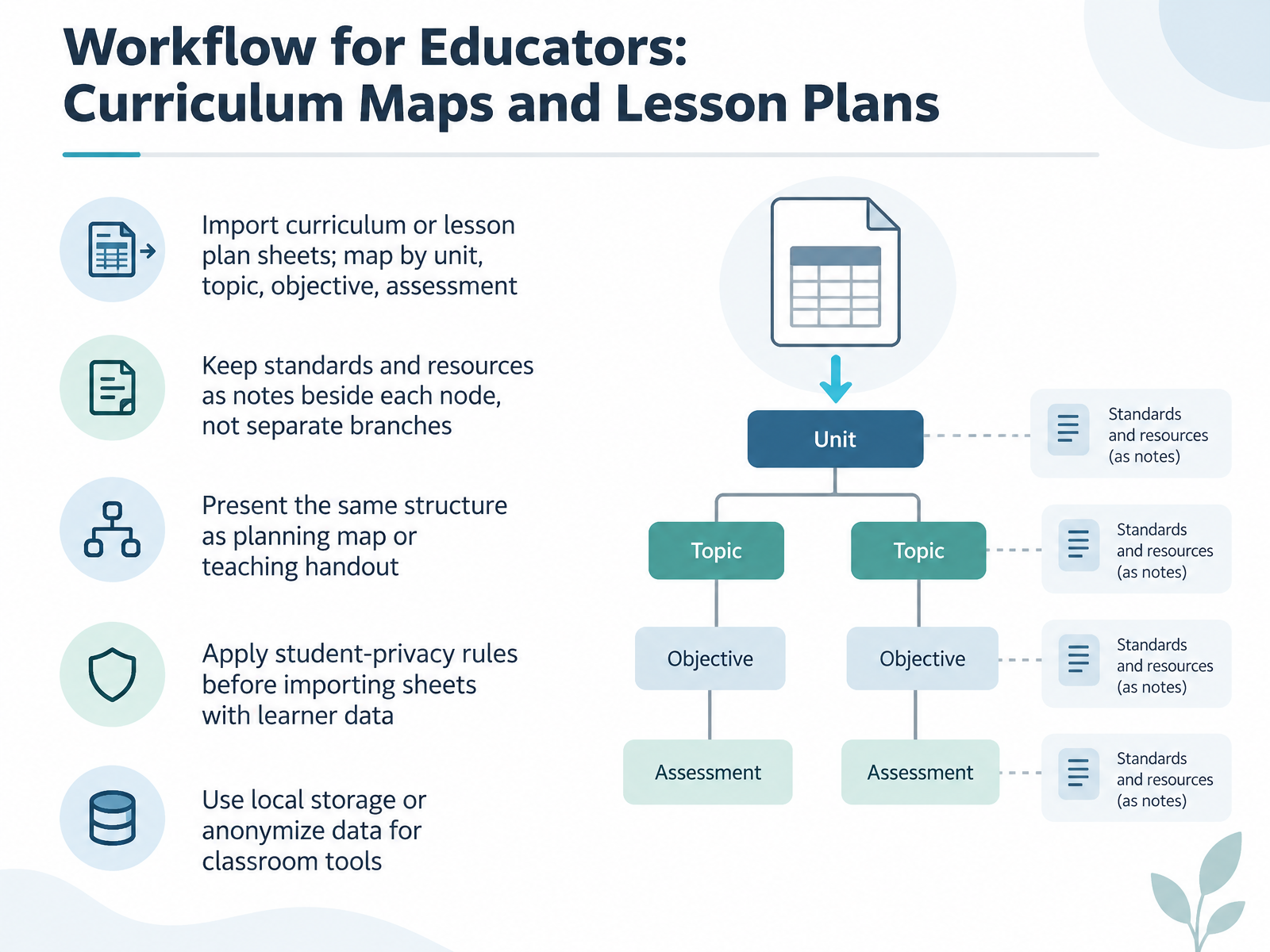
 - 11Workflow for Educators: Curriculum Maps and Lesson PlansNow let's look at how educators put this to work with curriculum maps and lesson plans. Start by importing your curriculum or lesson plan sheet, then map each column to a level in the structure: unit at the center, topics beneath it, then objectives, then assessments. Keep standards and resources as notes attached beside each node rather than as separate branches, so the tree stays readable and the detail is still one click away. The same structure can serve two purposes: a planning map for you, and a teaching handout for students, without rebuilding anything. Before you import any sheet containing learner data, apply your student-privacy rules. A practical option is local storage, or anonymizing names and identifiers before the file ever reaches the tool. Keeping maps on your own device means the data stays under your existing policies. Map the structure once, attach the detail as notes, and check privacy before you import. Next, we will cover troubleshooting import errors and poor results.
 mindmanager.commindmup.comconstella.app+12 min
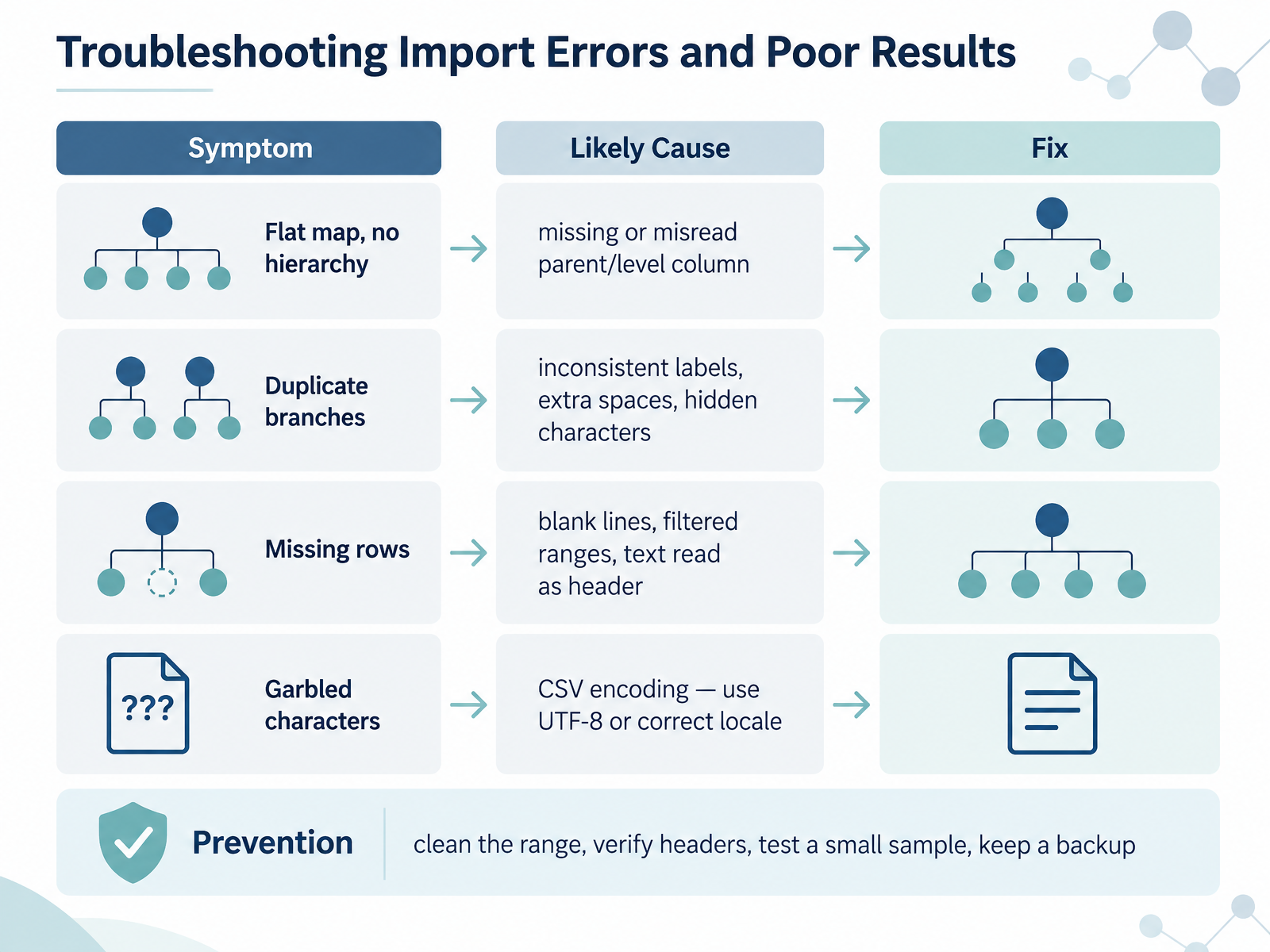
 - 12Troubleshooting Import Errors and Poor ResultsLet's talk about troubleshooting when an import goes wrong. If your map comes in flat, with no hierarchy, the parent or level column was likely missing or misread. Check that each row has a clear parent value before you re-import. If you see duplicate branches, the cause is usually inconsistent labels, extra spaces, or hidden characters. Trim your text and standardize the spelling. Missing rows often trace back to blank lines, filtered ranges, or a header row the tool read as data. Unfilter and clear those blanks first. Garbled characters almost always mean an encoding mismatch. Save as UTF-8, or set the correct locale, then try again. The best prevention is simple. Clean the range, verify your headers, test with a small sample, and keep a backup before importing the full file. Let's turn next to governance, security, and ethical data handling.
 help.mindomo.comsupport.ayoa.comconceptdraw.com+21 min
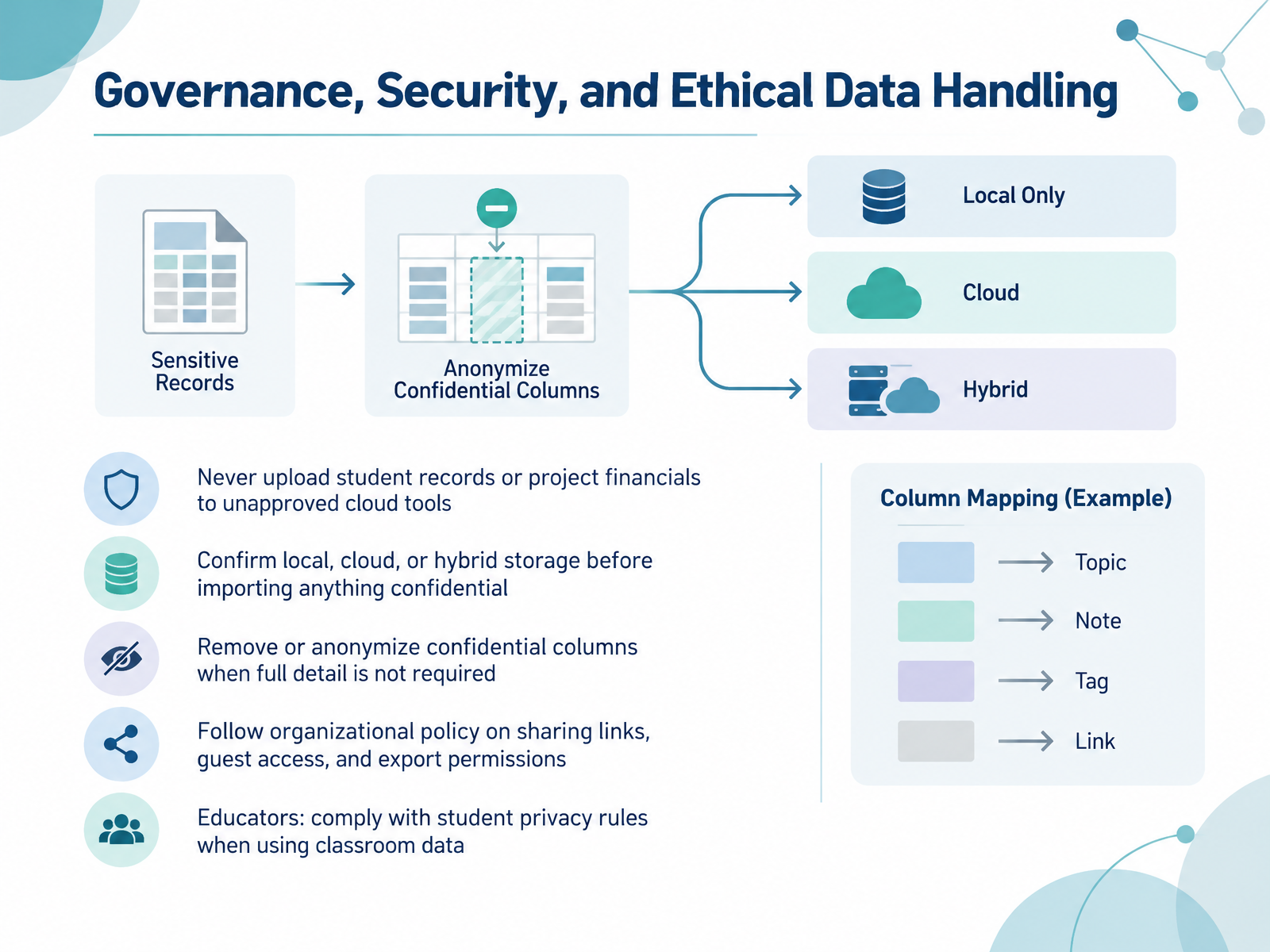
 - 13Governance, Security, and Ethical Data HandlingLet's talk about governance, security, and ethical data handling. Before you import anything, decide where it is allowed to live. Never upload student records or project financials to cloud tools your organization has not approved. If you are unsure whether a tool stores data locally, in the cloud, or in a hybrid model, confirm that first, especially before importing anything confidential. A quick rule of thumb is to remove or anonymize confidential columns when the full detail is not actually required for the map. If you only need department names, drop the individual salaries. If you only need course codes, drop the student names. Then follow your organization's policy on sharing links, guest access, and export permissions, because a map is only as private as its most open share setting. For educators, this matters even more. Student privacy rules apply to classroom data, so treat any roster or assessment file the same way you would treat a confidential business record. The takeaway is simple. Check the storage model, minimize the sensitive columns, and let policy guide how you share. That keeps your maps useful and defensible. Next, we will move into the Hands-On Exercise, Quality Checklist, and Next Steps.
 mindmanager.commindmup.comconstella.app+12 min
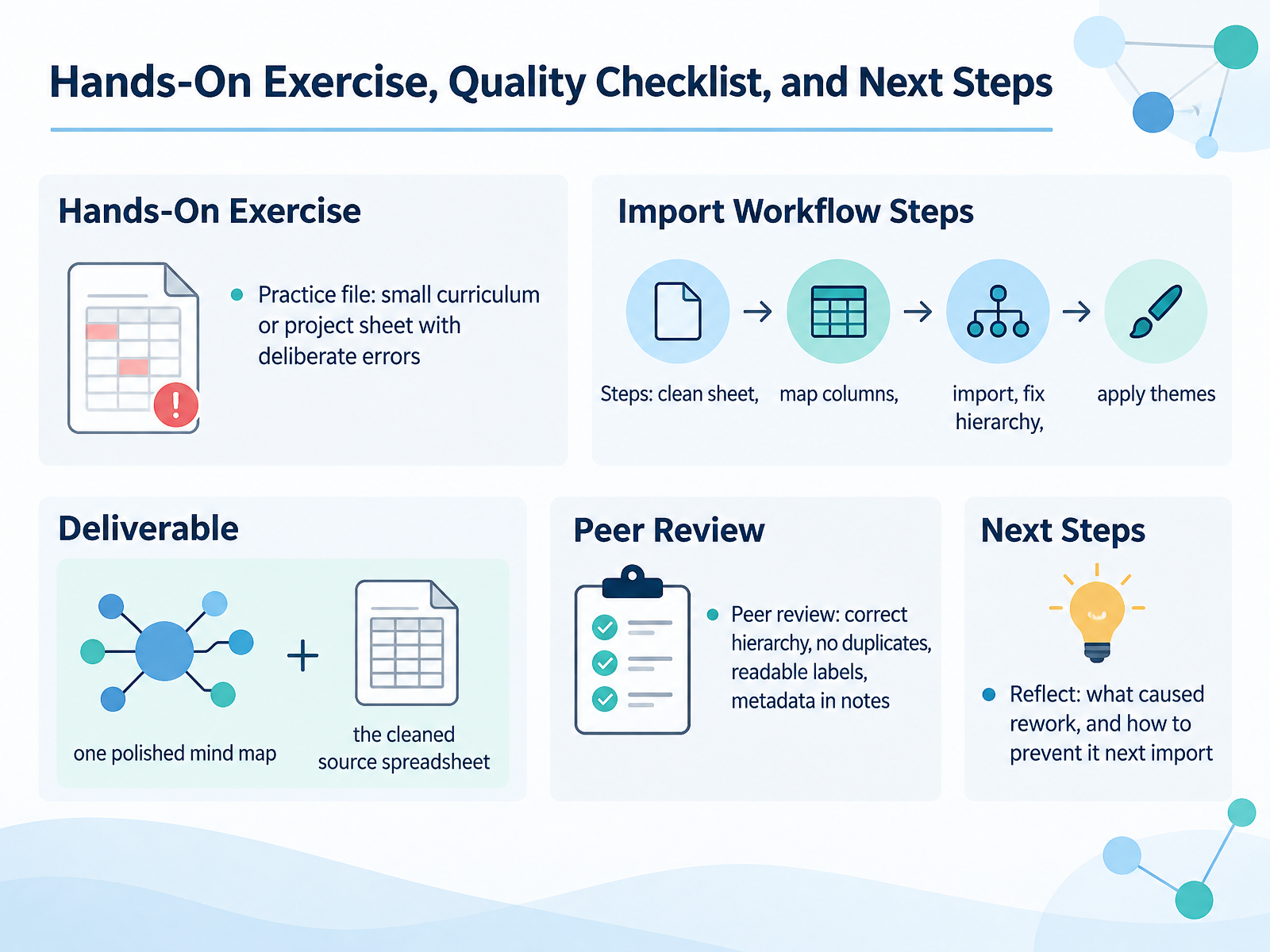
 - 14Hands-On Exercise, Quality Checklist, and Next StepsLet's bring the whole workflow together in one hands-on exercise. Use a small curriculum or project sheet that contains deliberate errors, maybe blank parent cells, duplicates, or an unmerged header that hides a broken hierarchy. Work through five steps in order. First, clean the sheet, removing empty rows and unmerging cells. Second, decide how your columns map to the map, with column A holding the highest parent level. Third, import the file. Fourth, fix any hierarchy that landed incorrectly. Fifth, apply a theme so the result reads clearly. Your deliverable is one polished mind map plus the cleaned source spreadsheet, so the import stays repeatable. For peer review, check that the hierarchy is correct, there are no duplicates, labels are readable, and metadata sits in notes rather than cluttering the branches. Then reflect. What caused rework, and how will you prevent it before your next import? That reflection is what turns a one-time fix into a reliable routine. Thank you for working through this course with me. Keep your source sheets clean, your hierarchy intentional, and your imports will keep getting faster. You have the skills now. Go build something clear.
 help.mindomo.comsupport.ayoa.comconceptdraw.com+22 min
Take the deck with you
Download this course as a file — free, no sign-up needed.
- PDF handoutEvery slide page, ready to print or share.15 pages · 2.9 MBDownload
- Narrated PowerPointThe deck that presents itself — every slide carries the digital human's narration video.15 pages · 25.7 MBDownload
- PowerPoint slidesThe full deck as a .pptx — open it in PowerPoint, Keynote, or Google Slides.15 pages · 2.8 MBDownload
Free to use in your own training — please keep the PersonWise credit page at the end.
Have your own deck? Turn it into a course
Sources consulted
Web sources consulted while building this course.
- Amplify your productivity and unify your workspace by extending MindManager’s core capabilities. — mindmanager.com
- Importing Mind Maps | Help — help.mindomo.com
- How to Import Excel Data Into Mind Mapping Software — saascentury.com
- Importing data from MS Excel to mind map| ConceptDraw HelpDesk — conceptdraw.com
- Importing files into AYOA — support.ayoa.com
- How to create maps in MindManager from directory-style tables | Sociamind — sociamind.com
- Excel to Mind Map AI Converter — Free | MyMap — mymap.ai
- Import and export - FreeMind — freemind.sourceforge.io
- Export Mind Maps | Help — help.mindomo.com
- How to import from Excel | Smaply Helpdesk — helpdesk.smaply.app
- How to import user stories from Excel into an existing story map - NextGen | StoriesOnBoard Help Center — docs.storiesonboard.com
- Edit the wbs column in microsoft project / import wbs + indent tasks — pm.stackexchange.com
- Converting Mind Map Plan into an Excel Table — codeproject.com
- How to Convert a Mind Map into MS Project XML | How to Import MS Project File to a Mind Map Using the Project Exchange Solution | How to Make a Project Tasks Mind Map from Brainstorm | Mindmap Ms Project — conceptdraw.com
- Project Management — mindmanager.com
- QuickPlanXをMicrosoft Project、Excel、マインドマップなどと統合する | QuickPlanX — qkplan.com
- Data security, privacy and compliance | MindManager — mindmanager.com
- GDPR resources and information - Mindmup — mindmup.com
- Your Data, Your Device — Private, Local-First AI | Constella — constella.app
- Privacy Policy — Nervespan MindMap — mindmap.nervespan.com