Begin
14 pages · ~28 min
Excel Sorting Practical Workflow
Learn a practical workflow for sorting Excel spreadsheets, from basic single-column sorts to advanced multi-level sorting with custom criteria. Ideal for users seeking efficient data organization skills.
A digital instructor presents all 14 pages. Hold “Ask” at any point and ask out loud — the answer comes from this course. No sign-up needed.
What you’ll learn
- 01How to Sort an Excel Spreadsheet: A Practical WorkflowHello, and welcome! Sorting in Excel is one of those everyday tasks that can save you a ton of time once you know the right way to do it. I'm glad you're here. Today, we're going to build a simple, practical workflow that anyone can follow, whether you're a business professional, a student, or just starting out with data. We'll start with a quick data check, then move on to sorting, and finish with a final verification so you can be confident your information stays accurate. Along the way, we'll look at hands-on examples and point out common mistakes to avoid. By the end, this whole process is going to feel like second nature. Let's get started with why sorting is such a valuable skill to have, and then we'll jump into the first steps. Wait, before we dive in, let's talk about one thing that can cause real headaches: when sorting goes wrong. Let's look at that next.support.microsoft.commichaelnocito.github.ioablebits.com+21 min
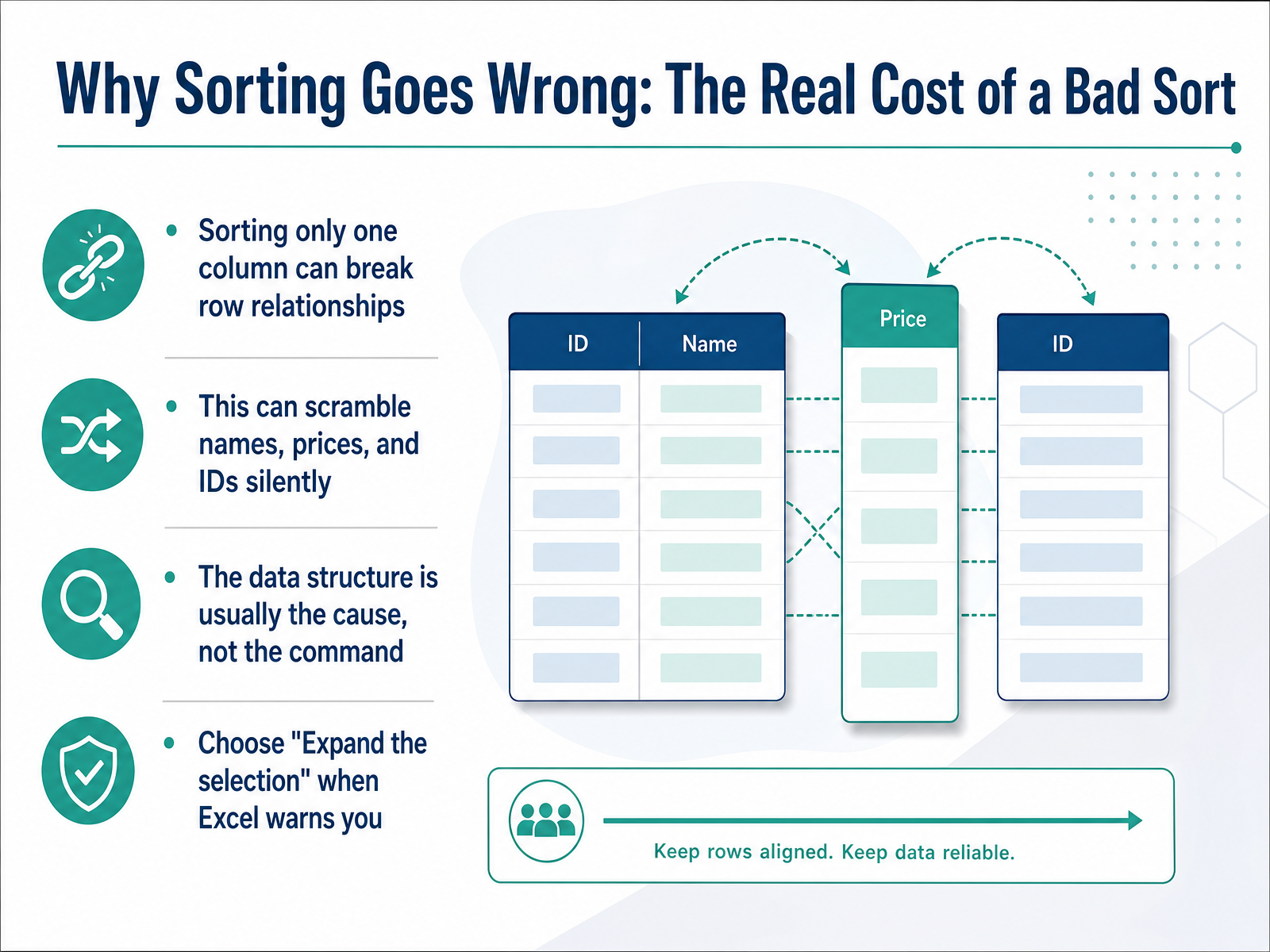
- 02Why Sorting Goes Wrong: The Real Cost of a Bad SortLet’s look at why sorting sometimes goes wrong. The real cost of a bad sort is usually silent. You sort one column, and suddenly, names don’t match their prices. IDs get paired with the wrong records. The data is scrambled, and you might not notice right away. The cause is rarely the sort command itself. It’s almost always the data structure around it. A classic mistake is sorting only a single column. Excel will often warn you about this. When it does, choose “Expand the selection.” That keeps every row together. This simple choice protects your data’s relationships. It’s the difference between a clean list and a broken one. Before we sort anything, we need to prepare the dataset properly.
 support.microsoft.comxceltips.comumatechnology.org+21 min
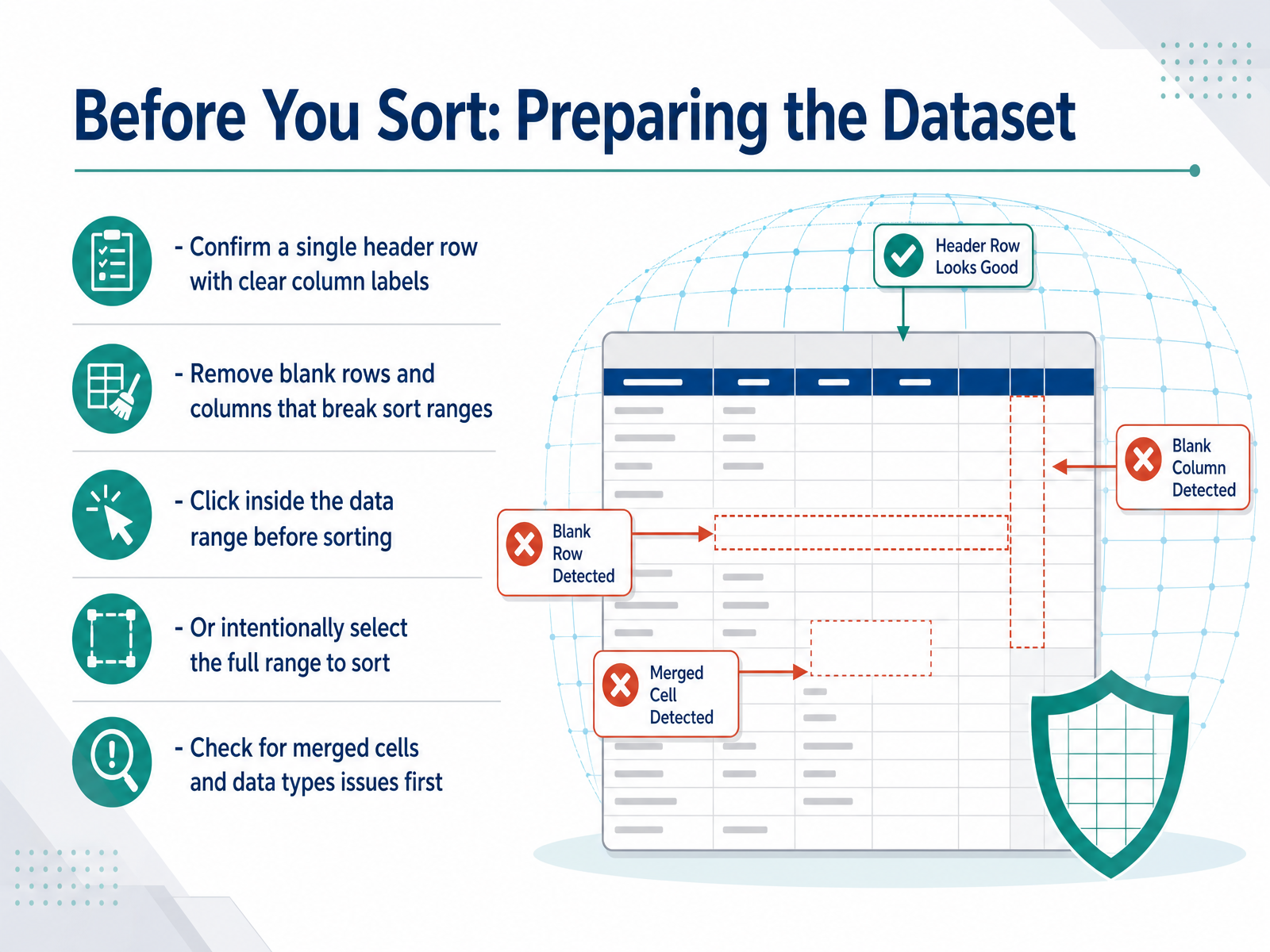
 - 03Before You Sort: Preparing the DatasetBefore we click any sort buttons, let's take a quick look at our data. Think of this as tidying up before visitors arrive. First, make sure you have one clear header row at the very top, with a simple label for each column. Next, remove any completely blank rows or columns that break up your data. Excel might see those gaps as the end of your list. Also, check for merged cells and make sure numbers are stored as numbers, not text. A quick way to avoid many issues is to click a single cell inside your data range before sorting. Or, even safer, select the entire range of rows and columns yourself. This way, Excel knows exactly what to move together. Give your data a quick check, and sorting will feel much smoother.
 support.microsoft.comthebricks.comwisechecker.com+21 min
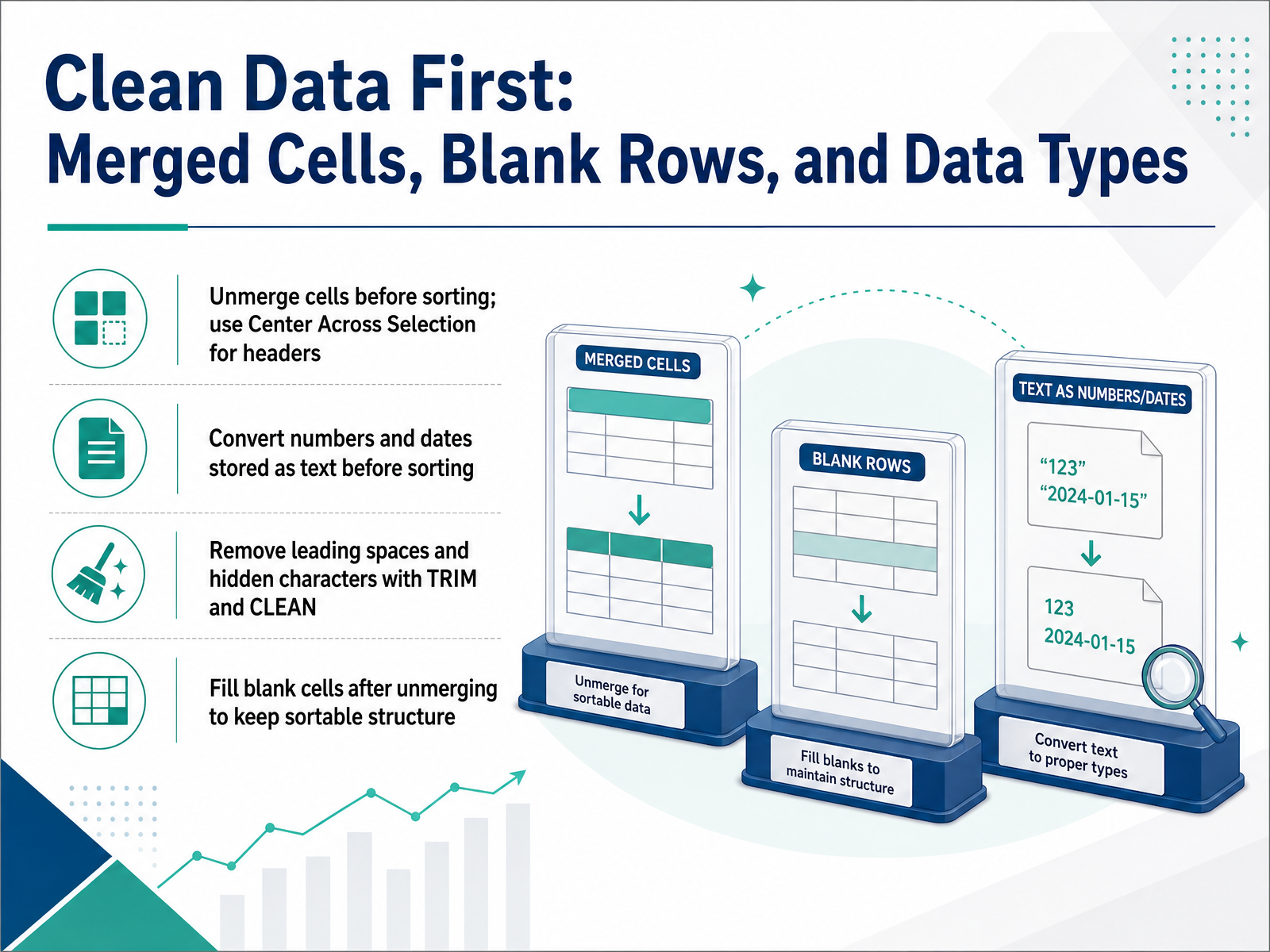
 - 04Clean Data First: Merged Cells, Blank Rows, and Data TypesBefore we sort anything, let's make sure the data is ready. Think of it like tidying a desk before you start working. First, check for merged cells. Excel only keeps the value in the top-left cell, so sorting gets confused. Unmerge them, then fill the empty cells with the value from above. Select the blanks, type equals, press the up arrow, then hold Ctrl and press Enter. For headers, you can still get that nice centered look without merging. Use Center Across Selection instead. That keeps every cell independent. Next, check your data types. Numbers and dates stored as text will sort in a strange order. Look for a green triangle in the corner of a cell, that is a clue. Convert them to real numbers or dates. Also, watch for sneaky spaces. Imported data often has leading spaces that break the sort. Use the TRIM function to clean them up, and CLEAN to remove hidden characters. Once everything is unmerged, filled, and consistent, you are ready to choose the right sort method. That is our next step.
 support.microsoft.comthebricks.comwisechecker.com+22 min
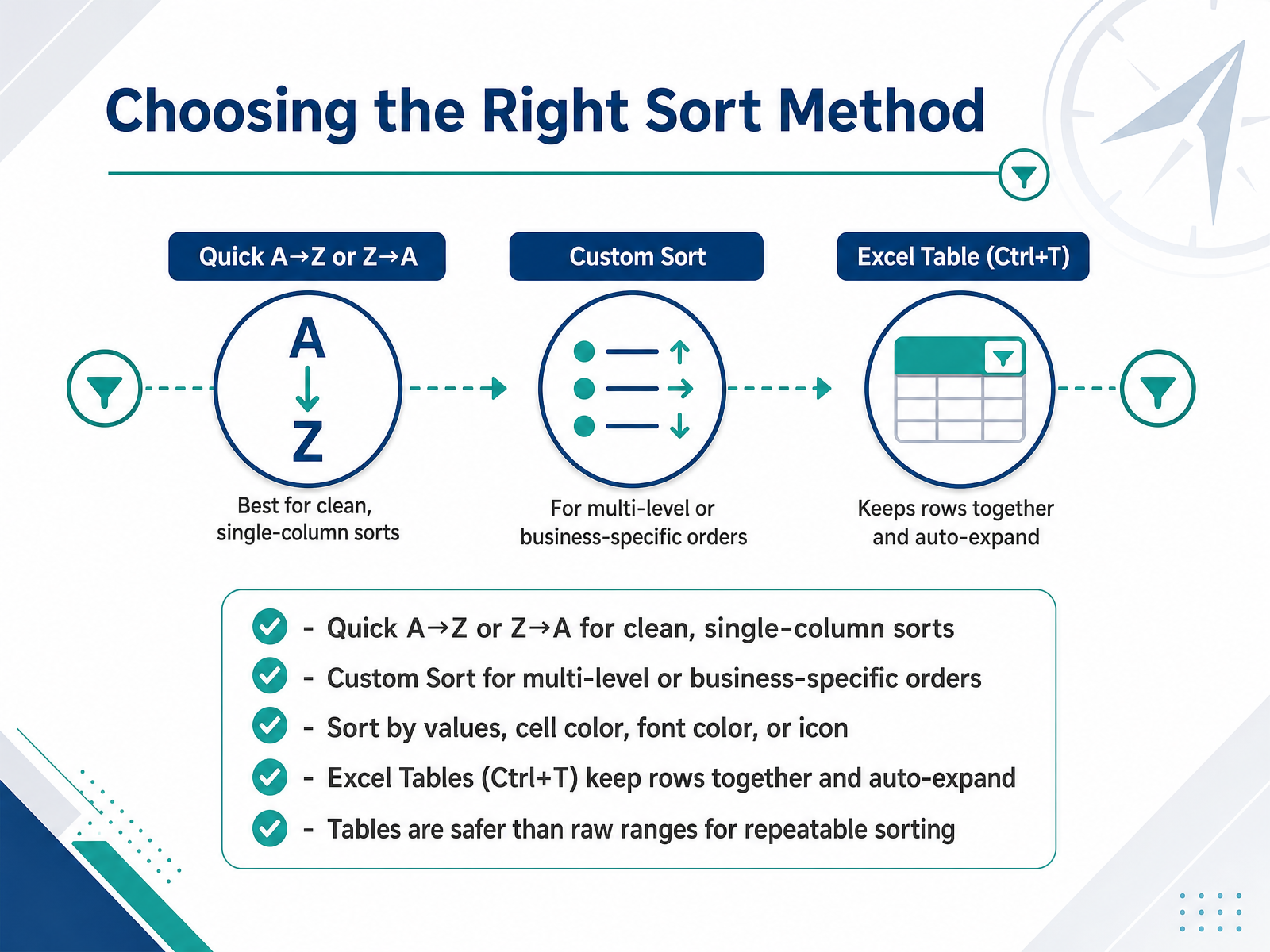
 - 05Choosing the Right Sort MethodNow let's talk about choosing the right sort method. For a clean, single-column sort, the quick A-to-Z or Z-to-A buttons are all you need. They're fast, simple, and perfect for everyday tasks. But for multi-level sorting, or when your business needs a specific order, you'll want the Custom Sort option. It lets you sort by values, by cell color, by font color, or even by icon. And here's a tip that will save you headaches later. If your data is likely to grow, turn it into an Excel Table by pressing Control plus T. Tables keep rows together during sorting, they expand automatically as you add new data, and they're far safer than raw ranges for repeatable sorting. This means your rows never get mismatched, and your formulas always stay correct. So remember, for quick jobs, use the simple buttons. For anything more complex, use Custom Sort. And for data you'll sort again and again, make it a Table. Next, we'll walk through the fastest way to handle a basic single-column sort.
 support.microsoft.commichaelnocito.github.ioablebits.com+21 min
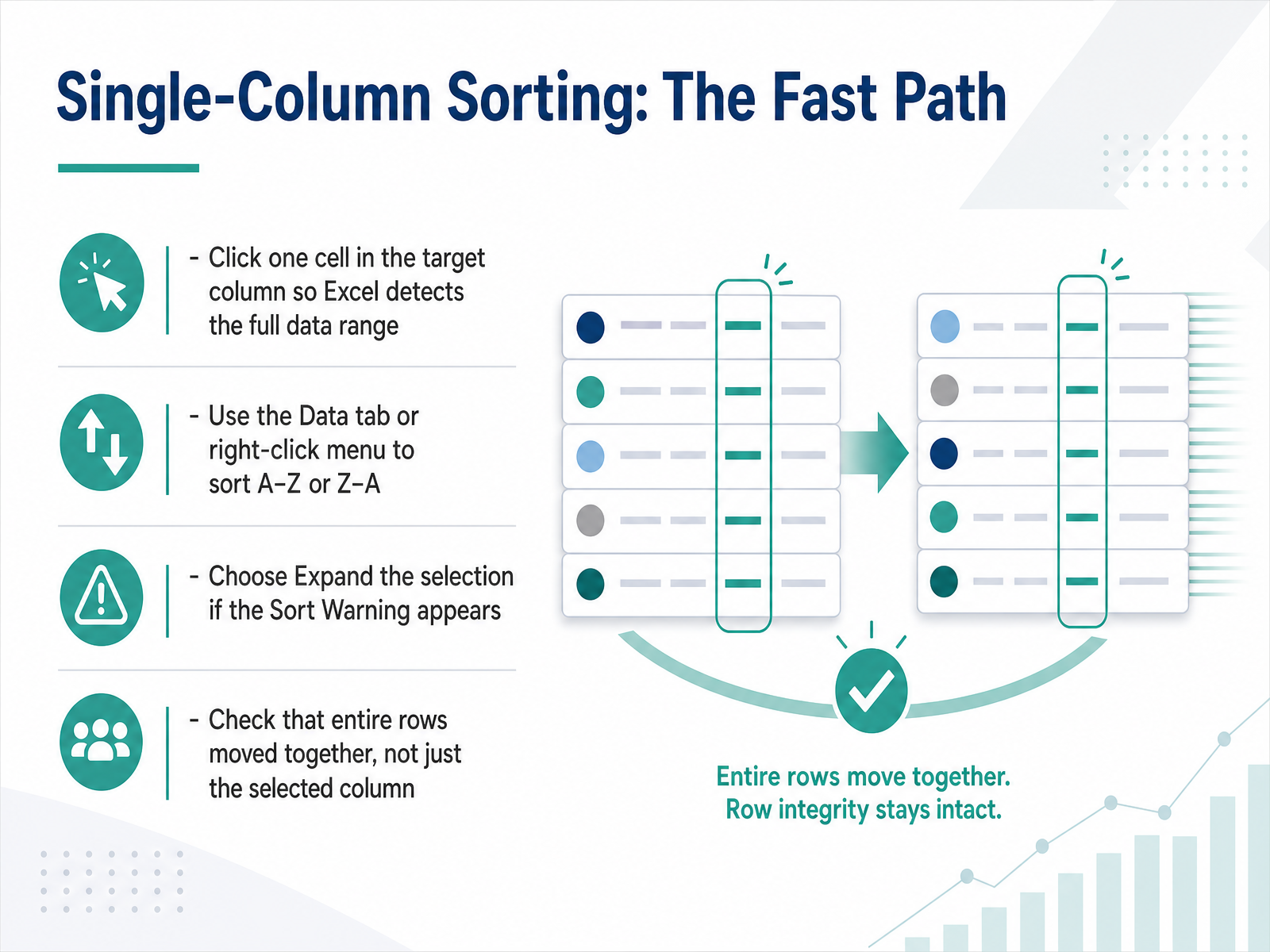
 - 06Single-Column Sorting: The Fast PathNow let's talk about the fastest way to sort: sorting by a single column. The key is to click just one cell inside the column you want to sort by—not the whole column, not the whole table. Just one cell. That way, Excel automatically detects the full data range around it. Then, go to the Data tab and choose Sort A to Z for text, or smallest to largest for numbers. You can also right-click and use the sort options there. Sometimes Excel will show a Sort Warning, asking if you want to expand the selection. Always choose Expand the selection. This keeps all the rows together, so the data in your other columns stays matched with the right row. After sorting, glance across a few rows to make sure everything moved together—that the names, dates, and numbers are still aligned. If the rows look mixed up, just press Ctrl+Z to undo and try again. The fast path is really that simple: one cell, choose A to Z, expand the selection, and check your work. Once you've got that down, we can move on to sorting by more than one column, which is a huge help when you're working with real business data.
 support.microsoft.commichaelnocito.github.ioablebits.com+21 min
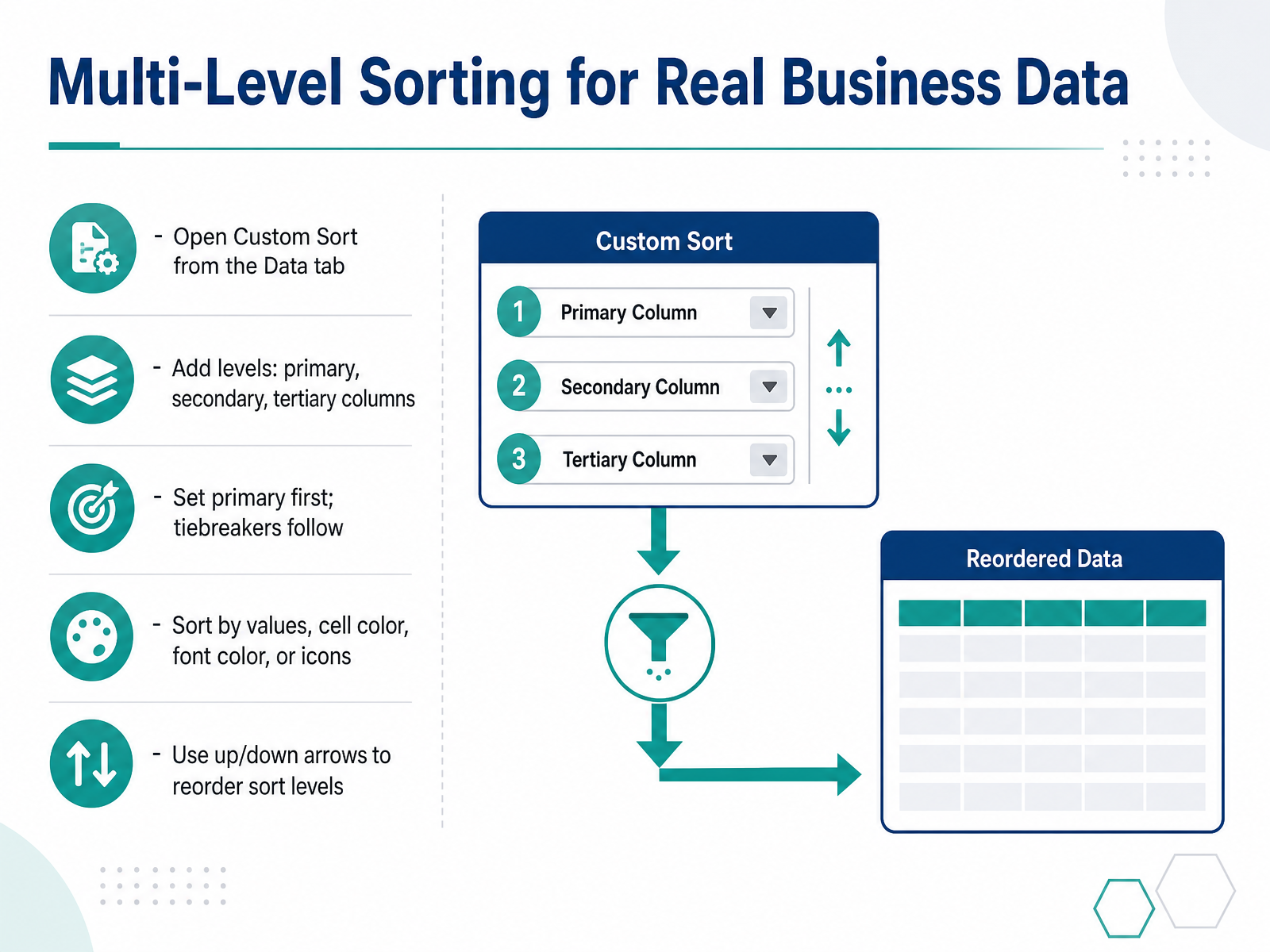
 - 07Multi-Level Sorting for Real Business DataNow, let's take sorting a step further. When you have real business data, one column often isn't enough. You open the Data tab, and click Sort to open the Custom Sort dialog. Click Add Level. Now you can set your primary column: maybe Region. Then add a secondary level: maybe Sales, from largest to smallest. Excel will group all the rows by region first, and then within each region, it will rank them by sales. This is your primary and your tiebreaker. You can even add a third level for extra clarity. And here is a useful trick. If you have colored cells or icons, you can sort by those too. Under Sort On, choose Cell Color, or Font Color, or Cell Icon. Excel will bring all the red rows to the top, then the yellow, then the green. Finally, use the up and down arrows to reorder your levels. The level at the top always has priority. So set your most important grouping first. With just a few clicks, your messy data becomes a clean, structured report. Next, we will look at custom lists and color sorting for your business rules.
 support.microsoft.comxelplus.comgroovypost.com+21 min
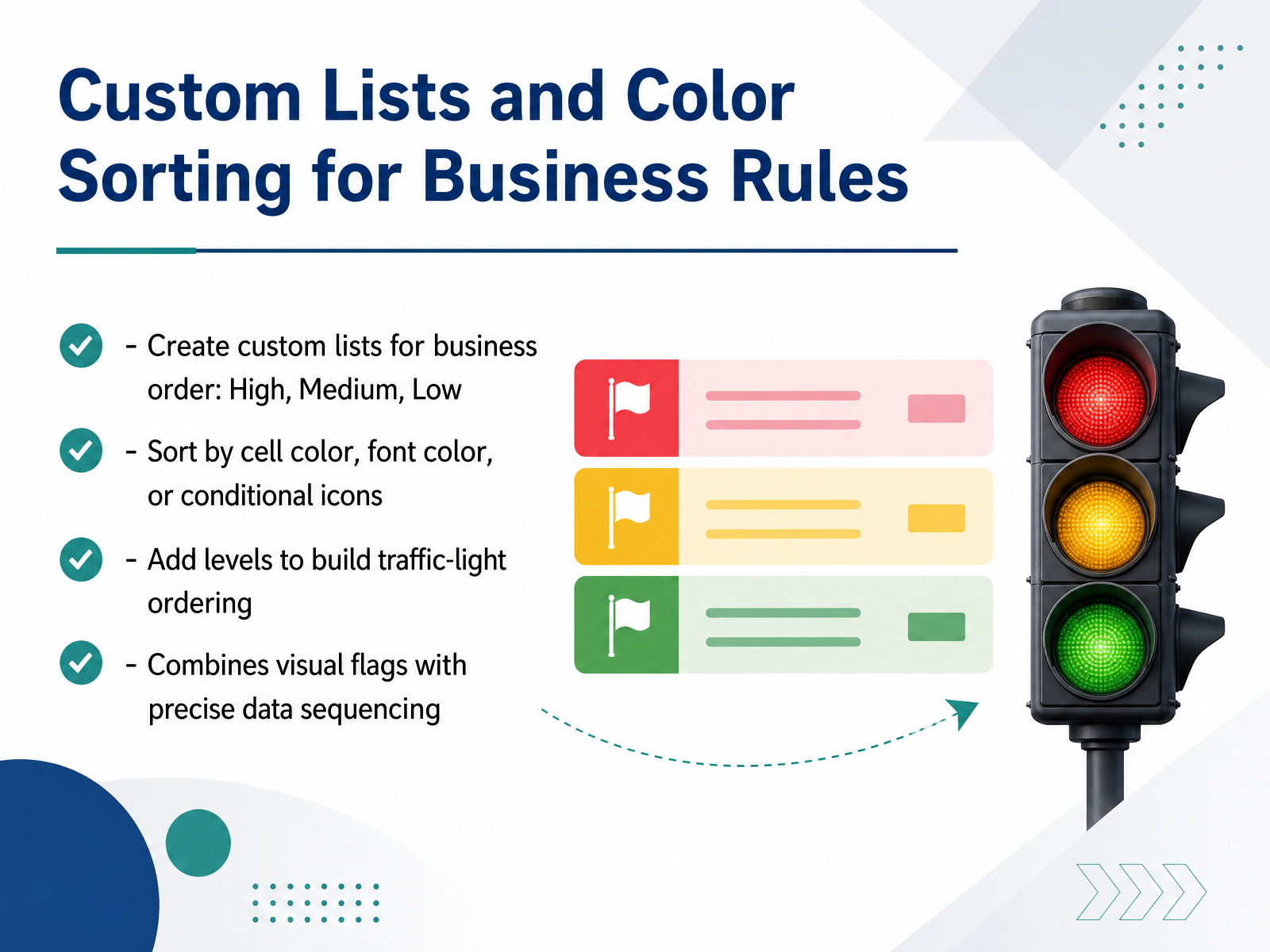
 - 08Custom Lists and Color Sorting for Business RulesNow let’s talk about sorting when A to Z just isn’t enough. If your team uses words like High, Medium, and Low, a normal alphabetical sort would put Low before Medium. That’s not what you want. So, create a custom list. Go to File, Options, Advanced, and find Edit Custom Lists. Type your order: High, then Medium, then Low. Save it. Now, in the Sort dialog, pick your column, choose Custom List, and select your sequence. Excel will follow your business logic. You can also sort by color. If you’ve highlighted urgent tasks in red, or used conditional icons like flags, you can sort by those too. In the Sort dialog, change Sort On to Cell Color or Cell Icon. Pick your color, choose On Top, and click Add Level for the next one. This builds a traffic-light order: red first, then yellow, then green. Combining custom lists with color sorting gives you a clean, visual priority list that matches how your team actually works. Up next, we’ll see how sorting behaves differently when your data is in a table versus a plain range.
 support.microsoft.comxelplus.comgroovypost.com+21 min
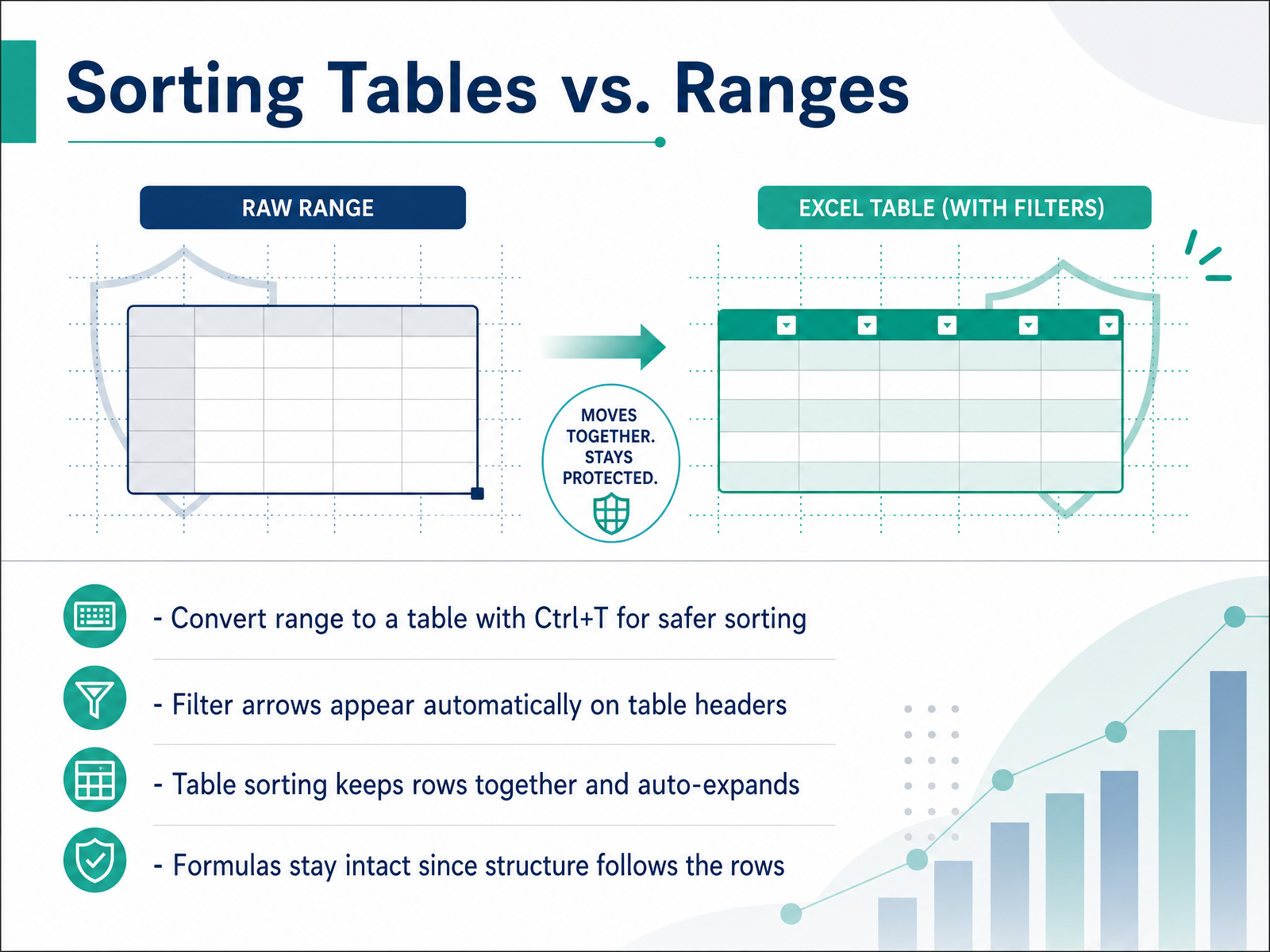
 - 09Sorting Tables vs. RangesNow, let's talk about the safer way to sort: Excel Tables. If you've been sorting plain ranges, you might have noticed how easy it is to accidentally misalign a row. Tables fix that. Here's the trick: select any cell inside your data, press Control plus T, and confirm. Just like that, your range becomes a table. You'll see filter arrows appear automatically on every header. That's your sorting menu, ready to go. The real benefit is that the table keeps rows together as one unit. When you sort by one column, the entire row moves with it. No more mismatched pairs. The table also expands automatically, so if you add new rows later, they're included in your sorting and formulas. Formulas stay safe because they follow the rows, not fixed cell addresses. For everyday sorting tasks, using a table is the most reliable choice. Next, let's look at how to avoid sorting disasters before they happen.
 support.microsoft.commichaelnocito.github.ioablebits.com+21 min
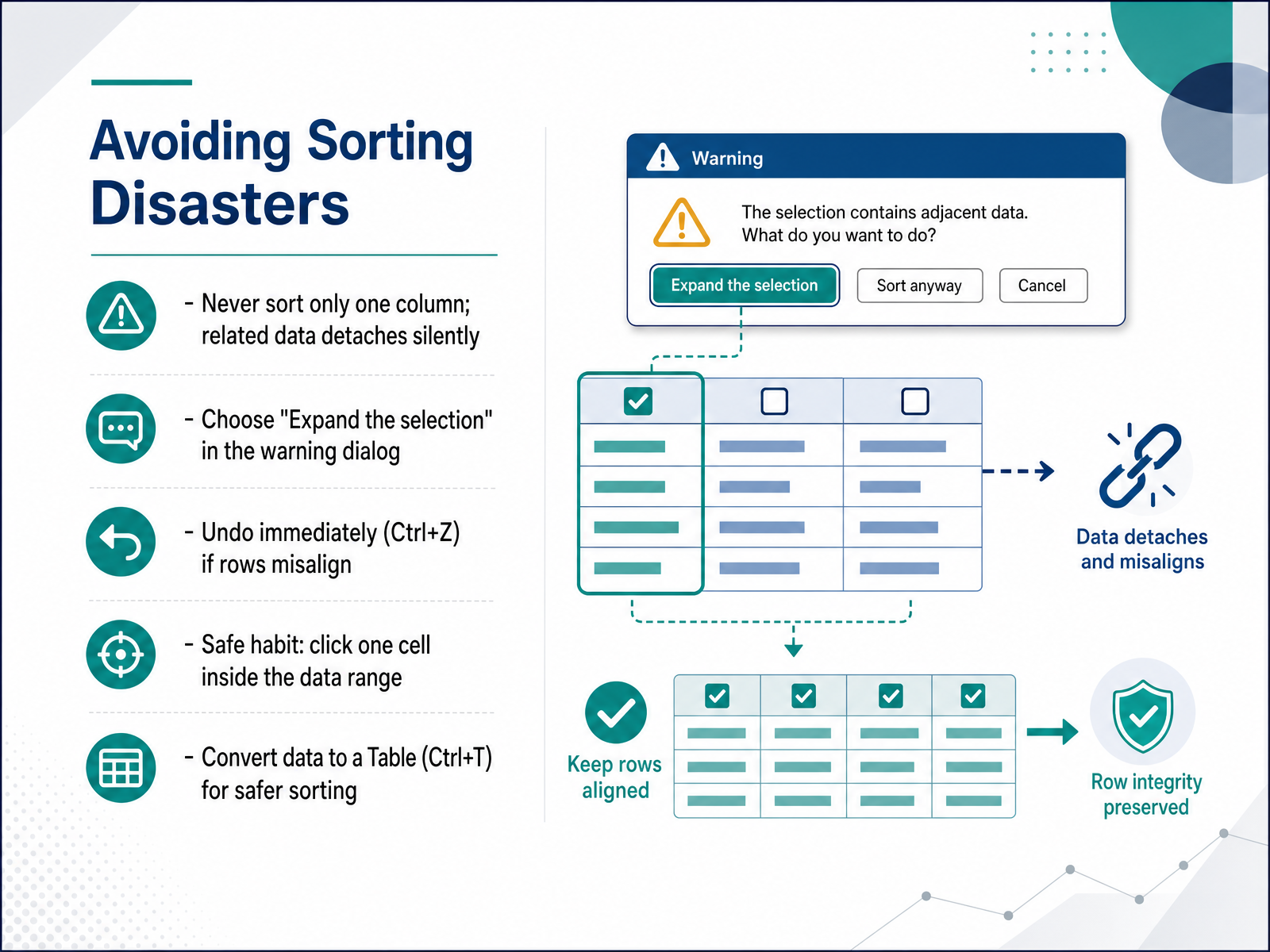
 - 10Avoiding Sorting DisastersNow, let's talk about avoiding sorting disasters. The biggest mistake is sorting only one column. If you do that, the data in that column moves, but the related data in the other columns stays right where it was. That silently breaks the connection between your rows. When Excel shows you the Sort Warning, always choose 'Expand the selection.' That keeps the rows intact. If things look wrong, press Ctrl+Z immediately to undo. A safer habit is to click just one cell inside your data range before you sort. Excel will automatically detect the full table for you. And if you want the safest experience, convert your data to a Table by pressing Ctrl+T. Tables keep rows together and make sorting much more reliable. With these habits, you'll keep your data clean and accurate. Next, let's talk about verifying that your sort worked correctly.
 support.microsoft.commrexcel.combettersolutions.com+21 min
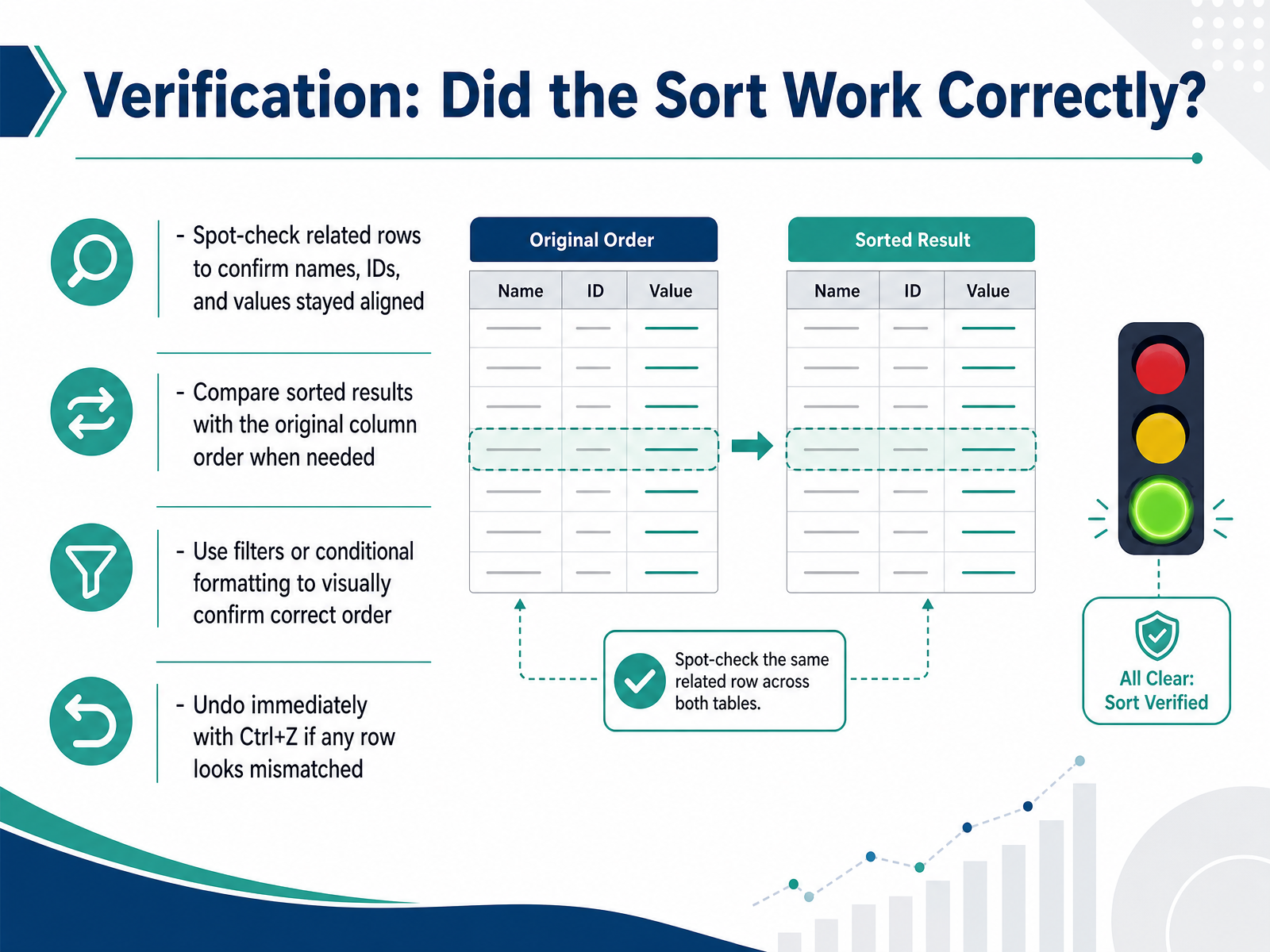
 - 11Verification: Did the Sort Work Correctly?Once you run the sort, pause for a second and take a quick look. Scan a few rows to confirm that names, IDs, and values still line up correctly across each row. That simple spot-check catches most mistakes right away. If you want extra confidence, apply a filter or add conditional formatting to visually confirm the order is right. And remember, if anything looks off, just press Ctrl+Z to undo immediately. Don't hesitate. One quick undo is always faster than fixing mismatched data later. Now, let's look at some common problems you might run into and how to solve them.
 support.microsoft.comxceltips.comumatechnology.org+21 min
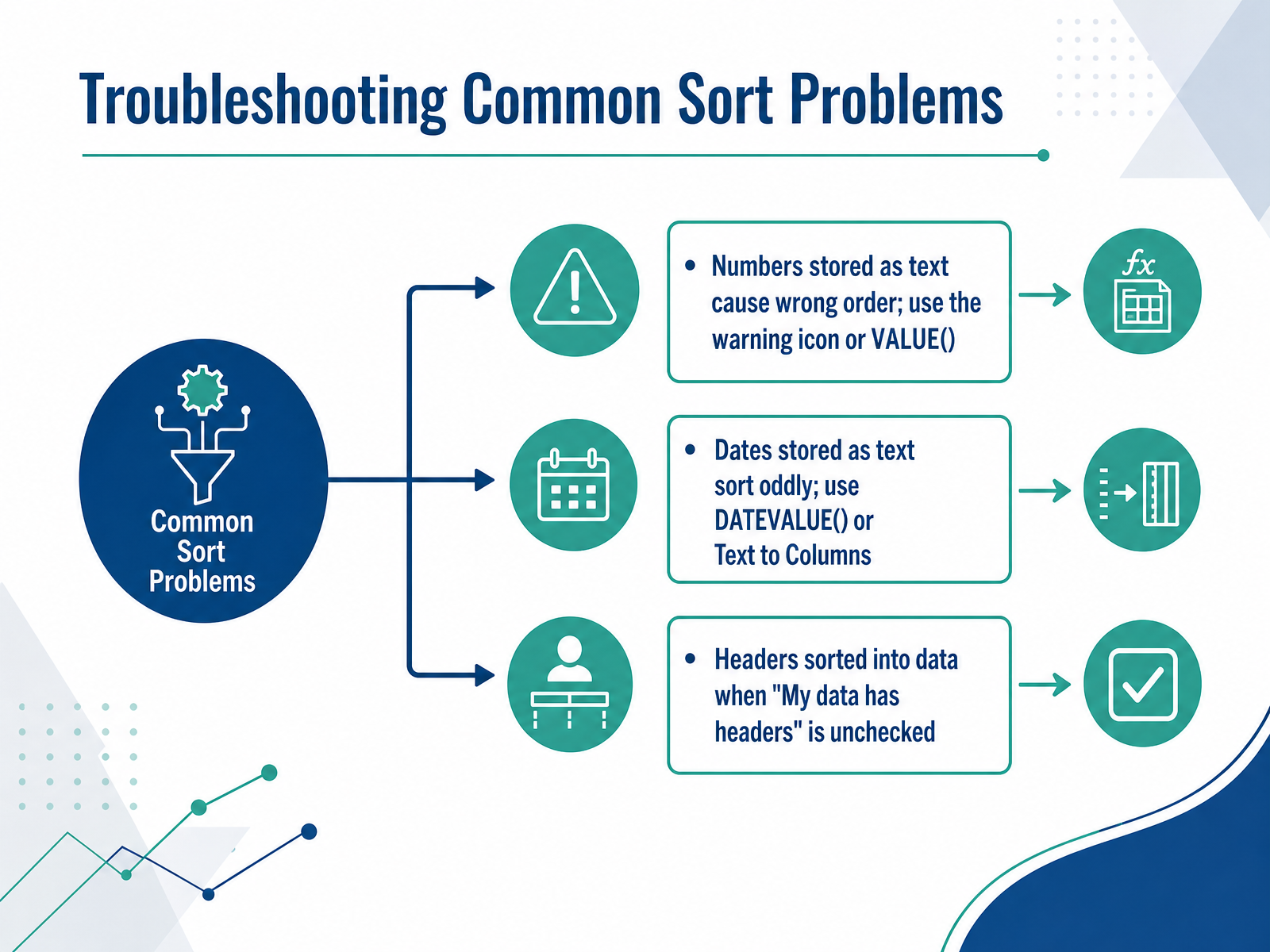
 - 12Troubleshooting Common Sort ProblemsLet’s look at a few common sorting problems and how to fix them quickly. First, numbers that sort in a strange order, like ten, one hundred, two, are probably stored as text. Look for the small green warning triangle in the corner of the cell. Click it, and choose Convert to Number. That usually solves it. Dates can have the same issue. If your dates sort as text, use the Text to Columns tool or the DATEVALUE function to turn them into real dates. And one more simple fix. If your header row ends up mixed into your data, open the Sort dialog and make sure the box that says My data has headers is checked. These fixes are quick, and they handle most sorting surprises. Next, let’s walk through a full practice workflow from raw data to a sorted report.
 support.microsoft.comxceltips.comumatechnology.org+21 min
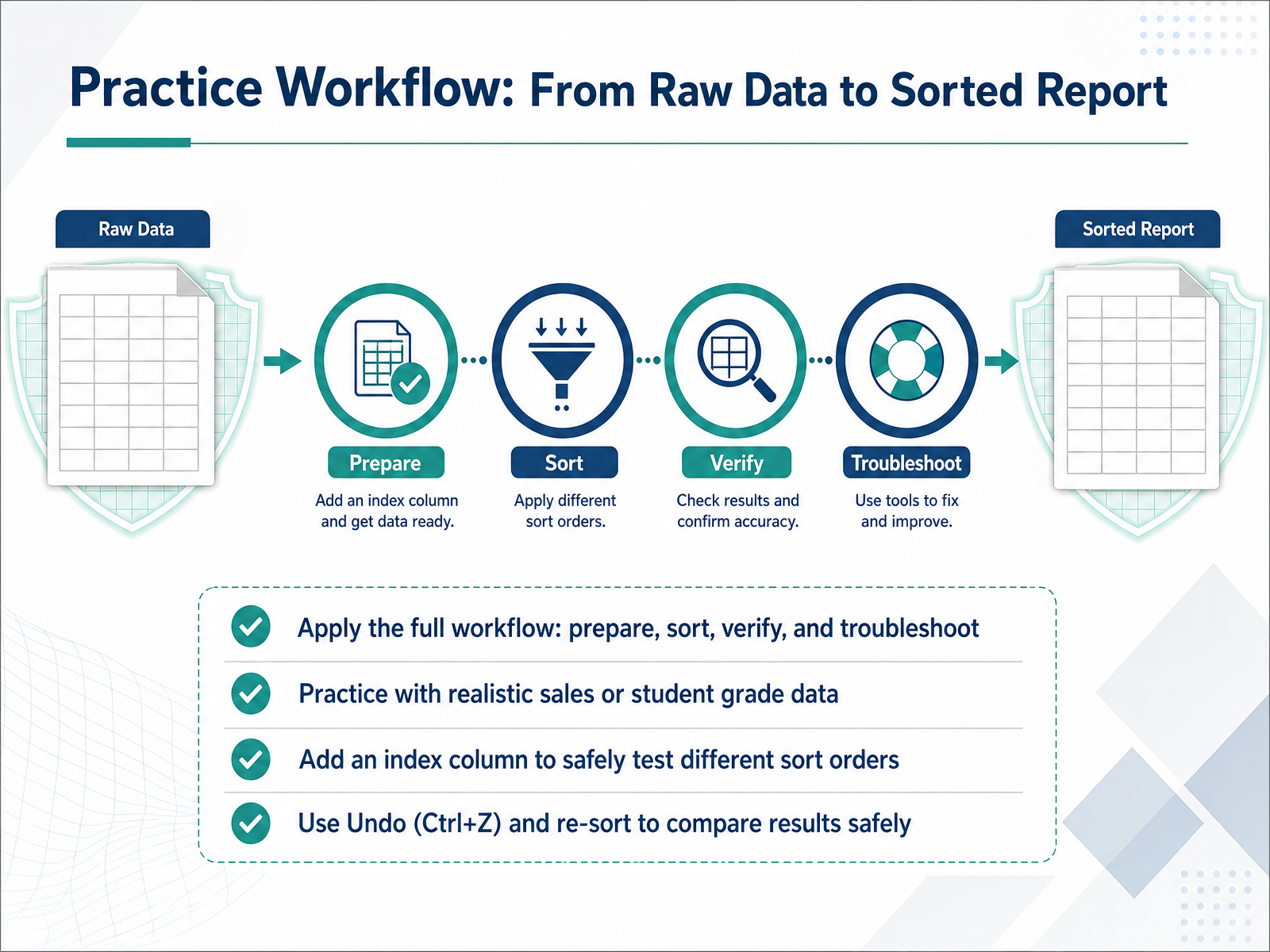
 - 13Practice Workflow: From Raw Data to Sorted ReportNow let's bring everything together with a full practice workflow. Start with a realistic data set, like sales records or student grades. First, prepare your data. Check that every column has a clear header, and remove any blank rows that might break the sort. Next, add an index column. Just number each row from one to the end. This simple step gives you a safe way to return to the original order anytime. Then apply your sort. Try sorting by region, and within each region, by total sales from high to low. After the sort, verify the results. Check that each row still belongs together, and spot-check a few records. Finally, troubleshoot anything that looks off. If only one column moved, press Control plus Z to undo immediately, then select your entire data range and try again. Remember, Excel is your tool, and you are in control. This practice will turn sorting into a quick, confident habit. Up next, we will cover a quick reference and next steps for your continued learning.
 support.microsoft.comxceltips.comumatechnology.org+22 min
 - 14Quick Reference and Next StepsLet's wrap up with a quick look at what you've learned, so you can keep this workflow handy. First, always check your headers before you sort. Make sure your columns have clear names and that no row is merged. Then, when you sort, either click a single cell in the column, or select the whole range including all related columns. That keeps every row together. Next, pick your method. Use the Data tab buttons for a quick A to Z or Z to A. For more control, open the Sort dialog. Remember the keyboard shortcuts: Alt, A, S, A for ascending, Alt, A, S, D for descending, and Alt, A, S, S opens the full Sort dialog. This saves you time once you get used to them. After you sort, always verify. Scan the rows to confirm everything lined up properly, especially the columns that should move together. Now, you're ready for the next steps. Try filtering to focus on specific data, use conditional formatting to highlight patterns, and explore PivotTables to summarize your data in powerful ways. You've got this. Sorting is just the beginning. Thanks for learning with me, and happy organizing!
 practicetestgeeks.comsupport.microsoft.commichaelnocito.github.io+21 min
Take the deck with you
Download this course as a file — free, no sign-up needed.
- PDF handoutEvery slide page, ready to print or share.15 pages · 3.2 MBDownload
- Narrated PowerPointThe deck that presents itself — every slide carries the digital human's narration video.15 pages · 13.9 MBDownload
- PowerPoint slidesThe full deck as a .pptx — open it in PowerPoint, Keynote, or Google Slides.15 pages · 3.0 MBDownload
Free to use in your own training — please keep the PersonWise credit page at the end.
Have your own deck? Turn it into a course
Sources consulted
Web sources consulted while building this course.
- Sort data in a range or table in Excel | Microsoft Support — support.microsoft.com
- Excel Tables vs Ranges: What Ctrl+T Actually Changes — Analyst Prep Kit — michaelnocito.github.io
- Excel table: comprehensive tutorial with examples — ablebits.com
- When not to use tables in Excel: 5 scenarios where regular ranges are better — howtogeek.com
- Stop using "fake" tables in Excel—they're breaking your data — howtogeek.com
- How to Sort Data in Excel: Organizing Your Data Faster — xceltips.com
- Excel Sort Is Not Working: How to Properly Fix It - UMA Technology — umatechnology.org
- 🏆 Excel Sort Guide: Master Sorting Data in Excel 2026 July — practicetestgeeks.com
- Getting Wrong Results from a Simple Sort (Microsoft Excel) — excelribbon.tips.net
- Top ten ways to clean your data | Microsoft Support — support.microsoft.com
- How to Sort Merged Cells in Excel Using AI — thebricks.com
- Excel Sort and Filter Not Working Due to Merged Cells: How to Fix It – WiseChecker — wisechecker.com
- 🎓 Unmerge Cells in Excel: Complete 2026 June Guide — practicetestgeeks.com
- How to Clean Messy Data in Excel: A 9-Step Checklist - Learn Excel — learnexcel.io
- Excel Sort (by Value, Color, Icon, Own List) & How to Unsort - Xelplus - Leila Gharani — xelplus.com
- How to Use the Custom Sort Feature in Microsoft Excel — groovypost.com
- How to Sort Data in Excel: Multi-Level & Custom Sort 2026 — practicetestgeeks.com
- Excel 2024: Sort and Filter by Color or Icon - Excel Tips - MrExcel Publishing — mrexcel.com
- Sort Warning for a single column — mrexcel.com
- Excel Cells & Ranges - Sorting — bettersolutions.com