Begin
14 pages · ~28 min
LAN Fundamentals in Computer Networking
This training explains what a local area network (LAN) is, its purpose, and its role in computer networking for beginners and IT professionals seeking foundational knowledge.
A digital instructor presents all 14 pages. Hold “Ask” at any point and ask out loud — the answer comes from this course. No sign-up needed.
What you’ll learn
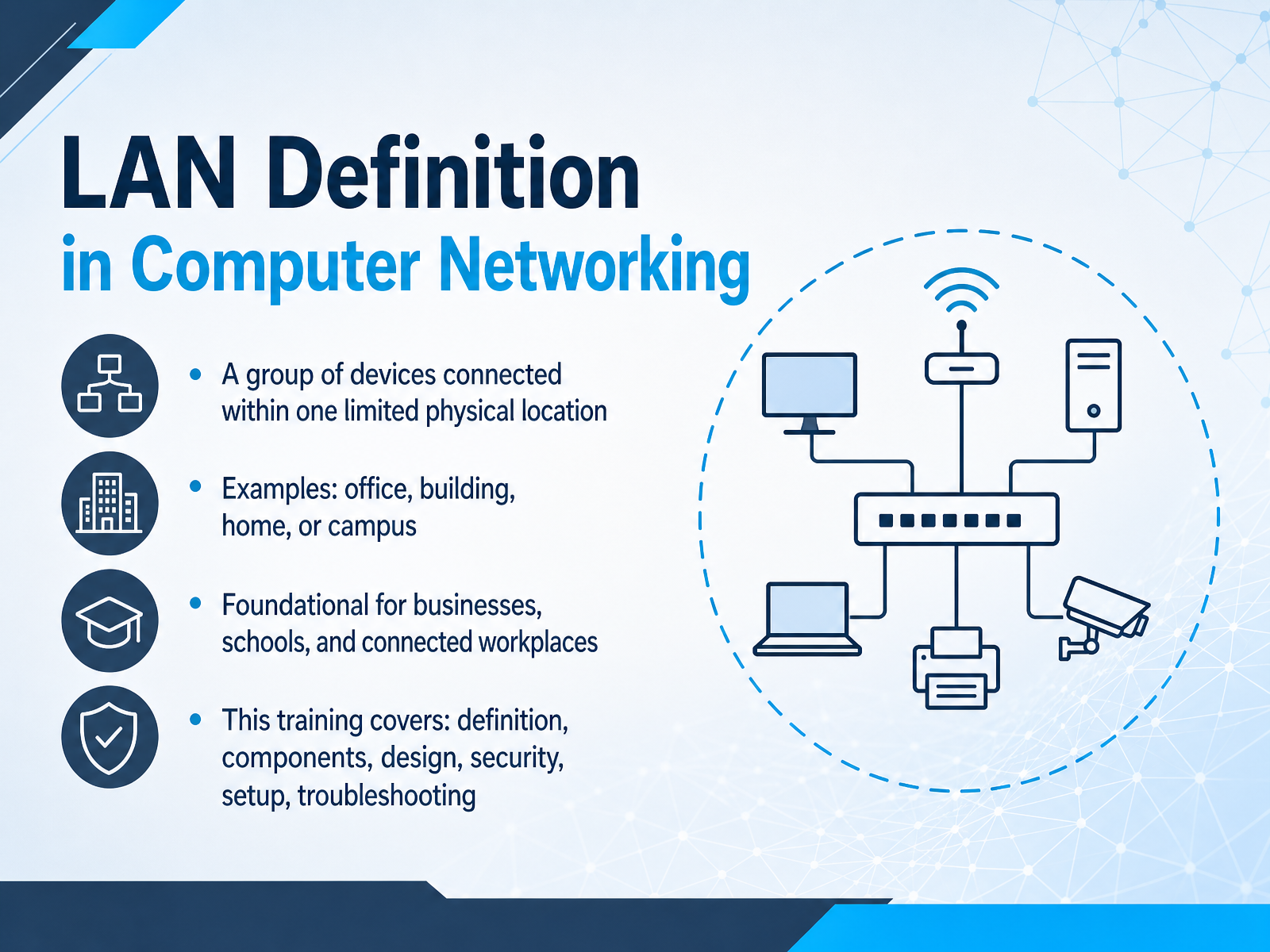
- 01LAN Definition in Computer NetworkingWelcome to this training on local area networks, or LANs. Today, we are going to build your understanding from the ground up, starting with what a LAN actually is. Think of your office's Wi-Fi and wired desktops as one local network. That is a perfect example. A LAN is simply a group of devices, like computers, printers, and phones, connected together within one limited physical location, such as an office building, a home, or a campus. It is the foundation that lets you share files, use a shared printer, and communicate with your teammates. In this course, we will cover the definition, the components, design, security, setup, and troubleshooting. By the end, you will be able to confidently explain how these everyday networks function. Next, let's look at what makes a network local.techtarget.comcisco.comen.wikipedia.org+21 min
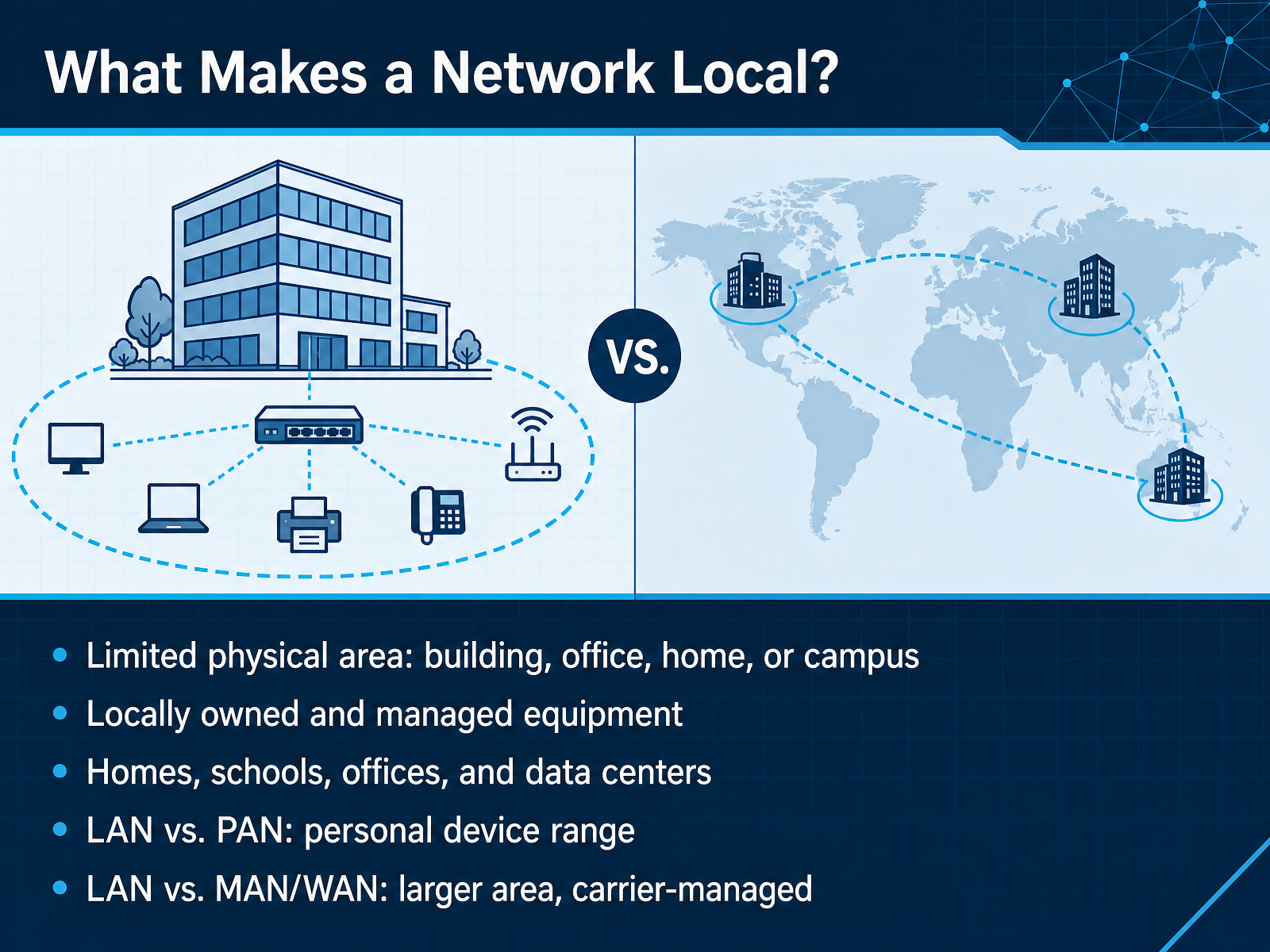
- 02What Makes a Network Local?So, when we say a network is local, we mean the devices are close together. Think about the Wi-Fi and the wired desktops in your own office. Those all sit inside one building, and that is the simplest way to picture a local area network, or LAN. A LAN covers a limited physical area. It could be a single home, a school, an office, or even a larger campus. The important part is that the equipment is locally owned and managed by you or your organization, not by an outside phone company. Now, a LAN is smaller than other kinds of networks. A personal area network, or PAN, only reaches around a single person, like a phone connected to wireless earbuds. A metropolitan area network and a wide area network, or WAN, cover a city or even a whole country, and those are usually managed by a carrier. So the key takeaway is simple. If you control the equipment and it lives in your own building or campus, you are looking at a LAN. Next, let's see how a LAN fits into the bigger picture.
 cisco.comcisco.comtechtarget.com+21 min
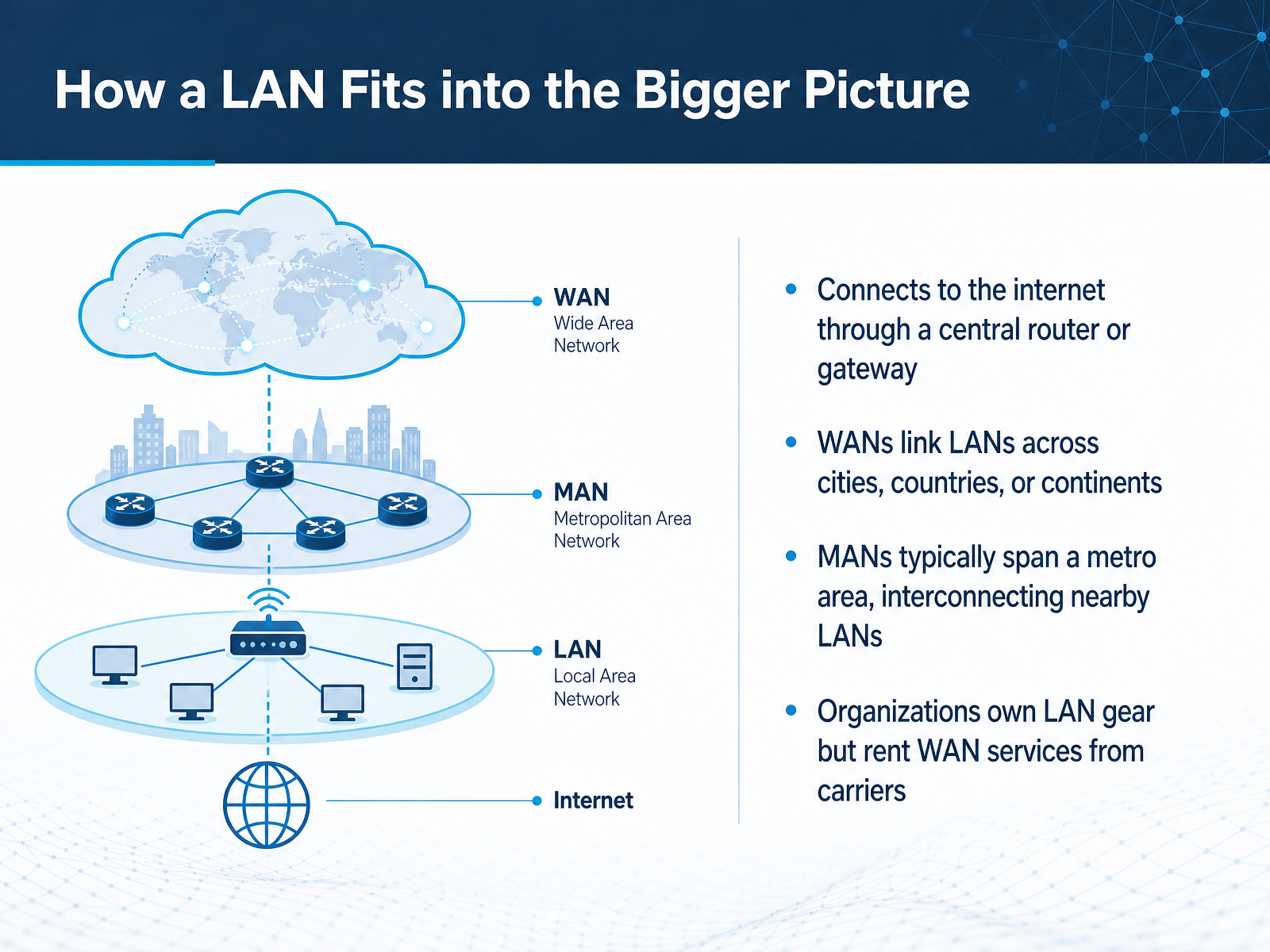
 - 03How a LAN Fits into the Bigger PictureNow let's see how that local network fits into the bigger picture. Think of your office Wi-Fi and wired desktops as one local network, or LAN. A LAN is just a group of devices close together that can talk directly to each other. To reach the internet, that whole group usually goes out through one central router or gateway. That single doorway is what lets every computer in the office share one internet connection. Nearby LANs can also be linked across a city. That wider network is often called a metropolitan area network, or MAN. When networks stretch across cities, countries, or continents, that is a wide area network, or WAN. In practice, your organization owns the switches, access points, and cables inside the building. But for long-distance connections, you typically rent WAN service from a carrier. So you own the local network, and you subscribe to the wide area network. Up next, we will look at the core components of a LAN.
 cisco.comcisco.comtechtarget.com+21 min
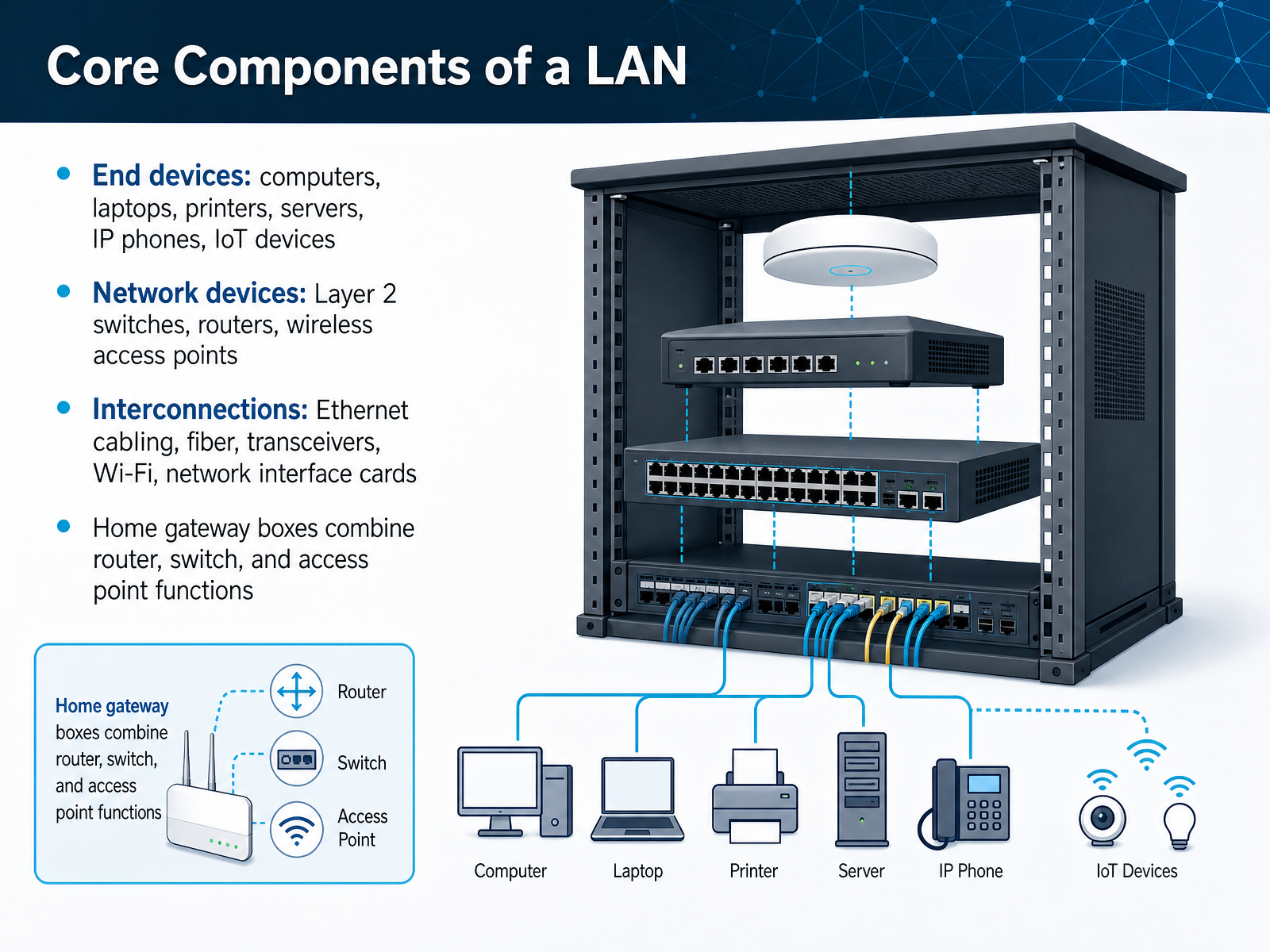
 - 04Core Components of a LANNow let's look at the building blocks that make a local network work. First, we have the devices you use every day. These are things like computers, laptops, printers, servers, and even IP phones and smart sensors. We call these end devices because they are the endpoints where you do your work. Next, we have the network devices that connect everything together. These include switches, routers, and wireless access points. Think of the switch as the office mailroom, forwarding messages to the right desk. The router is the door to the outside world, moving traffic between your local network and the internet. The access point is what lets your Wi-Fi devices join without a cable. Finally, we have the connections themselves. These are the physical cables, like Ethernet and fiber, plus the wireless signals and the small network cards inside each device. In many homes, one box contains the router, the switch, and the access point all together. That is why your home internet setup looks so simple from the outside. Up next, we will break down the roles of the router, the switch, and the access point so you can tell them apart.
 cisco.comcisco.comtechtarget.com+22 min
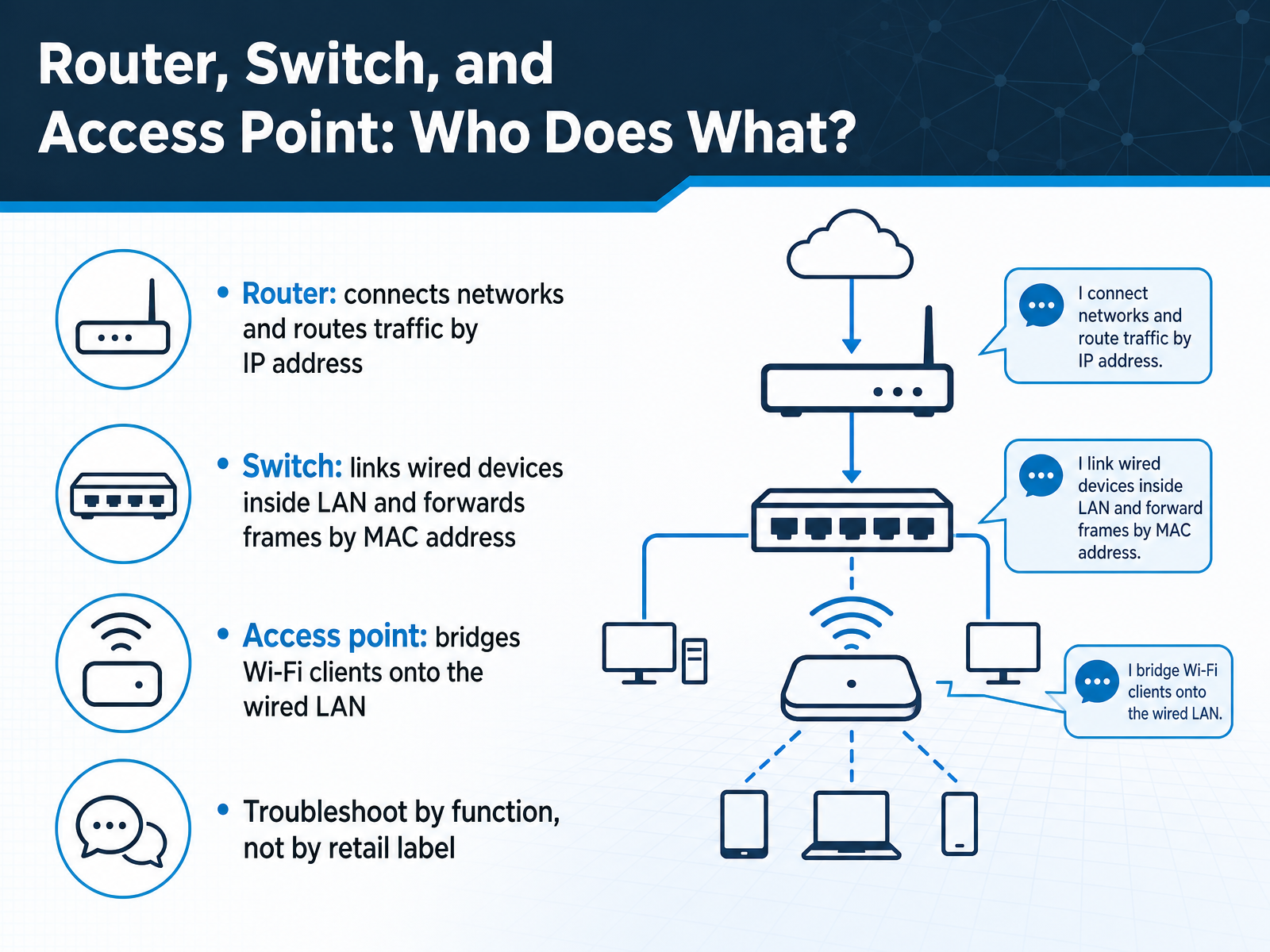
 - 05Router, Switch, and Access Point: Who Does What?Now, let's look at the three main devices that keep your local network running smoothly. Think of them as having separate jobs, almost like separate workers on a team. First, the router is the doorway between your local network and the outside internet. It connects different networks and directs traffic using IP addresses, much like a postal service uses street addresses. Second, the switch works only inside your office. It links all your wired computers, printers, and other devices together, and it delivers data directly between them using MAC addresses, which are unique hardware identifiers for each device. Third, the access point is the bridge for your wireless clients, like laptops and phones. It lets them join the same wired network without a cable. In many home units, all three jobs live in one box, but troubleshooting means focusing on the actual function, not just the label on the device. If only the Wi-Fi is weak, adding an access point helps. If your internet connection is down, check the router path. With these roles clear, we can move on to wired and wireless LAN types.
 cisco.comcisco.comtechtarget.com+22 min
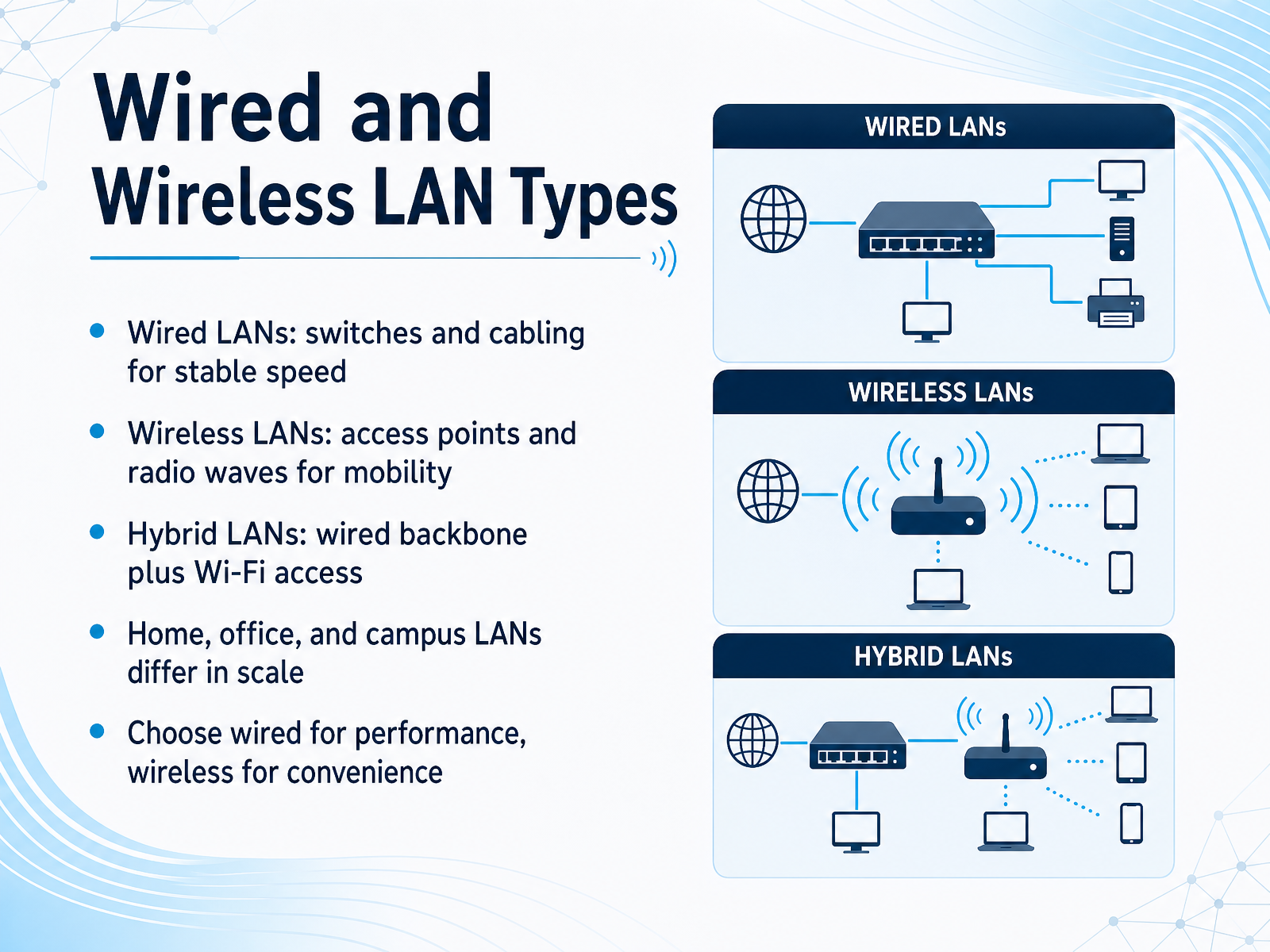
 - 06Wired and Wireless LAN TypesSo, within that one local network, you actually have a few options for how everything connects. A wired LAN uses physical cables and switches to link devices together. Think of it as the most stable, direct path. It gives you consistent speed, which is great for things like transferring large files or video calls that really can't stutter. On the other hand, a wireless LAN, often called Wi-Fi, uses access points and radio waves. That's what gives your phone and laptop the freedom to move around the office. The trade-off is that performance can vary with distance and interference. Most real-world networks are a hybrid. You'll have a wired backbone, connecting your core equipment like servers and access points, while users connect wirelessly. This gives you the best of both worlds: stable performance for the infrastructure and convenience for everyone else. And remember, these setups can scale, from a simple home router to a campus-wide system with hundreds of access points. A good rule of thumb is to choose wired for performance and wireless for convenience. Now that we've covered the practical types, let's look at the formal standards that make it all work, specifically Ethernet and Wi-Fi.
 techtarget.comcisco.comen.wikipedia.org+22 min
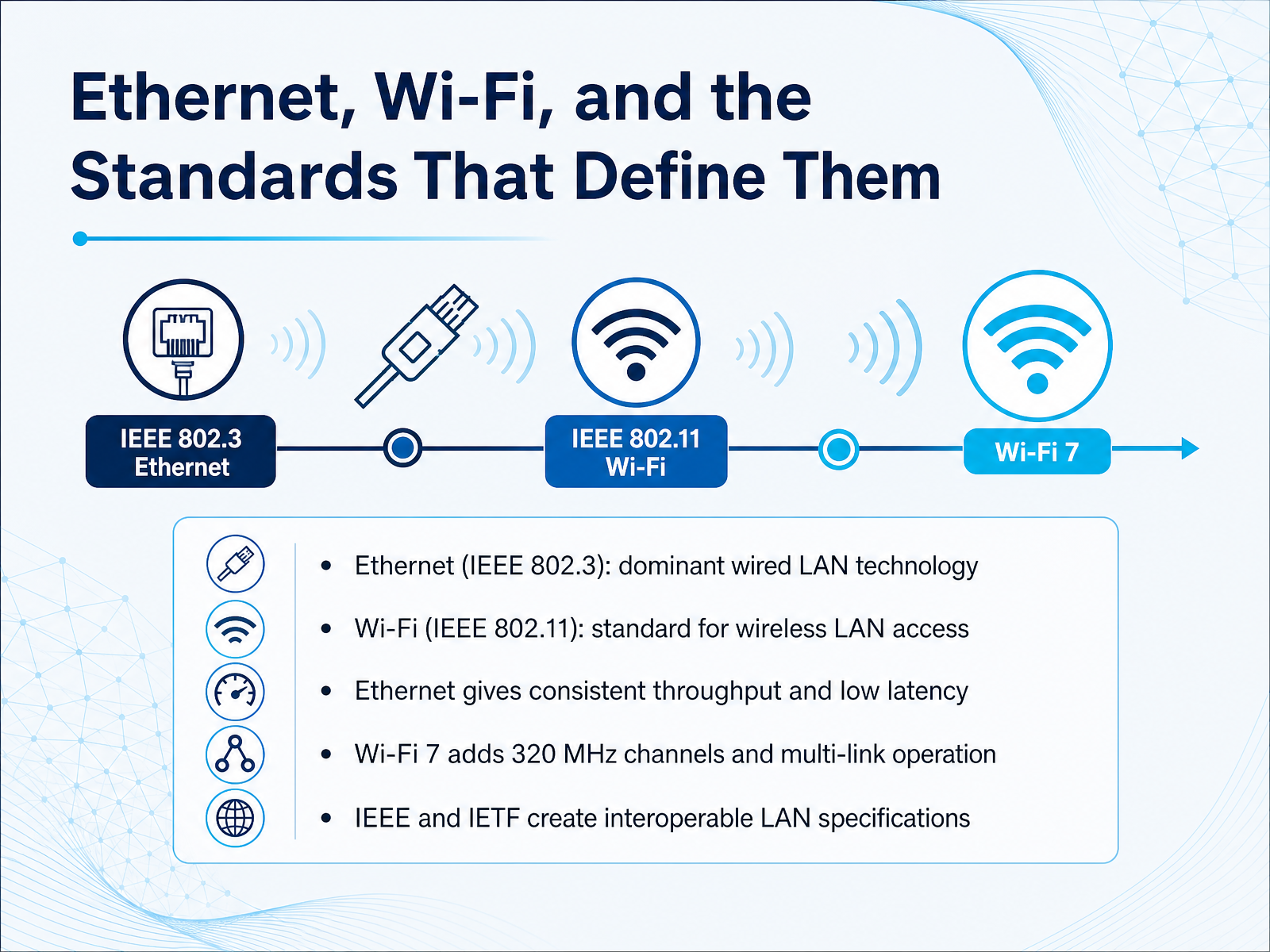
 - 07Ethernet, Wi-Fi, and the Standards That Define ThemLet's break down the two main ways devices connect in your local network: Ethernet and Wi-Fi. Think of Ethernet as the wired workhorse. It is the dominant standard for cable connections, defined by the IEEE eight zero two point three specification. When you plug a desktop or a printer directly into a switch with a cable, that is Ethernet. It gives you consistent throughput and very low latency, meaning the delay is minimal and predictable. Wi-Fi, on the other hand, is the wireless option. It follows the IEEE eight zero two point eleven family of standards. It is what lets your laptop or phone connect without a cable. Wi-Fi seven is the newest big step forward. It adds wider three hundred twenty megahertz channels and multi-link operation, which lets a device use multiple bands at the same time to improve speed and reliability. Underneath all of this, organizations like the IEEE and the Internet Engineering Task Force, or I E T F, work to define these standards so equipment from different vendors can work together seamlessly. Now that we know the connection types, let's look at how devices actually communicate on a LAN.
 techtarget.comcisco.comen.wikipedia.org+21 min
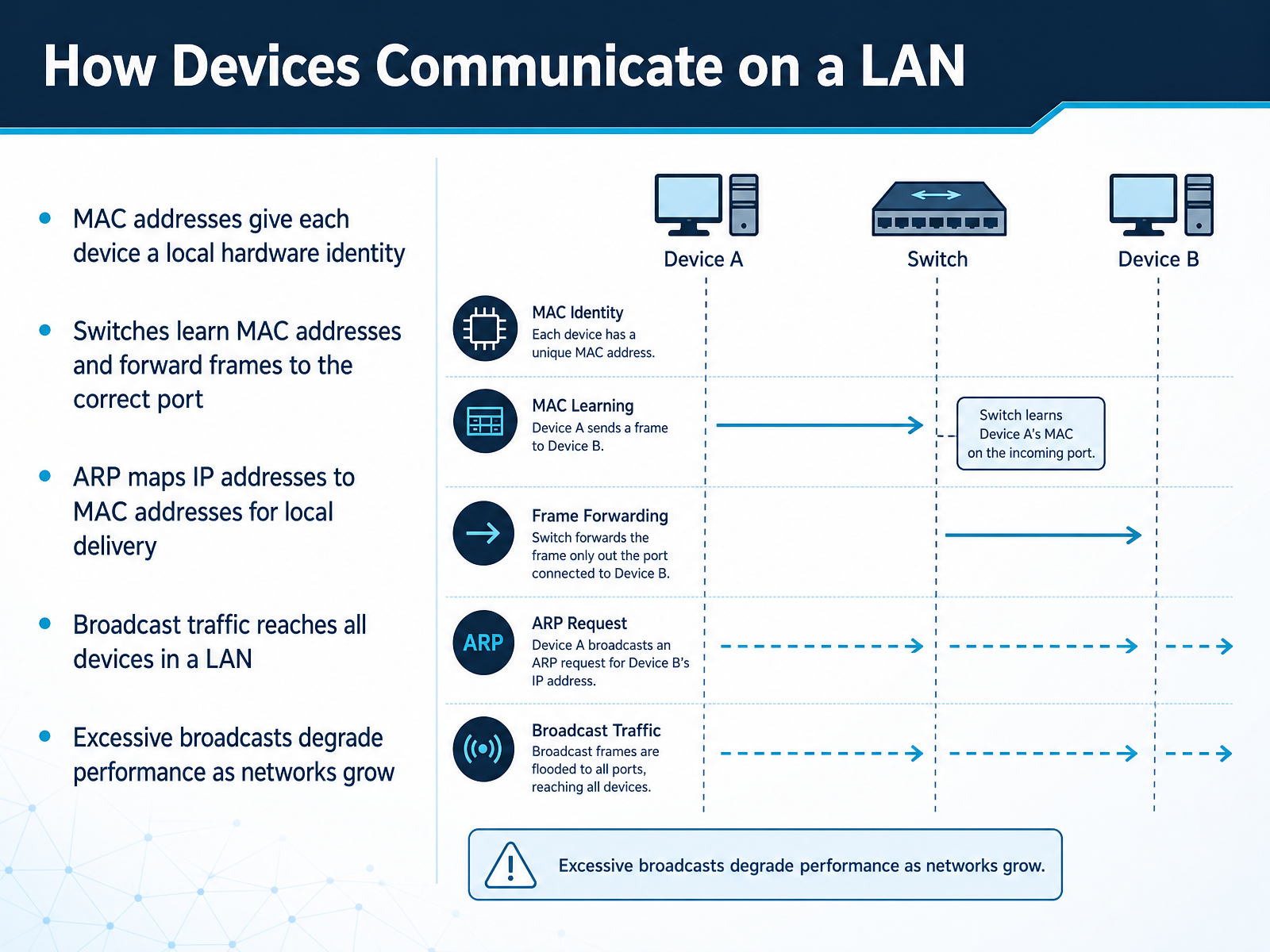
 - 08How Devices Communicate on a LANLet's walk through how devices actually find each other on your local network. Every device has a physical address called a MAC address. Think of it like a permanent nameplate attached to the network card inside a computer or printer. When your laptop sends a file to the office printer, a network switch reads that nameplate and forwards the message only to the correct port, instead of shouting it down every hallway. To connect a familiar IP address to that physical nameplate, the network uses something called ARP, which stands for Address Resolution Protocol. It simply asks, who owns this IP address, and records the matching MAC address. Sometimes a device needs to reach everyone at once, like when it first joins the network. That is broadcast traffic, and it goes to every device in the LAN. A little broadcast traffic is normal, but too much can slow everything down as the network grows larger. Up next, we will look at physical and logical topologies.
 techtarget.comcisco.comen.wikipedia.org+21 min
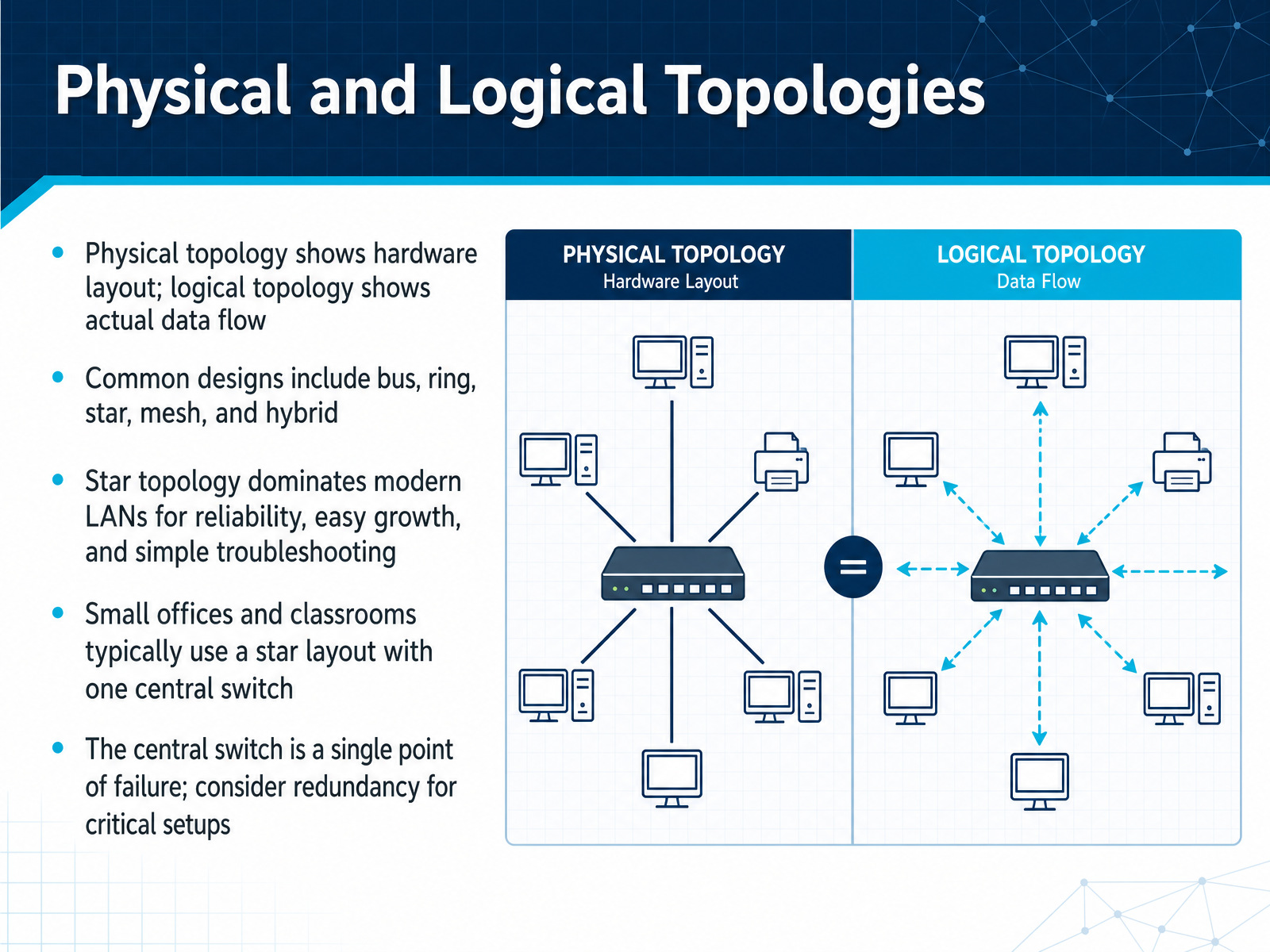
 - 09Physical and Logical TopologiesSo far we have talked about a LAN as one local network. Now let's think about how the devices inside that network are actually arranged. There are two ways to look at this. The physical topology is the hardware layout, where the cables and devices sit. The logical topology is the path the data actually takes as it moves through the network. Common designs include bus, ring, star, mesh, and hybrid. In most modern offices and classrooms, you will almost always see a star topology. Picture a central switch in a closet, with a separate cable running from that switch to each computer, printer, and access point. This design is popular because it is reliable and easy to grow. If one cable breaks, only that one device goes offline. Troubleshooting is also much simpler because you can isolate problems quickly. However, there is a tradeoff. That central switch is a single point of failure. If the switch goes down, the whole local network goes down with it. For a small office that is often acceptable, but for critical setups you should consider adding redundancy, like a backup switch or a second power supply. Now that we understand the common layouts, let's move on to designing a practical small LAN.
 ituonline.comofzenandcomputing.comspeedtesthq.com+21 min
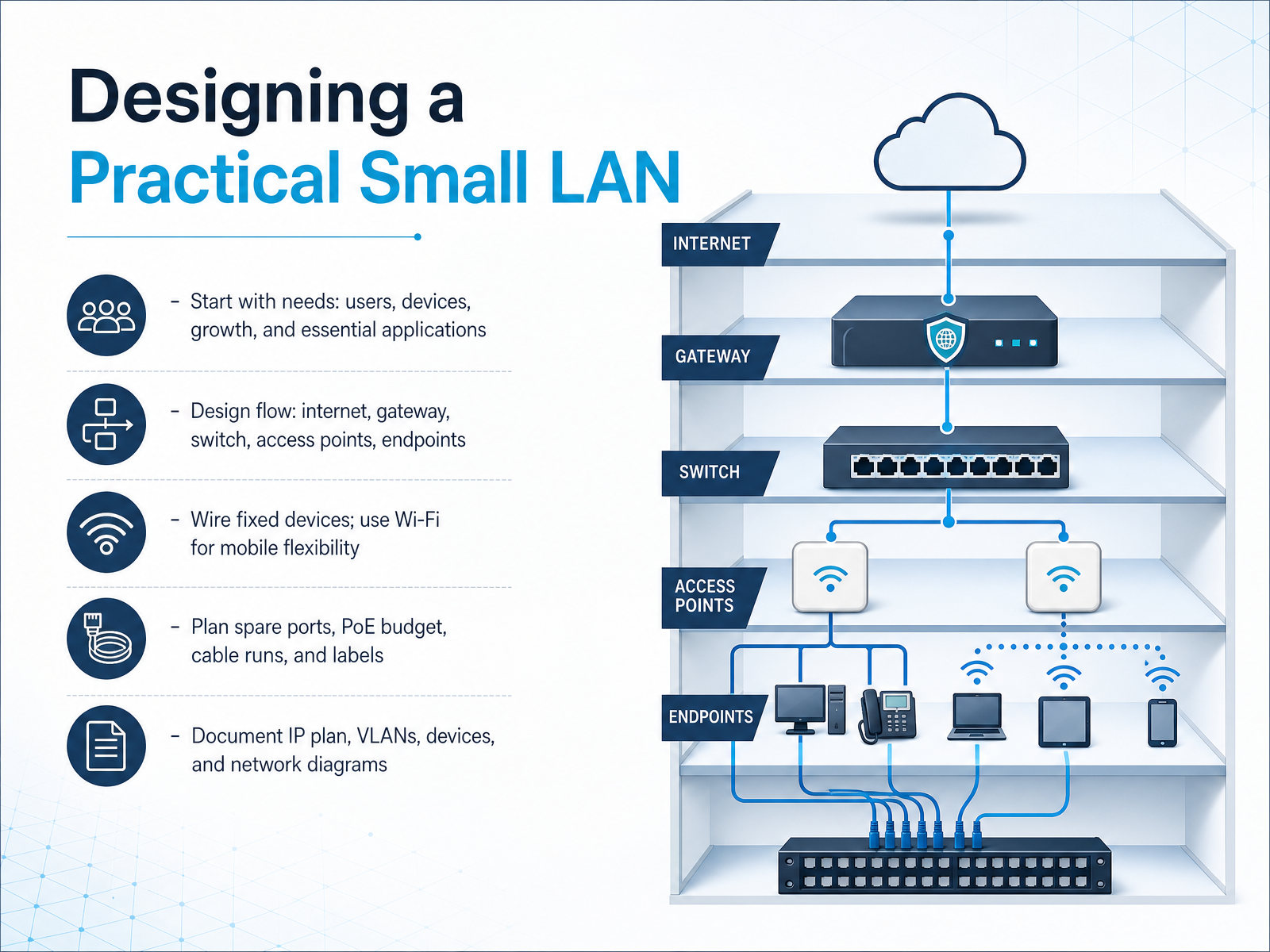
 - 10Designing a Practical Small LANNow let's put this into practice by designing a small local network. First, start with real needs. Count your users, devices, and the essential applications they run. Also plan for growth so the network can stretch later. From there, follow the traffic flow. Internet comes into a gateway, which connects to a switch. The switch feeds access points and wired devices like desktops and printers. Wire anything that stays put, such as fixed computers and printers, because wired connections are more stable. Use Wi-Fi for laptops, phones, and other mobile devices. Then plan ahead. Leave spare ports on the switch, check the Power over Ethernet budget for access points and phones, organize cable runs, and label everything clearly. Finally, document the design. Record the IP address plan, any VLANs, device inventory, and network diagrams. This turns a pile of equipment into a supportable network. Next, we will look at VLANs and LAN segmentation.
 ituonline.comofzenandcomputing.comspeedtesthq.com+21 min
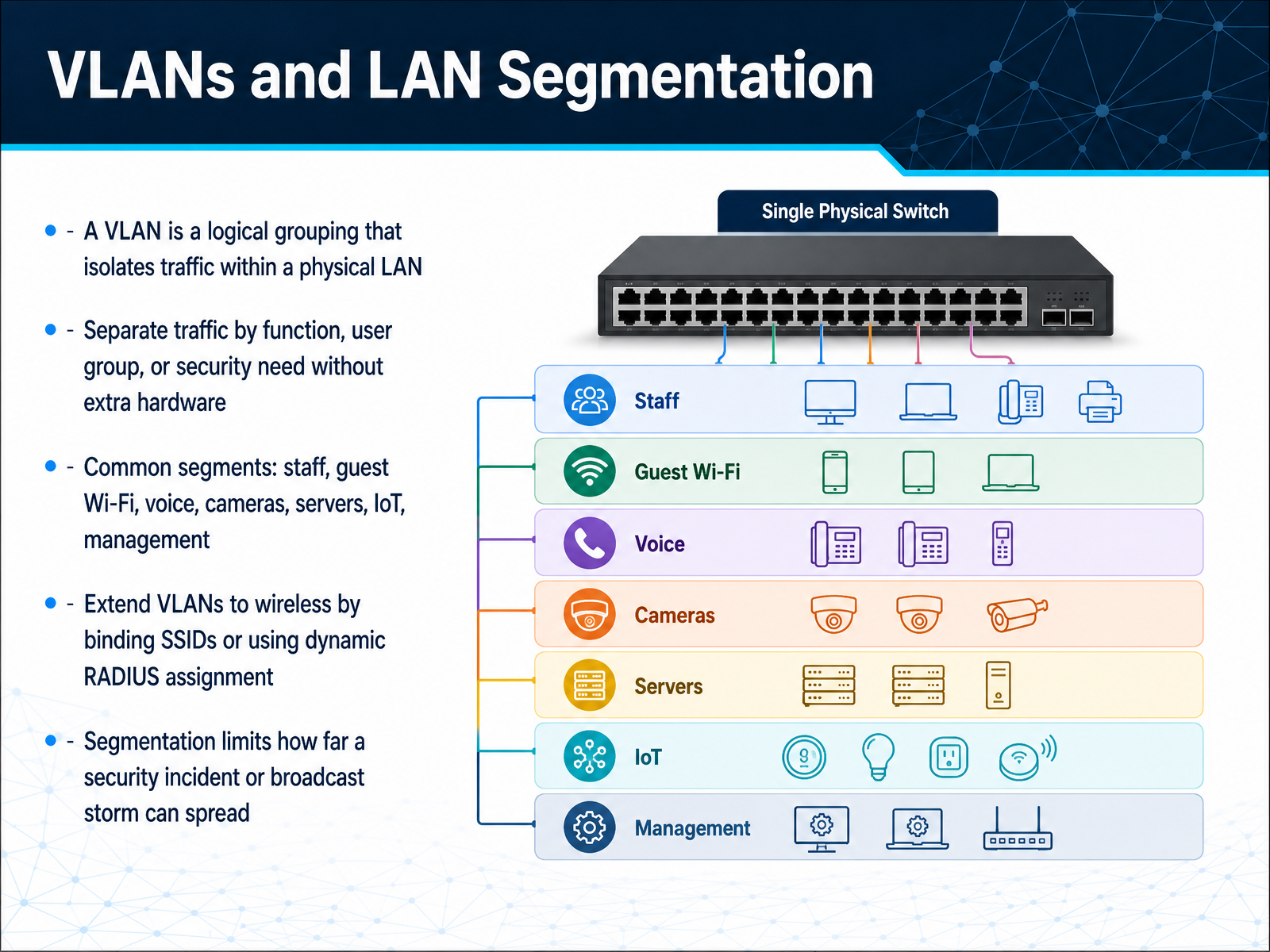
 - 11VLANs and LAN SegmentationNow let's talk about VLANs, or Virtual Local Area Networks, and how they help segment a physical network. Think of a VLAN as a logical grouping inside your office LAN. Devices in one VLAN can talk to each other, but they are isolated from devices in other VLANs, even if they are plugged into the same switch. This lets you separate traffic by function or security need without buying extra hardware. For example, you might have a staff VLAN, a guest Wi-Fi VLAN, and a separate VLAN for voice phones, cameras, or IoT devices. You can extend VLANs to wireless by binding SSIDs, or Wi-Fi names, to specific VLANs. For more dynamic control, a RADIUS server can assign a VLAN automatically when users authenticate. The main benefit is containment. Segmentation limits how far a broadcast storm or a security incident can spread. A compromised guest device cannot easily reach your servers or internal systems. Up next, we'll build on this foundation with LAN Security Essentials.
 computerweekly.comgrouper.ieee.orgcisco.com+22 min
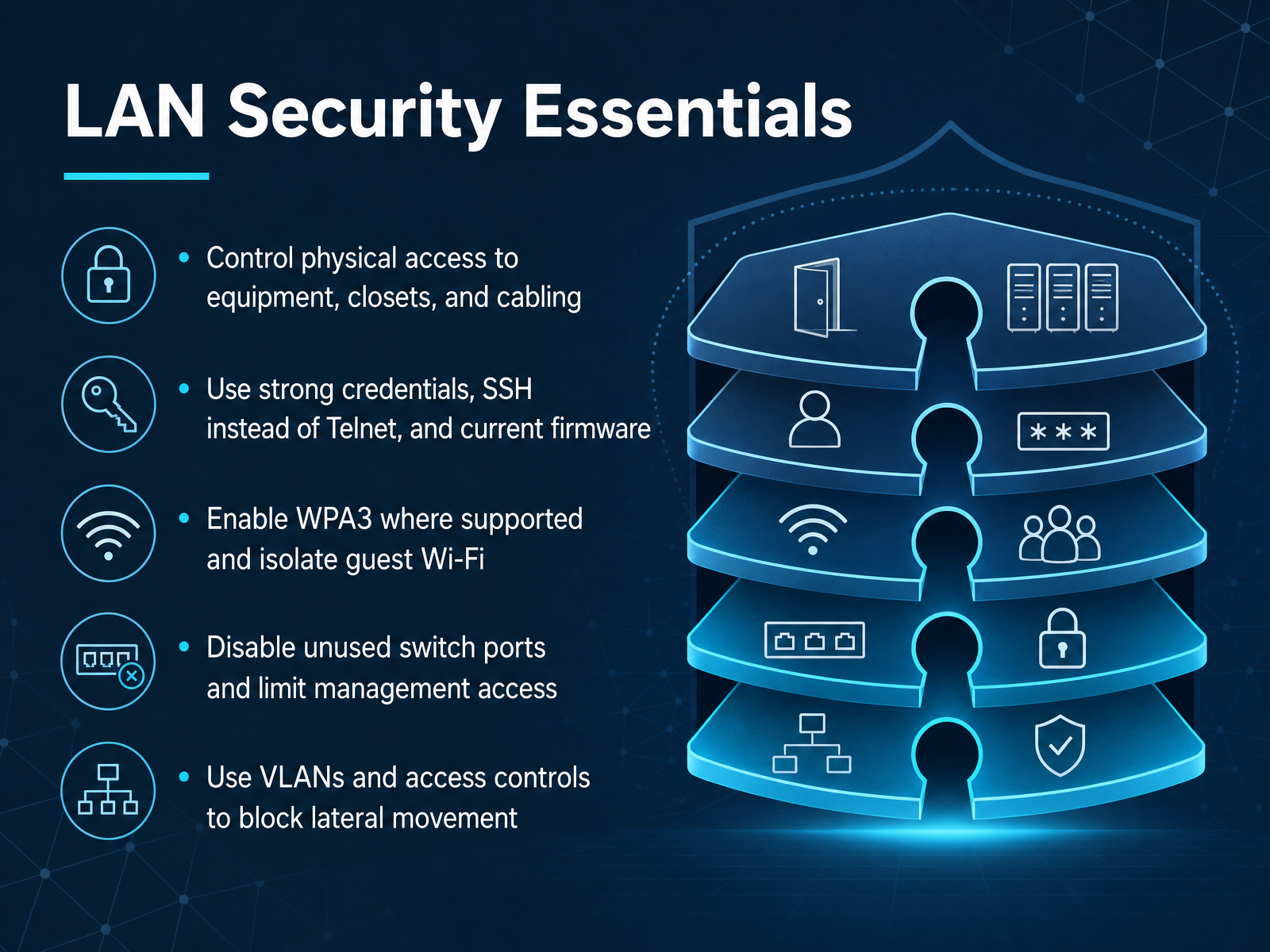
 - 12LAN Security EssentialsSecuring a LAN comes down to a few simple habits. First, think about physical access. Anyone who can walk up to a switch, a closet, or a network jack has already gotten past some of your best defenses. Keep that equipment behind locked doors. Next, use strong passwords, and always choose SSH over Telnet when you manage devices, because Telnet sends everything in clear text. Keep firmware current too. On the wireless side, enable WPA3 where you can, and put guest visitors on their own network that cannot see your internal systems. If a switch port is not in use, turn it off. That stops someone from just plugging in an unknown device. Limit who can reach the management settings, because that is a favorite target. And use VLANs, which are separate network segments, so a problem on one part of the network cannot simply spread sideways into another. These steps are not advanced tools. They are consistent, practical habits that make your network harder to attack and easier to trust. Up next, we will walk through setting up a small LAN step by step.
 visiontrainingsystems.comituonline.com2 min
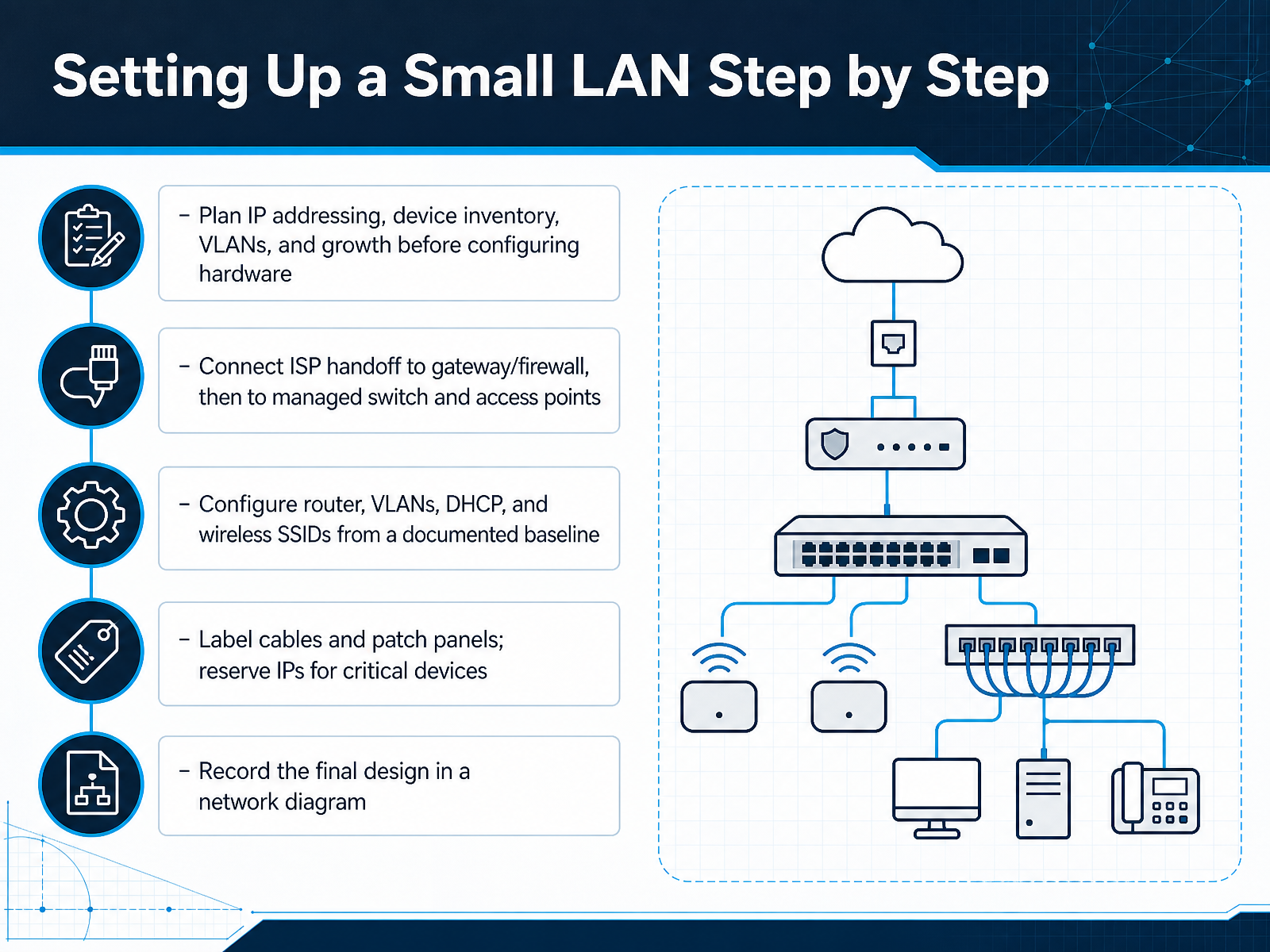
 - 13Setting Up a Small LAN Step by StepLet's walk through setting up a small office network, step by step. First, plan before you plug anything in. Decide on your IP address scheme, list every device you need to connect, and think about how the office might grow. This is also when you decide if you need separate virtual networks, or VLANs, to keep things like guest Wi-Fi separate from your main office systems. Once your plan is solid, you can start connecting. The internet line from your provider goes into the gateway or firewall first. From there, it connects to a managed switch, and then to your wireless access points. Next, configure everything using your plan as a baseline. That means setting up the router, your VLANs, and the network settings that will automatically give devices their addresses. Label every cable and patch panel port. Trust me, your future self will thank you. Also, reserve specific IP addresses for critical devices like servers and printers so they're always easy to find. Finally, record the finished design in a clear network diagram. This document becomes the single source of truth for any future changes. Now, there is one more piece to cover. Let's look at troubleshooting and next steps.
 ofzenandcomputing.comituonline.comspeedtesthq.com+22 min
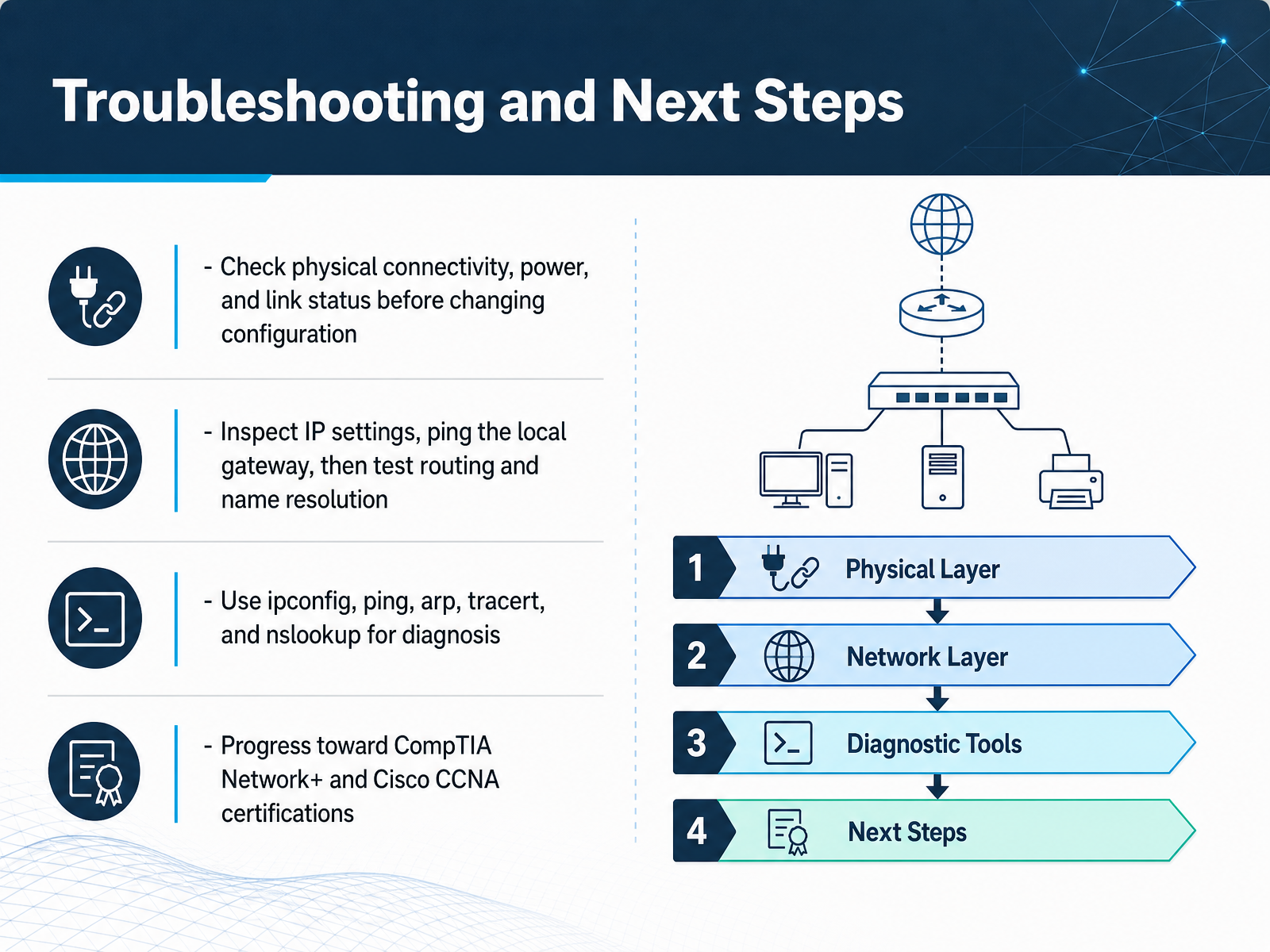
 - 14Troubleshooting and Next StepsAnd here we are at the final step. When something breaks, start with the simple things before diving into settings. Check the power, check the cable, and look for a solid link light. This solves more problems than you might expect. Next, look at the address. Use ipconfig to see your IP address and default gateway. Then, ping that gateway address. If you get replies, your path to the local network is good. From there, ping a public IP like eight point eight point eight point eight to test your internet route. Finally, ping a website name like example dot com. If the number works but the name fails, you have a name resolution problem. Use nslookup for that. And use arp and tracert to map local devices and trace the full path. These five commands are your everyday toolkit. As you move forward, CompTIA Network Plus and Cisco C C N A are excellent next steps. They build on these exact skills. Thank you for joining me. Take these tools, try them on your own network, and keep learning. You are ready.
 computerweekly.comgrouper.ieee.orgcisco.com+22 min
Take the deck with you
Download this course as a file — free, no sign-up needed.
- PDF handoutEvery slide page, ready to print or share.15 pages · 3.6 MBDownload
- Narrated PowerPointThe deck that presents itself — every slide carries the digital human's narration video.15 pages · 13.7 MBDownload
- PowerPoint slidesThe full deck as a .pptx — open it in PowerPoint, Keynote, or Google Slides.15 pages · 3.5 MBDownload
Free to use in your own training — please keep the PersonWise credit page at the end.
Have your own deck? Turn it into a course
Sources consulted
Web sources consulted while building this course.
- What is a Local Area Network (LAN)? | Definition from TechTarget — techtarget.com
- What is a LAN? Local Area Network — cisco.com
- Local area network — en.wikipedia.org
- LAN - Glossary | CSRC — csrc.nist.gov
- Local Area Networks (LAN) | IEEE Technology Navigator — technav.ieee.org
- Networking Basics: What You Need To Know - Cisco — cisco.com
- Common Types of Networking Devices Explained | TechTarget — techtarget.com
- LAN Components - Certification Training - PivIT Global — learn.pivitglobal.com
- Small Business Network Blueprint: Build It Step By Step — ituonline.com
- 10 Easy Steps to Set Up a Small Office Network in 2025: — ofzenandcomputing.com
- Small Business Network Design: Topology, Equipment, and Segmentation — speedtesthq.com
- Designing Cisco Network Architectures for Small and Medium-Sized Enterprises – ITU Online IT Training — ituonline.com
- Why Your Office Network Can’t Keep The Fast Internet Promise It Make - Tekysinfo — tekysinfo.com
- VLANs -- Controlling wired and wireless traffic — computerweekly.com
- Wired-Wireless Bridging — grouper.ieee.org
- Configuring Wireless VLANs - Cisco — cisco.com
- What is a VLAN (Virtual LAN)? — techtarget.com
- Microsoft Word - BPDG-Configuring-Wired-Networks-for-Wi-Fi-v1.3.docx — commscope.com
- Cisco network security: 7 Best Practices for a Safer Network — visiontrainingsystems.com
- Building a Secure and Efficient Local Access Network for Small Business – ITU Online IT Training — ituonline.com