Begin
15 pages · ~30 min
Data Compression Patterns
Learn how data compression identifies patterns to reduce file sizes, exploring lossless and lossy techniques for efficient storage.
A digital instructor presents all 15 pages. Hold “Ask” at any point and ask out loud — the answer comes from this course. No sign-up needed.
What you’ll learn
- 01Data Compression: Finding Patterns to Store LessWelcome! Today we're going to explore a clever trick that computers use every day: data compression. It's the reason we can send photos, stream music, or store so many files without running out of space. The big question we're answering is this: how can a file get smaller, and still keep its meaning? It's not magic, it's pattern-finding. We'll start by looking at the two families of compression, lossless and lossy, and see how they handle repetition and what we can afford to lose. Then we'll connect these ideas to real-world examples, like ZIP files, JPEG images, and streaming video. Let's jump in and see what data compression actually is.howtogeek.commegaconvert.netstackconvert.com+21 min
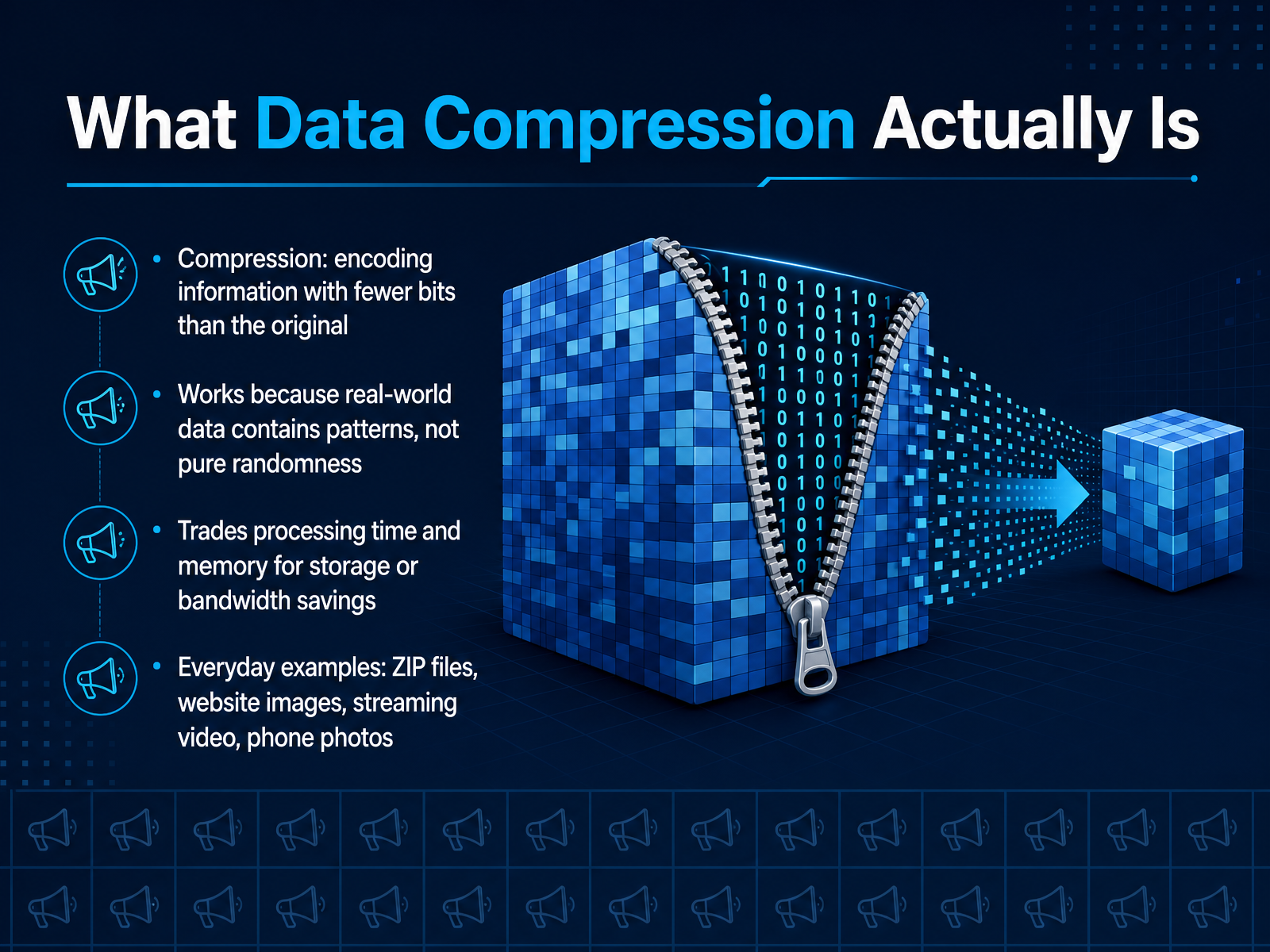
- 02What Data Compression Actually IsSo, what is data compression, really? At its simplest, it's about encoding information using fewer bits than the original. Think of bits as the tiny on-and-off switches that make up all digital data. Compression finds clever ways to turn those switches on and off less often. But here's the key: it only works because real-world data is full of patterns. It is not pure randomness. A text document has repeated words. A photo of a blue sky has the same color across hundreds of pixels. Compression acts like a pattern detective, finding these repetitions and storing them as shorthand. Now, this clever trick doesn't come for free. It trades something for that smaller size. We often use a little extra processing time and computer memory to shrink the file, in exchange for saving storage space or bandwidth. You see this trade-off every day. When you open a ZIP file, your computer works for a moment to unpack it. When you stream a video, your phone is constantly decoding a compressed signal. Those ZIP files, website images, streaming videos, and even the photos on your phone are all everyday examples of this exact idea in action. It's a constant, quiet negotiation between space, time, and quality.
 howtogeek.comcomputer.howstuffworks.comsimple.m.wikipedia.org+22 min
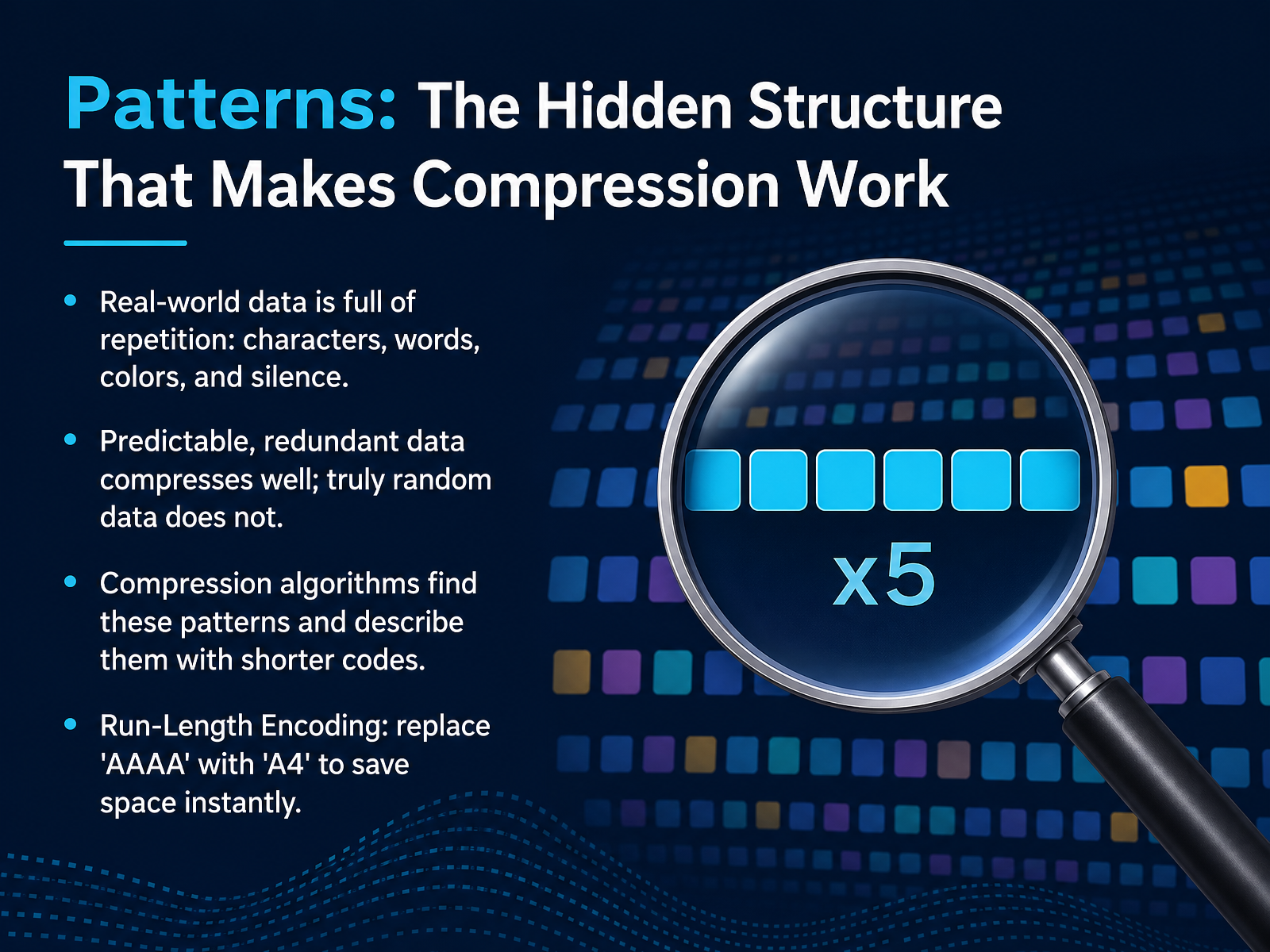
 - 03Patterns: The Hidden Structure That Makes Compression WorkSo, if compression is a clever trick, what is the trick actually looking for? It's looking for patterns. Think about it. Real-world data is full of repetition. In a text file, you have common words and characters. In a photo, you have big blocks of similar colors. In an audio file, you have stretches of silence. This predictability is the hidden structure that makes compression work. The more predictable and redundant the data is, the more it can be shrunk down. This is why a text document zips down so much smaller, but a truly random file of the same size can't be compressed at all. There's no pattern to find. Compression algorithms are like master pattern-hunters. They scan the data, find these repeating structures, and then describe them with a much shorter code. Let's look at the simplest example you can imagine, called Run-Length Encoding. Imagine a string of data that is just the letter 'A' repeated four times: A, A, A, A. Instead of storing 'A' four times, which takes four units of space, a compression algorithm can store it as 'A' and the number four. We just saved space instantly. That's the core idea in a nutshell. Now let's build on that foundation and look at the two fundamental ways these ideas are applied, which we call lossless and lossy compression.
 howtogeek.commegaconvert.netstackconvert.com+22 min
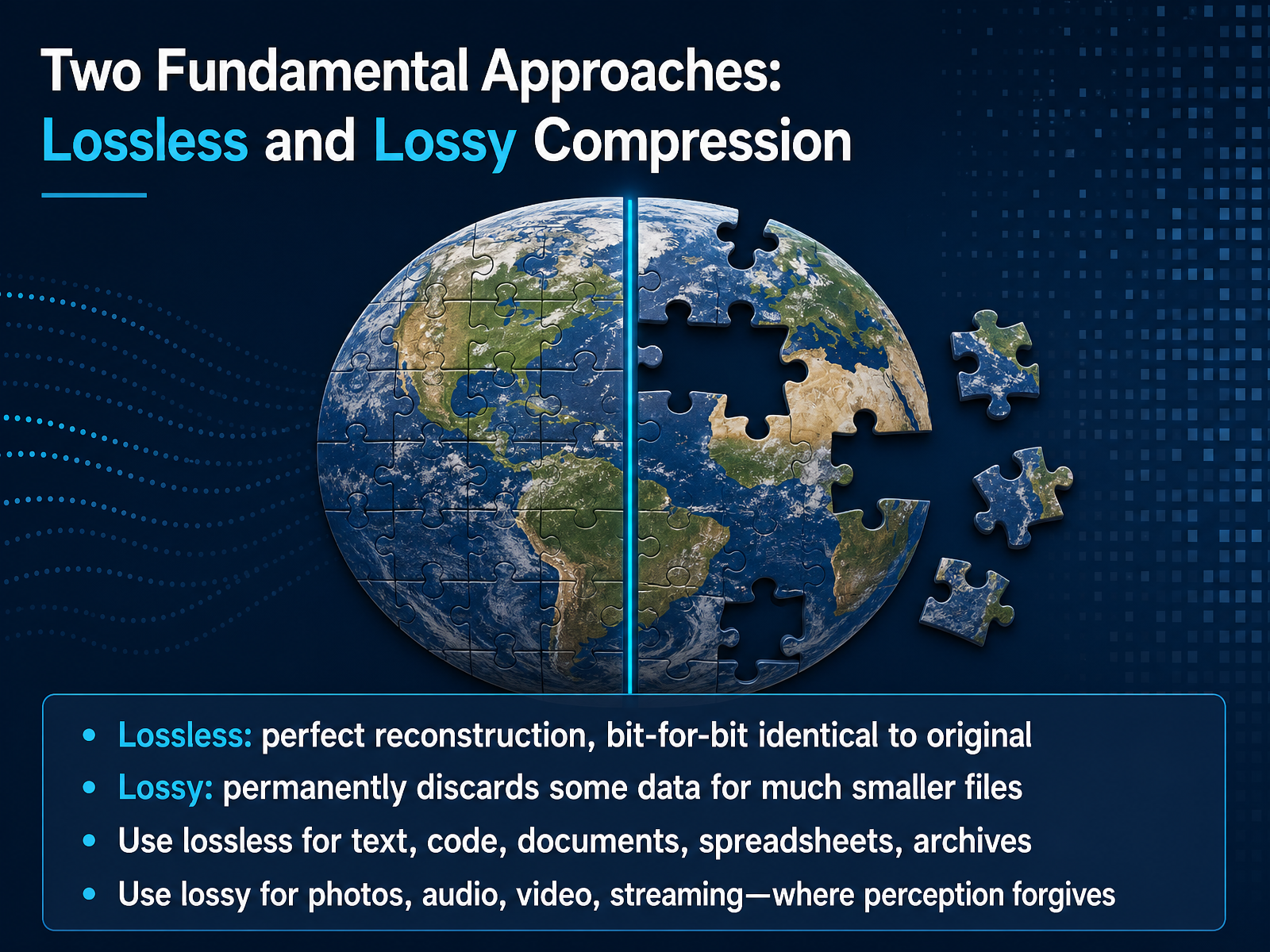
 - 04Two Fundamental Approaches: Lossless and Lossy CompressionNow, whenever we talk about making files smaller, there are actually two completely different strategies. We call them lossless and lossy compression. Let's unpack each one. First, lossless compression. Think of this as the perfect packing method. When you decompress a lossless file, you get back a bit-for-bit identical copy of the original. Not a single letter, pixel, or number is out of place. It works by finding patterns and eliminating redundancy, but it never throws anything away. This is exactly what you need for text documents, spreadsheets, software code, and ZIP archives. You can't afford to guess what a word was in a legal contract. Now, lossy compression takes a bolder approach. It makes files dramatically smaller by permanently discarding some data. The trick is, it throws away details that our human senses are not very good at noticing anyway. This is why we use it for photographs, MP3 music, and streaming video. A JPEG image can be ten to twenty times smaller than a lossless version, but it achieves that by smoothing over tiny color variations. You get a much smaller file, but you can never get those original, discarded details back. So, the rule of thumb is simple: use lossless when every bit must survive, and lossy when our perception forgives the missing pieces. Next, let's look at the clever pattern-finding tricks that make lossless compression possible.
 howtogeek.commegaconvert.netstackconvert.com+21 min
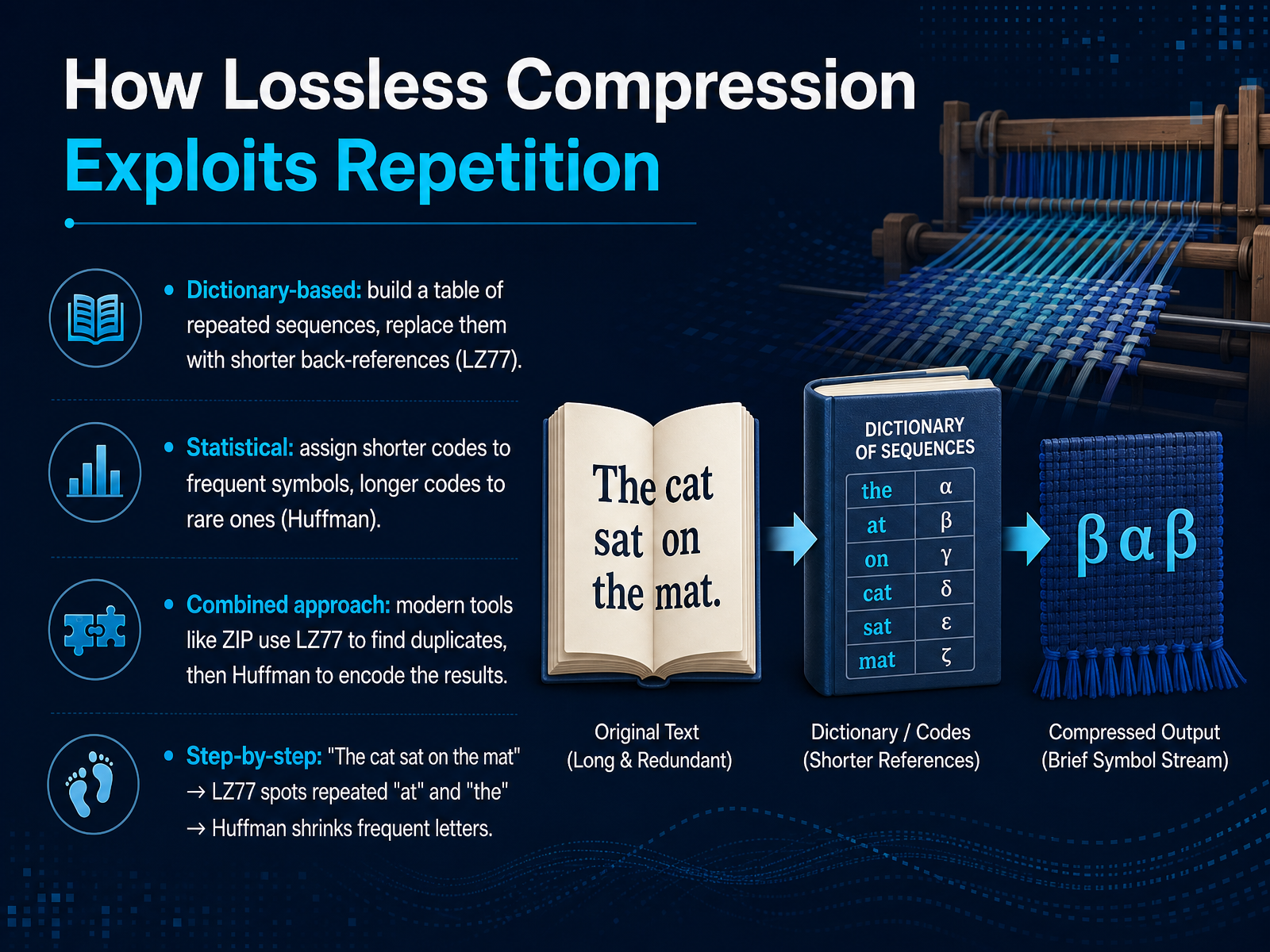
 - 05How Lossless Compression Exploits RepetitionNow, let's look at the two clever tricks that work together to make lossless compression possible. The first trick is dictionary-based compression. Think of it like an archivist who notices that the phrase 'the cat' appears several times in a document. Instead of writing it out fully each time, she creates a shorthand note, like 'see phrase number one.' The algorithm LZ77 does exactly that. It scans your data, builds a table of repeated sequences, and replaces them with shorter back-references. The second trick is statistical compression, called Huffman coding. Imagine you're sending a message using Morse code. You'd give the most common letter, 'e,' a single dot. But a rare letter, like 'q,' gets a longer dash-dash-dot-dash pattern. Huffman analyzes your file and assigns the shortest codes to the symbols that appear most often, and longer codes to the rare ones. Modern tools like ZIP combine these two ideas. First, LZ77 finds all the duplicate phrases. Then, Huffman coding takes that result and shrinks the most frequent symbols even further. Let's trace it with a simple sentence: 'The cat sat on the mat.' The LZ77 step spots that 'at' and 'the' are repeated. Then the Huffman step notices that the letter 't' is very common and gives it a tiny code, making the final file beautifully compact. Next, we'll explore why some files shrink dramatically, and others barely at all.
 hanshq.netchangethisfile.comcodecs.wiki+22 min
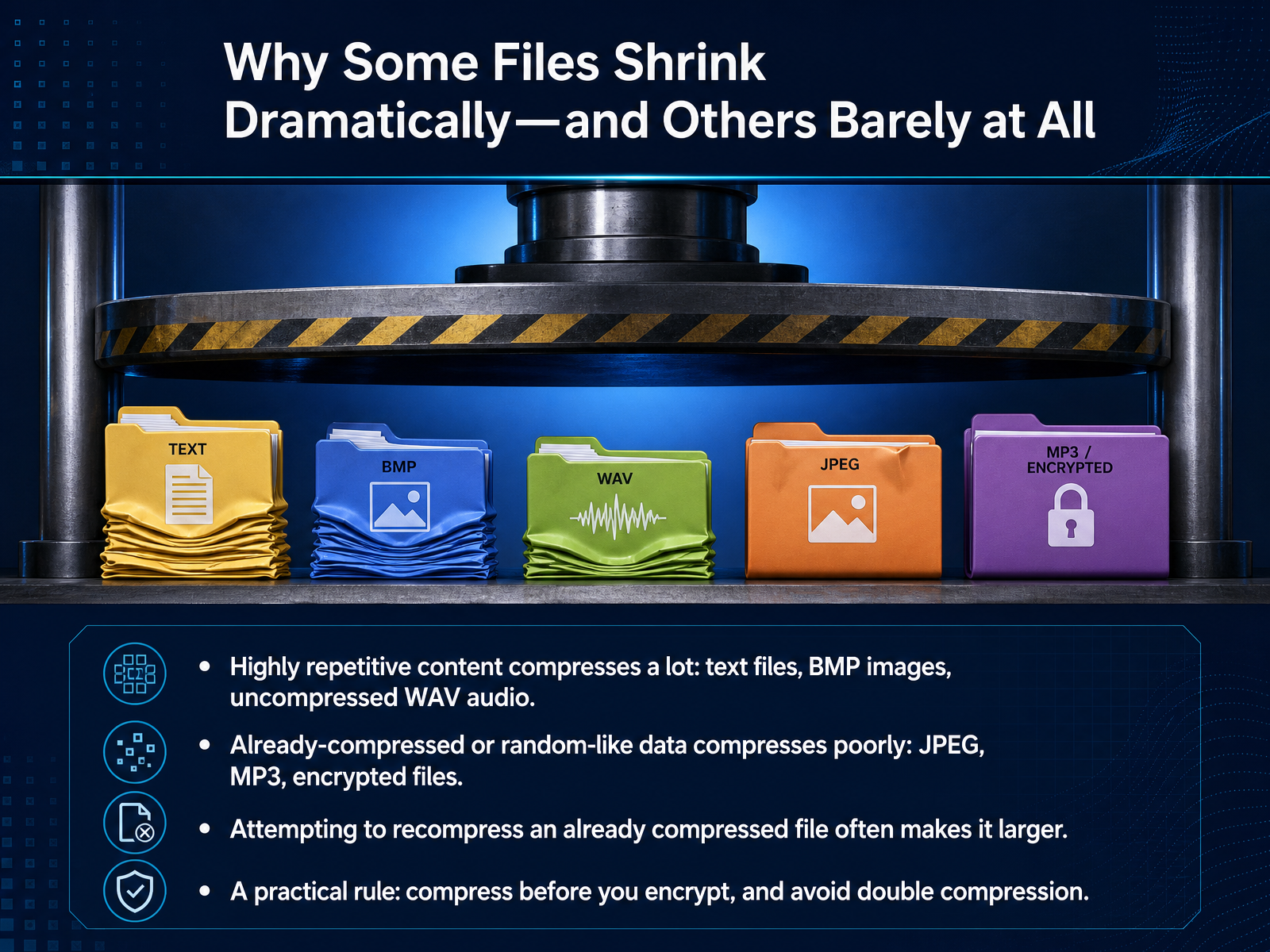
 - 06Why Some Files Shrink Dramatically—and Others Barely at AllSo, here is a question that comes up all the time. Why do some files shrink down to almost nothing, while others barely budge? It all comes down to one thing: repetition. If a file has lots of repeated patterns, you can compress it dramatically. Think of a plain text file or an uncompressed BMP image. These are full of repeated words, spaces, or blocks of the same color, so they shrink by fifty to eighty percent. On the other hand, files that are already compressed—like a JPEG photo or an MP3 song—have had most of their redundancy squeezed out. Trying to ZIP them again is like trying to wring water from a dry towel. You might even make the file slightly larger because you are adding the new container's overhead. This also applies to encrypted files. Good encryption scrambles data so it looks random, and random data has no patterns to find, so it cannot be compressed. A practical rule to remember: always compress your files before you encrypt them. And avoid double compression, like turning a ZIP folder into another ZIP file. It just wastes time. Next, let's look at the other side of the coin: lossy compression, where we trade a little detail for a lot of saved space.
 howtogeek.commegaconvert.netstackconvert.com+22 min
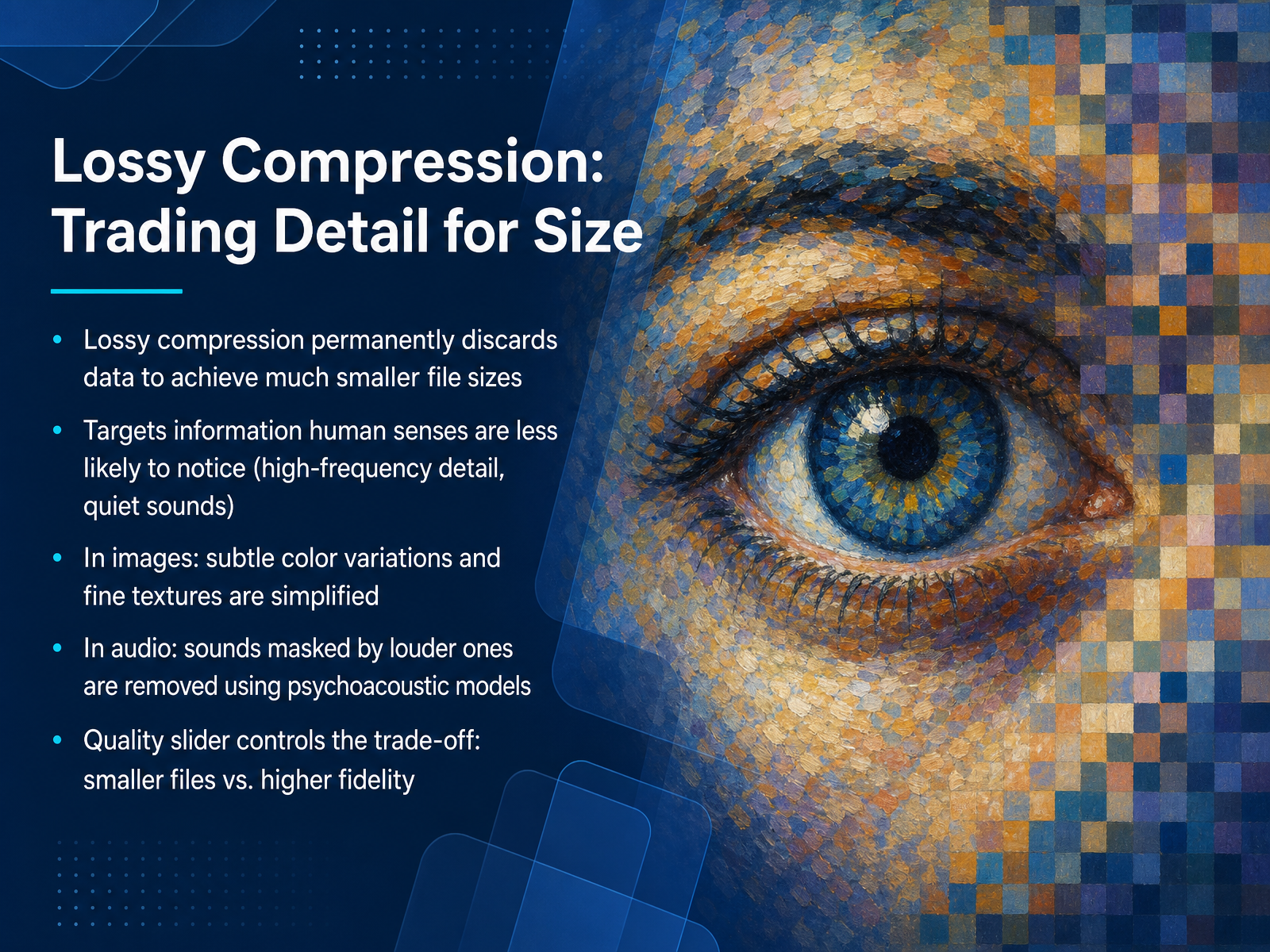
 - 07Lossy Compression: Trading Detail for SizeNow, let's look at the flip side: lossy compression. It’s a completely different philosophy. Instead of just finding patterns, lossy compression trades a little bit of detail for a much, much smaller file. And here’s the clever part: it permanently discards data that our senses are usually not sharp enough to notice. Think of it like a painter who skips the tiny brush strokes on a large mural—you still see the full picture, but the file size shrinks dramatically. In images, this means simplifying subtle color shifts and fine textures. In audio, it uses a trick called psychoacoustic modeling. If a loud sound masks a quieter one, the encoder simply removes the quiet sound. You don’t hear it, so the file doesn’t need to store it. The trade-off is controlled by a quality slider. Slide it one way, and you get a tiny file with a bit of fuzziness. Slide it the other way, and you get a larger file with near-perfect fidelity. This is the secret behind JPEG photos and MP3 music. Coming up next, we’ll open the hood and see exactly how JPEG works its magic in 'Inside JPEG: How Photos Become Smaller'.
 howtogeek.commegaconvert.netstackconvert.com+22 min
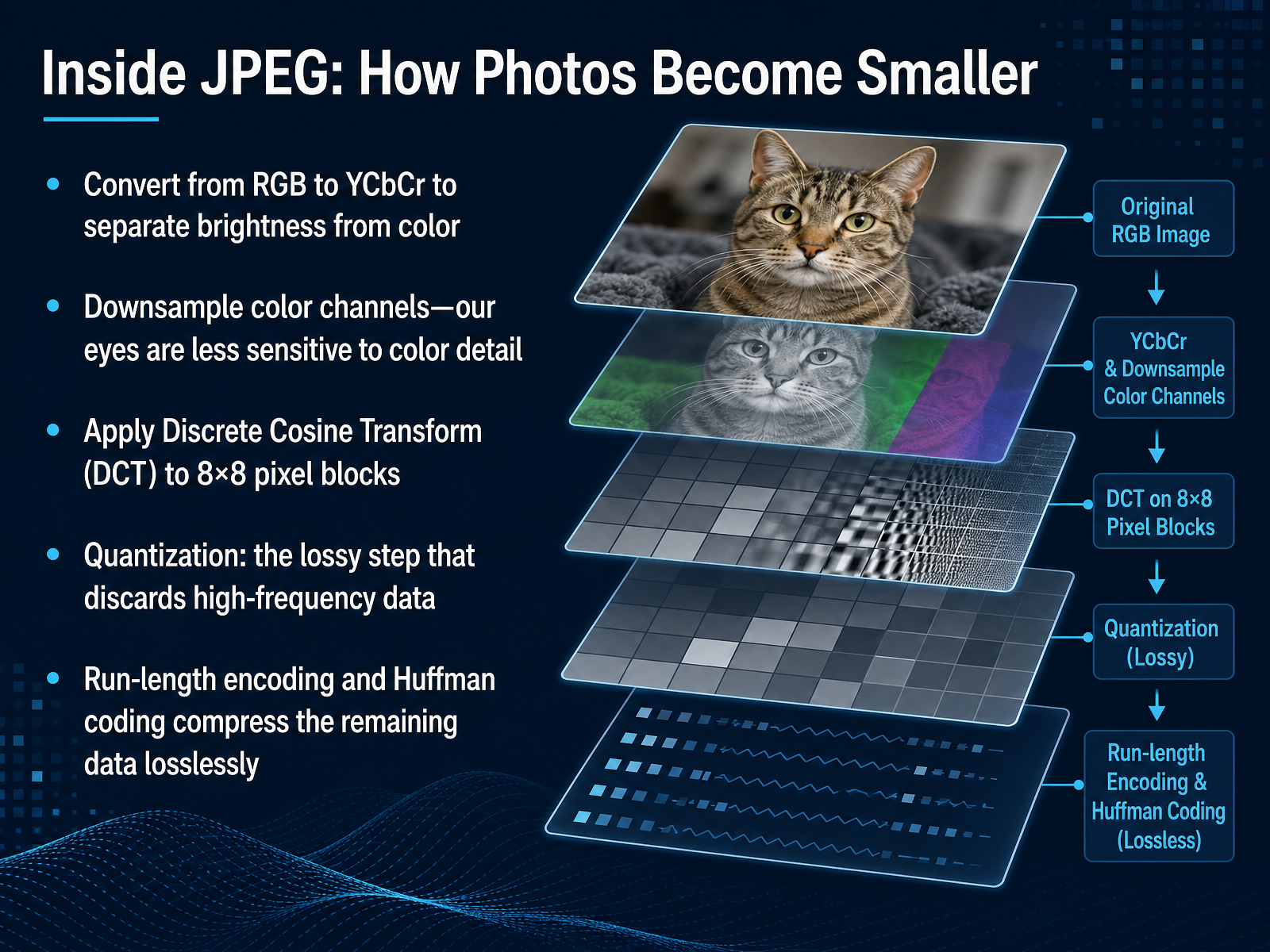
 - 08Inside JPEG: How Photos Become SmallerNow let's walk through the actual steps inside a JPEG, so you can see exactly how a photo becomes smaller. It all starts with a clever color swap. Instead of storing red, green, and blue, JPEG converts the image to a space called Y Cb Cr. This separates brightness, the Y channel, from color information in the Cb and Cr channels. Why? Because our eyes are far more sensitive to tiny changes in brightness than they are to changes in color. So the very next step is downsampling. JPEG keeps the brightness channel at full resolution but shrinks the color channels, often to a quarter of their original size. Right away, we've thrown away half the data, and you probably wouldn't even notice. After that, the image is split into small eight-by-eight pixel blocks. For each block, we apply something called the Discrete Cosine Transform, or DCT. Think of it as a translator. It converts the block from a grid of pixel colors into a recipe of sixty-four patterns, ranging from smooth, flat areas to busy, high-frequency detail. Then comes the big lossy moment: quantization. Each of those sixty-four pattern values is divided by a number from a special table. The dividers for fine detail are much larger, so many of those high-frequency values simply round to zero and are discarded. This is where we permanently lose data, but we target the details your eyes aren't good at seeing. Finally, the remaining values are zigzagged into a list, and we use run-length encoding and Huffman coding to compress the long runs of zeros and common numbers into the smallest possible file. No more information is lost here; it's just a very efficient packing job. So in just a few steps, a large photo shrinks dramatically by separating what we see well from what we don't, and then packing what's left. Next, we'll see how these same perceptual tricks work inside MP3 and video files.
 baeldung.comsimple.wikipedia.orgcgjennings.ca+22 min
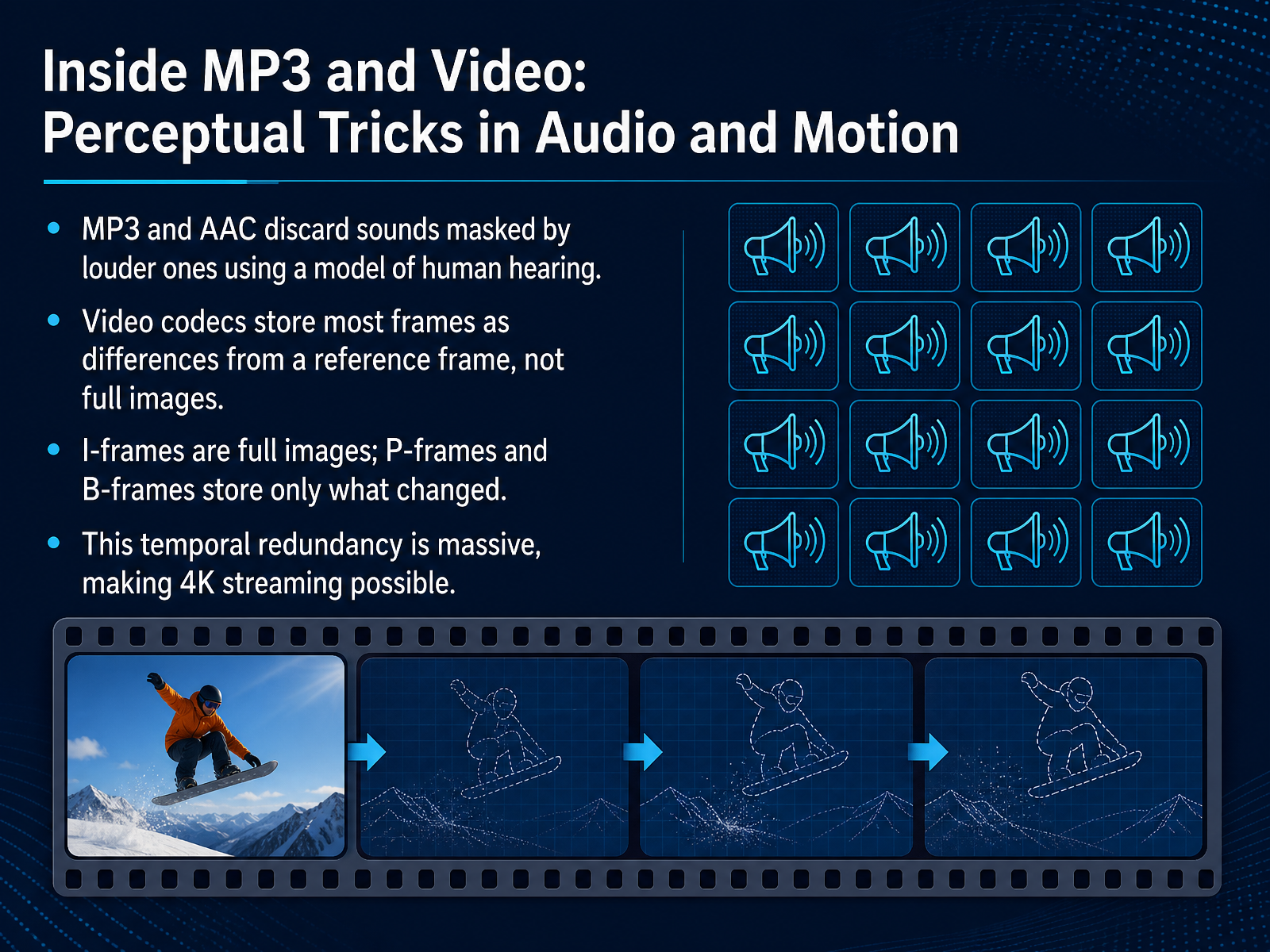
 - 09Inside MP3 and Video: Perceptual Tricks in Audio and MotionNow, let's step inside the world of MP3s and video streaming. These formats use what I like to call perceptual tricks. They don't just find patterns in the data; they find patterns in how we see and hear. For audio, the MP3 format uses a model of human hearing. When a loud sound and a quiet sound happen at the same time, the loud one masks the quiet one. Your ear simply won't notice it's missing. So, the encoder discards that masked sound to save space. It's a clever bit of sonic housekeeping. Video codecs do something similar, but with motion. They take advantage of what's called temporal redundancy. A full, detailed image, called an I-frame, is stored only every so often, like a key photograph. The frames that follow, called P-frames and B-frames, mostly just store what changed or moved from that key frame. So, a video of a person talking against a still background is mostly just storing the tiny movements of their lips. This trick is so effective that without it, the world of 4K streaming simply wouldn't be possible. The data savings are massive. Next, let's look at the trade-off between compression speed, file size, and fidelity.
 howtogeek.commegaconvert.netstackconvert.com+22 min
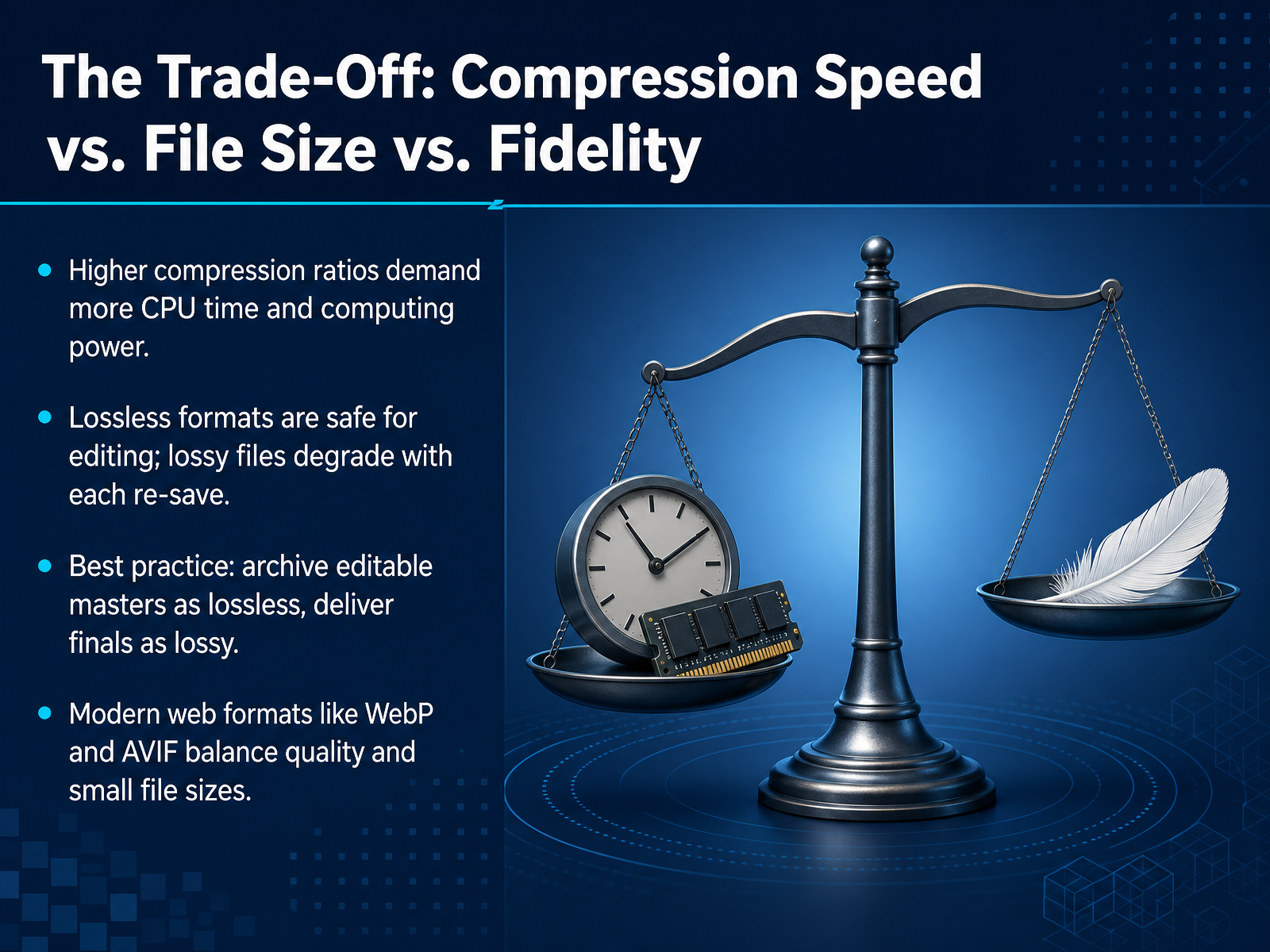
 - 10The Trade-Off: Compression Speed vs. File Size vs. FidelityNow, every choice has a trade-off, and compression is no different. You are always balancing three things. First, compression speed. How much of your computer's brain power do you want to dedicate to this task? Squeezing a file down to the smallest possible size takes more time and CPU cycles. Second, the final file size. And third, fidelity, which means how true the copy is to the original. If you use a lossless format, like PNG or FLAC, you can edit and re-save the file a hundred times and it will never degrade. But if you save a photo as a JPEG, close it, open it again, tweak it, and re-save it, you are throwing away a little more data each time. That is called generation loss. A simple best practice has emerged from this: keep your master copies as lossless files. These are your editable, permanent archives. Then, when you are ready to share or post the final product, you export a lossy version. Modern formats like WebP and AVIF are designed to do exactly this, balancing stunning quality with surprisingly small file sizes. Let's look at how these formats show up in the tools you use every day.
 howtogeek.commegaconvert.netstackconvert.com+21 min
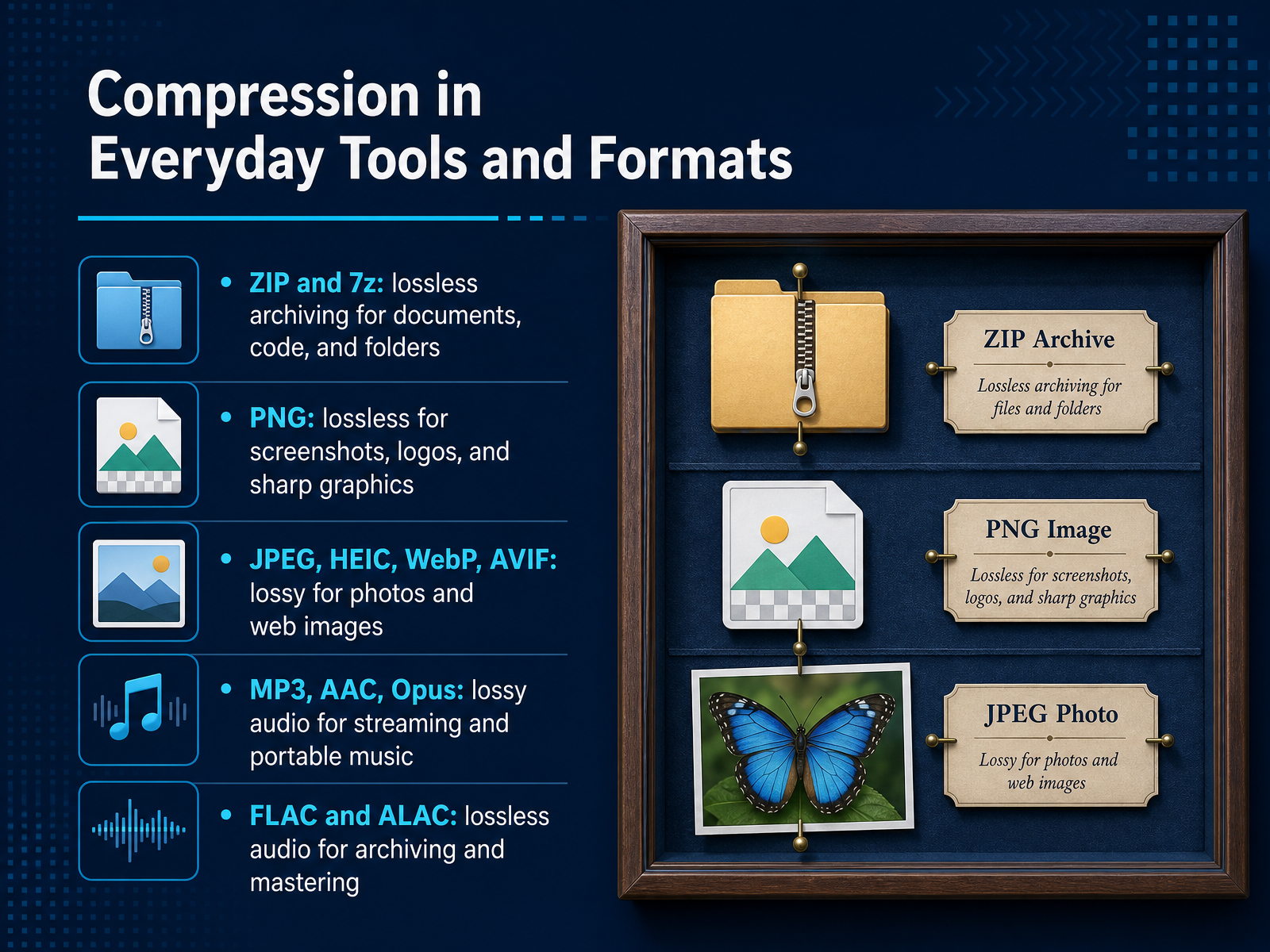
 - 11Compression in Everyday Tools and FormatsNow, let's look at where you actually see these clever pattern-finding tricks in your daily life. Compression is built into the tools and formats you use every day. For lossless archiving, you have ZIP and 7z. These are perfect for documents, code, or entire folders because they must keep every bit exactly the same. For images, PNG is your lossless go-to for screenshots, logos, and sharp graphics. When you need a photo to be much smaller, you switch to lossy formats like JPEG, HEIC, WebP, or AVIF. These formats are designed to throw away just the details your eye is least likely to notice. For audio, the same logic applies. MP3, AAC, and Opus are lossy formats that make streaming and portable music practical. If you need to archive or master music with zero quality loss, you use lossless formats like FLAC and ALAC. The key takeaway is that you are already making these choices. The container you pick is a decision about what matters more: perfect fidelity, or practical size. Next, let's make that decision even clearer as we discuss choosing the right format for the job.
 howtogeek.commegaconvert.netstackconvert.com+22 min
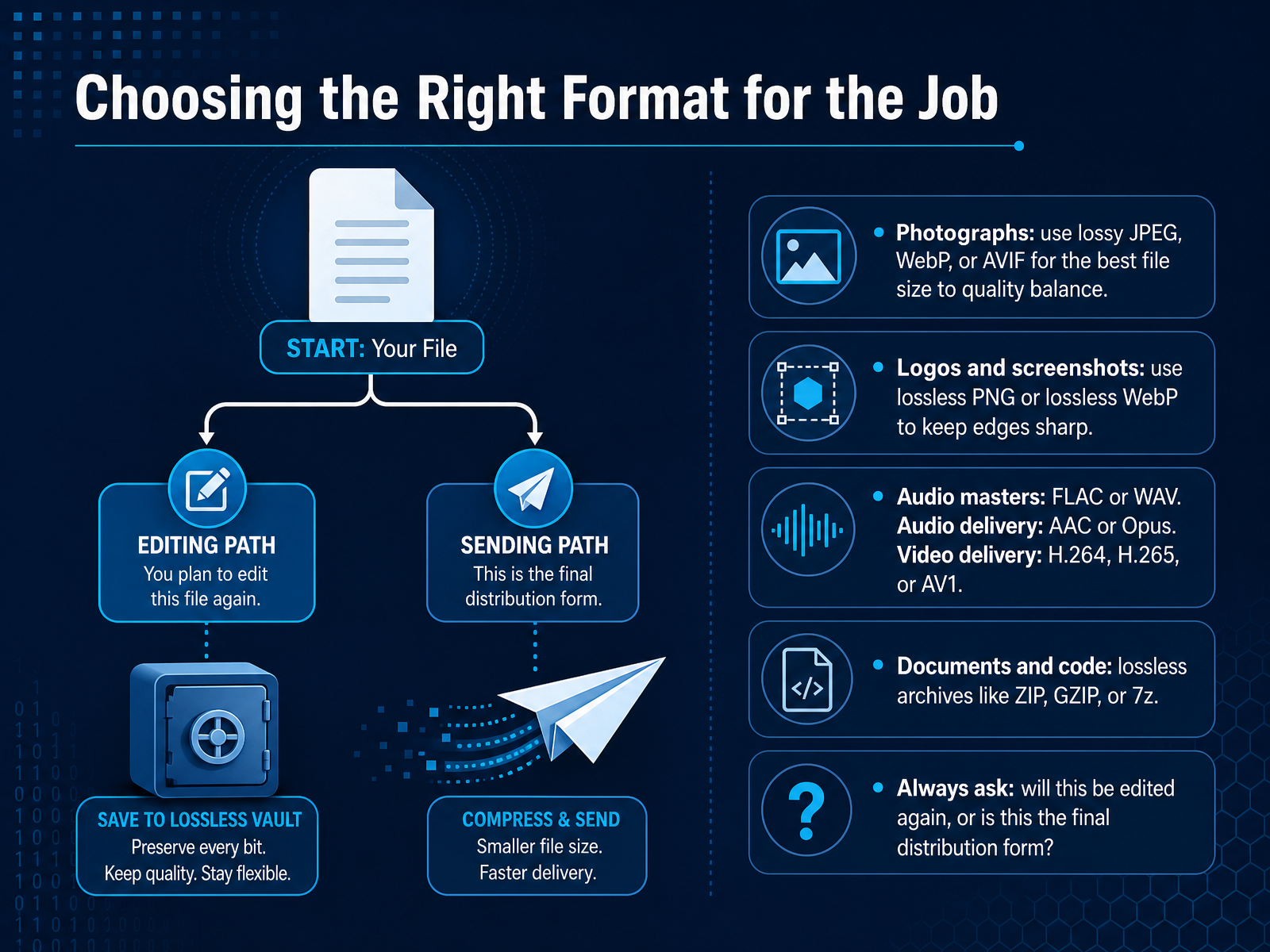
 - 12Choosing the Right Format for the JobNow that we have seen how the pattern-finding trick works, let us apply it to a practical question. How do we choose the right format for the job? It is not about finding one perfect format. It is about matching the format to how the file will be used. For photographs, where you want a beautiful image but a tiny file size, reach for lossy formats like JPEG, WebP, or AVIF. They find the perfect balance between quality and small size. But for logos, screenshots, or diagrams with sharp edges and text, use lossless formats like PNG or lossless WebP. These keep every edge crisp and clear. For audio, the rule is similar. If you are editing and need a master copy, go lossless with FLAC or WAV. If you are delivering a final track for listening, a lossy format like AAC or Opus is much more efficient. For video delivery, we use H.264, H.265, or AV1. And for documents and code, where every letter matters, we always use lossless archives like ZIP, GZIP, or 7z. The one question to always ask yourself is this: will this file be edited again, or is this the final distribution form? If it will be edited, keep a lossless master. If it is the final copy, a lossy format is perfectly fine. Let us look at the most common mistakes people make when they forget these rules.
 howtogeek.commegaconvert.netstackconvert.com+22 min
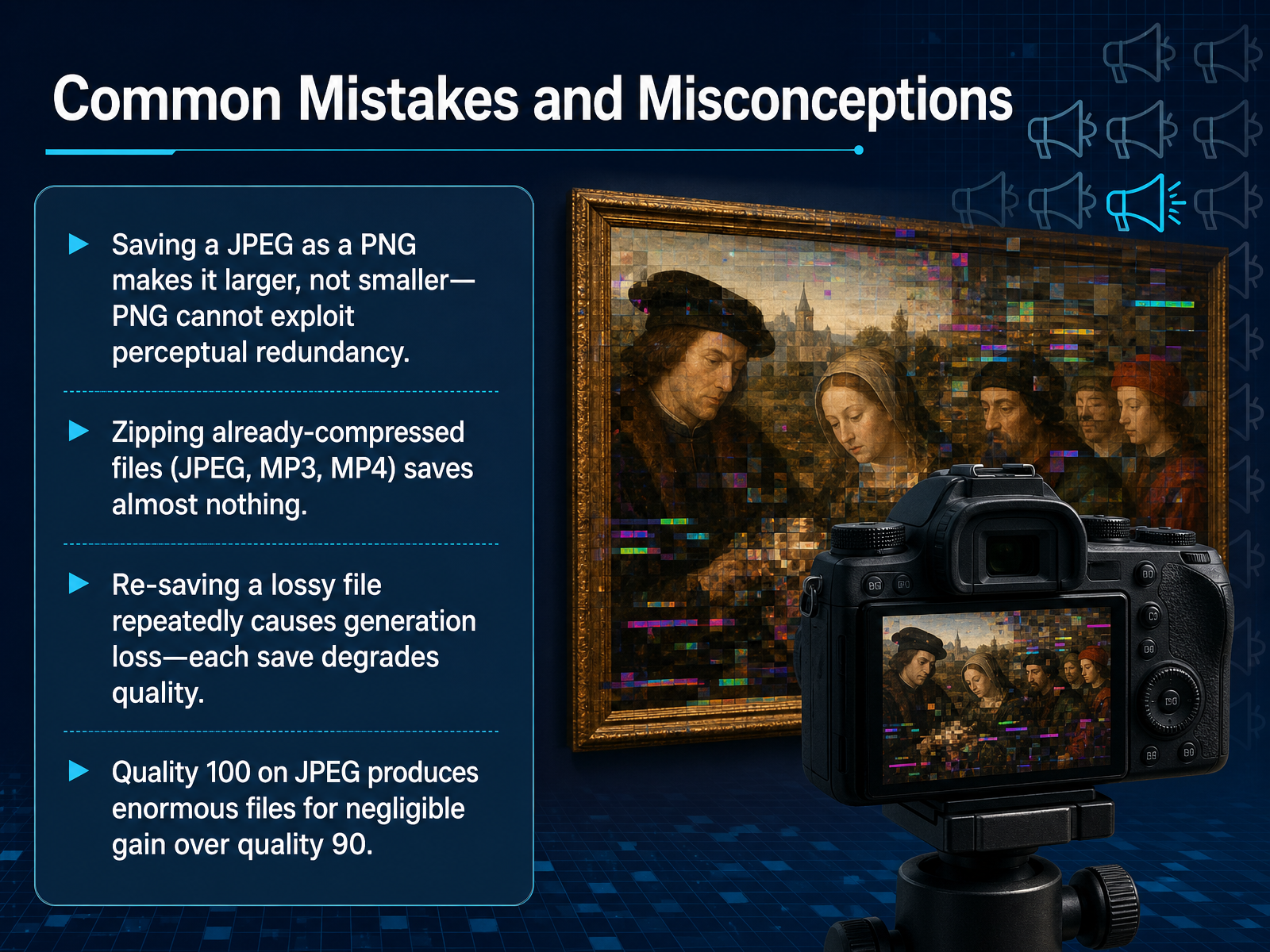
 - 13Common Mistakes and MisconceptionsAlright, let's talk about some common traps people fall into, and how to avoid them. It'll save you a lot of frustration. First, imagine saving a JPEG photo as a PNG file to make it smaller. That actually makes it much larger. PNG is a lossless format; it has to perfectly preserve every pixel of the already-compressed JPEG, including all the invisible artifacts. There's no redundancy left for it to exploit. Second, have you ever tried zipping a folder full of JPEGs or MP3s? It saves almost nothing. Those files are already compressed, so the pattern-finding tricks we discussed have nothing to find. Third, this one is sneaky: generation loss. Every time you open a JPEG, make a small edit, and save it again, you're compressing it a second time. The quality degrades slightly with each save. Over time, it becomes noticeable. Always keep a lossless master copy for editing. Finally, that quality slider in your image editor. Setting a JPEG to quality one hundred creates a huge file for a gain that is often invisible to the human eye compared to quality ninety. You're mostly just storing data you can't see. These are the little practical things that make the theory click. Next, let's cement this with a simple mental model we can use every day. We'll call it The Pattern-Based Mental Model.
 howtogeek.commegaconvert.netstackconvert.com+22 min
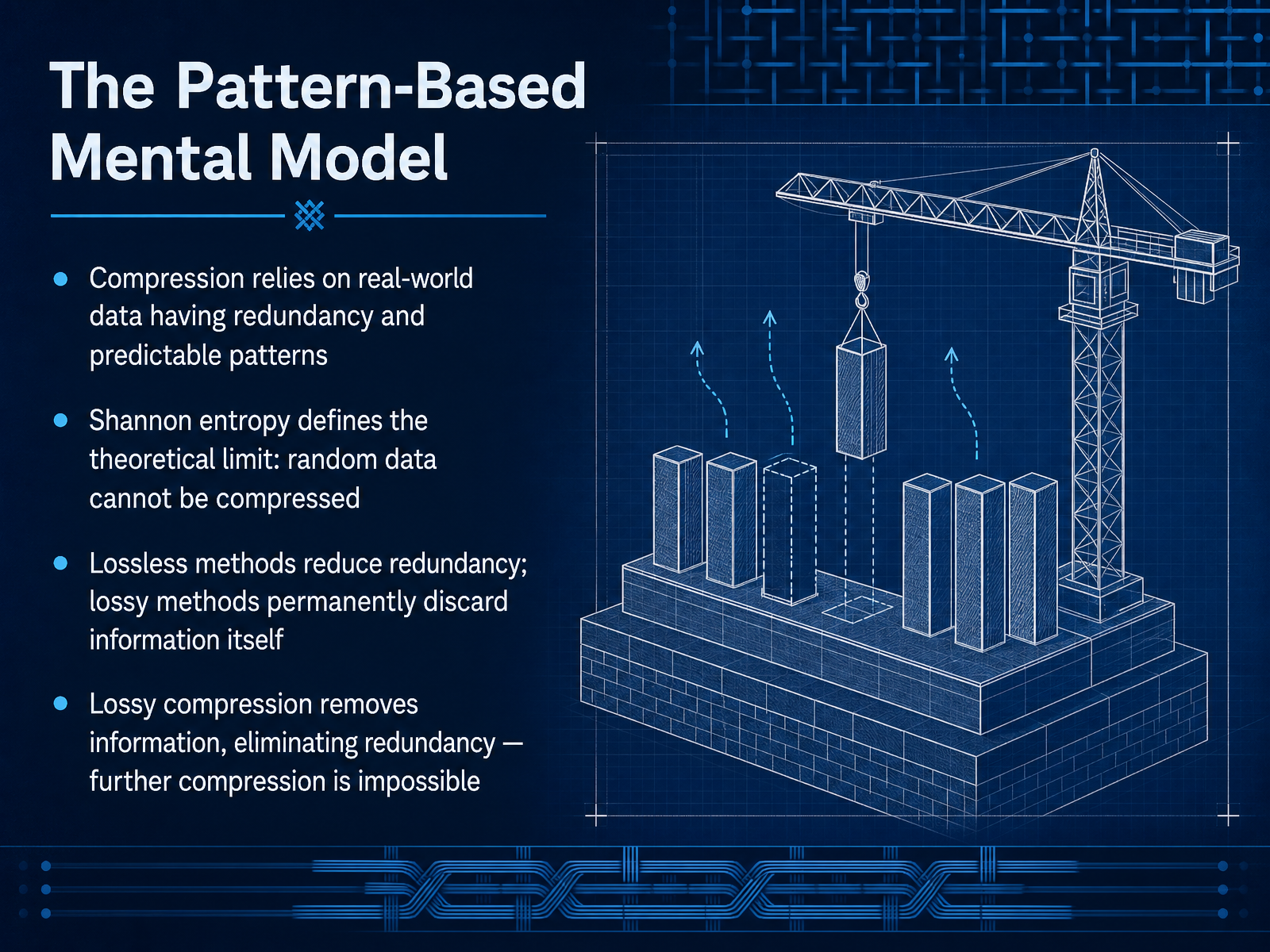
 - 14The Pattern-Based Mental ModelNow let's pull everything together into a single mental model. Compression works because real-world data is full of redundancy and predictable patterns. That blank sky in a photo, the silence between words in a song, or the same word appearing dozens of times in a document... all of that is an opportunity to save space. There is a theoretical limit though, called Shannon entropy. If data is truly random, with no patterns at all, it simply cannot be compressed any further. Think of an encrypted file or a JPEG that has already been squished. There is no structure left to exploit. This brings us to the crucial difference between our two strategies. Lossless methods find and reduce redundancy, but they keep every single bit of information intact. Lossy methods go a step further. They permanently discard information that we are unlikely to notice. Because lossy compression actually removes information, it eliminates the redundancy that was holding it. Once a file is lossy, trying to compress it again is usually pointless. The patterns have been spent. That is the core insight. Lossless removes redundancy, lossy removes information. Next, let's look at the key takeaways and when to apply what you learned.
 howtogeek.commegaconvert.netstackconvert.com+22 min
 - 15Key Takeaways and When to Apply What You LearnedAnd here we are at the final slide. Let's pull together the key ideas we've explored. Compression works by finding patterns and eliminating redundancy. That's the heart of it. Remember, lossless compression gives you perfect reconstruction. It's for when every single bit matters, like documents, code, and archives. Lossy compression makes files much smaller by sacrificing some fidelity we usually don't notice. That's perfect for photos, video, and streaming. A practical tip: don't expect magic on files that are already compressed, like JPEGs or MP3s, or on encrypted data. The redundancy is already gone. And here's the golden rule for your own work: always keep a lossless master for editing. Only export lossy versions for final distribution. You've learned the clever trick behind making files smaller. Thank you for joining me, and happy compressing.
 howtogeek.commegaconvert.netstackconvert.com+22 min
Take the deck with you
Download this course as a file — free, no sign-up needed.
- PDF handoutEvery slide page, ready to print or share.16 pages · 4.8 MBDownload
- Narrated PowerPointThe deck that presents itself — every slide carries the digital human's narration video.16 pages · 19.5 MBDownload
- PowerPoint slidesThe full deck as a .pptx — open it in PowerPoint, Keynote, or Google Slides.16 pages · 4.8 MBDownload
Free to use in your own training — please keep the PersonWise credit page at the end.
Have your own deck? Turn it into a course
Sources consulted
Web sources consulted while building this course.
- Lossy vs. Lossless Compression: What's the Difference? — howtogeek.com
- Lossless vs lossy compression: what the words actually mean and why it matters | MegaConvert — megaconvert.net
- Lossy vs Lossless Compression Guide | StackConvert — stackconvert.com
- What are Lossless and Lossy Compression? — techtarget.com
- Lossy vs Lossless Compression: Differences & Advantages | Adobe — adobe.com
- How Does File Compression Work? — howtogeek.com
- How File Compression Works — computer.howstuffworks.com
- Data compression — simple.m.wikipedia.org
- Data compression — en.wikipedia.org
- How Does Compression Work? - Invent with Python — inventwithpython.com
- Zip Files: History, Explanation and Implementation - hanshq.net — hanshq.net
- ZIP: The Universal Archive Format | ChangeThisFile — changethisfile.com
- ZIP | Codec Wiki — codecs.wiki
- Gzip: algorithm.doc | Fossies — fossies.org
- doc/algorithm.txt at master · madler/zlib — github.com
- JPEG Compression Explained | Baeldung on Computer Science — baeldung.com
- JPEG — simple.wikipedia.org
- How JPEG works - Home (Christopher G. Jennings) — cgjennings.ca
- How JPG Works — freecodecamp.org
- Image compression using JPEG - Coding - Compression - Computer Science Field Guide — csfieldguide.org.nz