Begin
16 pages · ~32 min
Secure Remote Work Practices
This training teaches employees how to maintain security and productivity while working remotely or from any location.
A digital instructor presents all 16 pages. Hold “Ask” at any point and ask out loud — the answer comes from this course. No sign-up needed.
What you’ll learn
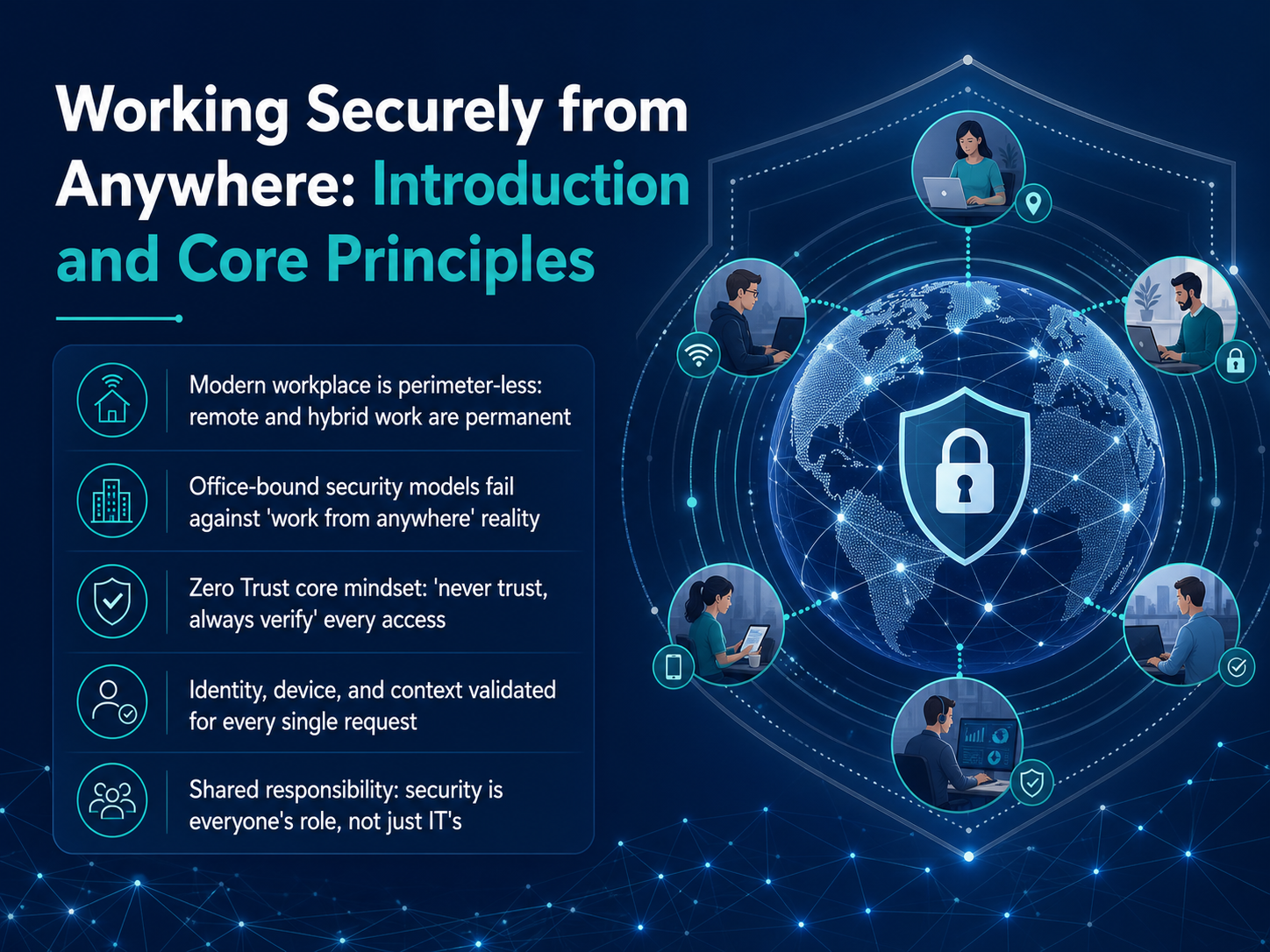
- 01Working Securely from Anywhere: Introduction and Core PrinciplesWelcome to Working Securely from Anywhere. In this course, we are going to look at how to keep our work safe, no matter where we are. The modern workplace has changed permanently. We no longer have a single office to protect. The old way of thinking, where everyone inside the company network was trusted, just does not work when we are working from home, a coffee shop, or a co-working space. Instead, we follow a core principle called Zero Trust. You can think of it as a simple rule: never trust, always verify. This means every time you access a file, an application, or a system, your identity, your device, and the context of your request are checked. It is not about making things harder. It is about making sure that access is always safe and appropriate. And this is a shared responsibility. Security is not just the job of the IT department. It is a role we all play in protecting our company and our colleagues. Next, we will examine the current threat landscape for remote work.learn.microsoft.comexabeam.comhackerdesk.com+22 min
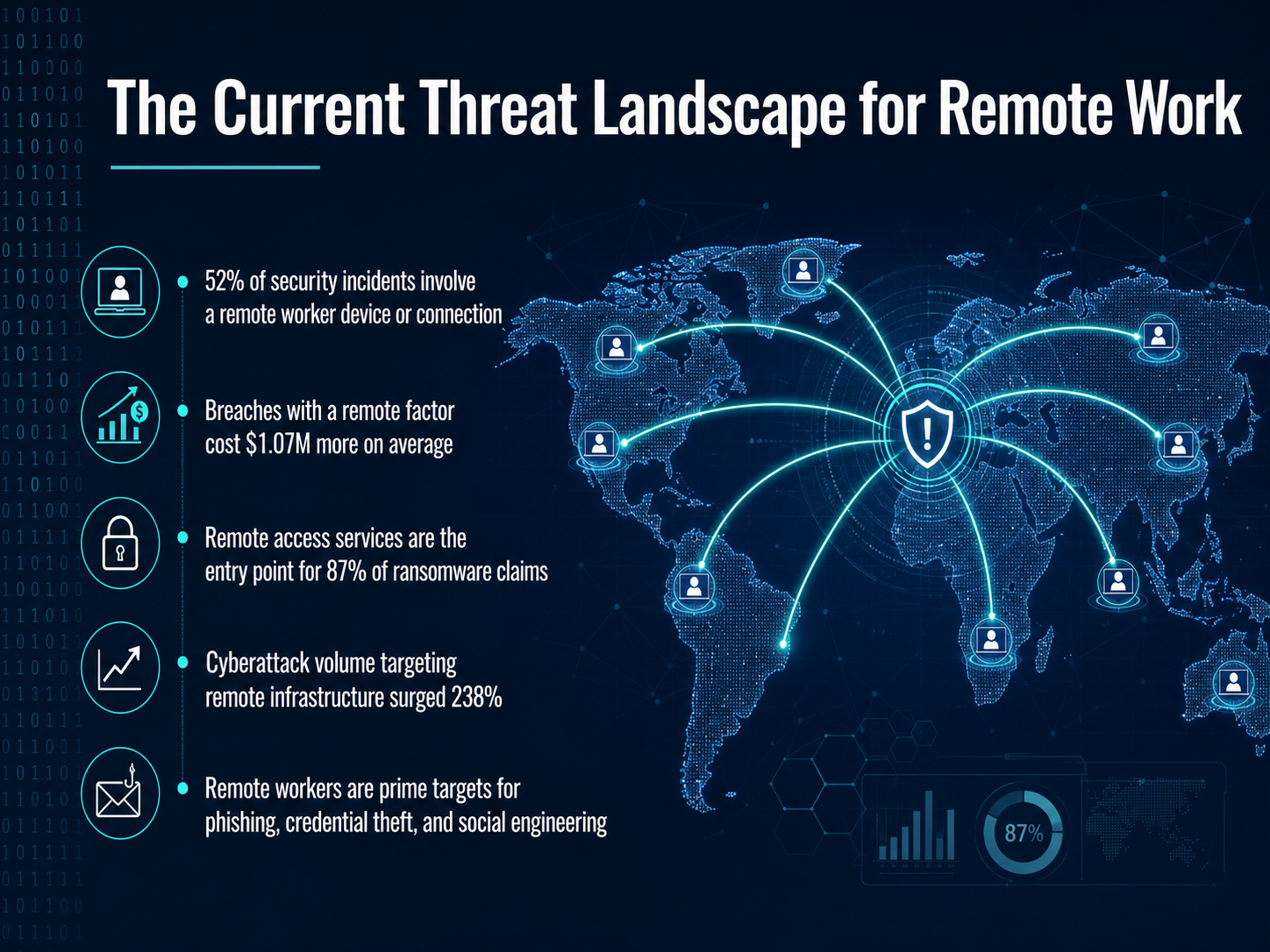
- 02The Current Threat Landscape for Remote WorkNow, let's take an honest look at what we're all facing. The numbers from the last year aren't meant to scare you, but to show you exactly why small, everyday habits matter so much. Consider this: over half of all security incidents, actually fifty-two percent, now involve a remote worker's device or connection. It's not a niche problem anymore. When a breach does have a remote factor, it costs over a million dollars more to fix, on average, because these issues are often harder to spot and take longer to contain. We're also seeing that remote access services are the main entry point for the vast majority of ransomware claims. Attackers are specifically targeting the tools we use to connect, with a massive surge in attacks on this infrastructure. For you, this often translates into more personalized phishing attempts, credential theft, and social engineering tricks designed to catch you off guard. This is the landscape we're working in, but understanding it is the first step to protecting ourselves. Next, let's bring this closer to home and talk about securing your physical environment.
 stealthagents.comstingrai.iowifitalents.com+22 min
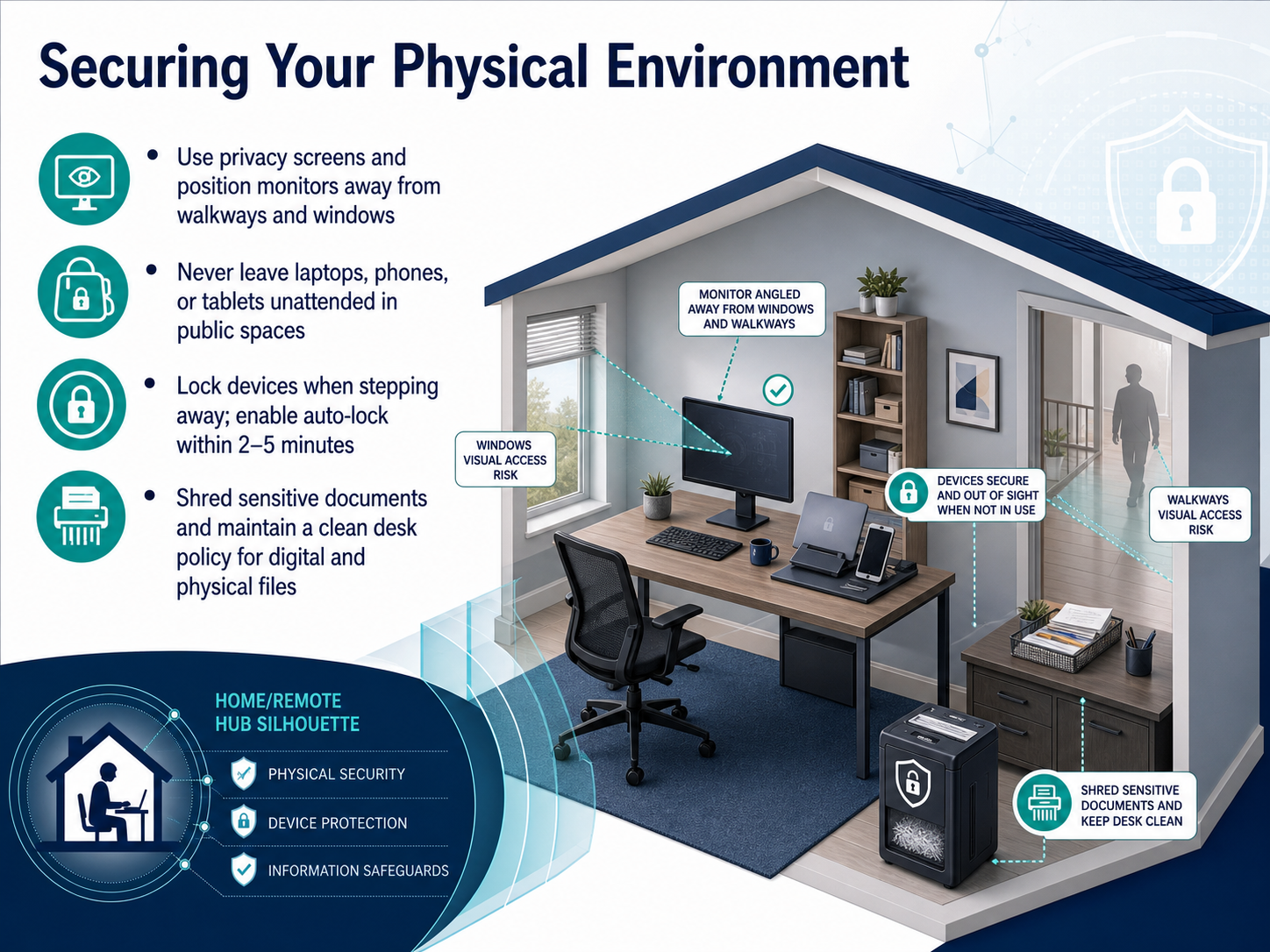
 - 03Securing Your Physical EnvironmentAlright, let's talk about your physical workspace. Whether you're at a coffee shop, a co-working space, or just at home, a few simple habits can make a huge difference. First, think about what's on your screen. A privacy screen is a simple filter that makes it impossible for someone next to or behind you to read your display. Also, try to position your monitor so it's not facing a window or a busy walkway. Next, and this is a big one, never leave your laptop, phone, or tablet unattended in a public space, not even for a quick trip to the restroom. It only takes a second for a device to disappear. When you're at home, lock your screen whenever you step away from your desk. A good practice is to set your device to auto-lock after just two to five minutes of inactivity. It's a great safety net. Finally, let's think about documents. If you have any sensitive papers, be sure to shred them instead of just tossing them in the recycling. And try to keep a clean desk, both physically and digitally. When you're done with a file, physical or digital, lock it away or store it securely. These small steps build a strong wall around your workspace. Now, let's take that same careful approach and apply it to your digital doorstep. We'll look at fortifying your home network next.
 digitalshieldpro.comsecurity.berkeley.edusecreadynow.com+22 min
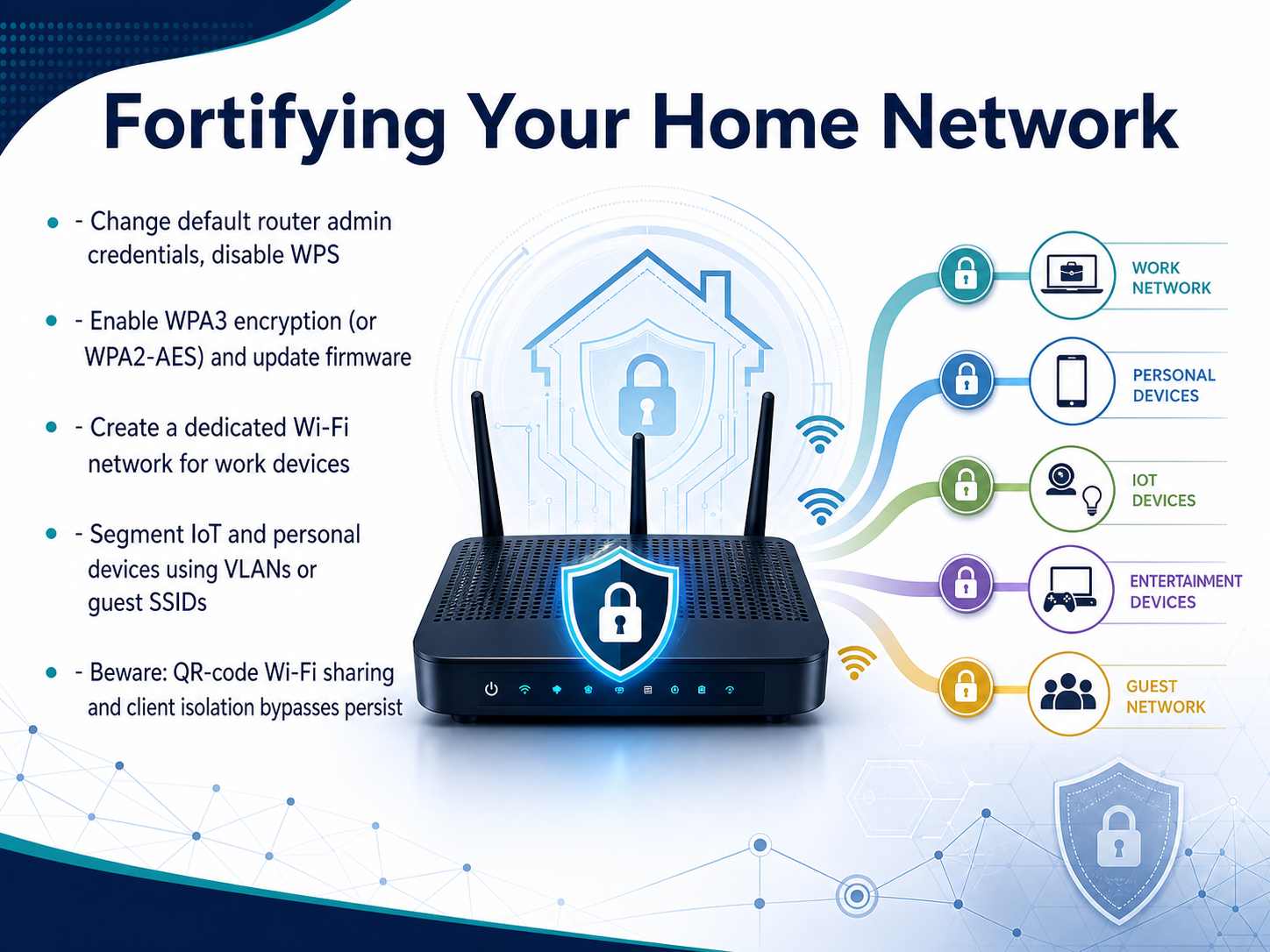
 - 04Fortifying Your Home NetworkNow let's talk about fortifying your home network. Think of your router as the front door to your digital workspace. First, change the default administrator password and disable WPS. Those default credentials are often easy to find online. Next, enable WPA3 encryption. If your router doesn't support it, WPA2-AES is the next best option. While you're in the settings, check for a firmware update to patch any known vulnerabilities. For an extra layer of defense, create a dedicated Wi-Fi network just for your work devices. This keeps your laptop separate from smart home gadgets and gaming consoles. If your router supports VLANs or a guest network, use that to segment personal and IoT devices. Finally, a quick word of caution. Be aware that QR-code Wi-Fi sharing can bypass some security, and a feature called client isolation doesn't always work as reliably as we'd hope. Layering these steps is what makes your network truly resilient. Up next, we'll secure your connection even further with Secure Network Connections: VPNs and Beyond.
 mrncciew.comthreatintelreport.comrcrwireless.com+21 min
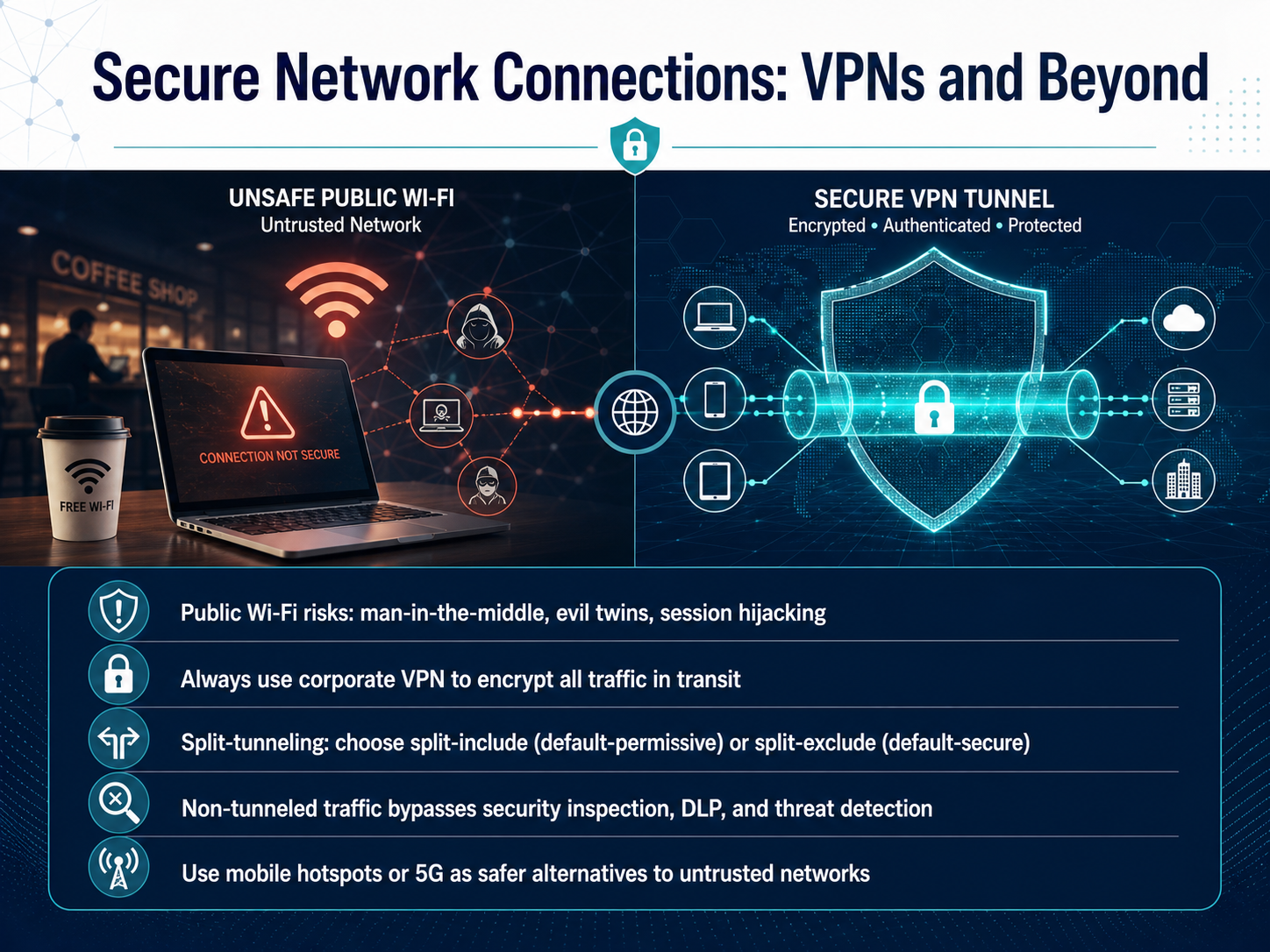
 - 05Secure Network Connections: VPNs and BeyondNow let's talk about keeping your connection safe, because public Wi-Fi is a big risk. Open networks can expose you to man-in-the-middle attacks, or fake hotspots designed to steal your session. So the best practice is simple: always connect through your corporate VPN. It encrypts all your traffic in transit, keeping it private. Your company may use something called split tunneling, which lets some apps go outside the VPN for speed. But remember, that non-tunneled traffic bypasses security inspection and threat detection, so it's a risk. If you're unsure about a network, a mobile hotspot or your phone's 5G connection is a much safer alternative. Next, we'll move into device management and hygiene.
 1 min
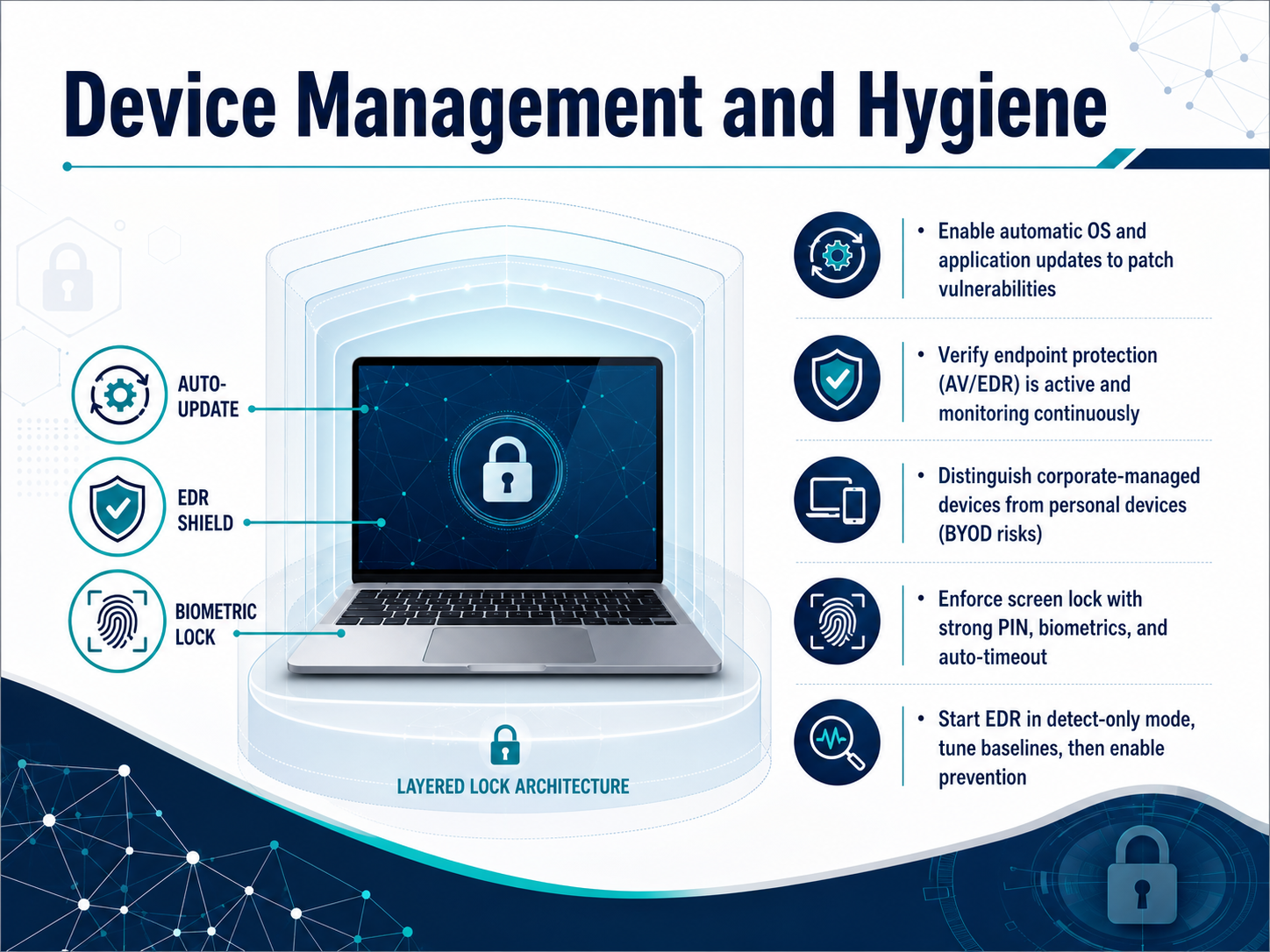
1 min - 06Device Management and HygieneNow let's talk about device management and hygiene, which is all about keeping your device healthy and secure. First, enable automatic updates for your operating system and applications. This makes sure known vulnerabilities get patched quickly, without you having to remember to do it. Next, verify that your endpoint protection, like antivirus or EDR, is active and monitoring continuously. Think of it as a security guard that should always be on duty. It's also important to know the difference between a corporate-managed device and your personal device. Using your own phone or laptop for work, often called BYOD, can introduce risks that company devices are built to handle. Then, always enforce a screen lock with a strong PIN, biometrics, or an auto-timeout. This simple step protects your data if your device is ever lost or left unattended. Finally, a quick note on EDR, or endpoint detection and response. When a new tool is rolled out, teams often start it in a detect-only mode first. This lets them tune the system to understand what's normal in your environment before turning on automatic blocking, which prevents a flood of false alarms. Up next, we'll dive deeper into BYOD and mobile security.
 2 min
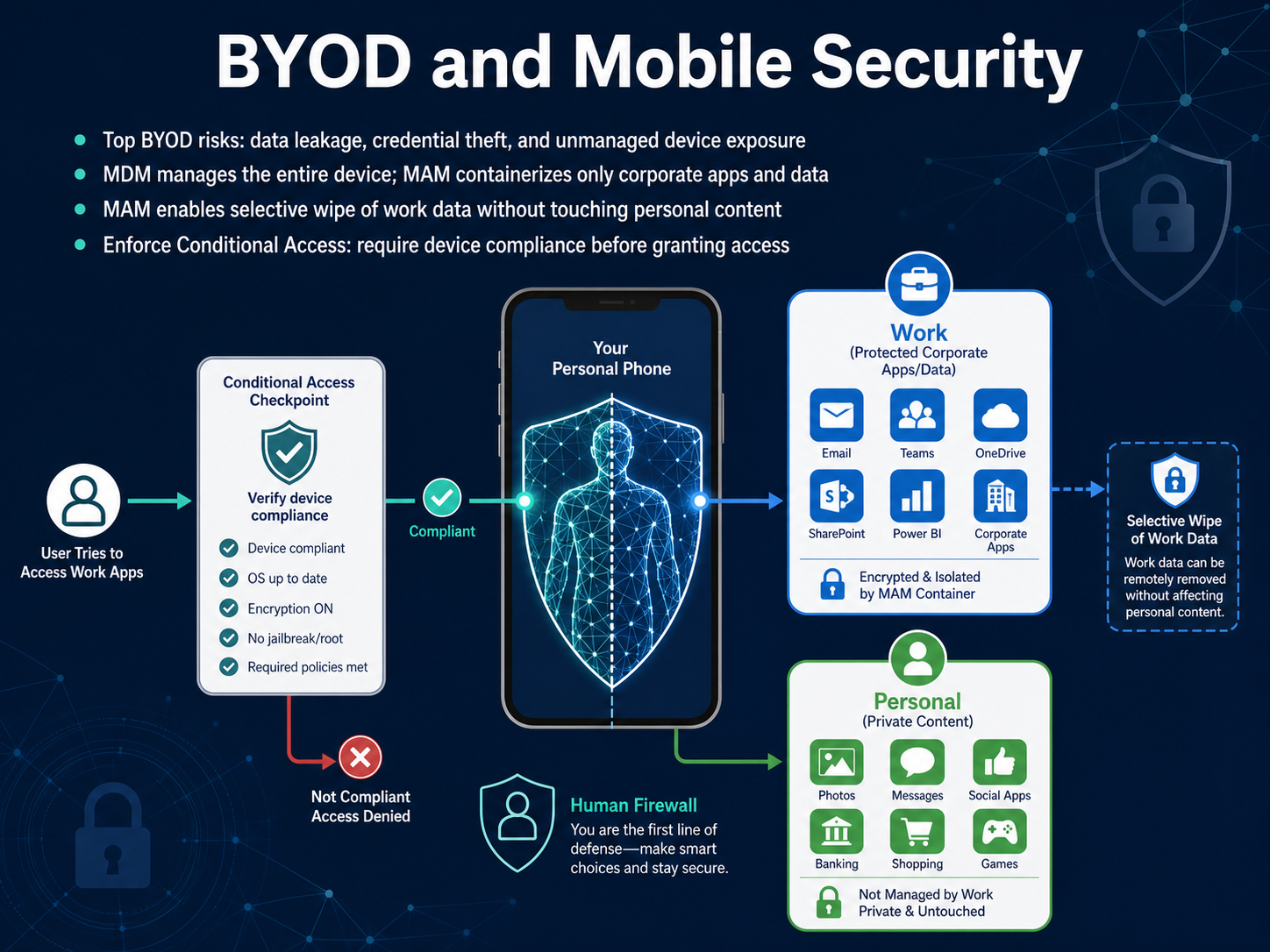
2 min - 07BYOD and Mobile SecurityLet's move on to the practical side of personal devices at work, often called BYOD, and mobile security. The three biggest risks to watch out for are data leakage, credential theft, and unmanaged device exposure. A personal phone that's missing security updates can become a doorway for attackers to steal your work passwords or leak sensitive files into personal cloud storage. To manage these risks, we have two main technical approaches. Mobile Device Management, or MDM, takes care of the entire device, but it also gives the organization visibility and control over personal content, which is often too invasive for a personal phone. Mobile Application Management, or MAM, is a lighter touch. It places only your work apps, like Outlook and Teams, in a secure container, keeping your personal photos and apps completely private. Because MAM keeps work and personal data separate, it allows for a selective wipe. If you leave the company or lose your phone, IT can remove only the corporate data without touching a single personal photo or message. On top of this, we use Conditional Access policies. This simply means the device must meet a minimum security bar, like having a screen lock or running an up-to-date operating system, before it's allowed to connect to any work resources. Now that we have a handle on device security, we'll next dive into the first line of defense for your accounts: Authentication and Password Strength.
 2 min
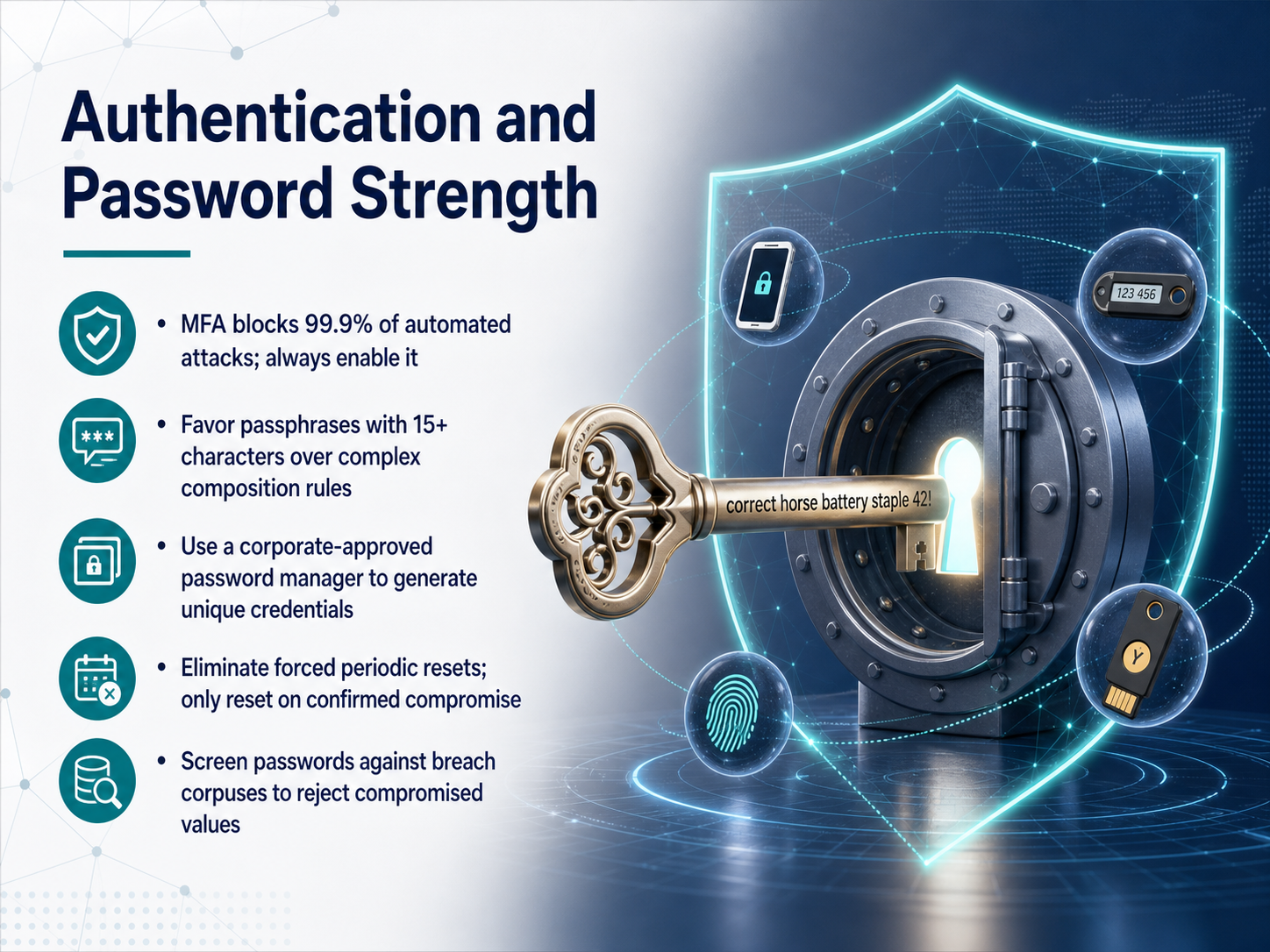
2 min - 08Authentication and Password StrengthLet's talk about authentication and what actually makes a strong password. First, a powerful statistic: multi-factor authentication, or MFA, blocks ninety-nine point nine percent of automated attacks. So, if you take only one action today, please make sure MFA is enabled everywhere it's offered. Now, for the passwords themselves, the old rules are out. You know the ones—uppercase, lowercase, number, symbol. The latest guidance from NIST recommends prioritizing length over complexity. A long passphrase of fifteen or more characters, like three or four random words with spaces, is actually much stronger and easier to remember than something like 'Password1!'. Our best practice is to use a corporate-approved password manager. It can generate unique, lengthy credentials for every account, and you'll only need to remember one strong master passphrase. We are also moving away from forced periodic resets. You will only need to change your password if there's a confirmed compromise. Finally, any new password you create is automatically screened against known breach databases. If a password has appeared in a public leak, the system will reject it and ask you to choose another. This all works together to keep you much safer without the frustration. Next, let's build on this by looking at how to defeat MFA fatigue and modern authentication attacks.
 2 min
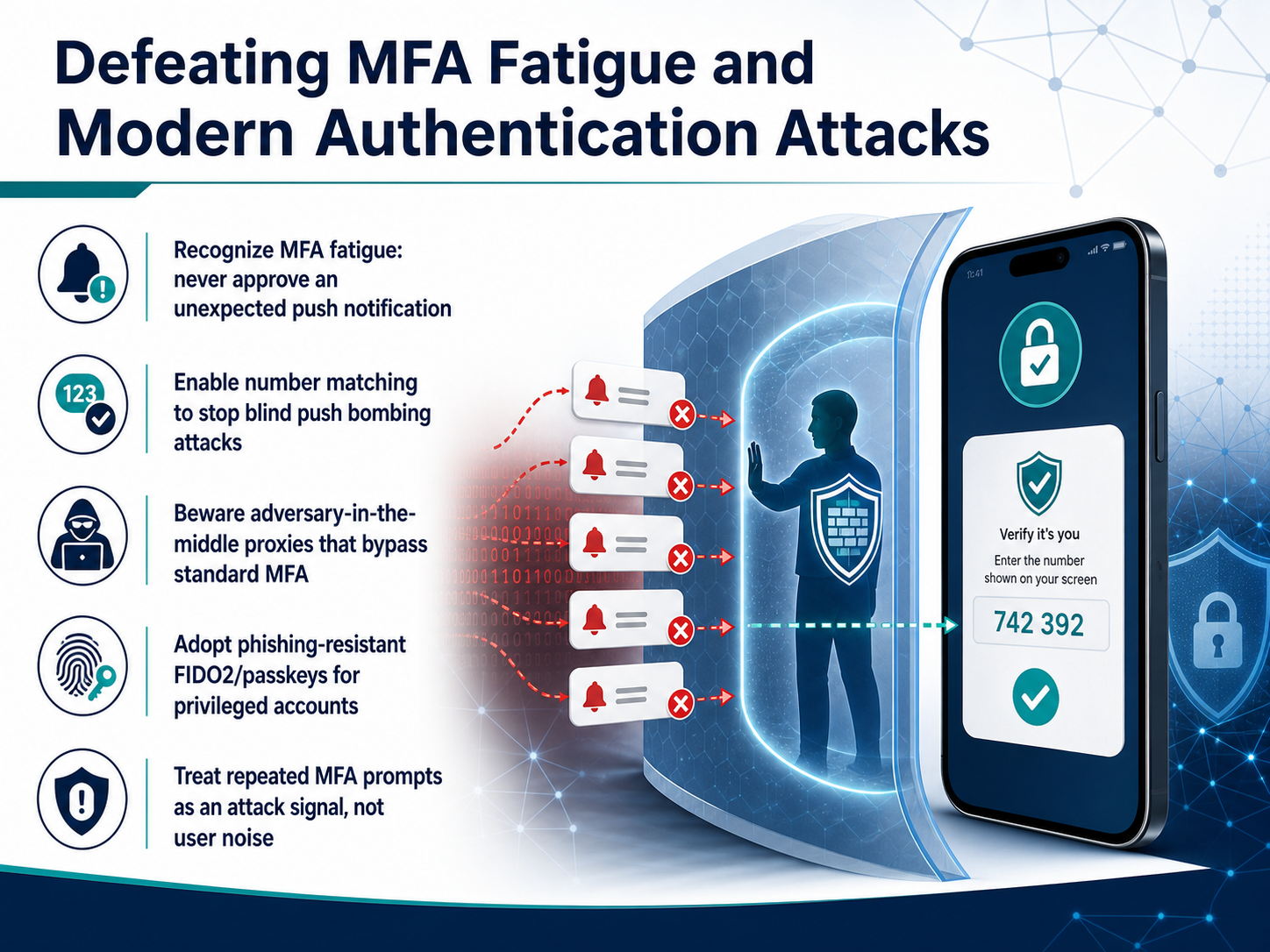
2 min - 09Defeating MFA Fatigue and Modern Authentication AttacksNext, we're looking at how to stop modern tricks that try to wear you down, like MFA fatigue. First, know the signal. If your phone buzzes with a push notification you didn't ask for, never tap approve. Treat it like a red flag. Most platforms now use something called number matching. Instead of a blind approve button, the login screen shows a couple of digits, and you have to type those into your authenticator app. That stops attackers cold because they can't see your screen. But there's a catch. Sophisticated scammers might call you, pretending to be I.T., and ask you to read that number out loud. Remember, no real support team will ever do that. Hang up and call your help desk directly. For the strongest protection, especially on sensitive accounts, we're moving to phishing-resistant keys. These are physical security keys or built-in passkeys that don't have any push to approve at all. If you ever get repeated, unexpected prompts in a row, that's a clear attack signal, not a glitch. Report it right away. With those defenses in mind, let's shift to the social engineering side of things and talk about phishing, smishing, and vishing threats.
 2 min
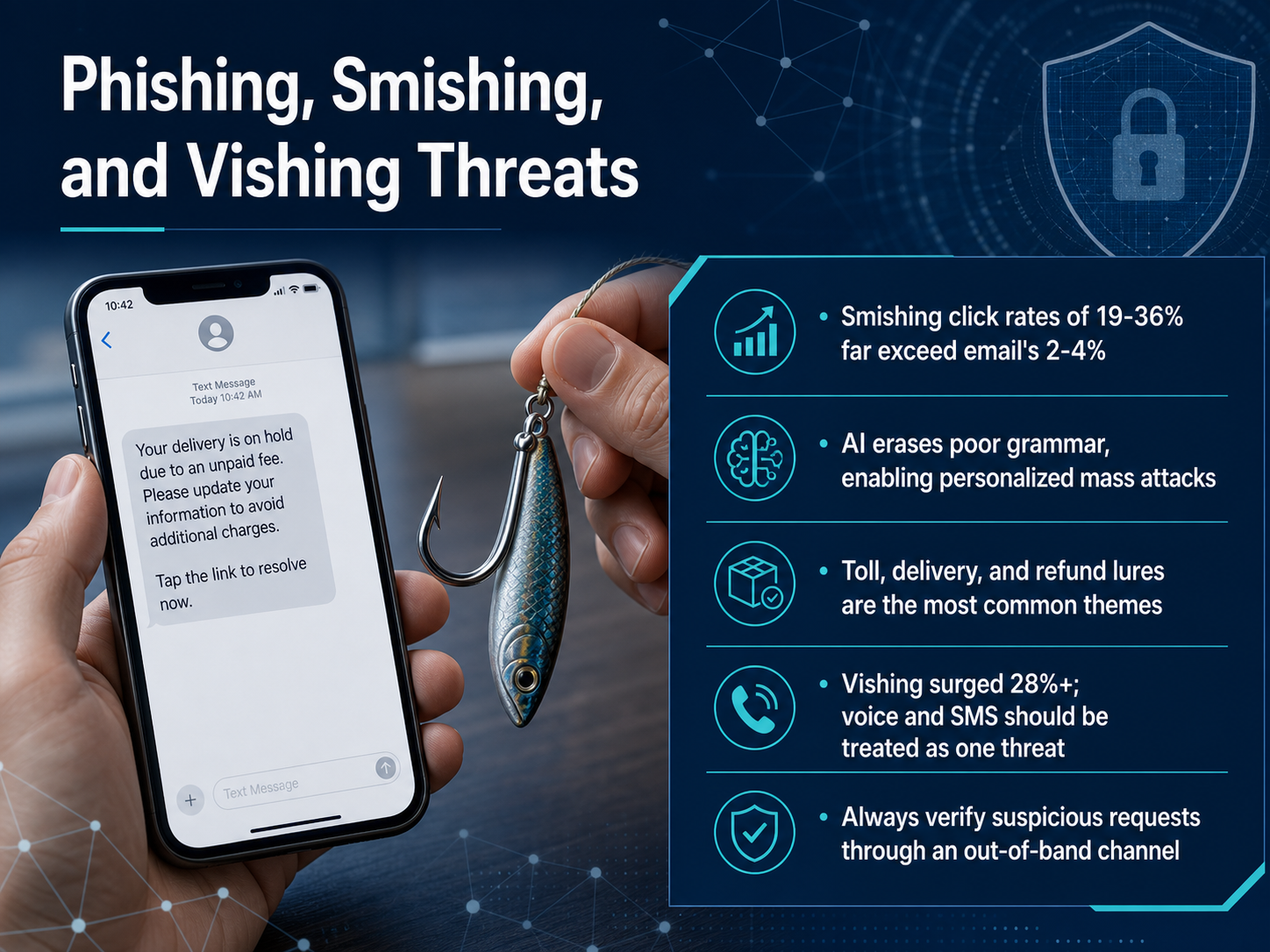
2 min - 10Phishing, Smishing, and Vishing ThreatsNow, let's talk about a few very specific mobile threats you need to know about: phishing, smishing, and vishing. The data here is really surprising. While email phishing click rates tend to hover around two to four percent, smishing, those are text message scams, sees click rates between nineteen and thirty-six percent. That's a massive difference. It's because we naturally trust a text message on our personal phone more than an email. The biggest shift this year is that AI has made these attacks nearly flawless. The old giveaway of poor grammar or spelling mistakes is gone. Attackers can now launch perfectly written, personalized mass attacks that look like they're from your bank, a toll road service, or a delivery company. In fact, toll, delivery, and refund lures are the most common themes right now. Vishing, that's voice phishing, has also surged by over twenty-eight percent, and it's often linked directly to a text message you just received. You should treat voice and SMS as one connected threat. The best defense is simple: if you receive a suspicious request for money or credentials, always verify it through a separate, out-of-band channel. Don't reply to the text or call the number that called you. Instead, open your official app or call a trusted number you look up yourself. This one habit stops nearly all of these attacks. Up next, we'll explore the growing challenge of deepfake and AI-driven social engineering.
 2 min
2 min - 11Deepfake and AI-Driven Social EngineeringNow let's talk about a threat that feels like science fiction but is very real: deepfakes and AI-driven social engineering. Attackers can now clone a voice from just a few seconds of audio, and stage fully synthetic video calls that look exactly like your colleagues. The most famous case happened at the engineering firm Arup, where a finance employee was tricked into authorizing a twenty-five point six million dollar transfer after joining a video conference where every other participant was an AI-generated fake. Recent studies show that fifty-three percent of organizations have had an executive impersonated, and sixty-two percent have faced deepfake social engineering attacks. So what actually works? First, always use out-of-band callback verification for any financial or sensitive request. That means calling back a known, trusted number, not one provided in the request. Second, include deepfake simulations in your training. Standard phishing modules miss this threat completely. In our next slide, we'll cover data protection and secure handling.
 2 min
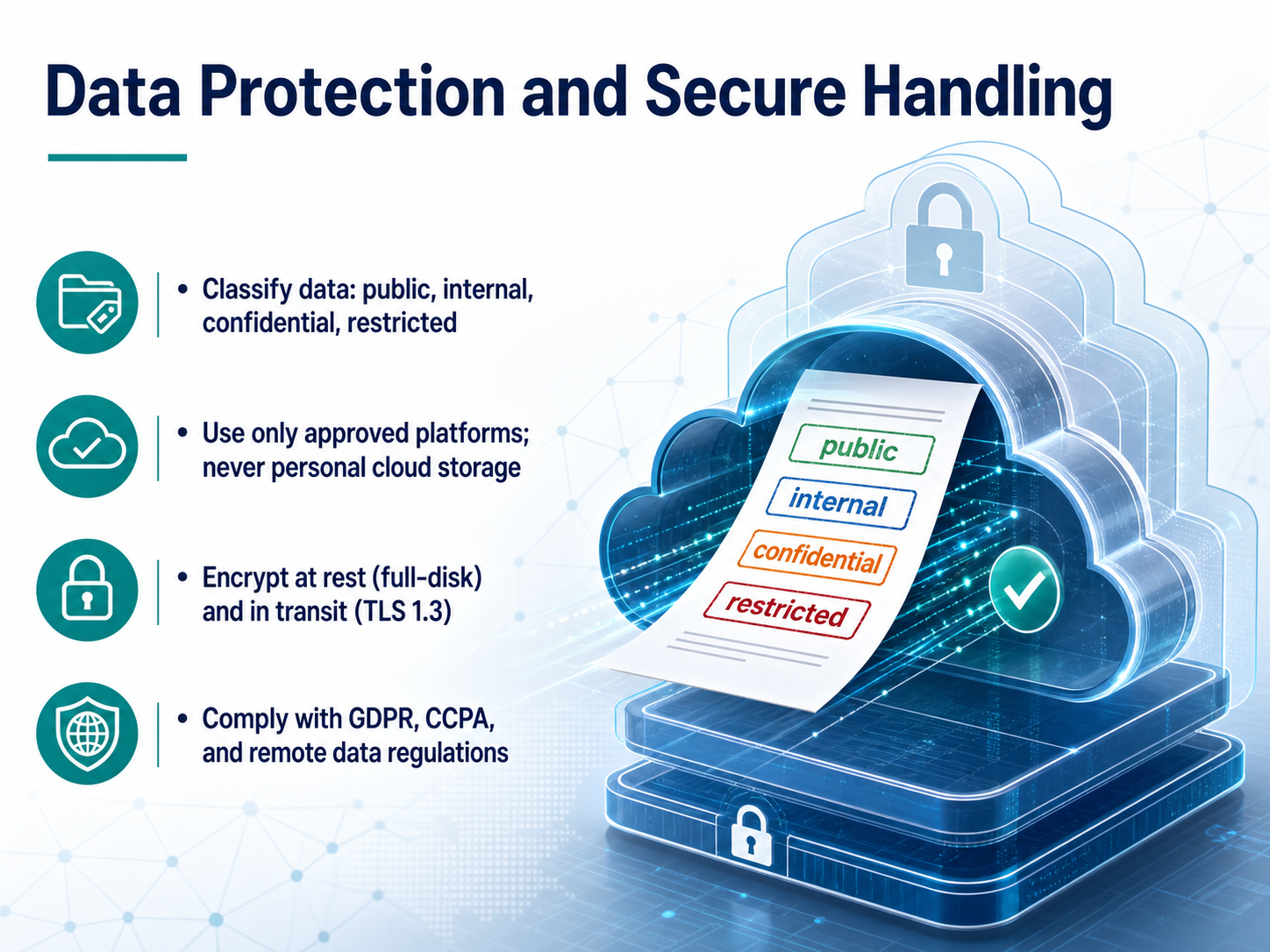
2 min - 12Data Protection and Secure HandlingNow, let's turn to data protection and handling, which really is the core of working securely from anywhere. Think of it in four simple parts. First, classification. Every piece of data falls into a category, like public, internal, confidential, or restricted. Not everything needs the same level of caution, but knowing the difference is your first line of defense. Second, use only approved platforms. It might be tempting to upload a file to your personal cloud storage for convenience, but that is a direct path to a data breach. Always stick to the company-provided tools. Third, let's talk about encryption. Data needs to be protected at rest, meaning full-disk encryption on your device, and in transit, using modern standards like TLS 1.3 on websites and apps. If a device is lost, encryption is what keeps it from becoming a disaster. Finally, we must comply with regulations like GDPR and CCPA. These aren't just legal checkboxes; they are about respecting people's rights and handling information responsibly, no matter where you are in the world. To sum it up, classify your data, use approved tools, keep it encrypted, and stay compliant. Next, we'll explore the safe use of generative AI and collaboration tools, which builds directly on these principles.
 2 min
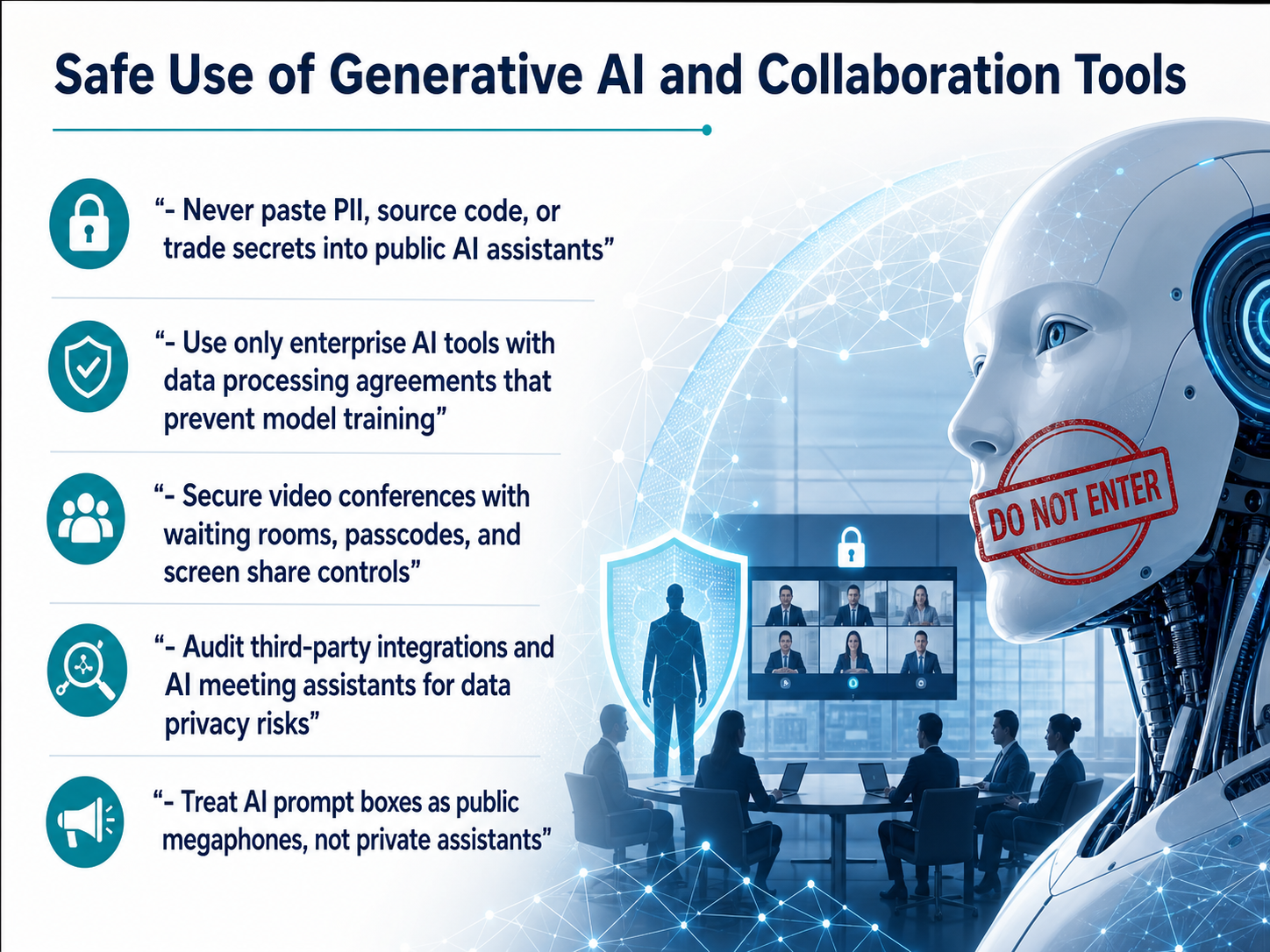
2 min - 13Safe Use of Generative AI and Collaboration ToolsNow let's talk about using generative AI and collaboration tools safely. First, a simple rule: never paste anything private into a public AI assistant. That means no customer details, no source code, and no trade secrets. Think of the prompt box as a public megaphone, not a confidential helper. Instead, use only enterprise AI tools that have a data processing agreement, so your information isn't used to train the model. For video meetings, always secure the room with a waiting room, a passcode, and screen share controls so only the right people can present. Also, check any third-party integrations or AI meeting assistants. Treat them like a new participant in the room and audit them for privacy risks. These small habits keep the convenience of AI without the data leak. Up next, we'll cover incident response for remote workers.
 1 min
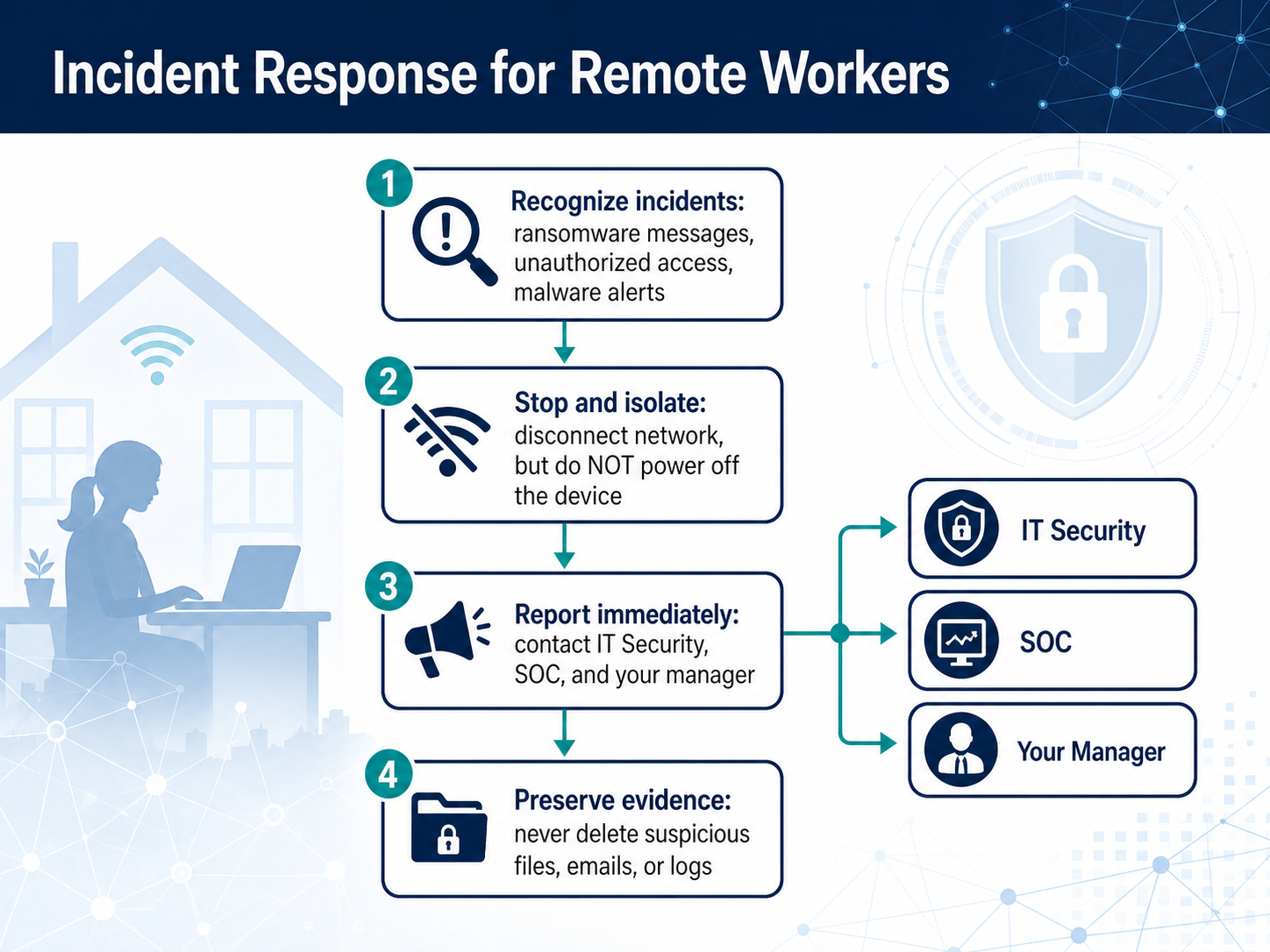
1 min - 14Incident Response for Remote WorkersLet's shift our focus to incident response as a remote worker. When you're working from anywhere, recognizing the warning signs early is your first line of defense. Stay alert for things like unexpected ransomware messages on your screen, alerts about unauthorized access to your accounts, or notifications from your antivirus about malware. If you see any of these, the next step is critical: stop and isolate. Disconnect your device from the network immediately by turning off Wi-Fi or unplugging the ethernet cable. But remember, do not power off the machine. Keeping it on preserves vital evidence for the security team. Once you're disconnected, report the incident right away. Contact your IT Security team, your Security Operations Center, or your manager using a phone or a separate, uncompromised device. Finally, preserve evidence. Do not delete any suspicious files, emails, or system logs. These are essential for the investigation. Your careful actions can stop a small issue from becoming a major incident. Next, we'll walk through specific procedures for ransomware.
 2 min
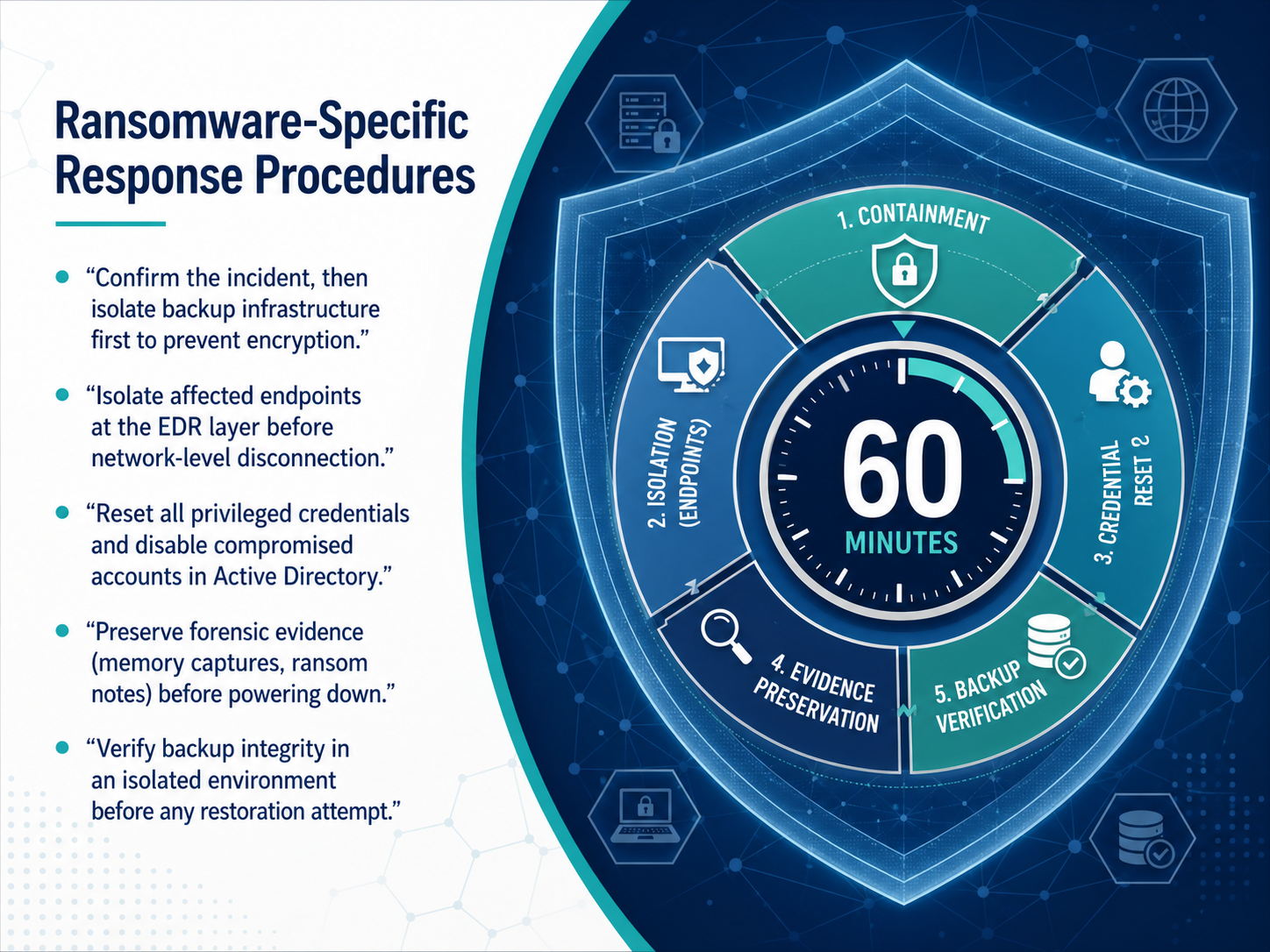
2 min - 15Ransomware-Specific Response ProceduresNow let's walk through the specific steps for a ransomware incident, because the sequence here really matters. First, confirm the incident, and then immediately isolate your backup infrastructure. This is critical. Attackers often target backups first, so protecting them before they can be encrypted keeps your recovery path open. After that, isolate affected endpoints at the EDR layer. This stops the spread while still letting you see what's happening for forensics. Next, reset all privileged credentials and disable compromised accounts in Active Directory. Assume the attacker has stolen admin access. Then, preserve forensic evidence. Take memory captures and photograph the ransom note before you power anything down. Finally, verify your backup integrity in an isolated environment before you attempt any restoration. Never restore straight into production. Following these steps in order gives you the best chance to recover cleanly. Coming up next, we'll look at building a personal security routine and assessment.
 2 min
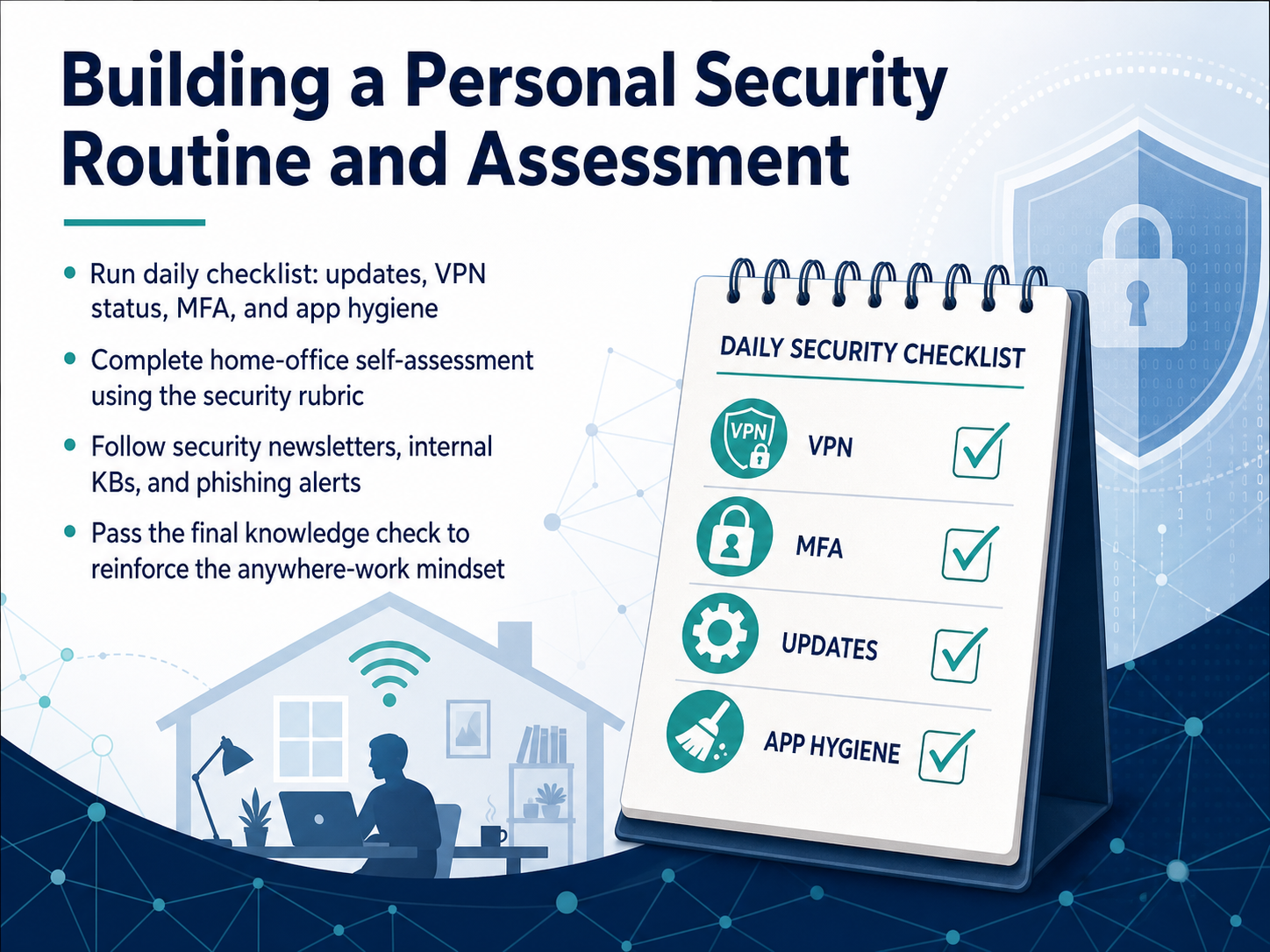
2 min - 16Building a Personal Security Routine and AssessmentLet's wrap up by building a rhythm that keeps you secure day after day. Start with a simple daily checklist. Check for software updates, confirm your VPN is on, make sure multi-factor authentication is working, and close any apps you are not using. These small habits build a strong foundation. Next, complete your home office self-assessment using the security rubric. It walks you through what to check on your network, your devices, and your physical space. Beyond that, stay plugged into the conversation. Follow security newsletters, read your internal knowledge base articles, and pay attention to phishing alerts. They are your early warning system. Finally, you will take a knowledge check to reinforce everything we covered today. It is not about memorizing rules, it is about building the anywhere-work mindset. Thank you for investing this time in your own security and in protecting our team. You have got this.
 digitalshieldpro.comsecurity.berkeley.edusecreadynow.com+22 min
Take the deck with you
Download this course as a file — free, no sign-up needed.
- PDF handoutEvery slide page, ready to print or share.17 pages · 4.8 MBDownload
- Narrated PowerPointThe deck that presents itself — every slide carries the digital human's narration video.17 pages · 16.2 MBDownload
- PowerPoint slidesThe full deck as a .pptx — open it in PowerPoint, Keynote, or Google Slides.17 pages · 4.7 MBDownload
Free to use in your own training — please keep the PersonWise credit page at the end.
Have your own deck? Turn it into a course
Sources consulted
Web sources consulted while building this course.
- Secure remote and hybrid work with Zero Trust | Microsoft Learn — learn.microsoft.com
- Zero Trust in 2026: Principles, Technologies & Best Practices — exabeam.com
- Zero Trust Architecture Implementation Guide: Complete Security Framework for Remote Work Environments in 2026 | HackerDesk — hackerdesk.com
- Zero Trust for Fully-Remote Companies: A Real-World Playbook | Valtik Studios — valtikstudios.com
- Zero Trust Security for Remote Teams: A Practical Implementation Guide (2026) — peopleopshq.com
- Remote Work Security 2026: $1.07M Added Breach Cost — stealthagents.com
- Remote Work Security Risks 2026 — stingrai.io
- Remote Work Cybersecurity Statistics | Verified 2026 Data — wifitalents.com
- Remote Work Cybersecurity Statistics and Facts (2026) — electroiq.com
- Remote Work Cybersecurity Statistics 2026: VPN, Shadow IT, etc. • SQ Magazine — sqmagazine.co.uk
- Remote Work Security Guide 2026: Protect Your Home Office | Digital Shield Pro — digitalshieldpro.com
- Best Practices for Telecommuting Securely | Information Security Office — security.berkeley.edu
- Remote Work Security Policy: What It Must Cover in 2026 – SecReadyNow — secreadynow.com
- Best Practices - Working Remotely | University Information Security and Data Privacy — privsec.harvard.edu
- Cybersecurity Tips for Remote Workers 2026 | Novel Tech Services — noveltechservices.com
- Why Is WPA3 Adoption So Slow? | mrn-cciew — mrncciew.com
- AirSnitch: Client isolation in Wi-Fi is not delivering the security most defenders expect – TIR — threatintelreport.com
- WPA3: Why Wi-Fi security is more nuanced than you think (Analyst Angle) — rcrwireless.com
- Your Wi-Fi router's guest network isn't as secure as you think — appleinsider.com
- New AirSnitch Attack Bypasses WPA2 and WPA3 Client Isolation - Cyber Kendra — cyberkendra.com