Begin
13 pages · ~26 min
Excel Spreadsheet Review Checklist
This step-by-step Excel spreadsheet checklist guides users through a structured review to verify accuracy, consistency, and completeness of their workbooks.
A digital instructor presents all 13 pages. Hold “Ask” at any point and ask out loud — the answer comes from this course. No sign-up needed.
What you’ll learn
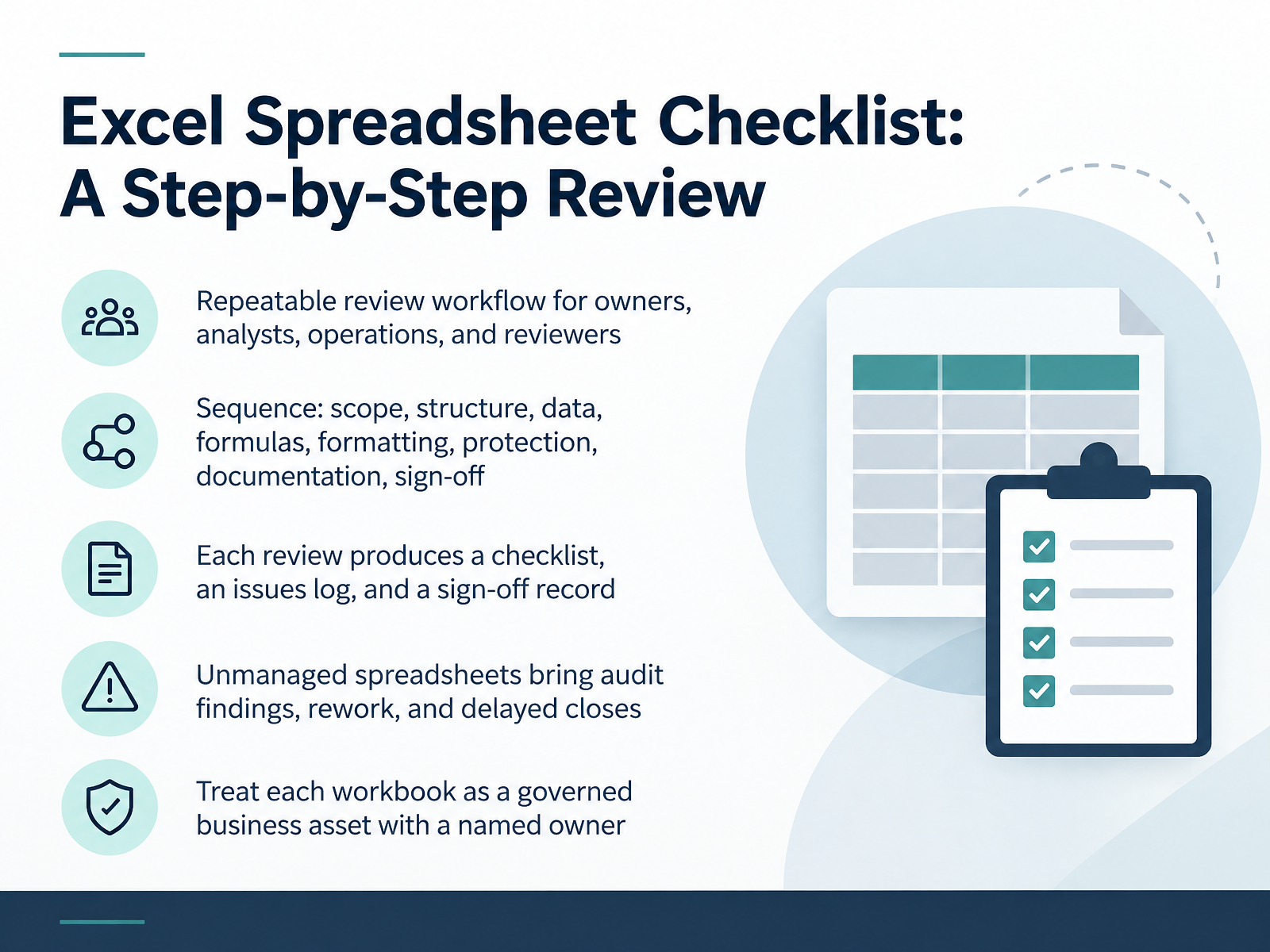
- 01Excel Spreadsheet Checklist: A Step-by-Step ReviewWelcome. This course walks through the Excel Spreadsheet Checklist, a step-by-step review you can repeat on any workbook. You are owners, analysts, operations staff, and reviewers, so treat this as a peer review, not a lecture. Our goal is accuracy, ownership, and handover readiness. We follow one sequence: scope, structure, data, formulas, formatting, protection, documentation, and sign-off. At each step, verify, compare, and flag what you find. Every review produces three outputs: a checklist, an issues log, and a sign-off record. Why does this matter. Unmanaged spreadsheets bring audit findings, rework, and delayed closes. So treat each workbook as a governed business asset with a named owner. Let's start by defining scope, ownership, and success criteria.prosperspark.comicaew.comardianfazri.com+21 min
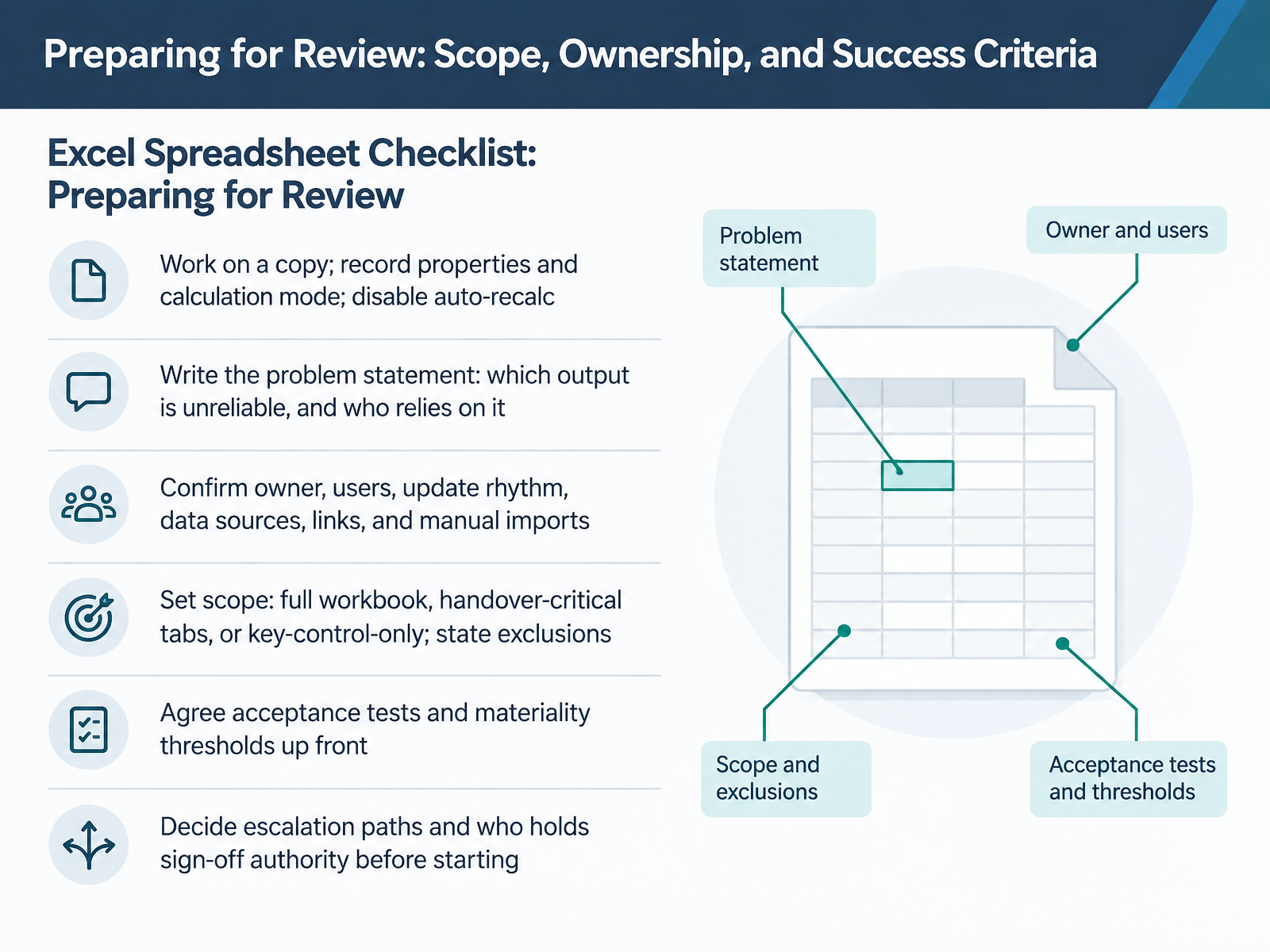
- 02Preparing for Review: Scope, Ownership, and Success CriteriaBefore you touch a single formula, lock down the review itself. Start by working on a copy. Record the workbook properties and the calculation mode, then disable auto-recalc. That keeps your inspection repeatable and protects the original. Next, write the problem statement in plain language. Which output is unreliable, and who relies on it? Be specific. Then confirm the basics: the owner, the users, the update rhythm, the data sources, any external links, and any manual imports. From there, set scope. Decide whether you are reviewing the full workbook, only the handover-critical tabs, or just the key controls. State your exclusions out loud, so nobody assumes coverage you did not provide. Before starting, agree on acceptance tests and materiality thresholds up front. A test might be tying one output back to an independent source within a tolerance you both accept. Finally, decide the escalation path and confirm who holds sign-off authority. One practical tip: capture all of this on a single control sheet, so the scope and the sign-off trail travel with the file. Settle these questions now, and the rest of the review stays focused and defensible. Let's move on to structural review, covering workbook architecture and sheet organization.
 support.microsoft.comthebricks.comexcelerrorfinder.com+22 min
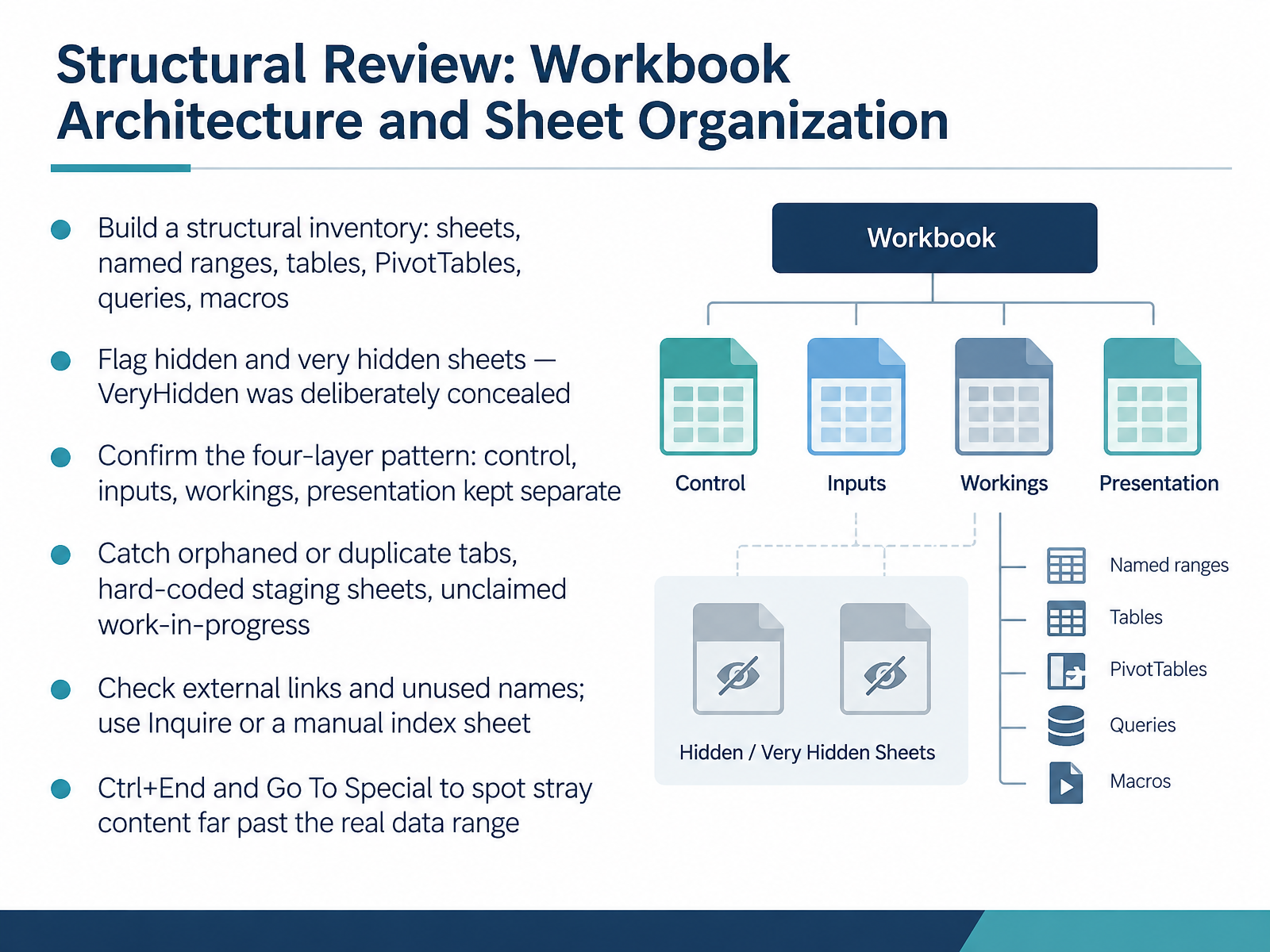
 - 03Structural Review: Workbook Architecture and Sheet OrganizationLet's move into structural review, starting with workbook architecture and sheet organization. Begin by building a structural inventory. List every sheet, named range, table, PivotTable, query, and macro. That inventory becomes your map. Next, flag hidden and very hidden sheets. Very hidden sheets were deliberately concealed, so read them carefully. Then confirm the four-layer pattern. Control, inputs, workings, and presentation should stay separate. After that, catch orphaned or duplicate tabs, hard-coded staging sheets, and unclaimed work in progress. Check external links and unused names. Use Inquire if you have it, or a manual index sheet if you don't. Finally, press Control plus End and use Go To Special to spot stray content far past the real data range. Those two commands catch old formulas, leftover formatting, and ghost cells that inflate the file. Treat every finding as an item to verify, confirm, or flag. That keeps the review factual and the handover honest. Next, we move to data integrity, covering validation, input ranges, and source traceability.
 support.microsoft.comthebricks.comexcelerrorfinder.com+22 min
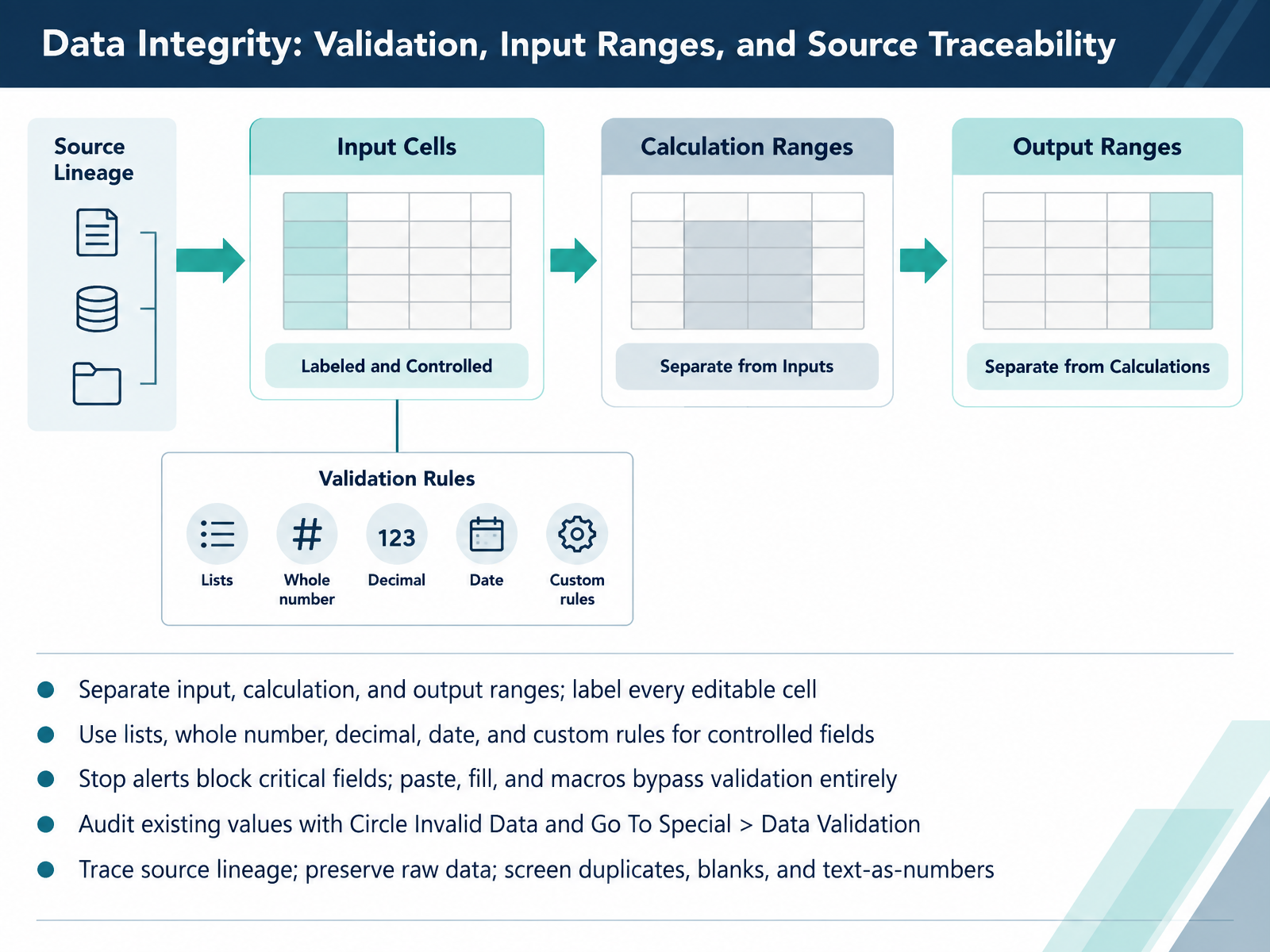
 - 04Data Integrity: Validation, Input Ranges, and Source TraceabilityNow let's talk about data integrity, and how validation, input ranges, and source traceability hold together. First, separate your input, calculation, and output ranges, and label every editable cell. That way a reviewer instantly sees what is safe to change. Next, control your fields. Use lists for status and category codes, whole number or decimal rules for quantities and rates, date rules for periods, and custom formulas for cross field logic. Set Stop alerts on critical fields so invalid entries are rejected, not just flagged. But test the real behavior. Paste, fill, and macros bypass validation entirely, and pasting over a validated cell can wipe the rule itself. So audit what is already there. Run Circle Invalid Data to catch values that fail their rule, and use Go To Special, then Data Validation, to confirm rules cover the intended cells. Finally, trace source lineage, preserve raw data unchanged, and screen for duplicates, blanks, and text stored as numbers. One strong habit here: keep your approved lists in a single maintained range, and add a helper column that flags exceptions after every paste or import. That gives you a filterable audit trail, not just red circles. Coming up next, Formula and Calculation Review: Tracing, Consistency, and Error Handling.
 support.microsoft.comsupport.microsoft.comexceljump.com+22 min
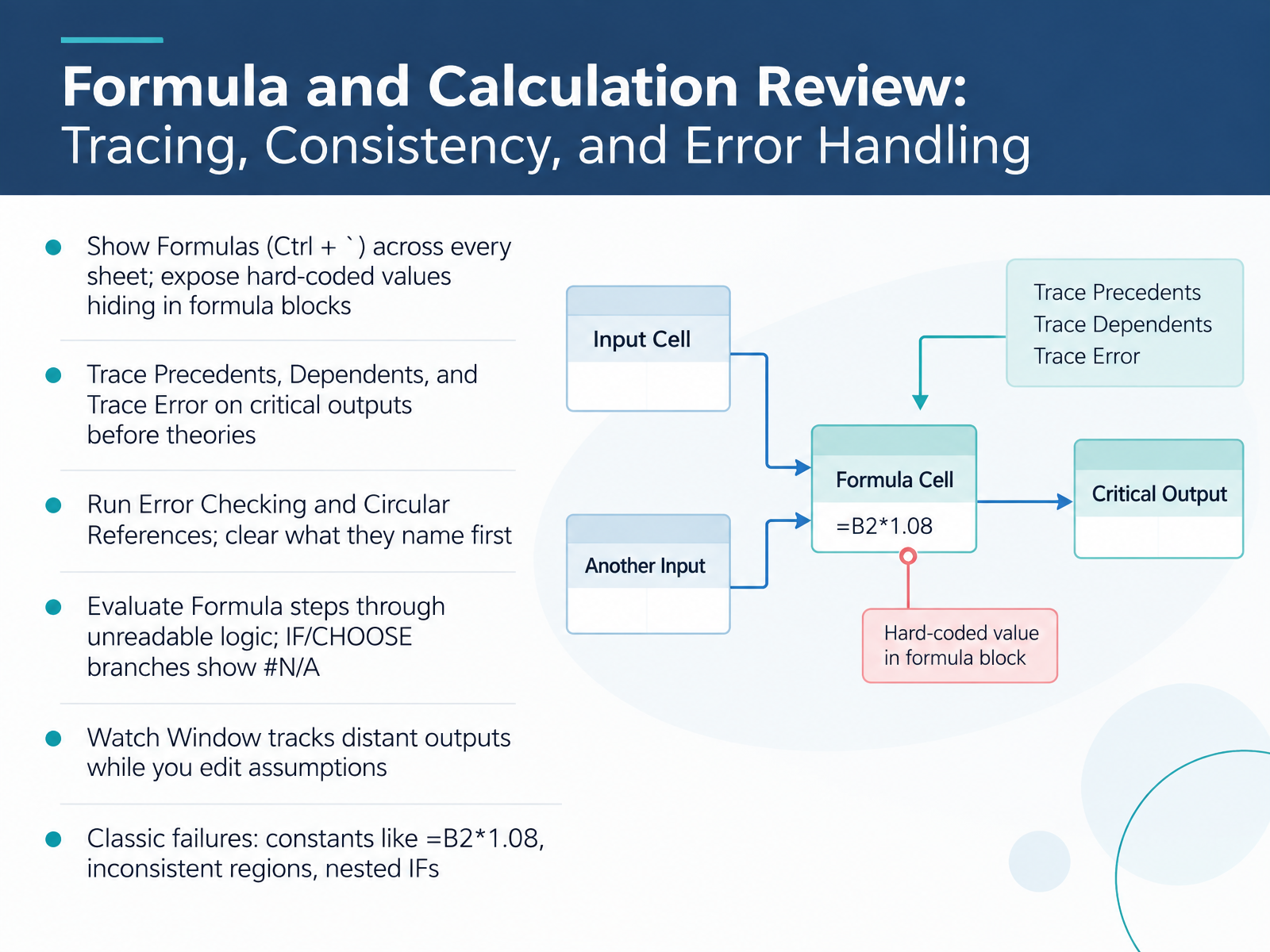
 - 05Formula and Calculation Review: Tracing, Consistency, and Error HandlingMoving on to formula and calculation review. Start with Show Formulas, Ctrl plus the backtick key, across every sheet. This exposes hard-coded values hiding inside formula blocks, like B2 times one point zero eight. Then trace precedents, dependents, and trace error on your critical outputs before forming theories. Next, run Error Checking and the Circular References list. Clear what they name first. When logic is unreadable, use Evaluate Formula. Step through it. Note that IF and CHOOSE branches may show hash N A for the path not taken. That is expected, not a fault. Finally, open the Watch Window to track distant outputs while you edit assumptions elsewhere. The classic failures to flag are embedded constants, inconsistent regions, and deeply nested IFs. Work the tools in order, and the workbook will show you where the error actually is.
 microsoftpressstore.comicaew.comsupport.microsoft.com+21 min
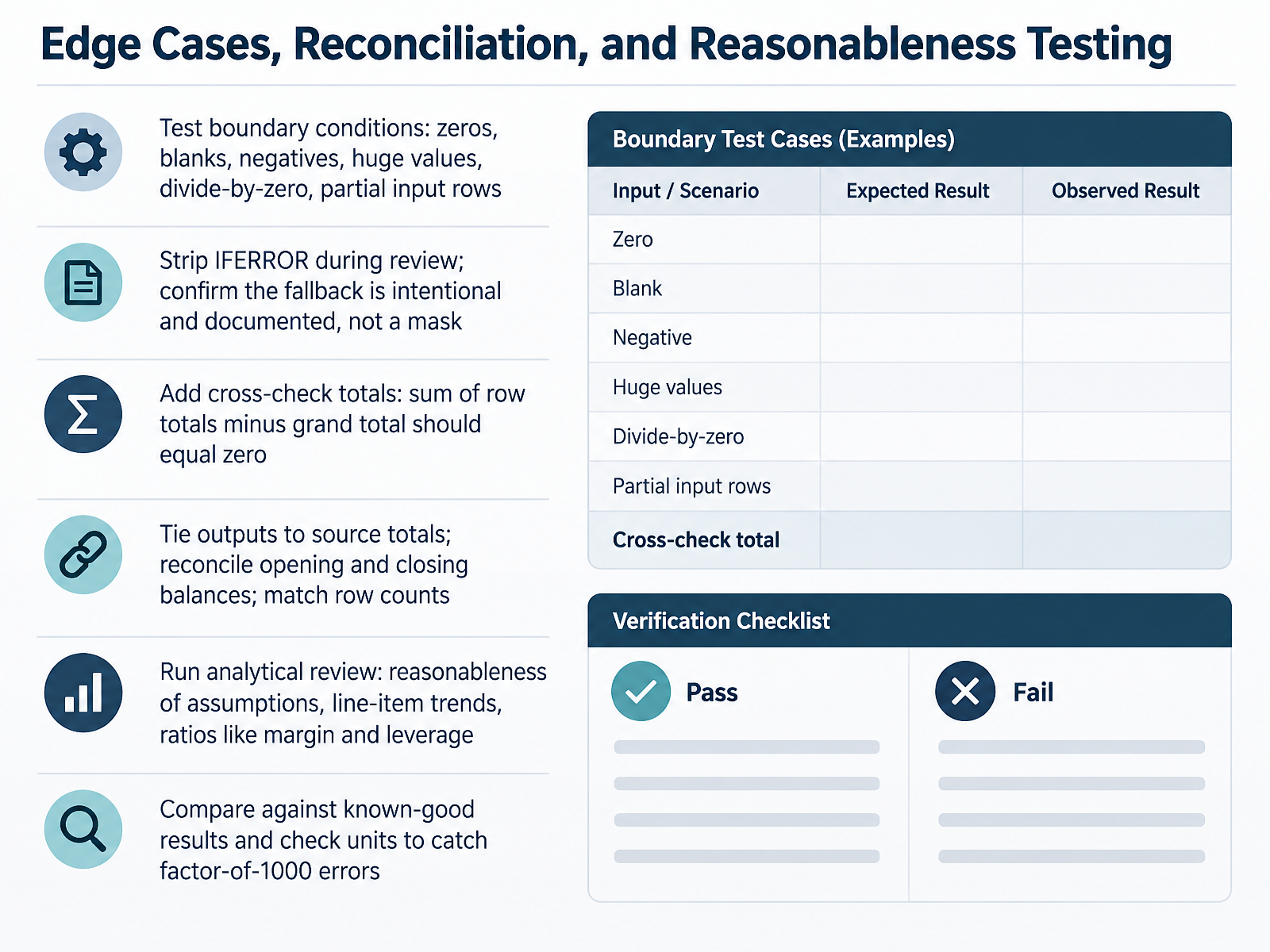
 - 06Edge Cases, Reconciliation, and Reasonableness TestingLet's move on to edge cases, reconciliation, and reasonableness testing. This is where most silent errors surface. First, test boundary conditions: zeros, blanks, negatives, very large values, divide-by-zero, and partial input rows. Push the model to its limits, then confirm it fails gracefully. Next, strip out IFERROR during review. Confirm the fallback is intentional and documented, not a mask hiding a real problem. Then add cross-check totals. The sum of row totals minus the grand total should equal zero. Tie your outputs back to source totals, reconcile opening and closing balances, and match row counts. Run an analytical review. Are the assumptions reasonable? Do line-item trends and ratios like margin and leverage make sense? Finally, compare against known-good results, and check units to catch factor-of-one-thousand errors. Verify, compare, and flag anything you cannot explain. That discipline builds confidence in the handover. Next, we will look at presentation and formatting: readability, consistency, and visual controls.
 prosperspark.comicaew.comardianfazri.com+22 min
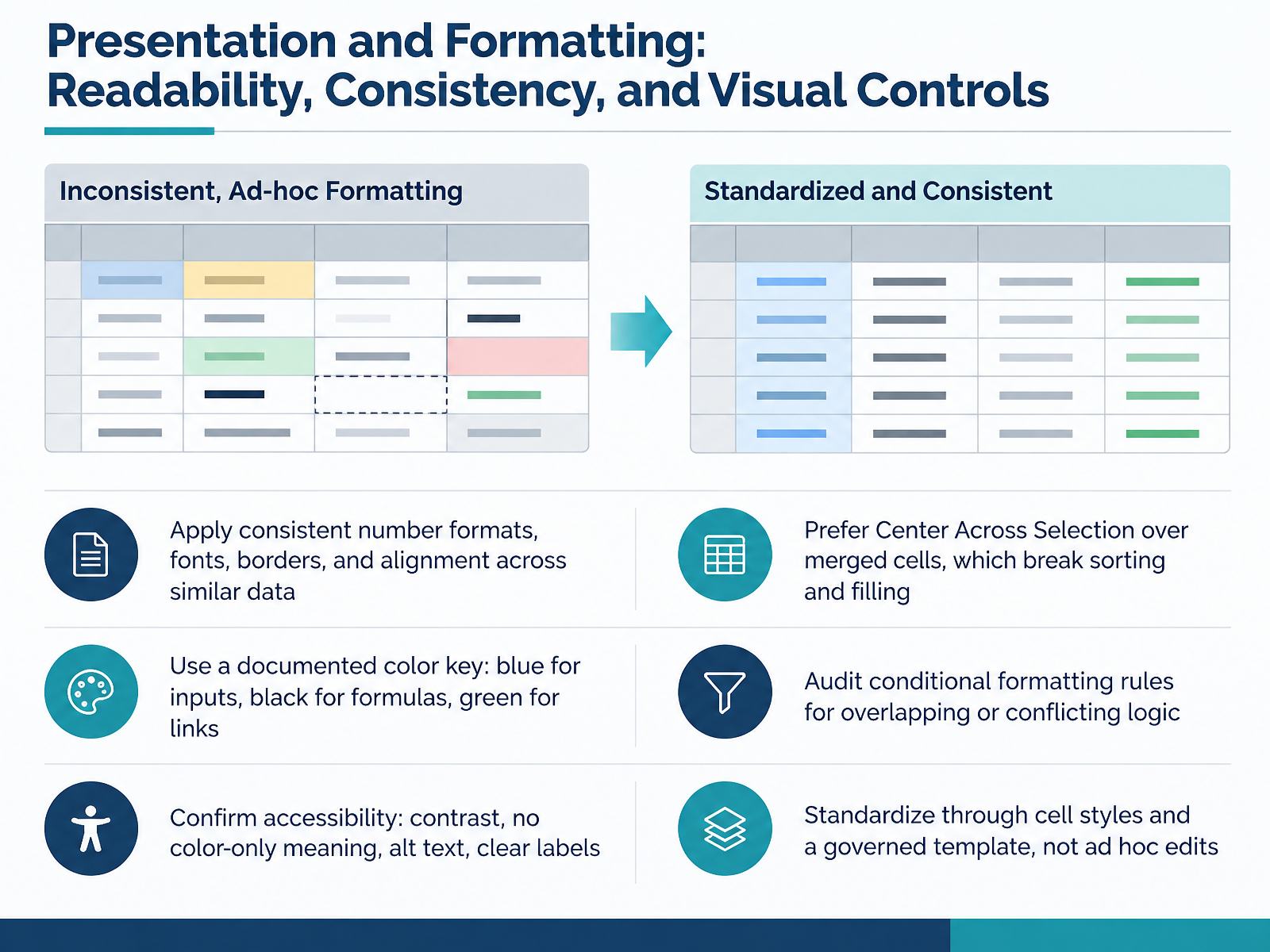
 - 07Presentation and Formatting: Readability, Consistency, and Visual ControlsLet's look at presentation and formatting. You are reviewing how the workbook reads, not just what it calculates. Start with consistency. Verify that number formats, fonts, borders, and alignment match across similar data. Inconsistent currency decimals or stray bold rows are early warnings of ad hoc edits. Next, flag merged cells. Prefer Center Across Selection, because merged cells break sorting, filtering, and fill-down. Then check the color key. Confirm it is documented and applied: blue for inputs, black for formulas, green for links. If a blue cell holds a formula, flag it. Now audit conditional formatting. Compare rules for overlaps or conflicts that silently override each other. Then confirm accessibility: sufficient contrast, no color-only meaning, alt text, and clear labels. Finally, standardize through cell styles and a governed template, not one-off formatting. Consistent presentation protects accuracy and handover readiness. That leads into print setup and distribution readiness.
 prosperspark.comicaew.comardianfazri.com+22 min
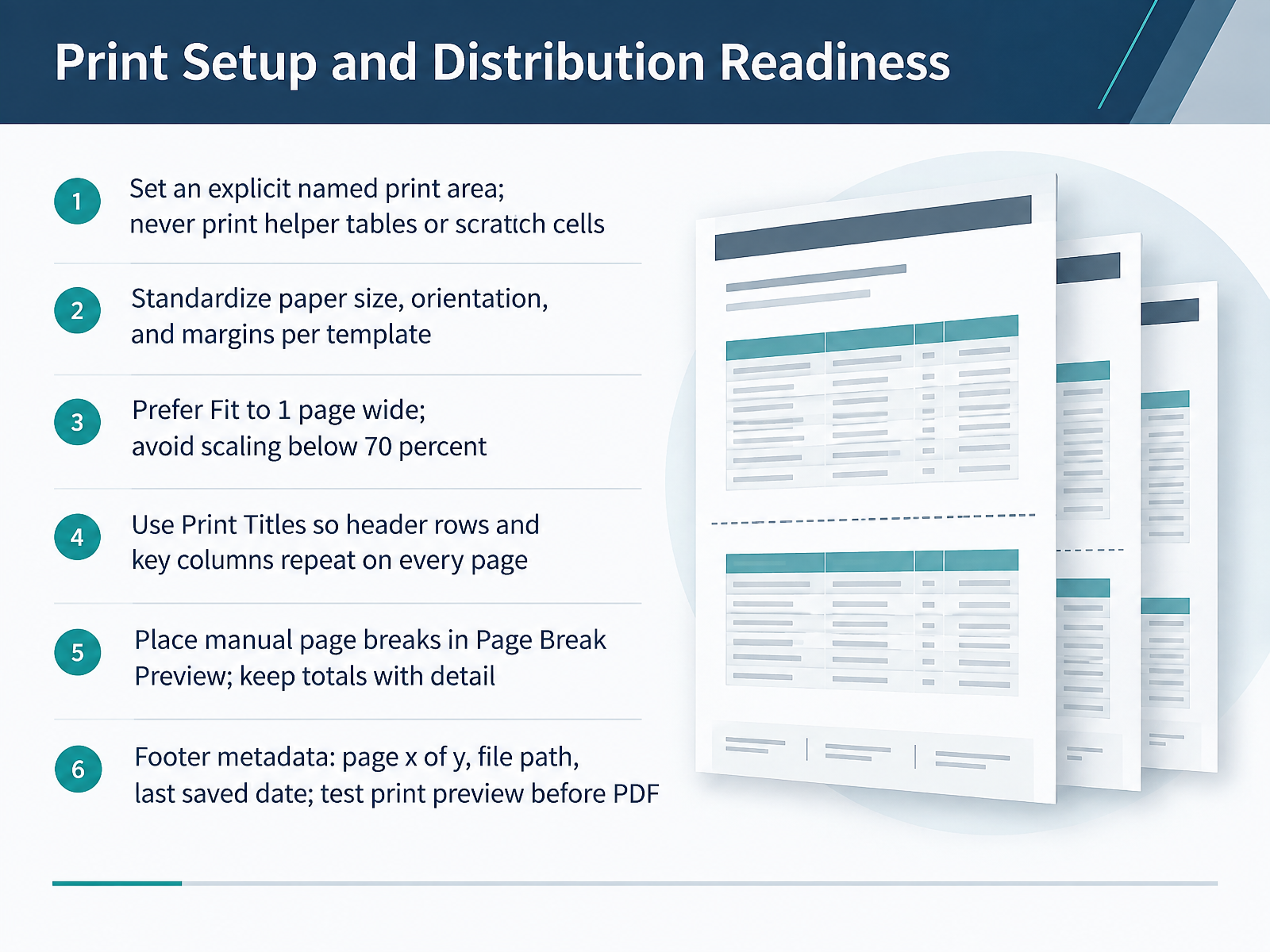
 - 08Print Setup and Distribution ReadinessNow let us look at print setup and distribution readiness. This is where a workbook either leaves your hands cleanly or causes a follow-up call. Start by setting an explicit, named print area. Never print helper tables or scratch cells. Verify the range, and confirm it excludes anything not meant for distribution. Next, standardize paper size, orientation, and margins per template. For scaling, prefer fit to one page wide, and avoid scaling below seventy percent. If text drops below that, flag it for a layout fix rather than shrinking further. Use Print Titles so header rows and key columns repeat on every page. Then place manual page breaks in Page Break Preview, and keep totals with their detail. Finally, add footer metadata: page x of y, the file path, and the last saved date. Test print preview before you export to PDF. That single pass catches ghost pages, orphan columns, and cut-off content. Confirm the print copy matches the workbook you intend to hand over. With layout locked, let us turn to protection, security, and hidden content.
 prosperspark.comicaew.comardianfazri.com+22 min
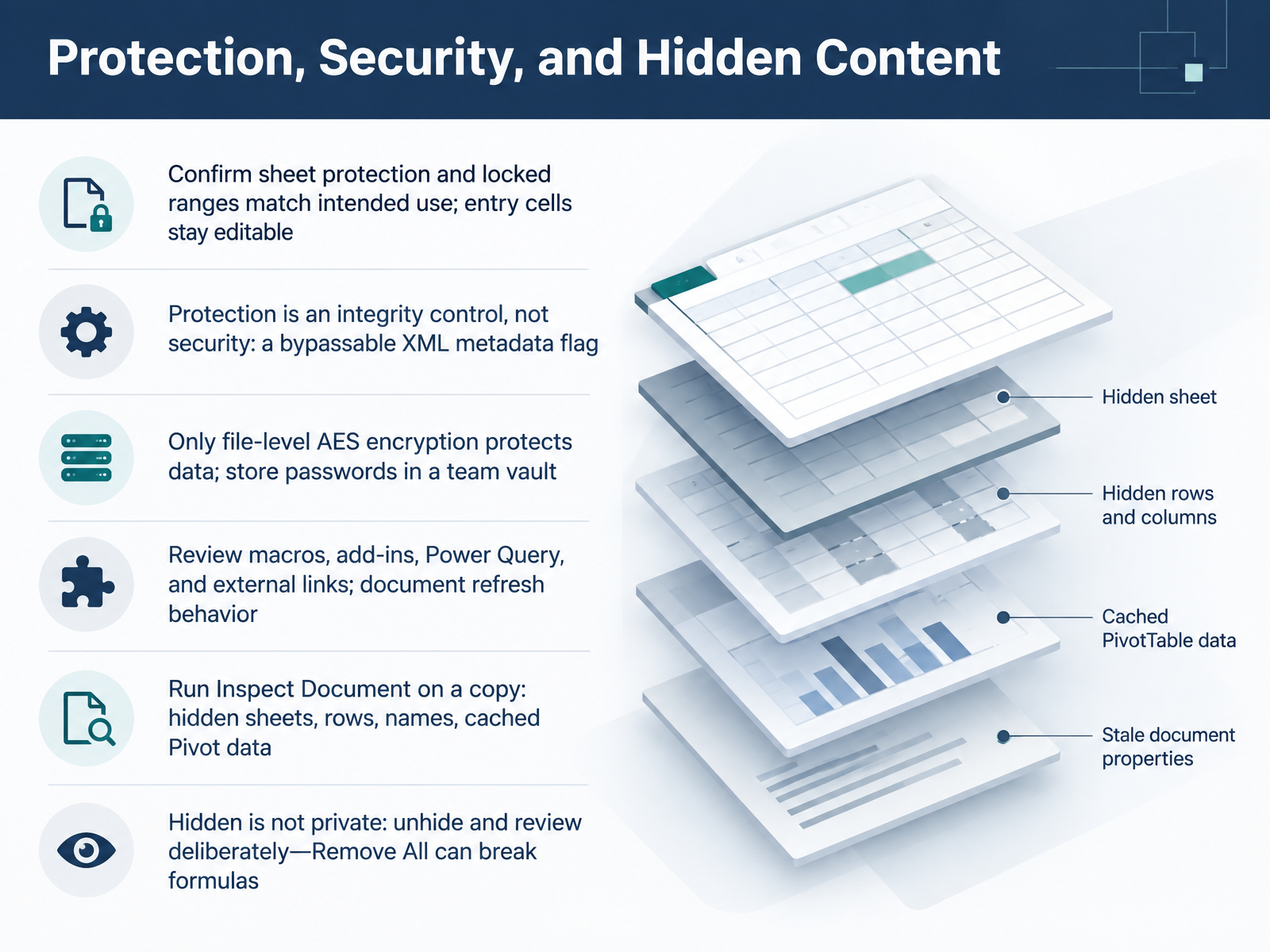
 - 09Protection, Security, and Hidden ContentNow let's cover protection, security, and hidden content. First, confirm that sheet protection and your locked ranges match intended use. Entry cells should stay editable. Here's the key distinction. Protection is an integrity control, not security. It is a bypassable metadata flag, just an instruction in the XML. Only file level AES encryption protects the data itself, so store passwords in a team vault. Next, review macros, add-ins, Power Query, and external links, and document the refresh behavior for each. Then run Inspect Document on a copy. Check hidden sheets, rows, names, and cached Pivot data. Remember, hidden is not private. Unhide and review deliberately, because Remove All can break formulas that depend on that content. Next, we'll build the documentation and handover package.
 support.microsoft.comthebricks.comexcelerrorfinder.com+21 min
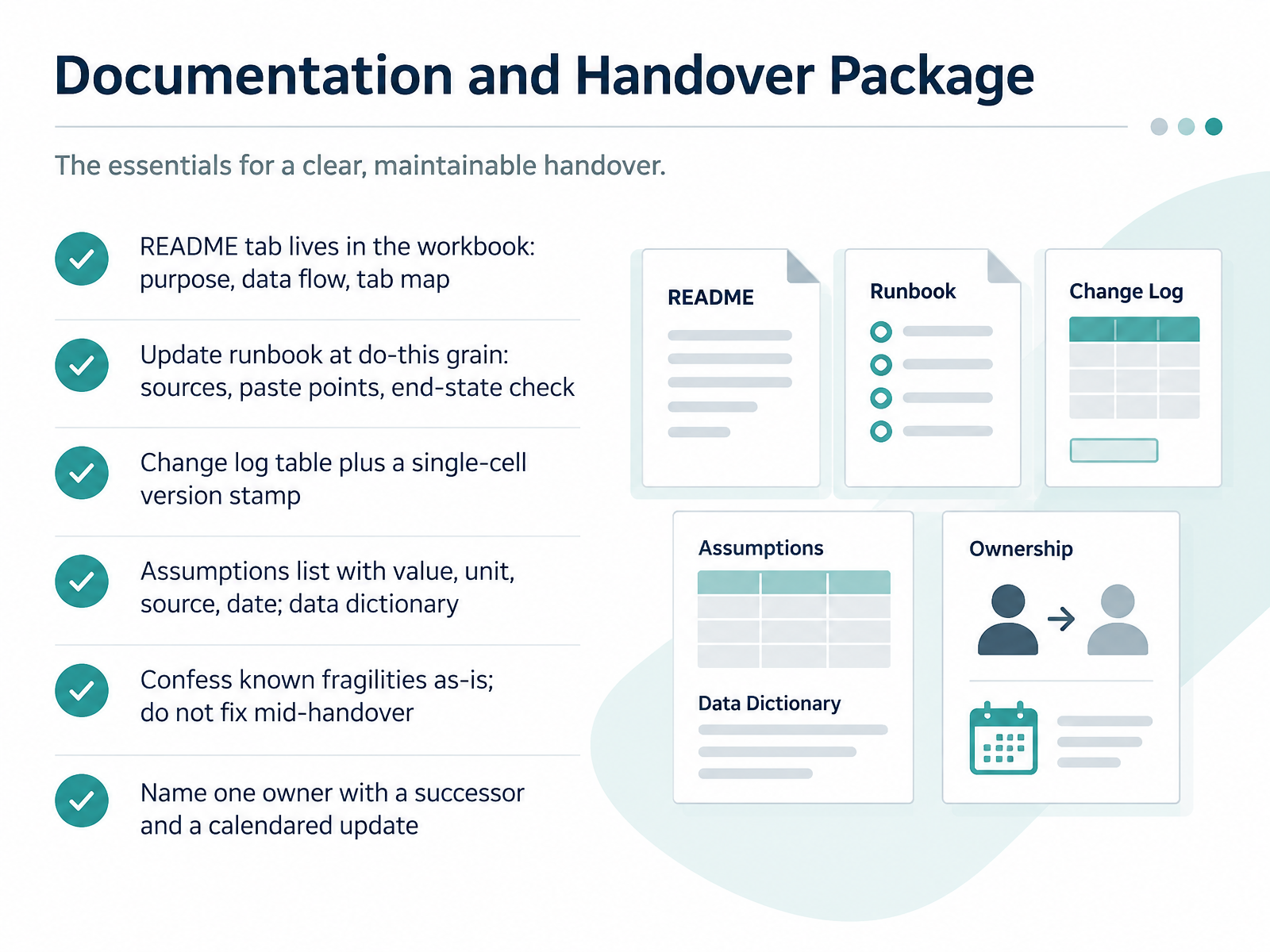
 - 10Documentation and Handover PackageNow let's build the handover package. Start with the README tab inside the workbook. It states the purpose, the data flow, and a tab map. Next, write the update runbook at do-this grain. Name each source, the exact paste point, and the end-state check. A stranger should complete the update without messaging anyone. Add a change log table, plus a single-cell version stamp that other sheets reference. List assumptions with value, unit, source, and date, and include a data dictionary. Confess known fragilities as they are. Do not fix mid-handover; that mixes two risky activities. Flag the hardcodes and the order-sensitive steps as the successor's audit agenda. Finally, name one owner. Not a committee. Add a successor and calendar the update under their name. So verify the README travels with the file, confirm the runbook passes the competent-stranger test, and flag every fragility as is. The workbook should survive its author. Next, we move to Testing, Sign-Off, and Formal Handover.
 prosperspark.comicaew.comardianfazri.com+22 min
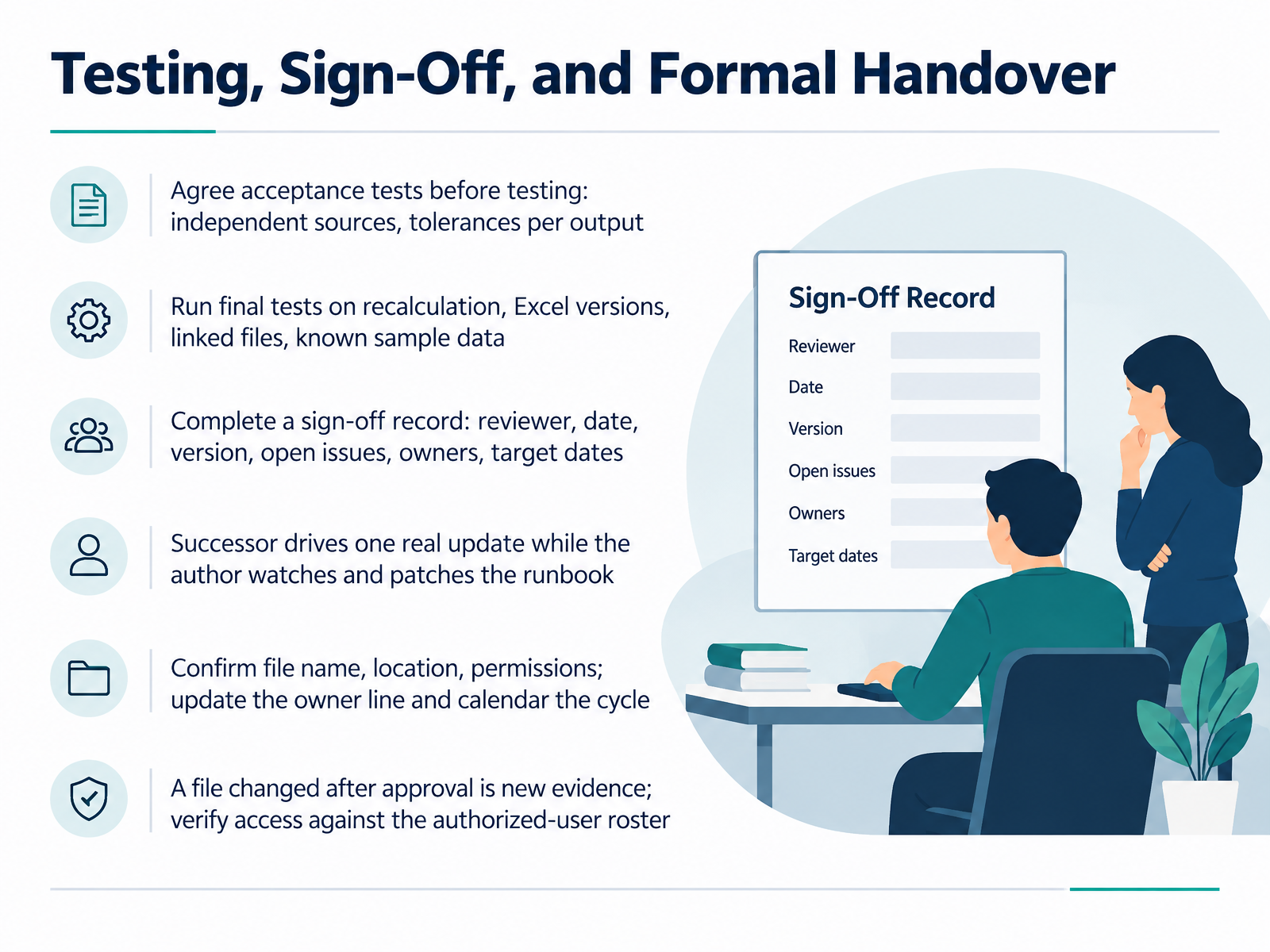
 - 11Testing, Sign-Off, and Formal HandoverNow let's close the review with testing, sign-off, and formal handover. Before you test, agree your acceptance tests: which independent sources you'll compare against, and the tolerance for each output. Then run the final tests. Force a full recalculation. Open the file in your target Excel versions. Check linked files. And rerun your known sample data. Verify the output still matches. Next, complete a sign-off record: reviewer, date, version, open issues, owners, and target dates. Then let the successor drive one real update while the author watches, patching the runbook live. Confirm the file name, location, and permissions. Update the owner line, and calendar the cycle. One more control: a file changed after approval is new evidence, so verify access against the authorized-user roster. Next, common failure modes and how to diagnose them.
 prosperspark.comicaew.comardianfazri.com+22 min
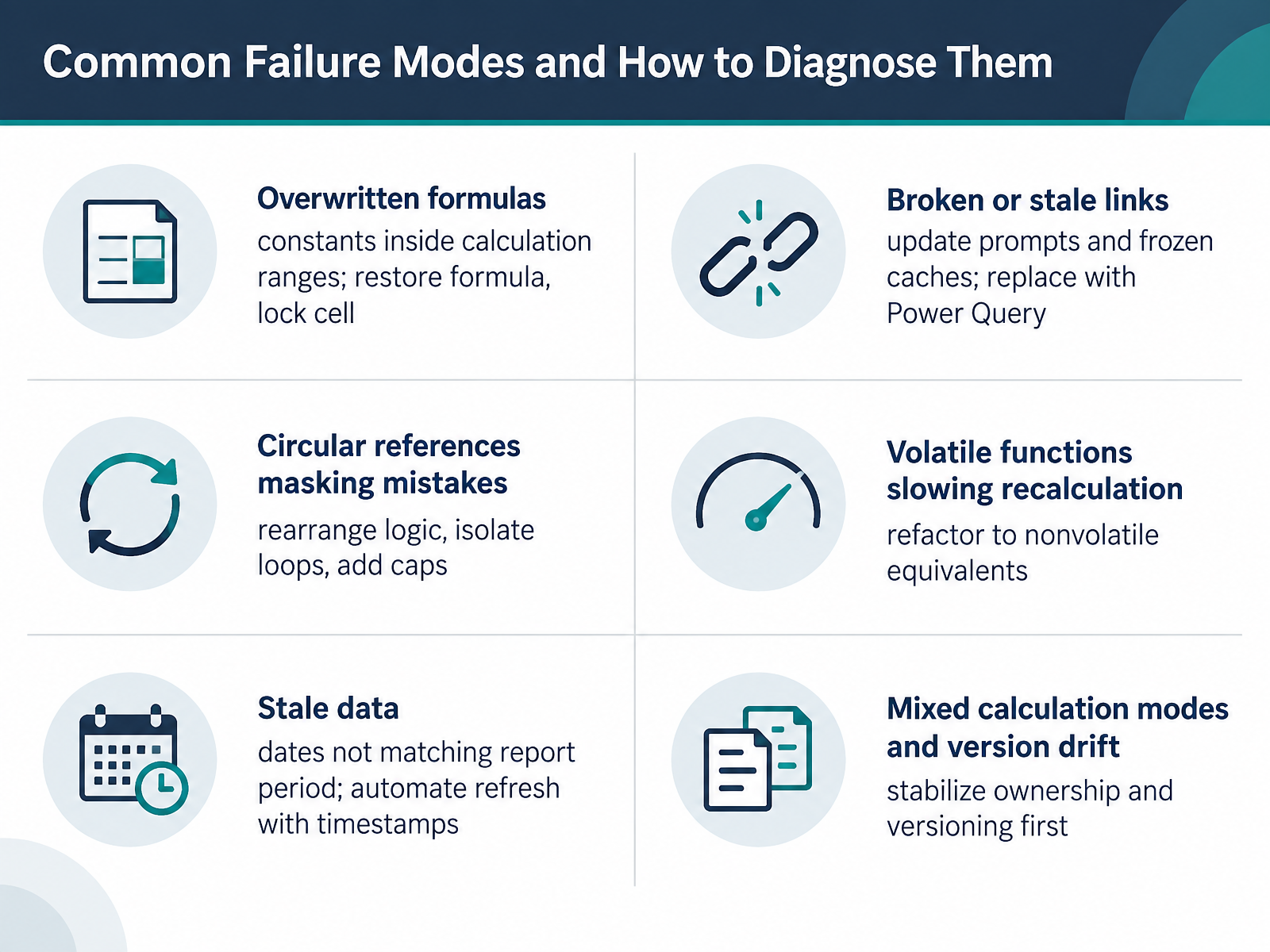
 - 12Common Failure Modes and How to Diagnose ThemNow, let us look at the failure modes you will meet most often, and how to diagnose each one.
First, overwritten formulas. You see constants sitting inside a calculation range. Scan with Go To Special, select Constants, restore the formula, then lock the cell.
Second, broken or stale links. Watch for update prompts on open, and verify cached values against the source. Replace fragile workbook links with Power Query, and confirm the refresh path.
Third, circular references that mask mistakes. Rearrange the logic, isolate the loop, and add caps so iteration cannot hide an error.
Fourth, volatile functions. OFFSET and INDIRECT slow recalculation. Refactor to nonvolatile equivalents, and profile the sheet.
Fifth, stale data. Compare dates against the report period, then automate refresh with a timestamp.
And sixth, mixed calculation modes and version drift. Stabilize ownership and versioning before chasing individual errors. Fix the process first, not just the cell.
Building the Habit: Ongoing Review, Monitoring, and Improvement.
 prosperspark.comicaew.comardianfazri.com+22 min
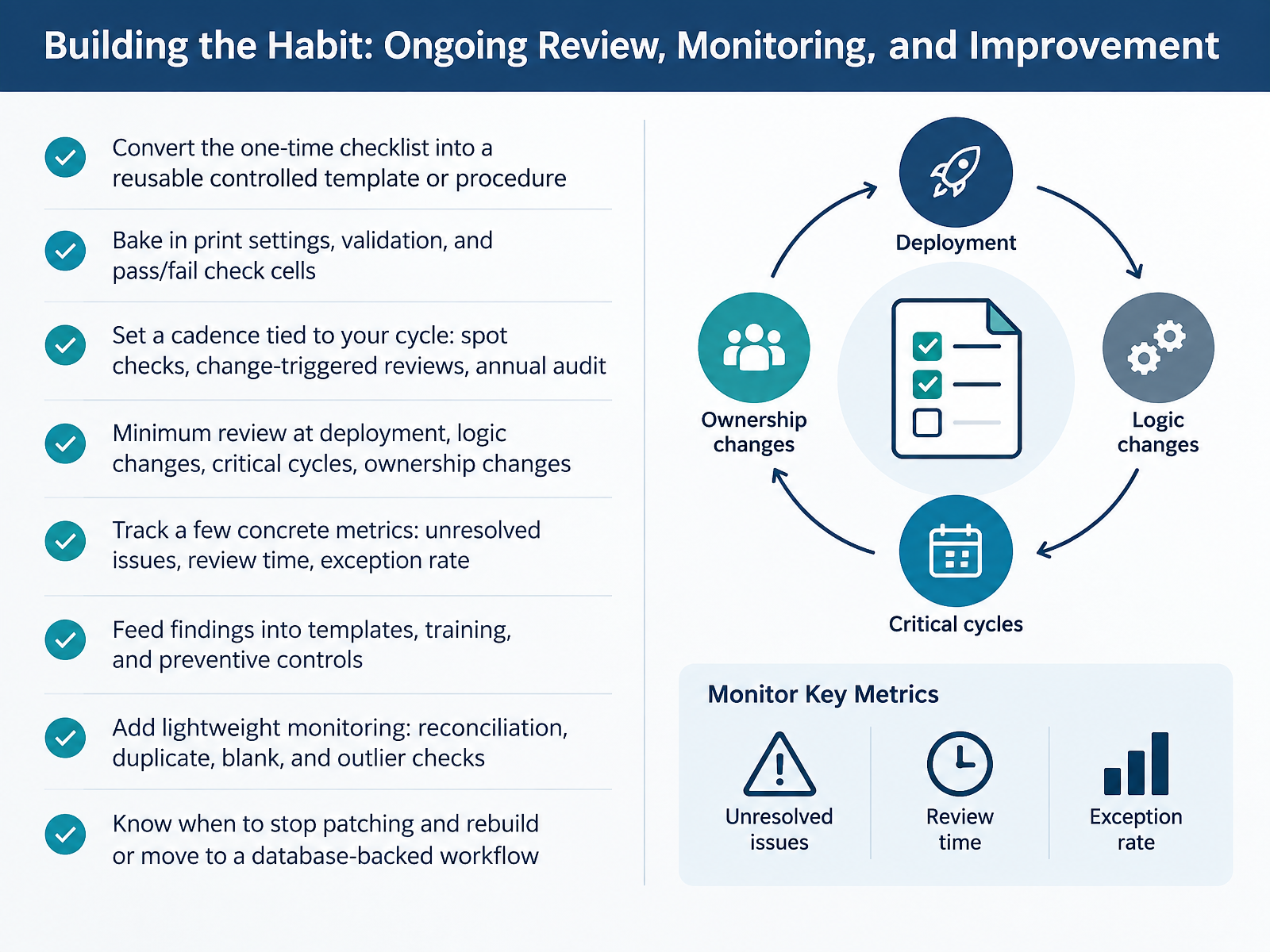
 - 13Building the Habit: Ongoing Review, Monitoring, and ImprovementAs we close, the point is habit, not heroics. Turn your one-time checklist into a reusable controlled template or procedure. Bake in print settings, validation, and pass or fail check cells, so the review runs the same way every time. Then set a cadence tied to your cycle. Spot checks, change-triggered reviews, and an annual audit. At minimum, review at deployment, after logic changes, before critical cycles, and whenever ownership changes. Track a few concrete metrics. Unresolved issues, review time, and exception rate. Feed findings back into templates, training, and preventive controls. Add lightweight monitoring too. Reconciliation, duplicate, blank, and outlier checks. And know when to stop patching. If control costs more than rebuild, move to a database-backed workflow. That is how accuracy and handover readiness hold up over time. Thanks for working through this with me. Keep verifying, keep documenting, and make the next reviewer's job easier. You are ready.
 prosperspark.comicaew.comardianfazri.com+22 min
Take the deck with you
Download this course as a file — free, no sign-up needed.
- PDF handoutEvery slide page, ready to print or share.14 pages · 3.1 MBDownload
- Narrated PowerPointThe deck that presents itself — every slide carries the digital human's narration video.14 pages · 13.2 MBDownload
- PowerPoint slidesThe full deck as a .pptx — open it in PowerPoint, Keynote, or Google Slides.14 pages · 3.0 MBDownload
Free to use in your own training — please keep the PersonWise credit page at the end.
Have your own deck? Turn it into a course
Sources consulted
Web sources consulted while building this course.
- How to Audit an Excel Model: 25 Checks | ProsperSpark — prosperspark.com
- HOW TO REVIEW A SPREADSHEET — icaew.com
- Spreadsheet Best Practices and Anti-Patterns: Workflow, Mistakes, and Audit — ardianfazri.com
- How to Audit an Excel File Before Sending It (Complete Checklist) | ExcelErrorFinder — excelerrorfinder.com
- Spreadsheet Risk & Controls Kit: Signs Your Spreadsheets Are Broken | ProsperSpark — prosperspark.com
- Remove hidden data and personal information by inspecting ... — support.microsoft.com
- How to Inspect a Workbook for Hidden Properties in Excel — thebricks.com
- How to Audit an Excel Spreadsheet: A Complete Checklist — excelerrorfinder.com
- How to Audit and Debug Complex Excel Spreadsheets: 9-Step Forensic Checklist - The Analytics Doctor — theanalyticsdoctor.com
- How to Audit Someone Else’s Excel Workbook - Learn Excel — learnexcel.io
- Apply data validation to cells | Microsoft Support — support.microsoft.com
- More on data validation | Microsoft Support — support.microsoft.com
- How to Audit Excel Data Validation and Find Invalid Entries — exceljump.com
- Excel Data Validation Rules and Checks: The Enterprise Checklist to Audit, Automate & Bulletproof Your Spreadsheet Models - The Analytics Doctor — theanalyticsdoctor.com
- Data Validation in Excel: Drop-Down Lists, Rules, and Error Messages - Learn Excel — learnexcel.io
- Troubleshooting formulas | Microsoft Press Store — microsoftpressstore.com
- How to review a spreadsheet: Part 4 | ICAEW — icaew.com
- Detect formula errors in Excel | Microsoft Support — support.microsoft.com
- 7.4: Auditing Formulas and Fixing Errors - Business LibreTexts — biz.libretexts.org
- What is formula auditing in Excel? Definition and the audit tools — formulafoundry.io