Begin
14 pages · ~28 min
Designing Interactive Presentations with Software
This training teaches users to design engaging interactive presentations using specialized software, ideal for educators and professionals creating dynamic slide content.
A digital instructor presents all 14 pages. Hold “Ask” at any point and ask out loud — the answer comes from this course. No sign-up needed.
What you’ll learn
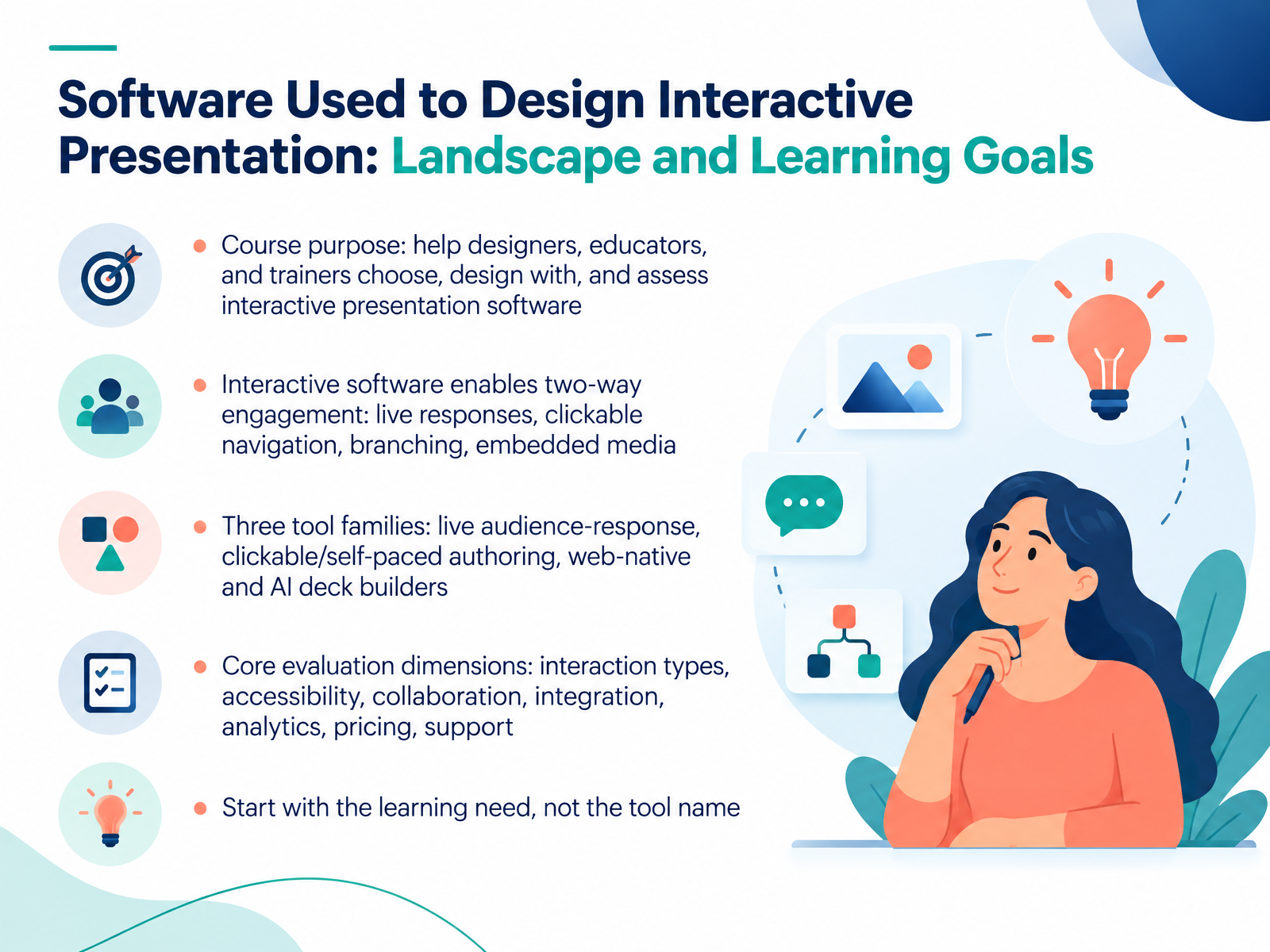
- 01Software Used to Design Interactive Presentation: Landscape and Learning GoalsWelcome. Over the next fourteen slides, we're going to make one decision easier: which interactive presentation software actually fits the way you work. This isn't a product pitch. It's a practical guide for designers, educators, and trainers who already know how to build a deck and hold a room. Interactive software simply turns a one-way presentation into a two-way one, through live responses, clickable navigation, branching paths, and embedded media. Across this course, we'll compare three tool families: live audience-response tools, clickable and self-paced authoring tools, and web-native or AI deck builders. Then we'll give you the dimensions that matter when you evaluate them: interaction types, accessibility, collaboration, integration, analytics, pricing, and support. Here's the principle to hold onto. Start with the learning need, not the tool name. Let's begin by moving from linear slides to interactive, web-native presentations.polleverywhere.comquenth.compresenti.ai+22 min
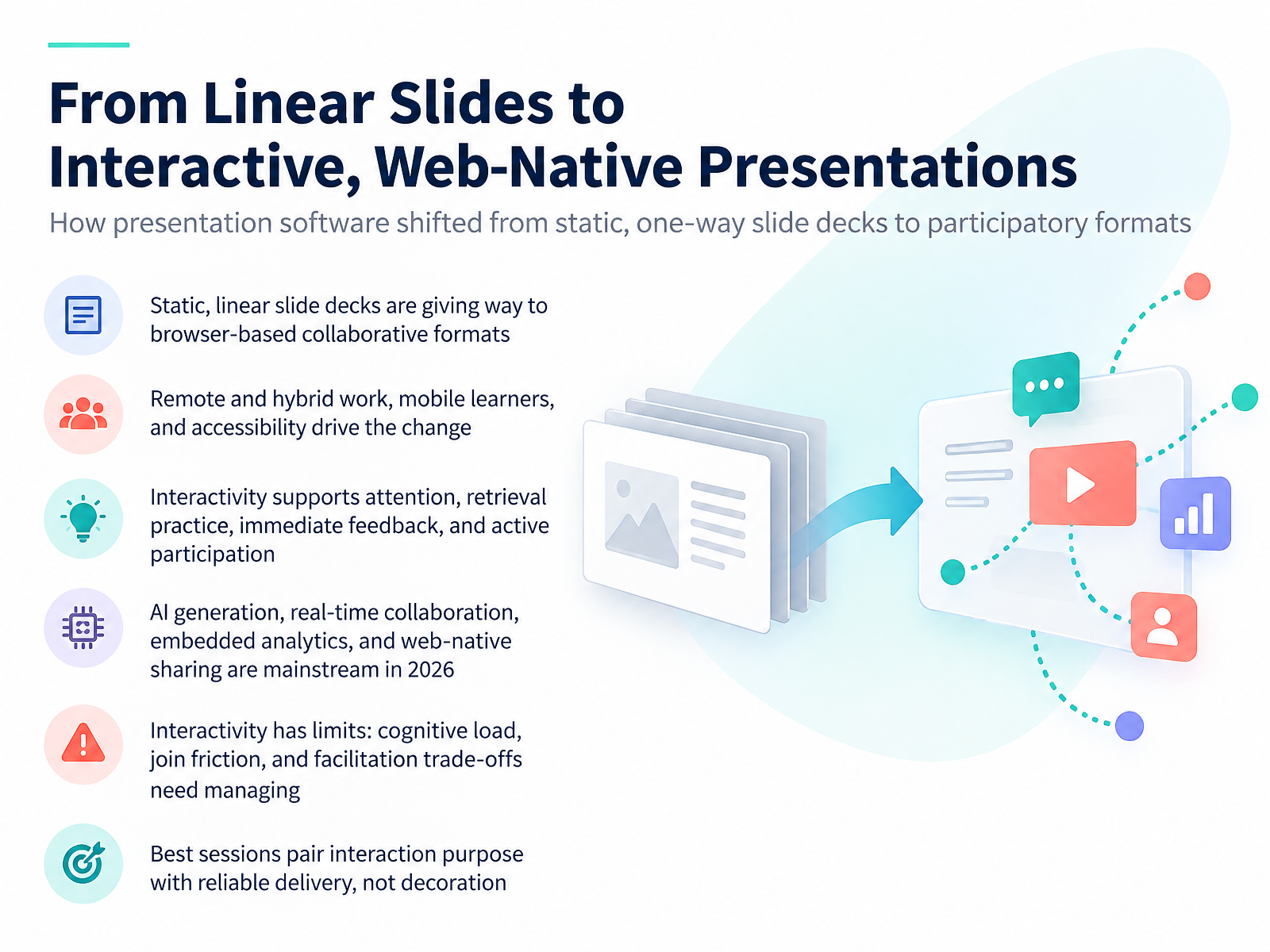
- 02From Linear Slides to Interactive, Web-Native PresentationsLet's look at how presentation software got here, because the shift is bigger than a new feature list. Static, linear slide decks are giving way to browser-based, collaborative formats. Your audience opens a link, participates from their own device, and keeps exploring after the session ends. Three forces drive that change. Remote and hybrid work. Mobile learners. And accessibility expectations that static files never met. Interactivity earns its place when it supports attention, retrieval practice, immediate feedback, and active participation. It hurts when you ignore cognitive load. Every poll, every quiz, every app download adds a step where people drop off. In 2026, AI generation, real-time collaboration, embedded analytics, and web-native sharing are mainstream. So treat them as baseline, not as a reason to switch tools. Here's the practical test. Pair your interaction with a purpose, then confirm it will run reliably in the room. Interaction that decorates a session costs you credibility. Interaction that carries a purpose earns it. Next, let's break down the core concepts and interaction types.
 framekit.aivisme.cointuiface.com+22 min
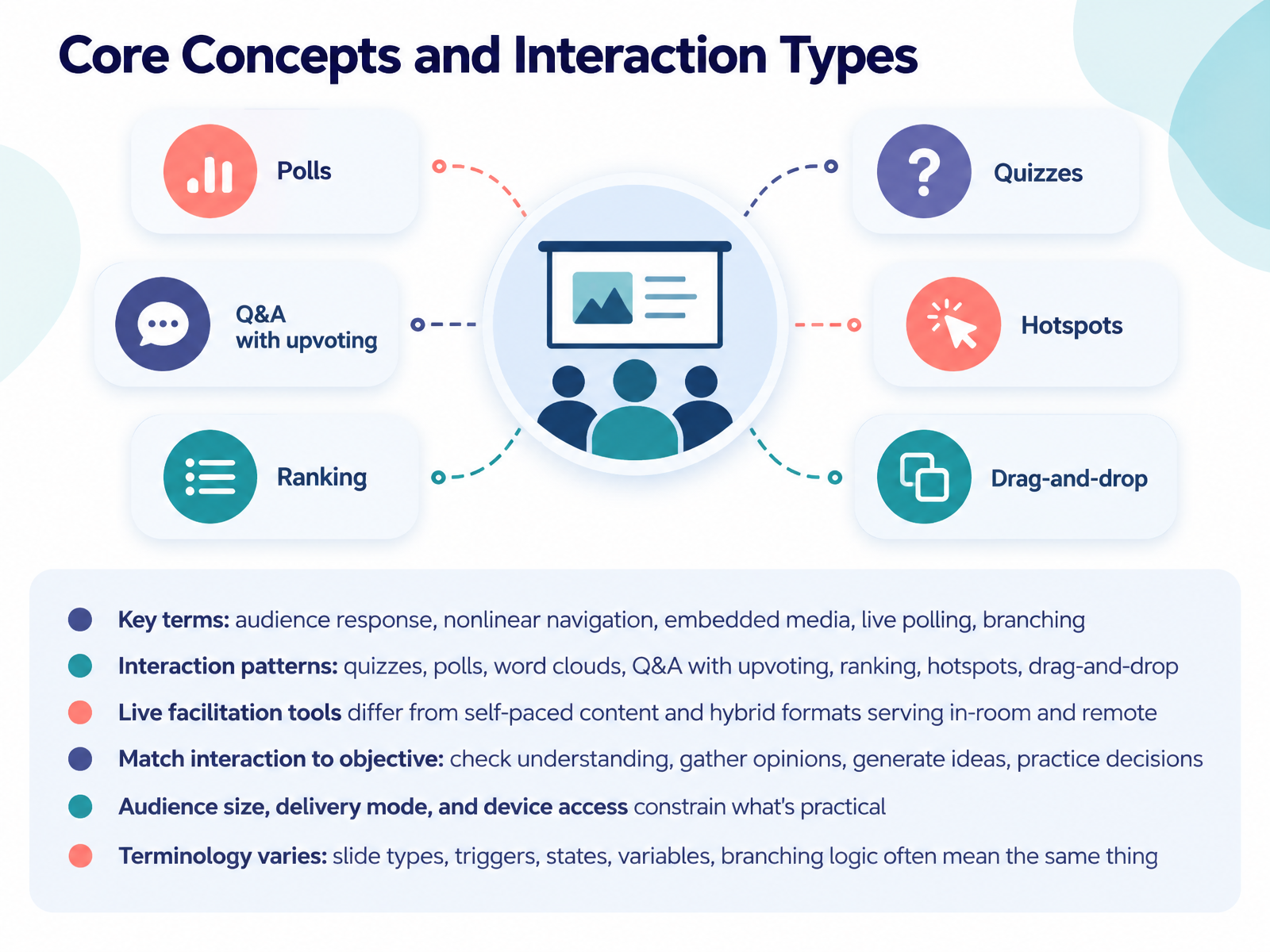
 - 03Core Concepts and Interaction TypesLet's ground this in the vocabulary you'll actually use. Audience response means input collected live from participants. Nonlinear navigation lets people move through content on their own path. Embedded media plays video or audio inside the deck. Live polling gathers real-time votes, and branching sends different viewers down different routes based on their choices. Now, the interaction patterns. Quizzes check understanding. Polls gather opinions. Word clouds surface themes in open text. Q and A with upvoting lets the audience rank questions. Ranking, hotspots, and drag-and-drop add structure and hands-on practice. Here's a distinction worth holding onto. Live facilitation tools are built for a presenter running the room. Self-paced content lets people work through material alone. Hybrid formats have to serve both in-room and remote participants at once. So match the interaction to your objective. Checking understanding calls for a quiz. Gathering opinions calls for a poll or ranking. Generating ideas calls for word clouds and open text. Practicing decisions calls for branching and drag-and-drop. Your constraints matter too. Audience size, delivery mode, and device access narrow what's practical fast. And expect terminology to shift between tools. Slide types, triggers, states, variables, and branching logic often describe the same underlying mechanics. Tool Categories: Live Audience Response and Polling Platforms.
 polleverywhere.comquenth.compresenti.ai+22 min
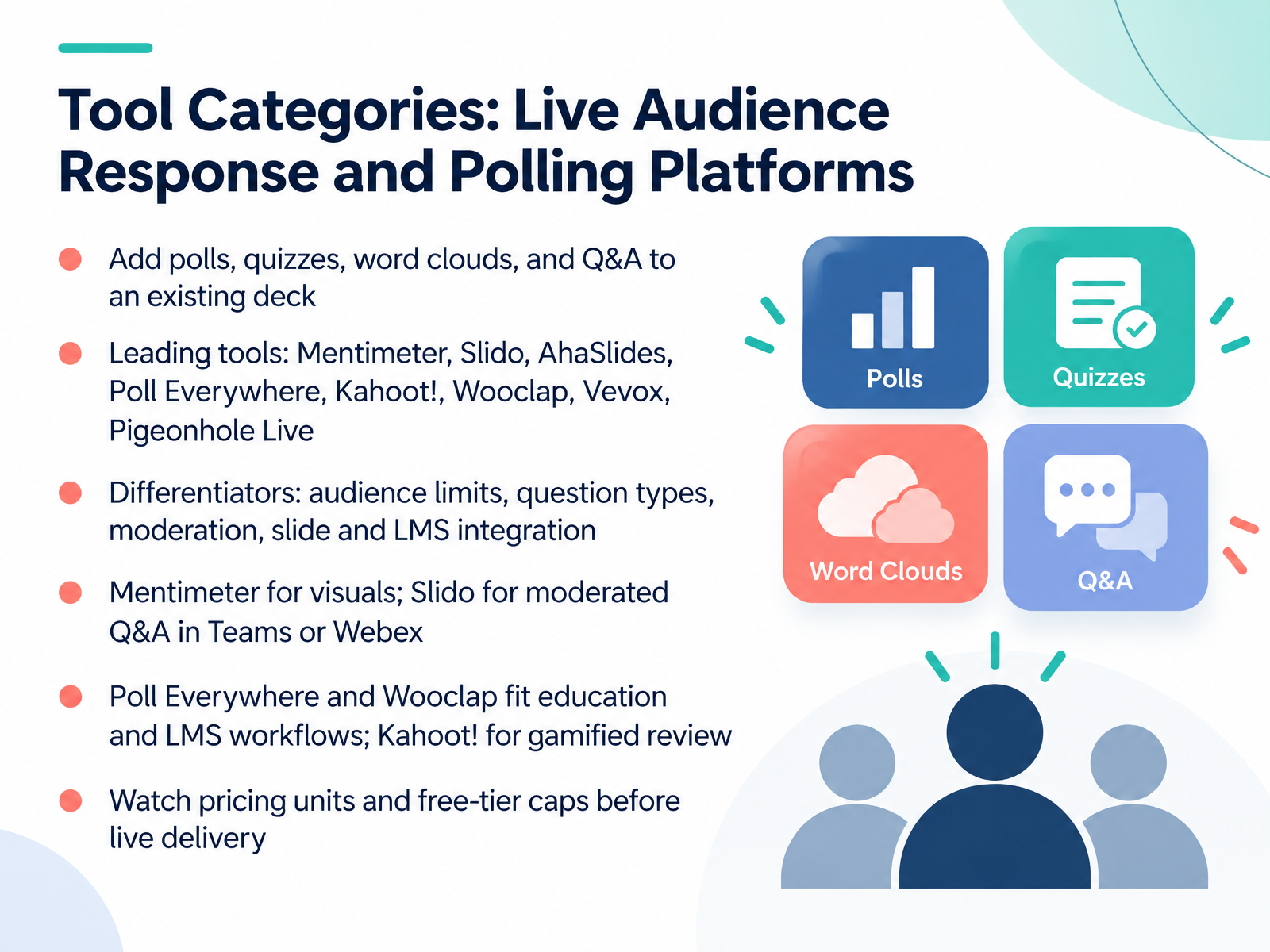
 - 04Tool Categories: Live Audience Response and Polling PlatformsNow let's break the category down, starting with live audience response and polling platforms. These tools layer polls, quizzes, word clouds, and Q and A onto a deck you already have. The names to know are Mentimeter, Slido, AhaSlides, Poll Everywhere, Kahoot, Wooclap, Vevox, and Pigeonhole Live. They all run a poll. The differences show up under pressure. Check audience limits, question types, moderation, and how cleanly the tool plugs into your slides or your learning management system. As a rule of thumb, pick Mentimeter when visuals matter, and Slido when you need moderated Q and A inside Teams or Webex. Poll Everywhere and Wooclap fit education and learning management system workflows, and Kahoot suits gamified review. Before you go live, confirm the pricing unit and the free tier cap, because a participant limit can end your session mid-question. Next, let's look at interactive content, canvas, and web native platforms.
 polleverywhere.comquenth.compresenti.ai+22 min
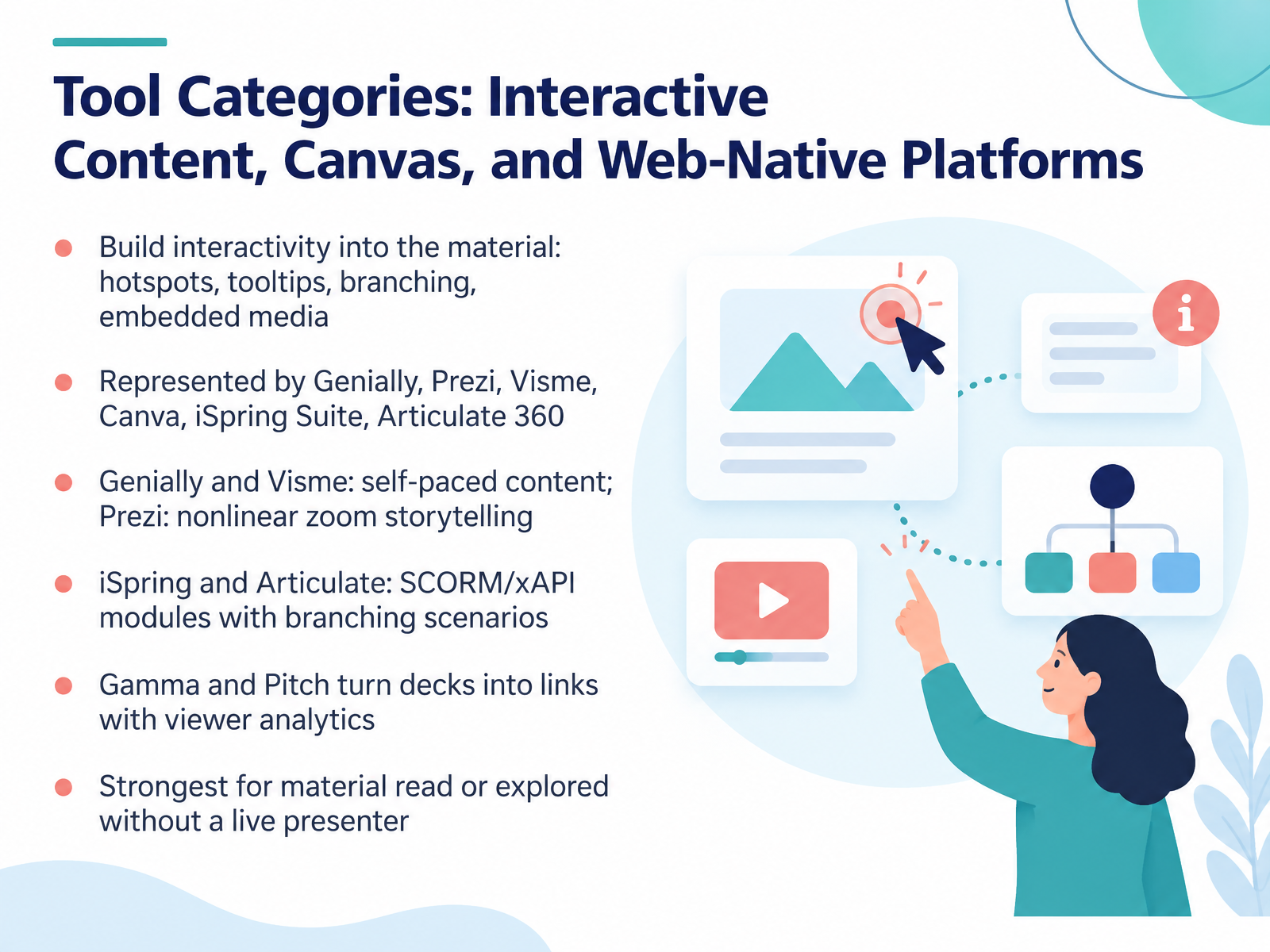
 - 05Tool Categories: Interactive Content, Canvas, and Web-Native PlatformsLet's break the category into three practical groups. First, interactive content platforms. Here you build the interactivity into the material itself, with hotspots, tooltips, branching paths, and embedded media. Genially and Visme suit self-paced content, while Prezi owns nonlinear zoom storytelling. Second, authoring tools built for training, like iSpring Suite and Articulate 360. These produce SCORM or xAPI modules with branching scenarios, so you can track completion and decisions in your learning management system. Third, web-native platforms such as Gamma and Pitch, which turn a deck into a link and give you viewer analytics on opens and time per slide. So how do you choose? Judge each by one question: does the learner explore this alone, or are you presenting live? All three groups are strongest for material read or explored without a live presenter. When a room is watching you, polling tools carry more weight. Next, we'll move into designing that interactivity, with workflow and storyboarding.
 framekit.aivisme.cointuiface.com+22 min
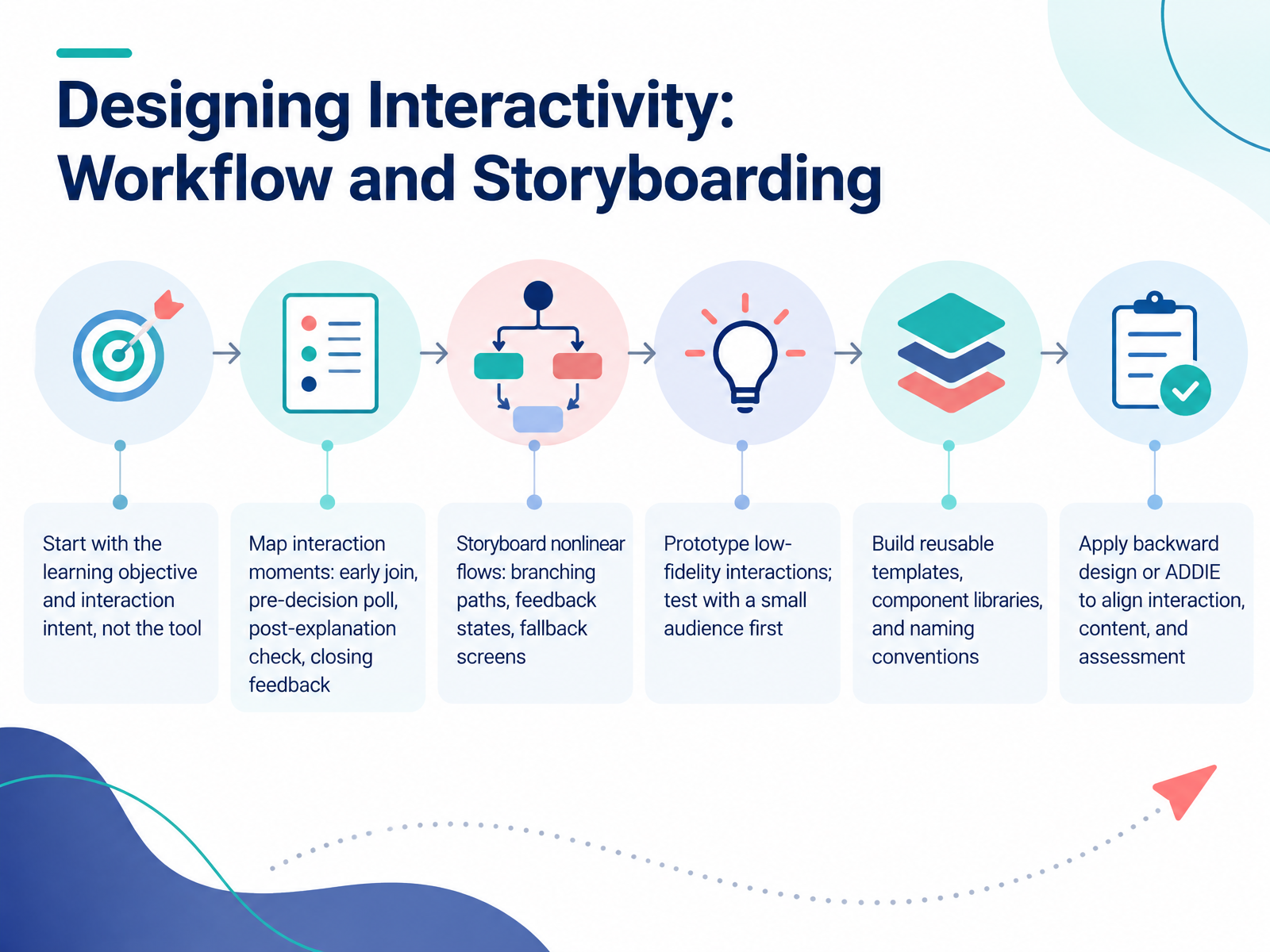
 - 06Designing Interactivity: Workflow and StoryboardingNow let's talk about designing the interactivity itself, because this is where most teams lose time. Start with the learning objective and the interaction intent, not the tool. Ask what you want the audience to do or decide, then choose the software that supports it. From there, map your interaction moments across the session: an early join to warm the room, a pre-decision poll, a post-explanation check, and closing feedback. Next, storyboard the nonlinear flows. Where does a branch split? What does a wrong answer see? What screen appears if someone disconnects? Prototype low fidelity first, and test the sequence with a small audience before you build anything polished. Then make it reusable. Build templates, component libraries, and clear naming conventions, so the next session starts from a system, not a blank canvas. And tie it together with backward design or ADDIE to align interaction, content, and assessment. The takeaway is simple: design the experience before you design the slides. Let's move on to accessibility, inclusion, and compliance.
 framekit.aivisme.cointuiface.com+22 min
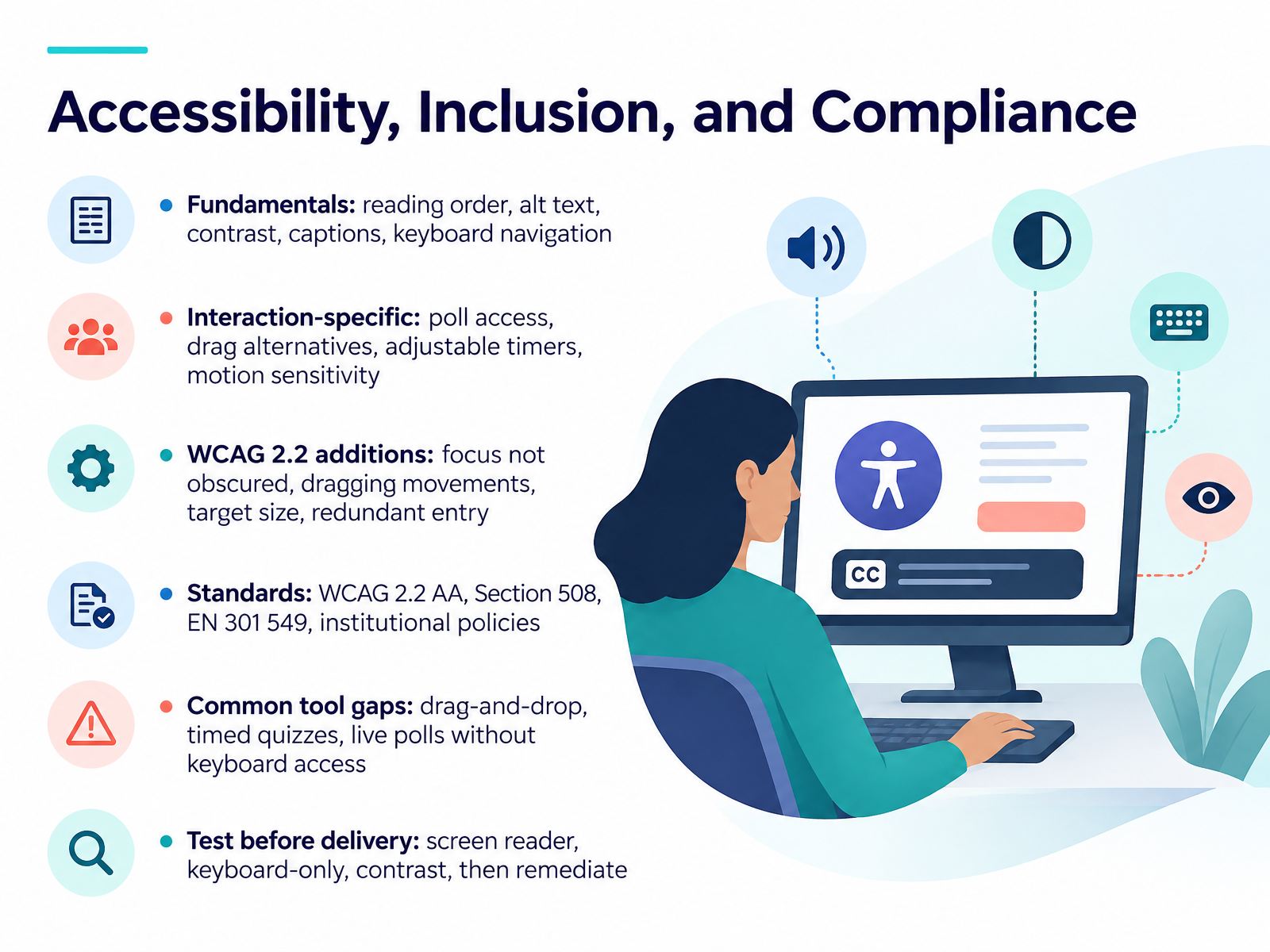
 - 07Accessibility, Inclusion, and ComplianceLet's talk about accessibility, inclusion, and compliance. You already build for engagement, so here the goal is simple: make sure every interaction still works for every participant. Start with the fundamentals. Reading order must match what people see. Alt text must describe meaning, not just images. Contrast, captions, and full keyboard navigation are non negotiable. Then check interaction specific risks. Can someone complete your poll without a mouse? Is there a click alternative to dragging? Can timers be extended? Does motion respect sensitivity settings? WCAG two point two added four criteria you should know by name: focus not obscured, dragging movements, target size, and redundant entry. Your likely standards are WCAG two point two double A, Section five oh eight, EN three oh one five four nine, and institutional policy. Common tool gaps show up in drag and drop builders, timed quizzes, and live polls without keyboard access. So test before you deliver. Screen reader, keyboard only, and contrast checks, then remediate. Next, we move into collaboration, facilitation, and hybrid delivery.
 w3.orgw3.orgaccessibility.cornell.edu+22 min
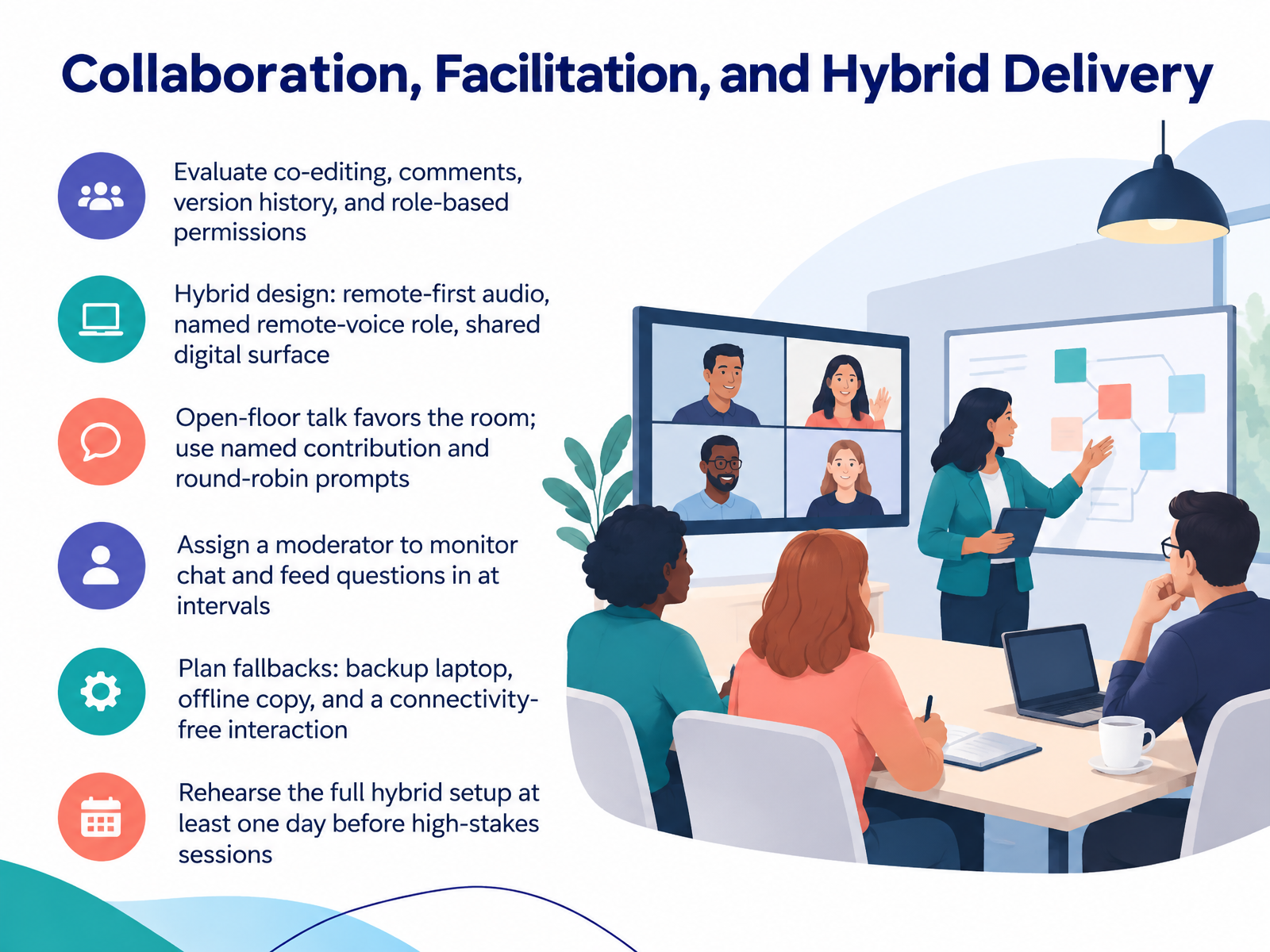
 - 08Collaboration, Facilitation, and Hybrid DeliveryNow let's talk about collaboration, facilitation, and hybrid delivery, because this is where tool choice quietly shapes whether your session works. First, evaluate the collaboration layer. Can people co-edit, comment, and see version history? Are permissions role-based, so a guest facilitator can run a poll without editing your slides? Next, design for hybrid from the start. Treat audio as remote-first, give one person the named remote-voice role, and keep a shared digital surface open to everyone. The open floor favors the room, so use named contributions and round-robin prompts to pull remote voices in. Assign a moderator to watch chat and feed questions to you at set intervals, not whenever they arrive. Then plan fallbacks: a backup laptop, an offline copy, and one interaction that needs no connectivity at all. Finally, rehearse the full hybrid setup at least one day before any high-stakes session. That forty-minute test catches the audio and permission problems you cannot fix live. Next, we look at assessment, analytics, and measuring impact.
 polleverywhere.comquenth.compresenti.ai+22 min
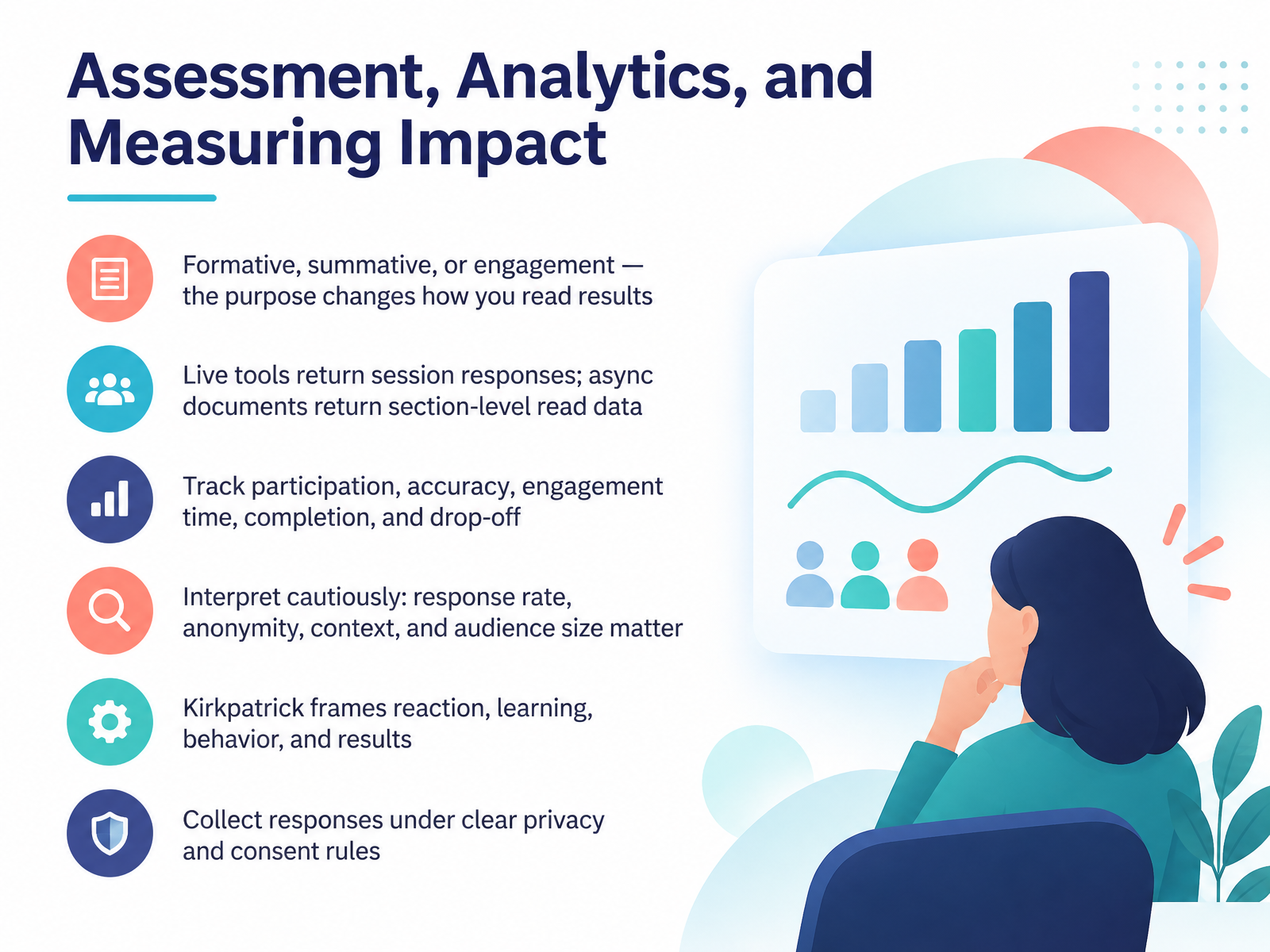
 - 09Assessment, Analytics, and Measuring ImpactNow let's talk about measurement, because interactivity is only useful if you can read what it returns. Start with purpose. Formative checks tell you what to adjust mid-session. Summative questions tell you what people learned. Engagement measures tell you whether the room is with you. They are not the same signal, so do not read them the same way. Where the data comes from matters too. Live tools return responses in the moment. Asynchronous documents return section-level read data over days. Then decide what you actually track: participation, accuracy, engagement time, completion, and drop-off. Interpret all of it cautiously. Response rate, anonymity, context, and audience size can change the story fast. If you need a framework, Kirkpatrick gives you four levels: reaction, learning, behavior, and results. And collect responses under clear privacy and consent rules. That keeps trust intact and keeps your data defensible. Next, we'll look at selecting the right tool by needs, criteria, and cost.
 polleverywhere.comquenth.compresenti.ai+22 min
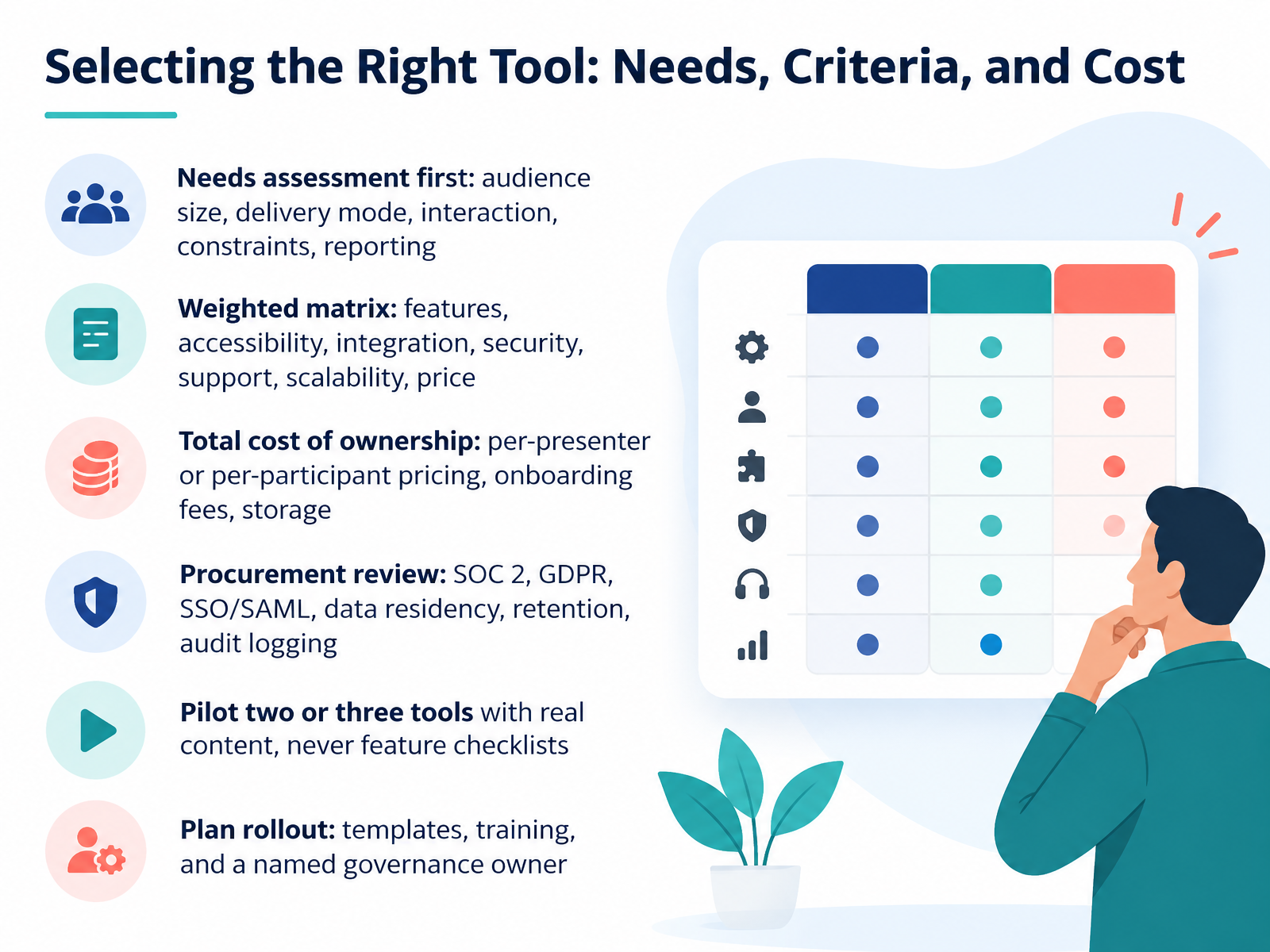
 - 10Selecting the Right Tool: Needs, Criteria, and CostNow let's talk about choosing the right tool, because this is where good intentions meet budget reality. Start with a needs assessment, not a feature list. Ask about audience size, delivery mode, interaction types, and reporting constraints. Then score candidates against a weighted matrix: features, accessibility, integration, security, support, scalability, and price. On cost, look past the sticker. Per-presenter pricing is cheap for two presenters and expensive for twenty. Per-participant pricing flips that math. Include onboarding fees and storage. Your procurement team will ask for SOC 2, GDPR, SSO, data residency, retention, and audit logging. Get those answers early, before you fall in love with a demo. Then pilot two or three tools with real content, not feature checklists. Run an actual session. Finally, plan the rollout: templates, training, and one named governance owner. That person prevents tool sprawl. Next, we'll cover common pitfalls and troubleshooting.
 polleverywhere.comquenth.compresenti.ai+22 min
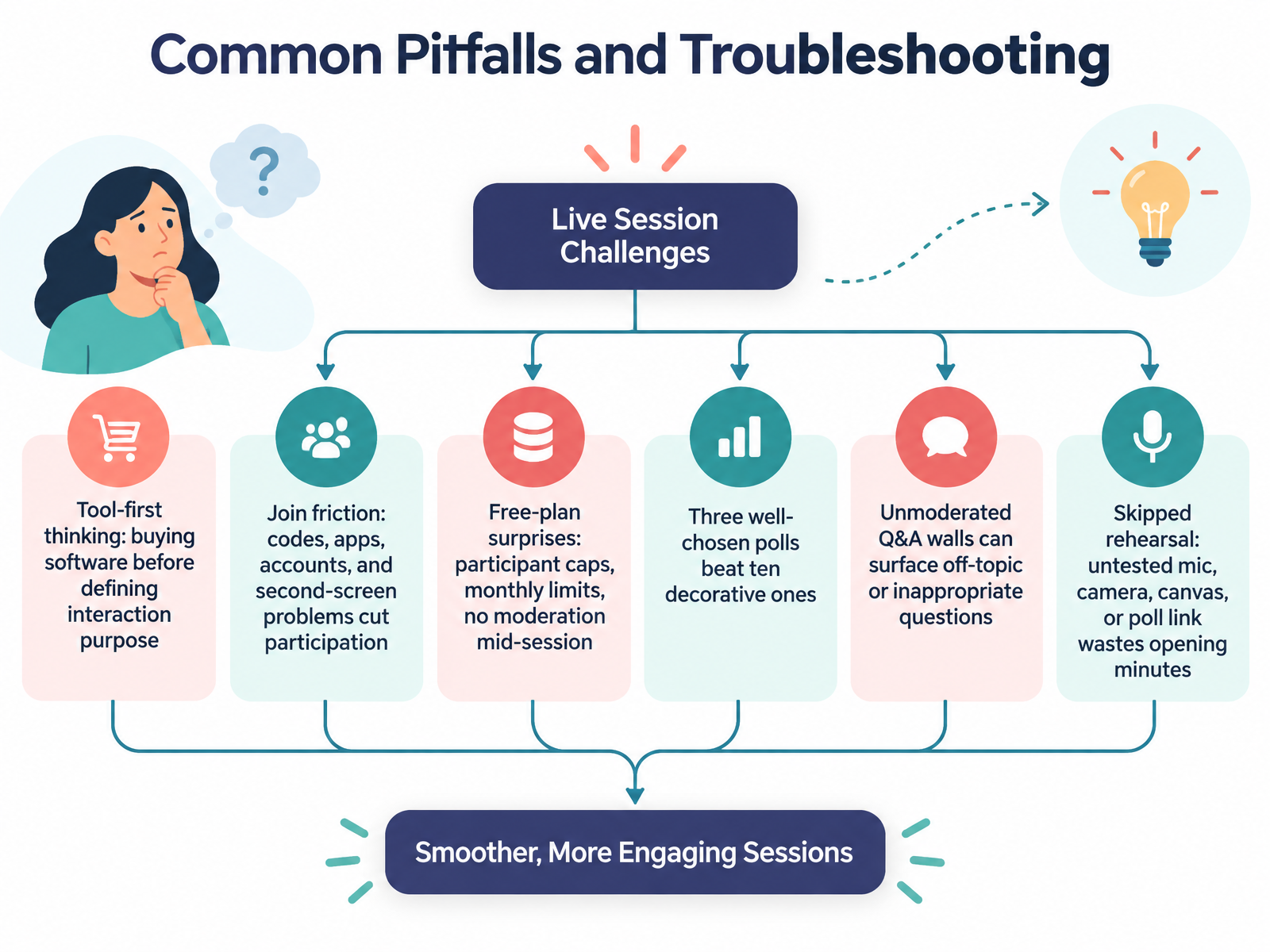
 - 11Common Pitfalls and TroubleshootingLet's talk about the pitfalls that show up most often, and how to troubleshoot them. The first one is tool-first thinking. Buying software before you define what the interaction is for. Start with the purpose, then pick the tool. Second, join friction. Every code, app download, account, or second-screen step loses part of your room. Test the join path as an audience member would. Third, free-plan surprises. Participant caps, monthly limits, and moderation that sits behind a paid tier. Those bite mid-session, not during setup. Read the limits before you commit. Keep your interactivity intentional. Three well-chosen polls beat ten decorative ones. If you run an open Q and A wall, moderate it, or off-topic and inappropriate questions land on the big screen. And rehearse. An untested mic, camera, canvas, or poll link burns your opening minutes. Next, we'll walk through a practical workflow for redesigning a linear segment into an interactive flow.
 polleverywhere.comquenth.compresenti.ai+22 min
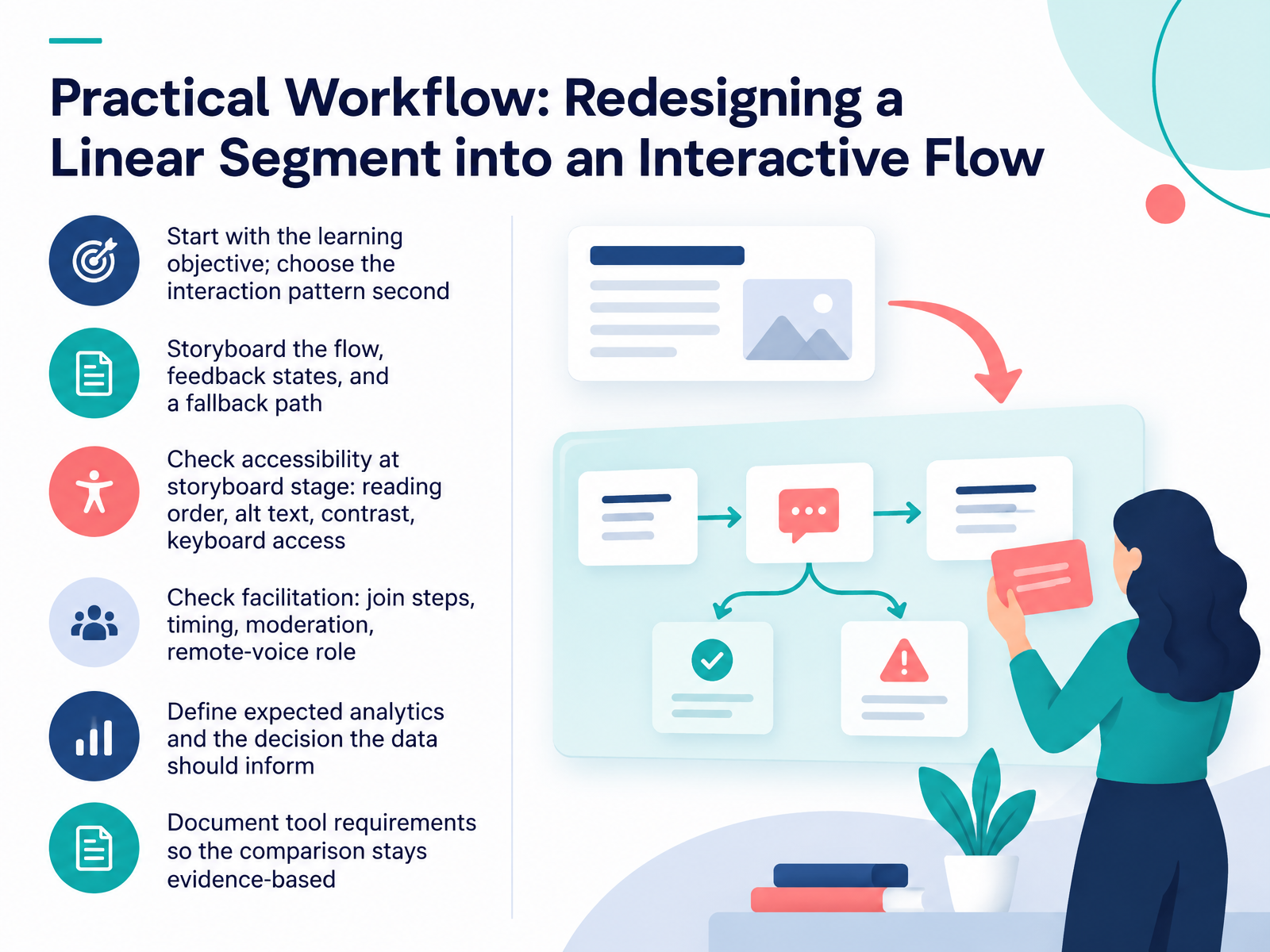
 - 12Practical Workflow: Redesigning a Linear Segment into an Interactive FlowNow let's walk through the practical workflow for rebuilding a linear segment as an interactive flow. Start with the learning objective, and choose the interaction pattern second. The objective decides whether you need a poll, a branching scenario, or a simple knowledge check. Next, storyboard the flow, the feedback states, and a fallback path for when the technology fails. Then check accessibility at storyboard stage, not after build. Confirm reading order, alt text, contrast, and full keyboard access. On the facilitation side, plan your join steps, timing, moderation, and who owns the remote-voice role. Record any accessibility limits on activities too. Some participants may find live polling or timed responses difficult, so design an alternative. After that, define the analytics you expect and the decision the data should inform. Finally, document your tool requirements in writing, so the comparison stays evidence-based. Coming up next, peer review, reflection, and tool selection scenarios.
 w3.orgw3.orgaccessibility.cornell.edu+22 min
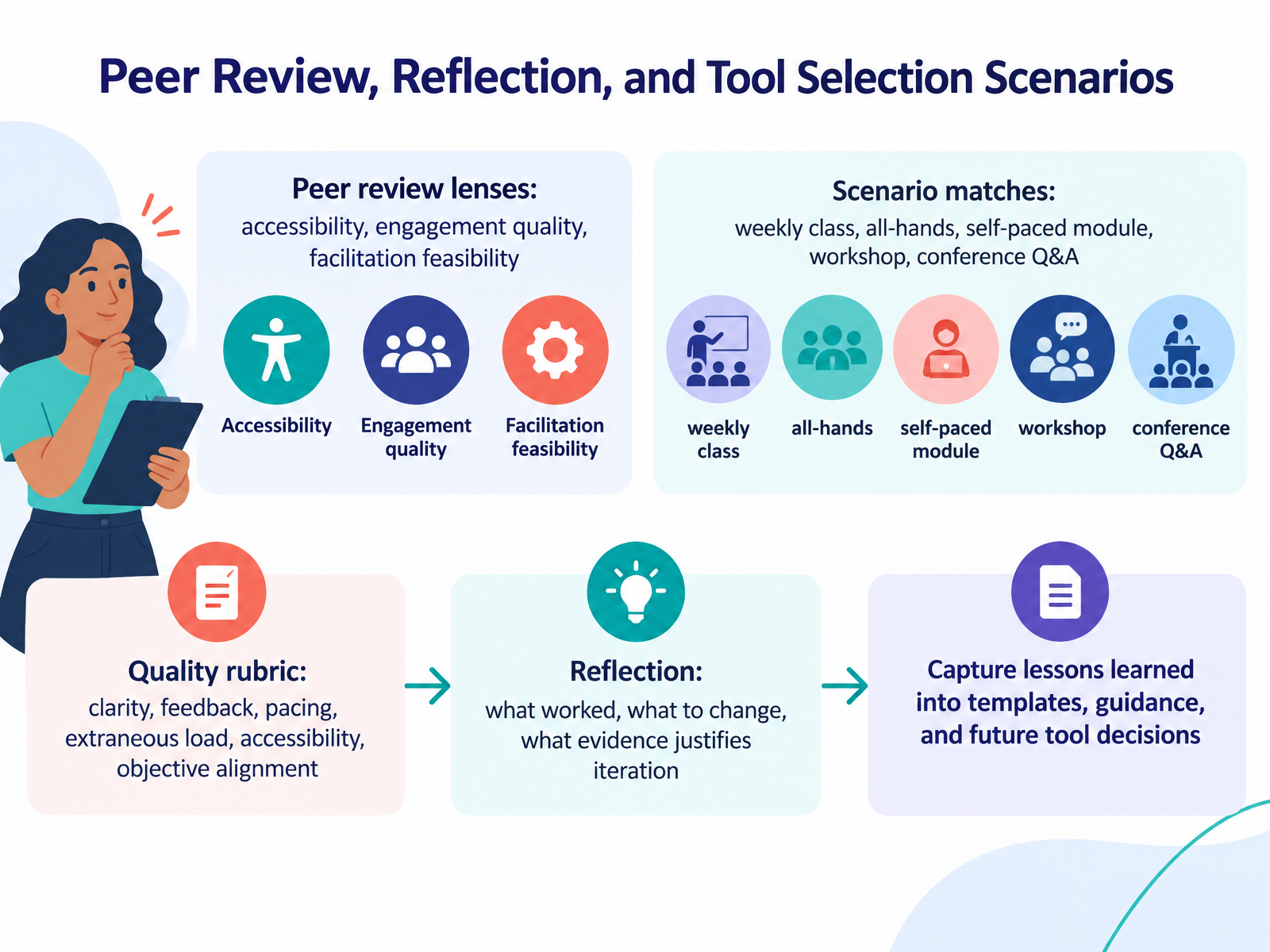
 - 13Peer Review, Reflection, and Tool Selection ScenariosNow let's put your evaluation into practice with peer review and reflection. Start by reviewing tools through three lenses: accessibility, engagement quality, and facilitation feasibility. Ask a colleague to test with a keyboard only, or rate how well the tool keeps a distributed room participating. Then match the tool to the scenario. Weekly class, all-hands, self-paced module, workshop, conference Q and A, each one stresses a different feature. Use a quality rubric to score clarity, feedback, pacing, extraneous load, accessibility, and objective alignment. After each session, reflect on what worked, what to change, and what evidence justifies iteration. Capture those lessons in templates and guidance, so they shape your next tool decision. That turns one review into a smarter, repeatable selection process. Next, we'll look at Takeaway Job Aids and Next Steps.
 w3.orgw3.orgaccessibility.cornell.edu+21 min
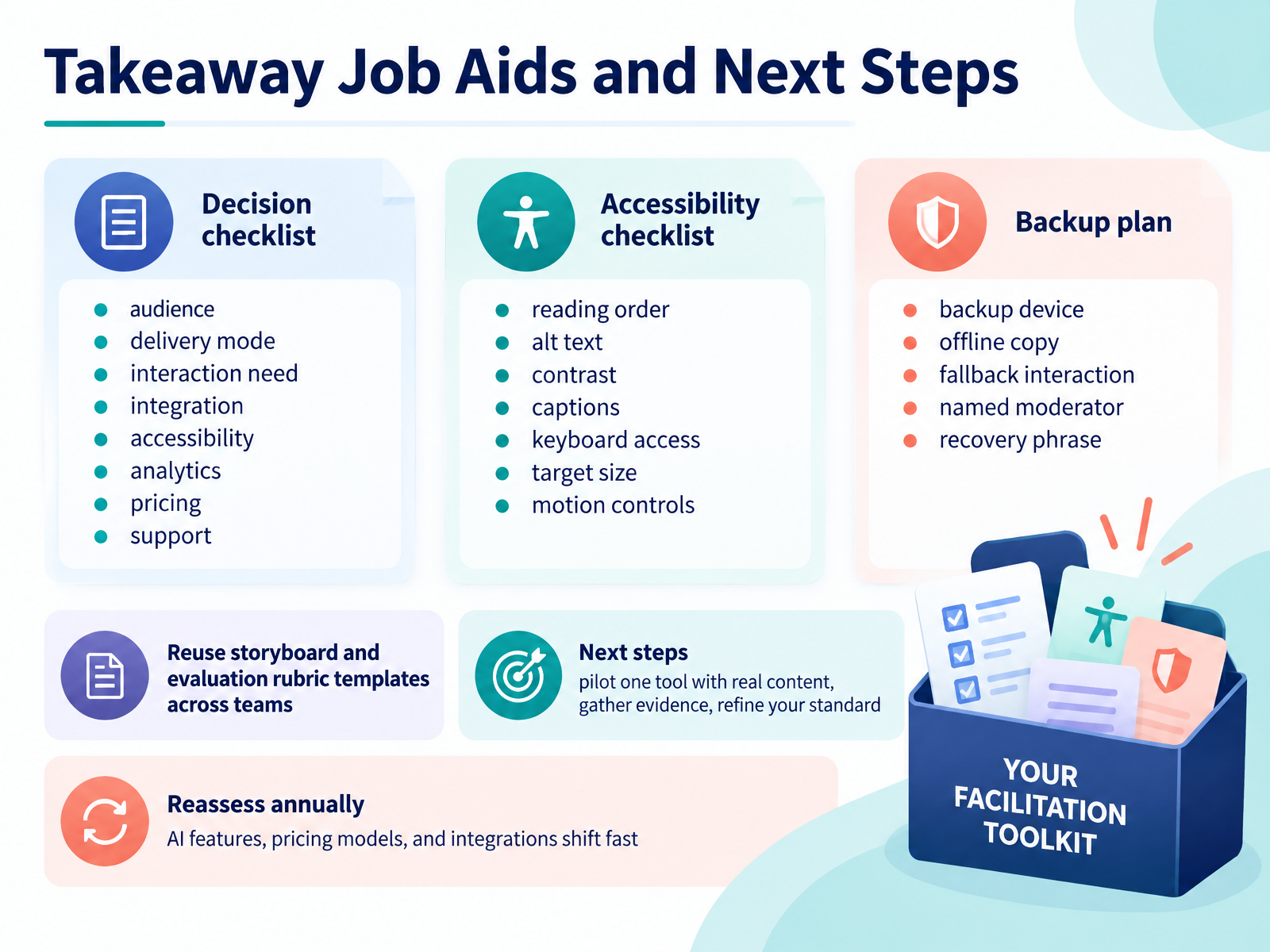
 - 14Takeaway Job Aids and Next StepsLet's close with the tools that make all of this repeatable, not just a one-time decision. Start with the decision checklist. Score each tool on audience, delivery mode, interaction need, integration, accessibility, analytics, pricing, and support. That last one matters more than people expect, because time-to-first-working-session often beats a longer feature list. Next, the accessibility checklist. Check reading order, alt text, contrast, captions, keyboard access, target size, and motion controls. A good test is to run one real presentation and try to complete it keyboard-only, with your screen reader on. Then build a backup plan. A backup device, an offline copy, a fallback interaction, a named moderator, and a recovery phrase. For hybrid sessions especially, poor audio and screen-shared content that isn't shared directly are the two most common failure points. Reuse your storyboard and evaluation rubric across teams so every pilot is comparable. For next steps, pilot one tool with real content, gather evidence, and refine your standard. And reassess annually, because AI features, pricing models, and integrations shift fast. Here's the honest bottom line. The tool is half the job. Your questions, your facilitation, and your accessibility habits are the other half. Thank you for working through this with me. Pick one pilot, run it, and let the evidence guide your standard. You've got everything you need to choose well.
 w3.orgw3.orgaccessibility.cornell.edu+22 min
Take the deck with you
Download this course as a file — free, no sign-up needed.
- PDF handoutEvery slide page, ready to print or share.15 pages · 3.2 MBDownload
- Narrated PowerPointThe deck that presents itself — every slide carries the digital human's narration video.15 pages · 15.0 MBDownload
- PowerPoint slidesThe full deck as a .pptx — open it in PowerPoint, Keynote, or Google Slides.15 pages · 3.2 MBDownload
Free to use in your own training — please keep the PersonWise credit page at the end.
Have your own deck? Turn it into a course
Sources consulted
Web sources consulted while building this course.
- Best Audience Response & Live Polling Tools (2026) — polleverywhere.com
- Interactive presentation tools comparison quenth — quenth.com
- Interactive Presentation Tools in 2026: Complete Guide — presenti.ai
- Best Interactive Presentation Tools by Audience and Use Case - Gaurav Tiwari — gauravtiwari.org
- The 8 Best Interactive Presentation Tools in 2026 (Tested) | Framekit — framekit.ai
- 16 Best Interactive Presentation Tools in 2026 — visme.co
- What Is the Best Interactive Presentation Tool in 2026? - Intuiface — intuiface.com
- Top Interactive Presentations Software (2026) — wifitalents.com
- Best Presentation Interactive Software | Ranked for 2026 — gitnux.org
- Making Events Accessible - Checklist for meetings ... - W3C — w3.org
- Web Content Accessibility Guidelines (WCAG) 2.2 - W3C — w3.org
- WCAG 2 AA Checklist – Accessibility Information — accessibility.cornell.edu
- WebAIM's WCAG 2 Checklist — webaim.org
- Kris's WCAG 2.2 AA Checklist — accessible.org